
S90 XS REMOTE EDITOR - Software YAMAHA - Free user manual and instructions
Find the device manual for free S90 XS REMOTE EDITOR YAMAHA in PDF.


| Product Type | Control template editing software |
| Brand | YAMAHA |
| Model | S90 XS REMOTE EDITOR |
| Category | Music software |
| Supported platforms | Windows, Macintosh |
| Main function | Edit and create Control Templates for S90 XS/S70 XS synthesizers |
| Number of templates per bank | 50 |
| File extension | .rse (bank), .sre (project file) |
| Control formats | Remote (Cubase) and CC (Control Change MIDI) |
| DAW compatibility | Steinberg Cubase (other DAWs in CC mode) |
| Required connection | USB between computer and S90 XS/S70 XS synthesizer |
| User interface | Editing window with control section and library |
| Real-time transfer | Yes, in ONLINE mode |
| Available languages | English (manual), interface in English |
| Power supply | N/A (software, no power consumption) |
| Maintenance and cleaning | Update via Yamaha website, delete temporary files |
| Security | Respect the license: no reverse engineering, redistribution prohibited |
| Spare parts and repairability | N/A (software, reinstallation possible from the installer) |
| General information | Software provided with the S90 XS/S70 XS Remote Tools. Requires prior installation. |
Frequently Asked Questions - S90 XS REMOTE EDITOR YAMAHA
User questions about S90 XS REMOTE EDITOR YAMAHA
0 question about this device. Answer the ones you know or ask your own.
Ask a new question about this device
Download the instructions for your Software in PDF format for free! Find your manual S90 XS REMOTE EDITOR - YAMAHA and take your electronic device back in hand. On this page are published all the documents necessary for the use of your device. S90 XS REMOTE EDITOR by YAMAHA.
USER MANUAL S90 XS REMOTE EDITOR YAMAHA
S90 XS/S70 XS Remote Editor Owner's Manual
SOFTWARE LICENSE AGREEMENT
PLEASE READ THIS SOFTWARE LICENSE AGREEMENT ("AGREEMENT") CAREFULLY BEFORE USING THIS SOFTWARE. YOU ARE ONLY PERMITTED TO USE THIS SOFTWARE PURSUANT TO THE TERMS AND CONDITIONS OF THIS AGREEMENT. THIS AGREEMENT IS BETWEEN YOU (AS AN INDIVIDUAL OR LEGAL ENTITY) AND YAMAHA CORPORATION ("YAMAHA").
BY DOWNLOADING, INSTALLING, COPYING, OR OTHERWISE USING THIS SOFTWARE YOU ARE AGREEING TO BE BOUND BY THE TERMS OF THIS LICENSE. IF YOU DO NOT AGREE WITH THE TERMS, DO NOT DOWNLOAD, INSTALL, COPY, OR OTHERWISE USE THIS SOFTWARE. IF YOU HAVE DOWNLOADED OR INSTALLED THE SOFTWARE AND DO NOT AGREE TO THE TERMS, PROMPTLY DELETE THE SOFTWARE.
1. GRANT OF LICENSE AND COPYRIGHT
Yamaha hereby grants you the right to use one copy of the software program(s) and data ("SOFTWARE") accompanying this Agreement. The term SOFTWARE shall encompass any updates to the accompanying software and data. The SOFTWARE is owned by Yamaha and/or Yamaha's licensor(s), and is protected by relevant copyright laws and all applicable treaty provisions. While you are entitled to claim ownership of the data created with the use of SOFTWARE, the SOFTWARE will continue to be protected under relevant copyrights.
- You may use the SOFTWARE on a single computer.
- You may make one copy of the SOFTWARE in machine-readable form for backup purposes only, if the SOFTWARE is on media where such backup copy is permitted. On the backup copy, you must reproduce Yamaha's copyright notice and any other proprietary legends that were on the original copy of the SOFTWARE.
- You may permanently transfer to a third party all your rights in the SOFTWARE, provided that you do not retain any copies and the recipient reads and agrees to the terms of this Agreement.
2. RESTRICTIONS
- You may not engage in reverse engineering, disassembly, decompilation or otherwise deriving a source code form of the SOFTWARE by any method whatsoever.
- You may not reproduce, modify, change, rent, lease, or distribute the SOFTWARE in whole or in part, or create derivative works of the SOFTWARE.
- You may not electronically transmit the SOFTWARE from one computer to another or share the SOFTWARE in a network with other computers.
- You may not use the SOFTWARE to distribute illegal data or data that violates public policy.
- You may not initiate services based on the use of the SOFTWARE without permission by Yamaha Corporation. Copyrighted data, including but not limited to MIDI data for songs, obtained by means of the SOFTWARE, are subject to the following restrictions which you must observe.
- Data received by means of the SOFTWARE may not be used for any commercial purposes without permission of the copyright owner.
- Data received by means of the SOFTWARE may not be duplicated, transferred, or distributed, or played back or performed for listeners in public without permission of the copyright owner.
- The encryption of data received by means of the SOFTWARE may not be removed nor may the electronic watermark be modified without permission of the copyright owner.
3. TERMINATION
This Agreement becomes effective on the day that you receive the SOFTWARE and remains effective until terminated. If any copyright law or provisions of this Agreement is violated, the Agreement shall terminate automatically and immediately without notice from Yamaha. Upon such termination, you must immediately destroy the licensed SOFTWARE, any accompanying written documents and all copies thereof.
4. DISCLAIMER OF WARRANTY ON SOFTWARE
You expressly acknowledge and agree that use of the SOFTWARE is at your sole risk. The SOFTWARE and related documentation are provided "AS IS" and without warranty of any kind. NOTWITHSTANDING ANY OTHER PROVISION OF THIS AGREEMENT, YAMAHA EXPRESSLY DISCLAIMS ALL WARRANTIES AS TO THE SOFTWARE, EXPRESS, AND IMPLIED, INCLUDING BUT NOT LIMITED TO THE IMPLIED WARRANTIES OF MERCHANTABILITY, FITNESS FOR A PARTICULAR PURPOSE AND NON-INFRINGEMENT OF THIRD PARTY RIGHTS. SPECIFICALLY, BUT WITHOUT LIMITING THE FOREGOING, YAMAHA DOES NOT WARRANT THAT THE SOFTWARE WILL MEET YOUR REQUIREMENTS, THAT THE OPERATION OF THE SOFTWARE WILL BE UNINTERRUPTED OR ERROR-FREE, OR THAT DEFECTS IN THE SOFTWARE WILL BE CORRECTED.
5. LIMITATION OF LIABILITY
YAMAHA'S ENTIRE OBLIGATION HEREUNDER SHALL BE TO PERMIT USE OF THE SOFTWARE UNDER THE TERMS HEREOF. IN NO EVENT SHALL YAMAHA BE LIABLE TO YOU OR ANY OTHER PERSON FOR ANY DAMAGES, INCLUDING, WITHOUT LIMITATION, ANY DIRECT, INDIRECT, INCIDENTAL OR CONSEQUENTIAL DAMAGES, EXPENSES, LOST PROFITS, LOST DATA OR OTHER DAMAGES ARISING OUT OF THE USE, MISUSE OR INABILITY TO USE THE SOFTWARE, EVEN IF YAMAHA OR AN AUTHORIZED DEALER HAS BEEN ADVISED OF THE POSSIBILITY OF SUCH DAMAGES. In no event shall Yamaha's total liability to you for all damages, losses and causes of action (whether in contract, tort or otherwise) exceed the amount paid for the SOFTWARE.
6. THIRD PARTY SOFTWARE
Third party software and data ("THIRD PARTY SOFTWARE") may be attached to the SOFTWARE. If, in the written materials or the electronic data accompanying the Software, Yamaha identifies any software and data as THIRD PARTY SOFTWARE, you acknowledge and agree that you must abide by the provisions of any Agreement provided with the THIRD PARTY SOFTWARE and that the party providing the THIRD PARTY SOFTWARE is responsible for any warranty or liability related to or arising from the THIRD PARTY SOFTWARE. Yamaha is not responsible in any way for the THIRD PARTY SOFTWARE or your use thereof.
- Yamaha provides no express warranties as to the THIRD PARTY SOFTWARE. IN ADDITION, YAMAHA EXPRESSLY DISCLAIMS ALL IMPLIED WARRANTIES, INCLUDING BUT NOT LIMITED TO THE IMPLIED WARRANTIES OF MERCHANTABILITY AND FITNESS FOR A PARTICULAR PURPOSE, as to the THIRD PARTY SOFTWARE.
- Yamaha shall not provide you with any service or maintenance as to the THIRD PARTY SOFTWARE.
- Yamaha is not liable to you or any other person for any damages, including, without limitation, any direct, indirect, incidental or consequential damages, expenses, lost profits, lost data or other damages arising out of the use, misuse or inability to use the THIRD PARTY SOFTWARE.
7. GENERAL
This Agreement shall be interpreted according to and governed by Japanese law without reference to principles of conflict of laws. Any dispute or procedure shall be heard before the Tokyo District Court in Japan. If for any reason a court of competent jurisdiction finds any portion of this Agreement to be unenforceable, the remainder of this Agreement shall continue in full force and effect.
8. COMPLETE AGREEMENT
This Agreement constitutes the entire agreement between the parties with respect to use of the SOFTWARE and any accompanying written materials and supersedes all prior or contemporaneous understandings or agreements, written or oral, regarding the subject matter of this Agreement. No amendment or revision of this Agreement will be binding unless in writing and signed by a fully authorized representative of Yamaha.
Special Notices
- Copying of the commercially available music sequence data and/or digital audio files is strictly prohibited except for your personal use.
- The software and this owner's manual are exclusive copyrights of Yamaha Corporation.
- Copying of the software or reproduction of this manual in whole or in part by any means is expressly forbidden without the written consent of the manufacturer.
- Yamaha makes no representations or warranties with regard to the use of the software and documentation and cannot be held responsible for the results of the use of this manual and the software.
- The screen displays as illustrated in this Owner's Manual are for instructional purposes, and may appear somewhat different from the screens which appear on your computer.
• Steinberg and Cubase are the registered trademarks of Steinberg Media Technologies GmbH. - The company names and product names in this Owner's Manual are the trademarks or registered trademarks of their respective companies.
This owner's manual assumes that you are already familiar with basic Windows/Macintosh operations. If you are not, please refer to the owner's manual which came with your Windows/Macintosh software before using the S90 XS/S70 XS Remote Editor.
For information about hardware requirements, the interconnection of devices and the installation of the S90 XS/S70 XS Remote Editor software, refer to the separate Installation Manual as well as the Owner's Manual for the respective MIDI device.
Contents
SOFTWARE LICENSE AGREEMENT....1
Special Notices....2
What is the S90 XS/S70 XS Remote Editor? 3
Data structure of the S90 XS/S70 XS Remote Editor ....3
Operation flow from starting the application to closing it......4
S90 XS/S70 XS Remote Editor Windows 7
Troubleshooting....14
What is the \90 XS/\70 XS Remote Editor?
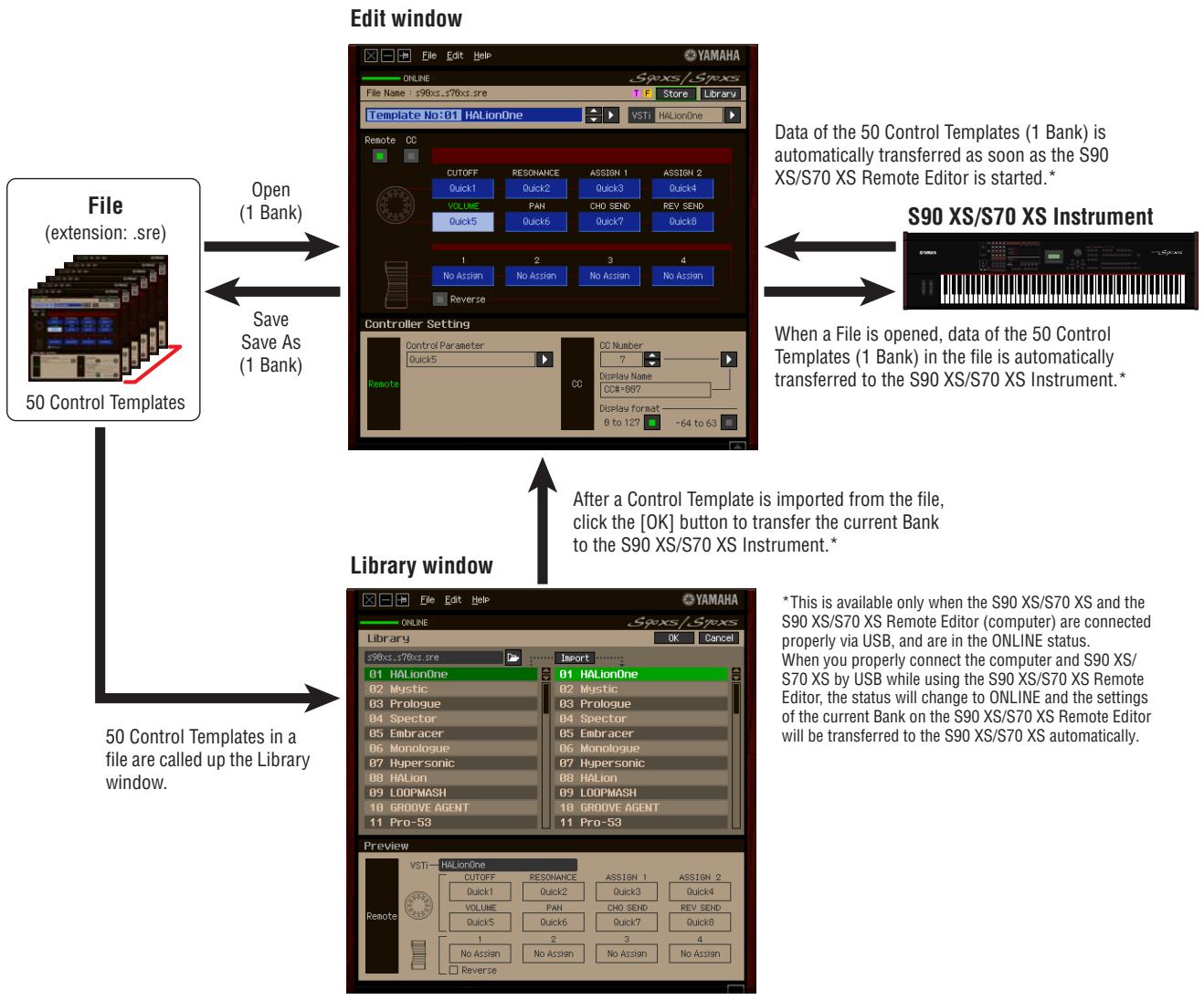
S90 XS/S70 XS Remote Editor is a convenient tool which lets you edit/create Control Templates for the S90 XS/S70 XS Music Synthesizer. These Control Templates let you assign the appropriate functions for your favorite VSTi to the Knobs and Sliders on the S90 XS/S70 XS. While the S90 XS/S70 XS handles up to 50 Control Templates (in a single Bank), the S90 XS/S70 XS Remote Editor can be used to create and organize multiple Bank files, each of which contain 50 Control Templates. Data of a single Bank containing 50 Control Templates created on the S90 XS/S70 XS Remote Editor can be transferred from the computer to the S90 XS/S70 XS and saved to the computer as a single Bank file (.rse).
Data structure of the S90 XS/S70 XS Remote Editor
Within the S90 XS/S70 XS Remote Editor, you can select a Bank file then edit each one of the 50 Control Template contained in the selected Bank. After finishing your edits of the selected Bank (called "Current Bank"), save the Bank data to a file by using the "Save" or "Save As..." menu. The Bank data saved to the file can be recalled when starting the S90 XS/S70 XS Remote Editor next time.
Refer to the illustration below to understand the data structure of the S90 XS/S70 XS Remote Editor.
flowchart
graph TD
    A["File (extension: .sre)"] -->|Open (1 Bank)| B["Edit window"]
    B -->|Save Save As (1 Bank)| C["Controller Setting"]
    C -->|After a Control Template is imported from the file, click_the["OK"] button to transfer the current Bank to the S90 XS/S70 XS Instrument.*| D["S90 XS/S70 XS Instrument"]
    D --> E["Data of the 50 Control Templates (1 Bank) is automatically transferred as soon as the S90 XS/S70 XS Remote Editor is started.*"]
    E --> F["When a File is opened, data of the 50 Control Templates (1 Bank) in the file is automatically transferred to the S90 XS/S70 XS Instrument.*"]
    F --> G["Library window"]
    G --> H["50 Control Templates in a file are called up the Library window."]
Operation flow from starting the application to closing it
The S90 XS/S70 XS Remote Editor is a software contained in the S90 XS/S70 XS Remote Tools. After installing the S90 XS/S70 XS Remote Editor and related applications by following the Installation Guide of the S90 XS/S70 XS Remote Tools, follow the instructions below. Before starting, make sure that the S90 XS/S70 XS is properly connected to the computer via a USB cable. There is no single way to use the many components in the S90 XS/S70 XS Remote Editor. Your editing needs and preferences may differ; however, the following example gives you a simple step-by-step guide in how to use the S90 XS/S70 XS Remote Editor.
NOTE After completing installation of the S90 XS/S70 XS Remote Editor, start the DAW software once then quit it. This operation is necessary to scan through the DAW software for obtaining the VSTi-related information. Only DAW software produced by Steinberg (such as Cubase) can be scanned.
- Start the S90 XS/S70 XS Remote Editor by selecting [Start] → All Programs → [Yamaha S90 XS _ S70 XS Remote Editor] → [Yamaha S90 XS _ S70 XS Remote Editor].
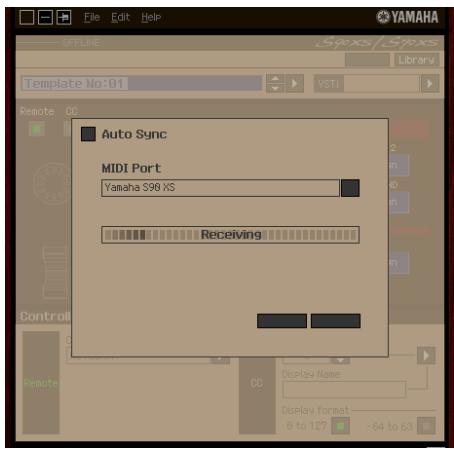
The Auto Sync window appears and the settings of the 50 Control Templates on the S90 XS/S70 XS are transferred automatically to the Current Bank (page 10) of the S90 XS/S70 XS Remote Editor.
After transfer has been successfully completed, the Edit window appears.
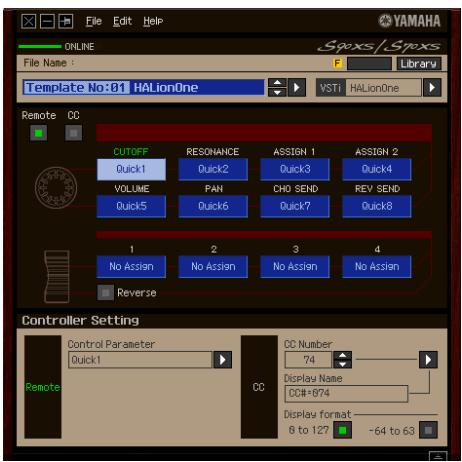
NOTE If data transfer in the Auto Sync window fails even when the S90 XS/S70 XS and computer are connected properly, make sure to set the MIDI In/Out parameter to "USB" and the Device Number parameter to "1" or "All" in the Utility MIDI display on the S90 XS/S70 XS.
- Select "Setup" from the [File] menu to call up the Setup window.
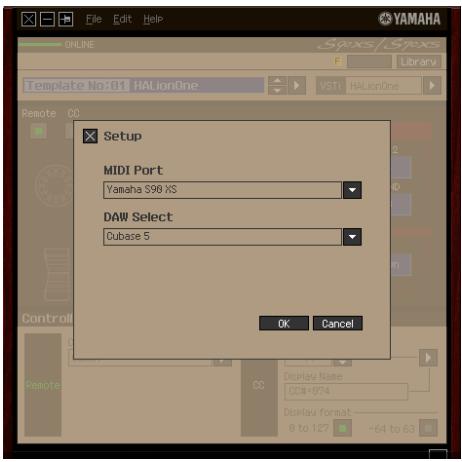
- Confirm that the MIDI Port is set to "Yamaha S90 XS (Yamaha S70 XS)," then select the desired DAW software from the DAW Select column.
If the S90 XS/S70 XS and the S90 XS/S70 XS Remote Editor are connected properly via USB, you can confirm that the MIDI Port is set to "Yamaha S90 XS (Yamaha S70 XS)" when the above window appears. The DAW selection is necessary for performing the Scan operation ("VSTi Database" menu in the [File] menu) and obtaining the VSTi-related information.
- Click [OK] to start the Scan operation.
The VSTi plug-ins registered to the specified DAW software will be scanned and the information necessary for editing will be obtained.
![File Edit Help MUSIC SYNTHESIZER S90XS/S70XS Scanning VSTi [File: S90.76.KS.vst3]](/content/2025/01/115067/images/450f90c8b77c046b3ff49464d84e8cac941de5cc4a4e1e7236130d06031b5472.jpg)
After the scanning is completed, the previous display will appear. The setup of the S90 XS/S70 XS Remote Editor is finished.
NOTE If the VSTi scanning is not performed when you click [OK] in step 4, select [File] → [VSTi Database] → [Full Scan] to execute scanning.
- Start the DAW software (for example, Cubase).
- Press the [DAW REMOTE] button on the S90 XS/S70 XS instrument to enter the Remote mode.
- Select the Control Template, then edit the selected Control Template on the Edit window.
Perform the editing referring to the "S90 XS/S70 XS Remote Editor Window (page 7)" and "Menu (page 11)." When the ONLINE status is turned on (when the S90 XS/S70 XS and the S90 XS/S70 XS Remote Editor are connected properly via USB), setting the parameters on the S90 XS/S70 XS Remote Editor affects the settings of the same parameters on the S90 XS/S70 XS in real time. This gives you a convenient and useful way to edit while actually controlling the VSTi.
- After your editing session is finished, select [File] → [Save] (or [Save As...]) to save the bank to a file.
- Click "X" at the top left corner to quit the S90 XS/S70 XS Remote Editor.
If the edited Bank data has not been saved yet, messages appear prompting you to save it. Save a Bank file to quit the S90 XS/S70 XS Remote Editor.
\90 XS/\70 XS Remote Editor Windows
The S90 XS/S70 XS Remote Editor consists of two windows: Edit and Library. The Edit window lets you edit the settings of the selected Control Template while the Library window lets you import or copy Control Templates.
Edit window
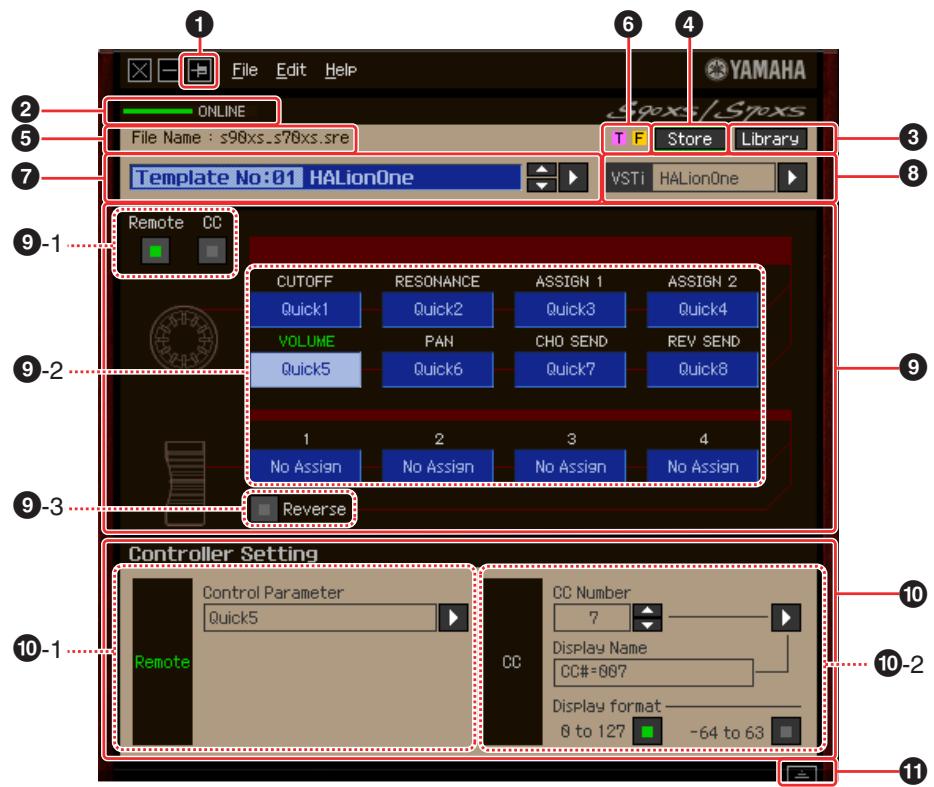
① Always on Top button
Turning this button ( [ ] ) on keeps the S90 XS/S70 XS Remote Editor's window always on top.
② ONLINE indicator
Shows whether the S90 XS/S70 XS Remote Editor and the S90 XS/S70 XS are properly connected via USB (ONLINE status). In the ONLINE status, this indicator lights in green and any operations on the S90 XS/S70 XS Remote Editor automatically change the parameter value on the S90 XS/S70 XS.
③ Library button
Calls up the Library window (page 10).
④ [Store] button
Displays the Store window to save the edited Control Template to a desired destination in the current Bank. Edited data will be transmitted to the S90 XS/S70 XS instrument when the edited Control Template is saved.
5 File Name
Displays the file name including the current edited Template.
⑥ [T] / [F] mark
Shows the Editing status of the Control Template or Bank. The [T] mark indicates that the current Control Template has been modified but not yet stored. This indicator disappears if you click the ④ [Store] button and then execute the Template Save operation. The [F] mark is also used to indicate that the current Bank has been modified but not yet saved to a File. This indicator disappears if you execute the File Save operation.
⑦ Control Template Selection box
Shows the currently selected Control Template. You can select the previous/next template by clicking the scroll button at the right of this box, or select any template in the current bank by clicking the triangular button.
⑧ Instrument Select box
Shows the VSTi name which is controlled by the Knobs and Sliders. You can change the VSTi by clicking the triangular button then selecting the desired one. You can also input the VSTi name directly in this box manually. Make sure to input the VSTi name correctly.
NOTE If the desired VSTi is not shown even when you click the triangular button, refer to the Troubleshooting section on page 14.
⑨ Edit section
The Knobs and Sliders illustrated here correspond to the Knobs and Sliders on the top panel of the S90 XS/S70 XS. Here, you can assign the desired function to each of the Knobs and Sliders.
⑨-1 Remote/CC buttons
When Remote is selected, using the Knobs and Sliders generates the Remote Control messages exclusive for Cubase. When CC is selected, using the Knobs and Sliders generates MIDI Control Change messages.
⑨-2 Function Assignment boxes
The Knobs and Sliders illustrated here are equivalent to the Knobs and Sliders on the S90 XS/S70 XS. Each of the boxes at the right side of the Knob and Slider shows the function assigned to the corresponding Knob and Slider. (The function shown here differs depending on the Remote/CC button status.) You can change the function assigned to each of the Knobs and Sliders by clicking a desired box, then selecting the desired function in the 10 Controller Setting section. In the ONLINE status, setting this parameter changes the settings of the S90 XS/S70 XS in real time.
⑨-3 [Reverse] button
Reverses the direction of the Slider operation, determining whether moving the Slider up or down increases or decreases the value. For example, when a parameter which is increased by moving the Slider up is assigned to a Slider and this button is turned on, moving the Slider up decreases the parameter value. Clicking the button once again restores the original state.
10 Controller Setting section
Determines the function of the Knobs and Sliders corresponding to the column selected in the ⑨ Edit section. There are two sections here: Remote section and CC (Control Change) section.
10-1 Remote section
Assigns the function to the Function Assignment box selected in the ⑨ Edit section. The setting here is available when the Remote/CC button is set to "Remote." Clicking "Remote" at the left of this section also sets the Remote/CC button of the Edit section to "Remote.
• Control Parameter
Click the triangular button to call up the menu, then select the desired function.
NOTE The "QuickCtrl1" – "QuickCtrl8" parameters only apply to Cubase 4.1 or later.
10-2 CC (Control Change) section
Assigns the function to the Function Assignment box selected in the ⑨ Edit section. The setting here is available when the Remote/CC button is set to "CC." Clicking "CC" at the left of this section also sets the Remote/CC button of the Edit section to "CC."
• CC Number (Control Change Number)
Determines the Control Change number. Selects the Control Change number by clicking one of the scroll buttons at the right of this box. You can also input the Control Change number directly.
- Display Name
Selects the Knob/Slider's function name which is to be shown on the display of the S90 XS/S70 XS when the Remote/CC button of ⑨ Edit section is set to "CC." Click the triangular button at the right of this box, then select the desired one. You can also input the name directly.
- Display Format
Sets the value format shown on the display of the S90 XS/S70 XS to "0 - 127" or "-64 - +63."
11 Detail button
Clicking this button closes the Controller Settings section. Click this again to open the Controller Settings section.
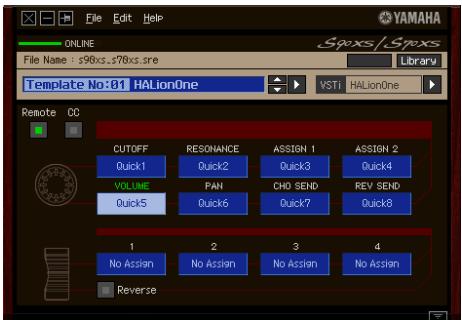
When closing the Controller Settings section
Library window
Clicking the Library button on the Edit window opens the Library window.
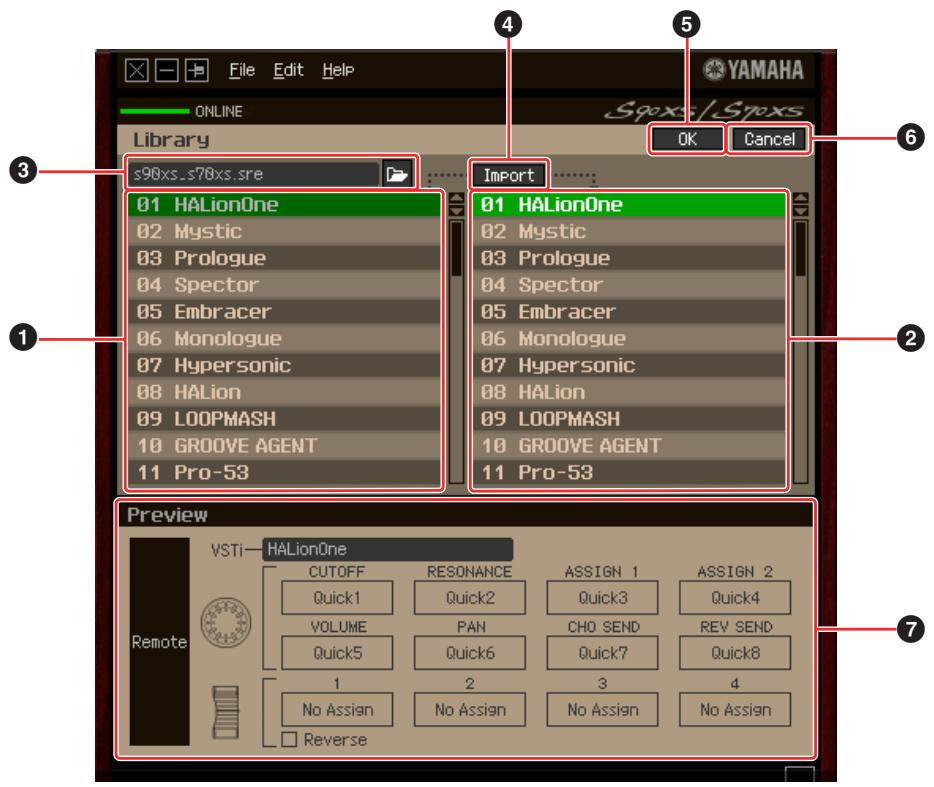
① Control Template List in the File
Displays a list of the Control Templates saved in the File. Select a target Control Template in this list and a destination location in the ② Control Template List of the Current Bank, then click the ④ [Import] button to execute the Import operation. You can view the contents of the selected Control Template in the ⑦ Preview section.
② Control Template List of the Current Bank
Displays a list of the Control Templates on the Current Bank. Select a desired Control Template in this list, then click the [OK] button to return to the Edit window. You can view the contents of the selected Control Template in the ⑦ Preview section. You can also copy or paste a Control Template in this list.
③ File section
Clicking the icon in this section will call up the File Select dialog. In this dialog, select the file (saved previously), then execute the File Select operation so that the Templates in the file are listed. In addition, the name of the selected file appears in the window at the left of the icon.
④ [Import] button
Click this button to import the specific Control Template in the selected file to the Current Bank.
NOTE The Import operation can be applied to just one Template at a time. You can import all Templates in the selected file at the same time by operating [File] → [Open] in the Edit window.
⑤ [OK] button
Click this button to fix the Current Bank and call up the Edit window. If the status is ONLINE, the selected bank is also transferred to the S90 XS/S70 XS.
⑥ [Cancel] button
Click this button to cancel editing for the Current Bank and call up the Edit window.
7 Preview
Shows the settings of the Control Template selected in the Control Template List.
[File] menu
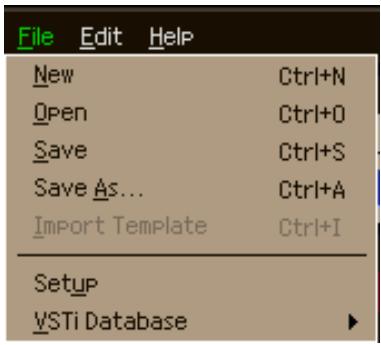
New
Creates and opens a new Bank file containing the default setup. This menu is available when the Edit window is shown.
Open
Opens a Bank saved in the File. This menu is available when the Edit window is shown.
Save
Saves the current settings of the Current Bank by overwriting the File you called up when starting your editing session. This menu is available when the Edit window is shown.
Save As
This lets you rename the File and save the current settings of the current Bank. This menu is available when the Edit window is shown.
Import Template
Imports data of a single Bank including the 50 Control Templates from a file (extension: .sre or .xml) to the Control Template List in the File in the Library window. Selecting this menu performs the same action as clicking the icon ( ) in the File section in the Library window. This menu is available when the Library window is shown.
Setup
Selects the MIDI port of the S90 XS/S70 XS and the DAW software. Selecting this menu calls up the following window. Set the parameters as necessary, then click [OK].
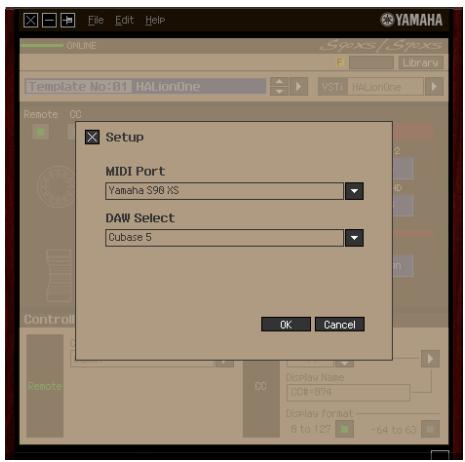
• MIDI Port
"Yamaha S90 XS (Yamaha S70 XS)" is automatically selected when the S90 XS/S70 XS and the computer are connected properly via USB.
- DAW Select
Specify the DAW software you are currently using here.
VSTi Database
Scans through the DAW software you are using and obtains the VSTi-related information necessary for editing. This menu consists of the following two menus.
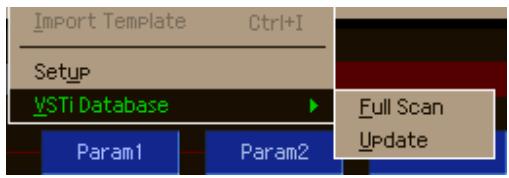
Selecting "Full Scan" scans the entire DAW software. When you scan the DAW for the first time, select "Full Scan."
Selecting "Update" scans only the sections that have been updated since previous scanning. When you've installed a new VSTi, select "Update."
The "Full Scan" is automatically executed when you start the S90 XS/S70 XS Remote Editor the first time or you change the DAW Select settings in the Setup window.
[Edit] menu
| Edit Help | |
| Copy | Ctrl+C |
| Paste | Ctrl+V |
| Initialize Template | |
| Restore Hardware Backup Data | |
| Reset to Factory Settings | |
Copy
Copies the selected data to the clipboard.
Paste
Pastes the data on the clipboard to the specified location.
Initialize Template
Resets all settings of the selected Template in the Current Bank to the initial default values.
Restores all settings of all the Control Templates in the Current Bank and the S90 XS/S70 XS instrument to the previous settings, before the S90 XS/S70 XS Remote Editor was opened. This menu is available when the Library window is shown.
Reset to Factory Settings
Restores all settings of all the Control Templates in the Current Bank and the S90 XS/S70 XS instrument to the Factory default settings. This menu is available when the Library window is shown.
[Help] menu
| Help | |
| Manual | F1 |
| About | |
Manual
Selecting this menu calls up this manual in PDF format.
About
Selecting this menu calls up information on the S90 XS/S70 XS Remote Editor, including the version number.
Troubleshooting
Even when I click the triangular button at the right of VSTi Select/Input box in the Edit window, the VSTi plug-ins registered to the DAW software are not shown as expected.
- The S90 XS/S70 XS Remote Editor may not properly recognize the VSTi registered in the DAW software. Select [File] → [VSTi Database] → [Full Scan] to search the VSTi information (page 12).
The parameters set on the S90 XS/S70 XS Remote Editor are not displayed on the S90 XS/S70 XS.
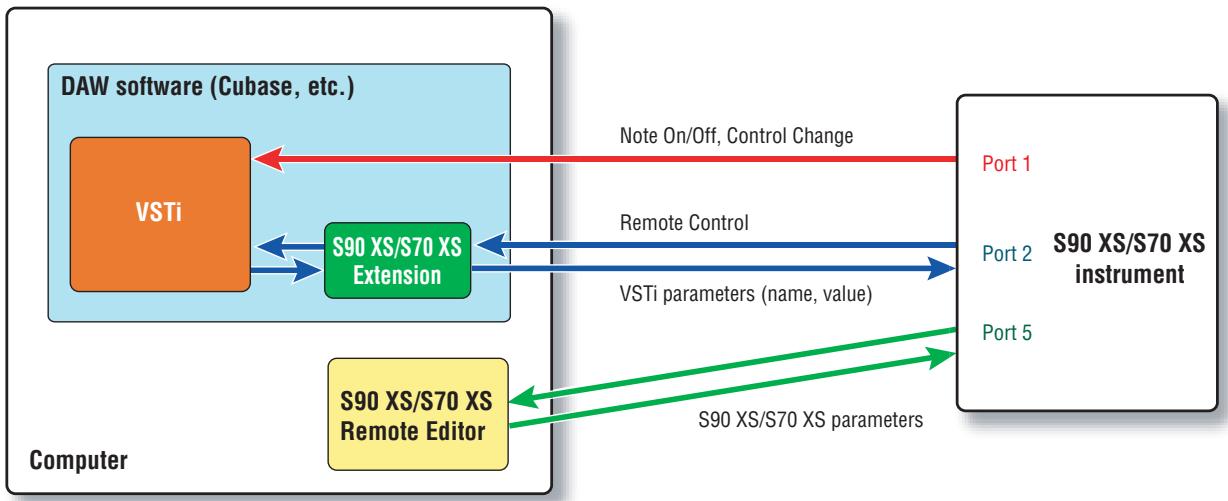
- The display on the S90 XS/S70 XS is based on the information sent from Cubase (see the illustration above). Start Cubase and select the corresponding VSTi within Cubase.
Even when I change the VSTi on the DAW software such as Cubase, the Control Template on the S90 XS/S70 XS does not change corresponding to the newly selected VSTi.
- The VSTi-related information is obtained through the Extension software (see the illustration below). Make sure that the latest S90 XS/S70 XS Extension is installed.
- Make sure that the VSTi name displayed on the DAW software is the same as the one shown in the VSTi Select/Input box (page 8).
Data transfer between the S90 XS/S70 XS Remote Editor, S90 XS/S70 XS and DAW software:
flowchart
graph LR
    A["DAW software (Cubase, etc.)"] -->|Note On/Off, Control Change| B["Port 1"]
    A -->|S90 XS/S70 XS Extension| C["S90 XS/S70 XS Instrument"]
    A -->|Remote Control| D["Port 2"]
    A -->|VSTi parameters (name, value)| E["Port 5"]
    F["S90 XS/S70 XS Remote Editor"] -->|S90 XS/S70 XS parameters| G["Port 5"]
    style A fill:#FFD700,stroke:#333
    style B fill:#FF6347,stroke:#333
    style C fill:#FFA500,stroke:#333
    style D fill:#B2E6C2,stroke:#333
    style E fill:#FFA500,stroke:#333
Turning the Knobs/Sliders on the S90 XS/S70 XS affects Remote parameters other than those intended for control.
- In Cubase, remove the checkmarks of "ALL MIDI Inputs" corresponding to MIDI Ports 2 and 5 for the S90 XS/S70 XS instrument.
Even when I click the triangular button at the right of Control Parameter in the Edit window, the appropriate Control Parameters are not shown.
- Make sure that the VSTi is correctly selected in the VSTi Select/Input box (page 8). If you have input the VSTi name directly, make sure that the spelling is correct and the placement of spaces (if any) is correct. We recommend that you select the VSTi by clicking the triangular button at the right of VSTi Select/Input box, instead of inputting the VSTi name directly.
On the DAW software other than Cubase, the set parameters are not controlled.
- The Remote control functions are available only for Cubase. Set the Remote/CC buttons (page 8) to "CC."
- Make sure to select a parameter except to "Cubase" on the Daw Select display of the Utility mode in the S90 XS/S70 XS instrument.
Even when I select another track on the DAW software, the VSTi to be controlled does not change; instead, the VSTi which is assigned to the previously selected track remains under control.
- On the DAW's Preferences dialog, select [Editing]-[Project & Mixer], then checkmark both "Sync Project and Mixer Selection" and "Enable Record on Selected Track."
- When using Cubase, select "Yamaha S90 XS/S70 XS" in the Remote Device Setup window, then select Port 2 for the S90 XS/S70 XS as the MIDI Input/Output.
- Make sure to set the S90 XS/S70 XS instrument to the Remote mode.
- S90 XS/S70 XS Remote Editor Owner's Manual
- SOFTWARE LICENSE AGREEMENT
- GRANT OF LICENSE AND COPYRIGHT
- RESTRICTIONS
- TERMINATION
- DISCLAIMER OF WARRANTY ON SOFTWARE
- LIMITATION OF LIABILITY
- THIRD PARTY SOFTWARE
- GENERAL
- COMPLETE AGREEMENT
- Special Notices
- Contents
- What is the \90 XS/\70 XS Remote Editor?
- Data structure of the S90 XS/S70 XS Remote Editor
- Operation flow from starting the application to closing it
- \90 XS/\70 XS Remote Editor Windows
- ① Always on Top button
- ② ONLINE indicator
- ③ Library button
- ④ [Store] button
- File Name
- ⑥ [T] / [F] mark
- ⑦ Control Template Selection box
- ⑧ Instrument Select box
- ⑨ Edit section
- ⑨-1 Remote/CC buttons
- ⑨-2 Function Assignment boxes
- ⑨-3 [Reverse] button
- Controller Setting section
- 10-1 Remote section
- • Control Parameter
- 10-2 CC (Control Change) section
- • CC Number (Control Change Number)
- - Display Name
- - Display Format
- Detail button
- Library window
- ① Control Template List in the File
- ② Control Template List of the Current Bank
- ③ File section
- ④ [Import] button
- ⑤ [OK] button
- ⑥ [Cancel] button
- Preview
- [File] menu
- New
- Open
- Save
- Save As
- Import Template
- Setup
- • MIDI Port
- - DAW Select
- VSTi Database
- [Edit] menu
- Copy
- Paste
- Initialize Template
- Reset to Factory Settings
- [Help] menu
- Manual
- About
- Troubleshooting
- On the DAW software other than Cubase, the set parameters are not controlled.
- Even when I select another track on the DAW software, the VSTi to be controlled does not change; instead, the VSTi which is assigned to the previously selected track remains under control.
Brand : YAMAHA
Model : S90 XS REMOTE EDITOR
Category : Software