Fnac 5.7 - Smartphone bq - Free user manual and instructions
Find the device manual for free Fnac 5.7 bq in PDF.


| Product Type | Smartphone |
| Brand | bq |
| Model | Fnac 5.7 |
| Dimensions | 155 x 78 x 8.5 mm |
| Weight | 180 g |
| Power Supply | Li-ion 3000 mAh battery |
| Main Functions | Phone calls, SMS, internet, camera, GPS, multimedia |
| Operating System | Android 7.0 Nougat |
| Display | 5.7 inch IPS LCD, 1440 x 720 pixels |
| Processor | Quad-core 1.3 GHz Cortex-A53 |
| RAM | 2 GB |
| Storage | 16 GB (expandable via microSD) |
| Camera (Rear) | 13 MP with autofocus and LED flash |
| Camera (Front) | 5 MP |
| Connectivity | 4G LTE, Wi-Fi 802.11 b/g/n, Bluetooth 4.0, GPS, microUSB 2.0 |
| SIM Type | Dual SIM (Micro-SIM, dual standby) |
| Sensors | Accelerometer, proximity, light |
| Maintenance & Cleaning | Clean with soft dry cloth; avoid liquids |
| Safety | Use only original charger and battery; avoid overheating |
| Spare Parts & Repairability | Battery and screen replaceable; service centers available |
| General Information | User manual available in PDF for free |
Frequently Asked Questions - Fnac 5.7 bq
User questions about Fnac 5.7 bq
0 question about this device. Answer the ones you know or ask your own.
Ask a new question about this device
Download the instructions for your Smartphone in PDF format for free! Find your manual Fnac 5.7 - bq and take your electronic device back in hand. On this page are published all the documents necessary for the use of your device. Fnac 5.7 by bq.
USER MANUAL Fnac 5.7 bq
Alberto Méndez Peydró
CEO

ENGLISH
Fnac 5.7
Thank you for choosing Fnac 5.7. Before using your smartphone, please read this Quick Start Guide carefully.
Package contents
Before using your device for the first time, please check the contents of the package. If any of the items below are missing, contact the vendor of the device.
■ Fnac 5.7
■ MicroUSB to USB cable
Headset
■ AC/DC Adapter
- Documents
INSTRUCTIONS
■ To properly use the device, carefully read this quick-start guide before using it.
■ Instructions are based on factory settings of the device.
■ Images and screenshots in this guide may not exactly match those of the final product.
■ Parts of the content may not exactly match the operation of the product owing to firmware updates of the device. For the latest version of the user manual, visit www.fnac.es.
- Fnac is not liable for any performance problems or incompatibilities caused by the user’s editing of the registry.
■ Part of the content and services accessed through this device belong to third parties and are protected by copyright, patent, registered trademark and/or other intellectual property laws. Fnac does not guarantee the content or the services provided.
■ Fnac does not guarantee the content of the services provided by third parties.
Instructional icons

Alert: important tips and notifications about how to use your new device.
Next: indicates the next step in a sequence.
Trademarks
Fnac is a registered brand under the license of Fnac, S.A.
Android ^TM is a logo and trademark registered of Google Inc.
Wi-Fi ^® , Wi-Fi CERTIFIED and Wi-Fi logos are registered trademarks of Wi-Fi Alliance.
Bluetooth ^® is a registered trademark of Bluetooth SIG, Inc.
MicroSD ^TM is a logo and trademark registered of SD-3D, LLC.
Dolby and the double-D symbol are registered trademarks of Dolby Laboratories. All other trademarks remain the property of their respective owners. Copyright 2013 Dolby Laboratories. All rights reserved.
General views of the device
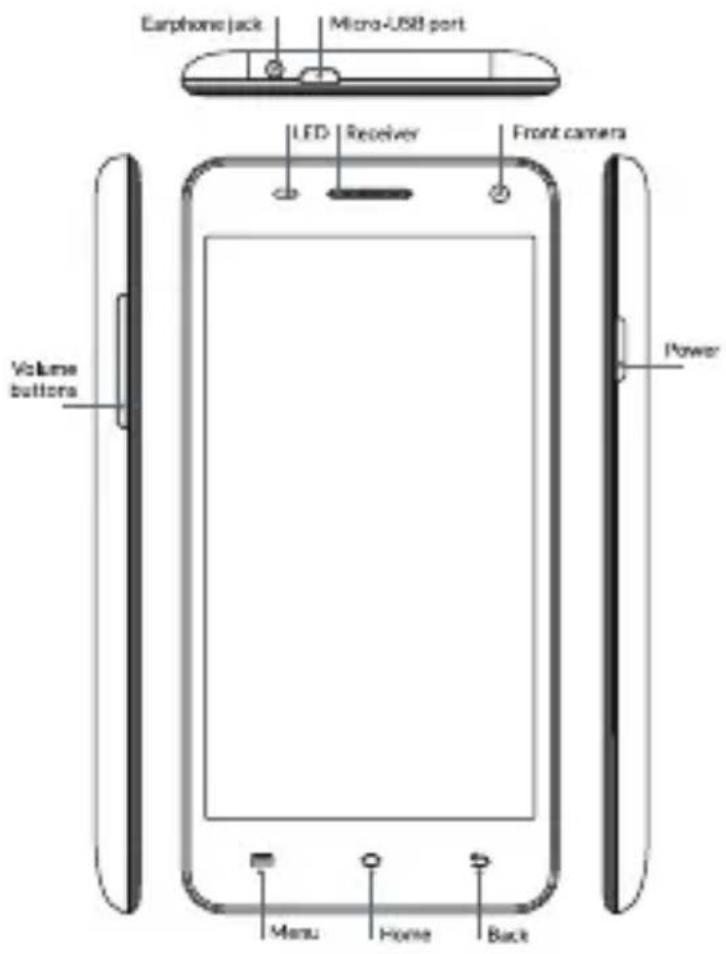
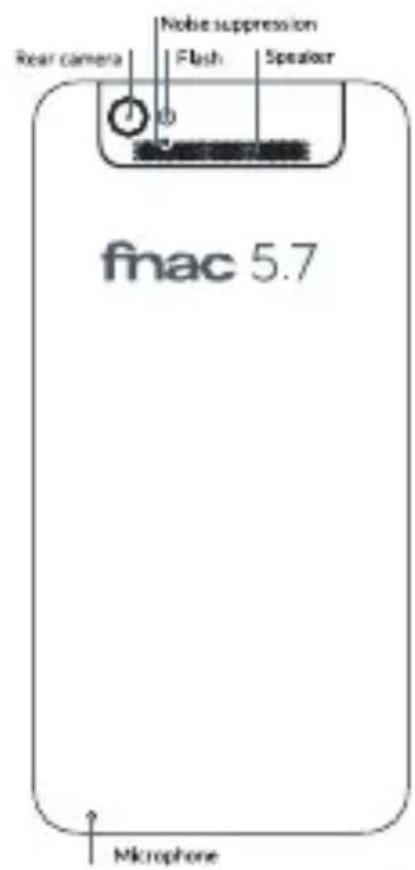
Buttons and ports
Power
Press and hold down this button to switch on the device.
Volume buttons
These buttons let you adjust the multimedia volume of your Fnac 5.7. During a phone call, they adjust the receiver volume.
Headphone jack
Plug in your headphones or hands-free kit here.
MicroUSB
Connects your Fnac 5.7 to a computer via a USB cable, enabling you to transfer files between the two. Also charges the battery.
Front camera
5 Mpx camera.
Rear camera
13 Mpx flash camera.
| Microphone | Captures and records sounds and voices. |
| Touch-screen | The capacitive touch-screen enables you to perform actions by touching it directly. |
| Menu | Displays the Option Menu for the application you are using. |
| Home | Press this button to go directly to the Home Screen. |
| Back | Press this button to go back to the previous page within an application. |
| Speaker | Emits audio output when the headphones are not connected. |
SIM CARD
Installing the SIM card
Fnac 5.7 is dual SIM device, it has a SIM card slot and microSIM card slot. To insert a SIM/microSIM card you need to remove the back cover, lift out the battery and place the card in one of the SIM/microSIM slots. Make sure the device is switched off and not connected to a PC or other power source when inserting a SIM/microSIM card or putting the battery in place.
To configure your SIM cards, press the to Settings > SIM management.

and go
GETTING STARTED
Battery
The Fnac 5.7 comes with a rechargeable Li-ion battery. To charge the battery, connect the AC/DC adaptor to any standard plug socket and connect the charger cable to the Micro USB port. The battery also charges when the device is connected to a computer via the Micro USB cable.
When the battery is fully charged, the battery icon will also appear full. Disconnect the cable from the device and unplug the charger from the socket.

It is recommended that you charge the battery fully before using your Fnac 5.7 for the first time. Some batteries perform better after they have completed various charge cycles.

Do not take the battery out of the device while it is charging.
Switching on / off
To switch the device on, press and hold down the button for a few seconds. To switch it off, press hold down until a pop-up menu appears with option Power Off.
Operating system
The operating system used by your Fnac 5.7 is Android 4.1 (Jelly Bean).
Transferring files
To transfer files from your smartphone's internal memory onto a computer (or vice versa), do the following:
-
Connect the microUSB cable to the corresponding ports on the device and computer. USB connection symbol will appear in the bar at the top. Pull the bar down with your finger and you will see default mode: Connected as a multimedia device (MTP). Tap on the text to change the transfer mode.
-
You can choose between USB mass storage, Media device (MTP) or Charge only.
- Select and copy the files onto your smartphone, microSD ^TM card or computer.
- Once you have transferred the files, safely disconnect your device from the computer. Do not disconnect the cable while files are being transferred.
To transfer files from your Fnac 5.7 (and/or microSD ^TM card) to a computer running Mac OS, and vice versa, you will need to download the free application Android File Transfer and install it onto your computer. You can find it at: http://www.android.com/filetransfer/.
You can also transfer files using Bluetooth ^® .

Back up the content on your device regularly, to prevent file loss in the event your device is damaged, lost or stolen.

Some applications may stop working while your Fnac 5.7 is connected to a computer and transferring files.
Bluetooth ^® connection
You can exchange files between your Fnac 5.7 and other Bluetooth® devices:
- Pull the upper bar down, activate Bluetooth ^® and open up the Settings Menu by pressing the
You can also do this by pressing the icon and going to Settings > Bluetooth.

- Make your device discoverable, and press Search for devices. The system will automatically show any nearby Bluetooth-enabled devices.
- Press the name of the device you wish to connect to, in order to initialize the linking process.
- After the devices have been synchronized, you can share files between your Fnac 5.7 and the Bluetooth® device you have linked it to.
You can access advanced configuration options by pressing the Application Menu icon
USING THE SCREEN
Screen lock
By default, your smartphone's screen locks after you switch it on or if you have not used it for an extended period of time.
To adjust the time interval for locking the screen, press the icon and go to Settings > Display > Screen time out.
To turn the screen off manually, press the On/Off button.
You can configure the screen lock function by going to Settings > Security > Screen lock.
The screen rotates automatically from portrait (vertical) to landscape (horizontal) format and vice versa, depending on the position of the device (and for those applications that support this function).
If you wish to stop the screen from changing orientation, press the icon and go to Settings > Display and disable the Auto-rotate screen option.
Home screen
The Home Screen is the main access route to the tools and applications installed on your Fnac 5.7.
From here you can monitor the status of your device, go to websites, open applications by pressing the corresponding icons, access the Main Menu, etc.
At the top of the screen is the notification bar, and at the bottom is the tool bar.

This icon lets you access the application drawer and provides access to Applications and Widgets.
Notifications and notices bar.
The upper bar displays notifications and alerts. Some of the icons that can we shown are: missed calls, new e-mails, etc.
- If you pull it down with a finger you will see the following options:
On the right-hand side you'll find the icon which closes the window and cleans the notifications, followed by the icon that allows you to create your social profile and set up your phone via direct access.
If you have already created your social profile this will be the first icon in the list. If you do not have it yet, you can do it in the option Contacts > Set my profile.
- If you pull it down with two fingers you will see: On the right-hand side you'll find the quick-access function for Settings and the icon to go to notifications and notices. Bellow, you will find the settings icons: Airplane Mode, Battery status, Wi-Fi, Bluetooth, GPS, Data connection, Data usage, Audio Profiles, Brightness, Timeout and Auto Rotate.
Status bar
On the upper bar that stays fixed on the screen of the device you can see the watch, notifications, network status, Wi-Fi and data connection, among others.

Wi-Fi. This symbol appears when your device is connected to a Wi-Fi ^® network. It also indicates the strength of the wireless signal.
Battery. This indicates how much charge is in the battery.
Bluetooth. This symbol appears when your device's Bluetooth® connection is activated.

3G Indicates the signal strength for each SIM. If your data connection is activated, the following letters will appear next to this symbol:
G: GPRS data traffic.
3G: 3G connection.
H: HSDPA connection.
Extended Home Screens
The Home Screen has an additional 4 extended screens, which you can personalize by adding shortcuts, applications and other tools. To navigate through the Home Screen and extended screens, use your finger to slide the screen to the left or right.
Personalizing the Home screen
You can personalize the Home Screen or extended screens by using your own images as wallpaper, adding icons or shortcuts to your favourite applications, etc.
Change the screen background
To change the wallpaper, long-press (press and hold down) the current wallpaper to bring up a pop-up menu, where you can select the location of the image you wish to use. Once you have selected the image, press Set wallpaper to confirm.
Add shortcuts
To add an icon to the Home Screen, press the icon to access the list of applications, long-press the icon for the desired application and drag it to the desired position on the Home Screen.

To delete an icon from the Home Screen, long-press it and drag it to the X symbol that will appear on the screen.
APPLICATIONS
The applications drawer gives you access to all the applications installed on your Fnac 5.7. To open the drawer, press the icon. To open an application, press the corresponding icon. To return to the Home
Screen, press the Home icon


Please note, the files/data stored in the microSD ^TM card will not be available if you extract the card from the device.
DOLBY
Press to open the Dolby app and improve the sound on your device.
You can choose from any of the four pre-set modes that will appear when you start the app: Video, Music, Game and Voice.
Each mode has a graphic equaliser that will allow you to directly adjust the sound levels by swiping the screen with your fingers. You can also improve sound quality by choosing one of the intelligent equalisers: Open, Resonant, Centred and Custom.
If you adjust any of the modes manually, an icon will appear next to the name of the mode and next to the words Graphic Equaliser: Custom. Pressing on this icon will restore the initial values and delete any manual ones you have selected.
The Dolby app and icon will be activated in order to improve the sound for apps such as Music and Video Player. You can deactivate it by pressing

WI-FI ^® CONNECTION
To connect to the Internet, or to use an application that requires this connection, you first need to connect the device to the Internet, one of the options is through a Wi-Fi network. To do so, follow the steps below:
- Press the
go to Settings > Wireless &
Networks > Wi-Fi. Turn on Wi-Fi. The device will begin to search for an available network. - The names of the Wi-Fi (SSID) networks found will be displayed in a list. Scroll through the list and press the name of the desired network to check its security level and signal strength.
- If the network is secure, enter the password and press Connect to start the connection. The Wi-Fi icon will appear in the Notification Menu and indicate the signal strength

MAKING CALLS AND SENDING MESSAGES
To make a call:
It allows file exchange between your be device and other Bluetooth ^® devices:
- Find the desired number in your phonebook (if the number has already been stored). If the number has not been stored, press the icon and key in the number.
If you have two SIM cards in your smartphone, you can choose which of them you wish to call from.
- To end the call, press the

To send a message:
- Press the icon and write your message. You can also attach files.
- Select the contact from your phonebook, or enter the phone number manually.
- Select the SIM card you wish to send the message from, and press Send.
You can access the advanced configuration options for both functions by pressing the Application Menu icon

ANNEX A: SAFETY PRECAUTIONS
To use the device safely, please observe the following safety precautions:
■ Do not use damaged power cords or connectors or loose sockets.
■ Do not touch the power cord with wet hands or pull on the cord to disconnect the charger.
■ Do not fold or damage the power cord.
■ Do not use the device while charging or touch it with wet hands.
■ Do not strike or drop the charger or battery.
■ Do not charge the battery with chargers that have not been approved by the manufacturer.
■ Do not use the device during a lightning storm.
■ Do not handle damaged or leaky Li-ion batteries.
■ Handle and dispose batteries and chargers with precaution.
■ Do not use the device near a pacemaker: if possible, avoid using the device at a distance of less than 15 cm from the pacemaker, as the device may interfere with it.
■ Do not use the device in a hospital or near medical equipment which is vulnerable to interference caused by radiofrequency.
■ If you use medical equipment, contact the manufacturer to ensure that the equipment is protected from radiofrequency. If you use a hearing aid, contact the manufacturer for further information on radio interference.
In potentially explosive environments, turn off the device instead of removing the battery. Observe all rules, instructions and warning signs in potentially explosive environments.
■ Do not use the device in fuel loading areas (service stations) or near fuels or chemicals in explosive areas.
■ Do not store or carry flammable liquids, gases or explosive materials in the same compartment as the device, its parts or accessories.
■ Turn off the device when on board a plane.
Electronic devices in a motor vehicle may behave in a wrong way due to the device's radiofrequency.
- Using the phone while driving. Some car manufacturers prohibit the use of mobile phones in their cars, unless they are equipped with a hands-free kit and an external aerial. Check with the dealership where you acquired your vehicle whether your mobile phone or hands-free Bluetooth® kit will interfere with the car’s electronic systems. Always focus all your attention on driving and respect the local laws and regulations that restrict the use of wireless devices while at the wheel.
■ Functions based on location/GPS. Some products include functions based on location/GPS. The location that determines the level of functionality is provided “as is” and “to all effects”. Mundo Reader, S.L., does not make any claims nor guarantee in any way the accuracy of the information regarding location.
■ When the device is utilizing location-based information, interruptions or failures may occur and there is increased dependence on network availability. Bear in mind that functionality may be reduced or impeded in certain environments, such as inside or near to buildings. Use the GPS function with care, to ensure you are not distracted while driving.
Emergency calls. We cannot guarantee the ability to make emergency calls under all conditions. Never rely solely on mobile phones to make an emergency call. With certain mobile networks and network services, with certain phone functions activated or in certain areas, it is not possible to make emergency calls.
■ Antennas. The use of antenna devices that are not specifically recommended by Mundo Reader, S.L., may damage the phone, impair its performance and generate SAR levels that are above the established limits. Do not cover the antenna with your hand, as this may affect call quality and battery levels and may reduce talk and standby time.
■ Airplane Mode. Use of the Bluetooth ^ and WLAN functions (if they are available on the device) are prohibited on board airplanes and in other areas where radio transmissions are not permitted. In these environments, please request authorization before activating the Bluetooth ^ and WLAN functions, even when the phone is in Airplane Mode.
■ Prolonged exposure to high volumes of sound may cause permanent damage to hearing. We recommend that you do not use headphones while cycling, running or travelling through areas with a high level of traffic and/or noise.
Warning
This product has to be used with a power supply that has the following technical specifications:
INPUT: 100-240V \~ 50/60 Hz 0.3A max.
OUTPUT: 5.0V = 1.0A
Polarity has to be the same as described in this picture:
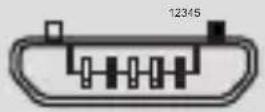
Micro USB
Pin 1" +"
Pin 5 "-"
The use of power sources with different specifications may cause damage to equipment and can compromise the safety of people and goods.
Information about exposure to radio waves and SAR (Specific Absorption Rate)
The design of this mobile phone complies with applicable safety requirements for exposure to radio waves. These requirements are based on scientific guidelines that include safety margins designed to ensure the safety of all persons, regardless of age and health.
The radio wave exposure guidelines employ a unit of measurement known as the Specific Absorption Rate, or SAR. Tests for SAR are conducted using standardized methods with the phone transmitting at its highest certified power level in all used frequency bands.
The SAR limit recommended by the International Commission on Non-Ionizing Radiation Protection (ICNIRP) is 2 W/kg averaged over 10g of tissue.
The highest SAR value for this model is for use at the ear is 0,387 W/kg (10 g) and when worn on the body is 0,417 W/kg (10 g).
This device meets RF exposure guidelines when used either in the normal use position against the ear or when positioned at least 1.5 cm away from the body. In order to transmit data files or messages, this device requires a quality connection to the network. In some cases, transmission of data files or messages may be delayed until such a connection is available. Ensure the above separation distance instructions are followed until the transmission is completed.
Cleaning
Before cleaning the device, turn it off and disconnect all the system and power cords. Ensure that the device is completely dry before connecting again the cords and turning it on. Do not use any cleaning liquids or sprays directly on the surface of the screen or the case.
Use a soft, clean and lint-free cloth to remove dust and dirt from the screen. For fingerprints and stains, use a cloth with mild cleaning products. Moisten the cloth with clean water, wring it well and clean the case to remove any leftover detergent.
ANNEX B: CORRECT DISPOSAL OF THIS PRODUCT
(Electric and electronic device waste).
(Applicable in the European Union and in European countries with selective waste collection systems).
This marking on the product, accessories or literature indicates that the product and its electronic accessories (e.g. charger, headset, USB cable) should not be disposed of with other household waste at the end of their working life.
To prevent possible harm to the environment or human health from uncontrolled waste disposal, easy separate these items from other types of waste and recycle them responsibly to promote the sustainable reuse of material resources.
Household users should contact either the retailer where they purchased this product, or their local government office, for details of where and how they can take these items for environmentally safe recycling.
Business users should contact their supplier and check the terms and conditions of the purchase contract. This product and its electronic accessories should not be mixed with other commercial wastes for disposal.
ANNEX C: DECLARATION OF CONFORMITY
Mundo Reader, S.L.
Pol. Ind. Európolis
Calle Sofía, 10
28232 Las Rozas. Madrid. Spain
Tax number: B85991941
Made in China
Warrants that this product Fnac:
Fnac 5.7
Complies with the provisions of Directive 2006/95/CE on the harmonization of the laws of Member States relating to Electrical Equipment designed for use within certain voltage limits and Directive 2004/108/CEE on Electromagnetic Compatibility complying with the harmonized standards: EN 60950-1:2006 + A11:2009, EN 62311:2008, EN 301 489-1 V 1.8.1, EN 301 489-17 V2.1.1, EN 300 328 V1.7.1, EN 55022: 2006 + A1: 2007, EN 55013: 2001 + A1: 2003 + A2: 2006, EN 61000-3-2: 2006 + A1: 2009 + A2: 2009, EN 61000-3-3: 2008, EN 55024: 1998 + A1:2001 + A2: 2003, EN 55020: 2007.
Madrid, october 2013.

Alberto Méndez Peydró
CEO


www.fnac.es