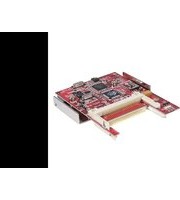
2CF2SATAR - Computer Adapter StarTech.com - Free user manual and instructions
Find the device manual for free 2CF2SATAR StarTech.com in PDF.


| Product Type | 2.5" SATA or USB to Dual CompactFlash SSD Adapter with RAID |
| Brand | StarTech.com |
| Model | 2CF2SATAR |
| Interface | SATA 3Gbps, USB 2.0 |
| Supported Disk Modes | RAID0, RAID1, Concatenation (BIG) |
| CompactFlash Compatibility | CF Type I and II, up to 2TB total capacity |
| Connectors | SATA 7+15, USB mini-B |
| LED Indicators | Ready, Activity, Alarm |
| Maximum Data Transfer Rate | SATA: 3 Gbps, USB: 480 Mbps |
| System Requirements | Available SATA power/data for internal use, USB port for external use; Windows XP/Server 2003/Vista, Mac OS 10.4.x/10.5.x, Fedora Core 6 |
| Package Contents | Adapter, 2.5" HDD Mounting Bracket, Mounting Screw, USB Cable, User Manual, Software CD |
| Form Factor | 2.5-inch (fits standard 2.5" drive bay) |
| Power Source | Bus-powered via SATA power connector or USB |
| Regulatory Compliance | FCC Class B |
| Warranty | 1 Year |
| Technical Support | Lifetime technical support (www.startech.com/support) |
| Driver Installation | No driver required; natively supported as a standard SATA HDD or USB Mass Storage Device |
| Operating Temperature | Not specified; typical for internal use |
| Storage Temperature | Not specified; typical for internal use |
Frequently Asked Questions - 2CF2SATAR StarTech.com
User questions about 2CF2SATAR StarTech.com
0 question about this device. Answer the ones you know or ask your own.
Ask a new question about this device
Download the instructions for your Computer Adapter in PDF format for free! Find your manual 2CF2SATAR - StarTech.com and take your electronic device back in hand. On this page are published all the documents necessary for the use of your device. 2CF2SATAR by StarTech.com.
USER MANUAL 2CF2SATAR StarTech.com
2.5" SATA or USB to Dual CompactFlash SSD Adapter with RAID
StarTech.com Making hard-to-find easy!®
FCC Compliance Statement
This equipment has been tested and found to comply with the limits for a Class B digital device, pursuant to part 15 of the FCC Rules. These limits are designed to provide reasonable protection against harmful interference in a residential installation. This equipment generates, uses and can radiate radio frequency energy and, if not installed and used in accordance with the instructions, may cause harmful interference to radio communications. However, there is no guarantee that interference will not occur in a particular installation. If this equipment does cause harmful interference to radio or television reception, which can be determined by turning the equipment off and on, the user is encouraged to try to correct the interference by one or more of the following measures:
Reorient or relocate the receiving antenna.
Increase the separation between the equipment and receiver.
Connect the equipment into an outlet on a circuit different from that to which the receiver is connected.
Consult the dealer or an experienced radio/TV technician for help.
Use of Trademarks, Registered Trademarks, and other Protected Names and Symbols
This manual may make reference to trademarks, registered trademarks, and other protected names and/or symbols of third-party companies not related in any way to StarTech.com. Where they occur these references are for illustrative purposes only and do not represent an endorsement of a product or service by StarTech.com, or an endorsement of the product(s) to which this manual applies by the third-party company in question. Regardless of any direct acknowledgement elsewhere in the body of this document, StarTech.com hereby acknowledges that all trademarks, registered trademarks, service marks, and other protected names and/or symbols contained in this manual and related documents are the property of their respective holders.
Table of Contents
Introduction ...... 1
Packaging Contents....1
System Requirements ....1
Installation 2
Top View 2
Bottom View 2
Mode Switch ....3
LED Behaviour ....3
Hardware Installation ....4
Driver Installation ....4
Software Installation ....4
Troubleshooting 5
Specifications 6
Technical Support 7
Warranty Information 7
Introduction
Packaging Contents
1 x 2CF2SATAR adapter•
1 x 2.5" HDD Mounting Bracket (attached to adapter)
1 x Mounting Screw•
1 x USB mini-B to A Cable•
1 x User Manual•
1 x Software CD•
System Requirements
Available SATA power/data connections for internal use•
Available USB port for external use•
Microsoft Windows® XP/Server 2003/Vista, Mac OS® 10.4.x/10.5.x, or Fedora® Core 6 for the optional RAID utility

natural_image
Red computer motherboard with visible slots, chips, and connectors (no text or symbols)Installation
Top View

Bottom View

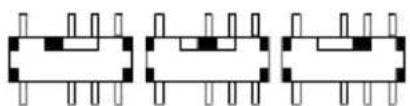
Mode Switch

SAFE FAST BIG
natural_image
Three identical schematic diagrams of electronic components with no text or symbolsLED Behaviour
LED1 (Ready)
| Description Indicator | |
| Board Ready ON | |
| Board Fail OFF |
LED2 (Activity)
| Description Indicator | |
| Unplugged OFF | |
| Idle OFF | |
| Accessing Flashing | |
| Rebuilding ON | |
| Rebuild-Verify Flashing | |
| Error OFF |
LED3 (Alarm)
| Description Indicator | |
| RAID1 Failure/Disk Unavailable ON* | |
| No Errors OFF |
remains on until a rebuild is started, or turned off by host application*
Hardware Installation
Plug the CompactFlash cards into slots P3 and P4.1.
Connect USB cable from the mini USB connector on the adapter to 2. the computer.
Check if the total size of the CF memory cards are correct.3.
Safely remove from the computer, then set the slide switch (SW1) to 4. the desired RAID mode (Default is BIG mode).
If using internally or with an HDD enclosure, disconnect the USB 5. cable and install the adapter board inside the computer system or enclosure as per any standard 2.5" HDD.
Optionally, the 2.5" HDD mounting bracket can be removed from the adapter for any custom mounting applications.
Connect the SATA data and power connectors.6.
Repeat Step 1 to Step 6 when installing new CF cards.7.
Driver Installation
No driver installation is required for the 2CF2SATAR adapter, as it is natively supported as a standard SATA hard disk drive or USB Mass Storage Device.
Software Installation
Install the Configuration Manager Utility to monitor the RAID status and activities of the disks. You can find the Configuration Manager Utility 57xxSteelVineManager.zip and Configuration Manager Manuals Sil57XX_Users_Guide.pdf on the enclosed Driver CD at \DiskArray\eSATA_SATAx2 \Sil57xx. You can also download these from the StarTech.com website (www.startech.com).
Troubleshooting
Q1. Cannot access the disk after computer resumes from standby.
A1. Unplug the SATA or USB connection and then plug in again.
Q2. Configuration Manager Utility shows Raid failure.
A2-1. RAID1 Mode:
Change the failed CF card (Device 0 means CF on P3, Device 1 means CF on P4) and the adapter will automatically rebuild the Raid1 array.
A2-2. RAID0 Mode:
Switch the slide switch (SW1) to RAID1 mode, install CF cards (Device 0 means CF on the P3, Device 1 means CF on P4), connect the USB cable from the mini USB connector to USB port on computer, then switch the slide switch (SW1) to RAID0 mode, disconnect USB cable.
A2-3. BIG Mode:
Switch the slide switch (SW1) to RAID1 mode, install CF cards (Device 0 means CF on the P3, Device 1 means CF on P4), connect the USB cable from the mini USB connector to USB port on computer, then switch the slide switch (SW1) to BIG mode, disconnect USB cable.
Specifications
| Bus Interface | SATA 3GbpsUSB 2.0 |
| Maximum Data Transfer Rate | SATA: 3 GbpsUSB: 480 Mbps |
| Connectors | SATA 7+15USB mini-B |
| LED Indicators | Ready, Activity, Alarm |
| Supported Disk Modes | RAID0, RAID1, Concatenation |
| CompactFlash Compatibility | CF type I and II,2TB (maximum capacity) |
Technical Support
StarTech.com's lifetime technical support is an integral part of our commit-ment to provide industry-leading solutions. If you ever need help with your product, visit www.startech.com/support and access our comprehensive selection of online tools, documentation, and downloads.
Warranty Information
This product is backed by a one year warranty.
In addition, StarTech.com warrants its products against defects in materials and workmanship for the periods noted, following the initial date of purchase. During this period, the products may be returned for repair, or replacement with equivalent products at our discretion. The warranty covers parts and labor costs only. StarTech.com does not warrant its products from defects or damages arising from misuse, abuse, alteration, or normal wear and tear.
Limitation of Liability
In no event shall the liability of StarTech.com Ltd. and StarTech.com USA LLP (or their officers, directors, employees or agents) for any damages (whether direct or indirect, special, punitive, incidental, consequential, or otherwise), loss of profits, loss of business, or any pecuniary loss, arising out of or related to the use of the product exceed the actual price paid for the product. Some states do not allow the exclusion or limitation of incidental or consequential damages. If such laws apply, the limitations or exclusions contained in this statement may not apply to you.

StarTech.com has been making “hard-to-find easy” since 1985, providing high quality solutions to a diverse IT and A/V customer base that spans many channels, including government, education and industrial facilities to name just a few. We offer an unmatched selection of computer parts, cables, A/V products, KVM and Server Management solutions, serving a worldwide market through our locations in the United States, Canada, the United Kingdom and Taiwan.
Visit www.startech.com today for complete information about all our products and to access exclusive interactive tools such as the Cable Finder, Parts Finder and the KVM Reference Guide.


- FCC Compliance Statement
- Use of Trademarks, Registered Trademarks, and other Protected Names and Symbols
- Table of Contents
- Introduction ...... 1
- Installation 2
- Troubleshooting 5
- Specifications 6
- Technical Support 7
- Warranty Information 7
- Introduction
- Packaging Contents
- System Requirements
- Installation
- Top View
- Bottom View
- Mode Switch
- LED Behaviour
- LED3 (Alarm)
- Hardware Installation
- Driver Installation
- Software Installation
- Troubleshooting
- Technical Support
- Warranty Information
- Limitation of Liability
Brand : StarTech.com
Model : 2CF2SATAR
Category : Computer Adapter