KIT-7ID - Uncategorized ALPINE - Free user manual and instructions
Find the device manual for free KIT-7ID ALPINE in PDF.


User questions about KIT-7ID ALPINE
0 question about this device. Answer the ones you know or ask your own.
Ask a new question about this device
Download the instructions for your Uncategorized in PDF format for free! Find your manual KIT-7ID - ALPINE and take your electronic device back in hand. On this page are published all the documents necessary for the use of your device. KIT-7ID by ALPINE.
USER MANUAL KIT-7ID ALPINE
Kit content: double DIN facia plate; mounting brackets + screws; SWRC CAN bus & LIN bus wiring harness; antenna adapters; camera adapter; USB/AUX adapter; speaker adapter
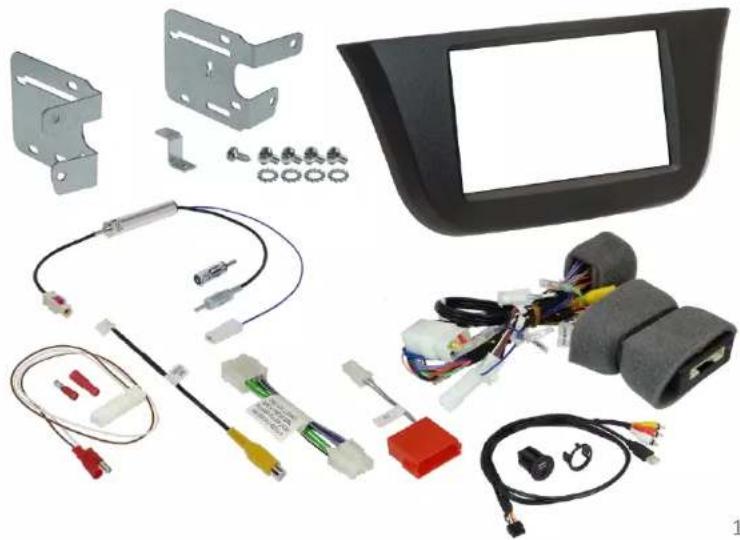
natural_image
Collection of automotive component parts including metal brackets, wiring harnesses, and a front cover (no visible text or symbols)Content and wiring harness connections
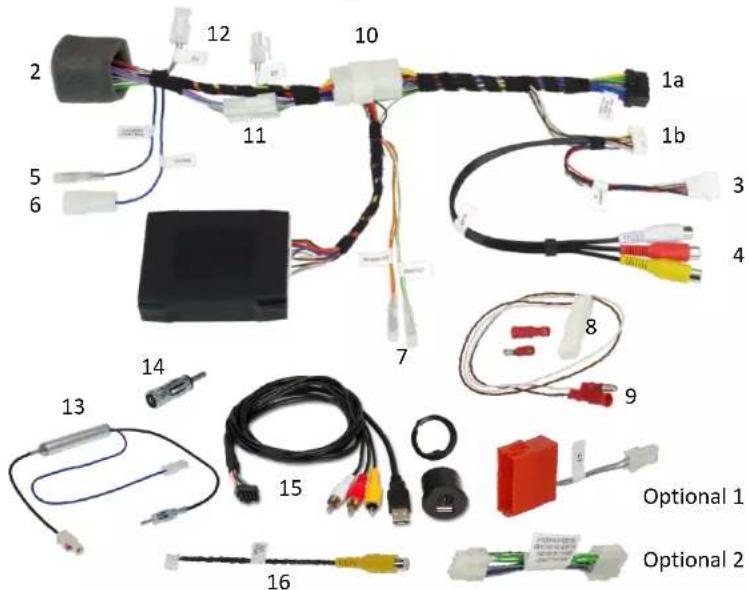
1A/1B - to RADIO connectors
2 -to CAR connector
3 -CAMERA input
4 -AUX input
5 -CAMERA control/REMOTE out
6 -POWER ANTENNA output
7 -to optional/extra SERVICES:
Orange - Reverse output
Green – Speed output
8 -to INTERFACE connector
9 - to LIN BUS - (point 7 / page 4-5)
10 - External power access
11 - SPEAKER connection (point 9 / page 9)
12 - CAN BUS access – (point 7 / page 4-7)
13 - FAKRA antenna adapter
14 - ISO/DIN antenna adapter
15 - USB/AUX adapter
16 - CAMERA input adapter
OPTIONAL 1 → (point 7 / page 5)
OPTIONAL 2 → (point 9 / page 9)
natural_image
Interior view of a car dashboard with air conditioners and a digital display (no visible text or symbols)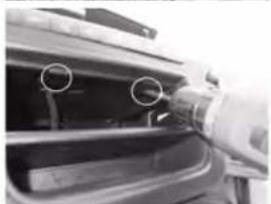
natural_image
Close-up of a car's side panel showing engine compartment with two circular arrows pointing to the door (no text or symbols visible)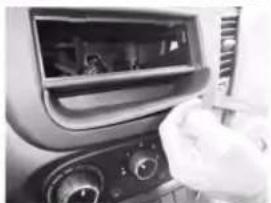
natural_image
Interior view of a car dashboard with steering wheel and air vent (no visible text or symbols)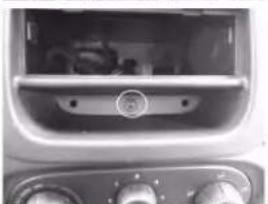
natural_image
Close-up of a car air conditioner panel with no visible text or symbols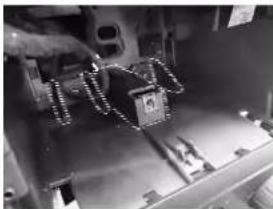
natural_image
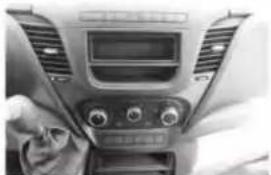
Close-up of a mechanical assembly with chains and components (no visible text or symbols)- This is how the original dashboard looks like.
- Remove the drawer and unscrew the two screws as shown in the picture.
- Remove the rubber compartment as shown in the picture.
- Unscrew the central screw and remove the original facia.
- In order to fit the radio unit some plastic parts need to be cut and removed. The parts to be removed are the four flaps and the plastic rectangular central protrusion highlighted in the pictures.
- Connect the harness as indicated on left side (page 2).
7.1. Set the harness according to the configuration of your vehicle – Iveco Daily VII
| CONFIGURATION STEP 1 STEP 2 | ||||
Configurationwithoutradio steering wheel controls and open dash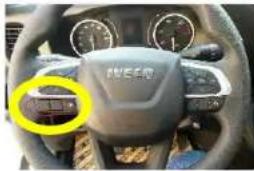 | 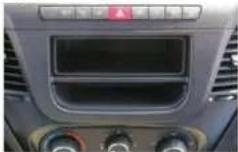 | C2 and C3 connected. Select the configuration indicated in the picture.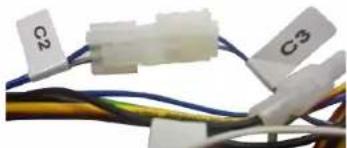 | For more details see page 12 of the manual.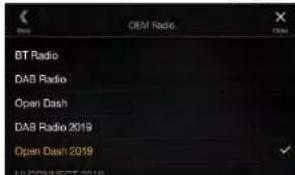 | |
Configurationwithradio steering wheel controls and open dash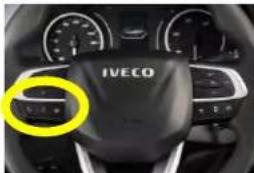 | 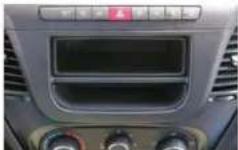 | Remove the tape and connect the brown and thin white cables to cables (9) (see page 2) of the interface harness.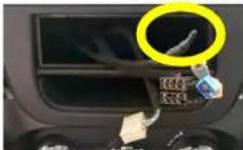 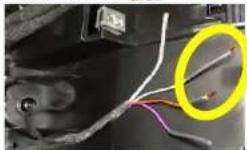 | C1 and C3 connected.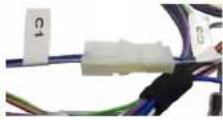 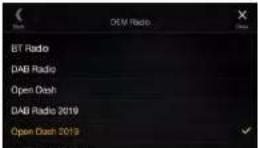 Select the configuration indicated in the picture.For more details see page 12 of the manual. Select the configuration indicated in the picture.For more details see page 12 of the manual. | |
Configurationwithradio steering wheel controls and DAB radio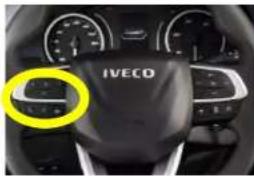 | 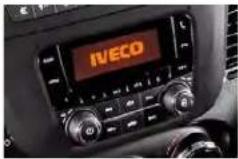 | C2 and C3 connected. Select the configuration indicated in the picture.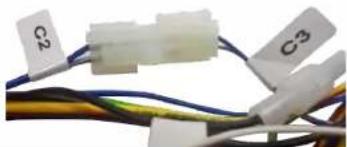 | For more details see page 12 of the manual.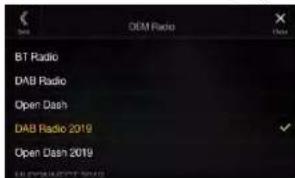 | |
Configurationwithradio steering wheel controls and HI-CONNECT radio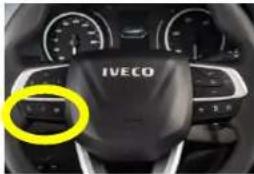 | 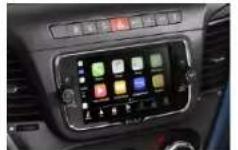 | For Daily VII with HI-CONNECT radio additional parts → KIT-903ID-NAV is needed.Please contact us to get assistance. | ||
7.2. Set the harness according to the configuration of your vehicle – Iveco Daily VI
| CONFIGURATION STEP 1 STEP 2 | |||
Configurationwithoutradio steering wheel controls and open dash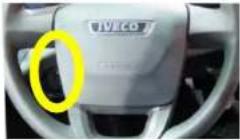 | 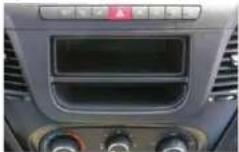 | C2 and C3 connected. Select the configuration indicated in the picture.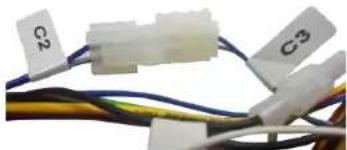 | For more details see page 12 of the manual.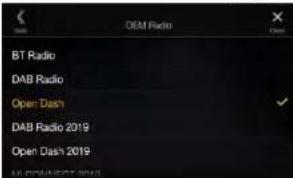 |
Configurationwithradio steering wheel controls and open dash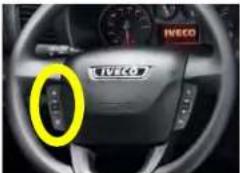 | 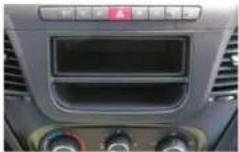 | For Daily VI with Radio Preparation and SWRC with voltage cables for SWRC→ KW403ID6 is needed.Please contact us to get assistance. | Select OPEN DASH 2019 or DAB RADIO 2019 indicated in the picture.For more details see page 12 of the manual.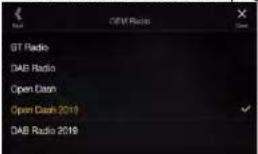 CAN must be OK, LIN must be OK in VEHICLE MENU SETTINGS(see page 13). CAN must be OK, LIN must be OK in VEHICLE MENU SETTINGS(see page 13). |
Configurationwithradio steering wheel controls and BT or DAB radio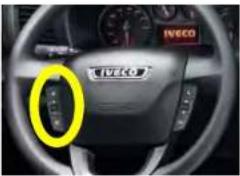 | 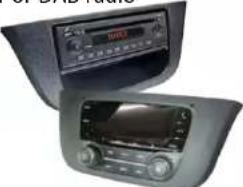 | C2 and C3 connected. Select the configuration indicated in the picture.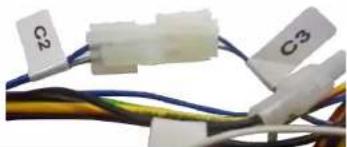 | For more details see page 12 of the manual.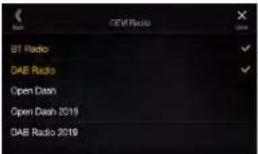 Select your original installed radio type (BT or DAB)(see page 12). Select your original installed radio type (BT or DAB)(see page 12). |
Configurationwithradio steering wheel controls and IVECONNECT radio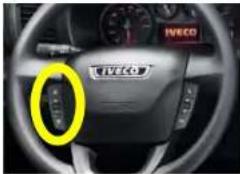 | 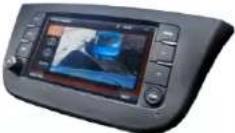 | Not compatible with Daily VI and IVECONNECT radio. | |
- Steering wheel remote control functions.
Iveco Daily VII steering wheel remote control functions.
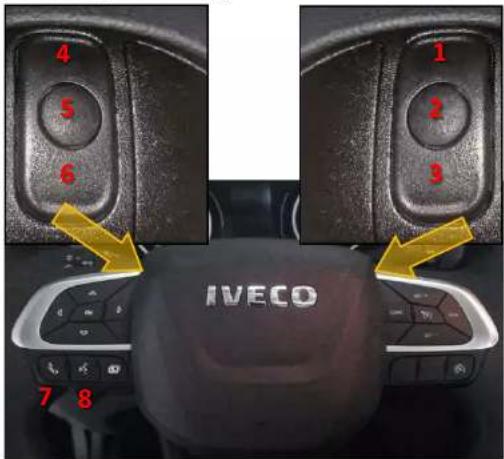
1- Volume +
2- Mute
3- Volume -
4- Seek +
5- Source
6- Seek -
7- Accepting incoming call
8- Voice
Iveco Daily VI steering wheel remote control functions.
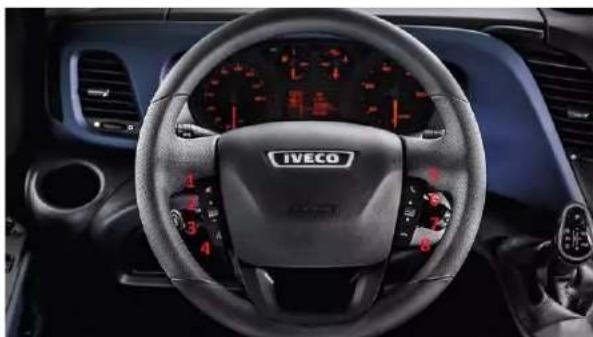
natural_image
Interior view of a car dashboard with IVECO branding and red indicator lights (no readable text or symbols beyond branding)1- Mute 5- Accepting incoming call/Voice
2- Volume + 6- Seek +
3-Volume - 7-Seek -
4- Source 8- Reject incoming call
- Pair your phone and make a call.
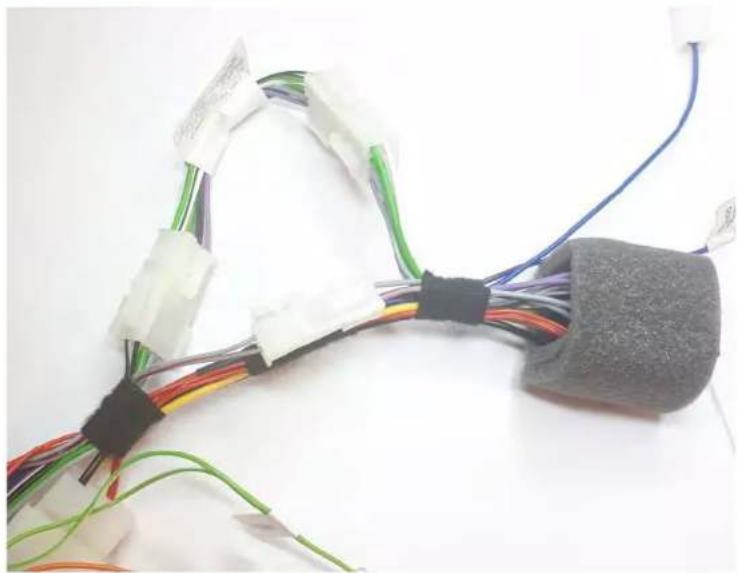
If you hear the audio from WRONG SPEAKERS → install OPTIONAL 2 (see page 2 point 11).
natural_image
Coiled electronic components with colored wires and connectors, no visible text or symbols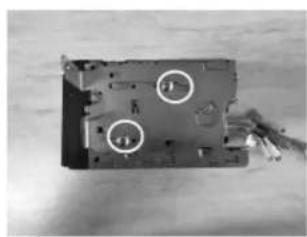
natural_image
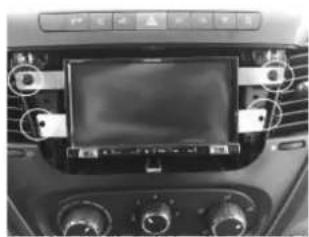
Interior view of a mechanical device with two circular annotations highlighting features (no readable text or symbols)- Take the left and right brackets and fix them with the supplied screws as shown in the picture. Connect the harness as indicated on page 2.
natural_image
Interior view of a car dashboard with a digital display and control knobs (no visible text or symbols)- Make all connections, check the proper functioning of the whole system and fix the head unit with the OEM screws as shown in the picture.
natural_image
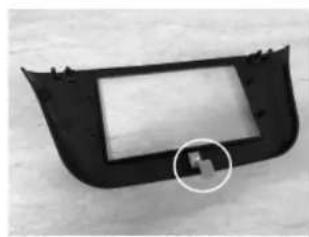
Black plastic door frame with a small circular inset showing a small square detail (no text or symbols)- Fix the metal bracket with the supplied screw as shown.
natural_image
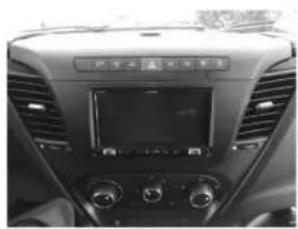
Interior view of a car dashboard with air filters and a central touchscreen display (no visible text or symbols)-
Mount the facia plate on the dashboard. This is the final result.
-
Access the interface radio setting menu as shown in the pictures.
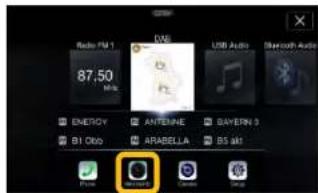

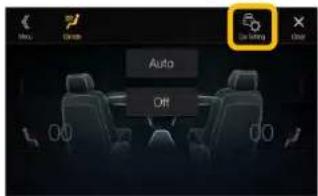
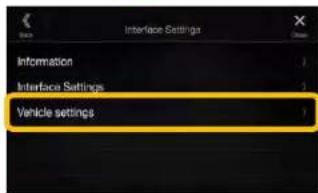

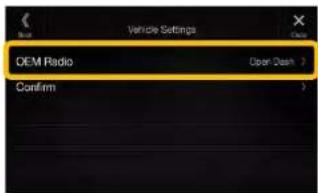


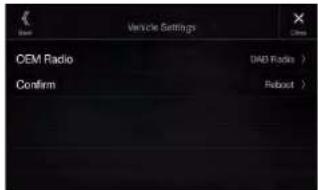
Choose your original installed radio type.
Confirm (Reboot) your radio type.
- Access the interface information as shown in the pictures.
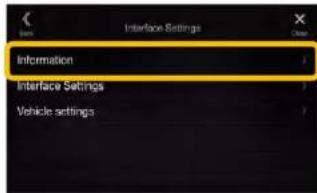

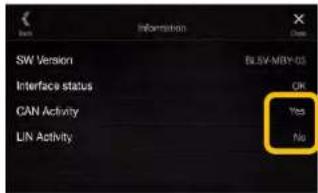
CAN / LIN Activity (Yes / No)
- If the CAN / LIN connection to the vehicle is correct, display shows "Yes".
16. Access the interface settings as shown in the pictures.
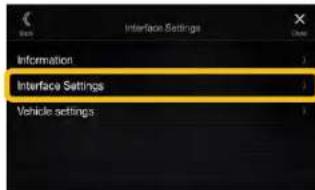
Ignition Logic (only if supported by vehicle)
- Switch between Key and Door
- Key = the radio switches on automatically when the key is turned in the ignition lock
- Door = the radio switches on automatically when the central locking (must be supported by the vehicle) of the door is opened (PRE-ignition) Ignition HOLD Minutes
- Adjustable between 0 and 30 min(s)
- The radio "runs on" the set time (0 to 30 min(s)) when the ignition is switched off from the vehicle / radio
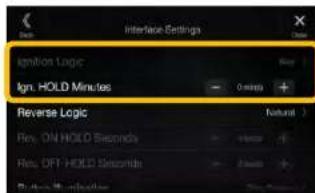
Reverse Logic
- Switch between Natural and Delayed
- Natural = Switches the reversing signal with activation / deactivation of the reverse gear immediately ON / OFF
- Delayed = Switches the reversing signal with activation / deactivation of the reverse gear with a delay ON / OFF
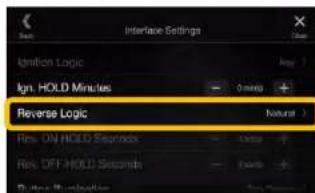
Reverse ON HOLD Seconds (0 to 30sec(s))
- When you are engaging the reverse gear, the interface will trigger the reverse to the radio after the time period (0 to 30sec(s)) specified in the menu.
Reverse OFF HOLD Seconds (0 to 30sec(s))
- When you are removing the reverse gear, the interface will remove the reverse to the radio after the time period (0 to 30sec(s)) specified in the menu. (The camera image of the rear-view camera is displayed accordingly longer.)
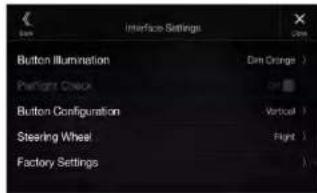
Button Illumination
(only X903D-ID/X903DC-F)
- Switch the button illumination: Orange, Dim Orange, Yellow, Dim Yellow, Red, Dim Red, Green, Dim Green, Blue, Dim Blue, White, Dim White
Preflight Check
(menu item not available)
- Driver receives notification before start if equipment is secured
Button Configuration
(only X903D-ID/X903DC-F)
- Configures the respective key assignment depending on the installed position of the keys (not used)
Steering Wheel
(only X903D-ID/X903DC-F)
- Switchable between Left (default) and Right
Factory Settings
- Resets all interface settings