CE300 - Uncategorized ATEN - Free user manual and instructions
Find the device manual for free CE300 ATEN in PDF.


User questions about CE300 ATEN
0 question about this device. Answer the ones you know or ask your own.
Ask a new question about this device
Download the instructions for your Uncategorized in PDF format for free! Find your manual CE300 - ATEN and take your electronic device back in hand. On this page are published all the documents necessary for the use of your device. CE300 by ATEN.
USER MANUAL CE300 ATEN
natural_image
Exterior view of a silver AXON device with ports and indicator lights (no readable text or symbols)FCC Information
This is an FCC Class A product. In a domestic environment this product may cause radio interference in which case the user may be required to take adequate measures.
This equipment has been tested and found to comply with the limits for a Class A digital device, pursuant to Part 15 of the FCC Rules. These limits are designed to provide reasonable protection against harmful interference when the equipment is operated in a commercial environment. This equipment generates, uses and can radiate radio frequency energy and, if not installed and used in accordance with the instruction manual, may cause harmful interference to radio communications. Operation of this equipment in a residential area is likely to cause harmful interference in which case the user will be required to correct the interference at his own expense.
RoHS
This product is RoHS compliant.
SJ/T 11364-2006
The following contains information that relates to China.
Be sure to register your product at our online support center:
| International http://support.aten.com | ||
| North America ATEN | TECH http://www.aten-usa.com/product_registration | |
| ATEN NJ http://support.aten.com | ||
Telephone Support
For telephone support, call this number:
| International 886-2-8692-6959 | ||
| North America ATEN | TECH 1-888-999-ATEN | |
| ATEN NJ 1-732-356-1703 | ||
User Notice
All information, documentation, and specifications contained in this manual are subject to change without prior notification by the manufacturer. The manufacturer makes no representations or warranties, either expressed or implied, with respect to the contents hereof and specifically disclaims any warranties as to merchantability or fitness for any particular purpose. Any of the manufacturer's software described in this manual is sold or licensed as is. Should the programs prove defective following their purchase, the buyer (and not the manufacturer, its distributor, or its dealer), assumes the entire cost of all necessary servicing, repair and any incidental or consequential damages resulting from any defect in the software.
The manufacturer of this system is not responsible for any radio and/or TV interference caused by unauthorized modifications to this device. It is the responsibility of the user to correct such interference.
The manufacturer is not responsible for any damage incurred in the operation of this system if the correct operational voltage setting was not selected prior to operation. PLEASE VERIFY THAT THE VOLTAGE SETTING IS CORRECT BEFORE USE.
This ATEN product is specifically designed and manufactured for the operation and management of computer mainframe and communications equipment used in network management centers. As such, it may not be completely appropriate for those environments and sites where special standards for performance and high reliability are required – such as military equipment, traffic management, nuclear facilities, security systems, communications equipment, medical facilities, etc.
Package Contents
The CE-300 package consists of:
◆ 1 CE-300L Audio KVM Extender (Local Unit)
◆ 1 CE-300R Audio KVM Extender (Remote Unit)
◆ 1 Custom KVM Cable (1.8 m)
◆ 2 Power Adapters
◆ 2 Rack Mounting Kits
◆ 1 Firmware Upgrade Cable
◆ 1 User Manual*
◆ 1 Quick Start Guide
Check to make sure that all the components are present and that nothing got damaged in shipping. If you encounter a problem, contact your dealer.
Read this manual thoroughly and follow the installation and operation procedures carefully to prevent any damage to the unit, and/or any of the devices connected to it.
* Features may have been added to the CE-300 since this manual was printed. Please visit our website to download the most up-to-date version of the manual.
© Copyright 2008 ATEN® International Co., Ltd.
Manual Part No. PAPE-0256-200G
Manual Date: 2008-07-31
ATEN and the ATEN logo are registered trademarks of ATEN International Co., Ltd. All rights reserved.
All other brand names and trademarks are the registered property of their respective owners.
Contents
FCC Information .... ii
RoHS.ii
SJ/T 11364-2006....ii
User Information ....iii
Online Registration .....iii
Telephone Support .....iii
User Notice ....iii
Package Contents...... iv
About this Manual . . . . . . . . . . . . . . . . . . . . . . . . . . . . . . . . . . . . . . . . . . . . . . . . . . . . . . . . . . . . . . . . vii
Conventions . . . . . . . . . . . . . . . . . . . . . . . . . . . . . . . . . . . . . . . . . . . . . . . . . . . . . . . . . . . . . . . . . . . . . . . . . . . . . . . . . . . . . . . . . viii
Product Information......viii
1. Introduction
Overview 1
Features 2
System Requirements. 3
Consoles 3
Computers....3
Cables 3
Operating Systems 4
Components ....5
CE-300L (Local Unit) Front View. 5
CE-300R (Remote Unit) Front View 6
CE-300L / CE-300R Rear View. 7
2. Hardware Setup
Cable Connection 9
3. Operation
CE-300L (Local Unit)....11
CE-300R (Remote Unit)....12
4. The Firmware Upgrade Utility
Before You Begin 13
Starting the Upgrade....15
Upgrade Succeeded 17
Upgrade Failed 17
5. Appendix
Safety Instructions....19
General 19
Rack Mounting 21
Technical Support 22
International 22
North America 22
Specifications 23
TP Wiring Diagram 24
TP Pin Assignments 24
Troubleshooting 24
About SPHD Connectors 25
Limited Warranty....25
About this Manual
This User Manual is provided to help you get the most from your CE-300 system. It covers all aspects of installation, configuration and operation. An overview of the information found in the manual is provided below.
Chapter 1, Introduction, introduces you to the CE-300 system. Its purpose, features and benefits are presented, and its front and back panel components are described.
Chapter 2, Hardware Setup, describes how to set up your installation. The necessary steps – from a basic single stage hookup to a complete 32 switch daisy chained operation are provided.
Chapter 3, Operation, explains the fundamental concepts involved in operating the CE-300.
Chapter 4, The Firmware Upgrade Utility, explains how to use this utility to upgrade the CE-300's firmware with the latest available versions.
An Appendix, provides specifications and other technical information regarding the CE-300.
Conventions
This manual uses the following conventions:
MonospacedIndicates text that you should key in.
[] Indicates keys you should press. For example, [Enter] means to press the Enter key. If keys need to be chorded, they appear together in the same bracket with a plus sign between them: [Ctrl+Alt].
- Numbered lists represent procedures with sequential steps.
◆ Bullet lists provide information, but do not involve sequential steps.
→ Indicates selecting the option (on a menu or dialog box, for example), that comes next. For example, Start → Run means to open the Start menu, and then select Run.

Indicates critical information.
Product Information
For information about all ATEN products and how they can help you connect without limits, visit ATEN on the Web or contact an ATEN Authorized Reseller. Visit ATEN on the Web for a list of locations and telephone numbers
- International – http://www.aten.com
- North America – http://www.aten-usa.com
Overview
The CE-300 KVM Extender with onboard audio allows access to a computer system from a remote console (keyboard, monitor, stereo speakers, microphone and mouse). It is perfect for factory and construction sites, or any type of installation where the console needs to be in a conveniently accessible location, but you want the system equipment to reside in a safe place – away from dust, dirt, and harsh environmental influences.
The CE-300 also is useful for control and security purposes. Store the system unit in a secure area at the same time that you put the console in a location that offers convenient access.
Recognizing the increased importance of sound in the computing environment, the CE-300 improves on earlier models by incorporating audio capability. Now, stereo microphone and stereo speaker transmission can be extended to the remote system along with the KVM data.
The CE-300 KVM Extender plus Audio provides the ideal means to access the remote system box, since it improves on previous designs by using compact Category 5 cable – the kind commonly used in Ethernet networks – instead of bulkier, more expensive, standard cables. Category 5 cabling makes for a much neater, more convenient, more reliable data transfer connection over greater distances.
The CE-300 features a custom ASIC to ensure the utmost in reliability and compatibility, and can also sense the distance to the system and automatically adjust the gain to compensate.
Setup is as easy as can be – simply connect the computer system box and local console to the Local CE-300 Module; run the Cat 5 cable to the Remote CE-300 Module (up to 100 meters away); and plug the remote console into the Remote Module.
Note: You can control numerous remote systems from a single console by combining the CE-300 with a KVM switch.
Features
◆ Built-in ASIC for greater reliability and compatibility
- Cat 5 Ethernet cable to connect the local and remote units – up to 100 m apart
- Dual console operation – control your system from both the local and remote consoles (PS/2 keyboard, mouse, stereo speakers, stereo microphone and monitor)
♦ Pushbutton selection of the active console
- High resolution video – up to 1280 x 1024 @ 60HZ at 100 m
◆ Supports VGA, SVGA, and Multisync monitors
◆ Local monitor supports DDC; DDC2; DDC2B
- Automatic gain control – automatically adjusts signal strength to compensate for distance
◆ Supports Stereo Speakers And Stereo Microphone
- Upgradable firmware
System Requirements
Consoles
- A VGA, SVGA, or Multisync monitor capable of the highest resolution that you will be using on any computer in the installation
◆ A PS/2 keyboard
A PS/2 mouse
◆ Stereo microphone and stereo speakers (optional)
Note: If you connect a DDC type monitor to the Local unit, the monitor that connects to the Remote unit must be able to support the highest video resolution that the DDC monitor can provide.
Computers
The following equipment must be installed on each computer that is to be connected to the system:
◆ A VGA, SVGA or Multisync card
◆ A 6-pin Mini-DIN mouse port
◆ A 6-pin Mini-DIN keyboard port
Cables
Although it is possible to use standard KVM cables to link computers with PS/2 type keyboard and mouse ports to the CE-300L, for optimum signal integrity and to simplify the layout, we strongly recommend that you use the high quality custom KVM cable sets provided with this package.
It is not possible to use standard KVM cables to link computers with AT type keyboard and mouse ports to the CE-300L. For those computers, custom KVM cable sets must be used. Contact your dealer for details.
- Category 5 cable is the minimum required to connect the local and remote CE-300 units. Cable of a lesser standard will result in degraded video signals. For best performance, we strongly recommend Category 5 cable.
Operating Systems
Supported operating systems are shown in the table, below:
| OS Version | ||
| Windows 2000 and higher, Vista | ||
| Linux RedHat | 6.0 and higher | |
| SuSE 8.2 and higher | ||
| Mandriva (Mandrake) 9.0 and higher | ||
| UNIX AIX 4.3 | and higher | |
| FreeBSD 3.5.1 and higher | ||
| Novell Netware | 5.0 and higher | |
| DOS 6.22 and higher | ||
Components
CE-300L (Local Unit) Front View
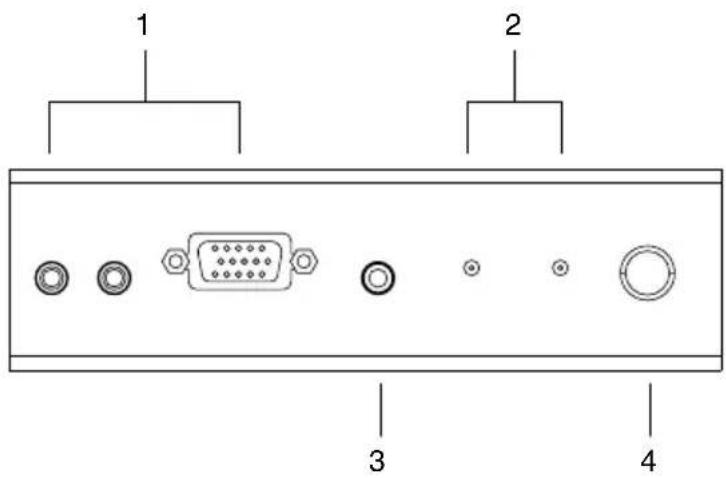
| No. | Component Description | |
| 1 | KVM Port Section This | section is made up of a microphone jack, speaker jack and KVM (keyboard, video, mouse), data connector.The cable that links the CE-300L to your local KVM console plugs in here. Only KVM cables designed to work with this switch can plug in (see Cables, page 3, for details). |
| 2 | LEDs The Local Unit has | two LEDs to indicate the operating status of the Local and Remote units (see page 11 for details). |
| 3 | Firmware Upgrade Port | The Firmware Upgrade Cable that transfers the firmware upgrade data from the administrator's computer to the CE-300L plugs into this connector. |
| 4 | Operating Mode Selection Switch | Pressing this switch cycles through the operating mode choices:Auto: Both consoles can control the system(s), but not at the same time; the first user with keyboard/mouse input maintains control until their keyboard/mouse is no longer in use – the second console can then take control with keyboard/mouse input. This is the default mode.Local: Only the local console can control the system(s)Remote: Only the remote console can control the system(s). |
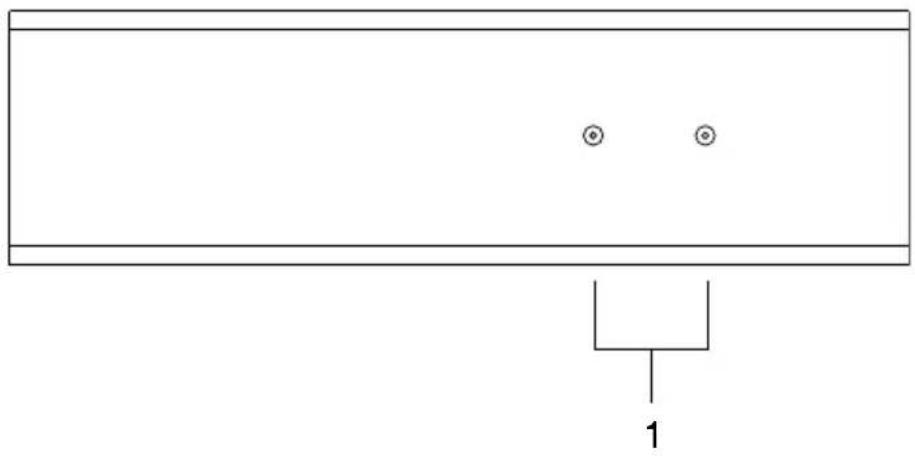
CE-300R (Remote Unit) Front View
natural_image
Simple line drawing of a rectangular frame with two small circular dots and a vertical line labeled '1' at the bottom (no text or symbols on the diagram itself)| No. | Component Description | |
| 1 | On Line / Power On LEDs | These LEDs indicate the operating status of the Local and Remote units (see page 12 for details). |
CE-300L / CE-300R Rear View
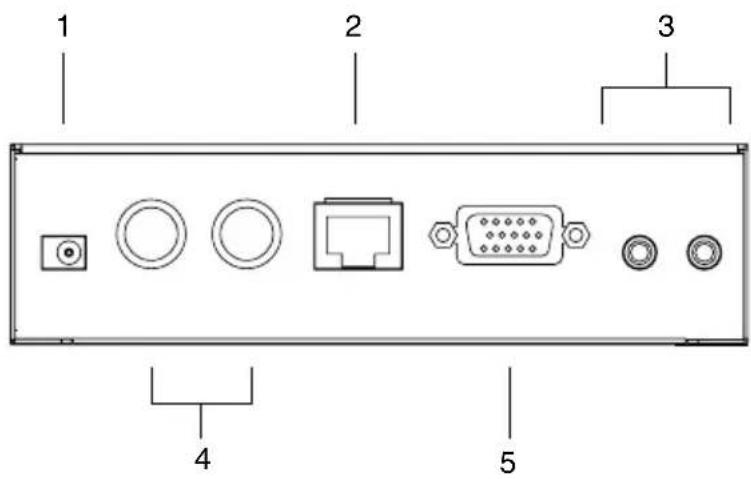
| No. | Component Description |
| 1 | Power Jack The cable from the AC Power Adapter plugs into this jack. |
| 2 | Remote I/O The Category 5 twisted pair cable that connects the Remote and Local units plugs into this connector. |
| 3 | Console Audio Jacks The stereo microphone and stereo speaker plugs of the custom KVM cable supplied with this package plug into these jacks. The jacks and plugs are color coded and marked with an appropriate icon to indicate themselves. |
| 4 | Keyboard and Mouse Ports The PS/2 keyboard and mouse connectors of the custom KVM cable supplied with this package plug into these ports. The connectors and ports are color coded and marked with an appropriate icon to indicate themselves. |
| 5 | Monitor Port The monitor connector of the custom KVM cable supplied with this package plugs into this port. |
Note: If you are combining the CE-300 with a KVM switch, the custom KVM cable connects back to the respective ports on the Console section of the switch.
This Page Intentionally Left Blank
Chapter 2
Hardware Setup

-
Important safety information regarding the placement of this device is provided on page 19. Please review it before proceeding.
-
Make sure that power to all the devices you will be installing has been turned off. You must unplug the power cords of any computers that have the Keyboard Power On function.
Cable Connection
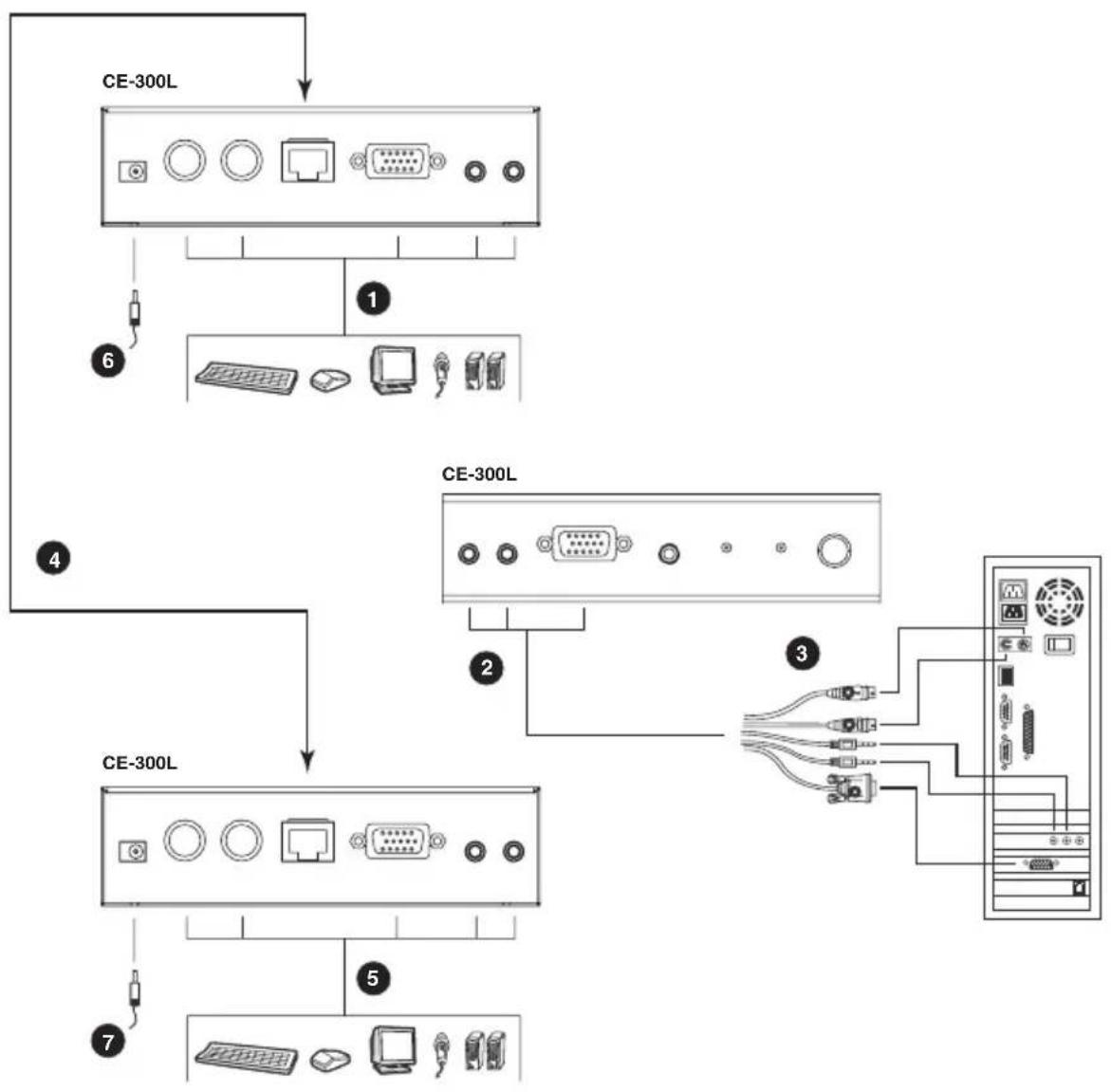
Setting up the KVM Extender System is simply a matter of plugging in the cables. Refer to the installation diagram on the next page as you perform the following steps (the diagram numbers correspond to the numbers of the steps):
- Plug the cables from the local console devices (mouse, keyboard, monitor, microphone and speakers) into their ports on the rear panel of the Local Unit (CE-300L). The connectors are color coded and marked with an icon to identify themselves.
- Plug the connectors on the custom KVM cable provided with this package into their appropriate ports on the CE-300L's front panel. The connectors are color coded and marked with an icon to identify themselves.
- Plug the connectors on the other end of the custom KVM cable into their appropriate ports on the computer system (or Console section of the KVM switch – if you are using one).
- Connect one end of a Category 5 twisted pair cable to the Remote I/O port on the CE-300L; connect the other end into the Remote I/O port on the CE-300R.
- Plug the cables from the remote console devices (mouse, keyboard, monitor, microphone and speakers) into their ports on the rear panel of the Remote Unit (CE-300R).
- Connect one of the power adapters provided with this package into an AC source; connect the adapter's power cable to the Power Jack on the CE-300L.
- Connect the other power adapter provided with this package into an AC source; connect the adapter's power cable to the Power Jack on the CE-300R.
Installation Diagram
flowchart
graph TD
    A["CE-300L"] --> B["1"]
    B --> C["2"]
    C --> D["3"]
    D --> E["4"]
    E --> F["5"]
    F --> G["6"]
    G --> H["7"]
Chapter 3
Operation
The CE-300 Local and Remote Units each have two LEDs to indicate their operating status, as shown in the tables below:
CE-300L (Local Unit)
| LED | Operating Mode | ||
| Local Auto* | Remote | ||
| Local Lights to indicate that the local console is active (the Remote LED is off). | ◆ Lights when the local console is active (the Remote LED is off).◆ Turns off when the remote console is active (the Remote LED turns on).◆ Flashes on and off alternately with the Remote LED when neither console is active. | The LED is Off | |
| Remote The LED is Off. | ◆ Lights when the remote console is active (the Local LED is off).◆ Turns off when the local console is active (the Local LED turns on).◆ Flashes on and off alternately with the Local LED when neither console is active. | Lights to indicate that the remote console is active (the Local LED is off). | |
Note: In Auto mode, both consoles can control the system(s), but not at the same time; the first user with keyboard/mouse input maintains control until their keyboard/mouse is no longer in use – the second console can then take control with keyboard/mouse input. This is the default mode.
CE-300R (Remote Unit)
| LED Indication | |
| Power | ♦ Lights steadily to indicate that the connection to the Local Unit is OK.♦ Flashes when there is a problem with the connection to the Local Unit. |
| On Line | ♦ Lights when the remote console is active.♦ Is Off when the local console is active.♦ Is Off when there is a problem with the connection to the Local Unit. |
Chapter 4
The Firmware Upgrade Utility
The Windows-based Firmware Upgrade Utility (FWUpgrade.exe) provides a smooth, automated process for upgrading the KVM switch's firmware.
The Utility comes as part of a Firmware Upgrade Package that is specific for each device. New firmware upgrade packages are posted on our web site as new firmware revisions become available. Check the web site regularly to find the latest packages and information relating to them:
http://www.aten.com
Before You Begin
To prepare for the firmware upgrade, do the following:
- Disconnect the KVM cable (to the local computer) from the CE-300L's front panel.
- Go to our Internet support site and choose the model name that relates to your device (CE-300) to get a list of available Firmware Upgrade Packages.
- Choose the Firmware Upgrade Package you want to install (usually the most recent), and download it to your computer.
- Use the Firmware Upgrade Cable provided with this unit to connect a COM port on your computer to the CE-300L's Firmware Upgrade Port.
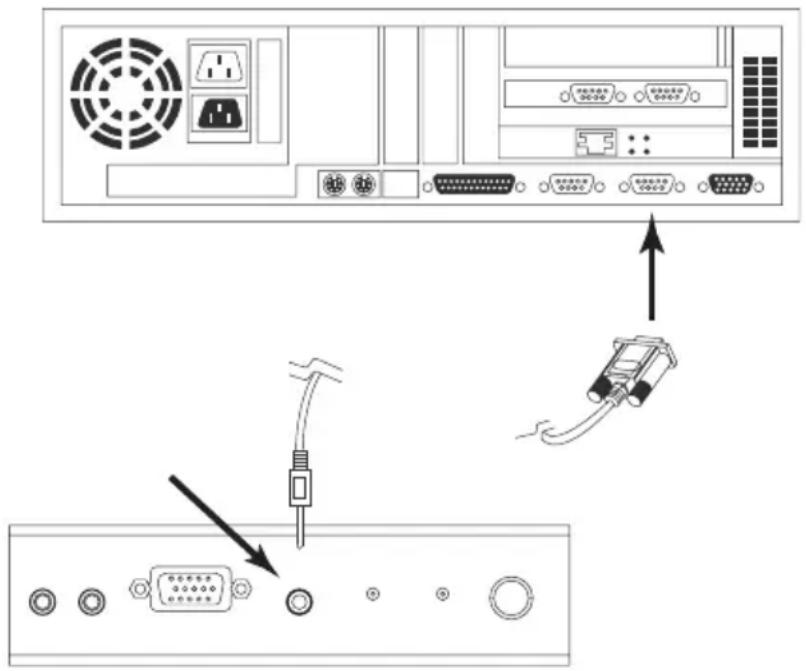
- Make sure both units are connected by the Cat 5 cable, then turn on the power to the Remote unit.
- Press and hold the the Local Unit's Selection button, then turn on the power to the Local unit.
- Wait until both green front panel LEDs on the Local unit are flashing on and off, then release the Selection button.
- Make sure the orange LED on the front panel of the Remote unit is on (indicating that Firmware Upgrade Mode is in effect.
Note: If the LED is not on, or it is blinking, the unit is not ready to be upgraded. You must repeat steps 6 and 7.
Starting the Upgrade
To upgrade your firmware:
- Run the downloaded Firmware Upgrade Package file – either by double clicking the file icon, or by opening a command line and entering the full path to it.
The Firmware Upgrade Utility Welcome screen appears:
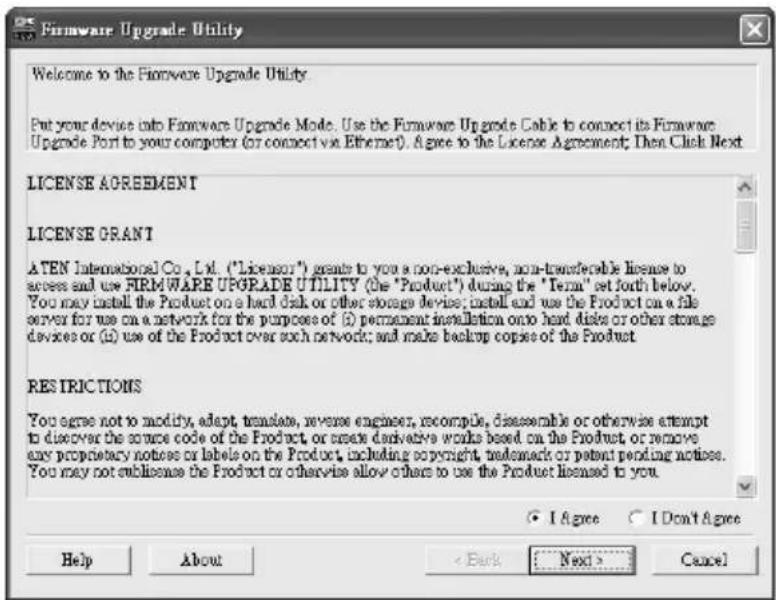
Note: The screens shown in this section are for reference only. The wording and layout of the actual screens put up by the Firmware Upgrade Utility may vary slightly from these examples.
- Read and Agree to the License Agreement (enable the I Agree radio button).
(Continues on next page.)
- Click Next to continue. The Firmware Upgrade Utility main screen appears:
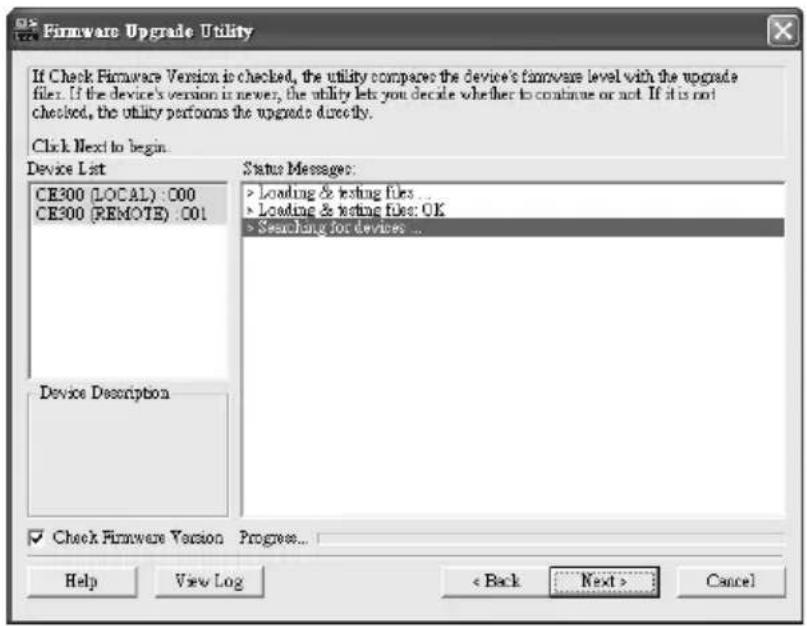
The Utility inspects your installation. All the devices capable of being upgraded by the package are listed in the Device List panel.
-
As you select a device in the list, its description appears in the Device Description panel.
-
After you have made your device selection(s), Click Next to perform the upgrade.
If you enabled Check Firmware Version, the Utility compares the device's firmware level with that of the upgrade files. If it finds that the device's version is higher than the upgrade version, it brings up a dialog box informing you of the situation and gives you the option to Continue or Cancel.
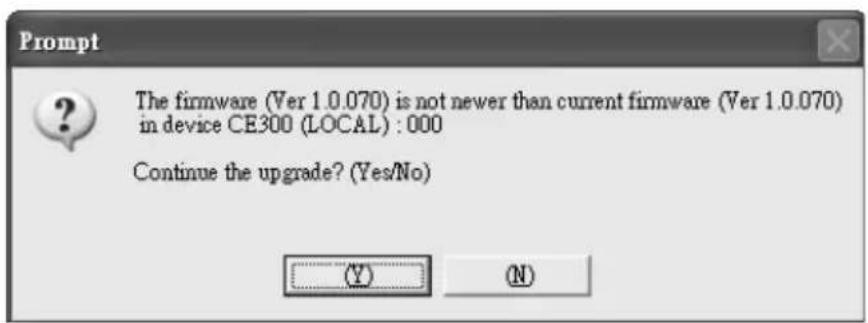
If you did not enable Check Firmware Version, the Utility installs the upgrade files without checking whether or not they are a higher level.
As the Upgrade proceeds, status messages appear in the Status Messages panel, and the progress toward completion is shown on the Progress bar.
Upgrade Succeeded
After the upgrade has completed, a screen appears to inform you that the procedure was successful:
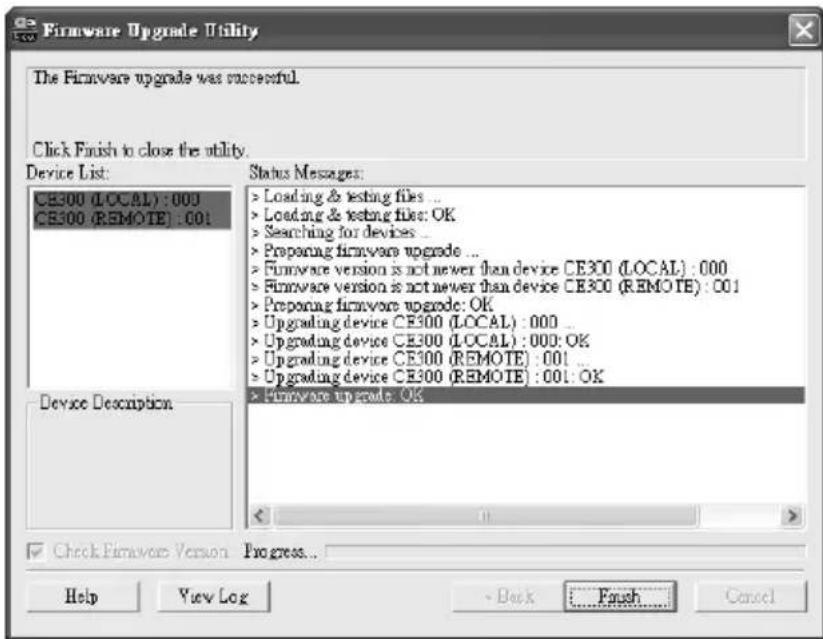
Click Finish to close the Firmware Upgrade Utility.
After successfully upgrading the firmware, the switches automatically exit Firmware Upgrade Mode.
Upgrade Failed
If the Upgrade Succeeded screen does not appear, then the upgrade failed to complete successfully. You should repeat the upgrade procedure from the beginning.
This Page Intentionally Left Blank
Safety Instructions
General
- Read all of these instructions. Save them for future reference.
◆ Follow all warnings and instructions marked on the device. - Do not place the device on any unstable surface (cart, stand, table, etc.). If the device falls, serious damage will result.
- Do not use the device near water.
- Do not place the device near, or over, radiators or heat registers.
- The device cabinet is provided with slots and openings to allow for adequate ventilation. To ensure reliable operation, and to protect against overheating, these openings must never be blocked or covered.
- The device should never be placed on a soft surface (bed, sofa, rug, etc.) as this will block its ventilation openings. Likewise, the device should not be placed in a built-in enclosure unless adequate ventilation has been provided.
- Never spill liquid of any kind on the device.
- Unplug the device from the wall outlet before cleaning. Do not use liquid or aerosol cleaners. Use a damp cloth for cleaning.
- The device should be operated from the type of power source indicated on the marking label. If you are not sure of the type of power available, consult your dealer or local power company.
- The device is designed for IT power distribution systems with 230V phase-to-phase voltage.
- To prevent damage to your installation, it is important that all devices are properly grounded.
- Do not allow anything to rest on the power cord or cables. Route the power cord and cables so that they cannot be stepped on or tripped over.
If an extension cord is used with this device make sure that the total of the ampere ratings of all products used on this cord does not exceed the extension cord ampere rating. Make sure that the total of all products plugged into the wall outlet does not exceed 15 amperes. -
To help protect your system from sudden, transient increases and decreases in electrical power, use a surge suppressor, line conditioner, or un-interruptible power supply (UPS).
-
Position system cables and power cables carefully; Be sure that nothing rests on any cables.
- Never push objects of any kind into or through cabinet slots. They may touch dangerous voltage points or short out parts resulting in a risk of fire or electrical shock.
- Do not attempt to service the device yourself. Refer all servicing to qualified service personnel.
-
If the following conditions occur, unplug the device from the wall outlet and bring it to qualified service personnel for repair.
-
The power cord or plug has become damaged or frayed.
- Liquid has been spilled into the device.
- The device has been exposed to rain or water.
- The device has been dropped, or the cabinet has been damaged.
- The device exhibits a distinct change in performance, indicating a need for service.
- The device does not operate normally when the operating instructions are followed.
- Only adjust those controls that are covered in the operating instructions. Improper adjustment of other controls may result in damage that will require extensive work by a qualified technician to repair.
- Do not connect the RJ-11 connector marked “UPGRADE” to a public telecommunication network.
Rack Mounting
Before working on the rack, make sure that the stabilizers are secured to the rack, extended to the floor, and that the full weight of the rack rests on the floor. Install front and side stabilizers on a single rack or front stabilizers for joined multiple racks before working on the rack.
- Always load the rack from the bottom up, and load the heaviest item in the rack first.
- Make sure that the rack is level and stable before extending a device from the rack.
- Use caution when pressing the device rail release latches and sliding a device into or out of a rack; the slide rails can pinch your fingers.
- After a device is inserted into the rack, carefully extend the rail into a locking position, and then slide the device into the rack.
- Do not overload the AC supply branch circuit that provides power to the rack. The total rack load should not exceed 80 percent of the branch circuit rating.
- Make sure that all equipment used on the rack – including power strips and other electrical connectors – is properly grounded.
- Ensure that proper airflow is provided to devices in the rack.
- Ensure that the operating ambient temperature of the rack environment does not exceed the maximum ambient temperature specified for the equipment by the manufacturer
- Do not step on or stand on any device when servicing other devices in a rack.
Technical Support
Technical support is available both by email and online (with a browser over the web):
International
| Email Support support@aten.com | ||
| Online Support | Technical Support http://support.aten.com | |
| Troubleshooting Documentation Software Updates | http://www.aten.com | |
| Telephone Support 886-2-8692-6959 | ||
North America
| Email Support ATEN TECH support@ | aten-usa.com | ||
| ATEN NJ sales@aten.com | |||
| Online Support | Technical Support AT | EN TECH http://www.aten-usa.com/support | |
| ATEN NJ http://support.aten.com | |||
| Troubleshooting Documentation Software Updates | ATEN TECH http://www.aten-usa.com | ||
| ATEN NJ http://www.aten.com | |||
| Telephone Support ATEN TECH 1-88 | 8-999-ATEN | ||
| ATEN NJ 1-732-356-1703 | |||
When you contact us, please have the following information ready beforehand:
Product model number, serial number, and date of purchase.
- Your computer configuration, including operating system, revision level, expansion cards, and software.
◆ Any error messages displayed at the time the error occurred.
- The sequence of operations that led up to the error.
◆ Any other information you feel may be of help.
Specifications
| Function CE-300L CE-300R | ||||
| Computer Connections 1 N/A | ||||
| Connectors Console KB 1 x 6-pin Mini-DIN Female (Purple) | ||||
TP Wiring Diagram
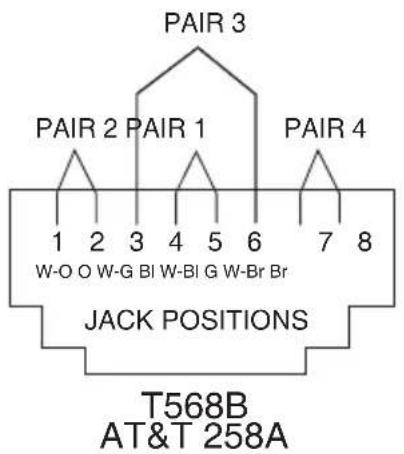
TP Pin Assignments
| Pin Assignment | |||
| 1 | / | V | O |
| 2 | V | O | U |
| 3 | / | V | O |
| 4 | / | V | O |
| 5 | V | O | U |
| 6 | V | O | U |
| 7 | /DO | ||
| 8 | DO | ||
U T B
T B
U T G
U T R
T R
T G
Troubleshooting
| Problem Solution | |
| There are ghost images on the external monitor. | The distance between the external console and the CE-300 is too great. The maximum VGA cable distance should not exceed 20 m and, in some cases, may need to be shorter. Replace the VGA cable with one of an appropriately short length. |
About SPHD Connectors
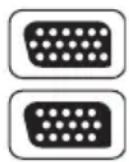
This product uses SPHD connectors for its KVM and/or Console ports. We have specifically modified the shape of these connectors so that only KVM cables that we have designed to work with this product can be connected.
Limited Warranty
IN NO EVENT SHALL THE DIRECT VENDOR'S LIABILITY EXCEED THE PRICE PAID FOR THE PRODUCT FROM DIRECT, INDIRECT, SPECIAL, INCIDENTAL, OR CONSEQUENTIAL DAMAGES RESULTING FROM THE USE OF THE PRODUCT, DISK, OR ITS DOCUMENTATION.
The direct vendor makes no warranty or representation, expressed, implied, or statutory with respect to the contents or use of this documentation, and especially disclaims its quality, performance, merchantability, or fitness for any particular purpose.
The direct vendor also reserves the right to revise or update the device or documentation without obligation to notify any individual or entity of such revisions, or update. For further inquiries, please contact your direct vendor.