T370 - Tablet Hott - Free user manual and instructions
Find the device manual for free T370 Hott in PDF.


| Product Type | Tablet |
| Brand | Hott |
| Model | T370 |
| Display Size | 10.1 inches |
| Resolution | 1280 x 800 pixels |
| Processor | Quad-core 1.5 GHz |
| RAM | 2 GB |
| Storage | 32 GB |
| Battery Capacity | 4000 mAh |
| Weight | 500 g |
| Dimensions (W x H x D) | 240 x 160 x 10 mm |
| Operating System | Android 10 |
| Camera (Rear) | 5 MP |
| Camera (Front) | 2 MP |
| Connectivity | Wi-Fi 802.11 b/g/n, Bluetooth 4.0, Micro USB |
| Expansion Slot | microSD up to 128 GB |
| Audio | Built-in speaker, 3.5 mm headphone jack |
| Power Adapter | 5V/2A |
| Cleaning Instructions | Wipe with a soft, dry cloth. Do not use liquids or abrasives. |
| Safety Precautions | Do not expose to water or extreme temperatures. Keep away from children. |
| Spare Parts & Repair | Contact authorized service center. Battery and screen replacement available. |
| Manual Language | English, Spanish, Portuguese (available online) |
Frequently Asked Questions - T370 Hott
User questions about T370 Hott
0 question about this device. Answer the ones you know or ask your own.
Ask a new question about this device
Download the instructions for your Tablet in PDF format for free! Find your manual T370 - Hott and take your electronic device back in hand. On this page are published all the documents necessary for the use of your device. T370 by Hott.
USER MANUAL T370 Hott
Internet Tablet
Model: T370
Instruction Manual
Dear client,
We thank you for purchasing this product.
This appliance was submitted to several laboratorial tests, which certify its quality. To simplify the use of this appliance, this instruction manual has been provided. The instructions must ensure a quick and safe use.
Please read carefully the instructions and safety measures described in this manual.
We wish our clients great satisfaction in using their new appliance.
Index
- Safety Instructions.... 3
1.1. Power Energy 4
1.2. Power Cord and Other Cables.... 4
1.3. Humidity and Water 4
1.4. Cleaning 4
1.5. General Precautions....4
- Utilization and Functioning .... 5
2.1. Product Description 5
2.2. Power On/Off 5
2.3. Desktop 6
2.4. Standby Mode (Screen Off Mode)/Unlock the Screen 6
2.5. System Settings....7
2.5.1. Wireless & Network....7
2.5.2. Sound....8
2.5.3. Display 8
2.5.4. Storage....9
2.5.5.Battery 9
2.5.6. Apps....10
2.6. Account & Sync 11
2.7. Location Service 11
2.8. Security.... 11
2.9. Language & Input 12
2.10. Date & Time.... 13
2.11. Developer Options 13
2.12. About Tablet 13
-
Installation....13
3.1. How to Connect/Disconnect the Device with/from the Computer...... ..13
3.2. How to Install Applications (.apk file) into the Device....14
3.3. Desktop Icons....15
3.4. Change Input Method .....16 -
Technical Specifications....17
- Aftermarket....17
- Environment Conservation.... 18
1. Safety Instructions
 | ATTENTION |  |
| Risk of Electric ShockDo Not Open | ||
| Attention: to avoid the risk of electric shock, do not remove the cover. The interior does not contain any parts that may be repaired by the user. Ask for assistance to qualified personnel. | ||
Important Warnings
Before using your appliance, read carefully this instruction manual and keep it in a safe place, as you may need it for future consultations.
Before you start your appliance, and to ensure a correct use, do not use it if:
- It has fallen on the ground;
- You notice any evidence of damage;
- Any anomaly occurs during its operation;
To avoid hazards and deterioration of your appliance by an incorrect use, it is advisable to read the instructions carefully and attentively.
Your appliance must not be used to other ends than the ones foreseen in the instructions manual. Your safety is only guaranteed in a household use and not for commercial use. The incorrect use will not be covered and automatically cancels the right to warranty.
Assistance
Be sure that, in case of malfunction, you take your appliance to a qualified technician for assistance.
This appliance can be used by children from 8 years old and above and persons with reduced physical, sensory or mental capabilities or lack of experience and knowledge if they have been given instruction concerning use of the appliance in a safe way and understand the hazards involved. Children shall not play with the appliance. Cleaning and maintenance shall not be made by children without supervision.
1.1. Power Energy
Make sure the voltage of the electric network is compatible with the one of the appliance. If it does not match, consult the vendor or Customer Support Service.
1.2. Power Cord and Other Cables
Do not roll up or pull the cord to disconnect the appliance, and do not use to twine the appliance. Keep the cord far from warm surfaces.
Never use the appliance if it has a damaged cable or socket, or if it is not working properly.
In case of damage of the power cord, do not use your appliance. Take it to technical assistance for its replacement.
1.3. Humidity and Water
Do not use your appliance in humid places. Do not let your appliance to catch water under any circumstance, as it may be dangerous. TO AVOID FIRE HAZARD OR ELECTRIC SHOCK DO NOT EXPOSE YOUR APPLIANCE TO HUMIDITY OR WATER. Do not place your appliance under water (for example for washing).
1.4. Cleaning
Turn off your appliance before cleaning it; some time after clean it with a soft and dry cloth. Do not use cleaning products.
1.5. General Precautions
- Please follow the instructions of the user manual, which helps properly installing and operating this product and enjoying its advanced features. Please keep the instructions for future reference.
- Read all instructions before using the appliance.
- Do not expose this product to fire.
- Do not expose this product to extreme temperatures, humidity or direct sunlight.
- Do not attempt to disassemble this product or any parts of it.
- Never allow liquid or small particles to enter the device.
- Do not place the product in hot, wet or dusty environment, especially in summer.
- Do not leave the product inside a car with all windows closed.
- Avoid dropping, impacting or shaking the product violently; otherwise it may cause damages or malfunctions.
- Select a proper volume to avoid hearing problem when using earphones.
- Be sure to use the provided chargers and accessories in the package.
2. Utilization and Functioning
2.1. Product Description
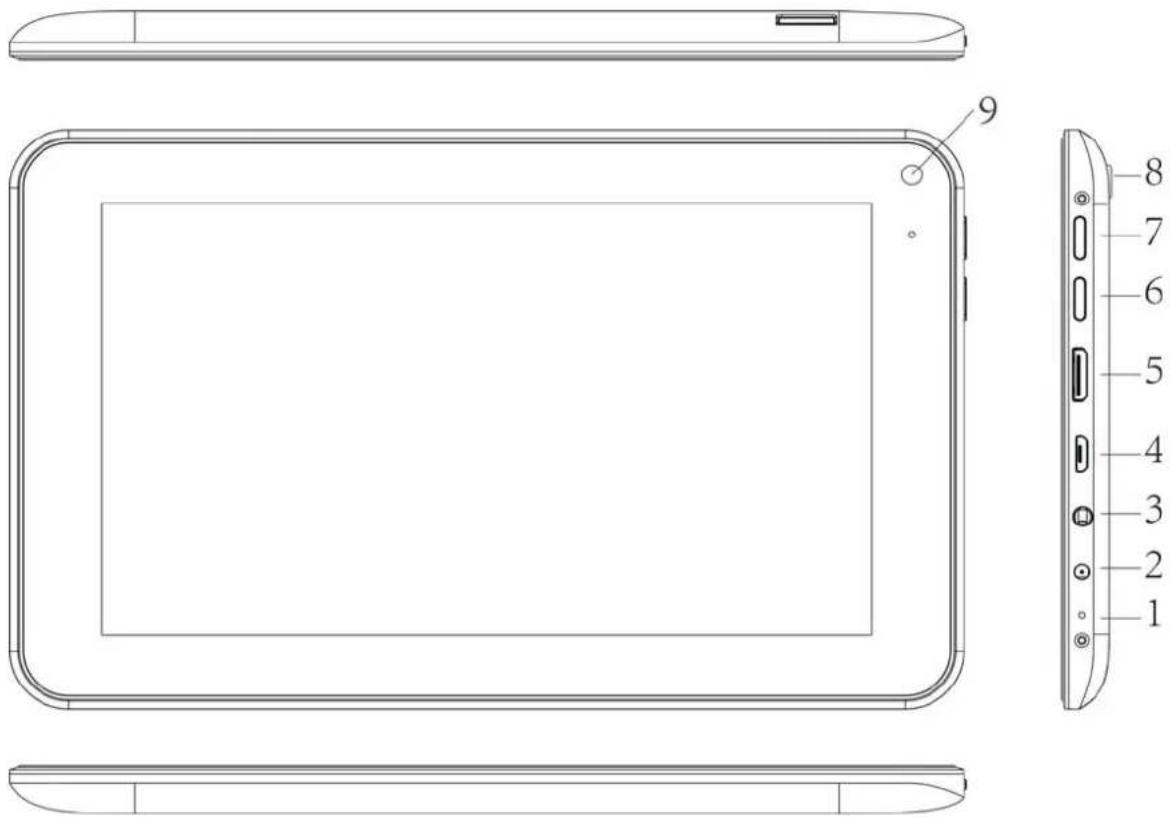
-
MIC 2. DC 5V 3. Earphone Jack 4. USB
-
HD OUT 6. HOME 7. Power 8. TF Card 9. Camera
Important Notice
- If the device is freezing or stuck, long press power button for 10 seconds, or connect with adapter to activate device.
- When the performance is slow after using some applications, it is recommended to close running application in setting menu.
Caution
- For charging, be sure to use the power adapter (DC5V) that is provided in the package, otherwise, the device may be damaged and does not work.
2.2. Power On/Off
Long press power button to power on/off the device. It may take one minute to boot the device. Short press power button to turn on/off the screen (Standby mode, refer to 2.4. below).
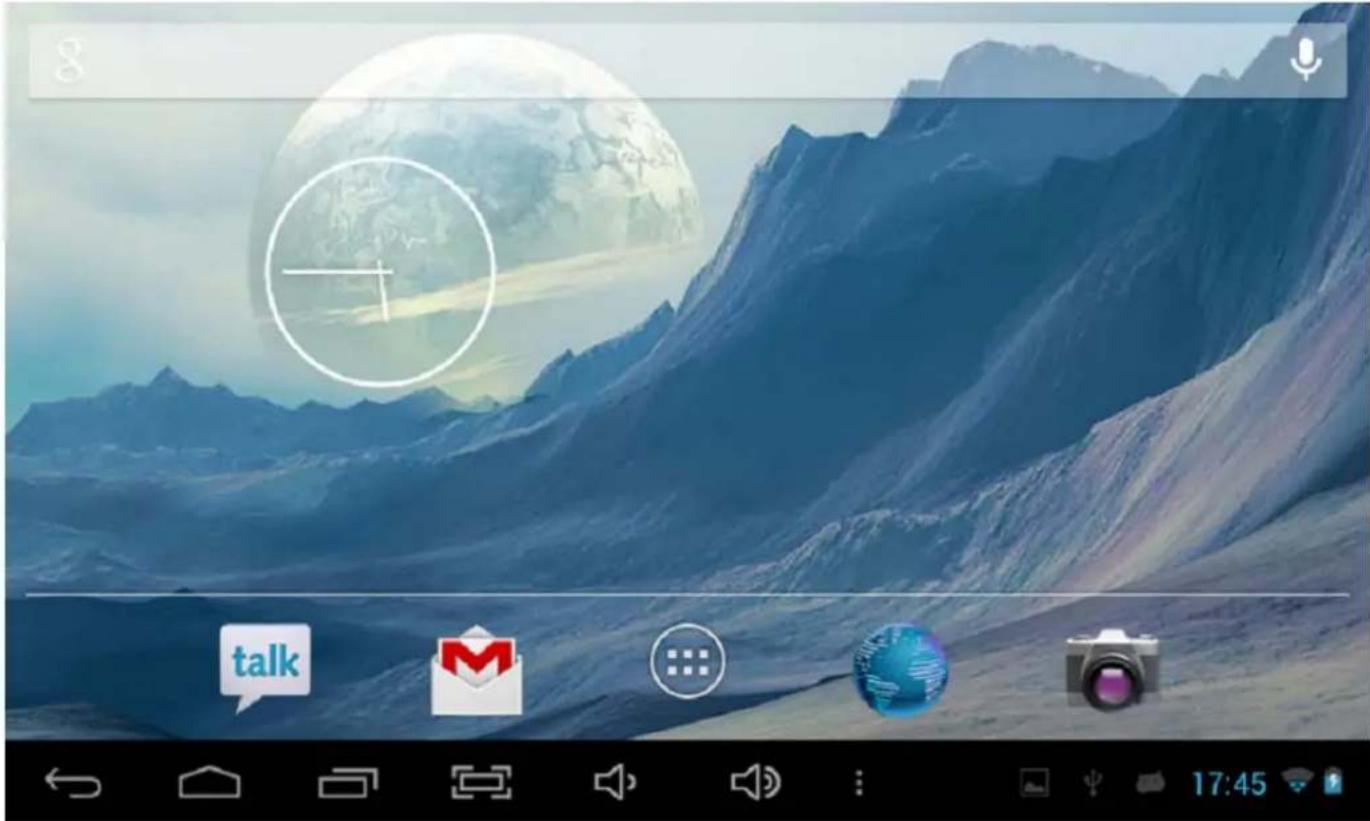
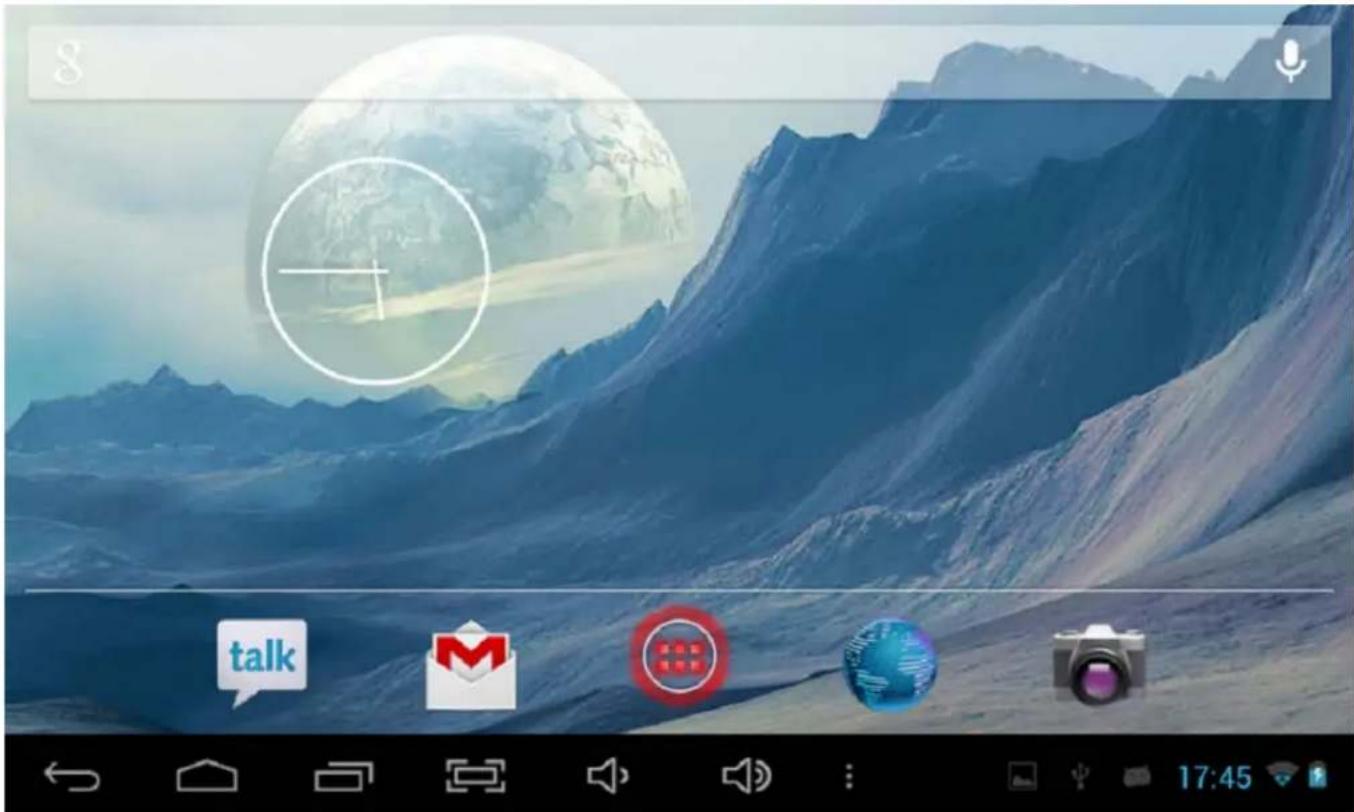
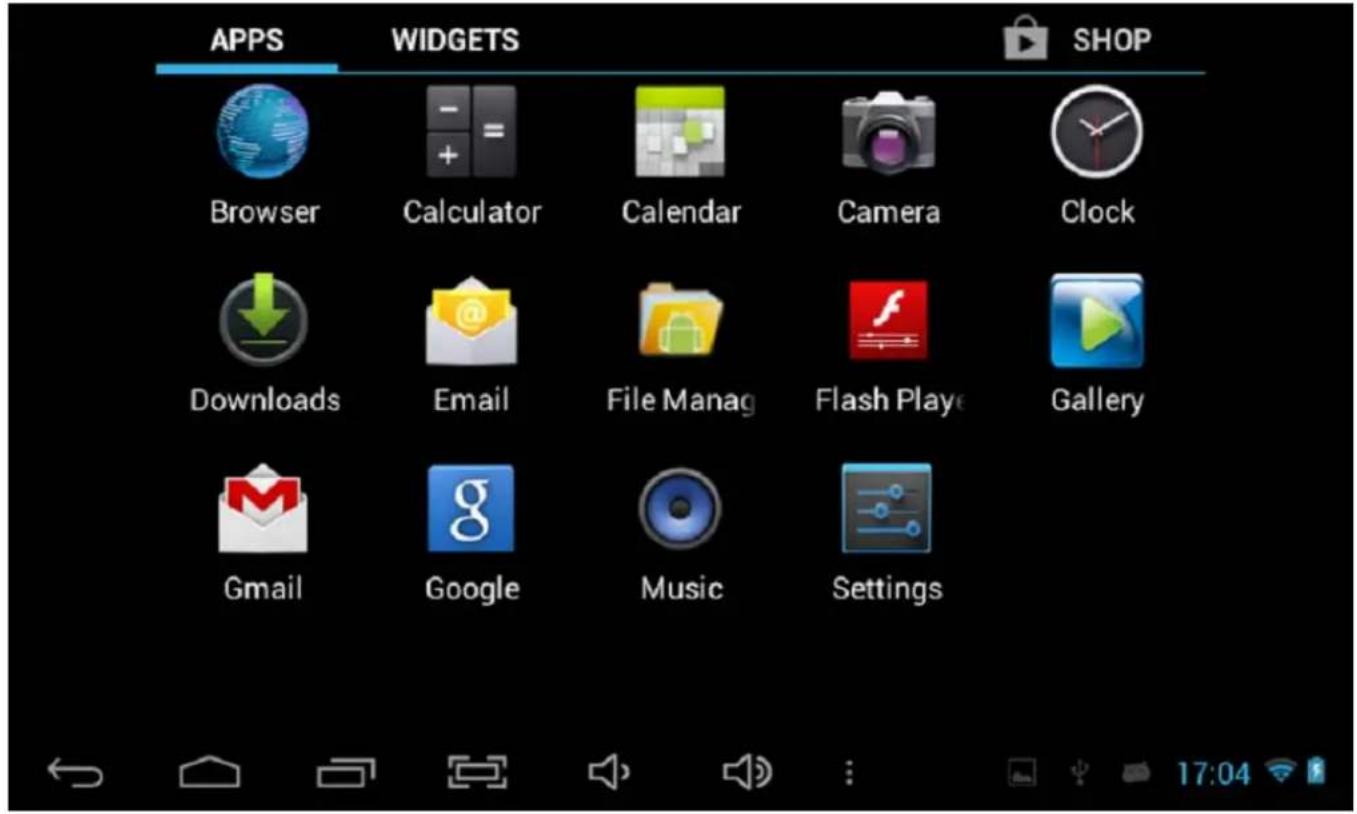
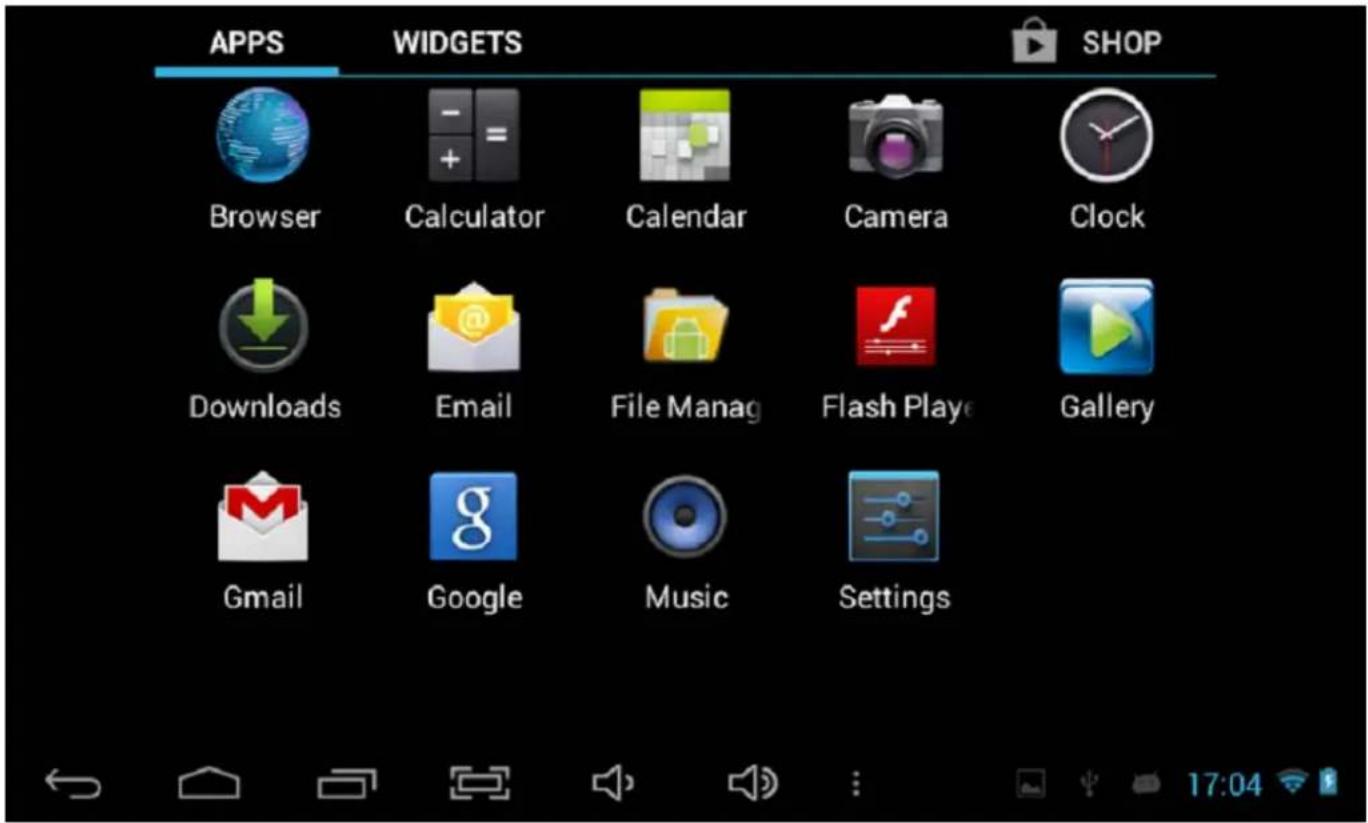
2.3. Desktop
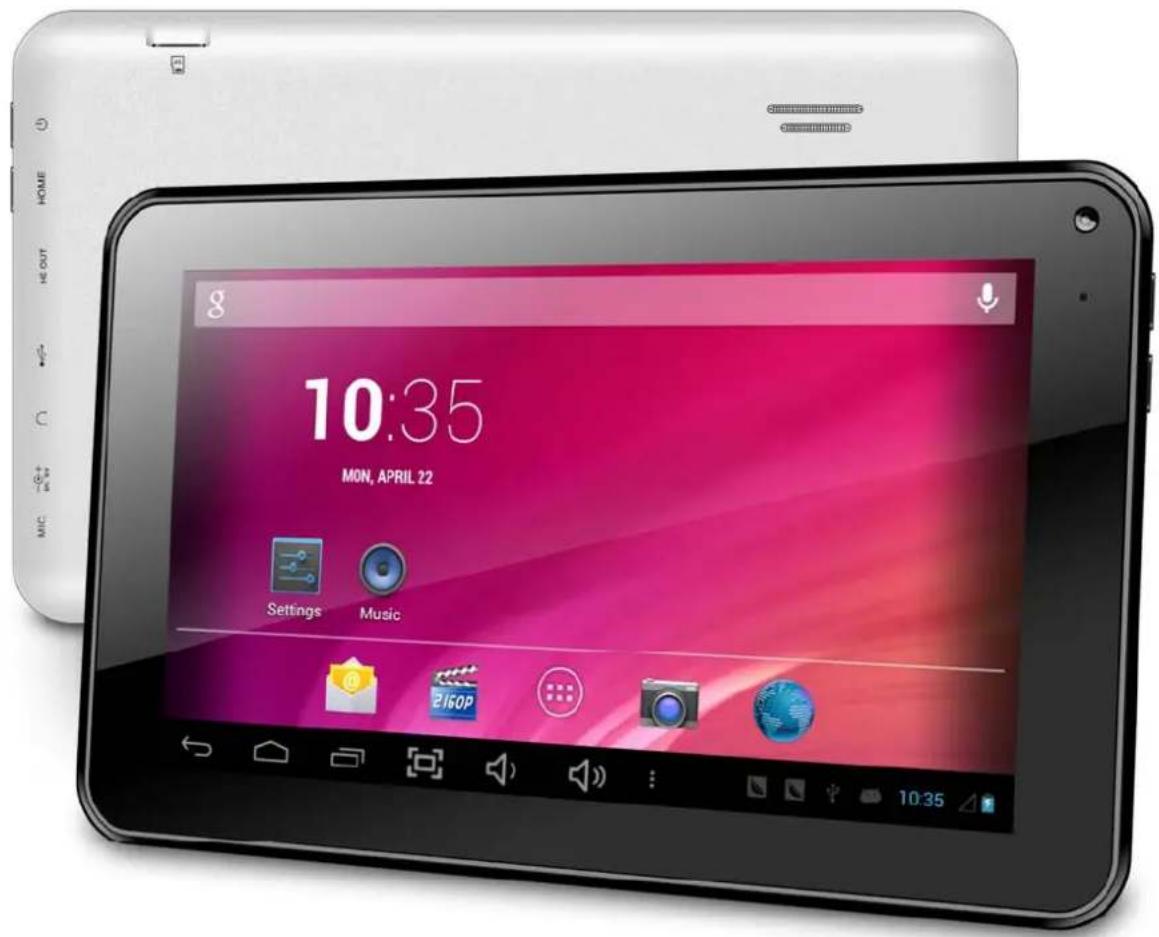
After turning on the device, desktop displays with shortcut icons and arrow panel at the right side.
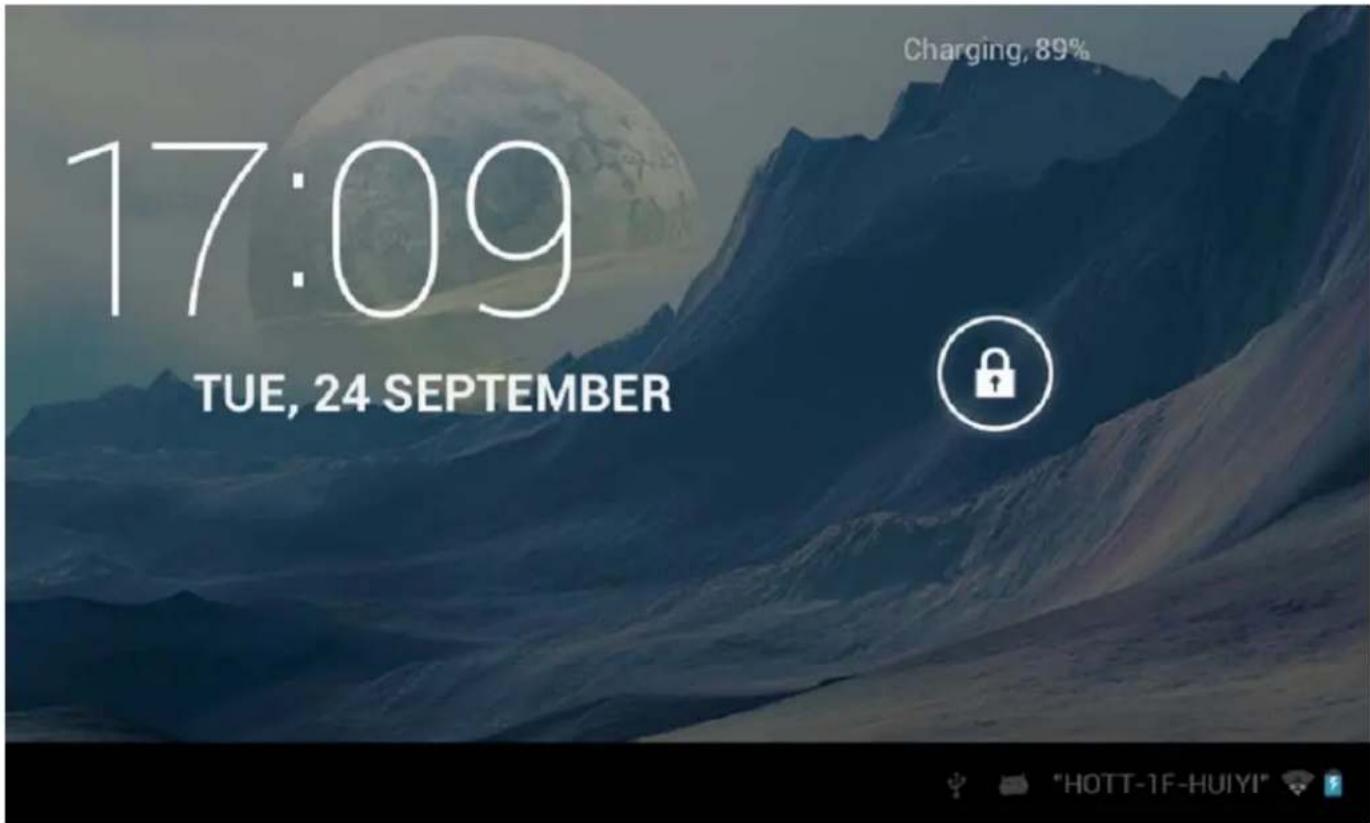
2.4. Standby Mode (Screen Off Mode)/Unlock the Screen
Short press the power button to turn on/off the screen (Standby mode On/Off) After standby mode off, slide the lock icon in order to unlock the screen.
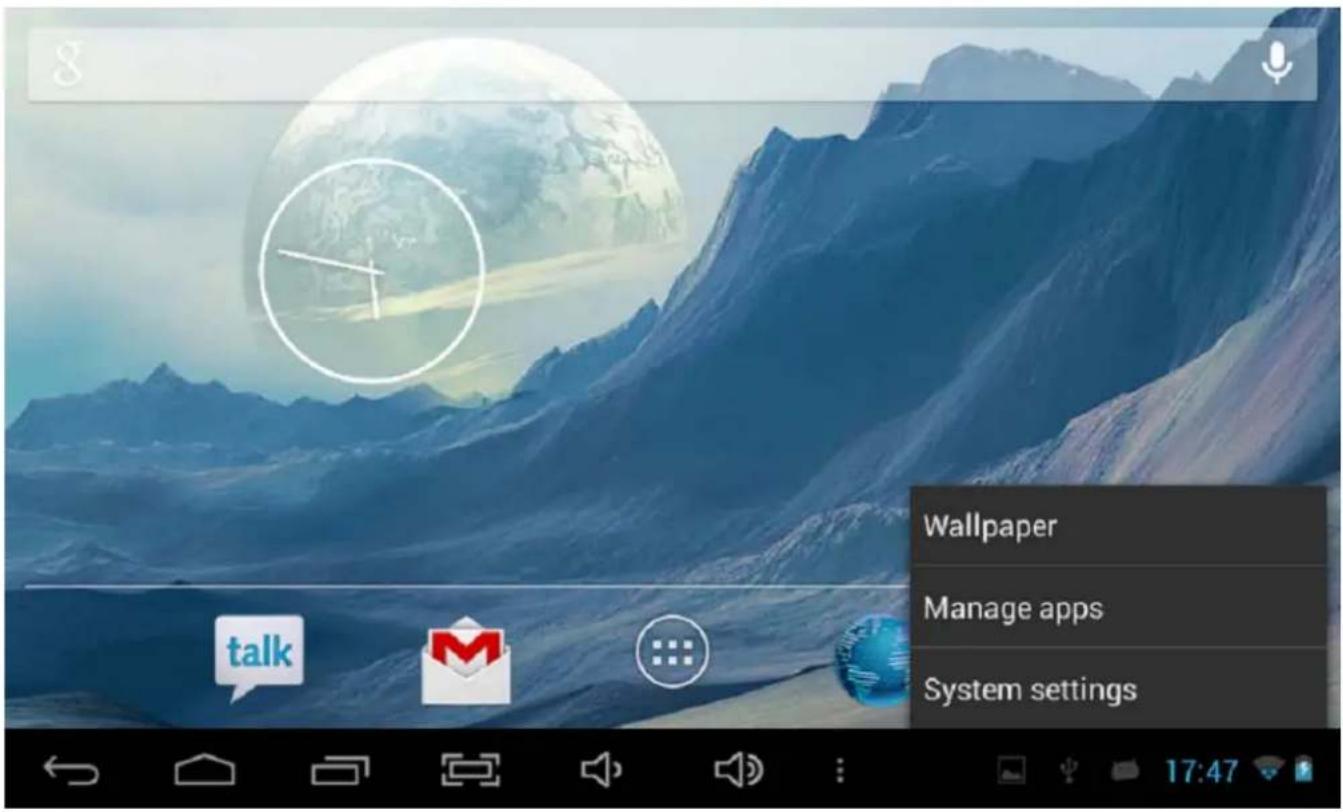
2.5. System Settings
On the desktop, press menu button and select system settings.
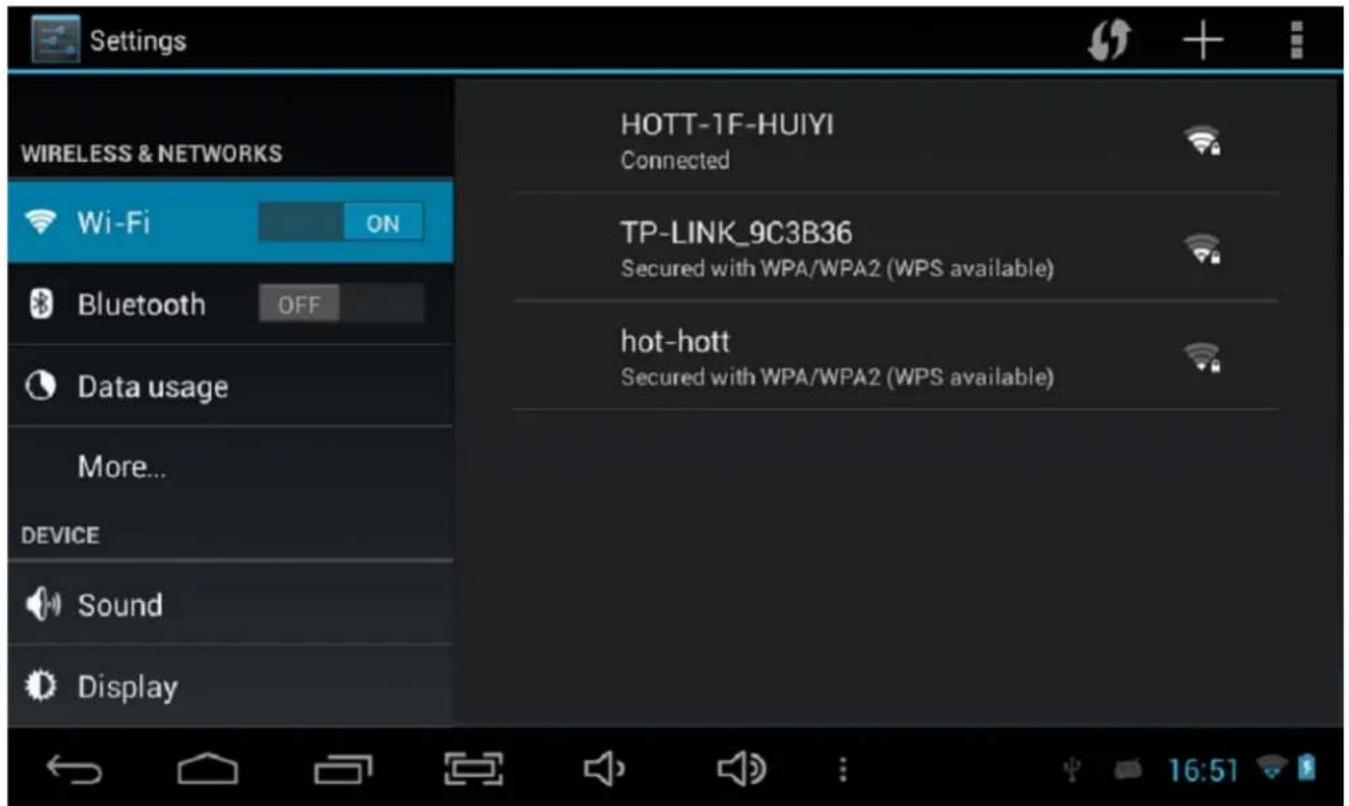
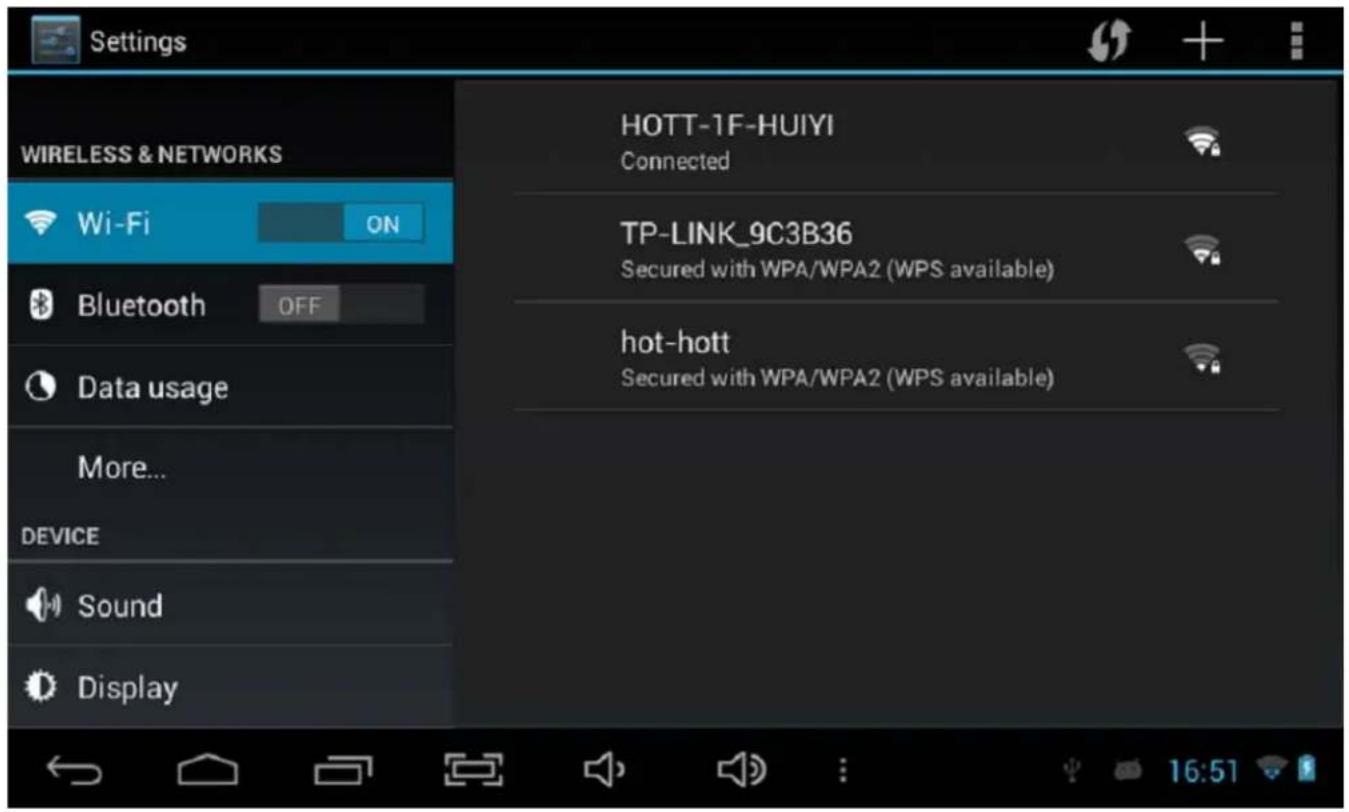
2.5.1. Wireless & Network
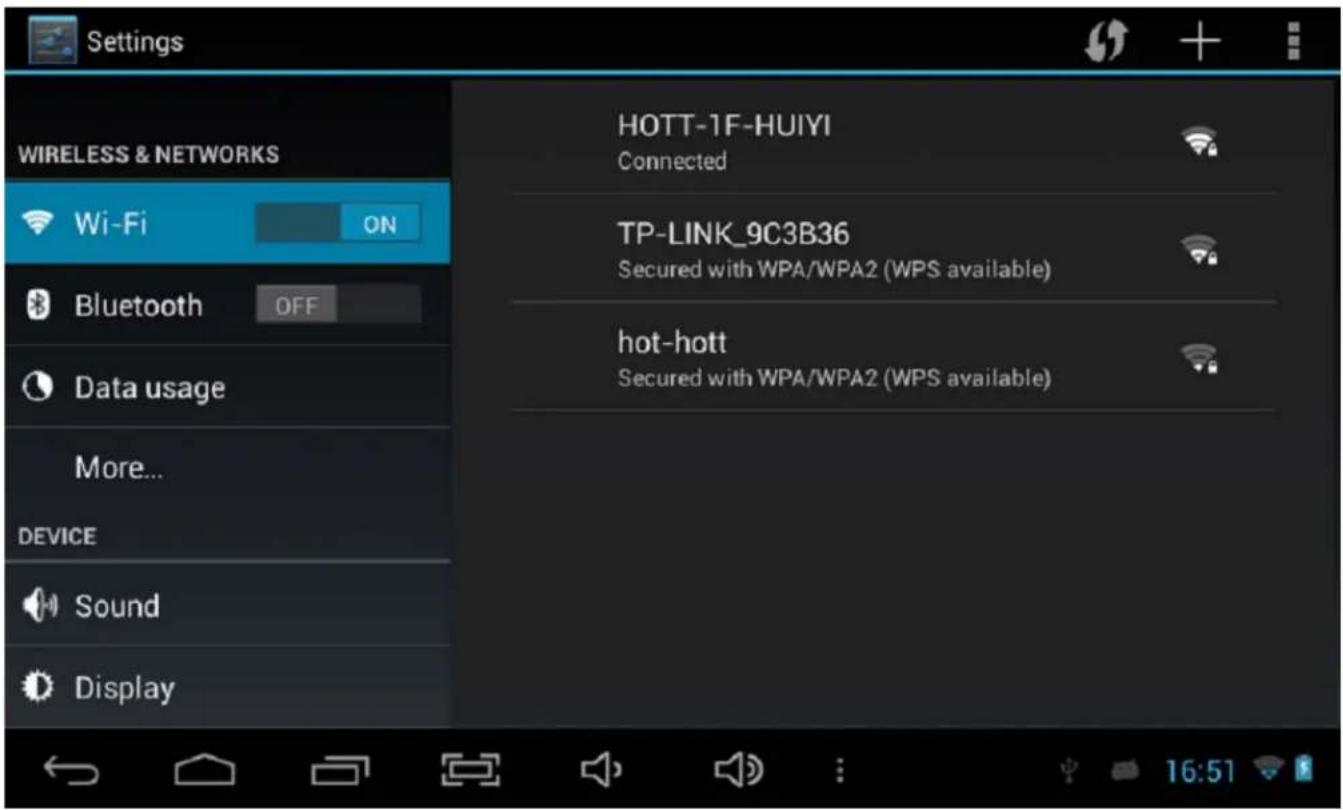
Wi-Fi: Off/On.
Wi-Fi settings: Press Wi-Fi settings, then the device will automatically search the available Wi-Fi signals.
Select the network you want to connect with.
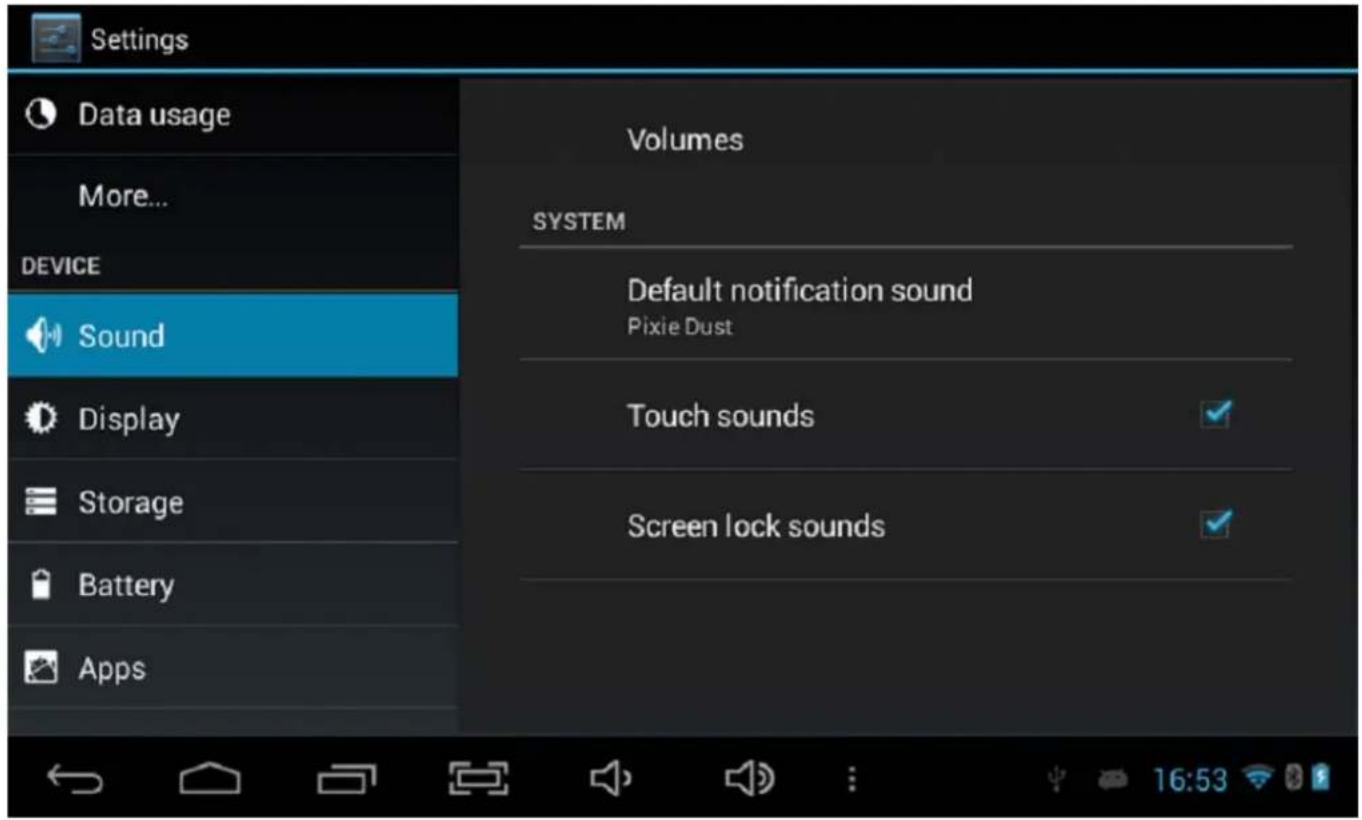
2.5.2. Sound
Set up each setting as you like.
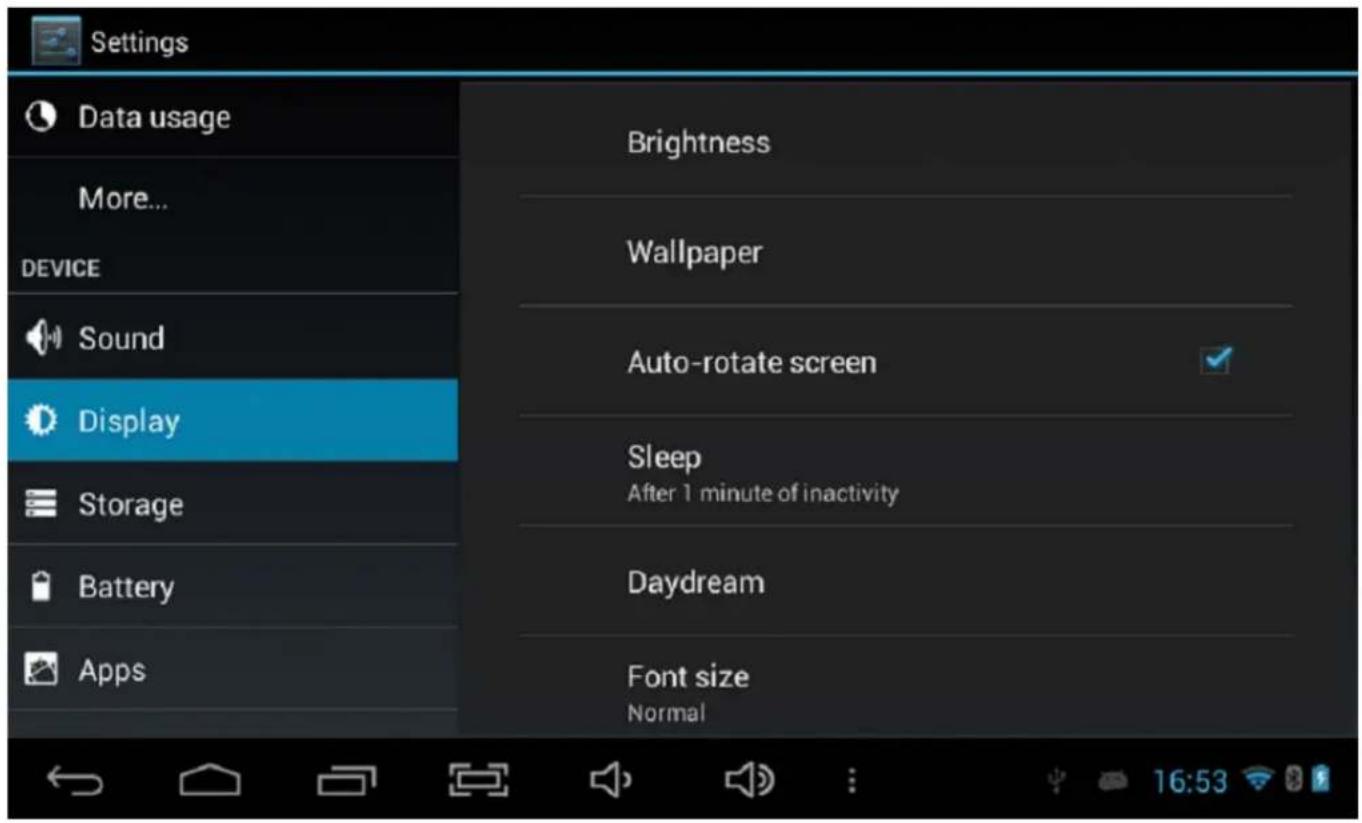
2.5.3. Display
Set up each setting as you like.
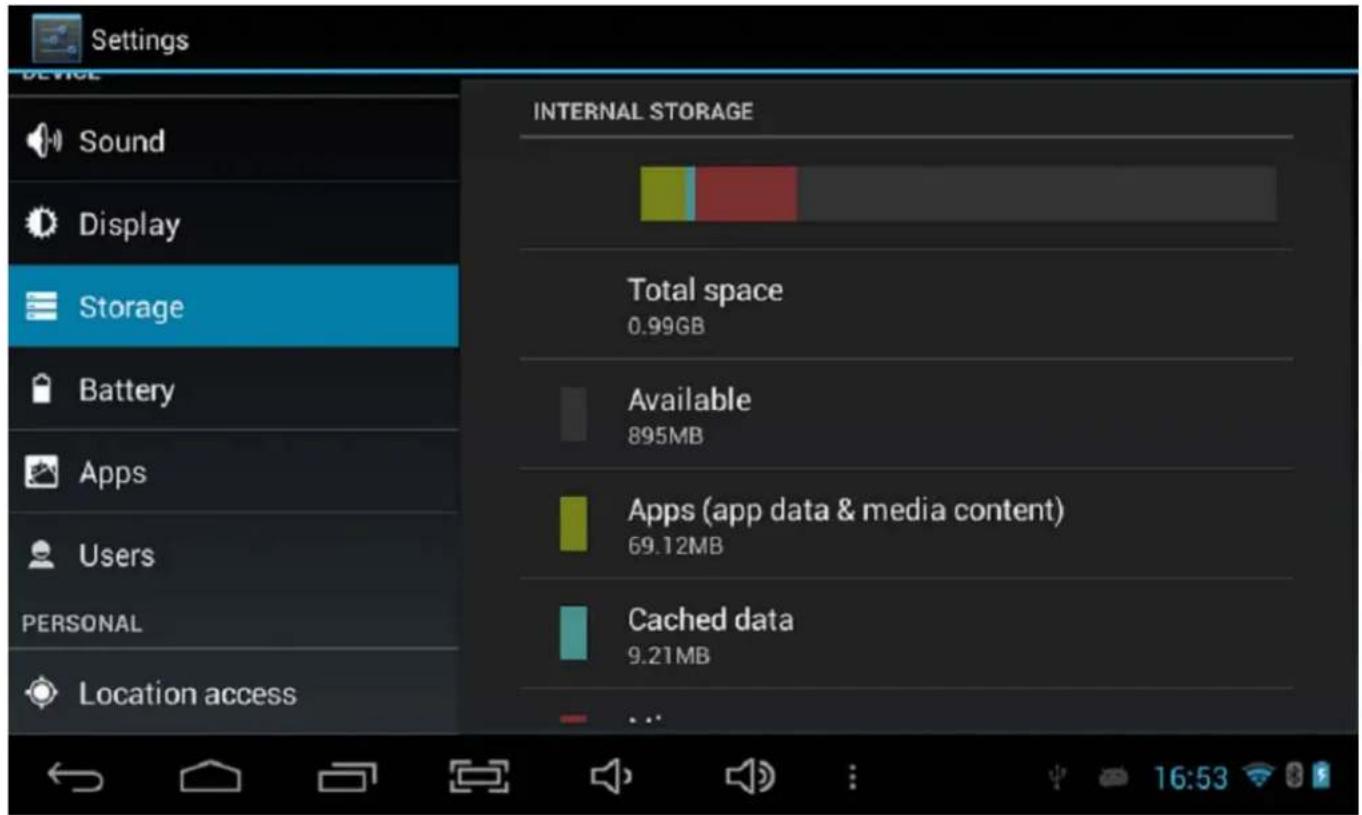
2.5.4. Storage
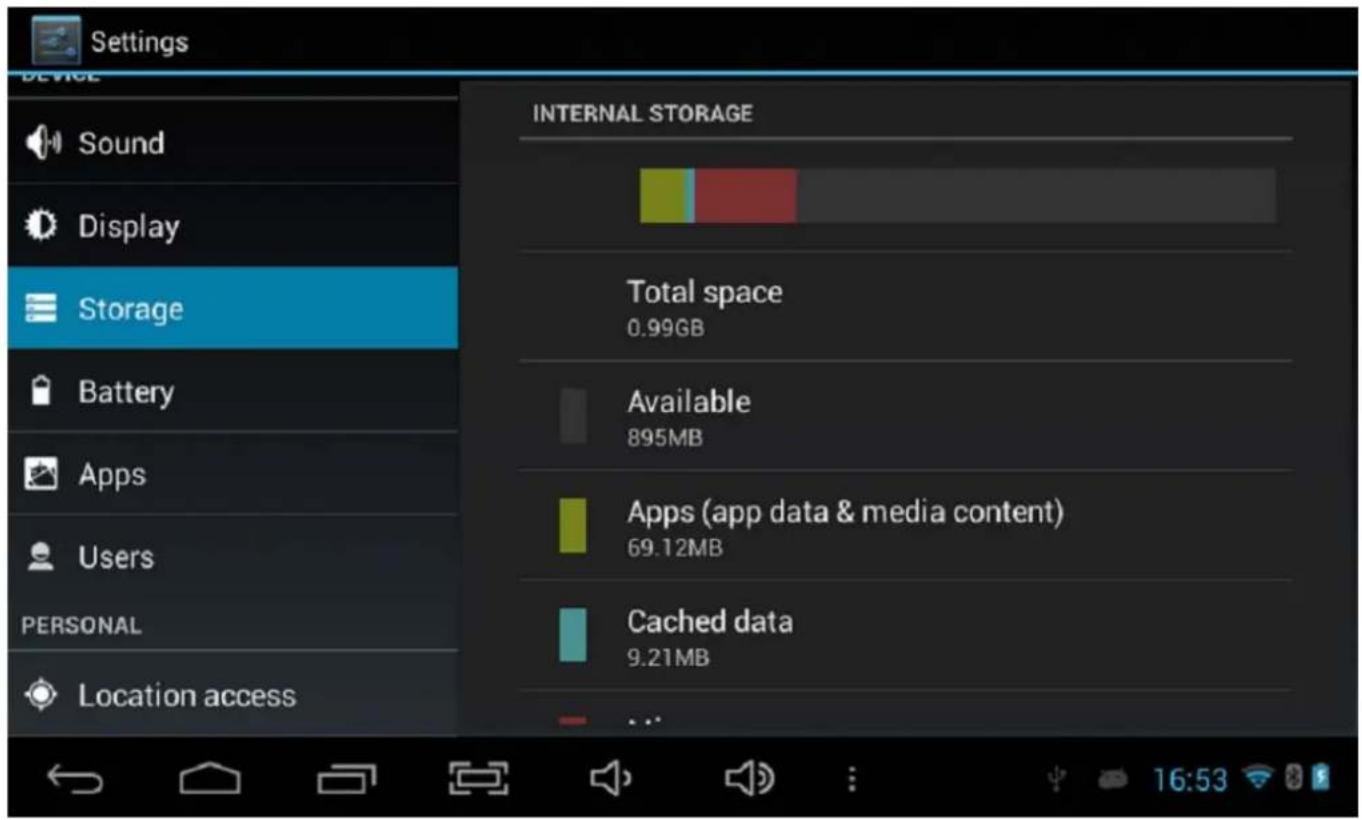
Check device memory and TF card status.
Unmount TF card: Unmount the TF card for safe removal.
2.5.5. Battery
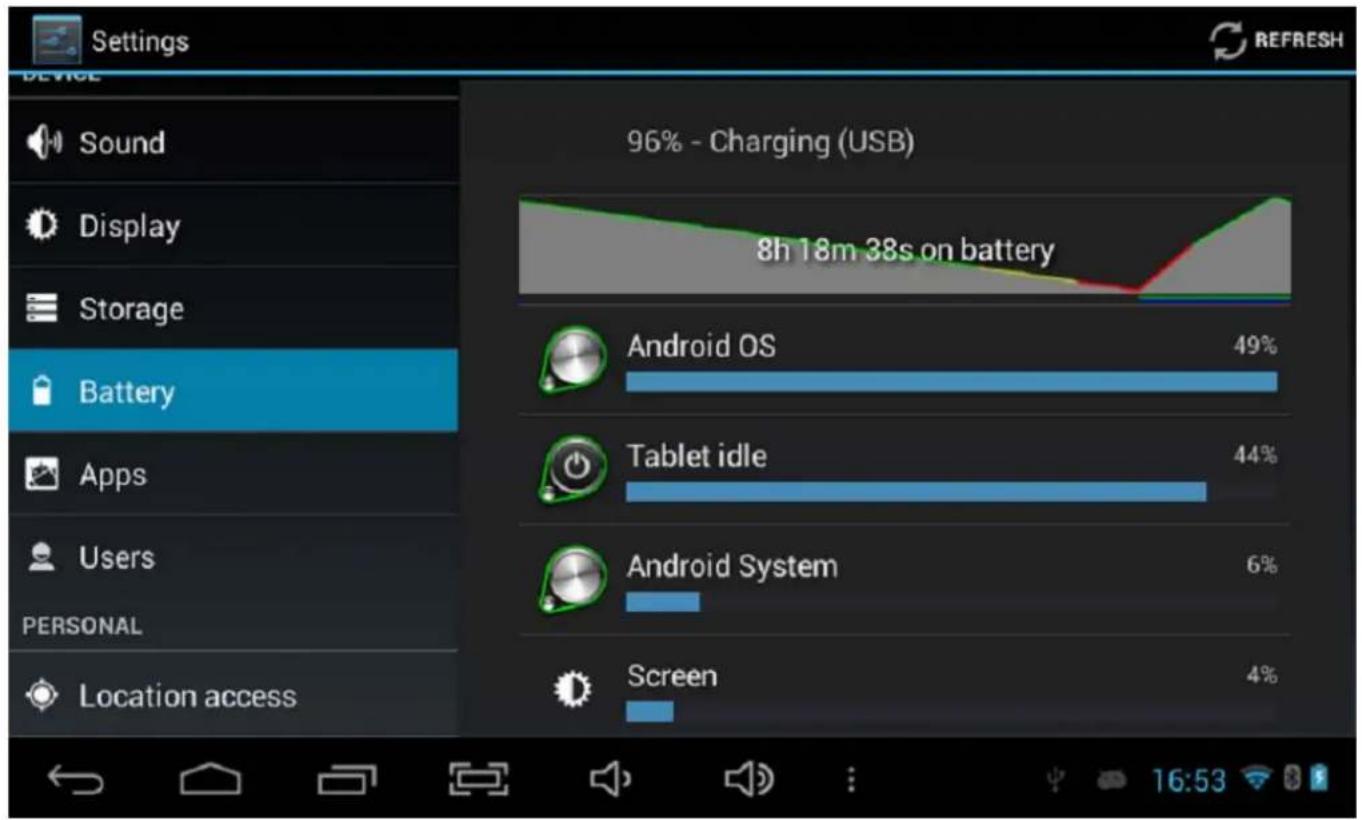
Check the battery usage status.
2.5.6. Apps
Manage downloaded or running applications.
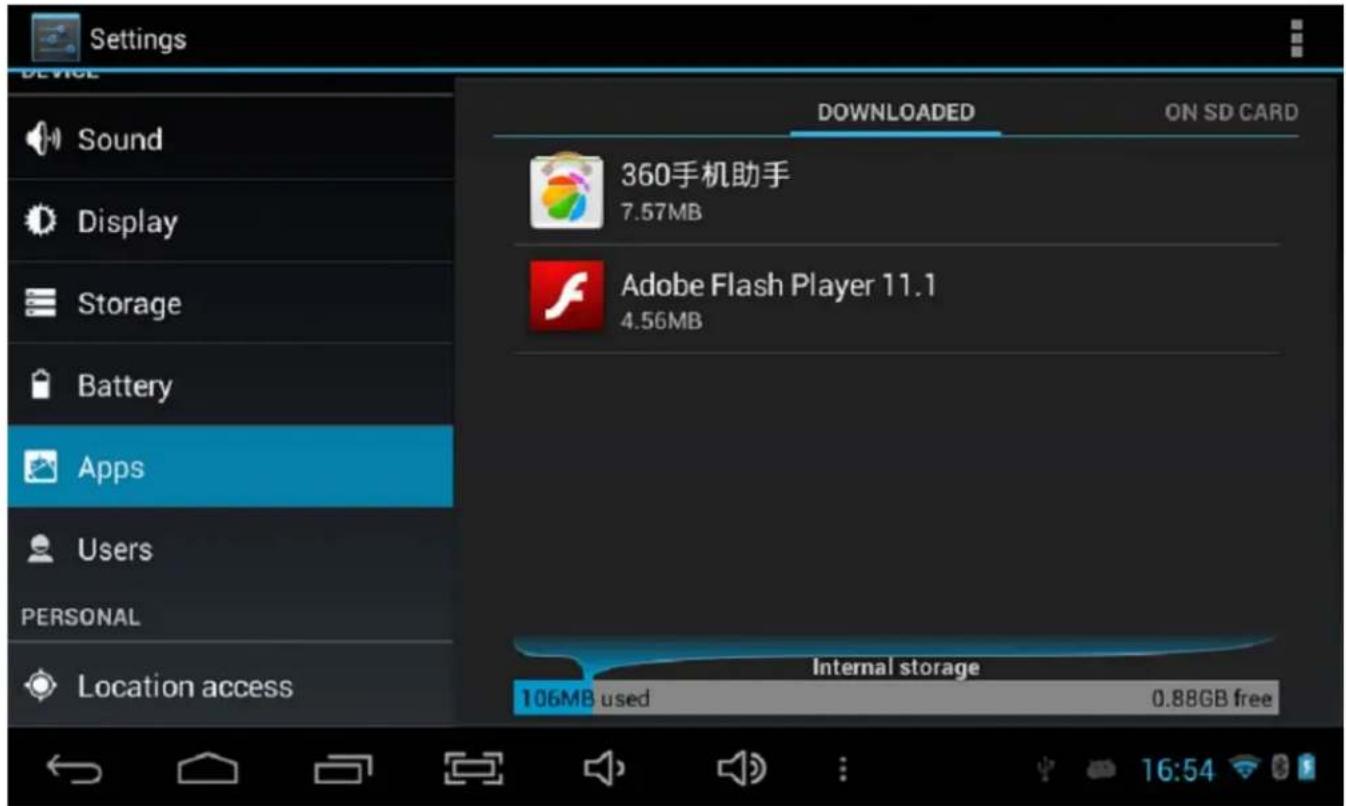
Downloaded: All installed applications are listed.
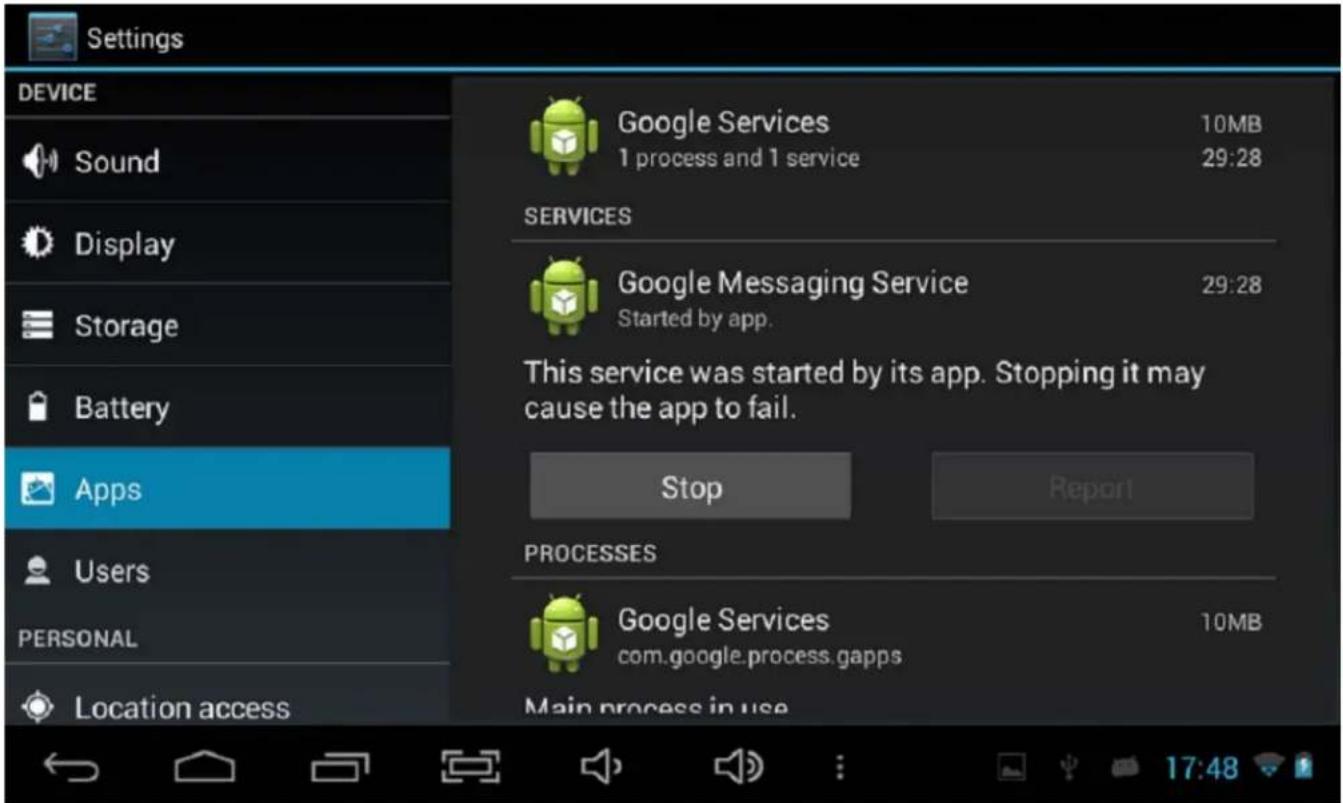
Keep pressing an application to manage.
Press Uninstall to uninstall the selected application.
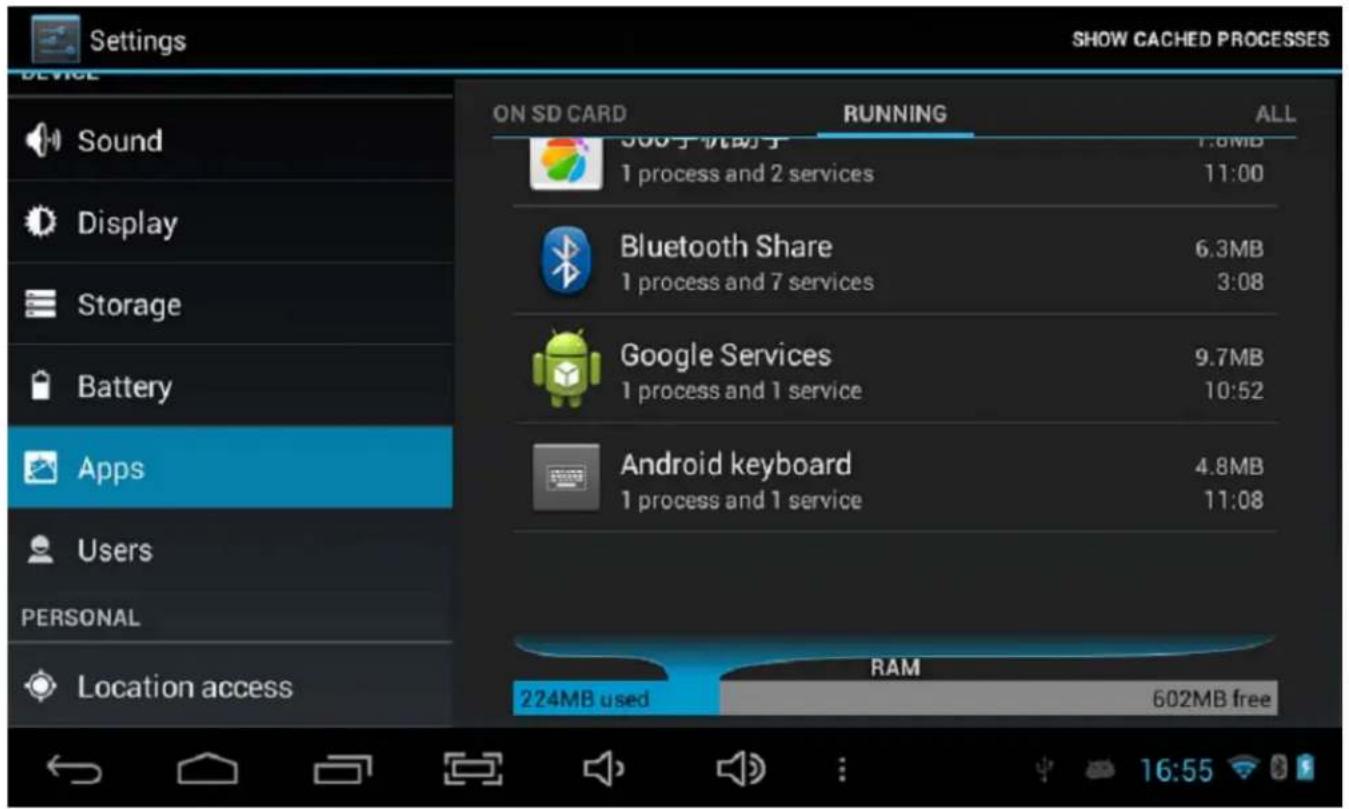
Running services: View and control currently running services.
2.6. Account & Sync
Create your account. After connecting Wi-Fi network, the e-mailing system synchronizes your account with the device. Emails are automatically downloaded into the device.
2.7. Location Service
Google's location service: Let apps use data from sources such as Wi-Fi and mobile networks to determine your approximate location.
2.8. Security
Screen lock: Protect your device from unauthorized use by creating a personal screen unlock pattern. Make passwords visible: Show password as you type.
Unknown sources: If you want to allow installation of non-Market Applications, press Unknown sources and press OK.
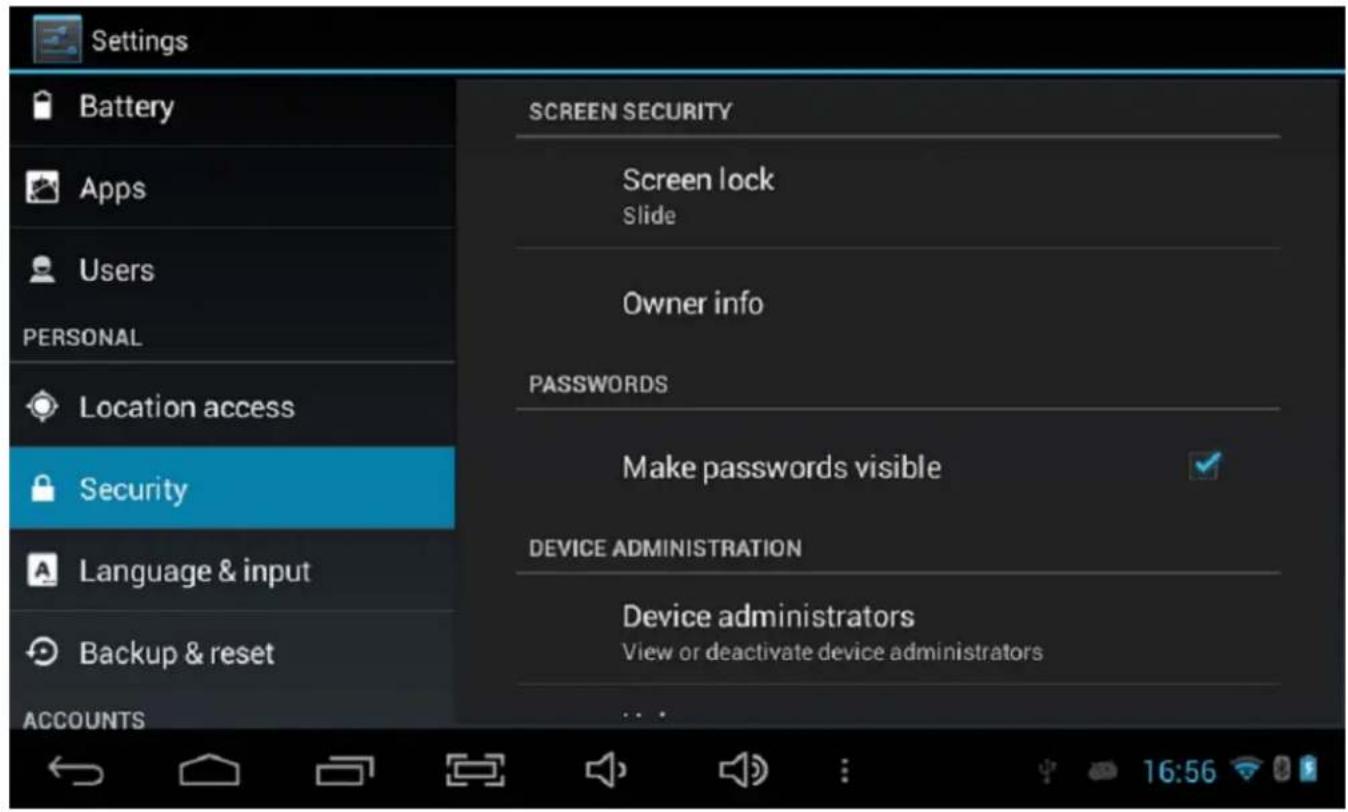
Install from TF card: Install encrypted certificates from TF card.
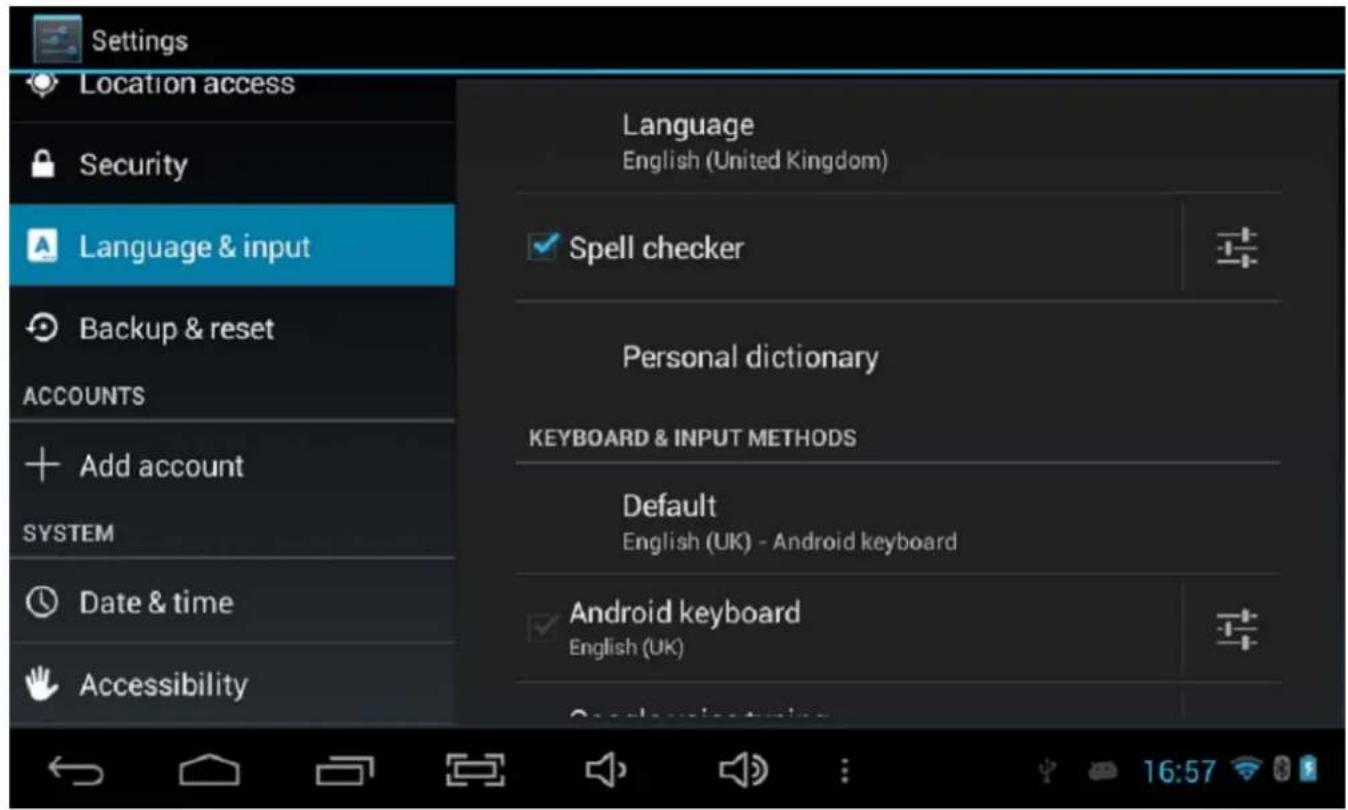
2.9. Language & Input
Language: Choose your preferable language.
Keyboard & input method: Change keyboard & keyboard settings.
On Language & input settings, if you need other languages besides English on keyboard, press the relevant keyboard, enter the chosen Keyboard settings, select Keyboards and press the language you need.
2.10. Date & Time
Set date & time and format.
2.11. Developer Options
Set options for application development.
2.12. About Tablet
See status, legal information, etc.
3. Installation
3.1. How to Connect/Disconnect the Device with/from the Computer
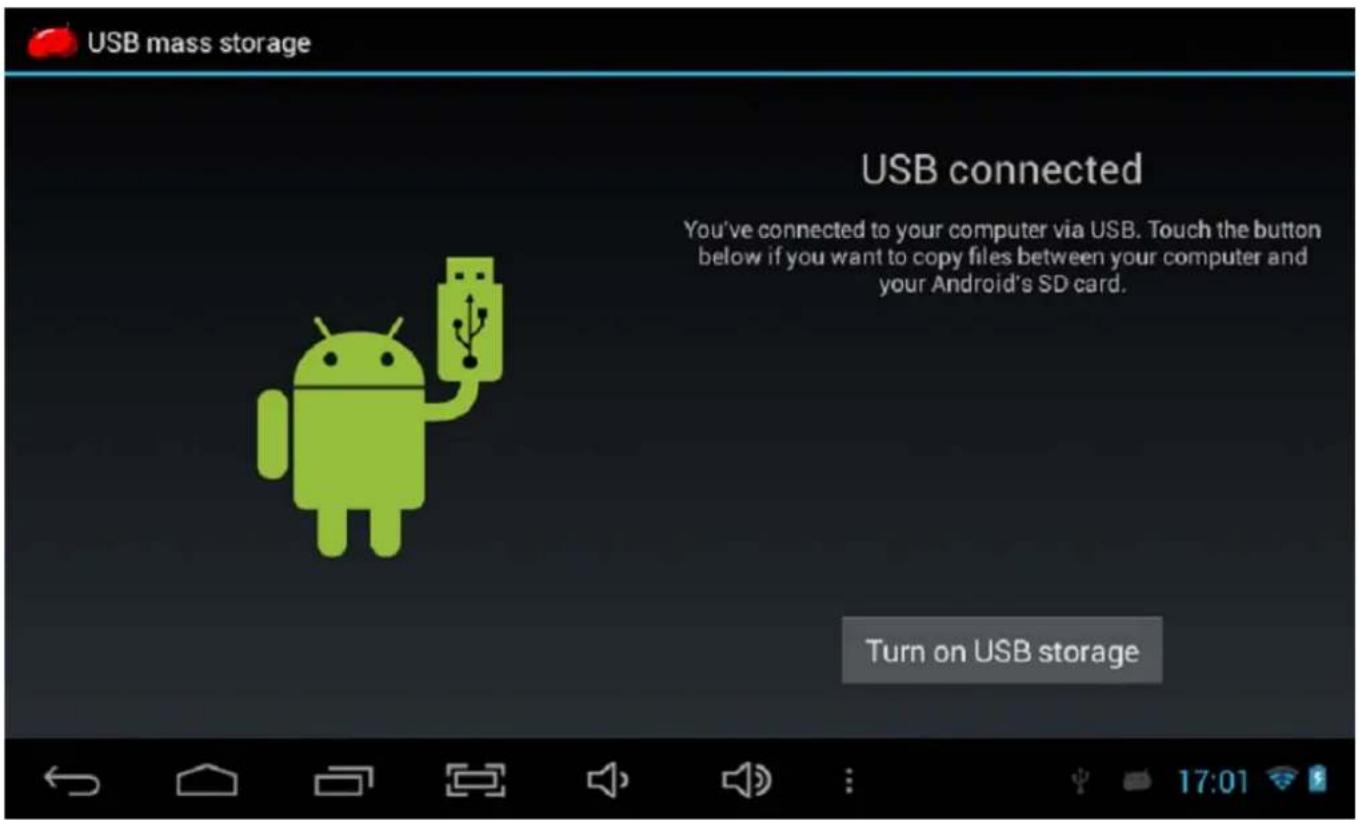
On the main desktop, connect the device with the PC, touch right side of the status bar on the bottom of desktop.
Press "USB connected", select "Turn on USB storage". Now you can use it as an external storage.
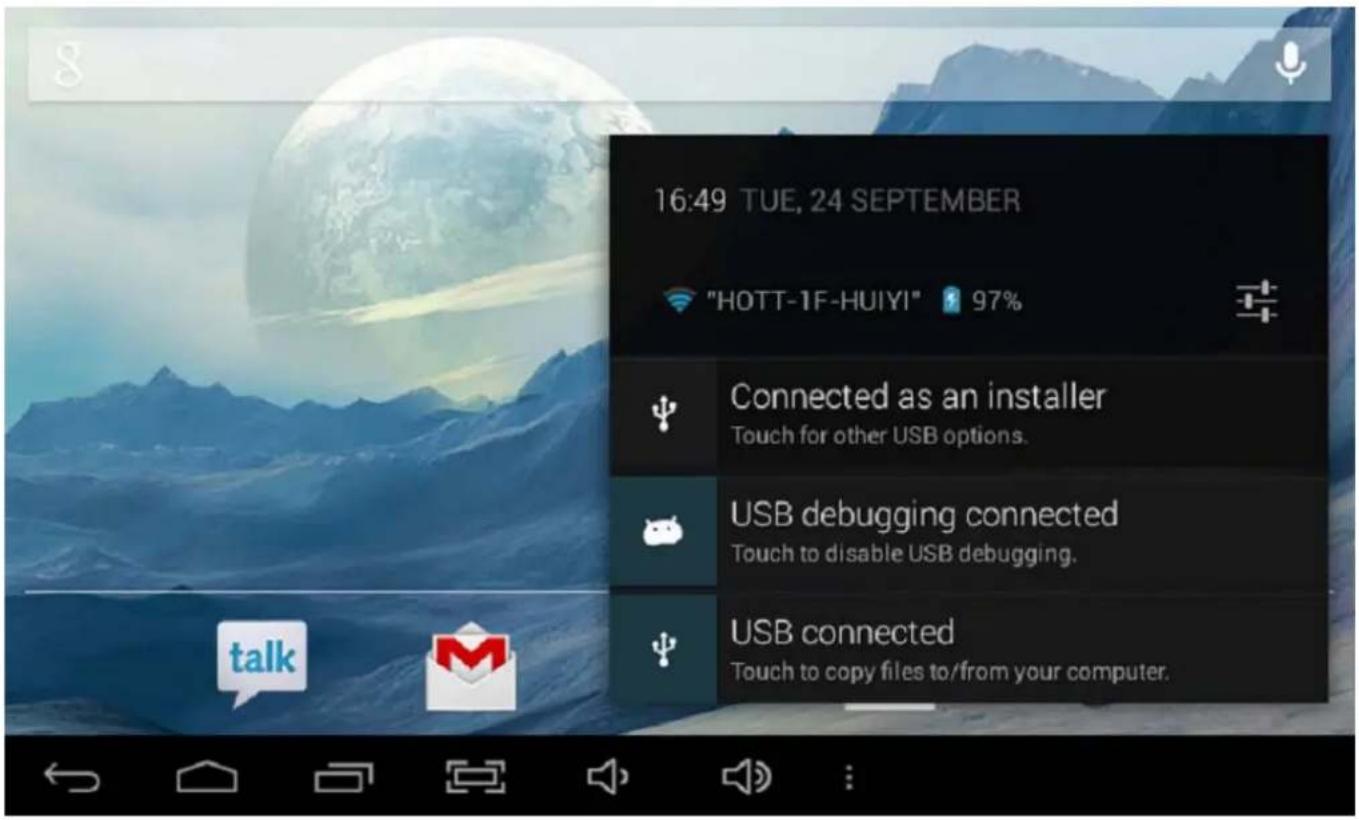
After finishing your work, Press "Turn off USB storage" to unmount it.
3.2. How to Install Applications (.apk file) into the Device
Method 1:
Connect the device with internet. See above (2.5.1 Wireless & Networks) to connect the Internet.
Run "Market" and search the applications you want to install.
Follow the instruction on the screen for installation.
Method 2:
-
With your computer, search application file (.apk) that you want to install into the device.
-
Download the file (.apk) into your computer.
-
Connect the device with your computer.
-
See above [How to connect/disconnect the device with/from the computer.]
-
Copy and paste .apk file into the device and disconnect it from your computer.
Run "File browser" and .apk file that was copied into the device.
- Press the file to install and follow the instruction on the screen.
3.3. Desktop Icons
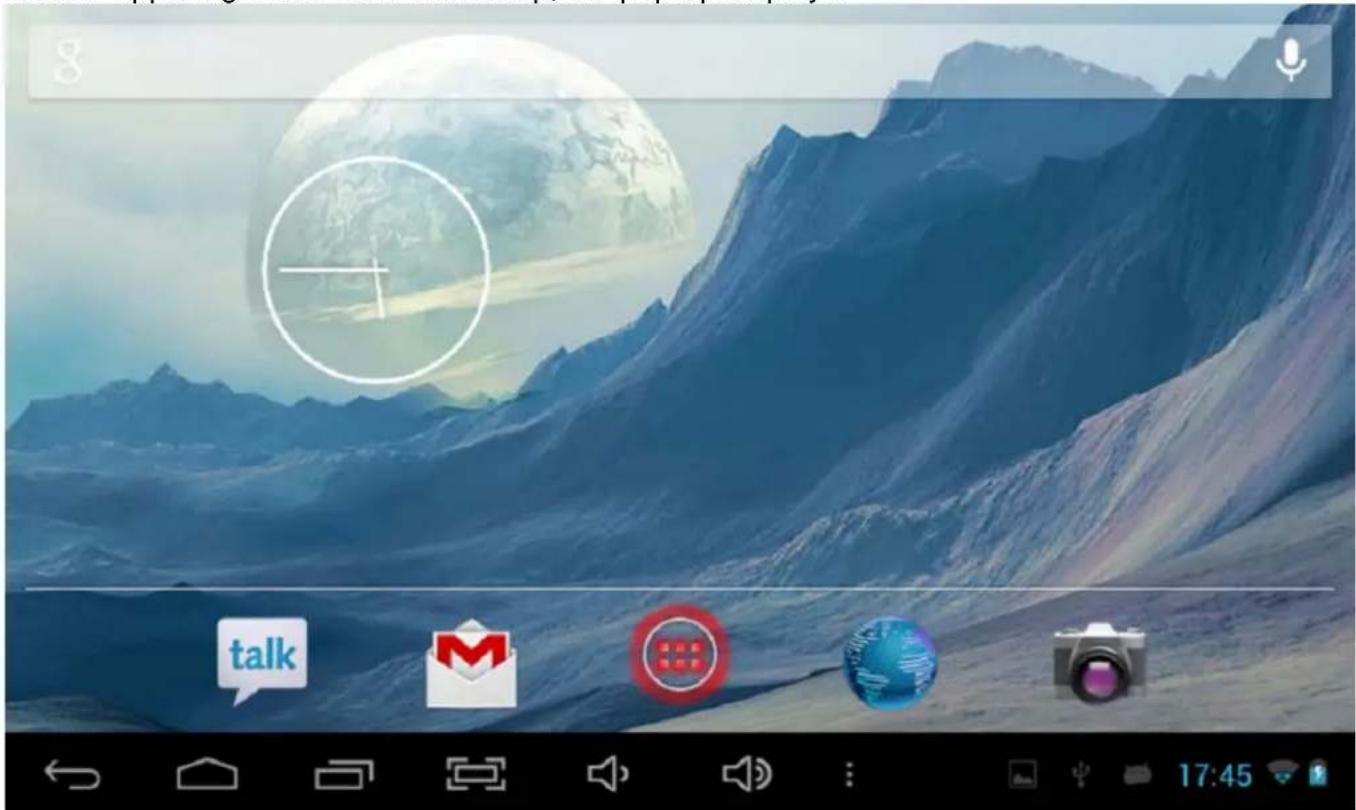
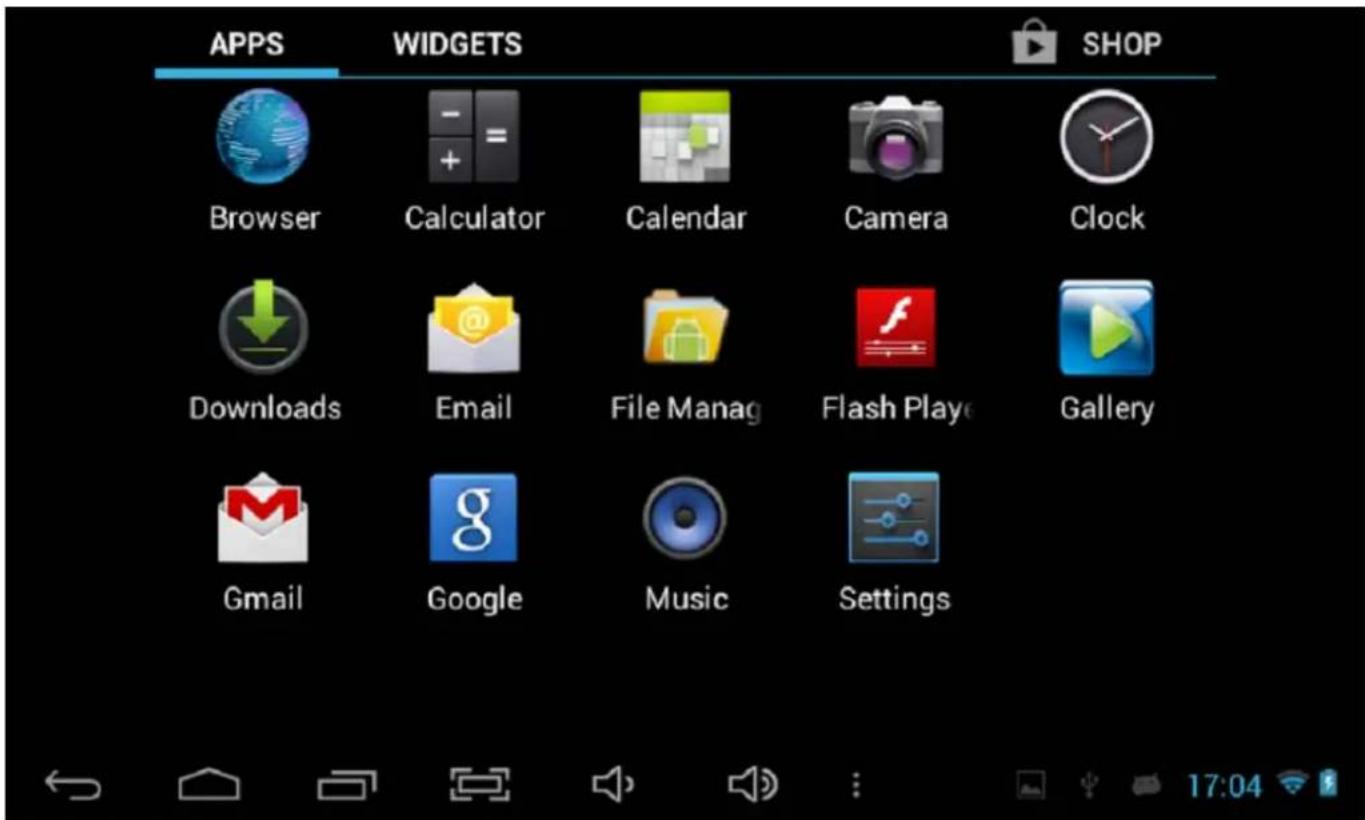
Press the upper right side icon of desktop, the pop-up displays.
Shortcuts
Long press your desired APK icon and put it on the desktop.
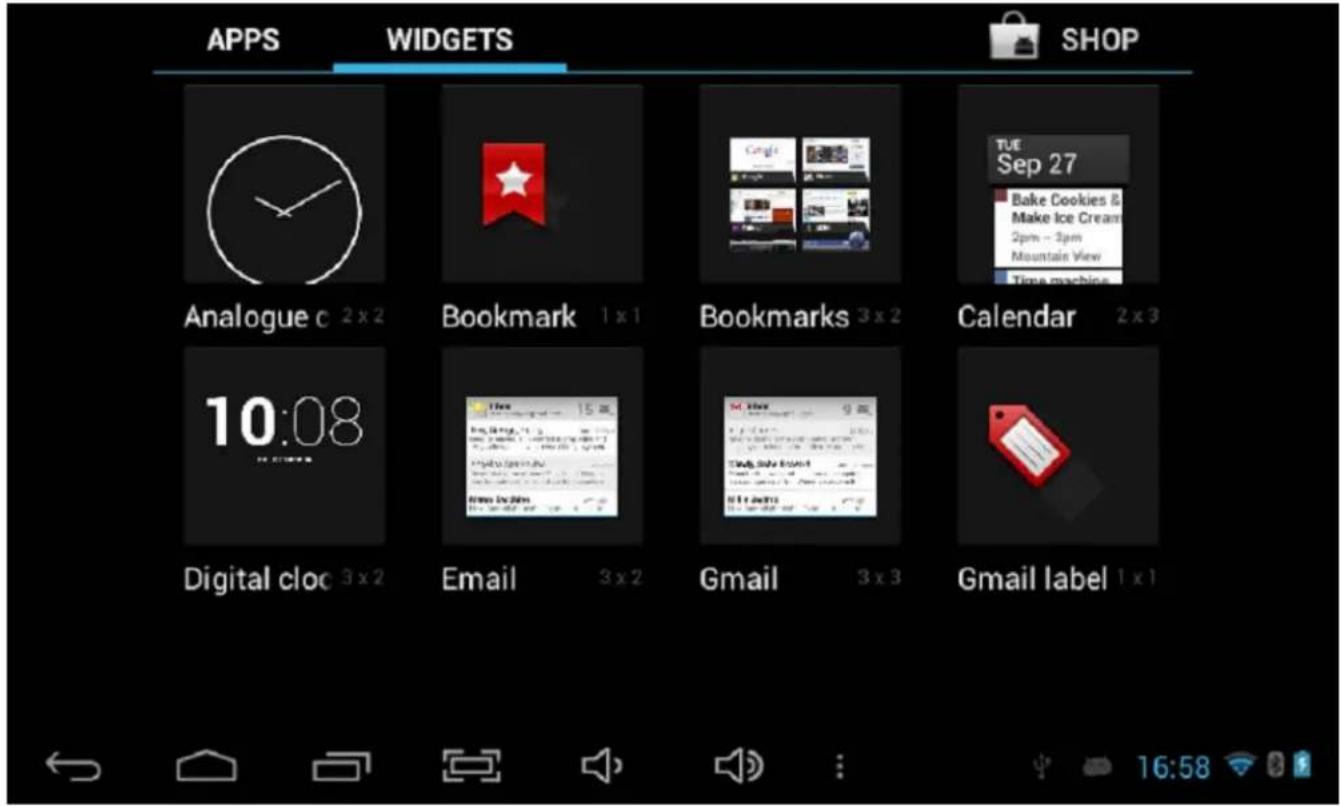
Widgets
Press Widgets and press your desired icon to put it on the desktop.
Wallpaper
Long press the desktop, press Wallpapers and select one of categories of wallpaper.
Select one you desired and press Set wall paper.
3.4. Change Input Method
If your device was installed with other more input method, long press setting icon of keyboard, and the pop-up displays.
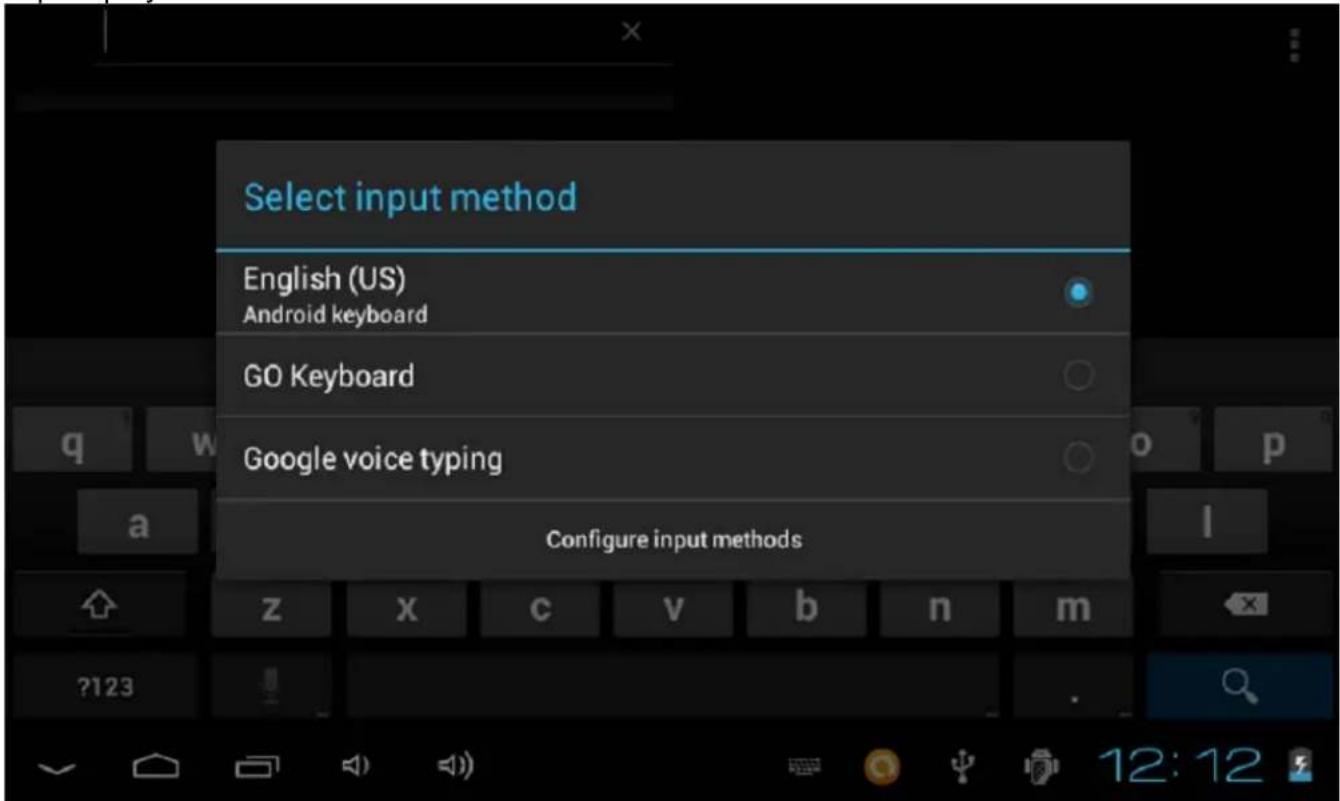
Select the installed keyboard, then the keyboard will appear with your desired language you installed.
- Technical Specifications
| OS | Android | |
| CPU Cortex A7 Dual Core up to 1.2GHZ | ||
| RAM 1GB DDR3 | ||
| Display 7" HD 800x480 Capacitive touch panel | ||
| Muti-touch Screen Yes : 5 point multi-touch | ||
| Built-in Flash Memory 8 GB | ||
| IO Ports | Audio Port 3.5ø earphone | |
| USB Port Micro 5PIN support OTG function | ||
| DC Port 5V | ||
| HD OUT Port | Support HD Video OUT | |
| TF Card Support TF Card | ||
| OTG Port Same as USB Port | ||
| Button | Power, home | |
| Speaker Frequency response:20 Hz - 20 k Hz. | ||
| G-sensor | Yes | |
| Camera | 0.3M | |
| Wi-Fi | 802.11b/g/n | |
| Power Adaptor | DC5V/2A | |
| Battery | 3.7V 2400mA Li-Polymer | |
| Charging Time | By Charger | Approx. 3-4 hours |
Note: All pictures of product interface in this manual are for reference only; please refer to the actual interface of product!
5. Aftermarket
Hott has designed this appliance in order to guarantee the maximum reliability. However, if a problem occurs, by following the procedures suggested in this section you may be able to determine its cause. Do not attempt to open the appliance – there is a risk of electrical shock.
If you are not able to solve the problem, please contact your seller or manufacturer.
All users must be familiarized with this section. Knowing what could go wrong can help you avoid the occurrence of problems.
WARNING: any attempt of fixing the appliance without contacting the manufacturer will nullify the warranty.
In case the problem persists, take your appliance to an aftermarket section of any Worten, Modelo or Continente store in order to solve the problem.
Worten Equipamentos para o Lar ensures for a period of 2 years, counting from the date of purchase of this appliance, a warranty against any found manufacturing defect. The warranty supposes a correct use and maintenance of the appliance, namely according to the instructions expressed in this manual. In case otherwise identified, the malfunctions will not be under the warranty.
The repairing of electrical appliances must only be made by qualified technicians, as otherwise there may occur future complications on the appliances.
To avoid unnecessary risks, in case there are any malfunctions on the wires or on another type of components, repairing must be made on the specialized locations of technical assistance, as appropriate tools are needed.
6. Environment Conservation
Aiming to protect the environment, we try to reduce to a maximum the volume of the packages which are confined to three easy separation materials: cardboard, paper and plastic.
The appliance is made of recyclable material, once disassembled by a specialized company. Follow the local legislation concerning recycling of all materials.

Tableta para Internet
Modelo: T370
2.4. Modo Standby (Modo Pantalla Off) /Desbloquear la Pantalla
2.5.1. Wi-Fi y Red
2.10. Fecha y Hora
Accesos directos
natural_image
Symbol of a trash bin with no text or labels, crossed by diagonal lines and a solid black rectangle below (no readable text or symbols)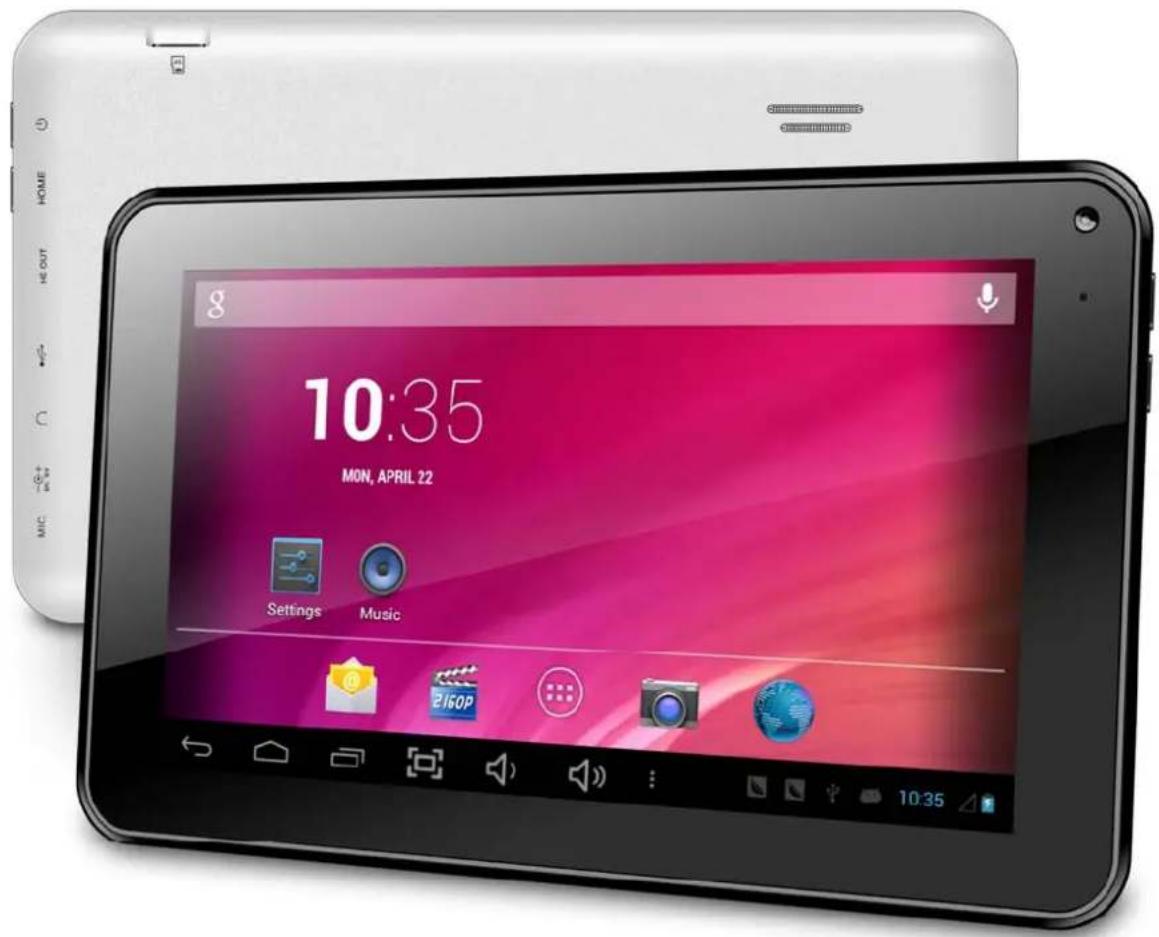
Tablet para Internet
Modelo: T370
-
MIC
-
DC 5V
-
Entrada de Auriculares
-
USB
-
HD OUT
-
HOME
-
Energia 8. Cartão TF
-
Câmara
Aviso Importante
2.5.1. Wireless e Rede
2.5.3. Visualização
2.5.4. Armazenamento
2.10. Data e Hora
Defina a data e hora e o formato.
Atalhos
natural_image
Symbol of a trash bin crossed with no text or numbers, representing waste sorting or disposal (no text present)Declare that the Product:
Tablet, brand HOTT, model T370,
Is in conformity with the following EEC Directives, including amendments to the current date:
Directive 1999/5/EC for RTTE
Directiva 89/336 EEC para EMC
Directive 89/336 EEC for EMC

CE DECLARATION OF CONFORMITY
We confirm our products Tablet PC models T370 is in conformity with standard: directive 2006/95/CE.
Directive 1999/5/EC for RTTE
HONGTIANTAI (H.K.) CO., LIMITED
2102 PAKPOLEE COMMERCIAL CENTRE 1A SAI YEUNG CHOI STREET
SOUTH, MONGKOK KOWLOON HONG KONG.
For & on behalf of
HONGTIANTAI (H.K.) CO., LIMITED
By: Crystal Chan
Authorized Signature