Darwin - Tablet bq - Free user manual and instructions
Find the device manual for free Darwin bq in PDF.


| Product type | Tablet |
| Brand | bq |
| Model | Darwin |
| Display size | 10.1 inches |
| Resolution | 1280 x 800 pixels |
| Processor | Quad-core 1.3 GHz |
| RAM | 1 GB |
| Storage | 16 GB |
| Operating system | Android 4.4.2 |
| Battery capacity | 6000 mAh |
| Battery life | Up to 8 hours |
| Connectivity | Wi-Fi 802.11 b/g/n, Bluetooth 4.0 |
| Cameras | Front 0.3 MP, Rear 2 MP |
| Dimensions (W x H x D) | 240 x 160 x 8 mm |
| Weight | 400 g |
| Charging port | Micro USB |
| Audio output | 3.5 mm headphone jack |
| Speakers | Built-in stereo speakers |
| Memory card support | MicroSD up to 32 GB |
| Sensors | Accelerometer, G-sensor |
| Cleaning | Wipe with a soft, dry cloth |
| Safety | Avoid exposure to liquids and extreme temperatures |
| Spare parts | Contact bq support for replacement parts |
Frequently Asked Questions - Darwin bq
User questions about Darwin bq
0 question about this device. Answer the ones you know or ask your own.
Ask a new question about this device
Download the instructions for your Tablet in PDF format for free! Find your manual Darwin - bq and take your electronic device back in hand. On this page are published all the documents necessary for the use of your device. Darwin by bq.
USER MANUAL Darwin bq

Teclas
Alberto Méndez Peydró CEO

GARANTÍA

Botãos
Pesquisador de Internet
Acessos directos
natural_image
Symbol of a trash bin crossed with no text or labelsAlberto Méndez Peydró CEO

GARANTIA
- To properly use the device, carefully read this quick-start guide before using it.
- Instructions are based on factory settings of the device.
- Images and screenshots in this guide may not exactly match those of the final product.
- Parts of the content may not exactly match the operation of the product owing to firmware updates of the device. For the latest version of the user manual, visit www.bqreaders.com.
- bq is not liable for any performance problems or incompatibilities caused by the user's editing of the registry.
- Part of the content and services accessed through this device belong to third parties and are protected by copyright, patent, registered trademark and/or other intellectual property laws. bq does not guarantee the content or the services provided.
Instructional icons

Alert: Important tips and notifications about how to use your new device.

Indications on images: Point out specific parts on the screen.
Next: Indicates the next step in a sequence.
Copyright
Copyright© 2011 bq
This guide is protected by international copyright laws.
No part of this quick-start guide may be reproduced, distributed, translated or transmitted in any form or by any means –electronic or mechanical, including photocopying or recording– without the prior written permission of bq.
Marcas comerciales
bq's logo is a registered trademark of Mundo Reader, S.L.
Android, Google Search ^TM , Google Maps ^TM and Android Market ^TM logos are registered trademarks of Google Inc.
Wi-Fi®, Wi-Fi CERTIFIED and Wi-Fi logos are registered trademarks of Wi-Fi Alliance.
Other trademarks and their copyrights are property of their respective owners.
INTRODUCTION
Thank you for choosing bq Darwin. Before using your tablet, carefully read this quick-start guide.
Content of package
Before using your bq for the first time, please check the content of the package. If any of the following items is not in the package, contact the retailer where you purchased the device.
- bq Darwin
- miniUSB-PC cable
- Charger
- Earphones
- Quick-start guide
- Warranty certificate
Buttons and ports
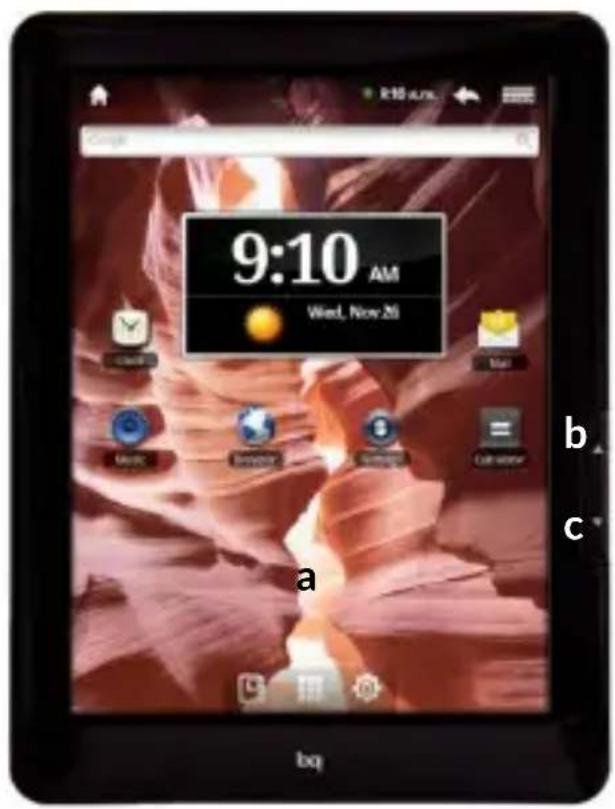
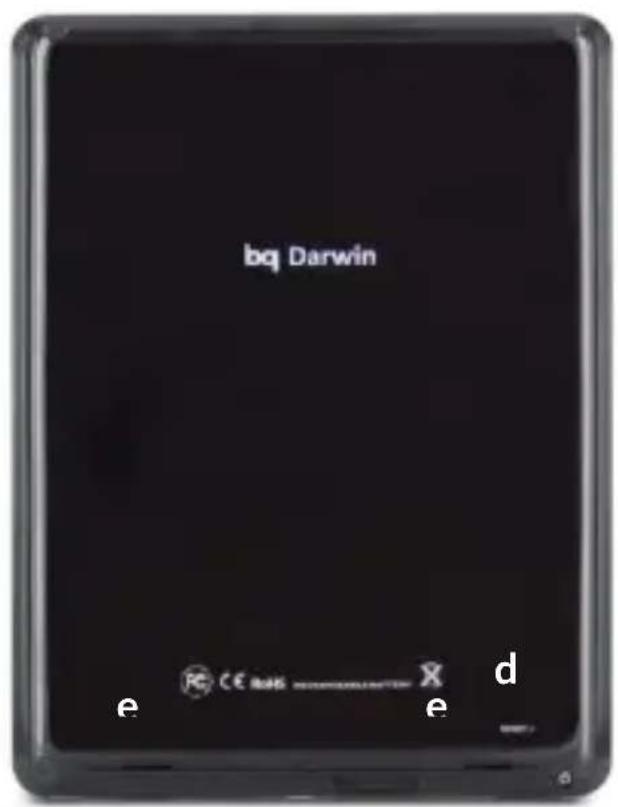

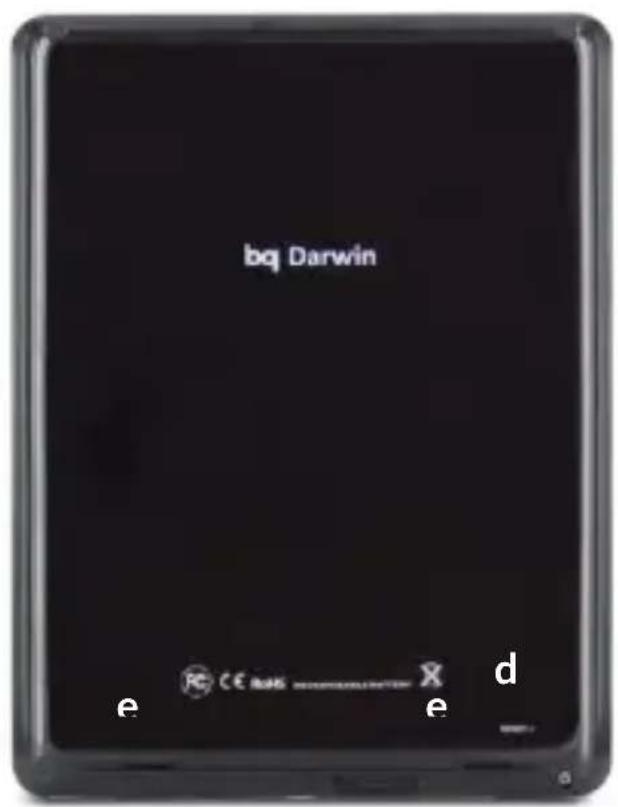
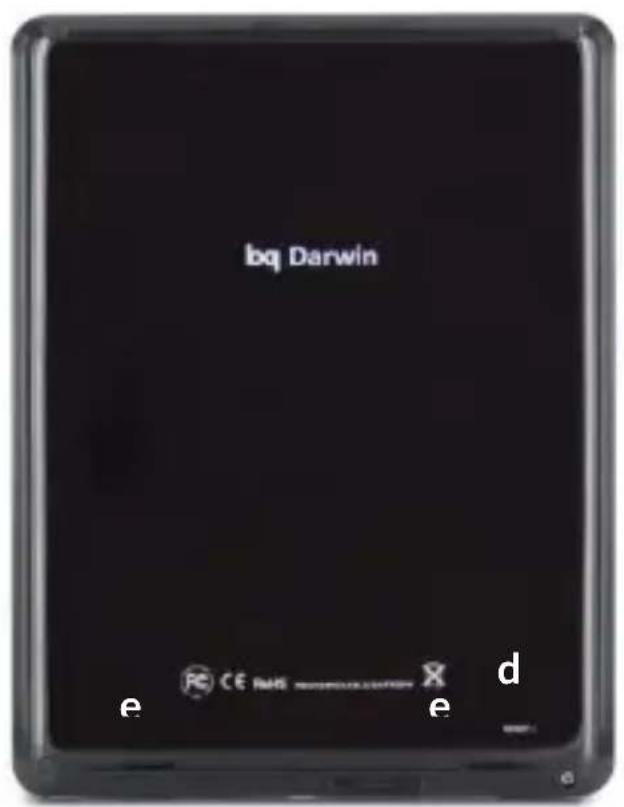
Buttons
| Button | Function |
| a. Touch screen | Long press to switch on the device, short press to turn on the screen when the device is in suspended mode. |
| b. Back | Press this button to go back to the previous screen in an application. |
| c. Next | Press this button to turn to the next page. |
| d. Reset | Press this button to reset the device when locked up. |
| e. Speakers | |
| f. SD card slot | Can use any standard SD memory card. |
| g. USB port | Connects the device to a computer. |
| h. DC-IN port | Connect to any standard electrical source with the AC adaptor supplied. |
| i. Earphone port | |
| j. Power | Long press to switch on the device. |
GETTING STARTED
Battery
This device contains a rechargeable Li-ion battery. To charge your bq Darwin's battery, connect the AC adapter to any standard socket and connect the charger cord to the device charging jack.
When the battery is fully charged, the battery icon will be shown as full. Disconnect the device cord and unplug the charger from the socket.
You should fully charge the battery before using the bq for the first time. The charging time is approximately 6 hours.
Power on/off
To power on the device, press the power button ☐ for a few seconds. To power it off, press the power button ☐ until the popup screen Device options appears. Tap on Power off and confirm by tapping on OK.
Insert/remove the SD™ card
To install the SD ^™ card, insert it in the slot and press until it clicks into place. To remove the card from the device, press on it gently until it comes out.
Operating system
The operating system in your bq Darwin is Android 2.1 (Eclair).
Transferring files
To transfer files from your device to a computer or vice-versa, follow these steps:
-
In tablet PC go to Settings > Applications > Development and make sure that enabled USB debugging box is enabled.
-
Connect the miniUSB cord to the device and connect the USB cord to the computer.
-
Your device will be recognized by the computer as the removable drive "bq:" If you have an SD card in the device, a second removable drive will appear.
-
Copy the files you wish to transfer to your device to either of these units.

Do not disconnect the cable while files are being copied.
- After the files have been transferred, safely remove the USB/mini-USB cord from the computer and the reader.

Periodically backup data in your bq to avoid loss of files in of physical damage, theft or loss.
USING THE SCREEN
Home screen
The home screen is the main pathway to the tools and applications installed on the bq Darwin.
On the home screen, you can control the status of the device, open websites, open applications with their icons, open the Menu, etc.
Notification bar -The notification bar displays time, device status, battery level, the intensity of the Wi-Fi signal and other system notifications.
Internet search
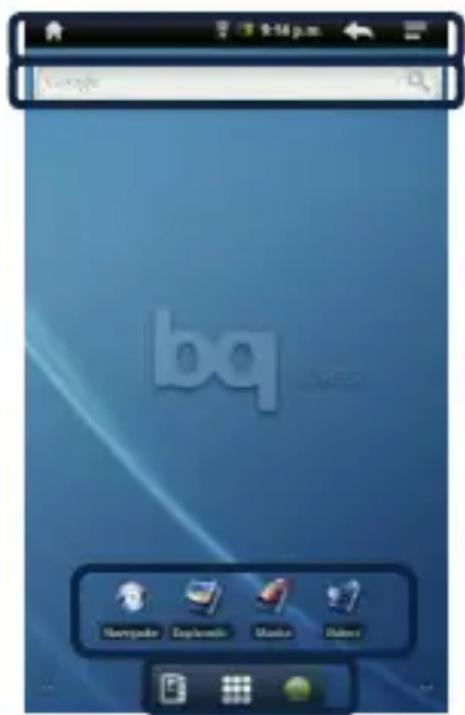
Notification bar
Shortcuts
E-reader - Applications - Settings
Internet Search - Requires Wi-Fi connection.
Shortcuts - You can use shortcuts to quickly open applications you use the most.
Settings - Access the settings menu.
Applications - Access all applications installed on the tablet.
E-reader - Tap on this icon to launch the EbookReader to read e-books in different formats.
Extended screens
You can use up to four additional extensions of the Home Screen, that can be personalised with shortcuts, applications and other tools. To move between the Home screen and the extended screens, drag the screen to the left or to the right using your finger.
Personalizing the Home screen
You can personalize the Home screen or the extended screens with your own images, such as backgrounds, icons or shortcuts to your favorite applications, etc.
Change the screen background
To change the screen background, press the Menu icon > Add
Wallpapers. Select an image to use as the screen background and tap on Set wallpaper to confirm the selection.
Add shortcuts
To add shortcuts to the Home screen, press the Menu icon > Add
Shortcuts .go to the extended screen where you wish to add an icon. Select and item to place on the Home Screen.
Adding widgets
To add an item to the Home Screen, press the Menu icon > Add
Widgets. Select and item to place on the Home Screen.
APPLICATIONS
Through the Menu you can access all the applications installed on your bq. To open the Menu, tap on . To access an application, tap on its icon. To go back to the Home screen, tap on .
WI-FI CONNECTION
To connect to the Internet or use and application that requires an Internet connection, you must first connect the device to a Wifi network. To do this, follow these steps:
-
Tap on Menu > Settings > Wireless& networks > Wi-Fi. The device will begin to search for an available network.
-
Tap Wi-Fi settings. A list of the names of the Wifi networks (SSID) detected. Scroll down the list of the available networks. Tap on the network detected to check the security level and the intensity of the signal.
-
If the connection is secure, enter the password and tap on Connect to start the connection. In the notifications bar, an icon with the signal intensity is shown.
SAFETY PRECAUTIONS
To use the device safely, please observe the following safety precautions:
- Do not use damaged power cords or connectors or loose sockets.
- Do not touch the power cord with wet hands or pull on the cord to disconnect the charger.
- Do not fold or damage the power cord.
- Do not use the device while charging or touch it with wet hands.
- Do not strike or drop the charger or battery.
- Do not charge the battery with chargers that have not been approved by the manufacturer.
-
Do not use the device during a lightning storm.
-
Do not handle damaged or leaky Li-ion batteries.
- Handle and dispose batteries and chargers with precaution.
- Do not use the device near a pacemaker: if possible, avoid using the device at a distance of less than 15 cm from the pacemaker, as the device may interfere with it.
- Do not use the device in a hospital or near medical equipment which is vulnerable to interference caused by radiofrequency.
- If you use medical equipment, contact the manufacturer to ensure that the equipment is protected from radiofrequency. If you use a hearing aid, contact the manufacturer for further information on radio interference.
- In potentially explosive environments, turn off the device instead of removing the battery. Observe all rules, instructions and warning signs in potentially explosive environments.
- Do not use the device in fuel loading areas (service stations) or near fuels or chemicals in explosive areas.
- Do not store or carry flammable liquids, gases or explosive materials in the same compartment as the device, its parts or accessories.
- Turn off the device when on board a plane.
- Electronic devices in a motor vehicle may behave in a wrong way due to the device's radiofrequency.

Warning!
This product has to be used with a power supply that has the following technical specifications:
INPUT: 100-240V \~ 50/60 Hz 0.4A máx
OUTPUT: 5.0V —— 2.0A
Polarity has to be the same as described in this picture:
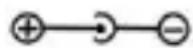
The use of power sources with different specifications may cause damage to equipment and can compromise the safety of people and goods.
Cleaning
Before cleaning the device, turn it off and disconnect all the system and power cords. Ensure that the device is completely dry before connecting again the cords and turning it on. Do not use any cleaning liquids or sprays directly on the surface of the screen or the case.
Use a soft, clean and lint-free cloth to remove dust and dirt from the screen. For fingerprints and stains, use a cloth with mild cleaning products. Moisten the cloth with clean water, wring it well and clean the case to remove any leftover detergent.
CORRECT DISPOSAL OF THIS PRODUCT
(Electric and electronic device waste)
(Applicable in the European Union and in European countries with selective waste collection systems).
This marking on the product, accessories or literature indicates that the product and its electronic accessories (e.g. charger, headset, USB cable) should not be disposed of with other household waste at the end of their working life.
To prevent possible harm to the environment or human health from uncontrolled waste disposal, easy separate these items from other types of waste and recycle them responsibly to promote the sustainable reuse of material resources.
Household users should contact either the retailer where they purchased this product, or their local government office, for details of where and how they can take these items for environmentally safe recycling.
Business users should contact their supplier and check the terms and conditions of the purchase contract. This product and its electronic accessories should not be mixed with other commercial wastes for disposal.
Declaration of conformity
product (Darwin model, bq brand) complies with the provisions of Directive 1999/5/CE on Radio and Telecommunications Terminal Equipment (R&TTE) of Directive 95/2006/CE on the Electrical Safety of Low Voltage Equipment and Directive 2004/108/CEE on Electromagnetic Compatibility complying with the harmonized standards: EN 60950-1:2006 + A11:2009, EN 62311:2008, EN 301489-1 V 1.8.1, EN 301489-17 V2.1.1, EN 300328 V1.7.1, EN 55022:2006 + A1:2007, EN 55013:2001 + A1:2003 + A2:2006, EN 61000-3-2:2006 + A1:2009 + A2:2009, EN 61000-3-3:2008, EN 55024:1998 + A1:2001 + A2:2003, EN 55020:2007.
Madrid, August 2011.
CE
Alberto Méndez Peydró CEO
WARRANTY
Mundo Reader, S.L. ("Mundo Reader") provides this Limited Warranty to the purchasers of the bq product(s) included in the retail package ("Product").
Mundo Reader warrants that, during the warranty period, Mundo Reader or a service company authorized by Mundo Reader will correct, free of charge and within a commercially reasonable term, any defects in the materials, design or manufacture by means of repair or, should Mundo Reader, at its own discretion, consider it necessary, replace the Product in conformity with this Limited Warranty (unless the law should provide otherwise). This Limited Warranty will be valid and enforceable only in the country in which the Product was purchased, providing that Mundo Reader had commercialized the Product in such country. However, if the Product was purchased in a member state of the European Union, Iceland, Norway, Switzerland or Turkey and Mundo Reader had originally commercialized the Product in one of said countries, this Limited Warranty shall be valid in all the previously mentioned countries. Some limitations may apply to the service covered by the warranty owing to specific components of the Products in each country.
Warranty Period
The warranty period shall commence upon the original purchase of the Product by the first final user. The Product may be composed of a number of different parts and these parts may be covered by a different warranty period (henceforth, the "Warranty Period"). The Warranty Periods are as follows:
a. Twenty-four (24) months for the mobile device and twelve (12) months for the accessories (those included in the retail package of the mobile device or sold separately), not including the accessories and consumable parts specified in (b) and (c) below;
b. Six (6) months for the following accessories and consumable parts: batteries, chargers, cords and carcasses
To the extent allowed by your's country legislation, the Warranty Period shall not be extended or renewed or otherwise affected by a subsequent resale, repair or replacement of the Product authorized by Mundo Reader. However, part(s)p repaired or replacement products supplied during the Warranty Period shall be covered by warranty during the rest of the original Warranty Period or for sixty (60) days following the date of repair or replacement, whichever is greater.
How to obtain warranty service
If you wish to present a claim under this Limited Warranty, please send the Product or defective part (if not the complete product) to a service company authorized by Mundo Reader. You can call a Mundo Reader customer service center (charges may apply depending on your phone line provider's rates) for further information on how to make a claim. You may find information on customer service centers and service companies authorized by Mundo Reader on the retail package or the local websites of Mundo Reader, where available.
Any claim made under this Limited Warranty shall be subject to notification on your part of the alleged defect to Mundo Reader or an
authorized service company within a reasonable period of time after noticing and, in no case, after the expiry of the Warranty Period.
When making a claim under this Limited Warranty, you must provide the following: a) the Product (or the defective part) and b) the original receipt of purchase, clearly indicating the name and address of the retailer, date and place of the purchase, product type and serial number.
What is not covered?
-
This Limited Warranty does not cover user manuals or software, configuration, content, data or third-party links included with or downloaded to the product, including during installation, assembly, shipment or at any other moment along delivery chain, or acquired in any other way by you. Mundo Reader does not guarantee that Mundo Reader software will meet your needs, work in combination with any hardware or software provided by an independent supplier, or that the functioning of any software is free from interruptions or errors, or that any defect in the software will be subject to rectification or can be rectified.
-
This Limited Warranty does not cover:
-
Normal wear and tear (including, though not limited to, wear and tear of camera lenses, batteries or screens).
- Defects caused by mishandling (including, though not limited to, defects caused by sharp objects, folding, compression or falls, etc.).
- Defects or damage caused by misuse of the Product, including use that is contrary to the instructions provided by Mundo Reader (for example, as given in the Product user manual).
- Other acts beyond the reasonable control of Mundo Reader.
-
This Limited Warranty does not cover defects or alleged defects caused by the fact that the Product has been used with, or in relation with any product, equipment, software and/or service not manufactured or supplied by Mundo Reader or that has been used for a purpose other than that for which it was designed. Defects may be caused by viruses from unauthorized access by you or others to services, other accounts, networks or computer systems. Such unauthorized access may occur through attacks by hackers, illicit acquisition of passwords or similar means.
-
This Limited Warranty does not cover defects caused by the fact that the battery has been subject to a shortcircuit or that the seals of the battery or the cells have broken or show signs of manipulation, or the fact that the battery has been used in equipment for which it was not designed.
-
This Limited Warranty shall not be valid if the Product has been opened, modified or repaired by people other than members of an authorized service center, if it has been repaired with unauthorized spare parts or if the serial number of the Product, the mobile equipment date code or the IMEI number have been removed, erased, disfigured, altered or are illegible in any way, which shall be determined at the exclusive discretion of Mundo Reader.
-
This Limited Warranty shall not be valid if the Product has been exposed to humidity or extreme atmospheric or thermal conditions or
rapid changes of these, corrosion, oxidation, dumping of food or liquid or the influence of chemical products.
Other important notices
An independent operator provides the SIM card and the cellular or other system or network in which the Product operates. Therefore, Mundo Reader shall not bear any liability under this warranty for the operation, availability, coverage, services or reach of the cellular or other system or network. Prior to the repair or replacement of the Product by Mundo Reader or the service company authorized by Mundo Reader, the operator may have to remove any lock of a SIM card or other type of lock used to prevent Product access to a specific operator or network. In such situations, please contact the operator to unlock the Product.
Remember that you must make backup copies or keep written records of all the important data and content stored on your Product, as data and content may be lost during the repair or replacement of the Product. In accordance with the section entitled "Limitation of Liability of Mundo Reader," Mundo Reader shall bear no liability in any case, either explicitly or implicitly, for any damage or loss of any type resulting from the loss, damage or deformation relating to data or content during the repair or replacement of the Product.
All parts of the Product or other units replaced by Mundo Reader shall become the property of Mundo Reader. When the product is not covered by the terms and conditions of this Limited Warranty, Mundo Reader and the service companies authorized by the same reserve the right to charge for labour. In the repair or replacement of the Product,
Mundo Reader may use new products or parts that are equivalent to new parts or restored parts.
Your product may include parts that are specific to your country, including the software. When the product has been exported from its original destination country to another country, the Product may include specific items of the country that are not considered defects under this Limited Warranty.
Limitation of liability of Mundo Reader
This Limited Warranty is solely and exclusively a warranty by Mundo Reader and Mundo Reader shall bear sole and exclusive liability for defects in the Product. This Limited Warranty replaces any other liabilities and warranties of Mundo Reader, whether these be verbal, written, legal (non-binding), contractual, non-contractual or otherwise, including, though not limited to, to the extent allowed by the applicable law, any conditions, warranties or other implicit terms and conditions relating to the satisfactory quality or fitness for a specific end. However, this Limited Warranty shall not exclude or limit I) any of your (binding) legal rights under the applicable national law or ii) any of your rights against the retailer of the Product.
To the extent that it is allowed by the national law, Mundo Reader shall not be liable for loss, damage or deformation in the data, lost profits, loss of use of the Product or of functionality, loss of business, loss of contracts, loss of profits or loss of expected savings, increases in costs or expenses, any indirect losses or damages, emerging losses or damages or special losses or damages.
To the extent that it is allowed under the applicable law, the liability of Mundo Reader shall be limited to the purchase price of the Product. The foregoing limitations shall not apply in cases of major negligence or willful misconduct on the part of Mundo Reader or in case of death or personal injury resulting from proven negligence on the part of MUNDO Reader.
NOTE! Your product is a sophisticated electronic product. Mundo Reader strongly recommends that you check the user guide and the instructions provided with the product and those related to the same. You must also remember that the Product may include screens of high precision, camera lenses and similar parts that may be exposed to scratches or other damage when not handed with extreme care. In no case shall this Warranty cover such events.
Mundo Reader, S.L.
Carretera de La Coruña, km. 23,200
28230 Las Rozas, Madrid, Spain
Tax number: B85991941
TECHNICAL SERVICE
If you have a problem with your bq Darwin, or you need to contact us about any other matter related to technical support, you may do so as follows:
E-mail: soporte@bqreaders.com
Our website: http://www.bqreaders.com/gb/technical-support.html
Telephone: +34 914 575 012