
W08 - Karaoke Infiniton - Free user manual and instructions
Find the device manual for free W08 Infiniton in PDF.


| Product Type | Karaoke Machine |
| Brand | Infiniton |
| Model | W08 |
| Dimensions (W x H x D) | Approx. 30 x 20 x 10 cm |
| Weight | Approx. 2 kg |
| Power Supply | AC 100-240V, 50/60Hz |
| Power Consumption | 15 W (max) |
| Microphone Inputs | 2 x 6.35mm (1/4") jack |
| Bluetooth | Yes, version 5.0 |
| USB Port | Yes, for music playback |
| Audio Output | Built-in stereo speakers (2 x 5W) |
| Main Functions | Singing with microphone, music playback from USB/Bluetooth, volume control, echo effect |
| Display | LED indicators for power and Bluetooth |
| Materials | ABS plastic |
| Cleaning Instructions | Wipe with a soft dry cloth. Do not use liquids or sprays. |
| Safety Warnings | Keep away from water. Do not disassemble. Use only with provided power adapter. |
| Spare Parts Availability | Contact Infiniton customer service for microphones or power adapters. |
| Repairability | Should be repaired by qualified personnel only. |
| User Manual | Available for download in PDF format from notice-facile.com |
Frequently Asked Questions - W08 Infiniton
User questions about W08 Infiniton
0 question about this device. Answer the ones you know or ask your own.
Ask a new question about this device
Download the instructions for your Karaoke in PDF format for free! Find your manual W08 - Infiniton and take your electronic device back in hand. On this page are published all the documents necessary for the use of your device. W08 by Infiniton.
USER MANUAL W08 Infiniton
Ajustes de sonido
3.10 Grabadora
1.3 Safety Precautions ......2
1.4 The Universal Precautions....3
1.5 use the phone's attention ....4
1.6 Note that the battery....5
1.7 Note that the charger....6
1.8 Cleaning and maintenance ....7
2 Getting Started Guide 7
2.1 boot and shutdown....7
2.2 key 7
2.3 Using the touch screen 8
3 Function menu....11
3.1 call ....11
3.2 Information....13
3.3 e-mail 15
3.4 Contact 17
3.5 Setting 19
3.6 camera....23
3.7 Gallery....25
3.8 Music 26
3.9 Radio....27
3.10 Recorder....27
3.11 Clock....28
3.12 Calendar ......28
3.13 Calculator 29
3.14 File Manage....29
3.15 Browse 29
4 Troubleshooting....30
4.1Device display an error message of the network or service 30
4.2 Touch screen response is slow or incorrect 30
4.3 Device is frozen or there is a serious error....30
4.6 Sound quality poor....31
4.7 when the call from the contacts can not be connected....31
4.8 equipment feels hot....31
1.1 Introduction
Thank you for choosing Infiniton Smartphone. You can read this manual, a comprehensive understanding of the I9828 cell phone use, a taste of its perfect function and simple operation.
1.2 Please read the documentation
Before using the device, please carefully read all safety precautions and instructions to ensure safe and proper use.
◇ This manual describe the default device-based settings. Images and screenshots
◇ This manual may be different from actual product appearance.
The use of the contents of the manual may be different products, different software may be provided by the ISP or service provider. Subject to change without notice.
◇ Available features and extra services may vary due to equipment, software or ISP.
◇ The format of this manual and consulting based on the Android operating system, the user's operating system with which may be different.
- Applications and their features may vary due to national, regional or hardware specifications. Takes no responsibility for the performance issues caused by third-party applications.
◇ Send and receive information, uploads and downloads, automatic synchronization or the use of location-based services may have other costs. To avoid additional costs, select the appropriate data charging scheme. For more information, please contact the ISP.
◇ Please keep this manual for future reference.
1.3 Safety Precautions
If your phone is lost or stolen, please notify the telecommunications sector, or outlets, in order to disable the SIM card. This will allow you to economic losses from the others to take the call.
◇ Safer use of mobile phones, to take preventive measures, such as: set up the mobile phone SIM card PIN code, PIN code prevents others to use your SIM card is
unauthorized. Left the car, please do not put the phone on is easy to see at the best portable or locked in the trunk.
1.4 The Universal Precautions
This phone has maneuverable mode function setting, when you take a plane when the phone should be set to flight mode or turn it off, to confirm the mobile phone in the plane fly process will not influence.
Please strictly abide by relevant local drive you cell phone use of laws and regulations. If your cell phone use while driving, please obey the following rules: concentrate on driving, pay attention to the road condition; Please plug in advance of the matching headset, use headphones call; If the driving conditions are bad, please stop, then call or to answer the phone.
◇ In close to the storage of oil, chemicals or explosives and other places, please comply with laws, regulations and the relevant sign.
Turn your mobile phone battery and charger, placed on children is difficult to reach place, so as not to be treated as a children's toys, cause injury.
In order to avoid damage your phone and your mobile phone can only use the company designated the battery, the battery charger and accessories. Use other battery, charger may cause battery leakage, overheating, burst, fire failure.
Please do not in the weak signal or high precision electronic equipment nearby cell phone use. Mobile wireless radio frequency interference may cause these electronic equipment adjustment and other problems. Especially in the following near equipment special attention should: hearing AIDS, pacemakers and other medical electronic equipment, fire detectors, automatic door and other automatic control equipment, etc. The influence of the equipment to consult the equipment manufacturer or local distributors.
◇ Please do not violent collisions, and vibration or throwing mobile phone, in order to avoid the failure and the mobile phone.
◇ Don't take the battery, mobile phone, charger on the microwave oven or high voltage equipment, otherwise may cause damage such as fire and circuit accident.
◇ Please do not have in flammable and explosive gas place use cell phones, or it may cause cellular phone fault and cause a fire.
Please do not the phones in high temperature, high humidity or amounts of dust place, otherwise it may cause handset malfunction.
Do not place the phone on uneven or unstable place, to prevent the drop caused by the failure or damage.
1.5 use the phone's attention
Do not disassemble or modify the phone, otherwise it will cause damage, leakage and circuit failure of the phone.
Do not the LCD screen hard to beat, or use it to beat other things, otherwise it will cause the damage of LCD panels and LCD liquid leakage. If the LCD liquid into the eye blindness dangerous. In this case, immediately flush eyes with water (do not rub your eyes), and immediately to the hospital.
◇ In rare cases, the phone may have car electronic equipment in some models of car use have an adverse effect. Then please do not use the phone so as not to lose the security.
◇ If your vehicle is equipped with air bag, please do not phone to be able to reach the region over the air bag or airbag deployment, so as to avoid air bag inflates, the phone by a strong external force, may cause serious injury to the owners.
Do not use the needle, written and other sharp objects in contact buttons, otherwise it will damage the phone or misuse.
◇ Avoid cell phone too close to the magnetic and magnetic objects such as mobile phone radiation may remove the floppy disk, stored value cards, credit card information stored on.
◇ Please pushpin and other small metal objects on the place away from the handset. The speakers are working with magnetic and will attract small metal objects, which may cause bodily injury or damage to the phone.
To avoid the phone from moisture and water or other liquids to enter the mobile phone, resulting in the mobile phone short circuit, leakage and other faults.
◇ Please use the phone as far as possible away from the fixed-line telephone, TV, radio and office automation equipment, so as not to affect the effect of the use of these devices and mobile phones.
1.6 Note that the battery
Do not disassemble or modify the battery, otherwise it will lead to battery leakage, overheating, bursting and fire.
Do not use _v old batteries thrown into the general garbage. Expressly provided for disposal of batteries in accordance with the instructions.
Do not put batteries in a fire, otherwise it will cause the battery to fire and burst.
◇ Install the battery, not the imposition of pressure, this may cause battery leakage, overheating, bursting and fire.
Do not short circuit batteries, wires, needles and other metal objects; not want to batteries and necklaces and other metal objects together, otherwise it will lead to battery leakage, overheating, bursting and fire.
Do not solder the battery contacts, otherwise it will cause leakage, overheating, bursting and fire.
◇ If the battery liquid from entering the eye will be blind dangerous, then please do not rub eyes, wipe with a dry towel, then immediately to the hospital.
Do not use in the fire or heater next to a hot place or leave the battery, otherwise it will lead to battery leakage, overheating, bursting and fire.
◇ If the battery is in use, recharging or save the phenomenon of abnormal heating, discoloration, deformation, please stop using and replace a new battery.
If the battery leakage liquid is run into the skin, on clothing, which may cause skin burns immediately with a dry towel to wipe a doctor immediately, if necessary.
If the battery leakage of liquid or emits a strange odor, immediately put it away from open fire, avoid fire and burst.
Do not expose the battery to moisture, otherwise it will cause the battery to overheat, smoke, and corrosion.
Do not use in direct sunlight, high temperature areas or leave the battery, otherwise it will result in liquid leakage and overheating may degrade performance and shorten life.
Do notv charge it continuously for more than 24 hours.
◇ Keep the battery out of the sun, cool well ventilated place.cell phone battery life is limited.
◇ Gradually shorten the battery life time in the frequent charge. Many times the charge is invalid, the battery life has done, should be replaced a new battery of the specified models.
◇ Removing the batteryv sure you want to phone off. Absolute prohibition in the boot or other external power connector and remove the battery, otherwise it may damage the SIM card and cell phone.
1.7 Note that the charger
Do not disassemble or modify the charger, otherwise it will lead to personal injury, electric shock, fire and damage to the charger.
◇ Use 220V AC. Other voltages can cause leakage, fire and damage to mobile phones and chargers.
Chargers against short circuit, otherwise it would cause electric shock, smoke and damage to the charger.
Do not use the charger power cord is damaged, otherwise it will cause fire and electric shock.
Please _v cleaning product in an outlet on the dust.
Please do not put water container on the charger next to avoid water spills caused by the charger short-circuit, leakage or other failure.
◇ If the charger is exposed to a water or other liquids, immediately cut off the power to prevent short circuits, fire, electric shock and charger failure.
Please do not place high humidity in the bathroom to use the charger, otherwise it will cause an electric shock, fire and damage to the charger.
Do not charger, wires and an electrical outlet with wet hands, otherwise it will cause an electric shock.
Do not place heavy objects on the power cord or modification wire, otherwise it will cause electric shock and fire.
◇ Before cleaning and maintenance, please unplug the charger plug from the power outlet.
◇ Seize the charger when you pull the plug, pull the power cord may damage the wire, electric shock and fire.
Please do not charge in the following areas: direct sunlight and high temperature areas such as; wet, multi-place of the ashes or vibration (may cause a malfunction); near the TV, radio and other electrical (will affect the image, sound effects).
1.8 Cleaning and maintenance
Do not place high humidity in the bathroom to use mobile phones, batteries and chargers, the same should also avoid the rain.
◇ The please with a soft, dry cloth to clean the phone, battery and charger.
Do not use chemical reagents such as alcohol, thinner or benzene to clean the phone.
◇ Dirt outlet will lead to poor contact, the power-down, so does not charge, regular cleaning
2 Getting Started Guide
2.1 boot and shutdown
To open the device, hold down the right side of key switch key; For off, press the right key switch key, then select Shut Down OK.
2.2 key
| Key Functions | |
| Volume up key | Press to increase the volume |
| Volume down key | Press to decrease the volume |
| PowerKey | The power button a short press this key can lock the screen, long press and hold this button to open the phone options menu, then you can choose to turn off mobile phones, offline mode, or the phone to restart. |
| Back key | Press this key to return to the previous screen, or close the dialog box, the Options menu, to inform the panel or on-screen keyboard. |
| The home screen button(HOME button) | Press to return to the standby screen; long list of open recently used applications. |
| Menu button (MENU button) | Press this button to open the list of actions, allowing you to perform actions in the current interface or |
2.3 Using the touch screen
Using the device touch screen makes it easier to select the project or executive function. Learn the basic operation of the touch screen.
◇ Do not use sharp tools to avoid scratching the touch screen.
Do not touch the screen to reach out to other electronic equipment. Electrostatic discharge can cause the touch screen failure.
◇ In order to make better use of the touch screen, touch screen before using the device, remove the protective film.
◇ Touch screen has a detection layer, can detect the weak charge issued by the body. For best results, use a finger belly tap the touch screen. If you are using sharp tools such as a stylus or pen to operate the touch screen may be unresponsive.
To control the touch screen can do the following:
◇ Views: touch once to select or start menu options or applications.
◇ length: long a project and continued for more than two seconds.
◇ Drag: hold on an item for 2 seconds to move to the desired location. (For remove, drag the item to the Recycle Bin, the item turns red to let go.
◇ Double-click: quick click on an item twice.
◇ Slide: up, down, left or right to scroll to browse the list or screen.
Dual Scaling: two fingers on the screen will be softened, and then through the fingers division carried out its zoom in or out.
Tip: If unused equipment to the specified length of time, the device will turn off the touch screen. To open the screen, press the screen key. 2 can also adjust the backlight time. In standby mode, open the main menu, then select Settings "screen timeout."
2.4 set the screen lock and unlock the touch screen
The startup screen lock feature to lock the touch screen, every time you turn on or unlock the touch screen, the device will enter the unlock password.
Set unlockv pattern
◇ In standby mode, open the application list, then select Settings / Security / set the screen lock / pattern.
◇ Pay attention to watch the screen prompts and sample patterns, and select one or two.
◇ Drag your finger to connect at least four points to draw the pattern.
◇ Select continue
◇ The redraw the pattern to confirm.
◇ Turn on or unlock the touch screen, draw pattern to unlock access to the desktop.
Face recognition
◇ In standby mode, open the application list, then select Settings / Security / set the screen lock / face recognition
◇ Pay attention to watch the screen prompt choose and continue
◇ The face at the camera frame, interface waiting for memory
◇ Good memory will choose to enter a PIN code, if face recognition unsuccessful can input PIN code to unlock
Set the voice unlock
◇ In standby mode, open the application list, then select Settings / Security / set the screen lock / voice unlock
◇ Pay attention to watch the screen prompt choose and continue
◇ Recording voice
◇ Memory will choose to enter a PIN code or pattern. If the voice recognition is not successful can enter the PIN code or unlock pattern
Setting to unlock the PIN
◇ In standby mode, open the application list, then select Settings / Security / set the screen lock / pin.
◇ Enter the new PIN code (number) and select Continue.
◇ There-enter the PIN code and select OK.
◇ Turn on or unlock the touch screen, enter the PIN code to enter the desktop.
Set the unlockv password
◇ In standby mode, open the application list, then select Settings / Security / set the screen lock / password.
◇ Set a new password (letters, numbers) and choose Continue.
◇ Enter the password again and select OK.
◇ Boot or unlock the touch screen, enter the password into the desktop.
Lock the SIMv card
By starting with the SIM card PIN code to lock the card.
◇ In standby mode, open the application list, then select Settings / Security / Set up SIM card lock / locking the SIM card.
◇ Enter the PIN and select OK.
◇ If the PIN code lock, PIN code must be entered each time you boot.
Note: (1) If the number of errors enter the PIN code, SIM card is locked. You must enter a PIN Unlocking Key (PUK) to unlock the SIM card. (2) If input wrong PUK, the SIM card is locked, bring your card service provider to unlock.
2.5 use the notification panel
In standby mode, or using an application, click on to indicate the icon area, and finger and drag it down to open the notification panel. You can activate or deactivate the wireless network connection or access to the notification list, such as information, call, activities or handling state. To hide the panel, drag up the bottom border of the list.
In the notification panel, you can use the following options:
◇ Owner Information: Enter their information in the contact interface, you can display the owner information
◇ Flight mode: Start or cancel flight mode
Power display: You can view the battery indicator information
◇ WLAN: Start or cancel the WLAN connectivity
Bluetooth:: activate or deactivate the Bluetooth wireless connectivity.
◇ GPS:: Start or cancellation of GPS wireless connectivity
◇ Data connection:: to activate or deactivate the data connection
◇ Traffic usage: You can view the data flow or WLAN usage
- Profiles: Can choose standard, mute, conferences and outdoor mode
◇ Brightness: You can adjust the screen brightness
◇ Dormancy: You can adjust the screen timeout to 15 seconds, 30 seconds or 1 minute
◇ Automatic switching between screen: Start or cancel the automatic rotation
3 Function menu
3.1 call
Learn how to use call features such as make or receive calls, use the options available during a call, or customize and use of call-related features.
make or receive calls
Dial, answer, end or reject calls, you can use the buttons or touch screen. ① When the open distance sensor, the device will automatically close and lock the touch screen to prevent accidental input when the device close to the face. ② call the body and clothing issued by the static electricity that may interfere with the distance sensor.
◇ Making a call (1) In standby mode, select the Dial.
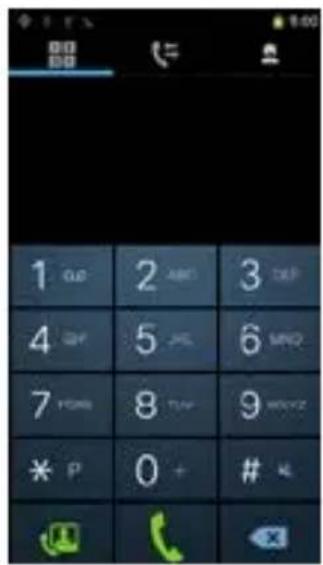
(2) Enter the area code and phone number.
(3)choose to make a voice call.
(4) To end the call, select End call.
Answer a call: 1 call comes in, drag to the right, when the device rings, enables the device to mute press the volume keys.
2 To end a call, select End call.
use of available headphones
Headphones into the device can receive calls and can control the call:
◇ To answer the call, press the headset button.
◇ To reject a call, long press the headset button.
use the option during a voice call
Make a call using the following options:
![10:00s China Mobile [Service] DIALING](/content/2026/06/1147356/images/ddc4d75bc22d6fd6563359b5b4f71b17aa55e62c4ef10ec369a92e0d8e4c401c.jpg)
| Digital | Function |
| 1 | The operators opened a conference call, you can add a second or more parties call. |
| 2 | Can open dial-up screen. |
| 3 | End a call |
| 4 | Turn on the loudspeakers, people can hear each other talking. |
| 5 | Call sound static |
| 6 | Current call on hold, other |
Call interface executable press the MENU key recording features,
use thev option in the video call
To make video calls using the following options:
For the switch to select the camera to switch between the front and rear camera lens.
To turn off the microphone so that the other can not hear their own voice, and select Mute.
◇ The wish to hide their own images to each other, press the MENU button to hide themselves.
To choose to display other images to each other, press the MENU button "issue image.
To open the dial screen, press the MENU key to dial.
◇ Wish to talk with each other via Bluetooth, press the MENU button to switch to the headset.
To activate the loudspeaker, press the MENU button "speaker open.
For each other's image, point to live each other's image. You can capture screen images or recording video calls.
3.2 Information
Learn how to create and send messages (SMS) or multimedia message (MMS), and view or manage to send or receive information.
send text messages
◇ In standby mode, select the information.
◇ Compose a new message.

Add recipients.1 Manually enter the phone number, use a semicolon or a comma between multiple numbers. 2 Selectthe phone number can be selected from the list.
The select Click to enter information, then enter the message text. 1 To insert emoticons, press the MENU button to insert emoticons. 2 To insert a text template, press the MENU button to insert common phrases.
◇ The choose to send to send a message.
Send MMS
◇ In standby mode, select the information.
◇ Compose a new message.
Add recipients.(1) Between a manually enter a phone number or email address, multiple numbers or addresses with a semicolon or a comma.
(2) Select from the list, select the phone number or e-mail address.
(3) enter an email address, the device will convert the information for MMS.
Press the MENU button to "add a topic, then add the message subject.
◇ The select Click to enter information, then enter the message text or insert templates, emoticons.
◇ choice, 📋 and add the project. You can select a file from the file list, can also create a new photo, video or sound.
◇ The choose to send to send a message.
View the SMS or MMS
In standby mode, select the information. Using the mailbox information contact group for information dialogue.
◇ Select contacts.
◇ MMS or SMS message, select a message to view details.
3.3 e-mail
Learn how personal or corporate e-mail account to send or view e-mail messages.
Set up email accounts
◇ In standby mode, open the application list, then select the e-mail.
◇ The edit e-mail account and password, then select Next.
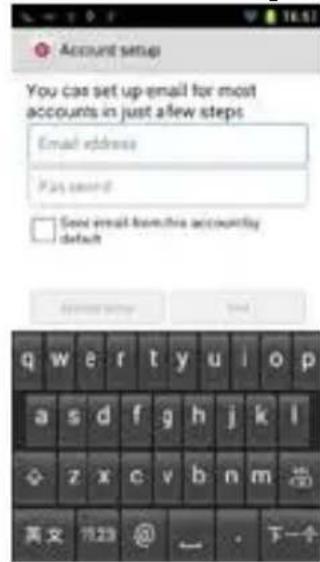
Account Settings interface to the default to choose their own options, and then select the next step

Select Next to complete the e-mail account settings, e-mail messages will be downloaded to the device. If you have already created more than two accounts, can switch between e-mail accounts, select the account name in the bottom left of the screen, then select a pre-fetching mail account.
send e-mail
◇ The enter the e-mail press MENU to choose to write.
Add a mail recipient. A manually enter the e-mail addresses, separated by a semicolon or a comma between multiple addresses. (2) For the Cc or Bcc, press MENU and select Add Cc, or Bcc.

◇ The select a topic to the field to enter a subject.
The select a text input field to enter the body of the email. To add an attachment, press the MENU button to add attachments. You can choose from the list of files to add contacts, and can also create a new photo, video or sound.
◇ The choose to send to send a message.
3.4 Contact
Learn how to create and manage personal or business contact list. Can save the contact's name, phone number, email, mailing address and more information.
create a contactv
◇ In standby mode, select a contact.
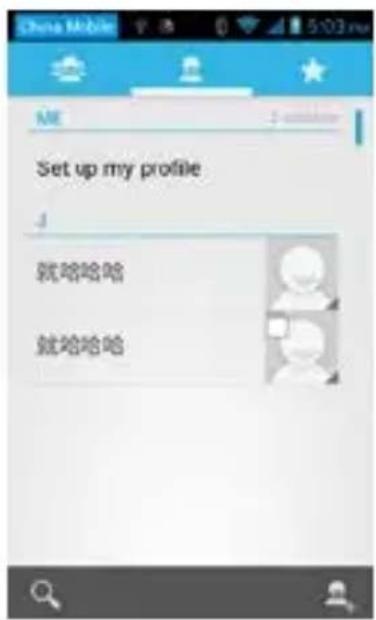
In the bottom right hand corner of the contact interface choose new contacts
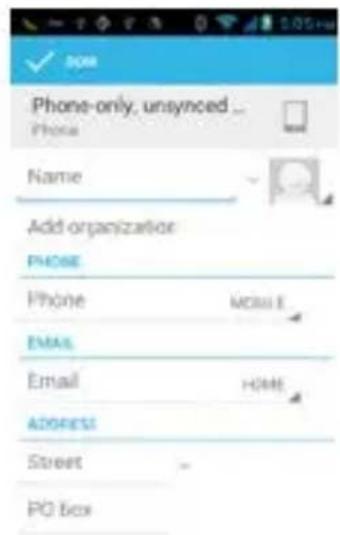
◇ Select the storage location. You can select the phone or SIM card.
◇ The Enter your contact information and save.
The also create a contact from the dial screen. (1) In standby mode, select Dial. 2 Enter the phone number. 3 Select Add Contact "New Contact. Select the storage location. Enter your contact information and save.
Find a contactv
◇ contact interface, click on the upper right corner of the search.

◇ They want to query the capital letters of the contact name in the search interface. Also available in the contact list, scroll up and down.
◇ Select the contact name. Long you can use the following
options. (1) editing. (2) deleted. Added contacts. Add to Favorites. 5 added to the group.
Speed Dial
◇ Contact interface according to the speed dial.
◇ Select a location number and add contacts. Press and hold the position number
◇ Completed in the dial-up interface to quickly dial this number.
Import orv export contacts
For contacts on the memory card file into the device:
◇ Contact interface press the MENU button to import or export.
◇ Copy contacts from the selected source (phone, SIM card or SD card), click Next.
◇ Need to export your contacts file and select OK.
3.5 Setting
WIRELESS AND NETWORKS
SIM management
◇ SIM card information: the name of the current network operator.
◇ The default SIM card: You can set up for voice telephony, video telephony, information, data connection.
◇ Other settings: You can set up international roaming, and contacts with the SIM card.
WLAN
WLAN: Touch on the right of the WLAN buttons to open WIFI, open the Wi-Fi later will automatically search available network, not set the password can be connected directly use, the need to be automatic password encrypted connection can be used
Note: open the Wi-Fi to open the flight mode, Wi-Fi would automatically shut off; Open the flight patterns to connect Wi-Fi, Wi-Fi normal use
Bluetooth
◇ Bluetooth: touch bluetooth open

◇ Into the bluetooth interface MENU button press, 1 rename mobile phone 2 detection set overtime 3 display received have to file 4 bluetooth senior Settings
Data use
Monitor the use of mobile data flow
More
◇ Flight patterns: disable all wireless connections, touch can open/close
◇ VPN: set the lock screen PIN or password group to change the VPN network
◇ Network sharing and portable hot spots
◇ WIFI Direct
◇ Mobile network: 3 G service access point name network operators
◇ GPRS data preferred mode: can choose to open or closed
DEVICE
Audio profiles
There are four models, including the standard for the meeting and outdoor, for each model can sound Settings
Display
◇ Lock screen notifications: Open after missed calls or unread messages, showing the lock screen
◇ Wallpaper:: can change the wallpaper
Auto-rotate screen:: mobile phones can rotate mobile phone to change direction setting
◇ Brightness:: adjustment screen brightness
Daydream: Into the dock, charge, or both either case, there will be display screensaver clock, kaleidoscope, photos, tables and frames
◇ Font size: You can set the font size
◇ Sleep: Adjust the screen automatically locks the delay before
◇ Wireless display: Wireless devices
Storage
◇ To view and USB storage SD card capacity display
◇ Can uninstall SD card and format SD card
Battery
Check the battery
Applications manager
To view has been downloaded SD card in the running all applications
PERSONAL
Location access.
◇ Access to my location: Allowed to get your license application to use your location information
◇ GPS satellites: GPS-aided, EPO Settings, A-GPS and A-GPS settings can be set to open
Wi-Fi & mobile network location: Allows applications using the Google location services faster a general understanding of your location. Anonymous phone location data and send it to Google.
Security
Screen lock : You can use pattern, PIN, Face Unlock, voice unlock or password lock screen
◇ Owner info: Input character display owner information on the lock screen
◇ Encrypt phone : Have to enter a PIN or password to decrypt the phone each time the phone is switched on after the encryption
◇ Set up SIM card lock : Set up SIM card lock
◇ Make passwords visible : The Password screen display password
◇ Device administrators : Add or Remove Device Manager
Unknown sources:: allow installation is not from electronic market for application
◇ Verify apps : Prohibit the installation of applications that could be hazardous, or warned before installing
◇ Install from SD card:: from the SD card installed encryption certificate
Language keyboard
Choose the language: select all of the application form and function display language
◇ Android keyboard: some of the keyboard to Android Settings
◇ Input method: choose the default keyboard type text input
Backup and reset
◇ Backup my data: will the application data WLAN and other Settings backup password to Google's servers
◇ Reset DRM: delete all the DRM license
◇ Restore the factory Settings: remove all data on mobile phones
ACCOUNTS
Add account
◇ You can add the account to synchronize data
SYSTEM
Date and Time
◇ Automatic determine the date and time: can use network provide time or GPS provides a time
◇ Automatic sure time zone: can open the use of the network time zone
◇ Set period: manual set the current time
◇ Set a time: manual set the current time
◇ Using 24 hour format: set to 24-hour system shows the time
◇ Choose the date format: choose duly format
Schedule power on/off
Touch can set the timer power on / off time can also choose to repeat or a week a day.
Accessibility
☐ TalkBack: "TalkBack" This device is turned on and enabled for the blind and visually impaired users, to provide voice feedback.
◇ Magnification gestures : When this feature is enabled, you can zoom in by clicking the screen three times
Power button ends call : Can choose to open or close
◇ Speak passwords : Can choose to open or close
◇ Touch & hold delay : Can choose short, medium and long
Enhance web accessibility : You want to allow the application to install scripts from Google so that you can browse the web content of these applications
About device
Access to information about the device and check the status of the device.
Android version : Quickly double-tap the Android version can pop BNB interface.
Build number : Quickly click Fourth version number will appear Developer Options menu.
3.6 camera
photographs
In standby mode, open the application list, then select the camera.
◇ The lens at the subject and make the necessary adjustments.
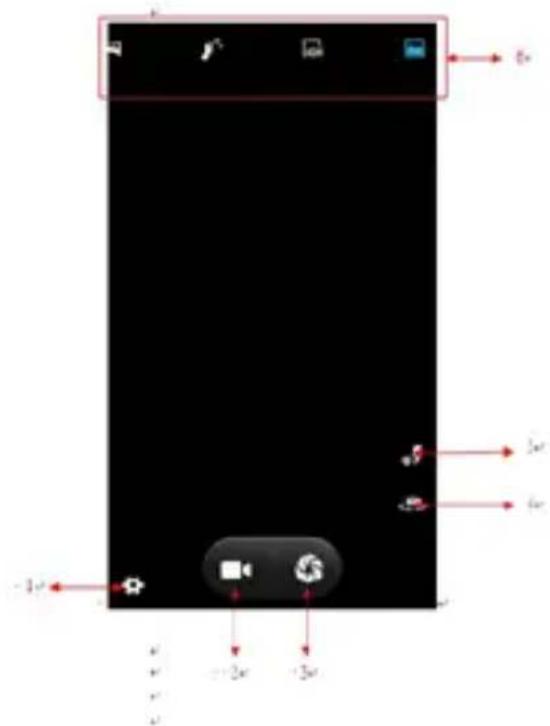
Note:
- Setting:
◇ GPS location info : Opens to display the current location information.
◇ Exposure: You can adjust the exposure value
◇ Color effect : Monochrome, sepia, negative, aqua blue, blackboard and whiteboard color settings
◇ Scene mode : To compose set the night scene, sunset, party, portrait, landscape
◇ White balance : You can set incandescent, daylight, fluorescent, cloudy
◇ Image Properties : Pictures can be some of the settings
◇ Anti-flicker : Can choose Auto, 50 Hz or 60 Hz
◇ Restore defaults : Restore the camera's default settings
Camera Setting:
◇ Face Detection : Capture focus on the face。
◇ Self timer : Can be set to 2 seconds or 10 seconds
◇ Picture size : Can choose a standard 4:3 QVGA, VGA, 1 million pixels, 1.3 million pixels, 2 megapixels.
◇ Preview size : Can select the full screen and standard (4:3)
ISO: Can be set to Auto, 100, 200, 400, 800 and 1600. Face
◇ beauty : Open face beautification
Video Setting:
◇ EIS : According to the characteristics and extent of the shock automatically adjusts the optical path, image stabilization.
◇ Microphone : Record sound when recording
◇ Audio mode : Can choose between standard or meeting
◇ Time lapse interval : Can choose to delay video
◇ Video quality : Can be set to low, medium, high and fine
-
Video : Can record images
-
Photograph :: You can take pictures
-
Before and after the camera switch icon
-
Flash: Can choose to open, close, and automatically
-
Sliding around in this area, from the left
◇ : Long press to switch to the exposure compensation mode
◇ : Long press to switch to the best camera mode
◇ : Long press to switch to the Smile Capture mode
◇ : Long press to switch to automatic scene detection mode
◇ : Long press to switch to multi-view mode
◇ : Long press to switch to panorama mode
◇ : Long press to switch to the face beautification mode
◇ : Long press to switch to the HDR mode
◇ : Long Press to switch to photographed mode
To view photos taken. To view more photos, scroll left or right. To enlarge or shrink, the two fingers on the screen, and then separate the fingers (folded finger zoom out), or double-click the screen. To send photos to others, choose to share. To delete a photo, select Delete.
3.7 Gallery
Learn how to view and play the photos and videos stored in the device memory and memory card.
view photos
In standby mode, open the application list, then select Gallery.
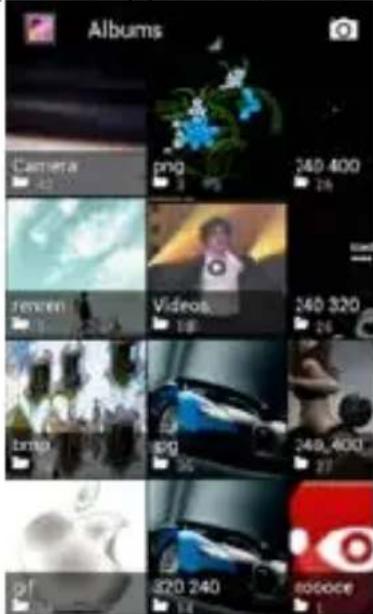
◇ The click any picture folder.
◇ Select the picture you want to view. View pictures, click More, and then use the following options: 1. More information. (2) to set as wallpaper or contact icon. (3) trim. (4) printing. (5) Rotate Left. (6) Rotate Right.
Play video
◇ Interface in the gallery, select the video icon
◇ The select a video player.
◇ The rotating the device into landscape mode.
◇ Use the virtual keys to control playback.
3.8 Music
Learn how to use the music player to listen to their favorite music. If you do not support some file formats, depending on the device's software. If the file size exceeds available memory, an error opening the file.
Play music
◇ In standby mode, open the application list, and select Music.
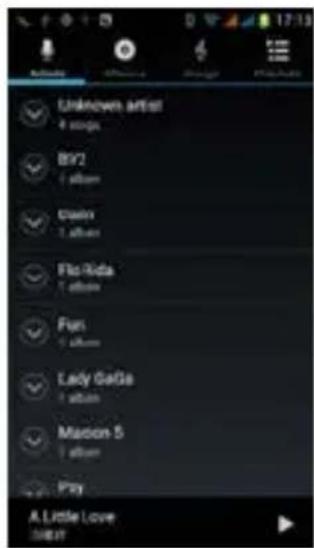
◇ Select the songs you want to play according to their preferences. The song is playing, press the MENU button can be used as ringtones.
![One Move Night (Sbc: Overnighttime: [Untitled Version] 7:05](/content/2026/06/1147356/images/5c1859a4b271270dbb9ef50dd418691441bf2bf65d3adf9ad9341d762eddd74c.jpg)
New playlist
◇ In the music player screen press the MENU button "add to playlist New Playlist.
◇ The enter the new name of the playlist, then select Save.
◇ Choose to add music.
During playback, you can press the MENU button added to the playlist.
Sound settings
◇ The sound of music interface, press the MENU key "
◇ Can choose to enable sound.
◇ Select the bass boost, virtualization, preset reverberation and equalizer.
3.9 Radio
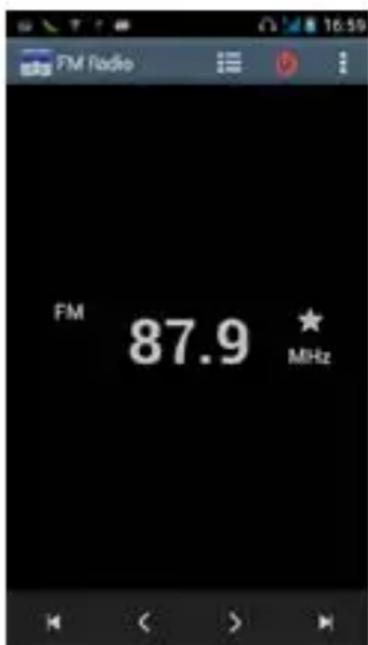
Learn how to listen to music and news on FM radio. To listen to FM radio, must be connected to the headset (the headset functions as the radio antenna)
listen to FM radio
◇ Plug the headphones into the device.
◇ In standby mode, open the application list, and select Radio.
◇ The radio interface clicking on the Settings menu select search
◇ The listen to FM radio.
3.10 Recorder
recording audio file
◇ In standby mode, open the application list, then select the recorder.
◇ Select the recording to start recording.
◇ Into the mouthpiece to speak.
◇ Completed, select Stop.
◇ Save interface, click the play button, listen to earlier recordings.
◇ The click save will be saved.
◇ For recording more voice memo, select the recording again.
3.11 Clock
Alarm Clock
◇ Add alarm clock, set the alarm for more information, select Save.
◇ After a specified time, the alarm clock sounded.
To stop select Cancel For later re-arming, choose to suspend the re-arming.
◇ To delete an alarm clock, long a set the alarm, select cancel the alarm.
Timer
After setting the time can be time
Stopwatch
Timing equipment
3.12 Calendar
New activities
◇ The click the MENU button, touch the new activities.
◇ In the Details box, enter the activity name.
Note: such as special occasions such as birthday or a full day of activities set up throughout the day the options are. If the activity is at a certain time periods and select the start time and end time.
◇ enter the venue, description, and to invite objects, repeat the reminder time.
◇ The click Done to return to the calendar.
Note: All-day events are displayed in the title of the calendar. Not calendar time.
To cancel the activity: in the time frame pop-up menu select Delete between activities by activity.
3.13 Calculator

This feature lets your phone as a calculator, some simple arithmetic. Touch the number keys turn in a blank box display.
3.14 File Manage
Learn how to quickly and easily access all stored images, video, music, sound clip on the device memory card, and other types of files.
◇ Into the file management menu.
◇ The select folder. . If you want to move up in the file directory level, select up.
◇ To open the folder.
3.15 Browse
Visit the website
◇ Click on the browser menu, go to the browser.
◇ Internet on the screen, and then touch the address bar enter the URL.
Use the keyboard to enter a web address. You enter the address at the same time, in line with the web address will appear on the screen. You can touch the URL to go directly to that page or continue to enter the URL.
◇ The click search, it will connect to the pages you want to browse.
Managing Browser
◇ Into the browser interface.
◇ Press the MENU button to the Bookmarks, to save the Web page as a bookmark. This way, you can save and quick access to frequently visited Web pages.
◇ Press the MENU button more history, you can view the browser URL.
4 Troubleshooting
4.1 Device display an error message of the network or service
When you are in a weak signal or accept bad place, you may lose reception capabilities, please go elsewhere and try again.
◇ If you do not make a reservation, some of the option is not available, please contact the ISP for more details.
4.2 Touch screen response is slow or incorrect
If the device has a touch screen and touch screen response is incorrect, please try to operate.
◇ The remove any protective film touch screen. The protective film may be organizational device recognition input, we do not recommend the touch screen equipment, use of protective film.
◇ Click on the touch screen, make sure your fingers dry and clean.
◇ Restart the device to clear any temporary software errors.
◇ Ensure that the device software has been upgraded to the latest version.
4.3 Device is frozen or there is a serious error
If the device is frozen or suspended, may need to close the program to restart the device to regain functionality. If the device is frozen or reflect the slow, press and hold the switch button 10 seconds to restart. If the problem persists, restore the factory settings.
4.4 Dropped calls
When you are in the signal is weak or accept bad place, the network connection may be disconnected. Go to other places and try again.
4.5 Call the other party can not hear you
◇ Ensure that does not cover the built-in microphone.
◇ Ensure that the built-in microphone near your mouth.
◇ If you use a headset, make sure the headset is connected correctly.
4.6 Sound quality poor
◇ Ensure non-blocking devices built-in antenna.
When you are in a weak signal or poor reception, you may lose reception. Go to other places and try again.
4.7 when the call from the contacts can not be connected
◇ Ensure the correct number stored in the contact list.
◇ If necessary, please re-enter and save the number.
◇ Ensure that the contacts phone number to set the call restriction.
4.8 equipment feels hot
Large power applications or for a long time to use the application on the device, the device feels will be very hot. This is normal, does not affect the useful life of equipment and performance.
- Ajustes de sonido
- Grabadora
- Introduction
- Please read the documentation
- Safety Precautions
- The Universal Precautions
- use the phone's attention
- Note that the battery
- Note that the charger
- Cleaning and maintenance
- Getting Started Guide
- boot and shutdown
- key
- Using the touch screen
- set the screen lock and unlock the touch screen
- Set unlockv pattern
- Face recognition
- Set the voice unlock
- Setting to unlock the PIN
- Set the unlockv password
- Lock the SIMv card
- use the notification panel
- Function menu
- call
- make or receive calls
- use of available headphones
- use the option during a voice call
- use thev option in the video call
- Information
- send text messages
- Send MMS
- View the SMS or MMS
- Set up email accounts
- send e-mail
- Contact
- create a contactv
- Find a contactv
- Speed Dial
- Import orv export contacts
- Setting
- WIRELESS AND NETWORKS
- SIM management
- WLAN
- Bluetooth
- Data use
- More
- DEVICE
- Audio profiles
- Display
- Storage
- Battery
- Applications manager
- PERSONAL
- Location access.
- Security
- Language keyboard
- Backup and reset
- ACCOUNTS
- Add account
- SYSTEM
- Date and Time
- Schedule power on/off
- Accessibility
- About device
- camera
- photographs
- Camera Setting:
- Video Setting:
- Gallery
- view photos
- Play video
- Music
- Play music
- Sound settings
- Radio
- listen to FM radio
- Recorder
- Clock
- Alarm Clock
- Timer
- Stopwatch
- Calendar
- New activities
- Calculator
- File Manage
- Browse
- Visit the website
- Managing Browser
- Troubleshooting
- Device display an error message of the network or service
- Touch screen response is slow or incorrect
- Device is frozen or there is a serious error
- Dropped calls
- Call the other party can not hear you
- Sound quality poor
- when the call from the contacts can not be connected
- equipment feels hot
Brand : Infiniton
Model : W08
Category : Karaoke