
TAB10QC - Tablet Sunstech - Free user manual and instructions
Find the device manual for free TAB10QC Sunstech in PDF.


| Product Type | Tablet |
| Model | TAB10QC |
| Brand | Sunstech |
| Dimensions | 272 x 168 x 12 mm |
| Display | 10.1 inch TFT touch panel, 1024x600 resolution |
| Operating System | Android 4.2.2 |
| Processor | 1 GHz Quad-core |
| RAM | 1 GB DDR3 |
| Storage | 8 GB internal |
| External Storage | TF card up to 32 GB |
| Graphics | SGX544MP2 |
| Audio | MP3, WMA, FLAC, APE, OGG; dual speakers |
| Video | MPEG-4, ASP, DivX, WMV, RMVB, H.264/1080P |
| Wireless | Wi-Fi 802.11 b/g/n; supports external 3G dongle |
| Ports | Micro USB (OTG), HDMI, Micro SD, DC charger, 3.5mm earphone jack |
| Camera | Front and rear cameras |
| Battery | 5800 mAh poly-lithium |
| Power Input | DC 5V/2A via included adapter |
| Operating Temperature | -20°C to 60°C |
| Languages | Multi-language support |
| Cleaning | Use soft cloth; no alcohol, thinner, or benzene |
| Safety | Do not disassemble; keep away from heat and moisture; do not block ventilation |
Frequently Asked Questions - TAB10QC Sunstech
User questions about TAB10QC Sunstech
0 question about this device. Answer the ones you know or ask your own.
Ask a new question about this device
Download the instructions for your Tablet in PDF format for free! Find your manual TAB10QC - Sunstech and take your electronic device back in hand. On this page are published all the documents necessary for the use of your device. TAB10QC by Sunstech.
USER MANUAL TAB10QC Sunstech
natural_image
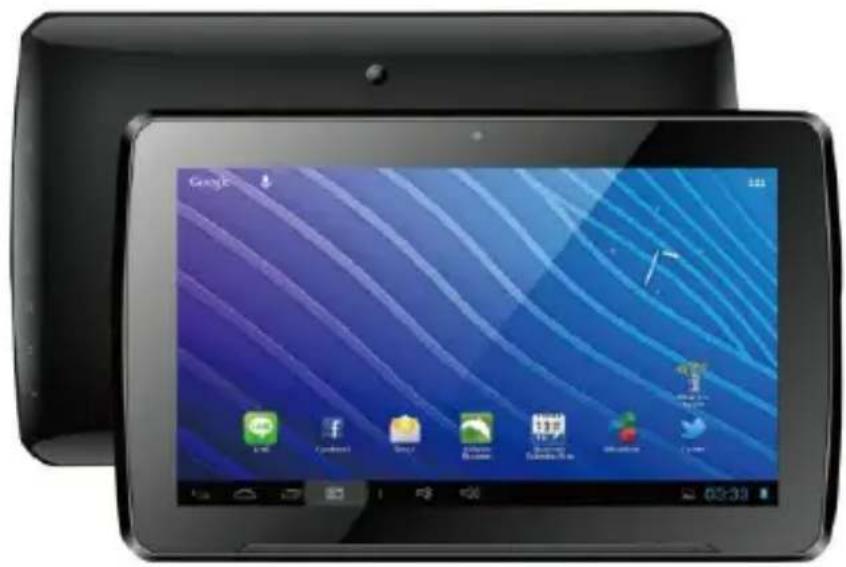
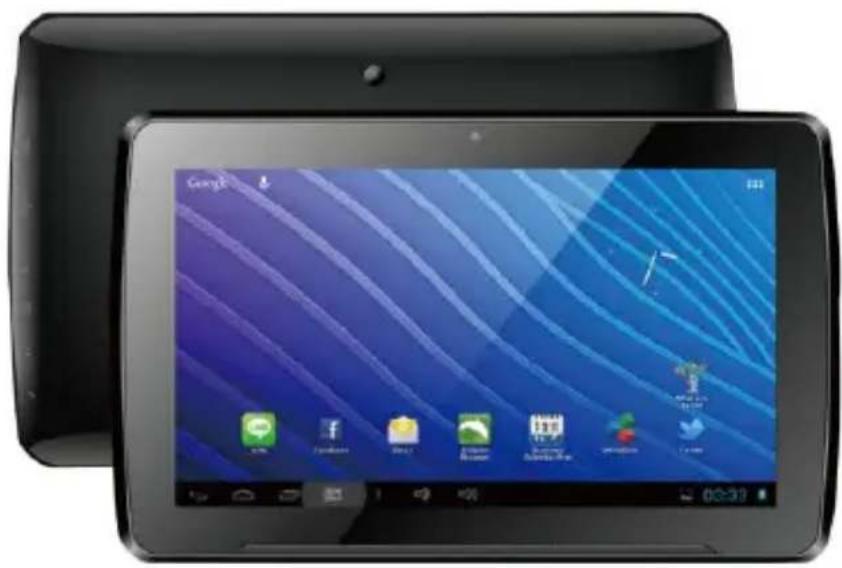
Black tablet device with open screen displaying app icons (no readable text or symbols on screen)Preface
Thank you for buying the MID. We hope you enjoy using it.
Please read and retain all the operating instructions before operating the unit, we do not assume any liability arising out of improper operation or incidental damages.
For better services, the content of this operation manual may be changed.
If the actual setup and usage of the unit are different from this operation manual, please view the website of our company to inquire about the latest product information.
Do not allow water or foreign objects to enter the unit.
- Avoid the unit being dropped. Avoid the display being shaken seriously, or the display will be damaged or unusual.
- Do not use metal objects to touch the device to prevent it from short circuit.
- Please backup your data in case your important data is lost, especially before you upgrade the firmware. The company will not take responsibility in any loss that caused by lost of data.
- Do not disassemble. Do not wipe the surface of the unit with alcohol, thinner or benzene.
- Do not disconnect the unit while it is formatting or uploading/downloading, or the procedures may lead to errors
- We do not take responsibility to the flash damage caused by product broken, repair or other reasons. Please operate strictly as per the user guide.
- Avoid water or foreign objects enter the unit.
- Do not use the unit in places that are extremely hot, cold, dusty, or humid.
- Specifications are subject to change and improvement without notice
flowchart
graph TD
    A["×"] --> B["×"]
    B --> C["×"]
    C --> D["×"]
    D --> E["×"]
    E --> F["×"]
    F --> G["×"]
    G --> H["×"]
    H --> I["×"]
    I --> J["×"]
    J --> K["×"]
    K --> L["×"]
    L --> M["×"]
    M --> N["×"]
    N --> O["×"]
    O --> P["×"]
    P --> Q["×"]
    Q --> R["×"]
    R --> S["×"]
    S --> T["×"]
    T --> U["×"]
    U --> V["×"]
    V --> W["×"]
    W --> X["×"]
    X --> Y["×"]
    Y --> Z["×"]
-
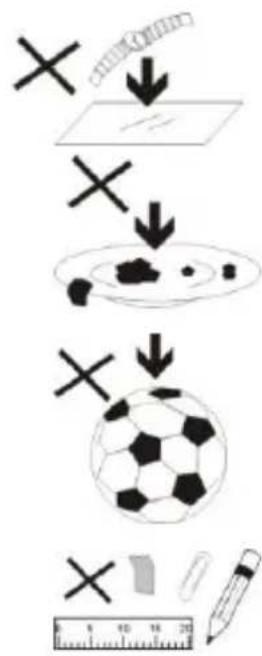
DO NOT place objects on top of the device, as objects may scratch the device.
-
DO NOT expose the device to dirty ordusty environments.
-
DO NOT place the device on an uneven or unstable surface.
-
DO NOT insert any foreign objects into the device.
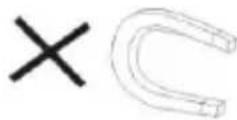
- DO NOT expose the device to strong magnetic or electrical field.
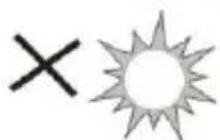
- DO NOT expose the device to direct sunlight as it can damage the device. Keep it away from heat sources.
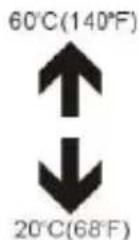
- DO NOT store your device in temperatures higher than 40^ C(104°F). The internal operating temperature for this device is from 20^ C(68°F) to 60^ C(140°F).

- DO NOT use the device in the rain.
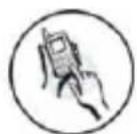
- Please check with your Local Authority or retailer for proper disposal of electronic products.

- The device and adaptor may product some heat during normal operation of charging. To prevent discomfort or injury from heat exposure, DO NOT leave the device on your lap.
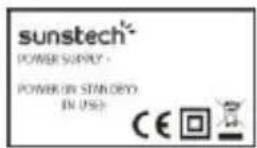
- POWER INPUT RATING: Refer to the rating label on the device and be sure that the power adaptor complies with the rating. Only use accessories specified by the manufacturer.

natural_image
Illustration showing a hand cleaning a cloth next to a spray bottle with a 'X' mark (no text or symbols)- Clean the device with a soft cloth. If needed, dampen the cloth slightly before cleaning. Never use abrasives or cleaning solutions.
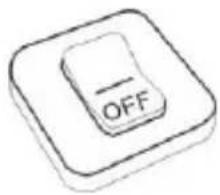
- Always power off the device to install or remove external devices that do not support hot-plug.
flowchart
graph TD
    A["Wall with dots"] --> B["Printer with 'OK' icon"]
    B --> C["Scrap on surface"]
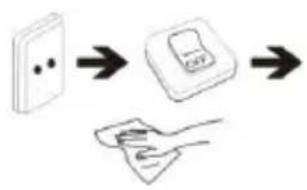
- Disconnect the device from an electrical outlet and power off before cleaning the device.
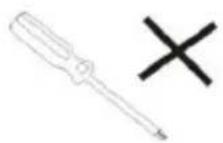
- DO NOT disassemble the device. Only a certified service technician should perform repair.

- The device has apertures to disperse heat. DO NOT block the device ventilation, the device may become hot and malfunction as a result.
flowchart
graph TD
    A["Start"] --> B["Process Step"]
    B --> C["Block 1"]
    B --> D["Block 2"]
    B --> E["Block 3"]
    B --> F["Block 4"]
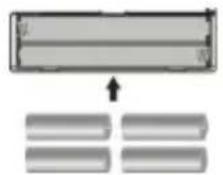
- Risk of explosion if battery replaced by an incorrect type. Dispose of used batteries according to the instruction.
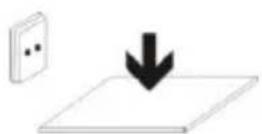
- PLUGGABLE EQUIPMENT: the socket-outlet shall be installed near the equipment and shall be easily accessible.
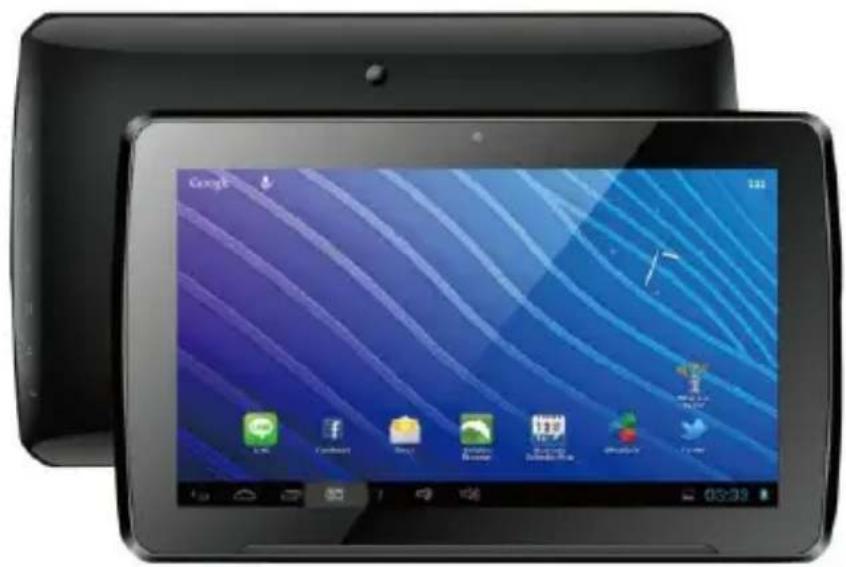
II. Introduction of cover:
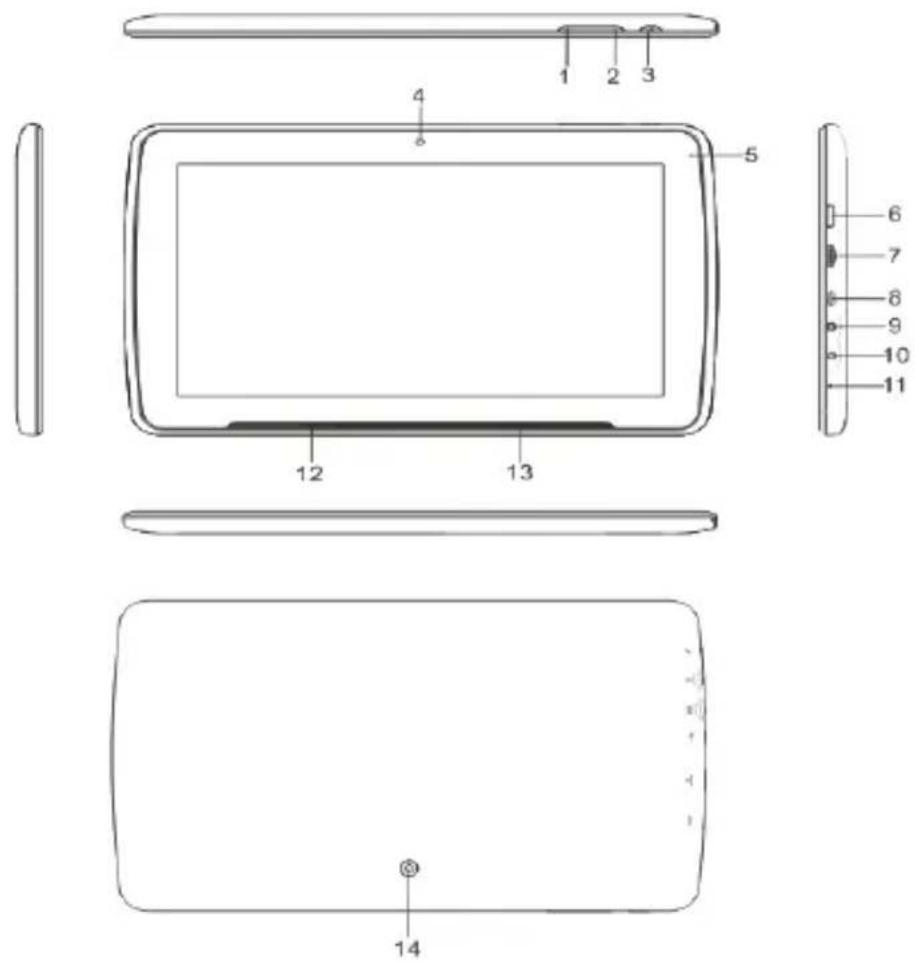
- Volume +
- Volume -
- Power on/off
- Front Camera
- Indicator
- HDMI interface
- SD Card interface
- Micro USB interface
- DC charger interface
- Earphone Jack
- MIC
- Loudspeaker
- Loudspeaker
- Back Camera
III. Operation Instruction
1. Basic Operation
1.1. Power on/Power off
Power on:
Press and hold the power switch for 5 seconds; the unit displays the start-up logo and enters the working mode.
Power off:
Press and hold the power switch for 3 seconds to turn the unit off.
Sleep:
While the device is in working status, press the power switch, it enters in sleeping mode, and the screen will turn off. Press the power switch again, it will return to normal mode. You may use this function when you don't use the device to save power.
1.2. Charging
When the device prompts low battery, please charge it with the provided charger.
Note:
To improve the longevity of the battery, you may charge it for another 15 minutes after it prompts the battery is full.
1.3.Main menu
natural_image
Simple geometric icon with a circle containing six squares and a grid of three, no text or symbols present.Click the icon in the main interface, the main menu is appeared. It includes the system setting, music playback, video playback, web browser and other applications you installed in the main menu.
2. Settings
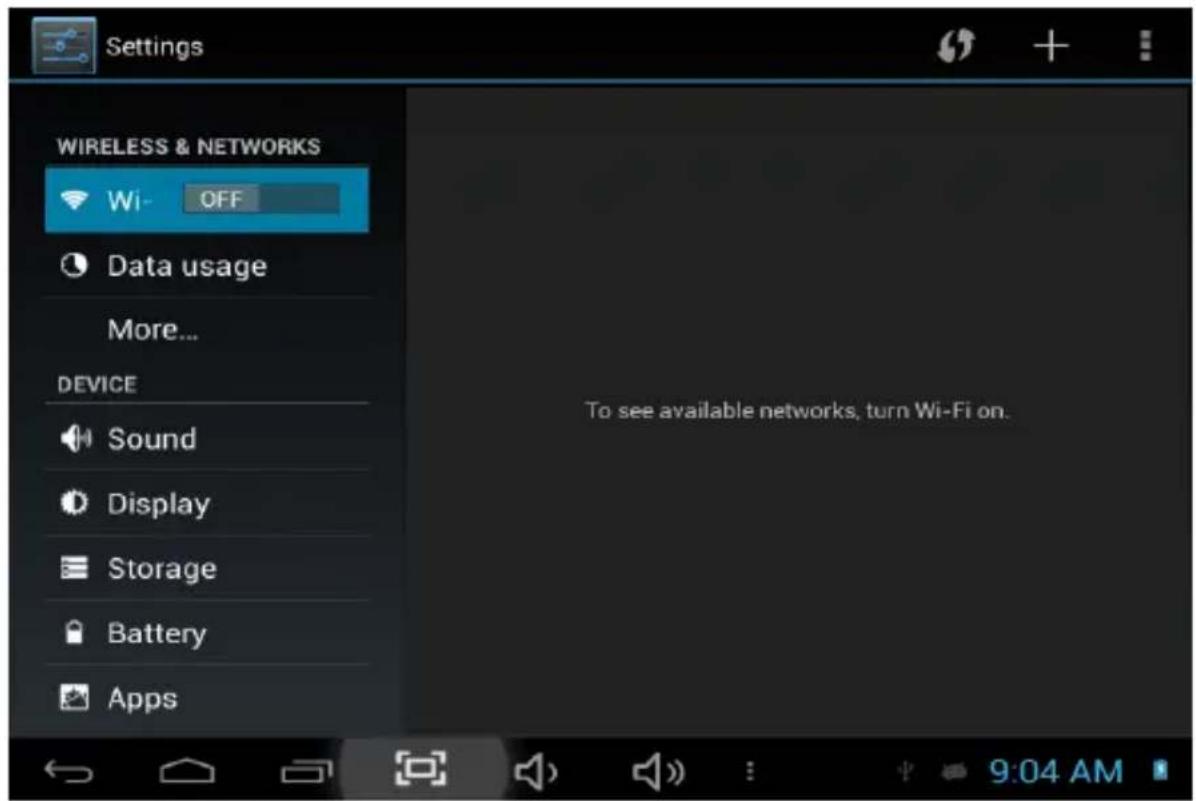
Click "Settings" in the main interface to enter the setting interface. Click the corresponding setting items to operate.
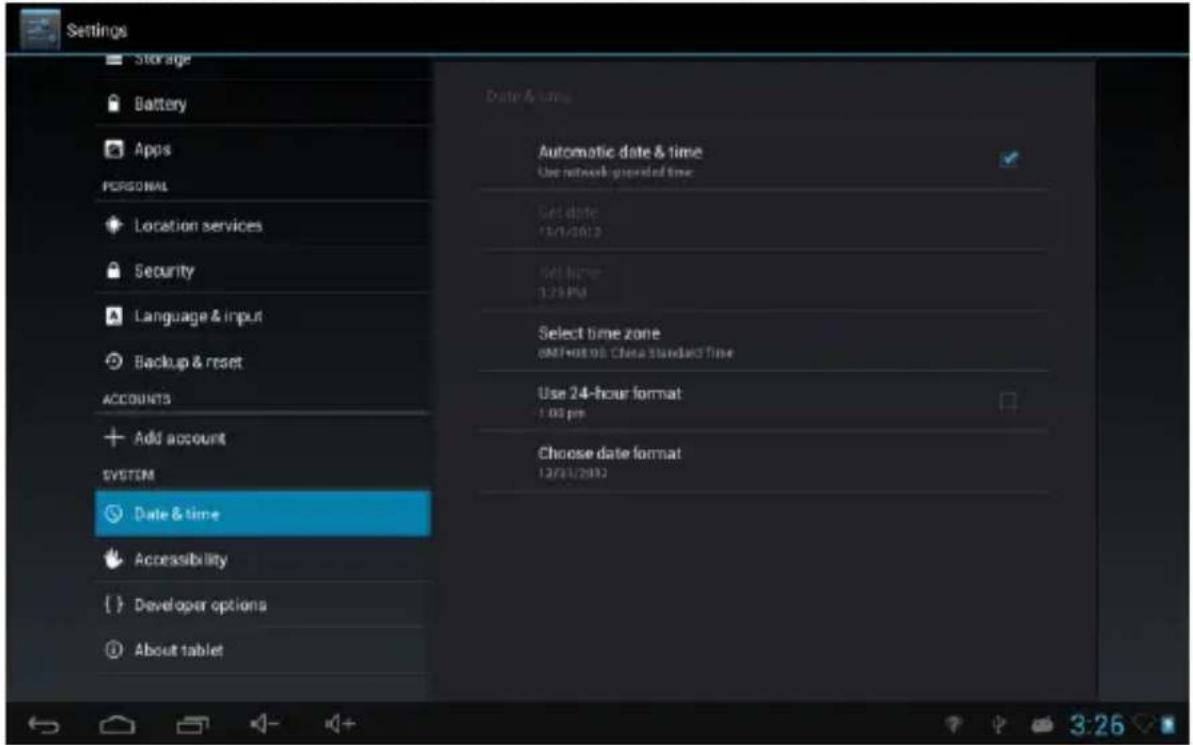
2.1. Date and Time Setting
Click "Date & Time" in the setting interface to set the date and time. You may set the date, time zone, time, time format and date format etc. in the menu.
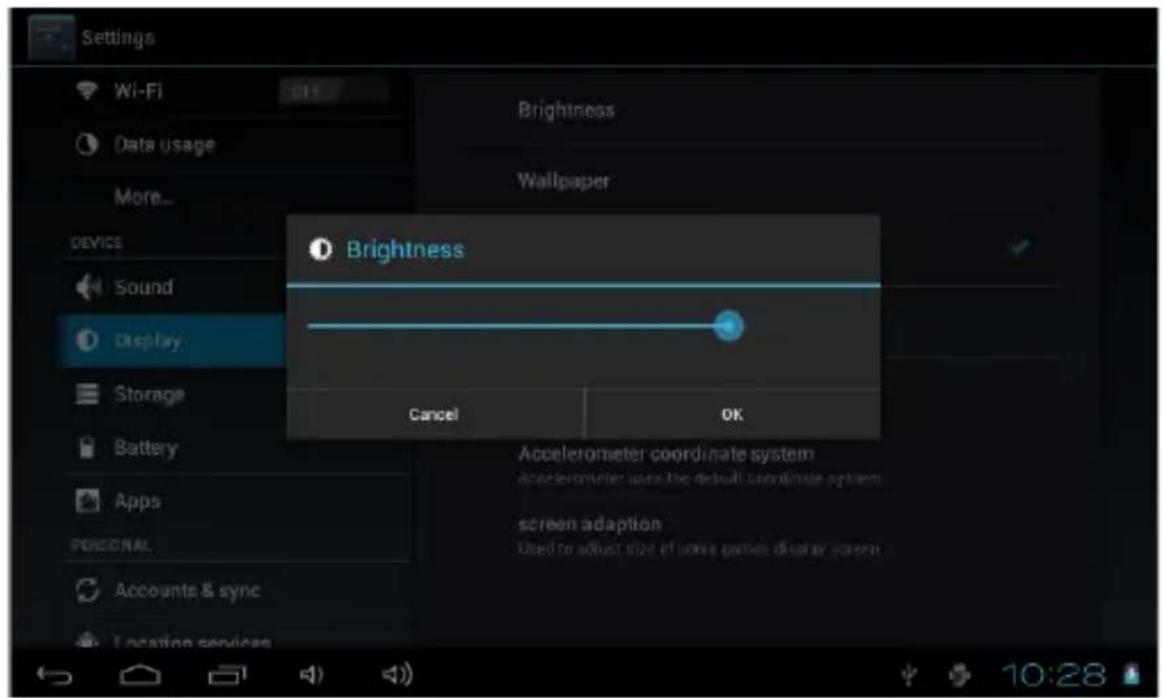
2.2. Brightness
Select "Display" in the setting interface. Click "Brightness" to enter, and slide the bar to adjust the brightness.
3. Wi-Fi connection
Click "Settings" in the main interface and click "Wireless & network" to enter the wireless and network setting interface. Click Wi-Fi to turn on the WIFI. Click Wi-Fi setting to set and manage wireless access.
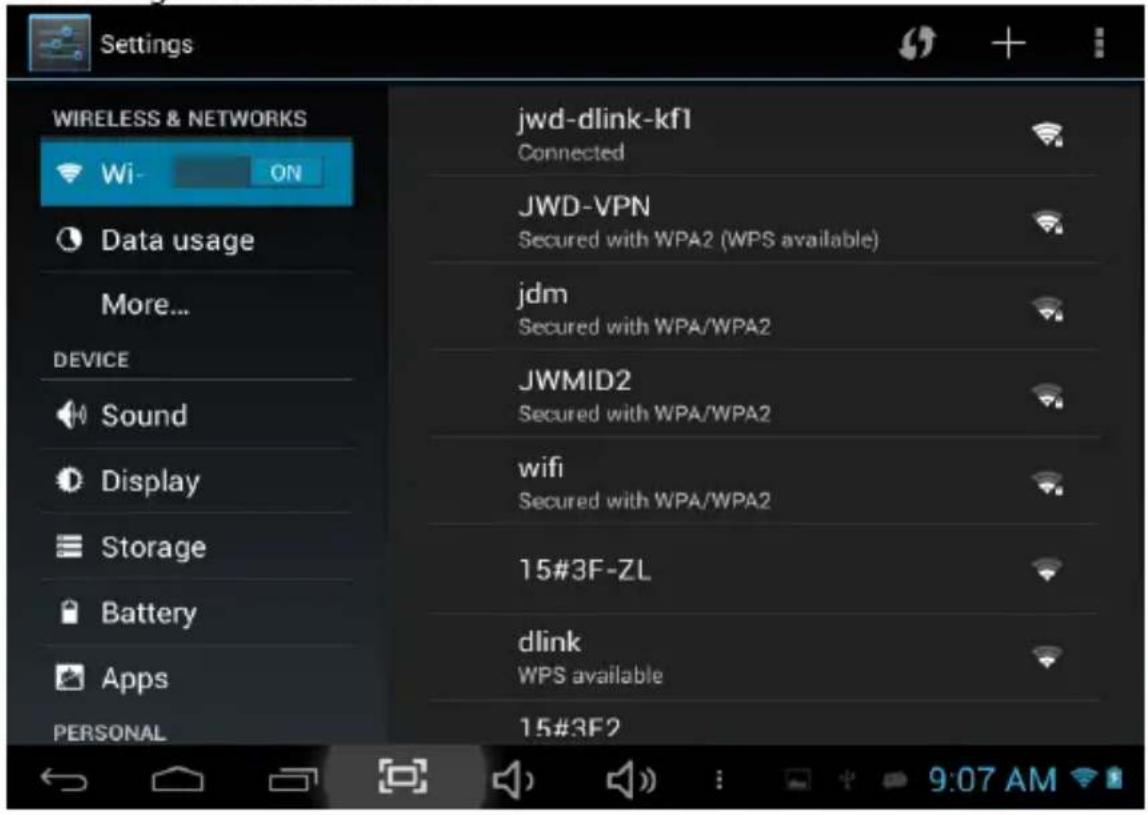
Click "Network Notification", it lists the open network it searched. Click the name of the network; it pops up the setting window. You may connect it to WIFI according to the prompts. You need to input the user name and password if networks are encrypted.
4. Explorer to install App
4.1 Install
There are many ways to install applications under Android, such as via USB or Micro SD.
Click the "File Manager" in the main interface.
Select the APK file you want and enter the application installation interface. Click "Install" to install the application automatically. After installation, it prompts "Open" and "Finish". Click "Open" to open the application. Click "Finish" to exit.
4.2 Uninstall
You may use the corresponding third party software management tool or the installed application management software of the device to install applications.
Select "Setting/Applications/Manage applications" to select the installed applications and check the attribute of it or uninstall it.
5. Connect to internet
5.1. After connecting with WIFI, open the browser and input the web address, you can browse the web then.
5.2. Click the ★ icon to enter the bookmark to view the browse history. Click the web page you want to open it.
To save the web page into bookmark, you may click 📄 to enter and click "add" to save it.
6. Audio and video playback
6.1. Audio playback
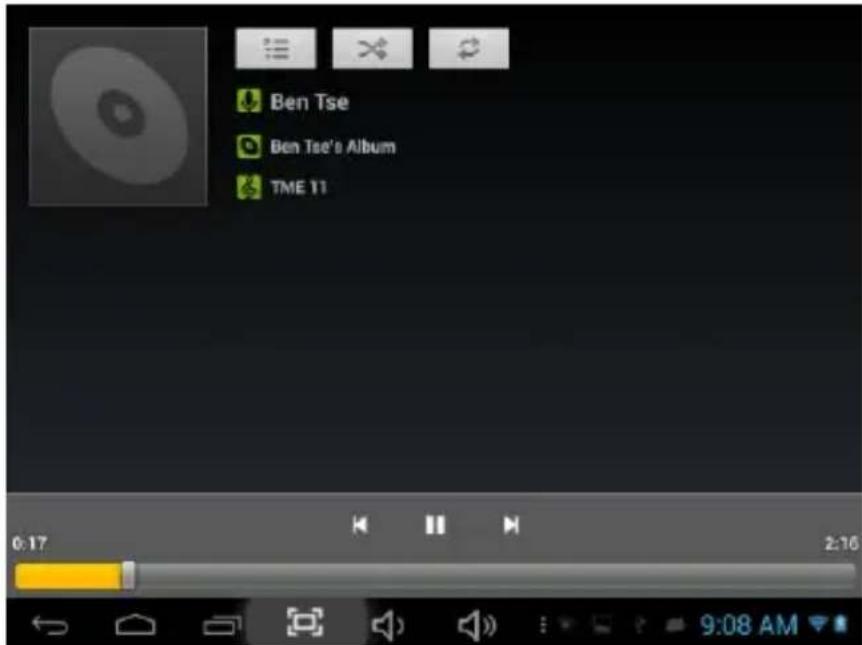
Click the "Music" in the main menu to enter the audio playback interface. It lists the audio files in the device, and you may click the file name to play it. in the audio playing interface, click the icons to play/pause/increase volume/decrease volumem/FF/REW....
6.2. Video Playback
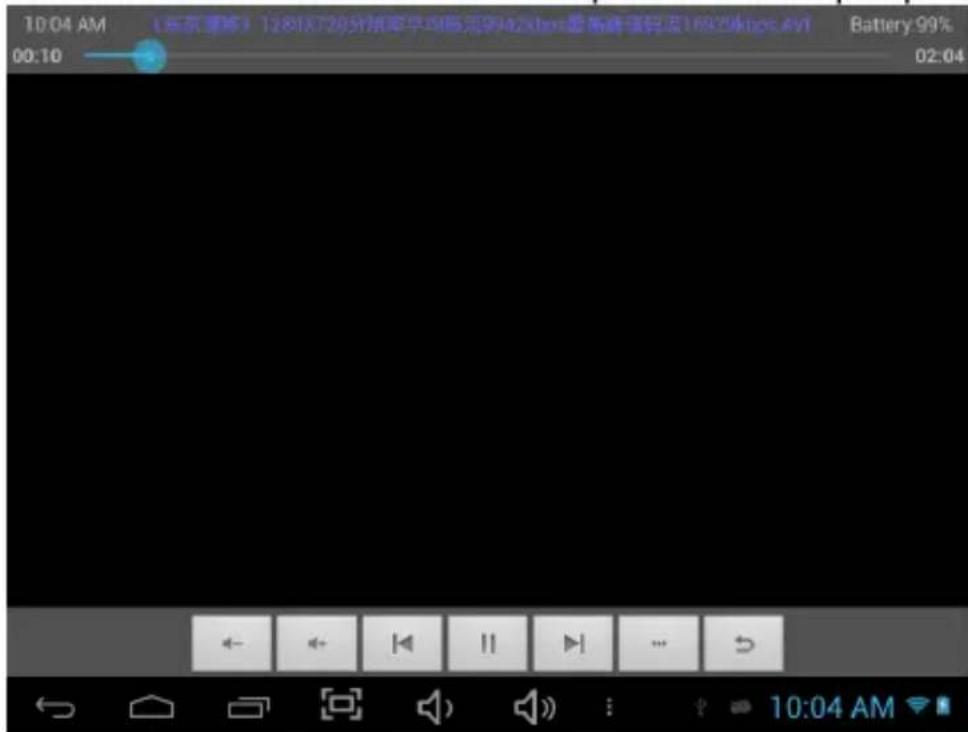
Click the Gallery in the main menu to enter the video playback interface. It lists the video files in the device, and you may click the file name to play it. in the video playing interface, touch the screen to pop-up the operation icons and click the icons to play/pause/ increase volume/ decrease volume/ skip to next file/skip to previous file....
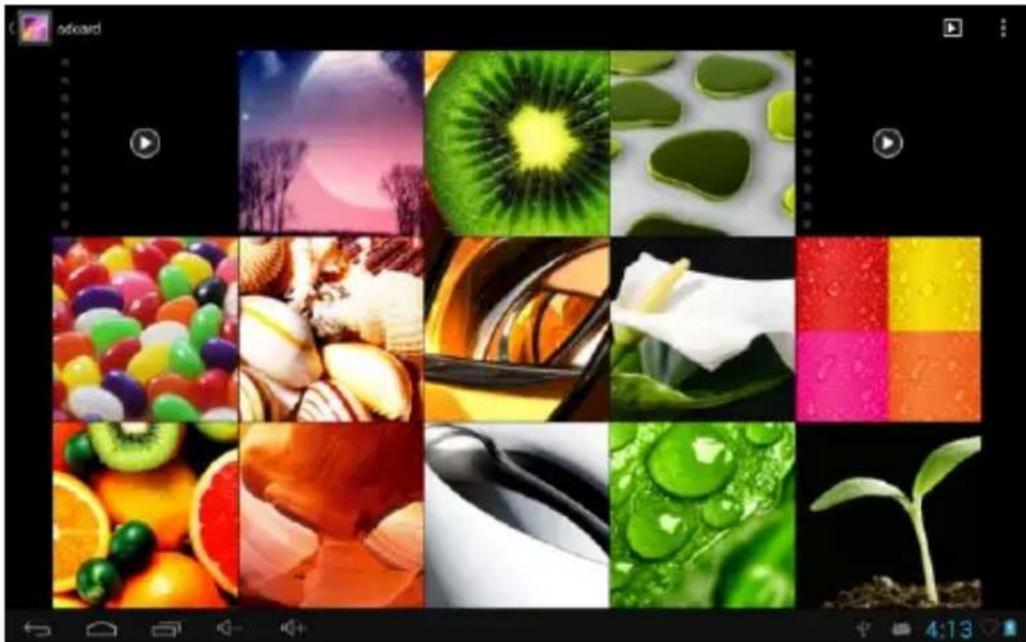
7. Picture viewing
Click "Gallery" in the main menu to enter the picture folder list. Select and click the folder you want to enter, it displays . click the thumbnail of the picture to view it.
Touch the screen to pop-up the operation icons while viewing the picture, you may zoom in/zoom out/ skip to next picture/skip to previous picture/ rotate/ delete the picture...
natural_image
Grid of 12 colorful and food-related images including fruits, vegetables, and a seedling, displayed in a photo editing interface (no text or symbols on the images themselves)
natural_image
Close-up of fresh fruits including oranges, kiwi, and a whole citrus (no text or symbols visible)8.3G DONGLE
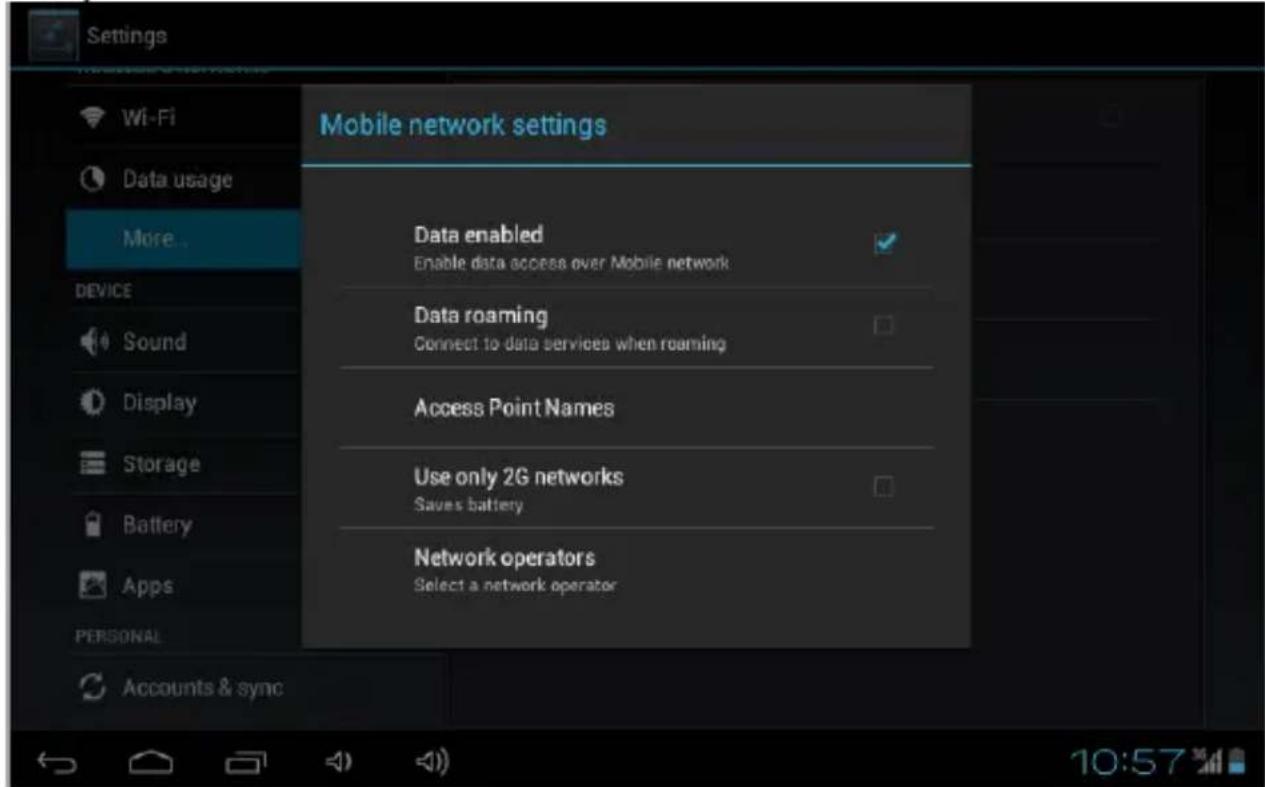
The device supports external 3G Dongle, connect the 3G dongle to the device via the external transfer cable, after the dongle indicator lights, you may use the 3G network normally.
9. Camera
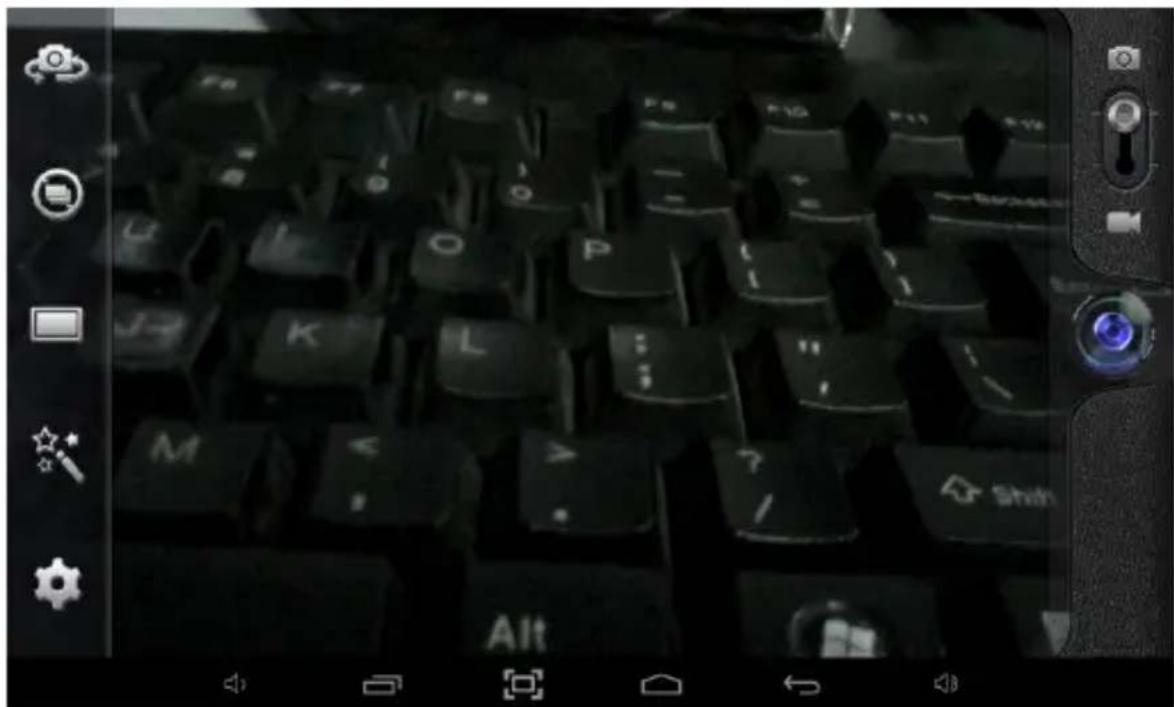
Click "Camera" in the main interface.
9.1 Camera
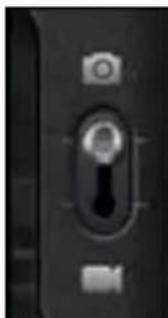
If the cursur is at composition, the device is at Camera mode.
Click to take picture.
Click to enter the setting interface, set the scene mode, Picture size, Picture quality, and color effect.
Click to select back or front camera.
9.2 DV
Click to select interface If the cursur is at position, the de
Click to take picture. Click to set the color effect or restore to default settings.
10. Connect with external device
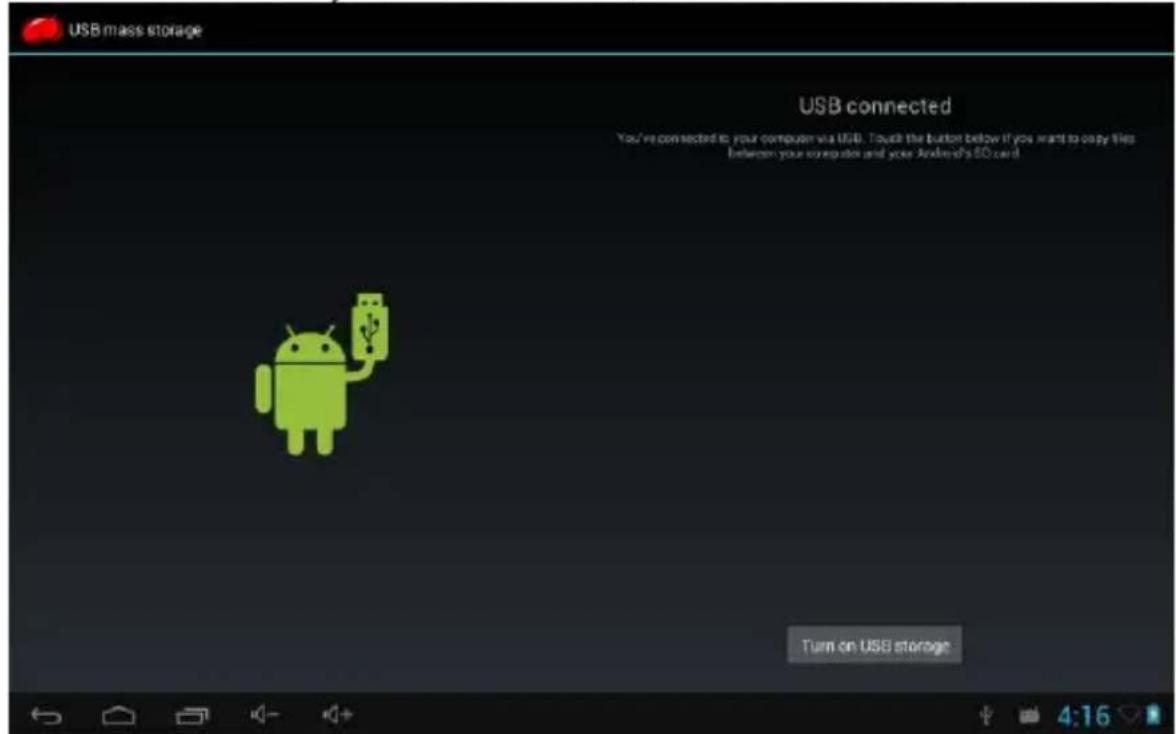
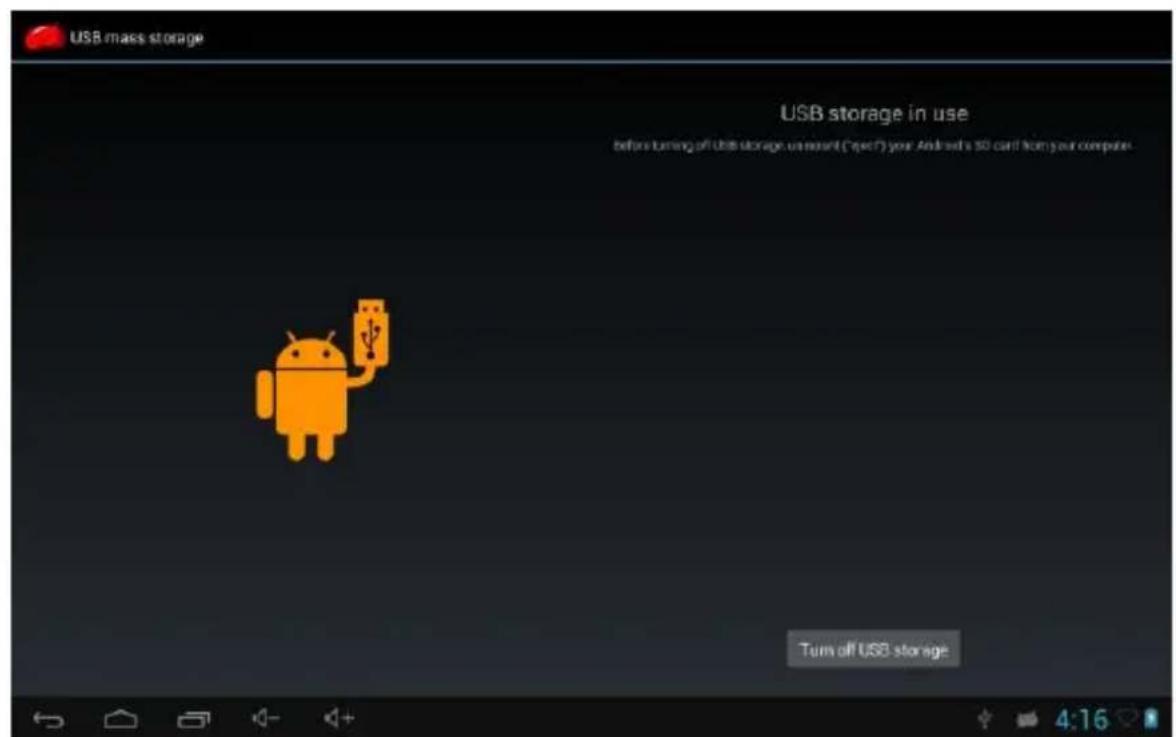
10.1. Connect with PC
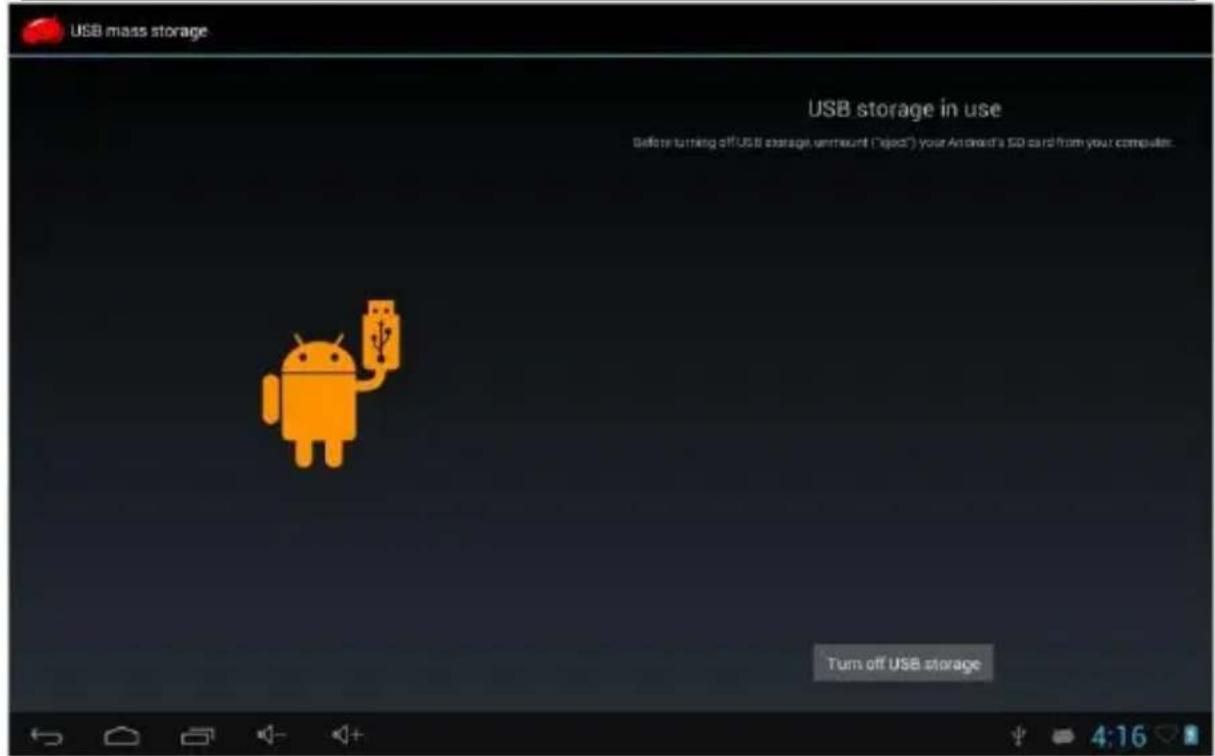
Connect the device with the PC via the USB cable. The PC appears two new disk symbols after connected successfully. One is the TF card, and the other is the built-in flash.
10.2. Use of OTG and USB host
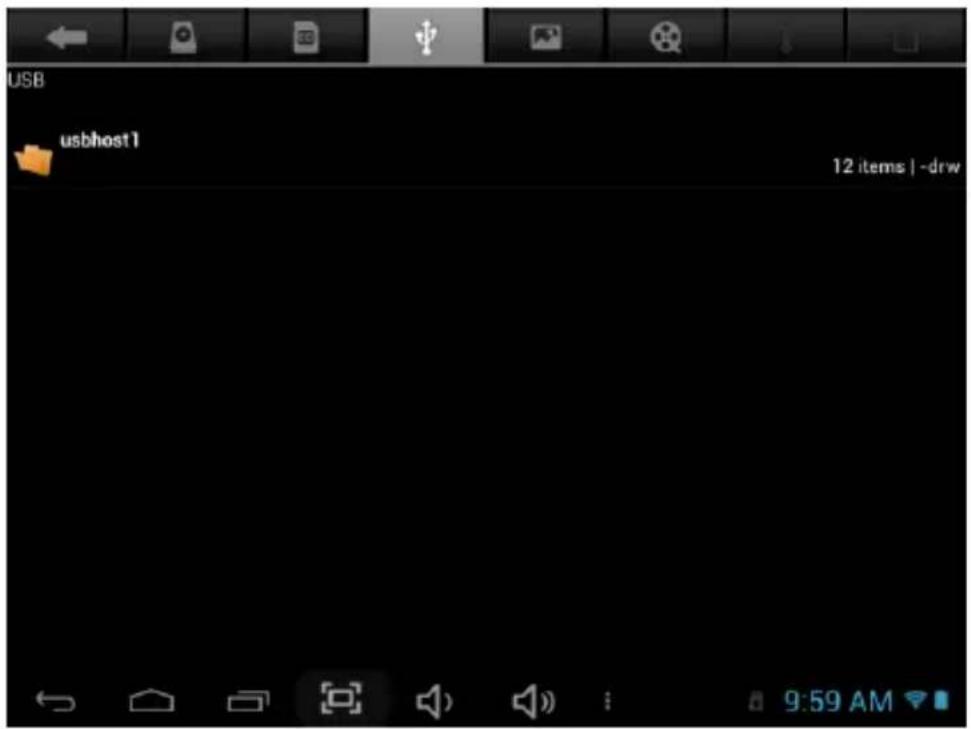
It supports the movable device with FAT32 format, such as U disk and MP3.
Connect the movable device to the MID. (Note: only OTG could support USB mouse and keyboard, USB HOST only support USB2.0 High speed device)
10.3. Applications
For convenient usage, we installed some third party software in the MID. For detailed operation methods, please check the corresponding instruction. Some of the software may be able to be used in some area because of network service.
IV. Troubleshooting
1. What if the device is abnormal during operation?
Answer: 1). Reboot the device to see if it works OK.
2). Charge the device by the charger to activate the battery. Make sure it has power before you operate it.
3). It is suggested to upgrade the OS of the device by professional.
2. Why the standby time is so short sometimes?
Answer: the use time of the battery is all depending on the temperature and use instance. If the temperature is too high or too low, the use time of the battery might be effected. It is suggested using the device in normal temperature.
The using time is also affected by increased volume and frequently operation.
VI. Specifications
| Item | TAB10QC |
| Dimension | 272X168X12mm |
| Display | 10.1" 1024X600 TFT touch panel |
| OS | Android 4.2.2 1Ghz Quadcore-1GB DDR3 + SGX544MP2 |
| Input method | Soft keypad |
| Capacity | 8GB |
| External Capacity | TF card, up to 32GB |
| Audio | MP3,WMA,FLAC,APP,OGG......(support all audio formats) |
| Video | mpeg4-sp,asp,divx,WMV,RMVB,H.264/1080P (support all video formats) |
| Wireless network | Support WIFI 802.11 b/g/n |
| Language | Multi-language |
| USB | USB2.0 high speed/OTG |
| Speakers | Two speakers |
| Temperature | -20°C to 60°C |
| Power supply | AC 100~240V 50/60Hz; DC 5V/2A |
| Battery | 5800mAh poly-lithium battery |
Note: The pictures list in the manual are for reference only!
The design and the specification of the unit are subject to change without notice.
Warranty conditions
- The warranty of this product is for 2 years since the purchase date.
- The warranty will exclude breakdowns caused by bad use of the product, wrong installation or installation in not desirable places for a proper maintenance of the product, rips, updates of the products that are not the supplied by the brand, pieces wore away for its use or for not domestic or inappropriate use. Also are excluded breakdowns caused for manipulations of the products by people or companies alien to our company.
- For any request regarding the warranty terms, the purchase receipt must be attached.
Correct disposal of this Product
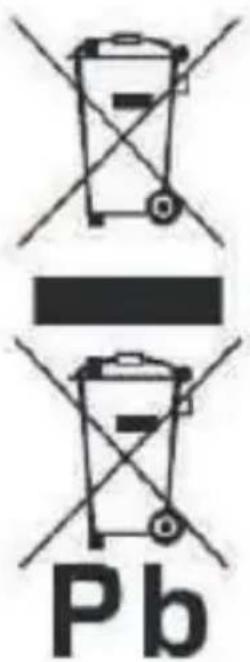
(Waste Electrical & Electronic Equipment (WEEE)
Your product is designed and manufactured with high quality materials and components which can be recycled and reused. This symbol means that electrical and electronic equipment, at their end of-life should be disposed of separately from your household waste.
Please dispose of this equipment at your local community waste collection/recycling centre.
In the European Union there are separate collection systems for used electrical and electronic products.
Please help us to conserve the environment we live in!
sunstech ^1/2
MODELO: TAB10QC
MANUAL DEL USUARIO
natural_image
Black tablet device with a blue abstract wallpaper and multiple app icons displayed on its screen (no readable text or symbols on the device itself)Prefacio
natural_image
Simple line drawing of a hand cleaning a cloth next to a spray bottle with a 'X' mark (no text or symbols)natural_image
Simple line drawing of a screwdriver and a cross symbol (no text or labels)natural_image
Simple diagram showing a rectangular object with an upward arrow pointing to four parallel rectangular blocks below (no text or symbols)natural_image
Simple line drawing of a wall-mounted device with a black downward arrow pointing to a flat surface (no text or symbols)natural_image
Simple geometric icon with a circle containing four squares and a grid of dots (no text or symbols)2.2.Brillo
3. Conexión Wi-Fi
natural_image
Grid of 12 colorful and abstract images including fruits, vegetables, and plant (no text or symbols)
natural_image
Close-up of fresh fruits including oranges, kiwi, and a whole citrus with a red-gold fruit (no text or symbols)8. Dongle 3G
9. Cámara
a)
Cámara
natural_image
Close-up of a black door handle with keyhole and control buttons (no text or symbols visible)natural_image
Close-up of a black padlock with a lock and camera icon (no text or symbols visible)natural_image
Close-up of a black door lock with a keyhole (no text or symbols visible)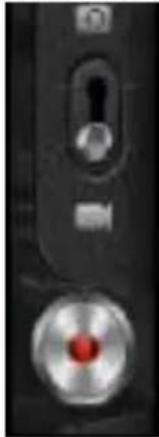
natural_image
Close-up of a black electronic device with a metallic knob and control buttons (no visible text or symbols)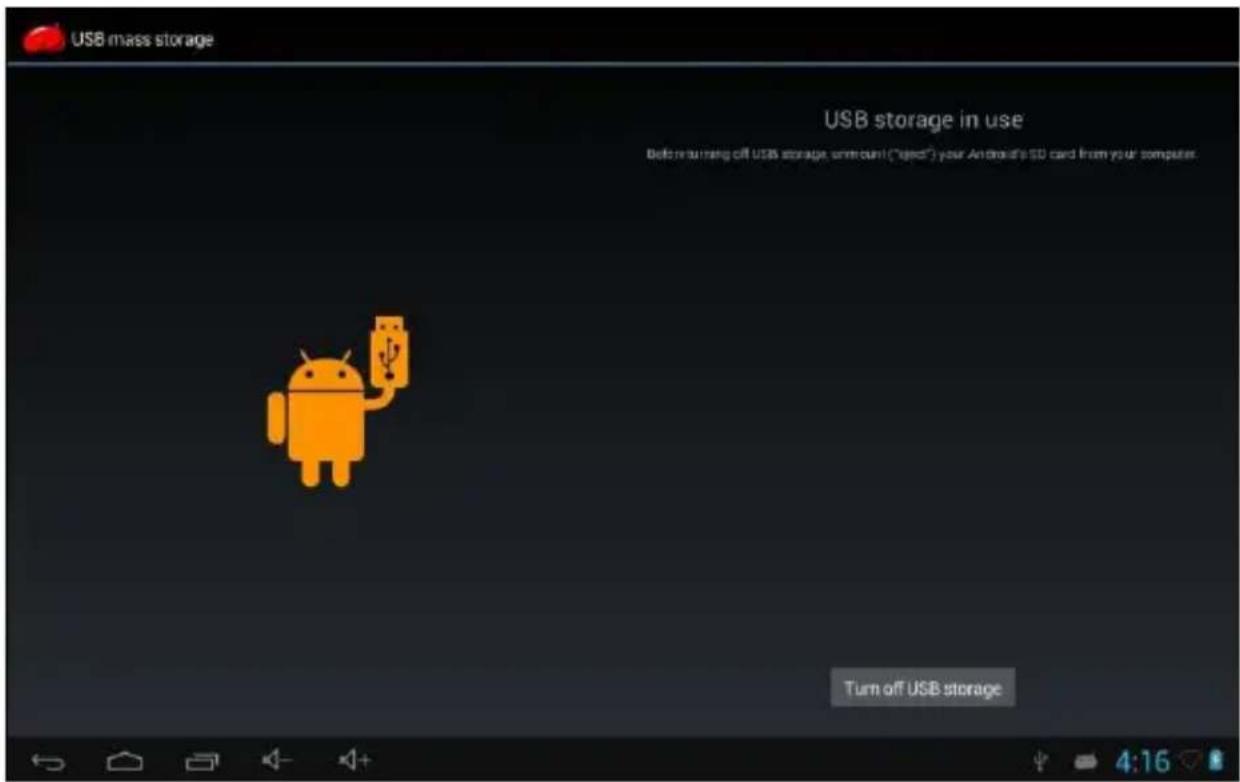
sunstech ^1
MODELE: TAB10QC
MODE D'EMPLOI
natural_image
Black tablet device with a blue abstract wallpaper and multiple app icons displayed on its screen (no readable text or symbols on the device itself)Préface
natural_image
Simple line drawing of a hand cleaning a cloth next to a spray bottle with a 'X' mark (no text or symbols)flowchart
graph LR
    A["Switch with two dots"] --> B["Device with 'OFF' label"]
    B --> C["Hand holding paper"]
natural_image
Simple line drawing of a screwdriver and a black X symbol (no text or labels)natural_image
Simple line drawing of a download arrow pointing downward on a flat surface, with a wall-mounted device nearby (no text or symbols)Power off (mise hors tension):
2.2. Luminosité
3. Connexion Wi-Fi
4.2 Désinstallation:
6.2. Lecture vidéo
natural_image
Grid of 12 colorful and abstract images including fruits, vegetables, and a plant, displayed in a photo editing interface (no text or symbols on the images themselves)
natural_image
Close-up of fresh fruits including orange slices, kiwi, and a whole citrus (no text or symbols)8. DONGLE 3G
9. Caméra
natural_image
Black-and-white photo of a computer keyboard with visible keys and control buttons, no readable text or symbols.9.1 Caméra
IV. Dépannage
sunstech ^1/2
MODELO: TAB10QC
MANUAL DE USUÁRIO
natural_image
Black tablet device with a network of app icons displayed on its screen (no readable text or symbols on the device itself)Prefácio
natural_image
Illustration showing a hand cleaning a cloth next to a spray bottle with a 'X' mark (no text or symbols)natural_image
Simple line drawing of a screwdriver and a cross symbol (no text or labels)natural_image
Simple diagram showing a download arrow pointing downward on a flat surface, next to a wall-mounted socket (no text or symbols)- Volume +
- Volume -
- Ligar/Desligar
- Câmera frental
- Indicador
- HDMI
- Interface de cartão SD
- Interface de Micro USB
- Interface de carregador DC
- Tomada de fone de ouvido
- MIC
- Alto-falante
- Alto-falante
- Câmera traseira
natural_image
Simple geometric icon with a circle containing six squares and a grid of dots (no text or symbols)2.2. Brilho
3. Conexão de Wi-Fi
natural_image
Grid of 12 colorful and abstract images including fruits, vegetables, and a plant, displayed in a play button (no text or symbols)
natural_image
Close-up of assorted fruits including oranges, kiwi, and a whole citrus (no text or symbols visible)8. 3G DONGLE
9. Câmera
natural_image
Black-and-white photo of a computer keyboard with visible keys and control buttons (no readable text or symbols)9.1. Câmera
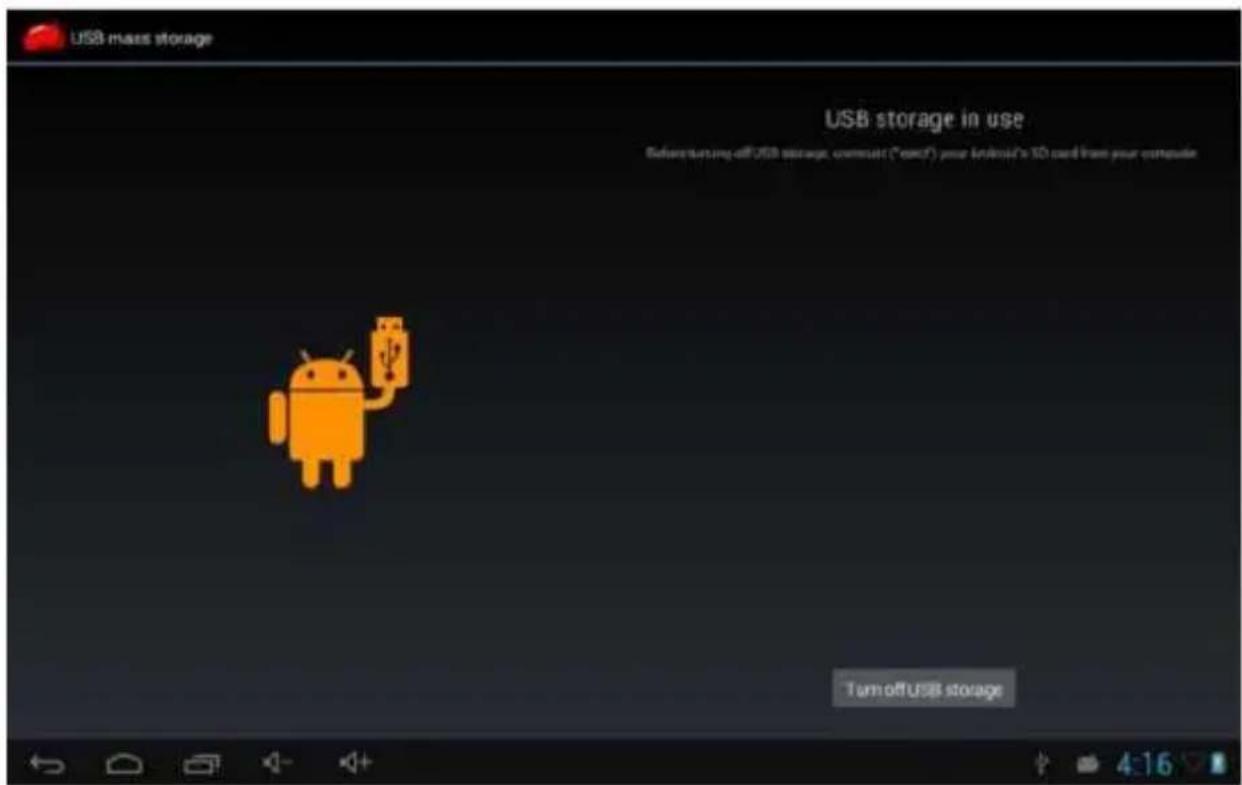
10.2. Uso de OTG e USB Host


- Preface
- Do not allow water or foreign objects to enter the unit.
- Introduction of cover:
- Operation Instruction
- Basic Operation
- Power on/Power off
- Charging
- 1.3.Main menu
- Settings
- Date and Time Setting
- Brightness
- Wi-Fi connection
- Explorer to install App
- Install
- Uninstall
- Connect to internet
- Audio and video playback
- Audio playback
- Video Playback
- Picture viewing
- 8.3G DONGLE
- Camera
- Camera
- Connect with external device
- Connect with PC
- Use of OTG and USB host
- Applications
- Troubleshooting
- What if the device is abnormal during operation?
- Why the standby time is so short sometimes?
- Warranty conditions
- Correct disposal of this Product
- sunstech 1/2
- MODELO: TAB10QC
- MANUAL DEL USUARIO
- Prefacio
- 2.2.Brillo
- Conexión Wi-Fi
- Dongle 3G
- Cámara
- sunstech 1
- MODELE: TAB10QC
- MODE D'EMPLOI
- Préface
- Luminosité
- Connexion Wi-Fi
- Désinstallation:
- Lecture vidéo
- Caméra
- Caméra
- Dépannage
- Prefácio
- Brilho
- Conexão de Wi-Fi
- 3G DONGLE
- Câmera
- Câmera
- Uso de OTG e USB Host
Brand : Sunstech
Model : TAB10QC
Category : Tablet