THC-B340-VF - Security Camera Hikvision - Free user manual and instructions
Find the device manual for free THC-B340-VF Hikvision in PDF.


| Product Type | Turbo HD Security Camera |
| Model | THC-B340-VF |
| Image Sensor | 4 MP CMOS |
| Resolution | 2560 × 1440 (4MP) |
| Lens Type | Varifocal, 2.8–12 mm |
| Minimum Illumination | 0.003 Lux @ F1.6 (Color), 0 Lux with IR |
| IR Range | Up to 40 m (131 ft) |
| Day/Night Mode | ICR (Mechanical IR Cut Filter) |
| Video Output | 1× Turbo HD (H.264/H.265) |
| Power Supply | 12 V DC ± 25% or PoE (802.3af) |
| Power Consumption | Max 6.5 W (with IR on) |
| Dimensions (Ø×L) | 77 × 198 mm (3.03 × 7.80 in) |
| Weight | Approx. 0.6 kg (1.32 lb) |
| Ingress Protection | IP67 (Weatherproof) |
| Operating Temperature | -40°C to +60°C (-40°F to +140°F) |
| Main Functions | Motion detection, line crossing detection, intrusion detection |
| Maintenance & Cleaning | Clean lens with soft dry cloth; check cables regularly |
| Safety | Use UL-listed power supply; install at safe height; avoid direct water jets |
| Spare Parts & Repairability | Contact Hikvision authorized service; no user-serviceable parts inside |
| General Information | Compatible with Hikvision Turbo HD DVRs; HD-TVI standard |
Frequently Asked Questions - THC-B340-VF Hikvision
User questions about THC-B340-VF Hikvision
0 question about this device. Answer the ones you know or ask your own.
Ask a new question about this device
Download the instructions for your Security Camera in PDF format for free! Find your manual THC-B340-VF - Hikvision and take your electronic device back in hand. On this page are published all the documents necessary for the use of your device. THC-B340-VF by Hikvision.
USER MANUAL THC-B340-VF Hikvision
natural_image
Abstract geometric design with blue and gray shapes, a globe icon, and a hand symbol (no text or symbols present)HD Vari-Focal Bullet & Turret & Dome Camera
User Manual
User Manual
Thank you for purchasing our product. If there are any quesons, or requests, do not hesitate to contact the dealer.
This manual applies to the models below:
| Type | Model |
| Type I Camera | THC-B320-VF/THC-B340-VF |
| Type II Camera | THC-T320-VF/THC-T340-VF |
| Type III Camera | THC-D320-VF/THC-D340-VF |
This manual may contain technical incorrect places or prinng errors, and the content is subject to change without noce. The updates will be added to the new version of this manual. We will readily improve or update the products or procedures described in the manual.
Regulatory Informaon
FCC Informaon
Please take aenon that changes or modicaon not expressly approved by the party responsible for compliance could void the user's authority to operate the equipment.
FCC compliance: This equipment has been tested and found to comply with the limits for a Class A digital device, pursuant to part 15 of the FCC Rules. These limits are designed to provide reasonable protecon against harmful interference when the equipment is operated in a commercial environment. This equipment generates, uses, and can radiate radio frequency energy and, if not installed and used in accordance with the instrucon manual, may cause harmful interference to radio communicaons. Operaon of this equipment in a residential area is likely to cause harmful interference in which case the user will be required to correct the interference at his own expense.
FCC Conditions
This device complies with part 15 of the FCC Rules. Operaon is subject to the following two conditions:
- This device may not cause harmful interference.
- This device must accept any interference received, including interference that may cause undesired operaon.
EU Conformity Statement

This product and - if applicable - the supplied accessories too are marked with "CE" and comply therefore with the applicable harmonized European
standards listed under the Low Voltage Directive 2014/35/EU, the EMC Directive 2014/30/EU.
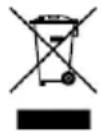
2012/19/EU (WEEE direcve): Products marked with this symbol cannot be disposed of as unsorted municipal waste in the European Union. For proper recycling, return this product to your local supplier
upon the purchase of equivalent new equipment, or dispose of it at designated collecon points. For more informaon see: www.recyclethis.info.
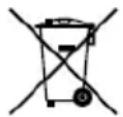
2006/66/EC (baery direcve): This product contains a baery that cannot be disposed of as unsorted municipal waste in the European Union. See the product documentaon for specic baery informaon. The baery is marked with
this symbol, which may include leering to indicate cadmium (Cd), lead (Pb), or mercury (Hg). For proper recycling, return the baery to your supplier or to a designated collecon point. For more informaon see: www.recyclethis.info.
Industry Canada ICES-003 Compliance
This device meets the CAN ICES-3 (A)/NMB-3(A) standards requirements.
Warning
This is a class A product. In a domesc environment this product may cause radio interference in which case the user may be required to take adequate measures.
Safety Instrucon
These instrucons are intended to ensure that user can use the product correctly to avoid danger or property loss.
The precauon measure is divided into "Warnings" and "Cauons".
Warnings: Serious injury or death may occur if any of the warnings are neglected.
Cauons: Injury or equipment damage may occur if any of the cauons are neglected.
| Warnings Follow these safeguards to prevent serious injury or death. | Cauons Follow these precautions to prevent potential injury or material damage. |

Warnings
- In the use of the device, you must be in strict compliance with the electrical safety regulations of the naon and region.
- Input voltage should meet both the SELV (Safety Extra Low Voltage) and the Limited Power Source with 12 VDC according to the IEC60950-1 standard. Refer to technical speciaons for detailed informaon.
- Do not connect mulple devices to one power adapter to avoid over-heang or a re hazard caused by overload.
- Make sure that the plug is rmly connected to the power socket.
- Make sure that the device is rmly fixed if wall mounng or ceiling mounng is adopted.
- If smoke, odor or noise rise from the device, turn o the power at once and unplug the power cord, and then contact the service center.
- Never attempt to disassemble the camera by unprofessional personal.

Cauons
- Do not drop the camera or subject it to physical shock.
- Do not place the camera in extremely hot, cold (the operang temperature shall be -40^ C to 60^ C), dusty or damp locaons, and do not expose it to high electromagnetic radiation.
- Do not touch senor modules with ngers.
- If cleaning is necessary, use clean cloth with a bit of ethanol and wipe it gently.
- Do not aim the camera at the sun or extra bright places.
- The sensor may be burned out by a laser beam, so when any laser equipment is in using, make sure that the surface of sensor will not be exposed to the laser beam.
- Do not expose the device to high electromagnetic radiaon or extremely hot, cold, dusty or damp environment.
-
To avoid heat accumulation, good venlation is required for the operang environment.
-
Keep the camera away from liquid while in use for non-water-proof device.
- While in delivery, the camera shall be packed in its original packing, or packing of the same texture.
Mark Descripon
Table 0-1 Mark Descripon
| Mark | Descripon |
| — — — | DC Voltage |
1.1 Product Features
The main features are as follows:
• High performance CMOS sensor
- IR cut Iter with auto switch
- OSD menu with congorable parameters
• Internal synchronizaon
- SMART IR mode
- 3-axis adjustment
1.2 Overview
1.2.1 Overview of Type I Camera
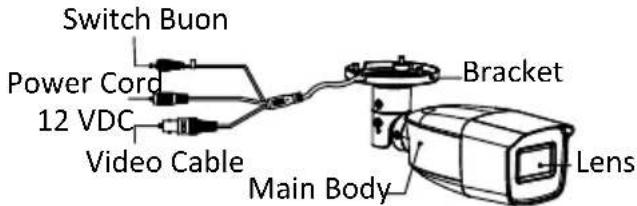
text_image
Switch Buon Power Cord 12 VDC Video Cable Bracket Main Body LensFigure 1-1 Overview of Type I Camera
1.2.2 Overview of Type II Camera
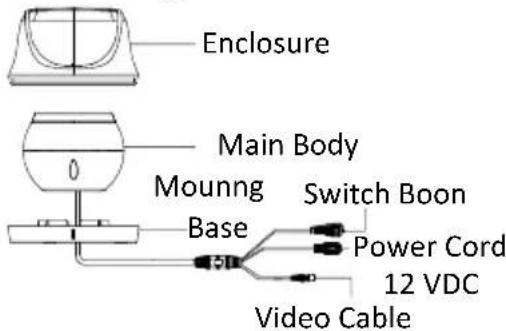
text_image
Enclosure Main Body Mounng Switch Boon Base Power Cord 12 VDC Video CableFigure 1-2 Overview of Type II Camera
1.2.3 Overview of Type III Camera
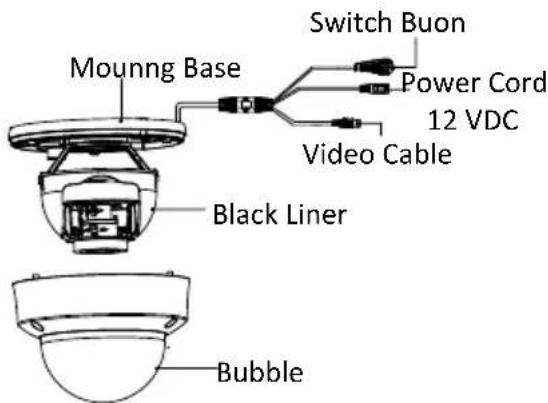
text_image
Moung Base Switch Buon Power Cord 12 VDC Video Cable Black Liner BubbleFigure 1-3 Overview of Type III Camera
Before you start:
- Make sure that the device in the package is in good condition and all the assembly parts are included.
- Make sure that all the related equipment is power-off during the installaon.
- Check the specicaon of the products for the installaon environment.
- Check whether the power supply is matched with your power output to avoid the damage.
- Make sure the wall is strong enough to withstand three mes the weight of the camera and the bracket.
- If the wall is cement, insert expansion bolts before installing the camera. If the wall is wooden, use self-tapping screws to secure the camera.
- If the product does not funcon properly, contact your dealer or the nearest service center. Do NOT disassemble the camera for repair or maintenance by yourself.
2.1 Installaon of Type I Camera
Before you start:
Both wall moung and ceiling moung are suitable for the bullet camera. Ceiling moung will be taken as an example in this secon. And you can take steps of ceiling moung as a reference for wall moung.
Steps:
- Paste the drill template (supplied) to the place where you want to install the camera.
- Drill the screw holes and the cable hole (oponal) in the ceiling according to the drill template.
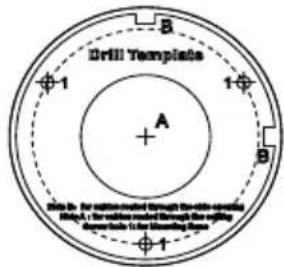
text_image
Drill Template A B 1 1 B 1 Note 2: For installation started through the drill template. A. The drill was then through the drilling diameter is to be mounting holes.Figure 2-1 Drill Template
Note:
Drill the cable hole, when adopng ceiling outlet to route the cable.
-
Route the cables through the cable hole, or the side opening.
-
Fix the camera to the ceiling with supplied screws.
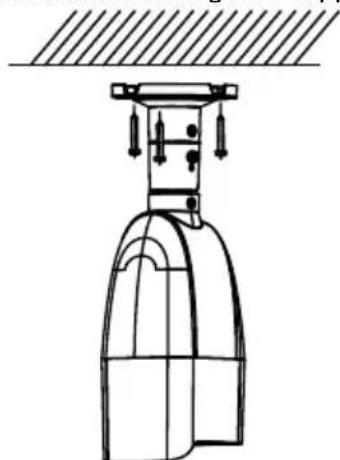
natural_image
Line drawing of a traditional Chinese architectural structure with curved eaves and vertical supports (no text or symbols)Figure 2-2 Fix the Camera to the Ceiling
Note:
- The supplied screw package contains self-tapping screws, and expansion bolts.
- For cement wall, expansion bolts are required to x the camera. For wooden wall, self-tapping screws are required.
- Connect the corresponding power cord, and video cable.
- Power on the camera to check whether the image on the monitor is goen from the opmum angle. If not, adjust the surveillance angle.
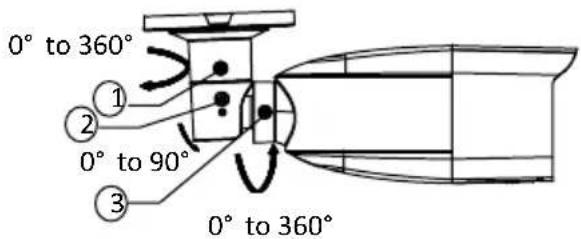
text_image
0° to 360° ① ② 0° to 90° ③ 0° to 360°Figure 2-3 3-axis Adjustment
1) Loosen the No.① adjusting screw to adjust the pan posion [0° to 360°]. Tighten the No.① adjuusng screw.
2) Loosen the No.② adjusting screw to adjust the Ing posion [0° to 90°]. Tighten the No.② adjusting screw.
3) Loosen the No.③ adjusting screw to adjust the rotaon posion [0° to 360°]. Tighten the No.③ adjusng screw.
2.2 Installaon of Type II Camera
Before you start:
Both wall moung and ceiling moung are suitable for the bullet camera. Ceiling moung will be taken as an example in this secon. And you can take steps of ceiling moung as a reference for wall moung.
Steps:
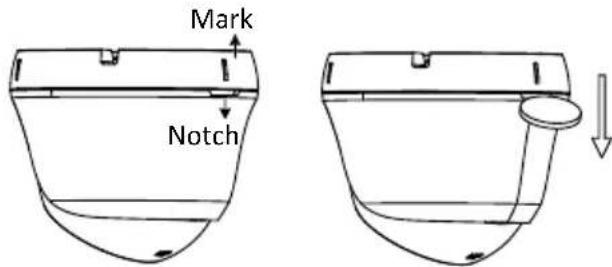
- Disassemble the turret camera by rotang the camera to align the notch to one of the marks, as shown in the gure below.
text_image
Mark NotchFigure 2-4 Disassemble the Camera
- Remove the moung base from the camera body with a at object, e.g., a coin
- Paste the drill template to the place where you want to install the camera.
- Drill the screw holes according to the drill template and the cable hole (oponal) in the ceiling.

text_image
Drill Template Screw hole All : for Mounting BaseFigure 2-5 Drill Template
Note:
Drill the cable hole, when adopng the ceiling outlet to route the cable.
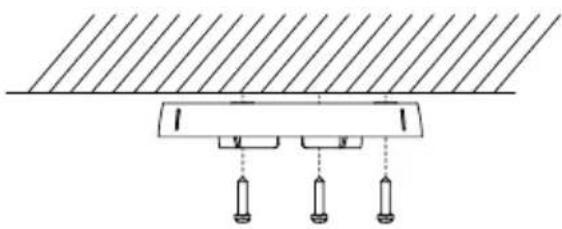
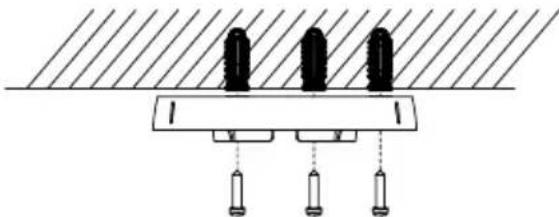
- Aach the moung base to the ceiling, and secure them with supplied screws
Method 1
natural_image
Pure electrical circuit lines without any symbolsMethod 2
natural_image
Pure diagram of a mechanical or electrical component with three vertical pins and hanging weights, no text or symbols present.Figure 2-6 Attach the Mounting Base to the Ceiling Note:
- The supplied screw package contains self-tapping screws, and expansion bolts.
- For cement ceiling, expansion bolts are required to x the camera. For wooden ceiling, self-tapping screws are required.
- Route the cables through the cable hole, or the side opening.
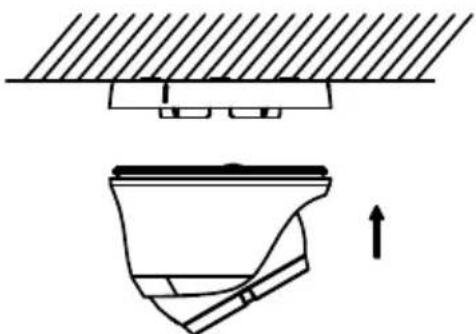
- Align the camera with the moung base, and secure the camera on the moung base.
natural_image
Technical diagram showing a mechanical assembly with a bracket and a component, no text or symbols present.Figure 2-7 Secure the Camera with Mounng Base
- Connect the corresponding cables, such as power cord, and video cable.
- Power on the camera to check whether the image on the monitor is goen from the opmum angle. If not, adjust the camera according to the gure below to get an opmum angle.
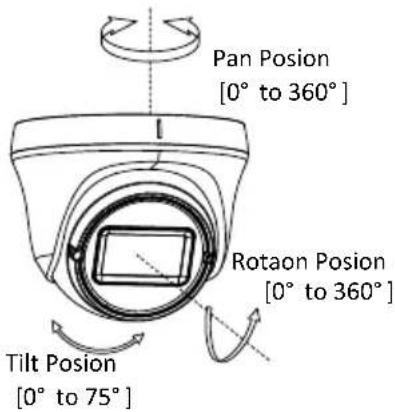
text_image
Pan Posion [0° to 360°] Rotaon Posion [0° to 360°] Tilt Posion [0° to 75°]Figure 2-8 3-axis Adjustment
1). Rotate the enclosure to adjust the pan posion [0° to 360°].
2). Move the camera body up and down to adjust the lt posion [0° to 75°].
3). Rotate the camera body to adjust the rotaon posion [0° to 360°.
2.3 Installaon of Type III Camera
Before you start:
Both wall moung and ceiling moung are suitable for the dome camera. Ceiling moung will be taken as an example in this secon. You can take steps of ceiling moung as a reference for wall moung.
Steps:
- Paste the drill template to the ceiling.
- Drill screw holes and the cable hole (oponal) on the ceiling according to the supplied drill template.
Note:
Drill the cable hole, when adopng the ceiling outlet to route the cable.
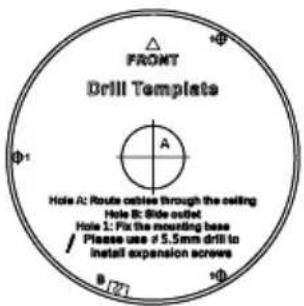
text_image
FRONT Drill Template Φ1 A Hole A: Route cables through the ceiling Hole B: Slide outlet Hole 1: Fix the mounting base Please use # 5.5mm drill to install expansion screws B [27] Φ2Figure 2-9 The Drill Template
- Loosen the screws on the bubble of the dome camera to remove the bubble and the black liner.
- Aach the moung base to the ceiling, and secure them with supplied screws.
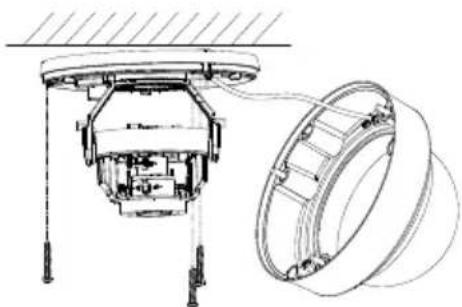
natural_image
Technical line drawing of a mechanical assembly with no visible text or symbolsFigure 2-10 Secure the Mounng Base
Note:
- In the supplied screw package, both self-tapping screws and expansion bolts are contained.
- For cement ceiling, expansion bolts are required to x the camera. For wooden ceiling, self-tapping screws are required.
- Route the cables through the cable hole, or the side opening.
- Connect the corresponding cables, such as power cable and video cable.
- Power on the camera to check whether the image on the monitor is goen from the opmum angle. If not, adjust the camera according to the gure below to get an opmum angle.
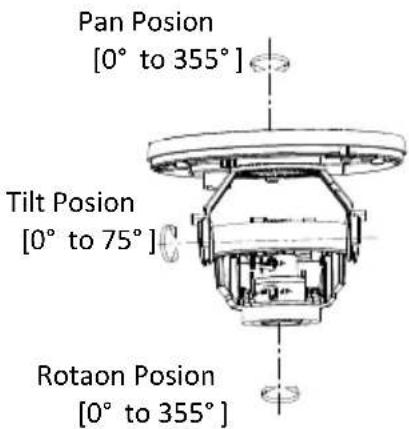
text_image
Pan Posion [0° to 355°] Tilt Posion [0° to 75°] Rotaon Posion [0° to 355°]Figure 2-11 3-Axis Adjustment
- Fit the black liner back to the camera and ghten the screws on the bubble of the dome camera to nish the installaon.
Purpose:
Call the menu by clicking the buon ☐ on the PTZ Control interface, or click Iris+.
Steps:
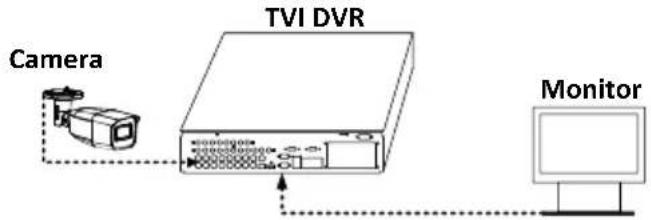
- Connect the camera with the TVI DVR, and the monitor, shown as the gure 3-1.
text_image
Camera TVI DVR MonitorFigure 3-1 Connecon
- Power on the analog camera, TVI DVR, and the monitor to view the image on the monitor.
- Click PTZ Control to enter the PTZ Control interface.
- Call the camera menu by clicking ☐ buon, or click Iris+.
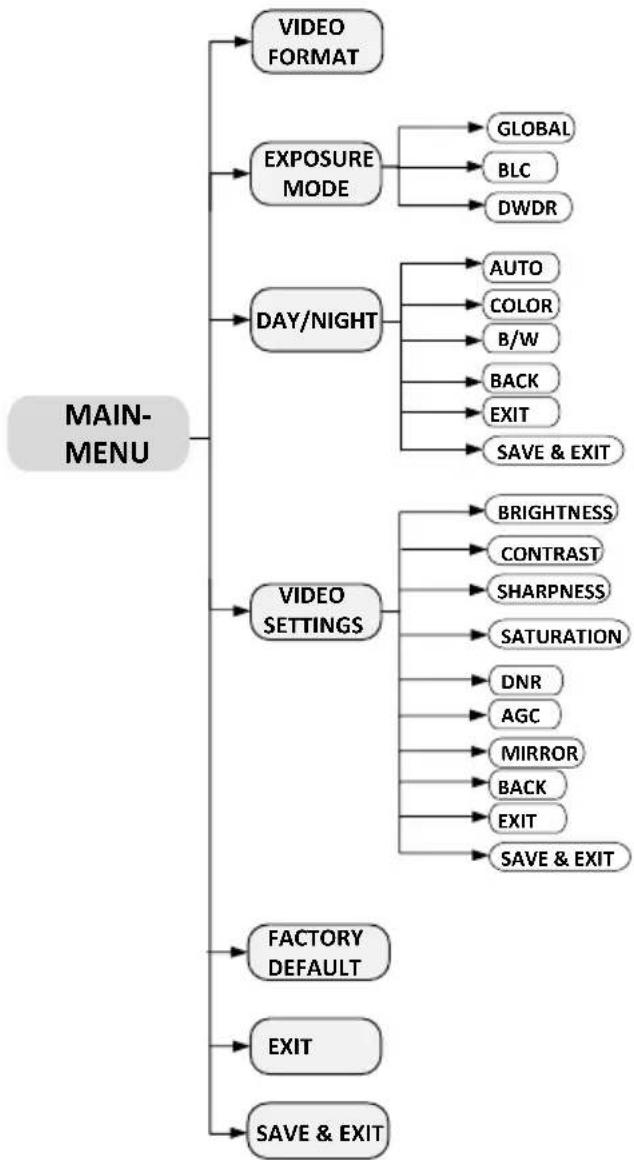
flowchart
graph TD
    A["MAIN-MENU"] --> B["VIDEO FORMAT"]
    A --> C["EXPOSURE MODE"]
    A --> D["DAY/NIGHT"]
    A --> E["VIDEO SETTINGS"]
    A --> F["FACTORY DEFAULT"]
    A --> G["EXIT"]
    A --> H["SAVE & EXIT"]

    C --> I["GLOBAL"]
    C --> J["BLC"]
    C --> K["DWDR"]

    D --> L["AUTO"]
    D --> M["COLOR"]
    D --> N["B/W"]

    D --> O["BACK"]
    D --> P["EXIT"]

    D --> Q["SAVE & EXIT"]

    E --> R["BRIGHTNESS"]
    E --> S["CONTRAST"]
    E --> T["SHARPNESS"]
    E --> U["SATURATION"]

    E --> V["DNR"]
    E --> W["AGC"]

    E --> X["MIRROR"]
    E --> Y["BACK"]

    E --> Z["EXIT"]

    E --> AA["SAVE & EXIT"]
Figure 3-2 Main Menu Overview
- Click the direcon arrow to control the camera.
1) Click up/down direcon buon to select the item.
2) Click Iris + to conrm the selecon.
3) Click le/right direcon buon to adjust the value of the selected item.
3.1 FORMAT
You can set the format as 4MP@30fps, 4MP@25fps, 2MP@30fps, or 2MP@25ps.
3.2 EXPOSURE
Exposure describes the brightness-related parameters, which you can set the EXPOSURE MODE as GLOBAL, BLC, or DWDR.
GLOBAL
GLOBAL refers to the normal exposure mode which performs exposure according to the whole image brightness.
● BLC (Backlight Compensaon)
BLC (Backlight Compensaon) compensates light for the front object to make it clear, but this may cause the over-exposure of the background, where the light is strong.
● DWDR (Digital Wide Dynamic Range)
DWDR helps the camera provide clear images even under backlight circumstances. When both very bright and very dark areas simultaneously exist in the image, DWDR balances the brightness level of the whole image to provide clear images with details.
3.3 DAY/NIGHT
COLOR, BW (Black White), and AUTO are selectable for DAY/NIGHT switch.
COLOR
The image is colored in day mode all the me.
B & W (Black and White)
The image is black and white all the me, and the IR LIGHT turns on in the poor light conditions. You can turn on/o the IR LIGHT and set the value of SMART IR in this menu
DAY/NIGHT
| MODE | B & W |
| IR LIGHT | ON |
| SMART IR | 2 |
| BACK | |
| EXIT | |
| SAVE & EXIT |
Figure 3-3 B & W
- IR LIGHT
You can turn on/o the IR LIGHT to meet the requirements of dierent circumstances.
SMART IR
The Smart IR funcon is used to adjust the light to its most suitable intensity, and prevent the image from over exposure. The SMART IR value can be adjusted from 0 to 3. The higher the value is, the more obvious eects are.
AUTO
Automacally switch Color, or BW (Black and White) according to actual scene brightness.
You can turn on/o the IR LIGHT, and set the value of SMART IR in this menu.
DAY/NIGHT
| MODE | AUTO |
| IR LIGHT | ON |
| SMART IR | 2 |
| D → N THRESHOLD | 2 |
| N → D THRESHOLD | 7 |
| BACK | |
| EXIT | |
| SAVE & EXIT |
Figure 3-4 AUTO
- IR LIGHT
You can turn on/o the IR LIGHT to meet the requirements of dierent circumstances.
SMART IR
The Smart IR funcon is used to adjust the light to its most suitable intensity, and prevent the image from over exposure. The SMART IR value can be adjusted from 0 to 3. The higher the value is, the more obvious eects are.
● D→ N Threshold (Day to Night Threshold)
Day to Night Threshold is used to control the sensitivity of switching the day mode to the night mode. You can set the value from 1 to 9. The larger the value is, the more sensitive the camera is.
● N→D Threshold (Night to Day Threshold)
Night to Day Threshold is used to control the sensitivity of switching the night mode to the day mode. You can set the value from 1 to 9. The larger the value is, the more sensitive the camera is.
3.4 VIDEO SETTINGS
Move the cursor to VIDEO SETTINGS and click Iris+ to enter the submenu. BRIGHTNESS, CONTRAST, SHARPNESS, SATURATION, DNR, AGC and MIRROR are adjustable.
VIDEO SETTINGS
| BRIGHTNESS | 5 |
| CONTRAST | 5 |
| SHARPNESS | 5 |
| SATURATION | 5 |
| DNR | 5 |
| AGC | HIGH |
| MIRROR | OFF |
| BACK | |
| EXIT | |
| SAVE & EXIT |
Figure 3-5 VIDEO SETTINGS
BRIGHTNESS
Brightness refers to the brightness of the image. You can set the brightness value from 1 to 9 to darken or brighten the image. The higher the value is, the brighter the image is.
CONTRAST
This feature enhances the dience in color and light between parts of an image. You can set the CONTRAST value from 1 to 9.
SHARPNESS
Sharpness determines the amount of detail an imaging system can reproduce. You can set the SHARPNESS value from 1 to 9.
SATURATION
Adjust this feature to change the saturaton of the color. The value ranges from 1 to 9.
DNR (Digital Noise Reducon)
The DNR funcon can decrease the noise effect, especially when capturing moving images in poor light conditions and delivering more accurate and sharp image. You can set the DNR as HIGH, MEDIUM, or LOW.
AGC
It optimizes the clarity of the image in poor light conditions. The AGC level can be set as High, Medium, or Low. Select OFF to disable the AGC funcon.
Note:
The noise will be amplied when the AGC is on.
MIRROR
OFF, H, V, and HV are selectable for mirror.
OFF: The mirror funcon is disabled.
H: The image ips 180° horizontally.
V: The image ips 180° vercally.
HV: The image ips 180° both horizontally and vercally.
3.5 FACTORY DEFAULT
Move the cursor to FACTORY DEFAULT and click Iris+ to reset all the sengs to the factory default.
3.6 EXIT
Move the cursor to EXIT and click Iris+ to exit the menu without saving.
3.7 SAVE & EXIT
Move the cursor to SAVE & EXIT and click Iris+ to save the sengs, and exit the menu.