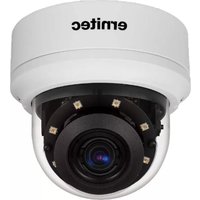
0070-04344IR - Security Camera Ernitec - Free user manual and instructions
Find the device manual for free 0070-04344IR Ernitec in PDF.


| Product Type | Security Camera |
| Brand | Ernitec |
| Model | 0070-04344IR |
| Dimensions (approx.) | 200 x 70 x 70 mm (bullet style) |
| Weight | Approx. 500 g |
| Power Supply | 12V DC / PoE (Power over Ethernet) |
| Image Sensor | 1/3" CMOS |
| Resolution | Up to 1080p Full HD |
| Lens | 3.6mm fixed lens |
| Night Vision | IR LEDs, up to 30m range |
| Field of View | Approx. 80° |
| Video Output | Analog HD (CVBS) / IP via Ethernet |
| Weatherproof Rating | IP67 |
| Main Functions | Motion detection, IR cut filter, auto gain control, white balance |
| Storage | Compatible with DVR/NVR |
| Maintenance & Cleaning | Clean lens with soft, lint-free cloth; avoid solvents |
| Safety Precautions | Use only certified power adapter; avoid exposure to extreme temperatures |
| Spare Parts & Repairability | Contact authorized service center for replacement parts |
| General Information | Designed for indoor/outdoor surveillance; easy installation with mounting bracket included |
Frequently Asked Questions - 0070-04344IR Ernitec
User questions about 0070-04344IR Ernitec
0 question about this device. Answer the ones you know or ask your own.
Ask a new question about this device
Download the instructions for your Security Camera in PDF format for free! Find your manual 0070-04344IR - Ernitec and take your electronic device back in hand. On this page are published all the documents necessary for the use of your device. 0070-04344IR by Ernitec.
USER MANUAL 0070-04344IR Ernitec
natural_image
Black-and-white photo of a modern security camera with 'ernitec' logo, set against a cityscape background (no text or symbols on the camera itself)Follow us on

OnVIF
© 2015 Ernitec. All rights reserved
www.ernitec.com
Ernitec
Tempovej 41
2750 Ballerup
Denmark
Caution and Preventive Tips
Important Information
Before proceeding, please read and observe all instructions and warnings in this manual. Retain this manual with the original bill of sale for future reference and, if necessary, warranty service. When unpacking your unit, check for missing or damaged items. If any item is missing, or if damage is evident, DO NOT INSTALL OR OPERATE THIS PRODUCT. Contact your dealer for assistance.
- Handle with care, do not drop the unit
- Mount the unit in an equipment rack or place it on a solid, stable surface
- Indoor use only. Do not place the unit in a humid, dusty, oily, or smoky site
- Do not place it in an area with poor ventilation or in an area close to fire or other sources of heat. Doing so may damage the unit as well as cause fire or an electric shock
- When cleaning is necessary, shut down the system and unplug the unit from the outlet before uncovering the top cover. Do not use liquid cleaners or aerosol cleaners. Use only a damp cloth for cleaning
- Always shut down the system prior connecting or disconnecting accessories, with the exception of USB devices
Copyright
Under copyright laws, the contents of this user manual may not be copied, photocopied, translated, reproduced or reduced to any electronic medium or machine-readable format, in whole or in part, without prior written permission of the company.
Important Information
Before proceeding, please read and observe all instructions and warnings in this manual. Retain this manual with the original bill of sale for future reference and, if necessary, warranty service. When unpacking your unit, check for missing or damaged items. If any item is missing, or if damage is evident, DO NOT INSTALL OR OPERATE THIS PRODUCT. Contact your dealer for assistance.
Regulation

This device complies with Part 15 of the FCC Rules. Operation is subject to the following two conditions:
(1) this device may not cause harmful interference, and (2) this device must accept any interference received, including interference that may cause undesired operation.

natural_image
Symbol of a trash bin with crossed lines indicating no waste or restriction, and a solid black rectangle below (no text or symbols)This symbol on the product or on its packaging indicates that this product shall not be treated as household waste in accordance with Directive 2002/96/EC. Instead it shall be handed over to the applicable collection point for the recycling of electrical and electronic equipment. By proper waste handling of this product you ensure that it has no negative consequences for the environment and human health, which could otherwise be caused if this product is thrown into the garbage bin. The recycling of materials will help to conserve natural resources.
For more details information about recycling of this product, please contact your local city office, your household waste disposal service or the shop where you purchased the product.

This symbol intends to alert the user to the presence of unprotected "Dangerous Voltage" within the product's enclosure that may be strong enough to cause a risk of electric shock.

This symbol intends to alert the user to the presence of important operating and maintenance (servicing) instructions in the literature accompanying the appliance.

Compliance is evidenced by written declaration from our suppliers, assuring that any potential trace contamination levels of restricted substances are below the maximum level set by EU Directive 2002/95/EC, or are exempted due to their application.
Table of Contents
1. Overview 4
1.1 Features 4
1.2 Package Contents 5
1.3 Dimensions....6
1.4 Connectors 7
2. Camera Cabling 8
2.1 Connect Power 8
2.2 Connect Ethernet Cable 8
2.3 Connect Alarm I/O 8
3. System Requirements......8
- Access Camera 10
- Setup Video Resolution....15
- Configuration Files Export / Import 16
- Tech Support Information......17
7.1 Delete the Existing Viewer 17
7.2 Setup Internet Security 18
Appendix: Technical Specifications
1. Overview
The Full HD Multi-Streams Mini Rugged Dome IP Camera is an easy setup camera with PoE supported to reduce complicated cabling without sacrificing performance. Quad Streams Compression (H.264 Baseline / Main / High Profile + MJPEG) are supported for efficient bandwidth and storage management. Up to 4M resolution is offered for providing high definition images. For dark environments, the camera has incorporated WDR, 3DNR and Day / Night ICR technologies to capture clear images in lowlight conditions.
The compact outlook design of the camera is ideal for hard surface mount installation, and the conduit enables waterproof cabling in outdoor environments. Meanwhile, the modularized design of the camera makes the installation even easier by directly snapping on the camera module after housing installation.
1.1 Features
• 1/3" Progressive Scan CMOS Sensor
- Dual Streaming- Full HD 1080P Real Time + D1 Real Time
- Quad Streams Compression- H.264 Baseline / Main / High Profile + MJPEG
- Multi-language Support
- Smart Event Function-Motion Detection / Network Failure Detection / Tampering Alarm / Periodical Event / Manual Trigger / Audio Detection
- Remote Zoom & Focus (Motorized Lens and AF Lens)*
• True Wide Dynamic Range (120dB)
- Privacy Masks
• 3D Noise Reduction / 2D Noise Reduction
• Vertical View Mode (Image rotation by 90 degrees)
- Smart IR Mode
• True Day / Night (ICR)
• IR LED Module (working distance up to 45 m)
- SD Card Support
- BNC Analog Output
- RS-485 Support
• Weatherproof (IP66 International)
• ONVIF Profile S Support
(*) Optional
1.2 Package Contents
Please check the package containing the following items listed below.
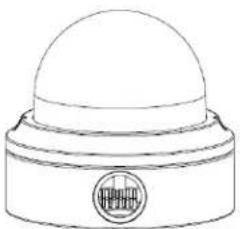 Full HD Multi-StreamsMini Rugged Dome IP Camera Full HD Multi-StreamsMini Rugged Dome IP Camera | |
 2-Pin Power Terminal Block 2-Pin Power Terminal Block |  BNC Analog Cable Included BNC Analog Cable Included |
 Self Tapping Screws (x2) Self Tapping Screws (x2) | 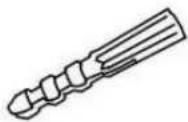 Plastic Screw Anchors (x2) Plastic Screw Anchors (x2) |
 Quick Guide Quick Guide |  USB Stick(bundled software and documentation) USB Stick(bundled software and documentation) |
1.3 Dimensions
The dimensions of the camera are shown below.
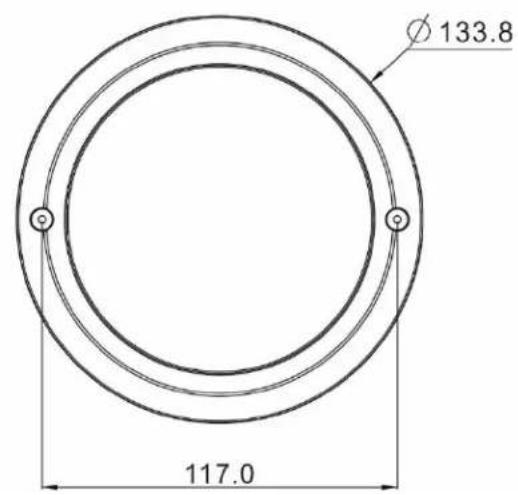
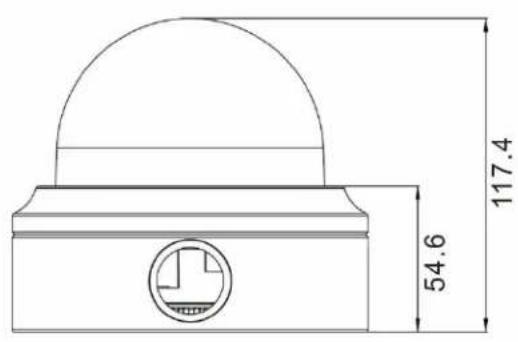
Unit: mm
1.4 Connectors
The diagram below shows the default button and various connectors of the camera. Definition for each connector is given as follows.
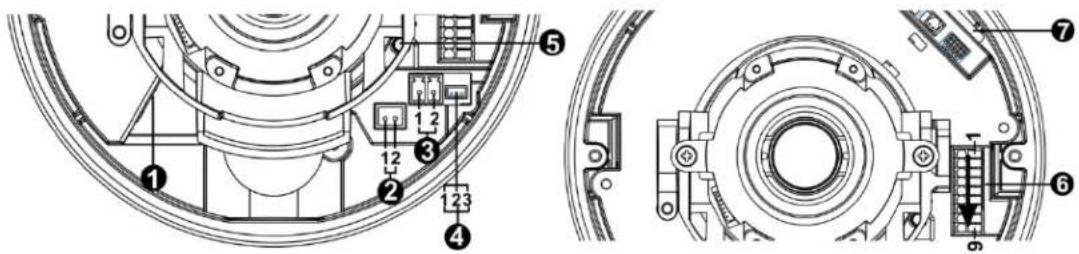
| No. | Connector | Pin | Definition | Remarks | |
| 1 | RJ-45 | - | For network and PoE connections | ||
| 2 | BNC* | 1 | BNC | For analog video output | |
| 2 | GND | ||||
| 3 | Power (DC 12V / AC 24V) | 1 | DC 12V | AC 24V 1 | Power connection |
| 2 | GND | AC 24V 2 | |||
| 4 | RS-485 | 1 | D+ | RS-485 connection | |
| 2 | D- | ||||
| 3 | GND | ||||
| 5 | Default Button | - | Press the reboot button with a proper tool for at least 20 seconds to reboot the camera. | ||
| 6 | Alarm & Audio I/O | 1 | Audio In L | Audio In | |
| 2 | Audio In R | ||||
| 3 | GND | ||||
| 4 | Audio Out L | Audio Out | |||
| 5 | Audio Out R | ||||
| 6 | Alarm Out + | Alarm connection | |||
| 7 | Alarm Out - | ||||
| 8 | Alarm In + | ||||
| 9 | Alarm In - | ||||
| 7 | SD Card Slot | - | Insert the SD card into the card slot to store videos and snapshots. Do not remove the SD card when the camera is powered on. | ||
*Please contact the manufacturer for the compatible BNC cable.

NOTE: It is not recommended to record with the SD card for 24/7 continuously, as it may not be able to support long term continuous data read/write. Please contact the manufacturer of the SD card for information regarding the reliability and life expectancy.
2. Camera Cabling
Before users connect cables, make sure that all cables and the power adaptor are placed in dry and well-waterproofed environments, e.g. waterproof boxes. The purpose is to prevent moisture accumulation inside the camera and moisture penetration into cables, which might lead to device breakdown. Please refer to the following sections for camera connection.
2.1 Connect Power
For power connection, please refer to section Connectors. Alternatively, users can power the camera by PoE if a Power Sourcing Equipment (PSE) switch is available. Please refer to the section below for Ethernet cable connection.

NOTE: If PoE is used, make sure PSE is in use in the network.
2.2 Connect Ethernet Cable
To have best transmission quality, cable length shall not exceed 100 meters. Connect one end of the Ethernet Cable to the RJ-45 connector of the camera, and plug the other end of the cable to the network switch or PC.

NOTE: In some cases, Ethernet crossover cable might be needed when connecting the IP camera directly to PC.
Check the status of the link indicator and activity indicator LEDs. If the LEDs are unlit, please check the LAN connection.
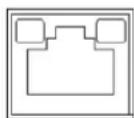
Green Link Light indicates good network connection. Orange Activity Light flashes for network activity indication.
2.3 Connect Alarm I/O
The camera supports one alarm input and one relay output for alarm application. Refer to section Connectors for pin definitions.
3. System Requirements
To perform the IP camera via web browser, please ensure the PC is in good network connection, and meet system requirements as described below.
| Items | System Requirement |
| Personal Computer | 1. Intel® Pentium® M, 2.16 GHz orIntel® CoreTM2 Duo, 2.0 GHz2. 2 GB RAM or more |
| Operating System | Windows VISTA / Windows XP / Windows 7 |
| Web Browser | Microsoft Internet Explorer 6.0 or laterFirefoxChromeSafari |
| Network Card | 10Base-T (10 Mbps) or 100Base-TX (100 Mbps) operation |
| Viewer | ActiveX control plug-in for Microsoft IE |
4. Access Camera
For initial access to the IP camera, users can search the camera through the installer program: DeviceSearch.exe, which can be found in "DeviceSearch" folder in the supplied CD.
Accessing the Camera by Device Search Software
Step 1: Double click on the program Device Search.exe.
1.
Step 2: After its window appears, click on the
Step 3: Find the camera in the list by its IP address and click on it. The default IP address of the camera is: 192.168.0.250.
2.
Step 4: The default IP address of the camera may not be in the same LAN as the IP address of the PC. If so, the IP address of the camera needs to be changed. Right click on the camera and click
3.
Step 5: The
Step 6: Click
Step 7: Click on the
Step 8: A prompt window requesting for default username and password will appear. Enter the default username and password shown below to login to the camera.
| Login ID | Password |
| Admin | 1234 |

NOTE: ID and password are case sensitive.
NOTE: It is strongly advised that administrator's password be altered for the security concerns. Refer to the Full HD Multi-Streams IP Camera Menu Tree in the supplied CD for further details.
Installing Viewer Software Online
For the initial access to the IP camera, a client program, Viewer, will be automatically installed to the PC when connecting to the camera.
If the web browser doesn't allow Viewer installation, please check the Internet security settings or ActiveX controls and plug-ins settings (refer to section Setup Internet Security) to continue the process.
The Information Bar (just below the URL bar) may come out and ask for permission to install the ActiveX Control for displaying video in browser. Right click on the Information Bar and select
The download procedure of Viewer software is specified as follows.
Step 1: In the Viewer installation window, click on
4.
Step 2: The status bar will show the installation progress. After the installation is completed, click on
5.
Step 3: Click on
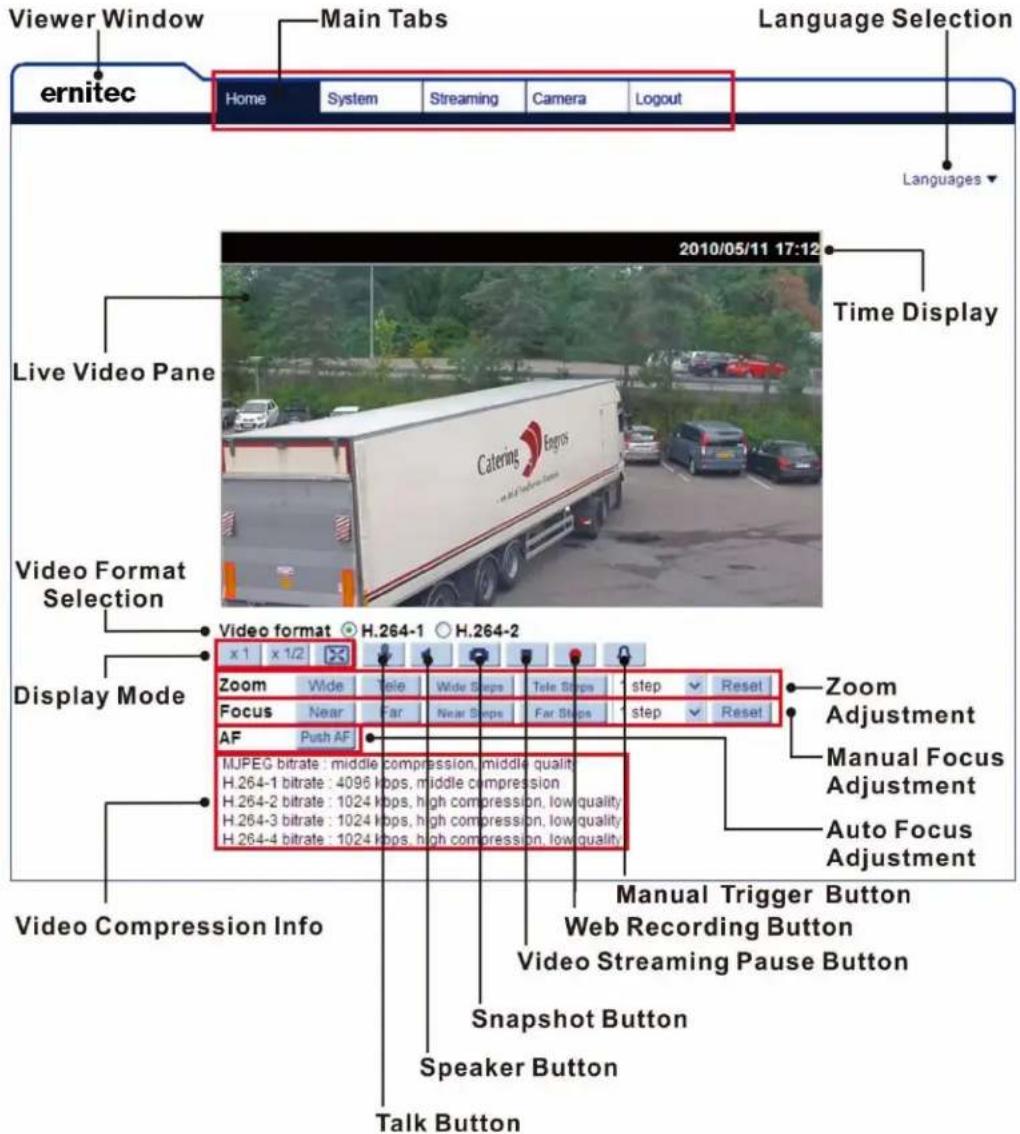
Once the Viewer is successfully installed, the Home page of the IP camera will be shown as the figure below.
Vari-focal Lens Models
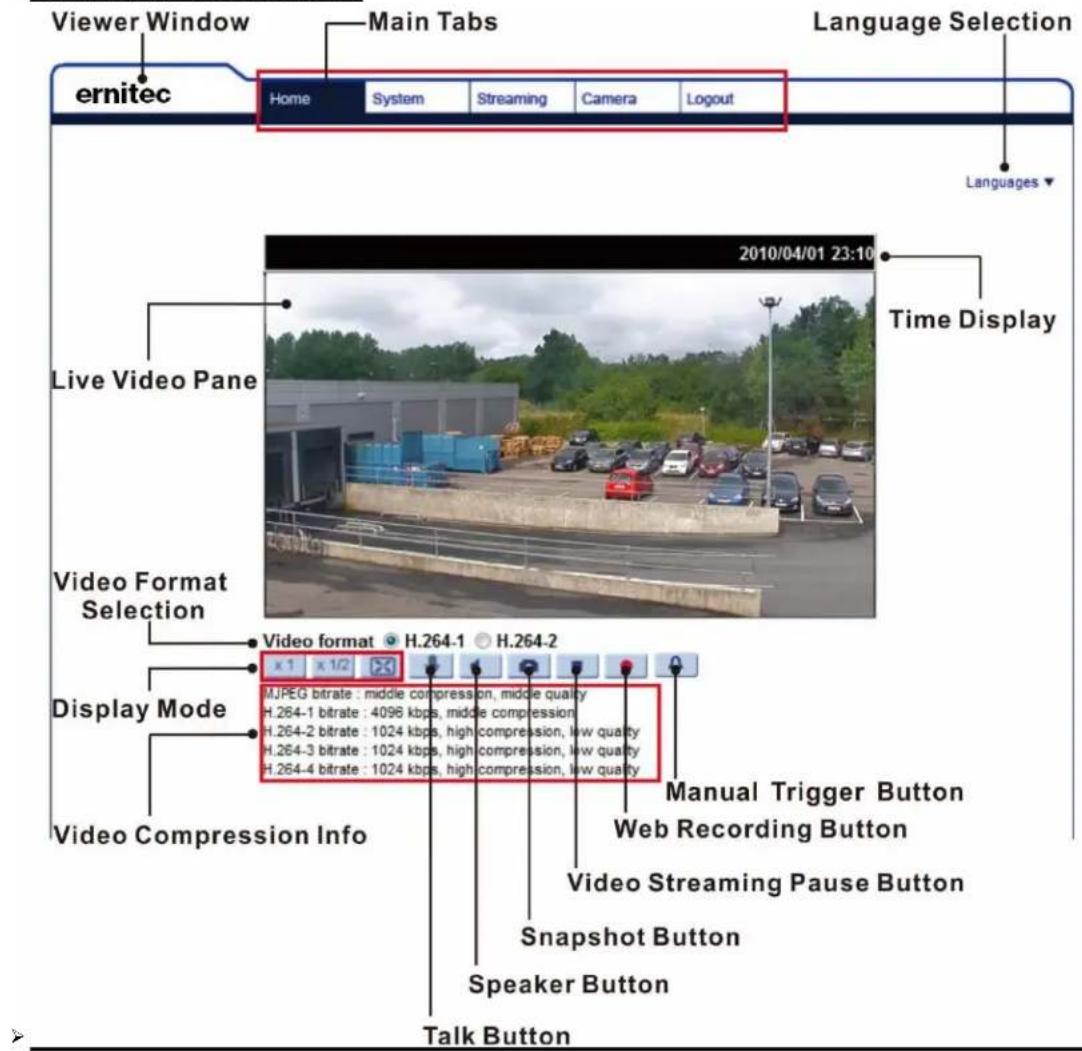
Motorized Lens Models
AF Lens Models

> Zoom and Focus Adjustment (Motorized Lens / AF Lens Models Only)
The live image will be displayed on the Home page when the camera is successfully accessed. If zoom or focus is not at the desired position, please use the function buttons on the Home page for adjustment. Refer to the Full HD Multi-Streams IP Camera Menu Tree in the supplied CD for more details about the function buttons.

NOTE: For vari-focal lens models, please refer to the Full HD MultiStreams Mini Rugged Dome IP Camera Installation Guide in the supplied CD to adjust zoom and focus.
5. Setup Video Resolution
Users can setup video resolution on Video Format page of the user-friendly browser-based configuration interface.
Video Format can be found under this path: Streaming> Video Format.
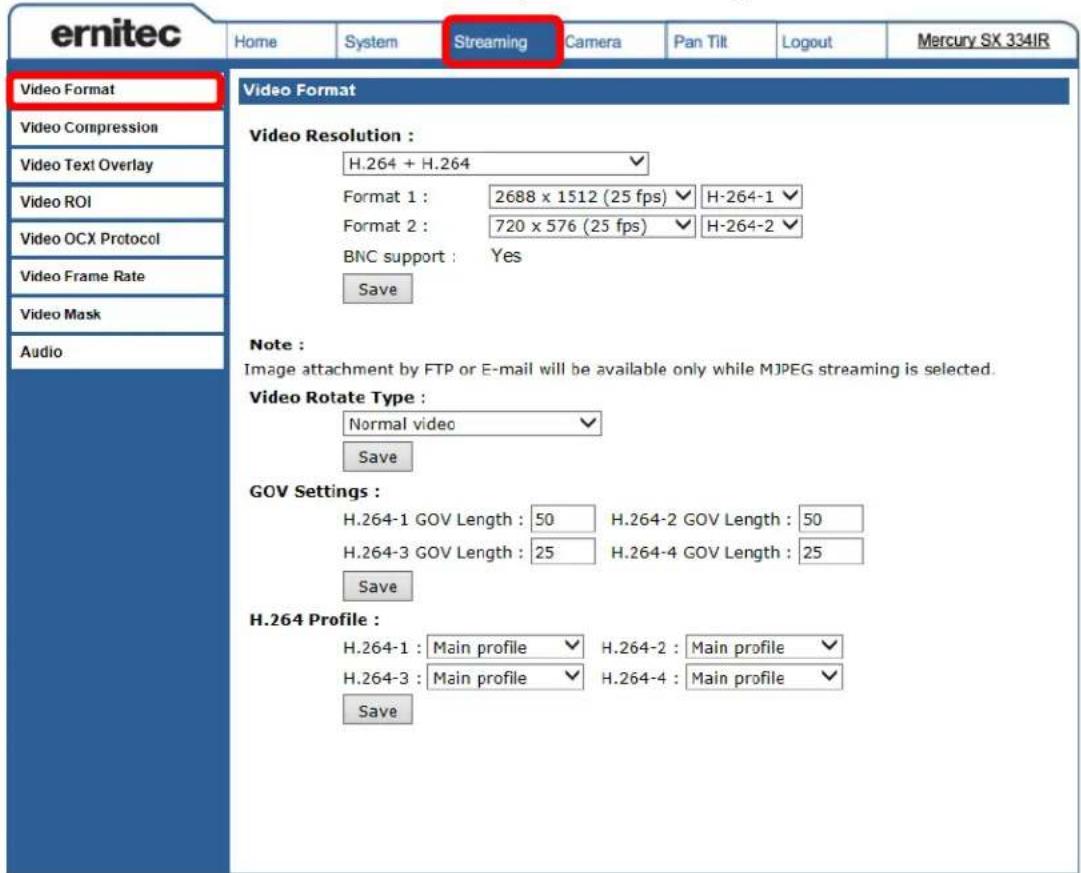
The default value of video resolution is as below in dual stream.
| 4M | H.264- 2688 x 1512 (25 fps) + H.264- 720 x 576 (25 fps) |
For more details about the combinations of video resolution, please refer to the Full HD Multi-Streams IP Camera Menu Tree in the supplied CD.
6. Configuration Files Export / Import
To export / import configuration files, users can access the Maintenance page on the user-friendly browser-based configuration interface.
The Maintenance setting can be found under this path: System>Maintenance.
Users can export configuration files to a specified location and retrieve data by uploading an existing configuration file to the camera. This is especially convenient to make multiple cameras having the same configuration.
Export
Users can save the system settings by exporting the configuration file (.bin) to a specified location for future use. Click on the
>Upload
To upload a configuration file to the camera, click on
7. Tech Support Information
This chapter will introduce how to delete previously-installed Viewer in the PC and how to setup the Internet security.
7.1 Delete the Existing Viewer
For users who have installed the Viewer in the PC previously, please remove the existing Viewer from the PC before accessing to the IP camera.
Deleting the Viewer
In the Windows
Deleting Temporary Internet Files
To improve browser performance, it is suggested to clean up all the files in the Temporary Internet Files. The procedure is as follows.
Step 1: Click on the
6.
Step 2: Click on the
Step 3: In the appeared window, tick the box beside the
7.2 Setup Internet Security
If ActiveX control installation is blocked, please either set Internet security level to default or change ActiveX controls and plug-ins settings.
Internet Security Level: Default
Step 1: Start the Internet Explorer (IE).
Step 2: Click on the
Step 3: Click on the
Step 4: Down the page, click on the
ActiveX Controls and Plug-ins Settings
Step 1: Repeat Step 1 to Step 3 of the previous section above.
Step 2: Down the page, click on the
Step 3: Under
ActiveX controls and plug-ins settings:
7. Binary and script behaviors.
8. Download signed ActiveX controls.
9. Download unsigned ActiveX controls.
10. Allow previously unused ActiveX controls to run without prompt.
11. Allow Scriptlets
12. Automatic prompting for ActiveX controls.
13. Initialize and script ActiveX controls not marked as safe for scripting.
14. Run ActiveX controls and plug-ins.
15. Only allow approved domains to use ActiveX without prompt.
16. Script ActiveX controls marked safe for scripting*.
17. Display video and animation on a webpage that does not use external media player.
Step 4: Click on
Step 5: Click on
Step 6: Close the browser window, and restart a new one later to access the IP camera.
- Caution and Preventive Tips
- Important Information
- Copyright
- Regulation
- Table of Contents
- Overview 4
- Camera Cabling 8
- System Requirements......8
- Overview
- Features
- Package Contents
- Dimensions
- Connectors
- Camera Cabling
- Connect Power
- Connect Ethernet Cable
- Connect Alarm I/O
- System Requirements
- Access Camera
- Accessing the Camera by Device Search Software
- Installing Viewer Software Online
- > Zoom and Focus Adjustment (Motorized Lens / AF Lens Models Only)
- Setup Video Resolution
- Configuration Files Export / Import
- Export
- >Upload
- Tech Support Information
- Delete the Existing Viewer
- Deleting the Viewer
- Deleting Temporary Internet Files
- Setup Internet Security
- Internet Security Level: Default
- ActiveX Controls and Plug-ins Settings
Brand : Ernitec
Model : 0070-04344IR
Category : Security Camera