DS-9616NI-RT - Security Camera Hikvision - Free user manual and instructions
Find the device manual for free DS-9616NI-RT Hikvision in PDF.


User questions about DS-9616NI-RT Hikvision
0 question about this device. Answer the ones you know or ask your own.
Ask a new question about this device
Download the instructions for your Security Camera in PDF format for free! Find your manual DS-9616NI-RT - Hikvision and take your electronic device back in hand. On this page are published all the documents necessary for the use of your device. DS-9616NI-RT by Hikvision.
USER MANUAL DS-9616NI-RT Hikvision
This manual, as well as the software described in it, is furnished under license and may be used or copied only in accordance with the terms of such license. The content of this manual is furnished for informational use only, is subject to change without notice, and should not be construed as a commitment by Hangzhou Hikvision Digital Technology Co., Ltd. (Hikvision). Hikvision assumes no responsibility or liability for any errors or inaccuracies that may appear in the book.
Except as permitted by such license, no part of this publication may be reproduced, stored in a retrieval system, or transmitted, in any form or by any means, electronic, mechanical, recording, or otherwise, without the prior written permission of Hikvision.
HIKVISION MAKES NO WARRANTIES, EXPRESS OR IMPLIED, INCLUDING WITHOUT LIMITATION THE IMPLIED WARRANTIES OF MERCHANTABILITY AND FITNESS FOR A PARTICULAR PURPOSE, REGARDING THE HIKVISION SOFTWARE. HIKVISION DOES NOT WARRANT, GUARANTEE, OR MAKE ANY REPRESENTATIONS REGARDING THE USE OR THE RESULTS OF THE USE OF THE HIKVISION SOFTWARE IN TERMS OF ITS CORRECTNESS, ACCURACY, RELIABILITY, CURRENTNESS, OR OTHERWISE. THE ENTIRE RISK AS TO THE RESULTS AND PERFORMANCE OF THE HIKVISION SOFTWARE IS ASSUMED BY YOU. THE EXCLUSION OF IMPLIED WARRANTIES IS NOT PERMITTED BY SOME STATES. THE ABOVE EXCLUSION MAY NOT APPLY TO YOU.
IN NO EVENT WILL HIKVISION, ITS DIRECTORS, OFFICERS, EMPLOYEES, OR AGENTS BE LIABLE TO YOU FOR ANY CONSEQUENTIAL, INCIDENTAL, OR INDIRECT DAMAGES (INCLUDING DAMAGES FOR LOSS OF BUSINESS PROFITS, BUSINESS INTERRUPTION, LOSS OF BUSINESS INFORMATION, AND THE LIKE) ARISING OUT OF THE USE OR INABILITY TO USE THE HIKVISION SOFTWARE EVEN IF HIKVISION HAS BEEN ADVISED OF THE POSSIBILITY OF SUCH DAMAGES. BECAUSE SOME STATES DO NOT ALLOW THE EXCLUSION OR LIMITATION OF LIABILITY FOR CONSEQUENTIAL OR INCIDENTAL DAMAGES, THE ABOVE LIMITATIONS MAY NOT APPLY TO YOU.
Regulatory information FCC information
FCC compliance: This equipment has been tested and found to comply with the limits for a digital device, pursuant to part 15 of the FCC Rules. These limits are designed to provide reasonable protection against harmful interference when the equipment is operated in a commercial environment. This equipment generates, uses, and can radiate radio frequency energy and, if not installed and used in accordance with the instruction manual, may cause harmful interference to radio communications. Operation of this equipment in a residential area is likely to cause harmful interference in which case the user will be required to correct the interference at his own expense.
FCC conditions
This device complies with part 15 of the FCC Rules. Operation is subject to the following two conditions:
- This device may not cause harmful interference.
- This device must accept any interference received, including interference that may cause undesired operation.
EU Conformity Statement

This product and - if applicable - the supplied accessories too are marked with "CE" and comply therefore with the applicable harmonized European standards listed under the Low Voltage Directive 2006/95/EC, the EMC Directive 2004/108/EC, the RoHS Directive 2011/65/EU.

2012/19/EU (WEEE directive): Products marked with this symbol cannot be disposed of as unsorted municipal waste in the European Union. For proper recycling, return this product to your local supplier upon the purchase of equivalent new equipment, or dispose of it at designated collection points. For more information see: www.recyclethis.info.

2006/66/EC (battery directive): This product contains a battery that cannot be disposed of as unsorted municipal waste in the European Union. See the product documentation for specific battery information. The battery is marked with this symbol, which may include lettering to indicate cadmium (Cd), lead (Pb), or mercury (Hg). For proper recycling, return the battery to your supplier or to a designated collection point. For more information see: www.recyclethis.info.
Preventive and Cautionary Tips
Before connecting and operating your device, please be advised of the following tips:
- Ensure unit is installed in a well-ventilated, dust-free environment.
- Unit is designed for indoor use only.
- Keep all liquids away from the device.
- Ensure environmental conditions meet factory specifications.
- Ensure unit is properly secured to a rack or shelf. Major shocks or jolts to the unit as a result of dropping it may cause damage to the sensitive electronics within the unit.
- Use the device in conjunction with an UPS if possible.
• Power down the unit before connecting and disconnecting accessories and peripherals. - A factory recommended HDD should be used for this device.
- Improper use or replacement of the battery may result in hazard of explosion. Replace with the same or equivalent type only. Dispose of used batteries according to the instructions provided by the battery manufacturer.
Trademarks and Registered Trademarks
- Windows and Windows mark are trademarks or registered trademarks of Microsoft Corporation in the United States and/or other countries.
- HDMI, HDMI mark and High-Definition Multimedia Interface are trademarks or registered trademarks of HDMI Licensing LLC.
- The products contained in this manual are authorized by HDMI Licensing LLC with the use right of the HDMI technology.

• VGA is the trademark of IBM.
- UPnP ^TM is a certification mark of the UPnP ^TM Implementers Corporation.
- Other names of companies and product contained in this manual may be trademarks or registered trademarks of their respective owners.
Thank you for purchasing our product. If there is any question or request, please do not hesitate to contact dealer. The figures in the manual are for reference only.
This manual is applicable to the models listed in the following table.
| Series | Model | Type |
| 9600NI-ST | DS-9608NI-STDS-9616NI-STDS-9632NI-STDS-9664NI-ST | Network Video Recorder |
| 9600NI-RT | DS-9608NI-RTDS-9616NI-RTDS-9632NI-RTDS-9664NI-RT | Network Video Recorder |
| 9600NI-XT | DS-9616NI-XTDS-9632NI-XTDS-9664NI-XT | Network Video Recorder |
| 8600NI-ST | DS-8608NI-STDS-8616NI-STDS-8632NI-STDS-8664NI-ST | Network Video Recorder |
| 7700NI-ST | DS-7708NI-STDS-7716NI-STDS-7732NI-STDS-7764NI-ST | Network Video Recorder |
| 7700NI-SP | DS-7708NI-SPDS-7716NI-SPDS-7732NI-SP | Network Video Recorder |
| 7600NI-ST | DS-7608NI-STDS-7616NI-STDS-7632NI-ST | Network Video Recorder |
| 7600NI-SP | DS-7608NI-SPDS-7616NI-SPDS-7632NI-SP | Network Video Recorder |
Product Key Features
General
- Connectable to network cameras, network dome and encoders.
- Connectable to the third-party network cameras like ACTI, Arecont, AXIS, Bosch, Brickcom, Canon, PANASONIC, Pelco, SAMSUNG, SANYO, SONY, Vivotek and ZAVIO, and cameras that adopt ONVIF or PSIA protocol.
- Connectable to the smart IP cameras.
● PAL/NTSC adaptive video inputs.
● Each channel supports dual-stream. - Up to 64 network cameras can be connected for DS-9600NI-ST&RT&XT, DS-8600NI-ST and DS-7700NI-ST series NVR, and 32 network cameras for DS-7600NI-ST&SP and DS-7700NI-SP series.
- Independent configuration for each channel, including resolution, frame rate, bit rate, image quality, etc.
● The quality of the input and output record is configurable.
Local Monitoring
● Simultaneous HDMI, VGA and CVBS outputs.
- HDMI output and VGA output at up to 1920× 1080 resolution.
● Multiple screen display in live view is supported, and the display sequence of channels is adjustable.
- Live view screen can be switched in group. Manual switch and auto-switch are provided and the auto-switch interval is configurable.
- Quick setting menu is provided for live view.
● Motion detection, video tampering, video exception alert and video loss alert functions.
- Privacy mask.
● Multiple PTZ protocols supported; PTZ preset, patrol and pattern.
- Zooming in by clicking the mouse and PTZ tracing by dragging mouse.
HDD Management
- For 9600NI-XT series, up to 16 SATA hard disks and 2 eSATA disks can be connected. For 7600NI-ST/SP series, 2 SATA hard disks and 1 eSATA disks can be connected. For 7700NI-ST/SP series, 4 SATA hard disks and 1 eSATA disk can be connected. And up to 8 SATA hard disks and 1 eSATA disk can be connected for other models. (Each disk with a maximum of 4TB storage capacity.)
- 8 network disks (8 NAS disks, or 7 NAS disks+1 IP SAN disk) can be connected.
● Support eSATA disks for recording or backup.
● Support S.M.A.R.T. and bad sector detection. (Not supported with DS-9600NI-RT series NVR.) - HDD group management.
● Support HDD standby function. - HDD property: redundancy, read-only, read/write (R/W).
- HDD quota management; different capacity can be assigned to different channel.
- Hot-swappable HDD supporting RAID0, RAID1, RAID5 and RAID10 storage scheme. And 8 virtual disks can be configured. (Only for the DS-9600NI-RT series NVR.)
- Hot-swappable HDD supporting RAID0, RAID1, RAID5 and RAID10 storage scheme, and can be enabled and disabled on your demand. And 16 arrays can be configured. (Only for the DS-9600NI-ST&XT and DS-8600NI-ST series NVR.)
● Support disk clone to the eSATA disk.
Recording, Capture and Playback
- Holiday recording schedule configuration.
● Continuous and event video recording parameters. - Multiple recording types: manual, continuous, alarm, motion, motion | alarm, motion & alarm.
● 8 recording time periods with separated recording types. - Pre-record and post-record for alarm, motion detection for recording, and pre-record time for schedule and manual recording.
- Searching record files and captured pictures by events (alarm input/motion detection).
- Tag adding for record files, searching and playing back by tags.
- Locking and unlocking record files.
- Local redundant recording and capture.
- Provide new playback interface with easy and flexible operation.
- Searching and playing back record files by channel number, recording type, start time, end time, etc.
● Smart search for the selected area in the video. - Zooming in when playback.
- Reverse playback of multi-channel.
● Supports pause, play reverse, speed up, speed down, skip forward, and skip backward when playback, and locating by dragging the mouse. - Up to 16-ch synchronous playback at 4CIF real time.
- Manual capture, continuous capture of video images and playback of captured pictures.
Backup
● Export video data by USB, SATA or cSATA device.
- Export video clips when playback.
● Management and maintenance of backup devices.
- Either Normal or Hot Spare working mode is configurable to constitute an N+1 hot spare system.
Alarm and Exception
- Configurable arming time of alarm input/output.
- Alarm for video loss, motion detection, tampering, abnormal signal, video input/output standard mismatch, illegal login, network disconnected, IP confliction, abnormal record/capture, HDD error, and HDD full, etc.
- Alarm triggers full screen monitoring, audio alarm, notifying surveillance center, sending email and alarm output.
● Automatic restore when system is abnormal.
Other Local Functions
- Operable by front panel, mouse, remote control, and control keyboard.
- Three-level user management; admin user is allowed to create many operating accounts and define their operating permission, which includes the limit to access any channel.
● Operation, alarm, exceptions and log recording and searching. - Manually triggering and clearing alarms.
- Import and export of device configuration information.
Network Functions
- 2 self-adaptive 10M/100M/1000M network interfaces, and various working modes are configurable: multi-address, load balance, network fault tolerance, etc. (Two NIC are only for the DS-9600NI-ST/RT/XT and DS-8600NI-ST series NVR.)
-
8 independent PoE network interfaces are provided for DS-7600NI-SP series and up to 16 independent PoE network interfaces are provided for DS-7700NI-SP series.
-
IPv6 is supported.
- TCP/IP protocol, PPPoE, DHCP, DNS, DDNS, NTP, SADP, SMTP, SNMP, NFS, and iSCSI are supported.
● TCP, UDP and RTP for unicast.
● Auto/Manual port mapping by UPnP ^TM . - Remote web browser access by HTTPS ensures high security.
● Remote reverse playback via RTSP.
● Support accessing by the platform via ONVIF. - Remote search, playback, download, locking and unlocking of the record files, and support downloading files broken transfer resume.
- Remote parameters setup; remote import/export of device parameters.
- Remote viewing of the device status, system logs and alarm status.
- Remote keyboard operation.
- Remote locking and unlocking of control panel and mouse.
- Remote HDD formatting and program upgrading.
● Remote system restart and shutdown.
● RS-232, RS-485 transparent channel transmission.
● Alarm and exception information can be sent to the remote host
● Remotely start/stop recording.
● Remotely start/stop alarm output. - Remote PTZ control.
- Remote JPEG capture.
● Virtual host function is provided to get access and manage the IP camera directly.
● Two-way audio and voice broadcasting. - Embedded WEB server.
Development Scalability:
- SDK for Windows and Linux system.
- Source code of application software for demo.
● Development support and training for application system.
TABLE OF CONTENTS
Product Key Features 6
Chapter 1 Introduction....14
1.1 Front Panel 15
1.2 IR Remote Control Operations 22
1.3 USB Mouse Operation 24
1.4 Input Method Description....25
1.5 Rear Panel 26
Chapter 2 Getting Started ....29
2.1 Starting Up and Shutting Down the NVR....30
2.2 Using the Wizard for Basic Configuration....32
2.3 Adding and Connecting the IP Cameras....37
2.3.1 Adding the Online IP Cameras.... 37
2.3.2 Editing the Connected IP Cameras and Configuring Customized Protocols....40
2.3.3 Editing IP Cameras Connected to the PoE Interfaces 42
Chapter 3 Live View 45
3.1 Introduction of Live View 46
3.2 Operations in Live View Mode....47
3.2.1 Front Panel Operation on Live View 47
3.2.2 Using the Mouse in Live View....48
3.2.3 Using an Auxiliary Monitor....49
3.2.4 Quick Setting Toolbar in Live View Mode 49
3.3 Adjusting Live View Settings 52
3.4 Channel-zero Encoding ....54
3.5 User Logout....55
Chapter 4 PTZ Controls....56
4.1 Configuring PTZ Settings....57
4.2 Setting PTZ Presets, Patrols & Patterns....59
4.2.1 Customizing Presets....59
4.2.2 Calling Presets 59
4.2.3 Customizing Patrols....60
4.2.4 Calling Patrols 61
4.2.5 Customizing Patterns....62
4.2.6 Calling Patterns....62
4.2.7 Customizing Linear Scan Limit 63
4.2.8 Calling Linear Scan 64
4.2.9 One-touch Park 64
4.3 PTZ Control Panel....66
Chapter 5 Recording and Capture Settings....67
5.1 Configuring Parameters....68
5.2 Configuring Recording/Capture Schedule....71
5.3 Configuring Motion Detection Recording and Capture 75
5.4 Configuring Alarm Triggered Recording and Capture....77
5.5 Manual Recording and Continuous Capture....79
5.6 Configuring Holiday Recording and Capture 81
5.7 Configuring Redundant Recording and Capture....83
5.8 Configuring HDD Group for Recording and Capture....85
5.9 Files Protection....86
5.9.1 Locking the Recording Files....86
5.9.2 Setting HDD Property to Read-only 88
Chapter 6 Playback....90
6.1 Playing Back Record Files 91
6.1.1 Playing Back by Channel....91
6.1.2 Playing Back by Time....93
6.1.3 Playing Back by Event Search....95
6.1.4 Playing Back by Tag 97
6.1.5 Smart Playback 100
6.1.6 Playing Back by System Logs 102
6.1.7 Playing Back External File 104
6.2 Auxiliary Functions of Playback 105
6.2.1 Playing Back Frame by Frame.... 105
6.2.2 Digital Zoom....105
6.2.3 Reverse Playback of Multi-channel 106
6.3 Picture Playback....107
Chapter 7 Backup....109
7.1 Backing up Record Files 110
7.1.1 Quick Export.... 110
7.1.2 Backing up by Normal Video Search.... 111
7.1.3 Backing up by Event Search.... 118
7.1.4 Backing up Video Clips 120
7.2 Backing up Pictures....123
7.3 Managing Backup Devices....125
7.4 Hot Spare Device Backup....128
7.4.1 Setting Hot Spare Device....128
7.4.2 Setting Working Device....129
7.4.3 Managing Hot Spare System....129
Chapter 8 Alarm Settings....132
8.1 Setting Motion Detection Alarm.... 133
8.2 Setting Sensor Alarms 135
8.3 Detecting Video Loss Alarm....138
8.4 Detecting Video Tampering Alarm 140
8.5 Detecting VCA Alarm 142
8.6 Handling Exceptions Alarm....144
8.7 Setting Alarm Response Actions 145
8.8 Triggering or Clearing Alarm Output Manually 148
Chapter 9 Network Settings....149
9.1 Configuring General Settings....150
9.2 Configuring Advanced Settings....152
9.2.1 Configuring PPPoE Settings....152
9.2.2 Configuring DDNS 152
9.2.3 Configuring NTP Server 156
9.2.4 Configuring SNMP 156
9.2.5 Configuring Remote Alarm Host....157
9.2.6 Configuring Multicast....158
9.2.7 Configuring RTSP....158
9.2.8 Configuring Server and HTTP Ports....158
9.2.9 Configuring HTTPS Port 159
9.2.10 Configuring Email 161
9.2.11 Configuring NAT 162
9.2.12 Configuring High-speed Download 165
9.2.13 Configuring Virtual Host 166
9.2.14 Configuring Telnet 167
9.3 Checking Network Traffic 168
9.4 Configuring Network Detection 169
9.4.1 Testing Network Delay and Packet Loss.... 169
9.4.2 Exporting Network Packet....169
9.4.3 Checking the Network Status....170
9.4.4 Checking Network Statistics....171
Chapter 10 RAID (Only for DS-9600NI-RT series NVR)....173
10.1 Configuring Array and Virtual Disk 174
10.1.1 One-touch Configuration 175
10.1.2 Manually Creating Array and Virtual Disk 176
10.2 Rebuilding Array....181
10.2.1 Automatically Rebuilding Array 181
10.2.2 Manually Rebuilding Array 182
10.3 Repairing Virtual Disk.... 184
10.4 Deleting Array / Virtual Disk.... 185
10.4.1 Deleting the Virtual Disk 185
10.4.2 Deleting the Array....185
10.5 Upgrading Firmware 187
Chapter 11 RAID (Only for DS-9600NI-ST&XT and DS-8600NI-ST series NVR)....189
11.1 Configuring Array 190
11.1.1 Enable RAID 190
11.1.2 One-touch Configuration....191
11.1.3 Manually Creating Array 192
11.2 Rebuilding Array 195
11.2.1 Automatically Rebuilding Array....195
11.2.2 Manually Rebuilding Array 196
11.3 Deleting Array....198
11.4 Checking and Editing Firmware.... 199
Chapter 12 HDD Management ....200
12.1 Initializing HDDs 201
12.2 Managing Network HDD 203
12.3 Managing eSATA 205
12.4 Managing HDD Group 206
12.4.1 Setting HDD Groups....206
12.4.2 Setting HDD Property 207
12.5 Configuring Quota Mode....209
12.6 Configuring Disk Clone 211
12.7 Checking HDD Status 213
12.8 HDD Detection....215
12.9 Configuring HDD Error Alarms 217
Chapter 13 Camera Settings 218
13.1 Configuring OSD Settings....219
13.2 Configuring Privacy Mask....220
13.3 Configuring Video Parameters 221
Chapter 14 NVR Management and Maintenance .... 222
14.1 Viewing System Information....223
14.1.1 Viewing Device Information....223
14.1.2 Viewing Camera Information....223
14.1.3 Viewing Record Information 223
14.1.4 Viewing Alarm Information 224
14.1.5 Viewing Network Information 224
14.1.6 Viewing HDD Information 225
14.2 Searching & Export Log Files 226
14.3 Importing/Exporting IP Camera Info....229
14.4 Importing/Exporting Configuration Files 230
14.5 Upgrading System....231
14.5.1 Upgrading by Local Backup Device 231
14.5.2 Upgrading by FTP 231
14.6 Restoring Default Settings....233
Chapter 15 Others....234
15.1 Configuring RS-232 Serial Port.... 235
15.2 Configuring General Settings....236
15.3 Configuring DST Settings 237
15.4 Configuring More Settings for Device Parameters....238
15.5 Managing User Accounts....239
15.5.1 Adding a User 239
15.5.2 Deleting a User 241
15.5.3 Editing a User 241
Appendix 243
Glossary 244
Troubleshooting 245
Summary of Changes....251
List of Compatible IP Cameras 252
List of Hikvision IP Cameras 252
List of Third-party IP Cameras.... 255
Chapter 1 Introduction
1.1 Front Panel
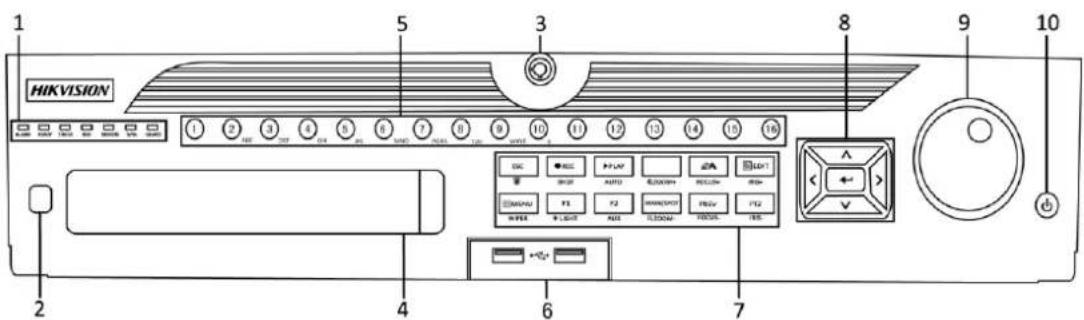
text_image
1 HIKVISION 2 3 5 8 9 10 1 2 3 4 5 6 7 8 9 10 11 12 13 14 15 16 DC ● ● ● ● ● ● ● ● ● ● ● ● ● ● ● ● ● ● ● ● ● ● ● ● ● ● ● ● ● ● ● ● ● ● ● ● ● ● ● ● ● ● ● ● ● ● ● ● ● ● ○ ○ ○ ○ ○ ○ ○ ○ ○ ○ ○ ○ ○ ○ ○ ○ ○ ○ ○ ○ ○ ○ ○ ○ ○ ○Figure 1.1 DS-9600NI-ST/RT
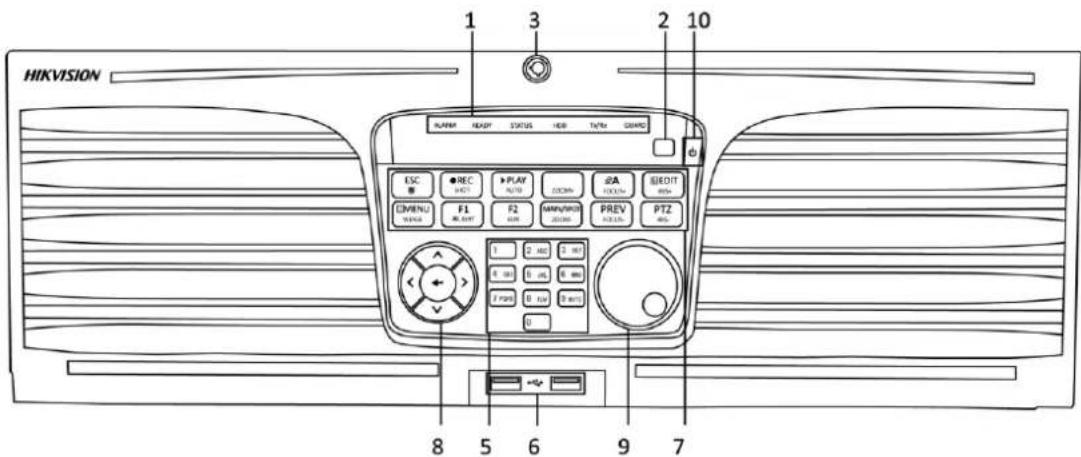
text_image
HIKVISION 1 3 2 10 NUMBER STATUS HEB TFTM GARIC ESC ● REC P471 PLAY RJ10 DCOM #A EEDIT 80Hz EMENU F1 RJ 60Hz F2 60Hz AMR/SWDR 20/20Hz PREV RJ3.15- PTZ 80Hz 1 2 MHz 3 MHz 0 MHz 0 MHz 0 MHz 0 MHz 0 MHz 0 MHz 0 MHz 0 MHz 0 MHz 0 MHz 0 MHz 0 MHz 0 MHz 0 MHz 0 MHz 0 MHz 0 MHz 0 MHz 0 MHz 0 MHz 0 MHz 0 MHz 0 MHz 0 MHz 0 MHz 0 MHz 0 MHz 0 MHz 0 MHz 0 MHz 0 MHz 0 MHz 0 MHz 0MHzFigure 1.2 DS-9600NI-XT
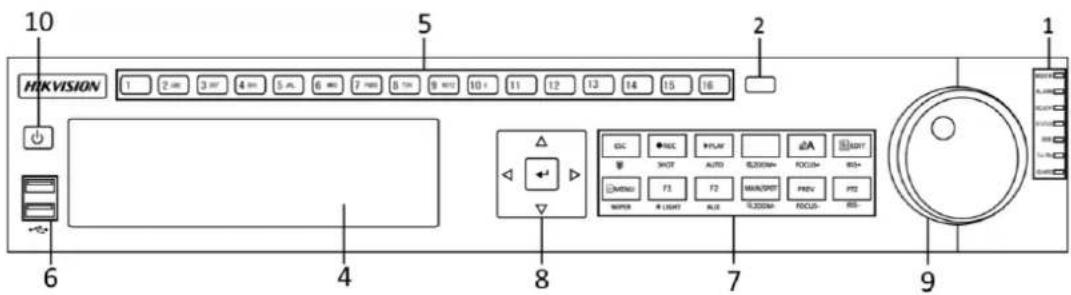
text_image
10 HVKVISION 1 2 min 3 min 4 min 5 min 6 min 7 min 8 min 9 min 10+ 11 12 13 14 15 16 2 6 4 8 7 9 1 1 ESC RDC PLAY A LIGHT SHOT AUTO FL200M+ FOCU+ INS+ ON/INSU F1 F2 MAX/SPOT PREV INT2 MINI# LIGHT ALB FL200M+ FOCU- INS- 9Figure 1.3 DS-8600NI-ST
Table 1.1 Description of Control Panel Buttons
| No. | Name | Function Description | |
| 1 | Status Indicators | ALARM | Turns red when a sensor alarm is detected. |
| READY | Ready indicator is normally blue, indicating that the device is functioning properly. | ||
| STATUS | Turns blue when device is controlled by an IR remote. | ||
| Turns red when controlled by a keyboard and purple when IR remote and keyboard is used at the same time. | |||
| HDD | Blinks red when data is being read from or written to HDD. | ||
| MODEM(Not for DS-9600NI-XT) | Reserved for future usage. | ||
| TX/RX | Blinks blue when network connection is functioning properly. | ||
| GUARD | Guard indicator turns blue when the device is in armed status; at this time, an alarm is enabled when an event is detected. | ||
| The indicator turns off when the device is unarmed. The arm/disarm status can be changed by pressing and holding on the ESC button for more than 3 seconds in live view mode. | |||
| 2 | IR Receiver | Receiver for IR remote | |
| 3 | Front Panel Lock(for DS-9600NI-ST/RT/XT series) | You can lock or unlock the panel by the key. | |
| 4 | DVD-R/W | Slot for DVD-R/W. | |
| 5 | Alphanumeric Buttons | Switch to the corresponding channel in Live view or PTZ Control mode. | |
| Input numbers and characters in Edit mode. | |||
| Switch between different channels in Playback mode. | |||
| The light of the button is blue when the corresponding channel is recording; it is red when the channel is in network transmission status; it is pink when the channel is recording and transmitting. | |||
| 6 | USB Interfaces | Universal Serial Bus (USB) ports for additional devices such as USB mouse and USB Hard Disk Drive (HDD). | |
| 7 | Composite Keys | ESC | Back to the previous menu. |
| Press the button for 3 seconds to arm/disarm the pre-configured linkage actions for events when you in the Live View mode. | |||
| REC/SHOT | Enter the Manual Record setting menu. | ||
| In PTZ control settings, press the button and then you can call a PTZ preset by pressing Numeric button. | |||
| It is also used to turn audio on/off in the Playback mode. | |||
| PLAY/AUTO | The button is used to enter the Playback mode. | ||
| It is also used to auto scan in the PTZ Control menu. | |||
| ZOOM+ | Zoom in the PTZ camera in the PTZ Control setting. | ||
| A/FOCUS+ | Adjust focus in the PTZ Control menu. | ||
| It is also used to switch between input methods (upper and lowercase alphabet, symbols and numeric input). | |||
| EDIT/IRIS+ | Edit text fields. When editing text fields, it will also function as a Backspace button to delete the character in front of the cursor. | ||
| On checkbox fields, pressing the button will tick the checkbox. | |||
| In PTZ Control mode, the button adjusts the iris of the camera. | |||
| In Playback mode, it can be used to generate video clips for backup. | |||
| Enter/exit the folder of USB device and eSATA HDD. | |||
| MAIN/SPOT/ZOOM- | Switch between main and spot output. | ||
| In PTZ Control mode, it can be used to zoom out the image. | |||
| F1/ LIGHT | Select all items on the list when used in a list field. | ||
| In PTZ Control mode, it will turn on/off PTZ light (if applicable). | |||
| In Playback mode, it is used to switch between play and reverse play. | |||
| F2/ AUX | Cycle through tab pages. | ||
| In synchronous playback mode, it is used to switch between channels. | |||
| MENU/WIPER | Press the button will help you return to the Main menu (after successful login). | ||
| Press and hold the button for 5 seconds will turn off audible key beep. | |||
| In PTZ Control mode, the MENU/WIPER button will start wiper (if applicable). | |||
| In Playback mode, it is used to show/hide the control interface. | |||
| PREV/FOCUS- | Switch between single screen and multi-screen mode. | ||
| In PTZ Control mode, it is used to adjust the focus in conjunction with the A/FOCUS+ button. | |||
| PTZ/IRIS- | Enter the PTZ Control mode. | ||
| In the PTZ Control mode, it is used to adjust the iris of the PTZ camera. | |||
| 8 | Control Buttons | DIRECTION | The DIRECTION buttons are used to navigate between different fields and items in menus. |
| In the Playback mode, the Up and Down button is used to speed up and slow down recorded video. The Left and Right button will select the next and previous record files. | |||
| In Live View mode, these buttons can be used to cycle through channels. | |||
| In PTZ control mode, it can control the movement of the PTZ camera. | |||
| ENTER | The ENTER button is used to confirm selection in any of the menu modes. | ||
| It can also be used to tick checkbox fields. | |||
| In Playback mode, it can be used to play or pause the video. | |||
| In single-frame Playback mode, pressing the button will advance the video by a single frame. | |||
| In Auto-switch mode, it can be used to stop /start auto switch. | |||
| 9 | JOG SHUTTLE Control | Move the active selection in a menu. It will move the selection up and down. | |
| In Live View mode, it can be used to cycle through different channels. | |||
| In the Playback mode: For DS-9600NI-ST/RT/XT series, the ring is used to jump 30s forward/backward in video files. For DS-8600NI-ST series, the outer ring is used to speed up or slow | |||
| down the record files and the inner ring is used to jump 30s forward/backward in records files. | |||
| In PTZ control mode, it can control the movement of the PTZ camera. | |||
| 10 | POWER ON/OFF | Power on/off switch. | |
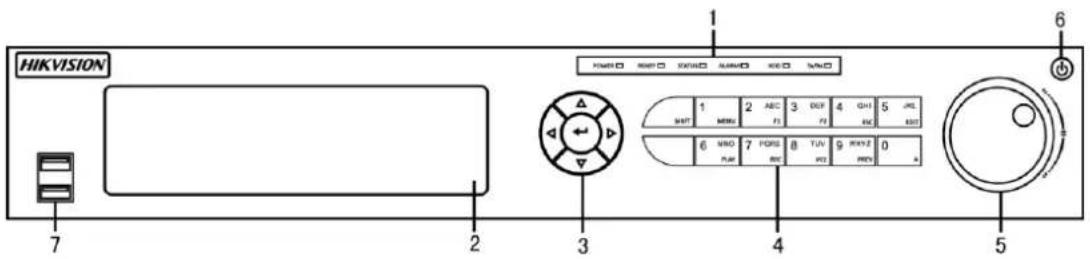
text_image
HIKVISION 7 2 3 4 5 6 POWER 1 2 ABC 3 DEF 4 GH 5 JNC SMT MNE F1 F2 EC EXIT 6 MNO 7 PORE 8 TUN 9 PREV 0 A PUB BIC WO PREVFigure 1.4 DS-7700NI-ST/SP
Table 1.2 Description of Control Panel Buttons
| No. | Name | Function Description | |
| 1 | Status Indicators | POWER | Turns green when NVR is powered up. |
| READY | The indicator is green when the device is running normally. | ||
| STATUS | The light is green when the IR remote control is enabled; The light is red when the function of the composite keys (SHIFT) are used; The light is out when none of the above condition is met. | ||
| ALARM | The light is red when there is an alarm occurring. | ||
| HDD | Blinks red when HDD is reading/writing. | ||
| Tx/Rx | Blinks green when network connection is functioning normally. | ||
| 2 | DVD-R/W | Slot for DVD-R/W. | |
| 3 | Control Buttons | DIRECTION | In menu mode, the direction buttons are used to navigate between different fields and items and select setting parameters. |
| In playback mode, the Up and Down buttons are used to speed up and slow down record playing, and the Left and Right buttons are used to move the recording 30s forwards or backwards. | |||
| In the image setting interface, the up and down button can adjust the level bar of the image parameters. In live view mode, these buttons can be used to switch channels. | |||
| ENTER | The Enter button is used to confirm selection in menu mode; or used to check checkbox fields and ON/OFF switch. | ||
| In playback mode, it can be used to play or pause the video. | |||
| In single-frame play mode, pressing the Enter button will play the video by a single frame. | |||
| In auto sequence view mode, the buttons can be used to pause or resume auto sequence. | |||
| 4 | Composite Keys | SHIFT | Switch between the numeric or letter input and functions of the composite keys. (Input letter or numbers when the light is out;Realize functions when the light is red.) |
| 1/MENU | Enter numeral “1”; | ||
| Access the main menu interface. | |||
| 2/ABC/F1 | Enter numeral “2”; | ||
| Enter letters “ABC”; | |||
| The F1 button when used in a list field will select all items in the list. | |||
| In PTZ Control mode, it will turn on/off PTZ light and when the image is zoomed in, the key is used to zoom out. | |||
| 3/DEF/F2 | Enter numeral “3”; | ||
| Enter letters “DEF”; | |||
| The F2 button is used to change the tab pages. | |||
| In PTZ control mode, it zooms in the image. | |||
| 4/GHI/ESC | Enter numeral “4”; | ||
| Enter letters “GHI”; | |||
| Exit and back to the previous menu. | |||
| 5/JKL/EDIT | Enter numeral “5”; | ||
| Enter letters “JKL”; | |||
| Delete characters before cursor; | |||
| Check the checkbox and select the ON/OFF switch; | |||
| Start/stop record clipping in playback. | |||
| 6/MNO/PLAY | Enter numeral “6”; | ||
| Enter letters “MNO”; | |||
| Playback, for direct access to playback interface. | |||
| 7/PQRS/REC | Enter numeral “7”; | ||
| Enter letters “PQRS”; | |||
| Open the manual record interface. | |||
| 8/TUV/PTZ | Enter numeral “8”; | ||
| Enter letters “TUV”; | |||
| Access PTZ control interface. | |||
| 9/WXYZ/PREV | Enter numeral “9”; | ||
| Enter letters “WXYZ”; | |||
| Multi-channel display in live view. | |||
| 0/A | Enter numeral “0”; | ||
| Shift the input methods in the editing text field. (Upper and lowercase, alphabet, symbols or numeric input). | |||
| Double press the button to switch the main and auxiliary output. | |||
| 5 | JOG SHUTTLE Control | Move the active selection in a menu. It will move the selection up and down. | |
| In Live View mode, it can be used to cycle through different channels. | |||
| In the Playback mode, it can be used to jump 30s forward/backward in video files. | |||
| In PTZ control mode, it can control the movement of the PTZ camera. | |||
| 6 | POWER ON/OFF | Power on/off switch. | |
| 7 | USB Interfaces | Universal Serial Bus (USB) ports for additional devices such as USB mouse and USB Hard Disk Drive (HDD). | |

text_image
HIKVISION 2 3 5 1 4 4 6 7 8 9 0Figure 1.5 DS-7600NI-ST/SP
Table 1.3 Description of Control Panel Buttons
| No. | Name | Function Description | |
| 1 | USB Interface | Connects USB mouse or USE flash memory devices. | |
| 2 | Status Indicators | POWER | Turns green when NVR is powered up. |
| READY | The LED is green when the device is running normally. | ||
| STATUS | The light is green when the IR remote control is enabled; The light is red when the function of the composite keys (SHIFT) are used; The light is out when none of the above condition is met. | ||
| ALARM | The light is red when there is an alarm occurring. | ||
| HDD | Blinks red when HDD is reading/writing. | ||
| Tx/Rx | Blinks green when network connection is functioning normally. | ||
| 3 | SHIFT | Switch between the numeric or letter input and functions of the composite keys. (Input letter or numbers when the light is out; Realize functions when the light is red.) | |
| 4 | Composite Keys | SHIFT | Switch between the numeric or letter input and functions of the composite keys. (Input letter or numbers when the light is out; Realize functions when the light is red.) |
| 1/MENU | Enter numeral “1”; | ||
| Access the main menu interface. | |||
| 2/ABC/F1 | Enter numeral “2”; | ||
| Enter letters “ABC”; | |||
| The F1 button when used in a list field will select all items in the list. | |||
| In PTZ Control mode, it will turn on/off PTZ light and when the image is zoomed in, the key is used to zoom out. | |||
| 3/DEF/F2 | Enter numeral “3”; | ||
| Enter letters “DEF”; | |||
| The F2 button is used to change the tab pages. | |||
| In PTZ control mode, it zooms in the image. | |||
| 4/GHI/ESC | Enter numeral “4”; | ||
| Enter letters “GHI”; | |||
| Exit and back to the previous menu. | |||
| 5/JKL/EDIT | Enter numeral “5”; | ||
| Enter letters “JKL”; | |||
| Delete characters before cursor; | |||
| Check the checkbox and select the ON/OFF switch; | |||
| Start/stop record clipping in playback. | |||
| 6/MNO/PLAY | Enter numeral “6”; | ||
| Enter letters “MNO”; | |||
| Playback, for direct access to playback interface. | |||
| 7/PQRS/REC | Enter numeral “7”; | ||
| Enter letters “PQRS”; | |||
| Open the manual record interface. | |||
| 8/TUV/PTZ | Enter numeral “8”; | ||
| Enter letters “TUV”; | |||
| Access PTZ control interface. | |||
| 9/WXYZ/PREV | Enter numeral “9”; | ||
| Enter letters “WXYZ”; | |||
| Multi-channel display in live view. | |||
| 0/A | Enter numeral “0”; | ||
| Shift the input methods in the editing text field. (Upper and lowercase, alphabet, symbols or numeric input). | |||
| Double press the button to switch the main and auxiliary output. | |||
| 5 | Control Buttons | DIRECTION | In menu mode, the direction buttons are used to navigate between different fields and items and select setting parameters. |
| In playback mode, the Up and Down buttons are used to speed up and slow down record playing, and the Left and Right buttons are used to move the recording 30s forwards or backwards. | |||
| In the image setting interface, the up and down button can adjust the level bar of the image parameters.In live view mode, these buttons can be used to switch channels. | |||
| ENTER | The Enter button is used to confirm selection in menu mode; or used to check checkbox fields and ON/OFF switch. | ||
| In playback mode, it can be used to play or pause the video. | |||
| In single-frame play mode, pressing the Enter button will play the video by a single frame. | |||
| In auto sequence view mode, the buttons can be used to pause or resume auto sequence. | |||
1.2 IR Remote Control Operations
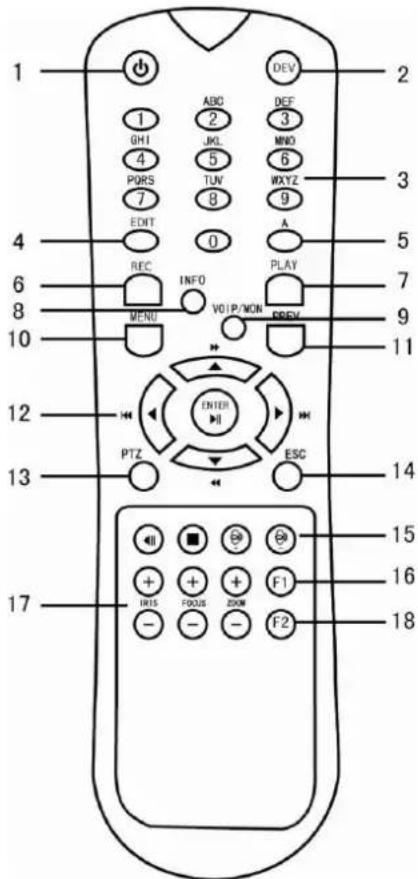
The NVR may also be controlled with the included IR remote control, shown in Figure 1. 6.

Batteries (2× AAA) must be installed before operation.
text_image
1 2 3 4 5 6 7 8 9 10 11 12 13 14 15 16 17 1 GHI GHJ 4 PORS 7 EDIT REC INFO MENU VOL/P/MON PLAY OFF/MON OPEN PTZ ESC ADD ADD/S F1 F2 F3 F4 F5 F6 F7 F8 F9 F10 F11 F12 F13 F14 F15 F16 F17 F18 F19 F20 F21 F22 F23 F24 F25 F26 F27 F28 F29 F30 F31 F32 F33 F34 F35 F36 F37 F38 F39 F40 F41 F42Figure 1.6 Remote Control
The keys on the remote control closely resemble the ones on the front panel. See Table 1.4.
Table 1.4 Description of the Soft Keyboard Icons
| No. | Name | Description |
| 1 | POWER | Power on/off the device. |
| 2 | DEV | Enables/Disables Remote Control. |
| 3 | Alphanumeric Buttons | Same as Alphanumeric buttons on front panel. |
| 4 | EDIT Button | Same as EDIT/IRIS+ button on front panel. |
| 5 | A Button | Same as A/FOCUS+ button on front panel. |
| 6 | REC Button | Same as REC/SHOT button on front panel. |
| 7 | PLAY Button | Same as the PLAY/AUTO button on front panel. |
| 8 | INFO Button | Reserved. |
| 9 | VOIP/MON Button | Same as the MAIN/SPOT/ZOOM- button on front panel. |
| 10 | MENU Button | Same as the MENU/WIPER button on front panel. |
| 11 | PREV Button | Same as the PREV/FOCUS- button on front panel. |
| 12 | DIRECTION/ENTER Buttons | Same as the DIRECTION/ENTER buttons on front panel. |
| 13 | PTZ Button | Same as the PTZ/IRIS- button on front panel. |
| 14 | ESC Button | Same as the ESC button on front panel. |
| 15 | RESERVED | Reserved for future usage. |
| 16 | F1 Button | Same as the F1/LIGHT button on front panel. |
| 17 | PTZ Control Buttons | Buttons to adjust the iris, focus and zoom of a PTZ camera. |
| 18 | F2 Button | Same as the F2/AUX button on front panel. |
Troubleshooting Remote Control:

Make sure you have installed batteries properly in the remote control. And you have to aim the remote control at the IR receiver in the front panel.
If there is no response after you press any button on the remote, follow the procedure below to troubleshoot.
Steps:
- Go to Menu > Settings > General > More Settings by operating the front control panel or the mouse.
- Check and remember NVR ID#. The default ID# is 255. This ID# is valid for all the IR remote controls.
- Press the DEV button on the remote control.
- Enter the NVR ID# you set in step 2.
- Press the ENTER button on the remote.
If the Status indicator on the front panel turns blue, the remote control is operating properly. If the Status indicator does not turn blue and there is still no response from the remote, please check the following:
- Batteries are installed correctly and the polarities of the batteries are not reversed.
- Batteries are fresh and not out of charge.
- IR receiver is not obstructed.
If the remote still can't function properly, please change a remote and try again, or contact the device provider.
1.3 USB Mouse Operation
A regular 3-button (Left/Right/Scroll-wheel) USB mouse can also be used with this NVR. To use a USB mouse:
- Plug USB mouse into one of the USB interfaces on the front panel of the NVR.
- The mouse should automatically be detected. If in a rare case that the mouse is not detected, the possible reason may be that the two devices are not compatible, please refer to the recommended the device list from your provider.
The operation of the mouse:
Table 1.5 Description of the Mouse Control
| Name | Action | Description |
| Left-Click | Single-Click | Live view: Select channel and show the quick set menu.Menu: Select and enter. |
| Double-Click | Live view: Switch between single-screen and multi-screen. | |
| Click and Drag | PTZ control: pan, tilt and zoom.Video tampering, privacy mask and motion detection: Select target area.Digital zoom-in: Drag and select target area.Live view: Drag channel/time bar. | |
| Right-Click | Single-Click | Live view: Show menu.Menu: Exit current menu to upper level menu. |
| Scroll-Wheel | Scrolling up | Live view: Previous screen.Menu: Previous item. |
| Scrolling down | Live view: Next screen.Menu: Next item. |
1.4 Input Method Description

text_image
1 2 3 4 5 6 7 8 9 0 Q W E R T Y U I O P A S D F G H J K L Z X C V B N M 123/..Figure 1.7 Soft Keyboard (1)
text_image
1 2 3 . - 4 5 6 _ : 7 8 9 / @ 0 #+= x ABC ↙ ◀ ▶ ↙Figure 1.8 Soft Keyboard (2)
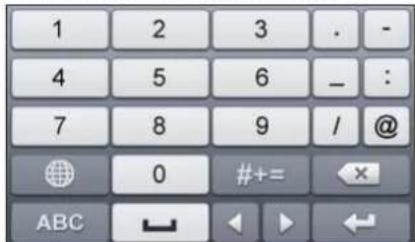
Description of the buttons on the soft keyboard:
Table 1.6 Description of the Soft Keyboard Icons
| Icon | Description | Icon | Description | |
 | Number |  | English letter | |
| #+= | Lowercase/Uppercase | Backspace | ||
| ABC | Switch the keyboard |  | Space | |
| #+= | Positioning the cursor | Exit | ||
| #+= | Symbols | Reserved | ||
1.5 Rear Panel
text_image
1 3 4 VISO USB RS-232 VISA VISA 6 14 LAN2 LAN1 8 9 10 11 7 12 13Figure 1.9 DS-9600NI-ST/RT and DS-8600NI-ST
text_image
7 wDATA1 wDATA2 1 2 3 4 5 6 14 8 9 10 11 12 FULL POWER 13Figure 1.10 DS-9600NI-XT
text_image
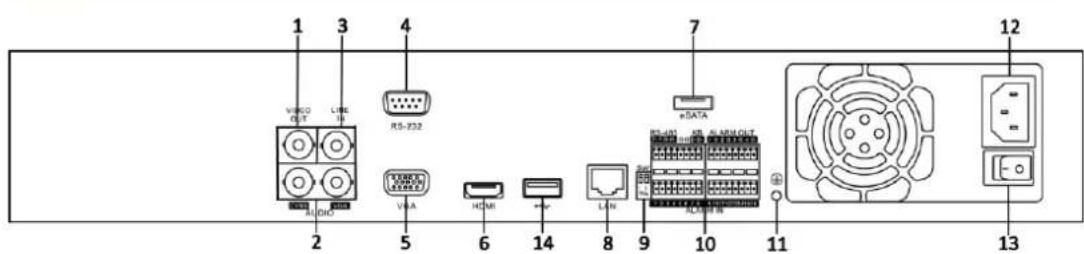
1 3 4 VHCO GST Link IN RS-232 VHA 6 7 +DATA 2 5 14 8 9 10 11 12 L/W L/WR L/WR L/WR L/WR L/WR L/WR L/WR L/WR L/WR L/WR L/WR L/WR L/WR L/WR L/WR L/WR L/WR L/WR L/WR L/WR L/WR L/WR L/WR L/WR L/WR L/WM L/WM L/WM L/WM L/WM L/WM L/WM L/WM L/WM L/WM L/WM L/WM L/WM L/WM L/WM L/WM L/WMFigure 1.11 DS-7700NI-ST
text_image
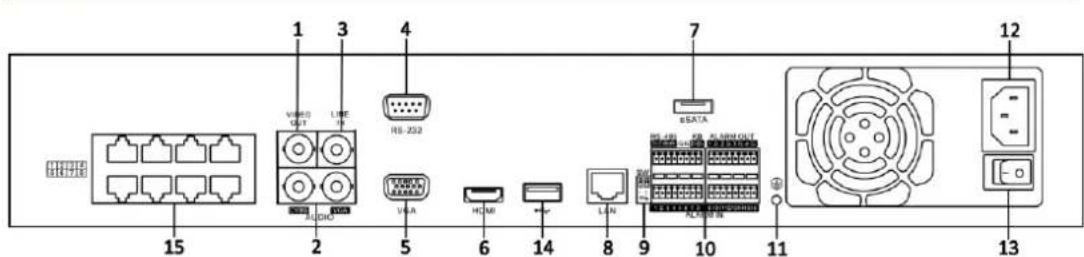
1 2 3 4 5 6 7 8 9 10 11 12 13 14 VBRD 0.01 USB IN USB-252 HDMI L/AN eDATA L/AN L/ANFigure 1.12 DS-7708NI-SP
text_image
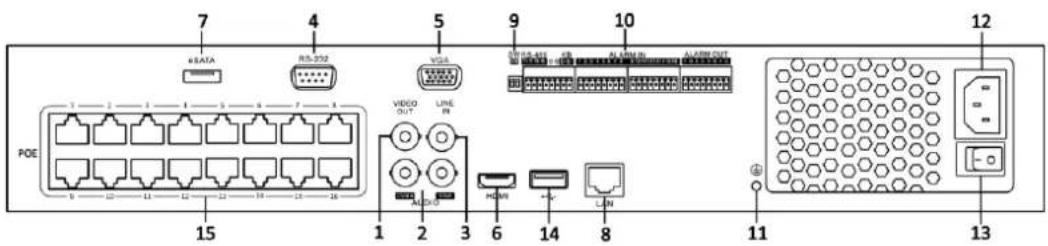
7 8 SATA 4 5 9 10 12 RS-352 VGA USB 452 USB ID ALABN OUT POE VIDEO OUT LINE IN ACOOP 6 14 8 11 13Figure 1. 13 DS-7716 / 7732NI-SP
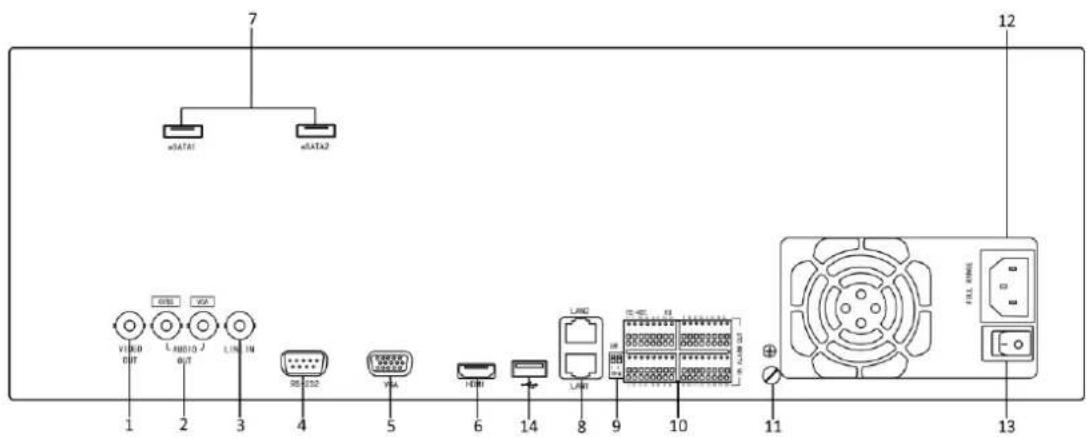
Table 1.7 Description of Rear Panel Interfaces
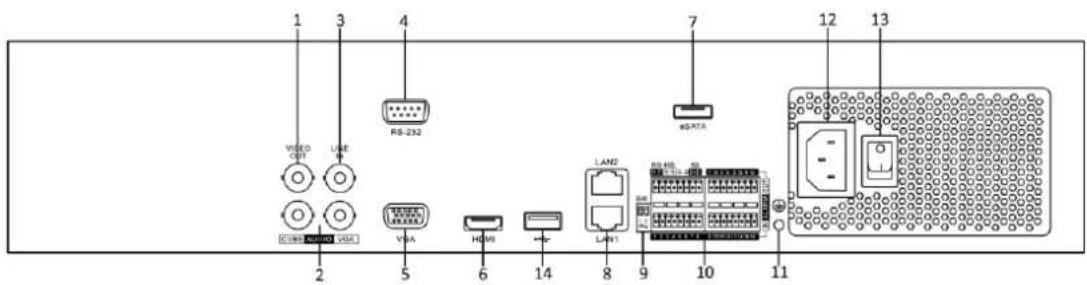
| No. | Item | Description |
| 1 | VIDEO OUT | BNC connector for video output. |
| 2 | CVBS AUDIO OUT | BNC connector for audio output. This connector is synchronized with CVBS video output. |
| VGA AUDIO OUT | BNC connector for audio output. This connector is synchronized with VGA video output. | |
| 3 | LINE IN | BNC connector for audio input. |
| 4 | RS-232 Interface | Connector for RS-232 devices. |
| 5 | VGA | DB9 connector for VGA output. Display local video output and menu. |
| 6 | HDMI | HDMI video output connector. |
| 7 | eSATA (Optional) | Connects external SATA HDD, CD/DVD-RM.2 eSATA interfaces for DS-9600NI-XT. |
| 8 | Network Interface | 1 network interface provided for DS-7700NI-ST&SP and 2 network interfaces for DS-9600NI-ST/RT/XT and DS-8600NI-ST. |
| 9 | Termination Switch | RS-485 termination switch.Up position is not terminated.Down position is terminated with 120Ω resistance. |
| 10 | RS-485 Interface | Connector for RS-485 devices. |
| Controller Port | D+, D- pin connects to Ta, Tb pin of controller. For cascading devices, the first NVR's D+, D- pin should be connected with the D+, D- pin of the next NVR. | |
| ALARM IN | Connector for alarm input. | |
| ALARM OUT | Connector for alarm output. | |
| 11 | GROUND | Ground (needs to be connected when NVR starts up). |
| 12 | AC 100V ~ 240V | AC 100V ~ 240V power supply. |
| 13 | POWER | Switch for turning on/off the device. |
| 14 | USB interface | Universal Serial Bus (USB) ports for additional devices such as USB mouse and USB Hard Disk Drive (HDD). |
| 15 | Network Interfaces with PoE function (supported by DS-7700NI-SP only) | Network interface for the cameras and to provide power over Ethernet. |

text_image
1 VIDEO OUT 2 OUT 4 RS-232 7 AUDIO IN 5 VDA 6 HDMI 8 LAN 9 ALUM RS-232 RS-232 ALUM IN 10 POWER 11 12Figure 1.14 DS-7600NI-ST
text_image
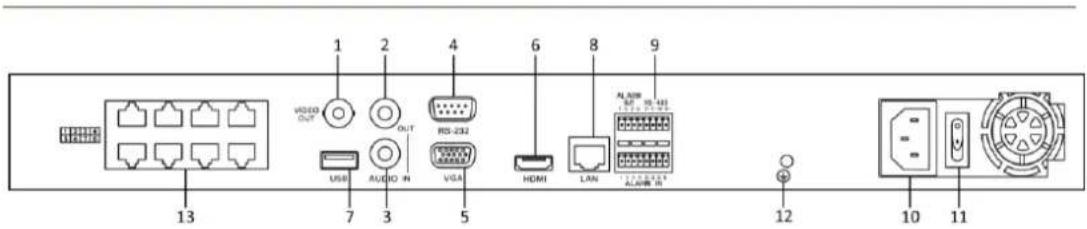
1 2 4 6 8 9 VIDEO OUT OUT RS-232 USB AUDIO IN VGA HDMI LAN ALUMB 10 11 12 ALUMB 13 13 7 3 5 12 10 11Figure 1.15 DS-7600NI-SP
Table 1.8 Description of Rear Panel Interfaces
| No. | Item | Description |
| 1 | VIDEO OUT | BNC connector for video output. |
| 2 | AUDIO OUT | BNC connector for audio output. |
| 3 | AUDIO IN | BNC connector for audio input. (Also for voice talk) |
| 4 | RS-232 Interface | Connector for RS-232 devices. |
| 5 | VGA | DB9 connector for VGA output. Display local video output and menu. |
| 6 | HDMI | HDMI video output connector. |
| 7 | USB | Connects USB disks and devices. |
| 8 | Network Interface | Connector for LAN (Local Area Network). |
| 9 | RS-485 Interface | Connector for RS-485 devices. |
| ALARM IN | Connector for alarm input. | |
| ALARM OUT | Connector for alarm output. | |
| 10 | Power Supply | 12VDC power supply for DS-7600NI-ST.100~240VAC power supply for DS-7600NI-SP. |
| 11 | Power Switch | Switch for turning on/off the device. |
| 12 | Ground | Ground (needs to be connected when NVR starts up). |
| 13 | Network Interfaces with PoE function (supported by DS-7600NI-SP only) | Network interface for the cameras and to provide power over Ethernet. |
Chapter 2 Getting Started
2.1 Starting Up and Shutting Down the NVR
Purpose:
Proper startup and shutdown procedures are crucial to expanding the life of the NVR.
Before you start:
Check that the voltage of the extra power supply is the same with the NVR's requirement, and the ground connection is working properly.
Starting up the NVR:
Steps:
- Check the power supply is plugged into an electrical outlet. It is HIGHLY recommended that an Uninterruptible Power Supply (UPS) be used in conjunction with the device. The Power indicator LED on the front panel should be red, indicating the device gets the power supply.
- Press the POWER button on the front panel. The Power indicator LED should turn blue indicating that the unit begins to start up.
- After startup, the Power indicator LED remains blue. A splash screen with the status of the HDD appears on the monitor. The row of icons at the bottom of the screen shows the HDD status. 'X' means that the HDD is not installed or cannot be detected.
Shutting down the NVR
Steps:
There are two proper ways to shut down the NVR.
• OPTION 1: Standard shutdown
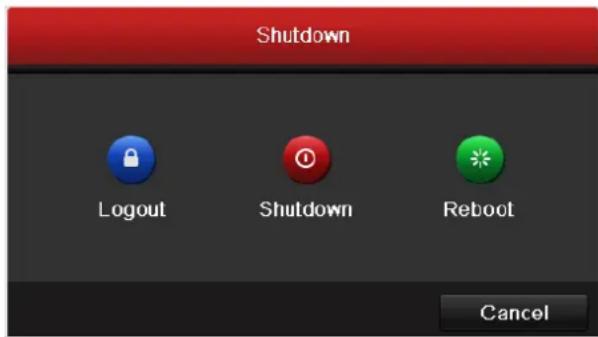
- Enter the Shutdown menu.
Menu > Shutdown
text_image
Shutdown Logout Shutdown Reboot CancelFigure 2.1 Shutdown Menu
- Click the Shutdown button.
- Click the Yes button.
• OPTION 2: By operating the front panel
- Press and hold the POWER button on the front panel for 3 seconds.
- Enter the administrator's username and password in the dialog box for authentication.
- Click the Yes button.

Do not press the POWER button again when the system is shutting down.
Rebooting the NVR
In the Shutdown menu, you can also reboot the NVR.
Steps:
- Enter the Shutdown menu by clicking Menu > Shutdown.
- Click the Logout button to lock the NVR or the Reboot button to reboot the NVR.
2.2 Using the Wizard for Basic Configuration
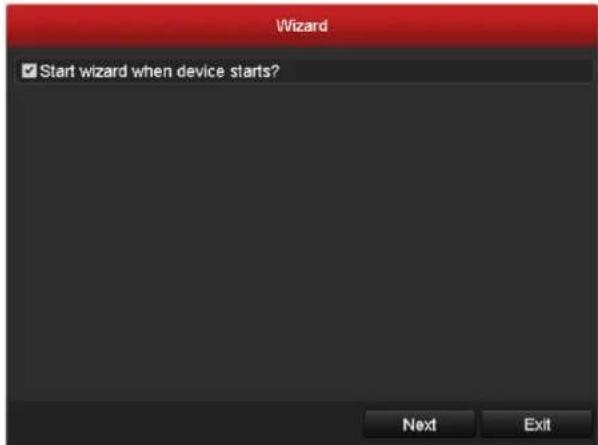
By default, the Setup Wizard starts once the NVR has loaded, as shown in Figure 2.2.
text_image
Wizard ✓ Start wizard when device starts? Next ExitFigure 2.2 Start Wizard Interface
Operating the Setup Wizard:
- The Setup Wizard can walk you through some important settings of the NVR. If you don't want to use the Setup Wizard at that moment, click the Cancel button. You can also choose to use the Setup Wizard next time by leaving the "Start wizard when the device starts?" checkbox checked.
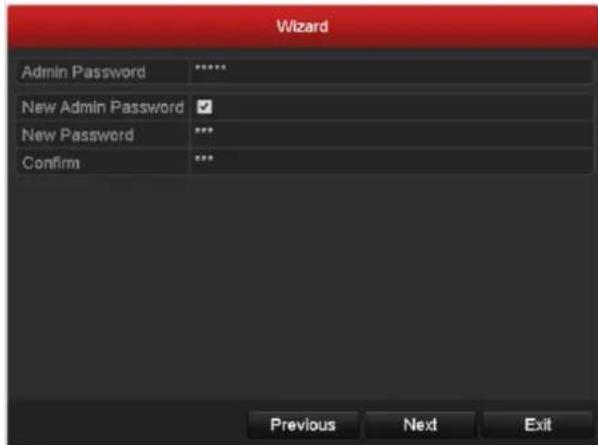
- Click Next button on the Wizard window to enter the Login window, as shown in Figure 2.3.
text_image
Wizard Admin Password ****** New Admin Password ✓ New Password *** Confirm *** Previous Next ExitFigure 2.3 Login Window
- Enter the admin password. By default, the password is 12345.

You are highly recommended to change the initial password right after the first login to avoid safety problem.
- To change the admin password, check the New Admin Password checkbox. Enter the new password and confirm the password in the given fields.
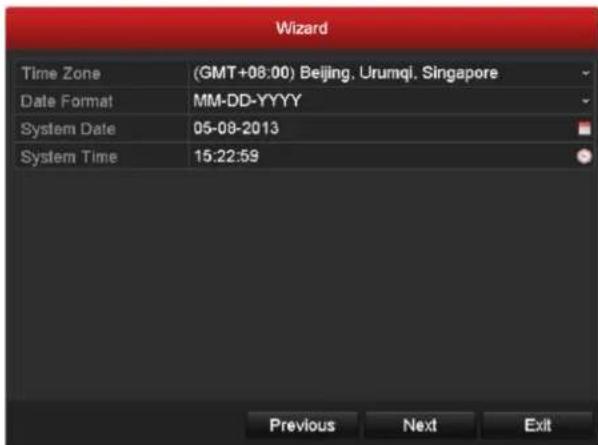
- Click the Next button to enter the date and time settings window, as shown in Figure 2.4.
text_image
Wizard Time Zone (GMT+08:00) Beijing, Urumqi, Singapore Date Format MM-DD-YYYY System Date 05-08-2013 System Time 15:22:59 Previous Next ExitFigure 2.4 Date and Time Settings
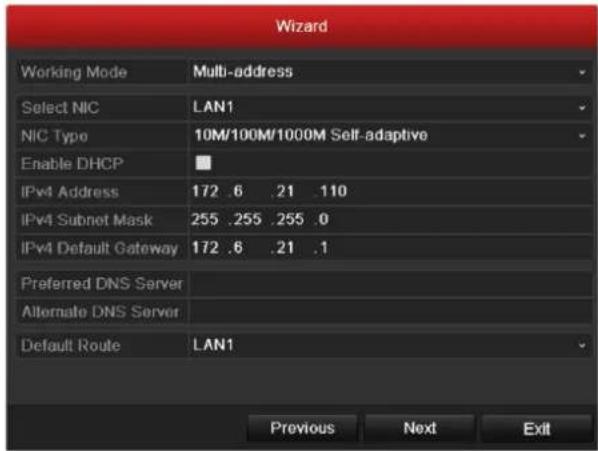
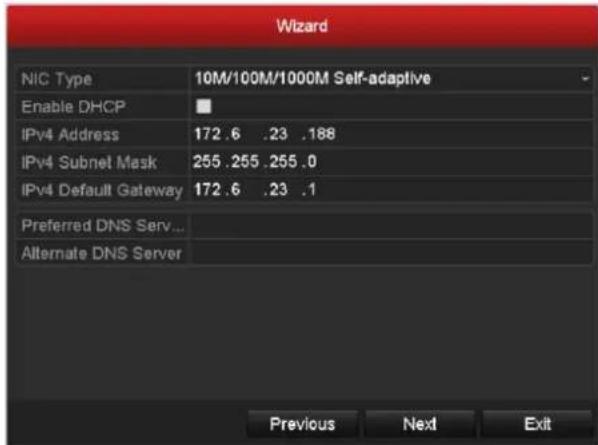
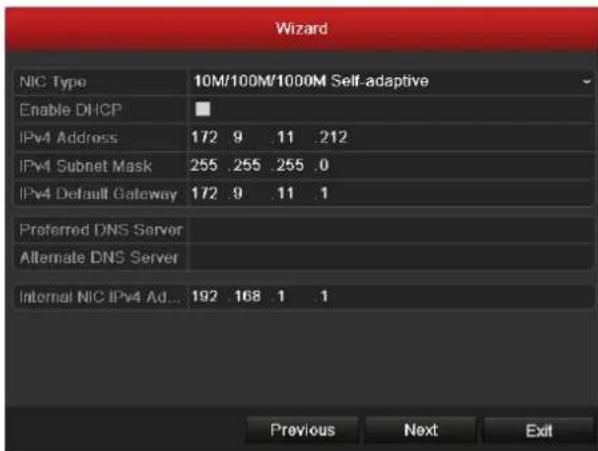
- After the time settings, click Next button which takes you back to the Network Setup Wizard window, as shown in Figure 2.5.
text_image
Wizard Working Mode Multi-address Select NIC LAN1 NIC Type 10M/100M/1000M Self-adaptive Enable DHCP IPv4 Address 172 .6 .21 .110 IPv4 Subnet Mask 255 .255 .255 .0 IPv4 Default Gateway 172 .6 .21 .1 Preferred DNS Server Alternate DNS Server Default Route LAN1 Previous Next ExitDS-9600NI-ST/RT/XT and DS-8600NI-ST
text_image
Wizard NIC Type 10M/100M/1000M Self-adaptive Enable DHCP IPv4 Address 172.6 .23 .188 IPv4 Subnet Mask 255.255.255.0 IPv4 Default Gateway 172.6 .23 .1 Preferred DNS Serv... Alternate DNS Server Previous Next ExitDS-7700/7600NI-ST
text_image
Wizard NIC Type 10M/100M/1000M Self-adaptive Enable DHCP IPv4 Address 172 .9 11 .212 IPv4 Subnet Mask 255 .255 .255 .0 IPv4 Default Gateway 172 .9 .11 .1 Preferred DNS Server Alternate DNS Server Internal NIC IPv4 Ad... 192 .168 .1 .1 Previous Next ExitDS-7700/7600NI-SP
Figure 2.5 Network Configuration

Dual-NIC is only supported in DS-9600NI-ST/RT/XT and DS-8600NI-ST device. And for DS-7700/7600NI-SP series NVR, the internal NIC IPv4 address should be configured for the cameras connecting to the PoE network interface of the NVR.
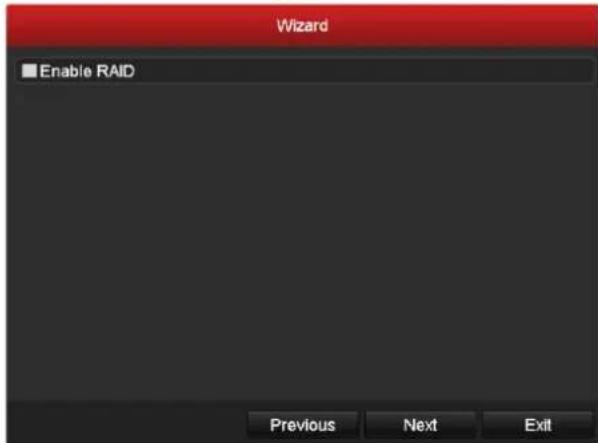
- Click Next button after you configured the network parameters, which takes you to the RAID configuration window (supported by DS-9600NI-XT series only).
text_image
Wizard ■ Enable RAID Previous Next ExitFigure 2.6 Array Management
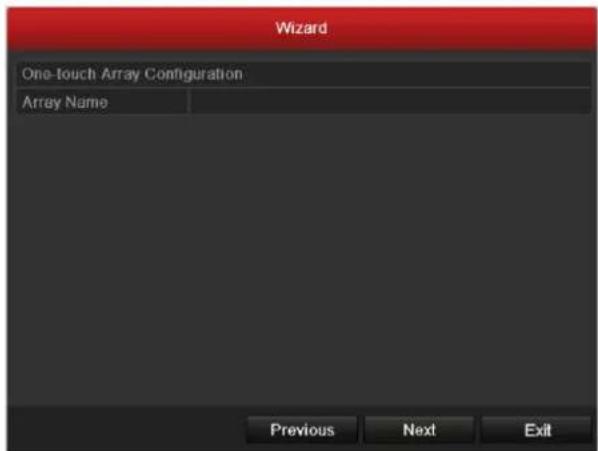
- Click Next button to enter the Array Management window (supported by DS-9600NI-RT series, and is also supported by DS-9600NI-XT if you check the checkbox to enable the RAID function in the previous window).
text_image
Wizard One-touch Array Configuration Array Name Previous Next ExitFigure 2.7 Array Management
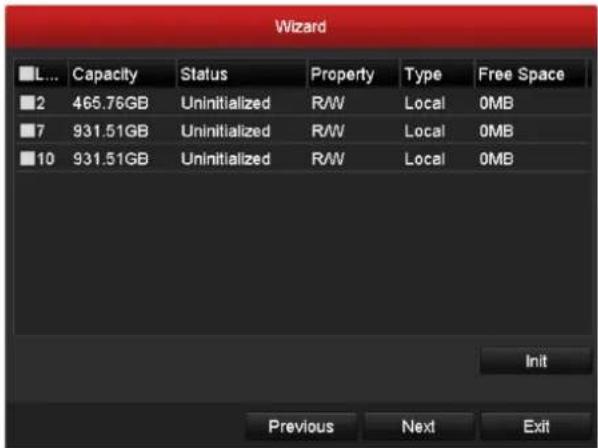
- Click Next button after you configured the network parameters, which takes you to the HDD Management window, shown in Figure 2.8.
text_image
Wizard L... Capacity Status Property Type Free Space 2 465.76GB Uninitialized R/W Local 0MB 7 931.51GB Uninitialized R/W Local 0MB 10 931.51GB Uninitialized R/W Local 0MB Init Previous Next ExitFigure 2.8 HDD Management
- To initialize the HDD, click the Init button. Initialization removes all the data saved in the HDD.
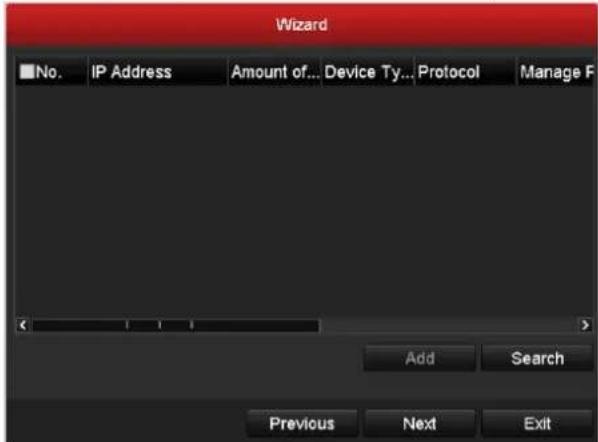
- Click Next button. You enter the Adding IP Camera interface.
- Click Search to find online IP Camera. Select the IP camera to be added, and click the Add button.
text_image
Wizard No. IP Address Amount of... Device Ty... Protocol Manage F Add Search Previous Next ExitFigure 2.9 Search for IP Cameras
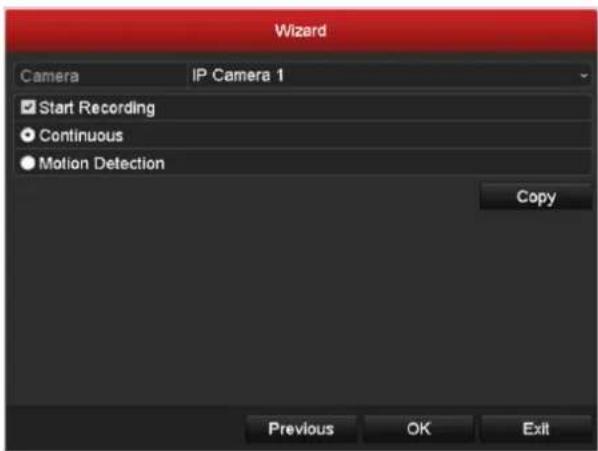
- Click Next button. Configure the recording for the searched IP Cameras.
text_image
Wizard Camera IP Camera 1 ✓ Start Recording ● Continuous ● Motion Detection Copy Previous OK ExitFigure 2.10 Record Settings
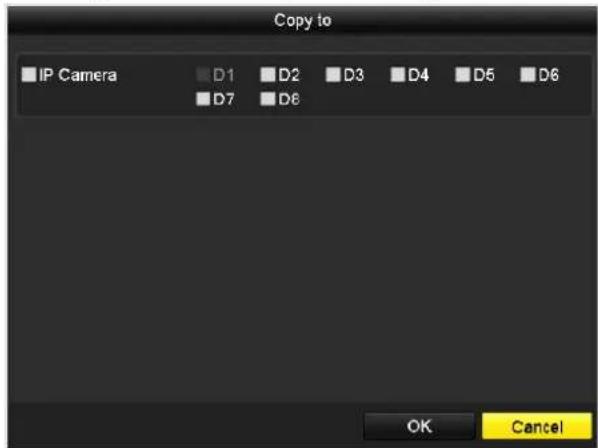
- Click Copy to copy the settings to other channels, as shown in Figure 2. 11.
text_image
Copy to IP Camera D1 D2 D3 D4 D5 D6 D7 D8 OK CancelFigure 2.11 Copy Record Settings
- Click OK to complete the startup Setup Wizard.
2.3 Adding and Connecting the IP Cameras
2.3.1 Adding the Online IP Cameras
Purpose:
The main function of the NVR is to connect the network cameras and record the video got from it. So before you can get a live view or record of the video, you should add the network cameras to the connection list of the device.
Before you start:
Ensure the network connection is valid and correct. For detailed checking and configuring of the network, please see Chapter Checking Network Traffic and Chapter Configuring Network Detection.
• OPTION 1:
Steps:
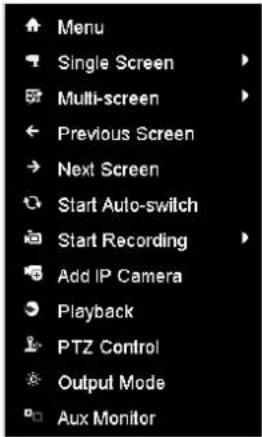
- Right-click the mouse when you in the live view mode to show the right-click menu.
text_image
Menu Single Screen Multi-screen Previous Screen Next Screen Start Auto-switch Start Recording Add IP Camera Playback PTZ Control Output Mode Aux MonitorFigure 2.12 Right-click Menu
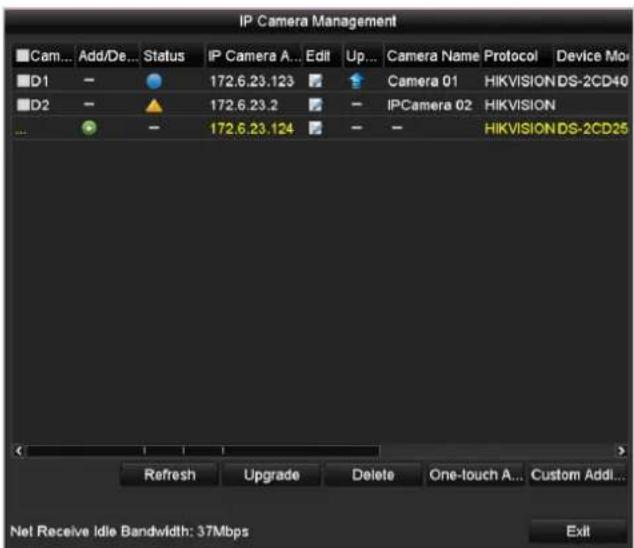
- Select Add IP Camera in the pop-up menu to enter the IP Camera Management interface.
text_image
IP Camera Management Cam... Add/De... Status IP Camera A... Edit Up... Camera Name Protocol Device Mo D1 - 172.6.23.123 Camera 01 HIKVISION DS-2CD40 D2 - 172.6.23.2 IPCamera 02 HIKVISION - 172.6.23.124 - HIKVISION DS-2CD25 Refresh Upgrade Delete One-touch A... Custom Addl... Net Receive Idle Bandwidth: 37Mbps ExitFigure 2.13 Adding IP Camera Interface
- The online cameras with same network segment will be displayed in the camera list. Click the button to add the camera.
Or you can click the One-touch Adding button to add all the detected online IP cameras.
Table 2.1 Explanation of the icons
| Icon | Explanation | Icon | Explanation |
| [37A] | Edit basic parameters of the camera | [X37D] | Add the detected IP camera. |
 | The camera is connected. | [=10x] | The camera is disconnected; you can click the icon to get the exception information of camera. |
| [YX5E] | Delete the IP camera |  | Advanced settings of the camera. |
 | Update the IP camera |
- To add other IP cameras:
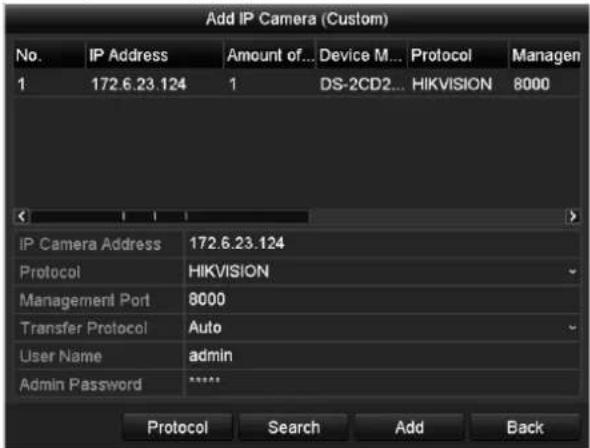
1) Click the Custom Adding button to pop up the Add IP Camera (Custom) interface.
text_image
Add IP Camera (Custom) No. IP Address Amount of... Device M... Protocol Managen 1 172.6.23.124 1 DS-2CD2... HIKVISION 8000 IP Camera Address 172.6.23.124 Protocol HIKVISION Management Port 8000 Transfer Protocol Auto User Name adults Admin Password Protocol Search Add BackFigure 2.14 Custom Adding IP Camera Interface
2) You can edit the IP address, protocol, management port, and other information of the IP camera to be added.
3) Click Add to add the camera.
• OPTION 2:
Steps:
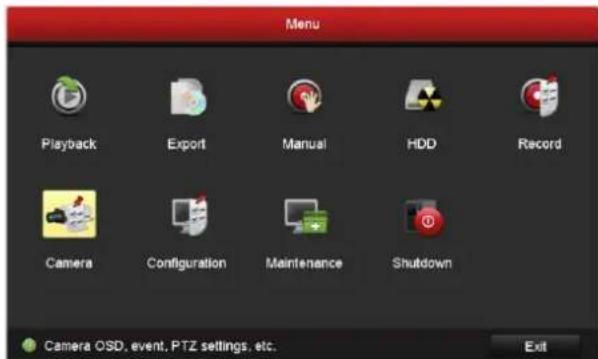
- Enter the Camera Management interface.
Menu> Camera> Camera
text_image
Menu Playback Export Manual HDD Record Camera Configuration Maintenance Shutdown Camera OSD, event, PTZ settings, etc. ExitFigure 2.15 Main Menu
- Repeat the step 3 and 4 of OPTION 1 to add the camera.
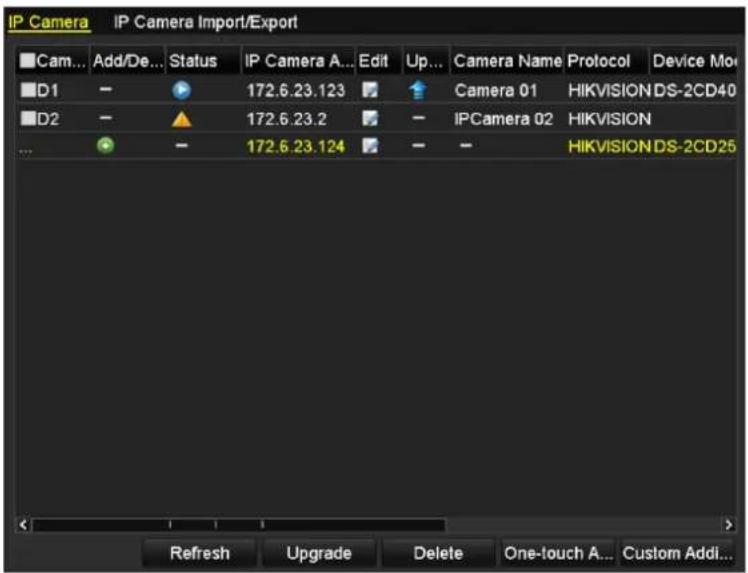
text_image
IP Camera IP Camera Import/Export Cam... Add/De... Status IP Camera A... Edit Up... Camera Name Protocol Device Mon D1 - 172.6.23.123 Camera 01 HIKVISION DS-2CD40 D2 - 172.6.23.2 IPCamera 02 HIKVISION ... - 172.6.23.124 - HIKVISION DS-2CD25 Refresh Upgrade Delete One-touch A... Custom Addi...Figure 2. 16 IP Camera Management Interface
Table 2.2 Explanation of the icons
| Icon | Explanation | Icon | Explanation |
| Edit basic parameters of the camera | Add the detected IP camera. | ||
| The camera is connected; you can click the icon to get the live view of the camera. | The camera is disconnected; you can click the icon to get the exception information of camera. | ||
| Delete the IP camera | Advanced settings of the camera. | ||
| Update the IP camera |
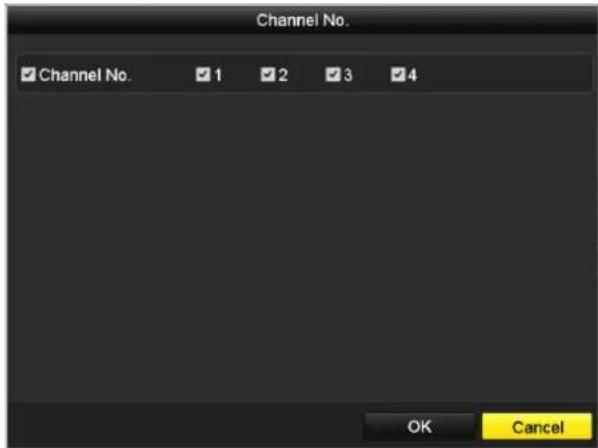
- (For the encoders with multiple channels only) check the checkbox of Channel No. in the pop-up window, as shown in the following figure, and click OK to finish adding.
text_image
Channel No. ✓ Channel No. ✓ 1 ✓ 2 ✓ 3 ✓ 4 OK CancelFigure 2.17 Selecting Multiple Channels
2.3.2 Editing the Connected IP Cameras and Configuring Customized Protocols
After the adding of the IP cameras, the basic information of the camera lists in the page, you can configure the basic setting of the IP cameras.
Steps:
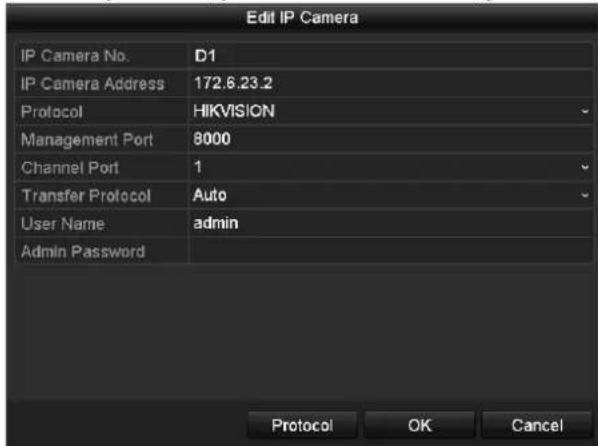
- Click the icon to edit the parameters; you can edit the IP address, protocol and other parameters.
text_image
Edit IP Camera IP Camera No. D1 IP Camera Address 172.6.23.2 Protocol HIKVISION Management Port 8000 Channel Port 1 Transfer Protocol Auto User Name adults Admin Password Protocol OK CancelFigure 2.18 Edit the Parameters
Channel Port: If the connected device is an encoding device with multiple channels, you can choose the channel to connect by selecting the channel port No. in the dropdown list.
Transfer Protocol: Auto, TCP and UDP are selectable; you can select the transfer protocol according to the network condition.
- Click OK to save the settings and exit the editing interface.
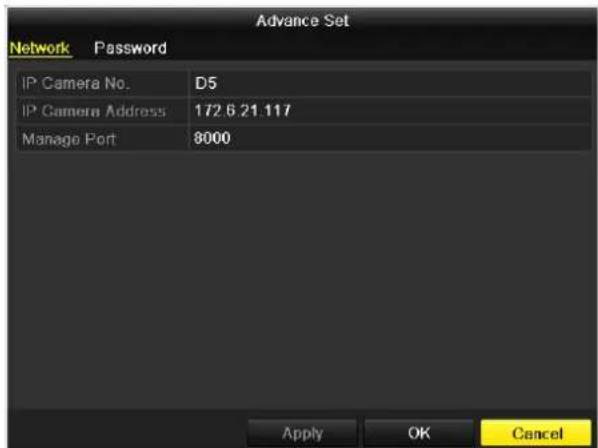
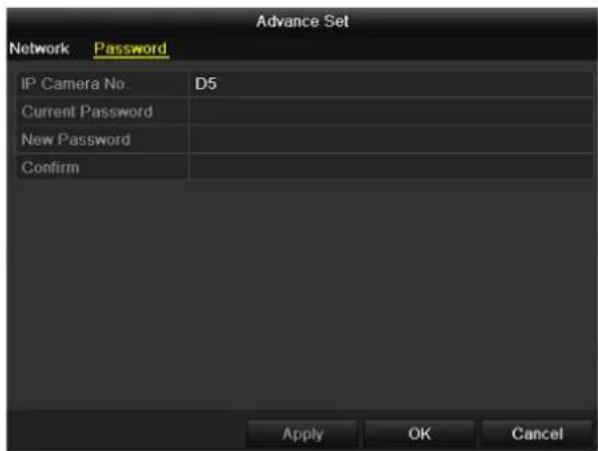
To edit advanced parameters:
Steps:
- Drag the horizontal scroll bar to the right side and click the icon.
text_image
Advance Set Network Password IP Camera No. D5 IP Camera Address 172.6.21.117 Manage Port 8000 Apply OK CancelFigure 2.19 Network Configuration of the Camera
- You can edit the network information and the password of the camera.
text_image
Advance Set Network Password IP Camera No: D5 Current Password New Password Confirm Apply OK CancelFigure 2.20 Password Configuration of the Camera
- Click Apply to save the settings and click OK to exit the interface.
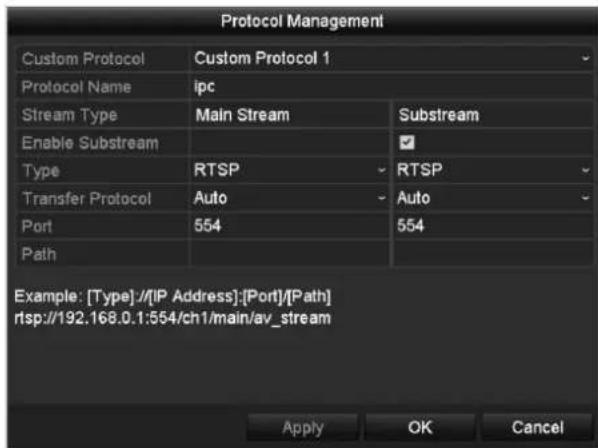
Configuring the customized protocols
Purpose:
To connect the network cameras which are not configured with the standard protocols, you can configure the customized protocols for them.
Steps:
- Click the Protocol button in the custom adding IP camera interface to enter the protocol management interface.
text_image
Protocol Management Custom Protocol Custom Protocol 1 Protocol Name ipc Stream Type Main Stream Substream Enable Substream Type RTSP RTSP Transfer Protocol Auto Auto Port 554 554 Path Example: [Type]://[IP Address]:[Port]/[Path] rtsp://192.168.0.1:554/ch1/main/av_stream Apply OK CancelFigure 2.21 Protocol Management Interface
There are 16 customized protocols provided in the system, you can edit the protocol name; and choose whether to enable the sub-stream.
- Choose the protocol type of transmission and choose the transfer protocols.

Before customizing the protocol for the network camera, you have to contact the manufacturer of the network camera to consult the URL (uniform resource locator) for getting main stream and sub-stream.
Example: The format of the URL is: [Type]://[IP Address of the network camera]:[Port]/[Path]. E.g., rtsp://192.168.1.55:554/ch1/main/av_stream.
- Protocol Name: Edit the name for the custom protocol.
- Enable Substream: If the network camera does not support sub-stream or the sub-stream is not needed leave the checkbox empty.
- Type: The network camera adopting custom protocol must support getting stream through standard RTSP.
- Transfer Protocol: Select the transfer protocol for the custom protocol.
• Port: Set the port No. for the custom protocol. - Path: Set the resource path for the custom protocol. E.g., ch1/main/av_stream.

The protocol type and the transfer protocols must be supported by the connected network camera.
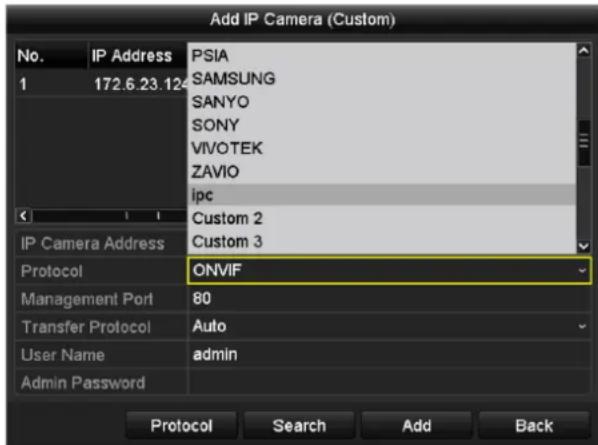
After adding the customized protocols, you can see the protocol name is listed in the dropdown list, please refer to
Figure 2.22.
text_image
Add IP Camera (Custom) No. IP Address PSIA 1 172.6.23.124 SAMSUNG SANYO SONY VIVOTEK ZAVIO ipc IP Camera Address Custom 2 Custom 3 Protocol ONVIF Management Port 80 Transfer Protocol Auto User Name adults Admin Password Protocol Search Add BackFigure 2.22 Protocol Setting
- Choose the protocols you just added to validate the connection of the network camera.
2.3.3 Editing IP Cameras Connected to the PoE Interfaces

This chapter is only applicable for DS-7600/7700NI-SP series NVR.
The PoE interfaces enables the NVR system to pass electrical power safely, along with data, on Ethernet cabling to the connected network cameras.
The DS-7600/7700NI-SP series NVR provides up to 16 PoE interfaces which can connect to 16 network cameras directly; and if you disable the PoE interface, you can also connect to the online network cameras. And the PoE interface supports the Plug-and-Play function.
Example:
As for 7608/7708NI-SP NVR, when you want to connect 2 online cameras and connect 6 network cameras via PoE interfaces, you must disable 2 PoE interfaces in the Edit IP Camera menu.
To add Cameras for NVR supporting PoE function:
Before you start:
Connect the network cameras via the PoE interfaces.
Steps:
- Enter the Camera Management interface.
Menu> Camera> Camera
text_image
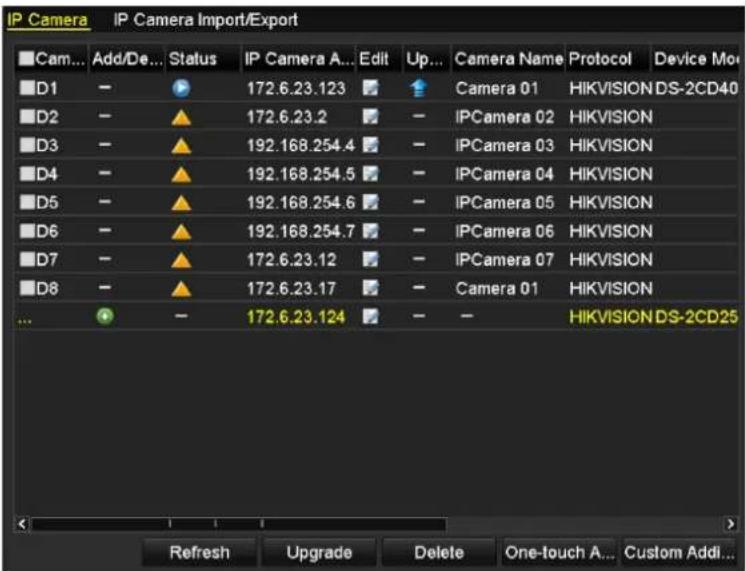
IP Camera IP Camera Import/Export Cam... Add/De... Status IP Camera A... Edit Up... Camera Name Protocol Device Mo D1 - 172.6.23.123 Camera 01 HIKVISION DS-2CD40 D2 - 172.6.23.2 - IPCamera 02 HIKVISION D3 - 192.168.254.4 - IPCamera 03 HIKVISION D4 - 192.168.254.5 - IPCamera 04 HIKVISION D5 - 192.168.254.6 - IPCamera 05 HIKVISION D6 - 192.168.254.7 - IPCamera 06 HIKVISION D7 - 172.6.23.12 - IPCamera 07 HIKVISION D8 - 172.6.23.17 - Camera 01 HIKVISION ... - 172.6.23.124 - HIKVISION DS-2CD25 Refresh Upgrade Delete One-touch A... Custom Addi...Figure 2. 23 List of Connected Cameras

The cameras connecting to the PoE interface cannot be deleted in this menu.
- Click the button, and select the Adding Method in the drop-down list.
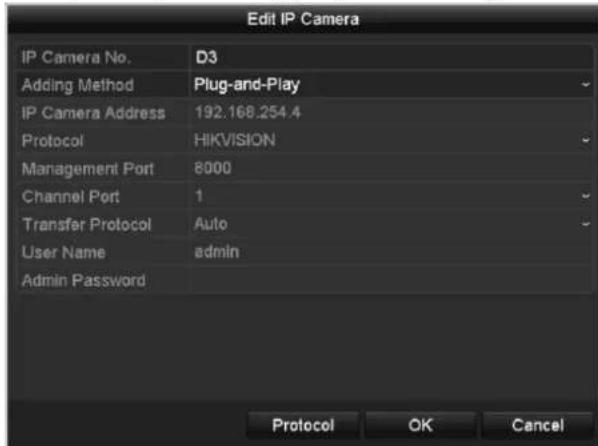
- Plug-and-Play: It means that the camera is connected to the PoE interface, so in this case, the parameters of the camera can't be edited. The IP address of the camera can only be edited in the Network Configuration interface, see Chapter 9.1 Configuring General Settings for detailed information.
text_image
Edit IP Camera IP Camera No. D3 Adding Method Plug-and-Play IP Camera Address 192.168.254.4 Protocol HIKVISION Management Port 8000 Channel Port 1 Transfer Protocol Auto User Name adults Admin Password Protocol OK CancelFigure 2.24 Edit IP Camera Interface - Plug-and-Play
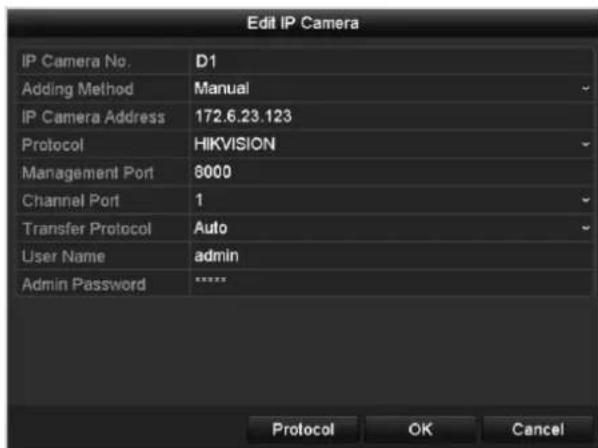
- Manual: You can disable the PoE interface by selecting the manual while the current channel can be used as a normal channel and the parameters can also be edited.
Input the IP address, the user name and password of administrator manually, and click OK to add the IP camera.
text_image
Edit IP Camera IP Camera No. D1 Adding Method Manual IP Camera Address 172.6.23.123 Protocol HIKVISION Management Port 8000 Channel Port 1 Transfer Protocol Auto User Name admin Admin Password ***** Protocol OK CancelFigure 2. 25 Edit IP Camera Interface - Manual
Chapter 3 Live View
3.1 Introduction of Live View
Live view shows you the video image getting from each camera in real time. The NVR automatically enters Live View mode when powered on. It is also at the very top of the menu hierarchy, thus pressing the ESC many times (depending on which menu you're on) brings you to the Live View mode.
Live View Icons
In the live view mode, there are icons at the upper-right of the screen for each channel, showing the status of the record and alarm in the channel, so that you can know whether the channel is recorded, or whether there are alarms occur as soon as possible.
Table 3.1 Description of Live View Icons
| Icons | Description |
| Alarm (video loss, video tampering, motion detection or sensor alarm) | |
| Record (manual record, schedule record, motion detection or alarm triggered record) | |
| Alarm & Record | |
| Event/Exception (motion detection, sensor alarm or exception information, appears at the lower-left corner of the screen. Please refer to Chapter 8.7 Setting Alarm Response Actions for details.) |
3.2 Operations in Live View Mode
In live view mode, there are many functions provided. The functions are listed below.
• Single Screen: showing only one screen on the monitor.
• Multi-screen: showing multiple screens on the monitor simultaneously.
- Auto-switch: the screen is auto switched to the next one. And you must set the dwell time for each screen on the configuration menu before enabling the auto-switch.
Menu>Configuration>Live View>Dwell Time.
- Start Recording: continuous record and motion detection record are supported.
• Output Mode: select the output mode to Standard, Bright, Gentle or Vivid.
- Add IP Camera: the shortcut to the IP camera management interface.
- Playback: playback the recorded videos for current day.
- Aux/Main output switch: the NVR checks the connection of the output interfaces to define the main and auxiliary output interfaces. The priority level for the main and aux output is HDMI>VGA>CVBS. This means if the HDMI is used, it will be the main output. If the HDMI is not used, the VGA output will be the main output. See the table below.
Table 3.2 Priorities of Interfaces
| HDMI | VGA | CVBS | Main output | Auxiliary output | |
| 1 | HDMI | VGA | |||
| 2 | × | HDMI | CVBS | ||
| 3 | × | VGA | CVBS | ||
| 4 | × | × | CVBS |
- means the interface is in use, × means the interface is out of use or the connection is invalid. And the HDMI, VGA and CVBScan be used at the same time.
When the aux output is enabled, the main output can't do any operation, and you can do some basic operation on the live view mode for the Aux output.

For DS-7600NI-ST/SP, there is only one audio output, the VGA output has a higher priority over CVBS output. When you enable the audio in both the CVBS and VGA audio output, the audio from the audio out interface is for VGA.
3.2.1 Front Panel Operation on Live View
Table 3. 3 Front Panel Operation in Live View
| Functions | Front Panel Operation |
| Show single screen | Press the corresponding Alphanumeric button. E.g. Press 2 to display only the screen for channel 2. |
| Show multi-screen | Press the PREV/FOCUS- button. |
| Manually switch screens | Next screen: right/down direction button.Previous screen: left/up direction button. |
| Auto-switch | Press Enter button. |
| Playback | Press Play button. |
| Switch between main and aux output | Press Main/Aux button. |
3.2.2 Using the Mouse in Live View
Table 3.4 Mouse Operation in Live View
| Name | Description |
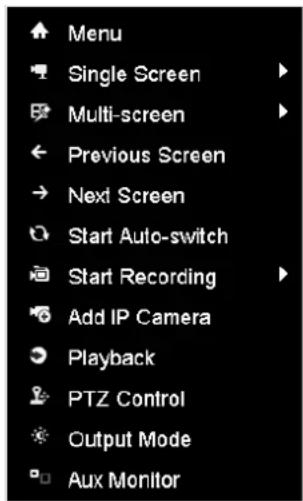
| Menu | Enter the main menu of the system by right clicking the mouse. |
| Single Screen | Switch to the single full screen by choosing channel number from the dropdown list. |
| Multi-screen | Adjust the screen layout by choosing from the dropdown list. |
| Previous Screen | Switch to the previous screen. |
| Next Screen | Switch to the next screen. |
| Start/Stop Auto-switch | Enable/disable the auto-switch of the screens. |
| Start Recording | Start continuous recording or motion detection recording of all channels. |
| Add IP Camera | Enter the IP Camera Management interface, and manage the cameras. |
| Playback | Enter the playback interface and start playing back the video of the selected channel immediately. |
| PTZ | Enter the PTZ control interface. |
| Output Mode | Four modes of output supported, including Standard, Bright, Gentle and Vivid. |
| Aux Monitor | Switch to the auxiliary output mode and the operation for the main output is disabled. |

- The dwell time of the live view configuration must be set before using Start Auto-switch.
- If you enter Aux monitor mode and the Aux monitor is not connected, the mouse operation is disabled; you need to switch back to the Main output with the MAIN/AUX button on the front panel or remote.
- If the corresponding camera supports intelligent function, the Reboot Intelligence option is included when right-clicking mouse on this camera.
text_image
Menu Single Screen Multi-screen Previous Screen Next Screen Start Auto-switch Start Recording Add IP Camera Playback PTZ Control Output Mode Aux MonitorFigure 3.1 Right-click Menu
3.2.3 Using an Auxiliary Monitor
Certain features of the Live View are also available while in an Aux monitor. These features include:
- Single Screen: Switch to a full screen display of the selected camera. Camera can be selected from a dropdown list.
- Multi-screen: Switch between different display layout options. Layout options can be selected from a dropdown list.
- Next Screen: When displaying less than the maximum number of cameras in Live View, clicking this feature will switch to the next set of displays.
- Playback: Enter into Playback mode.
• PTZ Control: Enter PTZ Control mode.
• Main Monitor: Enter Main operation mode.

In the live view mode of the main output monitor, the menu operation is not available while Aux output mode is enabled.
3.2.4 Quick Setting Toolbar in Live View Mode
On the screen of each channel, there is a quick setting toolbar which shows when you single click the mouse in the corresponding screen.

text_image
Screenshot of a software toolbar with icons for media, video, camera, and other application functionsFigure 3.2 Quick Setting Toolbar
Table 3.5 Description of Quick Setting Toolbar Icons
| Icon | Description | Icon | Description | Icon | Description |
 | Enable/Disable Manual Record |  | Instant Playback |  | Mute/Audio on |
 | Capture |  | PTZ Control |  | Digital Zoom |
 | Image Settings |  | Live View Strategy |  | Stream Information |
 | Close |

Instant Playback only shows the record in last five minutes. If no record is found, it means there is no record during the last five minutes.

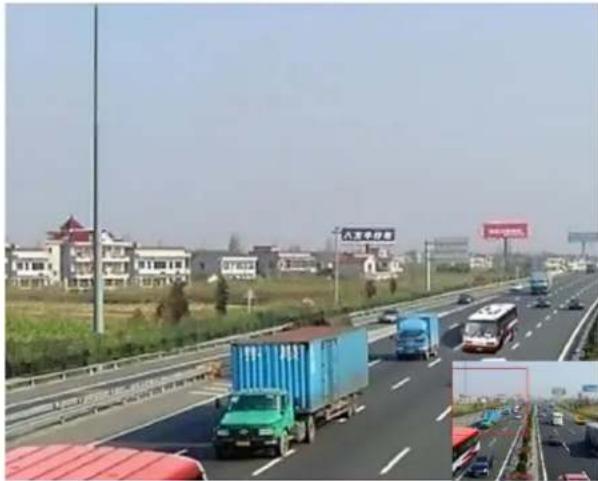
Digital Zoom can zoom in the selected area to the full screen. You can left-click and draw to select the area to zoom in, as shown in Figure 3. 3.
natural_image
Highway scene with vehicles and shipping containers, residential buildings in background (no visible text or symbols)Figure 3.3 Digital Zoom

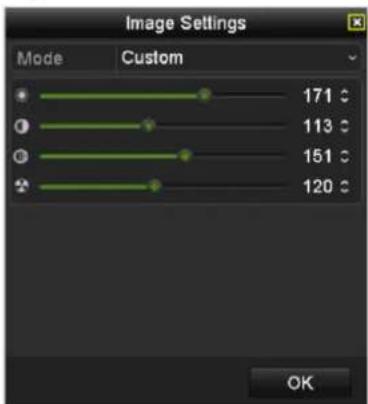
Image Settings icon can be selected to enter the Image Settings menu.
You can set the image parameters like brightness, contrast, saturation and hue according to the actual demand.
text_image
Image Settings Mode Custom 171 °C 113 °C 151 °C 120 °C OKFigure 3.4 Image Settings- Customize

Live View Strategy can be selected to set strategy, including Real-time, Balanced, Fluency.
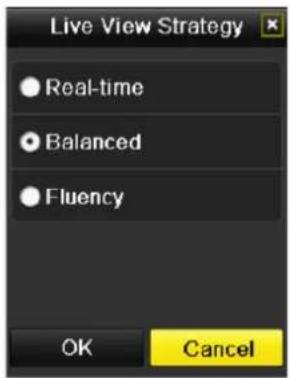
text_image
Live View Strategy Real-time Balanced Fluency OK CancelFigure 3.5 Live View Strategy

Move the mouse onto the icon to show the real-time stream information, including the frame rate, bitrate and duration.
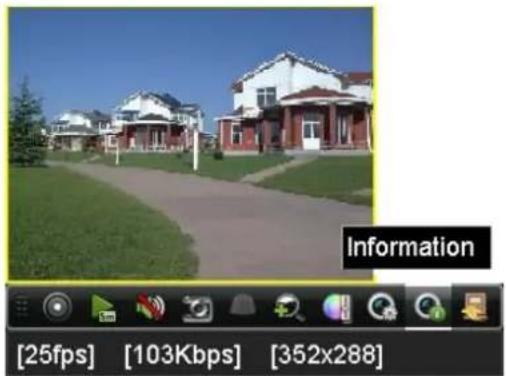
text_image
Information [25fps] [103Kbps] [352x288]Figure 3.6 Information
3.3 Adjusting Live View Settings
Purpose:
Live View settings can be customized according to different needs. You can configure the output interface, dwell time for screen to be shown, mute or turning on the audio, the screen number for each channel, etc.
Steps:
- Enter the Live View Settings interface.
Menu> Configuration> Live View
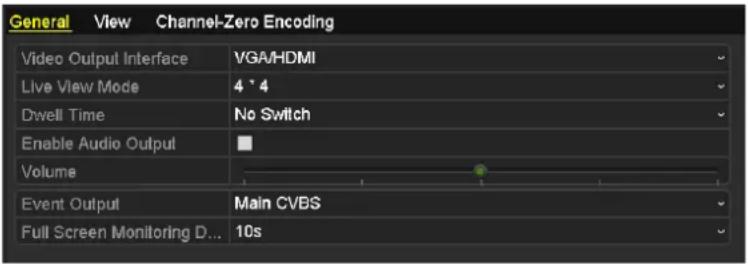
text_image
General View Channel-Zero Encoding Video Output Interface VGA/HDMI Live View Mode 4 * 4 Dwell Time No Switch Enable Audio Output Volume Event Output Main CVBS Full Screen Monitoring D... 10sFigure 3.7 Live View-General
The settings available in this menu include:
- Video Output Interface: Designates the output to configure the settings for. Outputs include HDMI (depends on the model), VGA, Main CVBS and Spot Output.

No CVBS spot out for DS-7600NI-ST/SP series NVR.
• Live View Mode: Designates the display mode to be used for Live View.
- Dwell Time: The time in seconds to dwell between switching of channels when enabling auto-switch in Live View.
- Enable Audio Output: Enables/disables audio output for the selected video output.
• Volume: Adjust the volume of live view, playback and two-way audio for the selected output interface.
• Event Output: Designates the output to show event video.
• Full Screen Monitoring Dwell Time: The time in seconds to show alarm event screen.
- Setting Cameras Order
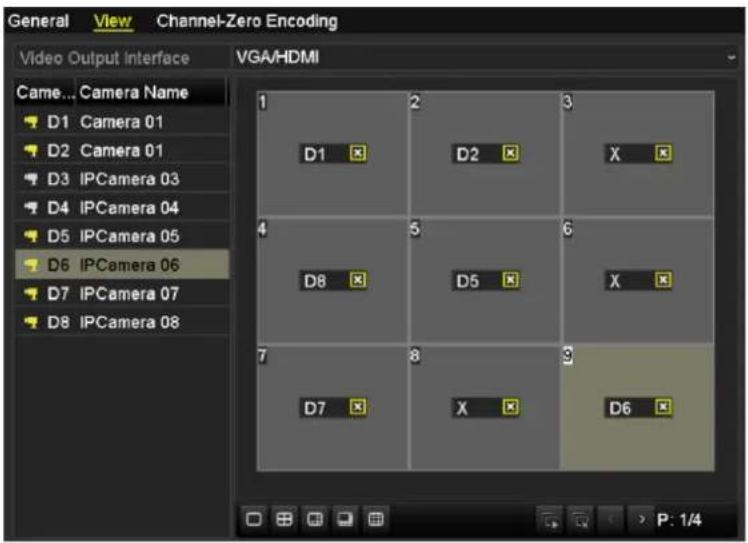
text_image
General View Channel-Zero Encoding Video Output Interface VGA/HDMI Came... Camera Name D1 Camera 01 D2 Camera 01 D3 IPCamera 03 D4 IPCamera 04 D5 IPCamera 05 D6 IPCamera 06 D7 IPCamera 07 D8 IPCamera 08 1 2 3 D1 D2 X 4 5 6 D8 D5 X 7 8 9 D7 X D6 P: 1/4Figure 3.8 Live View- Camera Order
1) Select a View mode in
including 1/4/6/8/16/25/32/36/64-window division
modes are supported.
2) Select the small window, and double-click on the channel number to display the channel on the window.
You can click 📋 button to start live view for all the channels and click 🔒 to stop all the live view.
3) Click the Apply button to save the setting.
You can also click-and-drag the camera to the desired window on the live view interface to set the camera order.
3.4 Channel-zero Encoding
Purpose:
Sometimes you need to get a remote view of many channels in real time from web browser or CMS (Client Management System) software, in order to decrease the bandwidth requirement without affecting the image quality, channel-zero encoding is supported as an option for you.
Steps:
- Enter the Live View Settings interface.
Menu > Configuration> Live View
- Select the Channel-Zero Encoding tab.

text_image
Enable Channel-Zero En... Frame Rate 30fps Max. Bitrate Mode General Max. Bitrate(Kbps) 1792Figure 3.9 Live View- Channel-Zero Encoding
- Check the checkbox after Enable Channel Zero Encoding.
- Configure the Frame Rate, Max. Bitrate Mode and Max. Bitrate.
After you set the Channel-Zero encoding, you can get a view in the remote client or web browser of 16 channels in one screen.
3.5 User Logout
Purpose:
After logging out, the monitor turns to the live view mode and if you want to do some operation, you need to enter user name and password tog in again.
Steps:
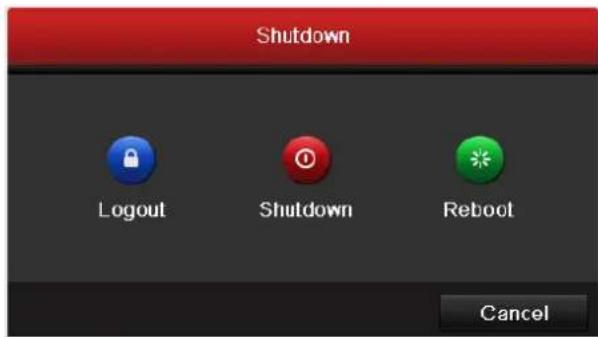
- Enter the Shutdown menu.
Menu>Shutdown
text_image
Shutdown Logout Shutdown Reboot CancelFigure 3.10 Shutdown
- Click Logout.

After you have logged out the system, menu operation on the screen is invalid. It is required to input a user name and password to unlock the system.
Chapter 4 PTZ Controls
4.1 Configuring PTZ Settings
Purpose:
Follow the procedure to set the parameters for PTZ. The configuring of the PTZ parameters should be done before you control the PTZ camera.
Steps:
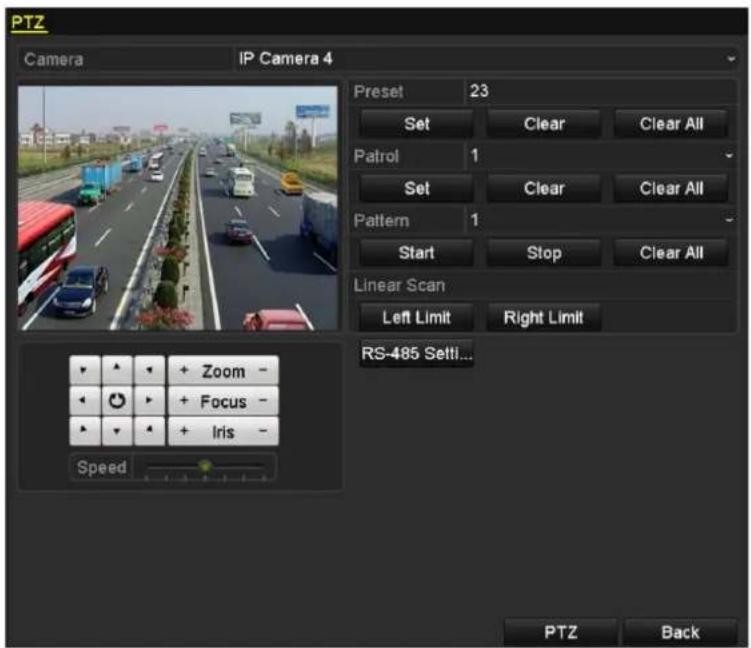
- Enter the PTZ Settings interface.
Menu >Camera> PTZ
text_image
PTZ Camera IP Camera 4 Preset 23 Set Clear Clear All Patrol 1 Set Clear Clear All Pattern 1 Start Stop Clear All Linear Scan Left Limit Right Limit RS-485 Setti... + Zoom - + Focus - + Iris - Speed PTZ BackFigure 4.1 PTZ Settings
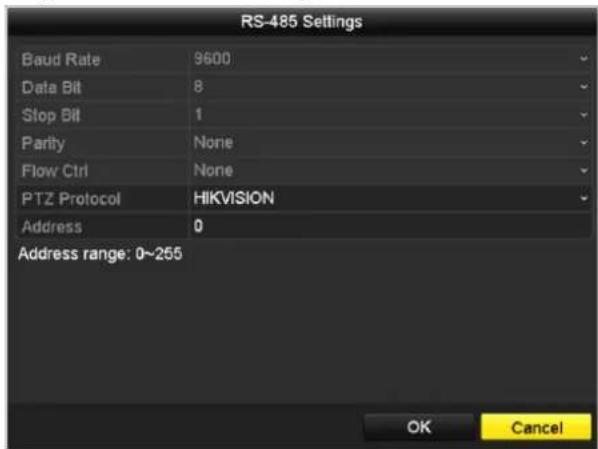
- Click the RS-485 Settings button to set the RS-485 parameters.
text_image
RS-485 Settings Baud Rate 9600 Data Bit 8 Stop Bit 1 Parity None Flow Ctrl None PTZ Protocol HIKVISION Address 0 Address range: 0~255 OK CancelFigure 4.2 PTZ-General
- Choose the camera for PTZ setting in the Camera dropdown list.
- Enter the parameters of the PTZ camera.

All the parameters should be exactly the same as the PTZ camera parameters.
- Click Apply button to save the settings.
4.2 Setting PTZ Presets, Patrols & Patterns
Before you start:
Please make sure that the presets, patrols and patterns should be supported by PTZ protocols.
4.2.1 Customizing Presets
Purpose:
Follow the steps to set the Preset location which you want the PTZ camera to point to when an event takes place.
Steps:
- Enter the PTZ Control interface.
Menu>Camera>PTZ
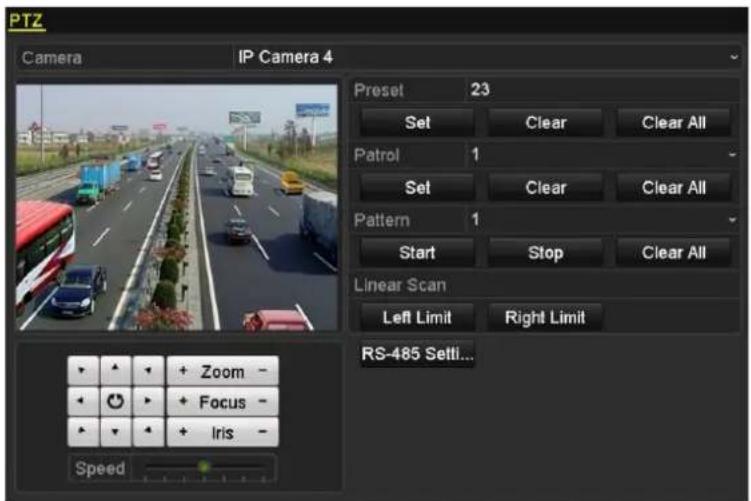
text_image
PTZ Camera IP Camera 4 Preset 23 Set Clear Clear All Patrol 1 Set Clear Clear All Pattern 1 Start Stop Clear All Linear Scan Left Limit Right Limit RS-485 Settl... + Zoom - + Focus - + Iris - SpeedFigure 4.3 PTZ Settings
- Use the directional button to wheel the camera to the location where you want to set preset; and the zoom and focus operations can be recorded in the preset as well.
- Enter the preset No. (1\~255) in the preset text field, and click the Set button to link the location to the preset. Repeat the steps2-3 to save more presets.
You can click the Clear button to clear the location information of the preset, or click the Clear All button to clear the location information of all the presets.
4.2.2 Calling Presets
Purpose:
This feature enables the camera to point to a specified position such as a window when an event takes place.
Steps:
- Click the button PTZ in the lower-right corner of the PTZ setting interface;
Or press the PTZ button on the front panel or click the PTZ Control icon in the quick setting bar, or select the PTZ option in the right-click menu to show the PTZ control panel.
- Choose Camera in the dropdown list.
- Click the ▶ button to show the general settings of the PTZ control.
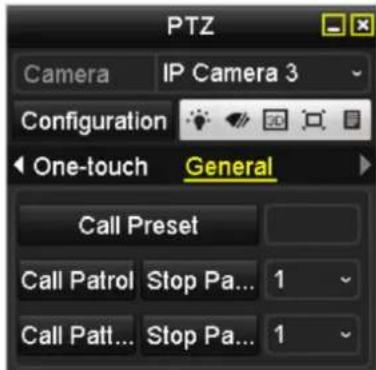
text_image
PTZ Camera IP Camera 3 Configuration One-touch General Call Preset Call Patrol Stop Pa... 1 Call Patt... Stop Pa... 1Figure 4.4 PTZ Panel - General
- Click to enter the preset No. in the corresponding text field.
- Click the Call Preset button to call it.
4.2.3 Customizing Patrols
Purpose:
Patrols can be set to move the PTZ to different key points and have it stay there for a set duration before moving on to the next key point. The key points are corresponding to the presets. The presets can be set following the steps above in Customizing Presets.
Steps:
- Enter the PTZ Control interface.
Menu>Camera>PTZ
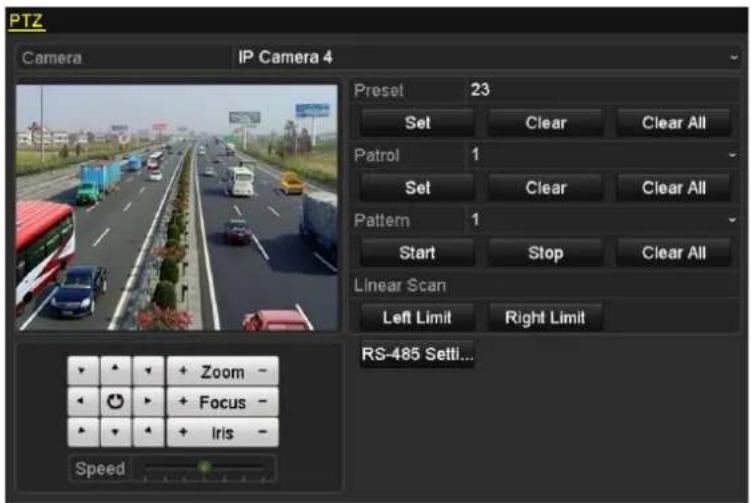
text_image
PTZ Camera IP Camera 4 Preset 23 Set Clear Clear All Patrol 1 Set Clear Clear All Pattern 1 Start Stop Clear All Linear Scan Left Limit Right Limit RS-485 Settl... Zoom - Focus - Iris - SpeedFigure 4.5 PTZ Settings
-
Select patrol No. in the drop-down list of patrol.
-
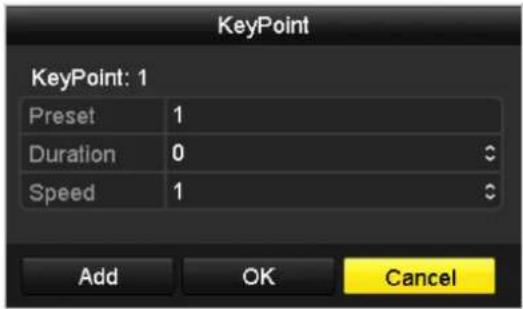
Click the Set button to add key points for the patrol.
text_image
KeyPoint KeyPoint: 1 Preset 1 Duration 0 Speed 1 Add OK CancelFigure 4.6 Key point Configuration
- Configure key point parameters, such as the key point No., duration of staying for one key point and speed of patrol. The key point is corresponding to the preset. The Key Point No. determines the order at which the PTZ will follow while cycling through the patrol. The Duration refers to the time span to stay at the corresponding key point. The Speed defines the speed at which the PTZ will move from one key point to the next.
- Click the Add button to add the next key point to the patrol, or you can click the OK button to save the key point to the patrol.
You can delete all the key points by clicking the Clear button for the selected patrol, or click the Clear All button to delete all the key pints for all patrols.
4.2.4 Calling Patrols
Purpose:
Calling a patrol makes the PTZ to move according the predefined patrol path.
Steps:
-
Click the button PTZ in the lower-right corner of the PTZ setting interface;
Or press the PTZ button on the front panel or click the PTZ Control icon in the quick setting bar, or select the PTZ option in the right-click menu to show the PTZ control panel. -
Click the ▶ button to show the general settings of the PTZ control.
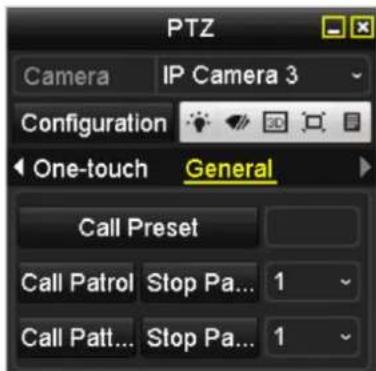
text_image
PTZ Camera IP Camera 3 Configuration One-touch General Call Preset Call Patrol Stop Pa... 1 Call Patt... Stop Pa... 1Figure 4.7 PTZ Panel - General
-
Select a patrol in the dropdown list and click the Call Patrol button to call it.
-
You can click the Stop Patrol button to stop calling it.
4.2.5 Customizing Patterns
Purpose:
Patterns can be set by recording the movement of the PTZ. You can call the pattern to make the PTZ movement according to the predefined path.
Steps:
- Enter the PTZ Control interface.
Menu > Camera > PTZ
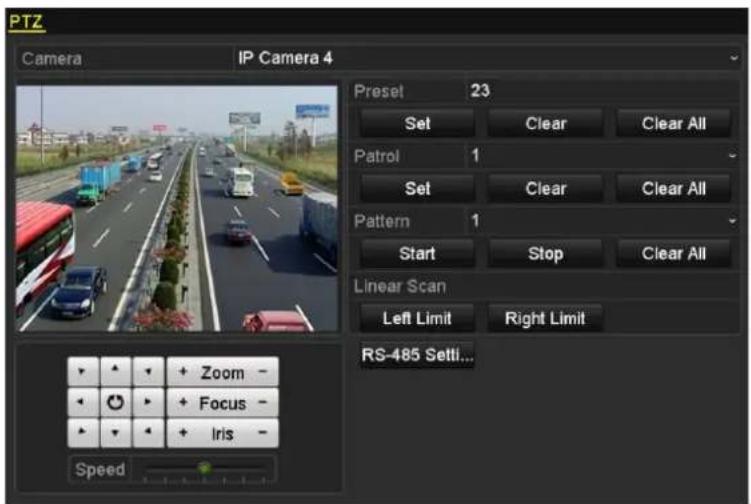
text_image
PTZ Camera IP Camera 4 Preset 23 Set Clear Clear All Patrol 1 Set Clear Clear All Pattern 1 Start Stop Clear All Linear Scan Left Limit Right Limit RS-485 Settl... + Zoom - + Focus - + Iris - SpeedFigure 4.8 PTZ Settings
- Choose pattern number in the dropdown list.
- Click the Start button and click corresponding buttons in the control panel to move the PTZ camera, and click the Stop button to stop it.
The movement of the PTZ is recorded as the pattern.
4.2.6 Calling Patterns
Purpose:
Follow the procedure to move the PTZ camera according to the predefined patterns.
Steps:
- Click the button PTZ in the lower-right corner of the PTZ setting interface;
Or press the PTZ button on the front panel or click the PTZ Control icon in the quick setting bar, or select the PTZ option in the right-click menu to show the PTZ control panel.
- Click the ▶ button to show the general settings of the PTZ control.
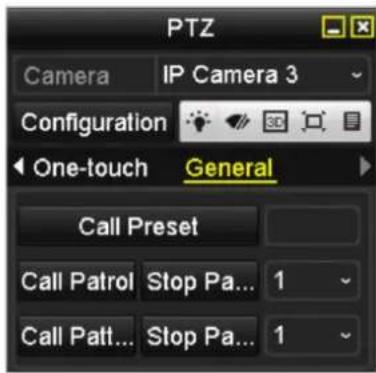
text_image
PTZ Camera IP Camera 3 Configuration One-touch General Call Preset Call Patrol Stop Pa... 1 Call Patt... Stop Pa... 1Figure 4.9 PTZ Panel - General
- Click the Call Pattern button to call it.
- Click the Stop Pattern button to stop calling it.
4.2.7 Customizing Linear Scan Limit
Purpose:
The Linear Scan can be enabled to trigger the scan in the horizontal direction in the predefined range.

This function is supported by some certain models.
Steps:
- Enter the PTZ Control interface.
Menu > Camera > PTZ
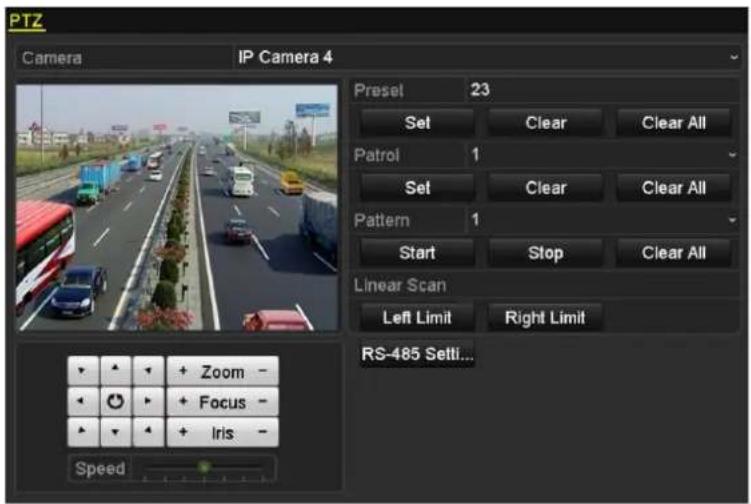
text_image
PTZ Camera IP Camera 4 Preset 23 Set Clear Clear All Patrol 1 Set Clear Clear All Pattern 1 Start Stop Clear All Linear Scan Left Limit Right Limit RS-485 Setti... + Zoom - + Focus - + Iris - SpeedFigure 4. 10 PTZ Settings
- Use the directional button to wheel the camera to the location where you want to set the limit, and click the Left Limit or Right Limit button to link the location to the corresponding limit.

The speed dome starts linear scan from the left limit to the right limit, and you must set the left limit on the left side of the right limit, as well the angle from the left limit to the right limit should be no more than 180^ .
4.2.8 Calling Linear Scan
Purpose:
Follow the procedure to call the linear scan in the predefined scan range.
Steps:
- Click the button PTZ in the lower-right corner of the PTZ setting interface;
Or press the PTZ button on the front panel or click the PTZ Control icon in the quick setting bar to enter the PTZ setting menu in live view mode.
- Click the ▶ button to show the one-touch function of the PTZ control.
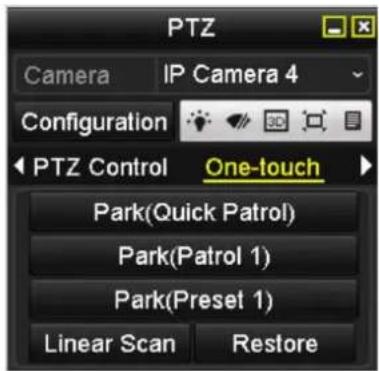
text_image
PTZ Camera IP Camera 4 Configuration PTZ Control One-touch Park(Quick Patrol) Park(Patrol 1) Park(Preset 1) Linear Scan RestoreFigure 4.11 PTZ Panel - One-touch
- Click Linear Scan button to start the linear scan and click the Linear Scan button again to stop it.
You can click the Restore button to clear the defined left limit and right limit data and the dome needs to reboot to make settings take effect.
4.2.9 One-touch Park
Purpose:
For some certain model of the speed dome, it can be configured to start a predefined park action (scan, preset, patrol and etc.) automatically after a period of inactivity (park time).
Steps:
- Click the button PTZ in the lower-right corner of the PTZ setting interface;
Or press the PTZ button on the front panel or click the PTZ Control icon in the quick setting bar to enter the PTZ setting menu in live view mode.
- Click the ▶ button to show the one-touch function of the PTZ control.
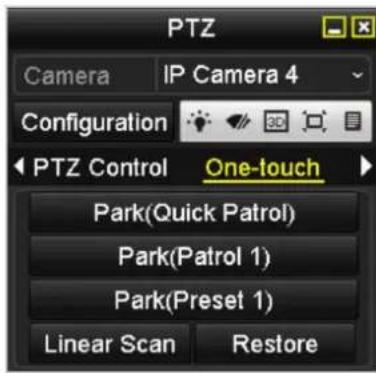
text_image
PTZ Camera IP Camera 4 Configuration PTZ Control One-touch Park(Quick Patrol) Park(Patrol 1) Park(Preset 1) Linear Scan RestoreFigure 4. 12 PTZ Panel - One-touch
- There are 3 one-touch park types selectable, click the corresponding button to activate the park action.
Park (Quick Patrol): The dome starts patrol from the predefined preset 1 to preset 32 in order after the park time. The undefined preset will be skipped.
Park (Patrol 1): The dome starts move according to the predefined patrol 1 path after the park time.
Park (Preset 1): The dome moves to the predefined preset 1 location after the park time.

The park time can only be set through the speed dome configuration interface, by default the value is 5s.
- Click the button again to inactivate it.
4.3 PTZ Control Panel
To enter the PTZ control panel, there are two ways supported.
OPTION 1:
In the PTZ settings interface, click the PTZ button on the lower-right corner which is next to the Back button.
OPTION 2:
In the Live View mode, you can press the PTZ Control button on the front panel or on the remote control, or choose the PTZ Control icon or select the PTZ option in the right-click menu.
Click the Configuration button on the control panel, and you can enter the PTZ Settings interface.

In PTZ control mode, the PTZ panel will be displayed when a mouse is connected with the device. If no mouse is connected, the PTZ icon appears in the lower-left corner of the window, indicating that this camera is in PTZ control mode.
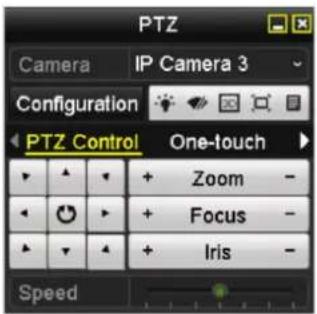
text_image
PTZ Camera IP Camera 3 Configuration PTZ Control One-touch Zoom - Focus - Iris - Speed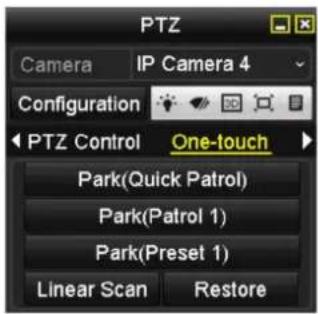
text_image
PTZ Camera IP Camera 4 Configuration PTZ Control One-touch Park(Quick Patrol) Park(Patrol 1) Park(Preset 1) Linear Scan Restore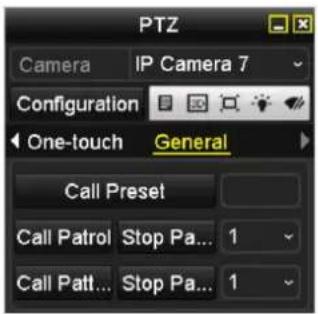
text_image
PTZ Camera IP Camera 7 Configuration One-touch General Call Preset Call Patrol Stop Pa... 1 Call Patt... Stop Pa... 1Figure 4.13 PTZ Panel
Table 4.1 Description of the PTZ panel icons
| Icon | Description | Icon | Description | Icon | Description |
 | Direction button and the auto-cycle button | Zoom+, Focus+, Iris+ | Zoom-, Focus-, Iris- | ||
 | The speed of the PTZ movement | Light on/off | Wiper on/off | ||
| 3D-Zoom | Image Centralization | Menu | |||
| Switch to the PTZ control interface | Switch to the one-touch control interface | Switch to the general settings interface | |||
| Previous item | Next item | Start pattern / patrol | |||
| Stop the patrol / pattern movement | Exit | Minimize windows |
Chapter 5 Recording and Capture Settings
5.1 Configuring Parameters
Purpose:
By configuring the parameters you can define the parameters which affect the image quality, such as the transmission stream type, the resolution and so on.
Before you start:
- Make sure that the HDD has already been installed. If not, please install a HDD and initialize it. (Menu>HDD>General)

text_image
L... Capacity Status Property Type Free Space Gr... Edit D... 5 931.51GB Normal R/W Local 846GB 1 -Figure 5.1 HDD- General
- Check the storage mode of the HDD
1) Click Advanced to check the storage mode of the HDD.
2) If the HDD mode is Quota, please set the maximum record capacity and maximum picture capacity. For detailed information, see Chapter Configuring Quota Mode.
3) If the HDD mode is Group, you should set the HDD group. For detailed information, see Chapter Configuring HDD Group for Recording and Capture.
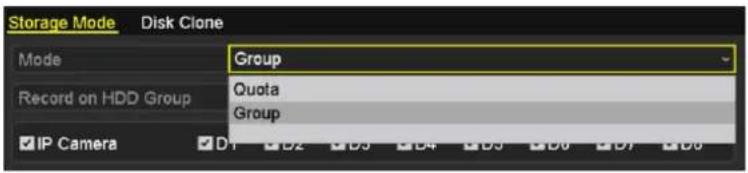
text_image
Storage Mode Disk Clone Mode Group Record on HDD Group Quota Group IP Camera D1 D2 D3 D4 D5 D6 D7 D8Figure 5.2 HDD- Advanced
Steps:
- Enter the Record settings interface to configure the recording parameters:
Menu>Record>Parameters
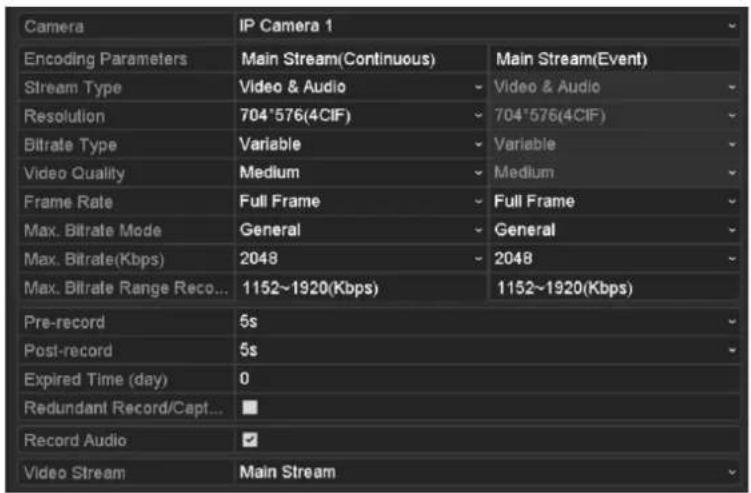
text_image
Camera Encoding Parameters Stream Type Resolution Bitrate Type Video Quality Frame Rate Max. Bitrate Mode Max. Bitrate(Kbps) Max. Bitrate Range Reco... Pre-record Post-record Expired Time (day) Redundant Record/Capt... Record Audio Video Stream IP Camera 1 Main Stream(Continuous) Video & Audio 704'576(4CIF) Variable Medium Full Frame General 2048 1152~1920(Kbps) Main Stream(Event) Video & Audio 704'576(4CIF) Variable Medium Full Frame General 2048 1152~1920(Kbps)Figure 5.3 Recording Parameters
- Parameters Setting for Recording
1) Select Record tab page to configure. You can configure the stream type, the resolution, and other parameters on your demand.
- Pre-record: The time you set to record before the scheduled time or event. For example, when an alarm triggered the recording at 10:00, if you set the pre-record time as 5 seconds, the camera records it at 9:59:55.
- Post-record: The time you set to record after the event or the scheduled time. For example, when an alarm triggered the recording ends at 11:00, if you set the post-record time as 5 seconds, it records till 11:00:05.
- Expired Time: The expired time is the longest time for a record file to be kept in the HDD, if the deadline is reached, the file will be deleted. You can set the expired time to 0, and then the file will not be deleted. The actual keeping time for the file should be determined by the capacity of the HDD.
- Redundant Record/ Capture: Enabling redundant record or capture means you save the record and captured picture in the redundant HDD. See Chapter Configuring Redundant Recording and Capture.
- Record Audio: Check the checkbox to enable or disable audio recording.
- Video Stream: Main stream and sub-stream are selectable for recording. When you select sub-stream, you can record for a longer time with the same storage space.
2) Click Apply to save the settings.

- The redundant record/capture is to decide whether you want the camera to save the record files or captured pictures in the redundant HDD. You must configure the redundant HDD in HDD settings. For detailed information, see Chapter 12.4.2.
-
The parameters of Main Stream (Event) are read-only.
-
Parameters Settings for Sub-stream
1) Enter the Sub-stream tab page.
| Camera | IP Camera 1 |
| Stream Type | Video |
| Resolution | 352°288(CIF) |
| Bitrate Type | Variable |
| Video Quality | Medium |
| Frame Rate | Full Frame |
| Max. Bitrate Mode | General |
| Max. Bitrate(Kbps) | 256 |
| Max. Bitrate Range Reco... | 384~640(Kbps) |
Figure 5.4 Sub-stream Parameters
2) Configure the parameters of the camera.
3) Click Apply to save the settings.
- Parameters Settings for Capture
1) Select the Capture tab.
| Camera | IP Camera 4 | |
| Parameter Type | Continuous | Event |
| Resolution | 704*480(4CIF) | 704*480(4CIF) |
| Picture Quality | Medium | Medium |
| Interval | 2s | 2s |
Figure 5.5 Capture Parameters
2) Configure the parameters.
3) Click Apply to save the settings.

The interval is the time period between two capturing actions. You can configure all the parameters on this menu on your demand.
5.2 Configuring Recording/Capture Schedule
Purpose:
Set the record schedule, and then the camera automatically starts/stops recording according to the configured schedule.

In this chapter, we take the record schedule procedure as an example, and the same procedure can be applied to configure schedule for both recording and capture. To schedule the automatic capture, you need to choose the Capture tab in the Schedule interface.
Steps:
- Enter the Record Schedule interface.
Menu>Record/Capture>Schedule
- Configure Record Schedule
1) Select Record/Capture Schedule.
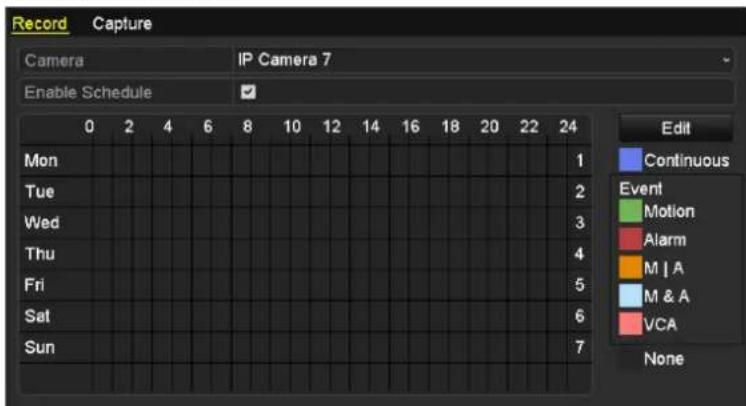
text_image
Record Capture Camera IP Camera 7 Enable Schedule 0 2 4 6 8 10 12 14 16 18 20 22 24 Mon Tue Wed Thu Fri Sat Sun Edit Continuous Event Motion Alarm M | A M & A VCA NoneFigure 5.6 Record Schedule
2) Choose the camera you want to configure.
3) Select the check box after the Enable Schedule item.
4) Click Edit button or click on the color icon under the edit button and draw the schedule line on the panel.
Edit the schedule:
I. In the message box, you can choose the day to which you want to set schedule.
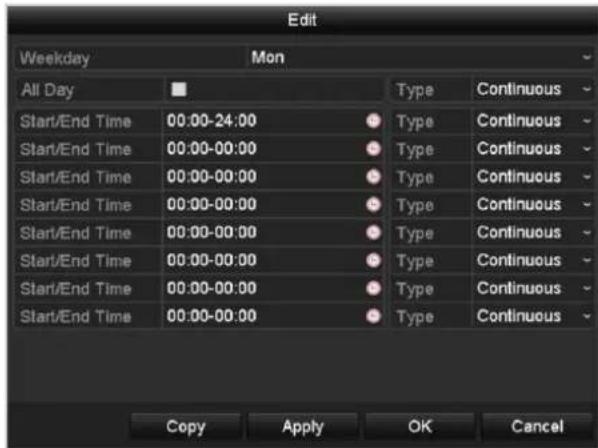
text_image
Edit Weekday Mon All Day Type Continuous Start/End Time 00:00-24:00 Type Continuous Start/End Time 00:00-00:00 Type Continuous Start/End Time 00:00-00:00 Type Continuous Start/End Time 00:00-00:00 Type Continuous Start/End Time 00:00-00:00 Type Continuous Start/End Time 00:00-00:00 Type Continuous Start/End Time 00:00-01:00 Type Continuous Copy Apply OK CancelFigure 5.7 Recording Schedule Interface
You can click the button to set the accurate time of the schedule.
II. To schedule an all-day recording, check the checkbox after the All Day item.
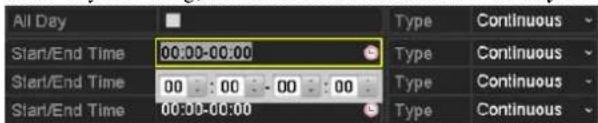
text_image
All Day Start/End Time 00:00-00:00 Start/End Time 00 00 - 00 00 Start/End Time 00:00-00:00 Type Continuous Type Continuous Type Continuous Type ContinuousFigure 5.8 Edit Schedule
III. To arrange other schedule, leave the All Day checkbox blank and set the Start/End time.

Up to 8 periods can be configured for each day. And the time periods can't be overlapped each other.
IV. Select the record type in the dropdown list.

- To enable Motion, Alarm, M | A (motion or alarm), M & A (motion and alarm) and VCA (Video Content Analysis) triggered recording and capture, you must configure the motion detection settings, alarm input settings or VCA settings as well. For detailed information, refer to Chapter 8.1, Chapter 8.2 and Chapter 8.5.
● The VCA settings are only available to the smart IP cameras.
Repeat the above edit schedule steps to schedule recording or capture for other days in the week. If the schedule can also be applied to other days, click Copy.
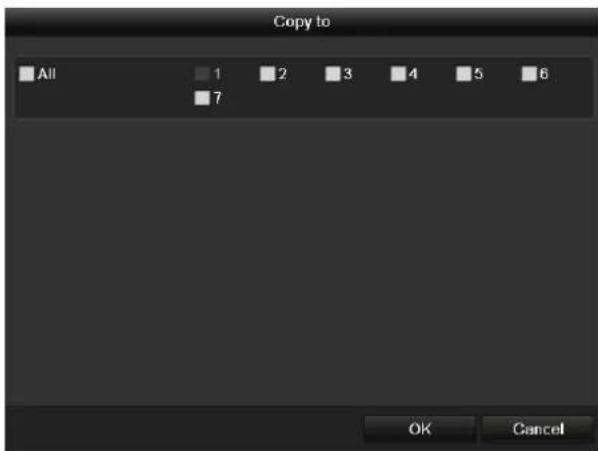
text_image
Copy to All 1 2 3 4 5 6 7 OK CancelFigure 5.9 Copy Schedule to Other Days
V. Click OK to save setting and back to upper level menu.
VI. Click Apply in the Record Schedule interface to save the settings.
Draw the schedule:
- Click on the color icons, you can choose the schedule type as continuous or event.
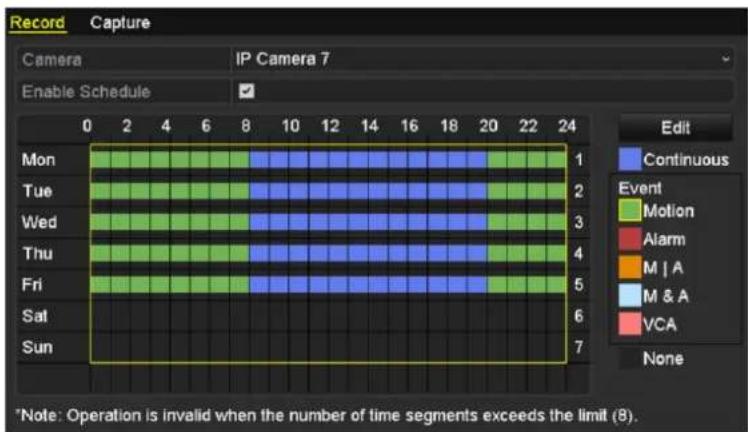
text_image
Record Capture Camera IP Camera 7 Enable Schedule 0 2 4 6 8 10 12 14 16 18 20 22 24 Mon Tue Wed Thu Fri Sat Sun Edit Continuous Event Motion Alarm M | A M & A VCA None *Note: Operation is invalid when the number of time segments exceeds the limit (8).Figure 5.10 Draw the Schedule
Descriptions of the color icons are shown in the figure below.
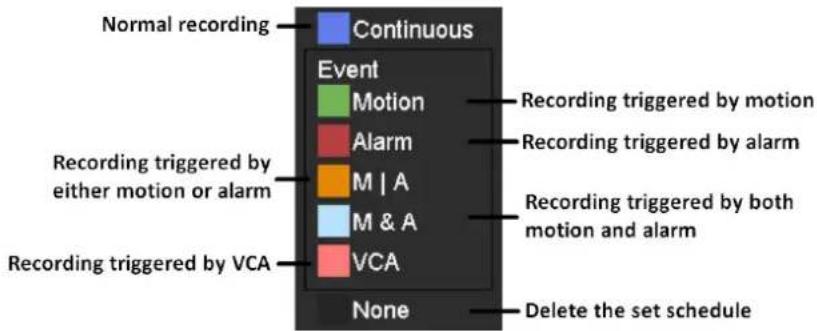
text_image
Normal recording Continuous Event Motion Alarm M | A M & A Recording triggered by either motion or alarm Recording triggered by VCA Recording triggered by motion and alarm Recording triggered by both motion and alarm Recording triggered by VCA None Delete the set scheduleFigure 5.11 Descriptions of the color icons
II. Click the Apply button to validate the settings.
- (Optional) If the settings can also be used to other channels, click Copy, and then choose the channel to which you want to copy.
4. Click Apply to save the settings.
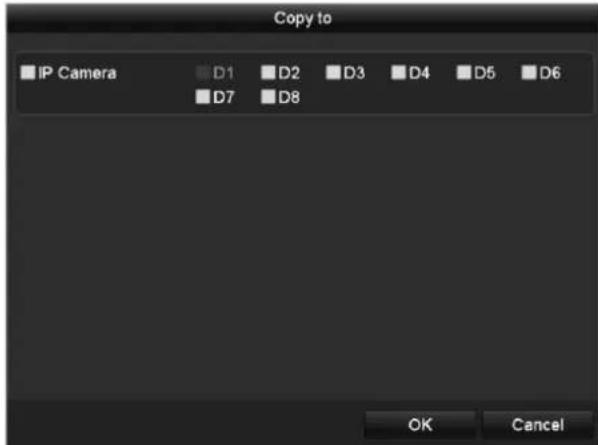
text_image
Copy to IP Camera D1 D2 D3 D4 D5 D6 D7 D8 OK CancelFigure 5. 12 Copy Schedule to Other Channels
5.3 Configuring Motion Detection Recording and Capture
Purpose:
Follow the steps to set the motion detection parameters. In the live view mode, once a motion detection event takes place, the NVR can analyze it and do many actions to handle it. Enabling motion detection function can trigger certain channels to start recording, or trigger full screen monitoring, audio warning, notify the surveillance center and so on. In this chapter, you can follow the steps to schedule a record which triggered by the detected motion.
Steps:
- Enter the Motion Detection interface.
Menu>Camera>Motion
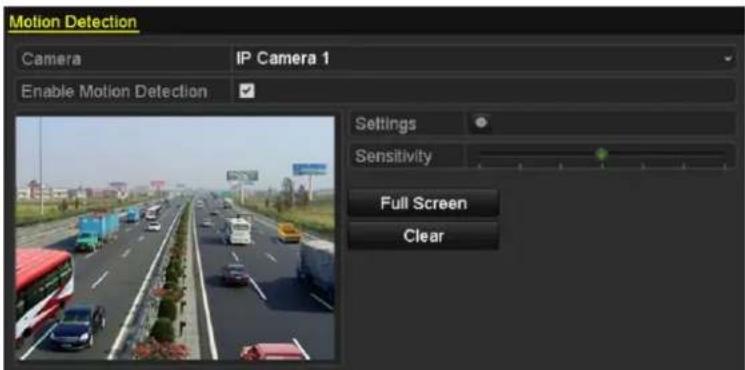
text_image
Motion Detection Camera IP Camera 1 Enable Motion Detection Settings Sensitivity Full Screen ClearFigure 5.13 Motion Detection
- Configure Motion Detection:
1) Choose camera you want to configure.
2) Check the checkbox after Enable Motion Detection.
3) Drag and draw the area for motion detection by mouse. If you want to set the motion detection for all the area shot by the camera, click Full Screen. To clear the motion detection area, click Clear.
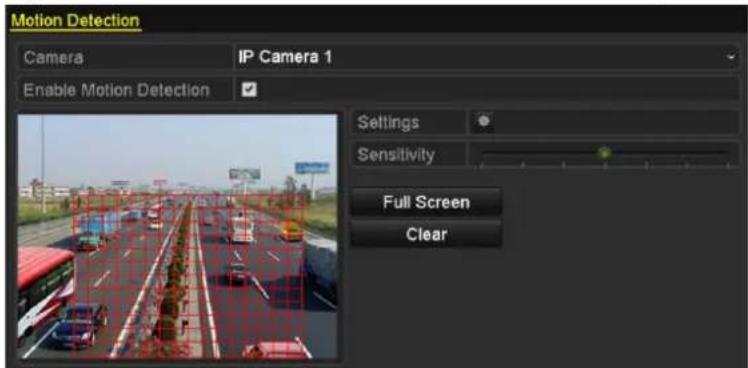
text_image
Motion Detection Camera IP Camera 1 Enable Motion Detection Settings Sensitivity Full Screen ClearFigure 5.14 Motion Detection-Mask
4) Click Settings, and the message box for channel information pop up.
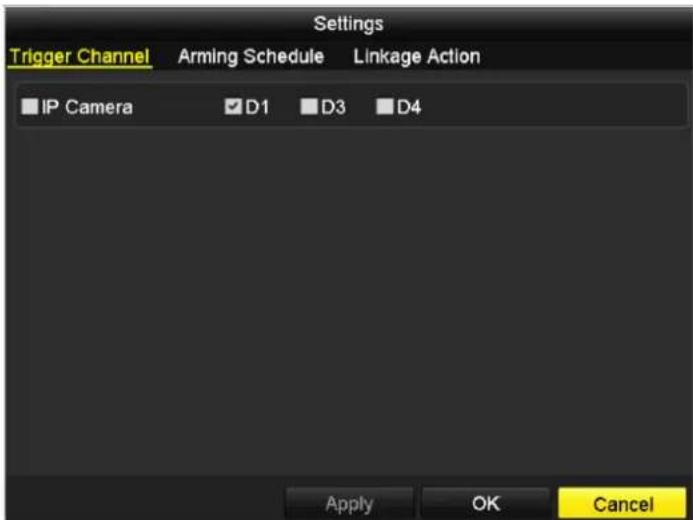
text_image
Settings Trigger Channel Arming Schedule Linkage Action IP Camera D1 D3 D4 Apply OK CancelFigure 5.15 Motion Detection Handling
5) Select the channels which you want the motion detection event to trigger recording.
6) Click Apply to save the settings.
7) Click OK to back to the upper level menu.
8) Exit the Motion Detection menu.
- Edit the Motion Detection Record Schedule. For the detailed information of schedule configuration, see Chapter Configuring Recording/Capture Schedule.
5.4 Configuring Alarm Triggered Recording and Capture
Purpose:
Follow the procedure to configure alarm triggered recording or capture.
Steps:
- Enter the Alarm setting interface.
Menu> Configuration> Alarm
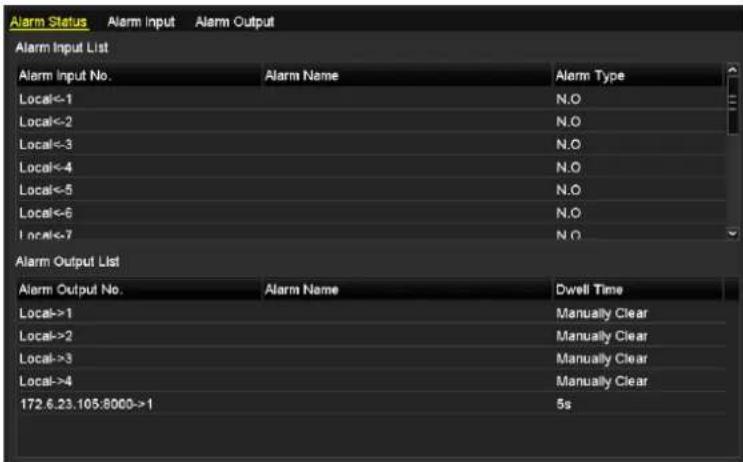
text_image
Alarm Status Alarm Input Alarm Output Alarm Input List Alarm Input No. Local<-1 Local<-2 Local<-3 Local<-4 Local<-5 Local<-6 Local<-7 Alarm Output List Alarm Output No. Local->1 Local->2 Local->3 Local->4 172.6.23.105:8000->1 Alarm Name N.O N.O N.O N.O N.O Dwell Time Manually Clear Manually Clear Manually Clear Manually Clear 5sFigure 5.16 Alarm Settings
- Click Alarm Input.
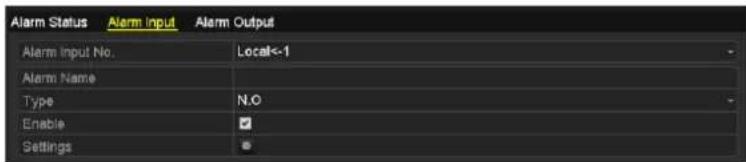
text_image
Alarm Status Alarm Input Alarm Output Alarm Input No. Local<-1 Alarm Name Type N.O Enable SettingsFigure 5.17 Alarm Settings- Alarm Input
1) Select Alarm Input number and configure alarm parameters.
2) Choose N.O (normally open) or N.C (normally closed) for alarm type.
3) Check the checkbox for Setting.
4) Click Settings.
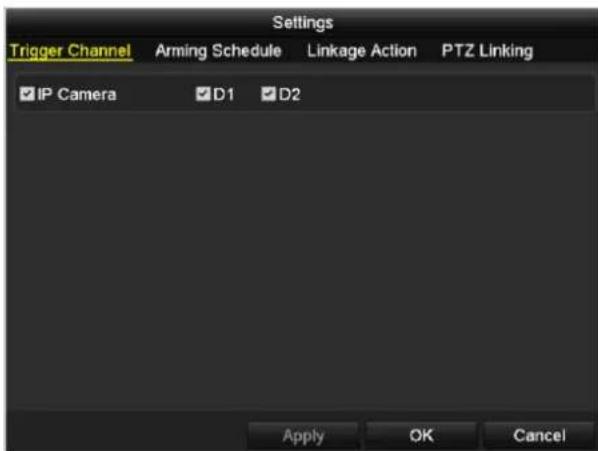
text_image
Settings Trigger Channel Arming Schedule Linkage Action PTZ Linking IP Camera D1 D2 Apply OK CancelFigure 5.18 Alarm Settings
5) Choose the alarm triggered recording channel.
6) Check the checkbox to select channel.
7) Click Apply to save settings.
8) Click OK to back to the upper level menu.
Repeat the above steps to configure other alarm input parameters.
If the settings can also be applied to other alarm inputs, click Copy and choose the alarm input number.
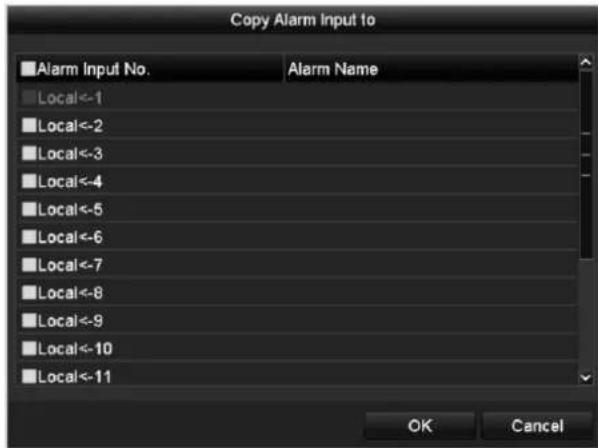
text_image
Copy Alarm Input 10 Alarm Input No. Alarm Name Local<-1 Local<-2 Local<-3 Local<-4 Local<-5 Local<-6 Local<-7 Local<-8 Local<-9 Local<-10 Local<-11 OK CancelFigure 5.19 Copy Alarm Input
- Edit the Alarm triggered record in the Record/Capture Schedule setting interface. For the detailed information of schedule configuration, see Chapter Configuring Recording/Capture Schedule.
5.5 Manual Recording and Continuous
Capture
Purpose:
Follow the steps to set parameters for the manual recording and continuous capture. Using manual recording and continuous capture, you need to manually cancel the record and capture. The manual recording and manual continuous capture is prior to the scheduled recording and capture.
Steps:
- Enter the Manual settings interface.
Menu> Manual
Or press the REC/SHOT button on the front panel.
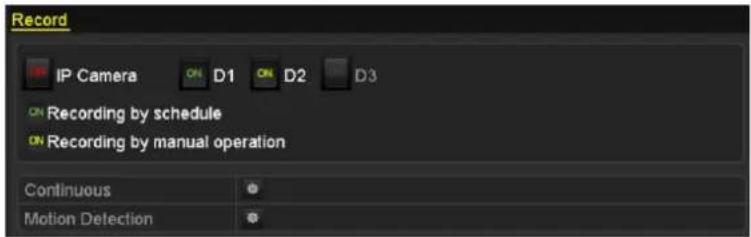
text_image
Record IP Camera ON D1 ON D2 D3 ON Recording by schedule ON Recording by manual operation Continuous Motion DetectionFigure 5.20 Manual Record
- Enable the Manual Recording.
1) Select Record on the left bar.
2) Click the status button before camera number to change

- Disable manual record.
Click the status button to change ON.

Green icon ON means that the channel is configured the record schedule. After rebooting, all the manual records enabled will be canceled.
- Enabling and disabling the continuous capture
1) Select Continuous Capture on the left bar.
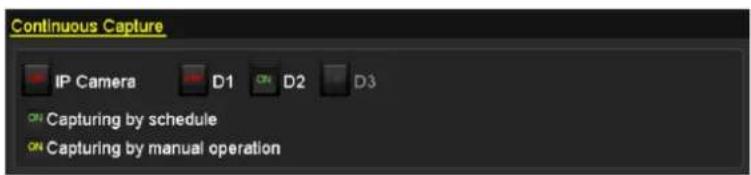
text_image
Continuous Capture IP Camera D1 D2 D3 ON Capturing by schedule ON Capturing by manual operationFigure 5.21 Continuous Capture
2) Click the status button before camera number to change ON to ON
3) Disable continuous capture.
4) Click the status button to change ON to OFF

Green icon ON means that the channel is configured the capture schedule. After rebooting, all the continuous capture will be canceled.
5.6 Configuring Holiday Recording and
Capture
Purpose:
Follow the steps to configure the record or capture schedule on holiday for that year. You may want to have different plan for recording and capture on holiday.
Steps:
- Enter the Record setting interface.
Menu > Record > Holiday
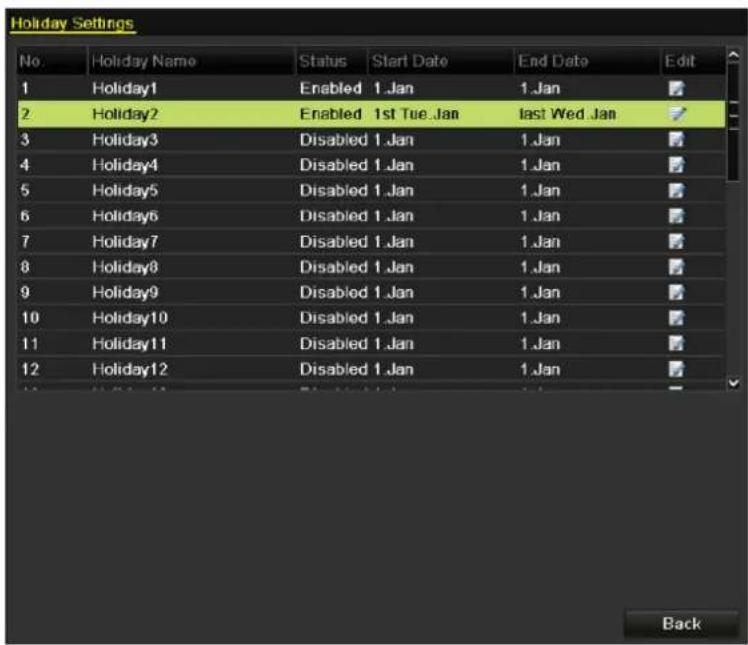
text_image
Holiday Settings No.Holiday Name Status Start Date End Date Edit 1 Holiday1 Enabled 1.Jan 1.Jan 2 Holiday2 Enabled 1st Tue Jan产业发展日期 3 Holiday3 Disabled 1.Jan 1.Jan 4 Holiday4 Disabled 1.Jan 1.Jan 5 Holiday5 Disabled 1.Jan 1.Jan 6 Holiday6 Disabled 1.Jan 1.Jan 7 Holiday7 Disabled 1.Jan 1.Jan 8 Holiday8 Disabled 1.Jan 1.Jan 9 Holiday9 Disabled 1.Jan 1.Jan 10 Holiday10 Disabled 1.Jan 1.Jan 11 Holiday11 Disabled 1.Jan 1.Jan 12 Holiday12 Disabled 1.Jan 1.Jan BackFigure 5.22 Holiday Settings
- Enable Edit Holiday schedule.
1) Click to enter the Edit interface.
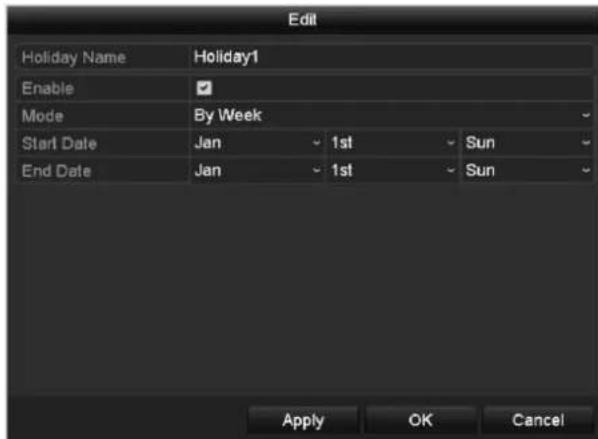
text_image
Edit Holiday Name Holiday1 Enable Mode By Week Start Date Jan 1st Sun End Date Jan 1st Sun Apply OK CancelFigure 5.23 Edit Holiday Settings
2) Check the checkbox after Enable Holiday.
3) Select Mode from the dropdown list.
There are three different modes for the date format to configure holiday schedule.
4) Set the start and end date.
5) Click Apply to save settings.
6) Click OK to exit the Edit interface.
- Enter Record/Capture Schedule settings interface to edit the holiday recording schedule. See Chapter 6.2 Configuring Recording/Capture Schedule.
5.7 Configuring Redundant Recording and Capture
Purpose:
Enabling redundant recording and capture, which means saving the record files and captured pictures not only in the R/W HDD but also in the redundant HDD, will effectively enhance the data safety and reliability.
Steps:
- Enter HDD Information interface.
Menu> HDD

text_image
HDD Information L... Capacity Status Property Type Free Space Gr... Edit D... 5 931.51GB Normal RAW Local 846GB 1 -Figure 5.24 HDD General
- Select the HDD and click 📋 to enter the Local HDD Settings interface.
1) Set the HDD property to Redundancy.
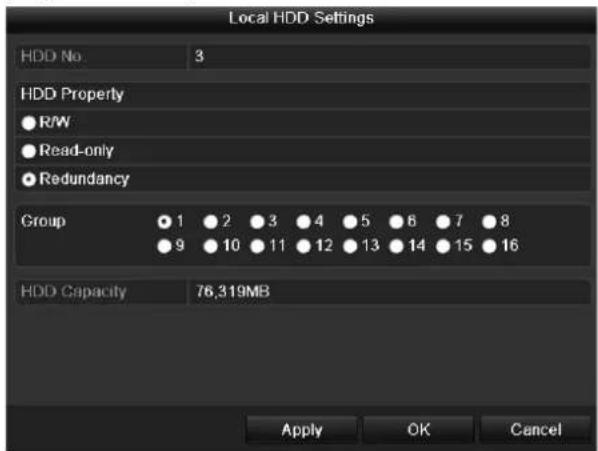
text_image
Local HDD Settings HDD No. 3 HDD Property ● R/W ● Read-only ● Redundancy Group ● 1 ● 2 ● 3 ● 4 ● 5 ● 6 ● 7 ● 8 ● 9 ● 10 ● 11 ● 12 ● 13 ● 14 ● 15 ● 16 HDD Capacity 76,319MB Apply OK CancelFigure 5.25 HDD General-Editing
2) Click Apply to save the settings.
3) Click OK to back to the upper level menu.

You must set the Storage mode in the HDD advanced settings to Group before you set the HDD property to Redundant. For detailed information, please refer to Chapter 11.4.1 Setting HDD Property. There should be at least another HDD which is in Read/Write status.
- Enter the Record setting interface.
Menu> Record> Parameters
1) Select Record tab.
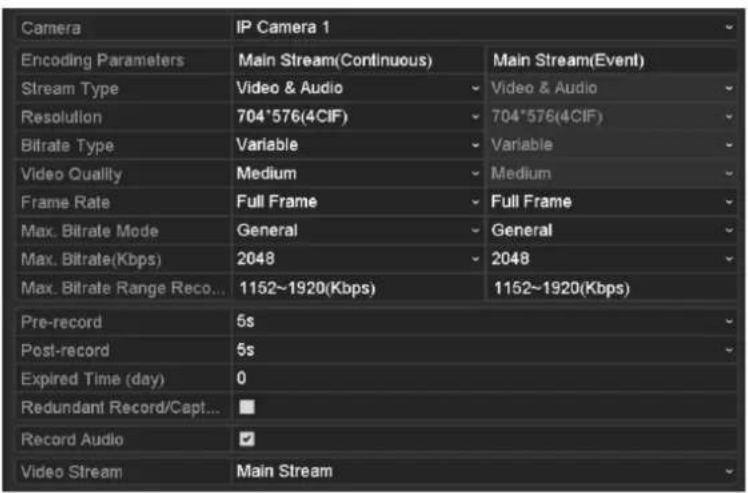
text_image
Camera Encoding Parameters Stream Type Resolution Bitrate Type Video Quality Frame Rate Max. Bitrate Mode Max. Bitrate(Kbps) Max. Bitrate Range Reco... Pre-record Post-record Expired Time (day) Redundant Record/Capt... Record Audio Video Stream IP Camera 1 Main Stream(Continuous) Video & Audio 704*576(4CIF) Variable Medium Full Frame General 2048 1152~1920(Kbps) Main Stream(Event) Video & Audio 704*576(4CIF) Variable Medium Full Frame General 2048 1152~1920(Kbps) -Figure 5.26 Record Parameters
2) Select Camera you want to configure in the drop-down list.
3) Check the checkbox of Redundant Record/Capture.
4) Click OK to save settings and back to the upper level menu.
Repeat the above steps for configuring other channels.
5.8 Configuring HDD Group for Recording and
Capture
Purpose:
You can group the HDDs and save the record files and captured pictures in certain HDD group.
Steps:
- Enter HDD setting interface.
Menu>HDD

text_image
HDD Information L... Capacity Status Property Type Free Space Gr... Edit D... 5 931.51GB Normal R/W Local 8460B 1 -Figure 5.27 HDD General
- Select Advanced on the left side menu.
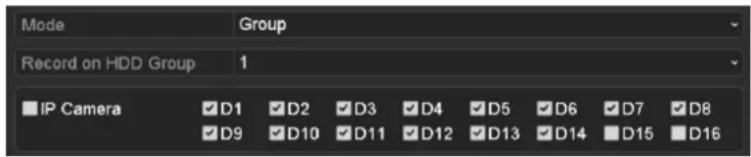
text_image
Mode Group Record on HDD Group 1 IP Camera ✓D1 ✓D2 ✓D3 ✓D4 ✓D5 ✓D6 ✓D7 ✓D8 ✓D9 ✓D10 ✓D11 ✓D12 ✓D13 ✓D14 ✓D15 ✓D16Figure 5.28 Storage Mode
Check whether the storage mode of the HDD is Group. If not, set it to Group. For detailed information, please refer to Chapter 11.4 Managing HDD Group.
- Select General in the left side menu
- Click ☐ to enter editing interface.
- Configuring HDD group.
1) Choose a group number for the HDD group.
2) Click Apply and then in the pop-up message box, click Yes to save your settings.
3) Click OK to back to the upper level menu.
Repeat the above steps to configure more HDD groups.
- Choose the Channels which you want to save the record files and captured pictures in the HDD group.
1) Select Advanced on the left bar.
2) Choose Group number in the dropdown list of Record on HDD Group
3) Check the channels you want to save in this group.
4) Click Apply to save settings.

After having configured the HDD groups, you can configure the Recording and Capture settings following the procedure provided in Chapter 5.2-5.7.
5.9 Files Protection
Purpose:
You can lock the recording files or set the HDD property to Read-only to protect the record files from being overwritten.
5.9.1 Locking the Recording Files
Lock File when Playback
Steps:
-
Enter Playback interface. Menu>Playback
-
Check the checkbox of channel(s) in the channel list and then double-click to select a date on the calendar.
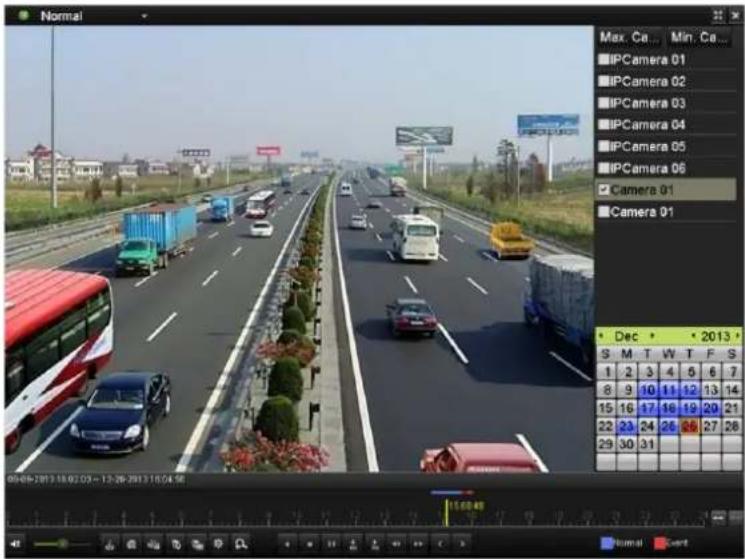
text_image
Normal Max. Ca... Min. Ca... IPCamera 01 IPCamera 02 IPCamera 03 IPCamera 04 IPCamera 05 IPCamera 06 Camera 01 Camera 01 Dec 2013 S M T W T F S 1 2 3 4 5 6 7 8 9 10 11 12 13 14 15 16 17 18 19 20 21 22 23 24 25 26 27 28 29 30 31 04-08-19/13 18:02:03 - 12:26-2013 18:04:58 Normal EventFigure 5.29 Normal Playback
- During playback, click the button to lock the current recording file.

In the multi-channel playback mde, clicking the button will lock all the record files related to the playback channels.
- You can click the button to pop up the file management interface. Click the Locked File tab to check and export the locked files.
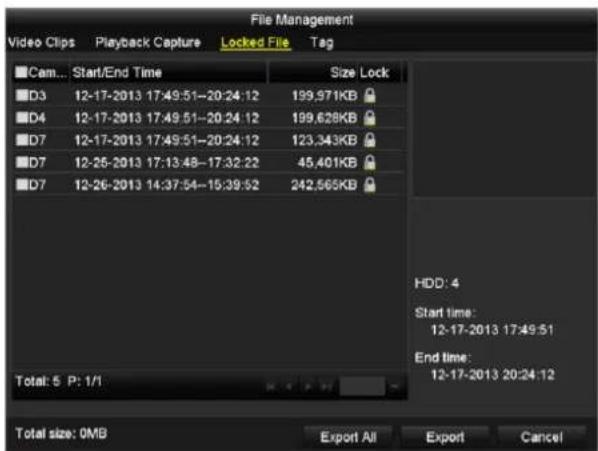
text_image
File Management Video Clips Playback Capture Locked File Tag Cam... Start/End Time Size Lock D3 12-17-2013 17:49:51--20:24:12 199.971KB D4 12-17-2013 17:49:51--20:24:12 199.628KB D7 12-17-2013 17:49:51--20:24:12 123.343KB D7 12-25-2013 17:13:48--17:32:22 45.401KB D7 12-26-2013 14:37:54--15:39:52 242.565KB Total: 5 P: 1/1 HDD: 4 Start time: 12-17-2013 17:49:51 End time: 12-17-2013 20:24:12 Total size: 0MB Export All Export CancelFigure 5.30 Locked File Management
In the File Management interface, you can also click 🔒 to change it to 🔒 to unlock the file and the file is not protected.
- Lock File when Export
Steps:
- Enter Export setting interface.
Menu> Export
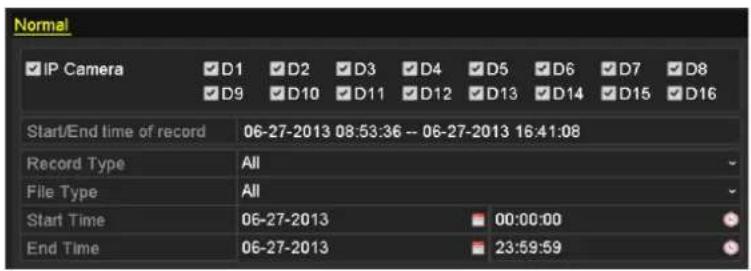
text_image
Normal IP Camera D1 D2 D3 D4 D5 D6 D7 D8 D9 D10 D11 D12 D13 D14 D15 D16 Start/End time of record 06-27-2013 08:53:36 -- 06-27-2013 16:41:08 Record Type All File Type All Start Time 06-27-2013 00:00:00 End Time 06-27-2013 23:59:59Figure 5.31 Export
- Select the channels you want to investigate by checking the checkbox to √.
- Configure the record type, file type start/end time.
- Click Search to show the results.
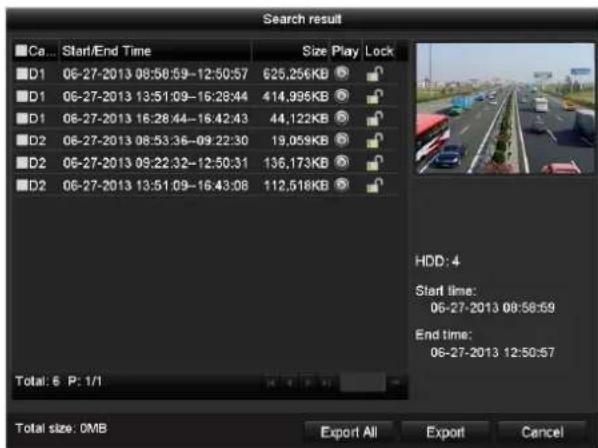
text_image
Search result Ca... Start/End Time Size Play Lock D1 06-27-2013 08:58:59-12:50:57 625.256KB D1 06-27-2013 13:51:09-16:28:44 414.995KB D1 06-27-2013 16:28:44-16:42:43 44.122KB D2 06-27-2013 08:53:36-09:22:30 19.059KB D2 06-27-2013 09:22:32-12:50:31 136.173KB D2 06-27-2013 13:51:09-16:43:08 112.518KB Total: 6 P: 1/1 HDD: 4 Start time: 06-27-2013 08:58:59 End time: 06-27-2013 12:50:57 Total size: OMB Export All Export CancelFigure 5.32 Export- Search Result
5. Protect the record files.
1) Find the record files you want to protect, and then click the icon which will turn to indicating that the file is locked.

The record files of which the recording is still not completed cannot be locked.
2) Click 🔒 to change it to 🔒 to unlock the file and the file is not protected.
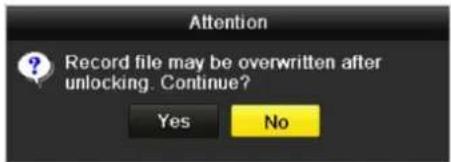
text_image
Attention Record file may be overwritten after unlocking. Continue? Yes NoFigure 5.33 Unlocking Attention
5.9.2 Setting HDD Property to Read-only
Steps:
- Enter HDD setting interface.
Menu> HDD

text_image
HDD Information L... Capacity Status Property Type Free Space Gr... Edit D... 5 931.51GB Normal R/W Local 8460B 1 -Figure 5.34 HDD General
- Click ☐ to edit the HDD you want to protect.
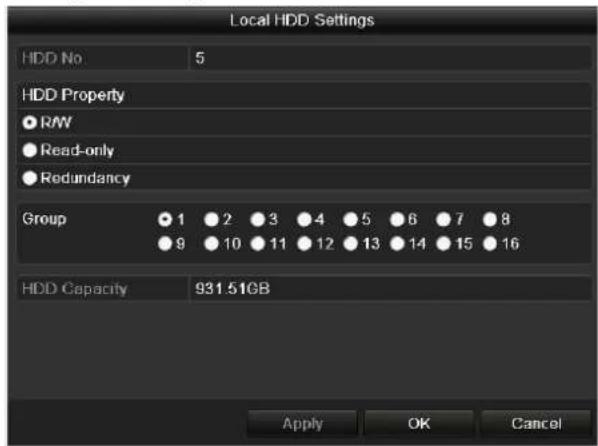
text_image
Local HDD Settings HDD No 5 HDD Property ● R/W ● Read-only ● Redundancy Group ●1 ●2 ●3 ●4 ●5 ●6 ●7 ●8 ●9 ●10 ●11 ●12 ●13 ●14 ●15 ●16 HDD Capacity 931.51GB Apply OK CancelFigure 5. 35 HDD General- Editing

To edit HDD property, you need to set the storage mode of the HDD to Group. See Chapter Managing HDD Group.
- Set the HDD property to Read-only.
- Click OK to save settings and back to the upper level menu.

- You cannot save any files in a Read-only HDD. If you want to save files in the HDD, change the property to R/W.
- If there is only one HDD and is set to Read-only, the NVR can't record any files. Only live view mode is available.
- If you set the HDD to Read-only when the NVR is saving files in it, then the file will be saved in next R/W HDD. If there is only one HDD, the recording will be stopped.
Chapter 6 Playback
6.1 Playing Back Record Files
6.1.1 Playing Back by Channel
Purpose:
Play back the recorded video files of a specific channel in the live view mode. Channel switch is supported.
Instant playback by channel
Steps:
Choose a channel in live view mode using the mouse and click the button in the quick setting toolbar.

In the instant playback mode, only record files recorded during the last five minutes on this channel will be played back.
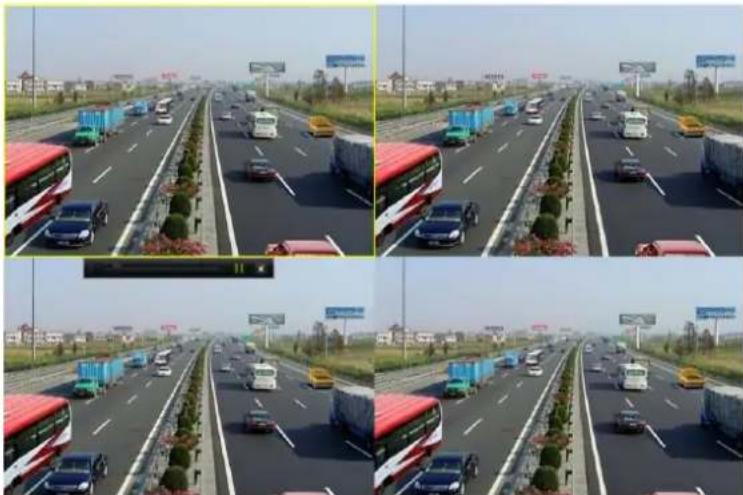
natural_image
Four-panel composite image showing a multi-lane highway with traffic and vehicles, no visible text or symbols.Figure 6.1 Instant Playback Interface
Playback by channel
- Enter the Playback interface.
Mouse: right click a channel in live view mode and select Playback from the menu, as shown in Figure 6.2.
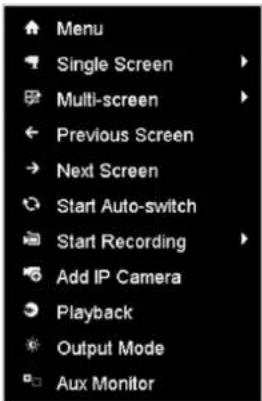
text_image
Menu Single Screen Multi-screen Previous Screen Next Screen Start Auto-switch Start Recording Add IP Camera Playback Output Mode Aux MonitorFigure 6.2 Right-click Menu under Live View
Front Panel: press PLAY button to play back record files of the channel under single-screen live view mode.

Pressing numerical buttons will switch playback to the corresponding channels during playback process.
2. Playback management.
The toolbar in the bottom part of Playback interface can be used to control playing progress, as shown in Figure 6.3.
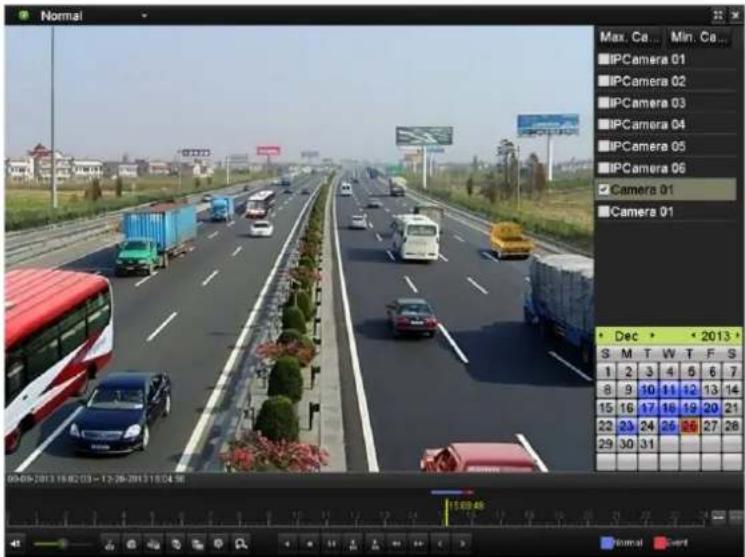
text_image
Normal Max. Ca... Min. Ca... IPCamera 01 IPCamera 02 IPCamera 03 IPCamera 04 IPCamera 05 IPCamera 06 Camera 01 Camera 01 Dec 2013 S M T W T F S 1 2 3 4 5 6 7 8 9 10 11 12 13 14 15 16 17 18 19 20 21 22 23 24 25 26 27 28 29 30 31 04:09-2013 16:02:03 - 12:26-2013 18:04:38 15:03:45 Normal EventFigure 6.3 Playback Interface
Click the channel(s) to execute simultaneous playback of multiple channels.

text_image
09-09-2013 16:02:03 -- 12:26-2013 16:04:56 15:00:48 Normal EventFigure 6.4 Toolbar of Playback

● The 06-27-2013 08:58:59 – 06-27-2013 09:44:02 indicates the start/end time of the record.
- About video type bar: ■ represents normal recording (manual or schedule); ■ represents event recording (motion, alarm, motion | alarm, motion & alarm, VCA).
- Playback progress bar: use the mouse to click any point of the progress bar to locate special frames, and drag the cursor to show the thumbnail of the current time.
Table 6.1 Detailed Explanation of Playback Toolbar
| Button | Operation | Button | Operation | Button | Operation | Button | Operation |
 | Audio on/ Mute |  | Adjust volume |  | Start/Stop clipping | [W5DO] | Capture |
 | File lock |  | Add default tag | [054D] | Add customized tag |  | File Management |
 | Digital Zoom |  | Pause reverse play/ Reverse play/ Single-frame reverse play |  | Stop |  | Pause play/ Play/ Single-frame play |
 | 30s forward | [COCK] | 30s reverse |  | Speed down | [6HHO] | Speed up |
| [4CWE] | Previous day | [4ZW] | Next day | [Y6CS] | Scaling up/down the time line | [T4HZ] | Process bar |
 | Video type bar |  | Playback type / picture | [4KSD] | Full screen | [50DZ] | Exit |
6.1.2 Playing Back by Time
Purpose:
Play back video files recorded in specified time duration. Multi-channel simultaneous playback and channel switch are supported.
Steps:
- Enter playback interface.
Menu>Playback
- Check the checkbox of channel(s) in the channel list and then double-click to select a date on the calendar.
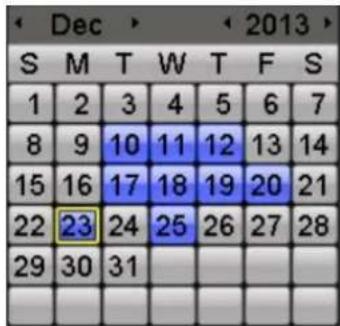
text_image
Dec 2013 S M T W T F S 1 2 3 4 5 6 7 8 9 10 11 12 13 14 15 16 17 18 19 20 21 22 23 24 25 26 27 28 29 30 31 29 30 31Figure 6.5 Playback Calendar

If there are record files for that camera in that day, in the calendar, the icon for that day is displayed as 10. Otherwise it is displayed as 10
In the Playback interface:
The toolbar in the bottom part of Playback interface can be used to control playing process, as shown in Figure 6. 6.
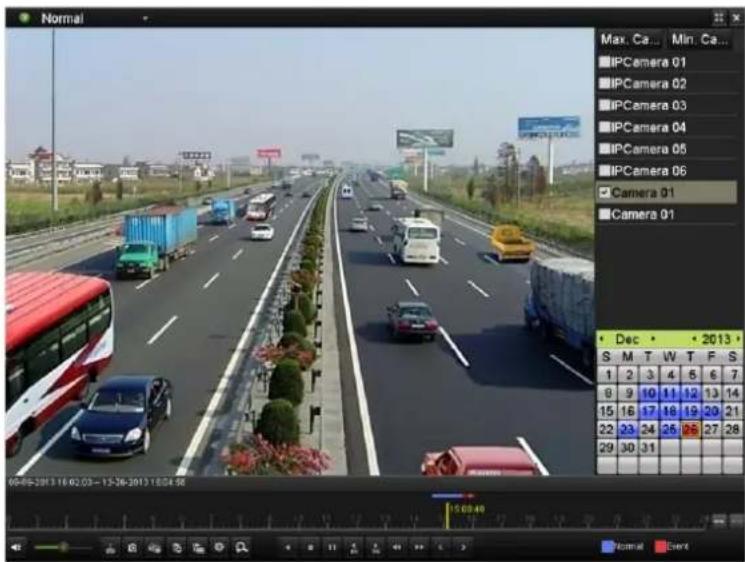
text_image
Normal Max. Ca... Min. Ca... IPCamera 01 IPCamera 02 IPCamera 03 IPCamera 04 IPCamera 05 IPCamera 06 Camera 01 Camera 01 Dec 2013 S M T W T F S 1 2 3 4 5 6 7 9 9 10 11 12 13 14 15 16 17 18 19 20 21 22 23 24 25 26 27 28 29 30 31 04/02-2013 16:02:03-13:36-2013 18:04:58 Normal EventFigure 6.6 Interface of Playback by Time

text_image
09-09-2013 16:02:03 - 12-26-2013 16:04:56 15.08.49 Normal EventFigure 6.7 Toolbar of Playback by Time

● The 06-27-2013 08:58:59 - 06-27-2013 09:44:02 indicates the start/end time of the record.
- About video type bar: ■ represents normal recording (manual or schedule); ■ represents event recording (motion, alarm, motion | alarm, motion & alarm, VCA).
- Playback progress bar: use the mouse to click any point of the progress bar to locate special frames, and drag the cursor to show the thumbnail of the current time.
Table 6.2 Detailed Explanation of Playback-by-time Interface
| Button | Operation | Button | Operation | Button | Operation | Button | Operation |
 | Audio on/ Mute |  | Adjust volume |  | Start/Stop clipping |  | Capture |
| [T60T] | File lock |  | Add default tag |  | Add customized tag |  | File Management |
 | Digital Zoom |  | Pause reverse play/ Reverse play/Single-frame reverse play |  | Stop |  | Pause play/ Play/ Single-frameplay |
| [AB6T] | 30s forward | [SW44] | 30s reverse |  | Speed down | [AXZZ] | Speed up |
| [CGT3] | Previous day | [CVZT] | Next day |  | Scaling up/down the time line | [IHTAY] | Process bar |
 | Video type bar | [K8AB] | Playback type / picture | [W750] | Full screen |  | Exit |
6.1.3 Playing Back by Event Search
Purpose:
Play back record files on one or several channels searched out by restricting event type (e.g. alarm input and motion detection).
Before you start:
To get the motion and VCA search result, the corresponding type must be enabled and configured for the IP camera.
Steps:
- Enter the Playback interface.
Menu>Playback
- Select the Event in the drop-down list on the top-left side.
- Select Alarm Input, Motion or VCA as the event type, edit the Start time and End time.

Here we take playback by motion as the example.
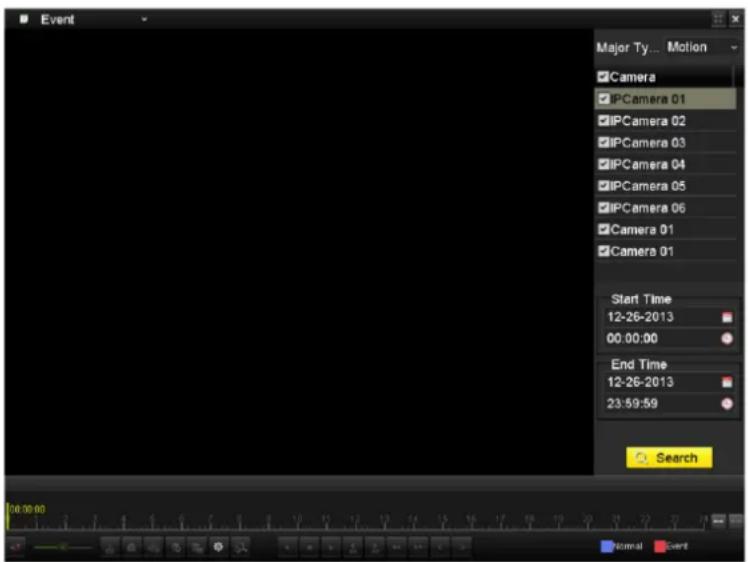
text_image
Event Major Ty... Motion Camera IPCamera 01 IPCamera 02 IPCamera 03 IPCamera 04 IPCamera 05 IPCamera 06 Camera 01 Camera 01 Start Time 12-26-2013 00:00:00 End Time 12-26-2013 23:59:59 Search 18:00:00 Normal EventFigure 6.8 Motion Search Interface
- Click Search button to get the search result information. You may refer to the right-side bar for the result.
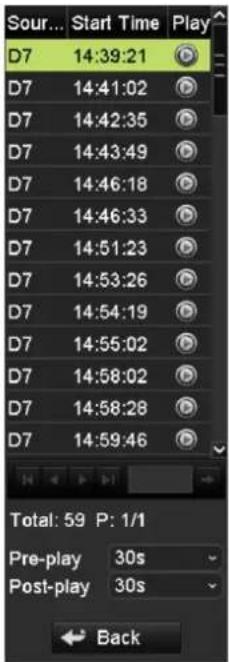
text_image
Sour... Start Time Play D7 14:39:21 D7 14:41:02 D7 14:42:35 D7 14:43:49 D7 14:46:18 D7 14:46:33 D7 14:51:23 D7 14:53:26 D7 14:54:19 D7 14:55:02 D7 14:58:02 D7 14:58:28 D7 14:59:46 Total: 59 P: 1/1 Pre-play 30s Post-play 30s BackFigure 6.9 Search Result Bar(Motion)
- Click 🎯 button to play back the file.
You can click the Back button to back to the search interface.

Pre-play and post-play can be configured.
- Playback interface.
The toolbar in the bottom part of Playback interface can be used to control playing process.
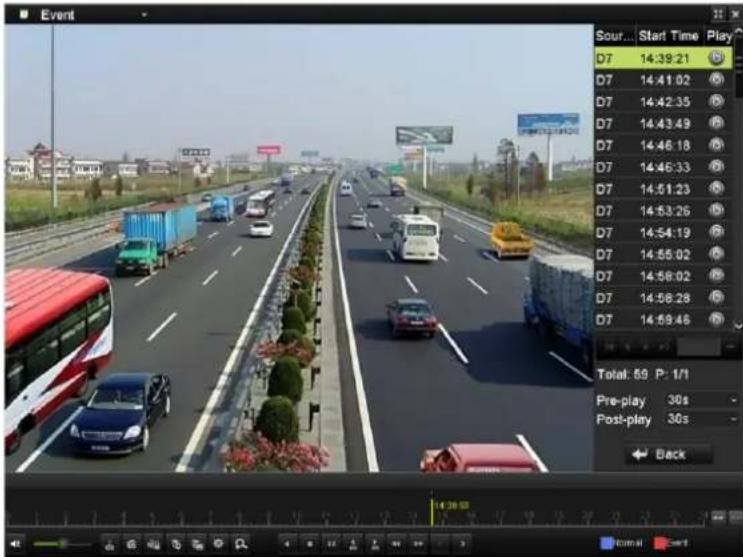
text_image
Event Sour... Start Time Play D7 14:39:21 D7 14:41:02 D7 14:42:35 D7 14:43:49 D7 14:46:18 D7 14:46:33 D7 14:51:23 D7 14:53:26 D7 14:54:19 D7 14:55:02 D7 14:58:02 D7 14:58:28 D7 14:59:46 Total: 69 P: 1/1 Pre-play 30s Post-play 30s BackFigure 6. 10 Interface of Playback by Event

text_image
14:38:59 Normal EventFigure 6.11 Toolbar of Playback by Event

The 06-27-2013 08:58:59 -- 06-27-2013 09:44:02 indicates the start/end time of the record.
- About video type bar: ■ represents normal recording (manual or schedule); ■ represents event recording (motion, alarm, motion | alarm, motion & alarm, VCA).
- Playback progress bar: use the mouse to click any point of the progress bar to locate special frames.
Table 6.3 Detailed Explanation of Playback-by-event Toolbar
| Button | Operation | Button | Operation | Button | Operation | Button | Operation |
 | Audio on/ Mutc |  | Adjust volume |  | Start/Stop clipping |  | Capture |
 | File lock |  | Add default tag |  | Add customized tag |  | File Management |
 | Digital Zoom |  | Pause reverse play/ Reverse play/ Single-frame reverse play |  | Stop |  | Pause play/ Play/ Single-frame play |
| [B37A] | 30s forward |  | 30s reverse |  | Speed down |  | Speed up |
 | Previous day |  | Next day |  | Scaling up/down the time line |  | Process bar |
 | Video type bar |  | Playback type / picture |  | Full screen |  | Exit |
6.1.4 Playing Back by Tag
Purpose:
Video tag allows you to record related information like people and location of a certain time point during playback.
You are also allowed to use video tag(s) to search for record files and position time point.
Before playing back by tag:
- Enter Playback interface.
Menu>Playback
- Search and play back the record file(s). Refer to Chapter 6.1.1 for the detailed information about searching and playback of the record files.
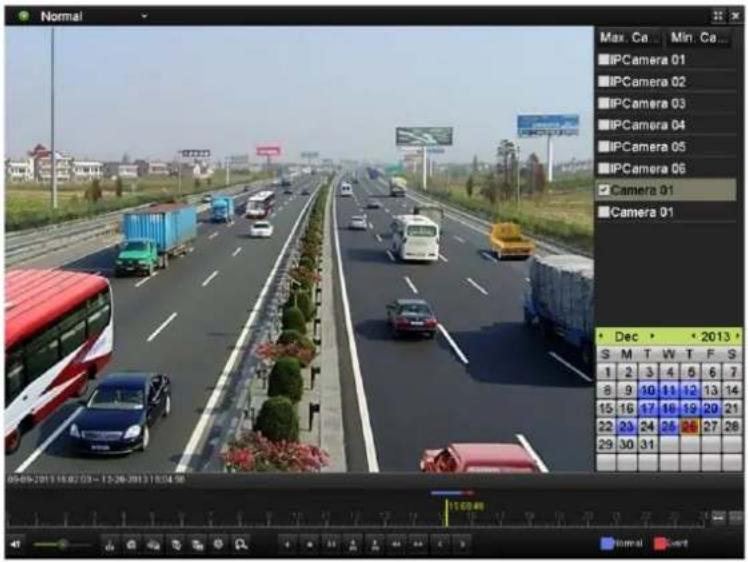
text_image
Normal Max. Ca Min. Ca ■ IPCamera 01 ■ IPCamera 02 ■ IPCamera 03 ■ IPCamera 04 ■ IPCamera 05 ■ IPCamera 06 ✓ Camera 01 Camera 01 Dec Dec 2013 S M T W T F S 1 2 3 4 5 6 7 8 9 10 11 12 13 14 15 16 17 18 19 20 21 22 23 24 25 26 27 28 29 30 31 09:06-2013 16:07:03 - 12:28-2013 18:04:58 Normal EventFigure 6.12 Interface of Playback by Time
Click button to add default tag.
Click Button to add customized tag and input tag name.

Max. 64 tags can be added to a single video file.
- Tag management.
1) Click button to enter the file management interface.
2) Click the Tag tab, and you can check, edit and delete tag(s).
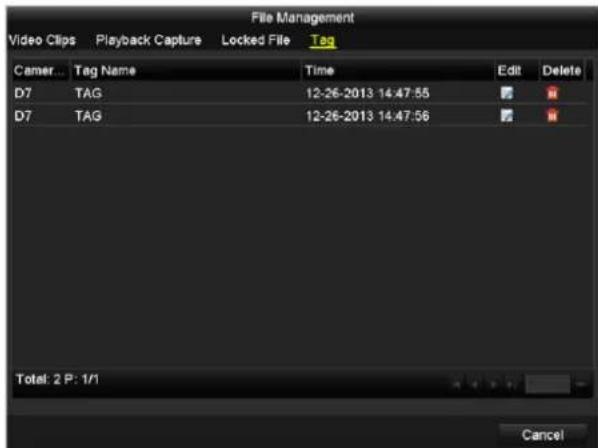
text_image
File Management Video Clips Playback Capture Locked File Tag Camer... Tag Name Time Edit Delete D7 TAG 12-26-2013 14:47:55 D7 TAG 12-26-2013 14:47:56 Total: 2 P: 1/1 CancelFigure 6.13 Tag Management Interface
Steps:
- Select the Tag from the drop-down list in the Playback interface.
- Choose channels, edit start time and end time, and then click Search to enter Search Result interface.

You can enter keyword in the textbox Keyword to search the tag on your demand.
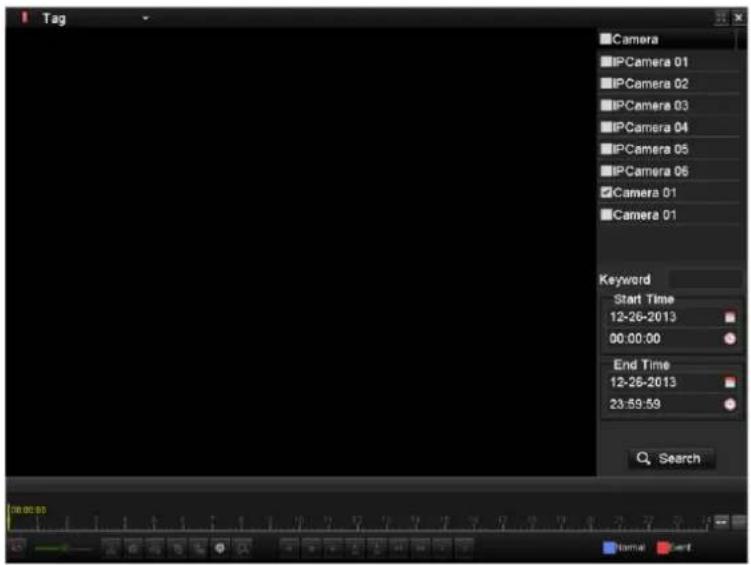
text_image
Tag Camera IPCamera 01 IPCamera 02 IPCamera 03 IPCamera 04 IPCamera 05 IPCamera 06 ✓Camera 01 Camera 01 Keyword Start Time 12-26-2013 00:00:00 End Time 12-26-2013 23:59:59 SearchFigure 6. 14 Video Search by Tag
3. Click button to play back the file.
You can click the Back button to back to the search interface.

Pre-play and post-play can be configured.
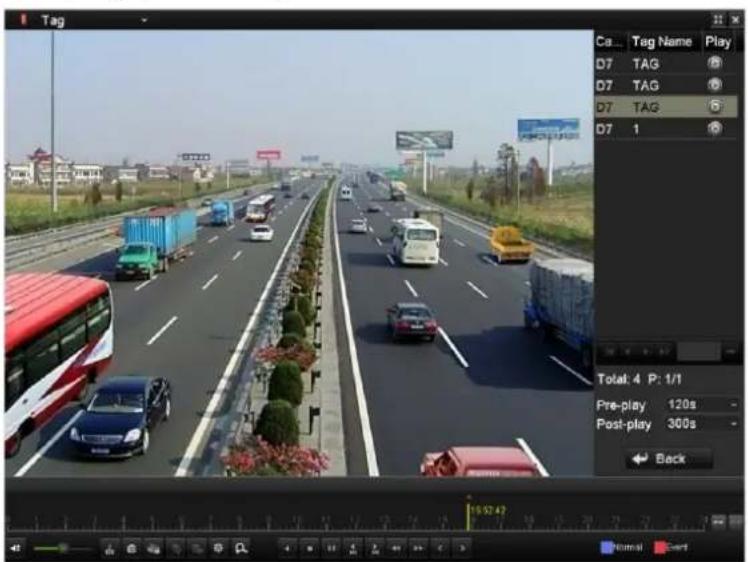
text_image
Tag Ca... Tag Name Play D7 TAG D7 TAG D7 TAG 6 D7 1 Total: 4 P: 1/1 Pre-play 120s Post-play 300s Back 16:52:42 Normal EventFigure 6.15 Interface of Playback by Tag

text_image
15:52:42 Normal EventFigure 6.16 Toolbar of Playback by Tag

The 06-27-2013 08:58:59 -- 06-27-2013 09:44:02 indicates the start/end time of the record.
- About video type bar: ■ represents normal recording (manual or schedule); ■ represents event recording (motion, alarm, motion | alarm, motion & alarm, VCA).
- Playback progress bar: use the mouse to click any point of the progress bar to locate special frames.
Table 6.4 Detailed Explanation of Playback-by-tag Toolbar
| Button | Operation | Button | Operation | Button | Operation | Button | Operation |
 | Audio on/ Mute |  | Adjust volume | — —  | Start/Stop clipping | —  | Capture |
 | File lock |  | Add default tag |  | Add customized tag |  | File Management |
 | Digital Zoom | [A7WS] | Pause reverse play/ Reverse play/ Single-frame reverse play |  | Stop |  | Pause play/ Play/ Single-frame play |
 | 30s forward |  | 30s reverse |  | Speed down |  | Speed up |
 | Previous day |  | Next day | — —  | Scaling up/down the time line | [2D6T] | Process bar |
| [GSW7] | Video type bar |  | Playback type / picture | —  | Full screen | —  | Exit |
6.1.5 Smart Playback
Purpose:
The smart playback function provides an easy way to get through the less effective information. When you select the smart playback mode, the system will analyze the video containing the motion or VCA information, mark it with green color. And the recording file filtering rule and playback speed for the non-related and related video can be configured on your demand.
Steps:
- Enter Playback interface.
Menu>Playback
- Select the Smart in the drop-down list on the top-left side.
- Select a camera in the camera list and select a date in the calendar and click the button to play.
- Click the ☑ on the playback control toolbar to enter configure the Smart Search rule.
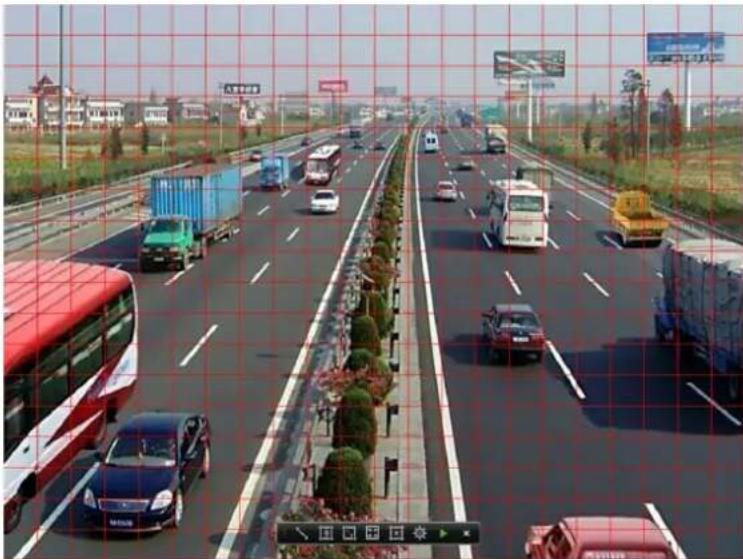
natural_image
Highway traffic scene with multiple vehicles and trucks, overlaid with a red grid overlay (no visible text or symbols)Figure 6.17 Draw Area of Smart Search
- Set the smart search rules.
Traversing Virtual Plane Detection
Click the 📄 button, and click on the screen to specify the beginning point and move the mouse to the end of the plane and click again.
Intrusion Detection
Click the button, and then specify 4 points to set a quadrilateral region for intrusion detection.

Only one region can be set.
Motion Detection
1) Click the ☐ to set the search area manually, or click the ☐ button to set the full screen as the area. 2) Click and drag the mouse to draw target searching area(s).
- Click the 🎨 button to set the playback settings.
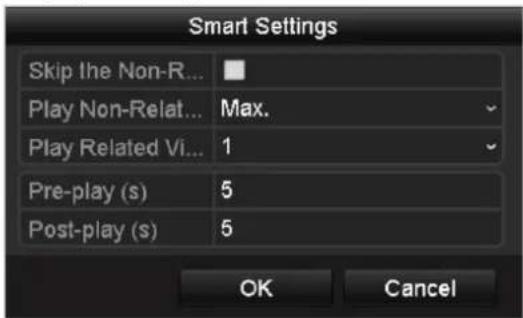
text_image
Smart Settings Skip the Non-R... Play Non-Relat... Max. Play Related Vi... 1 Pre-play (s) 5 Post-play (s) 5 OK CancelSkip the Non-Related Video: The non-related video will not be played after this function is enabled, as well the set value of play non-related video at will be invalid.
Play Non-Related Video at: Set the speed to play the non-related video, there are Max./8/4/1 selectable.
Play Related Video at: Set the speed to play the related video, there are Max./8/4/1 selectable.

Pre-play and post-play can be configured for the Intrusion Detection type.
- Click the ▶ to search, and then the result will be displayed as ■ in the progress bar of the Smart Playback interface.
Or you can click the button to clear all the set areas.
- Click the button to play.
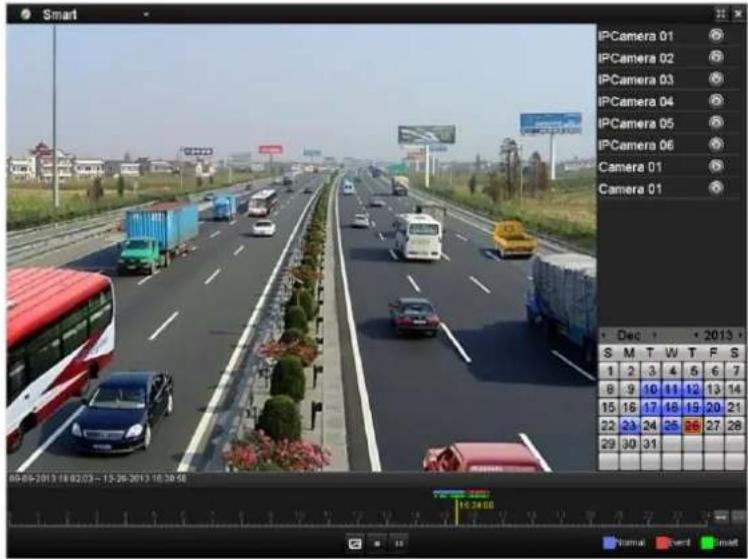
text_image
Smart IPCamera 01 IPCamera 02 IPCamera 03 IPCamera 04 IPCamera 05 IPCamera 06 Camera 01 Camera 01 Dec 2013 S M T W T F S 1 2 3 4 5 6 7 8 9 10 11 12 13 14 15 16 17 18 19 20 21 22 23 24 25 26 27 28 29 30 31 89-05-2013 18:02:03 - 13:26-2013 18:38:06 Normal Smart ResetFigure 6.18 Smart Playback Interface

● The 06-27-2013 08:58:59 -- 06-27-2013 09:44:02 indicates the start/end time of the record.
- About video type bar: ■ represents normal recording (manual or schedule); ■ represents event recording (motion, alarm, motion | alarm, motion & alarm, VCA); and ■ represents the smart search result.
● Playback progress bar: use the mouse to click any point of the progress bar to locate special frames.
Table 6.5 Detailed Explanation of Smart Playback
| Button | Operation | Button | Operation | Button | Operation |
| [64W8] | Smart search | [8H0C] | Stop | [1227] | Pause play / Play |
 | Process bar | [72A9] | Scaling up/down the time line |  | Playback type / Picture |
6.1.6 Playing Back by System Logs
Purpose:
Play back record file(s) associated with channels after searching system logs.
Steps:
- Enter Log Information interface.
Menu>Maintenance>Log Information
- Click Log Search tab to enter Playback by System Logs.
Set search time and type and click Search button.
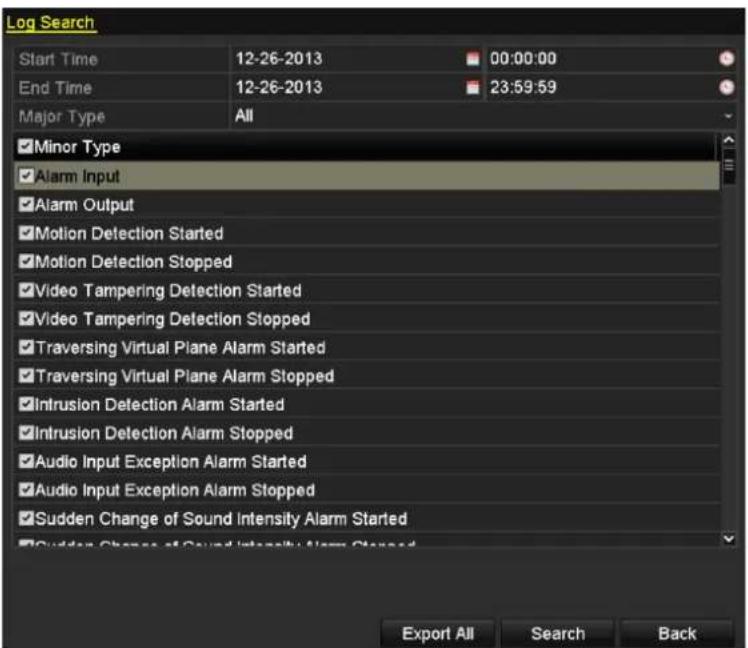
text_image
Log Search Start Time 12-26-2013 00:00:00 End Time 12-26-2013 23:59:59 Major Type All ✓Minor Type ✓Alarm Input ✓Alarm Output ✓Motion Detection Started ✓Motion Detection Stopped ✓Video Tampering Detection Started ✓Video Tampering Detection Stopped ✓Traversing Virtual Plane Alarm Started ✓Traversing Virtual Plane Alarm Stopped ✓Intrusion Detection Alarm Started ✓Intrusion Detection Alarm Stopped ✓Audio Input Exception Alarm Started ✓Audio Input Exception Alarm Stopped ✓Sudden Change of Sound Intensity Alarm Started ✓Sudden Change of Sound Intensity Alarm Stopped Export All Search BackFigure 6.19 System Log Search Interface
- Choose a log with record file and click 📋 button to enter Playback interface.

If there is no record file at the time point of the log, the message box "No result found" will pop up.
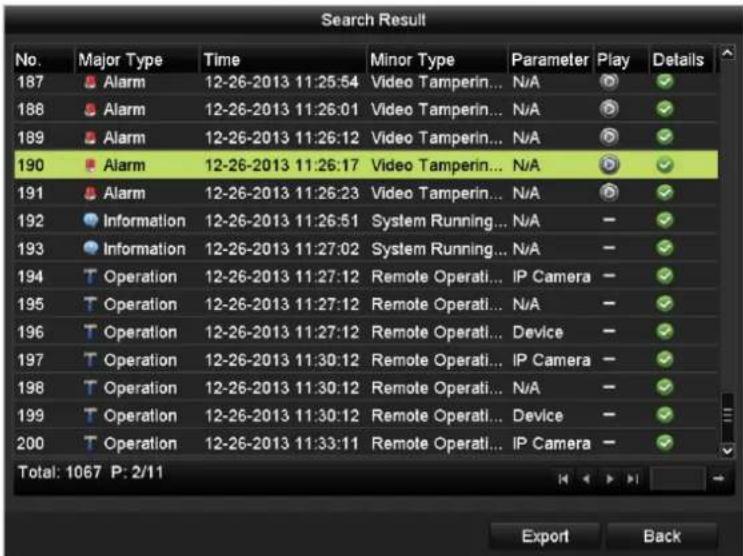
text_image
Search Result No. Major Type Time Minor Type Parameter Play Details 187 Alarm 12-26-2013 11:25:54 Video Tamperin... N/A ✓ 188 Alarm 12-26-2013 11:26:01 Video Tamperin... N/A ✓ 189 Alarm 12-26-2013 11:26:12 Video Tamperin... N/A ✓ 190 Alarm 12-26-2013 11:26:17 Video Tamperin... N/A ✓ 191 Alarm 12-26-2013 11:26:23 Video Tamperin... N/A ✓ 192 Information 12-26-2013 11:26:51 System Running... N/A - ✓ 193 Information 12-26-2013 11:27:02 System Running... N/A - ✓ 194 Operation 12-26-2013 11:27:12 Remote Operati... IP Camera - ✓ 195 Operation 12-26-2013 11:27:12 Remote Operati... N/A - ✓ 196 Operation 12-26-2013 11:27:12 Remote Operati... Device - ✓ 197 Operation 12-26-2013 11:30:12 Remote Operati... IP Camera - ✓ 198 Operation 12-26-2013 11:30:12 Remote Operati... N/A - ✓ 199 Operation 12-26-2013 11:30:12 Remote Operati... Device - ✓ 200 Operation 12-26-2013 11:33:11 Remote Operati... IP Camera - ✓ Total: 1067 P: 2/11 Export BackFigure 6.20 Result of System Log Search
- Playback interface.
The toolbar in the bottom part of Playback interface can be used to control playing process.
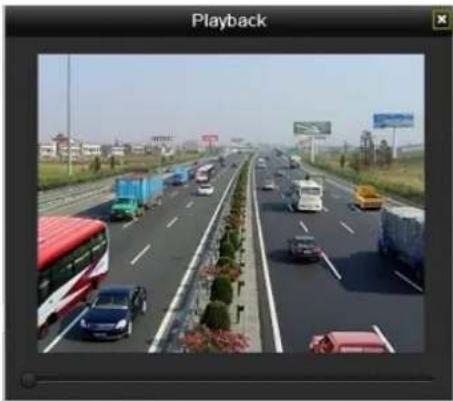
natural_image
Highway scene with multiple vehicles and a red double-decker bus, no visible text or symbols on the road or traffic.Figure 6.21 Interface of Playback by Log
6.1.7 Playing Back External File
Purpose:
Perform the following steps to look up and play back files in the external devices.
Steps:
- Enter Playback interface.
Menu>Playback
- Select the External File in the drop-down list on the top-left side.
The files are listed in the right-side list.
You can click the Refresh refresh the file list.
- Select and click the 📋 button to play back it. And you can adjust the playback speed by clicking 🎥 and

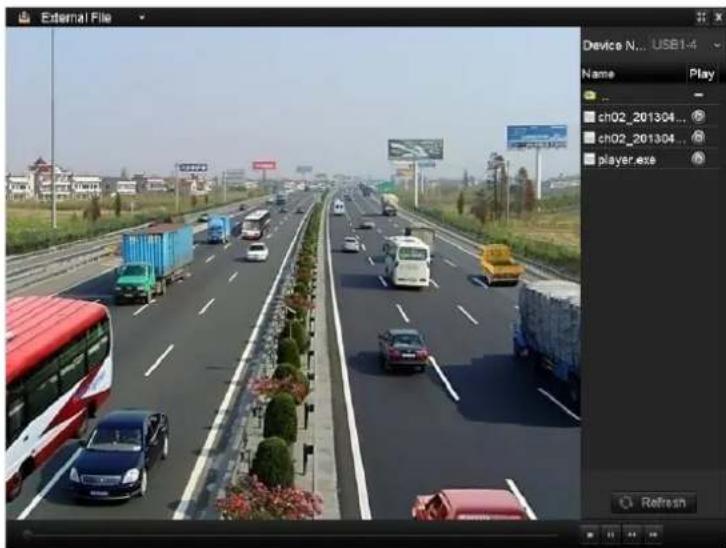
text_image
External File Device N... USB1-4 Name Play ch02_201304... ch02_201304... player.exe RefreshnFigure 6.22 Interface of External File Playback
6.2 Auxiliary Functions of Playback
6.2.1 Playing Back Frame by Frame
Purpose:
Play video files frame by frame, in case of checking image details of the video when abnormal events happen.
Steps:
• Using a Mouse:
Go to Playback interface.
If you choose playback of the record file: click button 📄 until the speed changes to Single frame and one click on the playback screen represents playback of one frame.
If you choose reverse playback of the record file: click button 📋 until the speed changes to Single frame and one click on the playback screen represents reverse playback of one frame. It is also feasible to use button 📋 in toolbar.
• Using the Front Panel:
Rotate and hold the outer ring on Jog Shuttle counter clockwise (for DS-7700/8600NI-ST only) or click the button to set the speed to Single frame. One click on 📁 button, one click on the playback screen or Enter button on the front panel represents playback or reverse playback of one frame.
6.2.2 Digital Zoom
Steps:
- Click the 🔒 button on the playback control bar to enter Digital Zoom interface.
- Use the mouse to draw a red rectangle and the image within it will be enlarged up to 16 times.
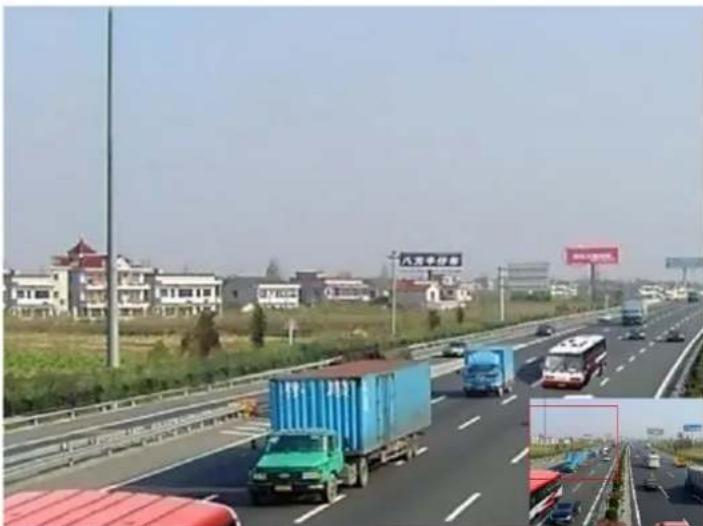
natural_image
Highway scene with trucks, shipping containers, and residential buildings in the background (no visible text or symbols)Figure 6.23 Draw Area for Digital Zoom
- Right-click the image to exit the digital zoom interface.
6.2.3 Reverse Playback of Multi-channel
Purpose:
You can play back record files of multi-channel reversely. Up to 16-ch (with 1280*720 resolution) simultaneous reverse playback is supported; up to 4-ch (with 1920*1080P resolution) simultaneous reverse playback is supported and up to 1-ch (with 2560*1920 resolution) reverse playback is supported.

We use the interface of DS-7700NI-ST series (unless stated) as example to describe the following settings. Steps:
- Enter Playback interface.
Menu>Playback
- Check more than one checkboxes to select multiple channels and click to select a date on the calendar.
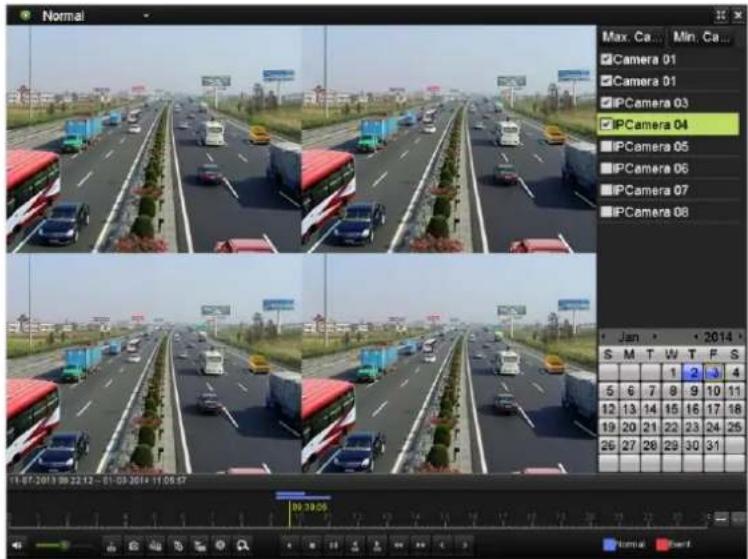
text_image
Normal Max. Ca... Min. Ca... Camera 01 Camera 01 IPCamera 03 IPCamera 04 IPCamera 05 IPCamera 06 IPCamera 07 IPCamera 08 Jan 2014 S M T W T F S 5 6 7 8 9 10 11 12 13 14 15 16 17 18 19 20 21 22 23 24 25 26 27 28 29 30 31 11-07-2013 09:22:12 - 01:03:2014 11:05:57 03:30:05 Normal HardFigure 6. 24 4-ch Synchronous Playback Interface

The record files will be marked by two lines on the process bar. The upper one indicates the record files of the selected channel; and the lower one indicates the record files of all the selected channels.
- Click to play back the record files reversely.
6.3 Picture Playback
Purpose:
Search and view captured pictures stored in HDD.
Steps:
- Enter Playback interface.
Menu>Playback
- Select the Picture in the drop-down list on the top-left side.
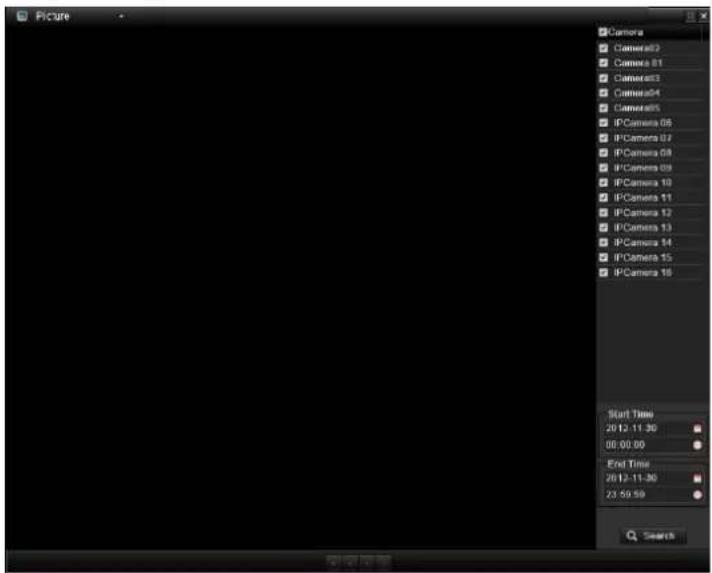
text_image
Picture Camera Camera01 Camera02 Camera03 Camera04 Camera05 IPCamera 06 IPCamera 07 IPCamera 08 IPCamera 09 IPCamera 10 IPCamera 11 IPCamera 12 IPCamera 13 IPCamera 14 IPCamera 15 IPCamera 16 Start Time 2012.11.30 00:00:00 End Time 2012.11.30 23:50:59 SearchFigure 6. 25 Interface of Playback by Picture
- Choose channels, edit start time and end time, and then click Search to show searching result.
- Choose a picture you want to view and click 📋 button.
You can click the Back button to back to the search interface.
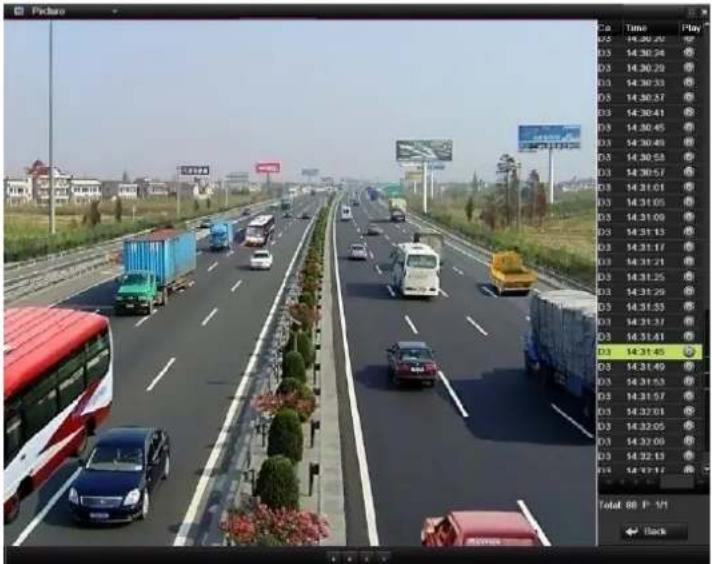
text_image
Picture Time Play D5 14:20:20 D3 14:30:24 D3 14:30:29 D3 14:30:33 D3 14:30:37 D3 14:30:41 D3 14:30:45 D3 14:30:49 D3 14:30:53 D3 14:30:57 D3 14:31:01 D3 14:31:05 D3 14:31:09 D3 14:31:13 D3 14:31:17 D3 14:31:21 D3 14:31:25 D3 14:31:29 D3 14:31:33 D3 14:31:37 D3 14:31:41 D3 14:31:45 D3 14:31:49 D3 14:31:53 D3 14:31:57 D3 14:32:01 D3 14:32:05 D3 14:32:09 D3 14:32:13 D6 14:27:22 Total: 88 P / 71 BackFigure 6. 26 Result of Picture Search
- The toolbar in the bottom part of Playback interface can be used to control playing process.
Figure 6.27 Picture Playback Toolbar
Table 6.6 Detailed Explanation of Picture-playback Toolbar
| Button | Function | Button | Function | Button | Function | Button | Function |
 | Play reverse | [TBYK] | Play | [WDYS] | Previous picture |  | Next picture |
Chapter 7 Backup
7.1 Backing up Record Files
7.1.1 Quick Export
Purpose:
Export record files to backup device(s) quickly.
Steps:
- Enter Video Export interface.
Menu>Export>Normal
Choose the channel(s) you want to back up and click Quick Export button.

The time duration of record files on a specified channel cannot exceed one day. Otherwise, the message box "Max. 24 hours are allowed for quick export." will pop up.
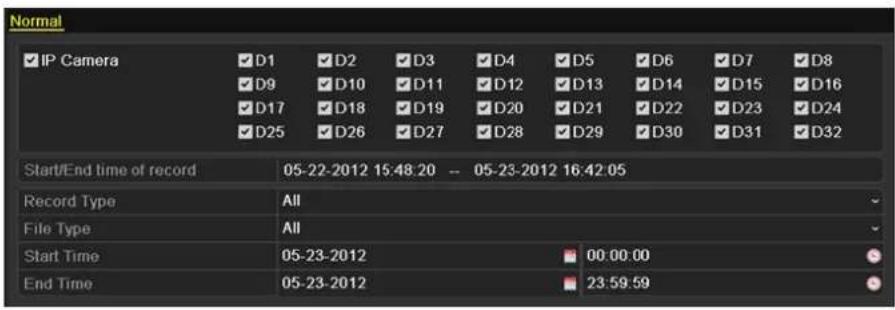
text_image
Normal IP Camera D1 D2 D3 D4 D5 D6 D7 D8 D9 D10 D11 D12 D13 D14 D15 D16 D17 D18 D19 D20 D21 D22 D23 D24 D25 D26 D27 D28 D29 D30 D31 D32 Start/End time of record 05-22-2012 15:48:20 -- 05-23-2012 16:42:05 Record Type All File Type All Start Time 05-23-2012 00:00:00 End Time 05-23-2012 23:59:59Figure 7.1 Quick Export Interface
- Click on the Export button to start exporting.

Here we use USB Flash Drive and please refer to the next section Normal Backup for more backup devices supported by the NVR.
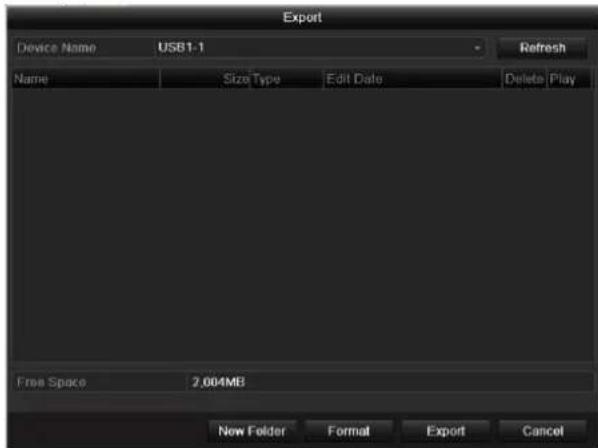
text_image
Export Device Name USB1-1 Refresh Name Size Type Edit Date Delete Play Free Space 2,004MB New Folder Format Export CancelFigure 7.2 Quick Export using USB1-1
Stay in the Exporting interface until all record files are exported.
text_image
Export Export finished. OKFigure 7.3 Export Finished
3. Check backup result.
Choose the record file in Export interface and click button to check it.

The Player player.exe will be exported automatically during record file export.
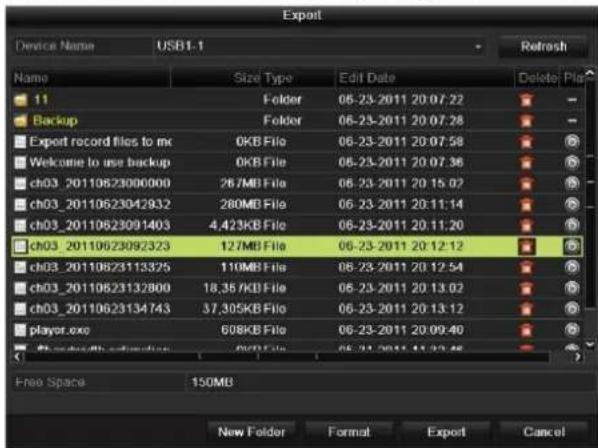
text_image
Export Device Name USB1-1 Name Size Type Edit Date Delete Plot 11 Folder 06-23-2011 20:07:22 Backup Folder 06-23-2011 20:07:28 Export record files to me 0KB File 06-23-2011 20:07:58 Welcome to use backup 0KB File 06-23-2011 20:07:36 ch03_20110623000000 267MB File 06-23-2011 20:15:07 ch03_20110623042932 280MB File 06-23-2011 20:11:14 ch03_20110623091403 4,423KB File 06-23-2011 20:11:20 ch03_20110623092323 127MB File 06-23-2011 20:12:12 ch03_20110623113325 110MB File 06-23-2011 20:12:54 ch03_20110623132800 18,35 /KB File 06-23-2011 20:13:02 ch03_20110623134743 37,305KB File 06-23-2011 20:13:12 player.exe 608KB File 06-23-2011 20:09:40 Free Space 150MB New Folder Format Export CancelFigure 7.4 Checkup of Quick Export Result Using USB1-1
7.1.2 Backing up by Normal Video Search
Purpose:
The record files can be backup to various devices, such as USB devices (USB flash drives, USB HDDs, USB writer), SATA writer and c-SATA HDD.
Backup using USB flash drives and USB HDDs
Steps:
- Enter Export interface.
Menu>Export>Normal
- Set search condition and click Search button to enter the search result interface.
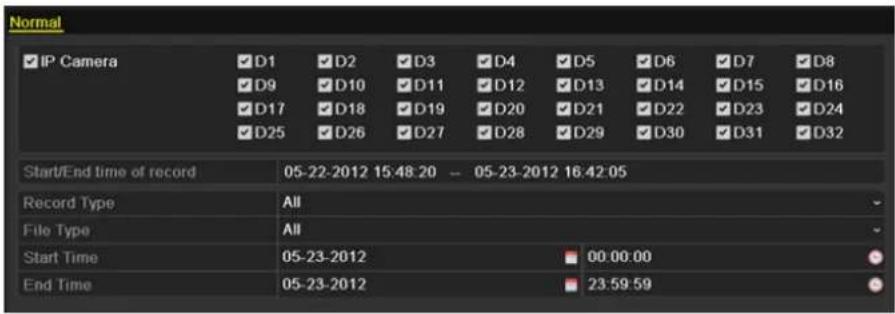
text_image
Normal IP Camera D1 D2 D3 D4 D5 D6 D7 D8 D9 D10 D11 D12 D13 D14 D15 D16 D17 D18 D19 D20 D21 D22 D23 D24 D25 D26 D27 D28 D29 D30 D31 D32 Start/End time of record 05-22-2012 15:48:20 -- 05-23-2012 16:42:05 Record Type All File Type All Start Time 05-23-2012 00:00:00 End Time 05-23-2012 23:59:59Figure 7.5 Normal Video Search for Backup
- Select record files you want to back up.
Click to play the record file if you want to check it.
Check the checkbox before the record files you want to back up.

The size of the currently selected files is displayed in the lower-left corner of the window.
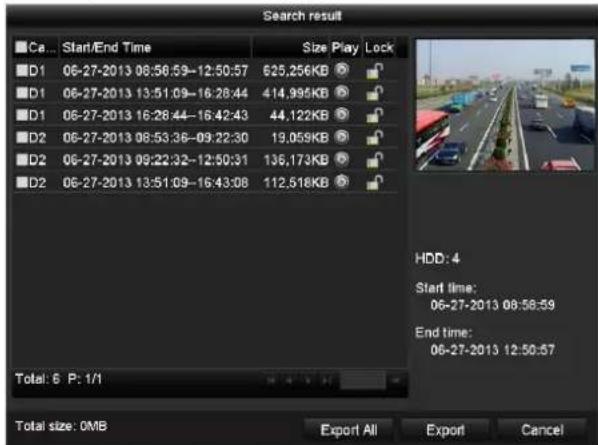
text_image
Search result Ca... Start/End Time Size Play Lock D1 06-27-2013 08:58:59-12:50:57 625,256KB D1 06-27-2013 13:51:09-16:28:44 414,995KB D1 06-27-2013 16:28:44-16:42:43 44,122KB D2 06-27-2013 08:53:36-09:22:30 19,059KB D2 06-27-2013 09:22:32-12:50:31 136,173KB D2 06-27-2013 13:51:09-16:43:08 112,518KB Total: 6 P: 1/1 HDD: 4 Start time: 06-27-2013 08:58:59 End time: 06-27-2013 12:50:57 Total size: 0MB Export All Export CancelFigure 7.6 Result of Normal Video Search for Backup
- Export.
Click Export All button to export all the recording files.
Or you can select recording files you want to back up, and click Export button to enter Export interface.

If the inserted USB device is not recognized:
- Click the Refresh button.
- Reconnect device.
- Check for compatibility from vendor.
You can also format USB flash drives or USB HDDs via the device.
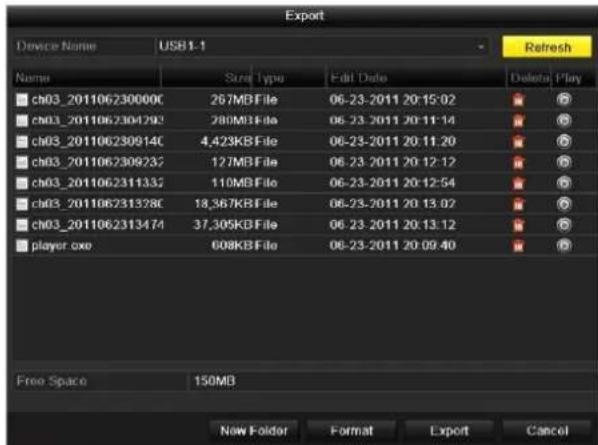
text_image
Export Device Name USB1-1 Refresh Name Size Type Edit Date Delete Play ch03_201106230000C 267MBFile 06-23-2011 20:15:02 ch03_2011062304792 280MBFile 06-23-2011 20:11:14 ch03_201106230914C 4,423KBFile 06-23-2011 20:11:20 ch03_2011062309232 127MBFile 06-23-2011 20:12:12 ch03_2011062311332 110MBFile 06-23-2011 20:12:54 ch03_201106231378C 18,567KBFile 06-23-2011 20:13:02 ch03_2011062313474 37,305KBFile 06-23-2011 20:13:12 player.oxe 608KBFile 06-23-2011 20:09:40 Free Space 150MB New Folder Format Export CancelFigure 7.7 Export by Normal Video Search using USB Flash Drive
Stay in the Exporting interface until all record files are exported with pop-up message box "Export finished".
text_image
Export Export finished. OKFigure 7.8 Export Finished
5. Check backup result.
Choose the record file in Export interface and click button to check it.

The Player player.exe will be exported automatically during record file export.
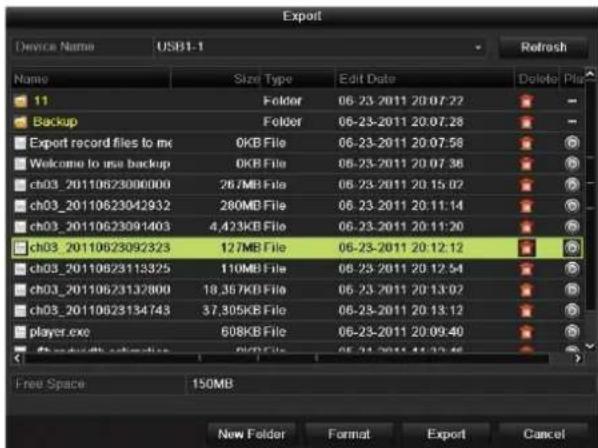
text_image
Export Device Name USB1-1 Refresh Name Size Type Edit Date Delete Plot 11 Folder 06-23-2011 20:07:22 Backup Folder 06-23-2011 20:07:28 Export record files to mc 0KB File 06-23-2011 20:07:58 Welcome to use backup 0KB File 06-23-2011 20:07:36 ch03_20110623006000 267MB File 06-23-2011 20:15:02 ch03_20110623042932 280MB File 06-23-2011 20:11:14 ch03_20110623091403 4,423KB File 06-23-2011 20:11:20 ch03_20110623092323 127MB File 06-23-2011 20:12:12 ch03_20110623113325 110MB File 06-23-2011 20:12:54 ch03_20110623132800 18,357KB File 06-23-2011 20:13:02 ch03_20110623134748 37,395KB File 06-23-2011 20:13:12 player.exe 608KB File 06-23-2011 20:09:40 Free space 150MB New Folder Format Export CancelFigure 7.9 Checkup of Export Result using USB Flash Drive
Backup using USB writer and SATA writer
Steps:
- Enter Export interface.
Menu>Export>Normal
- Set search condition and click Search button to enter the search result interface.
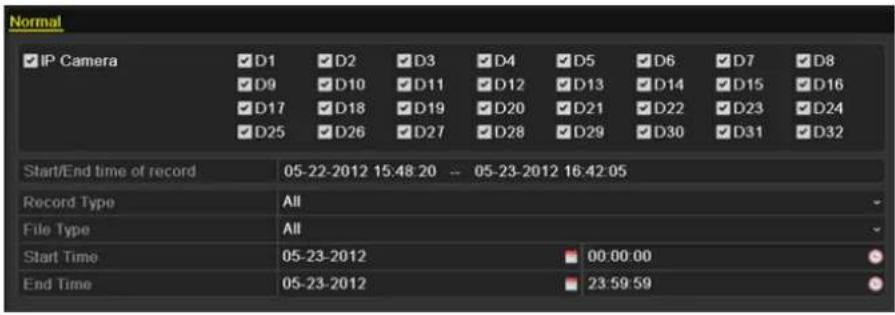
text_image
Normal IP Camera D1 D2 D3 D4 D5 D6 D7 D8 D9 D10 D11 D12 D13 D14 D15 D16 D17 D18 D19 D20 D21 D22 D23 D24 D25 D26 D27 D28 D29 D30 D31 D32 Start/End time of record 05-22-2012 15:48:20 -- 05-23-2012 16:42:05 Record Type All File Type All Start Time 05-23-2012 00:00:00 End Time 05-23-2012 23:59:59Figure 7.10 Normal Video Search for Backup
- Select record files you want to back up.
Click button to play the record file if you want to check it.
Check the checkbox before the record files you want to back up.

The size of the currently selected files is displayed in the lower-left corner of the window.
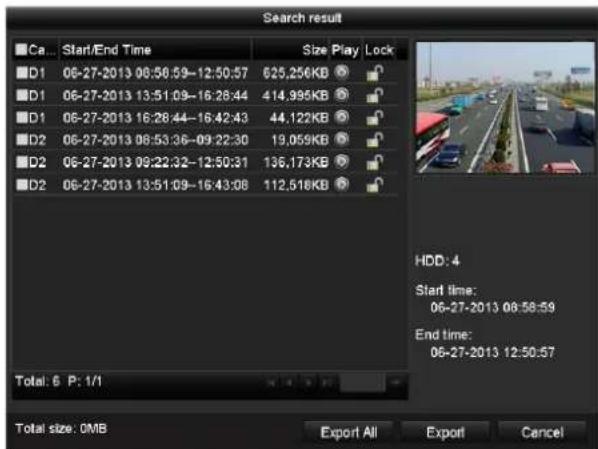
text_image
Search result Ca... Star/End Time Size Play Lock D1 06-27-2013 08:56:59-12:50:57 625,256KB D1 06-27-2013 13:51:09-16:28:44 414,995KB D1 06-27-2013 16:28:44-16:42:43 44,122KB D2 06-27-2013 08:53:36-09:22:30 19,059KB D2 06-27-2013 09:22:32-12:50:31 136,173KB D2 06-27-2013 13:51:09-16:43:08 112,518KB Total: 6 P: 1/1 HDD: 4 Start time: 06-27-2013 08:58:59 End time: 06-27-2013 12:50:57 Total size: OMB Export All Export CancelFigure 7.11 Result of Normal Video Search for Backup
- Export.
Click Export button and start backup.

If the inserted USB writer or SATA writer is not recognized:
- Click the Refresh button.
- Reconnect device.
- Check for compatibility from vendor.
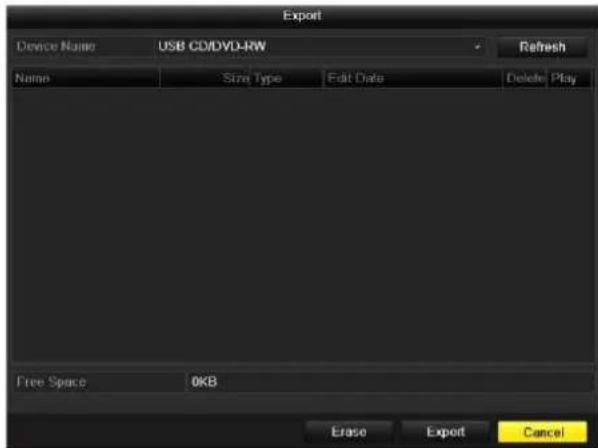
text_image
Export Device Name USB CD/DVD-RW Refresh Name Size Type Edit Date Delete Play Free Space OKB Erase Export CancelFigure 7.12 Export by Normal Video Search using USB Writer
Stay in the Exporting interface until all record files are exported with pop-up message box "Export finished".
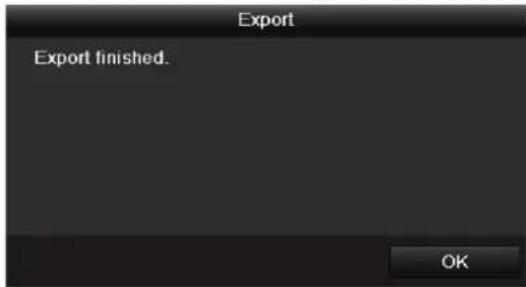
text_image
Export Export finished. OKFigure 7.13 Export Finished
- Check backup result.
Choose the record file in Export interface and click button to check it.

The Player player.exe will be exported automatically during record file export.
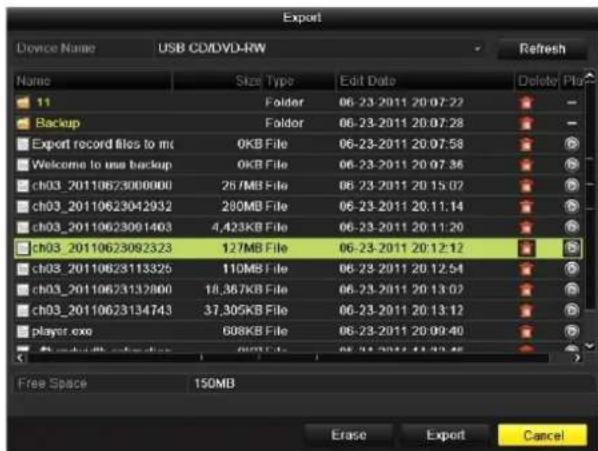
text_image
Export Device Name USB CD/DVD-RW Refresh Name Size Type Edit Date Delete Plus 11 Folder 06-23-2011 20:07:27 Backup Folder 06-23-2011 20:07:28 Export record files to mc 0KB File 06-23-2011 20:07:58 Welcome to use backup 0KB File 06-23-2011 20:07:36 ch03_20110623008000 267MB File 06-23-2011 20:15:07 ch03_20110623042932 280MB File 06-23-2011 20:11:14 ch03_20110623091403 4,423KB File 06-23-2011 20:11:20 ch03_20110623092323 127MB File 06-23-2011 20:12:12 ch03_20110623113325 110MB File 06-23-2011 20:12:54 ch03_20110623132800 18,367KB File 06-23-2011 20:13:07 ch03_20110623134743 37,305KB File 06-23-2011 20:13:12 player.exe 608KB File 06-23-2011 20:09:40 Free Space 150MB Erase Export CancelFigure 7.14 Checkup of Export Result using USB Writer
Backup using eSATA HDDs
Steps:
- Enter Record>Advanced and set the usage of eSATA HDD at "Export".
Menu>Record>Advanced
Choose eSATA and set its usage at Export. Click Yes when pop-up message box "System will reboot automatically if the usage of eSATA is changed. Continue?"

The usages of eSATA HDD contain Record/Capture and Export. And changes in usage will take effective after rebooting the device.
- Enter Export interface.
Menu>Export>Normal
Set search condition and click Search button to enter the search result interface.
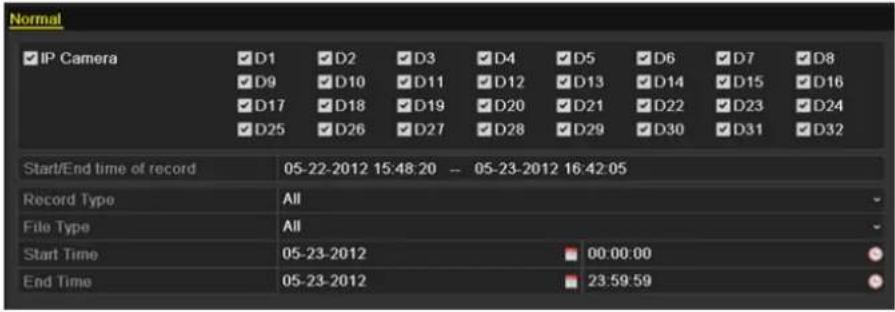
text_image
Normal IP Camera D1 D2 D3 D4 D5 D6 D7 D8 D9 D10 D11 D12 D13 D14 D15 D16 D17 D18 D19 D20 D21 D22 D23 D24 D25 D26 D27 D28 D29 D30 D31 D32 Start/End time of record 05-22-2012 15:48:20 -- 05-23-2012 16:42:05 Record Type All File Type All Start Time 05-23-2012 00:00:00 End Time 05-23-2012 23:59:59Figure 7.15 Normal Video Search for Backup
- Select record files you want to back up.
Click button to play the record file if you want to check it.
Tick record files you want to back up.

The size of the currently selected files is displayed in the lower-left corner of the window.
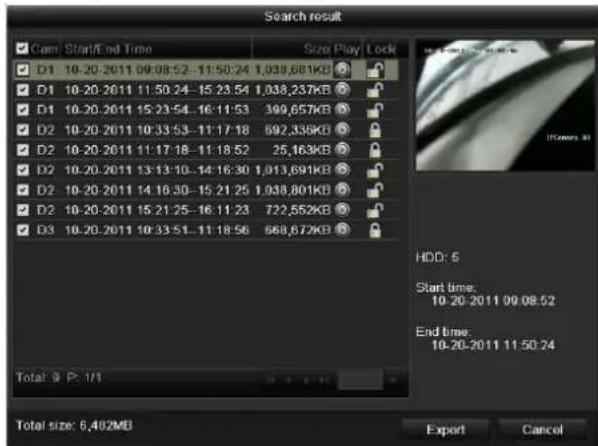
text_image
Search result Cam Start/End Time Size Play Lock D1 10-20-2011 09:08:52-11:50:24 1,038,681KB D1 10-20-2011 11:50:24-15:23:54 1,038,237KB D1 10-20-2011 15:23:54-16:11:53 399,657KB D2 10-20-2011 10:33:53-11:17:18 692,336KB D2 10-20-2011 11:17:18-11:18:52 25,163KB D2 10-20-2011 13:13:10-14:16:30 1,013,691KB D2 10-20-2011 14:16:30-15:21:25 1,038,801KB D2 10-20-2011 15:21:25-16:11:23 722,552KB D3 10-20-2011 10:33:51-11:18:56 568,672KB Total: 9 P: 1/1 HDD: 5 Start time: 10.20-2011 09:08:52 End time: 10.20-2011 11:50:24 Export CancelFigure 7.16 Result of Normal Video Search for Backup
- Export.
Click Export All button to export all the recording files.
Or you can select recording files you want to back up, and click Export button to enter Export interface.

Please format the eSATA first when using it for the first time. If the inserted eSATA HDD is not recognized:
- Click the Refresh button.
- Reconnect device.
- Check for compatibility from vendor.
You can also format SATA HDD via the device.
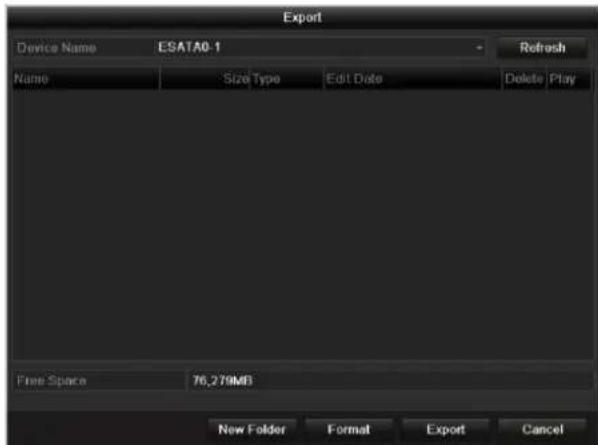
text_image
Export Device Name ESATA0-1 Refresh Name Size Type Edit Date Delete Play Free Space 76,279MB New Folder Format Export CancelFigure 7.17 Export by Normal Video Search Using eSATA HDD
Stay in the Exporting interface until all record files are exported with pop-up message "Export finished".
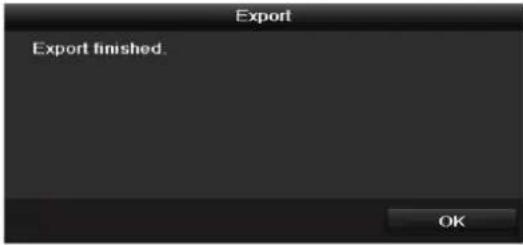
text_image
Export Export finished OKFigure 7.18 Export Finished
5. Check backup result.
Choose the record file in Export interface and click button to check it.

The Player player.exe will be exported automatically during record file export.
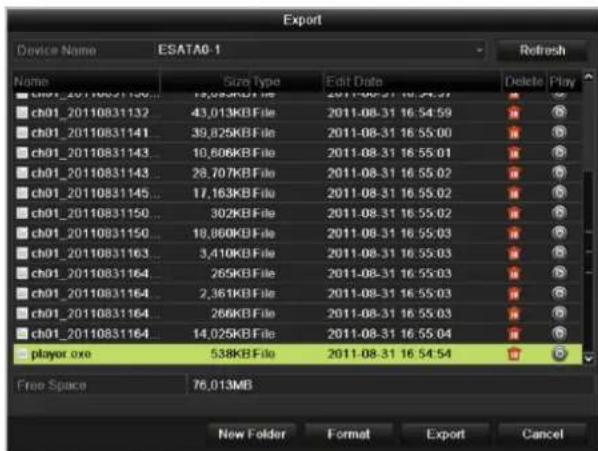
text_image
Export Device Name ESATA0-1 Refresh Name Size Type Edit Date Delete Play ch01_20110831150... 15,09KB File 2011-08-31 16:54:57 ch01_20110831132 43,013KB File 2011-08-31 16:54:59 ch01_20110831141 39,825KB File 2011-08-31 16:55:00 ch01_20110831143 10,606KB File 2011-08-31 16:55:01 ch01_20110831143 26,707KB File 2011-08-31 16:55:02 ch01_20110831145 ... 17,163KB File 2011-08-31 16:55:02 ch01_20110831150 ... 302KB File 2011-08-31 16:55:02 ch01_20110831150 ... 19,860KB File 2011-08-31 16:55:03 ch01_20110831163 ... 3,410KB File 2011-08-31 16:55:03 ch01_20110831164 265KB File 2011-08-31 16:55:03 ch01_20110831164 2,361KB File 2011-08-31 16:55:03 ch01_20110831164 266KB File 2011-08-31 16:55:03 ch01_20110831164 14,025KB File 2011-08-31 16:55:04 player .axe 538KB File 2011-08-31 16:54:54 Free Space 76,013MB New Folder Format Export CancelFigure 7.19 Checkup of Export Result Using eSATA HDD
7.1.3 Backing up by Event Search
Purpose:
Back up event-related record files using USB devices (USB flash drives, USB HDDs, USB writer), SATA writer or cSATA HDD. Quick Backup and Normal Backup are supported.
Steps:
1. Enter Export interface.
Menu>Export>Event
1) Select "Alarm Input" from the dropdown list of Event Type.
2) Select the alarm input No. and time.
3) Click Search button to enter the Search Result interface.

Event types contain Alarm Input, Motion and VCA; we take export by alarm input as an example.
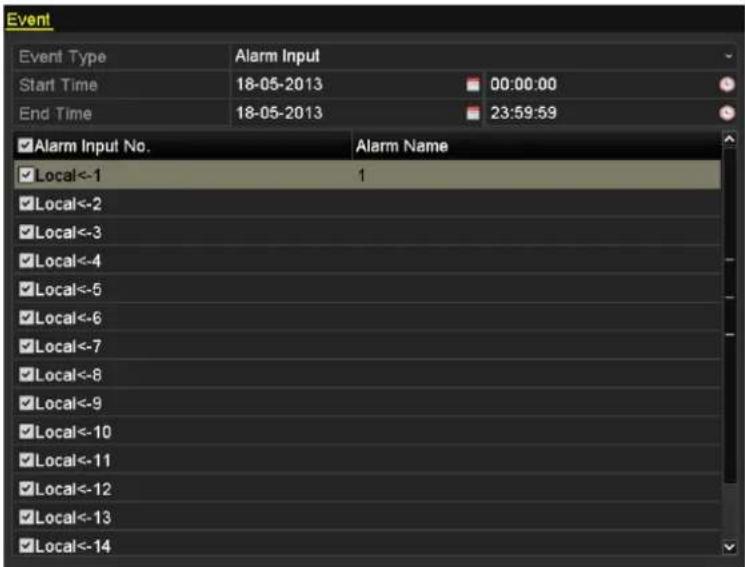
text_image
Event Event Type Alarm Input Start Time 18-05-2013 00:00:00 End Time 18-05-2013 23:59:59 ✓ Alarm Input No. Alarm Name ✓ Local<-1 1 ✓ Local<-2 ✓ Local<-3 ✓ Local<-4 ✓ Local<-5 ✓ Local<-6 ✓ Local<-7 ✓ Local<-8 ✓ Local<-9 ✓ Local<-10 ✓ Local<-11 ✓ Local<-12 ✓ Local<-13 ✓ Local<-14Figure 7.20 Event Search for Backup
2. Select record files to export.
1) Clicking Quick Export button will export record files of all channels triggered by the selected alarm input.
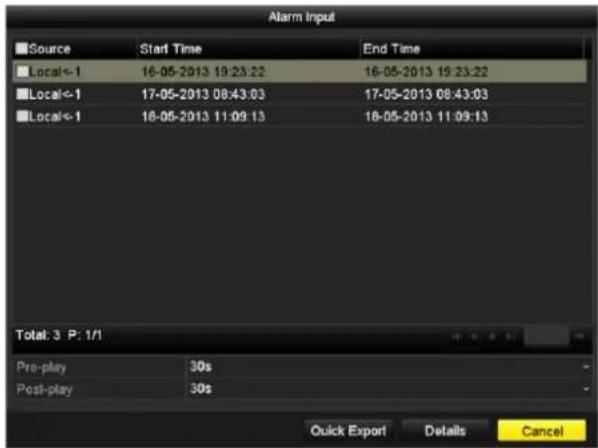
text_image
Alarm Input Source Start Time End Time Local<-1 16-05-2013 19:23:22 16-05-2013 19:23:22 Local<-1 17-05-2013 08:43:03 17-05-2013 08:43:03 Local<-1 18-05-2013 11:09:13 18-05-2013 11:09:13 Total: 3 P: 1/1 Pre-play 30s Post-play 30s Quick Export Details CancelFigure 7.21 Result of Event Search
2) Click Details button to view detailed information of the record file, e.g. start time, end time, file size, etc.
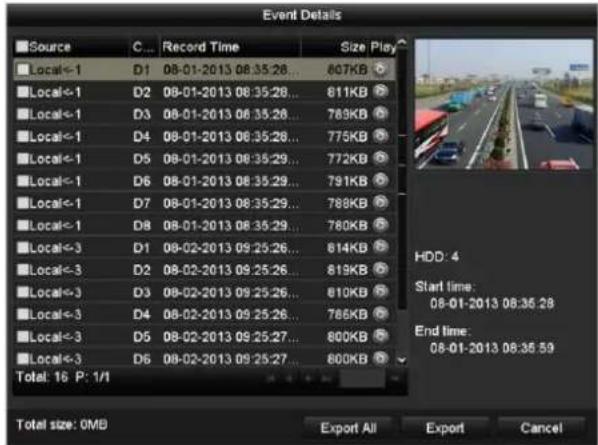
text_image
Event Details Source C... Record Time Size Play Local<-1 D1 08-01-2013 08:35:28... 807KB Local<-1 D2 08-01-2013 08:35:28... 811KB Local<-1 D3 08-01-2013 08:35:28... 789KB Local<-1 D4 08-01-2013 08:35:28... 775KB Local<-1 D5 08-01-2013 08:35:29... 772KB Local<-1 D6 08-01-2013 08:35:29... 791KB Local<-1 D7 08-01-2013 08:35:29... 788KB Local<-1 D8 08-01-2013 08:35:29... 780KB Local<-3 D1 08-02-2013 09:25:26... 814KB Local<-3 D2 08-02-2013 09:25:26... 819KB Local<-3 D3 08-02-2013 09:25:26... 810KB Local<-3 D4 08-02-2013 09:25:26... 786KB Local<-3 D5 08-02-2013 09:25:27... 800KB Local<-3 D6 08-02-2013 09:25:27... 800KB Total: 16 P: 1/1 HDD: 4 Start time: 08-01-2013 08:35:28 End time: 08-01-2013 08:35:59 Total size: OMB Export All Export CancelFigure 7.22 Event Details Interface
3. Export.
Click Export All button to export all the recording files.
Or you can select recording files you want to back up, and click Export button to enter Export interface.

If the inserted USB device is not recognized:
- Click the Refresh button.
- Reconnect device.
- Check for compatibility from vendor.
You can also format USB flash drive or USB HDDs via the device.
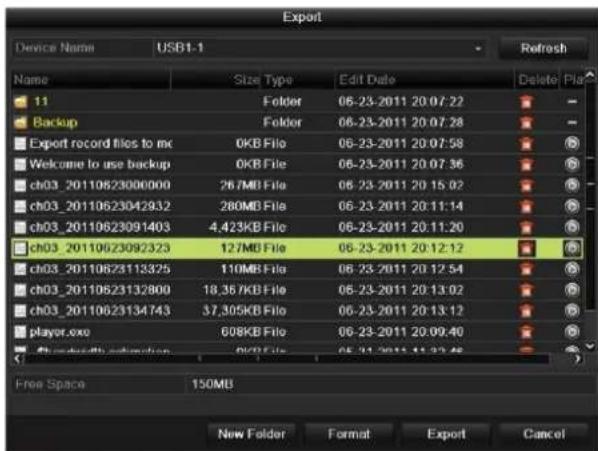
text_image
Export Device Name USB1-1 Name Size Type Edit Date Delete Plot 11 Folder 06-23-2011 20:07:22 Backup Folder 06-23-2011 20:07:28 Export record files to mc 0KB File 06-23-2011 20:07:58 Welcome to use backup 0KB File 06-23-2011 20:07:36 ch03_2011062300000 267MB File 06-23-2011 20:15:02 ch03_20110623042932 280MB File 06-23-2011 20:11:14 ch03_20110623091403 4,423KB File 06-23-2011 20:11:20 ch03_20110623092325 127MB File 06-23-2011 20:12:12 ch03_20110623113325 110MB File 06-23-2011 20:12:54 ch03_20110623132800 18,35/KB File 06-23-2011 20:13:02 ch03_20110623134743 37,305KB File 06-23-2011 20:13:12 player.exe 608KB File 06-23-2011 20:09:40 FreeSpace 150MB New Folder Format Export CancelFigure 7.23 Export by Event Using USB Flash Drive
Stay in the Exporting interface until all record files are exported with pop-up message "Export finished".
text_image
Export Export finished. OKFigure 7.24 Export Finished
- Check backup result.

The Player player.exe will be exported automatically during record file export.
7.1.4 Backing up Video Clips
Purpose:
You may also select video clips to export directly during Playback, using USB devices (USB flash drives, USB HDDs, USB writer), SATA writer or eSATA HDD.
Steps:
- Enter Playback interface.
Please refer to Chapter 6.1 Playing Back Record Files.
-
During playback, use buttons and in the playback toolbar to start or stop clipping recording file(s).
-
Click the button to pop up the file management interface. Click the Video Clips tab to check and export the files.
Or the promption of saving files will pop up when you quit the playback interface.

A maximum of 30 clips can be selected for each channel.
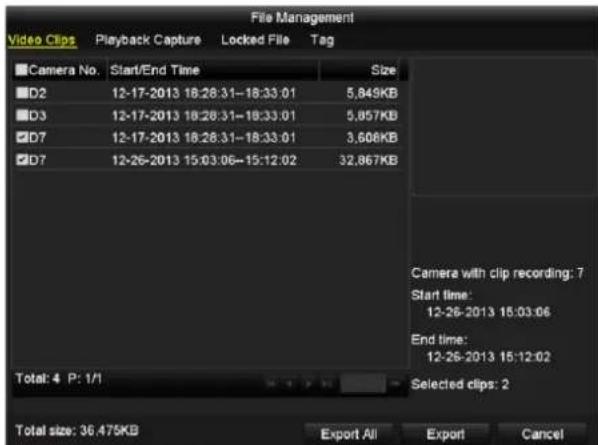
text_image
File Management Video Clips Playback Capture Locked File Tag Camera No. Start/End Time Size D2 12-17-2013 18:28:31-18:33:01 5,849KB D3 12-17-2013 18:28:31-18:33:01 5,857KB D7 12-17-2013 18:28:31-18:33:01 3,608KB D7 12-26-2013 15:03:06-15:12:02 32,867KB Total: 4 P: 1/1 Camera with clip recording: 7 Start time: 12-26-2013 15:03:06 End time: 12-26-2013 15:12:02 Selected clips: 2 Total size: 36,475KB Export All Export CancelFigure 7.25 Clips Export Interface
- Check the checkbox of files and click Export button and start backup.
Or the click the Export All button to export all the files.

If the inserted USB device is not recognized:
- Click the Refresh button.
- Reconnect device.
- Check for compatibility from vendor.
You can also format USB flash drive or USB HDDs via the device.
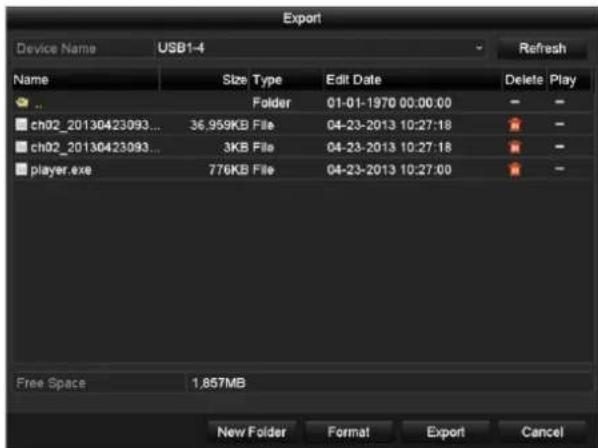
text_image
Export Device Name USB1-4 Refresh Name Size Type Edit Date Delete Play ... Folder 01-01-1970 00:00:00 - - ch02_20130423993... 36.959KB File 04-23-2013 10:27:18 ★ - - ch02_20130423993... 3KB File 04-23-2013 10:27:18 ★ - - player.exe 776KB File 04-23-2013 10:27:00 ★ - - Free Space 1,857MB New Folder Format Export CancelFigure 7.26 Export Using USB Flash Drive
Stay in the Exporting interface until all record files are exported with pop-up message "Export finished".
text_image
Export Export finished. OKFigure 7.27 Export Finished
5. Check backup result.

The Player player.exe will be exported automatically during record file export.
7.2 Backing up Pictures
● Backing up Captured Pictures When Playback
Steps:
- Enter Playback interface.
Please refer to Chapter 6.1 Playing Back Record Files.
-
During playback, click the button to capture picture.
-
You can click the 🎨 button to pop up the file management interface. Click the Playback Capture tab to check and export the pictures.
Or the promption of saving pictures will pop up when you quit the playback interface.
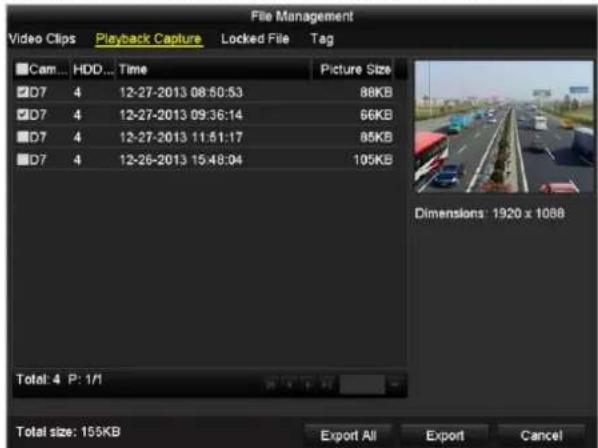
text_image
File Management Video Clips Playback Capture Locked File Tag ■Cam... HDD... Time Picture Size □D7 4 12-27-2013 08:50:53 88KB □D7 4 12-27-2013 09:36:14 66KB □D7 4 12-27-2013 11:51:17 85KB □D7 4 12-26-2013 15:48:04 105KB Dimensions: 1920 x 1088 Total: 4 P: 1/1 Total size: 155KB Export All Export CancelFigure 7. 28 Captured Pictures Export Interface
- Repeat the steps 4-5 of Chapter 7.1.4 to export the files.
● Backing up All Types of Captured Pictures
Purpose:
Back up pictures using USB devices (USB flash drives, USB HDDs, USB writer), SATA writer or eSATA HDD.
Steps:
- Enter Export interface.
Menu>Export>Picture
Select channel(s), image type, start time and end time, and click Search button to enter the Search Result interface.
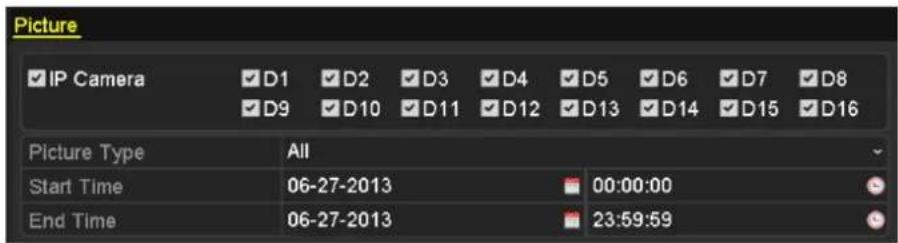
text_image
Picture IP Camera D1 D2 D3 D4 D5 D6 D7 D8 D9 D10 D11 D12 D13 D14 D15 D16 Picture Type All Start Time 06-27-2013 00:00:00 End Time 06-27-2013 23:59:59Figure 7.29 Picture Search for Backup
- Select pictures you want to back up.
Check the checkbox before the pictures you want to back up and click Export button.

Here we take USB flash drive as an example. For more backup devices, please refer to Chapter Backing up by Normal Video Search.
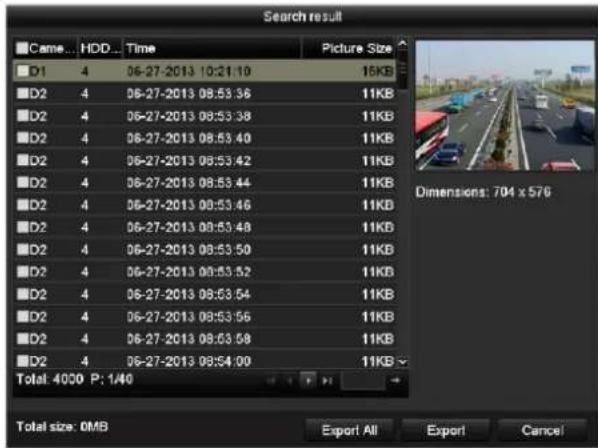
text_image
Search result ■ Came... HDD... Time Picture Size D1 4 06-27-2013 10:21:10 15KB D2 4 06-27-2013 08:53:36 11KB D2 4 06-27-2013 08:53:38 11KB D2 4 06-27-2013 08:53:40 11KB D2 4 06-27-2013 08:53:42 11KB D2 4 06-27-2013 08:53:44 11KB D2 4 06-27-2013 08:53:46 11KB D2 4 06-27-2013 08:53:48 11KB D2 4 06-27-2013 08:53:50 11KB D2 4 06-27-2013 08:53:52 11KB D2 4 06-27-2013 08:53:54 11KB D2 4 06-27-2013 08:53:56 11KB D2 4 06-27-2013 08:53:58 11KB D2 4 06-27-2013 08:54:00 11KB Total: 4000 P: 1/40 Dimensions: 704 x 576 Total size: 0MB Export All Export CancelFigure 7.30 Result of Picture Search
3. Export.
Click Export All button to export all the recording files.
Or you can select recording files you want to back up, and click Export button to enter Export interface.
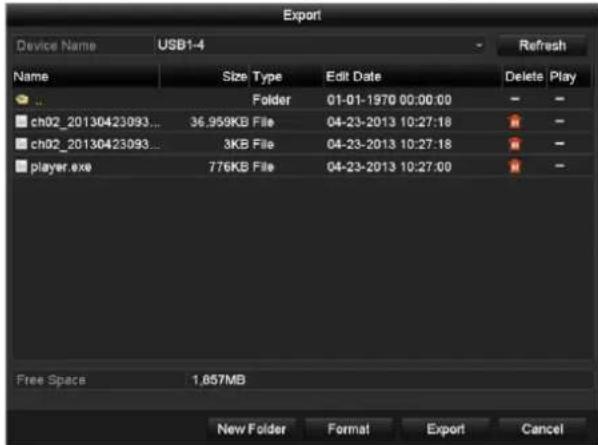
text_image
Export Device Name USB1-4 Name Size Type Edit Date Delete Play Folder 01-01-1970 00:00:00 ch02_20130423093... 36.959KB File 04-23-2013 10:27:18 ch02_20130423093... 3KB File 04-23-2013 10:27:18 player.exe 776KB File 04-23-2013 10:27:00 Free Space 1,857MB New Folder Format Export CancelFigure 7.31 Export Pictures Using USB Flash Drive
Stay in the Exporting interface until all record files are exported with pop-up message "Export finished".
4. Check backup result.
7.3 Managing Backup Devices
Management of USB flash drives, USB HDDs and eSATA HDDs
Steps:
- Enter Search Result interface of record files.
Menu>Export>Normal
Set search condition and click Search button to enter Search Result interface.

At least one channel shall be selected.
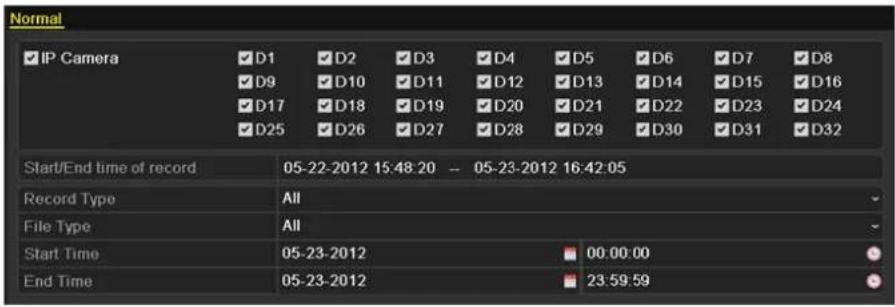
text_image
Normal IP Camera D1 D2 D3 D4 D5 D6 D7 D8 D9 D10 D11 D12 D13 D14 D15 D16 D17 D18 D19 D20 D21 D22 D23 D24 D25 D26 D27 D28 D29 D30 D31 D32 Start/End time of record 05-22-2012 15:48:20 -- 05-23-2012 16:42:05 Record Type All File Type All Start Time 05-23-2012 00:00:00 End Time 05-23-2012 23:59:59Figure 7.32 Normal Video Search for Backup
- Click Export All button to export all the recording files.
Or you can select recording files you want to back up, and click Export button to enter Export interface.

At least one record file shall be selected.
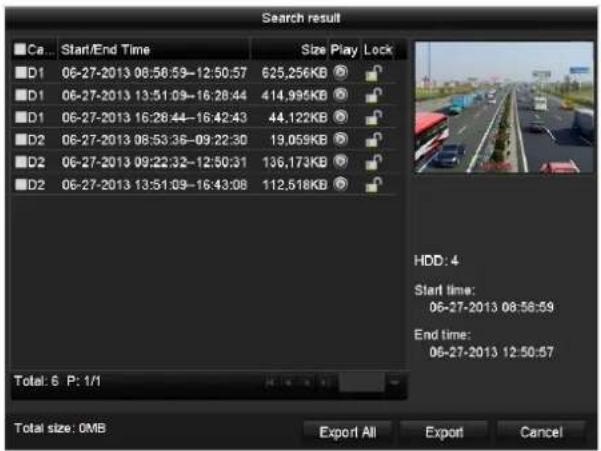
text_image
Search result Ca... Start/End Time Size Play Lock D1 06-27-2013 08:56:59-12:50:57 625,256KB D1 06-27-2013 13:51:09-16:28:44 414,995KB D1 06-27-2013 16:28:44-16:42:43 44.122KB D2 06-27-2013 08:53:36-09:22:30 19.059KB D2 06-27-2013 09:22:32-12:50:31 136.173KB D2 06-27-2013 13:51:09-16:43:08 112.518KB Total: 6 P: 1/1 HDD: 4 Start time: 06-27-2013 08:56:59 End time: 06-27-2013 12:50:57 Total size: 0MB Export All Export CancelFigure 7.33 Result of Normal Video Search for Backup
- Backup device management.
Click New Folder button if you want to create a new folder in the backup device.
Select a record file or folder in the backup device and click button if you want to delete it.
Select a record file in the backup device and click button to play it.
Click Format button to format the backup device.

If the inserted USB device is not recognized:
- Click the Refresh button.
- Reconnect device.
- Check for compatibility from vendor.
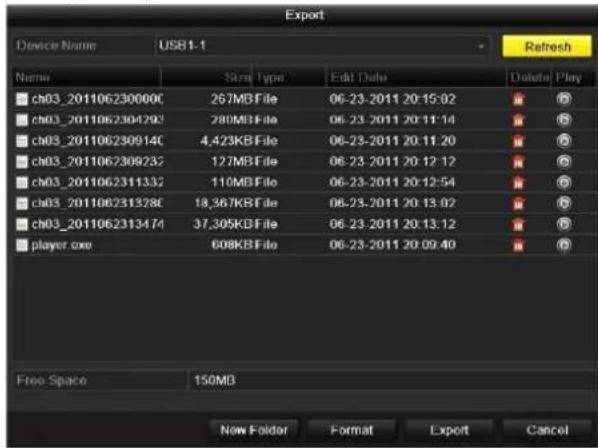
text_image
Export Device Name USB1-1 Refresh Name Size Type Edit Date Delete Play ch03_201106230000C 267MB File 06-23-2011 20:15:02 ch03_2011062304292 280MB File 06-23-2011 20:11:14 ch03_201106230914C 4,423KB File 06-23-2011 20:11:20 ch03_2011062309237 127MB File 06-23-2011 20:12:12 ch03_2011062311332 110MB File 06-23-2011 20:12:54 ch03_201106231328C 18,567KB File 06-23-2011 20:13:02 ch03_2011062313474 37,305KB File 06-23-2011 20:13:12 player.exe 608KB File 06-23-2011 20:09:40 Free Space 150MB New Folder Format Export CancelFigure 7.34 USB Flash Drive Management
Management of USB writers and DVD-R/W
- Enter Search Result interface of record files.
Menu>Export>Normal
Set search condition and click Search button to enter Search Result interface.

At least one channel shall be selected.
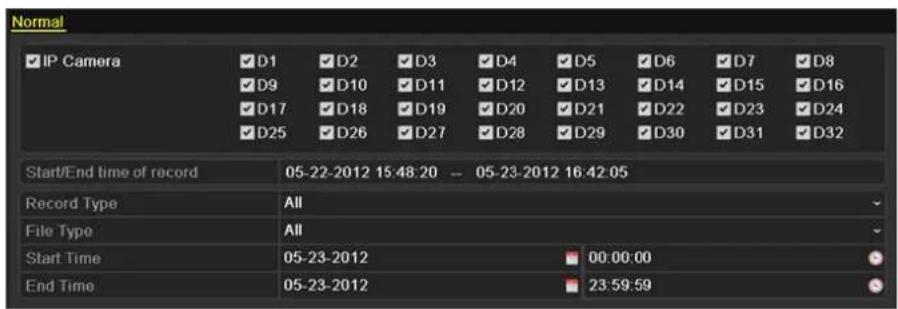
text_image
Normal IP Camera D1 D2 D3 D4 D5 D6 D7 D8 D9 D10 D11 D12 D13 D14 D15 D16 D17 D18 D19 D20 D21 D22 D23 D24 D25 D26 D27 D28 D29 D30 D31 D32 Start/End time of record 05-22-2012 15:48:20 -- 05-23-2012 16:42:05 Record Type All File Type All Start Time 05-23-2012 00:00:00 End Time 05-23-2012 23:59:59Figure 7.35 Normal Video Search for Backup
- Select record files you want to back up.
Click Export All button to export all the recording files.
Or you can select recording files you want to back up, and click Export button to enter Export interface.

At least one recording file shall be selected.
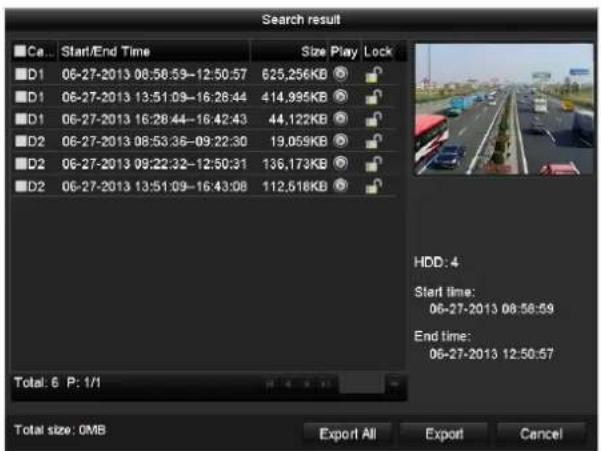
text_image
Search result Ca... Start/End Time Size Play Lock D1 06-27-2013 08:50:59-12:50:57 625,256KB D1 06-27-2013 13:51:09-16:28:44 414,995KB D1 06-27-2013 16:28:44-16:42:43 44,122KB D2 06-27-2013 08:53:36-09:22:30 19,059KB D2 06-27-2013 09:22:32-12:50:31 136,173KB D2 06-27-2013 13:51:09-16:43:08 112,518KB Total: 6 P: 1/1 HDD: 4 Start time: 06-27-2013 08:58:59 End time: 06-27-2013 12:50:57 Total size: OMB Export All Export CancelFigure 7. 36 Result of Normal Video Search for Backup
3. Backup device management.
Click Erase button if you want to erase the files from a re-writable CD/DVD.

- There must be a re-writable CD/DVD when you make this operation.
-
If the inserted USB writer or DVD-R/W is not recognized:
-
Click the Refresh button.
- Reconnect device.
- Check for compatibility from vendor.
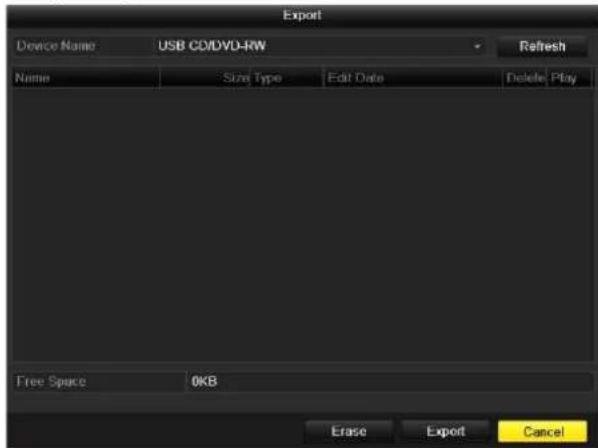
text_image
Export Device Name USB CD/DVD-RW Refresh Name Size Type Edit Date Delete Play Free Space 0KB Erase Export CancelFigure 7.37 USB Writer Management
7.4 Hot Spare Device Backup
Purpose:
Several devices, including NVR and HDVR, can form an N+1 hot spare system. The system consists of several working devices and a hot spare device; when the working device fails, the hot spare device switches into operation, thus increasing the reliability of the system.

Please contact dealer for details of models which support the hot spare function.
Before you start:
At least 2 devices are online.
A bidirectional connection shown in the figure below is required to be built between the hot spare device and each working device.

flowchart
graph LR
    A["Start Finish"] --> B["Set a hot spare device"]
    B --> C["Add a hot spare device on normal device"]
    C --> D["Add the normal device on the hot spare device"]
    D --> E["End"]
Figure 7.38 Building Hot Spare System
7.4.1 Setting Hot Spare Device

● The camera connection will be disabled when the device works in the hot spare mode.
- It's highly recommended to restore the defaults of the device after switching the working mode of the hot spare device to normal mode to ensure the normal operation afterwards.
Steps:
- Enter the Hot Spare settings interface.
Menu > Configuration > Hot Spare
- Set the Work Mode as Hot Spare Mode, click the Apply button to confirm the settings.
- Reboot the device to make the change take effect.
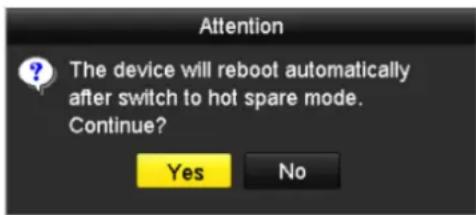
text_image
Attention The device will reboot automatically after switch to hot spare mode. Continue? Yes NoFigure 7.39 Reboot Attention
- Click the Yes button in the pop-up attention box.
7.4.2 Setting Working Device
Steps:
- Enter the Hot Spare settings interface.
Menu > Configuration > Hot Spare
- Set the Work Mode as Normal Mode (default).
- Check the checkbox of Enable to enable the hot spare function.
- Enter the IP address and admin password of hot spare device.
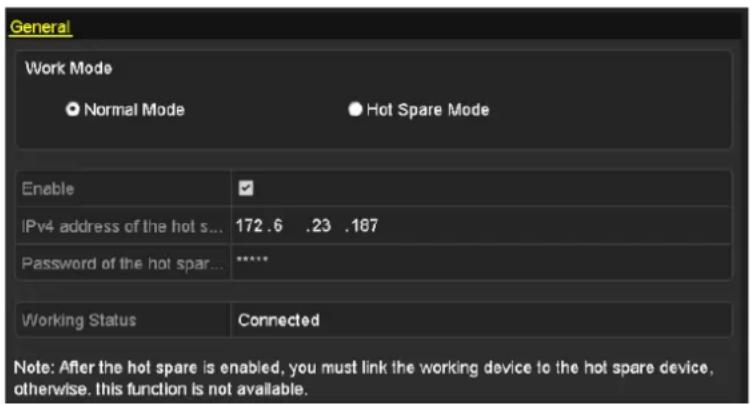
text_image
General Work Mode ● Normal Mode ● Hot Spare Mode Enable ✓ IPv4 address of the hot s... 172.6 .23 .187 Password of the hot spar... ***** Working Status Connected Note: After the hot spare is enabled, you must link the working device to the hot spare device, otherwise. this function is not available.Figure 7.40 Setting Working Mode for Working device
- Click the Apply button to save the settings.
7.4.3 Managing Hot Spare System
Steps:
- Enter the Hot Spare Settings interface of the hot spare device.
Menu > Configuration > Hot Spare
The connected working device is displayed on the device list.
- Check the checkbox to select the working device from the device list, and click the Add button to link the working device to the hot spare device.

A hot spare device can connect up to 32 working devices.
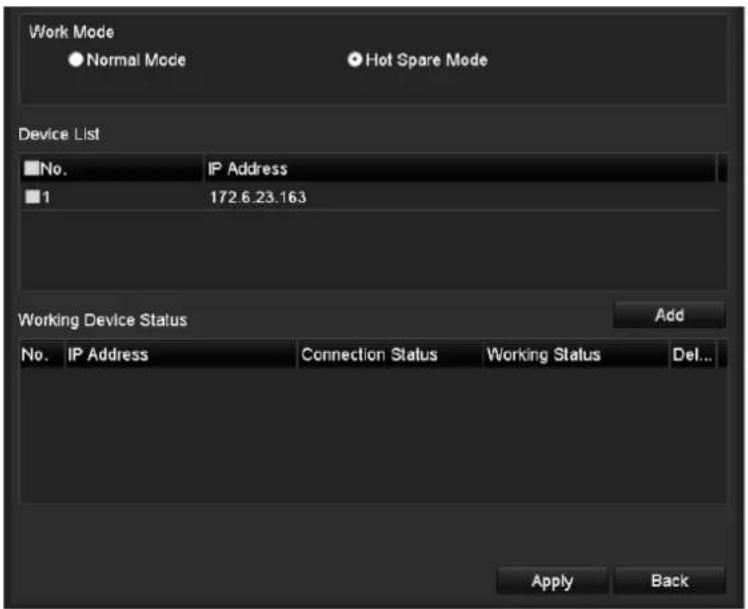
text_image
Work Mode ● Normal Mode ● Hot Spare Mode Device List No. IP Address 1 172.6.23.163 Working Device Status Add No. IP Address Connection Status Working Status Del... Apply BackFigure 7.41 Add Working Device
- You can view the working status of the hot spare device on the Working Status list.
When the working device works properly, the working status of the hot spare device is displayed as No record.
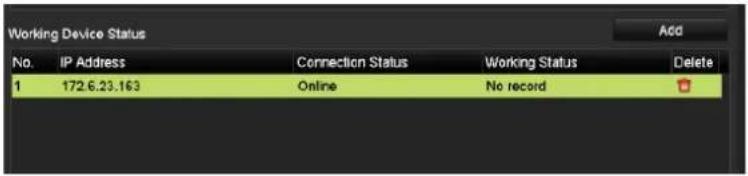
text_image
Working Device Status No. IP Address Connection Status Working Status Delete 1 172.6.23.163 Online No recordFigure 7.42 No Recording
When the working device gets offline, the hot spare device will record the video of the IP Camera connected to the working device for backup, and the working status of the hot spare device is displayed as Backing up.

The record backing up can be functioned for 1 working device at a time.
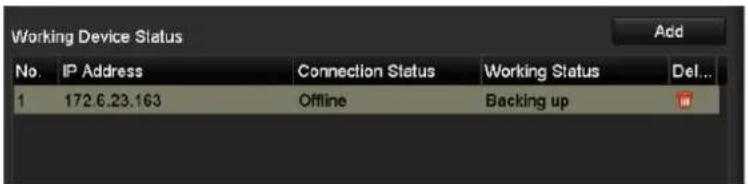
text_image
Working Device Status No. IP Address Connection Status Working Status Del... 1 172.6.23.163 Offline Backing upFigure 7.43 Backing up
When the working device comes online, the lost video files will be restored by the record synchronization function, and the working status of the hot spare device is displayed as Synchronizing.

The record synchronization function can be enabled for 1 working device at a time.
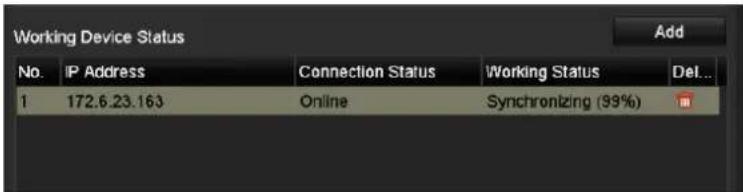
text_image
Working Device Status No. IP Address Connection Status Working Status Del... 1 172.6.23.163 Online Synchronizing (99%)Figure 7.44 Synchronizing
Chapter 8 Alarm Settings
8.1 Setting Motion Detection Alarm
Steps:
- Enter Motion Detection interface of Camera Management and choose a camera you want to set up motion detection.
Menu> Camera> Motion
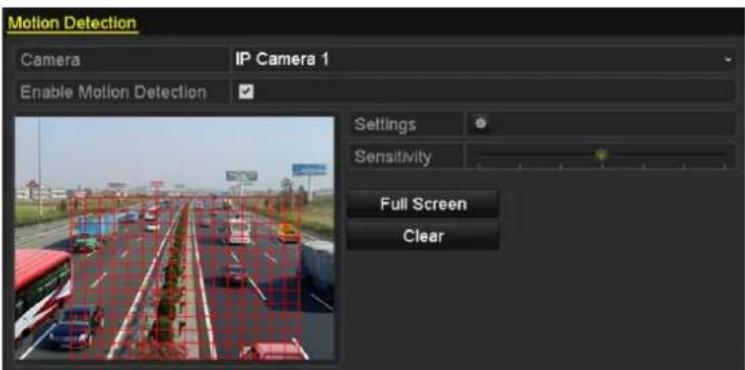
text_image
Motion Detection Camera IP Camera 1 Enable Motion Detection Settings Sensitivity Full Screen ClearFigure 8.1 Motion Detection Setup Interface
- Set up detection area and sensitivity.
Tick "Enable Motion Detection", use the mouse to draw detection area(s) and drag the sensitivity bar to set sensitivity.
Click 📄 button and set alarm response actions.
- Click Trigger Channel tab and select one or more channels which will start to record/capture or become full-screen monitoring when motion alarm is triggered, and click Apply to save the settings.
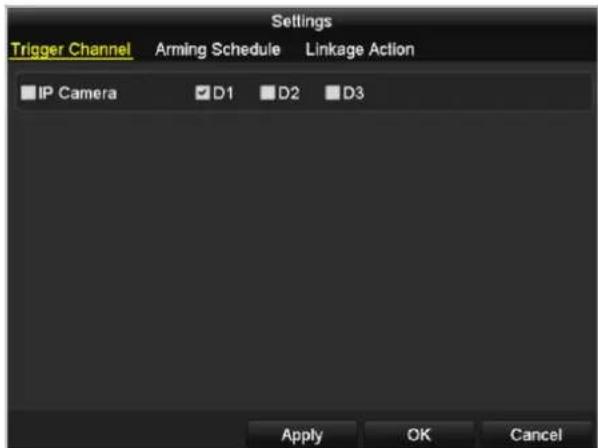
text_image
Settings Trigger Channel Arming Schedule Linkage Action IP Camera D1 D2 D3 Apply OK CancelFigure 8.2 Set Trigger Camera of Motion Detection
- Set up arming schedule of the channel.
1) Select Arming Schedule tab to set the arming schedule of handling actions for the motion detection.
2) Choose one day of a week and up to eight time periods can be set within each day.
3) Click Apply to save the settings

Time periods shall not be repeated or overlapped.
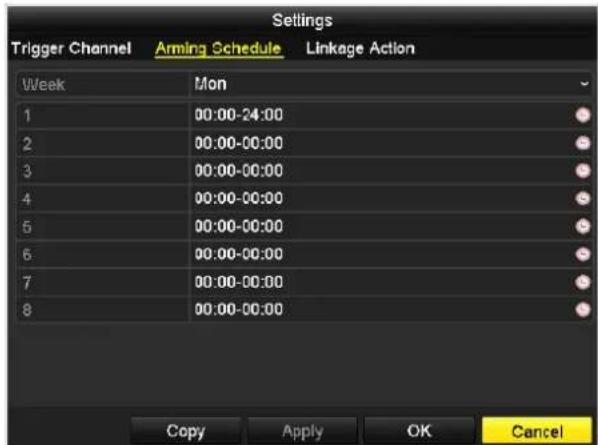
text_image
Settings Trigger Channel Arming Schedule Linkage Action Week Mon 1 00:00-24:00 2 00:00-00:00 3 00:00-00:00 4 00:00-00:00 5 00:00-00:00 6 00:00-00:00 7 00:00-00:00 8 00:00-00:00 Copy Apply OK CancelFigure 8.3 Set Arming Schedule of Motion Detection
- Click Handling tab to set up alarm response actions of motion alarm (please refer to Chapter Setting Alarm Response Actions).
- If you want to set motion detection for another channel, repeat the above steps or just click Copy in the Motion Detection interface to copy the above settings to it.
8.2 Setting Sensor Alarms
Purpose:
Set the handling action of an external sensor alarm.
Steps:
- Enter Alarm Settings of System Configuration and select an alarm input.
Menu> Configuration> Alarm
Select Alarm Input tab to enter Alarm Input Settings interface.
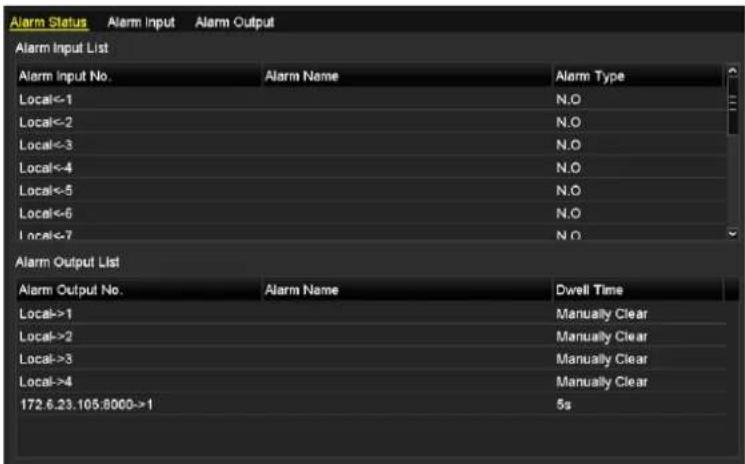
text_image
Alarm Status Alarm Input Alarm Output Alarm Input List Alarm Input No. Local<-1 Local<-2 Local<-3 Local<-4 Local<-5 Local<-6 Local<-7 Alarm Output List Alarm Output No. Local->1 Local->2 Local->3 Local->4 172.6.23.105:8000->1 Alarm Name N.O N.O N.O N.O N.O Dwell Time Manually Clear Manually Clear Manually Clear 5sFigure 8.4 Alarm Status Interface of System Configuration
- Set up the handling action of the selected alarm input.
Check the Enable checkbox and click Settings button to set up its alarm response actions.
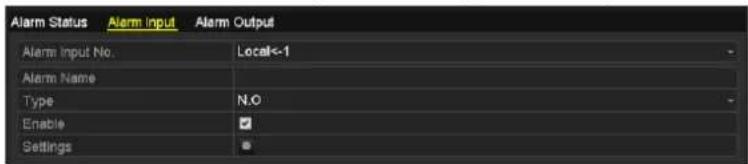
text_image
Alarm Status Alarm Input Alarm Output Alarm Input No. Local<-1 Alarm Name Type N.O Enable SettingsFigure 8.5 Alarm Input Setup Interface
- Select Trigger Channel tab and select one or more channels which will start to record/capture or become full-screen monitoring when an external alarm is input, and click Apply to save the settings.
- Select Arming Schedule tab to set the arming schedule of handling actions.
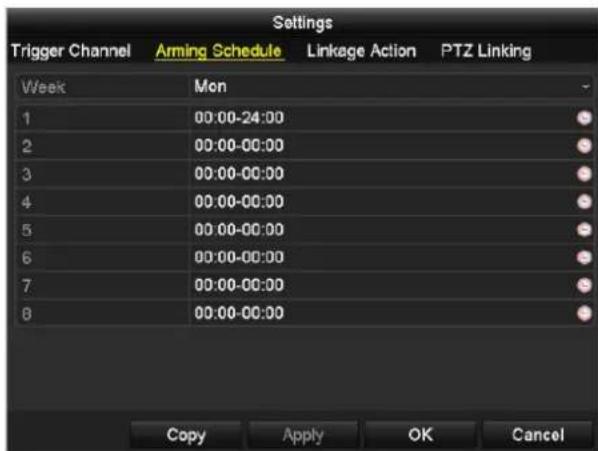
text_image
Settings Trigger Channel Arming Schedule Linkage Action PTZ Linking Week Mon 1 00:00-24:00 2 00:00-00:00 3 00:00-00:00 4 00:00-00:00 5 00:00-00:00 6 00:00-00:00 7 00:00-00:00 8 00:00-00:00 Copy Apply OK CancelFigure 8.6 Set Arming Schedule of Alarm Input
Choose one day of a week and Max. eight time periods can be set within each day, and click Apply to save the settings.

Time periods shall not be repeated or overlapped.
Repeat the above steps to set up arming schedule of other days of a week. You can also use Copy button to copy an arming schedule to other days.
- Select Linkage Action tab to set up alarm response actions of the alarm input (please refer to Chapter Setting Alarm Response Actions).
- If necessary, select PTZ Linking tab and set PTZ linkage of the alarm input. Set PTZ linking parameters and click OK to complete the settings of the alarm input.

Please check whether the PTZ or speed dome supports PTZ linkage.
One alarm input can trigger presets, patrol or pattern of more than one channel. But presets, patrols and patterns are exclusive.
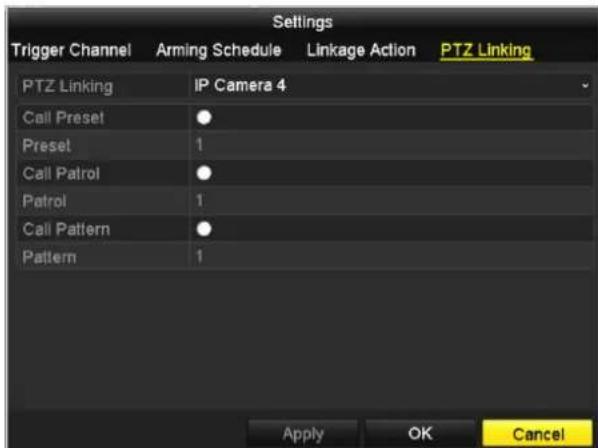
text_image
Settings Trigger Channel Arming Schedule Linkage Action PTZ Linking PTZ Linking IP Camera 4 Call Preset ● Preset 1 Call Patrol ● Patrol 1 Call Pattern ● Pattern 1 Apply OK CancelFigure 8.7 Set PTZ Linking of Alarm Input
- If you want to set handling action of another alarm input, repeat the above steps. Or you can click the Copy button on the Alarm Input Setup interface and check the checkbox of alarm inputs
to copy the settings to them.
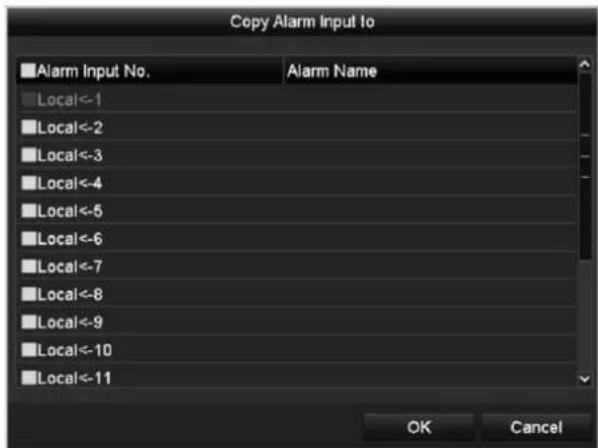
text_image
Copy Alarm Input to Alarm Input No. Alarm Name Local<-1 Local<-2 Local<-3 Local<-4 Local<-5 Local<-6 Local<-7 Local<-8 Local<-9 Local<-10 Local<-11 OK CancelFigure 8.8 Copy Settings of Alarm Input
8.3 Detecting Video Loss Alarm
Purpose:
Detect video loss of a channel and take alarm response action(s).
Steps:
- Enter Video Loss interface of Camera Management and select a channel you want to detect. Menu> Camera> Video Loss
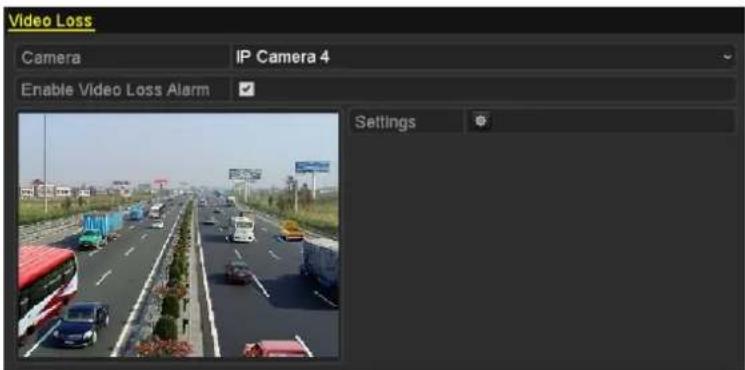
text_image
Video Loss Camera IP Camera 4 Enable Video Loss Alarm SettingsFigure 8.9 Video Loss Setup Interface
- Set up handling action of video loss.
Check the checkbox of "Enable Video Loss Alarm", and click button to set up handling action of video loss.
- Set up arming schedule of the handling actions.
1) Select Arming Schedule tab to set the channel's arming schedule.
2) Choose one day of a week and up to eight time periods can be set within each day.
3) Click Apply button to save the settings.

Time periods shall not be repeated or overlapped.
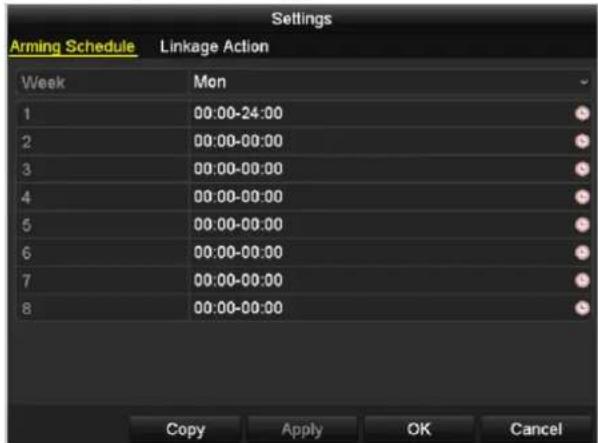
text_image
Settings Arming Schedule Linkage Action Week Mon 1 00:00-24:00 2 00:00-00:00 3 00:00-00:00 4 00:00-00:00 5 00:00-00:00 6 00:00-00:00 7 00:00-00:00 8 00:00-00:00 Copy Apply OK CancelFigure 8.10 Set Arming Schedule of Video Loss
-
Select Linkage Action tab to set up alarm response action of video loss (please refer to Chapter Setting Alarm Response Actions).
-
Click the OK button to complete the video loss settings of the channel.
8.4 Detecting Video Tampering Alarm
Purpose:
Trigger alarm when the lens is covered and take alarm response action(s).
Steps:
- Enter Video Tampering interface of Camera Management and select a channel you want to detect video tampering.
Menu> Camera> Video Tampering
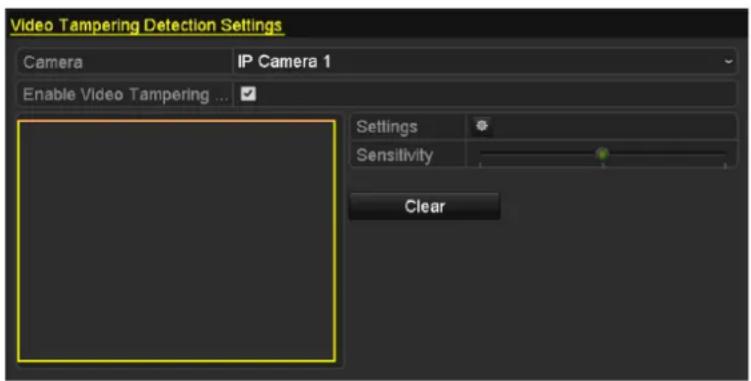
text_image
Video Tampering Detection Settings Camera IP Camera 1 Enable Video Tampering ... Settings Sensitivity ClearFigure 8.11 Video Tampering Setting Interface
- Set the video tampering handling action of the channel.
Check the checkbox of "Enable Video Tampering Detection".
Drag the sensitivity bar to set a proper sensitivity level. Use the mouse to draw an area you want to detect video tampering.
Click button to set up handling action of video tampering.
- Set arming schedule and alarm response actions of the channel.
1) Click Arming Schedule tab to set the arming schedule of handling actions.
2) Choose one day of a week and Max. eight time periods can be set within each day.
3) Click Apply button to save the settings.

Time periods shall not be repeated or overlapped.
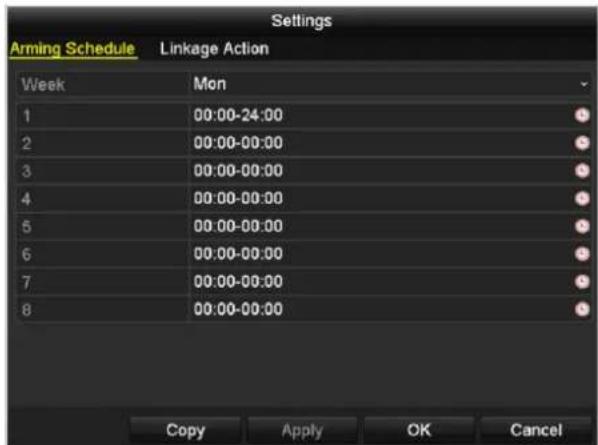
text_image
Settings Arming Schedule Linkage Action Week Mon 1 00:00-24:00 2 00:00-00:00 3 00:00-00:00 4 00:00-00:00 5 00:00-00:00 6 00:00-00:00 7 00:00-00:00 8 00:00-00:00 Copy Apply OK CancelFigure 8.12 Set Arming Schedule of Video Tampering
- Select Linkage Action tab to set up alarm response actions of video tampering alarm (please refer to Chapter Setting Alarm Response Actions).
- Click the OK button to complete the video tampering settings of the channel.
8.5 Detecting VCA Alarm
Purpose:
The NVR can receive the VCA alarm sent by IP camera, and the VCA detection must be enabled and configured on the IP camera settings interface first. Refer to the user manual of IP camera for detailed instructions to set the VCA rules.
Steps:
- Enter VCA Alarm interface of Camera Management and select a camera you want to detect VCA alarm. Menu> Camera> VCA

The selected camera must support the VCA function.
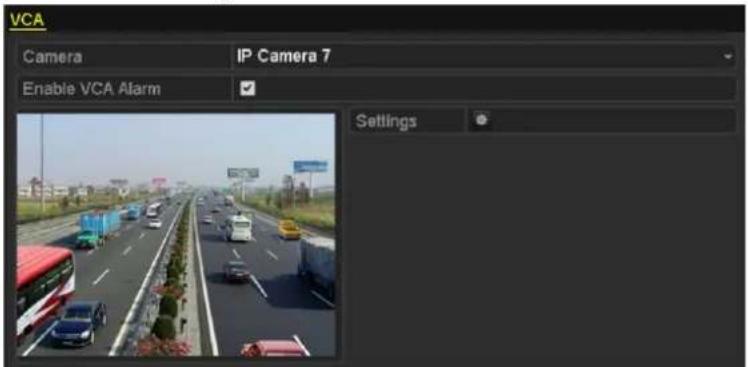
text_image
VCA Camera IP Camera 7 Enable VCA Alarm SettingsFigure 8.13 VCA Alarm Setting Interface
- Check the Enable VCA Alarm checkbox and click Settings button to set up its alarm response actions.
- Select Trigger Channel tab and select one or more channels which will start to record/capture or become full-screen monitoring when a VCA alarm is triggered, and click Apply to save the settings.
- Select Arming Schedule tab to set the arming schedule of handling actions.
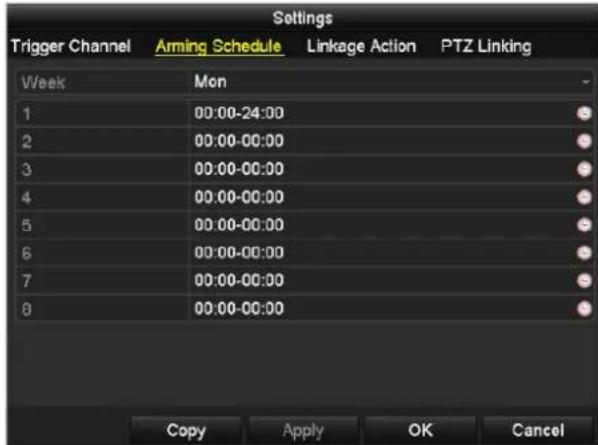
text_image
Settings Trigger Channel Arming Schedule Linkage Action PTZ Linking Week Mon 1 00:00-24:00 2 00:00-00:00 3 00:00-00:00 4 00:00-00:00 5 00:00-00:00 6 00:00-00:00 7 00:00-00:00 8 00:00-00:00 Copy Apply OK CancelFigure 8.14 Set Arming Schedule of VCA Alarm
Choose one day of a week and Max. eight time periods can be set within each day, and click Apply to save the settings.

Time periods shall not be repeated or overlapped.
Repeat the above steps to set up arming schedule of other days of a week. You can also use Copy button to copy an arming schedule to other days.
- Select Linkage Action tab to set up alarm response actions of the alarm input (please refer to Chapter 8.7
Setting Alarm Response Actions).
- If necessary, select PTZ Linking tab and set PTZ linkage of the VCA alarm, refer to step 6 of Chapter 8.2
Setting Sensor Alarms.
- Click the OK button to complete the VCA alarm settings of the channel.
8.6 Handling Exceptions Alarm
Purpose:
Exception settings refer to the handling action of various exceptions, e.g.
• HDD Full: The HDD is full.
• HDD Error: Writing HDD error or unformatted HDD.
• Network Disconnected: Disconnected network cable.
• IP Conflicted: Duplicated IP address.
- Illegal Login: Incorrect user ID or password.
• Record/Capture Exception: No space for saving recorded files or captured images.
• Hot Spare Exception: Disconnected with the working device.
• Array Exception: Abnormal virtual disks exist under array.

Array Exception is only supported by DS-9600NI-RT and DS-9600NI-XT series NVR.
Steps:
Enter Exception interface of System Configuration and handle various exceptions.
Menu> Configuration> Exceptions
Please refer to Chapter Setting Alarm Response Actions for detailed alarm response actions.
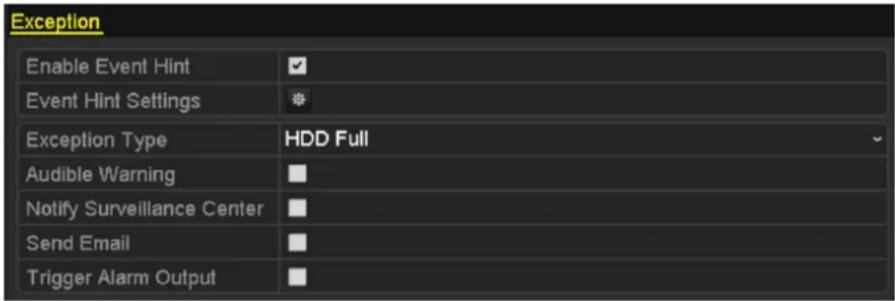
text_image
Exception Enable Event Hint Event Hint Settings Exception Type HDD Full Audible Warning Notify Surveillance Center Send Email Trigger Alarm OutputFigure 8.15 Exceptions Setup Interface
8.7 Setting Alarm Response Actions
Purpose:
Alarm response actions will be activated when an alarm or exception occurs, including Event Hint Display, Full Screen Monitoring, Audible Warning (buzzer), Notify Surveillance Center, Trigger Alarm Output and Send Email.
Event Hint Display
When an event or exception happens, a hint can be displayed on the lower-left corner of live view image. And you can click the hint icon to check the details. Besides, the event to be displayed is configurable.
Steps:
- Enter the Exception settings interface.
Menu > Configuration > Exceptions
- Check the checkbox of Enable Event Hint.

text_image
Enable Event Hint Event Hint SettingsFigure 8.16 Event Hint Settings Interface
- Click the 🎨 to set the type of event to be displayed on the image.
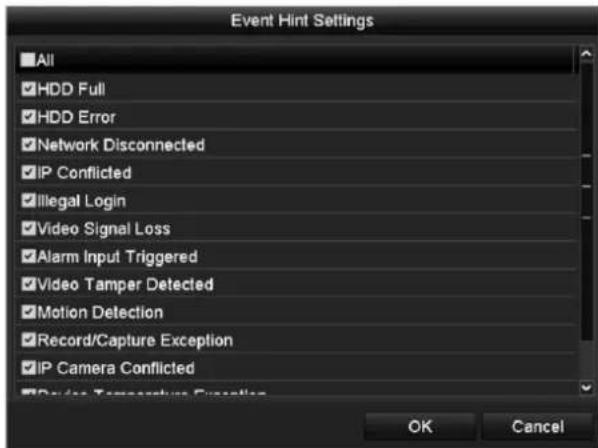
text_image
Event Hint Settings All HDD Full HDD Error Network Disconnected IP Conflicted Illegal Login Video Signal Loss Alarm Input Triggered Video Tamper Detected Motion Detection Record/Capture Exception IP Camera Conflicted Device Temperature Definition OK CancelFigure 8.17 Event Hint Settings Interface
- Click the OK button to finish settings.
Full Screen Monitoring
When an alarm is triggered, the local monitor (VGA, HDMI or BNC monitor) display in full screen the video image from the alarming channel configured for full screen monitoring.
If alarms are triggered simultaneously in several channels, their full-screen images will be switched at an interval of 10 seconds (default dwell time). A different dwell time can be set by going to Menu >Configuration>Live View >Full Screen Monitoring Dwell Time.
Auto-switch will terminate once the alarm stops and you will be taken back to the Live View interface.

You must select during "Trigger Channel" settings the channel(s) you want to make full screen monitoring.
Audible Warning
Trigger an audible beep when an alarm is detected.
Notify Surveillance Center
Sends an exception or alarm signal to remote alarm host when an event occurs. The alarm host refers to the PC installed with Remote Client.

The alarm signal will be transmitted automatically at detection mode when remote alarm host is configured.
Please refer to Chapter Configuring Remote Alarm Host for details of alarm host configuration.
Email Linkage
Send an email with alarm information to a user or users when an alarm is detected.
Please refer to Chapter 9.2.10 for details of Email configuration.
Trigger Alarm Output
Trigger an alarm output when an alarm is triggered.
- Enter Alarm Output interface.
Menu> Configuration> Alarm> Alarm Output
Select an alarm output and set alarm name and dwell time. Click Schedule button to set the arming schedule of alarm output.

If “Manually Clear” is selected in the dropdown list of Dwell Time, you can clear it only by going to Menu> Manual> Alarm.
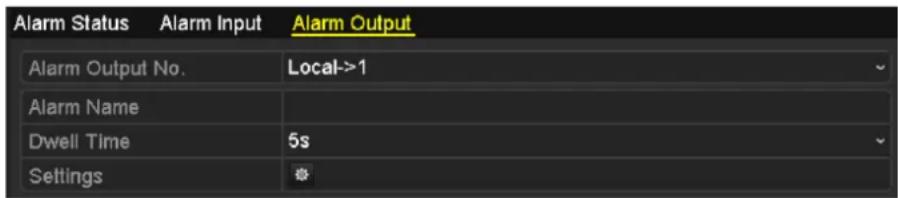
text_image
Alarm Status Alarm Input Alarm Output Alarm Output No. Local->1 Alarm Name Dwell Time 5s SettingsFigure 8.18 Alarm Output Setup Interface
- Set up arming schedule of the alarm output.
Choose one day of a week and up to 8 time periods can be set within each day.

Time periods shall not be repeated or overlapped.
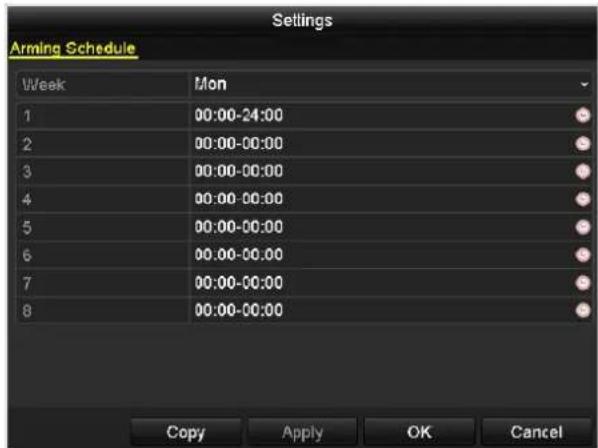
text_image
Settings Arming Schedule Week Mon 1 00:00-24:00 2 00:00-00:00 3 00:00-00:00 4 00:00-00:00 5 00:00-00:00 6 00:00-00:00 7 00:00-00:00 8 00:00-00:00 Copy Apply OK CancelFigure 8.19 Set Arming Schedule of Alarm Output
- Repeat the above steps to set up arming schedule of other days of a week. You can also use Copy button to copy an arming schedule to other days.
Click the OK button to complete the video tampering settings of the alarm output No.
- You can also copy the above settings to another channel.
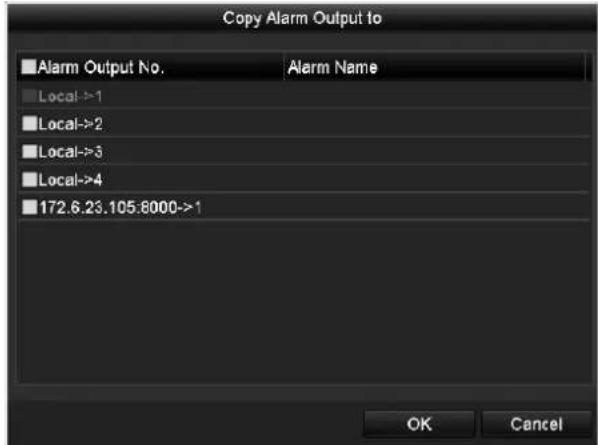
text_image
Copy Alarm Output to Alarm Output No. Alarm Name Local->1 Local->2 Local->3 Local->4 172.6.23.105:8000->1 OK CancelFigure 8. 20 Copy Settings of Alarm Output
8.8 Triggering or Clearing Alarm Output Manually
Purpose:
Sensor alarm can be triggered or cleared manually. If "Manually Clear" is selected in the dropdown list of dwell time of an alarm output, the alarm can be cleared only by clicking Clear button in the following interface.
Steps:
Select the alarm output you want to trigger or clear and make related operations.
Menu> Manual> Alarm
Click Trigger/Clear button if you want to trigger or clear an alarm output.
Click Trigger All button if you want to trigger all alarm outputs.
Click Clear All button if you want to clear all alarm output.
| Alarm Output No. | Alarm Name | Trigger |
| Local->1 | No | |
| Local->2 | No | |
| Local->3 | No | |
| Local->4 | No | |
| 172.6.23.105:8000->1 | No |
Figure 8.21 Clear or Trigger Alarm Output Manually
Chapter 9 Network Settings
9.1 Configuring General Settings
Purpose:
Network settings must be properly configured before you operate NVR over network.
Steps:
- Enter the Network Settings interface.
Menu >Configuration>Network
- Select the General tab.
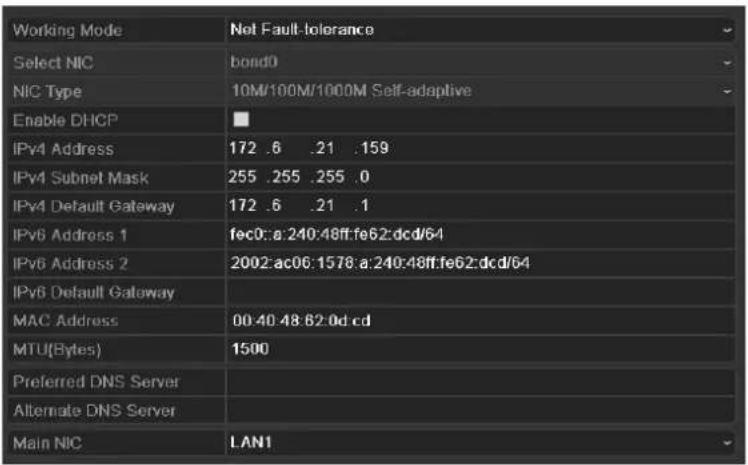
text_image
Working Mode Net Fault-tolerance Select NIC bond0 NIC Type 10M/100M/1000M Self-adaptive Enable DHCP IPv4 Address 172 .6 .21 .159 IPv4 Subnet Mask 255 .255 .255 .0 IPv4 Default Gateway 172 .6 .21 .1 IPv6 Address 1 fec0::a:240:48ff:fe62:dcd/64 IPv6 Address 2 2002:ac06:1578:a:240:48ff:fe62:dcd/64 IPv6 Default Gateway MAC Address 00:40:48:62:0d cd MTU(Bytes) 1500 Preferred DNS Server Alternate DNS Server Main NIC LAN1DS-9600NI-ST/RT/XT and DS-8600NI-ST
| NIC Type | 10M/100M/1000M Self-adaptive |
| Enable DHCP | |
| IPv4 Address | 172.6 .23 .190 |
| IPv4 Subnet Mask | 255.255.255.0 |
| IPv4 Default Gateway | 172.6 .23 .1 |
| IPv6 Address 1 | fe80::212:42ff:fed:ec46/64 |
| IPv6 Address 2 | |
| IPv6 Default Gateway | |
| MAC Address | 00:12:42:fd:ec:46 |
| MTU(Bytes) | 1500 |
| Preferred DNS Server | |
| Alternate DNS Server |
DS-7700/7600NI-ST
| NIC Type | 10M/100M/1000M Self-adaptive |
| Enable DHCP | |
| IPv4 Address | 172.6 .23 .190 |
| IPv4 Subnet Mask | 255.255.255.0 |
| IPv4 Default Gateway | 172.6 .23 .1 |
| IPv6 Address 1 | fe80::212:42ff:efd:ec46/64 |
| IPv6 Address 2 | |
| IPv6 Default Gateway | |
| MAC Address | 00:12:42:fd:ec:46 |
| MTU(Bytes) | 1500 |
| Preferred DNS Server | |
| Alternate DNS Server | |
| Internal NIC IPv4 Address | 192.168.254.1 |
DS-7700/7600NI-SP
Figure 9.1 Network Settings Interface

Dual-NIC configuration is only applicable for DS-9600NI-ST/RT/XT and DS-8600NI-ST series NVR.
- In the General Settings interface, you can configure the following settings: Working Mode, NIC Type, IPv4 Address, IPv4 Gateway, MTU and DNS Server.
If the DHCP server is available, you can click the checkbox of DHCP to automatically obtain an IP address and other network settings from that server.

-
For the 7600/7700NI-SP series NVR, you need to configure the internal NIC address, so that IP addresses are assigned to the cameras connected to the PoE interfaces.
● The valid value range of MTU is 500 \~ 9676. -
After having configured the general settings, click Apply button to save the settings.
Working Mode
There are two 10M/100M/1000M NIC cards provided by the 9600NI-ST/RT/XT series device, and it allows the device to work in the Multi-address, Load Balance and Net-fault Tolerance modes.
Multi-address Mode: The parameters of the two NIC cards can be configured independently. You can select LAN1 or LAN2 in the NIC type field for parameter settings.
You can select one NIC card as default route. And then the system is connecting with the extranet the data will be forwarded through the default route.
Net-fault Tolerance Mode: The two NIC cards use the same IP address, and you can select the Main NIC to LAN1 or LAN2. By this way, in case of one NIC card failure, the device will automatically enable the other standby NIC card so as to ensure the normal running of the whole system.
Load Balance Mode: By using the same IP address and two NIC cards share the load of the total bandwidth, which enables the system to provide two Gigabit network capacity.
| Working Mode | Net Fault tolerance |
| Select NIC | bond0 |
| NIC Type | 10M/100M/1000M Self-adaptive |
| Enable DHCP | |
| IPv4 Address | 172 .6 .21 .159 |
| IPv4 Subnet Mask | 255 .255 .255 .0 |
| IPv4 Default Gateway | 172 .6 .21 .1 |
| IPv6 Address 1 | fec0: a 240.48ff fe62 dcd/64 |
| IPv6 Address 2 | 2002:ac06:1578:a:240:48ff:fe62:dcd/64 |
| IPv6 Default Gateway | |
| MAC Address | 00:40:48:62.0d:cd |
| MTU(Bytes) | 1500 |
| Preferred DNS Server | |
| Alternate DNS Server | |
| Main NIC | LAN1 |
Figure 9.2 Net Fault-tolerance Working Mode
9.2 Configuring Advanced Settings
9.2.1 Configuring PPPoE Settings
Purpose:
Your NVR also allows access by Point-to-Point Protocol over Ethernet (PPPoE).
Steps:
- Enter the Network Settings interface.
Menu >Configuration> Network
- Select the PPPoE tab to enter the PPPoE Settings interface, as shown in Figure 9.3.
| Enable PPPOE | |
| User Name | |
| Password |
Figure 9.3 PPPoE Settings Interface
- Check the PPPoE checkbox to enable this feature.
- Enter User Name, and Password for PPPoE access.

The User Name and Password should be assigned by your ISP.
- Click the Apply button to save and exit the interface.
- After successful settings, the system asks you to reboot the device to enable the new settings, and the PPPoE dial-up is automatically connected after reboot.
You can go to Menu >Maintenance>System Info >Network interface to view the status of PPPoE connection.
Please refer to Chapter Viewing System Information for PPPoE status.
9.2.2 Configuring DDNS
Purpose:
If your NVR is set to use PPPoE as its default network connection, you may set Dynamic DNS (DDNS) to be used for network access.
Prior registration with your ISP is required before configuring the system to use DDNS.
Steps:
- Enter the Network Settings interface.
Menu >Configuration> Network
- Select the DDNS tab to enter the DDNS Settings interface, as shown in Figure 9.4.
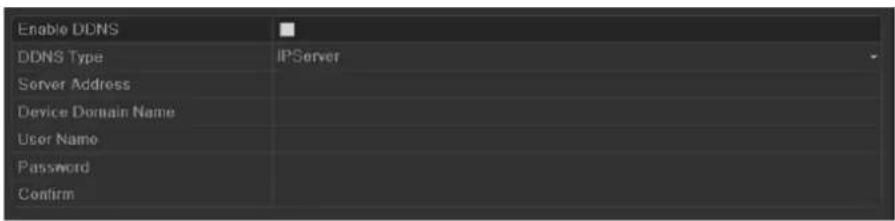
text_image
Enable DDNS DDNS Type IPServer Server Address Device Domain Name User Name Password ConfirmFigure 9.4 DDNS Settings Interface
- Check the DDNS checkbox to enable this feature.
- Select DDNS Type. Five different DDNS types are selectable: IPServer, DynDNS, PeanutHull, NO-IP and HiDDNS.
• IPServer: Enter Server Address for IPServer.
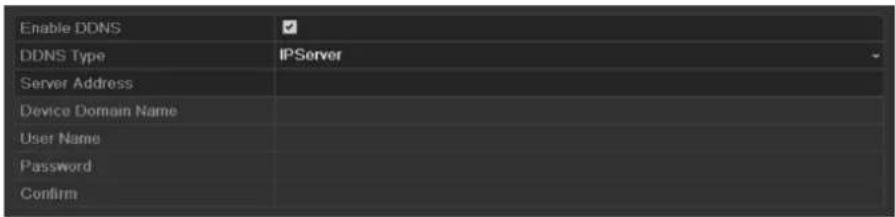
text_image
Enable DDNS DDNS Type IPServer Server Address Device Domain Name User Name Password ConfirmFigure 9.5 IPServer Settings Interface
• DynDNS:
1) Enter Server Address for DynDNS (i.e. members.dyndns.org).
2) In the NVR Domain Name text field, enter the domain obtained from the DynDNS website.
3) Enter the User Name and Password registered in the DynDNS website.
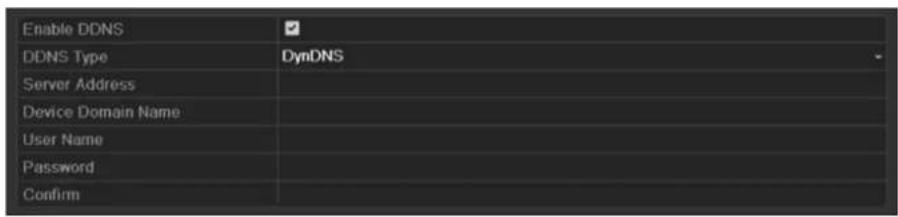
text_image
Enable DDNS DDNS Type DynDNS Server Address Device Domain Name User Name Password ConfirmFigure 9.6 DynDNS Settings Interface
- PeanutHull: Enter the User Name and Password obtained from the PeanutHull website.
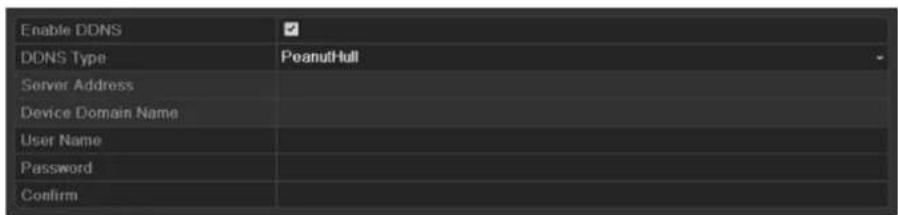
text_image
Enable DDNS DDNS Type Server Address Device Domain Name User Name Password ConfirmFigure 9.7 PeanutHull Settings Interface
• NO-IP:
Enter the account information in the corresponding fields. Refer to the DynDNS settings.
1) Enter Server Address for NO-IP.
2) In the NVR Domain Name text field, enter the domain obtained from the NO-IP website (www.no-ip.com).
3) Enter the User Name and Password registered in the NO-IP website.
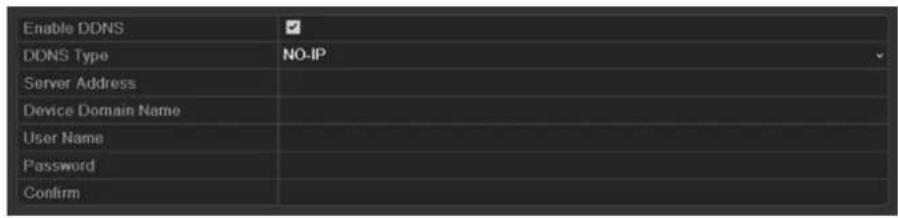
text_image
Enable DDNS DDNS Type NO-IP Server Address Device Domain Name User Name Password ConfirmFigure 9.8 NO-IP Settings Interface
- HiDDNS:
1) The Server Address of the HiDDNS server appears by default: www.hik-online.com.
2) Enter the Device Domain Name. You can use the alias you registered in the HiDDNS server or define a new device domain name. If a new alias of the device domain name is defined in the NVR, it will replace the old one registered on the server. You can register the alias of the device domain name in the HiDDNS server first and then enter the alias to the Device Domain Name in the NVR; you can also enter the domain name directly on the NVR to create a new one.
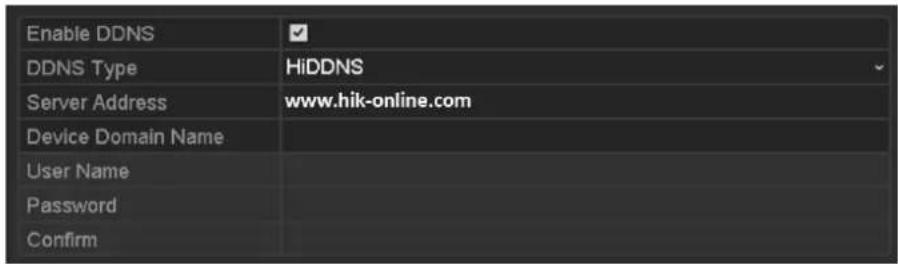
text_image
Enable DDNS DDNS Type HiDDNS Server Address www.hik-online.com Device Domain Name User Name Password ConfirmFigure 9.9 HiDDNS Settings Interface
Register the device on the HiDDNS server.
1) Go to the HiDDNS website: www.hik-online.com.
2) Click Register new user to register an account if you do not have one and use the account to log in.
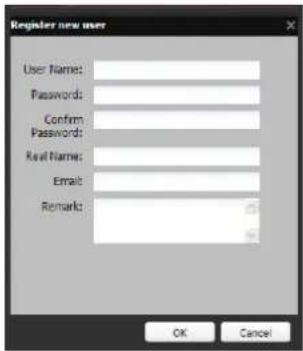
text_image
Register new user User Name: Passwords: Confirm Passwords: Real Name: Email: Remarks: OK CancelFigure 9.10 Register an Account
3) In the Device Management interface, click Add to register the device.
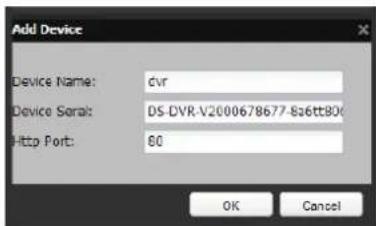
text_image
Add Device Device Name: dvr Device Serial: DS DVR-V2000678677-8a6tt80/ Http Port: 80 OK CancelFigure 9.11 Register the Device

The device name can only contain the lower-case English letter, numeric and ‘-’; and it must start with the lower-case English letter and cannot end with ‘-’.
Access the Device via Web Browser or Client Software
After having successfully registered the device on the HiDDNS server, you can access your device via web browser or Client Software with the Device Domain Name (Device Name).
- OPTION 1: Access the Device via Web Browser
Open a web browser, and enter http://www.hik-online.com/alias in the address bar. Alias refers to the Device Domain Name on the device or the Device Name on the HiDDNS server.
Example: http://www.hik-online.com/nvr

If you mapped the HTTP port on your router and changed it to port No. except 80, you have to enter http://www.hik-online.com/alias:HTTP port in the address bar to access the device. You can refer to Chapter 9.2.11 for the mapped HTTP port No.
- OPTION 2: Access the devices via iVMS4200
For iVMS-4200, in the Add Device window, select and then edit the device information.
Nickname: Edit a name for the device as you want.
Server Address: www.hik-online.com
Device Domain Name: It refers to the Device Domain Name on the device or the Device Name on the HiDDNS server you created.
User Name: Enter the user name of the device. By default it is admin.
Password: Enter the password of the device. By default it is 12345.
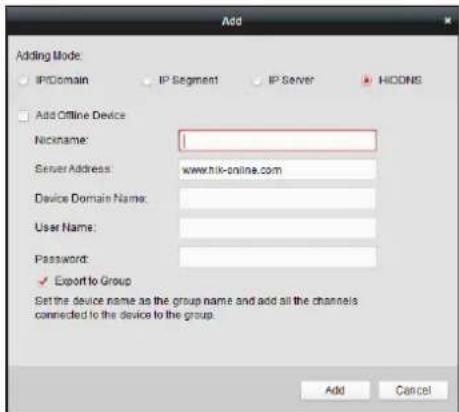
text_image
Adding Mode: IP/Domain IP Segment IP Server HICONS Add Offline Device Nickname: Server Address: www.hik-online.com Device Domain Name: User Name: Password: ✓ Export to Group Set the device name as the group name and add all the channels connected to the device to the group. Add CancelFigure 9.12 Access Device via iVMS4200
- Click the Apply button to save and exit the interface.
9.2.3 Configuring NTP Server
Purpose:
A Network Time Protocol (NTP) Server can be configured on your NVR to ensure the accuracy of system date/time.
Steps:
- Enter the Network Settings interface.
Menu >Configuration> Network
- Select the NTP tab to enter the NTP Settings interface, as shown in Figure 9.13.

text_image
Enable NTP Interval (min) 60 NTP Server NTP Port 123Figure 9.13 NTP Settings Interface
- Check the Enable NTP checkbox to enable this feature.
-
Configure the following NTP settings:
-
Interval: Time interval between the two synchronizing actions with NTP server. The unit is minute.
• NTP Server: IP address of NTP server.
• NTP Port: Port of NTP server. -
Click the Apply button to save and exit the interface.

The time synchronization interval can be set from 1 to 10080min, and the default value is 60min. If the NVR is connected to a public network, you should use a NTP server that has a time synchronization function, such as the server at the National Time Center (IP Address: 210.72.145.44). If the NVR is setup in a more customized network, NTP software can be used to establish a NTP server used for time synchronization.
9.2.4 Configuring SNMP
Purpose:
You can use SNMP protocol to get device status and parameters related information.
Steps:
- Enter the Network Settings interface.
Menu >Configuration> Network
- Select the SNMP tab to enter the SNMP Settings interface, as shown in Figure 9. 14.
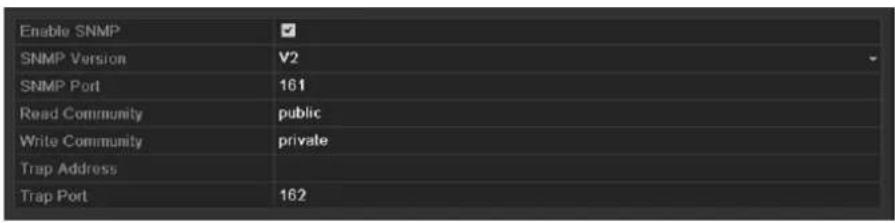
text_image
Enable SNMP SNMP Version V2 SNMP Port 161 Read Community public Write Community private Trap Address Trap Port 162Figure 9.14 SNMP Settings Interface
- Check the SNMP checkbox to enable this feature.
- Configure the following SNMP settings:
- Trap Address: IP Address of SNMP host.
- Trap Port: Port of SNMP host.
- Click the Apply button to save and exit the interface.

Before setting the SNMP, please download the SNMP software and manage to receive the device information via SNMP port. By setting the Trap Address, the NVR is allowed to send the alarm event and exception message to the surveillance center.
9.2.5 Configuring Remote Alarm Host
Purpose:
With a remote alarm host configured, the NVR will send the alarm event or exception message to the host when an alarm is triggered. The remote alarm host must have the Network Video Surveillance software installed.
Steps:
- Enter the Network Settings interface.
Menu >Configuration> Network
- Select the More Settings tab to enter the More Settings interface, as shown in Figure 9.15.
| Alarm Host IP | |
| Alarm Host Port | 0 |
| Server Port | 8000 |
| HTTP Port | 80 |
| Multicast IP | |
| RTSP Port | 554 |
| Enable High-speed Dow... |
Figure 9.15 More Settings Interface
- Enter Alarm Host IP and Alarm Host Port in the text fields.
The Alarm Host IP refers to the IP address of the remote PC on which the Network Video Surveillance Software (e.g., iVMS-4200) is installed, and the Alarm Host Port must be the same as the alarm monitoring port configured in the software.
- Click the Apply button to save and exit the interface.
9.2.6 Configuring Multicast
Purpose:
The multicast can be configured to realize live view for more than 128 connections through network for the device. A multicast address spans the Class-D IP range of 224.0.0.0 to 239.255.255.255. It is recommended to use the IP address ranging from 239.252.0.0 to 239.255.255.255.
Steps:
- Enter the Network Settings interface.
Menu >Configuration> Network
- Select the More Settings tab to enter the More Settings interface, as shown in Figure 9.15.
- Set Multicast IP, as shown in Figure 9. 16. When adding a device to the Network Video Surveillance Software, the multicast address must be the same as the NVR's multicast IP.
| Server Port | 8000 |
| HTTP Port | 80 |
| Multicast IP | 239.221.2.78 |
Figure 9.16 Configure Multicast
- Click the Apply button to save and exit the interface.

The multicast function should be supported by the network switch to which the NVR is connected.
9.2.7 Configuring RTSP
Purpose:
The RTSP (Real Time Streaming Protocol) is a network control protocol designed for use in communication systems to control streaming media servers.
Steps:
-
Enter the Network Settings menu Menu >Configuration> Network
-
Select the More Settings tab to enter the More Settings menu, as shown in Figure 9.15.
| RTSP Port | 554 |
Figure 9.17 RTSP Settings Interface
- Enter the RTSP port in the text field of RTSP Service Port. The default RTSP port is 554, and you can change it according to different requirements.
- Click the Apply button to save and exit the menu.
9.2.8 Configuring Server and HTTP Ports
Purpose:
You can change the server and HTTP ports in the Network Settings menu. The default server port is 8000 and the default HTTP port is 80.
Steps:
- Enter the Network Settings interface.
Menu >Configuration> Network
-
Select the More Settings tab to enter the More Settings interface, as shown in Figure 9. 15.
-
Enter new Server Port and HTTP Port.
| Server Port | 80001 |
| HTTP Port | 80 |
| Multicast IP | 239.221.2.78 |
Figure 9.18 Host/Others Settings Menu
- Enter the Server Port and HTTP Port in the text fields. The default Server Port is 8000 and the HTTP Port is 80, and you can change them according to different requirements.
- Click the Apply button to save and exit the interface.

The Server Port should be set to the range of 2000-65535 and it is used for remote client software access. The HTTP port is used for remote web browser access.
9.2.9 Configuring HTTPS Port
Purpose:
HTTPS provides authentication of the web site and associated web server that one is communicating with, which protects against Man-in-the-middle attacks. Perform the following steps to set the port number of https.
Example:
If you set the port number as 443 and the IP address is 192.0.0.64, you may access the device by inputting https://192.0.0.64:443 via the web browser.

The HTTPS port can be only configured through the web browser.
Steps:
- Open web browser, input the IP address of device, and the web server will select the language automatically according to the system language and maximize the web browser.
- Input the correct user name and password, and click Login button to log in the device.
- Enter the HTTPS settings interface.
Configuration > Remote Configuration > Network Settings > HTTPS - Create the self-signed certificate or authorized certificate.
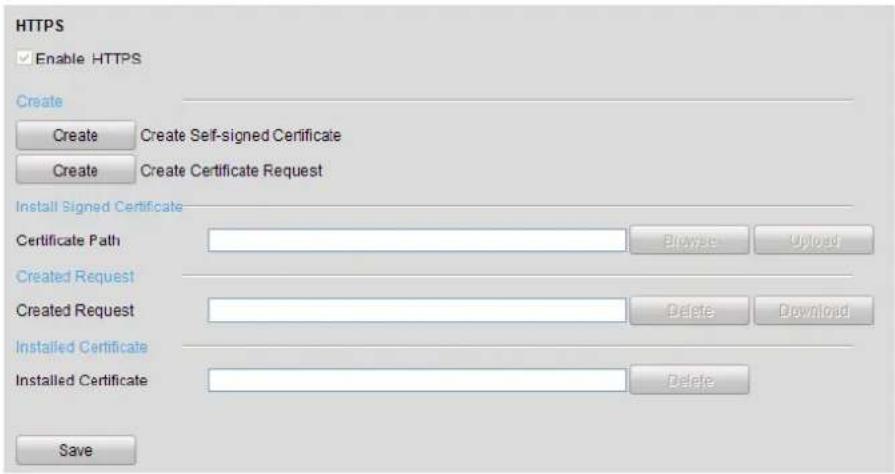
text_image
HTTPS Enable HTTPS Create Create Create Self-signed Certificate Create Create Certificate Request Install Signed Certificate Certificate Path Browse Uploaded Created Request Created Request Delete Download Installed Certificate Installed Certificate Delete SaveFigure 9.19 HTTPS Settings
OPTION 1: Create the self-signed certificate
1) Click the Create button to create the following dialog box.
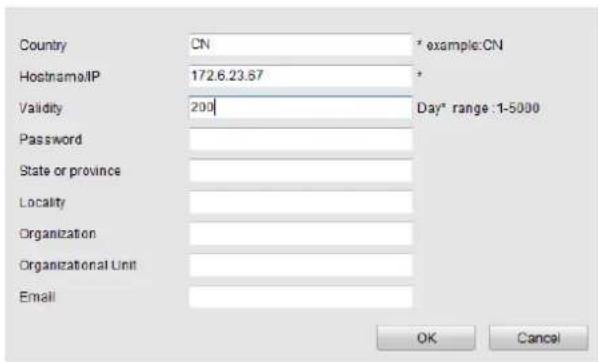
text_image
Country CN * example:CN Hostname/IP 172.6.23.67 * Validity 200 Day* range :1-5000 Password State or province Locality Organization Organizational Unit Email OK CancelFigure 9.20 Create Self-signed Certificate
2) Enter the country, host name/IP, validity and other information.
3) Click OK to save the settings.
OPTION 2: Create the authorized certificate
1) Click the Create button to create the certificate request.
2) Download the certificate request and submit it to the trusted certificate authority for signature.
3) After receiving the signed valid certificate, import the certificate to the device.
- There will be the certificate information after you successfully create and install the certificate.
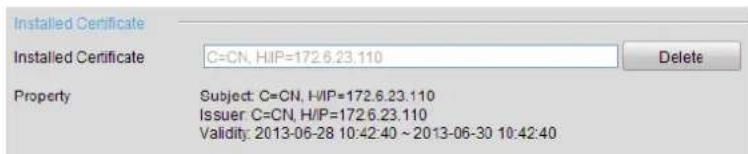
text_image
Installed Certificate Installed Certificate C=CN, HIP=172.6.23.110 Delete Property Subject: C=CN, HIP=172.6.23.110 Issuer: C=CN, H/IP=172.6.23.110 Validity: 2013-06-28 10:42:40 ~ 2013-06-30 10:42:40Figure 9.21 Installed Certificate Property
- Check the checkbox to enable the HTTPS function.
- Click the Save button to save the settings.
9.2.10 Configuring Email
Purpose:
The system can be configured to send an Email notification to all designated users if an alarm event is detected, etc., an alarm or motion event is detected or the administrator password is changed.
Before configuring the Email settings, the NVR must be connected to a local area network (LAN) that maintains an SMTP mail server. The network must also be connected to either an intranet or the Internet depending on the location of the e-mail accounts to which you want to send notification.
Steps:
- Enter the Network Settings interface.
Menu >Configuration> Network
- Set the IPv4 Address, IPv4 Subnet Mask, IPv4 Gateway and the Preferred DNS Server in the Network Settings menu, as shown in Figure 9. 22.
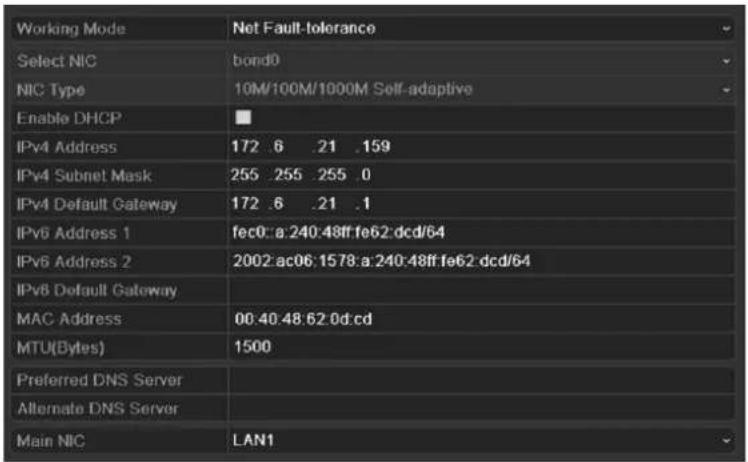
text_image
Working Mode Net Fault-tolerance Select NIC bond0 NIC Type 10M/100M/1000M Self-adaptive Enable DHCP IPv4 Address 172 .6 .21 .159 IPv4 Subnet Mask 255 .255 .255 .0 IPv4 Default Gateway 172 .6 .21 .1 IPv6 Address 1 fec0::a:240:48ff:fe62:dcd/64 IPv6 Address 2 2002:ac06:1578:a:240:48ff:fe62:dcd/64 IPv8 Default Gateway MAC Address 00:40:48:62:0d:cd MTU(Bytes) 1500 Preferred DNS Server Alternate DNS Server Main NIC LAN1Figure 9.22 Network Settings Interface
- Click Apply to save the settings.
- Select the Email tab to enter the Email Settings interface.
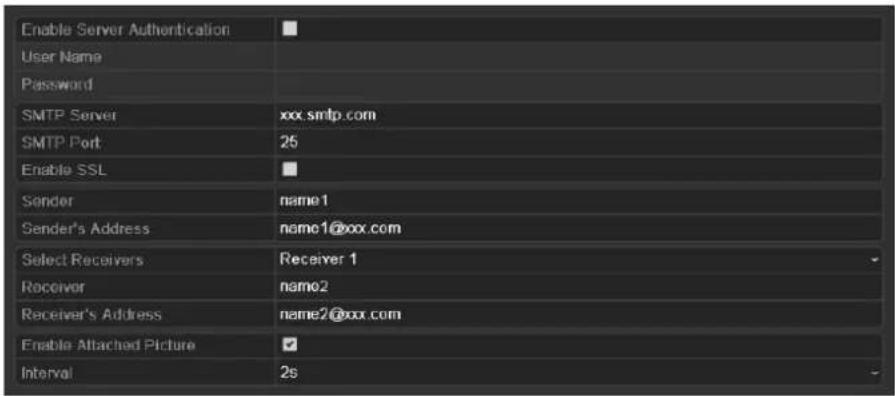
text_image
Enable Server Authentication User Name Password SMTP Server xxx.smtp.com SMTP Port 25 Enable SSL Sender name1 Sender's Address name1@xxx.com Select Receivers Receiver 1 Receiver name2 Receiver's Address name2@xxx.com Enable Attached Picture ✓ Interval 2sFigure 9.23 Email Settings Interface
- Configure the following Email settings:
Enable Server Authentication (optional): Check the checkbox to enable the server authentication feature.
User Name: The user name of sender's account registered on the SMTP server.
Password: The password of sender's account registered on the SMTP server.
SMTP Server: The SMTP Server IP address or host name (e.g., smtp.263xmail.com).
SMTP Port No.: The SMTP port. The default TCP/IP port used for SMTP is 25.
Enable SSL (optional): Click the checkbox to enable SSL if required by the SMTP server.
Sender: The name of sender.
Sender's Address: The Email address of sender.
Select Receivers: Select the receiver. Up to 3 receivers can be configured.
Receiver: The name of user to be notified.
Receiver's Address: The Email address of user to be notified.
Enable Attached Pictures: Check the checkbox of Enable Attached Picture if you want to send email with attached alarm images. The interval is the time of two adjacent alarm images. You can also set SMTP port and enable SSL here.
Interval: The interval refers to the time between two actions of sending attached pictures.
E-mail Test: Sends a test message to verify that the SMTP server can be reached.
- Click Apply button to save the Email settings.
- You can click Test button to test whether your Email settings work. The corresponding Attention message box will pop up. Refer to Figure 9. 24.

text_image
Attention Email test succeeded. OK Attention Failed to send test email, please check the parameters or network status. OKFigure 9.24 Email Testing Attention
9.2.11 Configuring NAT
Purpose:
Two ways are provided for port mapping to realize the remote access via the cross-segment network, UPnP ^TM and manual mapping.
• UPnP TM
Universal Plug and Play (UPnPTM) can permit the device seamlessly discover the presence of other network devices on the network and establish functional network services for data sharing, communications, etc. You can use the UPnPTM function to enable the fast connection of the device to the WAN via a router without port mapping.
Before you start:
If you want to enable the UPnP ^TM function of the device, you must enable the UPnP ^TM function of the router to which your device is connected. When the network working mode of the device is set as multi-address, the Default Route of the device should be in the same network segment as that of the LAN IP address of the router.
Steps:
- Enter the Network Settings interface.
Menu > Configuration > Network
- Select the NAT tab to enter the port mapping interface.
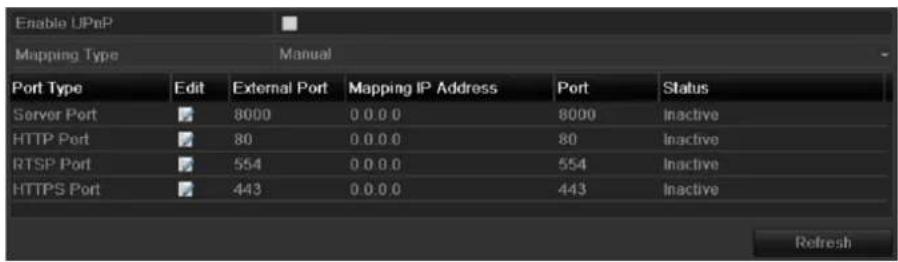
text_image
Enable UPnP Mapping Type Manual Port Type Edit External Port Mapping IP Address Port Status Server Port 8000 0 0 0 0 8000 Inactive HTTP Port 80 0 0 0 0 80 Inactive RTSP Port 554 0 0 0 0 554 Inactive HTTPS Port 443 0 0 0 0 443 Inactive RefreshFigure 9.25 UPnP™ Settings Interface
- Check ☑ checkbox to enable UPnPTM.
- Select the Mapping Type as Manual or Auto in the drop-down list.
OPTION 1: Auto
If you select Auto, the Port Mapping items are read-only, and the external ports are set by the router automatically.
Steps:
1) Select Auto in the drop-down list of Mapping Type.
2) Click Apply button to save the settings.
3) You can click Refresh button to get the latest status of the port mapping.
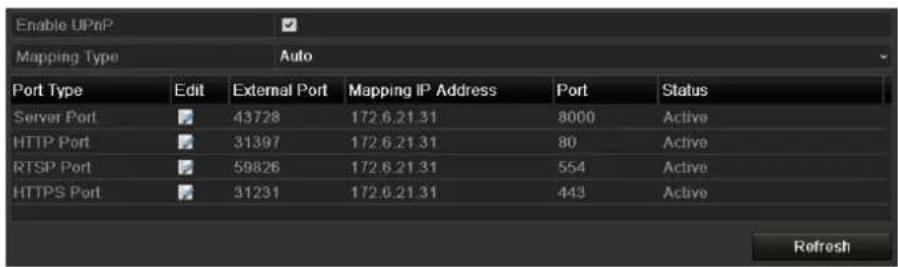
text_image
Enable UPnP Mapping Type Auto Port Type Edit External Port Mapping IP Address Port Status Server Port 43728 172.6.21.31 8000 Active HTTP Port 31397 172.6.21.31 80 Active RTSP Port 59826 172.6.21.31 554 Active HTTPS Port 31231 172.6.21.31 443 Active RefreshFigure 9. 26 UPnPTM Settings Finished-Auto
OPTION 2: Manual
If you select Manual as the mapping type, you can edit the external port on your demand by clicking to activate the External Port Settings dialog box.
Steps:
1) Select Manual in the drop-down list of Mapping Type.
2) Click ☐ to activate the External Port Settings dialog box. Configure the external port No. for server port, http port, RTSP port and https port respectively.

- You can use the default port No., or change it according to actual requirements.
● External Port indicates the port No. for port mapping in the router. - The value of the RTSP port No. should be 554 or between 1024 and 65535, while the value of the other ports should be between 1 and 65535 and the value must be different from each other. If multiple devices are configured for the UPnPTM settings under the same router, the value of the port No. for each device should be unique.
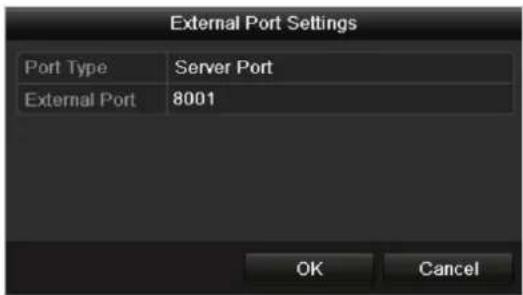
text_image
External Port Settings Port Type Server Port External Port 8001 OK CancelFigure 9.27 External Port Settings Dialog Box
3) Click Apply button to save the settings.
4) You can click Refresh button to get the latest status of the port mapping.
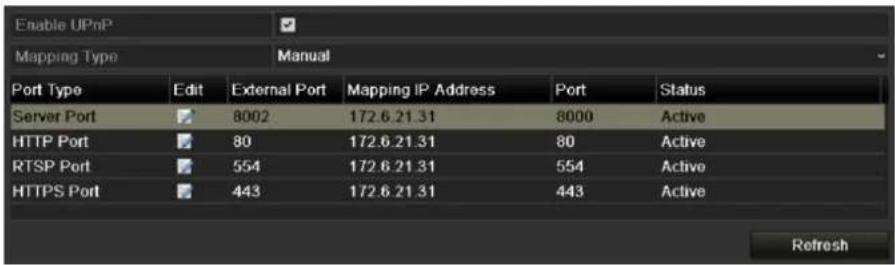
text_image
Enable UPnP Mapping Type Manual Port Type Edit External Port Mapping IP Address Port Status Server Port 8002 172.6.21.31 8000 Active HTTP Port 80 172.6.21.31 80 Active RTSP Port 554 172.6.21.31 554 Active HTTPS Port 443 172.6.21.31 443 Active RefreshFigure 9. 28 UPnP™ Settings Finished-Manual
- Manual Mapping
If your router does not support the UPnP ^TM function, perform the following steps to map the port manually in an easy way.
Before you start:
Make sure the router support the configuration of internal port and external port in the interface of Forwarding.
Steps:
- Enter the Network Settings interface.
Menu > Configuration > Network - Select the NAT tab to enter the port mapping interface.
- Leave the Enable UPnP checkbox unchecked.
- Click ☐ to activate the External Port Settings dialog box. Configure the external port No. for server port, http port, RTSP port and https port respectively.

The value of the RTSP port No. should be 554 or between 1024 and 65535, while the value of the other ports should be between 1 and 65535 and the value must be different from each other. If multiple devices are configured for the UPnPTM settings under the same router, the value of the port No. for each device should be unique.
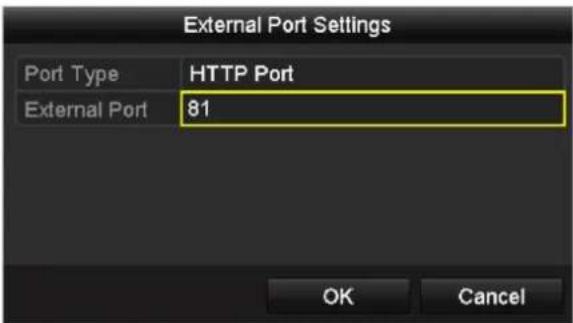
text_image
External Port Settings Port Type HTTP Port External Port 81 OK CancelFigure 9. 29 External Port Settings Dialog Box
- Click OK to save the setting for the current port and return to the upper-level menu.
- Click Apply button to save the settings.
- Enter the virtual server setting page of router; fill in the blank of Internal Source Port with the internal port value, the blank of External Source Port with the external port value, and other required contents.

Each item should be corresponding with the device port, including server port, http port, RTSP port and https port.

text_image
Delete External Source Port Protocol Internal Source IP Internal Source Port Application 81 TCP 192.168.251.101 80 HTTPFigure 9.30 Setting Virtual Server Item

The above virtual server setting interface is for reference only, it may be different due to different router manufactures. Please contact the manufacture of router if you have any problems with setting virtual server.
9.2.12 Configuring High-speed Download
Purpose:
You can enable the High-speed Download function to widen the outgoing bandwidth of the device. In this way you can speed up the download of record files through web browser or CMS software.

If you enable the high-speed download function, the outgoing bandwidth of the device will be increased by 40Mbps and the local menu operation will be affected. It is recommended to disable this function after finishing the remote downloading of record files.
Steps:
- Enter the Network Settings interface.
Menu >Configuration> Network
-
Select the More Settings tab to enter the More Settings interface, as shown in Figure 9. 15.
-
Check the checkbox of Enable High-speed Download. And click the OK button in the pop-up message box to confirm the settings.

text_image
Enable High-speed Dow...Figure 9.31 High-speed Download Settings Menu
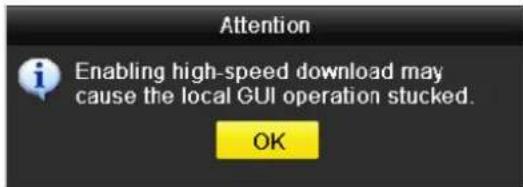
text_image
Attention Enabling high-speed download may cause the local GUI operation stucked. OKFigure 9.32 Message Box of High-speed Download
- Click Apply button to save and exit the interface.
9.2.13 Configuring Virtual Host
Purpose:
You can directly get access to the IP camera management interface after enabling this function.

The Virtual host function can be only configured through the web browser.
Steps:
- Enter the Advanced settings interface, as shown in the Figure 9.33.
Configuration > Remote Configuration > Network Settings > Advanced
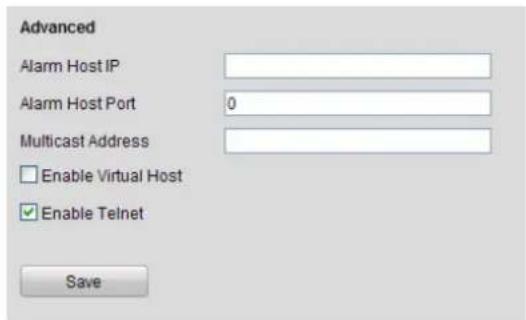
text_image
Advanced Alarm Host IP Alarm Host Port 0 Multicast Address Enable Virtual Host Enable Telnet SaveFigure 9.33 Advanced Settings Interface
- Check the checkbox of the Enable Virtual Host.
- Click the Save button to save the setting.
- Enter the IP camera management interface of NVR. The Connect column appears on the right-most side of the camera list, as shown in the Figure 9. 34.
Configuration > Remote Configuration > Camera Management > IP Camera
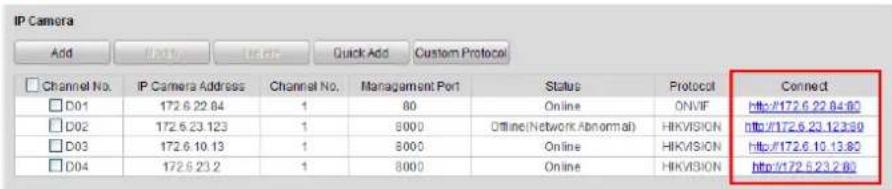
text_image
IP Camera Add Make Quick Add Custom Protocol Channel No. IP Camera Address Channel No. Management Port Status Protocol Connect D01 172.6.22.84 1 80 Online ONVIF http://172.6.22.84.80 D02 172.6.23.123 1 8000 Offline(Network Abnormal) HIKVISION http://172.6.23.123.89 D03 172.6.10.13 1 8000 Online HIKVISION http://172.6.10.13.80 D04 172.6.23.2 1 8000 Online HIKVISION http://172.6.23.2.80Figure 9.34 Connect to IP Camera
- Click the link and the page of IP camera management appears.
9.2.14 Configuring Telnet
Purpose:
Telnet function provides an easy way to get access to the NVR. You can see the advanced information about the device by inputting command; as well the configuration can also be realized through telnet connection.
Steps:
- Enter the Advanced settings interface, as shown in the Figure 9.33.
Configuration > Remote Configuration > Network Settings > Advanced - Check the checkbox of the Enable Telnet.
- Click the Save button to save the setting.
- You can open the Command Prompt window in your PC, and input "telnet IP Address" to connect with the NVR, as shown in the figure below.
Example:
If the IP address of the NVR is 192.0.0.64, you can input "telnet 192.0.0.64" and then press Enter to connect to the NVR.
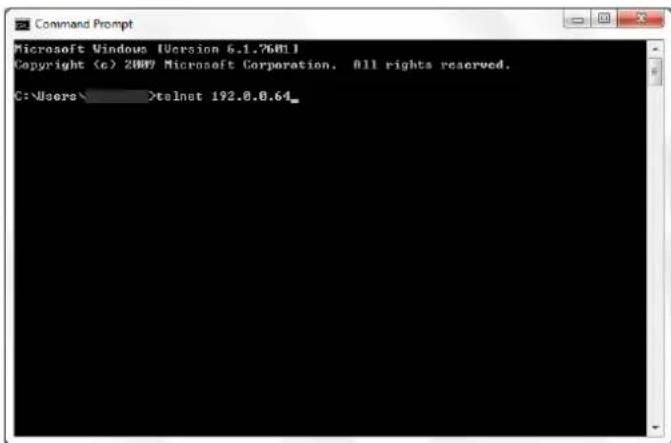
text_image
Microsoft Windows [Version 6.1.7601] Copyright (c) 2009 Microsoft Corporation, All rights reserved. C:\Users\ >telnet 192.0.0.64_Figure 9.35 Connect to NVR

The telnet function turns invalid after the device shutting down or rebooting, you have to enable it again if required.
9.3 Checking Network Traffic
Purpose:
You can check the network traffic to obtain real-time information of NVR such as linking status, MTU, sending/receiving rate, etc.
Steps:
- Enter the Network Traffic interface.
Menu > Maintenance > Net Detect
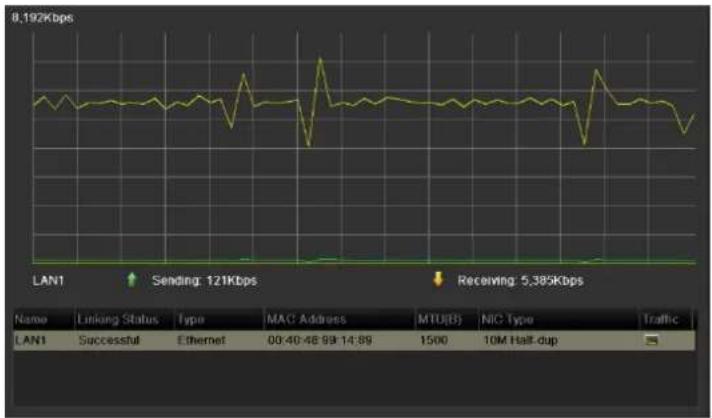
line
| Name | Linking Status | Type | MAC Address | MTUB(B) | NIC Type | Traffic | |------|-----------------|------|-------------|---------|----------|---------| | LAN1 | Successful | Ethernet | 00:40:48 99:14:89 | 1500 | 10M Half-dup | - |Figure 9.36 Network Traffic Interface
- You can view the sending rate and receiving rate information on the interface. The traffic data is refreshed every 1 second.
9.4 Configuring Network Detection
Purpose:
You can obtain network connecting status of NVR through the network detection function, including network delay, packet loss, etc.
9.4.1 Testing Network Delay and Packet Loss
Steps:
- Enter the Network Traffic interface.
Menu >Maintenance>Net Detect
- Click the Network Detection tab to enter the Network Detection menu, as shown in Figure 9. 37.
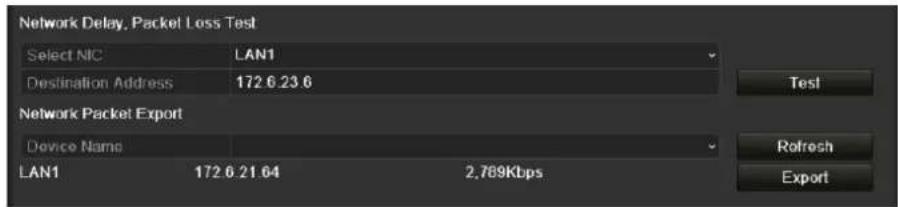
text_image
Network Delay, Packet Loss Test Select NIC LAN1 Destination Address 172.6.23.6 Network Packet Export Device Name LAN1 172.6.21.64 2.789Kbps Test Refresh ExportFigure 9.37 Network Detection Interface
- Enter the destination address in the text field of Destination Address.
- Click Test button to start testing network delay and packet loss. The testing result pops up on the window. If the testing is failed, the error message box will pop up as well. Refer to Figure 9. 38.
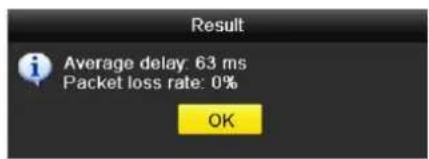
text_image
Result Average delay: 63 ms Packet loss rate: 0% OK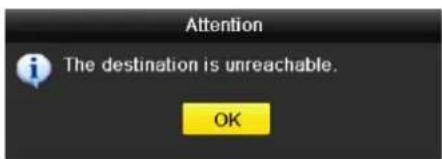
text_image
Attention The destination is unreachable. OKFigure 9.38 Testing Result of Network Delay and Packet Loss
9.4.2 Exporting Network Packet
Purpose:
By connecting the NVR to network, the captured network data packet can be exported to USB-flash disk, SATA/cSATA, DVD-R/W and other local backup devices.
Steps:
- Enter the Network Traffic interface.
Menu >Maintenance>Net Detect
- Click the Network Detection tab to enter the Network Detection interface.
- Select the backup device from the dropdown list of Device Name, as shown in Figure 9. 39.

Click Refresh button if the connected local backup device cannot be displayed. When it fails to detect the backup device, please check whether it is compatible with the NVR. You can format the backup device if the format is incorrect.
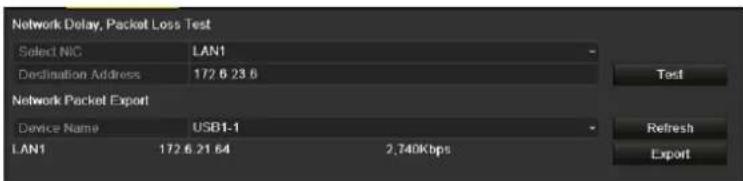
text_image
Network Delay, Packet Loss Test Select NIC LAN1 Destination Address 172.6 23.6 Network Packet Export Device Name USB1-1 LAN1 172.6 21.64 2,740Kbps Test Refresh ExportFigure 9.39 Export Network Packet
- Click Export button to start exporting.
- After the exporting is complete, click OK to finish the packet export, as shown in Figure 9. 40.
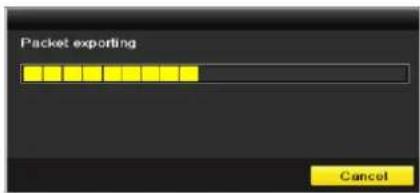
text_image
Packet exporting Cancel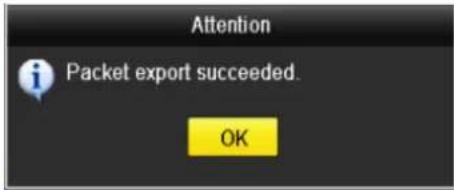
text_image
Attention Packet export succeeded OKFigure 9. 40 Packet Export Attention

Up to 1M data can be exported each time.
9.4.3 Checking the Network Status
Purpose:
You can also check the network status and quick set the network parameters in this interface.
Steps:
Click the Status button on the lower-right corner of the page.
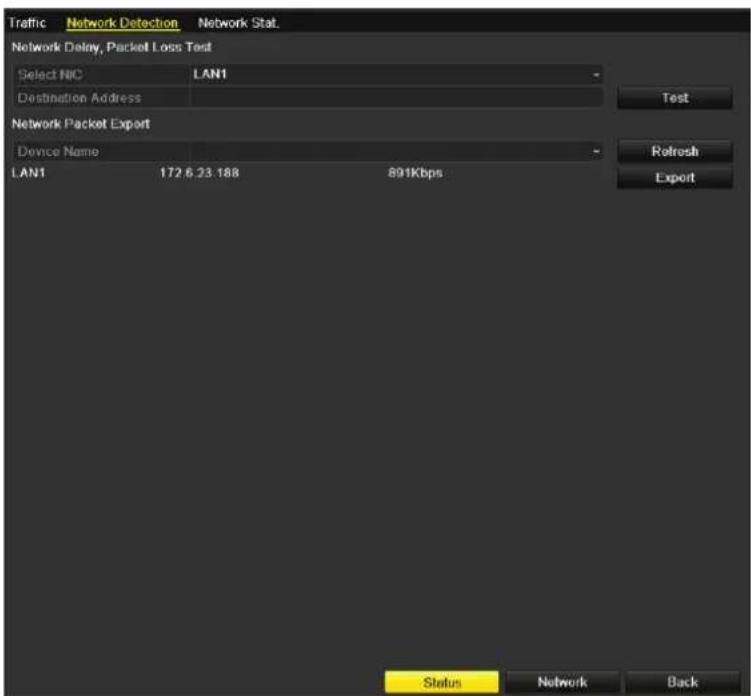
text_image
Traffic Network Detection Network Stat. Network Delay, Packet Loss Test Select NIC LAN1 Destination Address Test Network Packet Export Device Name - Refresh Export LAN1 172.6.23.188 891Kbps Status Network BackFigure 9.41 Network Status Checking
If the network is normal the following message box pops out.
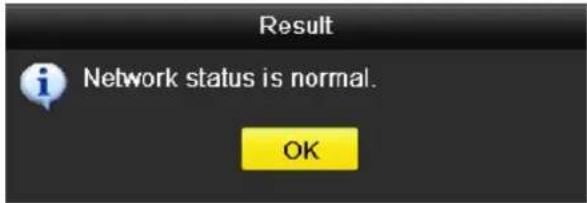
text_image
Result Network status is normal. OKFigure 9.42 Network Status Checking Result
If the message box pops out with other information instead of this one, you can click Network button to show the quick setting interface of the network parameters.
9.4.4 Checking Network Statistics
Purpose:
You can check the network status to obtain the real-time information of NVR.
Steps:
- Enter the Network Detection interface.
Menu>Maintenance>Net Detect
- Choose the Network Stat. tab.
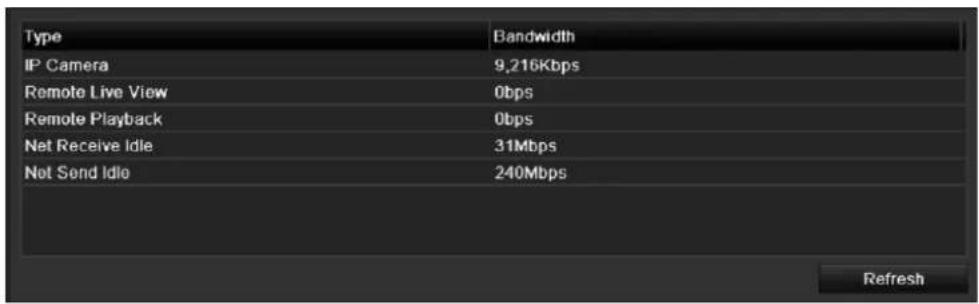
text_image
Type IP Camera Remote Live View Remote Playback Net Receive Idle Net Send Idle Bandwidth 9,216Kbps 0bps 0bps 31Mbps 240Mbps RefreshFigure 9.43 Network Stat. Interface
- Check the bandwidth of IP Camera, bandwidth of Remote Live View, bandwidth of Remote Playback, bandwidth of Net Receive Idle and bandwidth of Net Send Idle.
- You can click Refresh to get the newest status.
Chapter 10 RAID (Only for DS-9600NI-RT series NVR)

This chapter is applicable for DS-9600NI-RT series only.
10.1 Configuring Array and Virtual Disk
Purpose:
RAID (redundant array of independent disks) is a storage technology that combines multiple disk drive components into a logical unit. A RAID setup stores data over multiple hard disk drives to provide enough redundancy so that data can be recovered if one disk fails. Data is distributed across the drives in one of several ways called "RAID levels", depending on what level of redundancy and performance is required. The DS-9600NI-RT is capable of realizing Redundant Array of Independent Disk, supporting RAID0, RAID1, RAID5 and RAID10.
Before you start:
Please install the HDD(s) properly and it is recommended to use the same enterprise-level HDDs (including model and capacity) for array creation and configuration so as to maintain reliable and stable running of the disks.
Introduction:
The DS-9600NI-RT series can store the data (such as record, picture, log information) in the HDD only after you have created the virtual disk or you have configured network HDD (refer to Chapter12.2 Managing Network HDD). Our device provides two ways for creating the virtual disk, including one-touch configuration and manual configuration. The following flow chart shows the process of creating virtual disk.
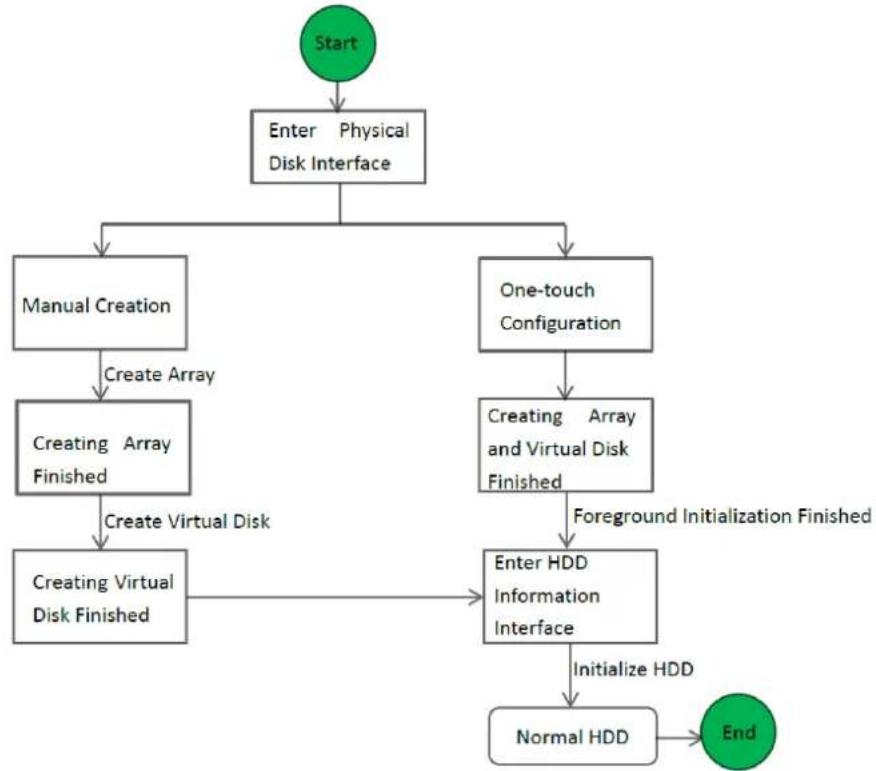
flowchart
graph TD
    A["Start"] --> B["Enter Physical Disk Interface"]
    B --> C["Manual Creation"]
    B --> D["One-touch Configuration"]
    C --> E["Create Array"]
    E --> F["Creating Array Finished"]
    F --> G["Create Virtual Disk"]
    G --> H["Creating Virtual Disk Finished"]
    D --> I["Creating Array and Virtual Disk Finished"]
    I --> J["Foreground Initialization Finished"]
    J --> K["Enter HDD Information Interface"]
    K --> L["Initialize HDD"]
    L --> M["Normal HDD"]
    M --> N["End"]
Figure 10.1 RAID Working Flow
10.1.1 One-touch Configuration
Purpose:
Through one-touch configuration, you can quickly create the disk array and virtual disk. By default, the array type to be created is RAID 5.
Steps:
- Enter the Physical Disk Settings interface.
Menu > HDD > RAID > Physical Disk
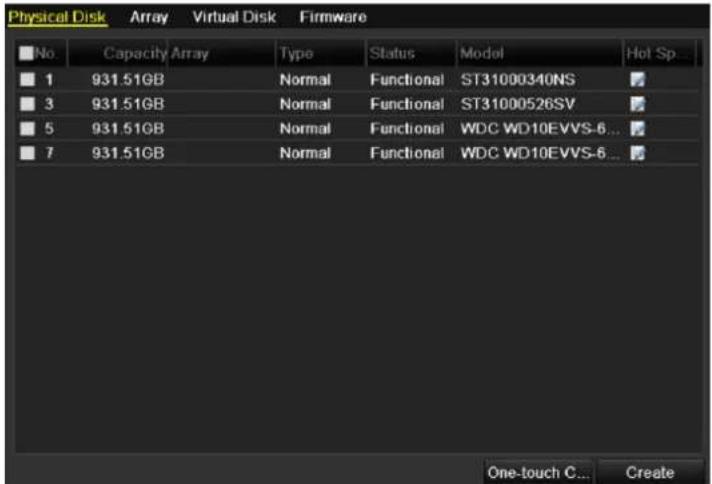
text_image
Physical Disk Array Virtual Disk Firmware No Capacity Array Type Status Model Hot Sp 1 931.51GB Normal Functional ST31000340NS 3 931.51GB Normal Functional ST31000526SV 5 931.51GB Normal Functional WDC WD10EVVS-6... 7 931.51GB Normal Functional WDC WD10EVVS-6... One-touch C... CreateFigure 10.2 Physical Disk Settings Interface
- Click One-touch Configuration button to enter the One-touch Array Configuration interface.

As the default array type is RAID 5, at least 3 HDDs must be installed in you device.
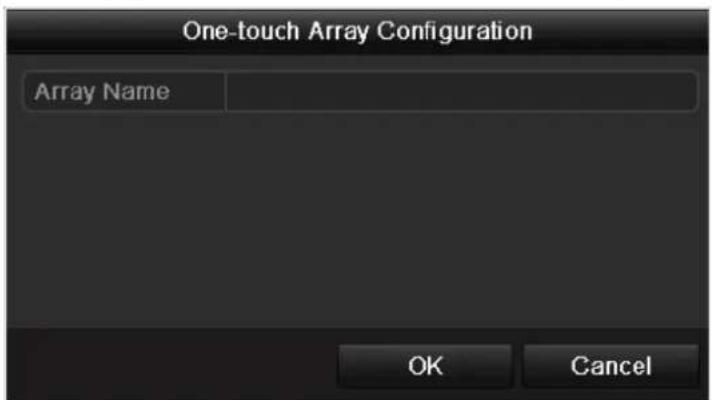
text_image
One-touch Array Configuration Array Name OK CancelFigure 10.3 One-touch Array Configuration
- Edit the array name in the Array Name text filed and click OK button to start configuring array.

If you install 4 HDDs or above for one-touch configuration, a hot spare disk will be set by default. It is recommended to set hot spare disk for automatically rebuilding the array when the array is abnormal.
-
When the array configuration is completed, click OK button in the pop-up message box to finish the settings.
-
You can click Array tab to view the information of the successfully created array.

By default, one-touch configuration creates an array and a virtual disk.

text_image
Physical Disk Array Virtual Disk Firmware No. Name Free Space Physic... Hot ... Status Level Re... Del... Task 1 RAID_1 0/1862G 3 4 5 Functional RAID 5 NoneFigure 10.4 Array Settings Interface
- Click Virtual Disk tab to view the automatically created virtual disk.

By default, one-touch configuration adopts background initialization to initialize the virtual disk, thus the virtual disk can be used immediately.

text_image
Physical Disk Array Virtual Disk Firmware No. Name Cap... Array Status Type Repair Delete Task 1 vd1_RAID 1862G RAID_1 Functio... RAID 5 - Initialize (Background)Figure 10.5 Virtual Disk Settings Interface
- You can see the information of the logical disk in the HDD Information interface.

For configuring hot spare disk manually, please refer to steps 12-15 of Chapter 10.1.2.
10.1.2 Manually Creating Array and Virtual Disk
Purpose:
You can manually create the array of RAID 0, RAID 1, RAID 5 and RAID 10.

In this section, we take RAID 5 as an example to describe the manual configuration of array and virtual disk. Steps:
- Enter the Physical Disk Settings interface.
Menu > HDD > RAID > Physical Disk
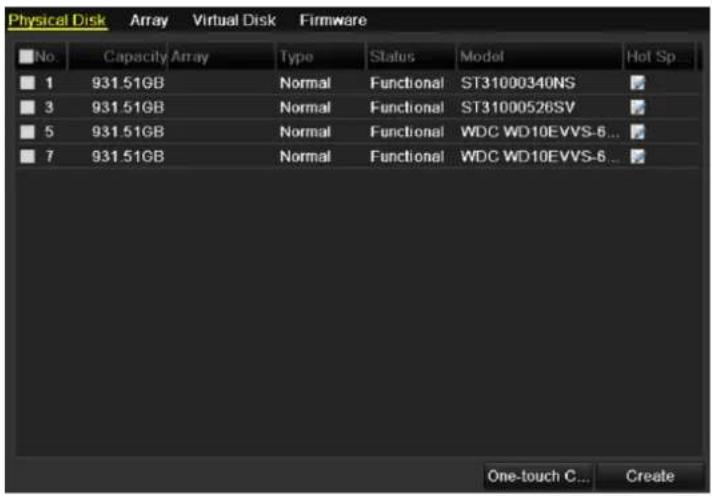
text_image
Physical Disk Array Virtual Disk Firmware No. Capacity Array Type Status Model Hot Sp 1 931.51GB Normal Functional ST31000340NS 3 931.51GB Normal Functional ST31000526SV 5 931.51GB Normal Functional WDC WD10EVVS-6... 7 931.51GB Normal Functional WDC WD10EVVS-6... One-touch C... CreateFigure 10.6 Physical Disk Settings Interface
- Click Creat button to enter the Create Array interface.
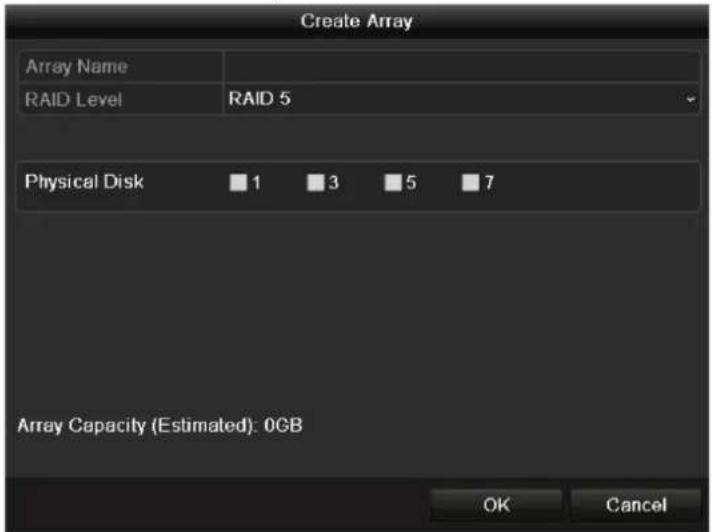
text_image
Create Array Array Name RAID Level RAID 5 Physical Disk 1 3 5 7 Array Capacity (Estimated): 0GB OK CancelFigure 10.7 Create Array Interface
- Edit the Array Name; set the RAID Level to RAID 0, RAID 1, RAID 5 or RAID 10; select the Physical Disk that you want to configure array.

- If you choose RAID 0, at least 2 HDDs must be installed.
- If you choose RAID 1, 2 HDDs need to be configured for RAID 1.
- If you choose RAID 5, at least 3 HDDs must be installed.
-
If you choose RAID 10, 4/6/8 HDDs need to be configured for RAID 10.
-
Click OK button to create array.

If the number of HDDs you select is not compatible with the requirement of the RAID level, the error message box will pop up.
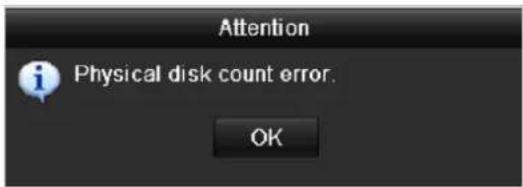
text_image
Attention i Physical disk count error. OKFigure 10.8 Error Message Box
- You can click Array tab to view the successfully created array.

text_image
Physical Disk Array Virtual Disk Firmware No. Name Free Space Physic... Hot ... Status Level Re... Del... Task 1 Array01 1862/186... 3 4 5 Functi... RAID 5 NoneFigure 10.9 Array Settings Interface
- Click to select an array and click Creat Vd button to enter the Create Virtual Disk interface.

The device supports creating at most 8 virtual disks.
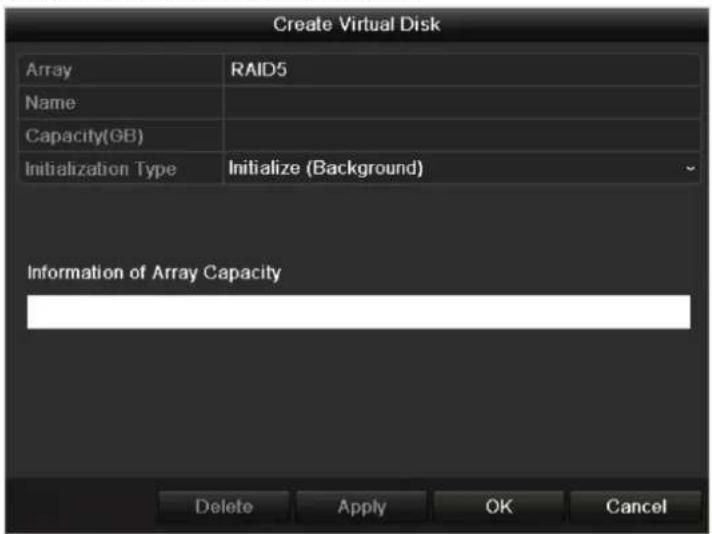
text_image
Create Virtual Disk Array RAID5 Name Capacity(GB) Initialization Type Initialize (Background) Information of Array Capacity Delete Apply OK CancelFigure 10.10 Create Virtual Disk Interface
- Edit the name of the virtual disk, set the capacity for the virtual disk and select the initialization type for the virtual disk.

- You can also click the Information of Array Capacity area to set the remaining capacity of the array for the disk.
- It is recommended to create one virtual disk of an array.
- At least 100GB capacity must be configured for each virtual disk.
● There are three initialization types, including Background, Foreground and Fast.
Fast (Not Recommended): The fast initialization usually takes short time and only initializes part of the data of the virtual disk, and cannot detect the bad sector.
Foreground (Recommended): By using foreground initialization, the virtual disk will be initialized totally and the bad sector of the hard disks can be detected and repaired. The virtual disk can be used only after the initialization is complete.
Background: The background initialization can synchronize the disks, and detect and repair the bad sector of the disks. During the background initialization, the virtual disk is allowed to be used.
- Click Apply button to save the settings and click OK button to return to Array Settings interface
- Click Virtual Disk tab to enter the Virtual Disk interface. The successfully created virtual disk will be listed on the interface.
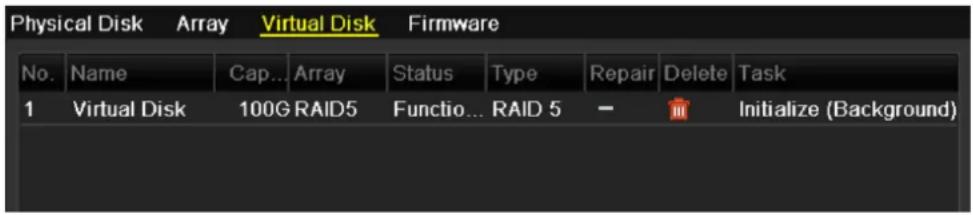
text_image
Physical Disk Array Virtual Disk Firmware No. Name Cap... Array Status Type Repair Delete Task 1 Virtual Disk 100G RAID5 Functio... RAID 5 - Initialize (Background)Figure 10.11 Virtual Disk Interface
- Enter the HDD Information interface (Menu>HDD>General) and the virtual disk will display. For operation guide of initializing the virtual disk, please refer to Chapter 11.1 Initializing HDDs.

- If you adopt foreground initialization, the virtual disk will display in the HDD Information interface after the initialization is complete.
- The HDD will be automatically initialized if you adopt the background or fast initialization to the virtual disk.
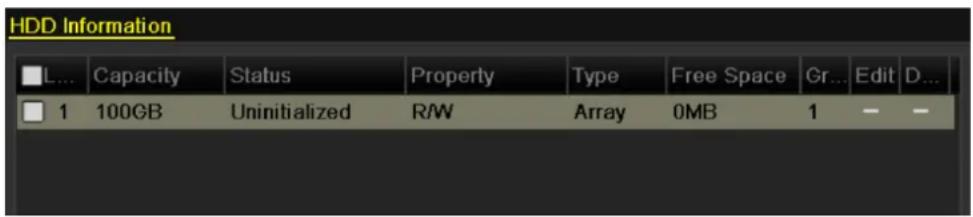
text_image
HDD Information L... Capacity Status Property Type Free Space Gr... Edit D... 1 100GB Uninitialized R/W Array 0MB 1 - -Figure 10.12 HDD Information Interface
- After the virtual disk has been initialized, the status will change to Normal.
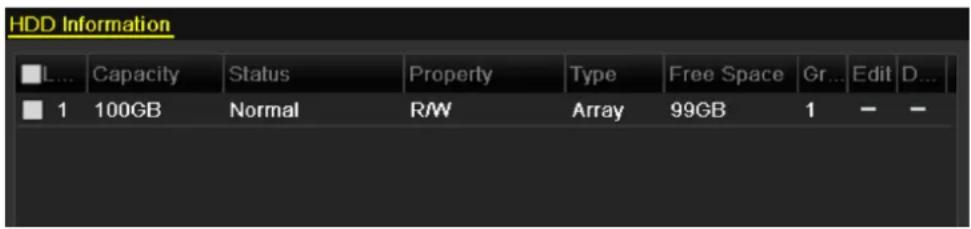
text_image
HDD Information L... Capacity Status Property Type Free Space Gr... Edit D... 1 100GB Normal R/W Array 99GB 1 - -Figure 10. 13 Initialization Finished
- Enter the Physical Disk Settings interface to configure the hot spare disk.
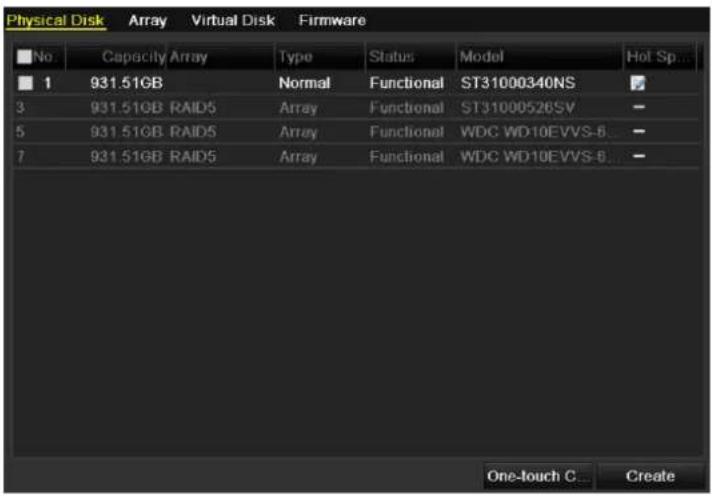
text_image
Physical Disk Array Virtual Disk Firmware No Capacity Array Type Status Model Hot Sp... 1 931.51GB Normal Functional ST31000340NS 3 931.51GB RAID5 Array Functional ST31000526SV 5 931.51GB RAID5 Array Functional WDC WD10EVVS-8 7 931.51GB RAID5 Array Functional WDC WD10EVVS-8 One-touch C... CreateFigure 10. 14 Physical Disk Settings Interface
- Select a disk and click 📋 to set it as a global hot spare disk, which can be used as the hot spare for any array created in the system.

The hot spare disk will be automatically used for array rebuilding if the virtual disk is in Degraded status.
10.2 Rebuilding Array
Purpose:
The working status of array includes Functional, Disk Loss and Offline. By viewing the array status, you can take immediate and proper maintenance for the disks so as to ensure the high security and reliability of the data stored in the disk array.
When there is no disk loss in the array, the working status of array remains Functional; when the number of lost disks has exceeded the limit, the working status of array changes to Offline; in other conditions, the working status is Disk Loss.
When the virtual disk is in Degraded status, you can restore it to Functional by array rebuilding.
10.2.1 Automatically Rebuilding Array
Purpose:
When the virtual disk is in Degraded status, the device can start rebuilding the array automatically with the hot spare disk to ensure the high security and reliability of the data.
Before you start:
Since the Auto-rebuild function is enabled by default, the hot spare disk must be configured.
Steps:
- Enter the Array Settings interface. The status of the array is Disk Loss. Since the hot spare disk is configured and Auto-rebuild function is enabled. The hot spare disk will be automatically used for array rebuilding.
Menu > HDD > RAID > Array

text_image
Physical Disk Array Virtual Disk Firmware No. Name Free Space Physic... Hot ... Status Level Re... Del... Task 1 array 831/931G 7 3 6 Disk L... RAID 5 Rebuild(Running)Figure 10.15 Array Settings Interface
- Enter the Virtual Disk interface to view the rebuilding status of the virtual disk.
Menu>HDD>RAID>Virtual Disk

text_image
Physical Disk Array Virtual Disk Firmware No. Name Cap... Array Status Type Repair Delete Task 1 vd 100G array Degrad... RAID 5 - Rebuild(Running) 8%Figure 10.16 Virtual Disk Settings Interface

If there is no hot spare disk after rebuilding, it is recommended to install a HDD into the device and set is as a hot spare disk to ensure the high security and reliability of the array. For detailed operation guide, please refer to steps 12-15 of Chapter 10.1.2
10.2.2 Manually Rebuilding Array
Purpose:
If you do not enable the Auto-rebuild in Firmware Settings interface (Menu>HDD>RAID>Firmware) or the hot spare disk has not been configured, then you can rebuild the array manually to restore the array when the virtual disk is in Degraded status.
Steps:
- Enter the Array Settings interface. The disk 3 is lost.
Menu > HDD > RAID > Array

text_image
Physical Disk Array Virtual Disk Firmware No. Name Free Space Physic... Hot ... Status Level Re... Del... Task 1 array 831/931G 3 6 Disk Loss RAID 5 NoneFigure 10.17 Array Settings Interface
- Enter the Virtual Disk interface to check the status of the virtual disk. The virtual disk is in Degraded status.
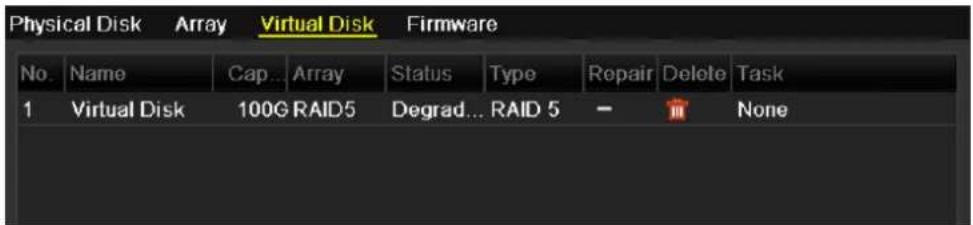
text_image
Physical Disk Array Virtual Disk Firmware No. Name Cap... Array Status Type Repair Delete Task 1 Virtual Disk 100G RAID5 Degrad... RAID 5 NoneFigure 10.18 Virtual Disk Interface
- Click Array tab to back to the Array Settings interface and click to configure the array rebuild.

At least one available physical disk should exist for rebuilding the array.
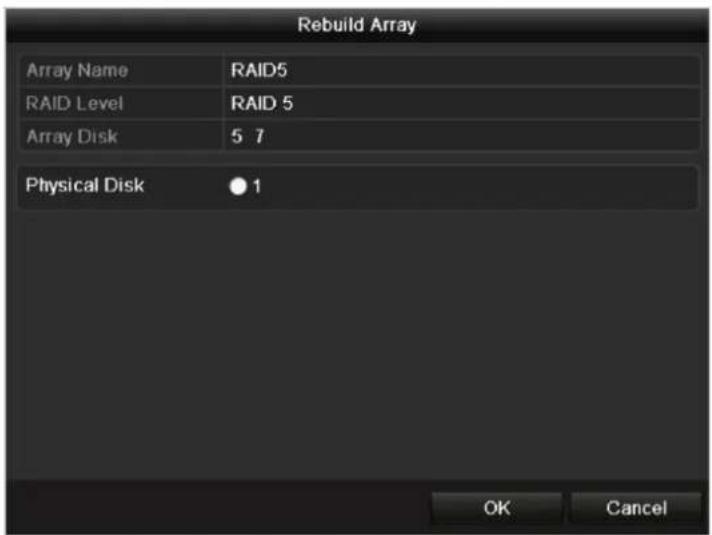
text_image
Rebuild Array Array Name RAID5 RAID Level RAID 5 Array Disk 5 7 Physical Disk ●1 OK CancelFigure 10.19 Rebuild Array Interface
-
Select the available physical disk and click OK button to confirm to rebuild the array.
-
The "Do not unplug the physical disk when it is under rebuilding" message box pops up. Click OK button to start rebuilding.
- You can enter the Array Settings interface and Virtual Disk interface to view the rebuilding status.
- After rebuilding successfully, the array and virtual disk will restore to Functional.

It is recommended to enable the Auto-rebuild function and set the hot spare disk for automatically rebuilding the array.
10.3 Repairing Virtual Disk
Purpose:
When the disk cannot display in the HDD Information interface while the virtual disk can still show in the Array Settings interface, you have to repair the virtual disk.

If the virtual disk is under foreground initialization, the repairing cannot be done.
Steps:
- Enter the Virtual Disk interface.
Menu > HDD > RAID > Virtual Disk
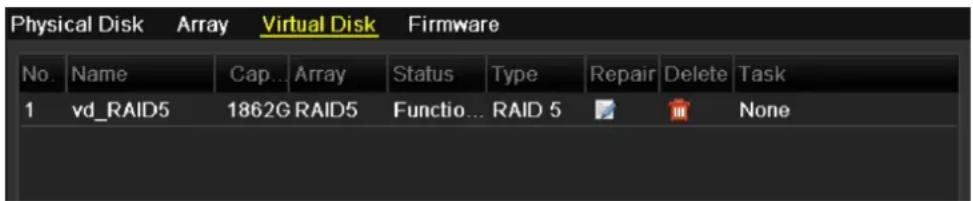
text_image
Physical Disk Array Virtual Disk Firmware No. Name Cap... Array Status Type Repair Delete Task 1 vd_RAID5 1862G RAID5 Functio... RAID 5 NoneFigure 10.20 Virtual Disk Interface
- Click 📋 to repair the virtual disk. After successfully repairing, the following message box will pop up. Click OK button to finish the settings.
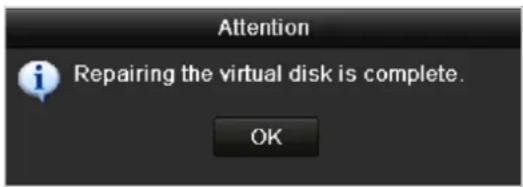
text_image
Attention Repairing the virtual disk is complete. OKFigure 10.21 Repairing Virtual Disk Successfully
The disk shows again in the HDD Information interface (Menu>HDD>General).
| L... | Capacity | Status | Property | Type | Free Space | Gr... | Edit | D... |
| 1 | 1,862GB | Uninitialized | R/W | Array | 0MB | 1 | - | - |
Figure 10.22 HDD Information Interface
10.4 Deleting Array / Virtual Disk

Before deleting the array, the virtual disk(s) existing under this array must be deleted first. Deleting array and virtual disk will cause to delete all the data saved in the disk.
10.4.1 Deleting the Virtual Disk
Steps:
- Enter the Virtual Disk interface.
Menu>HDD>RAID>Virtual Disk
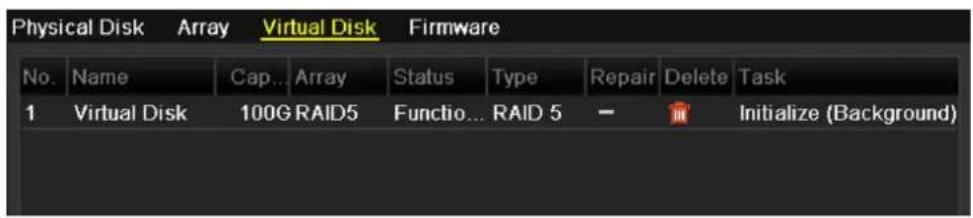
text_image
Physical Disk Array Virtual Disk Firmware No. Name Cap... Array Status Type Repair Delete Task 1 Virtual Disk 100G RAID5 Functio... RAID 5 - Initialize (Background)Figure 10.23 Virtual Disk Interface
- Select a virtual disk and click 📄 to delete the virtual disk.
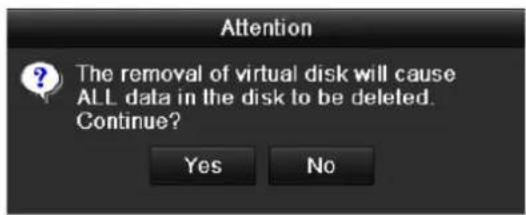
text_image
Attention The removal of virtual disk will cause ALL data in the disk to be deleted. Continue? Yes NoFigure 10.24 Confirm Virtual Disk Deletion
- In the pop-up message box, click Yes button to confirm the virtual disk deletion.

Deleting virtual disk will cause to delete all the data saved in the disk.
10.4.2 Deleting the Array

If all the virtual disks existing under an array have been deleted, then you can delete that array.
Steps:
- Enter the Array Settings interface.
Menu>HDD>RAID>Array
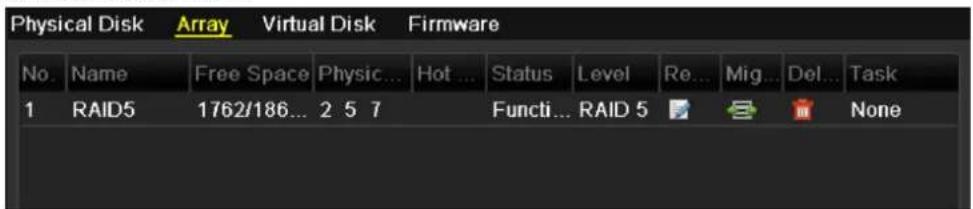
text_image
Physical Disk Array Virtual Disk Firmware No. Name Free Space Physic... Hot ... Status Level Re... Mig... Del... Task 1 RAID5 1762/186... 2 5 7 Functi... RAID 5 NoneFigure 10.25 Array Settings Interface
- Select an array and click 📄 to delete the array.
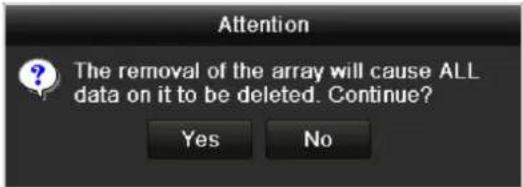
text_image
Attention The removal of the array will cause ALL data on it to be deleted. Continue? Yes NoFigure 10.26 Confirm Array Deletion
- In the pop-up message box, click Yes button to confirm the array deletion.

Deleting array will cause to delete all the data in the array.
10.5 Upgrading Firmware
Purpose:
You can view the information of the firmware and upgrade the firmware by local backup device or remote FTP server.
Steps:
- Enter the Firmware interface to check the information of the firmware, including the version, maximum physical disk quantity, maximum array quantity, auto-rebuild status, etc.
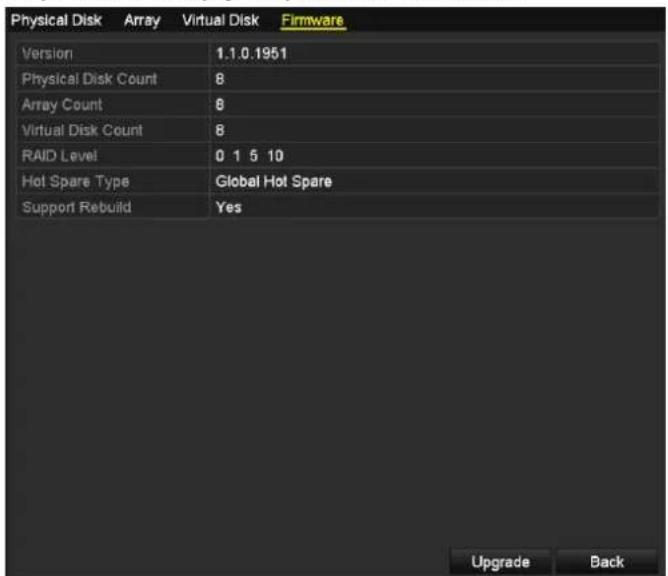
text_image
Physical Disk Array Virtual Disk Firmware Version 1.1.0.1951 Physical Disk Count 8 Array Count 8 Virtual Disk Count 8 RAID Level 0 1 5 10 Hot Spare Type Global Hot Spare Support Rebuild Yes Upgrade BackFigure 10.27 Firmware Interface
- You can click Upgrade button to upgrade the firmware. Local upgrade and FTP upgrade are available. Since the upgrading process of the firmware is the same as that of the device firmware, you can refer to Chapter 13.4 for detailed information.

Please contact the dealer immediately if the device cannot work properly after upgrading.
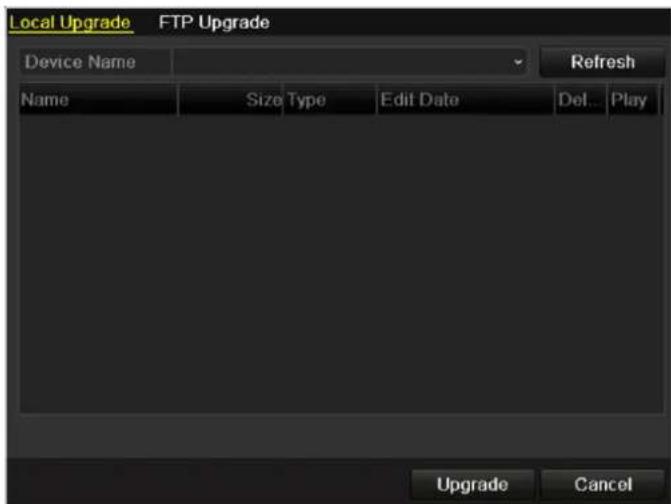
text_image
Local Upgrade FTP Upgrade Device Name Refresh Name Size Type Edit Date Del... Play Upgrade CancelFigure 10.28 Upgrade the Firmware
Chapter 11 RAID (Only for DS-9600NI-ST&XT and DS-8600NI-ST series NVR)
11.1 Configuring Array
Purpose:
RAID (redundant array of independent disks) is a storage technology that combines multiple disk drive components into a logical unit. A RAID setup stores data over multiple hard disk drives to provide enough redundancy so that data can be recovered if one disk fails. Data is distributed across the drives in one of several ways called "RAID levels", depending on what level of redundancy and performance is required. The DS-9600NI-ST&XT and DS-8600NI-ST series NVR support the disk array which is realized by the software, and RAID0, RAID1, RAID5 and RAID 10 are supported. You can enable the RAID function on your demand.
Before you start:
Please install the HDD(s) properly and it is recommended to use the same enterprise-level HDDs (including model and capacity) for array creation and configuration so as to maintain reliable and stable running of the disks.
Introduction:
The DS-9600NI-ST&XT and DS-8600NI-ST series can store the data (such as record, picture, log information) in the HDD only after you have created the array or you have configured network HDD (refer to Chapter12.2
Managing Network HDD). Our device provides two ways for creating array, including one-touch configuration and manual configuration. The following flow chart shows the process of creating array.
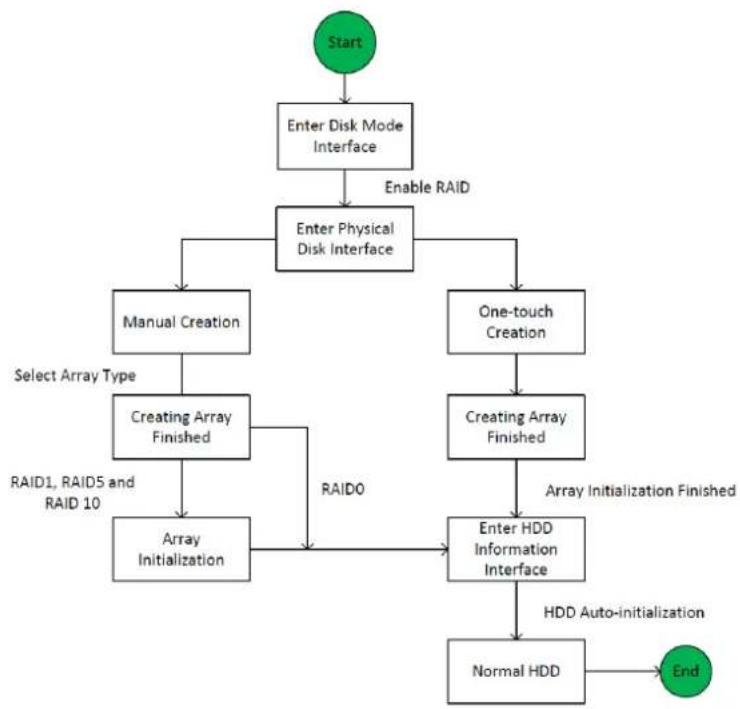
flowchart
graph TD
    A["Start"] --> B["Enter Disk Mode Interface"]
    B --> C["Enable RAID"]
    C --> D["Enter Physical Disk Interface"]
    D --> E["Manual Creation"]
    D --> F["One-touch Creation"]
    E --> G["Creating Array Finished"]
    G --> H["Array Initialization"]
    F --> I["Creating Array Finished"]
    I --> J["Enter HDD Information Interface"]
    J --> K["Normal HDD"]
    K --> L["End"]
    style A fill:#90EE90,stroke:#333
    style L fill:#90EE90,stroke:#333
Figure 11.1 RAID Working Flow
11.1.1 Enable RAID
Purpose:
Perform the following steps to enable the RAID function, or the disk array cannot be created.
- OPTION 1:
Enable the RAID function in the Wizard when the device startup, please refer to step 7 of Chapter 2.2.
- OPTION 2:
Enable the RAID function in the HDD Management Interface.
Steps:
- Enter the disk mode configuration interface.
Menu > HDD > Advanced

text_image
Disk Mode Storage Mode ✓ Enable RAIDFigure 11.2 Enable RAID Interface
- Check the checkbox of Enable RAID.
- Click the Apply button to save the settings.
11.1.2 One-touch Configuration
Purpose:
Through one-touch configuration, you can quickly create the disk array. By default, the array type to be created is RAID 5.
Before you start:
- The RAID function should be enabled, please refer to the Chapter 11.1.1 for details.
- As the default array type is RAID 5, please install at least 3 HDDs in you device.
Steps:
- Enter the RAID configuration interface.
Menu > HDD > RAID
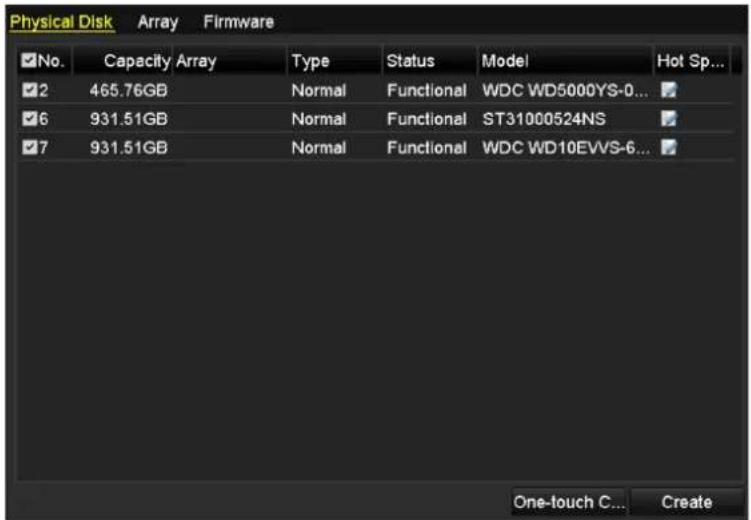
text_image
Physical Disk Array Firmware ✓No. Capacity Array Type Status Model Hot Sp... ✓2 465.76GB Normal Functional WDC WD5000YS-0... ✓6 931.51GB Normal Functional ST31000524NS ✓7 931.51GB Normal Functional WDC WD10EVVS-6... One-touch C... CreateFigure 11.3 Physical Disk Interface
- Check the checkbox of corresponding HDD No. to select it.
- Click the One-touch Create button to enter the One-touch Array Configuration interface.
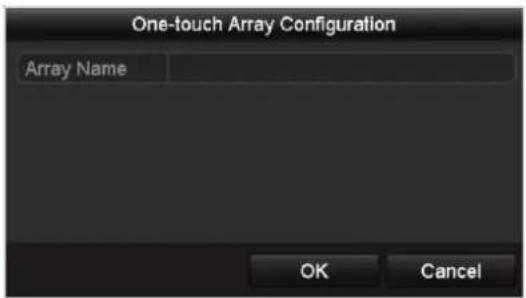
text_image
One-touch Array Configuration Array Name OK CancelFigure 11.4 One-touch Array Configuration
- Edit the array name in the Array Name text filed and click OK button to start configuring array.

If you install 4 HDDs or above for one-touch configuration, a hot spare disk will be set by default. It is recommended to set hot spare disk for automatically rebuilding the array when the array is abnormal.
- When the array configuration is completed, click OK button in the pop-up message box to finish the settings.
- You can click Array tab to view the information of the successfully created array.

By default, one-touch configuration creates an array and a virtual disk.

text_image
Physical Disk Array Firmware No. Name Free Space Physic... Hot ... Status Level Re... Del... Task 1 array1_1 931/931G 2 6 7 Functi... RAID 5 Initialize (Fast)(R)Figure 11.5 Array Settings Interface
- A created array displays as an HDD in the HDD information interface.
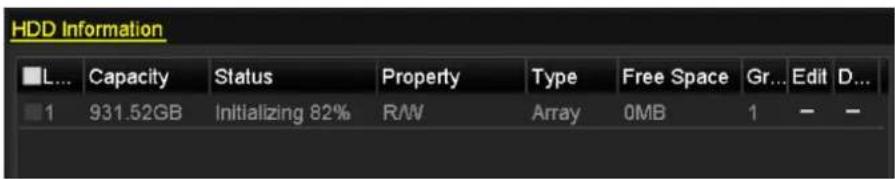
text_image
HDD Information L... Capacity Status Property Type Free Space Gr... Edit D... 1 931.52GB Initializing 82% R/W Array 0MB 1 - -Figure 11.6 HDD Information Interface
11.1.3 Manually Creating Array
Purpose:
You can manually create the array of RAID 0, RAID 1, RAID 5 and RAID 10.

In this section, we take RAID 5 as an example to describe the manual configuration of array and virtual disk.
Steps:
- Enter the Physical Disk Settings interface.
Menu > HDD > RAID > Physical Disk
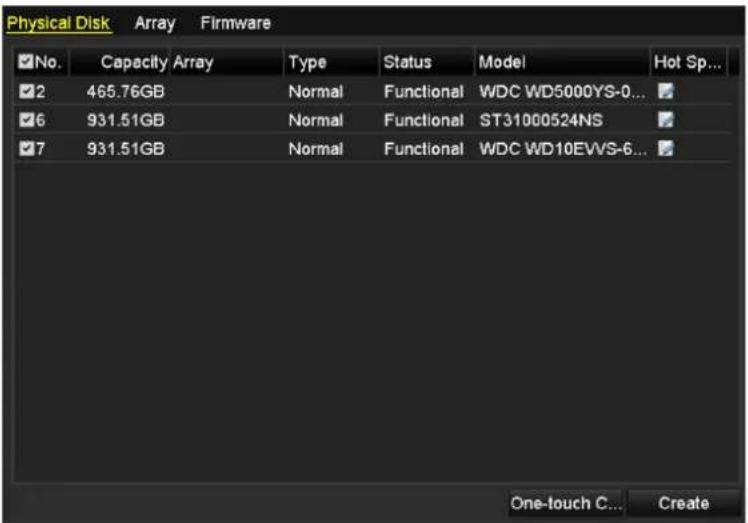
text_image
Physical Disk Array Firmware ✓No. Capacity Array Type Status Model Hot Sp... ✓2 465.76GB Normal Functional WDC WD5000YS-0... ✓6 931.51GB Normal Functional ST31000524NS ✓7 931.51GB Normal Functional WDC WD10EVVS-6... One-touch C... CreateFigure 11.7 Physical Disk Settings Interface
- Click Creat button to enter the Create Array interface.
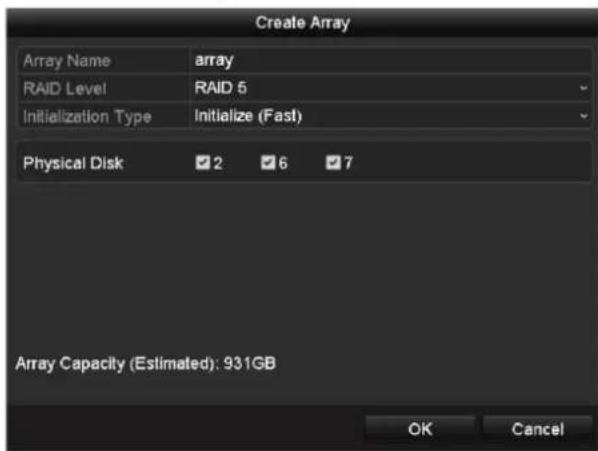
text_image
Create Array Array Name array RAID Level RAID 5 Initialization Type Initialize (Fast) Physical Disk 2 6 7 Array Capacity (Estimated): 931GB OK CancelFigure 11.8 Create Array Interface
- Edit the Array Name; set the RAID Level to RAID 0, RAID 1, RAID 5 or RAID 10; select the Physical Disk that you want to configure array.

- If you choose RAID 0, at least 2 HDDs must be installed.
- If you choose RAID 1, 2 HDDs need to be configured for RAID 1.
- If you choose RAID 5, at least 3 HDDs must be installed.
-
If you choose RAID 10, the number of HDDs installed should be even in the range of 4\~16.
-
Click OK button to create array.

If the number of HDDs you select is not compatible with the requirement of the RAID level, the error
message box will pop up.
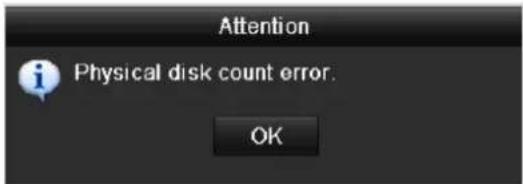
text_image
Attention Physical disk count error. OKFigure 11.9 Error Message Box
- You can click Array tab to view the successfully created array.
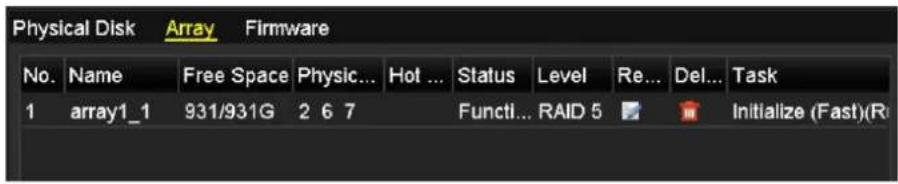
text_image
Physical Disk Array Firmware No. Name Free Space Physic... Hot ... Status Level Re... Del... Task 1 array1_1 931/931G 2 6 7 Functl... RAID 5 Initialize (Fast)(R)Figure 11. 10 Array Settings Interface
11.2 Rebuilding Array
Purpose:
The working status of array includes Functional, Degraded and Offline. By viewing the array status, you can take immediate and proper maintenance for the disks so as to ensure the high security and reliability of the data stored in the disk array.
When there is no disk loss in the array, the working status of array will change to Functional; when the number of lost disks has exceeded the limit, the working status of array will change to Offline; in other conditions, the working status is Degraded.
When the virtual disk is in Degraded status, you can restore it to Functional by array rebuilding.
Before you start:
Please make sure the hot spare disk is configured.
- Enter the Physical Disk Settings interface to configure the hot spare disk.
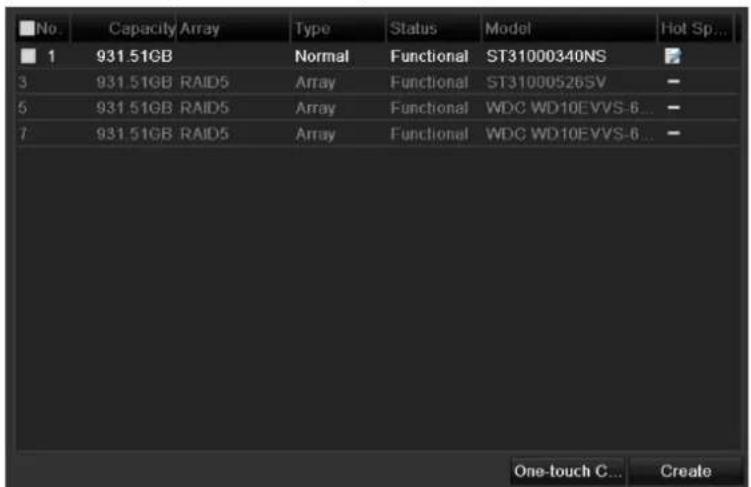
text_image
No. Capacity Array Type Status Model Hot Sp... 1 931.51GB Normal Functional ST31000340NS 3 931.51GB RAID5 Array Functional ST31000526SV 5 931.51GB RAID5 Array Functional WDC WD10EVVS-6... 7 931.51GB RAID5 Array Functional WDC WD10EVVS-6... One-touch C... CreateFigure 11.11 Physical Disk Settings Interface
- Select a disk and click 📋 to set it as the hot spare disk.

Only global hot spare mode is supported.
11.2.1 Automatically Rebuilding Array
Purpose:
When the virtual disk is in Degraded status, the device can start rebuilding the array automatically with the hot spare disk to ensure the high security and reliability of the data.
Steps:
- Enter the Array Settings interface. The status of the array is Degraded. Since the hot spare disk is configured, the system will automatically start rebuilding using it.
Menu > HDD > RAID > Array

text_image
Physical Disk Array Firmware No. Name Free Space Physic... Hot ... Status Level Re... Del... Task 1 array1_1 931/931G 2 6 7 Degraded RAID 5 Rebuild(Run)Figure 11.12 Array Settings Interface
If there is no hot spare disk after rebuilding, it is recommended to install a HDD into the device and set is as a hot spare disk to ensure the high security and reliability of the array.
11.2.2 Manually Rebuilding Array
Purpose:
If you do not enable the Auto-rebuild in Firmware Settings interface (Menu>HDD>RAID>Firmware) or the hot spare disk has not been configured, then you can rebuild the array manually to restore the array when the virtual disk is in Degraded status.
Steps:
- Enter the Array Settings interface. The disk 3 is lost.
Menu > HDD > RAID > Array

text_image
Physical Disk Array Firmware No. Name Free Space Physic... Hot ... Status Level Re... Del... Task 1 array1_1 931/931G 2 6 Degraded RAID 5 NoneFigure 11.13 Array Settings Interface
- Click Array tab to back to the Array Settings interface and click 📄 to configure the array rebuild.

At least one available physical disk should exist for rebuilding the array.
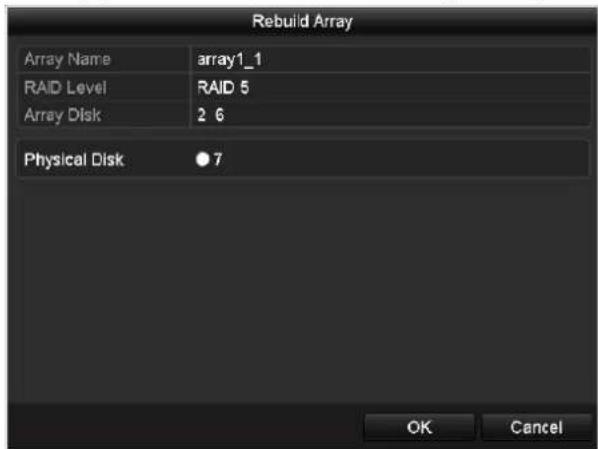
text_image
Rebuild Array Array Name array1_1 RAID Level RAID 5 Array Disk 2 6 Physical Disk ●7 OK CancelFigure 11.14 Rebuild Array Interface
- Select the available physical disk and click OK button to confirm to rebuild the array.
- The "Do not unplug the physical disk when it is under rebuilding" message box pops up. Click OK button to
start rebuilding.
- You can enter the Array Settings interface to view the rebuilding status.
- After rebuilding successfully, the array and virtual disk will restore to Functional.
11.3 Deleting Array

Deleting array will cause to delete all the data saved in the disk.
Steps:
- Enter the Array Settings interface.
Menu>HDD>RAID>Array

text_image
Physical Disk Array Firmware No. Name Free Space Physic... Hot ... Status Level Re... Del... Task 1 array_1 931/931G 2 7 10 Funci... RAID 5 NoneFigure 11.15 Array Settings Interface
- Select an array and click to delete the array.
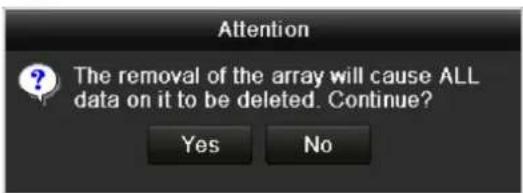
text_image
Attention The removal of the array will cause ALL data on it to be deleted. Continue? Yes NoFigure 11. 16 Confirm Array Deletion
- In the pop-up message box, click Yes button to confirm the array deletion.

Deleting array will cause to delete all the data in the array.
11.4 Checking and Editing Firmware
Purpose:
You can view the information of the firmware and upgrade the firmware by local backup device or remote FTP server.
Steps:
- Enter the Firmware interface to check the information of the firmware, including the version, maximum physical disk quantity, maximum array quantity, auto-rebuild status, etc.
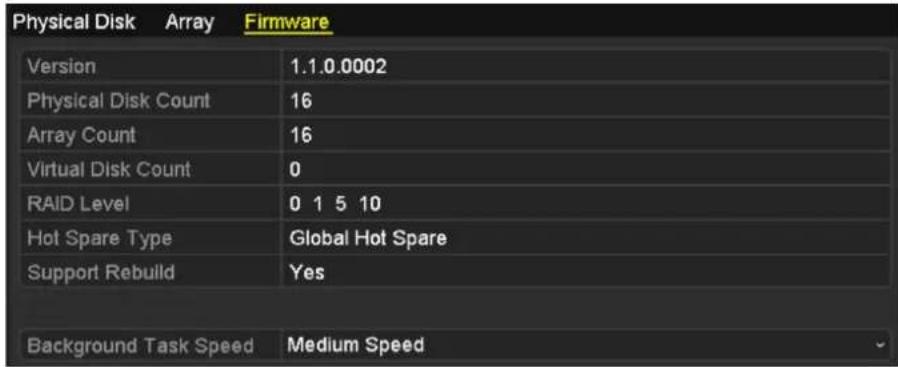
text_image
Physical Disk Array Firmware Version 1.1.0.0002 Physical Disk Count 16 Array Count 16 Virtual Disk Count 0 RAID Level 0 1 5 10 Hot Spare Type Global Hot Spare Support Rebuild Yes Background Task Speed Medium SpeedFigure 11. 17 Firmware Interface
- You can set the Background Task Speed in the drop-down list.
Chapter 12 HDD Management
12.1 Initializing HDDs
Purpose:
A newly installed hard disk drive (HDD) must be initialized before it can be used with your NVR.

A message box pops up when the NVR starts up if there exits any uninitialized HDD.
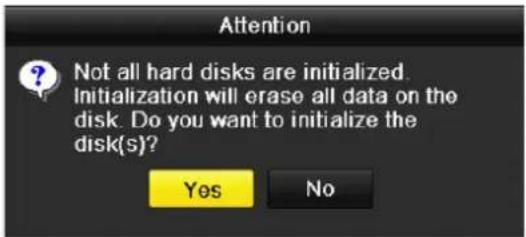
text_image
Attention ? Not all hard disks are initialized. Initialization will erase all data on the disk. Do you want to initialize the disk(s)? Yes NoFigure 12.1 Message Box of Uninitialized HDD
Click Yes button to initialize it immediately or you can perform the following steps to initialize the HDD.
Steps:
- Enter the HDD Information interface.
Menu > HDD> General

text_image
HDD Information L... Capacity Status Property Type Free Space Gr... Edit D... 5 931.51GB Normal R/W Local 846GB 1 -Figure 12.2 HDD Information Interface
- Select HDD to be initialized.
- Click the Init button.
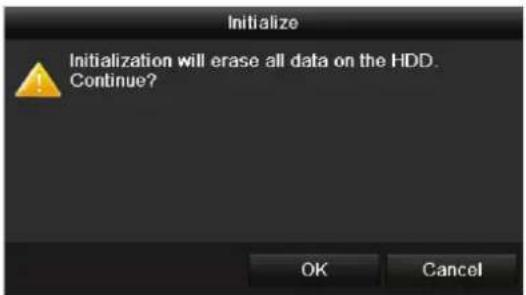
text_image
Initialize Initialization will erase all data on the HDD. Continue? OK CancelFigure 12.3 Confirm Initialization
- Select the OK button to start initialization.

text_image
HDD Information L... Capacity Status Property Type Free Space Gr... Edit D... 4 931.51GB Initializing 44% R/W Local 0MB 1 - -Figure 12.4 Status changes to Initializing
- After the HDD has been initialized, the status of the HDD will change from Uninitialized to Normal.

text_image
HDD Information L... Capacity Status Property Type Free Space Gr... Edit D... 5 931.51GB Normal R/W Local 846GB 1 -Figure 12.5 HDD Status Changes to Normal

Initializing the HDD will erase all data on it.
12.2 Managing Network HDD
Purpose:
You can add the allocated NAS or disk of IP SAN to NVR, and use it as network HDD.
Steps:
- Enter the HDD Information interface.
Menu > HDD>General

text_image
HDD Information L... Capacity Status Property Type Free Space Gr... Edit D... 5 931.51GB Normal R/W Local 846GB 1 -Figure 12.6 HDD Information Interface
- Click the Add button to enter the Add NetHDD interface, as shown in Figure 12.7.
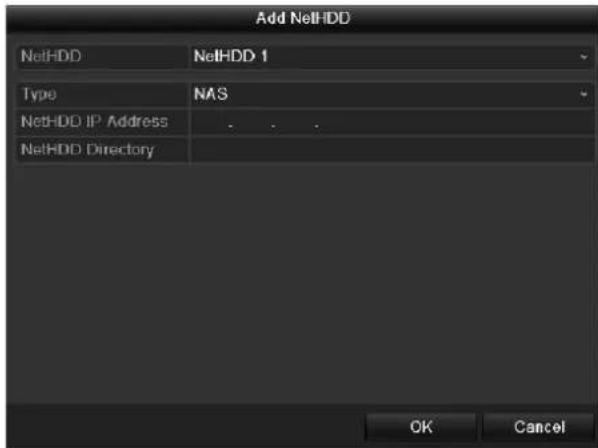
text_image
Add NetHDD NetHDD NetHDD 1 Type NAS NetHDD IP Address NetHDD Directory OK CancelFigure 12.7 HDD Information Interface
- Add the allocated NetHDD.
- Select the type to NAS or IP SAN.
- Configure the NAS or IP SAN settings.
- Add NAS disk:
1) Enter the NetHDD IP address in the text field.
2) Click the Search button to search the available NAS disks.
3) Select the NAS disk from the list shown below.
Or you can just manually enter the directory in the text field of NetHDD Directory.
4) Click the OK button to add the configured NAS disk.

Up to 8 NAS disks can be added.
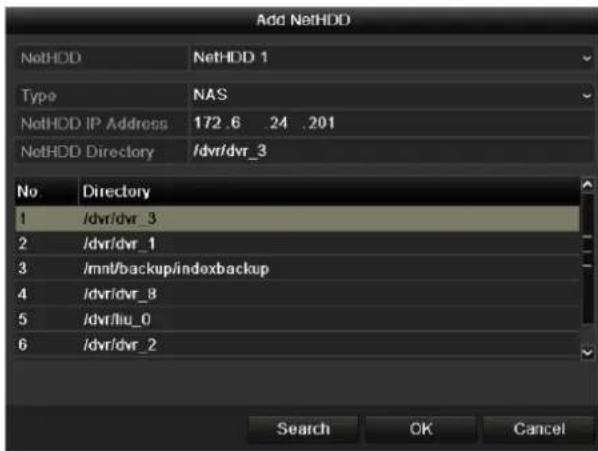
text_image
Add NetHDD NetHDD NetHDD 1 Type NAS NetHDD IP Address 172.6 24 .201 NetHDD Directory /dvr/dvr_3 No Directory 1 /dvr/dvr_3 2 /dvr/dvr_1 3 /mnt/backup/indexbackup 4 /dvr/dvr_8 5 /dvr/llu_0 6 /dvr/dvr_2 Search OK CancelFigure 12.8 Add NAS Disk
- Add IP SAN:
1) Enter the NetHDD IP address in the text field.
2) Click the Search button to search the available IP SAN disks.
3) Select the IP SAN disk from the list shown below.
4) Click the OK button to add the selected IP SAN disk.

Up to 1 IP SAN disk can be added.
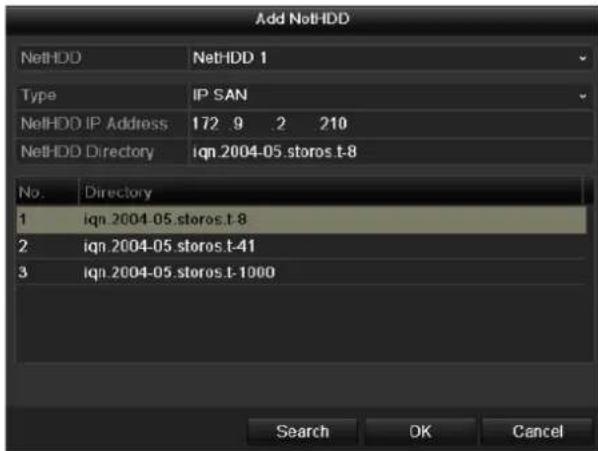
text_image
Add NetHDD NetHDD NetHDD 1 Type IP SAN NetHDD IP Address 172 9 2 210 NetHDD Directory iqn.2004-05.storos.t-8 No. Directory 1 iqn.2004-05.storos.t-8 2 iqn.2004-05.storos.t-41 3 iqn.2004-05.storos.t-1000 Search OK CancelFigure 12.9 Add IP SAN Disk
- After having successfully added the NAS or IP SAN disk, return to the HDD Information menu. The added NetHDD will be displayed in the list.

If the added NetHDD is uninitialized, please select it and click the Init button for initialization.
| Label | Capacity | Status | Property | Type | Free Space | Gro. | Edit | Del |
| 3 | 931.51GB | Normal | R/W | Local | 890GB | 1 | - | |
| 4 | 931.51GB | Normal | R/W | Local | 867GB | 1 | - | |
| 17 | 79,968MB | Normal | R/W | NAS | 79,872MB | 1 |
Figure 12. 10 Initialize Added NetHDD
12.3 Managing eSATA
Purpose:
When there is an external eSATA device connected to NVR, you can configure eSATA for the use of Record/Capture or Export, and you can manage the eSATA in the NVR.
Steps:
- Enter the Advanced Record Settings interface.
Menu >Record>Advanced
- Select the eSATA type to Export or Record/Capture from the dropdown list of eSATA.
Export: use the eSATA for backup. Refer to Backup using eSATA HDDs in Chapter Backing up by Normal Video Search for operating instructions.
Record/Capture: use the eSATA for record/capture. Refer to the following steps for operating instructions.

text_image
Overwrite eSATA eSATA1 Usage Record/CaptureFigure 12.11 Set eSATA Mode
- When the eSATA type is selected to Record/Capture, enter the HDD Information interface.
Menu > HDD>General - Edit the property of the selected eSATA, or initialize it is required.

Two storage modes can be configured for the eSATA when it is used for Record/Capture. Please refer to Chapter Managing HDD Group and Chapter Configuring Quota Mode for details.
| Label | Capacity | Status | Property | Type | Free Space | Gro... | Edit | Del... |
| 4 | 931.51GB | Normal | R/W | Local | 921GB | 1 | ||
| 18 | 10,048MB | Uninitialized | R/W | NAS | 0MB | 1 | ||
| 25 | 931.51GB | Normal | R/W | eSATA | 894GB | 1 |
Figure 12.12 Initialize Added eSATA
12.4 Managing HDD Group
12.4.1 Setting HDD Groups
Purpose:
Multiple HDDs can be managed in groups. Video from specified channels can be recorded onto a particular HDD group through HDD settings.
Steps:
- Enter the Storage Mode interface.
Menu > HDD > Advanced > Storage Mode
- Set the Mode to Group, as shown in Figure 12. 13.

text_image
Mode Group Record on HDD Group 1 IP Camera D1 D2 D3 D4 D5 D6 D7 D8Figure 12.13 Storage Mode Interface
- Click the Apply button and the following Attention box will pop up.
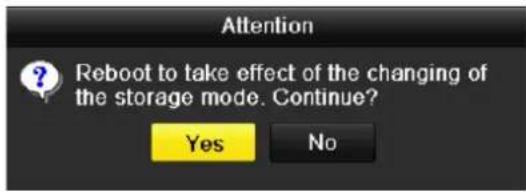
text_image
Attention Reboot to take effect of the changing of the storage mode. Continue? Yes NoFigure 12.14 Attention for Reboot
- Click the Yes button to reboot the device to activate the changes.
- After reboot of device, enter the HDD Information interface.
Menu > HDD> General
- Select HDD from the list and click icon to enter the Local HDD Settings interface, as shown in Figure 12. 15.
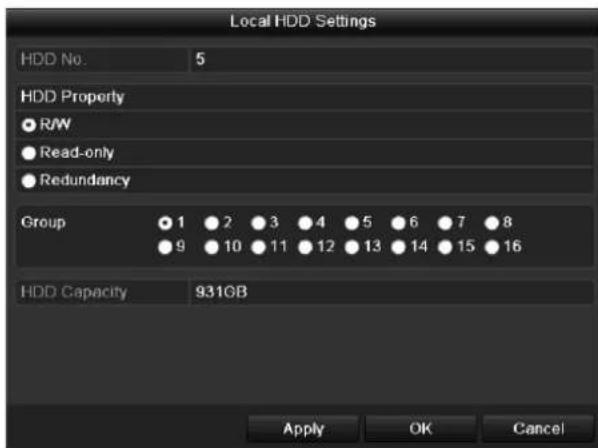
text_image
Local HDD Settings HDD No. 5 HDD Property ● R/W ● Read-only ● Redundancy Group ● 1 ● 2 ● 3 ● 4 ● 5 ● 6 ● 7 ● 8 ● 9 ● 10 ● 11 ● 12 ● 13 ● 14 ● 15 ● 16 HDD Capacity 931GB Apply OK CancelFigure 12. 15 Local HDD Settings Interface
- Select the Group number for the current HDD.

The default group No. for each HDD is 1.
- Click the OK button to confirm the settings.
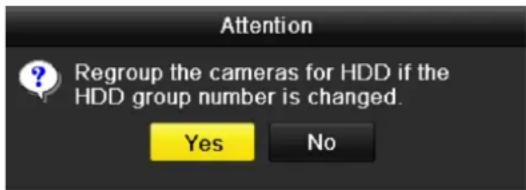
text_image
Attention ? Regroup the cameras for HDD if the HDD group number is changed. Yes NoFigure 12. 16 Confirm HDD Group Settings
- In the pop-up Attention box, click the Yes button to finish the settings.
12.4.2 Setting HDD Property
Purpose:
The HDD property can be set to redundancy, read-only or read/write (R/W). Before setting the HDD property, please set the storage mode to Group (refer to step1-4 of Chapter Setting HDD Groups).
A HDD can be set to read-only to prevent important recorded files from being overwritten when the HDD becomes full in overwrite recording mode.
When the HDD property is set to redundancy, the video can be recorded both onto the redundancy HDD and the R/W HDD simultaneously so as to ensure high security and reliability of video data.
Steps:
- Enter the HDD Information interface.
Menu > HDD> General
- Select HDD from the list and click the icon to enter the Local HDD Settings interface, as shown in Figure 12.17.
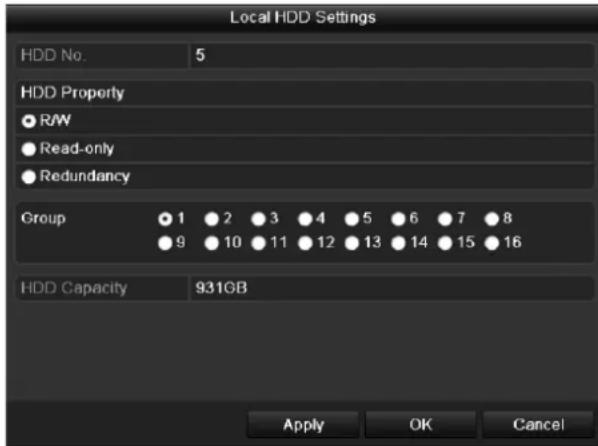
text_image
Local HDD Settings HDD No. 5 HDD Property ● R/W ● Read-only ● Redundancy Group ● 1 ● 2 ● 3 ● 4 ● 5 ● 6 ● 7 ● 8 ● 9 ● 10 ● 11 ● 12 ● 13 ● 14 ● 15 ● 16 HDD Capacity 931GB Apply OK CancelFigure 12.17 Set HDD Property
- Set the HDD property to R/W, Read-only or Redundancy.
-
Click the OK button to save the settings and exit the interface.
-
In the HDD Information menu, the HDD property will be displayed in the list.

At least 2 hard disks must be installed on your NVR when you want to set a HDD to Redundancy, and there is one HDD with R/W property.
12.5 Configuring Quota Mode
Purpose:
Each camera can be configured with allocated quota for the storage of recorded files or captured pictures.
Steps:
- Enter the Storage Mode interface.
Menu > HDD > Advanced
- Set the Mode to Quota, as shown in Figure 12. 18.

The NVR must be rebooted to enable the changes to take effect.
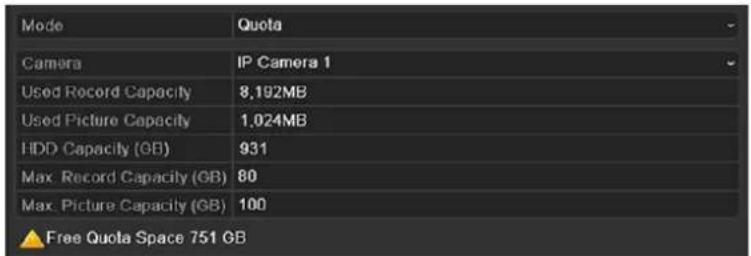
text_image
Mode Quota Camera IP Camera 1 Used Record Capacity 8,192MB Used Picture Capacity 1,024MB HDD Capacity (GB) 931 Max. Record Capacity (GB) 80 Max. Picture Capacity (GB) 100 ▲ Free Quota Space 751 GBFigure 12.18 Storage Mode Settings Interface
- Select a camera for which you want to configure quota.
- Enter the storage capacity in the text fields of Max. Record Capacity (GB) and Max. Picture Capacity (GB), as shown in Figure 12, 19.
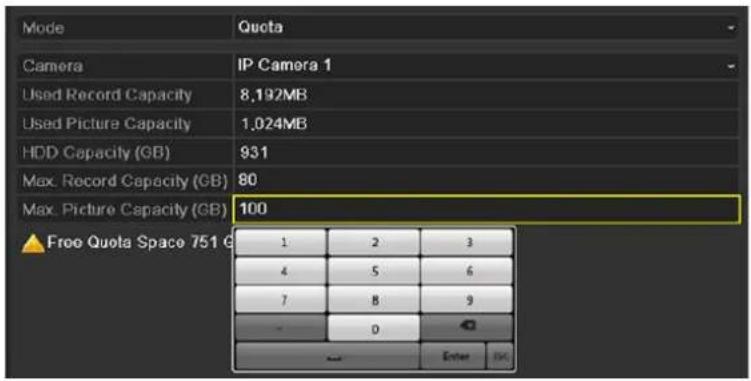
text_image
Mode Quota Camera IP Camera 1 Used Record Capacity 8,192MB Used Picture Capacity 1,024MB HDD Capacity (GB) 931 Max. Record Capacity (GB) 80 Max. Picture Capacity (GB) 100 Free Quota Space 751 G 1 2 3 4 5 6 7 8 9 - 0 Enter OKFigure 12.19 Configure Record/Picture Quota
- You can copy the quota settings of the current camera to other cameras if required. Click the Copy button to enter the Copy Camera menu, as shown in Figure 12. 20.
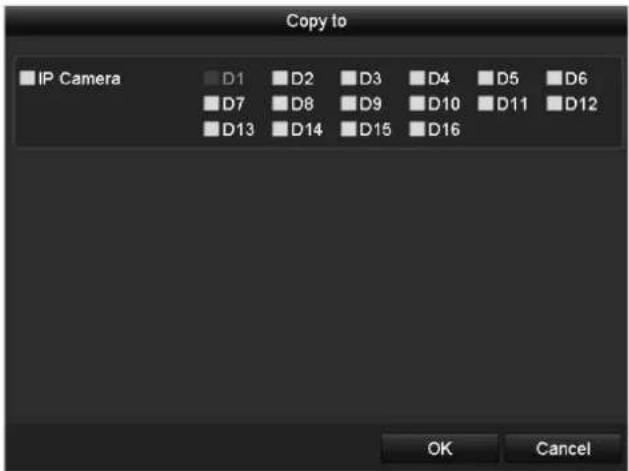
text_image
Copy to IP Camera D1 D2 D3 D4 D5 D6 D7 D8 D9 D10 D11 D12 D13 D14 D15 D16 OK CancelFigure 12. 20 Copy Settings to Other Camera(s)
- Select the camera (s) to be configured with the same quota settings. You can also click the checkbox of IP Camera to select all cameras.
- Click the OK button to finish the Copy settings and back to the Storage Mode interface.
- Click the Apply button to apply the settings.

If the quota capacity is set to 0, then all cameras will use the total capacity of HDD for record and picture capture.
12.6 Configuring Disk Clone
Purpose:
If the S.M.A.R.T. detection result declares the HDD is abnormal, you can choose to clone all the data on the HDD to an inserted eSATA disk manually. Refer to Chapter 12.8 HDD Detection for details of S.M.A.R.T detection.

This function is not supported by DS-7600NI series NVR.
Before you start:
An eSATA disk should be connected to the device.
Steps:
- Enter the HDD Advanced Setting interface:
Menu > HDD > Advanced
- Click the Disk Clone tab to enter the disk clone configuring interface.
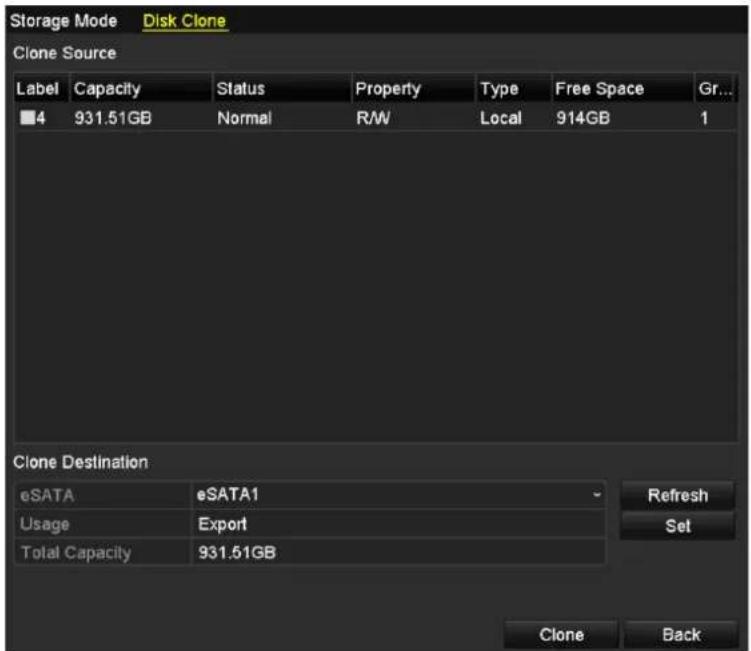
text_image
Storage Mode Disk Clone Clone Source Label Capacity Status Property Type Free Space Gr... ■4 931.51GB Normal R/W Local 914GB 1 Clone Destination eSATA eSATA1 Refresh Usage Export Set Total Capacity 931.51GB Clone BackFigure 12.21 Disk Clone Configuration Interface
- Make sure the usage of the eSATA disk is set as Export.
If not, click the Set button to set it. Choose Export and click the OK button.
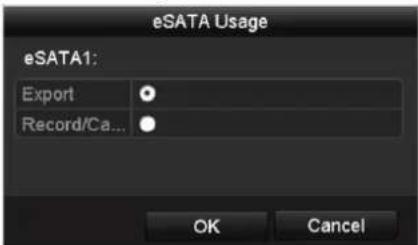
text_image
eSATA Usage eSATA1: Export Record/Ca... OK CancelFigure 12.22 Setting eSATA Usage

The capacity of destination disk must be the same as that of the clone source disk.
- Check the checkbox of the HDD to be cloned in the Clone Source list.
- Click the Clone button and a message box pops up.
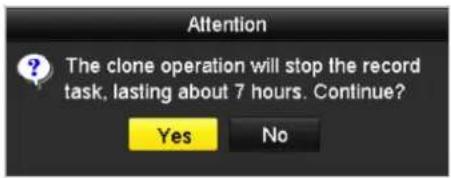
text_image
Attention The clone operation will stop the record task, lasting about 7 hours. Continue? Yes NoFigure 12. 23 Message Box for Disk Clone
- Click the Yes button to continue.
You can check the clone progress in the HDD status.

text_image
Label Capacity Status Property Type Free Space Gr... 4 931.51GB Cloning 01% RAW Local 0MB 1Figure 12.24 Check Disk Clone Progress
12.7 Checking HDD Status
Purpose:
You may check the status of the installed HDDs on NVR so as to take immediate check and maintenance in case of HDD failure.
Checking HDD Status in HDD Information Interface
Steps:
- Enter the HDD Information interface.
Menu > HDD>General
- Check the status of each HDD which is displayed on the list, as shown in Figure 12. 25.
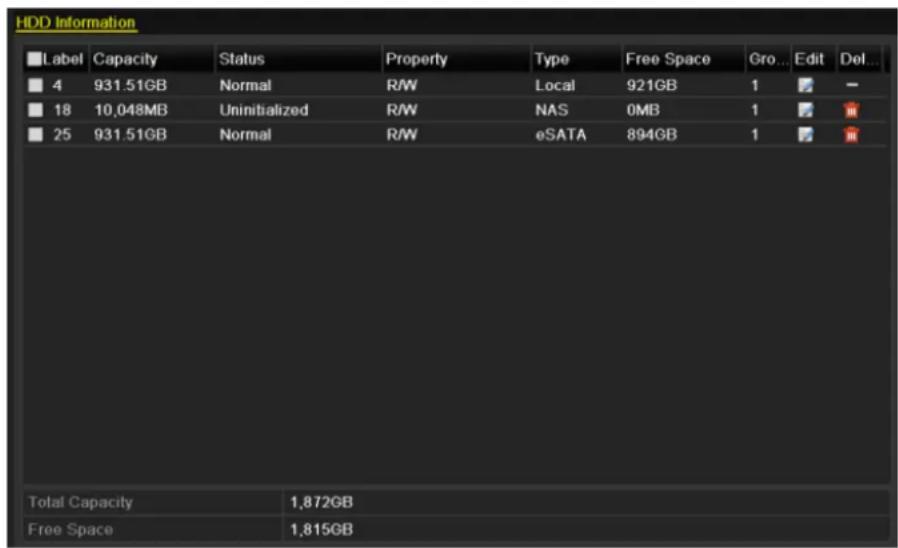
text_image
HDD Information ■ Label Capacity Status Property Type Free Space Gro... Edit Del... ■ 4 931.51GB Normal R/W Local 921GB 1 - ■ 18 10,048MB Uninitialized R/W NAS 0MB 1 ■ 25 931.51GB Normal R/W eSATA 894GB 1Figure 12. 25 View HDD Status (1)

If the status of HDD is Normal or Sleeping, it works normally. If the status is Uninitialized or Abnormal,
please initialize the HDD before use. And if the HDD initialization is failed, please replace it with a new one.
Checking HDD Status in HDD Information Interface
Steps:
- Enter the System Information interface.
Menu >Maintenance > System Info
- Click the HDD tab to view the status of each HDD displayed on the list, as shown in Figure 12. 26.
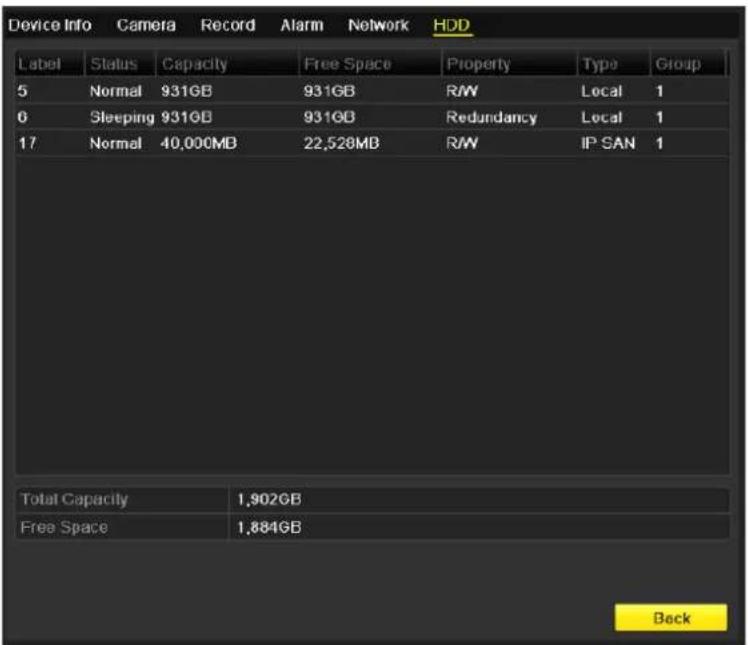
text_image
Device Info Camera Record Alarm Network HDD Label Status Capacity Free Space Property Type Group 5 Normal 931GB 931GB R/W Local 1 0 Sleeping 931GB 931GB Redundancy Local 1 17 Normal 40,000MB 22,528MB R/W IP SAN 1 Total Capacity 1,902GB Free Space 1,884GB BackFigure 12.26 View HDD Status (2)
12.8 HDD Detection

This function is not supported with DS-9600NI-RT series NVR.
Purpose:
The device provides the HDD detection function such as the adopting of the S.M.A.R.T. and the Bad Sector Detection technique. The S.M.A.R.T. (Self-Monitoring, Analysis and Reporting Technology) is a monitoring system for HDD to detect and report on various indicators of reliability in the hopes of anticipating failures.
S.M.A.R.T. Settings
Steps:
- Enter the S.M.A.R.T Settings interface.
Menu > Maintenance > HDD Detect
- Select the HDD to view its S.M.A.R.T information list, as shown in Figure 12. 27.
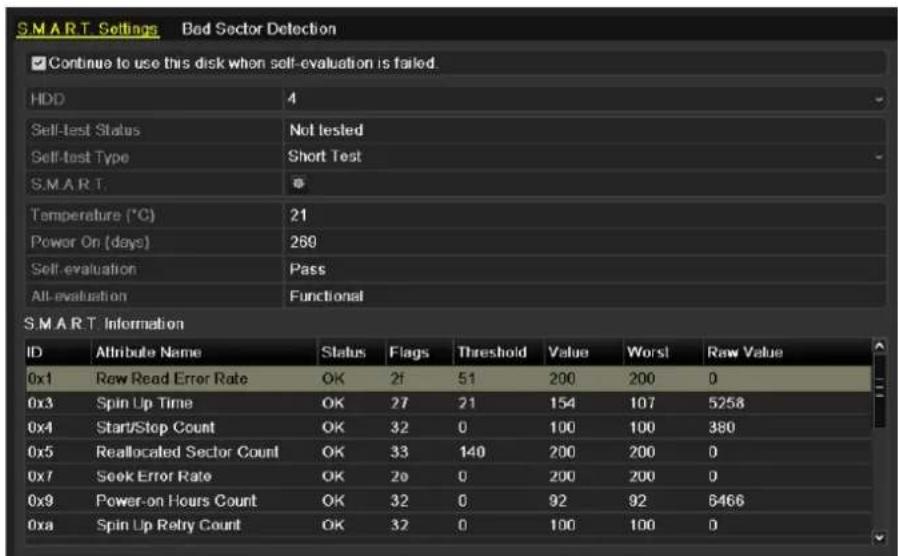
text_image
SMART Settings Bad Sector Detection Continue to use this disk when self-evaluation is failed. HDD 4 Self-test Status Not tested Self-test Type Short Test SMART. Temperature (°C) 21 Power On (days) 260 Self-evaluation Pass All-evaluation Functional SMART Information ID Attribute Name Status Flags Threshold Value Worst Raw Value 0x1 Raw Read Error Rate OK 2f 51 200 200 0 0x3 Spin Up Time OK 27 21 154 107 5258 0x4 Start/Stop Count OK 32 0 100 100 380 0x5 Reallocated Sector Count OK 33 140 200 200 0 0x7 Sook Error Rate OK 2o 0 200 200 0 0x9 Power-on Hours Count OK 32 0 92 92 6466 0xa Spin Up Retry Count OK 32 0 100 100 0Figure 12. 27 S.M.A.R.T Settings Interface
The related information of the S.M.A.R.T. is shown on the interface.
You can choose the self-test types as Short Test, Expanded Test or the Conveyance Test.
Click the start button to start the S.M.A.R.T. HDD self-evaluation.


If you want to use the HDD even when the S.M.A.R.T. checking is failed, you can check the checkbox of the Continue to use the disk when self-evaluation is failed item.
Bad Sector Detection
Steps:
- Click the Bad Sector Detection tab.
- Select the HDD No. in the dropdown list you want to configure, and choose All Detection or Key Area Detection as the detection type.
3. Click the Detect button to start the detection.
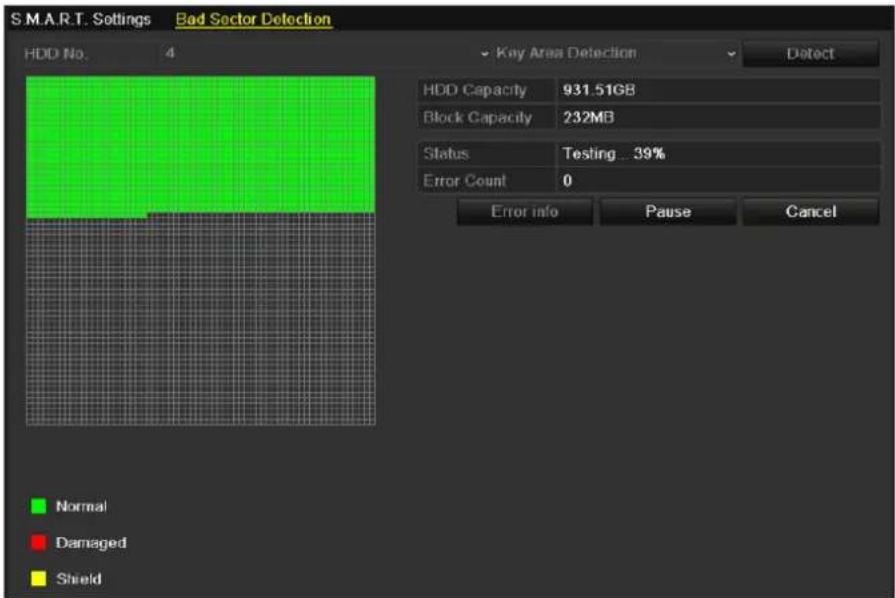
text_image
S.M.A.R.T. Settings Bad Sector Detection HDD No. 4 Key Area Detection Detect HDD Capacity 931.51GB Block Capacity 232MB Status Testing ... 39% Error Count 0 Error info Pause Cancel Normal Damaged ShieldFigure 12.28 Bad Sector Detection
And you can click Error info button to see the detailed damage information. And you can also pause/resume or cancel the detection.
12.9 Configuring HDD Error Alarms
Purpose:
You can configure the HDD error alarms when the HDD status is Uninitialized or Abnormal.
Steps:
- Enter the Exception interface.
Menu > Configuration > Exceptions
- Select the Exception Type to HDD Error from the dropdown list.
- Click the checkbox(s) below to select the HDD error alarm type (s), as shown in Figure 12. 29.

The alarm type can be selected to: Audible Warning, Notify Surveillance Center, Send Email and Trigger Alarm Output. Please refer to Chapter Setting Alarm Response Actions.
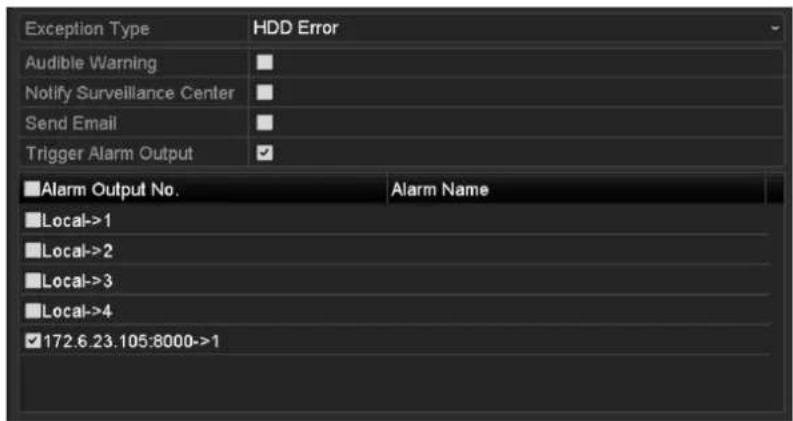
text_image
Exception Type HDD Error Audible Warning Notify Surveillance Center Send Email Trigger Alarm Output ■Alarm Output No. ■Local->1 ■Local->2 ■Local->3 ■Local->4 ✓172.6.23.105:8000->1 Alarm NameFigure 12. 29 Configure HDD Error Alarm
- When the Trigger Alarm Output is selected, you can also select the alarm output to be triggered from the list below.
- Click the Apply button to save the settings
Chapter 13 Camera Settings
13.1 Configuring OSD Settings
Purpose:
You can configure the OSD (On-screen Display) settings for the camera, including date /time, camera name, etc.
Steps:
- Enter the OSD Configuration interface.
Menu > Camera > OSD - Select the camera to configure OSD settings.
- Edit the Camera Name in the text field.
- Configure the Display Name, Display Date and Display Week by clicking the checkbox.
- Select the Date Format, Time Format and Display Mode.
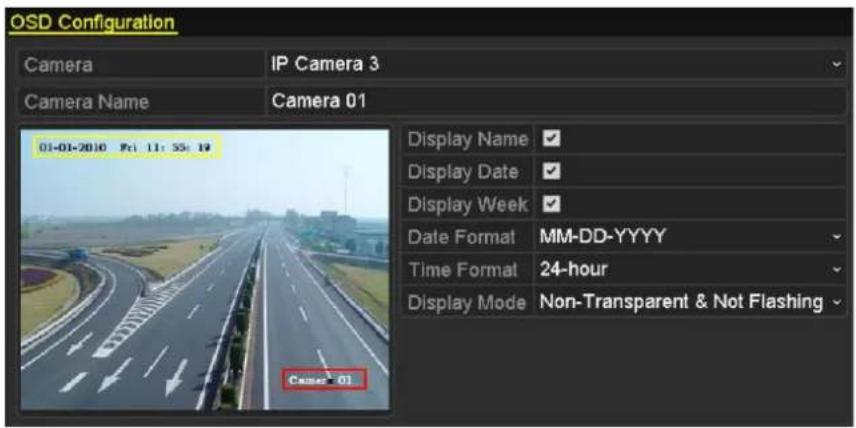
text_image
OSD Configuration Camera IP Camera 3 Camera Name Camera 01 01-01-2010 Fri: 11:55:19 Display Name Display Date Display Week Date Format MM-DD-YYYY Time Format 24-hour Display Mode Non-Transparent & Not Flashing Case 01Figure 13.1 OSD Configuration Interface
- You can use the mouse to click and drag the text frame on the preview window to adjust the OSD position.
- Click the Apply button to apply the settings.
13.2 Configuring Privacy Mask
Purpose:
You are allowed to configure the four-sided privacy mask zones that cannot be viewed by the operator. The privacy mask can prevent certain surveillance areas to be viewed or recorded.
Steps:
- Enter the Privacy Mask Settings interface.
Menu > Camera > Privacy Mask - Select the camera to set privacy mask.
- Click the checkbox of Enable Privacy Mask to enable this feature.
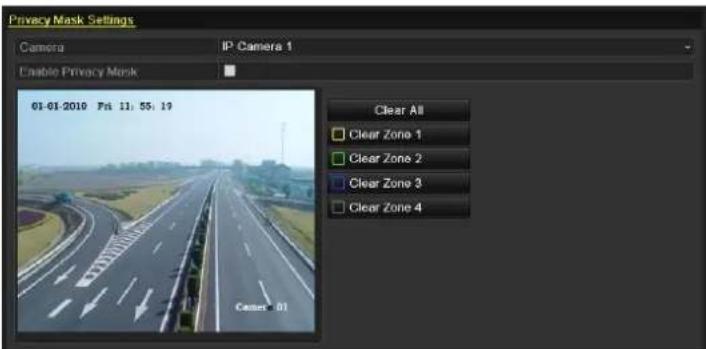
text_image
Privacy Mask Settings Camera IP Camera 1 Enable Privacy Mask 01-01-2010 Fri 11:55:19 Clear All Clear Zone 1 Clear Zone 2 Clear Zone 3 Clear Zone 4 Caser 01Figure 13.2 Privacy Mask Settings Interface
- Use the mouse to draw a zone on the window. The zones will be marked with different frame colors.

Up to 4 privacy masks zones can be configured and the size of each area can be adjusted.
- The configured privacy mask zones on the window can be cleared by clicking the corresponding Clear Zone1-4 icons on the right side of the window, or click Clear All to clear all zones.
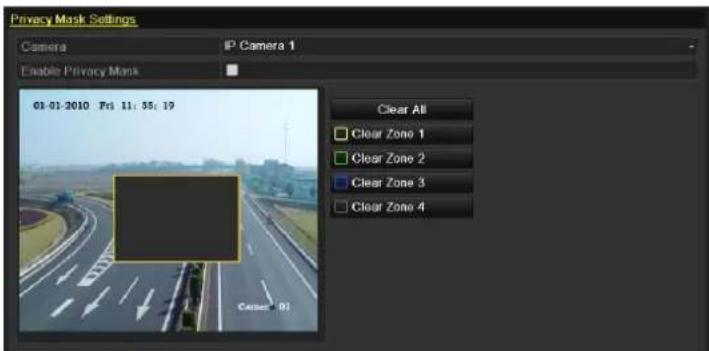
text_image
Privacy Mask Settings Camera IP Camera 1 Enable Privacy Mask 01-01-2010 Fri 11:55:19 Clear All Clear Zone 1 Clear Zone 2 Clear Zone 3 Clear Zone 4 Case=0)Figure 13.3 Set Privacy Mask Area
- Click the Apply button to save the settings.
13.3 Configuring Video Parameters
Steps:
- Enter the Image Settings interface.
Menu > Camera > Image
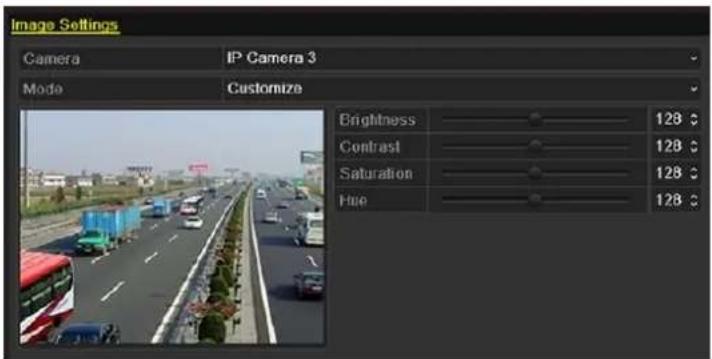
text_image
Image Settings Camera IP Camera 3 Mode Customize Brightness 128 °C Contrast 128 °C Saturation 128 °C Hue 128 °CFigure 13.4 Image Settings Interface
- Select the camera to set image parameters.
- You can click on the arrow to change the value of each parameter.
- Click the Apply button to save the settings.
Chapter 14 NVR Management and Maintenance
14.1 Viewing System Information
14.1.1 Viewing Device Information
Steps:
- Enter the System Information interface. Menu >Maintenance>System Info
- Click the Device Info tab to enter the Device Information menu to view the device name, model, serial No., firmware version and encode version, as shown in Figure 14.1.
| Device Info Camera Record Alarm Network HDD | |
| Device Name | Embedded Net DVR |
| Model | |
| Serial No. | 1620120518BBRR408508857WCVU |
| Firmware Version | |
| Encoding Version | V1.0, Build 121210 |
Figure 14.1 Device Information Interface
14.1.2 Viewing Camera Information
Steps:
- Enter the System Information interface. Menu >Maintenance>System Info
- Click the Camera tab to enter the Camera Information menu to view the status of each camera, as shown in Figure 14.2.
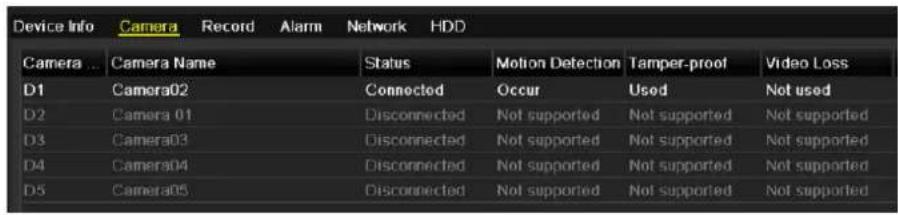
text_image
Device Info Camera Record Alarm Network HDD Camera ... Camera Name Status Motion Detection Tamper-proof Video Loss D1 Camera02 Connected Occur Used Not used D2 Camera 01 Disconnected Not supported Not supported Not supported D3 Camera03 Disconnected Not supported Not supported Not supported D4 Camera04 Disconnected Not supported Not supported Not supported D5 Camera05 Disconnected Not supported Not supported Not supportedFigure 14.2 Camera Information Interface
14.1.3 Viewing Record Information
Steps:
- Enter the System Information interface. Menu >Maintenance>System Info
- Click the Record tab to enter the Record Information menu to view the recording status and parameters of each camera, as shown in Figure 14.3.
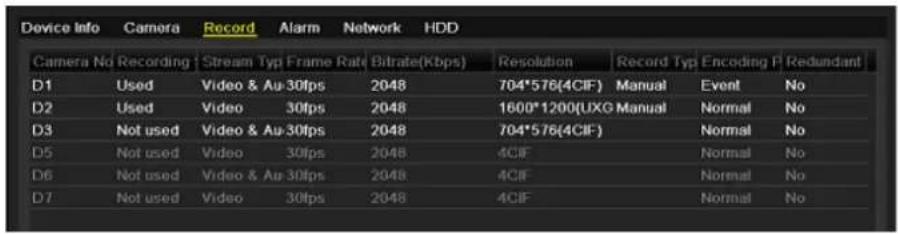
text_image
Device Info Camera Record Alarm Network HDD Camera No Recording | Stream Typ Frame Rate Bitrate(Kbps) Resolution Record Typ Encoding P Redundant D1 Used Video & Au 30fps 2048 704*576(4CIF) Manual Event No D2 Used Video 30fps 2048 1600*1200(UXG Manual Normal No D3 Not used Video & Au 30fps 2048 704*576(4CIF) Normal No D5 Not used Video 30fps 2048 4CIF Normal No D6 Not used Video & Au 30fps 2048 4CIF Normal No D7 Not used Video 30fps 2048 4CIF Normal NoFigure 14.3 Record Information Interface
14.1.4 Viewing Alarm Information
Steps:
- Enter the System Information interface.
Menu >Maintenance>System Info
- Click the Alarm tab to enter the Alarm Information menu to view the alarm information, as shown in Figure 14.4.
| Device Info | Camera | Record | Alarm | Network | HDD |
| No. | Alarm Name | Alarm Type | Alarm Status | Triggered Camer | |
| Local<-1 | N.C | Occur | D3~D4 D7 | ||
| Local<-2 | N.O | Used | |||
| Local<-3 | N.O | Used | |||
| Local<-4 | N.O | Used | |||
| Local<-5 | N.O | Used | |||
| Local<-6 | N.C | Occur | D3~D4 D7 | ||
| Local<-7 | N.O | Used | |||
| Local<-8 | N.O | Used | |||
| Local<-9 | N.O | Used | |||
| Local<-10 | N.C | Occur | |||
| Local<-11 | N.C | Occur | |||
| Local<-12 | N.O | Used | |||
| Local<-13 | N.O | Used | |||
| Local<-14 | N.O | Used | |||
| Local<-15 | N.O | Used | |||
Figure 14.4 Alarm Information Interface
14.1.5 Viewing Network Information
Steps:
- Enter the System Information interface.
Menu >Maintenance>System Info
- Click the Network tab to enter the Network Information menu to view the network information, as shown in Figure 14.5.
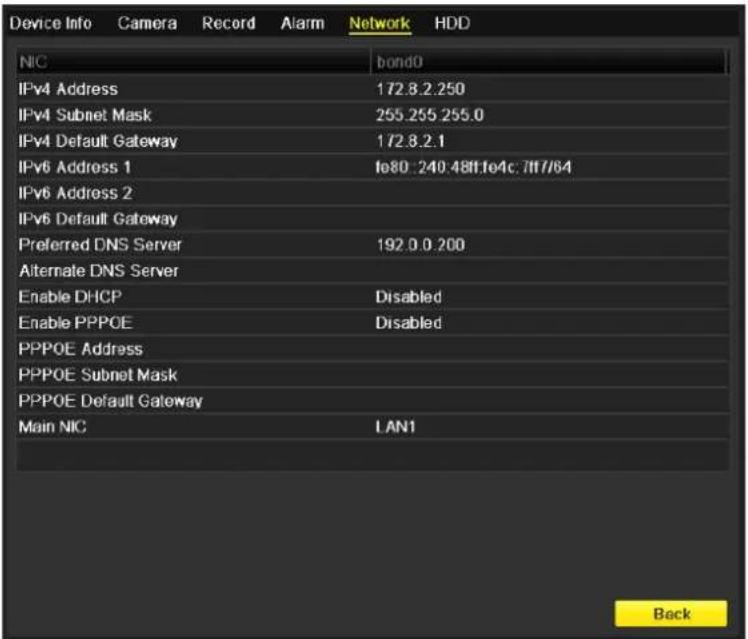
text_image
Device Info Camera Record Alarm Network HDD NIC bond0 IPv4 Address 172.8.2.250 IPv4 Subnet Mask 255.255.255.0 IPv4 Default Gateway 172.8.2.1 IPv6 Address 1 fe80:240.48ftfe4c:7ff7/64 IPv6 Address 2 IPv6 Default Gateway Preferred DNS Server 192.0.0.200 Alternate DNS Server Enable DHCP Disabled Enable PPPOE Disabled PPPOE Address PPPOE Subnet Mask PPPOE Default Gateway Main NIC LAN1 BackFigure 14.5 Network Information Interface
14.1.6 Viewing HDD Information
Steps:
- Enter the System Information interface.
Menu > Maintenance > System Info
- Click the HDD tab to enter the HDD Information menu to view the HDD status, free space, property, etc., as shown in Figure 14.6.
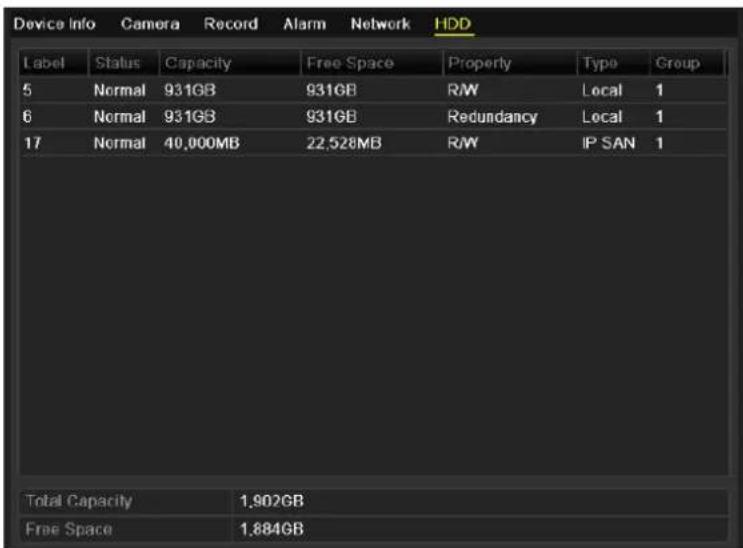
text_image
Device Info Camera Record Alarm Network HDD Label Status Capacity Free Space Property Type Group 5 Normal 931GB 931GB R/W Local 1 6 Normal 931GB 931GB Redundancy Local 1 17 Normal 40,000MB 22,528MB R/W IP SAN 1 Total Capacity 1,902GB Free Space 1,884GBFigure 14.6 HDD Information Interface
14.2 Searching & Export Log Files
Purpose:
The operation, alarm, exception and information of the NVR can be stored in log files, which can be viewed and exported at any time.
Steps:
- Enter the Log Search interface.
Menu > Maintenance > Log Information
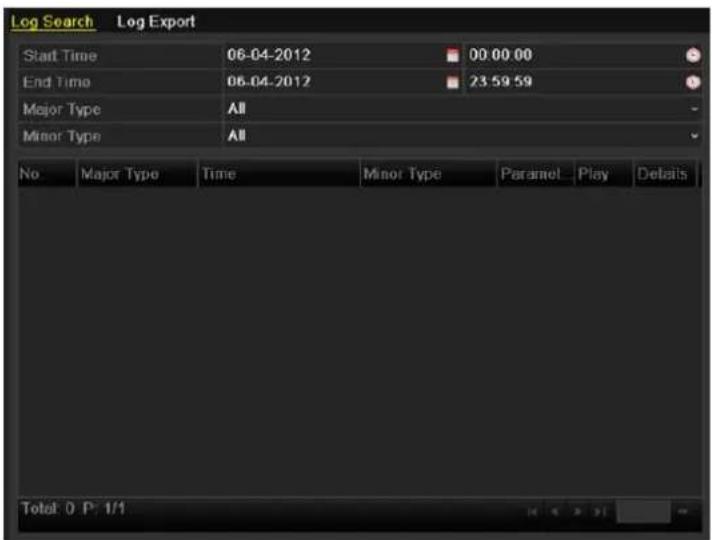
text_image
Log Search Log Export Start Time 06-04-2012 00:00:00 End Time 06-04-2012 23 59 59 Major Type All Minor Type All No Major Type Time Minor Type Paramel Play Details Total: 0 P: 1/1Figure 14.7 Log Search Interface
- Set the log search conditions to refine your search, including the Start Time, End Time, Major Type and Minor Type.
- Click the Search button to start search log files.
- The matched log files will be displayed on the list shown below.
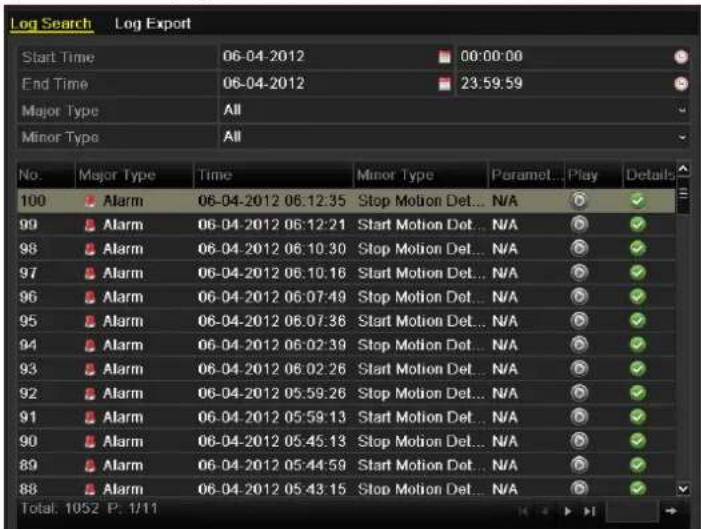
text_image
Log Search Start Time 06-04-2012 00:00:00 End Time 06-04-2012 23:59:59 Major Type All Minor Type All No. Major Type Time Minor Type Paramet... Play Details 100 Alarm 06-04-2012 06:12:35 Stop Motion Det... N/A ✓ 99 Alarm 06-04-2012 06:12:21 Start Motion Det... N/A ✓ 98 Alarm 06-04-2012 06:10:30 Stop Motion Det... N/A ✓ 97 Alarm 06-04-2012 06:10:16 Start Motion Det... N/A ✓ 96 Alarm 06-04-2012 06:07:49 Stop Motion Det... N/A ✓ 95 Alarm 06-04-2012 06:07:36 Start Motion Det... N/A ✓ 94 Alarm 06-04-2012 06:02:39 Stop Motion Det... N/A ✓ 93 Alarm 06-04-2012 06:02:26 Start Motion Det... N/A ✓ 92 Alarm 06-04-2012 05:59:26 Stop Motion Det... N/A ✓ 91 Alarm 06-04-2012 05:59:13 Start Motion Det... N/A ✓ 90 Alarm 06-04-2012 05:45:13 Stop Motion Det... N/A ✓ 89 Alarm 06-04-2012 05:44:59 Start Motion Det... N/A ✓ 88 Alarm 06-04-2012 05:43:15 Stop Motion Det... N/A ✓ Total: 1052 P: 1/11Figure 14.8 Log Search Results

Up to 2000 log files can be displayed each time.
- You can click the button of each log or double click it to view its detailed information, as shown in Figure 14.9. And you can also click the button to view the related video files if available.
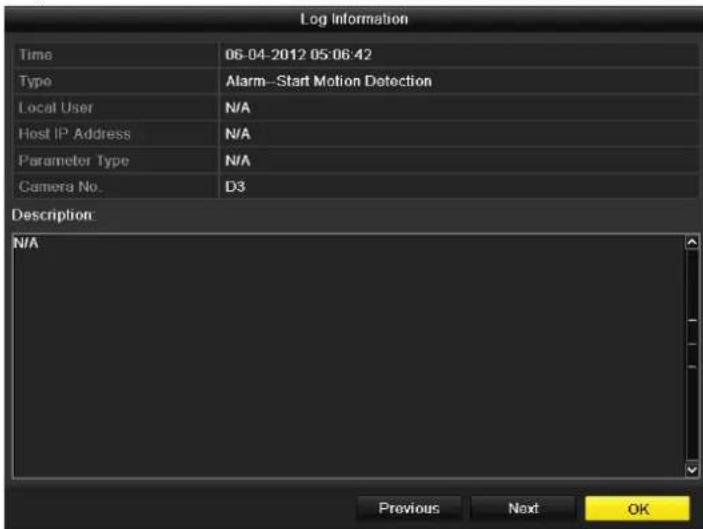
text_image
Log Information Time 06-04-2012 05:06:42 Type Alarm-Start Motion Detection Local User N/A Host IP Address N/A Parameter Type N/A Camera No. D3 Description N/A Previous Next OKFigure 14.9 Log Details
- If you want to export the log files, click the Export button to enter the Export menu, as shown in Figure 14. 10.
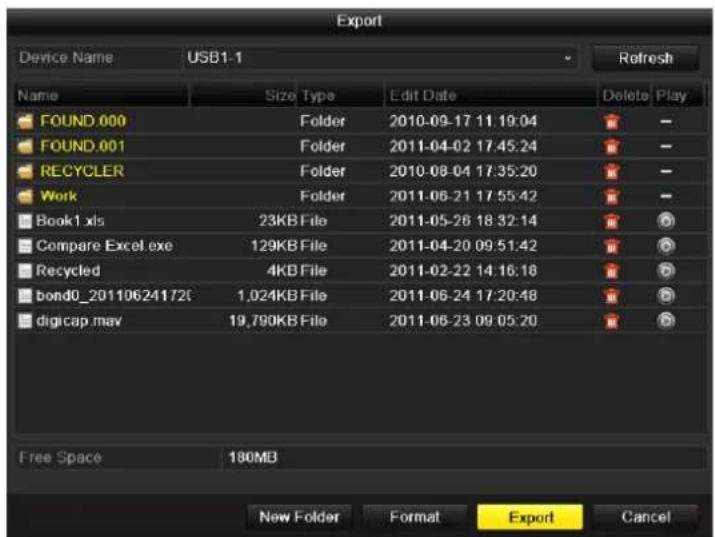
text_image
Export Device Name USB1-1 Refresh Name Size Type Edit Date Delete Play FOUND.000 Folder 2010-09-17 11:19:04 FOUND.001 Folder 2011-04-02 17:45:24 RECYCLER Folder 2010-08-04 17:35:20 Work Folder 2011-06-21 17:55:42 Book1.xls 23KB File 2011-05-26 18:32:14 Compare Excel.exe 129KB File 2011-04-20 09:51:42 Recycled 4KB File 2011-02-22 14:16:18 bond0_20110624172C 1,024KB File 2011-06-24 17:20:48 digicap.mav 19,790KB File 2011-06-23 09:05:20 Free Space 180MB New Folder Format Export CancelFigure 14. 10 Export Log Files
- Select the backup device from the dropdown list of Device Name.
- Click the Export to export the log files to the selected backup device.
You can click the New Folder button to create new folder in the backup device, or click the Format button to format the backup device before log export.

- Please connect the backup device to NVR before operating log export.
- The log files exported to the backup device are named by exporting time, e.g., 20110514124841logBack.txt.
To export all the log files:
Steps:
- Enter the Log Information interface.
Menu> Maintenance> Log Information> Log Export
- Click the Log Export tab.
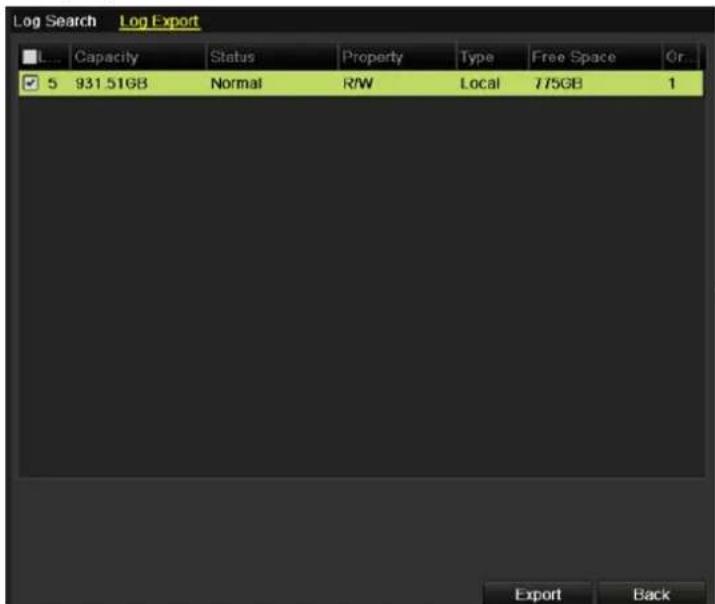
text_image
Log Search Log Export Capacity Status Property Type Free Space Gr... ✓ 5 931.51GB Normal R/W Local 775GB 1 Export BackFigure 14.11 Log Export Interface
- You can check the checkbox of the HDD.
- Click the Export button to export all the log files stored in the HDD.
14.3 Importing/Exporting IP Camera Info
Purpose:
The information of added IP camera can be generated into an excel file and exported to the local device for backup, including the IP address, manage port, password of admin, etc.. And the exported file can be edited on your PC, like adding or deleting the content, and copy the setting to other devices by importing the excel file to it.
Steps:
- Enter the camera management interface.
Menu > Camera > IP Camera Import/Export - Click the IP Camera Import/Export tab, the content of detected plugged external device appears.
- Click the Export button to export configuration files to the selected local backup device.
- To import a configuration file, select the file from the selected backup device and click the Import button.
After the importing process is completed, you must reboot the NVR.
14.4 Importing/Exporting Configuration Files
Purpose:
The configuration files of the NVR can be exported to local device for backup; and the configuration files of one NVR can be imported to multiple NVR devices if they are to be configured with the same parameters.
Steps:
- Enter the Import/Export Configuration File interface.
Menu > Maintenance > Import/Export
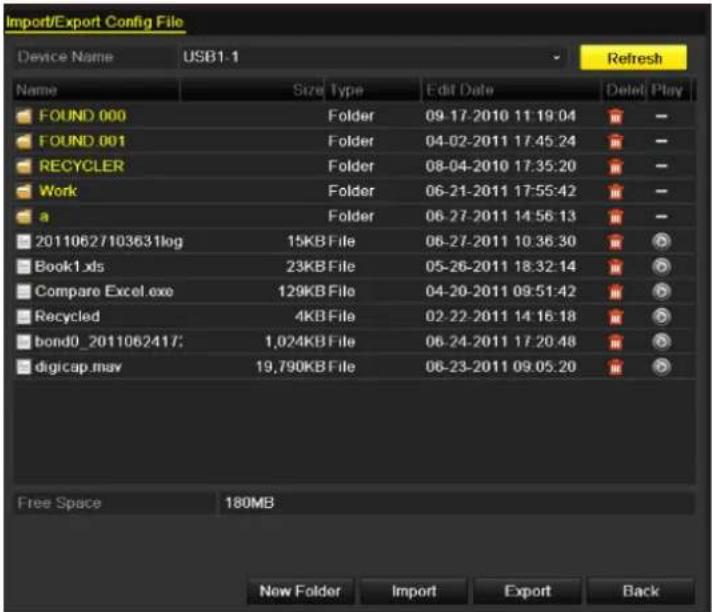
text_image
Import/Export Config File Device Name USB1-1 Refresh Name Size Type Edit Date Deleted Play FOUND 000 Folder 09-17-2010 11:19:04 FOUND 001 Folder 04-02-2011 17:45:24 RECYCLER Folder 08-04-2010 17:35:20 Work Folder 06-21-2011 17:55:42 a Folder 06-27-2011 14:56:13 20110627103631log 15KB File 06-27-2011 10:36:30 Book1.xls 23KB File 05-26-2011 18:32:14 Compare Excel.exe 129KB File 04-20-2011 09:51:42 Recycled 4KB File 02-22-2011 14:16:18 bond0_2011062417; 1,024KB File 06-24-2011 17:20:48 digicap.mav 19,790KB File 06-23-2011 09:05:20 Free Space 180MB New Folder Import Export BackFigure 14.12 Import/Export Config File
- Click the Export button to export configuration files to the selected local backup device.
- To import a configuration file, select the file from the selected backup device and click the Import button. After the import process is completed, you must reboot the NVR.

After having finished the import of configuration files, the device will reboot automatically.
14.5 Upgrading System
Purpose:
The firmware on your NVR can be upgraded by local backup device or remote FTP server.
14.5.1 Upgrading by Local Backup Device
Steps:
- Connect your NVR with a local backup device where the update firmware file is located.
- Enter the Upgrade interface.
Menu >Maintenance>Upgrade
- Click the Local Upgrade tab to enter the local upgrade menu, as shown in Figure 14. 13.
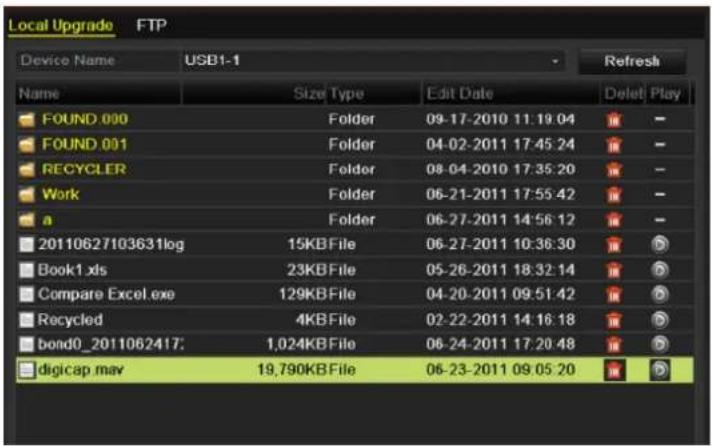
text_image
Local Upgrade FTP Device Name USB1-1 Refresh Name Size Type Edit Date Delet Play FOUND.000 Folder 09-17-2010 11:19:04 FOUND.001 Folder 04-02-2011 17:45:24 RECYCLER Folder 08-04-2010 17:35:20 Work Folder 06-21-2011 17:55:42 a Folder 06-27-2011 14:56:12 20110627103631log 15KBFile 06-27-2011 10:36:30 Book1.xls 23KBFile 05-26-2011 18:32:14 Compare Excel.exe 129KBFile 04-20-2011 09:51:42 Recycled 4KBFile 02-22-2011 14:16:18 bond0_2011062417: 1,024KBFile 06-24-2011 17:20:48 digicap.mav 19,790KBFile 06-23-2011 09:05:20Figure 14.13 Local Upgrade Interface
- Select the update file from the backup device.
- Click the Upgrade button to start upgrading.
- After the upgrading is complete, reboot the NVR to activate the new firmware.
14.5.2 Upgrading by FTP
Before you start:
Configure PC (running FTP server) and NVR to the same Local Area Network. Run the 3 ^rd -party TFTP software on the PC and copy the firmware into the root directory of TFTP.
Steps:
- Enter the Upgrade interface.
Menu >Maintenance>Upgrade
- Click the FTP tab to enter the local upgrade interface, as shown in Figure 14. 14.
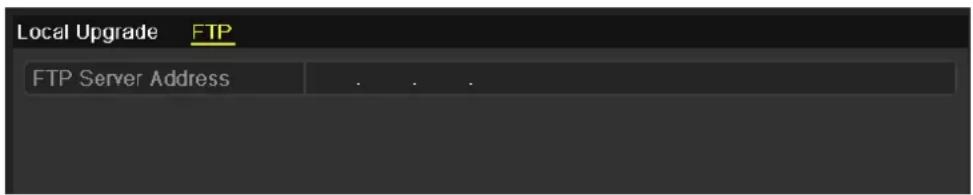
text_image
Local Upgrade FTP FTP Server Address . . .Figure 14. 14 FTP Upgrade Interface
- Enter the FTP Server Address in the text field.
- Click the Upgrade button to start upgrading.
- After the upgrading is complete, reboot the NVR to activate the new firmware.
14.6 Restoring Default Settings
Steps:
- Enter the Default interface.
Menu > Maintenance > Default
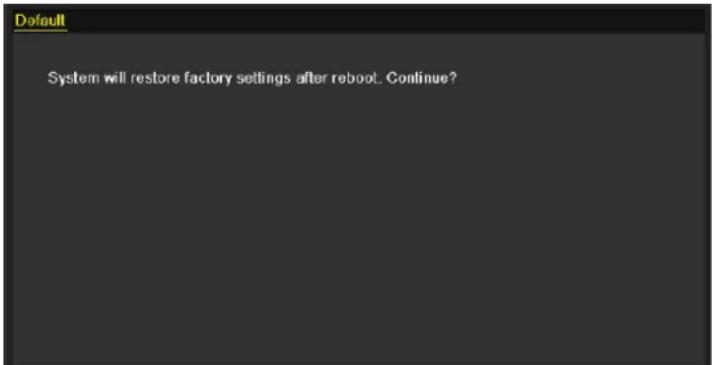
text_image
Default System will restore factory settings after reboot. Continue?Figure 14. 15 Restore Factory Default
- Click the OK button to restore the default settings.

Except the network parameters (including IP address, subnet mask, gateway, MTU, NIC working mode, default route and server port), all other parameters of the device will be restored to factory default settings.
Chapter 15 Others
15.1 Configuring RS-232 Serial Port
Purpose:
The RS-232 port can be used in two ways:
- Parameters Configuration: Connect a PC to the NVR through the PC serial port. Device parameters can be configured by using software such as HyperTerminal. The serial port parameters must be the same as the NVR's when connecting with the PC serial port.
- Transparent Channel: Connect a serial device directly to the NVR. The serial device will be controlled remotely by the PC through the network and the protocol of the serial device.
Steps:
- Enter the RS-232 Settings interface.
Menu >Configuration> RS-232
| RS-232 Settings | |
| Baud Rate | 115200 |
| Data Bit | 8 |
| Stop Bit | 1 |
| Parity | None |
| Flow Ctrl | None |
| Usage | Console |
Figure 15.1 RS-232 Settings Interface
- Configure RS-232 parameters, including baud rate, data bit, stop bit, parity, flow control and usage.
- Click the Apply button to save the settings.
15.2 Configuring General Settings
Purpose:
You can configure the BNC output standard, VGA output resolution, mouse pointer speed through the Menu > Configuration > General interface.
Steps:
-
Enter the General Settings interface. Menu >Configuration> General
-
Select the General tab.
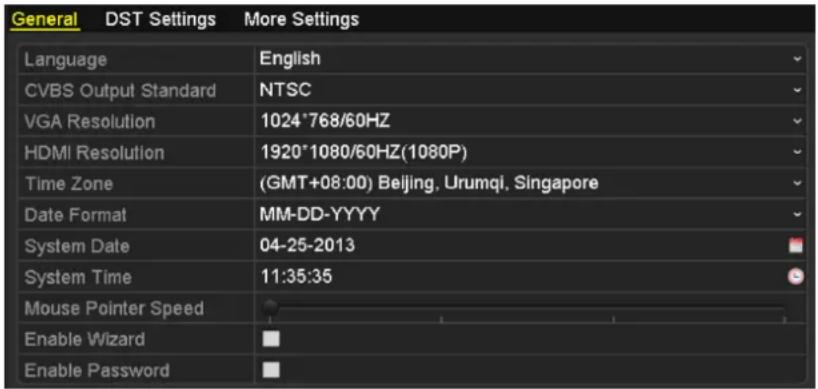
text_image
General DST Settings More Settings Language English CVBS Output Standard NTSC VGA Resolution 1024*768/60HZ HDMI Resolution 1920*1080/60HZ(1080P) Time Zone (GMT+08:00) Beijing, Urumqi, Singapore Date Format MM-DD-YYYY System Date 04-25-2013 System Time 11:35:35 Mouse Pointer Speed Enable Wizard Enable PasswordFigure 15.2 General Settings Interface
- Configure the following settings:
• Language: The default language used is English.
- CVBS Output Standard: Select the CVBS output standard to NTSC or PAL, which must be the same with the video input standard.
- VGA Resolution: Select the VGA output resolution, which must be the same with the resolution of the monitor screen.
- HDMI Resolution: Select the HDMI resolution, which must be the same with the resolution of the monitor screen.
• Time Zone: Select the time zone.
- Date Format: Select the date format.
- System Date: Select the system date.
• System Time: Select the system time.
- Mouse Pointer Speed: Set the speed of mouse pointer; 4 levels are configurable.
- Enable Wizard: Enable/disable the Wizard when the device starts up.
- Enable Password: Enable/disable the use of the login password.
- Click the Apply button to save the settings.
15.3 Configuring DST Settings
Steps:
-
Enter the General Settings interface. Menu >Configuration>General
-
Choose DST Settings tab.
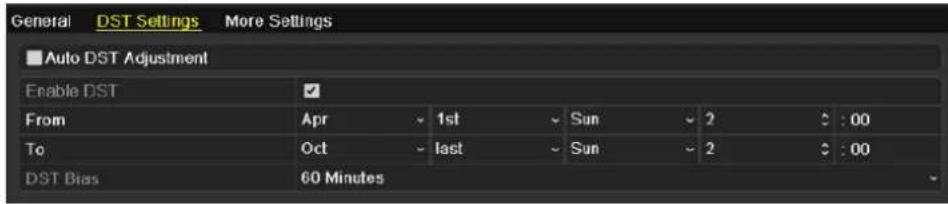
text_image
General DST Settings More Settings ■Auto DST Adjustment Enable DST From Apr 1st Sun 2 : 00 To Oct last Sun 2 : 00 DST Bias 60 MinutesFigure 15.3 DST Settings Interface
You can check the checkbox before the Auto DST Adjustment item.
Or you can manually check the Enable DST checkbox, and then you choose the date of the DST period.
15.4 Configuring More Settings for Device
Parameters
Steps:
- Enter the General Settings interface.
Menu >Configuration>General
- Click the More Settings tab to enter the More Settings interface, as shown in Figure 15.4.
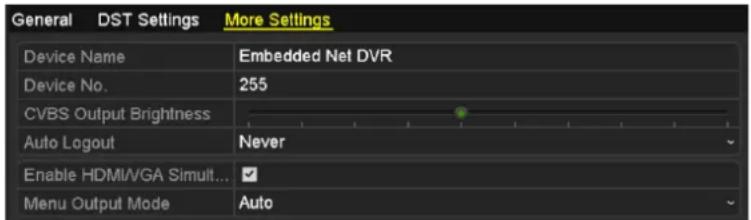
text_image
General DST Settings More Settings Device Name Embedded Net DVR Device No. 255 CVBS Output Brightness Auto Logout Never Enable HDMI/VGA Simult... Menu Output Mode AutoFigure 15.4 More Settings Interface
- Configure the following settings:
• Device Name: Edit the name of NVR.
- Device No.: Edit the serial number of NVR. The Device No. can be set in the range of 1\~255, and the default No. is 255. The number is used for the remote and keyboard control.
• CVBS Output Brightness: Adjust the video output brightness.
- Auto Logout: Set timeout time for menu inactivity. E.g., when the timeout time is set to 5 Minutes, then the system will exit from the current operation menu to live view screen after 5 minutes of menu inactivity.
- Enable HDMI/VGA Simultaneous Output: By default, the video outputs from HDMI and VGA interfaces can be operated separately. You can set the simultaneous output for the HDMI and VGA by checking the checkbox of the option.
- Menu Output Mode: You can choose the menu display on different video output. There are auto, HDMI, VGA and Main CVBS selectable.
- Click the Apply button to save the settings.
15.5 Managing User Accounts
Purpose:
There is a default account in the NVR: Administrator. The Administrator user name is admin and the password is 12345. The Administrator has the permission to add and delete user and configure user parameters.
15.5.1 Adding a User
Steps:
- Enter the User Management interface.
Menu >Configuration>User
| User Management | ||||||
| No. | User Name | Level | User's MAC Address | Pe.. | Edit | Del... |
| 1 | admin | Admin | 00:00:00:00:00:00 | - | ||
Figure 15.5 User Management Interface
- Click the Add button to enter the Add User interface.
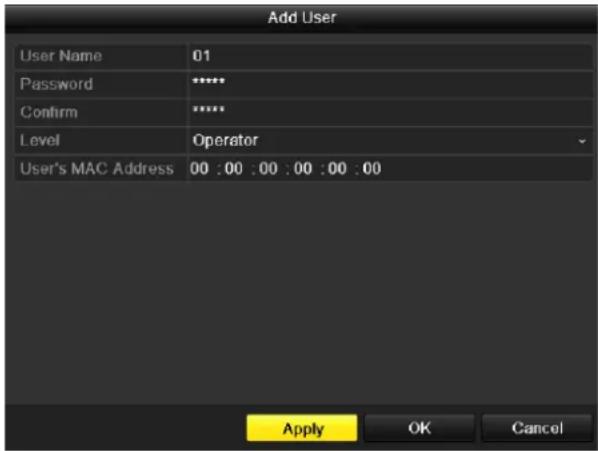
text_image
Add User User Name 01 Password ****** Confirm ****** Level Operator User's MAC Address 00 : 00 : 00 : 00 : 00 : 00 Apply OK CancelFigure 15.6 Add User Menu
- Enter the information for new user, including User Name, Password, Level and User's MAC Address.
Level: Set the user level to Operator or Guest. Different user levels have different operating permission.
- Operator: The Operator user level has permission of Two-way Audio in Remote Configuration and all operating permission in Camera Configuration by default.
- Guest: The Guest user has no permission of Two-way Audio in Remote Configuration and only has the local/remote playback in the Camera Configuration by default.
User's MAC Address: The MAC address of the remote PC which logs onto the NVR. If it is configured and enabled, it only allows the remote user with this MAC address to access the NVR.
- Click the OK button to save the settings and go back to the User Management interface. The added new user will be displayed on the list, as shown in Figure 15.7.
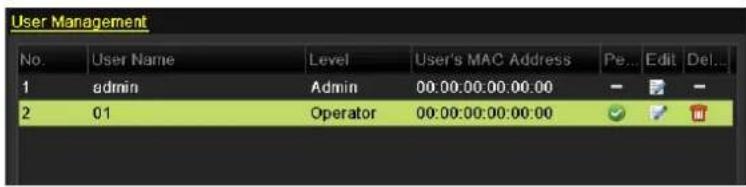
text_image
User Management No. User Name Level User's MAC Address Pe... Edit Del... 1 admin Admin 00:00:00:00:00:00 2 01 Operator 00:00:00:00:00:00Figure 15.7 Added User Listed in User Management Interface
- Select the user from the list and then click the button to enter the Permission settings interface, as shown in Figure 15.8.
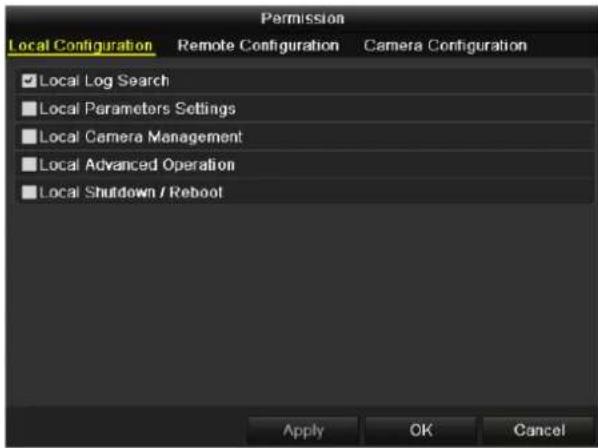
text_image
Permission Local Configuration Remote Configuration Camera Configuration ✓ Local Log Search ■ Local Parameters Settings ■ Local Camera Management ■ Local Advanced Operation ■ Local Shutdown / Reboot Apply OK CancelFigure 15.8 User Permission Settings Interface
- Set the operating permission of Local Configuration, Remote Configuration and Camera Configuration for the user.
Local Configuration
- Local Log Search: Searching and viewing logs and system information of NVR.
- Local Parameters Settings: Configuring parameters, restoring factory default parameters and importing/exporting configuration files.
- Local Camera Management: The adding, deleting and editing of IP cameras.
- Local Advanced Operation: Operating HDD management (initializing HDD, setting HDD property), upgrading system firmware, clearing I/O alarm output.
- Local Shutdown Reboot: Shutting down or rebooting the NVR.
Remote Configuration
- Remote Log Search: Remotely viewing logs that are saved on the NVR.
- Remote Parameters Settings: Remotely configuring parameters, restoring factory default parameters and importing/exporting configuration files.
• Remote Camera Management: Remote adding, deleting and editing of the IP cameras. - Remote Serial Port Control: Configuring settings for RS-232 and RS-485 ports.
- Remote Video Output Control: Sending remote button control signal.
- Two-Way Audio: Realizing two-way radio between the remote client and the NVR.
- Remote Alarm Control: Remotely arming (notify alarm and exception message to the remote client) and controlling the alarm output.
- Remote Advanced Operation: Remotely operating HDD management (initializing HDD, setting HDD property), upgrading system firmware, clearing I/O alarm output.
- Remote Shutdown/Reboot: Remotely shutting down or rebooting the NVR.
Camera Configuration
- Remote Live View: Remotely viewing live video of the selected camera (s).
- Local Manual Operation: Locally starting/stopping manual recording, picture capturing and alarm output of the selected camera (s).
- Remote Manual Operation: Remotely starting/stopping manual recording, picture capturing and alarm output of the selected camera (s).
- Local Playback: Locally playing back recorded files of the selected camera (s).
- Remote Playback: Remotely playing back recorded files of the selected camera (s).
- Local PTZ Control: Locally controlling PTZ movement of the selected camera (s).
- Remote PTZ Control: Remotely controlling PTZ movement of the selected camera (s).
-
Local Video Export: Locally exporting recorded files of the selected camera (s).
-
Click the OK button to save the settings and exit interface.

Only the admin user account has the permission of restoring factory default parameters.
15.5.2 Deleting a User
Steps:
- Enter the User Management interface.
Menu >Configuration>User - Select the user to be deleted from the list, as shown in Figure 15.9.
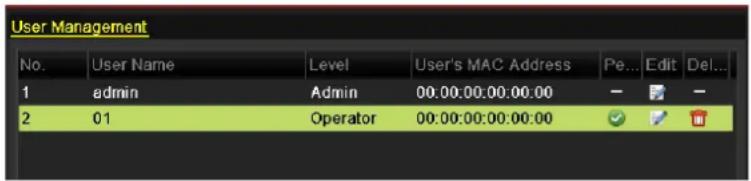
text_image
User Management No. User Name Level User's MAC Address Pe... Edit Del... 1 admin Admin 00:00:00:00:00:00 2 01 Operator 00:00:00:00:00:00Figure 15.9 User List
- Click the 📄 icon to delete the selected user.
15.5.3 Editing a User
Steps:
- Enter the User Management interface.
Menu >Configuration>User - Select the user to be edited from the list, as shown in Figure 15.9.
- Click the icon to enter the Edit User interface, as shown in Figure 15. 10.

The admin user can also be edited.
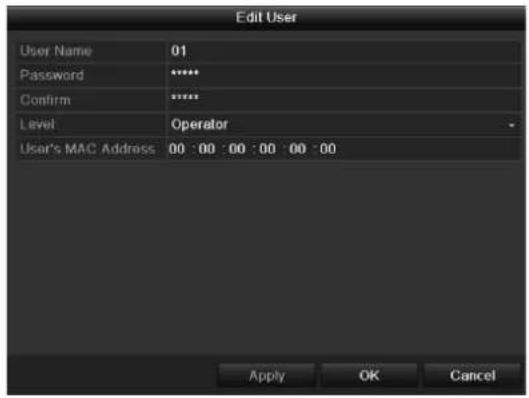
text_image
Edit User User Name 01 Password ****** Confirm ****** Level Operator User's MAC Address 00 : 00 : 00 : 00 : 00 : 00 Apply OK CancelOperator and Guest
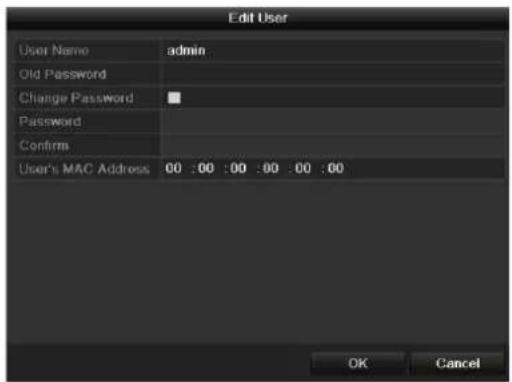
text_image
Edit User User Name admin Old Password Change Password Password Confirm User's MAC Address 00 :00 :00 :00 :00 :00 OK CancelAdmin
Figure 15.10 Edit User Interface
- Edit the corresponding parameters.
• Operator and Guest
You can edit the user information, including user name, password, permission level and MAC address. Check the checkbox of Change Password if you want to change the password, and input the new one in the text field of Password and Confirm.
- Admin
You are only allowed to edit password and MAC address. Check the checkbox of Change Password if you want to change the password, and the input the correct old password, and the new one in the text field of Password and Confirm.
- Click the OK button to save the settings and exit the menu.
Appendix
Glossary
- Dual Stream: Dual stream is a technology used to record high resolution video locally while transmitting a lower resolution stream over the network. The two streams are generated by the DVR, with the main stream having a maximum resolution of 4CIF and the sub-stream having a maximum resolution of CIF.
- HDD: Acronym for Hard Disk Drive. A storage medium which stores digitally encoded data on platters with magnetic surfaces.
- DHCP: Dynamic Host Configuration Protocol (DHCP) is a network application protocol used by devices (DHCP clients) to obtain configuration information for operation in an Internet Protocol network.
- HTTP: Acronym for Hypertext Transfer Protocol. A protocol to transfer hypertext request and information between servers and browsers over a network
- PPPoE: PPPoE, Point-to-Point Protocol over Ethernet, is a network protocol for encapsulating Point-to-Point Protocol (PPP) frames inside Ethernet frames. It is used mainly with ADSL services where individual users connect to the ADSL transceiver (modem) over Ethernet and in plain Metro Ethernet networks.
- DDNS: Dynamic DNS is a method, protocol, or network service that provides the capability for a networked device, such as a router or computer system using the Internet Protocol Suite, to notify a domain name server to change, in real time (ad-hoc) the active DNS configuration of its configured hostnames, addresses or other information stored in DNS.
• Hybrid DVR: A hybrid DVR is a combination of a DVR and NVR. - NTP: Acronym for Network Time Protocol. A protocol designed to synchronize the clocks of computers over a network.
- NTSC: Acronym for National Television System Committee. NTSC is an analog television standard used in such countries as the United States and Japan. Each frame of anNTSC signal contains 525 scan lines at 60Hz.
- NVR: Acronym for Network Video Recorder. An NVR can be a PC-based or embedded system used for centralized management and storage for IP cameras, IP Domes and other DVRs.
- PAL: Acronym for Phase Alternating Line. PAL is also another video standard used in broadcast televisions systems in large parts of the world. PAL signal contains 625 scan lines at 50Hz.
- PTZ: Acronym for Pan, Tilt, Zoom. PTZ cameras are motor driven systems that allow the camera to pan left and right, tilt up and down and zoom in and out.
- USB: Acronym for Universal Serial Bus. USB is a plug-and-play serial bus standard to interface devices to a host computer.
Troubleshooting
- No image displayed on the monitor after starting up normally.
Possible Reasons
a) No VGA or HDMI connections.
b) Connection cable is damaged.
c) Input mode of the monitor is incorrect.
Steps
- Verify the device is connected with the monitor via HDMI or VGA cable. If not, please connect the device with the monitor and reboot.
- Verify the connection cable is good.
If there is still no image display on the monitor after rebooting, please check if the connection cable is good, and change a cable to connect again. - Verify Input mode of the monitor is correct.
Please check the input mode of the monitor matches with the output mode of the device (e.g. if the output mode of NVR is HDMI output, then the input mode of monitor must be the HDMI input). And if not, please modify the input mode of monitor. - Check if the fault is solved by the step 1 to step 3.
If it is solved, finish the process.
If not, please contact the engineer from Hikvision to do the further process.
- There is an audible warning sound "Di-Di-Di-DiDi" after a new bought NVR starts up.
Possible Reasons
a) No HDD is installed in the device.
b) The installed HDD has not been initialized.
c) The installed HDD is not compatible with the NVR or is broken-down.
Steps
- Verify at least one HDD is installed in the NVR.
1) If not, please install the compatible HDD.

Please refer to the "Quick Operation Guide" for the HDD installation steps.
2) If you don't want to install a HDD, select "Menu>Configuration > Exceptions", and uncheck the Audible Warning checkbox of "HDD Error".
- Verify the HDD is initialized.
1) Select "Menu>HDD>General".
2) If the status of the HDD is "Uninitialized", please check the checkbox of corresponding HDD and click the "Init" button.
- Verify the HDD is detected or is in good condition.
1) Select "Menu>HDD>General".
2) If the HDD is not detected or the status is "Abnormal", please replace the dedicated HDD according to the requirement.
- Check if the fault is solved by the step 1 to step 3.
If it is solved, finish the process.
If not, please contact the engineer from Hikvision to do the further process.
- The status of the added IP camera displays as “Disconnected” when it is connected through Private
Protocol. Select "Menu>Camera>Camera>IP Camera" to get the camera status.
Possible Reasons
a) Network failure, and the NVR and IP camera lost connections.
b) The configured parameters are incorrect when adding the IP camera.
c) Insufficient bandwidth.
Steps
- Verify the network is connected.
1) Connect the NVR and PC with the RS-232 cable.
2) Open the Super Terminal software, and execute the ping command. Input "ping IP" (e.g. ping 172.6.22.131).

Simultaneously press Ctrl and C to exit the ping command.
If there exists return information and the time value is little, the network is normal.
- Verify the configuration parameters are correct.
1) Select "Menu>Camera>Camera>IP Camera".
2) Verify the following parameters are the same with those of the connected IP devices, including IP address, protocol, management port, user name and password.
- Verify the whether the bandwidth is enough.
1) Select "Menu >Maintenance >Net Detect >Network Stat.".
2) Check the usage of the access bandwidth, and see if the total bandwidth has reached its limit.
- Check if the fault is solved by the step 1 to step 3.
If it is solved, finish the process. If not, please contact the engineer from Hikvision to do the further process.
- The IP camera frequently goes online and offline and the status of it displays as “Disconnected”.
Possible Reasons
a) The IP camera and the NVR versions are not compatible.
b) Unstable power supply of IP camera.
c) Unstable network between IP camera and NVR.
d) Limited flow by the switch connected with IP camera and NVR.
Steps
- Verify the IP camera and the NVR versions are compatible.
1) Enter the IP camera Management interface "Menu > Camera > Camera>IP Camera", and view the firmware version of connected IP camera.
2) Enter the System Info interface "Menu>Maintenance>System Info>Device Info", and view the firmware version of NVR.
- Verify power supply of IP camera is stable.
1) Verify the power indicator is normal.
2) When the IP camera is offline, please try the ping command on PC to check if the PC connects with the IP camera.
- Verify the network between IP camera and NVR is stable.
1) When the IP camera is offline, connect PC and NVR with the RS-232 cable.
2) Open the Super Terminal, use the ping command and keep sending large data packages to the connected IP camera, and check if there exists packet loss.

Simultaneously press Ctrl and C to exit the ping command.
Example: Input ping 172.6.22.131 -l 1472 -f.
- Verify the switch is not flow control.
Check the brand, model of the switch connecting IP camera and NVR, and contact with the manufacturer of the switch to check if it has the function of flow control. If so, please turn it down.
- Check if the fault is solved by the step 1 to step 4.
If it is solved, finish the process.
If not, please contact the engineer from Hikvision to do the further process.
- No monitor connected with the NVR locally and when you manage the IP camera to connect with the device by web browser remotely, of which the status displays as Connected. And then you connect the device with the monitor via VGA or HDMI interface and reboot the device, there is black screen with the mouse cursor.
Connect the NVR with the monitor before startup via VGA or HDMI interface, and manage the IP camera to connect with the device locally or remotely, the status of IP camera displays as Connect. And then connect the device with the CVBS, and there is black screen either.
Possible Reasons:
After connecting the IP camera to the NVR, the image is output via the main spot interface by default.
Steps:
- Enable the output channel.
- Select "Menu > Configuration > Live View > View", and select video output interface in the drop-down list and configure the window you want to view.

● The view settings can only be configured by the local operation of NVR.
- Different camera orders and window-division modes can be set for different output interfaces separately, and digits like “D1” and “D2” stands for the channel number, and “X” means the selected window has no image output.
- Check if the fault is solved by the above steps.
If it is solved, finish the process.
If not, please contact the engineer from Hikvision to do the further process.
• Live view stuck when video output locally.
Possible Reasons:
a) Poor network between NVR and IP camera, and there exists packet loss during the transmission.
b) The frame rate has not reached the real-time frame rate.
Steps:
- Verify the network between NVR and IP camera is connected.
1) When image is stuck, connect the RS-232 ports on PC and the rear panel of NVR with the RS-232 cable.
2) Open the Super Terminal, and execute the command of "ping 192.168.0.0 -l 1472 -f" (the IP address may change according to the real condition), and check if there exists packet loss.

Simultaneously press Ctrl and C to exit the ping command.
- Verify the frame rate is real-time frame rate.
Select "Menu > Record > Parameters > Record", and set the Frame rate to Full Frame.
- Check if the fault is solved by the above steps.
If it is solved, finish the process.
If not, please contact the engineer from Hikvision to do the further process.
• Live view stuck when video output remotely via the Internet Explorer or platform software.
Possible Reasons:
a) Poor network between NVR and IP camera, and there exists packet loss during the transmission. b) Poor network between NVR and PC, and there exists packet loss during the transmission. c) The performances of hardware are not good enough, including CPU, memory, etc..
Steps:
- Verify the network between NVR and IP camera is connected.
1) When image is stuck, connect the RS-232 ports on PC and the rear panel of NVR with the RS-232 cable.
2) Open the Super Terminal, and execute the command of "ping 192.168.0.0 -1 1472 -f" (the IP address may change according to the real condition), and check if there exists packet loss.

Simultaneously press Ctrl and C to exit the ping command.
- Verify the network between NVR and PC is connected.
1) Open the cmd window in the Start menu, or you can press "windows+R" shortcut key to open it.
2) Use the ping command to send large packet to the NVR, execute the command of "ping 192.168.0.0 -1 1472 -f" (the IP address may change according to the real condition), and check if there exists packet loss.

Simultaneously press Ctrl and C to exit the ping command.
- Verify the hardware of the PC is good enough.
Simultaneously press Ctrl, Alt and Delete to enter the windows task management interface, as shown in the following figure.
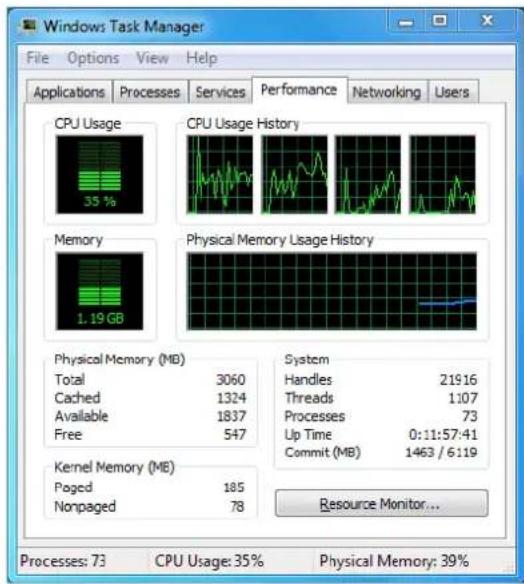
text_image
Windows Task Manager File Options View Help Applications Processes Services Performance Networking Users CPU Usage 35 % CPU Usage History 1.19 GB Memory Physical Memory Usage History Physical Memory (MB) Total 3060 Cached 1324 Available 1837 Free 547 Kernel Memory (MB) Poged 185 Nonpaged 78 System Handles 21916 Threads 1:07 Processes 73 Up Time 0:11:57:41 Commit (MB) 1463 / 6:119 Resource Monitor... Processes: 73 CPU Usage: 35% Physical Memory: 39%Windows task management interface
- Select the "Performance" tab; check the status of the CPU and Memory.
-
If the resource is not enough, please end some unnecessary processes.
-
Check if the fault is solved by the above steps.
If it is solved, finish the process.
If not, please contact the engineer from Hikvision to do the further process.
- When using the NVR to get the live view audio, there is no sound or there is too much noise, or the volume is too low.
Possible Reasons:
a) Cable between the pickup and IP camera is not connected well; impedance mismatches or incompatible.
b) The stream type is not set as "Video & Audio".
c) The encoding standard is not supported with NVR.
Steps:
- Verify the cable between the pickup and IP camera is connected well; impedance matches and compatible.
Log in the IP camera directly, and turn the audio on, check if the sound is normal. If not, please contact the manufacturer of the IP camera.
- Verify the setting parameters are correct.
Select "Menu > Record > Parameters > Record", and set the Stream Type as "Audio & Video".
- Verify the audio encoding standard of the IP camera is supported by the NVR.
NVR supports G722.1 and G711 standards, and if the encoding parameter of the input audio is not one of the previous two standards, you can log in the IP camera to configure it to the supported standard.
- Check if the fault is solved by the above steps.
If it is solved, finish the process.
If not, please contact the engineer from Hikvision to do the further process.
- The image gets stuck when NVR is playing back by single or multi-channel.
Possible Reasons:
a) Poor network between NVR and IP camera, and there exists packet loss during the transmission.
b) The frame rate is not the real-time frame rate.
c) The NVR supports up to 16-channel synchronize playback at the resolution of 4CIF, if you want a 16-channel synchronize playback at the resolution of 720p, the frame extracting may occur, which leads to a slight stuck.
Steps:
- Verify the network between NVR and IP camera is connected.
1) When image is stuck, connect the RS-232 ports on PC and the rear panel of NVR with the RS-232 cable.
2) Open the Super Terminal, and execute the command of "ping 192.168.0.0 -1 1472 -f" (the IP address may change according to the real condition), and check if there exists packet loss.

Simultaneously press the Ctrl and C to exit the ping command.
- Verify the frame rate is real-time frame rate.
Select "Menu > Record > Parameters > Record", and set the Frame Rate to "Full Frame".
- Verify the hardware can afford the playback.
Reduce the channel number of playback.
Select "Menu > Record > Encoding > Record", and set the resolution and bitrate to a lower level.
- Reduce the number of local playback channel.
Select "Menu > Playback", and uncheck the checkbox of unnecessary channels.
- Check if the fault is solved by the above steps.
If it is solved, finish the process.
If not, please contact the engineer from Hikvision to do the further process.
- No record file found in the NVR local HDD, and prompt "No record file found".
Possible Reasons:
a) The time setting of system is incorrect.
b) The search condition is incorrect.
c) The HDD is error or not detected.
Steps:
- Verify the system time setting is correct.
Select "Menu > Configuration > General > General", and verify the "Device Time" is correct. - Verify the search condition is correct.
Select "Playback", and verify the channel and time are correct. - Verify the HDD status is normal.
Select “Menu > HDD > General” to view the HDD status, and verify the HDD is detected and can be read and written normally. - Check if the fault is solved by the above steps.
If it is solved, finish the process.
If not, please contact the engineer from Hikvision to do the further process.
Summary of Changes
Version 3.1.2
Added
- Support switch to the cloud storage working mode. (Product Key Features)
- Support 64-window division for 64-ch models. (Chapter 3.3)
- Support connection to more models of IP camera from third-party manufactures. (List of Compatible IP Cameras)
Updated
- Optimize the right-click menu; add the PTZ control option in it. (Chapter 3.2.2)
- Optimize the PTZ control interface and control panel in the live view mode. (Chapter 4)
- Optimize the smart playback interface, add the playback setting function. (Chapter 6.1.5)
- The RAID function is supported by DS-9600NI-ST and DS-8600NI-ST. (Chapter 11)
Deleted
- Combine the smart search function with the smart playback function, and the smart search section is deleted. (Chapter 6.2.2 Smart Search)
Version 3.1.0
Added
- Support smart IP cameras connection, and VCA alarm and recording are supported. (Chapter 5.2 and Chapter 8.5)
- Support transfer protocol selection when custom adding and editing IP cameras. (Chapter 2.3.1 and Chapter 2.3.2)
- Support viewing the real-time frame rate, bitrate, and resolution of added IP camera on the live view interface. (Chapter 3.2.4)
- Support volume adjusting of live view, playback and two-way audio. (Chapter 3.3)
- Support adjusting the camera order in live view mode by clicking-and-dragging the window. (Chapter 3.3)
- Support locking recording file when playback. (Chapter 5.9)
- Support thumbnail display during playback when clicking the mouse on the process bar. (Chapter 6.1.1 and Chapter 6.1.2)
- Support volume adjusting of selected camera when playback. (Chapter 6.1.1\~Chapter 6.1.4)
- Support searching and playing back by VCA events. (Chapter 6.1.3)
- Support smart playback by VCA rules. (Chapter 6.2.2)
- Support capturing and exporting pictures when playback. (Chapter 7.2)
- Support virtual host and telnet function. (Chapter 9.2.13 and Chapter 9.2.14)
- Support disk clone to the eSATA disk. (Chapter 12.6)
Updated
- Optimize the layout of soft keyboard. (Chapter 1.4)
- Optimize the control panel of PTZ, adding the configuration shortcut on the panel. (Chapter 4.3)
List of Compatible IP Cameras
List of Hikvision IP Cameras

For the list, our company holds right to interpret.
| Type | Model | Version | Max. Resolution | Sub-stream | Audio |
| HD Network Camera | DS-2CD783F-E(I) | V5.1.0 build 131202 | 2560×1920 | √ | √ |
| DS-2CD886MF-E | V4.0.3 build 120913 | 2560×1920 | √ | √ | |
| DS-2CD754F-EI DS-2CD754FWD-EIZ | V5.1.0 build 131202 | 2048×1536 | √ | √ | |
| DS-2CD754FWD-E | V5.1.0 build 131202 | 1920×1080 | √ | √ | |
| DS-2CD8153F-E | V5.1.0 build 131202 | 1600×1200 | √ | √ | |
| DS-2CD7153-E | V5.1.0 build 131202 | 1600×1200 | √ | × | |
| DS-2CD876BF-E | V4.0.3 build 120913 | 1600×1200 | √ | √ | |
| DS-2CD876MF-E | V4.0.3 build 120913 | 1600×1200 | √ | √ | |
| DS-2CD877BF | V4.0.3 build 120913 | 1920×1080 | √ | √ | |
| DS-2CD855F-E | V5.1.0 build 131202 | 1920×1080 | √ | √ | |
| DS-2CD852MF-E | V2.0 build 110614 | 1600×1200 | √ | √ | |
| V2.0 build 110426 | |||||
| V2.0 build 100521 | |||||
| DS-2CD862MF-E | V2.0 build 110614 | 1280×960 | √ | √ | |
| V2.0 build 110426 | |||||
| V2.0 build 100521 | |||||
| DS-2CD863PF/NF-E | V5.1.0 build 131202 | 1280×960 | √ | √ | |
| DS-2CD7164-E | V5.1.0 build 131202 | 1280×720 | √ | × | |
| DS-2CD2012-I | V5.1.6 build 140412 | 1280×960 | √ | × | |
| DS-2CD2612-I | V5.1.6 build 140412 | 1280×960 | √ | × | |
| DS-2CD2612-IS | V5.1.6 build 140412 | 1280×960 | √ | √ | |
| DS-2CD2612-IS | V5.1.6 build 140412 | 1280×960 | √ | √ | |
| DS-2CD2410FD-I(W) | V5.1.6 build 140412 | 1280×720 | √ | √ | |
| DS-2CD2132-I | V5.1.6 build 140412 | 2048×1536 | √ | × | |
| DS-2CD2632-I | V5.1.6 build 140412 | 2048×1536 | √ | × | |
| DS-2CD2632-IS | V5.1.6 build 140412 | 2048×1536 | √ | √ | |
| DS-2CD2710F-I | V5.1.6 build 140412 | 2048×1536 | √ | √ | |
| DS-2CD2720F-I | V5.1.6 build 140412 | 2048×1536 | √ | × | |
| DS-2CD4012F | V5.1.6 build 140412 | 1280×960 | √ | √ | |
| DS-2CD4312F-I | V5.1.6 build 140412 | 1280×960 | √ | × | |
| DS-2CD4212F-I(2.8-12mm) | V5.1.6 build 140412 | 1280×960 | √ | × | |
| DS-2CD6213F | V5.1.0 build 131202 | 1280×960 | √ | × | |
| DS-2CD6223F | V5.1.0 build 131202 | 1920×1080 | √ | × | |
| DS-2CD4124F-I(2.8-12mm) | V5.1.6 build 140412 | 1920×1080 | √ | √ | |
| DS-2CD4324F-I | V5.1.6 build 140412 | 1920×1080 | √ | × | |
| DS-2CD4224F-I | V5.1.6 build 140412 | 1920×1080 | √ | × | |
| DS-2CD4026FWD | V5.1.6 build 140412 | 1920×1080 | √ | √ | |
| DS-2CD4232FWD-IS(2.8-12mm) | V5.1.6 build 140412 | 2048×1536 | √ | √ | |
| DS-2CD4232FWD-I | V5.1.6 build 140412 | 2048×1536 | √ | × | |
| DS-2CD4332FHWD-I | V5.1.6 build 140412 | 2048×1536 | √ | × | |
| DS-2CD4332FWD-I | V5.1.6 build 140412 | 2048×1536 | √ | × | |
| DS-2CD4212FWD-IS | V5.1.6 build 140412 | 2048×1536 | √ | √ | |
| DS-2CD4312FWD-I | V5.1.6 build 140412 | 2048×1536 | √ | × | |
| DS-2CD4026FWD-SDI | V5.1.6 build 140412 | 2048×1536 | √ | √ | |
| DS-2CD4212FWD-I | V5.1.6 build 140412 | 2048×1536 | √ | × | |
| DS-2CD6233F | V5.1.0 build 131202 | 2048×1536 | √ | × | |
| SD Network Camera | DS-2CD802NF | V2.0 build 090522 | 704×576 | √ | √ |
| V2.0 build 090715 | |||||
| V2.0 build 110301 | |||||
| Intelligent Traffic Camera | DS-2CD9121 | V3.4.2 build 130718 | 1600×1200 | × | × |
| iDS-2CD9121A | V3.5.0 build130906 | 1600×1200 | × | × | |
| DS-2CD9122 | V3.5.0 build131012 | 1920×1080 | × | × | |
| DS-2CD9122-H | V3.5.0 build131018 | 1920×1080 | × | × | |
| DS-2CD9131 | V3.6.1 build140103 | 2048×1536 | √ | × | |
| iDS-2CD9151A | V3.6.1 build140103 | 2448×2048 | × | × | |
| iDS-2CD9151A-E | V3.7.0 build140403 | 2448×2048 | √ | × | |
| DS-2CD9182-H | V3.7.0 build140403 | 3296×2472 | √ | × | |
| DS-2CD9152 | V3.5.0 build131012 | 2560×1920 | × | × | |
| iDS-2CD9152-H | V3.6.1 build140103 | 2592×2048 | √ | × | |
| iDS-2CD9282 | V3.5.0 build130810 | 3296×2472 | × | × | |
| DS-2CD9131-K | V3.7.0 build140403 | 2048×1536 | √ | × | |
| DS-2CD9152-HK | V3.7.0 build140403 | 2592×2048 | √ | × | |
| DS-2CD9120-H | V3.6.1 build140103 | 1600×1200 | × | × | |
| DS-2CD966(B) DS-2CD966-V(B) | V3.1.0 build120423 | 1360×1024 | × | × | |
| DS-2CD976(C) DS-2CD976-V(C) | V3.1.0 build120423 | 1600×1200 | × | × | |
| DS-2CD977(C) | V3.1.0 build 120423 | 1920×1080 | × | × | |
| DS-2CD986A(C) | V3.1.0 build120423 | 2448×2048 | × | × | |
| DS-2CD986C(B) | V2.3.6 build 120401 | 2560×1920 | × | × | |
| DS-2DM7274-A | V5.1.6 build 140417 | 1280 × 960 | √ | √ | |
| DS-2DF7284-A/D/AF | V5.1.6 build 140417 | 1920 × 1080 | √ | √ | |
| DS-2DE7174-A/AE/D | V5.1.6 build 140328 | 1280 × 960 | √ | √ | |
| DS-2DE7186-A/AE | V5.1.6 build 140328 | 1920 × 1080 | √ | √ | |
| DS-2DF1-518 | V3.2.0 build131223 | 704 × 576 | √ | √ | |
| DS-2DF1-402 | V3.2.0 build131223 | 704 × 576 | √ | √ | |
| Zoom Camera | DS-2ZCN3006 | V5.1.6 build140409 | 1280 × 960 | √ | √ |
| DS-2ZCN3007 | V5.1.6 build140409 | 1920 × 1080 | √ | √ | |
| SD Encoder | DS-6501HFI DS-6502HFI DS-6504HFI | V1.0.1 build130607 | 704 × 576 | √ | √ |
| DS-6501HFI-SATA DS-6502HFI-SATA DS-6504HFI-SATA | V1.0.1 build130607 | 704 × 576 | √ | √ | |
| DS-6508HFI DS-6516HFI | V1.0.1 build130607 | 704 × 576 | √ | √ | |
| DS-6508HFI-SATA DS-6516HFI-SATA | V1.0.1 build130607 | 704 × 576 | √ | √ | |
| DS-6501HCI DS-6502HCI DS-6504HCI | V1.0.1 build130607 | 704 × 576 | √ | √ | |
| DS-6501HCI-SATA DS-6502HCI-SATA DS-6504HCI-SATA | V1.0.1 build130607 | 704 × 576 | √ | √ | |
| DS-6508HCI DS-6508HCI-SATA | V1.0.1 build130607 | 704 × 576 | √ | √ | |
| DS-6516HCI DS-6516HCI-SATA | V1.0.1 build130607 | 704 × 576 | √ | √ | |
| DS-6601HCI DS-6602HCI DS-6604HCI | V1.2.1 build131202 | 704 × 576 | √ | √ | |
| DS-6601HFI DS-6602HFI DS-6604HFI | V1.2.1 build131202 | 704 × 576 | √ | √ | |
| DS-6601HFHI DS-6601HFHI/L | V1.2.1 build131202 | 1920 × 1080 | √ | √ |
List of Third-party IP Cameras

ONVIF compatibility refers to the camera can be supported both when it uses the ONVIF protocol and its private protocols. Only ONVIF is supported refers to the camera can only be supported when it uses the ONVIF protocol. Only AXIS is supported refers to the function can only be supported when it uses the AXIS protocol.
| IP Camera Manufacturer or Protocol | Model | Version | Max. Resolution | Sub-stream | Audio |
| ACTI | TCM4301-10D-X-00083 | A1D-310-V4.12.09-AC | 1280× 1024 | × | √ |
| TCM5311-11D-X-00023 | A1D-310-V4.12.09-AC | 1280× 960 | × | √ | |
| TCM3401-09L-X-00227 | A1D-220-V3.13.16-AC | 1280× 1024 | × | × | |
| ARECONT | AV8185DN | 65172 | 1600× 1200 | × | × |
| AV1305M | 65175 | 1280× 1024 | √ | × | |
| AV2815 | 65220 | 1920× 1080 | √ | × | |
| AV3105M | 65175 | 1920× 1080 | √ | × | |
| AXIS | M1114 | 5.09.1 | 1024× 640 | √ | × |
| M3011(ONVIF compatibility) | 5.21 | 640× 480 | √(Only AXIS is supported) | × | |
| M3014(ONVIF compatibility) | 5.21.1 | 1280× 800 | √ | × | |
| P3301(ONVIF compatibility) | 5.11.2 | 640× 480 | √ | √(Only AXIS is supported) | |
| P3304(ONVIF compatibility) | 5.20 | 1280× 800 | √ | √(Only AXIS is supported) | |
| P3343(ONVIF compatibility) | 5.20.1 | 800× 600 | √ | √(Only AXIS is supported) | |
| P3344(ONVIF compatibility) | 5.20.1 | 1280× 800 | √ | √(Only AXIS is supported) | |
| P5532 | 5.15 | 720× 576 | √ | × | |
| Q7404 | 5.02 | 720× 576 | √ | √ | |
| P1346 | 5.40.9.2 | 2048× 1536 | √ | √ | |
| Bosch (ONVIF compatibility) | AutoDome Jr 800HD | 39500450 | 1920× 1080 | × | √(Only Bosch is supported) |
| NBC 265 P | 07500452 | 1280× 720 | × | √(Only Bosch is supported) | |
| Dinion NBN-921-P | 10500453 | 1280× 720 | × | √(Only Bosch is supported) | |
| Brickcom | CB-500Ap (ONVIF | V3.2.1.3 | 1920× 1080 | × | √(Only |
| compatibility) | Brickcom is supported) | ||||
| Canon | VB-H410 (ONVIF compatibility) | Ver.+1.0.0 | 1280*960 | × | √ |
| VB-S9000F | Ver. 1.0.0 | 1920*1080 | × | × | |
| VB-S300D | Ver. 1.0.0 | 1920*1080 | × | × | |
| VB-H6100D | Ver. 1.1.0 | 1920*1080 | × | × | |
| VB-H7100F | Ver. 1.1.0 | 1920*1080 | × | √ | |
| VB-S8000 | Ver. 1.0.0 | 1920*1080 | × | × | |
| HUNT | HLC_79AD | V1.0.40 | 1600× 1200 | √ | × |
| Panasonic | WV-SF336H | Application:1.06Image data: 1.06 | 1280× 960 | √ | √ |
| WV-SP306H (ONVIF compatibility) | Application:1.34Image data:1.06 | 1280× 960 | √(Only Panasonic is supported) | √ | |
| PELCO (ONVIF compatibility) | D5118 | 1.8.2-20120327-2.9310-A1.7852 | 1280× 960 | √ | × |
| IXE20DN-AAXVUU2 | 1.8.2-20120327-2.9081-A1.7852 | 1920× 1080 | √ | × | |
| IX30DN-ACFZHB3 | 1.8.2-20120327-2.9080-A1.7852 | 2048× 1536 | √ | × | |
| SAMSUNG (ONVIF compatibility) | SNB-5080 | V3.10_130416 | 1280× 1024 | √ | √ |
| SANYO | VCC-HD2300P | 2.03-02(110318-00) | 1920× 1080 | × | × |
| VCC-HD2500P | 2.02-02(110208-00) | 1920× 1080 | × | √ | |
| VCC-HD4600P | 2.03-02(110315-00) | 1920× 1080 | × | √ | |
| SONY | SNC-CH220 | 1.50.00 | 1920× 1080 | × | × |
| SNC-RH124 (ONVIF compatibility) | 1.79.00 | 1280× 720 | √ | √ | |
| SNC-EP580 (ONVIF compatibility) | 1.53.00 | 1920× 1080 | √ | √ | |
| SNC-DH220T (Only ONVIF is supported) | 1.50.00 | 2048× 1536 | × | × | |
| Vivotek | IP7133 | 0203a | 640× 480 | × | × |
| FD8134 (ONVIF compatibility) | 0107a | 1280× 800 | × | × | |
| IP8161 (ONVIF compatibility) | 0104a | 1600× 1200 | × | √ | |
| IP8331(ONVIF compatibility) | 0102a | 640× 480 | × | × | |
| IP8332(ONVIF compatibility) | 0105b | 1280× 800 | × | × | |
| ZAVIO(ONVIF compatibility) | D5110 | MG.1.6.03P8 | 1280× 1024 | √(Only ZAVIO is supported | × |
| F3106 | M2.1.6.03P8 | 1280× 1024 | √(Only ZAVIO is supported | √ | |
| F3110 | M2.1.6.01 | 1280× 720 | √(Only ZAVIO is supported | √ | |
| F3206 | MG.1.6.02c045 | 1920× 1080 | √(Only ZAVIO is supported | √ | |
| F531E | LM.1.6.18P10 | 640× 480 | √(Only ZAVIO is supported | √ |
0301021040519

text_image
FirstFirst Choice for Security Professionals