DS-2DE5184-AE3 - Security Camera Hikvision - Free user manual and instructions
Find the device manual for free DS-2DE5184-AE3 Hikvision in PDF.


User questions about DS-2DE5184-AE3 Hikvision
0 question about this device. Answer the ones you know or ask your own.
Ask a new question about this device
Download the instructions for your Security Camera in PDF format for free! Find your manual DS-2DE5184-AE3 - Hikvision and take your electronic device back in hand. On this page are published all the documents necessary for the use of your device. DS-2DE5184-AE3 by Hikvision.
USER MANUAL DS-2DE5184-AE3 Hikvision
5-inch High-denion Network
Speed Dome
User Manual
V4.2.4
HIKVISION
Hangzhou Hikvision Digital Technology Co., Ltd.
hp://www.hikvision.com
Thank you for purchasing our product. If there are any quesons, or requests, please do not hesitate to contact the dealer.
This manual applies to Network Speed Dome.
This manual may contain several technical or prinng errors, and the content is subject to change without noce. The updates will be added to the new version of this manual. We will readily improve or update the products or procedures described in the manual.
DISCLAIMER STATEMENT
"Underwriters Laboratories Inc. ("UL") has not tested the performance or reliability of the security or signaling aspects of this product. UL has only tested for re, shock or casualty hazards as outlined in UL's Standard(s) for Safety, UL60950-1. UL Cercaon does not cover the performance or reliability of the security or signaling aspects of this product. UL MAKES NO REPRESENTATIONS, WARRANTIES OR CERTIFICATIONS WHATSOEVER REGARDING THE PERFORMANCE OR RELIABILITY OF ANY SECURITY OR SIGNALING RELATED FUNCTIONS OF THIS PRODUCT."
Regulatory Information
FCC Information
FCC compliance: This equipment has been tested and found to comply with the limits for a digital device, pursuant to part 15 of the FCC Rules. These limits are designed to provide reasonable protecon against harmful interference when the equipment is operated in a commercial environment. This equipment generates, uses, and can radiate radio frequency energy and, if not installed and used in accordance with the instrucon manual, may cause harmful interference to radio communicaons.
Operaoon of this equipment in a residential area is likely to cause harmful interference in which case the user will be required to correct the interference at his own expense.
FCC Conditions
This device complies with part 15 of the FCC Rules. Operaon is subject to the following two conditions:
- This device may not cause harmful interference.
- This device must accept any interference received, including interference that may cause undesired operaon.
EU Conformity Statement

This product and - if applicable - the supplied accessories too are marked with "CE" and comply therefore with the applicable harmonized European standards listed under the Low Voltage Directive 2006/95/EC, the EMC Directive 2004/108/EC.

2002/96/EC (WEEE direcve): Products marked with this symbol cannot be disposed of as unsorted municipal waste in the European Union. For proper recycling, return this product to your local supplier upon the purchase of equivalent new equipment, or dispose of it at
designated collecon points. For more informaon see: www.recyclethis.info.

2006/66/EC (baery direcve): This product contains a baery that cannot be disposed of as unsorted municipal waste in the European Union. See the product documentaon for speci baery informaon.
The baery is marked with this symbol, which may include leering to indicate cadmium (Cd), lead (Pb), or mercury (Hg). For proper recycling, return the baery to your supplier or to a designated collecon point. For more informaon see: www.recyclethis.info.
Safety Instrucon
These instrucons are intended to ensure that the user can use the product correctly to avoid danger or property loss.
The precauon measure is divided into 'Warnings' and 'Cauons':
Warnings: Serious injury or death may be caused if any of these warnings are neglected.
Cauons: Injury or equipment damage may be caused if any of these cauons are neglected.
 |  |
| Warnings Follow these safeguards to prevent serious injury or death. | Cauons Follow these precauons to prevent potenal injury or material damage. |

Warnings:
- Please adopt the power adapter which can meet the safety extra low voltage (SELV) standard. And source with 24VAC±10% or 12VDC±10% (depending on models) according to the IEC60950-1 and Limited Power Source standard. The power consumption cannot be less than the required value.
- Do not connect several devices to one power adapter as an adapter overload may cause over-heang and can be a re hazard.
- When the product is installed on a wall or ceiling, the device should be rmly xed.
- To reduce the risk of re or electrical shock, do not expose the indoor used product to rain or moisture.
- This installaon should be made by a qualified service person and should conform to all the local codes.
- Please install blackouts equipment into the power supply circuit for convenient supply interrupon.
- If the product does not work properly, please contact your dealer or the nearest service center. Never aempt to disassemble the product yourself. (We shall not assume any responsibility for problems caused by unauthorized repair or maintenance.)

Cauons:
● Make sure the power supply voltage is correct before using the product.
- Do not drop the product or subject it to physical shock. Do not install the product on vibratory surface or places.
- Do not expose it to high electromagnec radiang environment.
- Do not aim the lens at the strong light such as sun or incandescent lamp. The strong light can cause fatal damage to the product.
- The sensor may be burned out by a laser beam, so when any laser equipment is being used, make sure that the surface of the sensor not be exposed to the laser beam.
- Do not place the dome in extremely hot, cold, dusty or damp locaons, otherwise re or electrical shock will occur. The operang temperature should be -30^ 65^ (outdoor speed dome) and -10^ 50^ (indoor speed dome).
- To avoid heat accumulaon, good venlaon is required for a proper operang environment.
● While shipping, the product should be packed in its original packing.
- Please use the provided glove when open up the product cover. Do not touch the product cover with ngers directly, because the acidic sweat of the ngers may erode the surface coang of the product cover.
- Please use a so and dry cloth when clean inside and outside surfaces of the product cover. Do not use alkaline detergents.
- Improper use or replacement of the battery may result in hazard of explosion. Please use the manufacturer recommended baery type.
Table of Contents
CHAPTER 1 OVERVIEW....8
1.1 SYSTEM REQUIREMENT....8
1.2 APPEARANCE....8
1.3 FEATURES....8
1.4 FUNCTIONS....9
CHAPTER 2 NETWORK CONNECTION....12
2.1 SETTING THE NETWORK SPEED DOME OVER THE LAN 12
2.1.1 Wiring over the LAN....12
2.1.2 Detecng and Changing the IP Address....13
2.2 SETTING THE NETWORK SPEED DOME OVER THE WAN....14
2.2.1 Stac IP Connecon 14
2.2.2 Dynamic IP Connecon 15
CHAPTER 3 ACCESS TO THE NETWORK SPEED DOME.... 18
3.1 ACCESSING BY WEB BROWSERS....18
3.2 ACCESSING BY CLIENT SOFTWARE....20
CHAPTER 4 LIVE VIEW....22
4.1 POWER-UP ACTION....22
4.2 LIVE VIEW PAGE....22
4.3 STARTING LIVE VIEW 23
4.4 RECORDING AND CAPTURING PICTURES MANUALLY 25
4.5 OPERATING PTZ CONTROL....25
4.5.1 PTZ Control Panel 25
4.5.2 Seng / Calling a Preset....26
4.5.3 Seng / Calling a Patrol....28
4.5.4 Seng / Calling a Pattern 29
4.6 CONFIGURING LIVE VIEW PARAMETERS....31
CHAPTER 5 PTZ CONFIGURATION ...... 32
5.1 CONFIGURING INITIAL POSITION....32
5.2 CONFIGURING BASIC PTZ PARAMETERS 33
5.3 CONFIGURING PTZ LIMIT STOPS 34
5.4 CONFIGURING SCHEDULED TASKS....35
5.5 CONFIGURING PARK ACTIONS....37
5.6 CONFIGURING PRIVACY MASK 38
5.7 CLEARING PTZ CONFIGURATIONS....39
CHAPTER 6 SPEED DOME CONFIGURATION .... 40
6.1 CONFIGURING LOCAL PARAMETERS....40
6.2 CONFIGURING TIME SETTINGS....41
6.3 CONFIGURING NETWORK SETTINGS....44
6.3.1 Configuring TCP/IP Sengs....44
6.3.2 Configuring Port Setngs 45
6.3.3 Configuring PPPoE Sengs....46
6.3.4 Configuring DDNS Sengs....46
6.3.5 Configuring SNMP Setngs 48
6.3.6 Configuring 802.1X Sengs....50
6.3.7 Configuring QoS Seings ....51
6.3.8 Configuring FTP Sengs 52
6.3.9 Configuring UPnP Setngs 53
6.4 CONFIGURING VIDEO AND AUDIO SETTINGS....54
6.4.1 Configuring Video Seings 54
6.4.2 Configuring Audio Sengs 55
6.5 CONFIGURING IMAGE SETTINGS....56
6.5.1 Configuring Display Setngs ....56
6.5.2 Configuring OSD Sengs 62
6.5.3 Configuring Text Overlay Setngs....63
6.6 CONFIGURING AND HANDLING ALARMS....64
6.6.1 Configuring Motion Detecon....64
6.6.2 Configuring Video Loss Alarm....68
6.6.3 Configuring Tamper-proof Alarm....69
6.6.4 Configuring External Alarm Input....70
6.6.5 Configuring Alarm Output....72
6.6.6 Handling Exception....73
6.6.7 Configuring Email Sengs 74
6.6.8 Configuring Snapshot Sengs....76
CHAPTER 7 RECORD SETTINGS....78
7.1 CONFIGURING NAS SETTINGS....78
7.2 CONFIGURING RECORDING SCHEDULE....79
1.1 System Requirement
System requirement of web browser accessing is as follows:
Operang System: Microso Windows XP SP1 and above version / Vista / Win7 /
Server 2003 / Server 2008 32bits
CPU: Intel Penum IV 3.0 GHz or higher
RAM: 1G or higher
Display: 1024×768 resoluon or higher
Web Browser: Internet Explorer 7.0 and above version, Apple Safari 5.02 and above version, Mozilla Firefox 3.5 and above version and Google Chrome8 and above versions.
1.2 Appearance
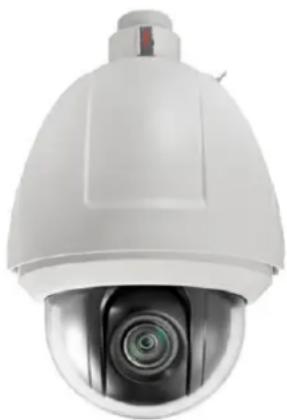
natural_image
Close-up of a white security camera with a circular lens (no visible text or symbols)Figure 1-1 Appearance
1.3 Features
System funcon:
● High performance sensor with maga-pixel resolution
- ±0.1° Preset Accuracy
● ONVIF(Open Network Video Interface Forum), CGI(Common Gateway Interface), PSIA(Physical Security Interoperability Alliance), to ensure greater interoperability between dierent plaorms and compatibility
● 3D intelligent posioning funcon
3D-DNR
● Power-o memory funcon: restore PTZ & Lens status aer reboot
● Scheduled PTZ movement
Camera funcon:
● Auto iris, auto focus, auto white balance, backlight compensaon and auto day & night switch
● Privacy masks programmable
PTZ funcon:
● 360° endless pan range and -5°-90° lt range
- 540°/s Pan Preset Speed and 400°/s Tilt Preset Speed
● Manual pan speed of 0.1° -300°/s and manual lt speed of 0.1° -240°/s
● 256 presets programmable; preset image freezing capability
● 8 patrols, up to 32 presets per patrol
● 4 paerns, with the recording me not less than 10 minutes per pattern
● Park acon: auto call up of PTZ movement, aer a denied me of inactivity
Network funcon:
● H.264/MJPEG video compression
● Built-in Web server
- SD/SDHC card local storage
- Dual stream
- Mulple network protocols supported
1.4 Funcons
Note: The funcons vary depending on the models of speed dome.
- Limit Stops
The dome can be programmed to move within the limit stops (le/right, up/down).
- Scan Modes
The dome provides 5 scan modes: auto scan, lt scan, frame scan, random scan and panorama scan.
- Preset Freezing
This feature freezes the scene on the monitor when the dome is moving to a preset. This allows for smooth transition from one preset scene to another. It also guarantees that masked area will not be revealed when the dome is moving to a preset.
- Presets
A preset is a predened image posion. When the preset is called, the dome will automatically move to the dened posion. The presets can be added, modified, deleted and called.
- Label Display
The on-screen label of the preset tle, azimuth/elevaon, zoom, me and dome name can be displayed on the monitor. The displays of me and speed dome name can be programmed.
- Auto Flips
In manual tracking mode, when a target object goes directly beneath the dome, the video will automatically ips 180 degrees in horizontal direcon to maintain connuity of tracking. This funcon can also be realized by auto mirror image depending on dierent camera models.
- Privacy Mask
This funcon allows you to block or mask certain area of a scene, for preventing the personal privacy from recording or live viewing. A masked area will move with pan and lt funcons and automatically adjust in size as the lens zooms telephoto and wide.
● 3D Posioning
In the client soware, use the le key of mouse to click on the desired posion in the video image and drag a rectangle area in the lower right direcon, then the dome system will move the posion to the center and allow the rectangle area to zoom in. Use the le key of mouse to drag a rectangle area in the upper le direcon to move the posion to the center and allow the rectangle area to zoom out.
● Proporonal Pan/Tilt
Proporonal pan/lt automacally reduces or increases the pan and lt speeds according to the amount of zoom. At telephoto zoom sengs, the pan and lt speeds will be slower than at wide zoom sengs. This keeps the image from moving too fast on the live view image when there is a large amount of zoom.
- Auto Focus
The auto focus enables the camera to focus automacally to maintain clear video images.
● Day/Night Auto Switch
The speed domes deliver color images during the day. And as light diminishes at night, the speed domes switch to night mode and deliver black and white images with high quality.
- Slow Shuer
In slow shuer mode, the shuer speed will automatically slow down in low illuminaon conditions to maintain clear video images by extending the exposure me. The feature can be enabled or disabled.
● Backlight Compensaon (BLC)
If you focus on an object against strong backlight, the object will be too dark to be seen clearly. The BLC (Backlight Compensaon) funcon can compensate light to the object in the front to make it clear, but this causes the over-exposure of the background where the light is strong.
● Wide Dynamic Range (WDR)
The wide dynamic range (WDR) funcon helps the camera provide clear images even under back light circumstances. When there are both very bright and very dark areas simultaneously in the eld of view, WDR balances the brightness level of the whole image and provide clear images with details.
Note: This feature varies depending on speed dome models.
● White Balance (WB)
White balance can remove the unrealisc color casts. White balance is the white
rendion funcon of the camera to adjust the color temperature according to the environment automacally.
- Patrol
A patrol is a memorized series of pre-dened preset funcon. The scanning speed between two presets and the dwell me at the preset are programmable.
● Paern
A paern is a memorized series of pan, lt, zoom, and preset funcons. By default the focus and iris are in auto status during the paern is being memorized.
● Power O Memory
The dome supports the power o memory capability with the predened resume me. It allows the dome to resume its previous posion aer power is restored.
- Scheduled Task
A me task is a precongured acon that can be performed automacally at a speci date and me. The programmable acons include: auto scan, random scan, patrol 1-8 ,paern 1-4, preset 1-8,frame scan, panorama scan, lt scan, day, night, reboot, PT adjust, Aux Output, etc.
- Park Acon
This feature allows the dome to start a predened acon automacally aer a period of inacvity.
- User Management
The dome allows you to edit users with different levels of permission, in the admin login status. Mulple users are allowed to access and control the same network speed dome via network simultaneously.
● 3D Digital Noise Reducon
Comparing with the general 2D digital noise reducon, the 3D digital noise reducon funcon processes the noise between two frames besides processing the noise in one frame. The noise will be much less and the video will be clearer.
Chapter 2 Network Connecon
Before you start:
- If you want to set the network speed dome via a LAN (Local Area Network), please refer to Secon 2.1 Seng the Network Speed Dome over the LAN.
- If you want to set the network speed dome via a WAN (Wide Area Network), please refer to Secon 2.2 Seng the Network Speed Dome over the WAN.
2.1 Seng the Network Speed Dome over the LAN
Purpose:
To view and congregate the speed dome via a LAN, you need to connect the network speed dome in the same subnet with your computer, and install the SADP or client soware to search and change the IP of the network speed dome.
Note: For the detailed introducon of SADP, please refer to Appendix 1.
2.1.1 Wiring over the LAN
The following gures show the two ways of cable conncon of a network speed dome and a computer:
Purpose:
- To test the network speed dome, you can directly connect the network speed dome to the computer with a network cable as shown in Figure 2-1.
- Refer to the Figure 2-2 to set the network speed dome over the LAN via a switch or a router.
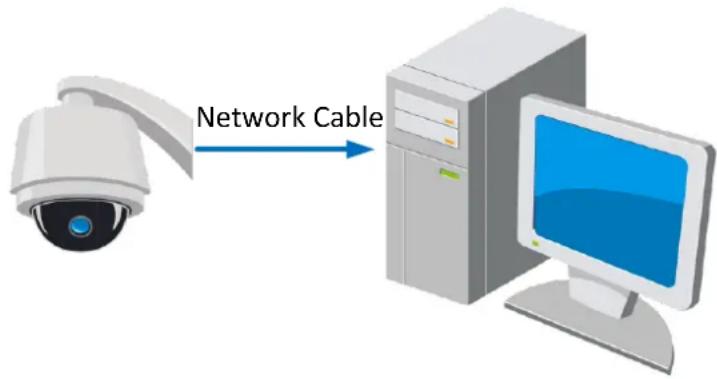
text_image
Network CableFigure 2-1 Connecng Directly
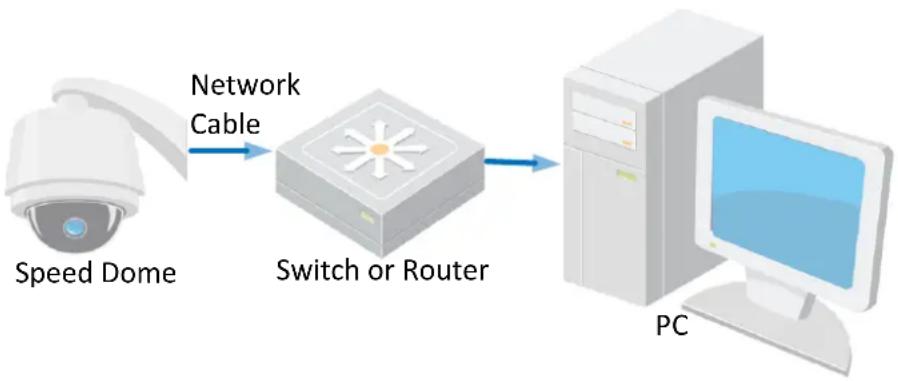
flowchart
graph LR
    A["Speed Dome"] -->|Network Cable| B["Switch or Router"]
    B --> C["PC"]
Figure 2-2 Connecng via a Switch or a Router
2.1.2 Detecng and Changing the IP Address
You need the IP address to visit the network speed dome.
Steps:
- To get the IP address, you can choose either of the following methods:
Use SADP, a soware tool which can automacally detect the online network speed domes in the LAN and list the device informaon including IP address, subnet mask, port number, device serial number, device version, etc., shown in Figure 2-3.
◆ Use the client soware to list the online devices. Please refer to the user manual of client soware for detailed informaon.
- Change the IP address and subnet mask to the same subnet as that of your computer.
- Enter the IP address of network speed dome in the address eld of the web browser to view the live video.
Notes:
- The default IP address is 192.0.0.64. The default user name is admin, and password is 12345.
- For accessing the network speed dome from dierent subnets, please set the gateway for the network speed dome aer you logged in. For detailed informaon, please refer to Secon 6.3.1 Conguring TCP/IP Seings.
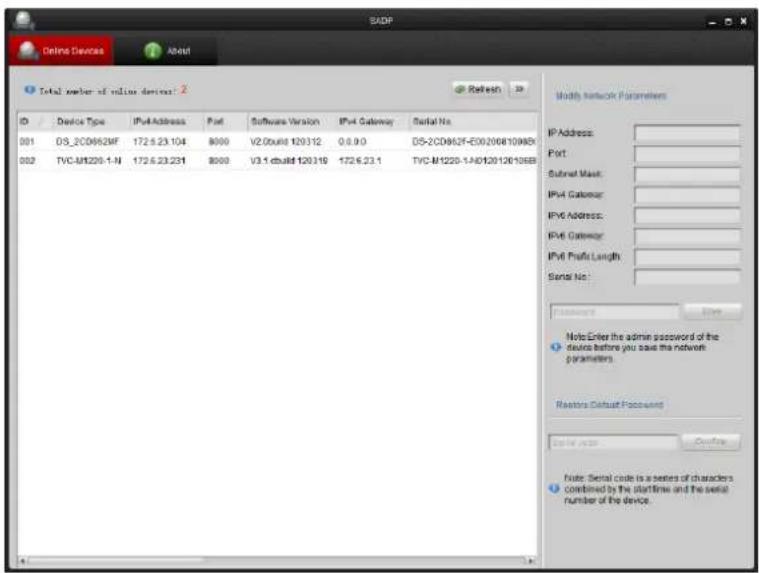
text_image
SADP Online Devices About Total number of online devices: 2 ID Device Type IPv4 Address Port Software Version IPv4 Gateway Serial No. 001 DS_2CD862MF 172.5.23.104 8000 V2.0build 120312 0.0.9.0 DS-2CD862F-E002068109KB 002 TVC-M1220-1-N 172.5.23.231 8000 V3.1.cbuild 120316 172.6.23.1 TVC-M1220-1-A0120126106B Modify Network Parameters IP Address: Port: Subnet Mask: IPv4 Gateway: IPv6 Address: IPv6 Gateway: IPv6 Profit Length: Serial No : Password Note: Enter the admin password of the device before you save the network parameters. Reasters Default Poccevent Send to: Browse Note: Serial code is a series of characters combined by the startline and the serial number of the device.Figure 2-3 SADP Interface
2.2 Seng the Network Speed Dome over the WAN
Purpose:
This secon explains how to connect the network speed dome to the WAN with a stac IP or a dynamic IP.
2.2.1 Stac IP Connecon
Before you start:
Please apply a stac IP from an ISP (Internet Service Provider). With the stac IP address, you can connect the network speed dome via a router or connect it to the WAN directly.
- Connecng the network speed dome via a router
Steps:
- Connect the network speed dome to the router.
- Assign a LAN IP address, the subnet mask and the gateway. Refer to Secon 2.1.2 Detecng and Changing the IP Address for detailed IP address conguraon of the speed dome.
- Save the stac IP in the router.
- Set port mapping, E.g., 80, 8000 and 554 ports. The steps for port mapping vary depending on dierent routers. Please call the router manufacturer for assistance with port mapping.
Note: Refer to Appendix 2 for detailed informaon about port mapping.
- Visit the network speed dome through a web browser or the client soware over the internet.

flowchart
graph LR
    A["Speed Dome"] -->|Network Cable| B["Router with Static IP"]
    B -->|Network Cable| C["Internet"]
    C -->|Network Cable| D["Computer"]
Figure 2-4 Accessing the Speed Dome through Router with Stac IP
- Connecng the network speed dome with stac IP directly
You can also save the stac IP in the speed dome and directly connect it to the internet without using a router. Refer to Secon 2.1.2 Detecting and Changing the IP Address for detailed IP address conguraon of the speed dome.
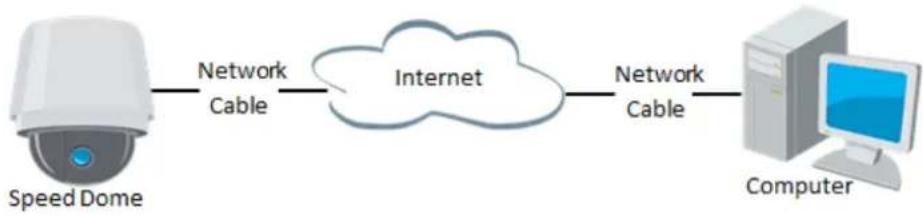
flowchart
graph LR
    A["Speed Dome"] -->|Network Cable| B(Internet)
    B -->|Network Cable| C["Computer"]
Figure 2-5 Accessing the Speed Dome with Stac IP Directly
2.2.2 Dynamic IP Connecon
Before you start:
Please apply a dynamic IP from an ISP. With the dynamic IP address, you can connect the network speed dome to a modem or a router.
- Connecng the network speed dome via a router
Steps:
- Connect the network speed dome to the router.
- In the speed dome, assign a LAN IP address, the subnet mask and the gateway. Refer to Secon 2.1.2 Detecting and Changing the IP Address for detailed LAN conguraon.
- In the router, set the PPPoE user name, password and conrm the password.
- Set port mapping. E.g. 80, 8000 and 554 ports. The steps for port mapping vary depending on dierent routers. Please call the router manufacturer for assistance with port mapping.
Note: Refer to Appendix 2 for detailed informaon about port mapping.
- Apply a domain name from a domain name provider.
- Congure the DDNS sengs in the seng interface of the router.
- Visit the speed dome via the applied domain name.
- Connecng the network speed dome via a modem
Purpose:
This speed dome supports the PPPoE auto dial-up funcon. The speed dome gets a public IP address by ADSL dial-up aer the speed dome is connected to a modem. You need to congregate the PPPoE parameters of the network speed dome. Refer to Secon 6.3.3 Configuring PPPoE Setngs for detailed conguraon.

flowchart
graph LR
    A["Speed Dome"] -->|Network Cable| B["Modem"]
    B -->|Network Cable| C["Internet"]
    C -->|Network Cable| D["Computer"]
Figure 2-6 Accessing the Speed Dome with Dynamic IP
Note: The obtained IP address is dynamically assigned via PPPoE, so the IP address always changes aer reboong the speed dome. To solve the inconvenience of the dynamic IP, you need to get a domain name from the DDNS provider (E.g. DynDns.com). Please follow below steps for normal domain name resoluon and private domain name resoluon to solve the problem.
♦ Normal Domain Name Resoluon
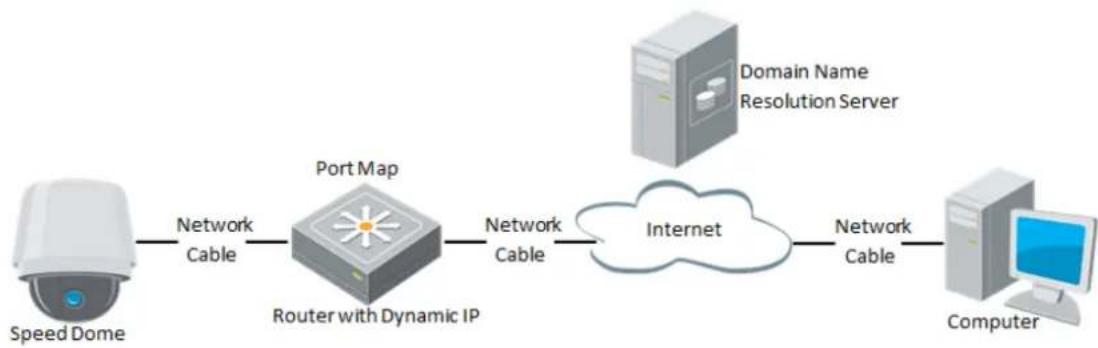
flowchart
graph LR
    A["Speed Dome"] -->|Network Cable| B["Port Map"]
    B -->|Network Cable| C["Internet"]
    D["Domain Name Resolution Server"] -->|Internet| C
    C -->|Network Cable| E["Computer"]
    B -->|Router with Dynamic IP| B
Figure 2-7 Normal Domain Name Resoluon
Steps:
- Apply a domain name from a domain name provider.
- Congure the DDNS sengs in the DDNS Seings interface of the network speed dome. Refer to Secon 6.3.4 Configuring DDNS Setngs for detailed conguraon.
- Visit the speed dome via the applied domain name.
◆ Private Domain Name Resoluon
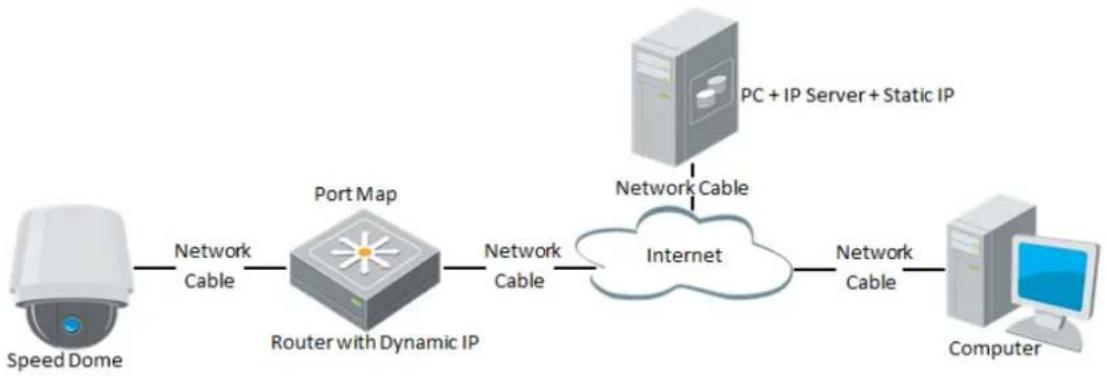
flowchart
graph LR
    A["Speed Dome"] -->|Network Cable| B["Router with Dynamic IP"]
    B -->|Network Cable| C["Internet"]
    D["PC + IP Server + Static IP"] -->|Network Cable| C
    C -->|Network Cable| E["Computer"]
Figure 2-8 Private Domain Name Resoluon
Steps:
- Install and run the IP Server soware in a computer with a stac IP.
- Access the network speed dome through the LAN with a web browser or the client soware.
- Enable DDNS and select IP Server as the protocol type. Refer to Secon 6.3.4 Conguring DDNS Sengs for detailed conguraon.
Chapter 3 Access to the Network Speed Dome
3.1 Accessing by Web Browsers
Steps:
- Open the web browser.
-
In the address eld, input the IP address of the network speed dome, e.g., 192.0.0.64 and press the Enter key to enter the login interface.
-
Input the user name and password and click . Login
Note: The default user name is admin, password is 12345.
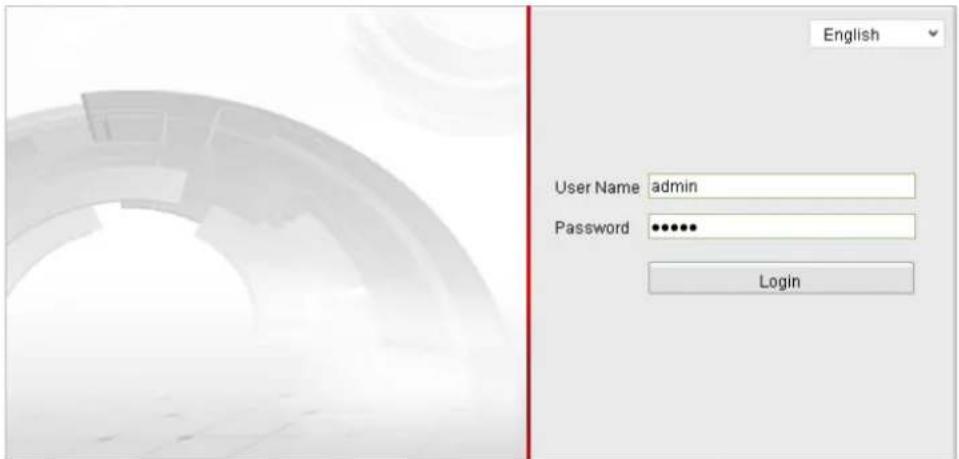
text_image
English User Name admin Password ••••••• LoginFigure 3-1 Login Interface
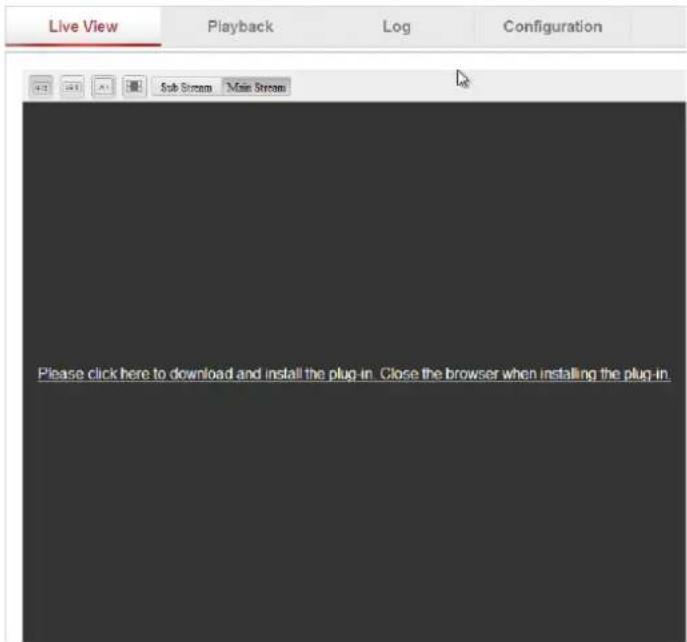
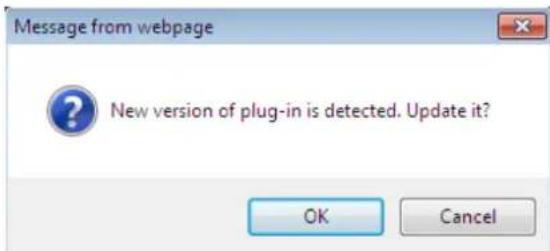
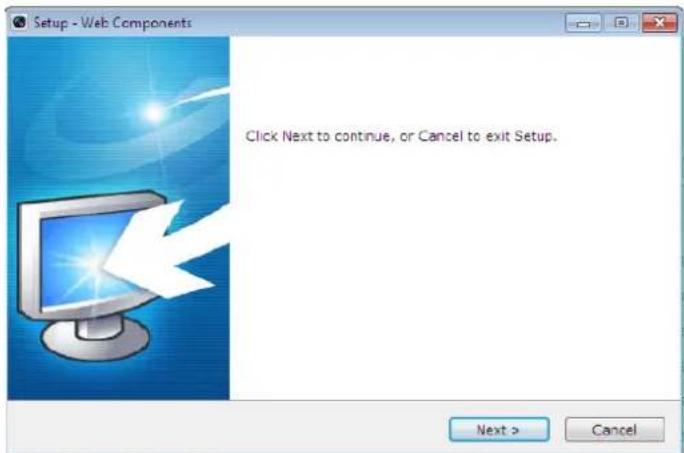
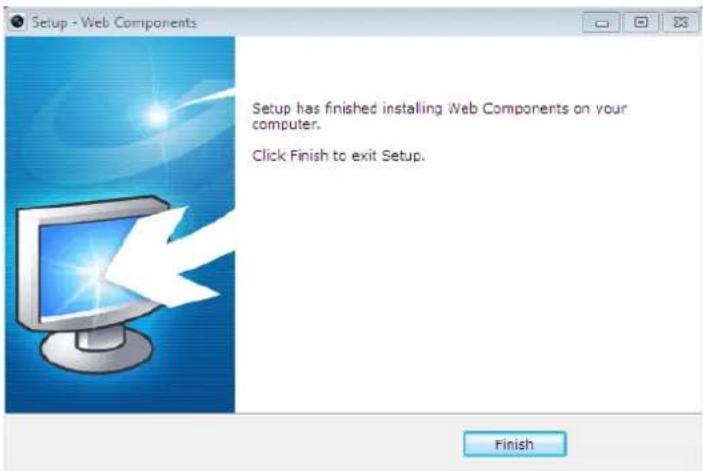
- Install the plug-in before viewing the live video and operang the speed dome. Please follow the installaon prompts to install the plug-in.
text_image
Live View Playback Log Configuration Sub Stream Main Stream Please click here to download and install the plug-in. Close the browser when installing the plug-inFigure 3-2 Download and Install Plug-in
text_image
Message from webpage New version of plug-in is detected. Update it? OK CancelFigure 3-3 Install Plug-in (1)
text_image
Setup - Web Components Click Next to continue, or Cancel to exit Setup. Next > CancelFigure 3-4 Install Plug-in (2)
text_image
Setup - Web Components Setup has finished installing Web Components on your computer. Click Finish to exit Setup. FinishFigure 3-5 Install Plug-in (3)
Note: You may have to close the web browser to install the plug-in. Please reopen the web browser and log in again aer installing the plug-in.
3.2 Accessing by Client Soware
The product CD contains the client soware. You can view the live video and manage the speed dome with the client soware.
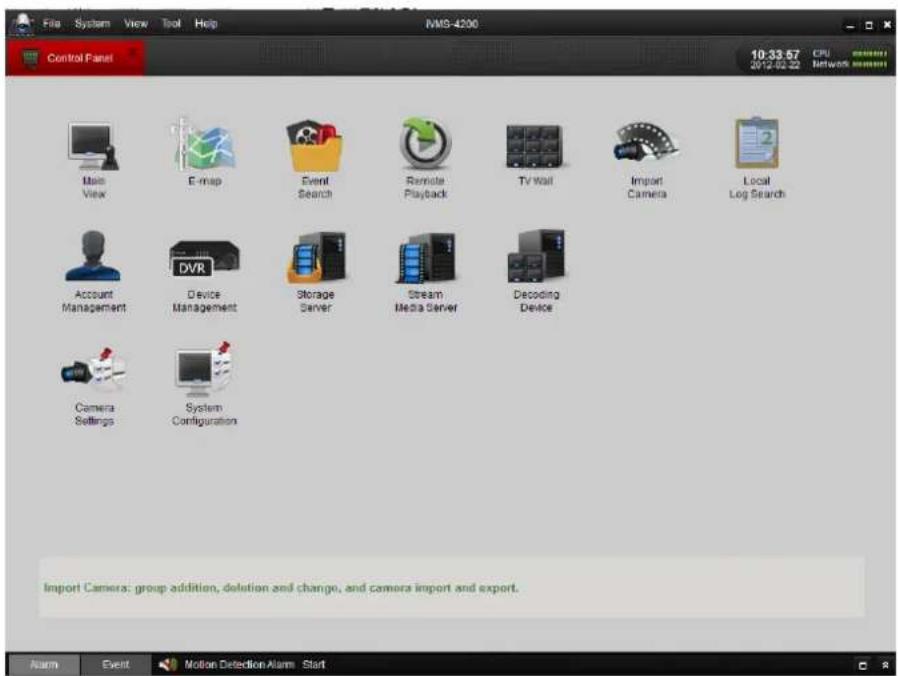
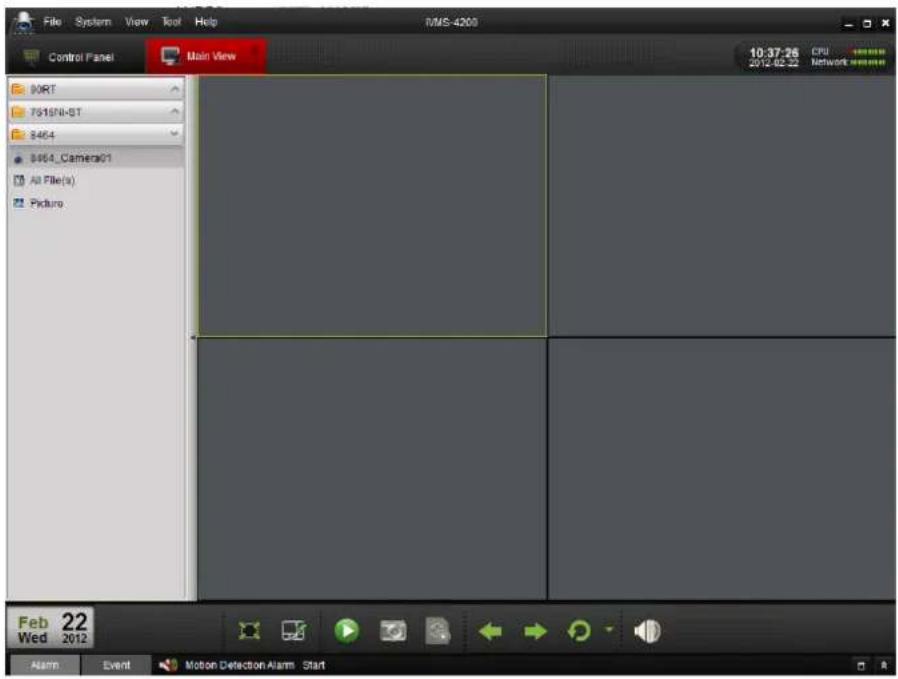
Follow the installaon prompts to install the client soware and WinPcap. The control panel and live view interface of client soware are shown as bellow.
text_image
File System View Tool Help IVMS-4200 Control Panel Main View E-map Event Search Remote Playback TV Wall Import Camera Local Log Search Account Management DVR Device Management Storage Server Stream Media Server Decoding Device Camera Settings System Configuration Import Camera: group addition, deletion and change, and camera import and export. 10:33:57 CPU 2012.02.22 Network Service Alarm Event Motion Detection Alarm StartFigure 3-6 iVMS-4200 Control Panel
text_image
File System View Tool Help I/MS-4200 Control Panel Main View 10:37:26 CPU 2012-02-22 Network 80RT 791578-ST 8464 $464,Camera01 All File(s) Picture Feb 22 Wed 2012 Alarm Event Motion Detection Alarm StartFigure 3-7 iVMS-4200 Live View Interface
Notes:
- If you use third party VMS soware, please contact technical support of our branch for camera rmware.
- For detailed informaon about client soware of our company, please refer to the user manual of the soware. This manual mainly introduces accessing to the network speed dome by web browser.
Chapter 4 Live View
4.1 Power-up Acon
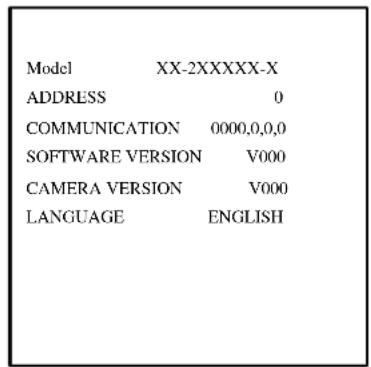
Aer the power is applied, the speed dome will perform self-test acons. It begins with lens acons and then pan and lt movement. Aer the power-up self-test acons, the informaon as shown in Figure 4-1 will be displayed on screen for 40 seconds.
The System Informaon displayed on the screen includes the dome model, address, protocol, version and other informaon. The COMMUNICATION refers to the baud rate, parity, data bit and stop bit of the dome. e.g., “2400, N, 8, 1” indicates the dome is congured with the baud rate of 2400, no parity, 8 data bits and 1 stop bit.
text_image
Model XX-2XXXXX-X ADDRESS 0 COMMUNICATION 0000,0,0,0 SOFTWARE VERSION V000 CAMERA VERSION V000 LANGUAGE ENGLISHFigure 4-1 Power-up informaon
4.2 Live View Page
Purpose:
The live video page allows you to view live video, capture images, realize PTZ control, set/call presets and congure video parameters.
Log in the network speed dome to enter the live view page, or you can click
Live View
on the menu bar of the main page to enter the live view page.
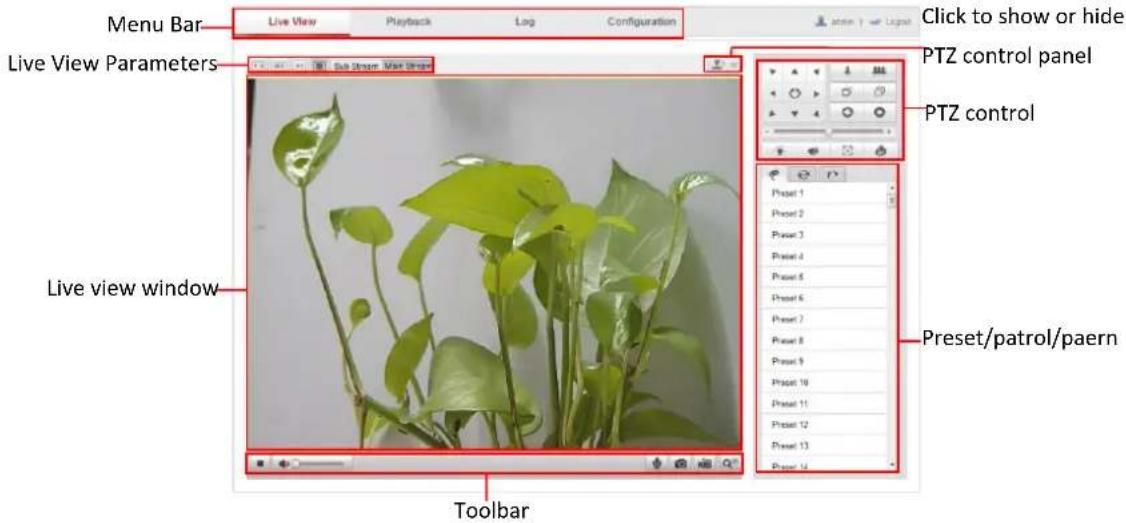
Descripons of the live view page:
text_image
Menu Bar Live View Playback Log Configuration Click to show or hide PTZ control panel PTZ control Live View Parameters Sub Image Main Window Live view window Toolbar Preset/patrol/paernFigure 4-2 Live View Page
Menu Bar:
Click each tab to enter Live View, Playback, Log and Conguraon page respectively.
Live View Window:
Display the live video.
Toolbar:
Operaons on the live view page, e.g., live view, capture, record, audio on/o, two-way audio, etc.
PTZ Control:
Panning, Ing, focusing and zooming acons of the speed dome. The lighter, wiper, one-touch focus and lens inializaon control.
Preset/patrol/paern:
Set and call the preset/patrol/paern for the speed dome.
Live View Parameters:
Congure the image size and stream type of the live video.
4.3 Starng Live View
In the live view window as shown in Figure 4-3, click on the toolbar to start the live view of the speed dome.
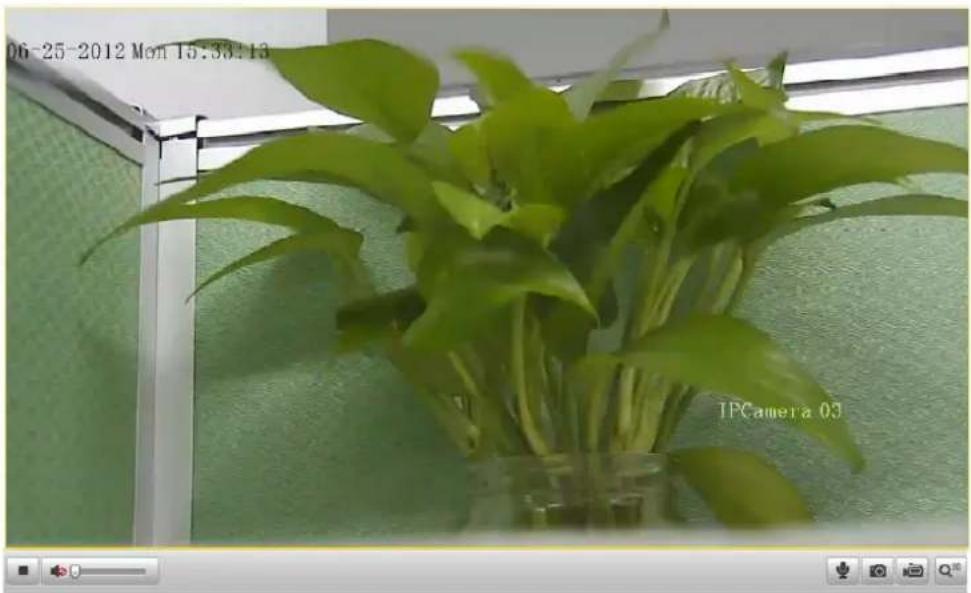
natural_image
Potted green plant in a glass container, no visible text or symbols on the plant or backgroundFigure 4-3 Start Live View
Table 4-1 Descripons of the Toolbar
| Icon | Descripon | Icon | Descripon |
 | Live view on | Live view o | |
 | Manually capture the pictures | ||
 | Manual recording o | Manual recording on | |
 | Audio on and adjust volume | Mute | |
 | Two-way audio o | Two-way audio on | |
 | 3D posioning |
Note: Before using the two-way audio or recording with audio funcons, please set the Stream Type to Video & Audio referring to Secon 6.4.1 Configuring Video Sengs.
Full-screen Mode:
You can double-click on the live video to switch the current live view into full-screen or return to normal mode from the full-screen.
3D Posioning:
Steps:
-
Click on the tool bar of live view interface.
-
Operate the 3D positioning function:
● Le click a posion of the live video. The corresponding posion will be
moved to the center of the live video.
- Hold down the le mouse button and drag the mouse to the lower right on the live video. The corresponding posion will be moved to the center of the live video and zoomed in.
- Hold down the le mouse button and drag the mouse to the upper left on the live video. The corresponding posion will be moved to the center of the live video and zoomed out.
Please refer to the following seconds for more informaon:
● Conguring remote recording in Secon 7.2 Configuring Recording Schedule.
- Seng the image quality of the live video in Secon 6.1 Configuring Local Parameters and Secon 6.4.1 Conguring Video Sengs.
- Seng the OSD text on live video in Secon 6.5.2 Configuring OSD Seings.
4.4 Recording and Capturing Pictures Manually
In the live view interface, click 📷 on the toolbar to capture the live pictures or
click 🔍 to record the live video. The local saving paths of the captured pictures and clips can be set in the Conguraon > Local Configuraon interface.
To congure remote automat recording, please refer to Secon 7.2 Conguring Recording Schedule.
Note: The captured image will be saved as a JPEG le in your computer.
4.5 Operang PTZ Control
Purpose:
In the live view interface, you can use the PTZ control buons to control panning, lng and zooming.
4.5.1 PTZ Control Panel
On the live view page, click 📋 to show the PTZ control panel or click 📋 to hide it.
Click the direcon buons to control the pan/lt movements.
Click the zoom/iris/focus buons to realize lens control.
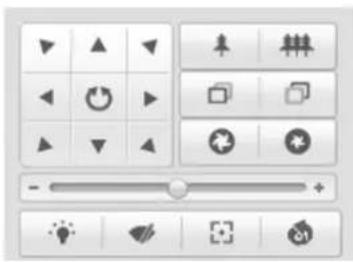
text_image
Screenshot of a software toolbar with icons for navigation, editing, and display functionsFigure 4-4 PTZ Control Panel
Table 4-2 Descripons of PTZ Control Panel
| Buon | Descripon |
| Zoom in/out | |
| Focus near/far | |
| Iris +/- | |
| Adjust speed of pan/lt movements |
4.5.2 Seng / Calling a Preset
Purpose:
A preset is a predened image posion. For the dened preset, you can click the calling buon to quickly view the desired image posion.
- Seng a Preset:
Steps:
- In the PTZ control panel, select a preset number from the preset list.
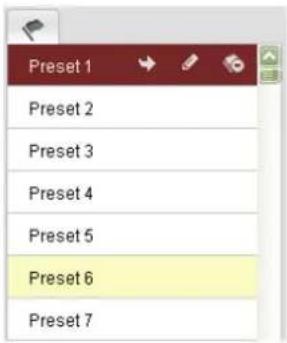
text_image
Preset 1 Preset 2 Preset 3 Preset 4 Preset 5 Preset 6 Preset 7Figure 4-5 Seng a Preset
-
Use the PTZ control buons to move the lens to the desired posion.
-
Pan the speed dome to the right or le.
- Tilt the speed dome up or down.
- Zoom in or out.
-
Refocus the lens.
-
Click to nish the seng of the current preset.
-
You can click to delete the preset.
Note: You can congure up to 256 presets.
- Calling a Preset:
In the PTZ control panel, select a dened preset from the list and click call the preset.
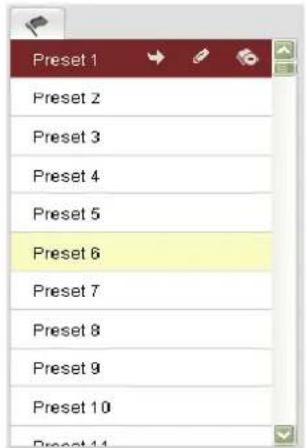
text_image
Preset 1 Preset 2 Preset 3 Preset 4 Preset 5 Preset 6 Preset 7 Preset 8 Preset 9 Preset 10 Preset 11Figure 4-6 Calling a Preset
Note: The following presets are predened with special commands. You can only call them but not congure them. For instance, preset 99 is the "Start auto scan". If you call the preset 99, the speed dome starts auto scan funcon.
Table 4-3 Special Presets
| Special Preset | Funcon | Special Preset | Funcon |
| 33 | Auto ip | 93 | Set limit stops manually |
| 34 | Back to initial posion | 94 | Remote reboot |
| 35 | Call patrol 1 | 95 | Call OSD menu |
| 36 | Call patrol 2 | 96 | Stop a scan |
| 37 | Call patrol 3 | 97 | Start random scan |
| 38 | Call patrol 4 | 98 | Start frame scan |
| 39 | IR cut Iter in | 99 | Start auto scan |
| 40 | IR cut Iter out | 100 | Start It scan |
| 41 | Call paern 1 | 101 | Start panorama scan |
| 42 | Call paern 2 | 102 | Call patrol 5 |
| 43 | Call paern 3 | 103 | Call patrol 6 |
| 44 | Call paern 4 | 104 | Call patrol 7 |
| 92 | Start to set limit stops | 105 | Call patrol 8 |
Note: You may need to use the OSD(On Screen Display) menu when controlling the
speed dome remotely. To display the OSD menu on the live view screen, you can call the preset number 95.
4.5.3 Seng / Calling a Patrol
Purpose:
A patrol is a memorized series of preset funcon. It can be congured and called on the patrol sengs interface. There are up to 8 patrols for customizing. A patrol can be congured with 32 presets.
Before you start:
Please make sure that the presets you want to add into a patrol have been dened.
- Seng a Patrol:
Steps:
- In the PTZ control panel, click

to enter the patrol sengs interface.
- Select a patrol number from

- Click to enter the adding interface of preset as shown in Figure 4-7.
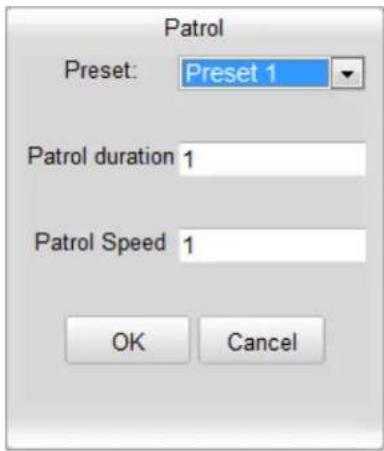
text_image
Patrol Preset: Preset 1 Patrol duration 1 Patrol Speed 1 OK CancelFigure 4-7 Adding Presets
- Congure the preset number, patrol me and patrol speed.
| Name | Descripon |
| Patrol Time | It is the duraon staying on one patrol point. The speed dome moves to another patrol point aer the patrol me. |
| Patrol Speed | It is the speed of moving from one preset to another. |
-
Click OK to save a preset into the patrol.
-
Repeat the steps from 3 to 5 to add more presets.

- Click to save all the patrol sengs.
- Calling a Patrol:
In the PTZ control panel, select a dened patrol from to call the patrol as shown in Figure 4-8.

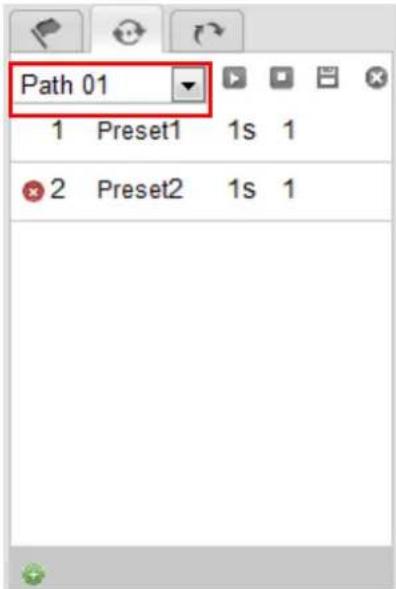
text_image
Path 01 1 Preset1 1s 1 2 Preset2 1s 1Figure 4-8 Calling a Preset
● Buons on the Patrols interface:
| Buons | Descripon |
| Save a patrol | |
| Call a patrol | |
| Stop a patrol | |
| Enter the adding interface of preset | |
| Modify a preset | |
| Delete a preset | |
| Delete all the presets in one patrol |
4.5.4 Seng / Calling a Paern
Purpose:
A paern is a memorized series of pan, lt, zoom, and preset funcons. It can be called on the pattern sengs interface. There are up to 4 paerns for customizing.
- Seng a Paern:
Steps:
-
In the PTZ control panel, click 📌 to enter the paern sengs interface.
-
Select a paern number from the list as shown in Figure 4-9.
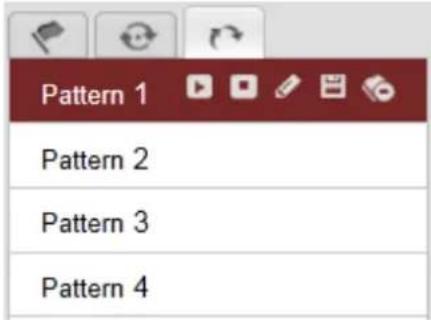
text_image
Pattern 1 Pattern 2 Pattern 3 Pattern 4Figure 4-9 Paerns Sengs Interface
-
Click to enable recording the panning, lng and zooming acons.
-
Use the PTZ control buons to move the lens to the desired posion aer the informaon of PROGRAM PATTERN REMAINNING MENORY(%) shown in Figure 4-10 is displayed on the screen.
-
Pan the speed dome to the right or le.
- Tilt the speed dome up or down.
- Zoom in or out.
• Refocus the lens.

text_image
PROGRAM PATTERN REMAINING MEMORY (%) 100Figure 4-10 Remaining Memory
5. Click to save all the paern sengs.
● Buons on the Paerns interface:
| Buons | Descripon |
| Start to record a paern. | |
| Stop recording a paern. | |
| Call the current paern. | |
| Stop the current paern. | |
| Delete the current paern. |
Notes:
●These 4 patterns can be operated separately and with no priority level.
- When conguring and calling the pattern, proporcional pan is valid; the limit stops and auto ip will be invalid; and the 3D posioning operaon is not supported.
4.6 Conguring Live View Parameters
- Mainstream/Sub-stream:
You can select Main Stream or Sub Stream as the stream type of live viewing.
The main stream is with a relatively high resolution and needs much bandwidth. The sub-stream is with a low resolution and needs less bandwidth. The default seng of
stream type is Main Stream
Note: Please refer to Secon 6.4.1 Configuring Video Sengs for more detailed parameter sengs of the main stream and sub-stream respectively.
- Image Size:
You can scale up/down the live view image by clicking 4:3 16:9 ×1 . the image size can be 4:3, 16:9, original or auto.
Chapter 5 PTZ Conguraon
5.1 Conguring Inial Posion
Purpose:
The initial posion is the origin of PTZ coordinates. It can be the factory default initial posion. You can also customize the initial posion according to your own demand.
- Customize an Inial Posion:
Steps:
- Enter the Inial Posion Conguraon interface:
Conguraon > Advanced Conguraon > PTZ > Inial Posion
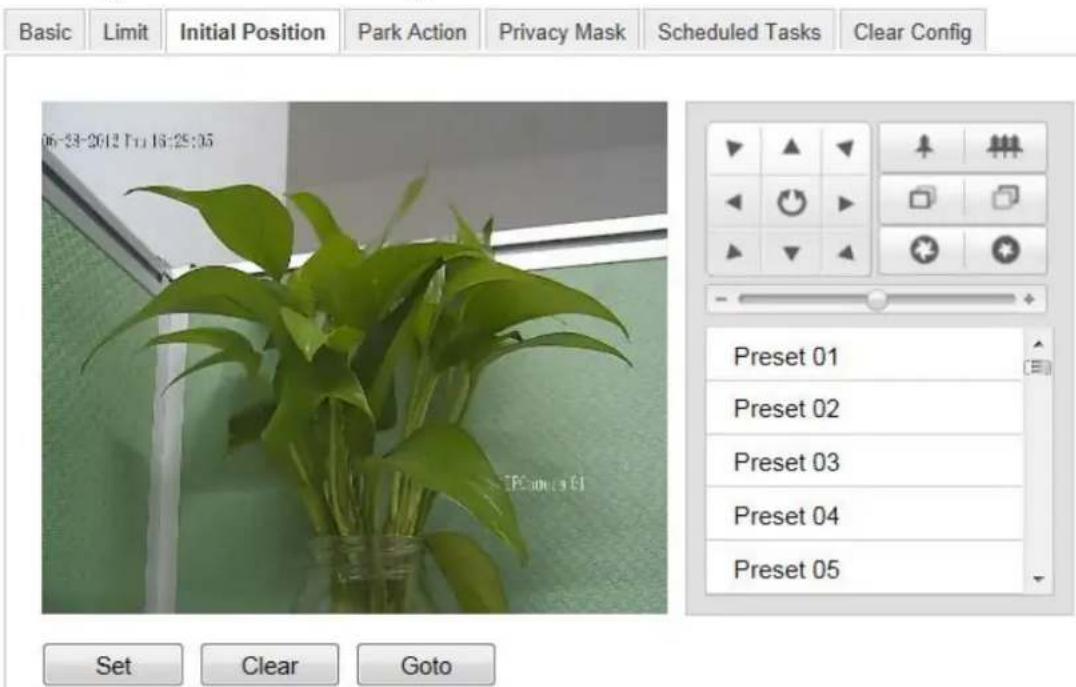
text_image
Basic Limit Initial Position Park Action Privacy Mask Scheduled Tasks Clear Config 06-33-2012 T:1 16:25:05 Preset 01 Preset 02 Preset 03 Preset 04 Preset 05 Set Clear GotoFigure 5-1 PTZ Conguraon
- Click the PTZ control buons to nd a posion as the initial position of the dome; you can also call a dened preset and set it as the initial posion of the dome.
- Click Set to save the posion.
- Call/delete an Inial Posion:
You can click to call the initial posion. You can click to delete the initial posion and restore the factory default initial posion.

5.2 Conguring Basic PTZ Parameters
Purpose:
You can congregate the basic PTZ parameters, including proporcional pan, preset freezing, preset speed, etc.
1. Enter the Basic PTZ Parameter Conguraon interface:
Conguraon > Advanced Conguraon > PTZ > Basic
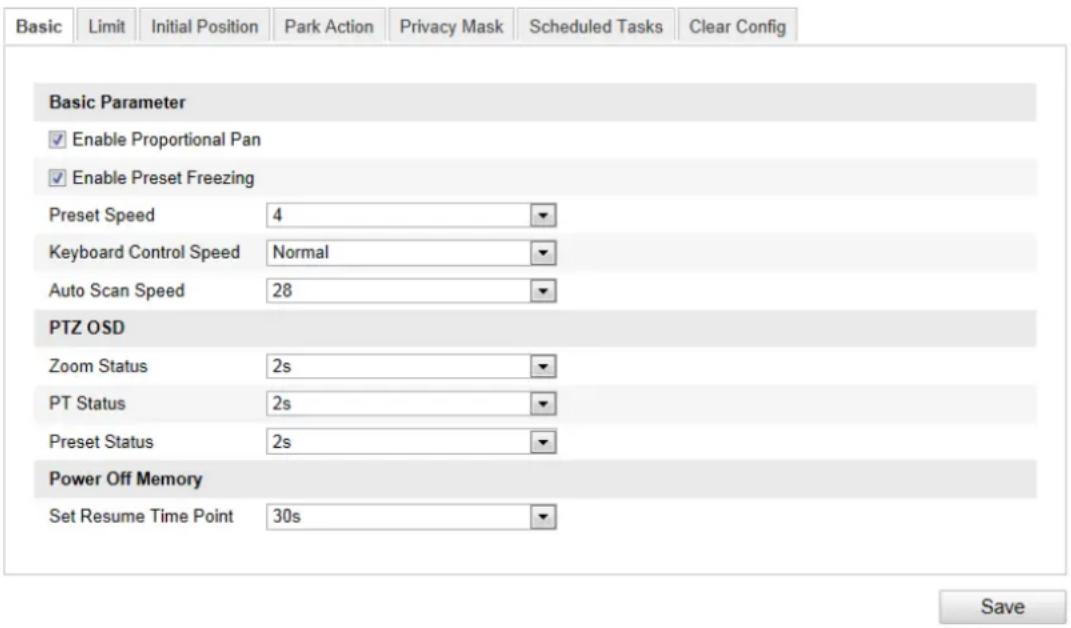
text_image
Basic Limit Initial Position Park Action Privacy Mask Scheduled Tasks Clear Config Basic Parameter Enable Proportional Pan Enable Preset Freezing Preset Speed 4 Keyboard Control Speed Normal Auto Scan Speed 28 PTZ OSD Zoom Status 2s PT Status 2s Preset Status 2s Power Off Memory Set Resume Time Point 30s SaveFigure 5-2 Basic PTZ Conguraon Interface
2. Congure the following sengs:
- Basic Parameters: Enable/disable proporcional pan and preset freezing, set the preset speed, keyboard control speed, and auto scan speed.
- Proporonal Pan: If you enable this funcon, the pan/lt speeds change according to the amount of zoom. When there is a large amount of zoom, the pan/lt speed will be slower for keeping the image from moving too fast on the live view image. - Preset Freezing: This funcon enables the live view to switch directly from one scene dened by a preset to another, without showing the middle areas between these two, to ensure the surveillance eciency. It can also reduce the use of bandwidth in a digital network system.
Note: Preset freezing funcon is invalid when you calling a paern.
◆ Preset Speed: You can set the speed of a dened preset from 1 to 8.
◆ Keyboard Control Speed: Dene the speed of PTZ control by a keyboard as Low, Normal or High.
◆ Auto Scan Speed: The dome provides 5 scan modes: auto scan, It scan, frame scan, random scan and panorama scan. The scan speed can be set from level 1 to 40.
- PTZ OSD: Set the on-screen display duraon of the PTZ status.
◆ Zoom Status: Set the OSD duraon of zooming status as 2 seconds, 5 seconds, 10 seconds, Always Close or Always Open.
◆ PT Status: Set the azimuth angle display duraon while panning and Ing as 2 seconds, 5 seconds, 10 seconds, Always Close or Always Open.
◆ Preset Status: Set the preset name display duraon while calling the preset as 2 seconds, 5 seconds, 10 seconds, Always Close or Always Open.
- Power-o Memory: The dome can resume its previous PTZ status or acons aer it restarted from a power-o. You can set the me point of which the dome resumes its PTZ status. You can set it to resume the status of 30 seconds, 60 seconds, 300 seconds or 600 seconds before power-o.
- Click to save the sengs.
5.3 Conguring PTZ Limit Stops
Purpose:
The dome can be programmed to move within the congorable limit stops (le/right, up/down).
Steps:
- Enter the Limit Conguraon interface:
Conguraon > Advanced Conguraon > PTZ > Limit
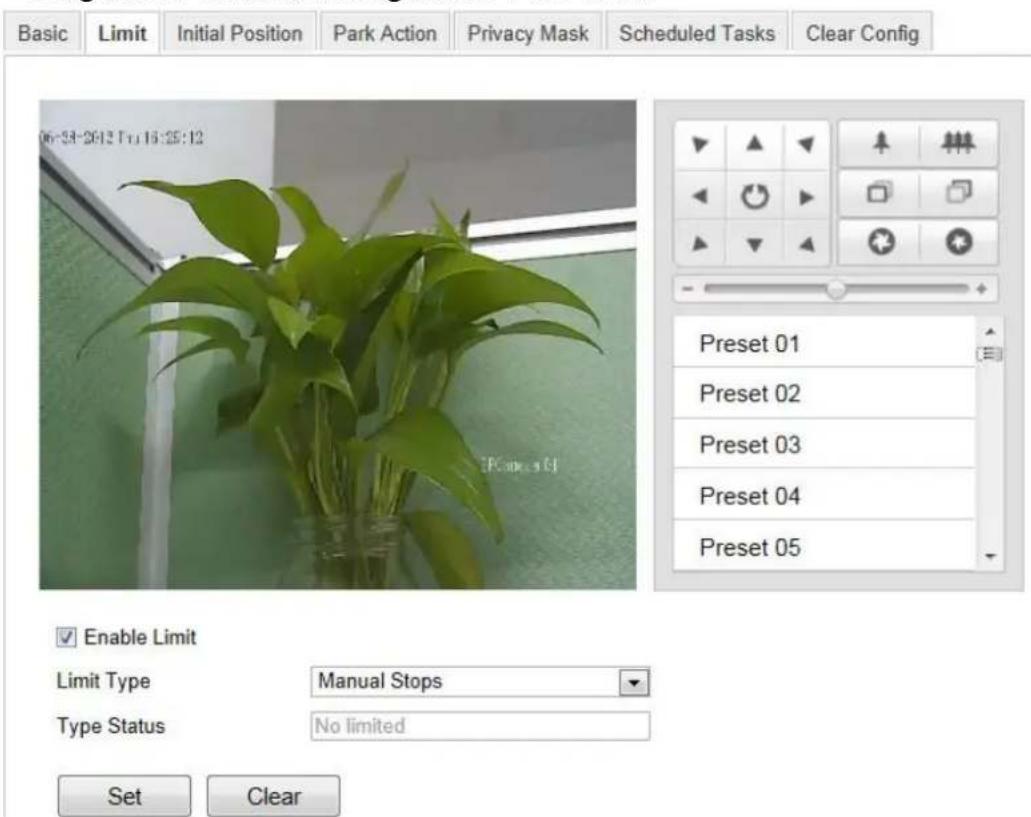
text_image
Basic Limit Initial Position Park Action Privacy Mask Scheduled Tasks Clear Config 06:24:2613 Tu 16:25:12 Preset 01 Preset 02 Preset 03 Preset 04 Preset 05 Enable Limit Limit Type Manual Stops Type Status No limited Set ClearFigure 5-3 Congure the PTZ Limit
- Click the checkbox of Enable Limit and choose the limit type as manual stops or scan stops.
- Manual Stops:
When manual limit stops are set, you can operate the PTZ control panel manually only in the limited surveillance area.
- Scan Stops:
When scan limit stops are set, the random scan, frame scan, auto scan, lt scan, panorama scan is performed only in the limited surveillance area.
Note: Manual Stops of Limit Type is prior to Scan Stops. When you set these two limit types at the same me, Manual Stops is valid and Scan Stops is invalid.
-
Click the PTZ control buons to nd the le/right/up/down limit stops; you can also call the dened presets and set them as the limits of the dome.
-
Click Set to save the limits or click Clear to clear the limits.
5.4 Conguring Scheduled Tasks
Purpose:
You can congregate the network dome to perform a certain acon automatedly in a user-dened me period.
Steps:
- Enter the Scheduled Task Sengs interface:
Conguraon> Advanced Conguraon> PTZ > Scheduled Tasks
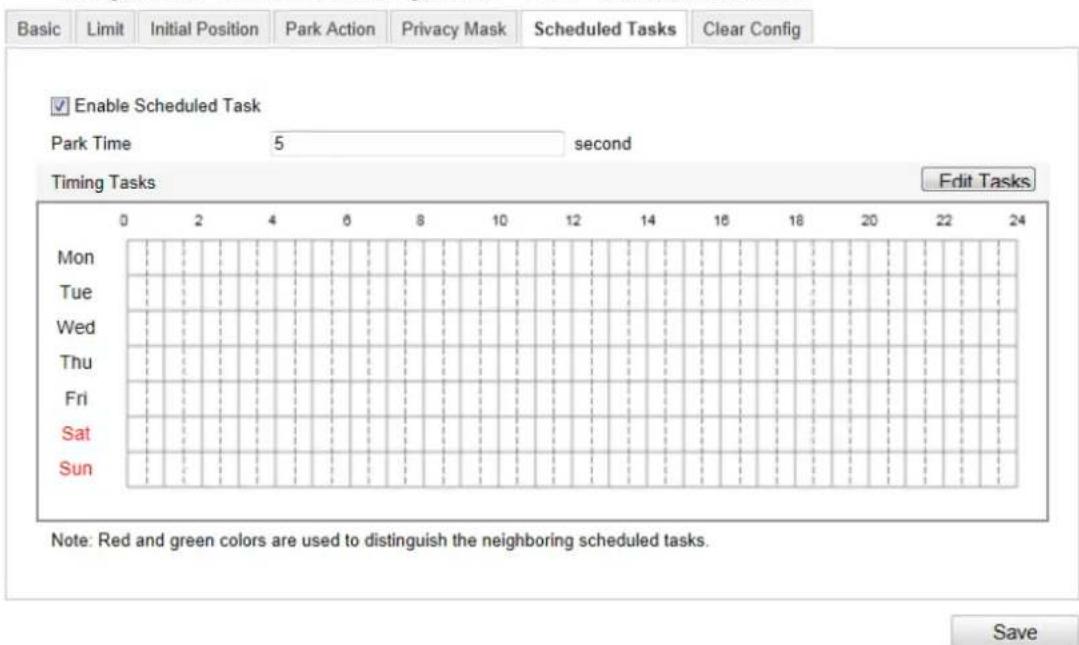
text_image
Basic Limit Initial Position Park Action Privacy Mask Scheduled Tasks Clear Config Enable Scheduled Task Park Time 5 second Timing Tasks Edit Tasks Mon Tue Wed Thu Fri Sat Sun Note: Red and green colors are used to distinguish the neighboring scheduled tasks. SaveFigure 5-4 Congure Scheduled Tasks
- Check the checkbox of Enable Scheduled Task.
- Set the Park Time. You can set the park me (a period of inactivity) before the dome starts the scheduled tasks.
4. Set the schedule and task details.
Steps:
(1) Click to edit the task schedule.
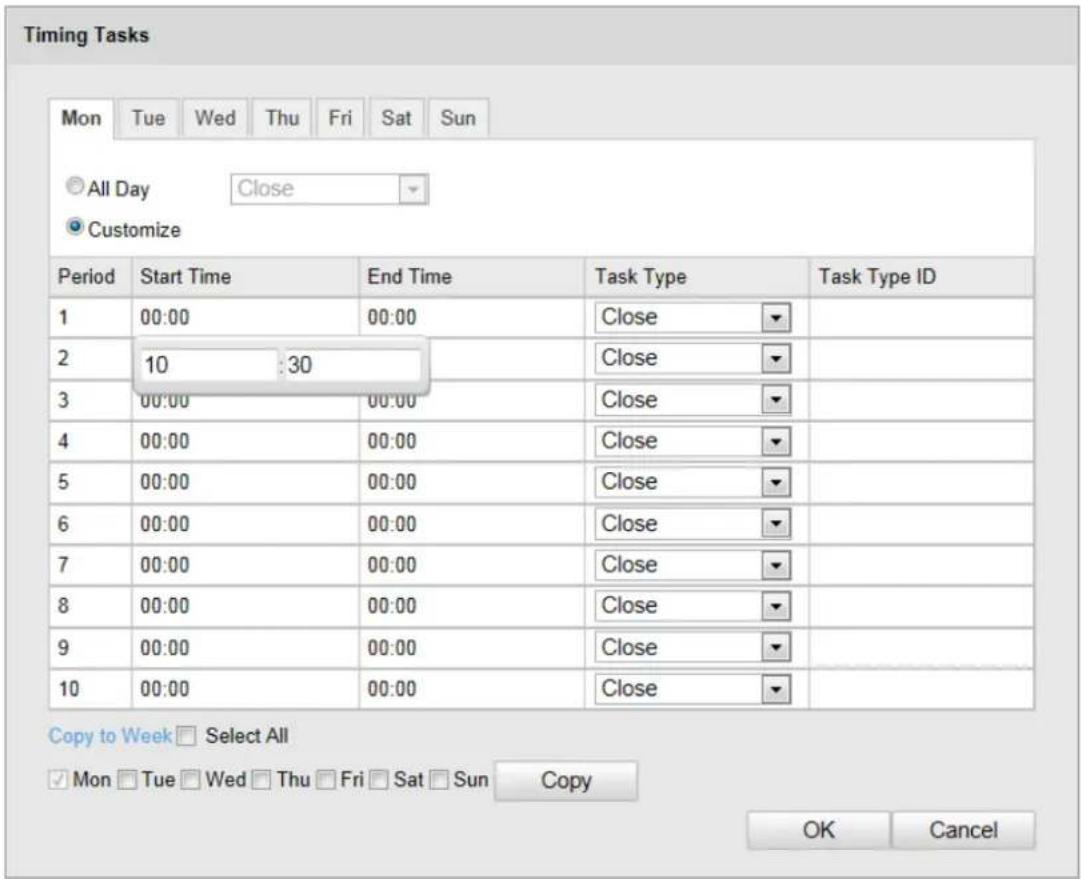
text_image
Timing Tasks Mon Tue Wed Thu Fri Sat Sun All Day Close Customize Period Start Time End Time Task Type Task Type ID 1 00:00 00:00 Close 2 10 :30 Close 3 00:00 00:00 Close 4 00:00 00:00 Close 5 00:00 00:00 Close 6 00:00 00:00 Close 7 00:00 00:00 Close 8 00:00 00:00 Close 9 00:00 00:00 Close 10 00:00 00:00 Close Copy to Week Select All Mon Tue Wed Thu Fri Sat Sun Copy OK CancelFigure 5-5 Edit the Schedule and Task Type
(2) Choose the day you want to set the task schedule.
(3) Click All Day to set the schedule as all day; or click Customize and input the Start Time and End Time for each task, and click Enter on your keyboard to enter the me.
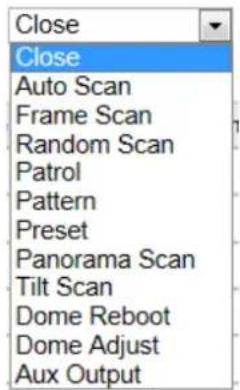
(4) Choose the task type from the drop-down list. You can choose scan, preset, paern and etc.
text_image
Close Close Auto Scan Frame Scan Random Scan Patrol Pattern Preset Panorama Scan Tilt Scan Dome Reboot Dome Adjust Aux OutputFigure 5-6 Task Types
(5) Aer you set the scheduled task, you can copy the task to other days (Oponal).
(6) Click to save the sengs.
Note: The me of each task can't be overlapped. Up to 10 tasks can be congured for each day.
- Click to save the sengs.
5.5 Conguring Park Acons
Purpose:
This feature allows the dome to start a predened park acon (scan, preset, paern and etc.) automacally aer a period of inacvity (park me).
Note: Scheduled Tasks funcon is prior to Park Acon funcon. When these two funcons are set at the same me, only the Scheduled Tasks funcon takes eect.
Steps:
- Enter the Park Acon Sengs interface:
Conguraon > Advanced Conguraon> PTZ > Park Acon
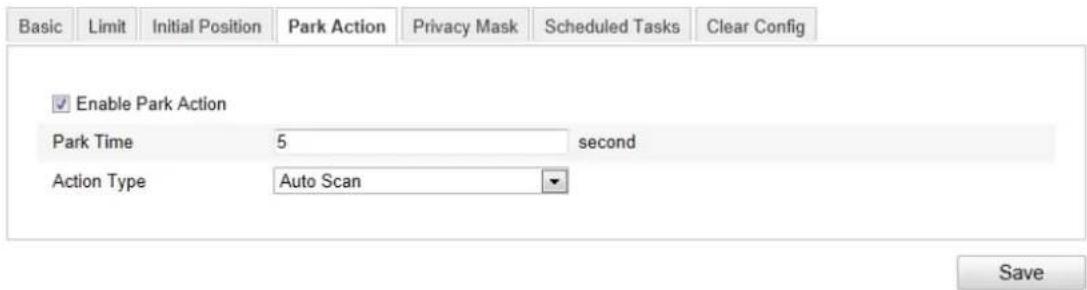
text_image
Basic Limit Initial Position Park Action Privacy Mask Scheduled Tasks Clear Config Enable Park Action Park Time 5 second Action Type Auto Scan SaveFigure 5-7 Set the Park Acon
- Check the checkbox of Enable Park Acon.
- Set the Park Time as the inacvity me of the dome before it starts the park acons.
- Choose Acon Type the from the drop-down list.
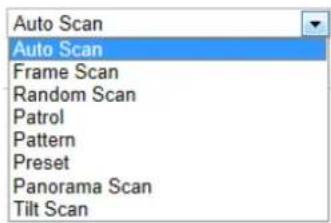
text_image
Auto Scan Auto Scan Frame Scan Random Scan Patrol Pattern Preset Panorama Scan Tilt ScanFigure 5-8 Acon Types
- Click to save the sengs.
5.6 Conguring Privacy Mask
Purpose:
Privacy mask enables you to cover certain areas on the live video to prevent certain spots in the surveillance area from being live viewed and recorded.
Steps:
- Enter the Privacy Mask Sengs interface:
Conguraon > Advanced Conguraon> PTZ > Privacy Mask
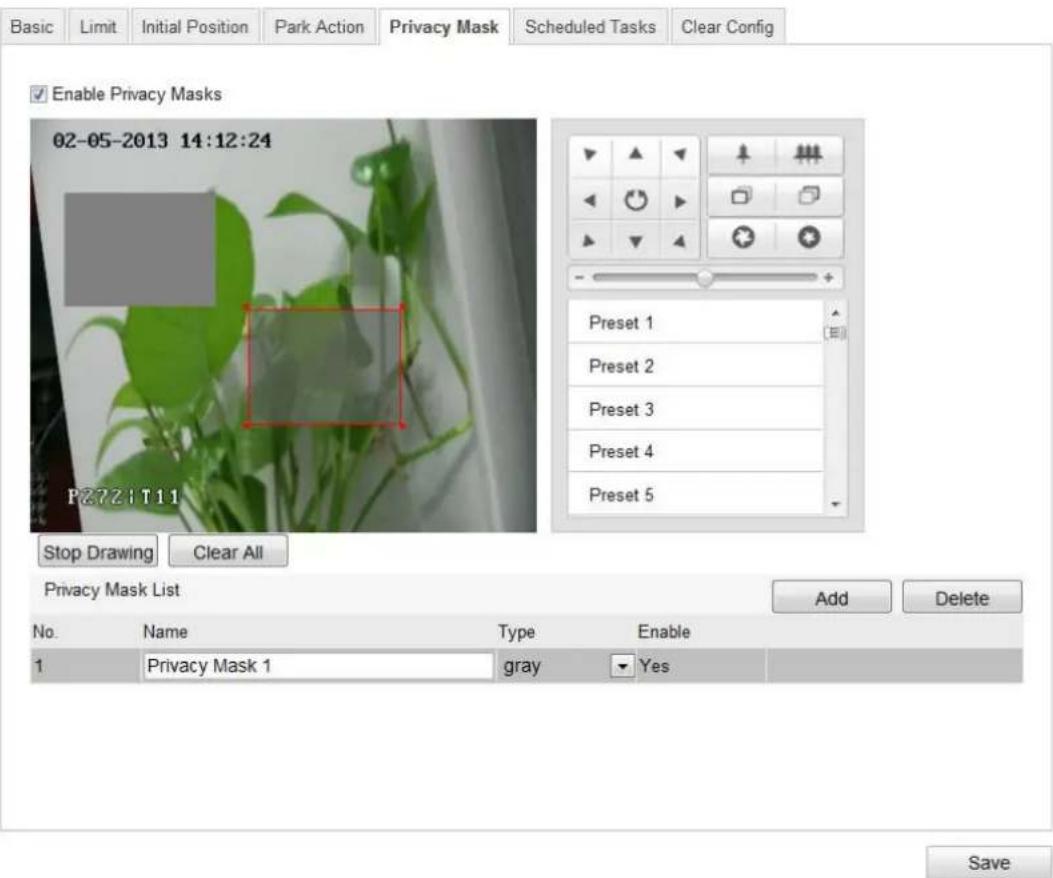
text_image
Basic Limit Initial Position Park Action Privacy Mask Scheduled Tasks Clear Config Enable Privacy Masks 02-05-2013 14:12:24 P2721 T11 Stop Drawing Clear All Privacy Mask List Add Delete No. Name Type Enable 1 Privacy Mask 1 gray Yes SaveFigure 5-9 Draw the Privacy Mask
- Click the PTZ control buttons to nd the area you want to set the privacy mask.
- Click Draw Area ; click and drag the mouse in the live video window to draw the area.
- You can drag the corners of the red rectangle area to draw a polygon mask.
- Click Stop Drawing to nish drawing or click Clear All to clear all of the areas you set without saving them.
- Click Add to save the privacy mask, and it will be listed in the Privacy
Mask List area; you can select a mask and click to delete it from
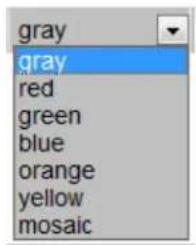
the list; you can also denote the color of the masks.
| No. | Name | Type | Enable | |
| 1 | Privacy Mask 1 | gray | ✓ Yes | |
| 2 | Privacy Mask 2 | gray | Yes |
Figure 5-10 Privacy Mask List
text_image
gray gray red green blue orange yellow mosaicFigure 5-11 Dene Mask Color
- Check the checkbox of Enable Privacy Mask to enable this funcon.
Note: You are allowed to draw up to 24 areas on the same image.
5.7 Clearing PTZ Conguraons
Purpose:
You can clear PTZ conguraons in this interface, including all presets, patrols, paerns, privacy masks, PTZ limits and scheduled tasks.
Steps:
- Enter the Clearing Conguraon interface:
Conguraon > Advanced Conguraon> PTZ > Clear Cong - Check the checkbox of the items you want to clear.
- Click to clear the sengs.
Chapter 6 Speed Dome Conguraon
6.1 Conguring Local Parameters
Note: The local conguraon refers to the parameters of the live view and other operaons using the web browser.
Steps:
- Enter the Local Conguraon interface:
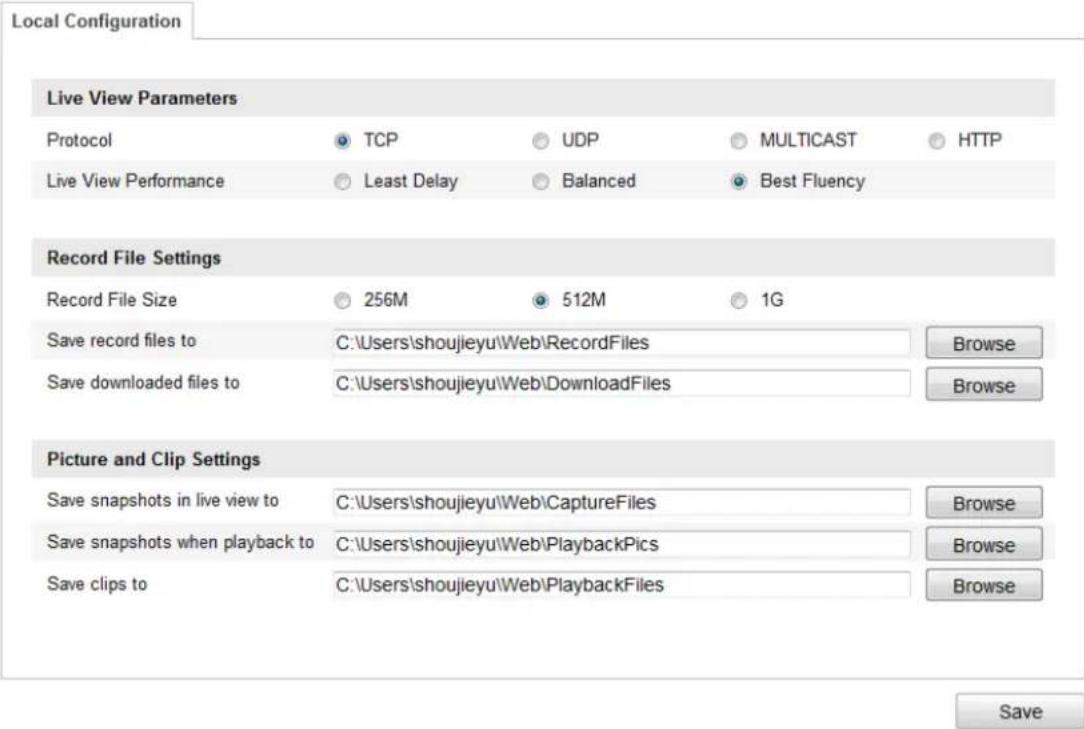
Conguraon > Local Conguraon
text_image
Local Configuration Live View Parameters Protocol TCP UDP MULTICAST HTTP Live View Performance Least Delay Balanced Best Fluency Record File Settings Record File Size 256M 512M 1G Save record files to C:\Users\shoujieyu\Web\RecordFiles Browse Save downloaded files to C:\Users\shoujieyu\Web\DownloadFiles Browse Picture and Clip Settings Save snapshots in live view to C:\Users\shoujieyu\Web\CaptureFiles Browse Save snapshots when playback to C:\Users\shoujieyu\Web\PlaybackPics Browse Save clips to C:\Users\shoujieyu\Web\PlaybackFiles Browse SaveFigure 6-1 Local Conguraon Interface
- Congure the following sengs:
- Live View Parameters: Set the protocol type, stream type, image size and live view performance.
◆ Protocol Type: TCP, UDP, MULTICAST and HTTP are selectable.
TCP: Ensures complete delivery of streaming data and beer video quality, yet the real-me transmission will be aected.
UDP: Provides real-me audio and video streams.
HTTP: Allows the same quality as of TCP without seng specic ports for streaming under some network environments.
MULTICAST: It's recommended to select the protocol type to MULTICAST
when using the Mulcast funcon. For other informaon about Mulcast,
refer to Secon 6.3.1 Conguring TCP/IP Seings.
Stream Type: Set the stream type to main stream or sub-stream for live view by web browser. Please refer to Secon 6.4.1 Conguring Video Seings for the parameter sengs of the main stream and sub-stream respectively.
◆ Image Size: Set the image size to original, 4:3 or 16:9.
Live View Performance: Set the live view performance to Least Delay, Balanced or Best Fluency.
- Record File Seings: Set the saving path of the video les.
Record File Size: Select the packed size of manually recorded and downloaded video les. The size can be set to 256M, 512M or 1G.
◆ Save record les to: Set the saving path for the manually recorded video les.
◆ Save downloaded files to: Set the saving path for the downloaded video les

- Picture and Clip Sengs: Set the saving paths of the captured pictures and clipped video les.
◆ Save snapshots in live view to: Set the saving path of the manually captured

◆ Save snapshots when playback to: Set the saving path of the captured pictures in _interface.
Save clips to: Set the saving path of the clipped video les in Playback interface.
Note: You can click Browse to change the directory for saving video les, clips and pictures.
- Click to save the sengs.
6.2 Conguring Time Sengs
Purpose:
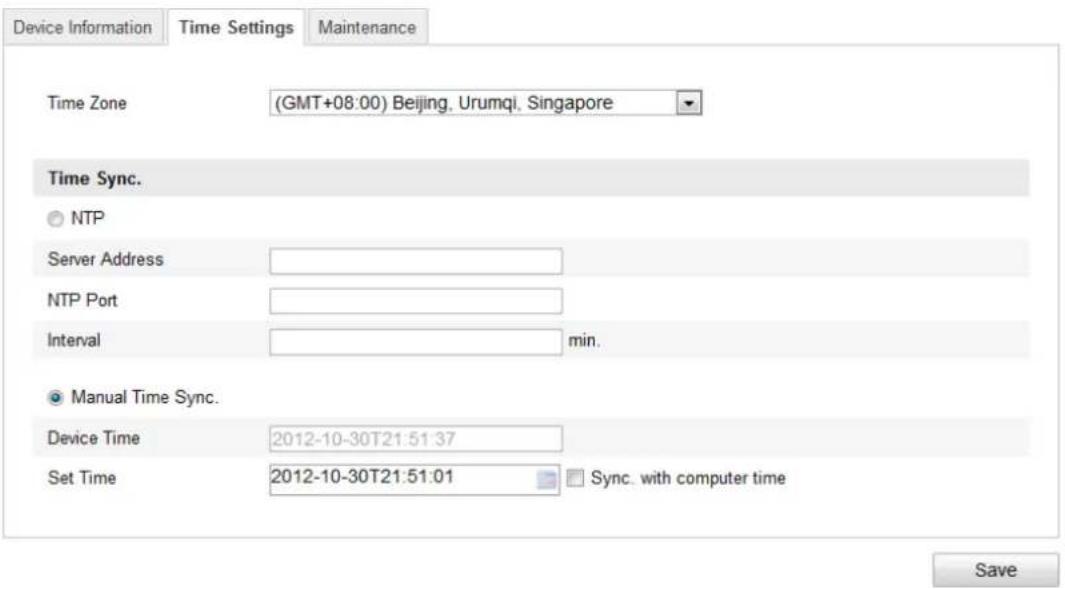
You can follow the instrucons in this secon to congure the me which can be displayed on the video. There are Time Zone, Time Synchronizaon, Daylight Saving Time(DST) funcons for seng the me. Time Synchronizaon consists of auto mode by Network Time Protocol(NTP) server and manual mode.
To enter the Time Sengs interface:
Conguraon > Basic Configuraon > System > Time Setngs Or Conguraon > Advanced Conguraon > System > Time Seings
text_image
Device Information Time Settings Maintenance Time Zone (GMT+08:00) Beijing, Urumqi, Singapore Time Sync. ○ NTP Server Address NTP Port Interval min. ● Manual Time Sync. Device Time 2012-10-30T21:51:37 Set Time 2012-10-30T21:51:01 Sync. with computer time SaveFigure 6-2 Time Sengs
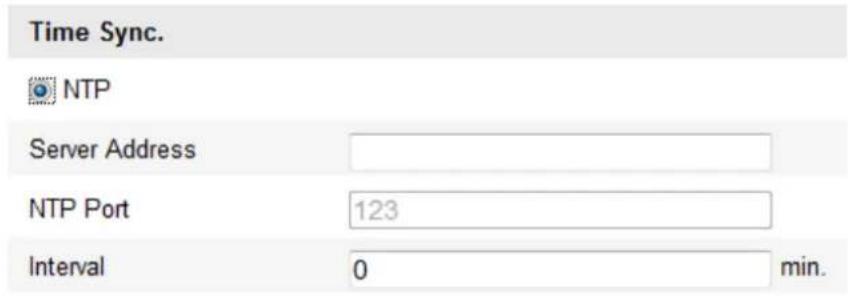
● Conguring Time Synchronizaon by NTP Server
(1) Check the checkbox to enable the NTP funcon.
(2) Congure the following sengs:
Server Address: IP address of NTP server.
NTP Port: Port of NTP server.
Interval: The me interval between the two synchronizing acons by NTP server. It can be set from 1 to 10080 minutes.
text_image
Time Sync. NTP Server Address NTP Port 123 Interval 0 min.Figure 6-3 Time Sync by NTP Server
Note: If the speed dome is connected to a public network, you should use a NTP server that has a me synchronizaon funcon, such as the server at the Naonal Time Center (IP Address: 210.72.145.44). If the speed dome is set in a customized network, NTP soware can be used to establish a NTP server for me synchronizaon.
● Conguring Time Synchronizaon Manually
(1) Check the Manual Time Sync checkbox.
(2) Click to set the system me from the pop-up calendar.
(3) Click to save the sengs.
Note: You can also check the Sync with local me checkbox to synchronize the me of the speed dome with the me of your computer.
| Sun | Mon | Tue | Wed | Thu | Fri | Sat |
| 27 | 28 | 29 | 30 | 11 | 1 | 2 |
| 3 | 4 | 5 | 6 | 7 | 8 | 9 |
| 10 | 11 | 12 | 13 | 14 | 15 | 16 |
| 17 | 18 | 19 | 20 | 21 | 22 | 23 |
| 24 | 25 | 26 | 27 | 28 | 1 | 2 |
| 3 | 4 | 5 | 6 | 7 | 8 | 9 |
| Time | 14 : 24 : 10 | |||||
| Today | OK | |||||

text_image
Manual Time Sync. Device Time 2012-06-25T21:15:13 Set Time 2012-06-25T21:14:03 Sync. with computer timeFigure 6-4 Time Sync Manually
- Select the Time Zone
Purpose:
When the speed dome is taken to another me zone, you can use the Time Zone funcon to adjust the me. The me will be adjusted according to the original me and the me dience between the two me zones.
From the Time Zone drop-down menu as shown in Figure 6-5, select the Time Zone in which the speed dome locates.

text_image
Device Information Time Settings Maintenance Time Zone (GMT+07:00) Bangkok, Hanoi, JakartaFigure 6-5 Time Zone Sengs
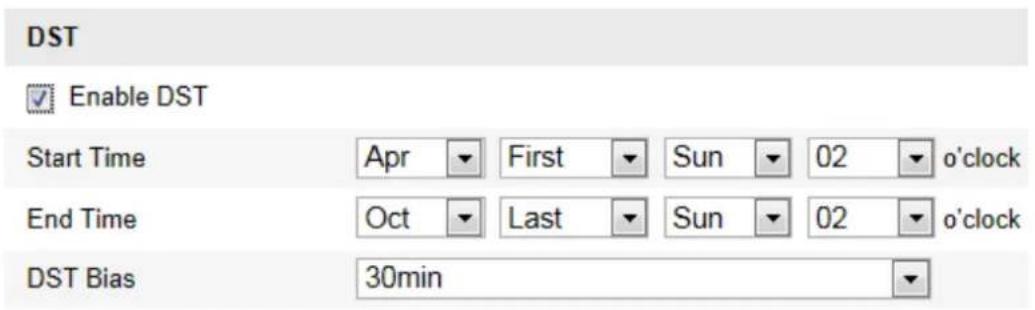
● Conguring Daylight Saving Time (summer me)
Purpose:
If there is the habit of adjusng clocks forward in your country in certain me period of a year, you can turn this funcon on. The me will be adjusted automacally when the Daylight Saving Time(DST) comes.
Steps:
(1) Enter the DST interface by Conguraon > Advanced Configuraon > System > DST
(2) Check to enable the DST funcon.
(3) Set the date of the DST period.
(4) Click to save the sengs.
text_image
DST Enable DST Start Time Apr First Sun 02{o'clock End Time Oct Last Sun 02{o'clock DST Bias 30minFigure 6-6 DST Sengs
6.3 Conguring Network Sengs
6.3.1 Conguring TCP/IP Sengs
Purpose:
TCP/IP sengs must be properly congured before you operate the speed dome over network.
Steps:
- Enter TCP/IP Sengs interface:
Conguraon > Basic Conguraon > Network > TCP/IP
Or Conguraon > Advanced Conguraon > Network > TCP/IP
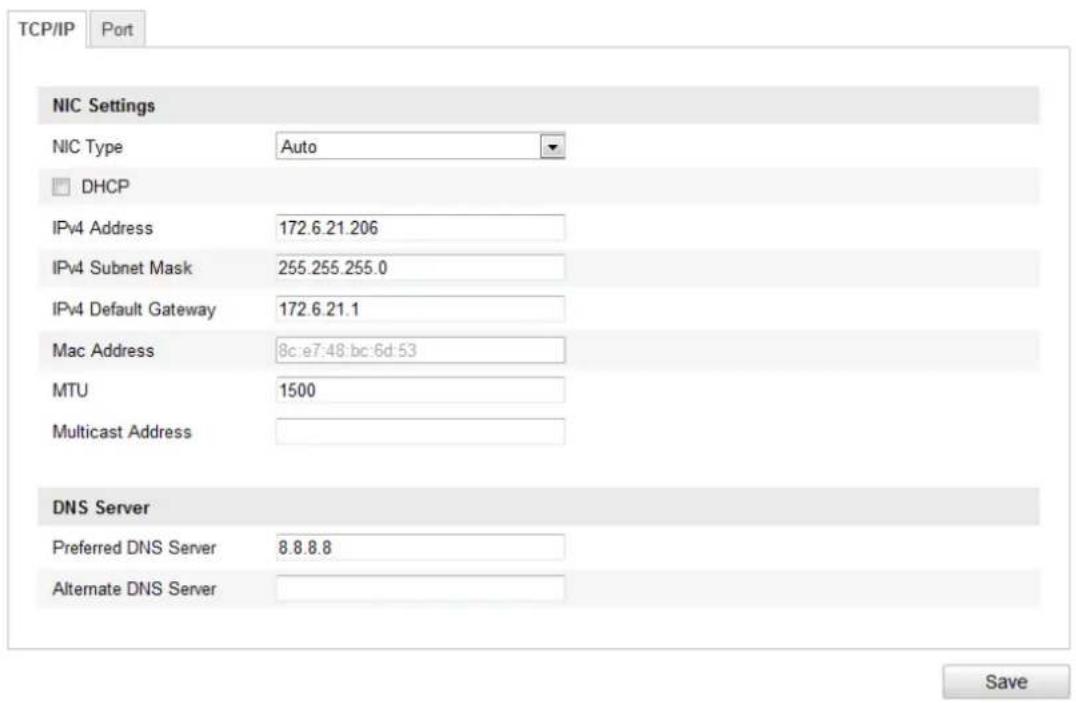
text_image
TCP/IP Port NIC Settings NIC Type Auto DHCP IPv4 Address 172.6.21.206 IPv4 Subnet Mask 255.255.255.0 IPv4 Default Gateway 172.6.21.1 Mac Address 8c:e7:48:bc:6d:53 MTU 1500 Multicast Address DNS Server Preferred DNS Server 8.8.8.8 Alternate DNS Server SaveFigure 6-7 TCP/IP Sengs
-
Congure the NIC sengs, including the IPv4 Address, IPv4 Subnet Mask and IPv4 Default Gateway.
-
Click to save the above sengs.
Notes:
- If the DHCP server is available, you can check ☐ DHCP to automatically obtain an IP address and other network sengs from that server.
- The valid value range of Maximum Transmission Unit(MTU) is 500 \~ 9676. The default value is 1500.
- The Mulcast sends a stream to the mulcast group address and allows mulple clients to acquire the stream at the same me by requesng a copy from the mulcast group address.
Before ulizing this funcon, you have to enable the Mulcast funcon of your router and congregate the gateway of the network speed dome.
- If the DNS server sengs are required for some applicaons (e.g., sending email), you should properly conjure the Preferred DNS Server and Alternate DNS server.
| DNS Server | |
| Preferred DNS Server | 8.8.8.8 |
| Alternate DNS Server | |
Figure 6-8 DNS Server Sengs
6.3.2 Conguring Port Sengs
Purpose:
If there is a router and you want to access the speed dome through Wide Area Network (WAN), you need to forward the 3 ports for the speed dome.
Steps:
- Enter the Port Sengs interface:
Conguraon > Basic Conguraon > Network > Port Or Conguraon > Advanced Conguraon > Network > Port
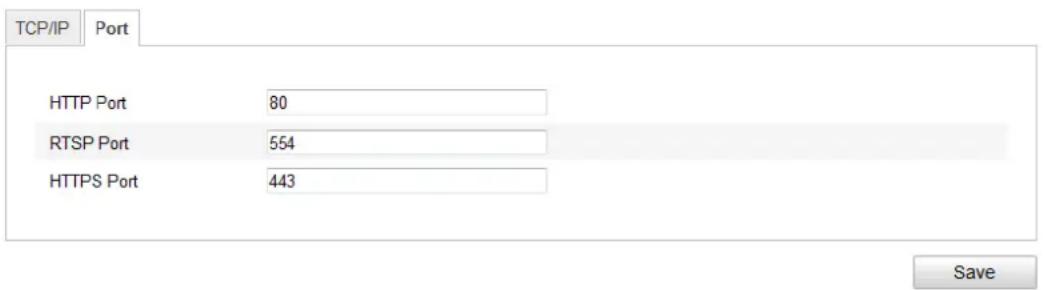
text_image
TCP/IP Port HTTP Port 80 RTSP Port 554 HTTPS Port 443 SaveFigure 6-9 Port Sengs
- Set the HTTP port, RTSP port and port of the speed dome.
HTTP Port: The default port number is 80.
RTSP Port: The default port number is 554.
HTTPS Port: The default port number is 443.
- Click to save the sengs.
6.3.3 Conguring PPPoE Sengs
Purpose:
If you have no router but only a modem, you can use Point-to-Point Protocol over Ethernet (PPPoE) funcon.
Steps:
- Enter the PPPoE Sengs interface:
Conguraon >Advanced Conguraon > Network > PPPoE
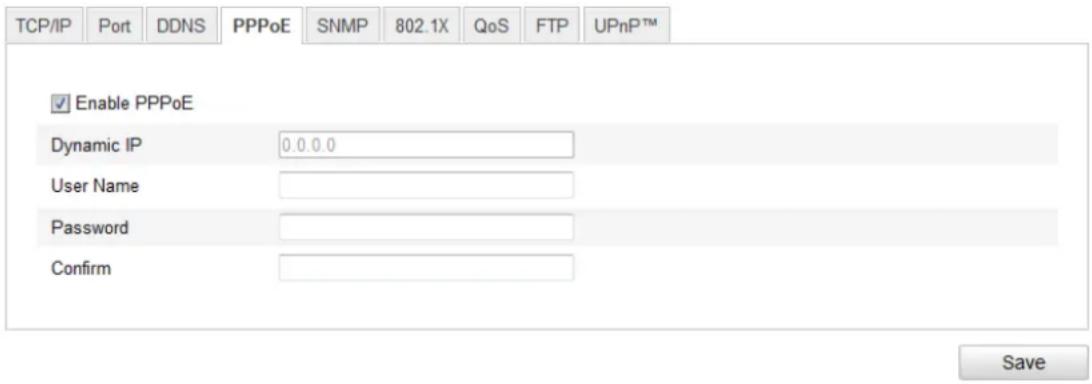
text_image
TCP/IP Port DDNS PPPoE SNMP 802.1X QoS FTP UPnP™ Enable PPPoE Dynamic IP 0.0.0.0 User Name Password Confirm SaveFigure 6-10 PPPoE Sengs
- Check the Enable PPPoE checkbox to enable this feature.
- Enter User Name, Password, and Conrm password for PPPoE access.
Note: The User Name and Password should be assigned by your ISP.
- Click to save and exit the interface.
6.3.4 Conguring DDNS Sengs
Purpose:
If your speed dome is set to use PPPoE as its default network conncon, you can use the Dynamic DNS (DDNS) for network access.
Before you start:
Registraon on the DDNS server is required before conguring the DDNS sengs of the speed dome.
Steps:
1. Enter the DDNS Sengs interface:
Conguraon > Advanced Conguraon > Network > DDNS
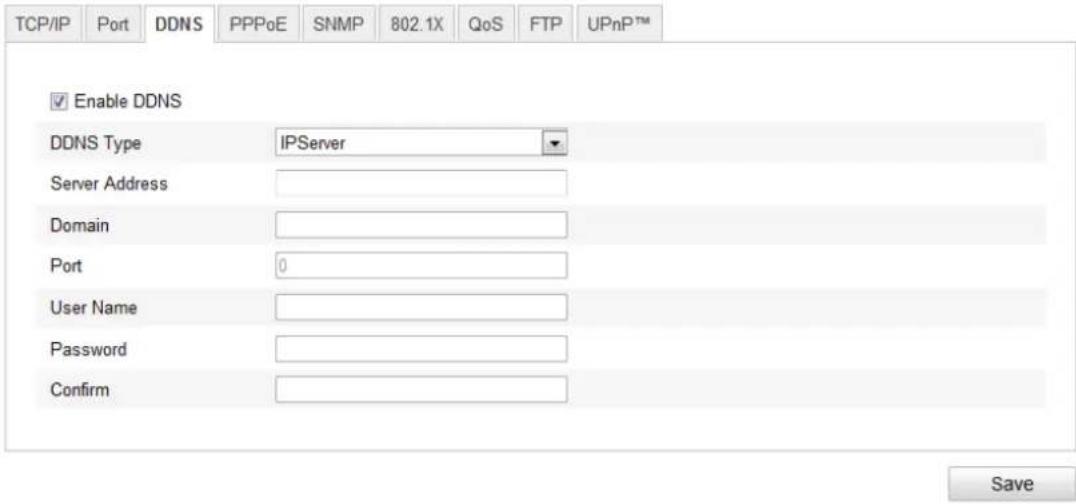
text_image
TCP/IP Port DDNS PPPoE SNMP 802.1X QoS FTP.UPnP™ Enable DDNS DDNS Type IPServer Server Address Domain Port 0 User Name Password Confirm SaveFigure 6-11 DDNS Sengs
- Check the Enable DDNS checkbox to enable this feature.
- Select DDNS Type. Three DDNS types are selectable: IPServer, HiDDNS and DynDNS.
DynDNS:
Steps:
(1) Enter Server Address of DynDNS (e.g. members.dyndns.org).
(2) In the Domain text eld, enter the domain name obtained from the DynDNS website.
(3) Enter the Port of DynDNS server.
(4) Enter the User Name and Password registered on the DynDNS website.
(5) Click to save the sengs.
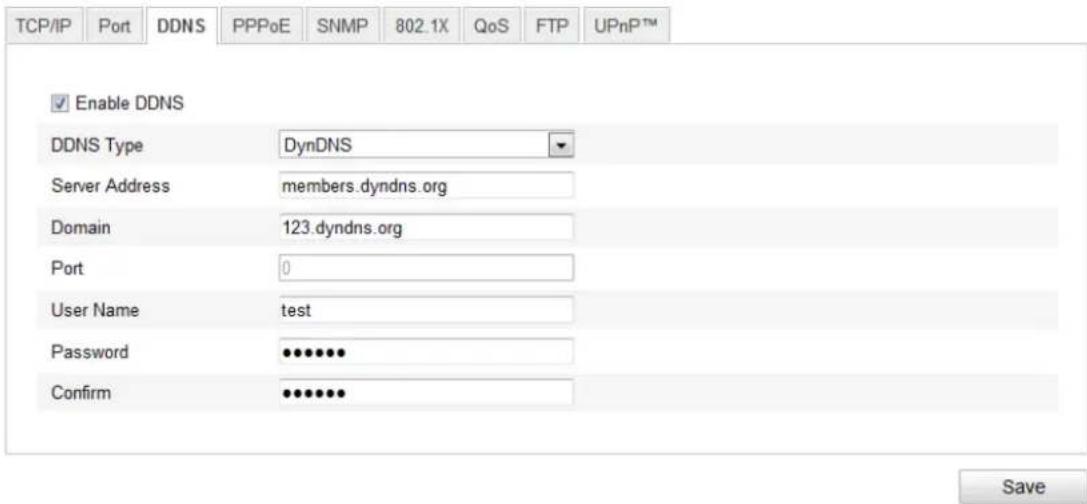
text_image
TCP/IP Port DDNS PPPoE SNMP 802.1X QoS FTP.UPnP™ Enable DDNS DDNS Type DynDNS Server Address members.dyndns.org Domain 123.dyndns.org Port 0 User Namealed funds Password ●●●●●●● Confirm ●●●●●●● SaveFigure 6-12 DynDNS Sengs
IP Server:
Steps:
(1) Enter the Server Address of the IP Server.
(2) Click to save the sengs.
Note: The Server Address should be entered with the stac IP address of the computer that runs the IP Server soware. For the IP Server, you have to apply a stac IP, subnet mask, gateway and preferred DNS from the ISP.
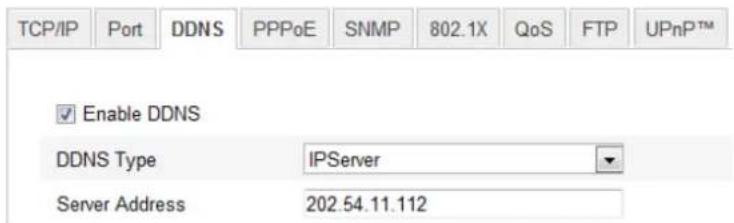
text_image
TCP/IP Port DDNS PPPoE SNMP 802.1X QoS FTP.UPnP™ Enable DDNS DDNS Type IPServer Server Address 202.54.11.112Figure 6-13 IPServer Sengs
- HiDDNS:
Steps:
(1) Enter the Server Address: www.hik-online.com.
(2) Enter the Domain name of the camera. The domain is the same with the device alias in the HiDDNS server.
(3) Click to save the sengs.
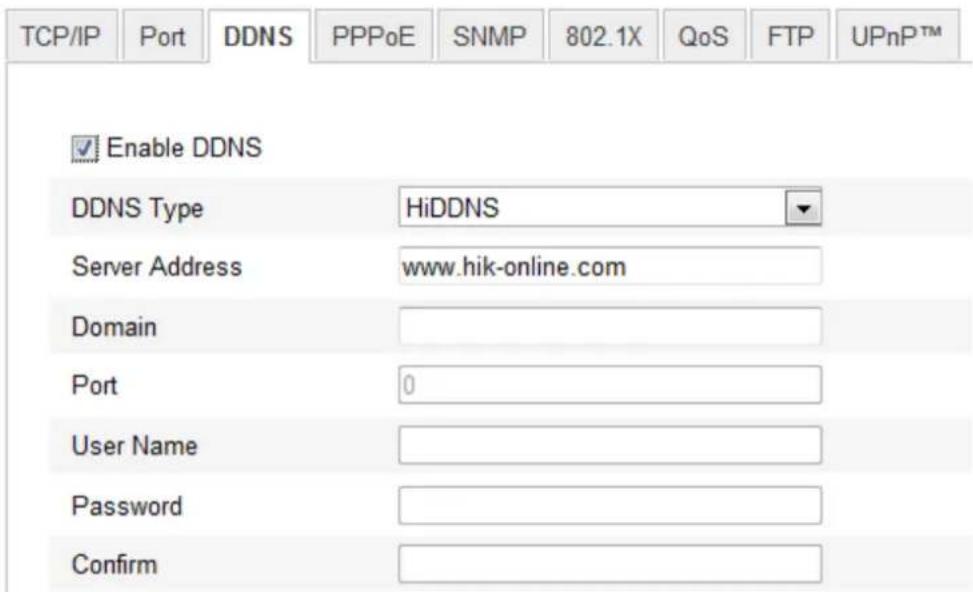
text_image
TCP/IP Port DDNS PPPoE SNMP 802.1X QoS FTP.UPnP™ Enable DDNS DDNS Type HiDDNS Server Address www.hik-online.com Domain Port 0 User Name Password ConfirmFigure 6-14 HiDDNS Sengs
6.3.5 Conguring SNMP Sengs
Purpose:
You can use SNMP to get speed dome status and parameters related informaon.
Before you start:
Before seng the SNMP, please use the SNMP soware and manage to receive the speed dome informaon via SNMP port. By seng the Trap Address, the speed dome
can send the alarm event and excepon messages to the surveillance center. Note: The SNMP version you select should be the same as that of the SNMP soware.
Steps:
- Enter the SNMP Sengs interface:
Conguraon > Advanced Configuraon > Network > SNMP
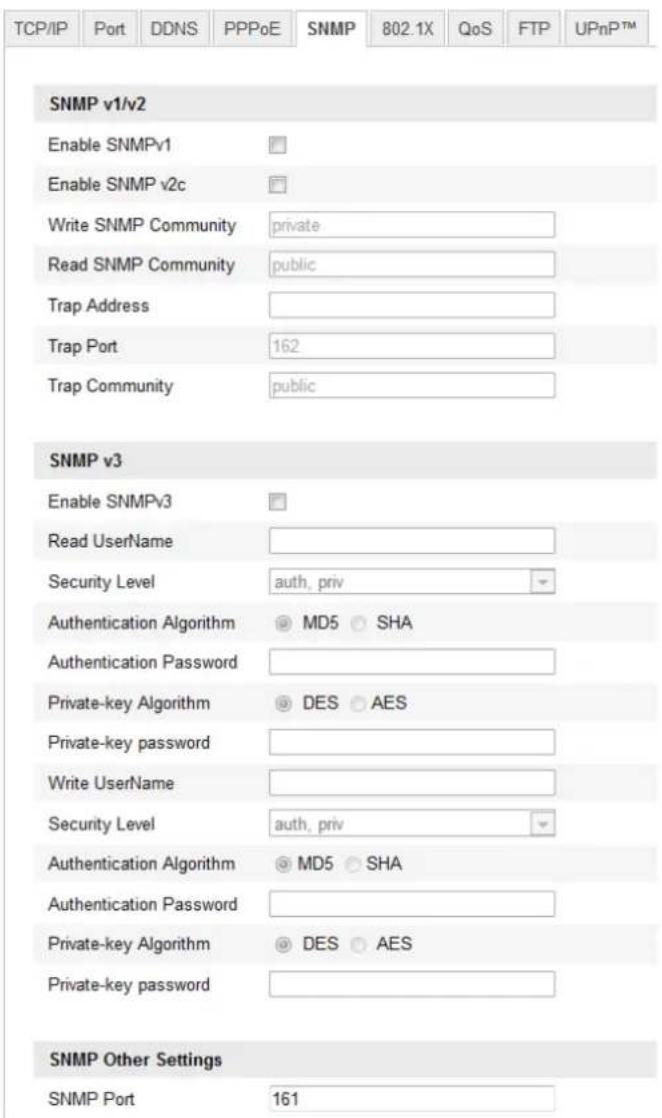
text_image
TCP/IP Port DDNS PPPoE SNMP 802.1X QoS FTP.UPnPTM SNMP v1/v2 Enable SNMPv1 Enable SNMP v2c Write SNMP Community private Read SNMP Community public Trap Address Trap Port 162 Trap Community public SNMP v3 Enable SNMPv3 Read UserName Security Level auth, priv Authentication Algorithm MD5 SHA Authentication Password Private-key Algorithm DES AES Private-key password Write UserName Security Level auth, priv Authentication Algorithm MD5 SHA Authentication Password Private-key Algorithm DES AES Private-key password SNMP Other Settings SNMP Port 161Figure 6-15 SNMP Sengs
- Check the corresponding version checkbox (Enable SNMP SNMPv1,
Enable SNMP v2c, ) to enable the feature.
- Congure the SNMP sengs.
Note: The conguraon of the SNMP soware should be the same as the sengs you congure here.
- Click to save and nish the sengs.
6.3.6 Conguring 802.1X Sengs
Purpose:
The speed dome supports IEEE 802.1X standard.
IEEE 802.1X is a port-based network access control. It enhances the security level of the LAN. When devices connect to this network with IEEE 802.1X standard, the authencaon is needed. If the authencaon fails, the devices don't connect to the network.
The protected LAN with 802.1X standard is shown as follows:
Network Dome
Authenticator Network Switch
Net
Authencaon Server
PC
PC
RADIUS Server
Figure 6-16 Protected LAN
- Before connecng the Network Camera to the protected LAN, please apply a digital cercate from a Cercate Authority.
- The network camera requests access to the protected LAN via the authencator (a switch).
- The switch forwards the identity and password to the authencaon server(RADIUS server).
- The switch forwards the certificate of authentication server to the network camera.
- If all the information is validated, the switch allows the network access to the protected network.
Steps:
- Connect the network camera to your PC directly with a network cable.
- Enter the 802.1X Sengs interface:
Conguraon > Advanced Configuraon > Network > 802.1X
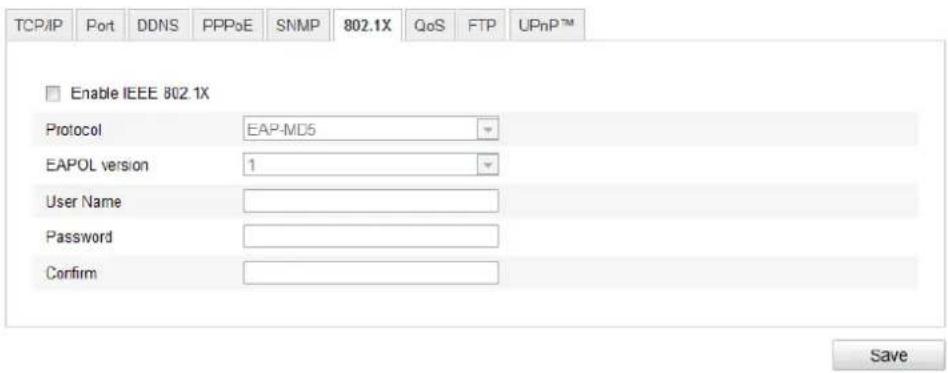
text_image
TCP/IP Port DDNS PPPoE SNMP 802.1X QoS FTP.UPnP™ Enable IEEE 802 1X Protocol EAP-MD5 EAPOL version 1 User Name Password Confirm SaveFigure 6-17 802.1X Sengs
- Check the Enable IEEE 802.1X checkbox to enable it.
- Congure the 802.1X sengs, including user name and password.
Note: The EAP-MD5 version must be identical with that of the router or the switch.
- Enter the user name and password (issued by the CA) to access the server.
- Click to nish the sengs.
Notes: The camera reboots when you save the sengs.
- Aer the conguraon, connect the camera to the protected network.
6.3.7 Conguring QoS Sengs
Purpose:
QoS (Quality of Service) can help solve the network delay and network congeson by conguring the priority of data sending.
Steps:
- Enter the QoS Sengs interface:
Conguraon >Advanced Conguraon > Network > QoS
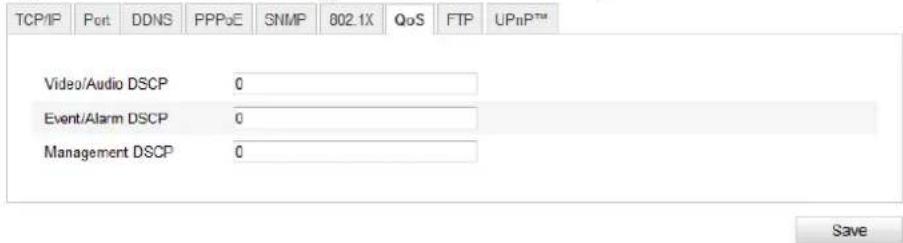
text_image
TCP/IP Port DDNS PPPoE SNMP 802.1X QoS FTP UPnP™ Video/Audio DSCP 0 Event/Alarm DSCP 0 Management DSCP 0 SaveFigure 6-18 QoS Sengs
- Congure the QoS sengs, including video / audio DSCP, event / alarm DSCP and Management DSCP.
The valid DSCP value ranges from 0 to 63. The DSCP value is bigger, the priority is higher.
- Click to save the sengs.
Notes:
● Make sure that you enable the QoS funcon of your network device (such as a router).
- It will ask for a reboot for the sengs to take eect.
6.3.8 Conguring FTP Sengs
Purpose:
You can set a FTP server and conjure the following parameters for uploading captured pictures.
Steps:
- Enter the FTP Sengs interface:
Conguraon >Advanced Conguraon > Network > FTP
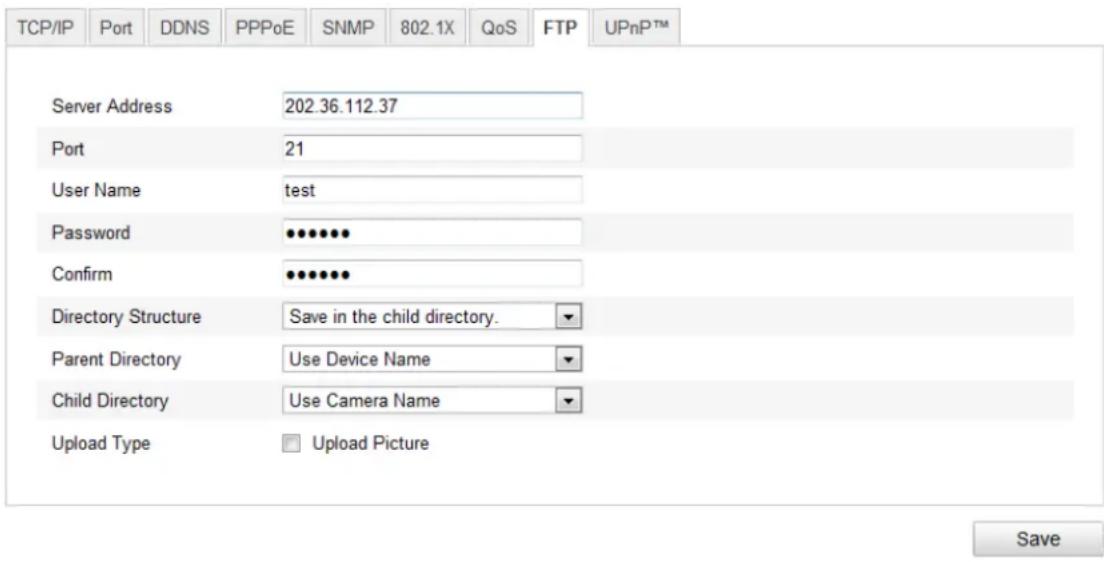
text_image
TCP/IP Port DDNS PPPoE SNMP 802.1X QoS FTP UPnPTM Server Address 202.36.112.37 Port 21 User Name Grid Password **** Confirm **** Directory Structure Save in the child directory. Parent Directory Use Device Name Child Directory Use Camera Name Upload Type Upload Picture SaveFigure 6-19 FTP Sengs
- Congure the FTP sengs, including server address, port, user name, password, directory and upload type.
- Setng the directory in FTP server for saving les:
In the Directory Structure eld, you can select the root directory, parent directory and child directory.
◆ Root directory: The les will be saved in the root of FTP server.
◆ Parent directory: The les will be saved in a folder in FTP server. The name of folder can be dened as shown in following Figure 6-20.
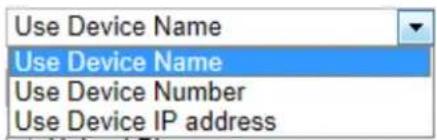
text_image
Use Device Name Use Device Name Use Device Number Use Device IP addressFigure 6-20 Parent Directory
◆ Child directory: It is a sub-folder which can be created in the parent directory. The les will be saved in a sub-folder in FTP server. The name of folder can be dened as shown in following Figure 6-21.
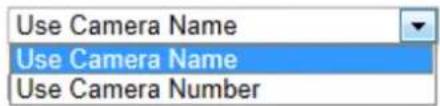
text_image
Use Camera Name Use Camera Name Use Camera NumberFigure 6-21 Child Directory
- Upload type: To enable uploading the captured picture to the FTP server.
- Click to save the sengs.
Note: If you want to upload the captured pictures to FTP server, you also have to enable the connuous snapshot or event-triggered snapshot in Snapshot interface. For detailed informaon, please refer to the Secon 6.6.8 Conguring Snapshot Sengs.
6.3.9 Conguring UPnP Sengs
Universal Plug and Play (UPnP) is a networking architecture that provides compatibility among networking equipment, soware and other hardware devices. With the UPnP funcon enabled, you don't need to conjure the port mapping for each port, and the camera is connected to the Wide Area Network via the router.
Steps:
- Enter the UPnP sengs interface.
Conguraon >Advanced Conguraon > Network > UPnP - Add a Friendly Name and check the Enable Port Mapping checkbox.
- Select the Port Mapping Mode as Auto or Manual.
- If in Manual mode, you can check the checkbox of HTTP, RTSP or SDK port according to your demand.
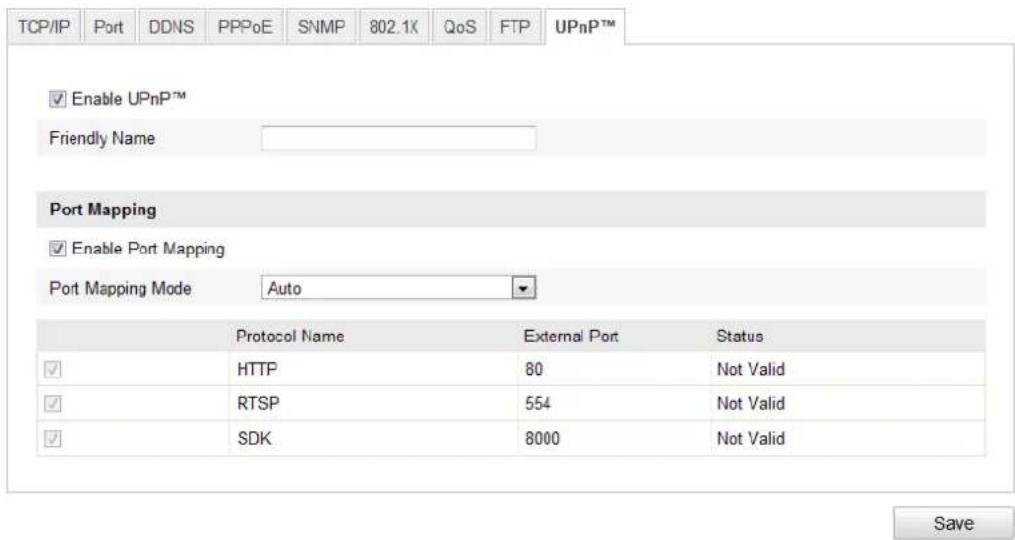
text_image
TCP/IP Port DDNS PPPoE SNMP 802.1K QoS FTP.UPnP™ Enable UPnP™ Friendly Name Port Mapping Enable Port Mapping Port Mapping Mode Auto Protocol Name External Port Status HTTP 80 Not Valid RTSP 554 Not Valid SDK 8000 Not Valid SaveFigure 6-22 Congure UPnP Sengs
- Click to save the sengs.
6.4 Conguring Video and Audio Sengs
6.4.1 Conguring Video Sengs
Steps:
- Enter the Video Sengs interface:
Conguraon >Basic Conguraon >Video / Audio >Video
Or Conguraon > Advanced Conguraon > Video / Audio > Video
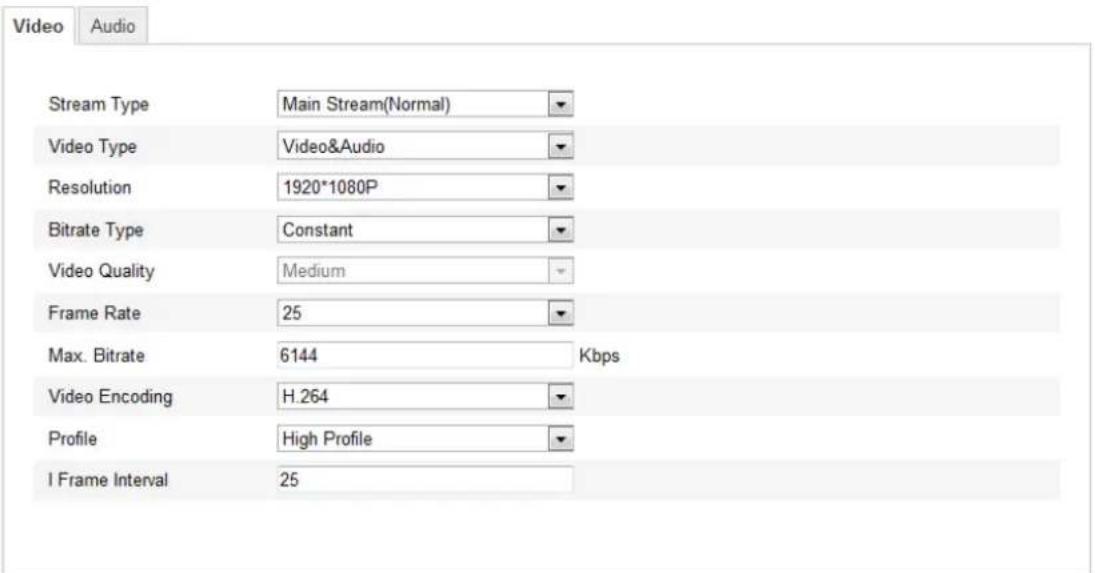
text_image
Video Audio Stream Type Main Stream(Normal) Video Type Video&Audio Resolution 1920*1080P Bitrate Type Constant Video Quality Medium Frame Rate 25 Max. Bitrate 6144 Kbps Video Encoding H.264 Profile High Profile I Frame Interval 25Save
Figure 6-23 Congure Video Sengs
- Select the Stream Type of the speed dome to main stream (normal) or sub-stream.
The main stream is usually for recording and live viewing with good bandwidth, and the sub-stream can be used for live viewing when the bandwidth is limited.
Refer to the Secon 6.1 Configuring Local Parameters for switching the main stream and sub-stream for live viewing.
- You can customize the following parameters for the selected main stream or sub-stream:
Video Type:
Select the stream type to video stream, or video & audio composite stream. The audio signal will be recorded only when the Video Type is Video & Audio.
Resoluon:
Select the resolution of the video output.
Bitrate Type:
Select the bitrate type to constant or variable.
Video Quality:
When bitrate type is selected as Variable, 6 levels of video quality are selectable.
Frame Rate:
The frame rate is to describe the frequency at which the video stream is updated and it is measured by frames per second (fps). A higher frame rate is advantageous when there is movement in the video stream, as it maintains image quality throughout.
Max. Bitrate:
Set the max. bitrate to 32\~16384 Kbps. The higher value corresponds to the higher video quality, but the higher bandwidth is required.
Video Encoding:
The Video Encoding standard can be set to H.264 or MJPEG.
Prole:
You can set the prole level to High Prole, Main Prole or Basic Prole.
I Frame Interval:
Set the I-Frame interval from 1 to 400.
- Click to save the sengs.
6.4.2 Conguring Audio Sengs
Steps:
- Enter the Audio Sengs interface
Conguraon > Basic Configuraon > Video / Audio > Audio
Or Conguraon > Advanced Conguraon > Video / Audio > Audio
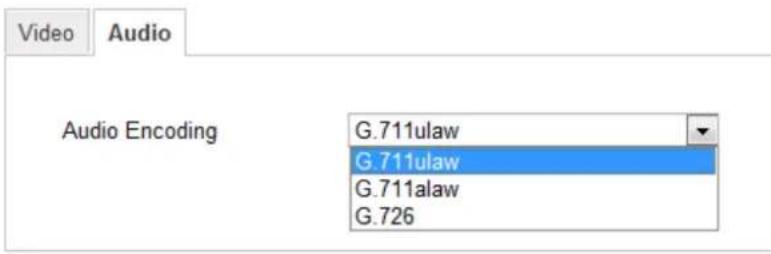
text_image
Video Audio Audio Encoding G.711ulaw G.711ulaw G.711alaw G.726Figure 6-24 Audio Sengs
- Congure the following sengs.
Audio Encoding: G.711ulaw, G.711alaw and G.726 selectable.
- Click to save the sengs.
6.5 Conguring Image Sengs
6.5.1 Conguring Display Sengs
Purpose:
You can set the image quality of the speed dome, including brightness, contrast, saturaon, sharpness, etc.
Note: The parameters in Display Sengs interface vary depending on the models of speed dome.
Steps:
- Enter the Display Sengs interface:
Conguraon > Basic Configuraon> Image> Display Sengs
Or Conguraon > Advanced Conguraon> Image> Display Sengs
- Set the image parameters of the speed dome.
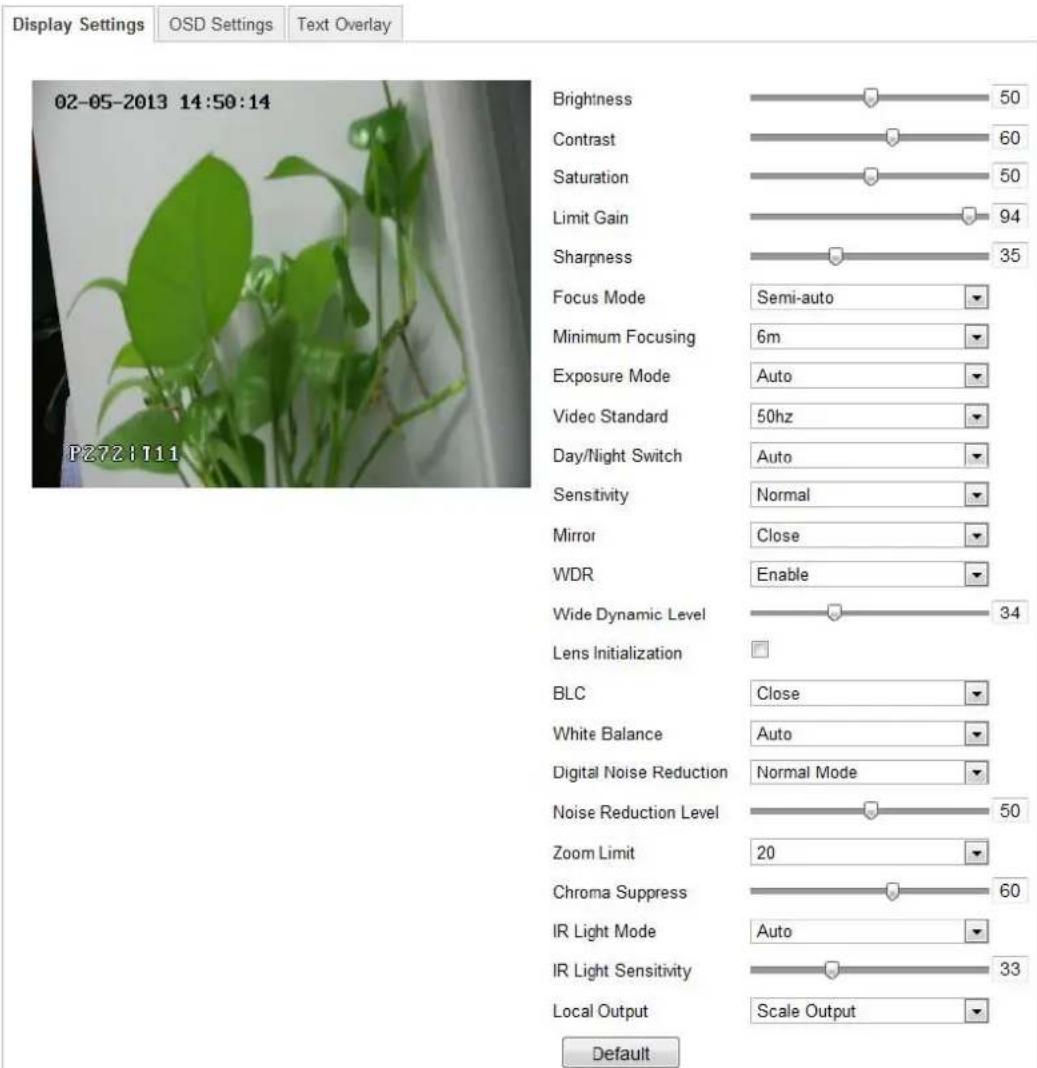
text_image
Display Settings OSD Settings Text Overlay 02-05-2013 14:50:14 Brightness 50 Contrast 60 Saturation 50 Limit Gain 94 Sharpness 35 Focus Mode Semi-auto Minimum Focusing 6m Exposure Mode Auto Video Standard 50hz Day/Night Switch Auto Sensitivity Normal Mirror Close WDR Enable Wide Dynamic Level 34 Lens Initialization BLC Close White Balance Auto Digital Noise Reduction Normal Mode Noise Reduction Level 50 Zoom Limit 20 Chroma Suppress 60 IR Light Mode Auto IR Light Sensitivity 33 Local Output Scale Output DefaultFigure 6-25 Display Sengs
Brightness
This feature is used to adjust brightness of the image. The value ranges from 0 to 100.
Contrast
This feature enhances the dience in color and light between parts of an image. The value ranges from 0 to 100.
Saturaon
This feature is used to adjust color saturation of the image. The value ranges from 0 to 100.
Limit Gain
This feature is used to adjust gain of the image. The value ranges from 0 to 100.
Sharpness
Sharpness funcon enhances the detail of the image by sharpening the edges in the image. The value ranges from 0 to 100.
Note: This funcon varies depending on the models of speed dome.
Focus Mode
The Focus Mode can be set to Auto, Manual, Semi-auto.
- Auto:
The speed dome focuses automacally at any me according to objects in the scene.
- Semi-auto:
The speed dome focuses automacally only once aer panning, lng and zooming.
- Manual:
In Manual mode, you need to use manually.

on the control panel to focus
Minimum Focusing
This funcon is used to limit the minimum focus distance. The value can be set to 1.5m, 3m, 6m, 10cm and 50cm.
Note: The minimum focus value varies depending on the models of speed dome.
Exposure Mode
The Exposure Mode can be set to Auto, Iris Priority, Shuer Priority, Manual.
- Auto:
The iris, shutter and gain values will be adjusted automatically according to the brightness of the environment.
- Iris Priority:
The value of iris needs to be adjusted manually. The shuer and gain values will be adjusted automatically according to the brightness of the environment.

text_image
Exposure Mode Iris Priority Iris F6.4Figure 6-26 Manual Iris
- Shuer Priority:
The value of shuer needs to be adjusted manually. The iris and gain values will be adjusted automatically according to the brightness of the environment.

text_image
Shutter 1/25Figure 6-27 Manual Shuer
- Gain Priority:
The value of gain needs to be adjusted manually. The shuer and iris values will be adjusted automatically according to the brightness of the environment.

text_image
Gain 20Figure 6-28 Manual Gain
- Manual:
In Manual mode, you can adjust the values of Gain, Shutter, Iris manually.
Note: This funcon varies depending on the models of speed dome.
Video Standard
You can set the Video Standard to 50hz(PAL) or 60hz(NTSC) according to the video system in your country.
Note: This funcon varies depending on the models of speed dome.
Day/Night Switch
The Day/Night Switch mode can be set to Auto, Day and Night.
- Auto:
In Auto mode, the day mode and night mode can switch automacally according to the light condition of environment. The switching sensitivity can be set to Low,
Normal, High.

text_image
Day/Night Switch Auto Sensitivity NormalFigure 6-29 Auto Mode Sensitivity
Day:
In Day mode, the speed dome displays color image. It is used for normal lightng conditions.
- Night:
In Night mode, the image is black and white. Night mode can increase the sensitivity in low light conditions.
Mirror
If you turn the MIRROR funcon on, the image will be ipped. It is like the image in the mirror. The ip direcon can be set to OFF, LEFT/RIGHT, UP/DOWN or CENTER.
Note: This funcon varies depending on the models of speed dome.
WDR (Wide Dynamic Range)
The wide dynamic range (WDR) funcon helps the camera provide clear images even under back light circumstances. When there are both very bright and very dark areas simultaneously in the eld of view, WDR balances the brightness level of the whole image and provide clear images with details.
You can enable or disable the WDR funcon as shown in Figure 6-30. The wide dynamic level ranges from 0 to 100.

text_image
WDR Enable Wide Dynamic Level 1 34Figure 6-30 WDR
Note: This funcon varies depending on the models of speed dome.
Slow Shuer
This funcon can be used in underexposure condition. It lengthens the shuer me to ensure full exposure. The slow shuer value can be set to Low, Normal and High.

text_image
Slow Shutter Slow Shutter Level LowFigure 6-31 Slow Shuer
Lens Inializaon
The lens operates the movements for inializaon when you check the check box of Lens Inializaon.
BLC
If there's a bright backlight, the subject in front of the backlight appears silhoueed or dark. Enabling BLC(back light compensaon) funcon can correct the exposure of the subject. But the backlight environment is washed out to white.
White Balance
The White Balance mode can be set to Auto, MWB, Outdoor, Indoor, Fluorescent Lamp, Sodium Lamp and Auto-Track.
- Auto:
In Auto mode, the camera retains color balance automacally according to the current color temperature.
● Manual White Balance:
In MWB mode, you can adjust the color temperature manually to meet your own
demand as shown in Figure 6-32.

text_image
WB Gain Circuit R 0 WB Gain Circuit B 0Figure 6-32 Manual White Balance
- Outdoor
You can select this mode when the speed dome is installed in outdoor environment.
- Indoor
You can select this mode when the speed dome is installed in indoor environment.
- Fluorescent Lamp
You can select this mode when there are uorescent lamps installed near the speed dome.
- Sodium Lamp
You can select this mode when there are sodium lamps installed near the speed dome.
- Auto-Track
In Auto-Track mode, white balance is connuously being adjusted in real-me according to the color temperature of the scene illuminaon.
Note: This funcon varies depending on the models of speed dome.
3D Digital Noise Reducon
You can enable or disable the 3D Digital Noise Reducon funcon as shown in Figure 6-33. The level ranges from 0 to 100.

text_image
Digital Noise Reduction Normal Mode Noise Reduction Level 50Figure 6-33 3D Digital Noise Reducon
Note: This funcon varies depending on the models of speed dome.
Zoom Limit
You can set Zoom Limit value to limit the maximum value of zooming. The value can be set to 20, 40, 80, 160 and 320.
Note: This funcon varies depending on the models of speed dome.
Chroma Suppress
The Chroma Suppress level ranges from 0 to 100 as shown in Figure 6-34.

text_image
Chroma Suppress 61Figure 6-34 Chroma Suppress
Note: This funcon varies depending on the models of speed dome.
Local Output
You can select the output mode to O, Clip Output or Scale Output.
6.5.2 Conguring OSD Sengs
Purpose:
The speed dome supports following on screen displays:
Zoom: Idenes the amount of magnicaon.
Direcon: Displays panning and Ing direcon, with the format of PXXX TXXX. The
XXX following P indicates the degrees in pan direcon, while the XXX following T indicates the degrees in lt posion.
Time: Supports for me display.
Preset Title: Idenes preset being called.
Camera Name: Idenes the name of speed dome.
You can customize the on screen display of me.
Steps:
- Enter the OSD Sengs interface:
Conguraon > Advanced Configuraon > Image > OSD Seings
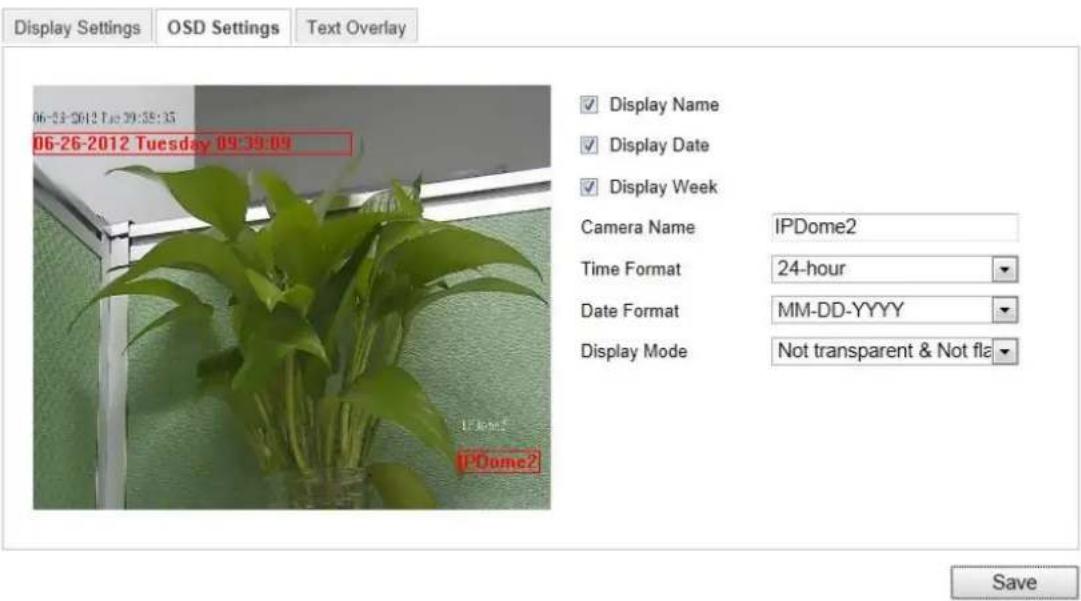
text_image
Display Settings OSD Settings Text Overlay 06-23-2012 Tue 29:35:35 06-26-2012 Tuesday 09:39:09 ✓ Display Name ✓ Display Date ✓ Display Week Camera Name IPDome2 Time Format 24-hour Date Format MM-DD-YYYY Display Mode Not transparent & Not fla SaveFigure 6-35 OSD Sengs
- Check the corresponding checkbox to select the display of speed dome name, date or week if required.
- Edit the speed dome name in the text eld of Camera Name.
-
Select from the drop-down list to set the me format, date format and display mode.
-
You can use the mouse to click and drag the text frame IPDome2 in the live view window to adjust the OSD posion.
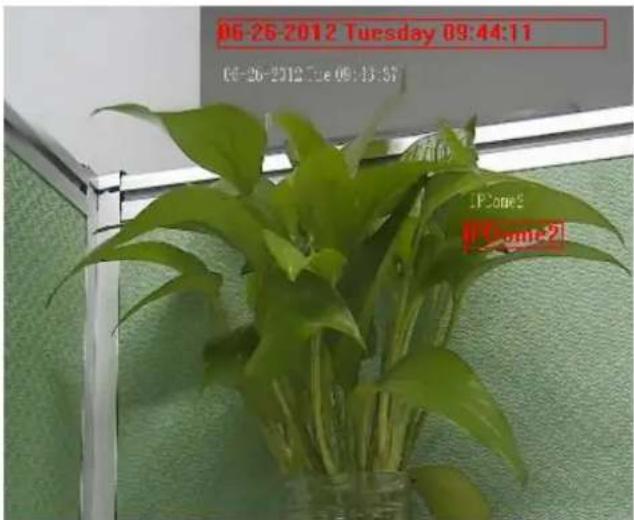
text_image
06-25-2012 Tuesday 09:44:11 06-26-2012 Tue 09:43:57 iPhone2 iPhone-2Figure 6-36 Adjust OSD Locaon
- Click to acvate above sengs.
6.5.3 Conguring Text Overlay Sengs
Purpose:
You can customize the text overlay.
Steps:
- Enter the Text Overlay Sengs interface:
Conguraon > Advanced Conguraon > Image > Text Overlay - Check the checkbox in front of textbox to enable the on-screen display.
- Input the characters in the textbox.
-
Use the mouse to click and drag the red text frame Text in the live view window to adjust the text overlay posion.
-
Click . Save
Note: There are up to 4 text overlays congorable.
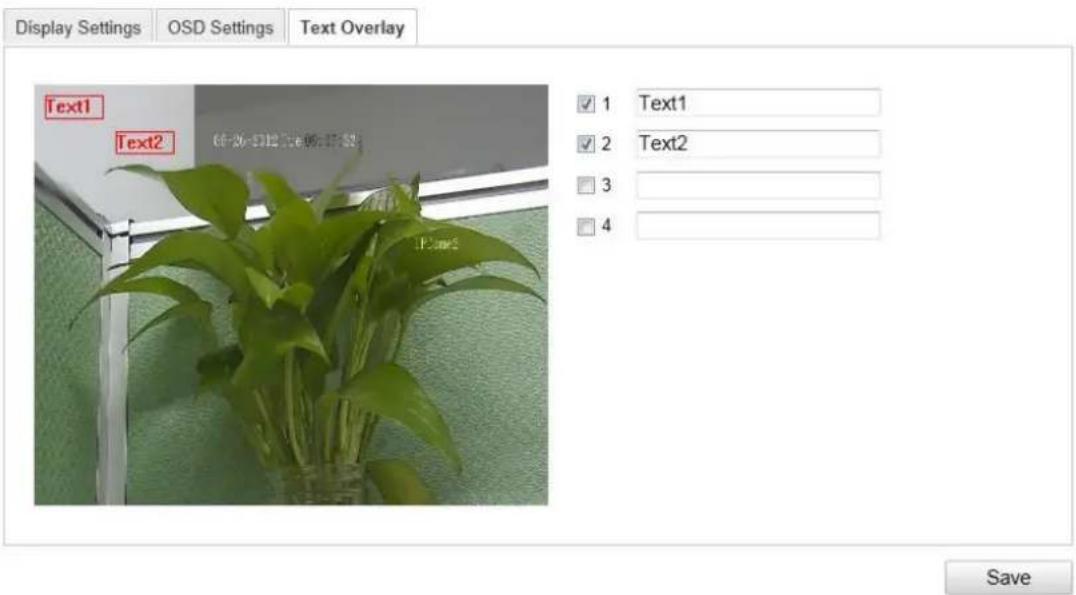
text_image
Display Settings OSD Settings Text Overlay Text1 Text2 1 Text1 2 Text2 3 4 SaveFigure 6-37 Text Overlay Sengs
6.6 Conguring and Handling Alarms
Purpose:
This secon explains how to conjure the network speed dome to respond to alarm events, including moon detecon, external alarm input, video loss, tamper-proof and excepon. These events can trigger the alarm acons, such as Nofy Surveillance Center, Send Email, Trigger Alarm Output, etc.
For example, when an external alarm is triggered, the network speed dome sends a nocao to an e-mail address.
6.6.1 Conguring Moon Detecon
Purpose:
Moon detecon is a feature which can trigger alarm acons and acons of recording videos when the moon occurred in the surveillance scene.
Steps:
- Set the Moon Detecon Area.
Steps:
(1) Enter the moon detecon sengs interface
Conguraon > Advanced Conguraon> Events > Moon Detecon
(2) Check the checkbox of Enable Motion Detecon.
©
Arming Schedule
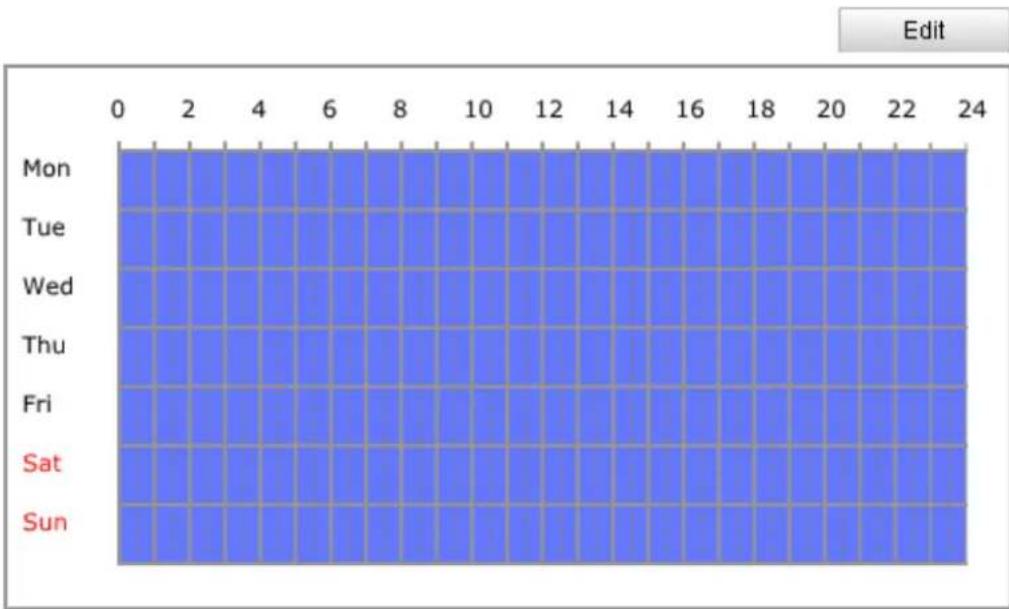
bar
| Day | Value | |---|---| | Mon | 1 | | Tue | 1 | | Wed | 1 | | Thu | 1 | | Fri | 1 | | Sat | 1 | | Sun | 1 |Figure 6-39 Arming Schedule
(2) Choose the day you want to set the arming schedule as shown in Figure 6-40.
(3) Click to set the me period for the arming schedule.
(4) Aer you set the arming schedule, you can click to copy the schedule to other days (Oponal).
(5) Click to save the sengs.
Note: The me of each period can't be overlapped. Up to 4 periods can be congured for each day.
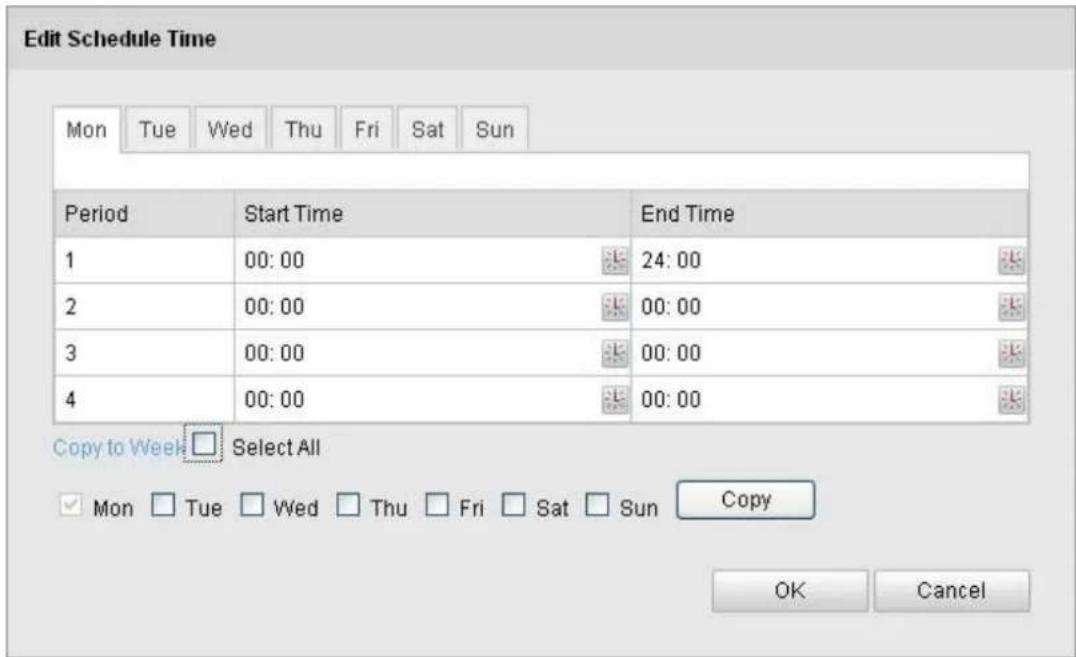
text_image
Edit Schedule Time Mon Tue Wed Thu Fri Sat Sun Period Start Time End Time 1 00:00 24:00 2 00:00 00:00 3 00:00 00:00 4 00:00 00:00 Copy to Week Select All ✓ Mon □ Tue □ Wed □ Thu □ Fri □ Sat □ Sun Copy OK CancelFigure 6-40 Arming Time Schedule
- Set the Alarm Acons for Moon Detecon.
Purpose:
You can specify the linkage method when an event occurs. The following contents are about how to congregate the different types of linkage method.
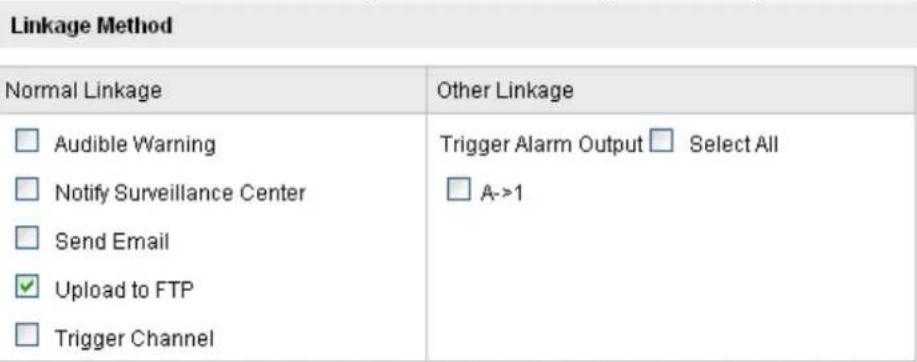
text_image
Linkage Method Normal Linkage Other Linkage □ Audible Warning Trigger Alarm Output □ Select All □ Notify Surveillance Center □ A->1 □ Send Email ✓ Upload to FTP □ Trigger ChannelFigure 6-41 Linkage Method
Check the checkbox to select the linkage method. Nofy surveillance center, send email, upload to FTP, trigger channel and trigger alarm output are selectable.
● Nofy Surveillance Center
Send an excepon or alarm signal to remote management soware when an event occurs.
- Send Email
Send an email with alarm informaon to a user or users when an event occurs.
Note: To send the Email when an event occurs, you need to refer to Secon
6.6.7 Conguring Email Sengs to set the Email parameters.
- Upload to FTP
Capture the image when an alarm is triggered and upload the picture to a FTP server.
Note: You need a FTP server and set FTP parameters rst. Refer to Secon
6.3.8 Conguring FTP Sengs for seng FTP parameters.
- Trigger Channel
Record a video when an event occurs.
Note: You have to set the recording schedule to realize this funcon. Please refer to Secon 7.2 Conguring Recording Schedule for sengs the recording schedule.
- Trigger Alarm Output
Trigger one or more external alarm outputs when an event occurs.
Note: To trigger an alarm output when an event occurs, please refer to Secon 6.6.5 Conguring Alarm Output to set the alarm output parameters.
6.6.2 Conguring Video Loss Alarm
Steps:
1. Enter the Video Loss Seng interface:
Conguraon > Advanced Conguraon> Events > Video Loss
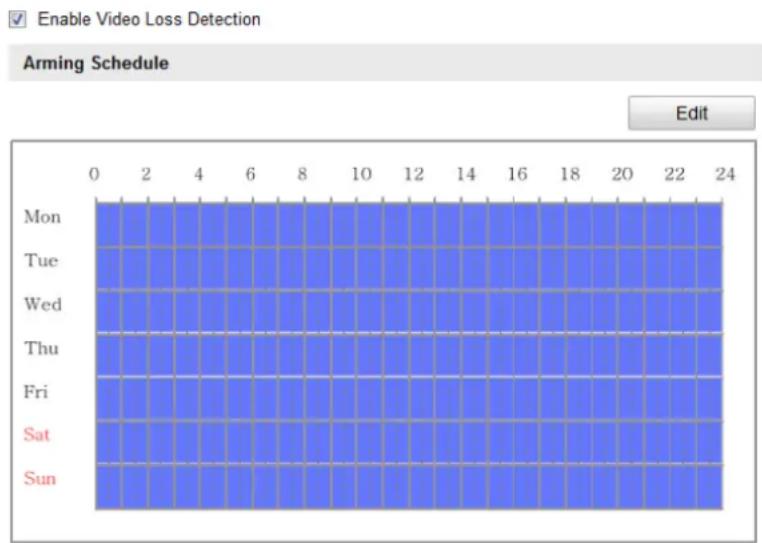
text_image
Enable Video Loss Detection Arming Schedule Edit Mon Tue Wed Thu Fri Sat Sun| Linkage Method | |
| Normal Linkage | Other Linkage |
| □ Audible Warning ✓ Notify Surveillance Center □ Send Email | Trigger Alarm Output □ Select All □ A->1 □ A->2 |
Figure 6-42 Video Loss
- Check the Enable Video Loss Detecon checkbox to enable the video loss detecon.
- Click Edit to edit the arming schedule for video loss detecon. The arming schedule conguraon is the same as the seng of the arming schedule for moon detecon. Refer to Step 2 Set the Arming Schedule for Motion Detection in Section 6.6.1.
- Check the checkbox to select the linkage method taken for the video loss alarm. Audible warning, nofy surveillance center, send email and trigger alarm output are selectable. Please Step 3 Set the Alarm Acons for Motion Detection in Section 6.6.1.
- Click to save the sengs.
6.6.3 Conguring Tamper-proof Alarm
Purpose:
You can congregate the speed dome to trigger the alarm acons when the lens is covered.
Steps:
- Enter the Tamper-proof Sengs interface:
Conguraon > Advanced Configuraon > Events > Tamper-proof
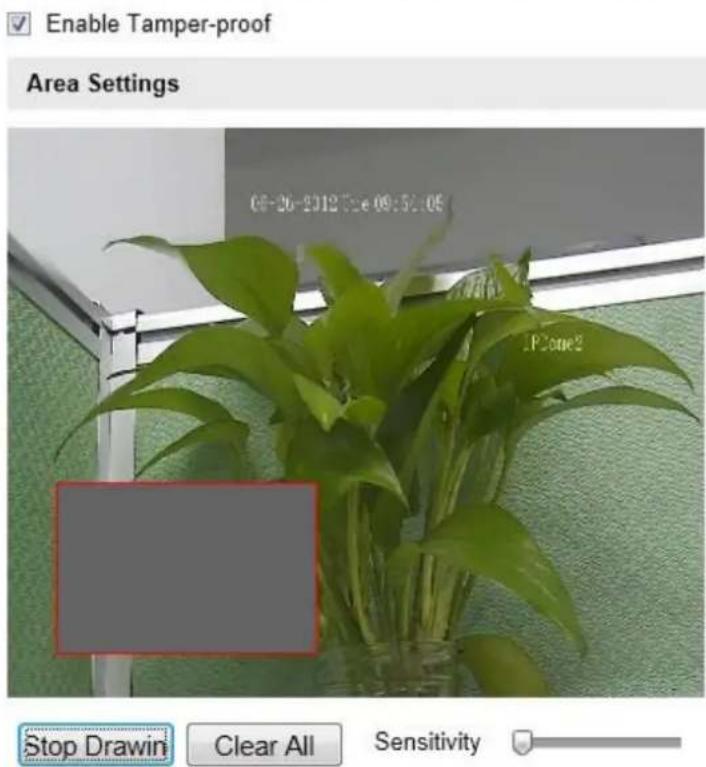
text_image
Enable Tamper-proof Area Settings 06-26-2012 05e 09:51:05 Stop Drawin Clear All SensitivityFigure 6-43 Tamper-proof Alarm
- Check Enable Tamper-proof checkbox to enable the tamper-proof detecon.
-
Set the tamper-proof area. Refer to Step 1 Set the Moon Detection Area in Secon 6.6.1 Conguring Moon Detecon.
-
Click Edit to edit the arming schedule for tamper-proof. The arming schedule conguraon is the same as the seng of the arming schedule for moon detecon. Refer to Step 2 Set the Arming Schedule for Moon Detection in Secon
6.6.1 Conguring Moon Detecon.
- Check the checkbox to select the linkage method taken for the tamper-proof. Nofy surveillance center, send email and trigger alarm output are selectable. Please refer to Step 3 Set the Alarm Acons for Moon Detecon in Secon 6.6.1 Conguring Moon Detecon.
- Click Save to save the sengs.
6.6.4 Conguring External Alarm Input
Steps:
- Enter the Alarm Input Sengs interface:
Conguraon > Advanced Configuraon> Events > Alarm Input: - Choose the alarm input No. and the Alarm Type. The alarm type can be NO (Normally Open) and NC (Normally Closed).
- Edit the name in Alarm Name to set a name for the alarm input (oponal).
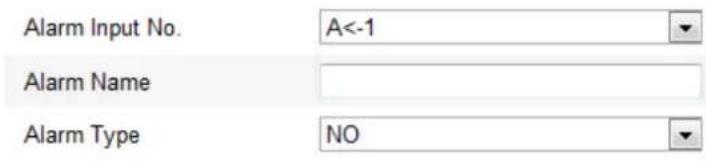
text_image
Alarm Input No. A<-1 Alarm Name Alarm Type NOArming Schedule
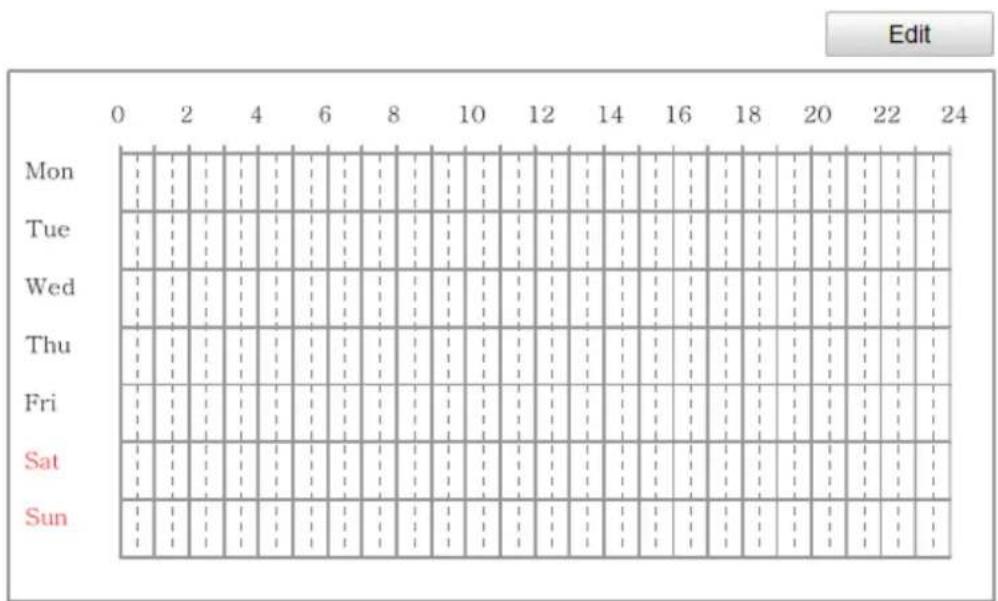
- Click Edit to set the arming schedule for the alarm input. Refer to Step 2
Set the Arming Schedule for Moon Detection in Secon 6.6.1 Configuring Moon Detecon.
- Check the checkbox to select the linkage method taken for the alarm input. Refer to Step 3 Set the Alarm Actions for Moon Detecon in Secon 6.6.1 Conguring Moon Detecon.
- You can also choose the PTZ linking for the alarm input. Check the relave checkbox and select the No. to enable Preset Calling, Patrol Calling or Paern Calling.
- You can copy your sengs to other alarm inputs.
- Click to save the sengs.
Linkage Method
| Normal Linkage | Other Linkage |
| Audible Warning Notify Surveillance Center Send Email Upload to FTP Trigger Channel | Trigger Alarm Output Select All A->1 PTZ Linking Preset No. 1 Patrol No. 1 Pattern No. 1 |
Copy to Alarm
Select All
A<-1
Figure 6-45 Linkage Method
6.6.5 Conguring Alarm Output
Steps:
- Enter the Alarm Output Sengs interface:
Conguraon>Advanced Conguraon> Events > Alarm Output -
Select one alarm output channel in the Alarm Output drop-down list.
-
Set a name in for the
Alarm Name for the
alarm output (oponal).
-
The Delay me can be set to 5sec, 10sec, 30sec, 1min, 2min, 5min, 10min or Manual. The delay me refers to the me duraon that the alarm output remains in eect aer alarm occurs.
-
Click Edit to enter the Edit Schedule Time interface. The me schedule conguraon is the same as the sengs of the arming schedule for moon detecon. Refer to Step 2 Set the Arming Schedule for Moon Detection in Secon 6.6.1 Conguring Moon Detecon.
-
You can copy the sengs to other alarm outputs.
-
Click to save the sengs.
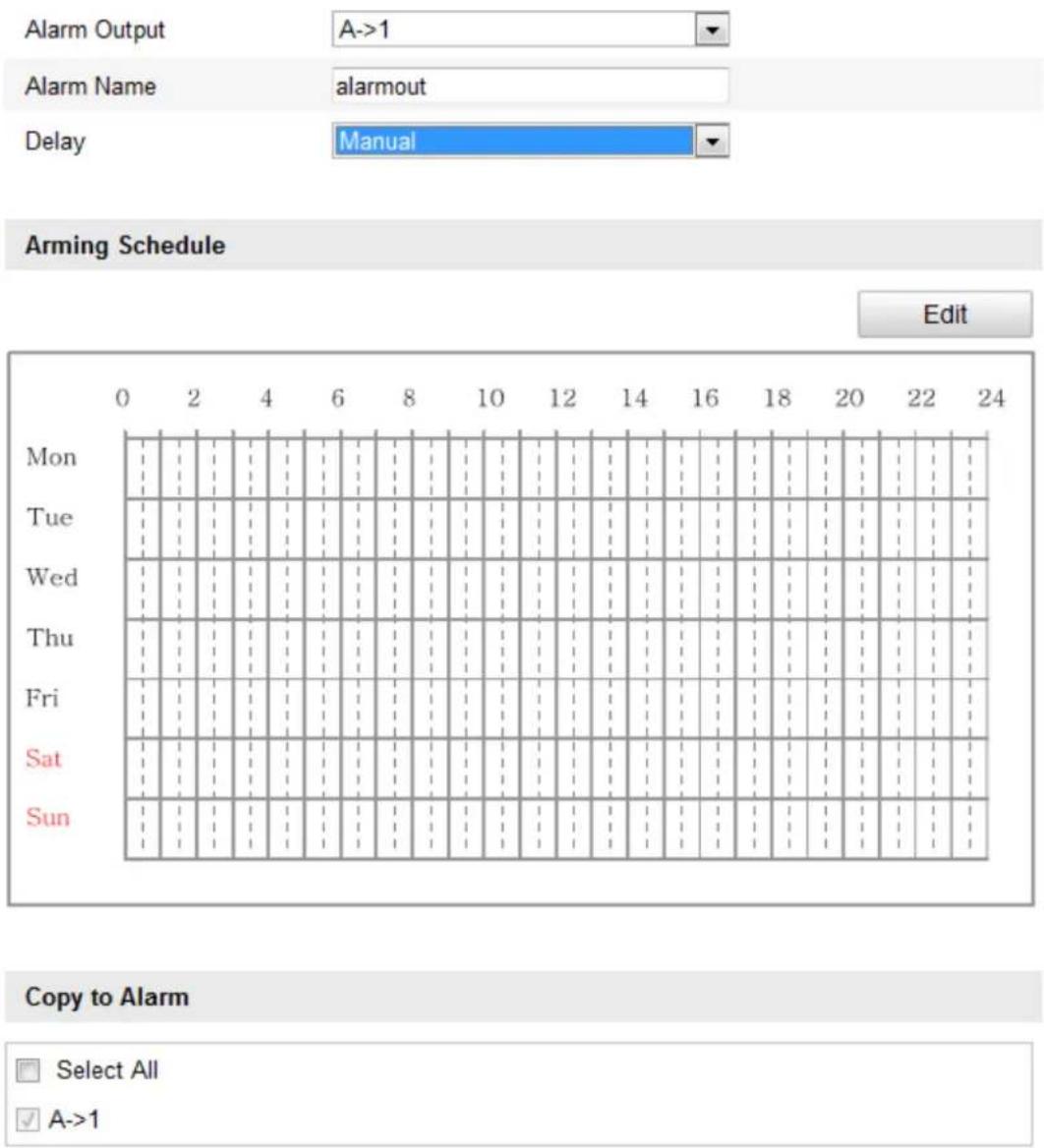
text_image
Alarm Output A->1 Alarm Name alarmout Delay Manual Arming Schedule Edit Mon Tue Wed Thu Fri Sat Sun Copy to Alarm Select All A->1Figure 6-46 Alarm Output Sengs
6.6.6 Handling Excepon
The exception type can be HDD full, HDD error, network disconnected, IP address conicted and illegal login to the speed domes.
Steps:
- Enter the Excepon Sengs interface:
Conguraon > Advanced Conguraon> Events > Excepon - Check the checkbox to set the acons taken for the Excepon alarm. Refer to Step 3 Set the Alarm Actions Taken for Motion Detecon in Secon 6.6.1 Conguring Moon Detecon.
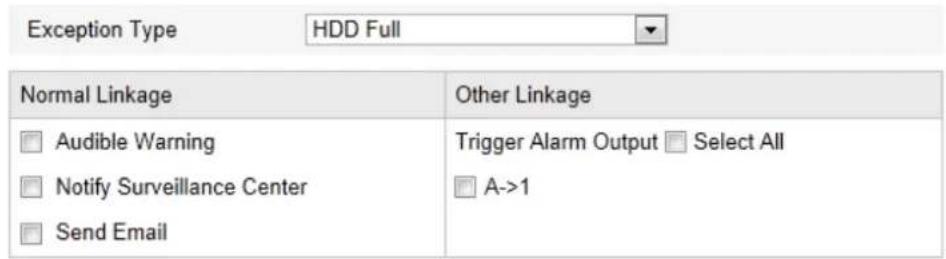
text_image
Exception Type HDD Full Normal Linkage Other Linkage Audible Warning Trigger Alarm Output Select All Notify Surveillance Center A->1 Send EmailFigure 6-47 Exception Settings
- Click to save the settings.
6.6.7 Conguring Email Sengs
Purpose:
The system can be configured to send an Email notification to all designated receivers if an alarm event is detected, e.g., motion detection event, video loss, tamper-proof, etc.
Before you start:
Please configure the DNS Server settings under Basic Conguraon > Network > TCP/IP or Advanced Conguraon > Network > TCP/IP before using the Email function.
Steps:
- Enter the Email Settings interface:
Conguraon > Advanced Conguraon > Events > Email
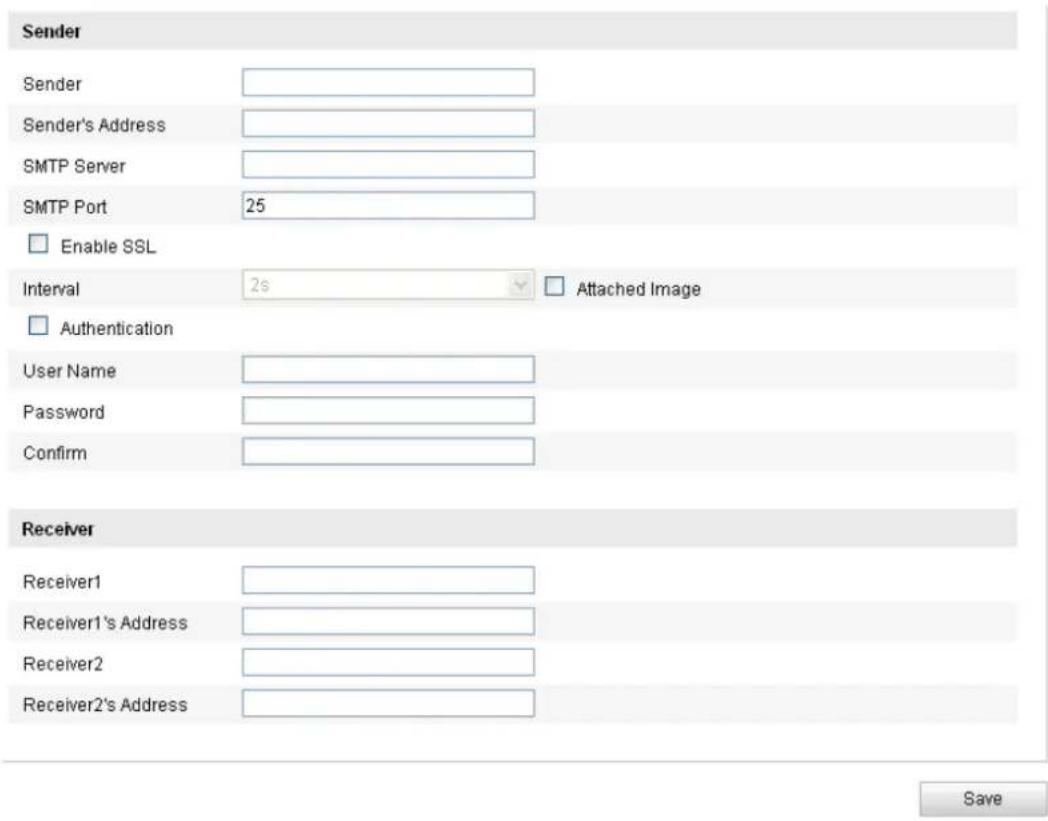
text_image
Sender Sender Sender's Address SMTP Server SMTP Port 25 Enable SSL Interval 2s Attached Image Authentication User Name Password Confirm Receiver Receiver1 Receiver1's Address Receiver2 Receiver2's Address SaveFigure 6-48 Email Sengs
- Congure the following sengs:
Sender: The name of the email sender.
Sender's Address: The email address of the sender.
SMTP Server: The SMTP Server IP address or host name (e.g., smtp.263xmail.com).
SMTP Port: The SMTP port. The default TCP/IP port for SMTP is 25.
Enable SSL: Check the checkbox to enable SSL if it is required by the SMTP server.
Aached Image: Check the checkbox of Aached Image if you want to send emails with aached alarm images.
Interval: The interval refers to the me between two acons of sending aached pictures.
Authencaon (oponal): If your email server requires authencaon, check this checkbox to use authencaon to log in to this server and enter the login user name and password.
Receiver: Select the receiver to which the email is sent. Up to 2 receivers can be congured.
Receiver: The name of the user to be noed.
Receiver's Address: The email address of user to be noed.
- Click to save the sengs.
6.6.8 Conguring Snapshot Sengs
Purpose:
You can congregate the scheduled snapshot and event-triggered snapshot. You can upload the captured pictures to a FTP server.
Basic Sengs
Steps:
- Enter the Snapshot Sengs interface:
Conguraon > Advanced Conguraon > Events > Snapshot - Check the Enable Timing Snapshot checkbox to enable connuous snapshot. Check the Enable Event-triggered Snapshot checkbox to check event-triggered snapshot.
- Select the quality of the snapshot.
- Set the me interval between two snapshots.
- Click to save the sengs.
Uploading to FTP
Note: Please make sure that the FTP server is online.
You can follow below conguraon instrucons to upload the snapshots to FTP.
- Upload connuous snapshots to FTP
Steps:
1) Congure the FTP sengs and check ☑ Upload Picture checkbox in FTP Sengs interface. Please refer to Secon 6.3.8 Conguring FTP Sengs for more details to congure FTP parameters.
2) Check the Enable Timing Snapshot checkbox.
- Upload event-triggered snapshots to FTP
Steps:
1) Congure the FTP seings and check ☑ Upload Picture checkbox in FTP Sengs interface. Please refer to Secon 6.3.8 Conguring FTP Sengs for more details to congure FTP parameters.
2) Check ☑ Upload to FTP checkbox in Moon Detecon Sengs or Alarm Input interface. Please refer to Step 3 Set the Alarm Acons Taken for Moon Detection in Secon 6.6.1 Conguring Moon Detecon, or Step 4 Conguring External Alarm Input in Secon 6.6.1 Conguring Moon Detecon.
3) Check the Enable Event-triggered Snapshot checkbox.
Timing
Enable Timing Snapshot
Format JPEG
Resolution 1920*1080
Quality High
Interval 0 millisecond
Event-Triggered
√ Enable Event-Triggered Snapshot
Format JPEG
Resolution 1920*1080
Quality High
Interval 0 millisecond
Capture Number 4
Figure 6-49 Snapshot Sengs
Chapter 7 Record Sengs
Before you start:
To congure record sengs, please make sure that you have the network storage device within the network or the SD card inserted in your speed dome.
7.1 Conguring NAS Sengs
Before you start:
The network disk should be available within the network and properly congured to store the recorded les, log les, etc.
Steps:
1. Add the network disk
(1) Enter the NAS (Network-Aached Storage) Sengs interface:
Conguraon > Advanced Conguraon > Storage > NAS
| HDD No. | Type | Server Address | File Path |
| 1 | NAS | 10.99.105.249 | /dvr/test |
| 2 | NAS | ||
| 3 | NAS | ||
| 4 | NAS |
Figure 7-1 Add Network Disk
(2) Enter the IP address of the network disk, and the default format of le path is /dvr/share as shown in Figure 7-1.
Note: The network disk le path name share is user-dened while creang the DVR network storage. Please refer to the User Manual of NAS for creang the le path.
(3) Click to add the network disk.
Note: Aer having saved successfully, you need to reboot the speed dome to acvate the sengs.
2. Initialize the added network disk.
(1) Enter the HDD Sengs interface (Advanced Conguraon > Storage > Storage Management), in which you can view the capacity, free space, status, type and property of the disk.
(2) If the status of the disk is Uninialized as shown in Figure 7-2, check the corresponding checkbox to select the disk and click Format to start initializing the disk.

text_image
HDD Device List Format ✓ HDD No. Capacity Free space Status Type Property Progress ✓ g 0.96GB 0.00GB Uninitialized NAS R/WFigure 7-2 Inialize Disk

text_image
HDD Device List Format ✓ HDD No. Capacity Free space Status Type Property Progress ✓ 9 39.06GB 0.00GB Uninitialized NAS R/W 7%Figure 7-3 Inializing
When the inializaon completed, the status of disk will become Normal as shown in Figure 7-4.

text_image
HDD Device List Format □ HDD No. Capacity Free space Status Type Property Progress □ 9 39.06GB 38.75GB Normal NAS R/WFigure 7-4 View Disk Status
Notes:
● Up to 8 NAS disks can be connected to the speed dome.
- To inialize and use the SD card aer insert it to the speed dome, please refer to the steps of NAS disk inializaon.
7.2 Conguring Recording Schedule
Purpose:
There are two kinds of recording for the speed domes: manual recording and scheduled recording. For the manual recording, refer to Secon 4.4 Recording and Capturing Pictures Manually. In this secon, you can follow the instrucons to conjure the scheduled recording. By default, the record les of scheduled recording are stored in the SD card (if supported) or in the network disk.
Steps:
- Enter the Record Schedule Sengs interface:
Conguraon > Advanced Configuraon> Storage > Record Schedule

text_image
Pre-record 5s Post-record 5s√ Enable Record Schedule
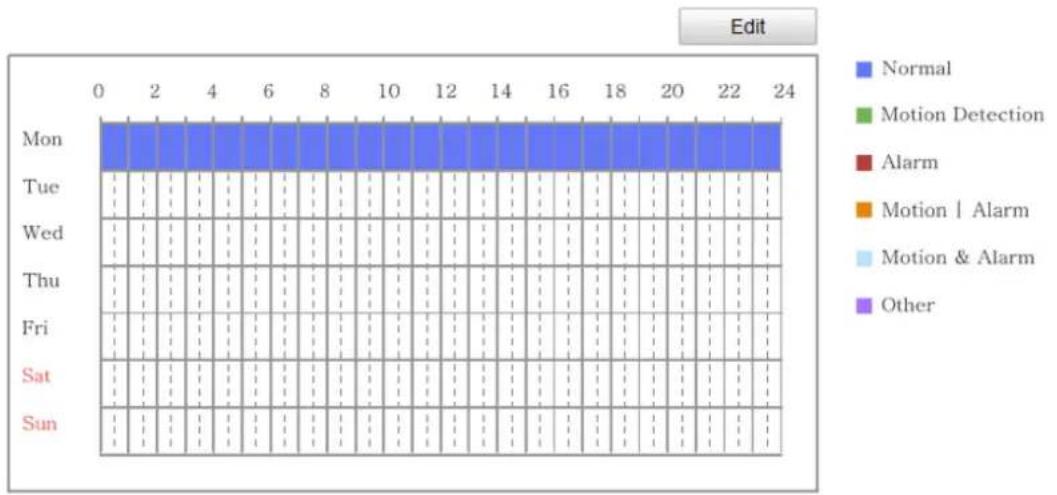
Figure 7-5 Recording Schedule Interface
- Check the checkbox of Enable Record Schedule to enable scheduled recording.
- Set the record parameters of the speed dome.

text_image
Pre-record 5s Post-record 5sFigure 7-6 Record Parameters
- Pre-record: The me you set to start recording before the scheduled me or the event. For example, if an alarm triggers recording at 10:00, and the pre-record me is set as 5 seconds, the speed dome starts to record at 9:59:55.
The Pre-record me can be congured as No Pre-record, 5 s, 10 s, 15 s, 20 s, 25 s, 30 s or not limited.
Note: The pre-record me changes according to the video bitrate.
- Post-record: The me you set to stop recording aer the scheduled me or the event. For example, if an alarm triggered recording ends at 11:00, and the post-record me is set as 5 seconds, the speed dome records unl 11:00:05. The Post-record me can be congured as 5 s, 10 s, 30 s, 1 min, 2 min, 5 min or 10 min.
Note: The Pre-record and Post-record parameters vary depending on the speed dome model.
- Click to edit the record schedule.
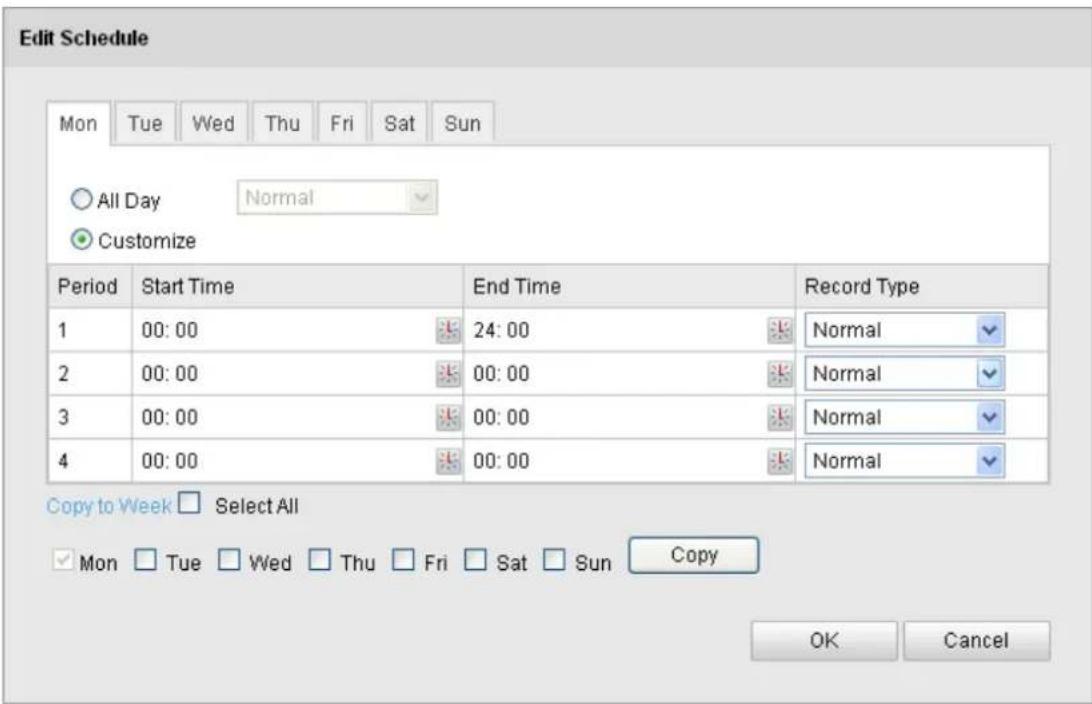
text_image
Edit Schedule Mon Tue Wed Thu Fri Sat Sun ○ All Day Normal ● Customize Period Start Time End Time Record Type 1 00:00 24:00 Normal 2 00:00 00:00 Normal 3 00:00 00:00 Normal 4 00:00 00:00 Normal Copy to Week □ Select All ✓ Mon □ Tue □ Wed □ Thu □ Fri □ Sat □ Sun Copy OK CancelFigure 7-7 Record Schedule
- Choose the day to set the record schedule.
(1) Set all-day record or segment record:
If you want to congregate the all-day recording, please check the All Day checkbox.
If you want to record in dierent me seconds, check the Customize checkbox. Set the Start Time and End Time.
Note: The me of each segment can't be overlapped. Up to 4 segments can be congured.
(2) Select a Record Type. The record type can be Normal, Moon Detecon,
Alarm, Moon | Alarm, Moon & Alarm.
Normal
If you select Normal, the video will be recorded automatically according to the me of the schedule.
◆ Record Triggered by Moon Detecon
If you select Motion Detecon, the video will be recorded when the moon is detected.
Besides conguring the recording schedule, you have to set the moon detecon area and check the checkbox of Trigger Channel in the Linkage Method of Moon Detecon Sengs interface. For detailed informaon, please refer to the Step 1 Set the Moon Detection Area in the Secon 6.6.1 Conguring Moon Detecon.
◆ Record Triggered by Alarm
If you select Alarm, the video will be recorded when the alarm is triggered
via the external alarm input channels.
Besides conguring the recording schedule, you have to set the Alarm Type and check the checkbox of Trigger Channel in the Linkage Method of Alarm Input Sengs interface. For detailed informaon, please refer to Secon 6.6.4 Configuring External Alarm Input.
◆ Record Triggered by Moon & Alarm
If you select Moon & Alarm, the video will be recorded when the moon and alarm are triggered at the same me.
Besides conguring the recording schedule, you have to congure the sengs on the Motion Detecon and Alarm Input Seings interfaces. Please refer to Secon 6.6.1 and Secon 6.6.4 for detailed informaon.
◆ Record Triggered by Moon | Alarm
If you select Moon | Alarm, the video will be recorded when the external alarm is triggered or the moon is detected.
Besides conguring the recording schedule, you have to congure the sengs on the Motion Detecon and Alarm Input Seings interfaces. Please refer to Secon 6.6.1 and Secon 6.6.4 for detailed informaon.
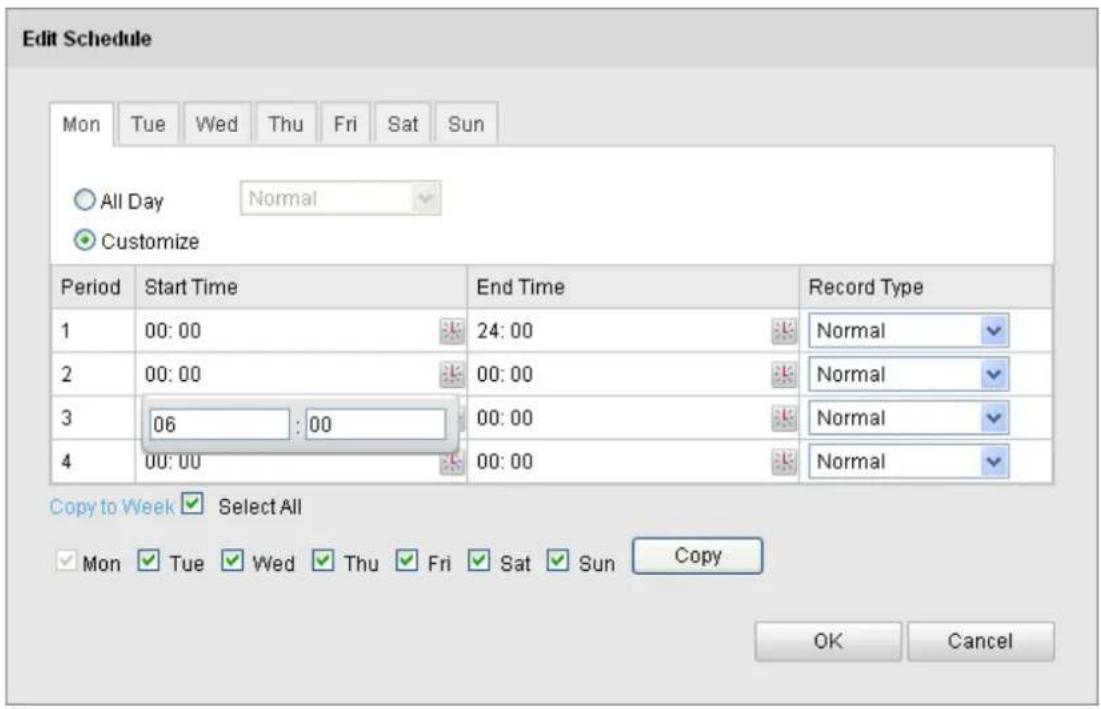
text_image
Edit Schedule Mon Tue Wed Thu Fri Sat Sun All Day Normal Customize Period Start Time End Time Record Type 1 00:00 24:00 Normal 2 00:00 00:00 Normal 3 06 : 00 00:00 Normal 4 00:00 00:00 Normal Copy to Week Select All Mon Tue Wed Thu Fri Sat Sun Copy OK CancelFigure 7-8 Edit Record Schedule
(3) Check the checkbox and click all to copy songs of this
day to the whole week. You can also check any of the checkboxes before the date and click Copy
(4) Click to save the sengs and exit the Edit Record Schedule
interface.
- Click to save the sengs.
Chapter 8 Playback
Purpose:
This secon explains how to view the remotely recorded video les stored in the network disks or SD cards.
Task 1: To play back the video les
Steps:
- Click ____ on the menu bar to enter playback interface.
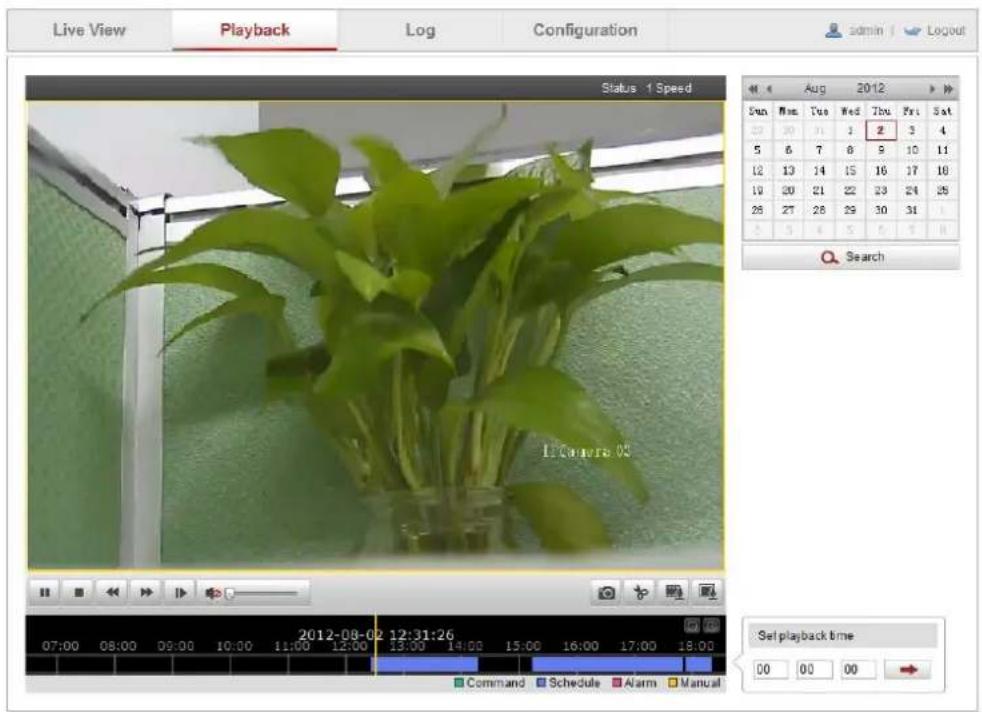
text_image
Live View Playback Log Configuration admin | Logout Status 1 Speed Sun Mon Tue Wed Tho Fri Sat 23 20 11 1 2 3 4 5 6 7 8 9 10 11 12 13 14 15 16 17 18 19 20 21 22 23 24 25 28 27 28 29 30 31Search
11 Cameras 03 2012-08-02 12:31:26 Command Schedule Alarm Manual Set playback time 00 00 00Figure 8-1 Playback Interface
- Select the date and click

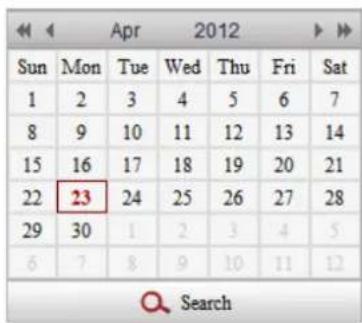
text_image
Sun Mon Tue Wed Thu Fri Sat 1 2 3 4 5 6 7 8 9 10 11 12 13 14 15 16 17 18 19 20 21 22 23 24 25 26 27 28 29 30 1 2 3 4 5 6 7 8 9 10 11 12 SearchFigure 8-2 Search Video
- Click to play the video les found on this date.
The toolbar on the boom of Playback interface can be used to control playing process.

text_image
Screenshot of a media player control bar with playback, audio, and video iconsFigure 8-3 Playback Toolbar
Table 8-1 Descripon of the buons
| Buon | Operaon | Buon | Operaon |
 | Play |  | Capture a picture |
 | Pause |  | Start/Stop clipping video les |
 | Stop |  | Audio on and adjust volume/Mute |
 | Speed down |  | Download video les |
 | Speed up |  | Download captured pictures |
| Status 1 Speed | Display playback status | Playback by frame |
Note: You can choose the le paths locally for downloaded playback video les and pictures in Local Conguraon interface. Please refer to Secon 6.1 Conguring Local Parameters for details.
Drag the progress bar with the mouse to locate the exact playback point. You can
also input the me and click to locate the playback point in the Set playback me eld. You can also click to zoom out/in the progress bar.

Figure 8-4 Set Playback Time

text_image
2012-04-23 09:57:54 Command Schedule Alarm ManualFigure 8-5 Progress Bar
The dierent colors of the video on the progress bar stand for the dierent video
types as shown in Figure 8-6.

Figure 8-6 Video Types
Task 2: To download the video les
Steps:
- Click 📄 on the playback interface. The pop-up menu is shown in Figure 8-7. All the video les are listed.
| ☐ | No. | File Name | Start Time | End Time | File Size | Progress |
| ☐ | 1 | ch01_0800000000000000 | 2012-08-14 10:12:31 | 2012-08-14 10:30:29 | 43 MB | |
| ☐ | 2 | ch01_08000000000000100 | 2012-08-14 10:33:00 | 2012-08-14 10:43:50 | 27 MB | |
| ☐ | 3 | ch01_0800000000000200 | 2012-08-14 10:45:08 | 2012-08-14 10:56:20 | 28 MB | |
| ☐ | 4 | ch01_0800000000000301 | 2012-08-14 11:10:45 | 2012-08-14 11:11:01 | 1 MB | |
| ☐ | 5 | ch01_0800000000000401 | 2012-08-14 11:11:09 | 2012-08-14 11:11:17 | 1 MB | |
| ☐ | 6 | ch01_0800000000000501 | 2012-08-14 11:12:13 | 2012-08-14 11:12:21 | 1 MB | |
| ☐ | 7 | ch01_080000000000601 | 2012-08-14 11:13:43 | 2012-08-14 11:14:28 | 3 MB | |
| ☐ | 8 | ch01_080000000000701 | 2012-08-14 11:15:14 | 2012-08-14 11:15:30 | 1 MB | |
| ☐ | 9 | ch01_080000000000801 | 2012-08-14 11:15:35 | 2012-08-14 11:16:24 | 2 MB | |
| ☐ | 10 | ch01_080000000000901 | 2012-08-14 11:17:09 | 2012-08-14 11:17:33 | 1 MB | |
| ☐ | 11 | ch01_080000000001001 | 2012-08-14 11:17:47 | 2012-08-14 11:18:03 | 1 MB | |
| ☐ | 12 | ch01_ 88 88 88 88 88 88 88 88 88 88 88 88 88 88 88 88 88 88 88 88 88 88 88 88 88 88 88 88 88 88 88 88 88 88, 88, 88, 88, 88, 88, 88, 88, 88, 88, 88, 88, 88, 88, 88, 88, 88, 88, 88, 88, 88, 88, 88, 88, 8 |
Figure 8-7 Video Downloading interface
-
Check the checkbox √ in front of the video les that you need to download.
-
Click to download the video les.
Notes:
● The progress rao 6% displays the downloading rao of the video le.
- You can click to stop the downloading.
● The total number displays the amount of the video les.
● The video les are not all listed on one page. You can click
First Page Prev Page 1/2 Next Page Last Page to turn pages.
Chapter 9 Log Searching
Purpose:
The operaon, alarm, excepon and informaon of the speed dome can be stored in log les. You can also export the log les on your demand.
Before you start:
Please conjure network storage for the speed dome or insert a SD card in the speed dome.
Steps:
- Click on the menu bar to enter log searching interface.
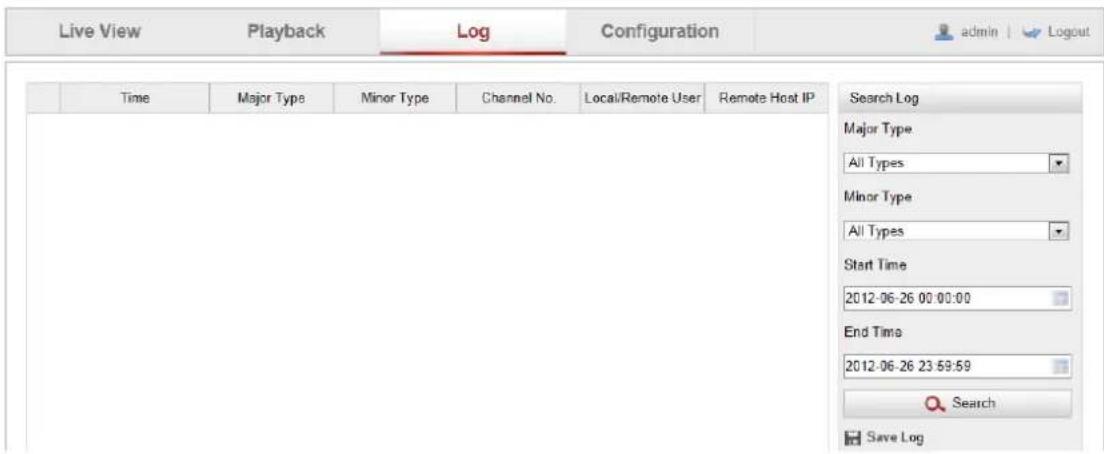
text_image
Live View Playback Log Configuration adults | Logout Time Major Type Minor Type Channel No. Local/Remote User Remote Host IP Search Log Major Type All Types Minor Type All Types Start Time 2012-06-26 00:00:00 End Time 2012-06-26 23:59:59 Search Save LogFigure 9-1 Log Searching Interface
- Set the log search conditions to specify the search, including the Major Type, Minor Type, Start Time and End Time as shown in Figure 9-2.
- Click Search to search log les. The matched log les will be displayed on the Log interface.
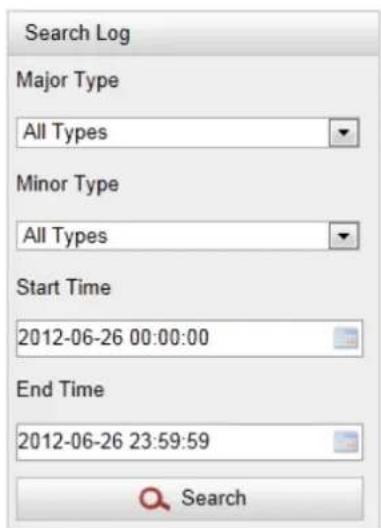
text_image
Search Log Major Type All Types Minor Type All Types Start Time 2012-06-26 00:00:00 End Time 2012-06-26 23:59:59 SearchFigure 9-2 Log Searching
- To export the log les, click
Save Log
to save the log les in your computer.
Chapter 10 Others
10.1 Managing User Accounts
Enter the User Management interface:
Conguraon >Basic Conguraon> Security >User
Or Conguraon > Advanced Conguraon> Security > User
The admin user has access to create, modify or delete other accounts. Up to 32 user accounts can be created.
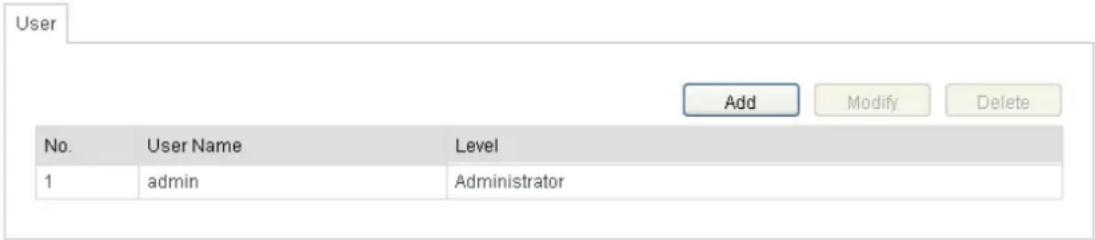
text_image
User Add Modify Delete No. User Name Level 1 admin AdministratorFigure 10-1 User Informaon
- Add a User
Steps:
- Click to add a user.
- Input the new User Name, select Level and input Password.
Note: The level indicates the permissions you give to the user. You can denote the user as Operator or User.
- In the Basic Permission eld and Camera Conguraon eld, you can check or uncheck the permissions for the new user.
- Click OK to nish the user addition.
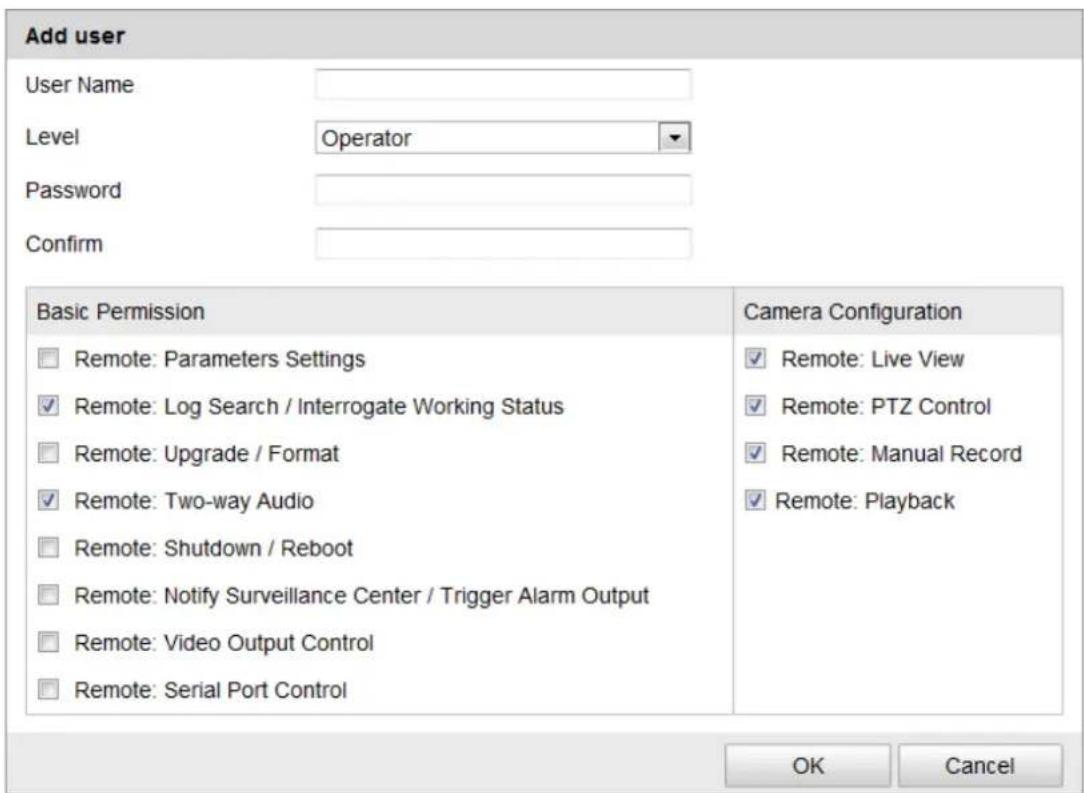
text_image
Add user User Name Level Operator Password Confirm Basic Permission Camera Configuration □ Remote: Parameters Settings ✓ Remote: Live View ✓ Remote: Log Search / Interrogate Working Status ✓ Remote: PTZ Control □ Remote: Upgrade / Format ✓ Remote: Manual Record ✓ Remote: Two-way Audio ✓ Remote: Playback □ Remote: Shutdown / Reboot □ Remote: Notify Surveillance Center / Trigger Alarm Output □ Remote: Video Output Control □ Remote: Serial Port Control OK CancelFigure 10-2 Add a User
- Modify a User
Steps:
- Le-click to select the user from the list and click .
- Modify the User Name, Level or Password.
- In the Basic Permission eld and Camera Conguraon eld, you can check or uncheck the permissions.
- Click to nish the user modicaon.

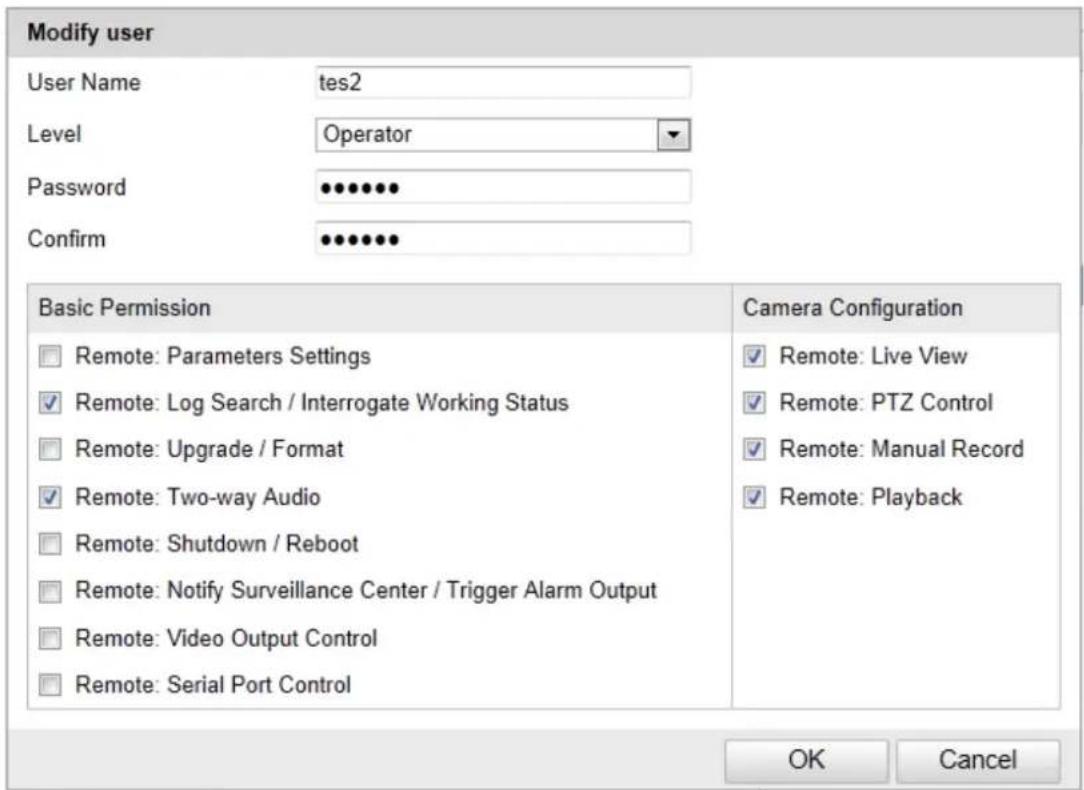
text_image
Modify user User Name tes2 Level Operator Password ••••••• Confirm ••••••• Basic Permission Camera Configuration □ Remote: Parameters Settings ✓ Remote: Log Search / Interrogate Working Status □ Remote: Upgrade / Format ✓ Remote: Two-way Audio □ Remote: Shutdown / Reboot □ Remote: Notify Surveillance Center / Trigger Alarm Output □ Remote: Video Output Control □ Remote: Serial Port Control ✓ Remote: Live View ✓ Remote: PTZ Control ✓ Remote: Manual Record ✓ Remote: Playback OK CancelFigure 10-3 Modify a User
- Delete a User
Steps:
- Le-click the user name you want to delete and click . Delete
- Click OK on the pop-up dialogue box to delete the user.
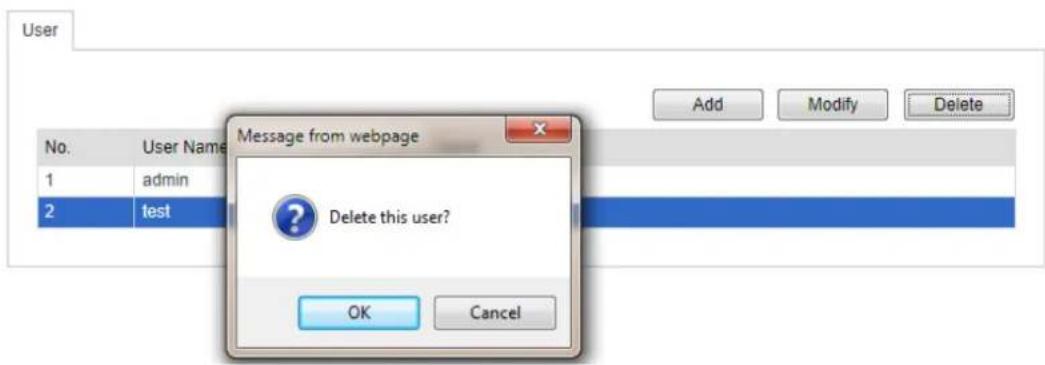
text_image
User No. User Name Message from webpage 1 admin 2 test Delete this user? OK Cancel Add Modify DeleteFigure 10-4 Delete a User
10.2 Conguring RTSP Authencaon
Purpose:
You can specifically secure the stream data of live view.
Steps:
- Enter the RTSP Authencaon interface:
Conguraon> Advanced Configuraon> Security > RTSP Authencaon
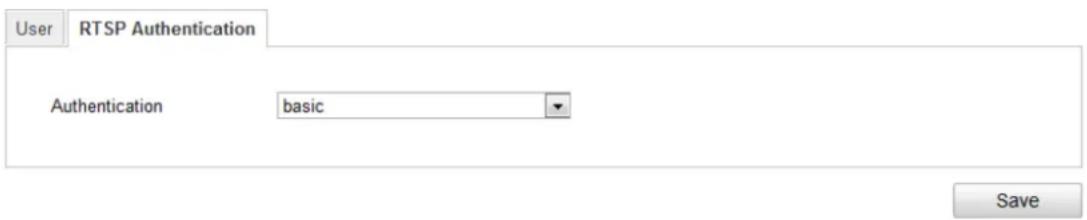
text_image
User RTSP Authentication Authentication basic SaveFigure 10-5 RTSP Authencaon
-
Select the Authencaon type basic or disable in the drop-down list to enable or disable the RTSP authencaon.
-
Click to save the sengs.
10.3 Viewing Device Informaon
Enter the Device Informaon interface:
Conguraon > Basic Configuraon> System > Device Informaon
Or Conguraon > Advanced Conguraon> System > Device Informaon
In the Device Informaon interface, you can edit the Device Name.
Other informaon of the network speed dome, such as Model, Serial No., Firmware Version, Encoding Version, Number of Channels, Number of HDDs, Number of Alarm Input and Number of Alarm Output are displayed. The informaon cannot be changed in this menu. It is the reference for maintenance or modicaon in future.
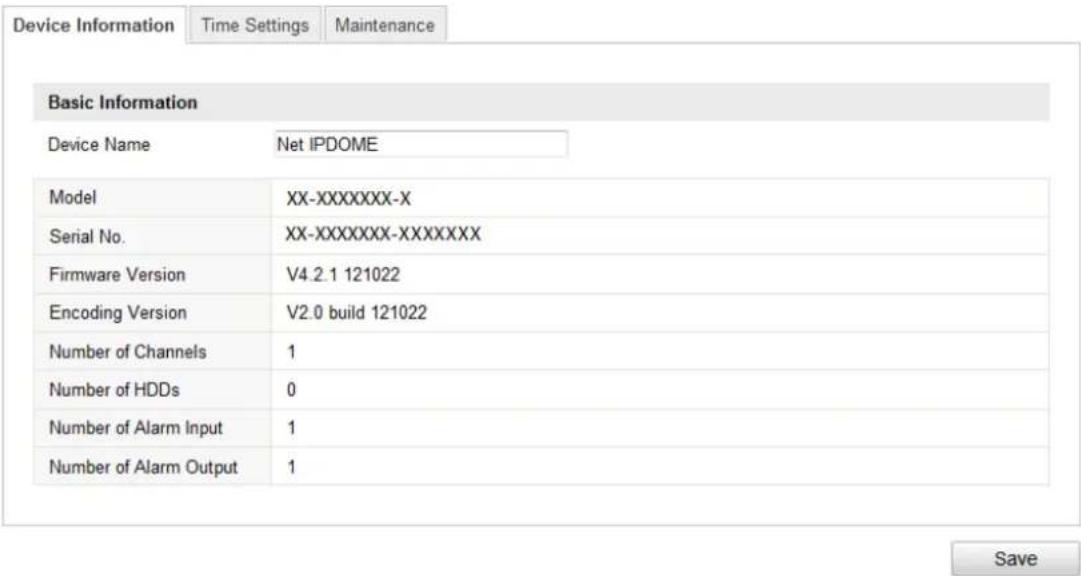
text_image
Device Information Time Settings Maintenance Basic Information Device Name Net IPDOME Model XX-XXXXXXXX-X Serial No. XX-XXXXXXXX-XXXXXXXXX Firmware Version V4.2.1 121022 Encoding Version V2.0 build 121022 Number of Channels 1 Number of HDDs 0 Number of Alarm Input 1 Number of Alarm Output 1 SaveFigure 10-6 Device Informaon
10.4 Maintenance
10.4.1 Reboong the Speed Dome
Steps:
- Enter the Maintenance interface:
Conguraon > Basic Conguraon> System > Maintenance
Or Conguraon > Advanced Conguraon> System > Maintenance:
- Click Reboot to reboot the network speed dome.
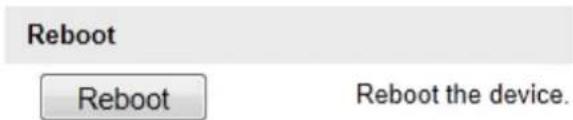
text_image
Reboot Reboot the device.Figure 10-7 Reboot the Device
10.4.2 Restoring Default Sengs
Steps:
- Enter the Maintenance interface:
Conguraon > Basic Conguraon> System > Maintenance
Or Conguraon > Advanced Conguraon> System > Maintenance
- Click or to restore the default sengs.
Note: Clicking restores all the parameters to default sengs including the IP address and user informaon. Please use this buon with cauon.

text_image
Default Restore Reset all the parameters, except the IP parameters and user information, to the default settings. Default Restore all parameters to default settings.Figure 10-8 Restore Default Sengs
10.4.3 Imporng/Exporng Conguraon File
Steps:
- Enter the Maintenance interface:
Conguraon > Basic Conguraon> System > Maintenance
Or Conguraon > Advanced Conguraon> System > Maintenance
- Click Browse to select the local conguraon le and then click Import
to start imporng conguraon le.
Note: You need to reboot the speed dome aer imporng conguraon le.
- Click Export and set the saving path to save the conguraon le in local storage.
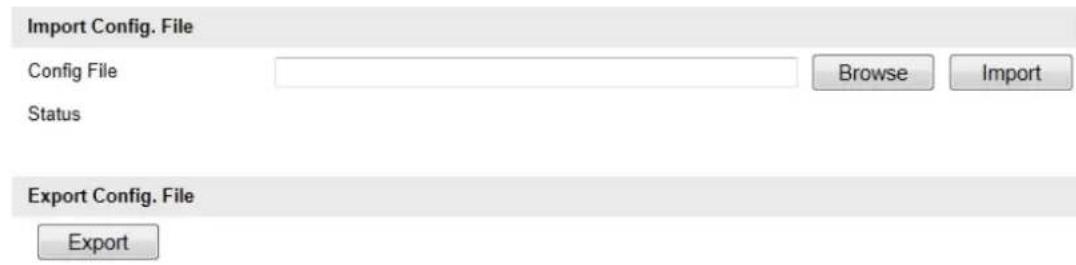
text_image
Import Config. File Config File Status Browse Import Export Config. File ExportFigure 10-9 Import/Export Conguraon File
10.4.4 Upgrading the System
Steps:
- Enter the Maintenance interface:
Conguraon > Basic Conguraon> System > Maintenance
Or Conguraon > Advanced Conguraon> System > Maintenance
- Click Browse to select the local upgrade le and then click
Upgrade
to start remote upgrade.
Note: The upgrading process will take 1 to 10 minutes. Please don't disconnect power of the speed dome during the process. The speed dome reboots automacally aer upgrading.
Remote Upgrade
Firmware
Browse
Upgrade
Status
Note: The upgrading process will be 1 to 10 minutes, please don't disconnect power to the device during the process. The device reboots automatically after upgrading.
Figure 10-10 Remote Upgrade
10.5 RS-485 Settings
Purpose:
The RS-485 serial port is used to control the PTZ of the camera. The conguring of the PTZ parameters should be done before you control the PTZ unit.
Steps:
- Enter RS-485 Port Seng interface:
Conguraon> Advanced Conguraon> System > RS485
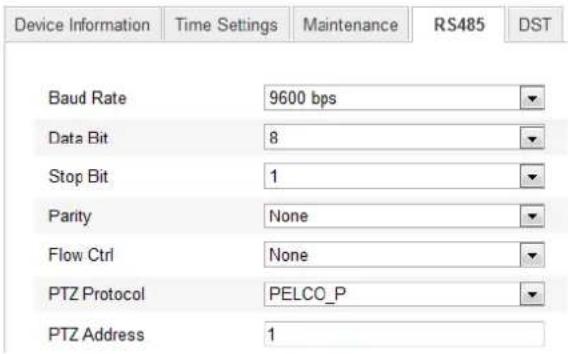
text_image
Device Information Time Settings Maintenance RS485 DST Baud Rate 9600 bps Data Bit 8 Stop Bit 1 Parity None Flow Ctrl None PTZ Protocol PELCO_P PTZ Address 1Figure 10-11 RS-485 Sengs
- Set the RS-485 parameters and click to save the sengs.
By default, the Baud Rate is set as 9600 bps, the Data Bit is 8, the stop bit is 1 and the Parity and Flow Control is None.
Note: The Baud Rate, PTZ Protocol and PTZ Address parameters of the speed dome should be exactly the same as those of the remote control device.
Appendix
Appendix 1 SADP Soware Introducon
- Descripon of SADP
SADP (Search Acve Devices Protocol) is a kind of user-friendly and installaon-free online device search tool. It searches the acve online devices within your subnet and displays the informaon of the devices. You can also modify the basic network informaon of the devices using this soware.
- Search acve devices online
◆ Search online devices automacally
Aer launch the SADP soware, it automacally searches the online devices every 15 seconds from the subnet where your computer locates. It displays the total number and informaon of the searched devices in the Online Devices interface. Device informaon including the device type, IP address and port number, etc. will be displayed.
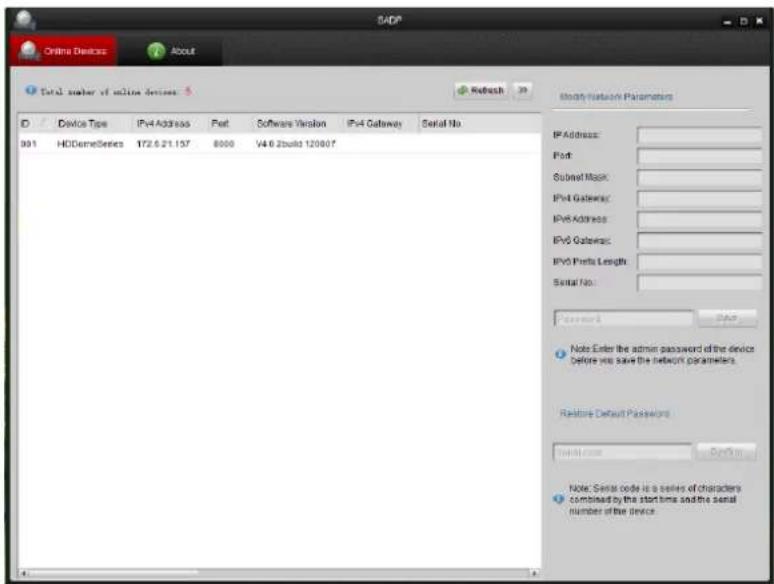
text_image
SADP Online Devices About Total number of online devices ID Device Type IPv4 Address Fct Software Version IPv4 Gateway Serial No. 001 HDDemoSeries T72.6.21.137 8000 V4.0 Zbuild 120807 Modify Network Parameters IP Address: Fct: Subset Mask: IPv4 Gateway: IPv6 Address: IPv0 Gateway: IPv5 Prefix Length: Serial No. Password Note: Enter the admin password of the device Before you save the network parameters. Relate Default Passwords Serial No. Note: Serial code is a series of characters combined by the start time and the serial number of the device.Figure A.1.1 Searching Online Devices
Note: Device can be searched and displayed in the list in 15 seconds aer it went online; it will be removed from the list in 45 seconds aer it went oine.
◆ Search online devices manually
You can also click to refresh the online device list manually. The newly searched devices will be added to the list.
Note: You can click △ or ▽ on each column heading to order the
informaon; you can click >> to expand the device table and hide the network parameter panel on the right side, or click << to show the network parameter panel.
- Modify network parameters
Steps:
- Select the device to be modified in the device list and the network parameters of the device will be displayed in the Modify Network Parameters panel on the right side.
- Edit the modiable network parameters, e.g. IP address and port number.
- Enter the password of the admin account of the device in the Password eld and click to save the changes.
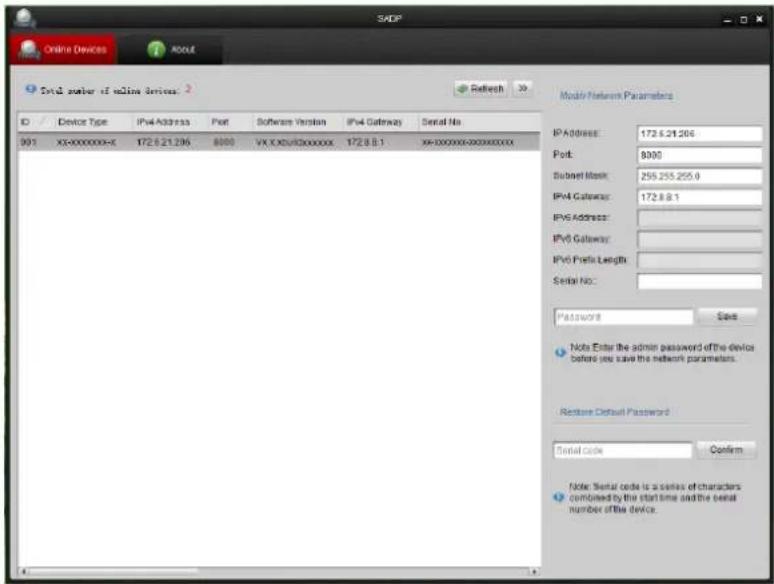
text_image
SADP Online Devices About Total number of online services. 2 Refresh Device Type IPv4 Address Port Software Version IPv4 Gateway Serial No. 001 X5-0000000-X 172.6.21.206 8000 VX XDCs/3000000 172.8.8.1 99-000000-000000000 Modify Network Parameters IP Address: 172.6.21.206 Port: 8000 Socket Mask: 255.255.255.0 IPv4 Gateway: 172.8.8.1 IPv5 Address: IPv6 Gateway: IPv6 Prefix Length: Serial No: Password Save Note: Serial the admin password of the device before you save the network parameters. Restore Default Password Serial code Confirm Note: Serial code is a series of characters combined by the start time and the serial number of the device.Figure A.1.2 Modify Network Parameters
- Contact our technical engineers to get the serial code.
Note: Serial code is a series of characters combined by the start me and the serial number of the device.
- Input the code in the Serial code eld and click Confirm to restore the default password.
Appendix 2 Port Mapping
The following sengs are for TP-LINK router (TL-R410). The sengs vary depending on dierent models of routers.
Steps:
- Select the WAN Connecon Type, as shown below:
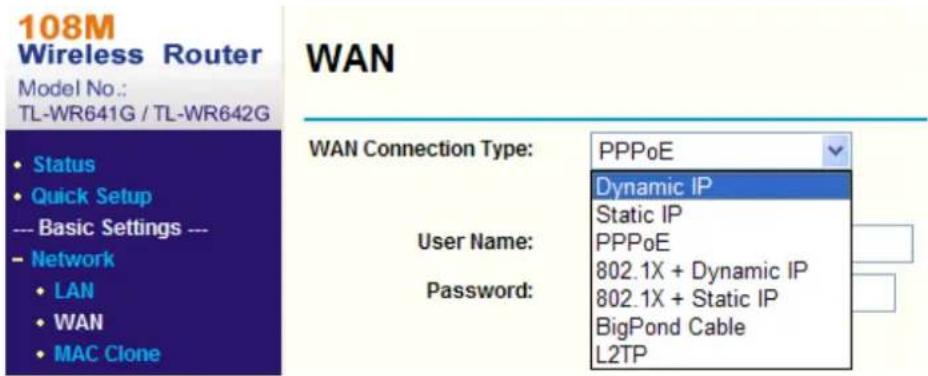
text_image
108M Wireless Router Model No.: TL-WR641G / TL-WR642G WAN Status Quick Setup --- Basic Settings --- Network LAN WAN MAC Clone WAN Connection Type: PPPoE Dynamic IP Static IP User Name: PPPoE Password: 802.1X + Dynamic IP 802.1X + Static IP BigPond Cable L2TPFigure A.2.1 Select the WAN Connecon Type
- Set the LAN parameters of the router as in the following gure, including IP address and subnet mask sengs.
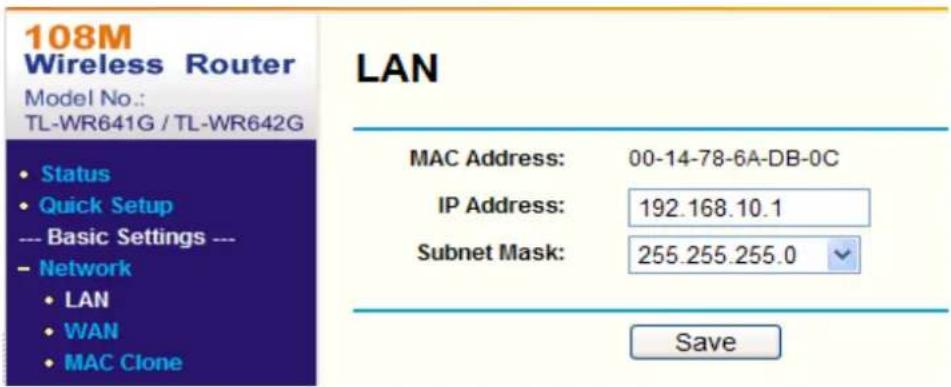
text_image
108M Wireless Router Model No.: TL-WR641G / TL-WR642G • Status • Quick Setup --- Basic Settings --- - Network • LAN • WAN • MAC Clone LAN MAC Address: 00-14-78-6A-DB-0C IP Address: 192.168.10.1 Subnet Mask: 255.255.255.0 SaveFigure A.2.2 Set the LAN parameters
- Set the port mapping in the virtual severs of Forwarding. You need to forward ports 80, 8000, 8200\~8210 and 554 for a speed dome.
Notes:
- You can change 80, 8000 and 554 ports value in the speed dome with web browser or client soware.
- In the speed dome, the 8200\~8210 ports change with the 8000 port with a constant value of 200. E.g. if the 8000 port is changed to 8005, then the 8200\~8210 ports should be changed to 8205\~8215.
Example:
When the speed domes are connected to the same router, you can forward the ports of a speed dome as 80, 8000, 8200\~8210 and 554 with IP address 192.168.1.23, and the ports of another speed dome as 81, 8001, 8201\~8211 and 555 with IP 192.168.1.24. Refer to the steps as below:
Steps:
- As the sengs menoned above, forward the port 80, 8000, 8200\~8210 and 554 for the network speed dome at 192.168.1.23
- Forward the port 81, 8001, 8201\~8211 and 555 for the network speed dome at 192.168.1.24.
- Enable ALL or TCP protocols.
- Check the Enable checkbox and click Save
text_image
Status Quick Setup --- Basic Settings --- Network Wireless --- Advanced Settings --- DHCP Forwarding Virtual Servers Port Triggering DMZ UPnP Security Static Routing Dynamic DNS --- Maintenance --- System ToolsVirtual Servers
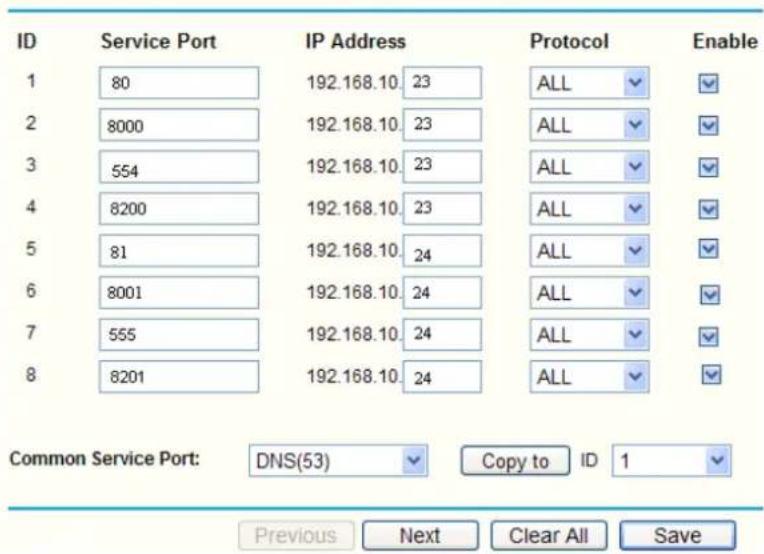
text_image
ID Service Port IP Address Protocol Enable 1 80 192.168.10.23 ALL ✓ ✓ 2 8000 192.168.10.23 ALL ✓ ✓ 3 554 192.168.10.23 ALL ✓ ✓ 4 8200 192.168.10.23 ALL ✓ ✓ 5 81 192.168.10.24 ALL ✓ ✓ 6 8001 192.168.10.24 ALL ✓ ✓ 7 555 192.168.10.24 ALL ✓ ✓ 8 8201 192.168.10.24 ALL ✓ ✓ Common Service Port: DNS(53) Copy to ID 1 ✓ Previous Next Clear All SaveFigure A.2.3 Port Mapping
Note: The port of the network speed dome cannot conict with other ports. For example, some web management port of the router is 80. Change the speed dome port if it is the same as the management port.
First Choice for Security Professionals