
SC-CH950 - Hi-Fi System JVC - Free user manual and instructions
Find the device manual for free SC-CH950 JVC in PDF.


| Product Type | Hi-Fi System |
| Brand | JVC |
| Model | SC-CH950 |
| Sound Processor Dimensions (W×H×D) | 270 × 89.5 × 270 mm |
| Sound Processor Weight | 2.0 kg |
| Tuner Amplifier Dimensions (W×H×D) | 270 × 119 × 334 mm |
| Tuner Amplifier Weight | 6.1 kg |
| CD Player Dimensions (W×H×D) | 270 × 89.5 × 258.5 mm |
| CD Player Weight | 2.1 kg |
| Cassette Deck Dimensions (W×H×D) | 270 × 119 × 262 mm |
| Cassette Deck Weight | 3.3 kg |
| Speaker System Dimensions (W×H×D) | 238 × 416 × 288 mm |
| Speaker System Weight | 6.0 kg each |
| Power Output (Main) | 2 × 60 W (6 Ω, DIN) |
| Surround Power Output | 2 × 7 W (8 Ω) |
| Power Consumption | 190 W |
| Power Supply | AC 110/127/220/240 V, 50/60 Hz |
| Dolby Pro-Logic Surround | Yes (Modes: Normal, Wide, Phantom, 3 Stereo) |
| Equalizer Modes | 5 presets (Heavy, Clear, Soft, HP Stereo, Car Stereo) |
| SFP (Simulated Listening Environment) Modes | Hall, Live, Disco, Church |
| CD Playback Features | Program, Random, Repeat, Direct Access |
| Cassette Deck | Dual deck, Dolby B/C NR, CCRT, Edit recording |
| Timer | Play/Record/Sleep timer (24-hour programmable) |
| Remote Control | Included (AAA batteries) |
| Headphone Jack | Yes (front panel) |
| Safety Features | Laser class 1, voltage selector, ventilation requirements |
Frequently Asked Questions - SC-CH950 JVC
User questions about SC-CH950 JVC
0 question about this device. Answer the ones you know or ask your own.
Ask a new question about this device
Download the instructions for your Hi-Fi System in PDF format for free! Find your manual SC-CH950 - JVC and take your electronic device back in hand. On this page are published all the documents necessary for the use of your device. SC-CH950 by JVC.
USER MANUAL SC-CH950 JVC
Operating Instructions
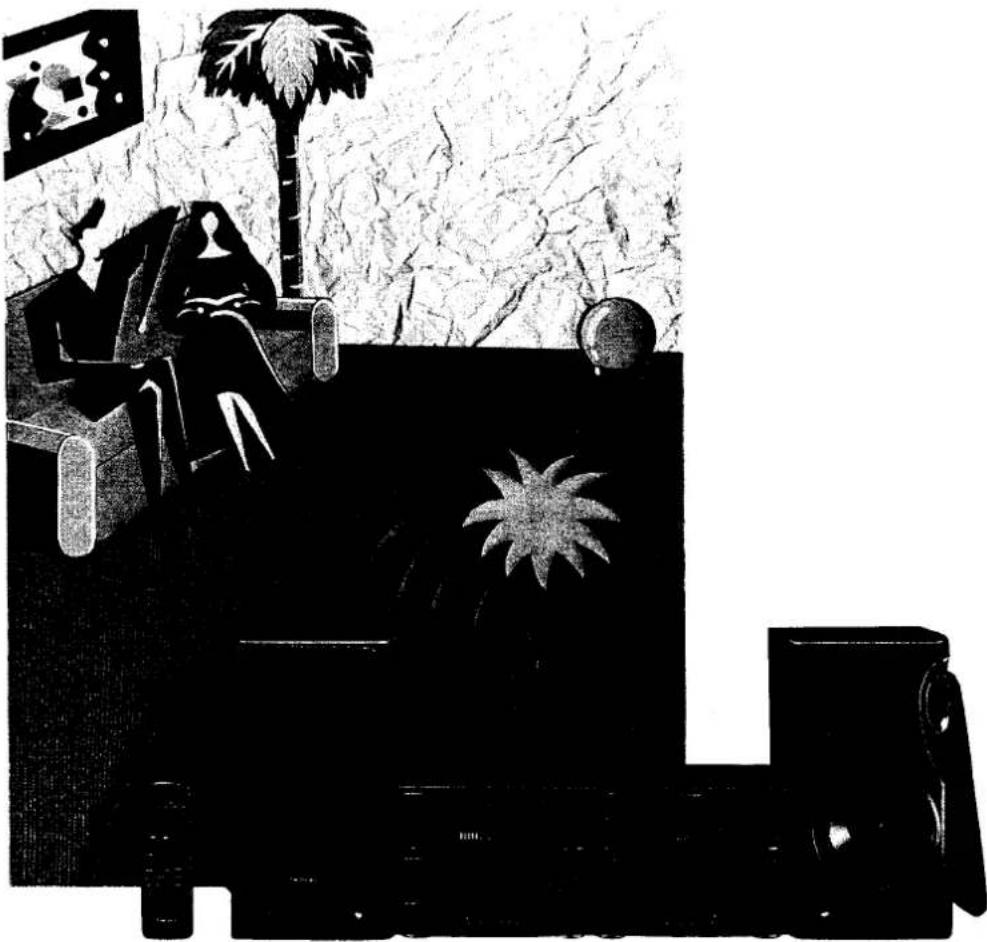
The photograph shows the SC-CH950 model.
Before operating this unit, please read these instructions completely.
Thank you for purchasing this product.
For optimum performance and safety, please read these instructions carefully.
These operating instructions are applicable to models SC-CH950 and SC-CH750.
These operating instructions, however, fundamentally explain the operation of model SC-CH950.
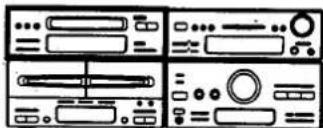
These operating instructions are applicable to the following systems.
| System | Sound processor | Tuner amplifier | Compact disc player | Cassette deck | Speakers |
| SC-CH950 | SH-CH950 | SA-CH950 | SL-CH950 | RS-CH950 | SB-CH950 |
| SC-CH750 | SH-CH750 | SA-CH750 | SL-CH750 | RS-CH750 | SB-CH750 |
Table of Contents
Suggestions for Safety 4
Before Use 4
Concerning the Remote Control 5
Preparations 6
Front Panel Controls and Functions .....14
Remote Control Unit Controls
and Functions 22
Basic Operating Procedure 24
Setting the Time of Day 25
Listening to Radio Broadcasts 26
Listening to Compact Discs 30
Listening to Tapes 37
Easy Play 41
Making a Recording 42
Edit-Recording from Compact Discs 46
Changing the Tone 53
Using the Dolby Pro-Logic Surround (Only for model SC-CH950) 61
Using the Timer 64
Enjoying the Microphone Mixing 70
Using an External Unit 72
Concerning the Display 74
Care & Use 75
Troubleshooting Guide ....78
Technical Specifications 80
CLASS 1 LASER PRODUCT
(Back of product)
DANGER-Invisible
laser radiation when
open.
AVOID DIRECT EX-
POSURE TO BEAM
(Inside of product)
CAUTION!
THIS PRODUCT UTILIZES A LASER.
USE OF CONTROLS OR ADJUSTMENTS OR PERFORMANCE OF PROCEDURES OTHER THAN THOSE SPECIFIED HEREIN MAY RESULT IN HAZARDOUS RADIATION EXPOSURE.
DO NOT OPEN COVERS AND DO NOT REPAIR YOUR-
SELF. REFER SERVICING TO QUALIFIED PERSONNEL.
THIS TUNER/RECEIVER IS CAPABLE OF RECEIVING THE NEW AM STEREO BROADCASTS FROM THE AM BAND RADIO STATIONS. HOWEVER, LIKE MANY TUNERS AND RECEIVERS CURRENTLY AVAILABLE ON THE MARKET, IT WILL REPRODUCE THIS AM STEREO SIGNAL ONLY IN AM MONO, WHICH, IN EFFECT, IS OF NO LESSER QUALITY THAN YOUR EXISTING AM MONO TUNER/RECEIVER.
Suggestions for Safety
■ Use a standard AC wall outlet
- Use from an AC power source of high voltage, such as that used for an air conditioner, is very dangerous. A fire might be caused by such a connection.
- A DC power source cannot be used. Be sure to check the power source carefully, especially on a ship or other place where DC is used.
■ Grasp the plug when disconnecting the power supply cord
- Wet hands are dangerous. A dangerous electric shock may result if the plug is touched by wet hands.
- Never place heavy items on top of the power supply cord, nor force it to bend sharply.
■ Place the unit where it will be well ventilated
Place this unit at least 10 cm (4") away from wall surfaces, etc. Be careful that curtains and similar materials do not obstruct the ventilation holes.
■ Avoid places such as the following:
in direct sunlight or in other places where the temperature is high.
In places where there is excessive vibration or humidity. Such conditions might damage the cabinet and/or other component parts and thereby shorten the unit's service life.
■ Be sure to place the unit on a flat, level surface. If the surface is inclined, a malfunction may result.
Before Use
(For the areas except for Australia and New Zealand)
Be sure to disconnect the mains cord before adjusting the voltage selector.
Use a minus (−) screwdriver to set the voltage selector (on the bottom of the tuner amplifier) to the voltage setting for the area in which the unit will be used.
■ Never attempt to repair nor reconstruct this unit
A serious electric shock might occur if this unit is repaired, disassembled or reconstructed by unauthorized persons, or if the internal parts are accidentally touched.
■ Take particular care if children are present
Never permit children to put anything, especially metal, inside this unit. A serious electric shock or malfunction could occur if articles such as coins, needles, screwdrivers, etc. are inserted through the ventilation holes, etc. of this unit.
■ If water is spilled on the unit
Be extremely careful if water is spilled on the unit, because a fire or serious electric shock might occur. Immediately disconnect the power cord plug, and consult with your dealer.
■ Avoid spray-type insecticides
Insecticides might cause cracks or "cloudiness" in the cabinet and plastic parts of this unit. The gas used in such sprays might, moreover, be ignited suddenly.
■ Never use alcohol or paint thinner
These and similar chemicals should never be used, because they might cause flaking or cloudiness of the cabinet finish.
Disconnect the power supply cord if the unit will not be used for a long time.
If the unit is left for a long time with the power ON, this not only will shorten its useful operation life, but also may cause other trouble.
If trouble occurs
If, during operation, the sound is interrupted or indicators no longer illuminate, or if an abnormal odour or smoke is detected, immediately disconnect the power cord plug, and contact your dealer or an Authorized Service Center.
(If the power supply in your area is 117 V or 120 V, set to the "127 V" position.)
Note that this unit will be seriously damaged if this setting is not made correctly. (There is no voltage selector for some countries; the correct voltage is already set.)
Concerning the Remote Control
Battery installation
1. Open the cover.
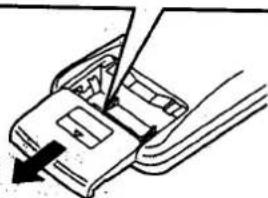
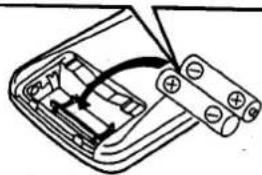
2. Insert the batteries.
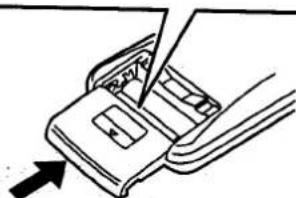
3. Close the cover.
1. Open the cover.
Press gently and slide the cover out.
2. Insert the batteries included with this system.
When you need to replace these batteries, use two UM-4 "AAA", IEC R03 (1.5 V) or equivalent batteries.
Be sure that you insert the batteries so that their positive (+) and negative (−) polarities match the polarities indicated in the compartment. Batteries installed incorrectly may leak and cause damage.
Refer to "Use of batteries" below for additional information.
3 Close the cover.
Use of batteries
Do not mix old and new batteries or batteries of different types (carbon and alkaline, etc.).
The average battery life is about one year. Although the battery life varies depending on how often the device is used, you should generally replace the batteries about once a year.
Replace the batteries if commands from the remote control transmitter do not operate the unit even when the transmitter is held close to the front panel.
Never subject batteries to excessive heat or flame; do not attempt to disassemble them; and be sure they are not short-circuited.
If you will not be using the remote control for a long period of time, remove the batteries and store them in a cool, dark place.
If a battery leaks, remove all batteries and dispose of them properly. Thoroughly clean the battery compartment before inserting new batteries.
If the leaking electrolyte comes into contact with skin or clothes, flush with water immediately.
Keep batteries out of reach of children.
Do not use rechargeable-type (nickel-cadmium) batteries.
Do not attempt to recharge alkaline or carbon batteries.
Always remove old, weak, or worn-out batteries promptly and dispose of them properly.
Do not dispose of used batteries in household rubbish.
Operation notes
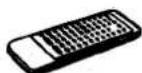
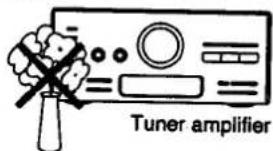
Aim the remote control's transmission window toward the tuner amplifier's sensor. Avoid any obstacles.
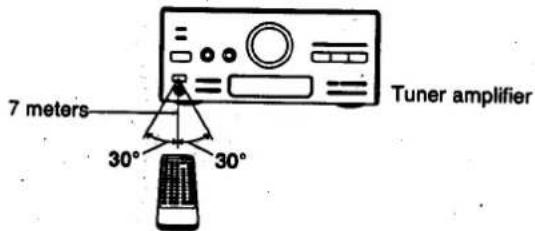
Use the remote control within a 60 degree angle from the tuner amplifier.
The reachable distance is within 7 meters directly facing toward the tuner amplifier.
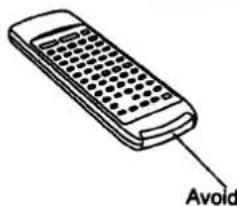
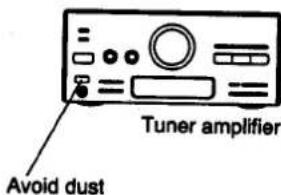
Be sure the transmission window and the tuner amplifier's sensor are free from dust. Excessive dust might prevent reception.
If direct sunlight or other strong light source strikes the remote control signal sensor part of the tuner amplifier, it may impair the remote control's operation. If there is a problem, place the tuner amplifier away from the light source.
If this system is installed in a rack with glass doors, the glass doors' thickness or color might make it necessary to use the remote control a shorter distance from the system.
Preparations
Supplied accessories
Check the packing carton for these accessories.
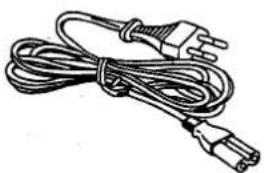
●AC power supply cord 1 pc.
(For model SC-CH950)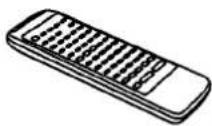
(For model SC-CH750)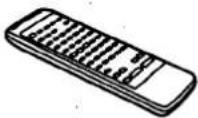
- Remote control transmitter .... 1 pc.
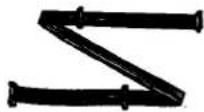
- Flat cable 1 pc.
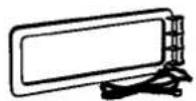
- LW/MW loop antenna 1 pc.
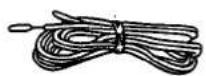
- FM indoor antenna 1 pc.
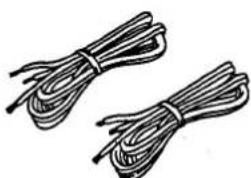
- Speaker cords 2 pcs.
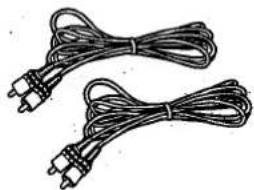
- Surround speaker cords.... 2 pcs.
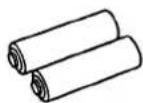
- Remote control batteries UM-4, AAA, R03 .... 2 pcs.
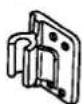
- Antenna holder .... 1 pc.
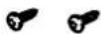
- Mounting screws .... 2 pcs.
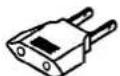
- Power plug adaptor.... 1 pc. (For areas except Australia, New Zealand)
Note:
The configurations of AC power supply cord differ according to area.
Stacking the components
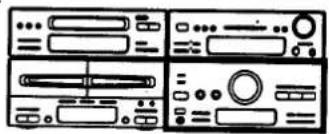
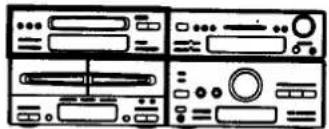
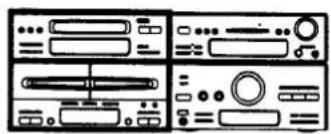
Install the various components as shown below.
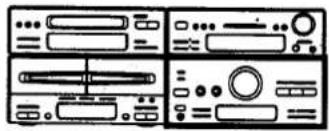
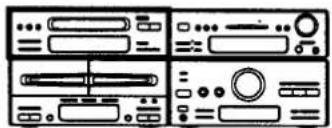
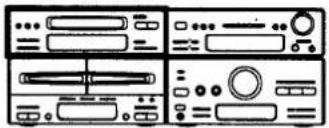
Horizontal stacking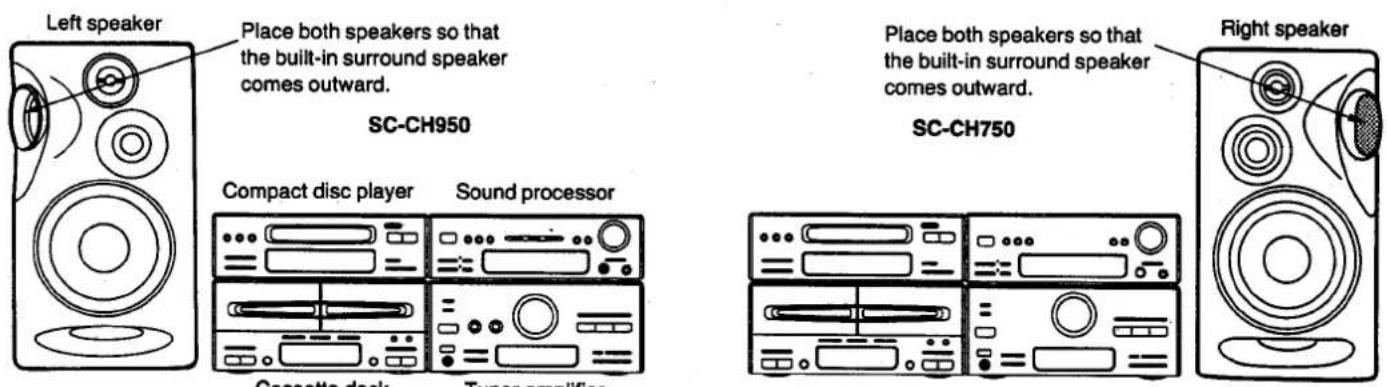
■ Vertical stacking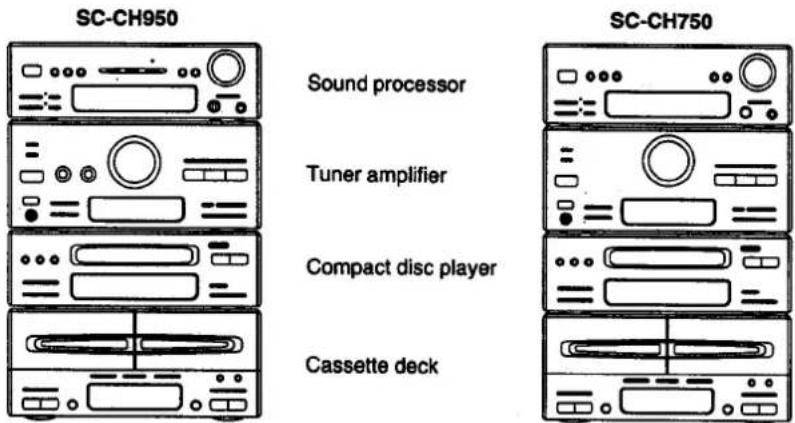
■ System layout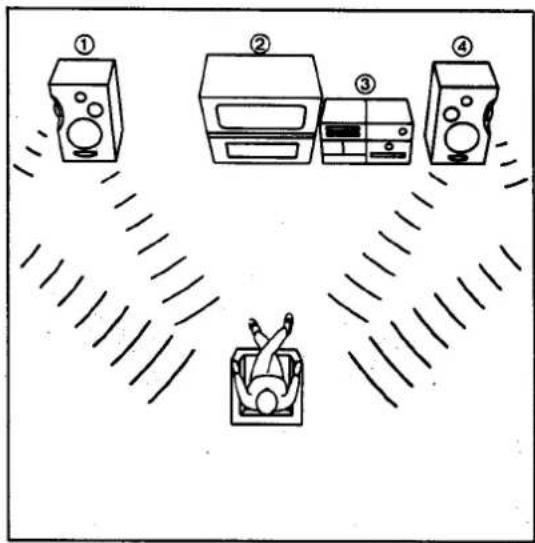
① Left speaker
② Television set (not included)
③ This system
④ Right speaker
(For model SC-CH750):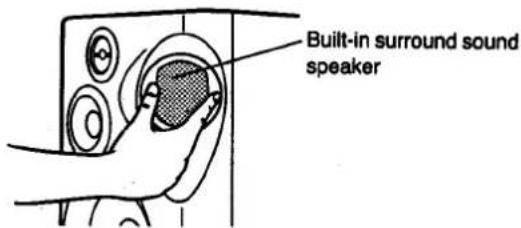
When you select the SFP mode, you can get the surround sound effect. Install the speakers as illustrated left, and adjust the angle of the built-in surround speakers as you like.
To produce a better stereo sound, install both speakers away from the system.
This speaker system has built-in surround speaker, so you can easily enjoy the surround sound.
Preparations (continued)
Connections
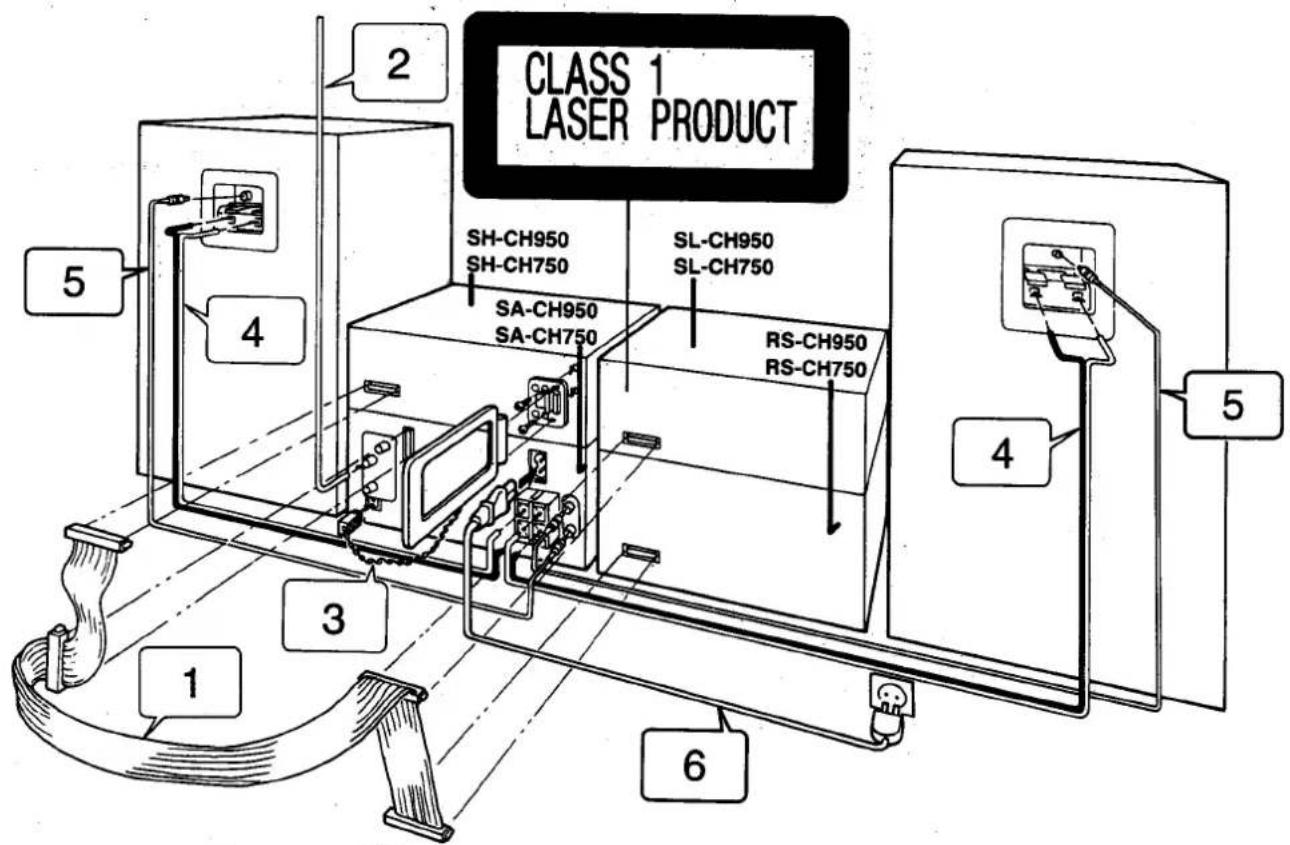
1 Connect the flat cable.
Connecting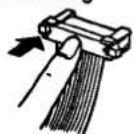
Disconnecting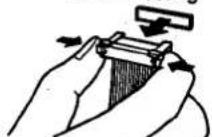
Hold the connector with the recessed part up and press in at the center until you hear a click.
First connect the blue-colored connector to the terminal of the sound processor (A), then connect the rest in the order B, C, D.
Route the cable horizontally (underneath the heat outlet grille) so that the side with the white-color lead is positioned at the front.
After connection, fold and press the cable as flat to the back of the unit as possible.
Heat outlet grille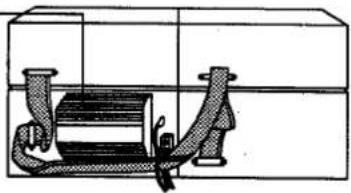
Do not try connecting or disconnecting the flat cable while the power is switched to ON.
2 Connect the FM indoor antenna.
Install the antenna on a wall at a height and in a direction which result in the best reception.
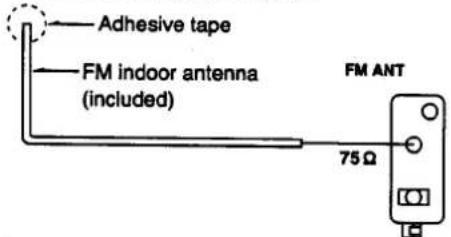
The tip of the internal antenna wire should not come into contact with any metal objects.
When you cannot get a good reception with this FM indoor antenna, we recommend you install an FM outdoor antenna (not included. See page 10). Disconnect the FM indoor antenna if you install an FM outdoor antenna.
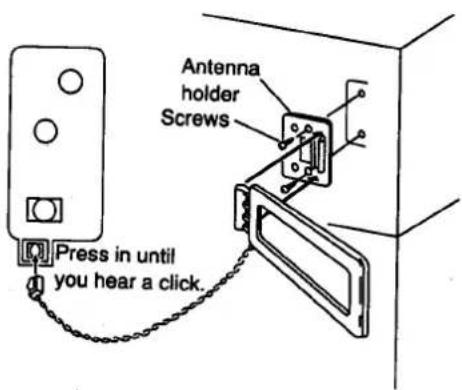
3 Connect the LW/MW loop antenna.
- Attach the antenna holder with screws (included) to the rear panel of the sound processor.
- Clamp the antenna to the antenna holder and connect the antenna terminal to the rear panel of the tuner amplifier.
- Position the loop for the best reception.
You may attach the LW/MW antenna holder to a rack or other structure.
Notes:
• To minimize noise pickup, keep the LW/MW loop antenna away from the speaker cable, power cord, and metal surfaces. For better reception, keep the LW/MW loop antenna cord along the heat prevention cover, and away from the flat cable.
4 Connect the speaker cables.
Connection of speaker cables
- Strip off the outer covering, and twist the center conductor.
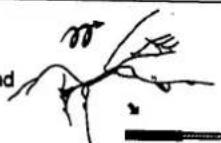
Make sure the bare ends of the wires are not unraveled. (If they are, twist them tight again.)
- Insert the wire to the rear panel of the speakers, and then pull down the lever.
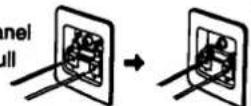
- Insert the wire to the rear panel of the tuner amplifier, and close the lever.
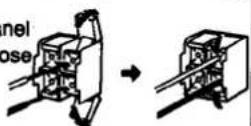
Notes:
• To prevent damage to circuitry, never short-circuit positive (+) and negative (−) speaker wires.
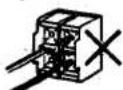
Be sure to connect only positive (red) wires to positive (+) terminals and negative (black) wires to negative (-) terminals.
Note:
Be sure to connect speaker cables before connecting the AC power supply cord.
5 Connect the surround speaker cord.
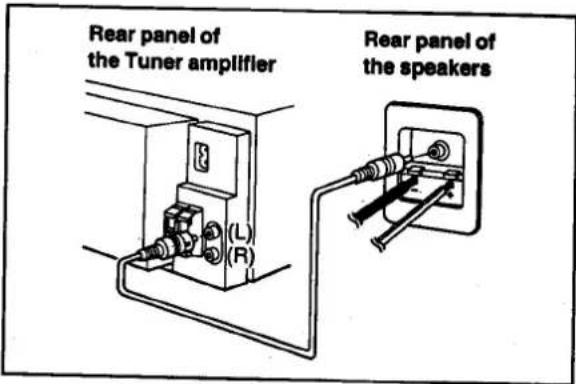
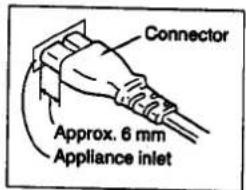
6 Connect the AC power supply cord after you have connected all other cables and cords. For areas except Australia, New Zealand Insertion of Connector
Even when the connector is perfectly inserted, depending on the type of inlet used, the front part of the connector may jut out as shown in the drawing. However, there is no problem using the unit.
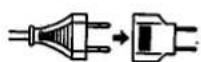
For areas except Australia, New Zealand If the power plug will not fit your socket, use the power plug adaptor (included).
Preparations (continued)
Connections (continued)
■ Optional antenna connections
FM outdoor antenna (not included)
If the FM indoor antenna does not provide satisfactory reception of FM broadcasts, use an outdoor antenna.
You may need an outdoor antenna if you use this system in a mountainous region or inside a reinforced-concrete building, etc. An outdoor antenna should be installed by a competent technician only.
FM outdoor antenna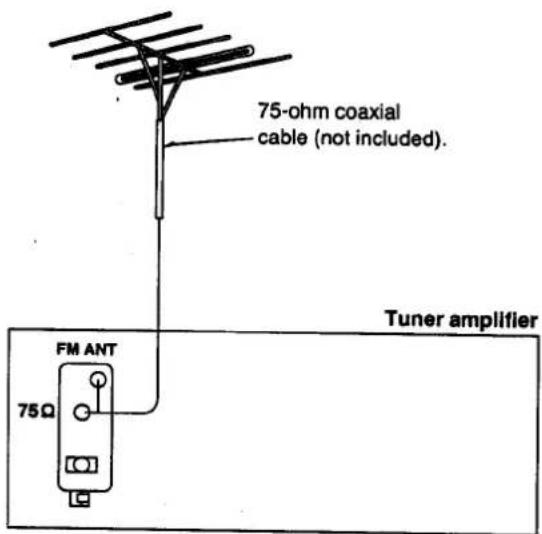
How to connect 75-ohm coaxial cable (not included) (FM outdoor antenna)
- Remove a piece of the outer vinyl sheath from the end of the cable.
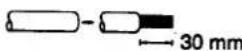
- Bundle the shield braid, and remove a piece of the inner vinyl sheath covering the core wire.
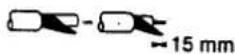
- Connect the core wire and the shield braid.
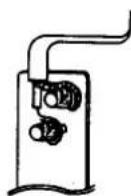
LW/MW outdoor antenna (not included)
An outdoor antenna may be required in a mountainous region, or if this system is located inside a reinforced-concrete building, etc.
Run 5 to 12 m of vinyl-covered wire horizontally along a window or other convenient location.
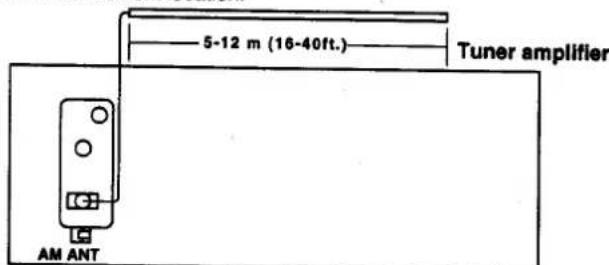
Note: Do not remove the LW/MW loop antenna.
■ External unit connection
DAT (digital audio tape deck)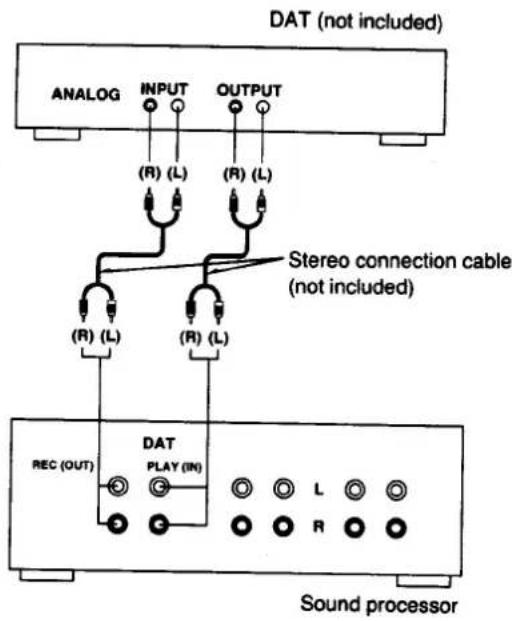
Analog player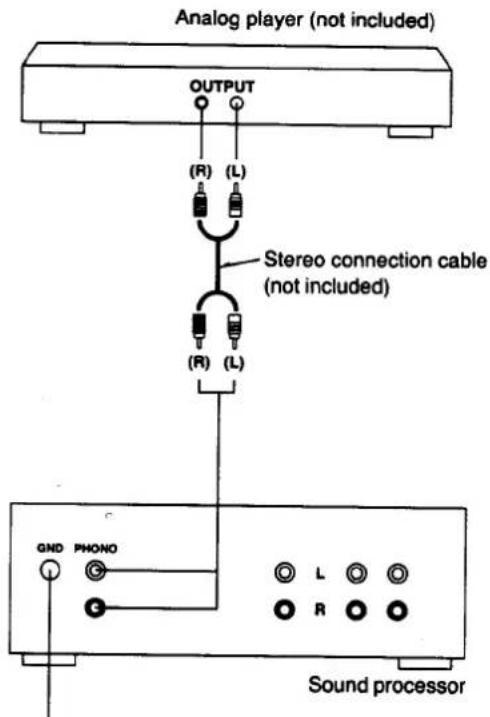
"GND" terminal This terminal is for a ground wire use.
Video disc player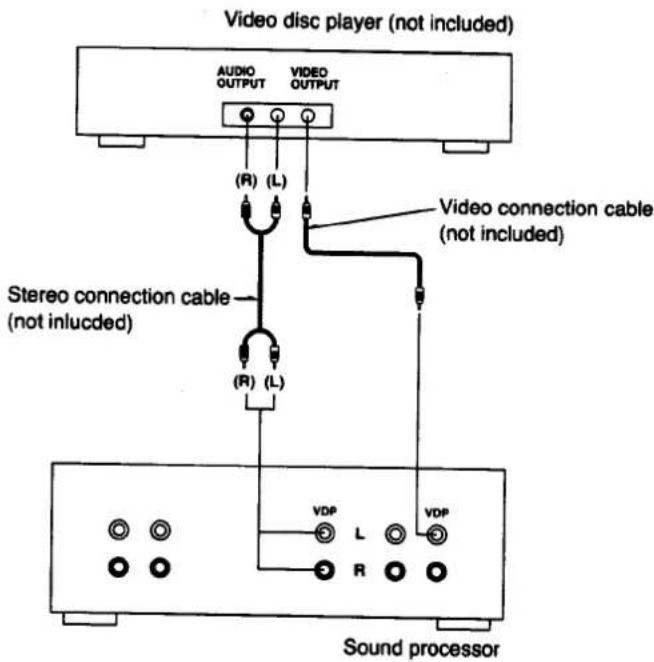
Note: When using the microphone, please refer to page 71.
Preparations (continued)
Connections (continued)
■ External unit connection (continued)
Television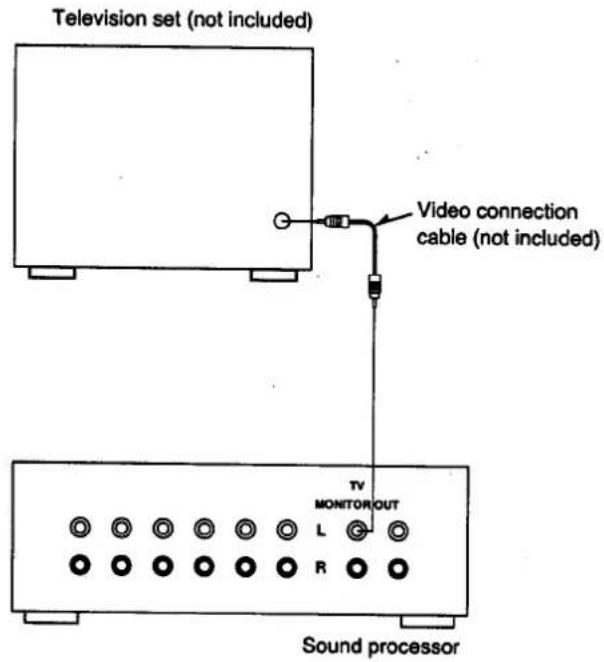
Video deck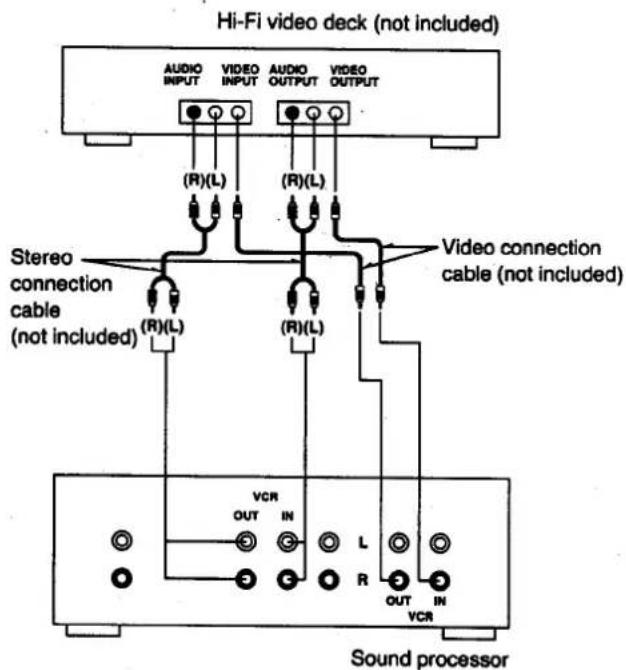
When you use a monaural video deck, connect it with a monaural video connection cable.
Center speaker (Only for model SC-CH950)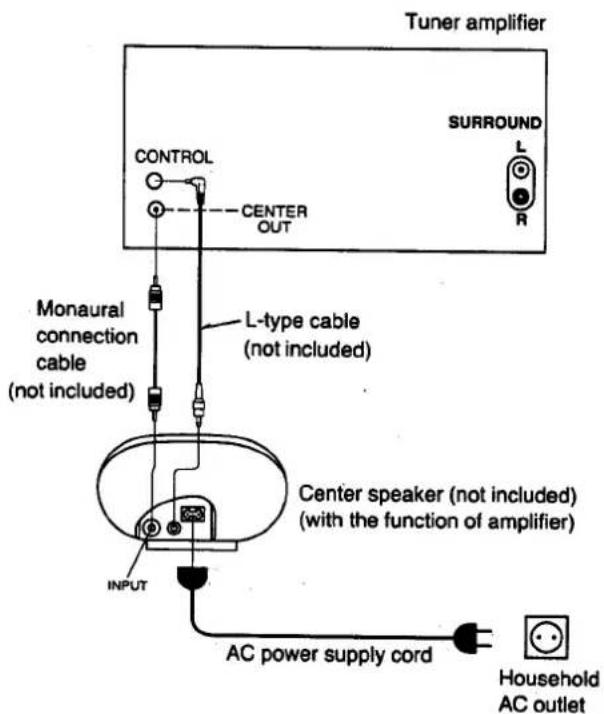
Note: When using a center speaker without a built-in amplifier, connect it to a separate amplifier.
Surround speaker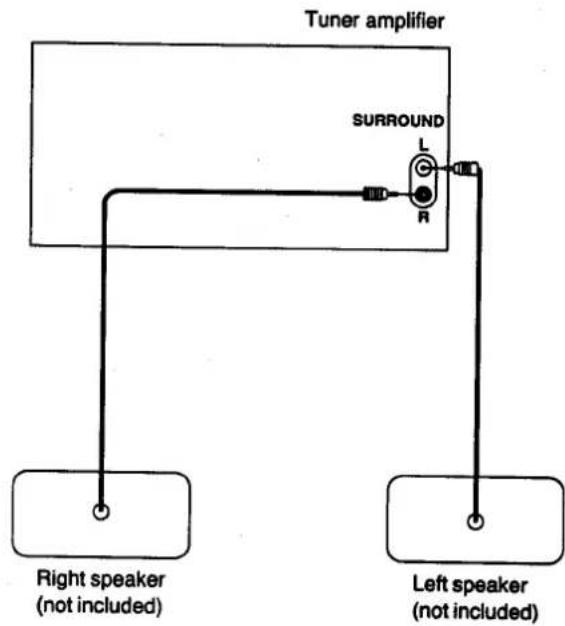
Notes:
• Install each speaker to the left and right at the back of the listening area.
- Disconnect the surround speaker cords provided for the model (see step 5 on page 9) when connecting the optional surround speaker system.
Front Panel Controls and Functions
Sound processor section
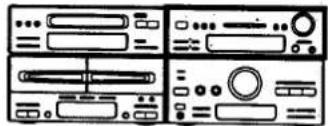
•⑦, ⑧ are only for model SH-CH950.
●(For model SH-CH750)
For Australia and New Zealand, ② is KEY CON instead of ECHO.
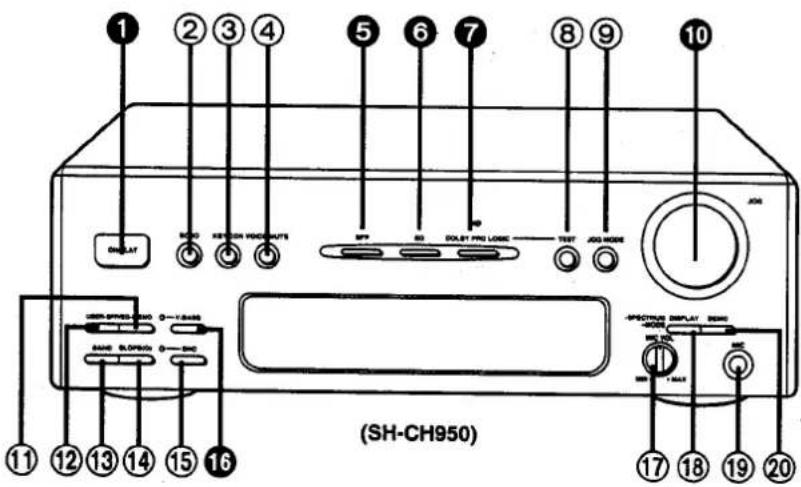
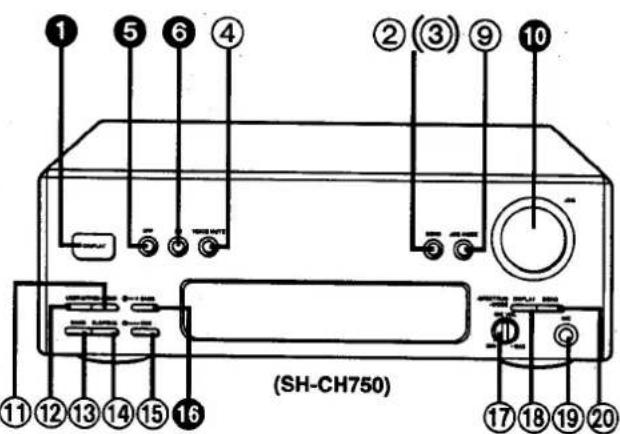
The functions indicated by the numbers with black background (for example ①) can also be activated from the remote control. (See pages 22–23.)
① ON/FLAT button (ON/FLAT)
Press to switch the EQ (equalizer curve) or SFP (simulated listening environment) or Dolby Pro-Logic mode (Only for model SH-CH950) on or flat.
② Echo button (ECHO)
(For model SH-CH750, only for areas except Australia and New Zealand)
Press to adjust the reverberation sound when performing "Karaoke".
③ Key control button (KEY CON)
(For model SH-CH750, only for Australia and New Zealand)
Use to adjust key level when performing "Karaoke".
④ Voice mute button (VOICE MUTE)
Press to perform "KARAOKE" (microphone mixing with an accompaniment). (See page 70.)
⑤ SFP mode button (SFP)
Press to select the desired simulated listening environment. (See page 55.)
Press to select the desired equalizer mode. (See page 54.)
⑦ Dolby Pro-Logic button and Indicator (DOLBY PRO LOGIC)
(Only for model SH-CH950)
Press to select the desired Dolby Pro-Logic mode.
(See page 61.)
⑧ Test signal transmission button (TEST) (Only for model SH-CH950)
Press to transmit the test signal to adjust the output level of the speakers. (See page 62.)
⑨ Jog mode button (JOG MODE)
Press this button to select the desired adjustment mode. (See page 58.)
10 Jog control (JOG)
Turn to adjust the level of equalizer curve, simulated listening environment, and specific frequency shift, and so on. (See pages 56–58.)
⑪ Memory button (MEMO)
Press to store the desired equalizer curve or simulated listening environment.
⑫ User button (USER)
Press to select the desired "USER" number. (See page 59.)
⑬ Frequency band select button (BAND)
Press to select the desired equalizer frequency band. (See page 58.)
⑭ Slope (Q) select button [SLOPE (Q)]
Press to select "narrow" or "wide" mode of the curve slope. (See page 58.)
⑮ Digital noise cleaner button and Indicator (DNC)
Press to reduce the noise on a tape or FM broadcast. (See page 60.)
16 V. Bass button and indicator (V. BASS)
Press to boost the dynamic low-frequency ranges. (See page 60.)
⑰ Microphone volume control (MIC VOL)
Use to adjust the microphone volume level.
⑱ Display mode select button (DISPLAY, -SPECTRUM, -MODE)
Use to select one of 5 spectrum modes.
Press and hold to extinguish the equalization curve. (See page 74.)
⑲ Microphone jack (MIC)
Plug microphone cord into this jack.
⑳ Demonstration button (DEMO)
Use for reference of the adjustments of equalization curves and SFP mode sounds. The pre-programmed equalization curves and SFP mode sounds will be heard sequentially for adjustment example. (See page 53.)
Display section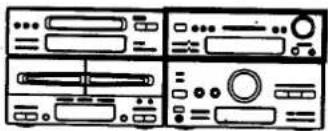
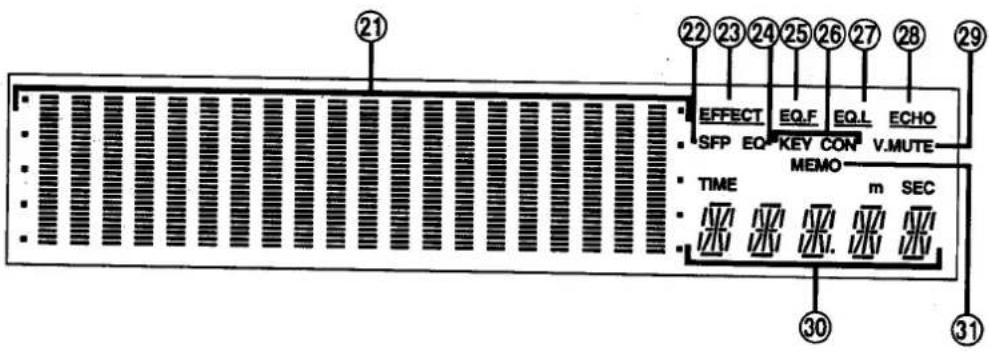
②1 Multi level display
Shows the equalization/spectrum analysis level.
②2 SFP mode indicator (SFP)
Lights when you select the SFP mode [HALL, LIVE, DISCO, CHRCH, THTER (Only for model SH-CH750)].
②3 Effect indicator (EFFECT)
Lights when you select EFFECT mode by pressing JOG MODE.
②4 Equalizer mode indicator (EQ)
Lights when you select the equalizer mode (HEAVY, CLEAR, SOFT, HP ST, CAR).
⑲ Equalizer frequency indicator (EQ. F)
Lights when you select EQ. F mode by pressing JOG MODE.
②6 Key control indicator (KEY CON)
(For model SH-CH750, only for Australia and New Zealand)
Lights when you press KEY CON to adjust the key level while in the "Karaoke" mode.
⑳ Equalizer level indicator (EQ. L)
Lights when you select EQ. L mode by pressing JOG MODE.
⑳ Echo indicator (ECHO)
(For model SH-CH750, only for the area except for Australia and New Zealand)
Lights when you press ECHO to adjust the reverberation sound while in the "Karaoke" function.
Lights when you activate the "Karaoke" function.
③0 Sound mode display
Shows the sound mode you select or the length of the reverberation sound, delay time (Only for model SH-CH950), etc.
③1 Memory indicator (MEMO)
Lights when you store the desired curve or simulated listening environment.
Front Panel Controls and Functions
(continued)
Tuner amplifier section
●35, 36 are only for model SA-CH950.
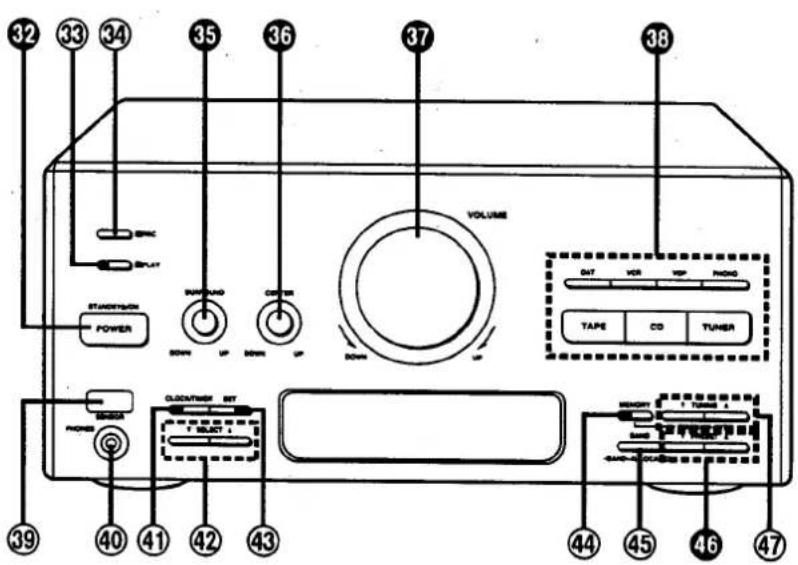
32 Power "STANDBY ⏻/ON" switch (POWER, STANDBY ⏻/ON)
This switch switches ON and OFF the secondary circuit power only. The unit is in the "standby" condition when this switch is set to the STANDBY ⏻ position. Regardless of the switch setting, the primary circuit is always "live" as long as the power cord is connected to an electrical outlet.
③3 Timer play button (PLAY)
Press to confirm, exit or reset the play timer. (See pages 64–65.)
③4 Timer recording button (☐ REC)
Press to confirm, exit or reset the record timer. (See pages 66–67.)
35 Surround speaker level control (SURROUND) (Only for model SA-CH950)
Turn to adjust the volume level of the surround speaker.
36 Center speaker level control (CENTER) (Only for model SA-CH950)
Turn to adjust the volume level of the center speaker.
37 Volume level control (VOLUME)
Turn to adjust the volume level. Note that -- dB is the lowest volume setting and 0 dB is the highest.
38 Input select buttons
(TAPE, CD, TUNER, DAT, VCR, VDP, PHONO)
Press to select the sound source.
⑲ Remote control signal sensor (SENSOR)
Receives the signals from the remote control.
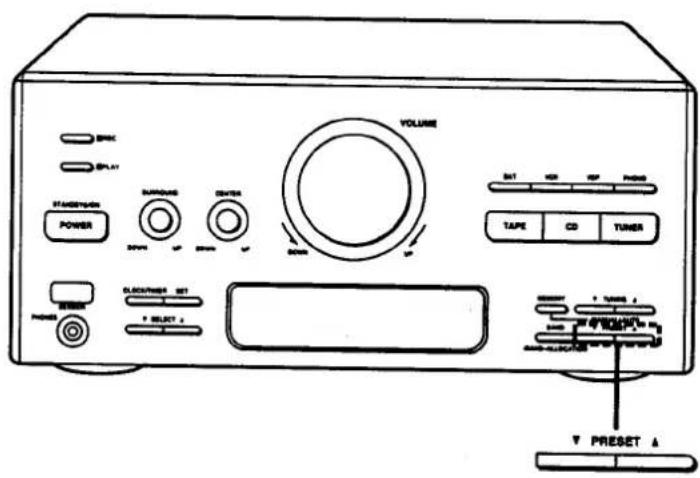
④0 Headphones jack (PHONES) Plug headphones cord into this jack. ④1 Clock/timer button (CLOCK/TIMER) Press to select the clock set mode or desired timer mode. ④2 Timer select buttons (▼ SELECT ▲) Use when setting the current time and timer. ④3 Setting button (SET) Press to set the present time in the clock mode, or set the various selection in the timer mode. (See pages 25, 64–68.) ④ Preset memory button (MEMORY, -MANUAL, -AUTO) Press to put a broadcast station into the memory. (See pages 27–28.) ④5 Band select/allocation change button (BAND, -BAND -ALLOCATION) Press to select the MW, LW or FM radio band. Press and hold to change the MW frequency step. 46 Preset tuning buttons (▼ PRESET ▲) Use to select channel number for a broadcast station which has been stored in the tuner's memory. ④7 Tuning buttons (▼ TUNING ▲) Use to tune in a desired broadcast station.
Display section
•55, 56 are only for model SA-CH950.
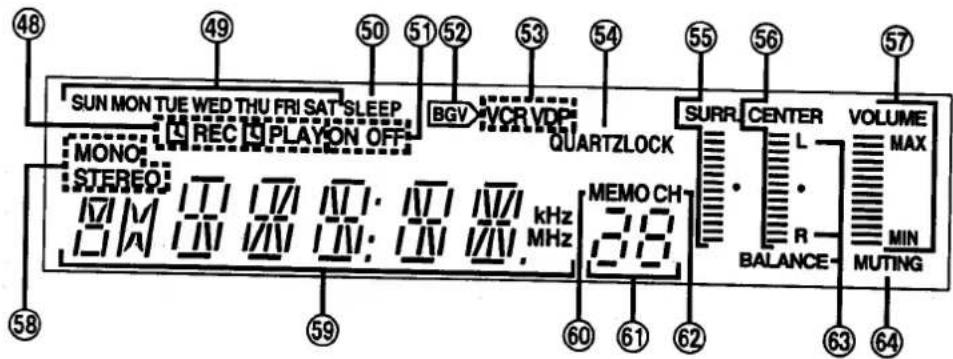
④8 Timer mode indicators (☐ REC, ☐ PLAY)
☐ REC: Lights when you have set the record timer mode.
PLAY: Lights when you have set the play timer mode.
④9 Day indicators (SUN-SAT)
Shows the day of the week or the day the timer has been set for.
⑤ Sleep timer indicator (SLEEP)
Lights when you have set the sleep timer mode.
⑤1 Timer on/off indicator (ON, OFF)
Lights together with the setting time to show the timer ON time and OFF time.
⑤② BGV (background visual) indicator (BGV)
Lights when listening to audio sound source.
⑤3 Visual source indicators (VCR, VDP)
Lights to show it is possible to enjoy BGV (Back Ground Visual) if you connect video deck or video disc player to this system. (See page 73.)
⑤4 Quartz lock indicator (QUARTZLOCK)
Lights when you precisely tune in a broadcast station.
⑤5 Surround level display (SURR.)
(Only for model SA-CH950)
Shows the volume level of the surround speakers.
⑤6 Center level display (CENTER)
(Only for model SA-CH950)
Shows the volume level of the center speaker.
⑤7 Volume level display (VOLUME, MAX, MIN)
Shows the volume level.
⑤8 FM STEREO/MONO indicator (MONO, STEREO)
"STEREO" lights when an FM stereo broadcast is being received. If you press FM mode button on the remote control to select monaural mode, "MONO" lights.
⑤9 Alpha-numeric display
Shows the selected source, present time, and the contents of the timer setting, received frequencies, volume level.
⑥0 Memory indicator (MEMO)
Lights when the preset memory button is pressed.
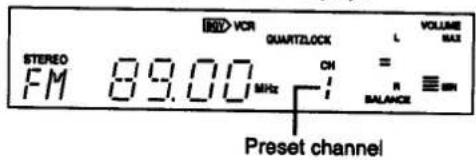
⑥1 Preset channel display
Shows the preset channel you select.
⑥2 Channel indicator (CH)
Lights when the unit is in the preset tuning mode.
⑥3 Balance display (L, R, BALANCE)
Shows the left-right volume balance.
⑥4 Muting Indicator (MUTING)
Lights when you activate the muting mode.
Front Panel Controls and Functions
(continued)
Compact disc player section
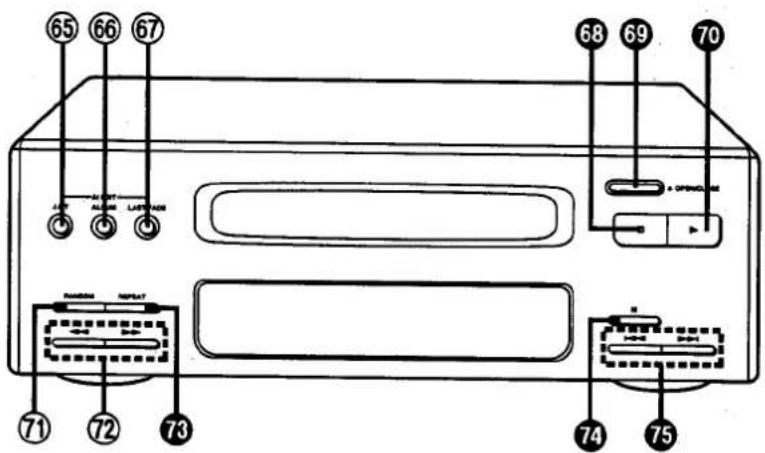
⑥5 Fit edit button (J. FIT) Press to activate the fit editing mode. (See pages 48–49.) ⑥6 Sequential CD recording button (ALBUM) Press to activate the sequential CD recording mode. (See pages 46–47.) ⑥7 Last fade edit button (LAST FADE) Press to activate the fade out editing mode. (See pages 50–51.) 68 Stop button (□) Press to stop the disc play. 69 Disc tray open/close button (▲ OPEN/CLOSE) Press to open and close the disc tray.
70 Play button (▷) Press to start disc play and synchro start function. ⑦1 Random play button (RANDOM) Press to play the disc's tracks in random order. (See page 34.) ⑦2 Search buttons (◀◀, ▶▶) Press and hold to find the desired point on the track while in the play mode. 73 Repeat button (REPEAT) Press to activate the repeat mode. (See page 36.) 74 Pause button (II) Press to stop the disc play temporarily. 75 Skip buttons (|◀◀, ▶▶) Press to skip tracks.
Front Panel Controls and Functions
(continued)
Cassette deck section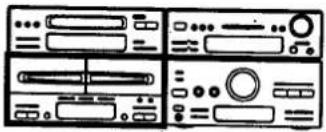
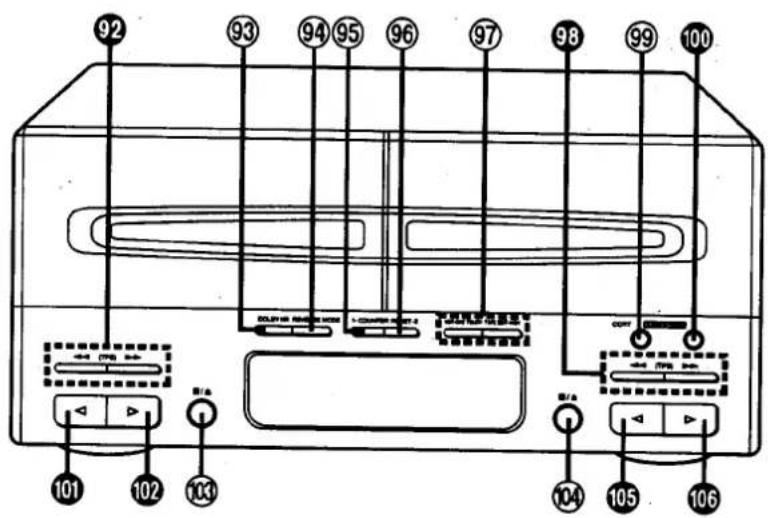
92 Deck 1 fast-forward/rewind/tape program sensor (TPS) buttons
[◀◀ (TPS) ▶▶]
Press to advance or rewind the tape, or to quickly search for the beginning of a program while the tape is being played.
⑨3 Dolby noise reduction button (DOLBY NR)
Press to reduce hissing noise on the tape. This system has both the Dolby B-type and Dolby C-type noise reduction.
⑨4 Reverse mode select button and indicators (REVERSE MODE)
Press to select the reverse mode (for playback and recording).
⑨5 Deck 1 counter reset button (COUNTER RESET 1)
Press to reset the tape counter indicator to "0000".
⑨6 Deck 2 counter reset button (COUNTER RESET 2)
⑨7 One-touch tape edit buttons (NOR, HIGH)
Press to start the tape-to-tape recording. (See page 45.)
98 Deck 2 fast-forward/rewind/tape program sensor (TPS) buttons [◀◀ (TPS) ▶▶]
⑲ CCRT (computer control record tuning) button (CCRT)
Press to adjust the recording level, equalizer and bias before recording. (See pages 42–43.)
100 Record pause button (REC PAUSE)
Press to put deck 2 into the record standby mode.
Deck 1 reverse-side playback button (◀)
Press to start playback in the reverse direction.
17 Deck 1 forward-side playback button (▷)
Press to start playback in the forward direction.
⑩3 Deck 1 stop/cassette holder open button (■/▲)
Press to stop the tape or open the cassette holder.
104 Deck 2 stop/cassette holder open button (■/▲)
Deck 2 reverse-side playback button (◀)
Press to start playback or recording in the forward direction.
Deck 2 forward-side playback button (▷)
Press to start playback or recording in the reverse direction.
Display section
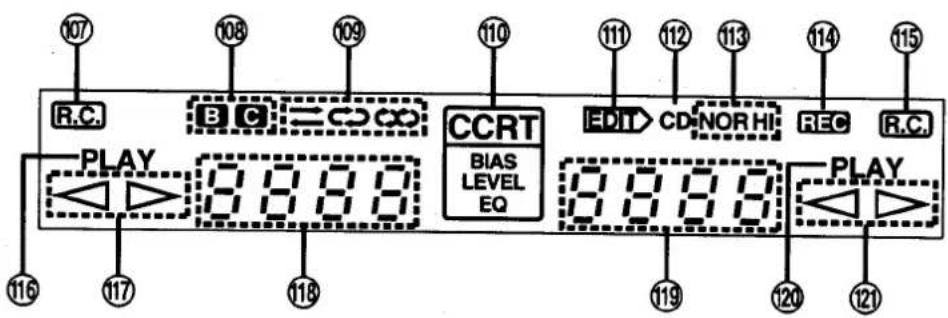
⑩7 Deck 1 remote indicator (R.C.)
Lights to show that you can operate deck 1 with remote control.
⑩8 Dolby noise reduction indicators (B, C)
Lights to show the type of Dolby noise reduction you select.
⑩ Reverse mode indicators (⇌, ⇌, ∞)
Lights to show the reverse mode you select.
⑪ CCRT indicator (CCRT, BIAS, LEVEL, EQ)
Lights when CCRT function is activated.
⑪ Edit indicator (EDIT)
Lights when you are editing CD or making a tape-to-tape recording.
⑪2 CD indicator (CD)
Lights together with the edit indicator when you are editing CD.
⑪ Tape edit indicators (NOR, HI)
Lights together with the edit indicator when you are making a tape-to-tape recording.
⑪ Recording indicator (REC)
Lights when in the recording or recording standby mode.
⑪ Deck 2 remote indicator ( R.C.)
Lights to show that you can operate deck 2 with remote control.
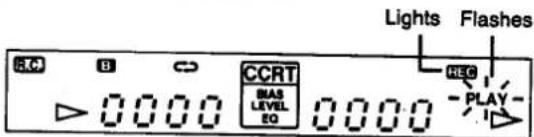
⑪ Deck 1 play indicator (PLAY)
Lights when you play the cassette tape.
Flashes when you quickly search for the beginning of a program while the tape is being played (TPS).
⑪ Deck 1 tape travel direction indicator (◀, ▷)
Lights to show the direction of the tape travel.
⑪ Deck 1 tape counter
Shows the amount of tape movement.
⑫ Deck 2 tape counter
⑫ Deck 2 play indicator (PLAY)
Lights when you play or record the cassette tape.
Flashes when you quickly search for the beginning of a program while the tape is being played (TPS), or while in the recording standby mode.
⑫ Deck 2 tape travel direction indicator (◀, ▷)
Remote Control Unit Controls and Functions
![graph TD subgraph_Model_Fig_1["Model SA-CH950"] A["122"] --> B["32"] B --> C["38"] C --> D["35"] D --> E["123"] end subgraph_Model_Fig_2["Model SH-CH950"] F["46"] --> G["1"] G --> H["6"] H --> I["7"] I --> J["7"] J --> K["8"] K --> L["8"] L --> M["10"] M --> N["126"] end subgraph_Model_Fig_3["Model…](/content/2026/06/1146345/images/88e9686cbd5a3c3fb7807c5ce43f642c49d9d702c7dd8ccf0304db89936ade7d.jpg)
Common operation controls (Fig. 1)
The functions of buttons 12, 45, 36, 37 and 38 are identical to those described under "Tuner amplifier section" on page 16.

Sleep timer button (SLEEP)
Press when you want the system to turn itself off.

Muting button (MUTING -20 dB)
Press to temporarily attenuate (mute) the volume level.

Easy play buttons (EASY PLAY)
Use to start the play directly from the power standby condition.

Volume balance buttons (BALANCE, L, R)
Press to adjust the volume balance.
Tuner controls (Fig. 2)
The functions of buttons ⑯ are identical to those described under "Tuner amplifier section" on page 16.

FM mode button (FM MODE)
Press to switch the FM listening mode (Stereo or monaural) during FM broadcasts. (See page 26.)

Preset-tuning buttons (1-0, ≥ 10)
Use to tune in broadcast stations which have been preset in the unit's memory.

Tuner input/band select button (TUNER/BAND)
Use to select tuner source and desired band (FM or MW, LW).
Sound processor controls (Fig. 3)
The functions of buttons ①, ⑤, ⑥, ⑦, ⑩ and ⑯ are identical to those described under "Sound processor section" on page 14.
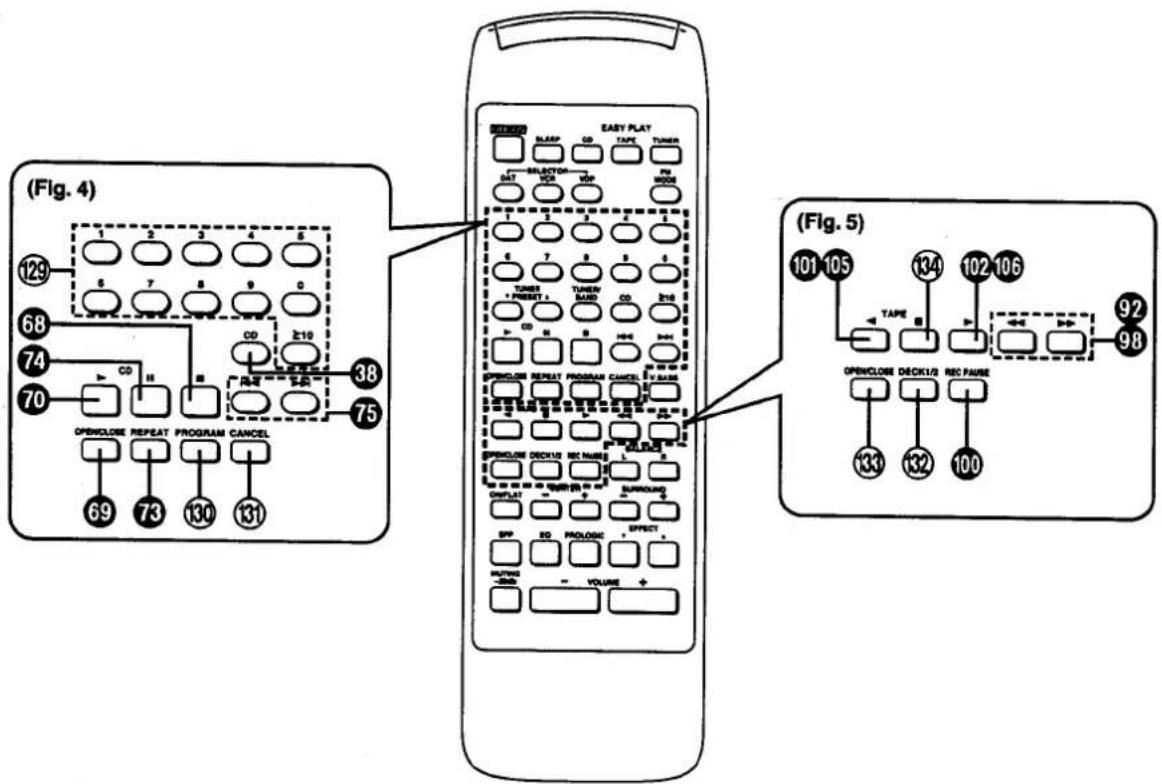
Compact disc controls (Fig. 4)
The functions of buttons 68, 69, 70, 73, 74 and 75 are identical to those described under "Compact disc player section" on page 18.
⑫ Numeric buttons (1-0, ≥10) Use to specify the compact disc's track.
⑬ Program button (PROGRAM) Press to activate the program play mode. You can then enter specific tracks using the numeric buttons. ⑬ Cancel button (CANCEL) Press to cancel the program.
Cassette deck controls (Fig. 5)
The functions of buttons 97, 98, ●, ●, ●, and ● are identical to those described under "Cassette deck section" on page 20.
⑬ Deck 1/deck 2 select button (DECK 1/2)
Press to select the deck that you can operate with remote control.
⑬ Cassette holder open/close button (OPEN/CLOSE) Press to open and close the cassette holder.
⑬ Stop button (■)
Press to stop the tape.
Basic Operating Procedure
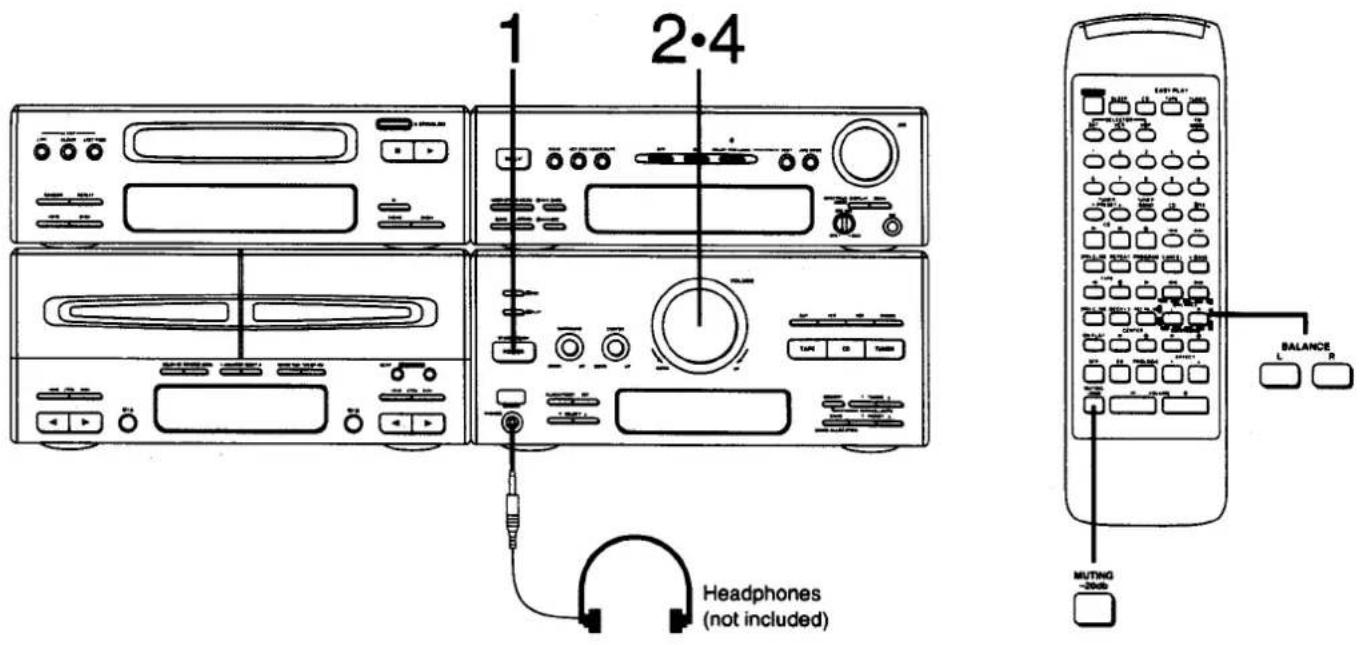
(Also available from the remote control)
1 Press POWER STANDBY ⊙/ON to switch on the power. 2 Adjust the volume level to about -60 dB. 3 Start the sound source.
CD: See page 30.
TUNER: See page 26.
Cassette deck: See page 37.
4 Adjust the volume level as you like.
Note:
Before you set the system to the standby mode, be sure to reduce the volume level to prevent the extremely high output from the tuner amplifier from damaging the speakers.
How to adjust the left-right volume balance
(Only from the remote control)
Press one of BALANCE (L or R).
Pressing BALANCE buttons simultaneously will restore the balance to the center position.
Perform fine balance adjustment while playing the selected music source. The balance display is only a rough quick.
How to mute the volume
(Only from the remote control)
Press MUTING on the remote control.

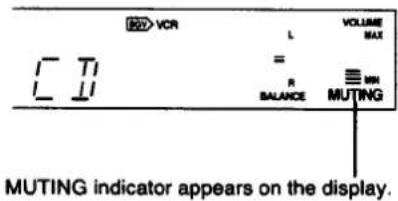
Cancel the muted state by pressing the muting button once again or reduce the volume level to the minimum position and then reset to the desired volume.
How to use headphones
Reduce the volume level.
Connect the headphones to the headphones jack.
Avoid listening for prolonged periods of time to prevent hearing damage.
Setting the Time of Day
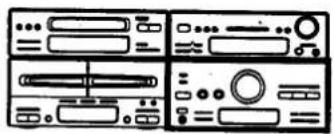
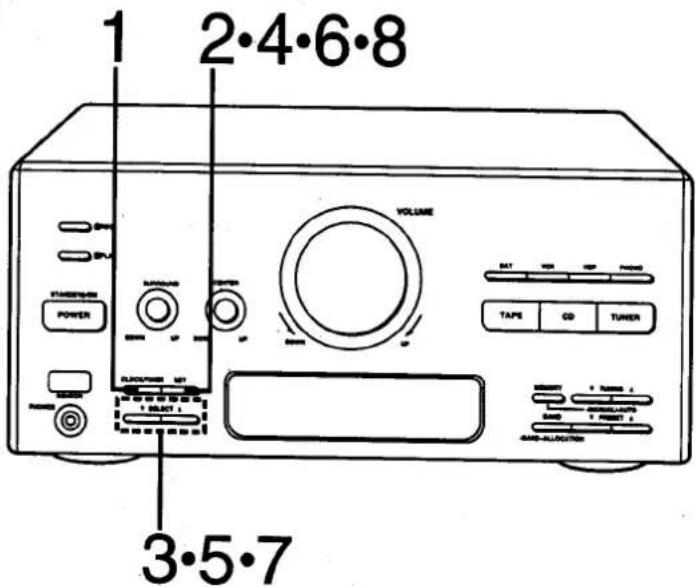
These instructions explain how to set the time for 16:25 (4:25 p.m.) on Wednesday.
Switch on the power.
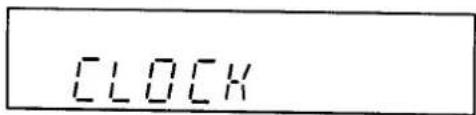
1 Press CLOCK/TIMER to select "CLOCK".
The display will show CLOCK.
The display will return to what was previously indicated if you allow 7 or more seconds to elapse before you accomplish the next operation.
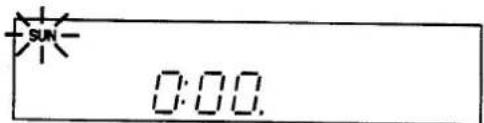
2 Press SET.
The day indicator will start to flash.
3 Press one of the SELECT buttons to select "WED".
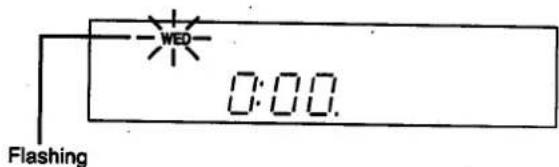
4 Press SET.
5 Press one of the SELECT buttons to select "16".
Going from 23:59 to 0:00 on the hour display will not change the day display.
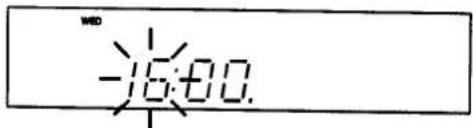
6 Press SET.
7 Press one of the SELECT buttons to select "25".
Going from 59 to 00 on the minute display will not change the hour display.
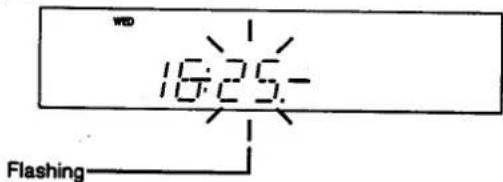
8 Press SET to finish setting the time.
After about 2 seconds, the display will return to what it was before entering the clock setting mode.
To display the clock again, press CLOCK/TIMER. The display will show "CLOCK", and then the clock will appear for 5 seconds.
"E" appears on the display if the power cord has been once disconnected or there has been a power failure. If this happens, reset the time.
Listening to Radio Broadcasts
Manual tuner operation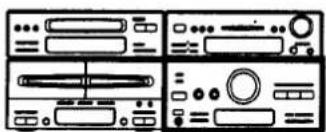
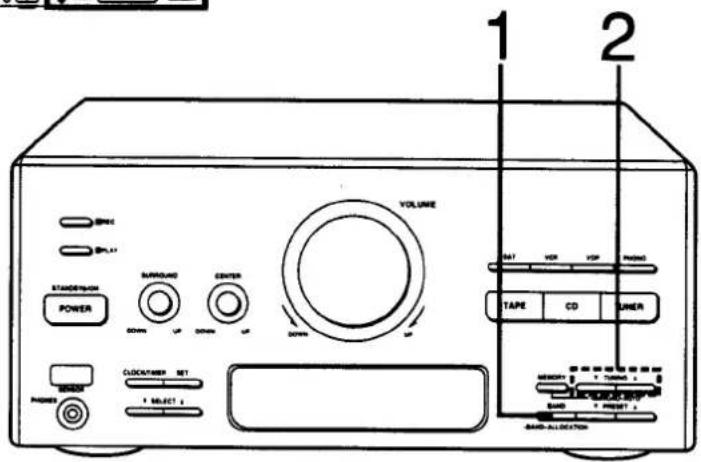
1 Press BAND to select FM or MW or LW.
Each time you press BAND, "FM", "MW", "LW" will be displayed in order.
2 Press one of TUNING to tune in to the desired broadcast.
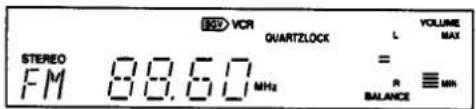
The display will show the frequency to which you have tuned.
- If you have tuned in an FM stereo broadcast, the FM stereo indicator will appear.
- If you cannot receive the desired broadcast or cannot tune in the desired frequency in the MW band, you may need to change the "allocation" setting. (See right.)
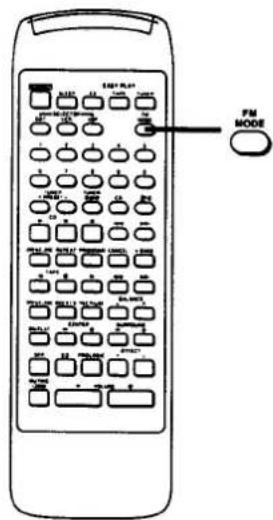
■ If noise is excessive in FM mode (only from the remote control)
Press FM MODE.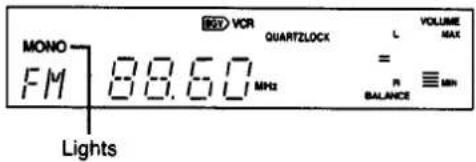
The sound will then be heard in monaural. If the broadcast signal is weak, or if there is a large amount of interference, you will get a clearer sound using FM MODE.
■ MW allocation settings
This unit comes equipped with an electronic digital tuner that divides the broadcast band into many small steps. These steps match the assignable broadcast frequencies and intervals in between.
Each country allocates (assigns) broadcast bands according to their particular needs.
By adjusting the allocation, you can enable this tuner to receive MW broadcasts allocated in 9 kHz steps.
- Press BAND to select MW.
- Press and hold BAND for approximately 3 seconds.
To return to the original frequency indication, repeat steps 1 to 2 above.
Automatic memory presetting
When you preset broadcast frequencies to the memory, you can then easily select any of those broadcast frequencies by pressing one of the preset-tuning buttons on the unit or remote control. There are two methods for presetting broadcast frequencies in the memory: the automatic method (see below) and the manual method. (See page 28.) Select whichever method you prefer. When you memorize a new frequency on a preset channel, it cancels the frequency previously memorized on that preset channel.
ory: the automatic method (see below) and the manual method. (See page 28.) Select whichever method you prefer. When you memorize a new frequency on a preset channel, it cancels the frequency previously memorized on that preset channel.
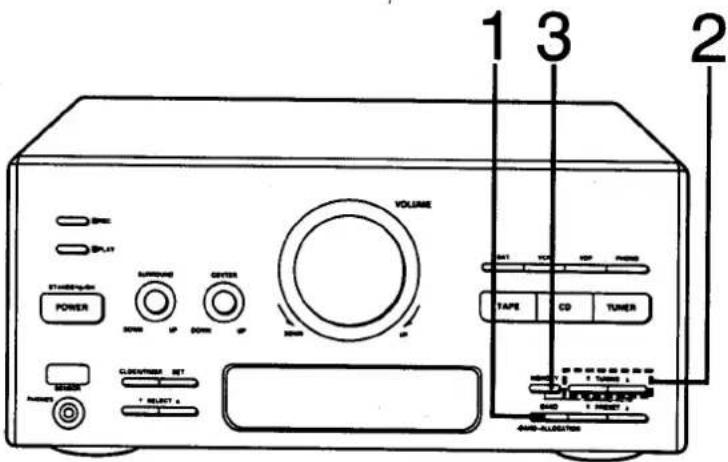
When this method is used, the frequencies of the selected broadcast stations are automatically preset (in sequence from lower to higher frequencies) into memory: "channels" 1 to 39 are available for the presetting of FM stations, "channels" 21 to 39 are available for MW stations, and "channels" 31 to 39 are available for LW stations.
When you preset a broadcast station to a channel that has already been preset, the prior presetting will be erased. So, for example, if FM frequencies are preset to channels 1 to 39 and then MW frequencies are preset, the first MW frequency will be preset to channel 29 (thus erasing the FM presetting on channel 29), the second MW frequency will be preset to channel 30 (erasing FM on channel 30), and so on.
(Step 1 also available from the remote control)
1 Press BAND to select FM.
Each time you press BAND, "FM", "MW", "LW" will appear in order.
Each time you press BAND, "FM", "MW", "LW" will appear in order.
2 Press and hold one of the TUNING buttons until the display shows the lowest frequency.
Press TUNING momentarily to stop changing frequencies when the displayed frequency approaches the lowest frequency. Tap TUNING a few times until the lowest frequency is reached.
3 Press and hold MEMORY to start the memory. Keep MEMORY depressed until the MEMO indicator starts flashing, then release the button.
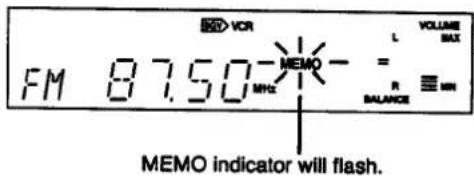
After completing the memory presetting, the MEMO indicator will go out and the display will show the last preset frequency.
Repeat above procedure for LW broadcast station preset.
Repeat the above procedure for the LW broadcast station preset.
To confirm the stations which are preset to each channel, press one of PRESET. Each time you press it, the display will show in which channel you have preset the broadcast station.
Use the manual memory (see page 28) if the signal strength is low, preventing the station from being memorized with the auto memory, or if the signal strength is excessive, causing the frequency to drift.
Listening to Radio Broadcasts (continued)
Manual memory presetting
When this method is used, you can freely preset stations to any desired channel.
You can preset FM stations in monaural position. (See page 26.)
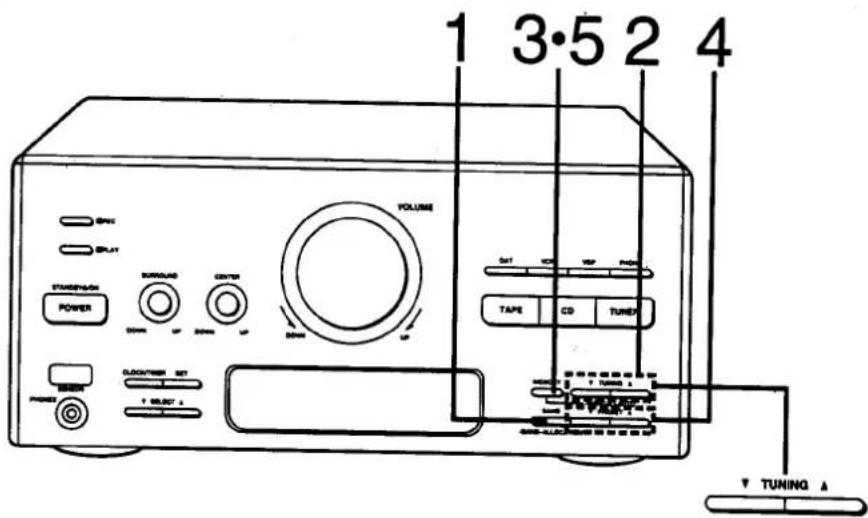
(Steps 1 and 4 also available from the remote control)
1 Press BAND to select FM or MW or LW. Each time you press BAND, "FM", "MW", "LW" will appear in order.
2 Press one of TUNING to tune to the desired broadcast.
(See "Automatic scanning" right.)
Each time you press one of TUNING, the frequency display will change as follows:
FM: 0.05 MHz step
MW: 9 kHz, 10 kHz step
LW: 9 kHz
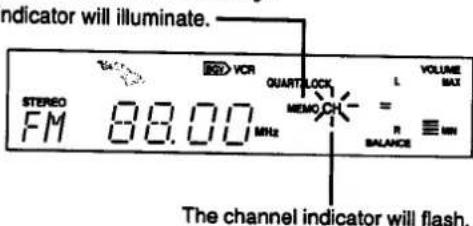
3 Press MEMORY momentarily.
4 Press one of PRESET to select the desired preset channel.
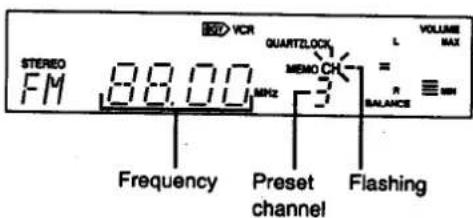
5 Press MEMORY momentarily.
Once the desired station has been memorized, MEMO indicator will no longer illuminate.
The channel indicator will stop flashing.
■ Automatic scanning
You can make an automatic tuning using TUNING.
Press and hold one of TUNING until the displayed frequency begins to change.
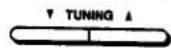
The changing of the displayed frequency will be automatically stopped if a broadcast station frequency is located during the tuning process.
To cancel the automatic scanning, press one of TUNING once again.
When there is excessive interference, the automatic scanning may not function.
Memory tuner operation (to listen to broadcast stations preset into memory)
Switch on the power and be sure you've completed the steps of "Automatic memory presetting" on page 27 or "Manual memory presetting" on page 28.
■ From the main unit
(Also available from the remote control)
Press one of PRESET to select the desired preset channel.
The selected preset channel will appear on the display.
■ From the remote control
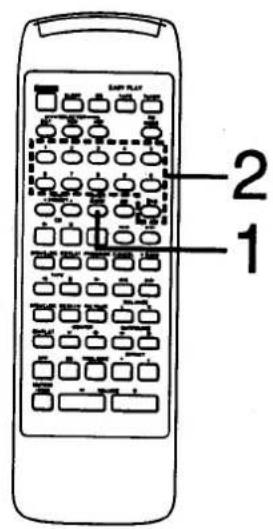
1 Press TUNER/BAND. 2 Press one of the preset-tuning buttons corresponding to the preset channel you wish to tune in.
To select a preset channel between 1 and 9:
Press the appropriate preset-tuning button 1-9 directly.
To select a two-digit preset channel:
First press ≥10 and then a preset-tuning button 1-0.
For example:
Preset channel 13: ≥10-1-3 Preset channel 20: ≥10-2-0 Preset channel 35: ≥10-3-5
■ Most recent memory
The most recent memory system remembers the broadcast station last tuned in when you switch the power to standby mode or select other functions. When you switch the tuner back on, the last tuned station will be on.
The programmed settings will stay in the memory for approximately 2 weeks, even if the power cord is disconnected.
Listening to Compact Discs
Sequential play
Sequential play refers to play beginning with the first track and continuing in order to the last track.
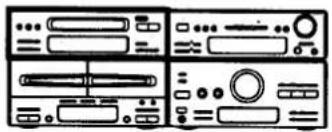
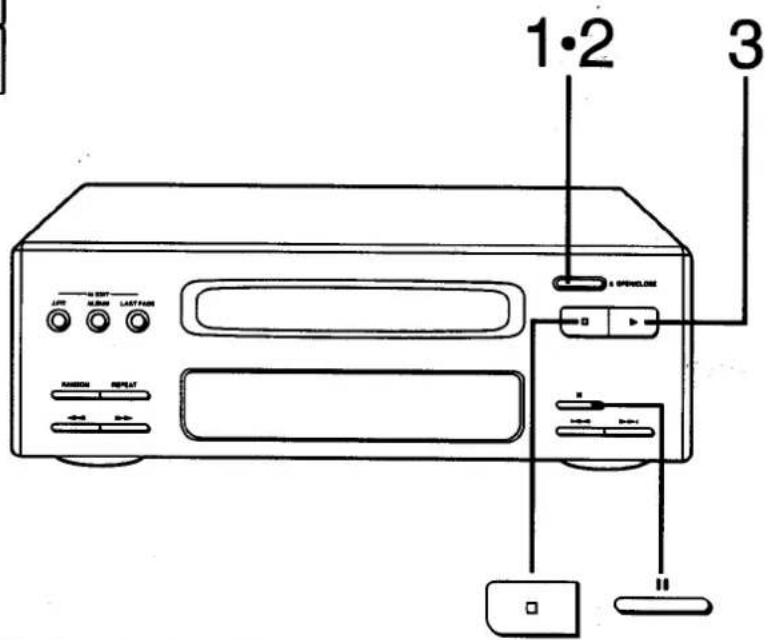
"no dISC" appears on the display if you have not set a disc into the disc tray.
(Steps 2, 3 also available from the remote control)
1 Press OPEN/CLOSE to open the disc tray. Insert the disc with label facing up.
Do not put your finger through the hole in the middle of the disc holder. It could get caught when the holder closes.
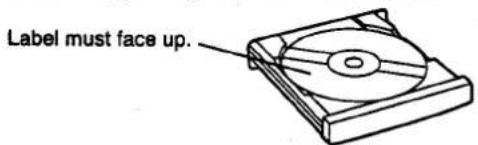
2 Press OPEN/CLOSE to close the disc tray.
When the disc tray is closed, the disc rotates, and the total number of tracks and total playing time both appear on the display.
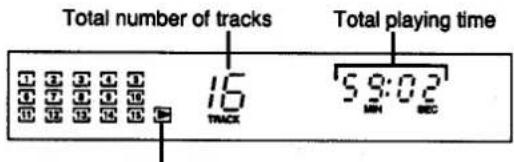
When there are 16 or more tracks on the disc, ">>" will appear.
3 Press the CD play button.
Disc play begins from the first track on the disc.
The frames above and below the track currently playing will flash while the track is played and go out at the end of that track.
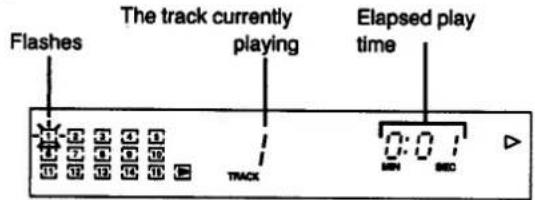
Play stops automatically when the last track on the disc finishes playing. (The display returns to the total number of tracks and total playing time indications.)
Notes:
- If you press the CD play button instead of OPEN/CLOSE after inserting a disc, the tray will close and play will start directly from the track 1, but the total tracks and total playing time will not be displayed.
- The total playing time which appears on the display includes the time between tracks, hence there may sometimes be a difference of several seconds between this time and the playing time indicated in the liner notes that comes with the disc.
■ To temporarily stop the disc play
(Also available from the remote control)
Press the pause button.
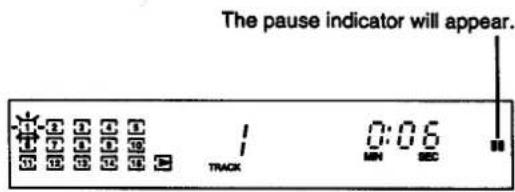
To play again, press the CD play button.
■ To stop the disc play
(Also available from the remote control)
Press the stop button.
The player switches to the stop mode and the total number of tracks and total playing time will appear.
Listening to Compact Discs (continued)
Direct access play
(Only from the remote control)
Direct access allows you to start sequential play from a specific track to the last track on the disc.
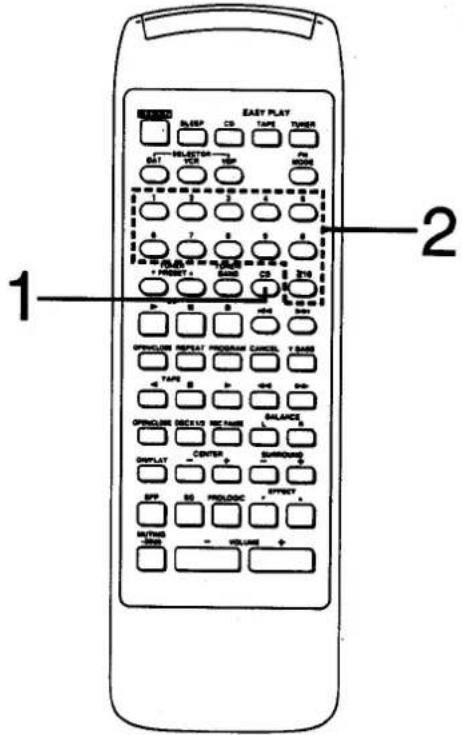
1 Press CD. 2 Press the numeric button to select the desired track number.
To select a track between 1 and 9:
Press the appropriate numeric button 1-9 directly.
To select a two-digit track:
First press ≥10 and then a numeric button 1-0.
For example:
Track no. 13: ≥10-1-3
Track no. 20: ≥10-2-0
Track no. 35: ≥10-3-5
Play will start with the track you select, continued through the last track on the disc, and automatically stop at the end.
Program play
(Only from the remote control)
This function allows you to program up to 20 tracks on a disc in any order you choose.
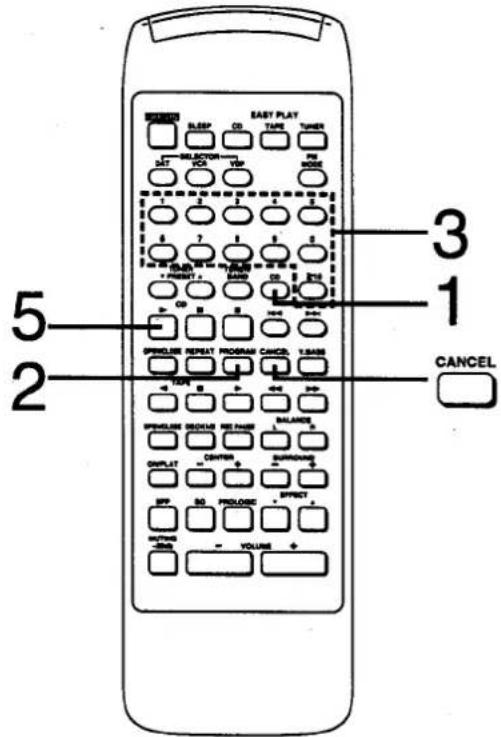
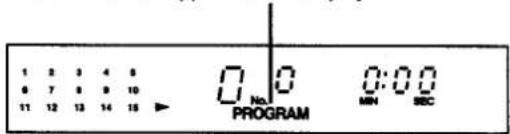
1 Press CD. 2 Press PROGRAM.
PROGRAM indicator will appear on the display.
3 Press the numeric button to select the track you want to play.
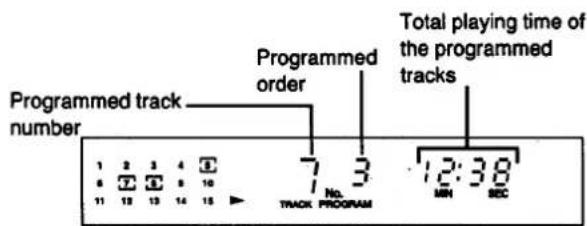
To select a track between 1 and 9:
Press the appropriate numeric button 1-9 directly.
To select a two-digit track:
First press ≥10 and then a numeric button 1-0.
For example:
Track no. 13: ≥10-1-3
Track no. 20: ≥10-2-0
Track no. 35: ≥10-3-5
Notes:
- FULL appears on the track display when you try to program more than 20 tracks. ----:-- appears on the time display when the total play time of the programmed tracks exceeds 99 minutes 59 seconds. In this case, the display will not show the total time.
4 Repeat step 3 until you have completed the program. 5 Press the CD play button.
The program play will begin from the first track you programmed.
■ To clear a programmed track
- Press CANCEL. CANCEL indicator will light.
- Press the numeric button of the track you want to cancel.
- Press CANCEL. CANCEL indicator will go off.
■ To add the entry
You can add the entry in the play or stop mode.
Press the numeric button corresponding to the track to be added.
■ To cancel program play
Press PROGRAM.

The compact disc player resumes sequential play mode.
Listening to Compact Discs (continued)
Random play
The microcomputer will automatically select a sequence of tracks to be played in random order.
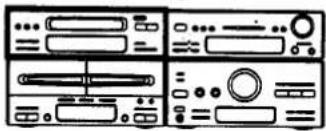
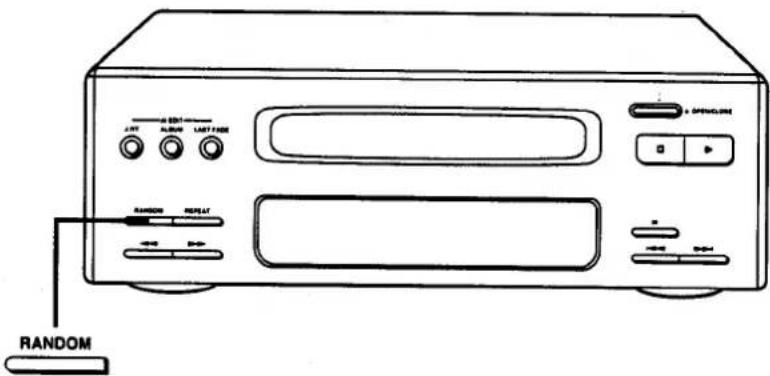
Press RANDOM in the stop mode.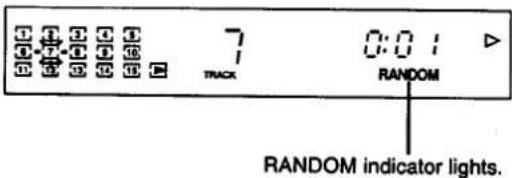
Random play will start.
During program play mode, the tracks will be played randomly in the programmed tracks.
■ To cancel random play
Press RANDOM once again to go off RANDOM indicator.
RANDOM indicator on the display will go off and the compact disc player resumes the sequential play mode.
Special features
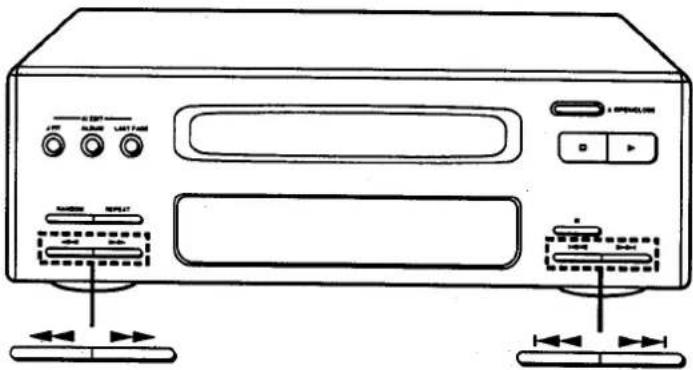
■ Search function
You can search rapidly forward or backward on the disc for specific sections.
While in play mode, press and hold one of the search buttons. Release the button when you have reached the desired point.
: You can search forward.
: You can search backward.
At first the search is slow, and then becomes more rapid if the button is kept depressed.
The volume level will drop to about 1/4 of normal.
During program play and random play, search will take place within the track being played.
Skip function
(Also available from the remote control)
Press either or until you reach the desired track.
: You can skip forward.
: You can skip backward.
In sequential play/program play mode:
: You can skip as many tracks as the number of time you press the button.
: You can skip to the beginning of the track being played. If you press this button again quickly, you can skip to the beginning of the previous track.
Note that in a backward skip, the current track is included in the count.
In program play mode, you can skip only within the programmed tracks.
In random play mode:
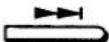
You can skip to the beginning of a random track.
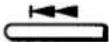
You can skip to the beginning of the current track.
Listening to Compact Discs (continued)
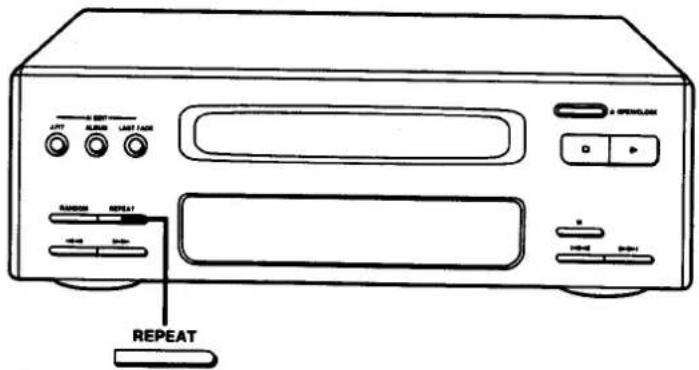
■ Repeat function
(Also available from the remote control) This function repeats the play of all tracks.
Press REPEAT before or during play.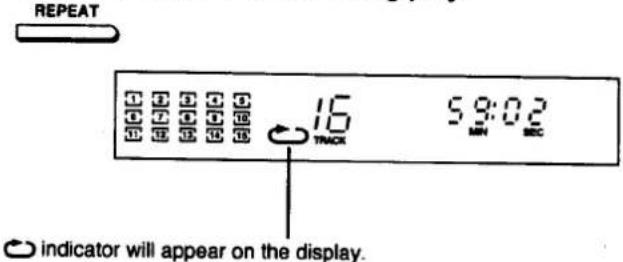
If you press REPEAT while program play is taking place, the CD player will repeat only the programmed tracks. You can enjoy the same track over and over if you press REPEAT when only one track is programmed.
■ To cancel repeat play
Press REPEAT once again.
The indicator on the display will go off.
Listening to Tapes
To play back prerecorded cassettes
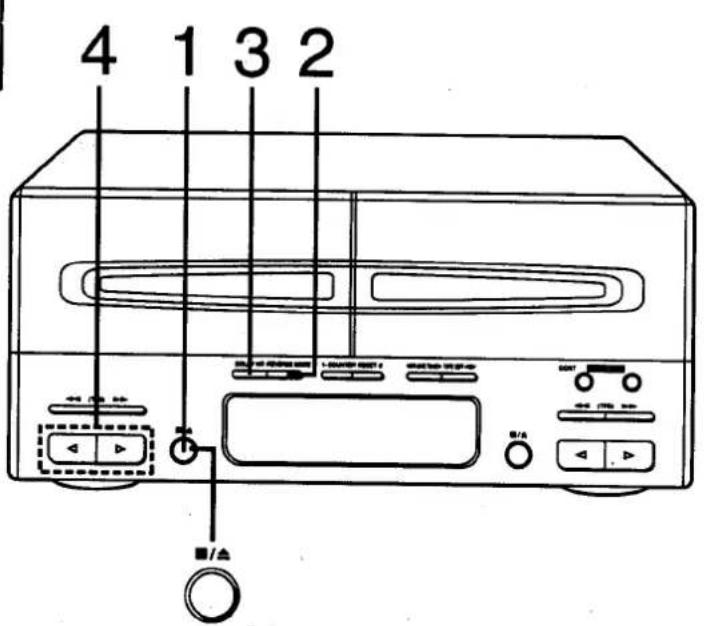
You can use either deck 1 or deck 2 for tape playback by following the same steps. (This page shows an example using deck 1.)
(Step 4 also available from the remote control)
1 Press the deck 1 stop/cassette holder open button, and then insert the cassette you wish to play.
Insert the cassette with the exposed tape facing down.
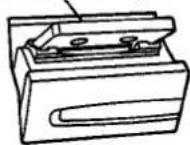
The cassette holder will automatically close.
You can use normal, chrome and metal tapes for playback.
This deck automatically identifies the kind of tape loaded, and sets the equalization accordingly.
(Auto tape selector function)
2 Press REVERSE MODE.
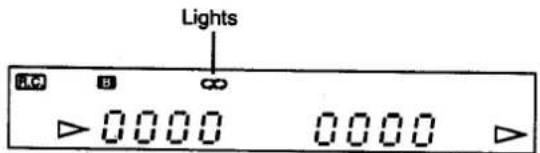
Each time you press, one of the reverse modes' indicator will light to show which mode you select.
: The player plays one side only, and then the tape automatically stops.
: The player plays both sides 8 times, and then the tape automatically stops.
∞: When you load a cassette into only one of the two decks:
The player plays both sides of the tape, then automatically stops.
When you load cassettes into both decks:
The player plays both sides (forward and reverse) of the tape in deck 1, and then both sides of the tape in deck 2. (Sequential tape play—see page 39.)
3 Press DOLBY NR if the cassette you want to play was recorded with Dolby noise reduction B or C mode.
Each time you press, the Dolby noise reduction indicators (B or C) will light.
If the tape was not recorded in a DOLBY NR mode, press DOLBY NR to go off the Dolby noise reduction indicator (B or C).
4 Press one of the playback buttons to start playback.
▷: The forward side (front side) will play. ◀: The reverse side will play. The display indicates which tape is playing.
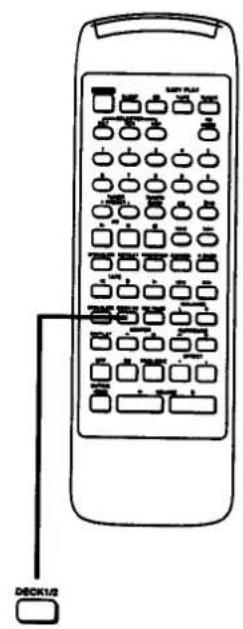
To operate with the remote control when you load cassettes in both decks, press DECK 1/2 to select the deck you want to use.
Deck 1 or Deck 2 remote indicator (R.C.) will illuminate to show which deck you can operate.
Listening to Tapes (continued)
■ To stop tape playback
(Also available from the remote control)
Press the deck 1stop/cassette holder open button.

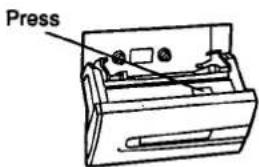
■ To close the cassette holder
(When you want to close the cassette holder without inserting the cassette tape)
Press CLOSE.

CLOSE
■ Full auto-stop
When the tape reaches the end, the tape transport will automatically stop.
■ About the Dolby Noise Reduction system
Using Dolby NR reduces tape hiss in the high-frequency range. It boosts the level of the high-frequency during recording, and lowers it by the same amount during playback, simultaneously reducing high-frequency noise incurred during the recording process.
B type:
Noise is reduced to about 1/3. Use this type when playing a tape in the Dolby NR mode.
C type:
Noise is reduced to about 1/10. Use this type when recording and playing back a high quality, high dynamic range source such as a CD or FM broadcast.
Dolby noise reduction and HX Pro headroom extension manufactured under license from Dolby Laboratories Licensing Corporation. HX Pro originated by Bang & Olufsen. "DOLBY", the double-D symbol ☐ and "HX PRO" are trademarks of Dolby Laboratories Licensing Corporation.
Sequential tape play
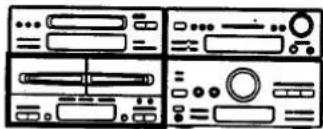
You can listen to two tapes consecutively with the procedure below.
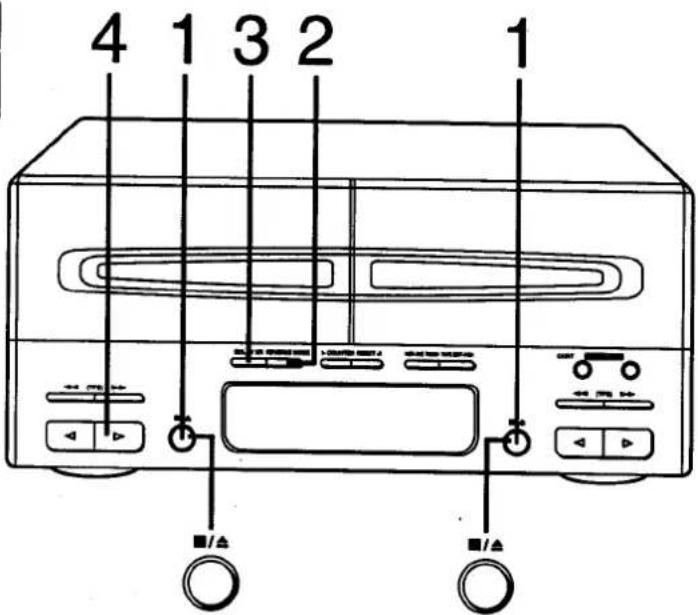
(Step 4 also available from the remote control)
1 Load cassettes in decks 1 and 2.
Load with the side that you wish to listen to first facing you in deck 1.
2 Press REVERSE MODE to set the mode.
3 Press DOLBY NR if the cassette you want to play was recorded with Dolby noise reduction B or C mode.
The Dolby noise reduction indicator (B or C) will light.
If the tape was not recorded in a Dolby NR mode, press the Dolby noise reduction button and the Dolby noise reduction indicator (B or C) will go off.
Notes:
- You cannot select Dolby NR for deck 1 and deck 2 respectively.
- We recommend that you use cassettes of the same type (Dolby noise reduction) in both decks.
4 Press deck 1 forward-side playback button (▷) to start playback.
Two tapes will play back as follows:
![graph LR A["Forward side of tape in deck 1"] --> B["Reverse side of tape in deck 1"] B --> C["Forward side of tape in deck 2"] C --> D["Reverse side of tape in deck 2"]](/content/2026/06/1146345/images/57423ec64d621f7217f3b35512368a3f029df81427d4f75c407ce7a61a988a63.jpg)
After repeating above operation 8 times, the tape will automatically stop.
You can also start playback from a position other than the forward side of the tape in deck 1.
■ To stop sequential tape play
(Also available from the remote control)
Press the stop/cassette holder open button in which the tape is currently playing.

Listening to Tapes (continued)
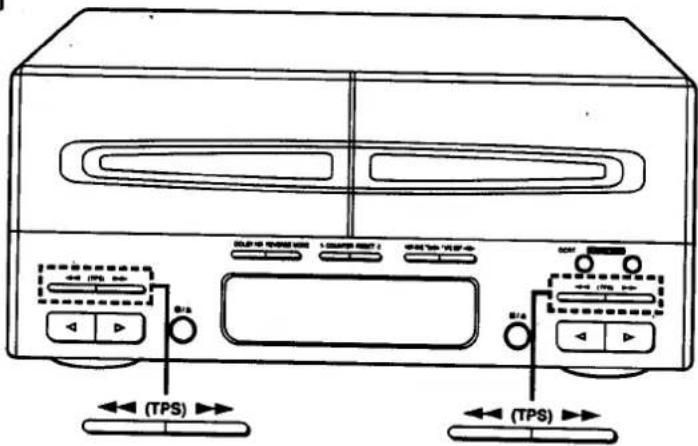
To find the beginning of a program (TPS: tape program sensor)
(Also available from the remote control)
Press ◀◀ (TPS) ▶▶ button while the tape is playing.
While a TPS operation is taking place, PLAY indicator will flash. If the forward side (▷) of the tape is playing:
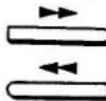
The tape will play from the beginning of the next program.
The tape will rewind to the beginning of the present program. Then the program will play again.
If the reverse side (◀) of the tape is playing: The reverse operation should take place;
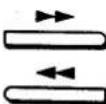
The tape will rewind to the beginning of the present program. Then the program will play again.
The tape will play from the beginning of the next program.
Notes:
TPS (Tape Program Sensor) is the function that searches for the silent passage in a tape program. So, it may fail to operate correctly in the following situations:
- When there is no dead space between tape programs (for example, when you are playing a tape recorded from a microphone).
- When the interval between programs (dead space) is less than 4 seconds.
- When there is a particular low-level passage or silent passage in the middle of a program.
- When there are less than 10 seconds from the point where TPS starts to the beginning of the program.
- When there are less than 10 seconds from the point where TPS starts to the beginning of the next program.
- When a tape has been recorded with fade-ins (the function that increases the volume level gradually at the beginning of a program) and fade-outs (the function that decreases the volume level gradually at the end of a program).
To fast forward or rewind the tape
(Also available from the remote control)
Press the ◀◀ (TPS) or ▶▶ button while the tape is stopped.
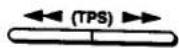
The tape will start moving at high speed in the direction of the arrow.
Easy Play
(Only from the remote control)
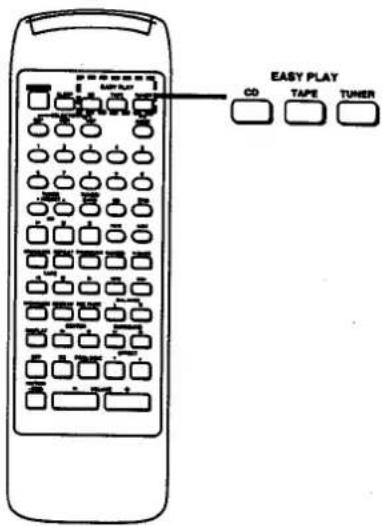
If you set a compact disc or cassette tape(s) in advance, you can start play directly by pressing one of the easy play buttons from the power standby condition.
Easy play will start with the fade-in function. (See "What is fade-in" below.)
Listening to compact discs
Press the easy play button marked "CD".
The play will start from the first track.
CD

Listening to tapes
Press the easy play button marked "TAPE".
TAPE

The playback will automatically start under the same conditions (tape direction and reverse mode) last set when the power was switched to standby condition.
When tapes have been loaded in both decks, deck 1 has priority.
Listening to radio broadcasts
Press the easy play button marked "TUNER".
You can receive the station last tuned in when the power was switched to standby condition.
TUNER

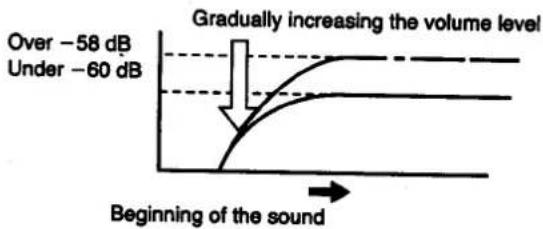
What is fade-in
When you set the volume level under -60 dB last, the easy play will start with volume increasing to -60 dB gradually (fade-in). When you set the volume level over -58 dB last, the play will start with volume increasing gradually up to the volume level you set last.
Making a Recording
(Deck 2 only)
To record from the desired source
Although you can record a compact disc using the following procedure, we recommend that you use the compact disc edit-recording procedure to record a compact disc. (See "Edit-Recording from Compact Discs" on pages 46–52.)
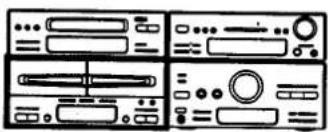
To make a tape-to-tape recording, see "Tape-to-tape recording from deck 1 to deck 2" on page 45.
You can use normal, chrome and metal tapes for recording.
The deck automatically identifies the kind of tape loaded, and sets the bias (for recording) and equalization accordingly.
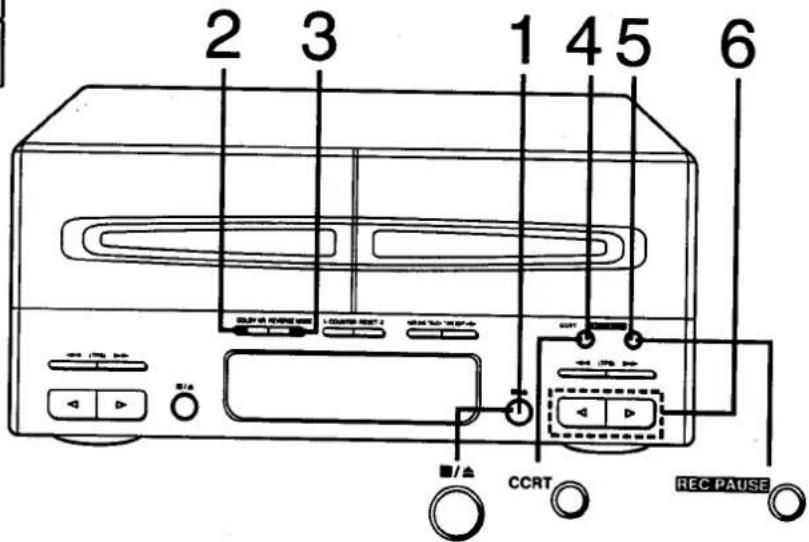
(Steps 5 and 6 also available from the remote control)
Switch on the power.
Check that the tape's erasure prevention tabs (see page 75) are intact, and then insert the cassette into deck 2.
Check that sound processor's display shows "FLAT". (See page 54.)
You cannot record on the leader tape (the first few revolutions) so take up the leader tape in advance. (See page 44.)
1 Press the deck 2 stop/cassette holder open button to load a cassette in deck 2. 2 When making a Dolby NR recording, press the DOLBY NR so that the Dolby NR indicator (B or C) lights. 3 Press REVERSE MODE to select the reverse mode you want to use.
→: One side will record, and then the tape will stop automatically at the tape end. ↔: Both sides will record (forward side→reverse side), and then the tape will stop automatically at the tape end.
4 When making a CCRT recording, press CCRT so that the CCRT indicator lights.
(See page 43.)
Start of the setting
![graph TD A["CCRT"] --> B["CCRT BIAS LEVEL EQ"] style A fill:#f9f,stroke:#333 style B fill:#ccf,stroke:#333](/content/2026/06/1146345/images/e29981e94d1b0caefab4d8b5fe23f0ee66ab3699580b3997434c5faa040a1f3f.jpg)
5
Press REC PAUSE to put the cassette deck into the recording standby mode; then select the desired sound source.
When you record from the radio:
After pressing REC PAUSE;
- Press BAND to select FM or MW or LW.
- Press one of PRESET to select the desired broadcast station. Be sure you've completed the steps of "Automatic memory presetting" on page 27 or "Manual memory presetting" on page 28.
Using the remote control, you can select the desired broadcast station directly by pressing one of the preset tuning buttons.
When you record from the compact disc:
Be sure to select the tape direction in advance. When you want to change the tape direction, press the opposite play button, and then press the stop button.
After pressing REC PAUSE;
Press the CD play button.
The recording will automatically start when you press the CD play button (Synchro start function).
Your attention is drawn to the fact that recording prerecorded tapes or discs or other published or broadcast material may infringe copyright laws.
6
Press one of the playback buttons to start recording, then start playing the source to be recorded.
▷: When recording on either the forward side or both sides ◀: When recording only on the reverse side
After recording of the compact disc has completed, the cassette deck will create a non-recorded passage of about 4 seconds, and then go into the recording standby state.
Note:
Do not connect or disconnect the microphone while recording. It breaks the recording.
■ To briefly interrupt recording from the radio
(Also available from the remote control)
When you want to cut an unnecessary part while recording:
Press REC PAUSE.
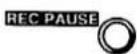
The cassette deck will go into the recording standby state. To resume recording, press the playback button corresponding to the direction in which recording is taking place.
■ To briefly interrupt recording from a compact disc
(Also available from the remote control)
When you want to cut an unnecessary track while recording:
Press the pause button on the compact disc player.
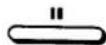
The cassette deck will create a non-recorded passage of about 4 seconds, and then go into the recording standby state.
Press one of the skip buttons until you reach the desired track, and then press the CD play button on the CD player to resume recording.
■ To stop recording from the radio
(Also available from the remote control)
Press the deck 2 stop/cassette holder open button on the cassette deck.

■ To stop recording from a compact disc
(Also available from the remote control)
Press the CD stop button on the CD player or the deck 2 stop/cassette holder open button on the cassette deck.
(On the CD player)

(On the cassette deck)

When you press the CD stop button, the cassette deck will create a non-recorded passage of about 4 seconds, and then go into the recording standby state.
CCRT recording function
CCRT (Computer Control Record Tuning) is the function which identifies the quality of the tape (concerning bias, level, equalizer) automatically and sets the most desirable recording condition. After the setting has completed, the sound processor display shows "SET", "OK".
The CCRT setting will remain in the system's memory even after the power is switched to the standby mode.
Notes:
- When you activate the CCRT setting, the test signal will be recorded on the tape. Please note that the previous recording will be erased.
- Do not press any input select button while the CCRT setting.
- Do not insert or remove the cassette tape after the CCRT setting has completed. It cancels the CCRT setting.
- The CCRT setting may not be possible with the old cassette tape or at around the end of the cassette tape. (The CCRT frame starts to flash.) In this case, press REC PAUSE to cancel the CCRT setting (the CCRT indicator goes off), and proceed to the next step.
■ To cancel the CCRT setting on the way
Press the deck 2 stop/cassette holder open button.

■ To cancel the CCRT after the CCRT setting has completed
Press CCRT.

Making a Recording (continued)
■ To record with desired tone quality
You can make a recording with the equalizer or simulated listening environment effect. (See pages 54–59.)
When playing back such recordings, press ON/FLAT on the sound processor to set "FLAT".
■ To erase a recorded sound (Deck 2)
When you make a new recording on a previously recorded tape, the new recording will automatically erase what was previously recorded. To erase a recorded sound without making a new recording, perform the following steps.
Note:
Be sure to disconnect the microphone from the microphone jack before following the steps.
[Steps 5) and 6) also available from the remote control]
1) Press the TAPE input select button on the tuner amplifier. 2) Press DOLBY NR so that "B" or "C" is turned off. 3) Insert the recorded tape into the cassette holder of deck 2. 4) Select the desired reverse mode. 5) Press REC PAUSE. 6) Press the playback button corresponding to the side to be erased.
■ Concerning the leader tape
The leader tape is the first few revolutions that is no recordings can be made.
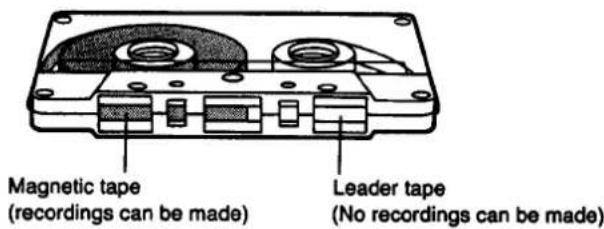
Tape-to-tape recording from deck 1 to deck 2
The recording level and the noise reduction effect of the original (playback) tape will be recorded on the new tape just as they were in the original recording.
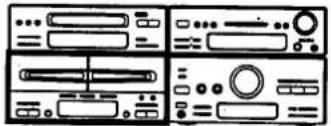
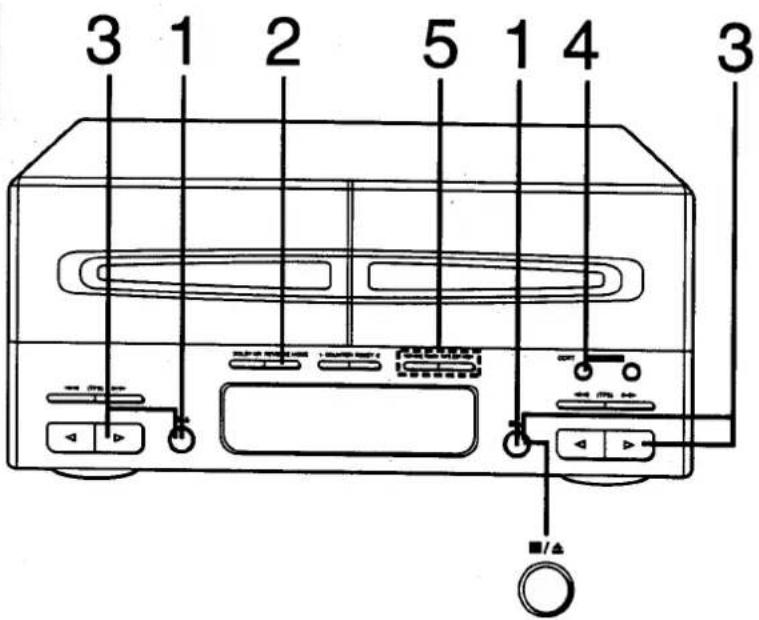
(Step 3 also available from the remote control)
1 Insert the playback cassette into deck 1 and the cassette you are recording on (the editing tape) into deck 2.
Check that the tape's erasure prevention tabs (see page 75) are intact, and then insert the cassette into deck 2.
You cannot record on the leader tape (the first few revolutions) so take up the leader tape in advance. (See page 44.)
2 Select the desired reverse mode.
Each time you press, one of the reverse mode indicators will light to show which mode you select.
: Single-sided recording
: Two-sided recording (forward side→reverse side) In case the length of a tape loaded in deck 2 is longer than a tape in deck 1, deck 1 repeats the playback until deck 2 completes the two-sided recording. (8 times max.)
XX : Two-sided recording (forward side→reverse side)
3 Set the tape direction to (▷ FWD) of deck 1 and deck 2.
Confirm that both decks are set to (▷) tape direction. If (<) indicator light, first press ▷ play button, and press the stop button.
4 When making a CCRT recording, press CCRT so that the CCRT Indicator lights.
(See page 43.)
5 Press one of the ONE TOUCH TAPE EDIT (NORMAL or HIGH) to start recording with the desired editing speed.
NOR: When you wish to monitor the sound while recording (NORMAL)
HIGH: When you wish to record at high speed (about 2.0 times normal speed)
After the recording has finished, both decks will stop.
- Some TV sets generate noise that could be recorded during tape-to-tape recording. To prevent this possibility, do not use this system close to a TV set.
- Do not press CD edit recording buttons (J. FIT, ALBUM, LAST FADE) while tape-to-tape recording is in progress. It changes the tape-to-tape recording to the CD edit recording mode.
- For optimum results, use an editing tape of the same or higher quality than the playback tape.
■ To stop the tape-to-tape recording
(Also available from the remote control)
Press the deck 2 stop/cassette holder open button.

Both decks will stop.
■ To enjoy another source while recording
Press one of the input select buttons on the tuner amplifier, and start the sound source.
You can change the volume level and tone quality without affecting the recording.
Edit-Recording from Compact Discs
You can edit up to 20 tracks.
Using the edit-recording safeguards against a break in the continuity of the sound when the recording changes from one side of the tape to the other.
Before recording, the cassette deck will automatically rewind the tape to the beginning and make a non-recorded passage of about 10 seconds, then stop.
So you don't have to set the cassette tape to the starting position before recording.
In any of the following edit-recording functions, you can record with desired tone and effect.
See pages 54–59.
When playing back such recordings, press ON/FLAT on the sound processor to set to FLAT.
Sequential CD recording (ALBUM)
The tape length indicated on the cassette tape is slightly shorter than the actual tape length. In this sequential editing mode, the cassette deck will fast-forward and rewind the tape in order to make a rough estimate of the tape length. After making an estimate, the cassette deck starts recording to calculate the actual tape length.
If the system determines it is possible to record one more track on side A, the cassette deck rewinds the tape side A to the end of the last track recorded and the first track assigned on the tape side B will be recorded on the tape side A.
A tape such as follows will be made: First-arranged

Re-arranged

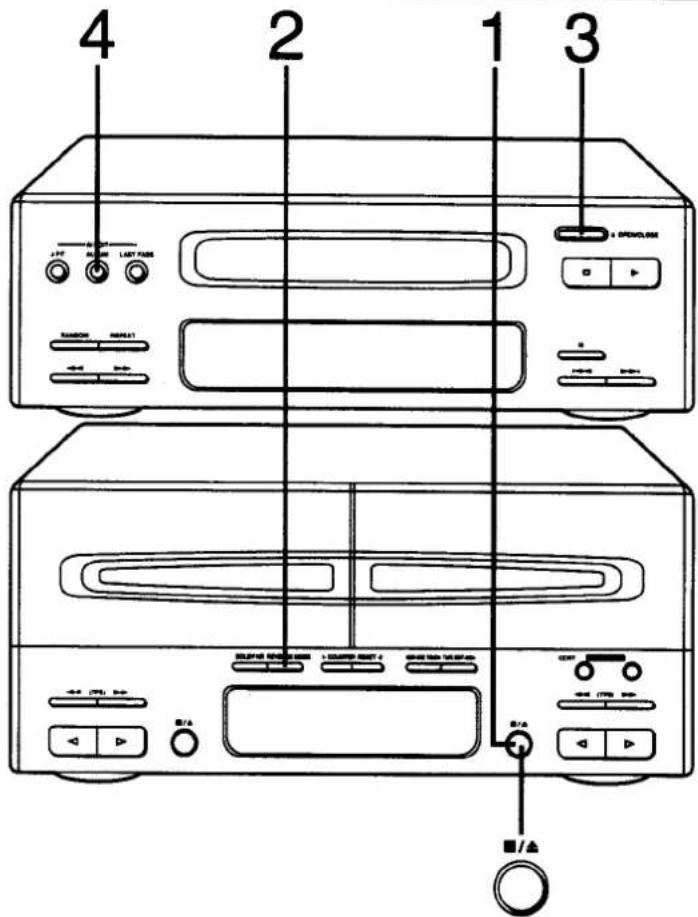
Switch on the power.
1 Load a cassette in deck 2.
Check that the tape's erasure prevention tabs (see page 75) are intact, and then insert the cassette into deck 2.
When making a Dolby NR recording, press DOLBY NR to select "B" or "C".
Press REVERSE MODE to select the "CD" reverse mode for automatic two-sided recording.
Press OPEN/CLOSE to load a disc.
Press ALBUM.
The ALBUM indicator will light.
The recording will start after the following steps.
- The CCRT function will activate automatically. (See page 43.)
- The cassette deck will fast-forward and then rewind the tape to measure its rough length.
- The cassette deck will automatically advance the tape beyond the leader tape, and then stop.
- The compact disc player automatically scans for the peak (highest) level of the entire disc (ATLS; see below) and then recording will start.
The tracks assigned on tape side A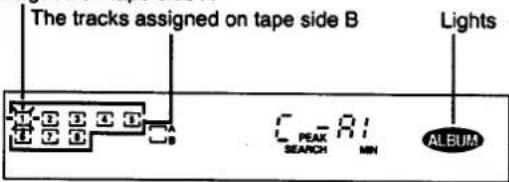
When edit-recording has finished, the deck automatically enters the recording standby mode.
You can specify the tracks to be recorded in the desired sequence using the program play function. (See right.)
When LINK indicator lights, you can record the tracks of another disc in succession. (See page 52.)
Notes:
- You cannot record tracks beyond track number 20 using sequential CD recording.
- Use a tape of less than 99 minutes.
■ To specify the tracks to be edited
When you want to specify the tracks to be edited, program the tracks using the program play procedure. (See page 33.)
After completing step 3 on the previous page:
- Press PROGRAM on the remote control, and then specify the tracks to be recorded in the desired sequence.
- Press ALBUM.
Notes:
- You can program up to 20 tracks. "FULL" appears on the display if you try to program more than 20 tracks.
- "Err" appears on the display when you specify a track number greater than 20.
■ To cancel sequential CD recording
(Also available from the remote control)
Press the deck 2 stop button on the cassette deck.

The compact disc player also stops.
About Automatic Tape Level Setting (ATLS)
Since compact discs generally have a wide dynamic range, careful setting of the recording level is required to achieve optimum recording results.
This system automatically scans (fast search) for the peak (highest) level of the entire disc, and the tape deck then sets the appropriate recording level. During this period, the peak level sound will not be heard.
It takes about 80 seconds to complete ATLS with a compact disc of 60 minutes.
Edit-Recording from Compact Discs
(continued)
Fit editing (J. FIT)
The system specifies the track order that fits on tape side "A".
Like the sequential CD recording, first the system estimates the length of the cassette tape. After making an estimate, the cassette deck starts recording to calculate the actual tape length.
If the amount of blank tape is too great, the compact disc player selects a different track order that best fits on tape side "A", and then the cassette deck rewinds the tape side A to the point where re-recording will start.
A tape such as follows will be made:
First-arranged


Switch on the power.
1 Load a cassette in deck 2.
Check that the tape's erasure prevention tabs (see page 75) are intact, and then insert the cassette into deck 2.
When making a Dolby NR recording, press DOLBY NR to select "B" or "C".
2 Select the "C→D" reverse mode for automatic two-sided recording.
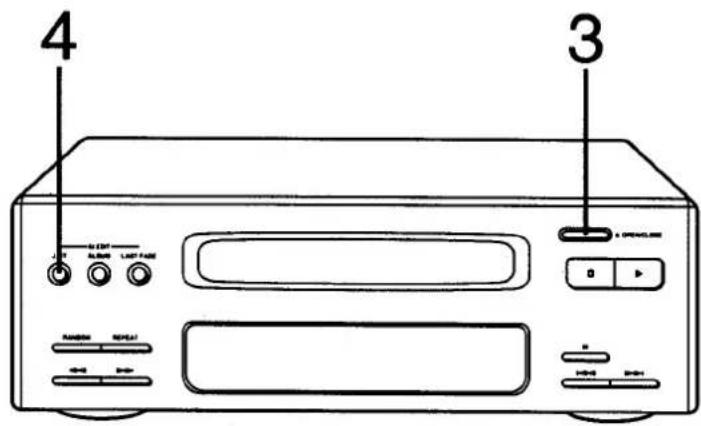
3 Press OPEN/CLOSE on the CD player to load a disc.
4 Press J. FIT.
J. FIT indicator will light.
The recording will start after the following steps.
- The CCRT function will activate automatically. (See page 43.)
- The cassette deck will fast-forward and then rewind the tape to measure its rough length.
- The cassette deck will automatically advance the tape beyond the leader tape, and then stop.
- The compact disc player automatically scans for the peak (highest) level of the entire disc (ATLS; see page 47) and then recording will start.
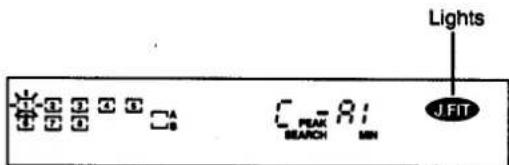
When edit-recording has finished, the deck automatically enters the recording standby mode.
You can specify the tracks to be recorded using the program play function. (See next page.)
When LINK indicator lights, you can record the tracks of another disc in succession. (See page 52.)
Notes:
- You cannot record the tracks of more than track number 20 using the fit editing.
- Use a tape of under 99 minutes.
■ To specify the tracks to be edited
When you want to specify the tracks to be edited, program tracks using the program play procedure. (See page 33.)
After completing the step 3 on the previous page:
- Press PROGRAM on the remote control, and then specify the tracks to be recorded.
- Press J. FIT. The track order may change so that the system happens to rearrange it.
Note:
You can program up to 20 tracks.
"FULL" appears on the display if you try to program more than 20 tracks.
■ To cancel fit editing
(Also available from the remote control)
Press the deck 2 stop/cassette holder open button on the cassette deck.

The compact disc player also stops.
Edit-Recording from Compact Discs
(continued)
Fade out editing (LAST FADE)
Fade out editing allows for automatic recording of compact disc tracks in order. At the end of side A of the tape, a track that cannot be recorded completely will be faded out, and then recorded from the beginning of side "B".
During recording, silent gaps of approximately 4 seconds are automatically inserted between tracks (auto space function).
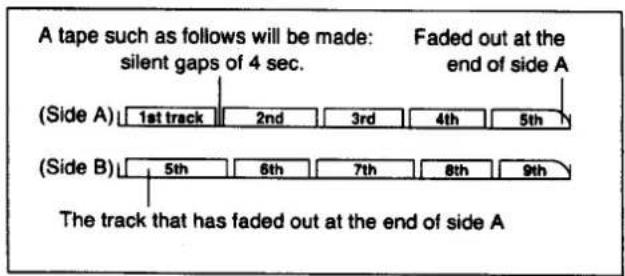
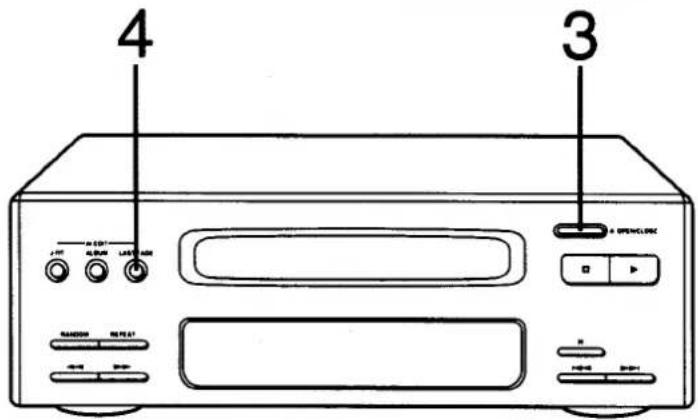
Switch on the power.
1 Load a cassette in deck 2. Check that the tape's erasure prevention tabs (see page 75) are intact, and then insert the cassette into deck 2. When making a Dolby NR recording, press DOLBY NR to select "B" or "C". 2 Select the "C" reverse mode for automatic two-sided recording. 3 Press OPEN/CLOSE on the CD player to load a disc. 4 Press LAST FADE.
LAST FADE indicator will light.
The recording will start after the following steps.
- The CCRT function will activate automatically. (See page 43.)
- The cassette deck will automatically rewind the tape and then advance the tape beyond the leader tape, and then stop.
- The compact disc player automatically scans for the peak (highest) level of the entire disc (ATLS; see page 47) and then recording will start.
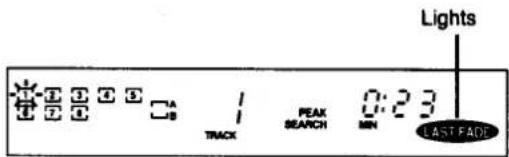
When edit-recording has finished, the deck automatically enters the recording standby mode.
You can specify the tracks to be recorded in the desired sequence using the program play function. (See next page.)
When LINK indicator lights, you can record the tracks of another disc in succession. (See page 52.)
■ To specify the tracks to be edited
When you want to specify the tracks to be edited, program tracks using the program play procedure. (See page 33.)
After completing step 3 on the previous page:
- Press PROGRAM on the remote control, and then specify the tracks to be recorded in the desired sequence.
- Press LAST FADE.
Note:
You can program up to 20 tracks.
"FULL" appears on the display if you try to program more than 20 tracks.
■ To cancel fade out editing
(Also available from the remote control)
Press the deck 2 stop/cassette holder open button on the cassette deck.

The compact disc player also stops.
Edit-Recording from Compact Discs
(continued)
To record from another disc on the remaining blank portion of the tape (LINK)
The automatic link function allows you to link tracks from another disc on the remainder of the tape.
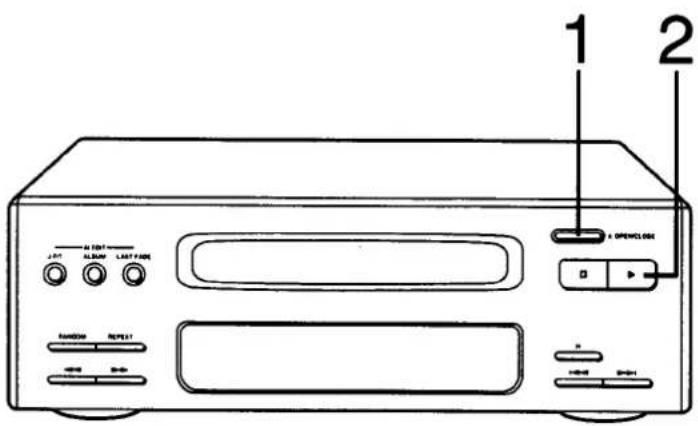
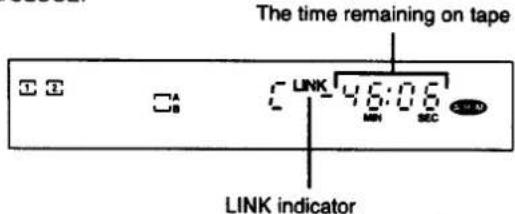
Make sure that the LINK indicator lights after editing the compact disc.
1 Press OPEN/CLOSE to replace the disc with another disc.
Note:
When you record from the same disc in succession, press PROGRAM to select desired tracks instead of pressing OPEN/CLOSE.
2 Press the CD play button.
The system assigns tracks to be recorded on the remainder of the tape and displays the results.
Tracks to be recorded on tape side A
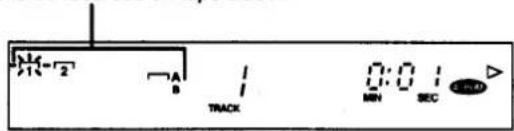
The compact disc player automatically scans for the peak (highest) level of the entire disc (ATLS; see page 47), and then recording will start with the same editing mode as the first disc.
3 If you record from more discs, follow the above procedure.
Notes:
- When the first disc has been edited using the last fade editing, tracks to be recorded on the tape will not be displayed, but it is possible to record from another disc.
- When the display shows "0:00", you cannot record from another disc. Press the stop button on the compact disc player to cancel the edit mode.
- If the time remaining on the tape is shorter than the tracks to be recorded, you cannot record the tracks. Replace the disc with tracks shorter than the time remaining on the tape, or press the stop button on the compact disc player to cancel the edit mode.
■ To specify the tracks to be edited
When you want to specify the tracks to be recorded on the blank, program tracks using the program play procedure. (See page 33.)
After completing step 1 left:
- Press PROGRAM on the remote control, and then specify the tracks to be recorded in the desired sequence.
- Press the CD play button.
Changing the Tone
This system has 5 different equalization curves (EQ) and 4 (5 for model SH-CH750) simulated listening environments (SFP) pre-programmed.
Demonstration function
This unit comes with a factory programmed demonstration mode (adjustment example). Use this function for reference of the adjustments of equalization curves and simulated listening environments.
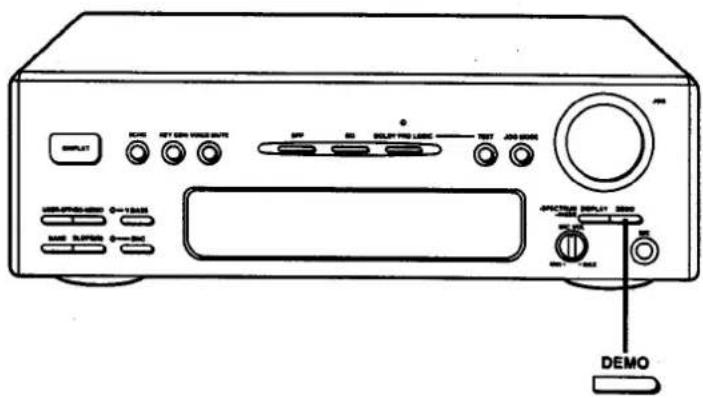
Switch on the power.
While playing the desired source,
Press DEMO.

The sound mode will be switched as follows: (For model SH-CH950):
![graph TD A["V. BASS"] --> B["CCRT mode"] B --> C["4 SFP modes"] C --> D["5 EQ modes"] E["Parametrique EQ mode"] <--_F["FLAT mode"] F <-- D](/content/2026/06/1146345/images/bb0684e57dcd51845d7a56964f2abf2099918e4eeb22615d35180988a43a4515.jpg)
In the parametric EQ mode, the equalizer changes its frequency level from low to high.
(For model SH-CH750):
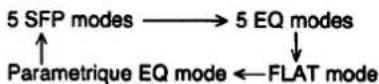
In the parametric EQ mode, the equalizer changes its frequency level from low to high.
Note:
Do not start recording while the demonstration function is taking place.
■ To cancel the demonstration
Press DEMO once again.

The demonstration mode is cancelled and the display switches to the original display mode.
Changing the Tone
(continued)
To retrieve the equalization curves preprogrammed to this system (EQ)
(Also available from the remote control)
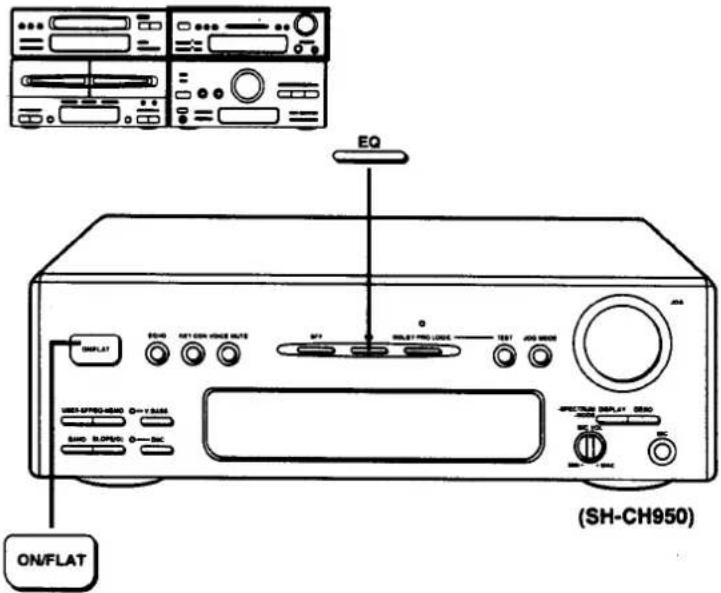
While playing the desired source,
Press EQ to select the desired equalization curve. Each press of EQ advances the equalization curve setting in the following sequence.
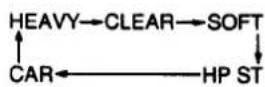
You can record with desired equalization curves. To playback such recordings, press ON/FLAT to select FLAT.
■ To cancel the equalization curves
(Also available from the remote control)
Press ON/FLAT to select FLAT.

FLAT display will appear.
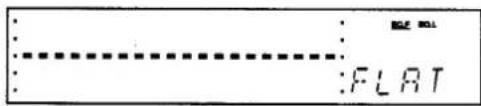
■ About equalization curves preprogrammed to this system (EQ)
1 HEAVY
Use to add "punch" to rock and other music.
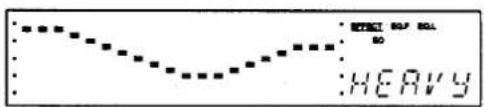
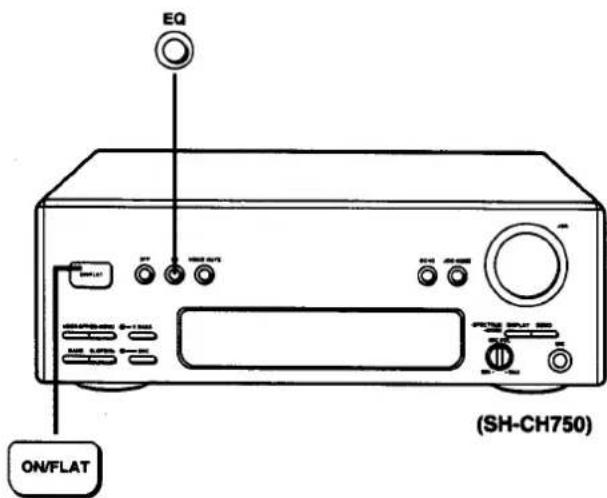
2 CLEAR
Use to clarify the treble range of jazz, etc.
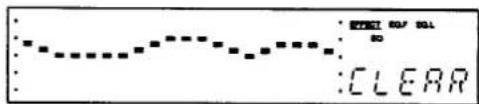
3 SOFT
Use to listen to background music, etc.
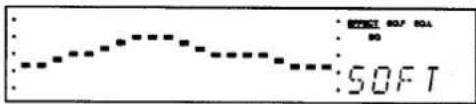
4 HP ST (HEADPHONES STEREO)
Use to record a tape for playback using the stereo cassette player (Headphones Stereo).
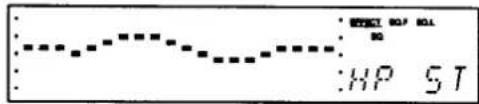
5 CAR (CAR STEREO)
Use to record a tape for playback using the car audio system (Car Stereo).
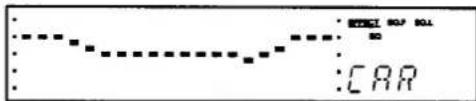
To retrieve the simulated listening environments preprogrammed to this system (SFP)
(Also available from the remote control)
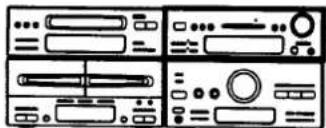
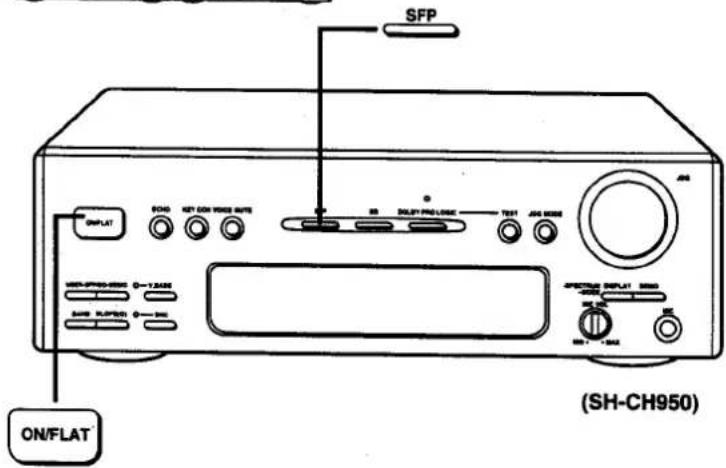
While playing the desired source,
Press SFP to select the desired simulated listening environments.
Each press of SFP advances the simulated listening environment setting in the following sequence.
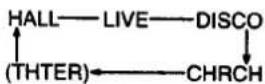
(THTER) is for model SH-CH750 only.
You can record with the desired simulated listening environment effect. To playback such recordings, press ON/FLAT to select FLAT.
■ To cancel the simulated listening environments (SFP)
(Also available from the remote control)
Press ON/FLAT to select FLAT.
ON/FLAT
FLAT display will appear.
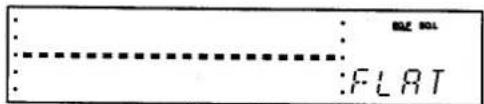
■ About simulated listening environments (SFP) preprogrammed to this system
1 HALL
Use to impart a deep bass and spread which will make you feel as if you were in a large concert hall.
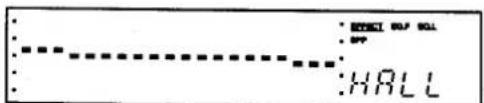
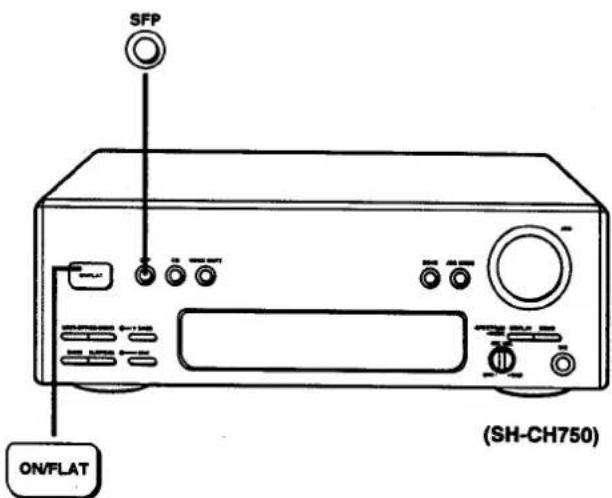
2 LIVE
Use primarily for vocal pieces to add gloss to the vocals.
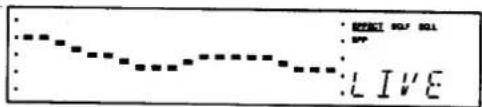
3 DISCO
Use to create powerful bass sounds found in discos.
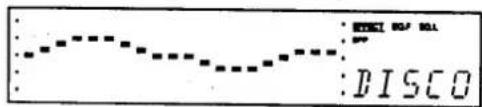
4 CHRCH (CHURCH)
When listening to the sound of the pipe organ, harpsichord, etc., this mode is most effective to create the rich reverberations as if you were in the church.
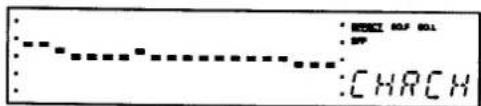
5 THTER (THEATER)
(For model SH-CH750 only)
This mode is effective for movie software.
Powerful and dynamic sound space available in the movie theater can be realized.
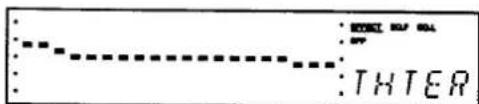
Changing the Tone (continued)
To increase or decrease the equalizer effect
(Also available from the remote control. For step 2, press one of EFFECT to adjust the effect.)
You can increase or decrease the effect of the equalization curve in seven steps.
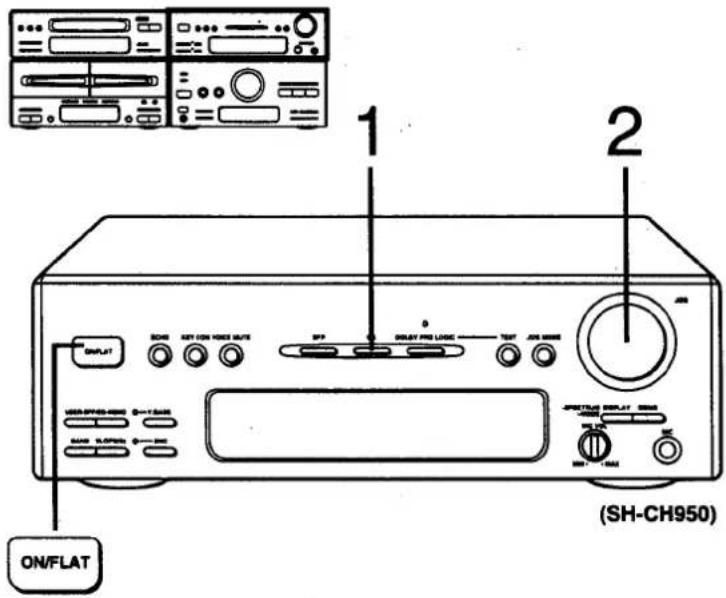
Example: HEAVY
1 Press EQ to select the desired equalization curve.
Each press of EQ advances the equalization curve setting in the following sequence.
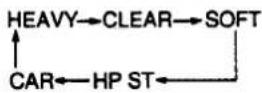
2 Turn JOG to adjust the effect.

: To increase the effect

: To decrease the effect
Such adjustments will not affect the preprogrammed equalization curves.
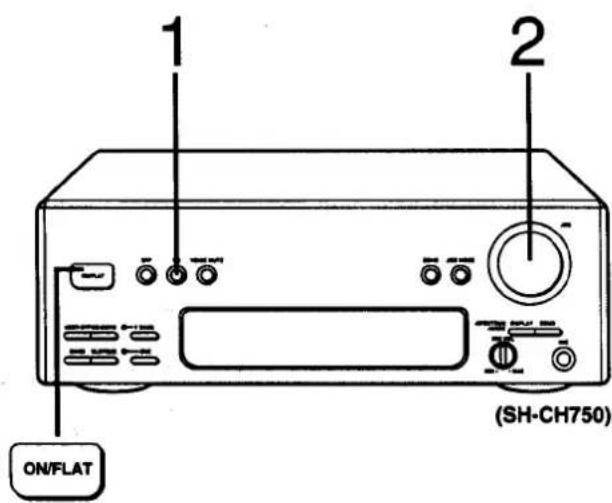
■ To cancel the equalizer effect
(Also available from the remote control)
Press ON/FLAT.

The flat display will appear.
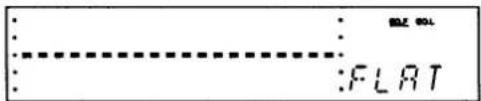
To adjust the reverberation sound
(Also available from the remote control. For step 2, press one of EFFECT to adjust the effect.)
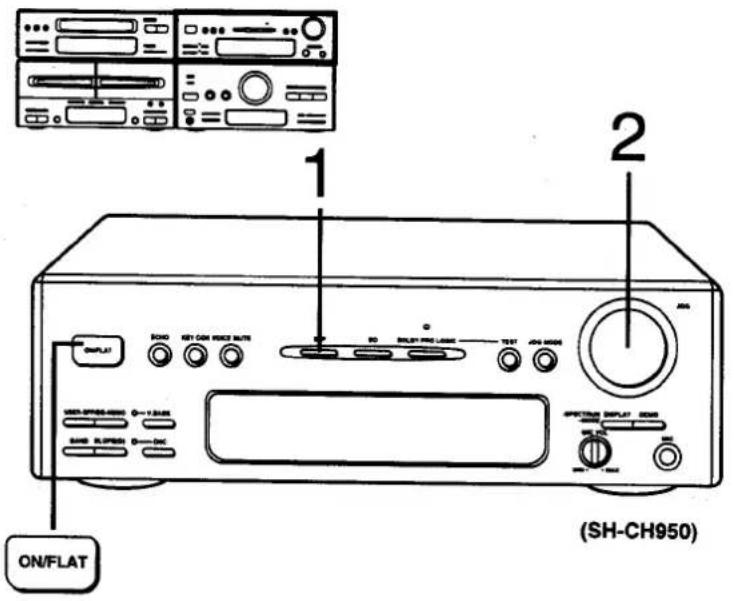
You can adjust the reverberation sound of the desired simulated listening environments (SFP).
1 Press SFP to select the desired simulated listening environment.
Each press of SFP advances the simulated listening environment setting in the following sequence.
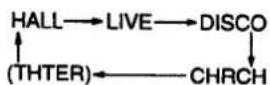
(THTER) is for model SH-CH750 only.
2 Turn JOG to adjust the reverberation sound.

: To increase the effect

: To decrease the effect
The shape of the equalization curve will change as you adjust the reverberation sound.
Such adjustments will not affect the preprogrammed simulated listening environment.
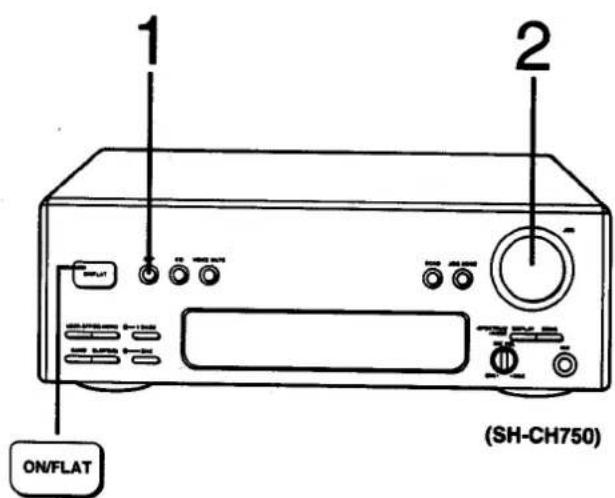
You can adjust the reverberation sound within the range described below.
HALL: 1.2–3.2 sec.
LIVE: 10–50 mm. sec.
DISCO: 0.5-2.5 sec.
CHRCH: 3.5–5.5 sec.
(THTER): 10–30 mm. sec.
(THTER) is for model SH-CH750 only.
■ To cancel the reverberation sound
(Also available from the remote control)
Press ON/FLAT.
ON/FLAT
The flat display will appear.
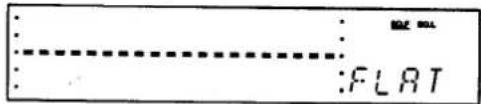
Changing the Tone (continued)
To adjust the specific frequency of the equalization curve or simulated listening environment
Select the desired equalization curve or simulated listening environment before proceeding to step. (See pages 54–55.)
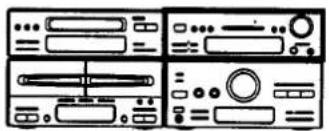
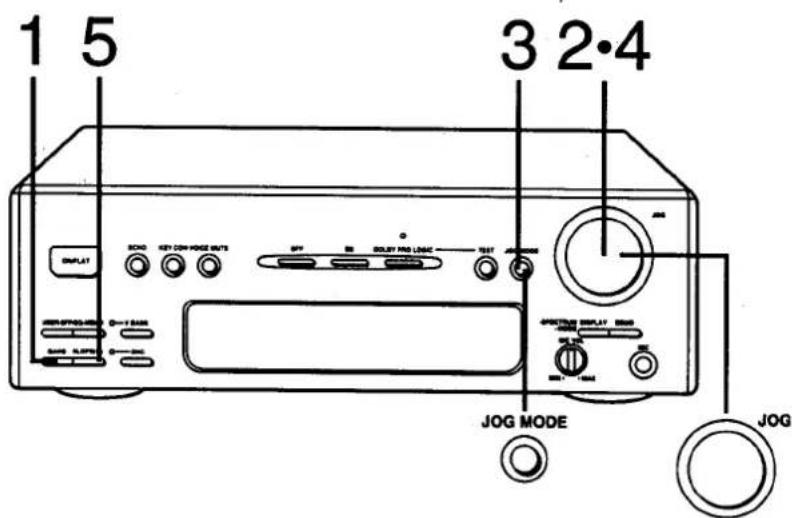
1 Press BAND to select the frequency band to be adjusted.
Each press of BAND advances the frequency band setting LOW, HIGH1, HIGH2 in sequence.
LOW: 63 Hz-220 Hz
HIGH1, HIGH2: 315 Hz–16 kHz
2 Turn JOG to select the frequency band you want to adjust.
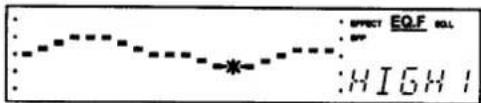
3 Press JOG MODE to select EQ. L (equalizer level) mode.
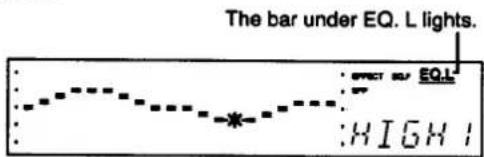
4 Turn JOG to adjust the equalizer level.
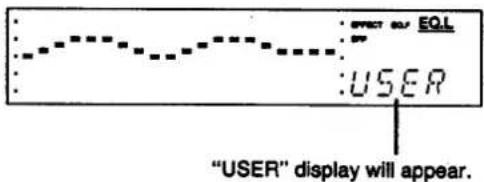
5 Press SLOPE (Q) to select the preferred slope, "narrow" or "wide".
The curve slope selection changes from "narrow" to "wide" each time SLOPE (Q) is pressed.
"Narrow" mode: Only the center frequency that is flashing will be boosted. "Wide" mode: Adjacent frequency levels will also be boosted together with the center frequency.
When you want to adjust another frequency band in succession:
- Press BAND to select the frequency band to be adjusted.
- Press JOG MODE to select EQ. F (equalizer frequency) mode.
- Follow the steps 2–5.
■ To shift the curve slope
The curve slope can be shifted only within the range of 63 Hz–220 Hz (LOW) or 315 Hz–16 kHz (HIGH1–HIGH2).
- Press JOG MODE to select EQ. F (equalizer frequency) mode.
The bar under EQ. F lights.
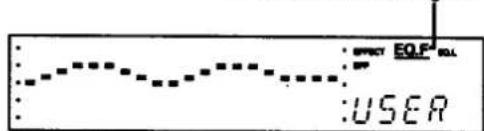
- Shift the curve slope using JOG.
■ To adjust the reverberation sound (Only when you select SFP mode)
- Press JOG MODE to select EFFECT mode. The bar under EFFECT lights.
- Adjust the reverberation sound using JOG. (See page 57.)
To store the desired equalization curves (EQ) or simulated listening environments (SFP)
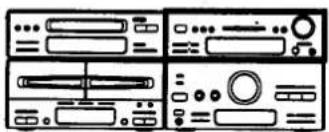
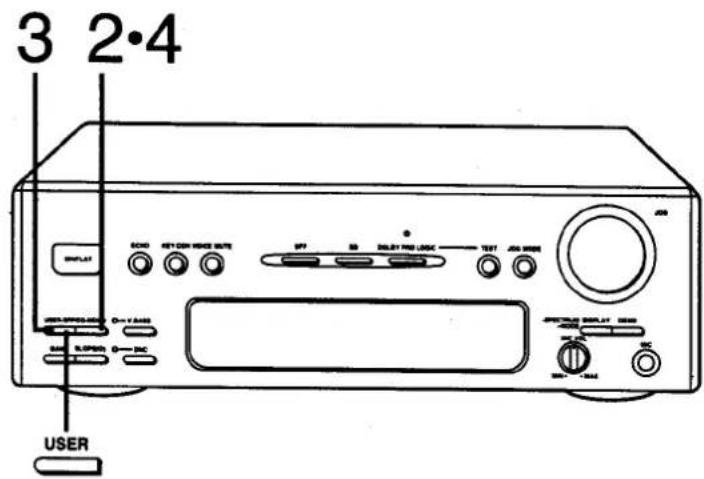
After creating your own equalization curves or simulated listening environments, you can store them into the system's memory ("USER" mode). You can store up to 5 types of "USER" mode.
1 Adjust the desired equalization curve or simulated listening environment. (See page 58.)
2 Press MEMO.
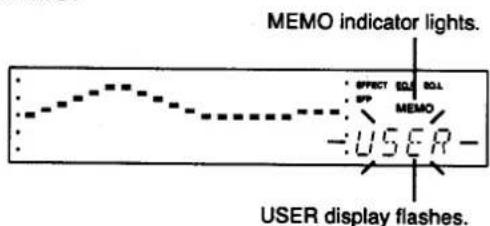
3 Press USER to select a "USER" number of your choice. Each press of USER advances the "USER" number in the following sequence.
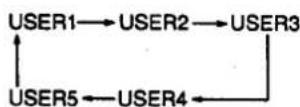
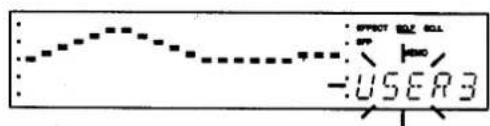
4 Press MEMO once again.
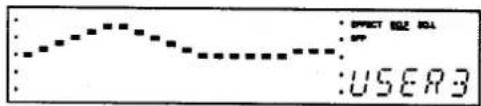
USER modes will stay in the system's memory for approximately 2 weeks even if the system is in the standby condition.
When you memorize a new curve and so on, it cancels the USER mode previously memorized on that USER number.
■ To retrieve USER modes from the memory
Press USER until the desired USER number appears.

Changing the Tone (continued)
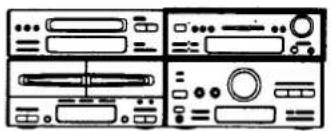
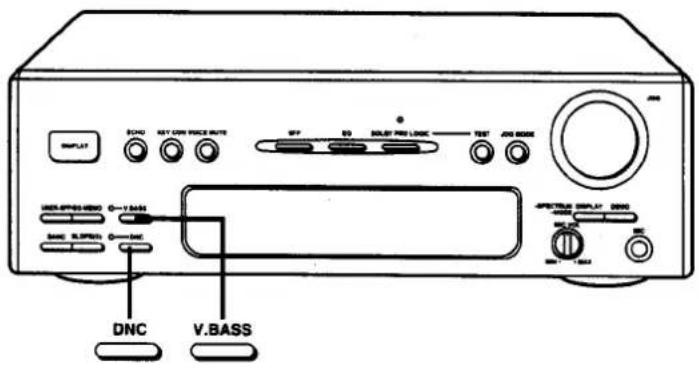
To listen with augmented bass (V. BASS)
(Also available from the remote control)
While playing the desired source,
Press V. BASS to ON.

V. BASS indicator will light, and the following display will appear.
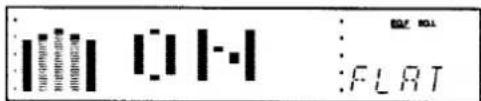
Note:
You cannot make a recording with the V. BASS effect.
While recording, the V. BASS indicator goes off, and after recording, it will light again.
■ To cancel the V. BASS effect
(Also available from the remote control)
Press V. BASS once again to turn off the V. BASS indicator.

The V. BASS indicator will go off.
To reduce the noise on a tape or FM stereo broadcast (DNC—Digital Noise Cleaner)
Press DNC to ON.
The DNC indicator lights.
Notes:
- You cannot record with the DNC effect. While recording, the DNC indicator goes off, and after finishing, it will light again. ●DNC may not be effective when used with originally low-noise sources such as CD. ●DNC is not effective while the Dolby Pro-Logic system is ON.
For your reference:
If you use DNC with a tape that was recorded with Dolby NR (B or C), the noise reduction effect will increase.
■ To cancel the DNC effect
Press DNC once again to turn off the DNC indicator.

The DNC indicator will go off.
Using the Dolby Pro-Logic Surround
(Only for model SC-CH950)
What is the Dolby Pro-Logic Surround?
The Dolby Pro-Logic Surround System recreates, in your home, the powerful and dynamic sound space of a movie theater. It is suitable for Dolby Pro-Logic encoded source materials.
This speaker system has built-in surround speakers, so you can easily enjoy surround sound.
To get more dynamic sound while enjoying Dolby Pro-Logic Surround, connect the rear surround speaker system (not included).
You can adjust the bass/treble sound and delay time.
(See page 63.)
Select "PHNTM" (PHANTOM) of the Dolby Pro-Logic mode when not connecting an optional center speaker to this system. (See below.)
About the Dolby Pro-Logic mode
There are the following 4 modes of the Dolby Pro-Logic mode.
Select the appropriate mode according to the type of speaker setting you use.
1 NORM (NORMAL)
Select this mode when using a center speaker that is smaller than the front speakers. (In this case, the low frequency of the center speaker channel is played through the front speakers.)
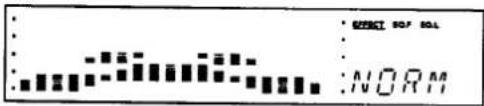
2 WIDE
Select this mode when using a center speaker that is the same size as the front speakers. (In this case, it is necessary to connect another amplifier to this system.)
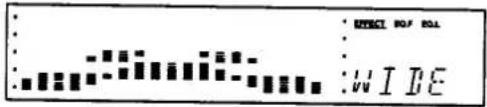
3 PHNTM (PHANTOM)
Select this mode when not using the center speaker. (In this case, the center speaker channel sound is played through the front speakers.)
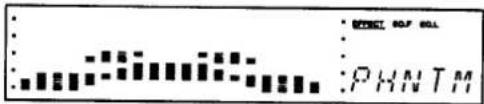
4 3 ST (3 channel stereo)
Select this mode when using center speaker only. In this case, disconnect the surround speaker cables.
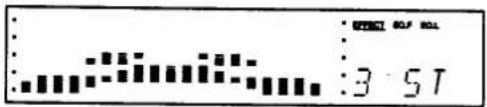
System layout
The system layout below is an example for good sound effect.
![graph TD A["Speaker ①"] --> B["Water Room ②"] C["Speaker ③"] --> D["Receiving Device ④"] E["Speaker ⑤"] --> F["Receiving Device ⑥"] G["User Device"] --> H["Signal Wave"] style A fill:#f9f,stroke:#333 style C fill:#f9f,stroke:#333 style E fill:#f9f,stroke:#333 style G fill:#f9f,stroke:#333](/content/2026/06/1146345/images/bbec3fb2b5d8a20f7ac666a55f83423e0d5ee931cf181f9242abff038a1a822e.jpg)
① Left speaker ② Television set (not included) ③ Center speaker (not included) ④ This system ⑤ Right speaker ⑥ Surround speakers (not included)
Manufactured under license from Dolby Laboratories Licensing Corporation.
"Dolby" and the double-D symbol are trademarks of Dolby Laboratories Licensing Corporation.
Using the Dolby Pro-Logic Surround
(Only for model SC-CH950) (continued)
Adjusting the output level of each speaker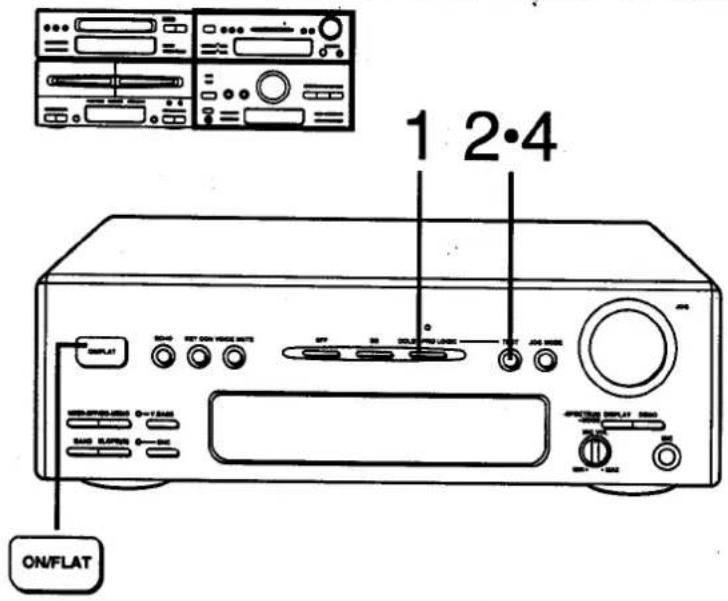
Example: When you select "PHNTM" (PHANTOM) mode Be sure to disconnect the microphone from the microphone jack.
Switch on the power.
(Steps 1 and 3 also available from the remote control)
1 Press DOLBY PRO LOGIC to select Dolby Pro-Logic Surround modes.
Select an appropriate mode according to the types of speaker setting you use. (See page 61.)
Each press of DOLBY PRO LOGIC advances the Dolby Pro-Logic indicators as follows.
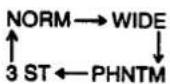
![Front speaker (left) [Center speaker] Front speaker (right) Surround speaker (left) Surround speaker (right) PHNTM](/content/2026/06/1146345/images/e6bd4a0d8c217b882987f6dd9bd07b1cd53a75fe9258d7d6ea1b465b4159cf70.jpg)
Note:
When you select a mode other than PHNTM, the center speaker level display will also appear.
2 Press TEST to sound the test signal.
Be sure to set the V. Bass to off for correct adjustment.
The test signal will sound for about 2 seconds from each speaker as follows:
![graph TD A["Front speaker (left)"] --> B["Center speaker"] C["Both surround speakers"] <--_D["Front speaker (right)"]](/content/2026/06/1146345/images/537e7cbe3580d0f748819c2af01c4984b4bb897ac6e2f9cdccaab5e17b3404a0.jpg)
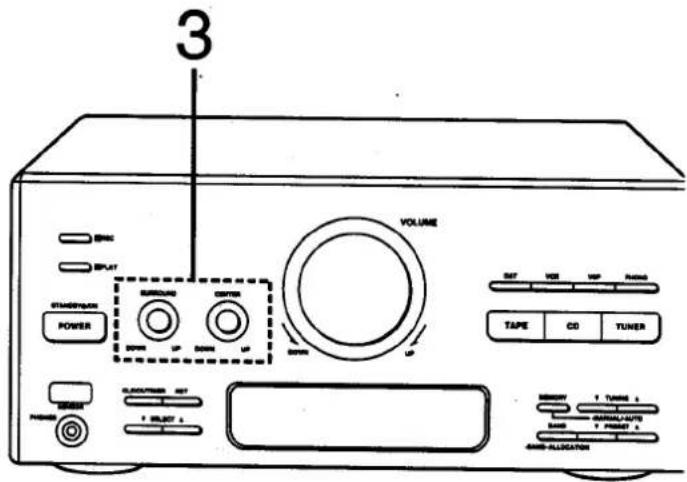
When you select any mode except PHNTM, the test signal will also sound from the center speaker after the front speaker (left).
Output level of the front speaker (left)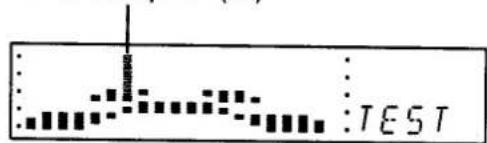
3 Adjust the output level of the speakers.
While standing in the listening area, adjust the volume of each speaker to be the same as the front speakers.
Output level of the surround speakers will be displayed on the tuner amplifier display. You can adjust the volume of surround speakers within the range of ±20 dB.
When you select any mode except for PHNTM, adjust the volume of the center speaker to the same level.
4 Press TEST to stop the test signal.
■ To cancel the Dolby Pro-Logic mode
(Also available from the remote control)
Press ON/FLAT.
The flat display will appear.
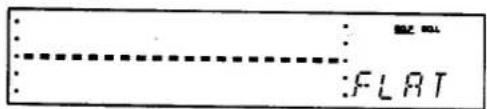
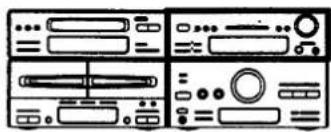
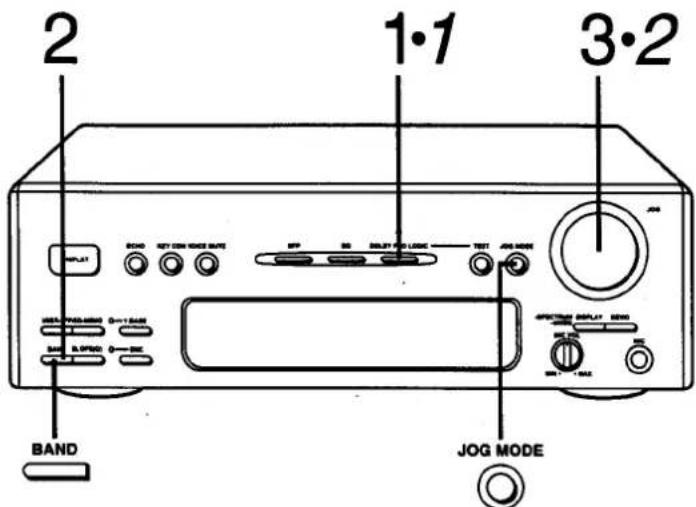
Adjusting the bass/treble sound
1 Press DOLBY PRO LOGIC to select an appropriate mode according to the types of speaker setting you use. (See page 61.)
2 Press BAND to select BASS or TREBL.
Each press of BAND advances the display as follows:
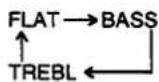
BASS: Bass sound
TREBL: Treble sound
Equalization curve will appear in the Dolby Pro-Logic output level display.
3 Turn JOG to adjust the level.
You can adjust the level within the range of ±10 dB.
■ To adjust the delay time in succession
- Press JOG MODE to select EFFECT mode. The bar under EFFECT lights.
- Adjust the delay time using JOG.
■ To cancel the level adjustment
Press BAND to select "FLAT".

Adjusting the delay time
(Also available from the remote control. For step 2, press one of EFFECT to adjust the delay time.)
1 Press DOLBY PRO LOGIC to select an appropriate mode according to the types of speaker setting you use. (See page 61.)
2 Turn JOG to adjust the delay time.
You can adjust bass/treble sound in succession. If necessary, proceed to step 2 left.
Using the Timer
Setting the play timer
You can use this timer function to switch the system to play the desired sound source at a desired time from the power standby condition.
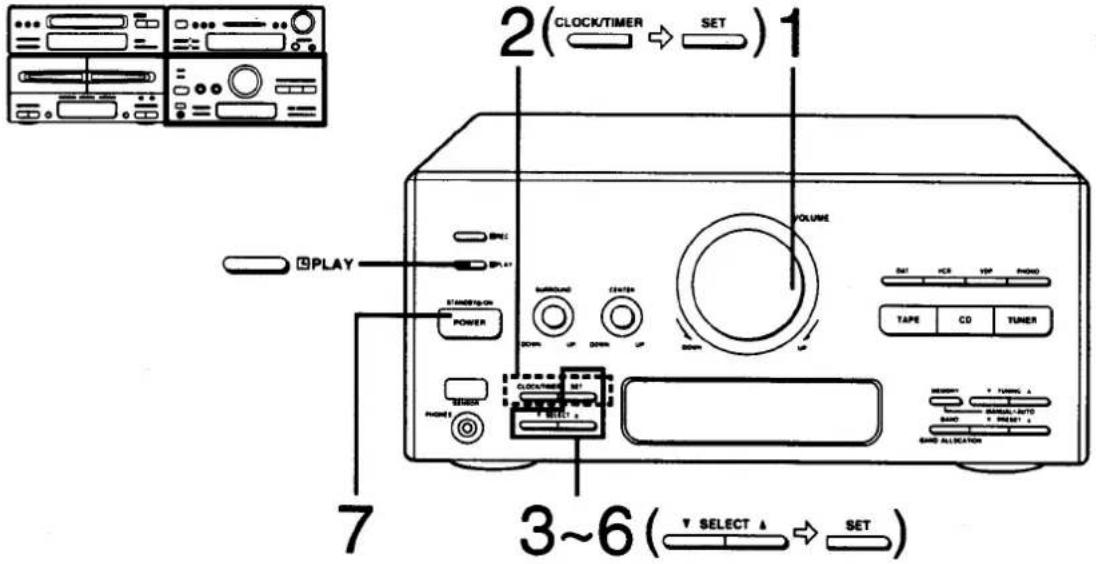
Have you read and completed "Setting the Time of Day" on page 25? If not, please complete these sections before continuing.
The following example shows how to set the play timer for: from 6:30 to 7:40 everyday from Monday through Friday, plays CD at -48 dB.
Note:
If you make an error, press CLOCK/TIMER to return to step 2.
Switch on the power.
1 Adjust the volume level for the timer play.
The timer play will start with the volume level you set at this step.
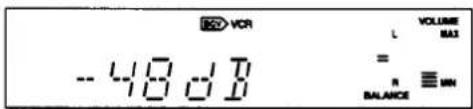
2 Select "☐ PLAY" of the timer.
① Press CLOCK/TIMER.
Each time you press, the display will change "CLOCK", "☐ REC", "☐ PLAY", "SLEEP", in order.
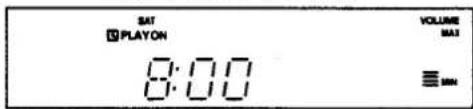
The display will return to what was previously indicated if you allow 7 or more seconds to elapse before you accomplish the next operation.

② Press SET.
3 Select the day.
There are following five types of timer play operation;
•One day from Sunday to Saturday ●Everyday from Sunday to Saturday ●Everyday from Monday to Saturday ●Everyday from Monday to Friday ●Saturday and Sunday only
Each time you press one of SELECT, the five types displayed above will appear in order.
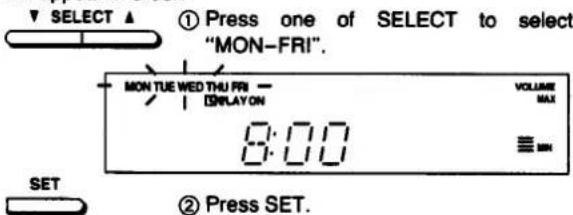
4 Set the ON time.
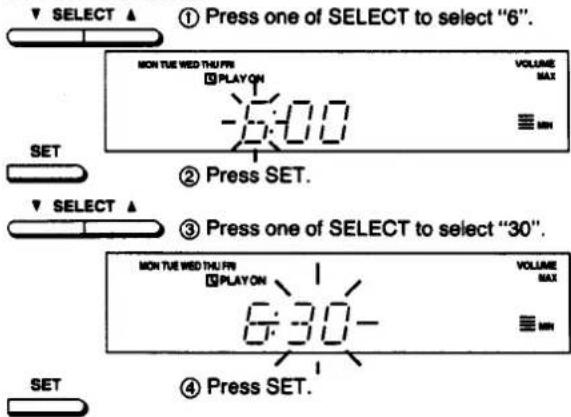
When the day setting automatically advances after making the ON time setting:
This system retains the ON/OFF time settings until you make a new setting. If you make a new ON time setting that is later than the previous OFF time setting, the system automatically advances the day you set in step 3. When you reset the OFF time, the day setting will return to the original setting.
5 Set the OFF time.
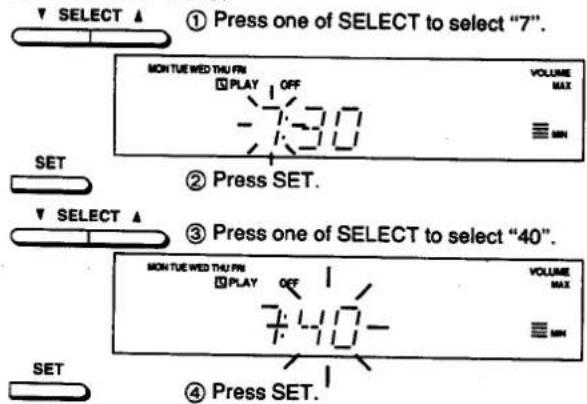
6 Select the desired source.
For timer play on the CD player, you can set sequential play only.
For timer play on the tape, you can operate both decks 1 and 2 by the timer. When you load cassettes in both decks, deck 1 has priority.
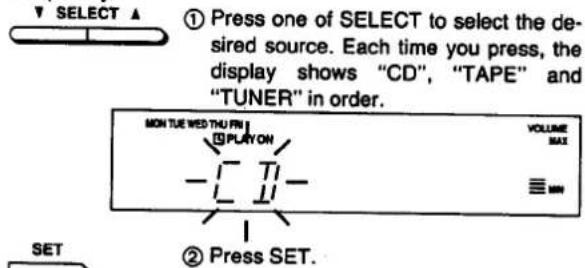
When you select TUNER, select a desired preset channel using SELECT, and then press SET.
Be sure that you've set a compact disc or cassette tape before proceeding to step 7.
7 Press POWER STANDBY ⊙/ON to switch the power to standby mode.
Please confirm that the ☐ PLAY indicator appears on the display. The timer play will start at the preset time with volume gradually increasing up to the volume level you preset.
Notes:
- If the power is on, the timer will not function. The system must be in standby mode.
- The play timer will function until you exit the play timer mode. (See right.)
■ To confirm the play timer
Press ☐ PLAY to show ☐ PLAY on the display.
PLAY
While in the timer standby mode, press ☐ PLAY twice.
The display will show the ON time, OFF time, the source you select, and the volume level in 3-second steps.
Note:
When the play timer is functioning, do not press ☐ PLAY to confirm the timer setting. It cancels the timer-off time setting.
■ To exit the play timer mode
Press ☐ PLAY to go off ☐ PLAY.
PLAY
The play timer will not function, but the play timer setting will stay in the memory.
To reset the timer setting after the above operation, first press ☐ PLAY to display ☐ PLAY, and then press POWER STANDBY ⏻/ON to switch the power to standby mode.
■ To enjoy the desired source after the timer setting is completed
- Press POWER STANDBY ⏻/ON to turn on.
- Select the desired source.
Be sure to press POWER STANDBY ⏻/ON to enter standby mode.
Even if you change the volume level or music source, the timer play will start with the preset condition.
Using the Timer (continued)
Setting the record timer
You can use this timer function to switch the system to record the radio at a desired time from the power standby condition.
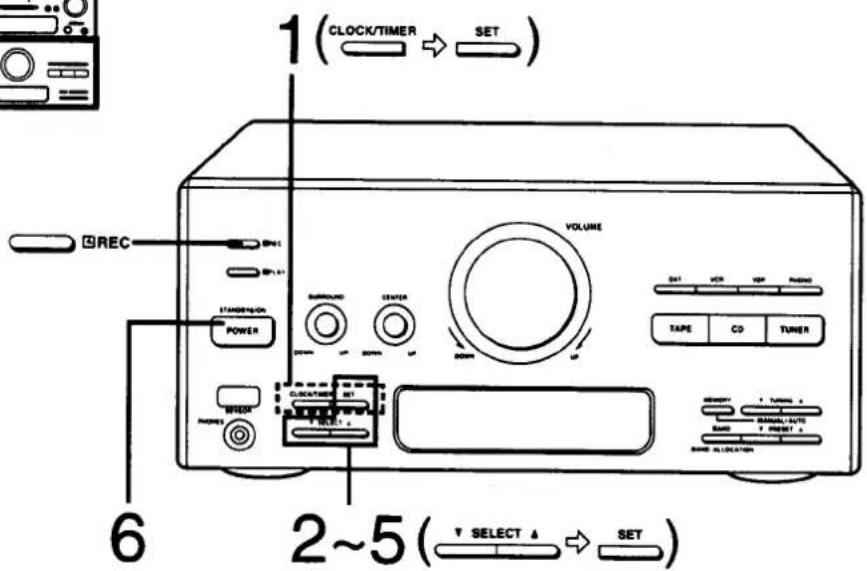
Have you read and completed "Setting the Time of Day" on page 25? If not, please complete these sections before continuing.
The following example shows how to set the record timer for: from 18:30 to 20:00 on Saturday, recording FM preset channel no. 3.
Note:
If you make an error, press CLOCK/TIMER to return to step 1.
Switch on the power.
1 Select "☐ REC" of the timer.
① Press CLOCK/TIMER.
Each time you press, the display will change "CLOCK", "☐ REC", "☐ PLAY", "SLEEP", in order.
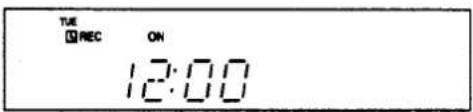
The display will return to what was previously indicated if you allow 7 or more seconds to elapse before you accomplish the next operation.

② Press SET.
2 Select the day.
There are the following five types of timer recording operations:
● One day from Sunday to Saturday ● Every day from Sunday to Saturday ● Every day from Monday to Saturday ● Every day from Monday to Friday ● Saturday and Sunday only
Each time you press SELECT, the five types above will appear in order.
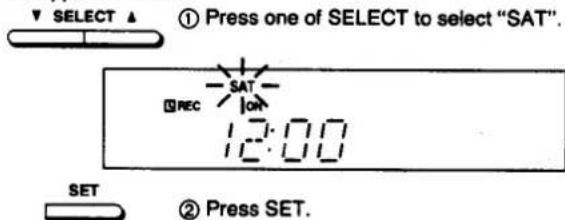
3 Set the ON time.
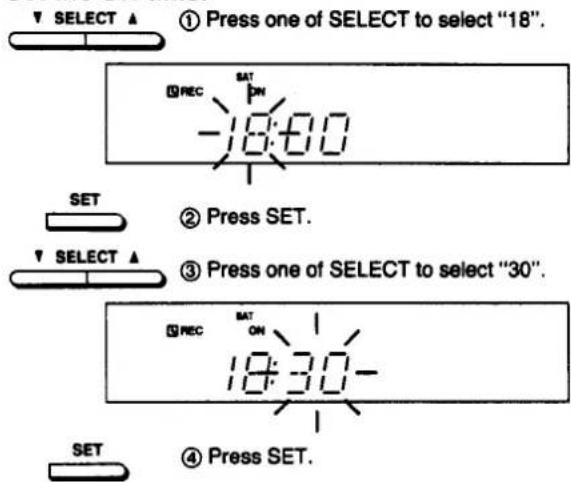
When the day setting automatically advances after making the ON time setting:
This system retains the ON/OFF time settings until you make a new setting. If you make a new ON time setting that is later than the previous OFF time setting, the system automatically advances the day you set in step 3. When you reset the OFF time, the day setting will return to the original setting.
4 Set the OFF time.
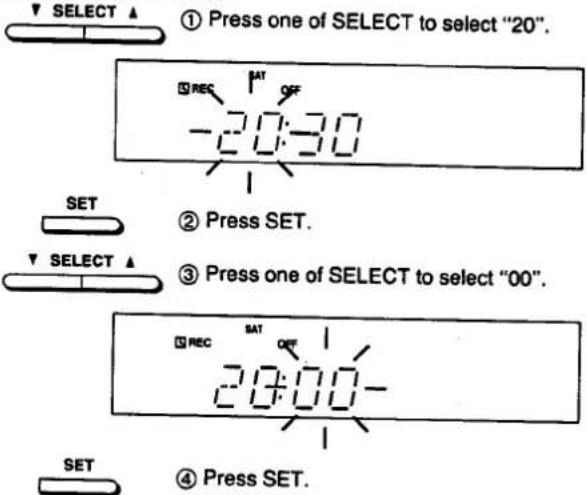
5 Select the desired preset channel.
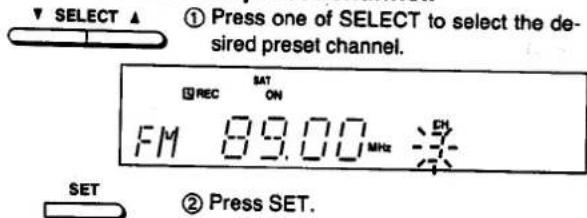
Be sure to prepare for recording in the cassette deck before proceeding to step 6.
6 Press POWER STANDBY ⏻/ON to switch the power to standby mode.
Please confirm that the ☑ REC indicator appears on the display.
Notes:
- If the power is on, the timer will not function. The system must be in standby mode.
- While timer recording is taking place, the volume level will be automatically muted.
- Once the record timer operation finishes, it clears the record timer mode. (For an exception, see below.)
- Only when you select the record timer mode that functions every day from Sunday to Saturday, the record timer mode will not be cancelled until you exit the record timer. To prevent accidental erasure of recordings, press ☐ REC to clear the record timer mode after the timer recording has finished.
■ To confirm the record timer
Press ☐ REC to show ☐ REC on the display.

While in the timer standby mode, press ☐ REC twice.
Each time you press, the display changes to show the ON time, OFF time, and the broadcast band you select, in 3-second steps:
Note:
When the record timer is functioning, do not press ☐ REC to confirm the timer setting. It cancels the timer-off time setting.
■ To exit the record timer modes
Press ☐ REC to turn off ☐ REC.

The record timer will not function, but the record timer setting will stay in memory.
To reset the timer setting after the above operation, first press ☐ REC to display ☐ REC, and then press POWER STANDBY ☐/ON to switch the power to standby mode.
■ To enjoy the desired source after the timer setting is completed
- Press POWER STANDBY ⏻/ON to turn on.
- Select the desired source. When listening to a cassette tape, use deck 1. After enjoying the source, press POWER STANDBY ☐/ON to switch to standby mode.
Even if you change the music source, the timer recording will start with the preset source.
Using the Timer (continued)
To use the sleep timer
You can use this timer function to switch the power to the standby mode at a desired time (within a range of 1 minute to 120 minutes from the present time).
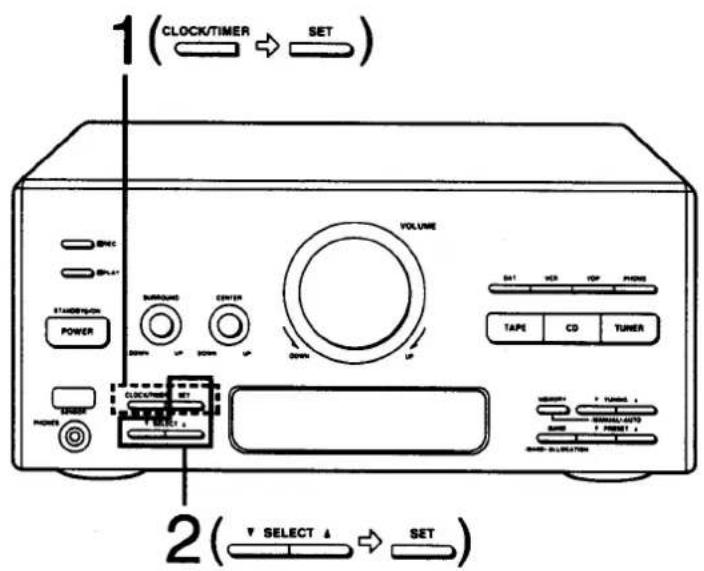
It is convenient to use the sleep timer function when you want to fall asleep while listening.
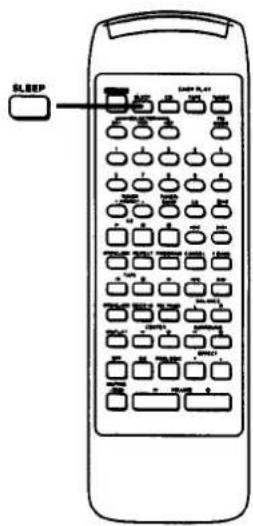
The following example shows how to set the sleep timer for: switching the power to the standby mode after 30 minutes.
While the source is being played,
1 Select the "SLEEP" of the timer.
① Press CLOCK/TIMER.
Each time you press, the display will change "CLOCK", "☐ REC", "☐ PLAY", "SLEEP", in order.
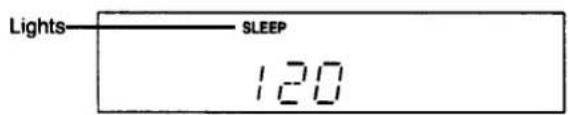
The display will return to what was previously indicated if you allow 7 or more seconds to elapse before you accomplish the next operation.
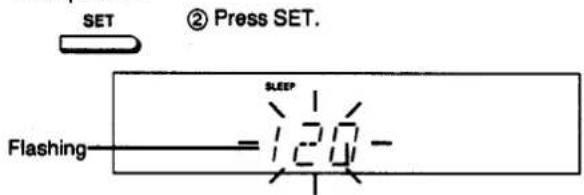
2 Set the length of time you would like the system to operate before it shuts off (Sleep time).
▼ SELECT ▲ ① Press one of SELECT to select the desired length of time.
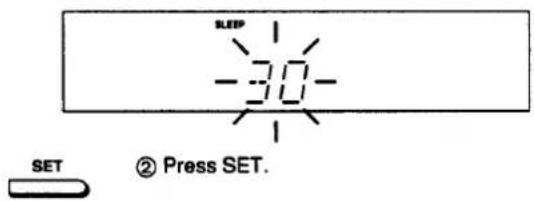
The sleep time set by the steps above will stay in the system's memory.
If you want to operate the system again on the same sleep time previously set, just press SLEEP on the remote control.
When you want to change the time setting, follow the above procedure from the beginning.
■ To confirm the time remaining on the sleep timer
Press CLOCK/TIMER to select "SLEEP".
The display shows "SLEEP", and then the time remaining on the sleep timer will show.
■ To cancel the sleep timer mode
Press SLEEP on the remote control to go off the SLEEP indicator.

■ To use each timer mode in conjunction
For example, to go to sleep listening to a FM broadcast, and wake up the next morning listening to a compact disc.
- Make a play timer setting for a compact disc. (Follow steps 1 to 6 on pages 64–65.)
- Tune in your desired band and station, and adjust the volume level.
- Press CLOCK/TIMER to select SLEEP timer, and set the sleep time.
For example, to go to sleep listening to a compact disc, and then to make a timer recording from a radio broadcast.
- Make a record timer setting. (Follow steps 1 to 5 on pages 66–67.)
- Play a compact disc, and adjust the volume level.
- Press CLOCK/TIMER to select SLEEP timer, and set the sleep time. Be sure to set the sleep timer off before the timer recording will begin.
For example, to make a timer recording from a radio broadcast while sleeping, and wake up the next morning listening to a cassette tape.
- Make a record timer setting. (Follow steps 1 to 5 on pages 66–67.)
- Make a play timer setting for deck 1.
Be sure to set the timer recording off before the timer play will begin.
For example, to go to sleep listening to a tape, and wake up the next morning listening to a compact disc, and make a timer recording from a radio broadcast while going out.
- Make a record timer setting. (Follow steps 1 to 5 on pages 66–67.) 2 Make a play timer setting for a compact disc. Be sure to set the play timer off before the timer recording will begin.
- Start playing a tape in deck 1, and adjust the volume level. Be sure to select "⊂⊃" reverse mode.
- Press CLOCK/TIMER to select SLEEP timer, and set the sleep time.
Timer sequence of priority
Sleep timer, record timer, play timer is the timer operation of priority in order. Be sure not to make each timer setting overlap.
If programmed times overlap among play timer, record timer and sleep timer settings, timer operation is as follows:
When the record timer and the sleep timer setting has overlapped:
The sleep timer setting has priority, so the record timer will not function.
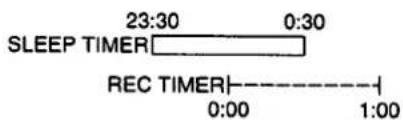
When the record timer and play timer settings overlap:
The record timer setting has priority, so the play timer will not function.
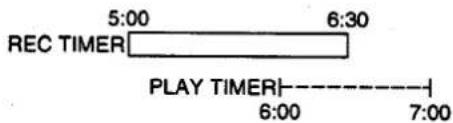
When the OFF (or ON) time of the record timer and the ON (or OFF) time of the play timer are the same, both timers will function.
Enjoying Microphone Mixing
Using the "KARAOKE" feature
This function mutes the vocal track on a compact disc or similar, but leaves the accompaniment, allowing you to enjoy "KARAOKE" (singing with an accompaniment).
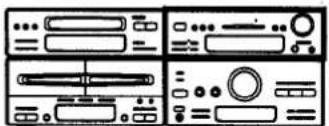
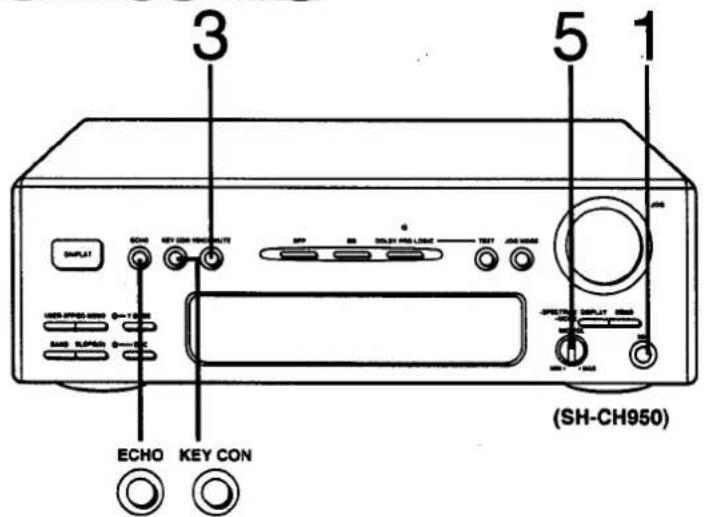
■ Microphone mixing
Switch on the power.
1. Connect the microphone to the MIC jack. Be sure to reduce the microphone level before connecting. 2. Start playing a compact disc. 3. Press VOICE MUTE to ON.
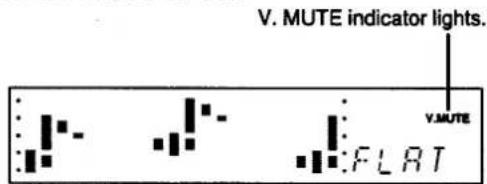
The singing voice is muted.
4. Start microphone mixing. The singing voice on the microphone will mix with the sound of the compact disc. 5. Adjust the microphone level.
To cancel the "KARAOKE" mode, press VOICE MUTE again. The display will change to the previous setting.
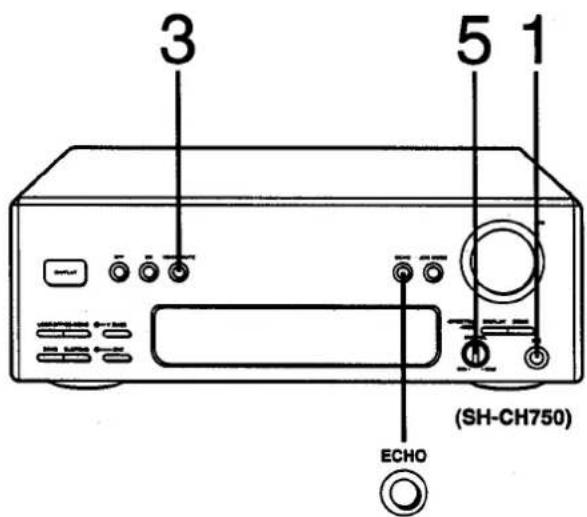
■ To change the key of the tune
(For model SH-CH750, only for Australia and New Zealand)
- Press KEY CON. KEY CON indicator will light.
- Adjust the key using JOG. You can adjust the key within the range of -3.0 to +3.0 in 0.5 step.
To cancel, press KEY CON again.
■ To adjust the reverberation sound
(For model SH-CH750, only for the area except for Australia and New Zealand)
- Press ECHO. The ECHO indicator will light.
- Adjust the reverberation sound using JOG. You can adjust the reverberation sound within the range of 0.2 seconds to 1.6 seconds. To cancel, press ECHO again.
Notes:
●This function may not be effective according to the type of music. - This function is not effective with compact discs or cassette tapes made for "KARAOKE" use. When you use such compact discs or cassette tapes, press VOICE MUTE to go off the display showed in the step 3. (See left.) - If you hear strange noises (squealing or howling) during mixing, move the microphone farther away from the speakers or turn down the volume on the tuner amplifier and microphone volume. - When you are not using the microphone, disconnect it from the MIC jack, and turn down the microphone volume level to MIN. - You cannot use this function with a compact disc made from a monaural source. - You cannot change the tone quality (equalizer curve or simulated listening environment) while using this function.
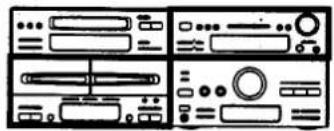
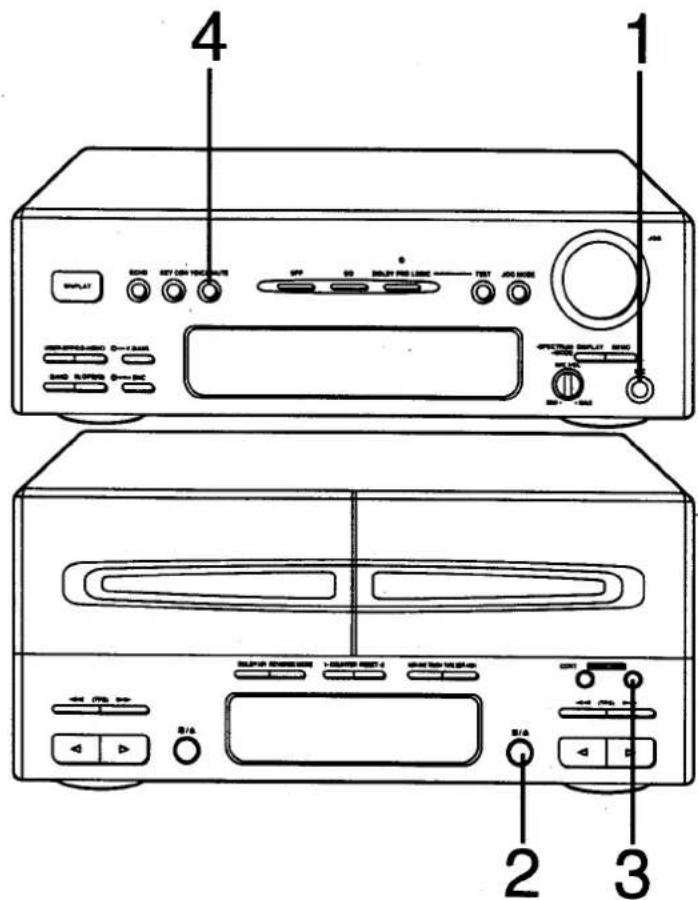
■ To make a recording your "KARAOKE" performance
1 Connect the microphone to the MIC jack. 2 Insert the cassette for recording in deck 2. 3 Press REC PAUSE to put the cassette deck into the recording standby mode. 4 Press VOICE MUTE.
Do not press VOICE MUTE when you use a compact disc originally made for "KARAOKE" use.
5 Start playing a compact disc.
The recording will automatically start by the synchro-start function.
6 Start "KARAOKE".
To play back the tape recorded in "KARAOKE" mode, press VOICE MUTE to go off the display showed in the step 3 on page 70.
Notes:
- When you playback the tape recorded with "KARAOKE" function, press VOICE MUTE [also ECHO (For model SH-CH750, only for the area except for Australia and New Zealand), KEY CON (For model SH-CH750, only for Australia and New Zealand) if they were ON] to OFF.
- You cannot change the tone quality (equalizer curve or simulated listening environment) while using this function.
- You cannot record with "KARAOKE" function using DNC, V. BASS or cassette tapes or compact discs originally made for "KARAOKE" use.
■ Using the "KARAOKE" feature with a video disc player
- Connect the microphone to the MIC jack of this unit, not to the MIC jack of the video disc player.
- Adjust the microphone level using MIC VOL on this unit.
Note:
When you want to use two microphones, connect microphones to MIC jacks on the video disc player. Be sure to reduce the microphone volume level of the video disc player. Then adjust the overall level using the main volume on model SC-CH750/SC-CH950.
Using an External Unit
Listening to an external source
You can connect DAT, video cassette recorder, video disc player or analog turntable to this system.
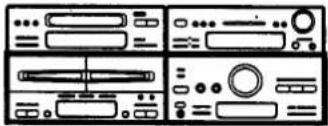
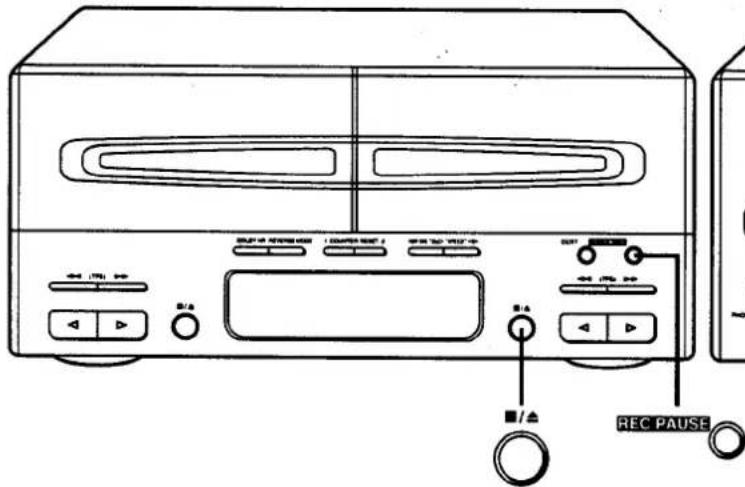
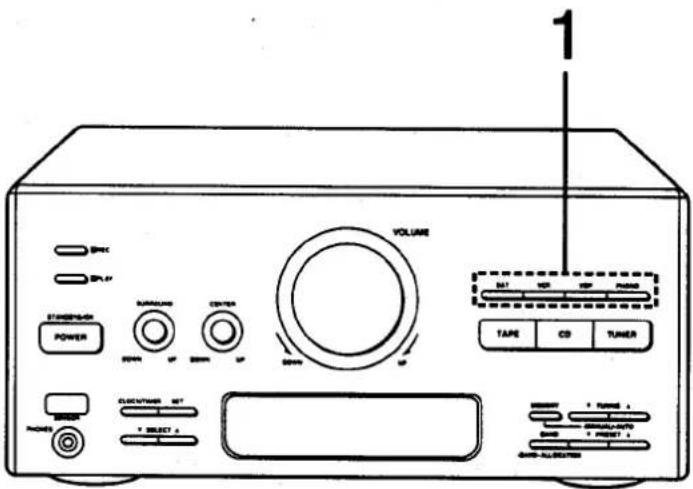
1 Press one of the input select buttons to select the external source connected to this system.
DAT: Digital audio tape
VCR: Video cassette recorder
VDP: Video disc player
PHONO: Analog turntable
The selected source will be displayed.
The display shows an example when you select VDP.
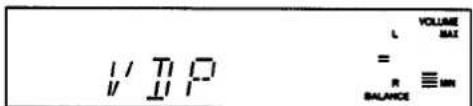
2 Start playing the external source which is connected to the system.
See the instruction manual of the unit concerned for operating instructions.
■ Recording from an external source
- Press one of input select buttons to select the external source connected to this system.
- Press REC PAUSE to put the cassette deck into the recording standby mode.
- Press one of the playback buttons to start recording and start playing the source to be recorded.

: When recording on either the forward side or both sides.

: When recording only on the reverse side.
■ To briefly interrupt recording
Press REC PAUSE.
The cassette deck will go into the recording standby mode.
To resume recording, press the playback button corresponding to the direction in which recording is taking place.
■ To stop recording
Press the deck 2 stop/cassette holder open button on the cassette deck.

■ To record on a DAT tape or video tape
Start recording on a DAT or VCR, and then start playing the source to be recorded.
You cannot record the sound with the equalizer curve or simulated listening environment, and V.bass effect on a DAT or video tape.
■ To switch an external visual source (VCR, VDP) from this system
- Press the power switch of a TV connected to this system to ON.
- Select "VIDEO" mode of a TV.
- Press an input select button (VCR or VDP) connected to this system.
To enjoy BGV (Back Ground Visual)
You can listen to a desired audio source while watching video picture and so on.
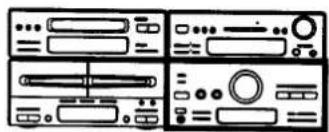
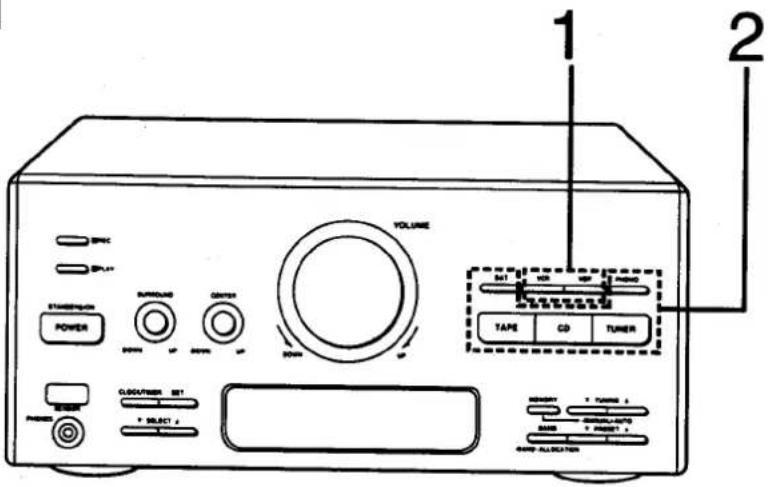
1 Press one of the input select buttons to select the external video source connected to this system.
VCR: Video cassette recorder
VDP: Video disc player
The selected source will be displayed.
The display shows an example when you select VDP.
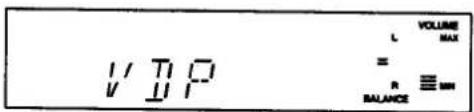
2 Press one of the input select buttons to select the desired audio source, and start playing.
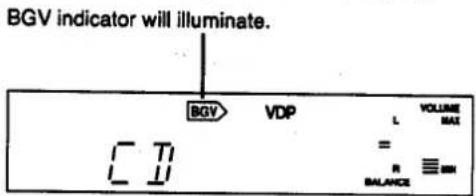
■ To record the audio source on a video tape After following the above procedure, start recording on a video deck.
Concerning the Display
About the spectrum display modes
The spectrum analyzer shows the level of each sound range with four types of display described below. (4) appears only when you select the V. BASS mode.)
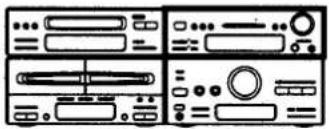
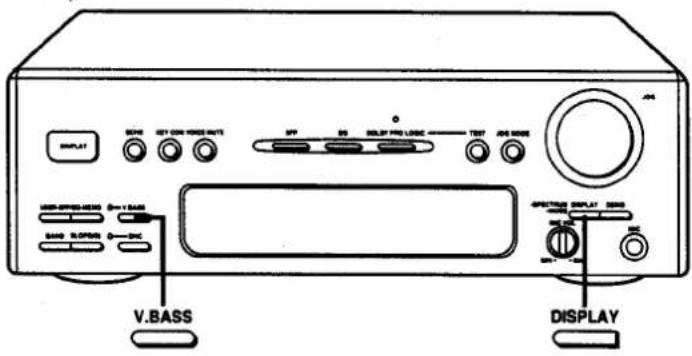
Press DISPLAY momentarily.

Each time you press DISPLAY, the spectrum display will change as follows.
1 Bar-type display
This display indicates the strength of the sound in each tonal range.
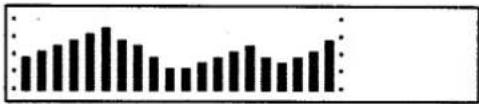
2 Peak-hold display
The peak sound value of each sound range remains on the display for about 1 second after it occurs.
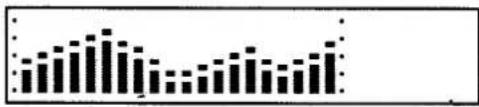
3 Aurora display
The peak sound value of each sound range appears in inverted form.
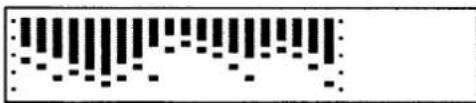
4 V. Bass-mode display
This display appears only when you select the V. BASS mode. (See page 60.) It shows the strength of the augmented bass level.
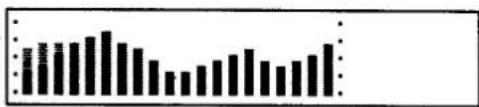
Note:
When you press V. BASS to ON in any display modes, the bar-type display will be switched to appear.
■ To display the equalization curve together with the spectrum analysis display
Press and hold DISPLAY.

The equalization curve will appear.
To resume the previous mode, press and hold DISPLAY once again.
Care & Use
Concerning Cassette Tapes
■ Selection of cassette tapes
Cassette tape exceeding 90 minutes
These tapes are handy for their long playback and recording time but be careful about repeatedly stopping and starting, rewinding and fast forwarding these tapes in short intervals as they are thin, tend to stretch and may become entangled in the machine.
Do not use the following types of tapes in this unit.
Fe-Cr tapes (TYPE III)
This type emphasizes the high-frequency range, making it impossible to obtain a flat frequency response.
Metal tape without detection holes in the cassette
Recordings will be very distorted. (There is no problem during playback, however.)
■ To prevent erasure of recorded sounds
Remove the erase-prevention tabs (thus preventing recording).
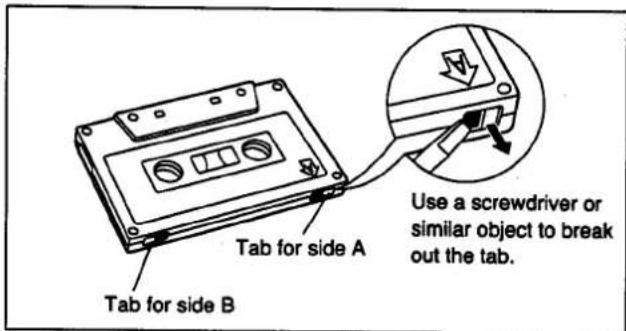
To re-record on a protected cassette
Cover the slot with adhesive tape.
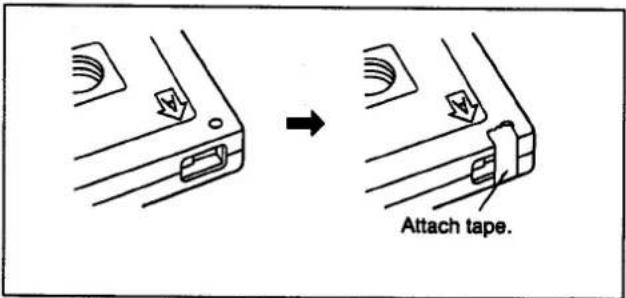
■ Tape slack
Tape slack may cause the tape to break.
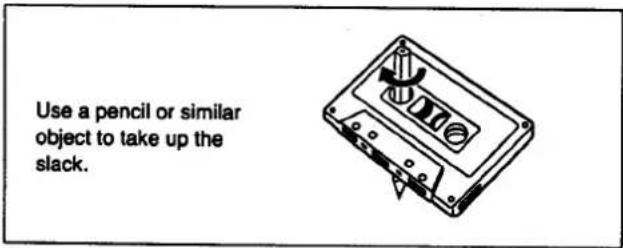
■ Improper tape storage
You can damage tape if you store it in the following ways;
- In high temperature [35°C (95°F) or higher] or high humidity (80% or higher) areas.
- In a strong magnetic field (near a speaker, on top of a TV, etc.). This can erase a recording.
●In direct sunlight.
Care & Use (continued)
Concerning Compact Discs
Only compact discs having this mark can be used with this system.

■ Handling precautions
- To open the compact disc case, gently press the sides of the top, holding the top at both sides and pull up. To remove the disc from the case, press the center holder and lift the disc holding it by the edges.
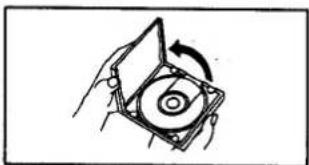
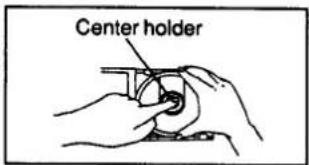
- To return the disc to the case, insert the disc with label facing up and press downward at the center.
- Hold compact discs by the edges so you will not soil the surface with fingerprints. Fingerprints, dirt, and scratches can cause skipping and distortion.
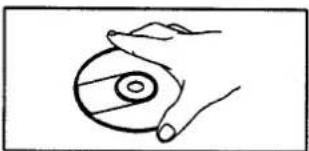
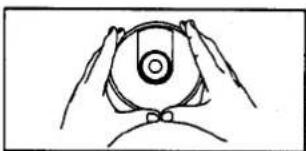
- Do not use record cleaning sprays, benzine, thinner, static electricity prevention liquids, or any other solvent.
- If the surface is soiled, wipe gently with a soft, damp (water only) cloth. ●Always move the cloth directly outward from the center of the disc, not in a circular motion as with standard phonograph records.
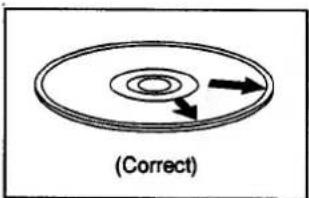
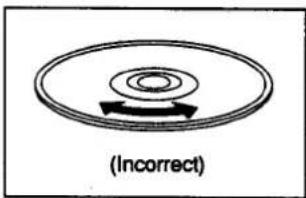
- If you are taking the disc from a cold to a warm environment, moisture may form on the disc. Wipe this off with a soft, dry, lint-free cloth before using the disc.
- Do not write on the label side with a ball-point pen or other writing instrument.
■ Storage precautions
- Be sure to store discs in their cases to protect them from dust, scratches, and warping. ●Do not place or store discs in the following places:
1) Locations exposed to direct sunlight.
2) Humid or dusty locations.
3) Locations directly exposed to a heat outlet or heating appliance.
4) In the glove compartment or rear ledge of an automobile.
Maintenance
Head care
To assure good sound quality for recording and playback, be sure to clean the heads after approximately every 10 hours of use.
- Press the stop/cassette holder open button to open the cassette holder.
- Switch the power of this unit to standby mode.
- Clean the heads, pinch roller and the capstan shaft of each deck with a cotton swab (or with a soft, lint-free cloth) slightly moistened with alcohol. Do not use any solution other than alcohol for head cleaning.
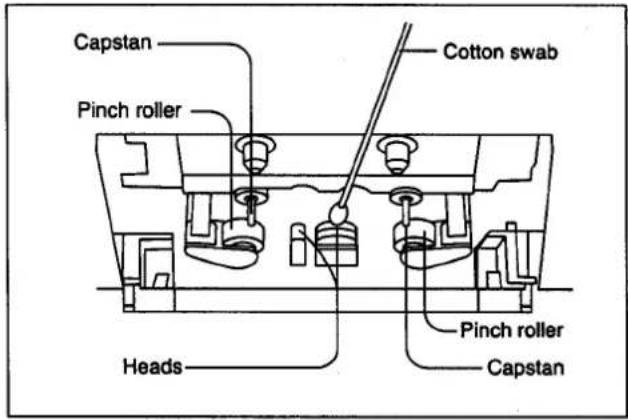
■ Head demagnetization
- In order to maintain good sound quality during recording and playback, it is recommended that the heads should be demagnetized if distortion or poor sound quality persist after cleaning the heads.
- If the heads become magnetized, they could create noise in recordings, loss of high-frequency response, or erasure of valuable recordings. Several types of head demagnetizers are available and may be purchased at local electronics supply stores. Follow the instructions that are supplied with the device.
- Do not bring any type of metal objects or tools such as magnetic screwdrivers in contact with the head assembly.
■ Maintenance of external surfaces
• To clean this unit, use a soft, dry cloth.
For very dirty surfaces, dip a soft cloth in a weak soap-and-water solution and wring well. After cleaning, wipe with a soft, dry cloth. - Never use alcohol, paint thinner, benzine, or a chemically treated cloth to clean this unit.
Such chemicals may damage the system's finish.
Troubleshooting Guide
Before requesting service for this unit, check the chart below for a possible cause of the problem you are experiencing. Some simple checks or a minor adjustment on your part may eliminate the problem and restore proper operation. If you are in doubt about some of the check points, or if the remedies indicated in the chart do not solve the problem, refer to the directory of Authorized Service Centers (enclosed with this unit) to locate a convenient service center, or consult your dealer for instructions.
| Problem | Probable cause(s) | Suggested remedy |
| Problems common to all systems | ||
| There is no sound when the power is ON. | Volume is set too low. | Adjust the volume level with the volume control on the tuner amplifier. |
| The location of the various musical instruments is not well defined. | The (+) and (−) connections to one of the speakers are reversed. | Connect the speaker cord correctly. |
| The left and right sounds are reversed. | The left and right connections to the speaker are reversed. | Connect the speaker cord correctly. |
| The left and right connections to the each unit are reversed. | Connect the each unit's cord correctly. | |
| Only one speaker is emitting sound. | One of the wires of the speaker cord is disconnected. | Connect the speaker cord correctly. |
| There is no sound when a source is being played. | The (+) and (−) wires of the speaker cords are shorted. | Switch the system to the standby mode, and reconnect the speaker cords so that they are not shorted.Then switch on the power. |
| While listening to FM broadcasts | ||
| There is a “rushing” noise during a stereo broadcast which is not audible during a monaural broadcast. | The transmitting station is a long distance away. | •If you are using an indoor antenna, change to an outdoor antenna.•If you are using a high-grade outdoor antenna, try changing the installation location, height, and orientation. |
| You hear excessive noise during a stereo broadcast, and occasionally the sound disappears. | The installation location and orientation of the antenna are unsuitable. | |
| The stereo indicator of the tuner amplifier flickers and does not light completely. | The transmitting station is a long distance away. | |
| The power of the TV set or VCR is ON. | Try switching off the TV set or VCR. | |
| The sound during a stereo broadcast is highly distorted. | There is a building or mountain nearby. [Distortion is caused by interference between the signal from the transmitting station (direct wave) and the signal reflected from the building or mountain (reflected wave).] | Use a high-grade outdoor antenna, and install it in a good location, height, and orientation for reception. |
| While listening to MW/LW broadcasts | ||
| You hear an unusual beat sound. | You are using the system at the same time you are playing a TV set. | Switch off the TV set, or use the system farther away from it. |
| You hear a low-frequency hum. | The antenna wire is near the power cord. | Separate the antenna wire from the power cord. |
| Problem | Probable cause(s) | Suggested remedy |
| When there is a television set nearby | ||
| The picture on the TV disappears or stripes appear on the screen. | The location and orientation of the antenna are incorrect. | If you are using an indoor antenna, change to an outdoor antenna. |
| The wiring at the back of the system is unsuitable. | Separate the antenna wire of the TV set from the system. | |
| While listening to tapes | ||
| Sound is low, intermittent, or poor quality, noisy, scratchy, or unsteady. | Heads are dirty. | Clean the heads. |
| The Dolby noise reduction is set in the wrong position. | Set it to match the Dolby NR recording mode. | |
| The deck does not enter the recording mode. | The erase-prevention tabs are removed from the cassette. | Attach tape to cover the space left by removal of the erase-prevention tabs. |
| While listening to compact discs | ||
| The tray does not close when you load a disc and press the OPEN/CLOSE button. | The disc is not positioned correctly in the disc tray. | Reinsert the disc. |
| The display will not show the total number of tracks and total time when you load a disc. Disc play does not start when you press the play button. | The disc is not positioned correctly in the disc tray. | |
| The disc is loaded upside down. | Reload the disc. | |
| The disc is dirty. | Wipe the disc with a soft cloth. | |
| The disc is scratched. | Replace the disc with a new one. | |
| The disc is badly warped. | ||
| The disc is a nonstandard one. | Replace the disc with a different one. | |
| There is condensation inside the disc player. | Switch the power ON, and then wait for 20–30 minutes before using the disc player. | |
| A certain part of the disc cannot be played. | The disc is dirty. | Clean the disc with a soft cloth. |
| The disc is scratched. | Skip the scratched part of the disc (skip play). | |
| While using the remote control | ||
| The system cannot be operated with the remote control. | The batteries are installed in the reverse polarity. | Re-insert the batteries in the correct polarity. |
| The batteries are worn. | Replace the batteries with new batteries. | |
Technical Specifications
SOUND PROCESSOR
(DIN 45 500)
■ Pre Amp. Sections
Input sensitivity and impedance
PHONO 2.5 mV/47 kΩ
CD, TUNER, TAPE 150 mV/10 kΩ
VCR, VDP, DAT (input with RCA PIN) 250 mV/17 kΩ
MIC 0.7 mV/10 kΩ
Output level
VCR, DAT REC OUT 150 mV/1.5 kΩ
■ Dolby Pro-logic (Only for model SH-CH950), Equalizer, SFP section
Dolby Pro-Logic Surround
(Only for model SH-CH950)
MODE NORM (NORMAL), WIDE, PHNTM (PHANTOM), 3 ST (3 STEREO)
Delay time 15–30 m sec.
Tone control BASS ±10 dB TREBLE ±10 dB
Equalizer
Center frequency
LOW 63,80,100,125,160,220 (Hz)
HIGH 1,2 315,450,630,800,1k,1.25k,1.6k.
Level control LOW, HIGH 1, 2 ±12 dB
(Q) Control NARROW 1.8 WIDE 0.7
Fixed mode
SFP
(SH-CH950): HALL, LIVE, DISCO, CHRCH (CHURCH)
(SH-CH750): HALL, LIVE, DISCO, CHRCH (CHURCH), THTER (THEATER)
EQ (5 modes) HEAVY, CLEAR, SOFT, HP ST, CAR
Frequency response
PHONO
(RIAA STANDARD CURVE) 30 Hz-15 kHz/+1.0, -1.5 dB
CD, TUNER, TAPE 20 Hz–20 kHz/–2 dB
VCR, VDP, DAT 20 Hz–20 kHz/–2 dB
S/N
PHONO 64 dB (DIN)
85 dB (IHF, at full scale input, IHF A)
TUNER, TAPE 71 dB (DIN)
88 dB (IHF, at full scale input, IHF A)
CD, VCR, VDP, DAT 75 dB (DIN)
95 dB (IHF, at full scale input, IHF A)
MIC ECHO
(For SH-CH750, only for the area except for Australia and New Zealand) 0.2–1.6 sec.
Key control
(For SH-CH750, only for Australia and New Zealand) -300 to +300 cent.
MONITOR 1 V/75Ω
VCR REC OUT 1 V/75Ω
■ General
Dimensions (W×H×D) 270×89.5×270 mm
Weight
(SH-CH950): 2.0 kg
(SH-CH750): 1.9 kg
TUNER AMPLIFIER
(DIN 45 500)
■ Main Amp. Section
Power output
DIN 1 kHz THD 1%,
both channel driven
(SA-CH950): 2×60 W (6Ω)
(SA-CH750): 2×50 W (6Ω)
SFP, Dolby Pro-Logic mode 1 kHz THD 1%
(Only for model SA-CH950)
MAIN 2×55 W (6Ω)
SURROUND 2×7 W (8Ω)
Total harmonic distortion
Rated power at 1 kHz 1% (6Ω)
Half power at 1 kHz
(SA-CH950): 0.07% (6Ω)
(SA-CH750): 0.09% (6Ω)
Load Impedance
MAIN 6-80
SURROUND 8Ω
S/N (rated power)
Frequency response 40 Hz–30 kHz (−3 dB)
■ FM Tuner Section
Frequency range 87.50 MHz–108.00 MHz (0.05 MHz steps)
Sensitivity 1.8 μV (IHF, usable)
S/N 26 dB 1.5 μV (75Ω)
S/N
MONO 70 dB (75 dB, IHF)
Stereo separation at 1 kHz 35 dB
Antenna terminal(s) 75Ω (unbalanced)
■ AM Tuner Section
Frequency range
MW
(For Australia and New Zealand)
522–1611 kHz (9 kHz steps)
530–1620 kHz (10 kHz steps)
(For others) 531–1602 kHz (9 kHz steps)
530–1600 kHz (10 kHz steps)
LW
(For Australia and New Zealand)
144–288 kHz (9 kHz steps)
153–279 kHz (9 kHz steps)
Sensitivity (S/N 20 dB)
MW 500 μV/m
LW 50 μV
Timer Section
Clock
Quartz-lock type
Function: 24-hour programmable; Play timer (1 time)
Rec timer (1 time)
Sleep (120 min. 1 min. intervals)
Setting: 1 minute--23 hours 59 minutes (1 min. intervals)
General
Power consumption
(SA-CH950): 190 W
(SA-CH750): 175 W
Power supply
(For Australia and New Zealand) AC 50/60 Hz, 230 V–240 V
(For others) AC 50/60 Hz, 110/127/220/240 V
Dimensions (W×H×D) 270×119×334 mm
Weight
(SA-CH950): 6.1 kg
(SA-CH750): 5.5 kg
CD PLAYER
(DIN 45 500)
■ Audio
DA converter
1 bit 2 DAC MASH
Pickup
Wavelength
780 nm
Laser power
No hazardous radiation is emitted
(with safety protection)
■ General
Dimensions (W×H×D)
270×89.5×258.5 mm
Weight
2.1 kg
CASSETTE DECK
| Deck system | Stereo cassette deck |
| Track system | 4-track, 2-channel |
| Recording system | AC bias |
| Erasing system | AC erase |
| Tape speed | 4.8 cm/sec. (17/8 ips) |
| Bias frequency | 80 kHz |
| Heads | |
| DECK 1 (playback) | Permalloy head |
| DECK 2 (record/playback) | Permalloy head |
| (erasure) | Double gap ferrite head |
| Motors | DC servo motor |
| Wow and flutter | 0.1% (WRMS) |
| Fast forward and rewind time | Approx. 110 seconds with C-60 cassette tape |
| Frequency response (When Dolby NR OFF, CCRT ON) | |
| NORMAL | 20 Hz–17 kHz |
| 30 Hz–15 kHz (DIN) | |
| CrO2 | 20 Hz–18 kHz |
| 30 Hz–17 kHz (DIN) | |
| METAL | 20 Hz–20 kHz |
| 30 Hz–19 kHz (DIN) | |
| S/N (CrO2type tape) | |
| Dolby NR off | 56 dB (A-WTD) |
| Dolby B NR on | 66 dB (CCIR) |
| Dolby C NR on | 74 dB (CCIR) |
| ■ General | |
| Dimensions (W×H×D) | 270×119×262 mm |
| Weight | 3.3 kg |
SPEAKER SYSTEM
[SB-CH950]
Type
3-way/surround, 4 speakers, bass-reflex
Speaker(s)
Woofer 17 cm cone type
Midrange 2.5 cm dome type
Tweeter dome type
Surround 8 cm cone type
Impedance
MAIN
6Ω
SURROUND
8Ω
Input power
MAIN
SURROUND
120 W (music), 60 W (DIN)
20 W (music), 10 W (DIN)
Output sound pressure level
86 dB/W (1.0 m)
Cross over frequency
1.5 kHz, 6 kHz
Frequency range
33 Hz-25 kHz (-16 dB)
■ General
Dimensions (W×H×D)
238×416×288 mm
Weight
6.0 kg
[SB-CH750]
Type
3-way/surround, 4 speakers, bass-reflex
Speaker(s)
Woofer 17 cm cone type
Midrange 2.5 cm dome type
Tweeter dome type
Surround 7 cm cone type
Impedance
MAIN
6Ω
SURROUND
8Ω
Input power
MAIN
SURROUND
120 W (music), 60 W (DIN)
10 W (music), 5 W (DIN)
Output sound pressure level
86 dB/W (1.0 m)
Cross over frequency
1.8 kHz, 6 kHz
Frequency range
33 Hz-22 kHz (-16 dB)
General
Dimensions (W×H×D)
240×416×293 mm
Weight
5.5 kg
Notes:
- Specifications are subject to change without notice. Weight and dimensions are approximate.
- Total harmonic distortion is measured by the digital spectrum analyzer.
Memo
Matsushita Electric Industrial Co., Ltd.
Central P.O. Box 288, Osaka 530-91, Japan
Printed in Japan
RQT1783-L
How to use a DCC (not included)
You can connect a DCC (Digital compact cassette deck) to the models SC-CH550, 650, 750 and 950.
■ To connect a DCC to these systems Connect a DCC to the DAT/DCC terminal of the sound processor. (Refer to the left.)
■ To operate a DCC
Press DAT/DCC input select button, then operate a DCC. For model SC-CH750/950, it is also available from the remote control:
Press DAT input select button. (Refer to the left.)
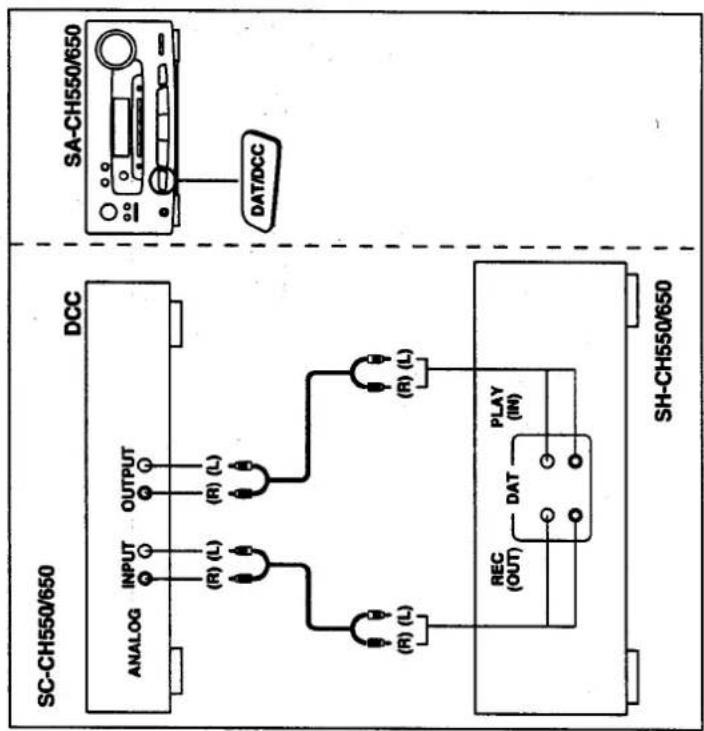

- TABLE OF CONTENTS
- CLASS 1 LASER PRODUCT
- CAUTION
- SUGGESTIONS FOR SAFETY
- USE A STANDARD AC WALL OUTLET
- GRASP THE PLUG WHEN DISCONNECTING THE POWER SUPPLY CORD
- PLACE THE UNIT WHERE IT WILL BE WELL VENTILATED
- AVOID PLACES SUCH AS THE FOLLOWING
- BEFORE USE
- NEVER ATTEMPT TO REPAIR NOR RECONSTRUCT THIS UNIT
- TAKE PARTICULAR CARE IF CHILDREN ARE PRESENT
- IF WATER IS SPILLED ON THE UNIT
- AVOID SPRAY-TYPE INSECTICIDES
- NEVER USE ALCOHOL OR PAINT THINNER
- DISCONNECT THE POWER SUPPLY CORD IF THE UNIT WILL NOT BE USED FOR A LONG TIME
- IF TROUBLE OCCURS
- CONCERNING THE REMOTE CONTROL
- BATTERY INSTALLATION
- CLOSE THE COVER
- USE OF BATTERIES
- OPERATION NOTES
- PREPARATIONS
- SUPPLIED ACCESSORIES
- NOTE
- STACKING THE COMPONENTS
- PREPARATIONS (CONTINUED)
- CONNECTIONS
- CONNECT THE FLAT CABLE
- CONNECT THE FM INDOOR ANTENNA
- CONNECT THE LW/MW LOOP ANTENNA
- NOTES
- CONNECT THE SPEAKER CABLES
- CONNECTION OF SPEAKER CABLES
- CONNECT THE SURROUND SPEAKER CORD
- CONNECT THE AC POWER SUPPLY CORD AFTER YOU HAVE CONNECTED ALL OTHER CABLES AND CORDS. FOR AREAS EXCEPT AUSTRALIA, NEW ZEALAND INSERTION OF CONNECTOR
- CONNECTIONS (CONTINUED)
- OPTIONAL ANTENNA CONNECTIONS
- FM OUTDOOR ANTENNA (NOT INCLUDED)
- HOW TO CONNECT 75-OHM COAXIAL CABLE (NOT INCLUDED) (FM OUTDOOR ANTENNA)
- LW/MW OUTDOOR ANTENNA (NOT INCLUDED)
- EXTERNAL UNIT CONNECTION
- EXTERNAL UNIT CONNECTION (CONTINUED)
- FRONT PANEL CONTROLS AND FUNCTIONS
- SOUND PROCESSOR SECTION
- TUNER AMPLIFIER SECTION
- POWER "STANDBY ⏻/ON" SWITCH (POWER, STANDBY ⏻/ON)
- ③3 TIMER PLAY BUTTON (PLAY)
- ③4 TIMER RECORDING BUTTON (☐ REC)
- SURROUND SPEAKER LEVEL CONTROL (SURROUND) (ONLY FOR MODEL SA-CH950)
- CENTER SPEAKER LEVEL CONTROL (CENTER) (ONLY FOR MODEL SA-CH950)
- VOLUME LEVEL CONTROL (VOLUME)
- INPUT SELECT BUTTONS
- ⑲ REMOTE CONTROL SIGNAL SENSOR (SENSOR)
- DISPLAY SECTION
- REMOTE CONTROL UNIT CONTROLS AND FUNCTIONS
- COMMON OPERATION CONTROLS (FIG. 1)
- TUNER CONTROLS (FIG. 2)
- SOUND PROCESSOR CONTROLS (FIG. 3)
- COMPACT DISC CONTROLS (FIG. 4)
- CASSETTE DECK CONTROLS (FIG. 5)
- BASIC OPERATING PROCEDURE
- HOW TO ADJUST THE LEFT-RIGHT VOLUME BALANCE
- HOW TO MUTE THE VOLUME
- HOW TO USE HEADPHONES
- SETTING THE TIME OF DAY
- SWITCH ON THE POWER
- PRESS CLOCK/TIMER TO SELECT "CLOCK
- PRESS SET
- PRESS ONE OF THE SELECT BUTTONS TO SELECT "WED
- PRESS ONE OF THE SELECT BUTTONS TO SELECT
- PRESS SET TO FINISH SETTING THE TIME
- LISTENING TO RADIO BROADCASTS
- PRESS BAND TO SELECT FM OR MW OR LW
- PRESS ONE OF TUNING TO TUNE IN TO THE DESIRED BROADCAST
- IF NOISE IS EXCESSIVE IN FM MODE (ONLY FROM THE REMOTE CONTROL)
- MW ALLOCATION SETTINGS
- AUTOMATIC MEMORY PRESETTING
- (STEP 1 ALSO AVAILABLE FROM THE REMOTE CONTROL)
- LISTENING TO RADIO BROADCASTS (CONTINUED)
- MANUAL MEMORY PRESETTING
- MEMORY TUNER OPERATION (TO LISTEN TO BROADCAST STATIONS PRESET INTO MEMORY)
- FROM THE MAIN UNIT
- PRESS ONE OF PRESET TO SELECT THE DESIRED PRESET CHANNEL
- FROM THE REMOTE CONTROL
- MOST RECENT MEMORY
- LISTENING TO COMPACT DISCS
- SEQUENTIAL PLAY
- PRESS OPEN/CLOSE TO OPEN THE DISC TRAY. INSERT THE DISC WITH LABEL FACING UP
- PRESS OPEN/CLOSE TO CLOSE THE DISC TRAY
- PRESS THE CD PLAY BUTTON
- LISTENING TO COMPACT DISCS (CONTINUED)
- DIRECT ACCESS PLAY
- PROGRAM PLAY
- RANDOM PLAY
- TO CANCEL RANDOM PLAY
- SPECIAL FEATURES
- SEARCH FUNCTION
- SKIP FUNCTION
- REPEAT FUNCTION
- TO CANCEL REPEAT PLAY
- LISTENING TO TAPES
- TO PLAY BACK PRERECORDED CASSETTES
- LISTENING TO TAPES (CONTINUED)
- TO STOP TAPE PLAYBACK
- TO CLOSE THE CASSETTE HOLDER
- PRESS CLOSE
- FULL AUTO-STOP
- ABOUT THE DOLBY NOISE REDUCTION SYSTEM
- B TYPE
- C TYPE
- SEQUENTIAL TAPE PLAY
- TO FIND THE BEGINNING OF A PROGRAM (TPS: TAPE PROGRAM SENSOR)
- TO FAST FORWARD OR REWIND THE TAPE
- EASY PLAY
- WHAT IS FADE-IN
- MAKING A RECORDING
- TO RECORD FROM THE DESIRED SOURCE
- PRESS REC PAUSE
- PRESS THE PAUSE BUTTON ON THE COMPACT DISC PLAYER
- PRESS THE DECK 2 STOP/CASSETTE HOLDER OPEN BUTTON ON THE CASSETTE DECK
- PRESS THE CD STOP BUTTON ON THE CD PLAYER OR THE DECK 2 STOP/CASSETTE HOLDER OPEN BUTTON ON THE CASSETTE DECK
- CCRT RECORDING FUNCTION
- PRESS THE DECK 2 STOP/CASSETTE HOLDER OPEN BUTTON
- PRESS CCRT
- MAKING A RECORDING (CONTINUED)
- TO RECORD WITH DESIRED TONE QUALITY
- TO ERASE A RECORDED SOUND (DECK 2)
- [STEPS 5) AND 6) ALSO AVAILABLE FROM THE REMOTE CONTROL]
- CONCERNING THE LEADER TAPE
- TAPE-TO-TAPE RECORDING FROM DECK 1 TO DECK
- EDIT-RECORDING FROM COMPACT DISCS
- SEQUENTIAL CD RECORDING (ALBUM)
- LOAD A CASSETTE IN DECK
- PRESS ALBUM
- TO SPECIFY THE TRACKS TO BE EDITED
- TO CANCEL SEQUENTIAL CD RECORDING
- ABOUT AUTOMATIC TAPE LEVEL SETTING (ATLS)
- FIT EDITING (J. FIT)
- TO CANCEL FIT EDITING
- FADE OUT EDITING (LAST FADE)
- TO CANCEL FADE OUT EDITING
- TO RECORD FROM ANOTHER DISC ON THE REMAINING BLANK PORTION OF THE TAPE (LINK)
- PRESS OPEN/CLOSE TO REPLACE THE DISC WITH ANOTHER DISC
- IF YOU RECORD FROM MORE DISCS, FOLLOW THE ABOVE PROCEDURE
- AFTER COMPLETING STEP 1 LEFT
- CHANGING THE TONE
- DEMONSTRATION FUNCTION
- TO RETRIEVE THE EQUALIZATION CURVES PREPROGRAMMED TO THIS SYSTEM (EQ)
- TO CANCEL THE EQUALIZATION CURVES
- ABOUT EQUALIZATION CURVES PREPROGRAMMED TO THIS SYSTEM (EQ)
- HEAVY
- CLEAR
- SOFT
- HP ST (HEADPHONES STEREO)
- CAR (CAR STEREO)
- TO RETRIEVE THE SIMULATED LISTENING ENVIRONMENTS PREPROGRAMMED TO THIS SYSTEM (SFP)
- CHANGING THE TONE (CONTINUED)
- TO INCREASE OR DECREASE THE EQUALIZER EFFECT
- TO ADJUST THE REVERBERATION SOUND
- TO ADJUST THE SPECIFIC FREQUENCY OF THE EQUALIZATION CURVE OR SIMULATED LISTENING ENVIRONMENT
- TO SHIFT THE CURVE SLOPE
- TO ADJUST THE REVERBERATION SOUND (ONLY WHEN YOU SELECT SFP MODE)
- TO STORE THE DESIRED EQUALIZATION CURVES (EQ) OR SIMULATED LISTENING ENVIRONMENTS (SFP)
- TO LISTEN WITH AUGMENTED BASS (V. BASS)
- TO CANCEL THE V. BASS EFFECT
- TO REDUCE THE NOISE ON A TAPE OR FM STEREO BROADCAST (DNC—DIGITAL NOISE CLEANER)
- PRESS DNC TO ON
- FOR YOUR REFERENCE
- TO CANCEL THE DNC EFFECT
- USING THE DOLBY PRO-LOGIC SURROUND
- WHAT IS THE DOLBY PRO-LOGIC SURROUND
- ABOUT THE DOLBY PRO-LOGIC MODE
- NORM (NORMAL)
- WIDE
- PHNTM (PHANTOM)
- ST (3 CHANNEL STEREO)
- SYSTEM LAYOUT
- ADJUSTING THE BASS/TREBLE SOUND
- ADJUSTING THE DELAY TIME
- USING THE TIMER
- SETTING THE PLAY TIMER
- SET THE OFF TIME
- SELECT THE DESIRED SOURCE
- PRESS POWER STANDBY ⊙/ON TO SWITCH THE POWER TO STANDBY MODE
- TO CONFIRM THE PLAY TIMER
- TO EXIT THE PLAY TIMER MODE
- TO ENJOY THE DESIRED SOURCE AFTER THE TIMER SETTING IS COMPLETED
- USING THE TIMER (CONTINUED)
- SETTING THE RECORD TIMER
- SELECT THE DESIRED PRESET CHANNEL
- PRESS POWER STANDBY ⏻/ON TO SWITCH THE POWER TO STANDBY MODE
- TO CONFIRM THE RECORD TIMER
- PRESS ☐ REC TO SHOW ☐ REC ON THE DISPLAY
- TO EXIT THE RECORD TIMER MODES
- PRESS ☐ REC TO TURN OFF ☐ REC
- TO USE THE SLEEP TIMER
- TO USE EACH TIMER MODE IN CONJUNCTION
- TIMER SEQUENCE OF PRIORITY
- ENJOYING MICROPHONE MIXING
- USING THE "KARAOKE" FEATURE
- MICROPHONE MIXING
- TO CHANGE THE KEY OF THE TUNE
- USING THE "KARAOKE" FEATURE WITH A VIDEO DISC PLAYER
- USING AN EXTERNAL UNIT
- LISTENING TO AN EXTERNAL SOURCE
- TO ENJOY BGV (BACK GROUND VISUAL)
- CONCERNING THE DISPLAY
- ABOUT THE SPECTRUM DISPLAY MODES
- BAR-TYPE DISPLAY
- PEAK-HOLD DISPLAY
- AURORA DISPLAY
- V. BASS-MODE DISPLAY
- TO DISPLAY THE EQUALIZATION CURVE TOGETHER WITH THE SPECTRUM ANALYSIS DISPLAY
- CARE & USE
- CONCERNING CASSETTE TAPES
- SELECTION OF CASSETTE TAPES
- CASSETTE TAPE EXCEEDING 90 MINUTES
- FE-CR TAPES (TYPE III)
- METAL TAPE WITHOUT DETECTION HOLES IN THE CASSETTE
- TO PREVENT ERASURE OF RECORDED SOUNDS
- TAPE SLACK
- IMPROPER TAPE STORAGE
- CARE & USE (CONTINUED)
- CONCERNING COMPACT DISCS
- HANDLING PRECAUTIONS
- STORAGE PRECAUTIONS
- MAINTENANCE
- HEAD CARE
- HEAD DEMAGNETIZATION
- MAINTENANCE OF EXTERNAL SURFACES
- TROUBLESHOOTING GUIDE
- TECHNICAL SPECIFICATIONS
- SOUND PROCESSOR
- TUNER AMPLIFIER
- CD PLAYER
- CASSETTE DECK
- SPEAKER SYSTEM
- MEMO
- HOW TO USE A DCC (NOT INCLUDED)
- TO OPERATE A DCC
Brand : JVC
Model : SC-CH950
Category : Hi-Fi System