SEW-3020WN - Baby monitor SAMSUNG - Free user manual and instructions
Find the device manual for free SEW-3020WN SAMSUNG in PDF.


User questions about SEW-3020WN SAMSUNG
0 question about this device. Answer the ones you know or ask your own.
Ask a new question about this device
Download the instructions for your Baby monitor in PDF format for free! Find your manual SEW-3020WN - SAMSUNG and take your electronic device back in hand. On this page are published all the documents necessary for the use of your device. SEW-3020WN by SAMSUNG.
USER MANUAL SEW-3020WN SAMSUNG
RemoteVIEW™ Baby Monitor
User Manual
SEW-3020


If you have additional questions or need further assistance, contact Samsung support at (877) 349-3149.
To extend your one year warranty by three months, be sure to go to www.samsungsv.com and register your product.
RemoteVIEW™ Baby Monitor User Manual
Copyright
©2011 Samsung Techwin Co., Ltd. All rights reserved.
Trademark
SAMSUNG SAMSUNG TECHWIN is the registered logo of Samsung Techwin Co., Ltd. The name of this product is the registered trademark of Samsung Techwin Co., Ltd. Other trademarks mentioned in this manual are the registered trademark of their respective company.
Restriction
Samsung Techwin Co., Ltd shall reserve the copyright of this document. Under no circumstances, this document shall be reproduced, distributed or changed, partially or wholly, without formal authorization of Samsung Techwin.
Disclaimer
Samsung Techwin makes the best to verify the integrity and correctness of the contents in this document, but no formal guarantee shall be provided. Use of this document and the subsequent results shall be entirely on the user's own responsibility. Samsung Techwin reserves the right to change the contents of this document without prior notice.

SPECIFY SERVICE INSTRUCTIONS AND WARRANTY TERMS
This device complies with Part 15 of the FCC Rules.
Operation is subject to the following two conditions: (1) this device may not cause harmful interference, and (2) this device must accept any interference received, including interference that may cause undesired operation.
FCC NOTE:
THE MANUFACTURER IS NOT RESPONSIBLE FOR ANY RADIO OR TV INTERFERENCE CAUSED BY UNAUTHORIZED MODIFICATIONS TO THIS EQUIPMENT. SUCH MODIFICATIONS COULD VOID THE USER'S AUTHORITY TO OPERATE THE EQUIPMENT.
WARNING
- STRANGULATION HAZARD - Keep cord out of child's reach. NEVER place camera or cords within 3 feet of crib or playpen. Use enclosed wire clips to help secure cord away from child's reach. Never use extension cords with AC Adapters. Only use the AC Adaptors provided.
• Some adult assembly or installation required. - This product contains small parts that may cause choking. Keep small parts away from children.
- This product is NOT intended to replace proper supervision of children. You MUST check your child's activity regularly, as this product will not alert parents to silent activities of a child.
- Before using this product, read and follow all instructions contained in this booklet, and read and follow all instructions and warnings on the product.
- To prevent entanglement with adapter cords, NEVER PLACE THE CORD IN OR NEAR A CRIB OR PLAYPEN. DO NOT place the product or its AC adapter cords within reach of children.
- ALWAYS KEEP THE TRANSMITTER, RECEIVER AND AC ADAPTERS OUT OF REACH OF CHILDREN.
- NEVER use the transmitter or receiver near water, including near a bathtub, sink, laundry tub, wet basement, etc.
• This product is intended for indoor use only. - This product is not intended for use as a medical monitor and its use should not replace adult supervision.
- Check reception regularly. Test monitor before use and after changing camera location.
- Always unplug AC adapters from wall outlets and power sources during periods of non-use.
The wireless signal transfer range may be shortened if there exists an obstacle such as a concrete wall between.

- To prevent overheating, keep the product and AC power adapters away from any direct sunlight and heat sources such as radiators, heat registers, cooking devices (e.g., stoves and ovens) and other appliances that produce heat (e.g., amplifiers, televisions and stereos).
- Ensure that the product is well ventilated during use. Avoid contact with pillows and furniture that may block ventilation.
- Use only the AC adapters provided with the product, as other adapters may damage the product. Plug the adapters only into standard household current (120 volts AC). Place the AC adapters avoiding pinch points otherwise you can damage the adapters.
- When an AC adapter is plugged into a power source, DO NOT touch the exposed end of the AC adapter's cord.
- Do not use extension cords with the AC power adapters to avoid entanglement.
- This product should only be serviced by qualified and authorized Samsung service centers.
- Images and sounds are transmitted by the product over public airwaves and transmissions may be picked up by other units.
- Caution if you use the system to watch a young child, do not place the camera where the child can reach.
- When using the system with only battery power and the charge is low, then the picture and or sound may affected.
- If this occurs then please connect the AC power adapter and/or replace with new batteries.
- If you are using the optional rechargeable battery then plug in the AC power adapter to recharge.
BATTERY WARNING
When using the product in portable mode, check batteries regularly.
DO NOT use the monitor in portable mode when batteries are low.
- DISPOSE OF OR RECYCLE BATTERIES PROPERLY IN ACCORDANCE WITH APPLICABLE LAWS, which may vary by location.
- Insert batteries with the correct polarity.
- Do not mix new and used batteries.
- Remove exhausted batteries from the product.
- Keep all batteries away from children.
- THERE IS A RISK OF EXPLOSION IF INCORRECT BATTERIES ARE USED.
- Do not disassemble or modify the battery pack.
- Do not use batteries if there is any evidence of leakage or deformity.
Contents
GeTTinG STARTed
Features 4
Getting to know your Monitoring system 5
inSTALLATION
How to Install 9
Viewing Mode Display 10
Menu operATion
Menu Operation 11
Video Playback 12
Appendix
Selecting a Memory Card For Video Recording 13
Hardware and CD driver installation 13
Using Your Monitor with Skype 14
Using Your Monitor with MSN 14
Specifications 15
Troubleshooting 16
GETTING STARTED
Features
- Samsung's digital wireless technology provides excellent image quality and clarity.
- Virtually eliminates interference using a secure and private signal
- Up to 350ft (about 100m) wireless open space transmission range. The actual range may vary depending on the use environment.
- Listen in with exceptional sound clarity
- Safety warning feature on monitor notifies you when the camera is out of range of the transmitter.
- System is expandable up to 4 cameras (additional cameras sold separately).
- Two-way audio communication.
• Camera temperature display on monitor.
• Built-in music player with 4 different tunes.
Camera Features
- QVGA resolution camera.
• Night vision allows for low-light viewing up to 3.0m/10ft.
Performance varies depending on environmental conditions.
• Built-in microphone and speaker. - Camera can be battery operated for true portable wireless operation.
- Plays up to 4 different tunes activated from monitor.
- Temperature sensor.
- Remote Nightlight
Receiver Features
- 2.4" color LCD monitor/receiver with superior image quality.
- Rechargeable battery for true portability.
- Audio level indicator and alarm.
• Room temperature display. - Micro SD card recording function.
What's Included
The system comes with the following components:
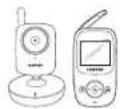
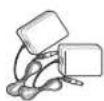
Wireless camera & Wireless receiver Adapter (2EA)
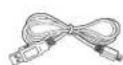
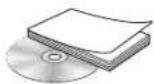
USB Cable CD & User Manual
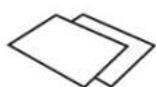

Warranty Card & Quick Guide Screws (2EA) & Plastic anchor (2EA)

Wire Clips (SEA)
Check your package to confirm that you have received the complete system, including all components shown above.
4 · Getting Started

Getting to know your Monitoring system
Wireless Receiver
After opening the box, fully charge the monitor before use. After initial charge, recharge as needed.
Front & Back Controls
![Receiver Antenna Receives and sends signals from or to the camera. 2.4" LCD Screen Displays video from the camera. Navigation Controls/Button Use the controls to move and select while in Viewing Mode and Menu Mode. Play Press to go to "File List" if Micro SD card is inserted. MENU Button Press to access the receiver menu. Press the button again to exit. Microphone Transmits audio to the camera when Talk Button is pressed down and held like a walkie talkie. SAMSUNG Speaker Produces the sound transmitted from the camera(s). Belt Clip When you carry the receiver, use the belt hanger to hold the receiver onto your belt. Kick Stand Use to hold the receiver onto a table. SLEEP / 🎨 Button Used to activate the screen saver mode. Press the [A/M] or [SLEEP] button again to exit the screen saver mode. If Power Saving mode is deactivated by a sound trigger, the device will go back to black screen approximately 8 seconds after the last trigger. This button is also used to delete the selected data on the left side. See it as follows: (1) Print (2) Print (3)](/content/2026/06/1146253/images/5f9cfc1bc9aa84ee5de82167da476749d55b57279ee40a8d6b3583ee9042dedc.jpg)
✨ Navigation Controls /Button
Viewing Mode: The following controls are used while watching live video from the camera:
- Press the [+) or [-] keys to increase or decrease the volume.
- Press the [A] key to view cameras in automatic switching mode.
- Press the [M] key to manually switch between cameras.
Menu Mode: Use the +/-/A/M] key arrows to navigate in Menu Mode. Press the [%] button to confirm the menu selection.

- You must have more than one camera configured on the system when using the functions that requires more than one camera.
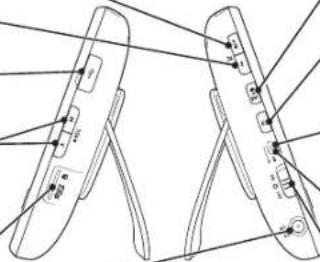
Side Controls
▶/■ Button Press the button to start or stop the built-in tunes. * tunes playing is not available when recording
▶ I Button
Press the button to play next tune.
USB Port (Optional Use)
Connect the included USB cable to view video from the receiver on your computer.
A/M record
Press to auto record or manual record during monitoring. Only available when the Micro SD card is inserted. (Not included) REC [A]: Start recording when an alarm is detected. REC [M]: Start recording when the button is pressed.
Micro SD Card Compartment
Insert Micro SD card for video recording capability. (Not included)
DC 5V Power Input
Connect the included AC power adapter to power and/or charge the receiver battery (when the receiver is not placed in the optional Charge cradle).
natural_image
Technical line drawing of two mechanical clamps with labeled components (no text or symbols)Talk Button
Press down and hold the button to talk back to the camera currently being displayed on the LCD screen.
Night Light Button
Press to remotely turn on/off the night light on the camera (for the camera currently being displayed on the LCD screen). When the night light is on, an indication icon will be displayed on the LCD screen.
Receiver ON and low battery indication
When the Unit is turned on the LED is solid green. If the LED blinks then the battery charge is low. Please connect to the AC power adapter to charge.
Charging Indication LED
A red LED shows battery is charging. A Green LED shows battery is fully charged.
Power Slide Switch
Side the switch to ON or OFF position to switch on/off the receiver.
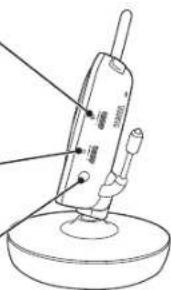
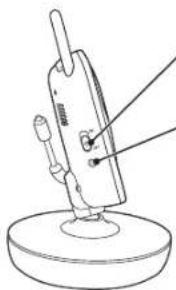
Wireless Camera
Side Controls
Sound Alarm Trigger
Adjust the sensitivity knob to set the sound alarm
sensitivity.
The receiver will beep to alert you when the sound is
above a preset sound level
Adjust to increase or decrease the level of sensitivity.
Volume
Increase or decrease the speaker volume when playing
a lullaby
Night vision sensor
Detects light levels where the camera is placed
natural_image
Line drawing of a handheld device with a probe inserted, mounted on a circular base (no text or symbols)Camera ON/OFF Switch
Turns the camera ON or OFF.
Camera on and low battery indication
Turn on the camera, the LED light will blink green once; Low battery, the LED will blink repeatedly. When the camera is turned on, the LED light would appear green. After 2 seconds, it goes out.
6 · Getting Started

Front & Back Controls
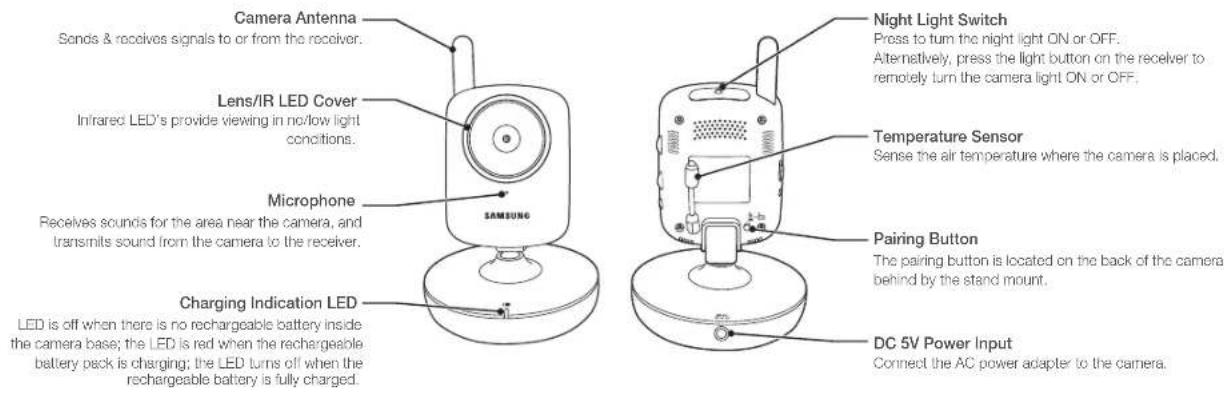

The camera can also be powered using 3 AA batteries (not included) installed in the base. If the camera is plugged in with the AC adapter, the batteries will not be used. The batteries are intended for short term, portable camera use.
■ Remotely control Night Light ON or OFF is available only when the camera is paired to the receiver.
The IR indicator will be activated in a low contrast scene and cause an increase of the temperature, which may affect the temperature sensor.
English · 7

To Use The Battery Mode
You can use the battery to power the camera if it's distant from the power source or if you want to carry the camera.

This camera has built-in IR LED's, which provides the camera with the ability to view images in no/low light conditions. It is important to use the provided power adapter (and not the batteries) when using the camera for prolonged periods in low light conditions, as the built-in IR LED's will deplete the battery more quickly than regular daytime use.
- Remove the battery cover from the base of the camera.
- Insert 3 AA batteries (not included) into the Battery Pack. Make sure to correctly line up the Positive (+) and negative (-) terminals of the batteries.
- Replace the battery pack cover. When the battery level is low and requires recharging, the LED light will blink intermittently.
When using the system with only battery power and the charge is low, then the picture and or sound may affected.
If this occurs then please connect the AC power adapter and/or replace with new batteries.
If you want to use the product for a longer time than using the default AA battery without the AC adapter, purchase the optional charging battery (SEA-B100).
If you are using the optional rechargeable battery then plug in the AC power adapter to recharge
BATTERY WARNING
When using the product in portable mode, check batteries regularly.
DO NOT use the monitor in portable mode when batteries are low.
- DISPOSE OF OR RECYCLE BATTERIES PROPERLY IN ACCORDANCE WITH APPLICABLE LAWS, which may vary by location.
- Insert batteries with the correct polarity.
- Do not mix new and used batteries.
- Remove exhausted batteries from the product.
- Keep all batteries away from children.
- THERE IS A RISK OF EXPLOSION IF INCORRECT BATTERIES ARE USED.
- Do not disassemble or modify the battery pack.
- Do not use batteries if there is any evidence of leakage or deformity.
8 · Getting Started

INSTALLATION
How to Install
Caution if you use the system to watch a young child, do not place the camera where the child can reach.
Wireless Receiver
- Place the receiver in a place that will have clear reception with your camera(s).
- Pull out the stand.

Do not pull up the stand lever with an excessive force. Otherwise, it may be broken.
Wireless Camera
Before you install the camera, carefully plan where and how it will be positioned, and where you will route the cable that connects the camera to the power adapter. Before starting permanent installation, verify its performance by observing the image on the receiver when camera is positioned in the same location/position where it will be permanently installed and the receiver is placed in the location where it will be used most of the time.
Installation Warnings
Aim the camera(s) to best optimize the viewing area: Select a location for the camera that provides a clear view of the area you want to monitor, which is free from dust, and is not in line-of-sight to a strong light source or direct sunlight.
Avoid installing the camera where there are thick walls or obstructions between the camera and the receiver.
STRANGULATION HAZARD - Keep cord out of child's reach. NEVER place camera or cords within 3 feet of crib or playpen. Use enclosed wire clips to help secure cord away from child's reach. Never use extension cords with AC Adapters. Only use the AC Adapters provided.
-
Carefully unpack the camera.
If you are installing cameras that did not come with the system, please see the pairing camera section of this manual for details on installation. -
Mount the camera to the wall.
Mark the position of the screw holes on the wall, and drill holes and insert 2 screws, then firmly attach the camera to the wall by placing the stand over the installed screws and pushing the base downwards.
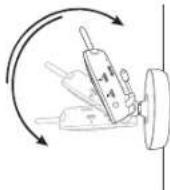

The camera can also be placed on a flat surface, such as a table or shelf, and no mounting hardware is required.
- Adjust the viewing angle of the camera

- You can install additional cameras (maximum of 4 cameras). When adding cameras that were not included in the original box, you will need to pair up the cameras with the receiver. For pairing to add a camera, refer to "Pairing". (Page 12)
Viewing Mode Display
Wireless Receiver
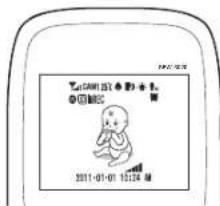

Signal Indicator
The signal indicator shows the strength of the signal being received from the camera. The number of bars in the signal indicator shows the strength of the signal - One or no bars indicate the signal is poor, and 4 bars indicate a strong signal.
CAM1
Camera Number
Indicates the number of camera that is displayed on the current screen. Press the [M] key on the receiver to switch between available cameras.

To automatically switch between channels, press the [A] key (AUTO).
For paring to add a camera, refer to "Pairing". (Page 12)
25°C
Temperature
Shows the ambient temperature where the wireless camera is installed.

Trigger Alert
Indicates the type of alert when audio is detected on the camera.

Talk
Press and hold ☐ on the monitor to talk back to the camera currently being displayed on the LCD screen. Indicates that unit is in talk mode.


Night light
Press [ ] on the wireless receiver to remotely turn on/off the night light on the wireless camera currently being displayed. An indicator light will be visible if on.

Auto Mute
If you set Auto Mute to

Micro SD card status
Indicates when a Micro SD card is inserted.
It indicates that micro SD card get full capacity when the icon is red, and card has some spaces when icon is white.
It displays the recording type if you press REC [A] or REC [M] button.

File List
Indicates if recording file exists.
To go to file list press[%] button.
M REC
A/M record
Press to auto record or manual record during monitoring.
Only available when the Micro SD card is inserted.
REC [A] : Start recording when an alarm is detected.
REC [M] : Start recording when the button is pressed.

Volume adjustment
The receiver volume can be adjusted by using the [+] , [-] keys when viewing a camera.
Press the [-] key to decrease the volume, and press the [+] key to increase the volume. When the volume bar is disappear, the volume will be muted and no sound will be emitted by the device.
The volume adjustment icon will be displayed during volume changes, and will disappear after 5 seconds of inactivity.

Alarm
Indicates if the alarm set to
Time
Displays the time that is set in the current receiver.
No Signal Warnings
The "OUT OF RANGE" message means the receiver cannot access the camera.
Please reposition the camera, or check the camera power.
10 · Installation

MENU OPERATION
Menu Operation
How to use the buttons to setup

Enter menu setting

Move to menu

Select the menu

Adjust level Save the

e change
- Press [MENU] button to enter the menu setting or exit the menu setting.
- Move to other menu by press [A] or [M] key.
- Press the [9] button for option selection mode.
- Adjust option level by [+] or [-] key.
- Press the [%] button to complete.
Icons used in setup

Brightness
Adjusts the brightness of the image.

Power Saving
Enables receiver power save mode (when no activity on the camera is detected).
The Power Saving Menu is used to turn off the screen at a predetermined time, to conserve battery power.

After selected time, the monitor will go to a select screen saver or black screen if blank is selected as the screen saver.
Power Saving mode will be deactivated by pushing [A], [M] or [SLEEP] on the front panel of monitor or by higher sound detected by cameras.
If Power Saving mode is deactivated by pushing [A], [M] and [SLEEP], the monitor will go back to black screen after the time you set if there is no sound trigger during that time.

Screen Saver
After selected time, the monitor will go to a select screen saver or black screen if blank is selected as the screen saver.

Auto Mute
Automatically cuts off the audio when there is only slight environmental noise on the camera side.
Choose
If auto mute is enabled, the receiver will automatically mute if there is no audio detected from the camera. If the audio is detected on the camera, the receiver will automatically unmute.

Alert Setting
Select the type of alert when audio is detected on the camera.
You may select the Vibration or Beep as the trigger alert manner while something has been detected by camera side.
When choose vibration, all the buttons automatically in mute function.

Temperature Unit
Select the temperature unit °C or °F for you option to show in the screen.

Temperature Alert
Sets the temperature alert range.
When temperature on camera side is out of the set range, the monitor will be alerted.

Alarm Setting
Sels the time value with HH, MM and select the ON or OFF to decide alarm or not.


Date Setting
Sets the year, month, date value to show in the monitor screen.

Date Format
Sets the date format to show in the monitor screen.

Time Setting
Sets the time value with hour, minute to show in the monitor screen.

Pairing
You can register a wireless camera with the receiver using the registration menu where you can view the video of the selected wireless camera.
Pairing The system comes with a camera that has already been paired with the receiver unit.
The pairing function assigns the camera to a channel on the wireless receiver.
Up to 4 Cameras (each additional camera sold separately) may be paired, which each optional camera on its own channel.
If additional cameras are paired, they must each be configured separately.

It is highly recommended to pair the cameras to the receiver before permanently mounting the cameras. See the pairing section on this manual for details.

Reset
Choose
All menu settings will be reset.

■ Camera pairing settings will NOT be affected by a reset. The camera will remain paired with the receiver.

Memory-format
Delete recorded data.
Choose

Pairing Camera
-
Power on and turn the switch to ON. The power LED for the camera and receiver should be ON.
-
Press the [MENU] button on the receiver.
-
Select Pairing menu by pressing [A] or [M] key. Press the [%] button to go into the Pairing menu.
-
Select a channel by pressing the [+] or [-] key. A message will be displayed on the receiver screen. The receiver will count down from 30\~0 sec you must press the pairing button on the camera during this time to successfully pair the camera.
-
Press the Lébblton on the back of the camera. If not, the receiver will return to the view screen, and no pairing will take place. Once the camera has been paired, it will be immediately viewable on the receiver monitor.
Video Playback
Search and play if recording data exists on the inserted Micro SD card.
-
Press [ ] button during monitoring. File List shows.
-
Choose a file folder desired to play by using [+] , [-] button.
-
Press [ ] button to play the selected video.
- : Stops playback temporarily
- : Stops playback
A: Rewind (X1, X2, X4, X8)
M: Fast Forward (X2, X4, X8)
- Press [MENU] button to go back to search mode during playback. You will see a confirm message if you press [@].

To go back to monitoring mode press [MENU] button.
12 · Menu Operation

APPENDIX
Selecting a Memory Card For Video Recording
Your Samsung BabyVIEW® baby monitor supports MicroSD memory cards. You may experience compatibility issues depending on the model and maker of the memory card. For your Samsung BabyVIEW® baby monitor, we recommend you use a MicroSD memory card from the following manufacturers: SandisR and Kingston®. However, these memory card brands are only recommendations, and other Micro SD card brands will function with your baby monitor.
| Micro SD Card Capacity | Estimated Recording Time | |
| Kingston ^ | Sandisk ^ | |
| QVGA QVGA | ||
| 512MB 1:00 1:05 | ||
| 1GB 1:55 2:05 | ||
| 2GB 3:55 4:20 | ||
| 4GB 8:15 8:55 | ||
| 8GB 16:30 17:50 | ||
| 16GB 33:00 36:00 | ||
| 32GB 67:00 73:00 | ||

■ Recording times are shown in hours and minutes.
Recording times are estimated based on product usage with KingstS and Sandls® branded Micro SD memory cards. Usage of alternative brands and/or non-branded media may result in different recording time. In addition, Recording time may vary depending on the environment of operation.

Hardware and CD driver installation
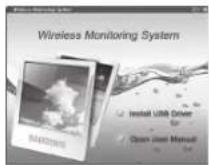
- Put CD into CD ROM on computer and click the icon of Install USB Driver to run installation program.
-
Click the
> button to continue -
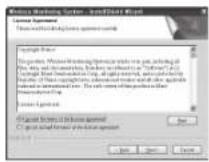
Select "I accept the terms of the license agreement" and then press
button. -
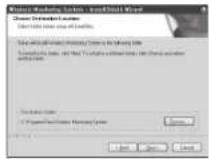
Click the
button, select the destination folder and then press button. -
Press the
button to complete the driver program. -
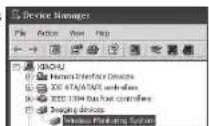
After installation is finished, you can find "Wireless Monitoring System" in the Device Manager

It can also work as a wireless webcam for MSN Messenger and SKYPE after installation is complete.
English·13
Using Your Monitor with Skype™
- Install USB Driver (see previous section).
- Connect your monitor to a PC. Your monitor should indicate that it is in 'USB PC CAMERA MODE'.
- Install and Open Skype™.
-
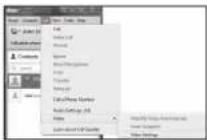
Select "Echo / Sound Test Service" under contacts. Then, on the Skype® Toolbar, select the "Call" menu, mouse over "Video" and select "Video Settings".
-
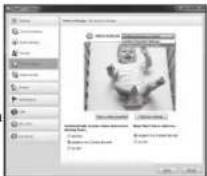
Next to 'Select webcam:', make sure that 'Wireless Monitoring System' is selected.
- Click
. - You are now ready to stream live video from your baby monitor camera to your friends and family via Skype". Next time you make a video call to your contacts, they will see what your baby monitor camera sees.
Using Your Monitor with MSN™
- Install USB Driver (Page 13).
- Connect your monitor to a PC. Your monitor should indicate that it is in "USB PC CAMERA MODE".
- Install and Open MSN".
-
First, reveal the MSN toolbar by hitting the ALT key on your keyboard. Under the MSN toolbar, select "Tools", then select "Set up audio and video devices..."
-
The 'Speaker/Microphone or Speakerphone' window will pop up. Click
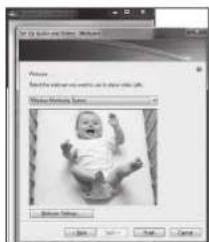
once to move onto the "Webcam" window. - Under 'Select the webcam you want to use to place video calls', make sure "Wireless Monitoring System" is selected. Then click
. - You are now ready to stream live video from your baby monitor camera to your friends and family via MSN™. Next time you make a video call to your contacts, they will see what your baby monitor camera sees

14 · Appendix
Specifications
| Item Details | |
| Camera | |
| Transmit Frequency Range 2.40GHz~2.4835GHz | |
| Data Rate 2.0 Mbps | |
| Transmitting Power 15dBm (MAX) | |
| Modulation Type GSKF | |
| Transmitting Distance 350ft (about 100m) / (Line of Sight) | |
| Image Sensor Type 1/5" Color CMOS Image Sensor | |
| Effective Pixels H: 320 V: 240 | |
| Image Processing Motion JPEG | |
| Image Resolution / Frame Rate 20 fps | |
| White Balance Auto | |
| Lens 4.9mm / F2.8 | |
| Viewing Angle (Diagonal) 40° | |
| Minimum Illumination 2 LUX (without IR LED illumination) | |
| IR LED / Night Vision Range 940nm / 3m | |
| Power Requirement | 5V DC ±5% |
| Power Consumption | 480mA MAX (IR LED) /320mA MAX (without IR LED) |
| Operating Temperature | -10°C ~ 40°C (14°F ~ 104°F) |
| Operating Humidity 0%~80% RH | |
| Weight | 147g |
| Size(WXHXD) | 94 x 148 x 94mm |
| Item Details | |
| Receiver | |
| Receiving Frequency Range 2.40GHz~2.4835GHz | |
| Monitor | 2.4" Color LCD |
| Data Rate 2.0 Mbps | |
| Receiving Sensitivity | -81dBm |
| Demodulation Type GSKF | |
| Resolution (Pixel) | 320 x 240 (RGB) |
| Viewing Angle | H: 90° V: 60° |
| Resolution | QVGA Optional |
| Power Requirement | 5V DC +5% |
| Power Consumption | 300mA Max without charging |
| Operating Temperature | -10°C ~ 40°C (14°F ~ 104°F) |
| Operating Humidity 0%~85% RH | |
| Weight | 157g |
| Size(WXHXD) | 63 x 119 x 21mm |
| No. of cameras supported | Max. 4 |

Appendix
English·15
Troubleshooting
| Problem Solution | |
| The monitor beeps or vibrates for no apparent reason | The unit may be beeping or vibrating because the sound sensitivity on the camera is too high.1. Try lowering the sound alarm trigger on the camera (shown on page 6) to an appropriate sensitivity level. |
| No picture from a camera | 1. Check all connections to the camera. Make sure the adapter is plugged in.2. Make sure that the cameras and receiver are both ON.3. Make sure that the camera is in range of the receiver.4. If using the battery adapter, try replacing the batteries.5. Make sure the camera and monitor are paired. |
| The picture is dropping | 1. Move the camera closer to the receiver.2. Try repositioning the camera, receiver or both to improve the reception.3. Adjust the monitor antenna to vertical position. |
| The picture is or has become choppy | The picture may become choppy when experiencing a lower frame rate (i.e. 10 frames per second vs. a higher 20 frames per second).1. Try moving the camera closer to the receiver.2. Remove obstructions between the receiver and camera.3. Adjust the monitor antenna to vertical position. |

- Low batteries will cause the supply current to become unstable and will affect the quality of the video/audio. Please charge the battery fully or replace the batteries for use for superior video.

Samsung Techwin cares for the environment at all product manufacturing stages, and is taking measures to provide customers with more environmentally friendly products. The Eco mark represents Samsung Techwin's devotion to creating environmentally friendly products, and indicates that the product satisfies the EU ReHS Directive.

Correct disposal of batteries in this product
(Applicable in the European Union and other European countries with separate battery return systems.)
This marking on the battery, manual or packaging indicates that the batteries in this product should not be disposed of with other household waste at the end of their working life. Where marked, the chemical symbols Hg, Co or Pb indicate that the battery contains mercury, cadmium or lead above the reference levels in EC Directive 2006/66. If batteries are not properly disposed of, these substances can cause harm to human health or the environment.
To protect natural resources and to promote material reuse, please separate batteries from other types of waste and recycle them through your local, free battery return system.
Correct Disposal of This Product
(Waste Electrical & Electronic Equipment)
(Applicable in the European Union and other European countries with separate collection systems)
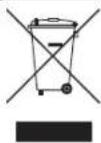
This marking on the product, accessories or literature indicates that the product and its electronic accessories (e.g. charger, headset, USB cable) should not be disposed of with other household waste at the end of their working life. To prevent possible harm to the environment or human health from uncontrolled waste disposal, please separate these items from other types of waste and recycle them responsibly to promote the sustainable reuse of material resources.
Household users should contact either the retailer where they purchased this product, or their local government office, for details of where and how they can take these items for environmentally safe recycling.
Business users should contact their supplier and check the terms and conditions of the purchase contract. This product and its electronic accessories should not be mixed with other commercial wastes for disposal.
16 · Appendix

TEMPLATE
This template is used to install the camera on the wall.
![67mm [2.6 inch] Screw holes for the Camera installation CAMERA FRONT](/content/2026/06/1146253/images/e9769415cda4c203fa33110be12a1ee56a63d4519e54783826a5df02b8772902.jpg)
SAMSUNG
SALES NETWORK
SAMSUNG TECHWIN CO., LTD.
Samsungtechwin R&D Center, 701, Sampyeong-dong, Bundang-gu, Seongnam-si, Gyeonggi-do, Korea, 463-400
TEL: +82-70-7147-8740\~60 FAX: +82-31-8018-3745
100 Challenger Rd. Suite 700 Ridgefield Park, NJ 07660
Toll Free : +1-877-213-1222 Direct : +1-201-325-6920
Fax: +1-201-373-0124
www.samsungsv.com
SAMSUNG TECHWIN EUROPE LTD.
Samsung House, 1000 Hillswood Drive, Hillswood Business Park Chertsey, Surrey, UNITED KINGDOM KT16 OPS
TEL: +44-1932-45-5300 FAX: +44-1932-45-5325