MA1352 - Desktop computer DT Research - Free user manual and instructions
Find the device manual for free MA1352 DT Research in PDF.


User questions about MA1352 DT Research
0 question about this device. Answer the ones you know or ask your own.
Ask a new question about this device
Download the instructions for your Desktop computer in PDF format for free! Find your manual MA1352 - DT Research and take your electronic device back in hand. On this page are published all the documents necessary for the use of your device. MA1352 by DT Research.
USER MANUAL MA1352 DT Research
Multiple Screen Layout Designer/ MS Quick Start Guide
DT Research provides this tool to adjust the screen layout. Multiple Screen Layout Designer can be installed on a PC or laptop to manage the screen layout of the content files played on the Multi Screen Appliances in the same LAN. Install this application and view the Quick Start Guide from the WCM DVD or download the Multi Screen Appliance Quick Start Guide from:
www.signage.dtrl.com/support/wcm/WCM6_Pro_Multi_Screen_Appliance_Quick_Start_Guide_en.pdf
For More Information:
Browser Requirements
WCM 6 Pro is required to run with a specific version of Google Chrome. To download the compatible browser version, please visit:
www.signage.dtri.com/wcm6/browser.html
WCM 6 Pro Online Tutorial
View the online tutorial to get started with WCM 6 Pro:
www.signage.dtri.com/wcm6/tutorial1.html
Download Documentation
Download the latest WCM 6 Pro support documents:
www.signage.dtri.com/wcm6/download.html
FAQ
Learn more technical details about WCM 6 Pro:
www.signage.dtri.com/wcm6/faq.html
Performance Benchmark Table
To learn more about each MS appliance playback performance, please refer to the benchmark table:
www.signage.dtrl.com/wcm6/faq.html#D
System Recovery
If the operating system is corrupted, please follow instructions to restore OS and applications:
www.signage.dtri.com/wcm6/recovery.html

DT Research, Inc.
2000 Concourse Drive, San Jose, CA 95131 http://www.dresearch.com | http://signage.chl.com Copyright © 2017. OT Research, Inc. All Rights Reserved.

Multi Screen Appliances
MA1352/ MA1356
natural_image
Two electronic devices: a black server unit and a black modular device with grid-like ports (no visible text or symbols)Introduction
Thank you for acquiring the DT Research Multi Screen Appliance. The DT Research Multi Screen Appliance enables efficient deployments for digital signage, with reliable hardware features and innovative server-based software. The Microsoft® Windows®-based Appliances offer remote management of the players and the displayed content with the WebDT Content Manager software. The DT Research Multi Screen Appliance together with the WebDT software suite offers an effective solution for delivering and managing messages that target audiences in the right place, at the right time.
Package Contents
-
One DT Research Multi Screen Appliance
-
VESA-compliant Mounting Bracket
-
One power cord
-
WebDT Content Manager 6 Pro Installation DVD
-
Documentation
NOTE: The actual package contents may vary depending on the configuration acquired.
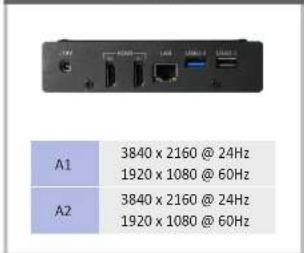
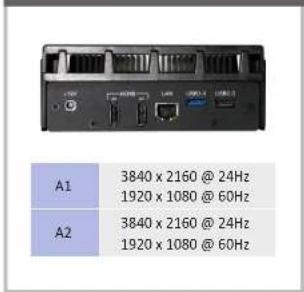
HDMI Video-out Ports
MA1352
Front View
text_image
A1 3840 x 2160 @ 24Hz 1920 x 1080 @ 60Hz A2 3840 x 2160 @ 24Hz 1920 x 1080 @ 60HzMA1356
Front View
text_image
A1 3840 x 2160 @ 24Hz 1920 x 1080 @ 60Hz A2 3840 x 2160 @ 24Hz 1920 x 1080 @ 60HzRear View
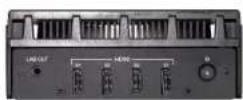
| B1 1920 x 1080 @ 60Hz |
| B2 1920 x 1080 @ 60Hz |
| B3 1920 x 1080 @ 60Hz |
| B4 1920 x 1080 @ 60Hz |
Connecting Peripherals
Make sure your monitors are connected the MA Appliance with HDMI cables. After the peripherals are well connected, plug the power cord into the Appliance and insert the other end into a power outlet.
NOTE: DO NOT connect the power cord before connecting all cables to the MA Appliance.
Using Cable Extenders
To be compatible with the MA Appliance, the extenders should have EDID management function. If there are display issues due to the video cable extenders, please contact your local reseller or system integrator to recommend verified extenders.
Precautions
• Always exercise care when operating and handling
- Never disassemble any portion of the enclosure, as this will void any product warranty.
- Do not use any AC/DC adapter other than the one provided with the device or acquired from the manufacturer or its partners.
- In the unlikely event that smoke, abnormal noise, or strange odor is present, immediately power down the product and disconnect all power sources.
- Please report the problem to your device provider immediately.
- Pushing on the Power Button again will restart the appliance.
Powering ON and OFF
The Power Button is located on the back of the MA Appliance.
To turn the MA Appliance on, push and release the Power Button on the front bezel. The power LED will be lit (blue), and the corresponding interface will be shown on the display monitors. To turn off the appliance, use the software shutdown interface provided.
If your MA player hangs up, please restart it from WCM or RDP rather than pressing the power button to restart, otherwise the OS may become corrupted.
Connect Player and Register to WCM Server
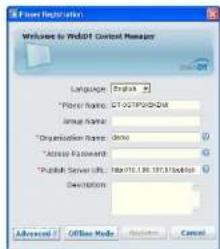
When you power on your Multi Screen Appliance, the registration dialog will be launched automatically. You can also launch it from Start | All Programs | DT Research | WebDT Signage Player | Register Player Again.
NOTE: If your signage player is located in a LAN with a WCM server, the player will automatically register to the server in the same LAN.
Registration Information:
Player name: Leave default name or give a new name Group name: If you did not create a group in WCM
server yet, leave it blank now
Organization name: my site (default)
Access Password: 123456 (default)
Publish Server URL:
http://(server IP address): (port number)/publish or, http://localhost: (Port number)/publish
text_image
Welcome to WinDT Control Manager Language: English "Enter Name: CT-027PunDBus Name: "Organization Name: Done Address Password: "Publish Server URL: http://1.1.18.1973/Default Description: Advanced OFF Online Cancel Cancel- To exit the full screen introduction, press"Ctrl+Shift+Space" to exit the WebDT Signage Player.
- rTo re-launch the WebDT Signage Player, avigate to Start | All Programs | DT Research | WebDT Signage Player | Start player.
- To register this signage appliance to another WebDT Content Manager Server, navigate to Start | All Programs | DT Research | WebDT Signage Player | Register Player Again and then the Player Registration dialog will be launched. Fill in all fields to register. Click OK to register and connect to the preferred WebDT Content Manager Publish Server.
- Please refer to documentation included in the DVD of your package to start anaging your content, playlists and schedules via WebDT Content Manager.