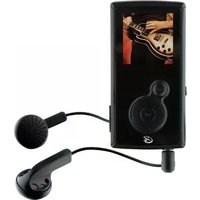
ML451B - Mp3 player GPX - Free user manual and instructions
Find the device manual for free ML451B GPX in PDF.


| Product Type | Digital Media Player (MP3 Player) |
| Brand | GPX |
| Model | ML451B |
| Storage Capacity | 4GB internal flash memory |
| Display | 1.44" TFT LCD, 128x128 resolution |
| Audio Formats | MP3, WMA (non-DRM), WAV |
| Video Formats | MP4, MTV |
| Photo Formats | JPEG, BMP |
| eBook Format | TXT |
| Recording | Voice recording via built-in microphone, WAV format |
| Battery | Built-in rechargeable lithium-ion battery |
| Battery Life | ~12 hours audio, ~4 hours video |
| Charging | Via USB connection to computer |
| Connectivity | Mini-USB 2.0 high-speed port, stereo headphone jack |
| Additional Features | Preset EQ, Hold function, virtual hard drive, drag-and-drop file transfer |
| System Requirements | Windows 2000/XP/Vista/7 |
| Included Accessories | Mini-USB to USB cable, stereo earbuds, user guide |
| Controls | Home, Skip/Search, Volume, Play/Pause, Arrow buttons, Hold/On/Off switch, Reset pinhole |
| Dimensions | Approx. 3.5 x 1.8 x 0.6 inches (estimated) |
| Weight | Approx. 1.5 oz (estimated) |
| Cleaning | Wipe with dry cloth; avoid moisture |
| Safety | Use only included accessories; do not disassemble; keep away from liquids |
Frequently Asked Questions - ML451B GPX
User questions about ML451B GPX
0 question about this device. Answer the ones you know or ask your own.
Ask a new question about this device
Download the instructions for your Mp3 player in PDF format for free! Find your manual ML451B - GPX and take your electronic device back in hand. On this page are published all the documents necessary for the use of your device. ML451B by GPX.
USER MANUAL ML451B GPX
Digital Media Player
Features
• Digital audio: MP3, WMA (non-DRM), WAV
• Digital video: MP4, MTV
• Digital photos: JPEG, BMP
- eBooks: TXT
• 4GB installed flash memory
- Virtual hard drive
• 1.44" TFT LCD display
• Resolution: 128 x 128
• Built-in microphone
- Voice recording
- Hold function
- System requirements: Windows 2000, Windows XP, Windows Vista, Windows 7
- Preset EQ
- Mini-USB port, 2.0 high speed
- Stereo headphone jack
- DC battery power: built-in rechargeable lithium ion battery
- Battery life: \~12 hours audio, \~4 hours video
Features
- Mini-USB to USB cable
• One set of stereo earbuds - Warranty
- User's guide
Setup
Power
DC battery power: built-in rechargeable battery
Connect the digital media player to a computer using a USB cable (included) to a computer to charge.
Introduction

natural_image
Technical line drawing of a portable electronic device showing front and side views with control knobs and buttons (no text or symbols)HOME
Press to return to the previous menu.
SKIP/SEARCH
Press to skip between tracks. Press and hold to search an individual track.
MICROPHONE
VOLUME
Press to adjust the volume.
PLAY/PAUSE
Press to play or pause tracks.

ARROWS
Press to navigate the on-screen menus.
HOLD/ON/OFF
Slide to power on and lock or unlock the buttons. Slide and hold to power off.
RESET
Use a paperclip or like object to reset the digital media player.
MINI-USB PORT
STEREO HEADPHONE JACK
Company Information
International Support Contact Information
To download this User's Guide in English, Spanish, or French, visit the support section at www.gpx.com.
- Connect the digital media player to a computer using the MINI-USB connection and a USB cable (included).
- Once connected, the unit will show up on the connected computer as if it were a connected USB thumb drive, external hard drive, or memory card.
- Drag and drop the desired audio, video, photo, or ebook files into the unit's drive location on the connected computer.
File Compatibility:
MUSIC: MP3, WMA
VIDEO: MTV
VOICE: WAV
PHOTOS: JPEG, BMP
EBOOK: TXT
-
After the files are loaded onto the unit, right-click on the drive and eject it from the computer, then disconnect the USB cable.
-
Slide the HOLD/ON/OFF button to power the player on.
- Press the ARROW buttons to navigate to the Music icon on the main menu and press the PLAY/PAUSE button.
- Press the PLAY/PAUSE button to begin playing music from your digital media player.
Photos
- Slide the HOLD/ON/OFF button to power the player on.
- Navigate to the Photos icon on the main menu and press the PLAY/PAUSE button.
- Use the ARROW buttons to highlight a photo. Press the PLAY/PAUSE button.
- Press the SKIP/SEARCH buttons to skip between photos on the digital media player.
Creating a Recording
- Slide the HOLD/ON/OFF button to power the player on.
- Press the ARROW buttons to navigate to the Recordings icon on the main menu and press the PLAY/PAUSE button.
- Press the down ARROW button to begin a new recording.
- Press the HOME button to save the recording.
- Press the PLAY/PAUSE button to begin playing music from your digital media player.
Playing Saved Recordings
- Follow the instructions for Creating a Recording.
- Slide the HOLD/ON/OFF button to power the player on.
- Press the ARROW buttons to navigate to the Recordings icon on the main menu and press the PLAY/PAUSE button.
- Press the PLAY/PAUSE button to begin playing recordings from your digital media player.
Digital Media Player - Basic Operations
Videos Loading the Video Conversion Software
- Slide the HOLD/ON/OFF button to power the player on.
- Press the ARROW buttons to navigate to the Video icon on the main menu and press the PLAY/PAUSE button.
- Press the PLAY/PAUSE button to begin playing videos from your digital media player.
System Requirements: Windows 98, ME, or XP
- Connect the digital media player to a computer (Windows, Apple, or Linux) using the MINI-USB connection and the included USB cable.
- Once connected, the unit will show up on the connected computer as if it were a connected USB thumb drive, external hard drive, or memory card.
- Windows will as you if you want to run and install VideoConvert.exe. Install the video conversion software.
Using the Video Conversion Software
System Requirements: Windows 2000, ME, or XP
- Follow the "Running Video Conversion Software" directions on the previous page.
- After the program opens, click on the "Input Video" button in the Video Converter software.
- Browse to and double-click on any of the following video file types:
AVI, WMV, ASF, MPG, MOV, QT, VOB, RM, RMVB, MPEG4, 3GP -
Click on "Output Video" to select a destination for the converted video file.
-
Click "Start Conversion" to begin converting the selected video file.
This video conversion software may be blocked by some anti-virus applications. If you are experiencing issues when attempting to run this program, please disable your anti-virus software or try using another computer. Re-enable your anti-virus software immediately after you finish using the video conversion software.
Please note, disabling your anti-virus software exposes your computer to potential threats. Disable at your own risk.

- Digital Media Player
- Features
- Setup
- Power
- Introduction
- HOME
- SKIP/SEARCH
- MICROPHONE
- VOLUME
- PLAY/PAUSE
- ARROWS
- HOLD/ON/OFF
- RESET
- Company Information
- International Support Contact Information
- File Compatibility:
- Photos
- Creating a Recording
- Playing Saved Recordings
- Digital Media Player - Basic Operations
- Videos Loading the Video Conversion Software
- Using the Video Conversion Software
Brand : GPX
Model : ML451B
Category : Mp3 player