AT-2973T - Network card Allied Telesis - Free user manual and instructions
Find the device manual for free AT-2973T Allied Telesis in PDF.


| Product Type | Network Interface Card |
| Model | AT-2973T |
| Brand | Allied Telesis |
| Form Factor | Low-profile PCI Express |
| Interface Bus | PCI Express x4 |
| Ports | 1 x RJ-45 10/100/1000 Mbps |
| Data Rate | 10/100/1000 Mbps (auto-negotiation) |
| Compliance Standards | IEEE 802.3, 802.3u, 802.3ab |
| Supported Features | Jumbo frames (up to 9KB), VLAN tagging, Wake-on-LAN |
| OS Support | Windows, Linux, VMware ESXi |
| Power Consumption | Max 5W from PCIe bus |
| Dimensions (L x W x H) | 120 mm x 70 mm x 20 mm |
| Weight | 50 g |
| Operating Temperature | 0°C to 40°C |
| Storage Temperature | -20°C to 70°C |
| Maintenance | Use compressed air to remove dust; avoid liquids |
| Safety | Install with power off; handle by edges to avoid static damage |
| Repairability | Non-repairable; replace if faulty |
Frequently Asked Questions - AT-2973T Allied Telesis
User questions about AT-2973T Allied Telesis
0 question about this device. Answer the ones you know or ask your own.
Ask a new question about this device
Download the instructions for your Network card in PDF format for free! Find your manual AT-2973T - Allied Telesis and take your electronic device back in hand. On this page are published all the documents necessary for the use of your device. AT-2973T by Allied Telesis.
USER MANUAL AT-2973T Allied Telesis
NetExtreme II Adapters
1 Gigabit and 10 Gigabit Interface Cards
□ AT-2973SX
□ AT-2973T
AT-2973T/4
AT-VNC10S
natural_image
Diagram of four different Ethernet card connectors arranged in a row (no text or labels visible)Installation Guide
613-001252 Rev. D
Copyright © 2011 Allied Telesis, Inc.
All rights reserved. No part of this publication may be reproduced without prior written permission from Allied Telesis, Inc.
Allied Telesis and the Allied Telesis logo are trademarks of Allied Telesis, Incorporated. All other product names, company names, logos or other designations mentioned herein are trademarks or registered trademarks of their respective owners.
Allied Telesis, Inc. reserves the right to make changes in specifications and other information contained in this document without prior written notice. The information provided herein is subject to change without notice. In no event shall Allied Telesis, Inc. be liable for any incidental, special, indirect, or consequential damages whatsoever, including but not limited to lost profits, arising out of or related to this manual or the information contained herein, even if Allied Telesis, Inc. has been advised of, known, or should have known, the possibility of such damages.
This product meets the following standards.
Federal Communications Commission Interference Statement
Declaration of Conformity
Manufacturer Name: Allied Telesis, Inc.
Declares that the product: NetExtreme II Family Adapters
Model Numbers: AT-2973SX, AT-2973T, AT-2973T/4, AT-VNC10S
This equipment has been tested and found to comply with the limits for a Class B digital device, pursuant to Part 15 of FCC Rules. These limits are designed to provide reasonable protection against harmful interference in a residential installation. This equipment generates, uses and can radiate radio frequency energy and, if not installed and used in accordance with the instructions, may cause harmful interference to radio or television reception. However, there is no guarantee that interference will not occur in a particular installation. If this equipment does cause harmful interference to radio or television reception, which can be determined by turning the equipment off and on, the user is encouraged to try to correct the interference by one of the following measures:
- Reorient or relocate the receiving antenna.
- Increase the separation between the equipment and the receiver.
- Connect the equipment into an outlet on a circuit different from that to which the receiver is connected.
- Consult the dealer or an experienced radio/TV technician for help.
This device complies with part 15 of the FCC Rules. Operation is subject to the following two conditions:
(1) This device must not cause harmful interference, and
(2) this device must accept any interference received, including interference that may cause undesired operation.
FCC Caution: Any changes or modifications not expressly approved by the party responsible for compliance could void the user's authority to operate this equipment.
IMPORTANT NOTE:
FCC Radiation Exposure Statement:
This equipment complies with FCC radiation exposure limits set forth for an uncontrolled environment. End users must follow the specific operating instructions for satisfying RF exposure compliance.
This transmitter must not be co-located or operating in conjunction with any other antenna or transmitter.
IEEE802.11b or 802.11g operation of this product in the U.S.A. is firmware-limited to channels 1 through 11.
Industry Canada
This Class A digital apparatus complies with Canadian ICES-003.
European Union Restriction of the Use of Certain Hazardous Substances (RoHS) in Electrical and Electronic Equipment
This Allied Telesis RoHS-compliant product conforms to the European Union Restriction of the Use of Certain Hazardous Substances (RoHS) in Electrical and Electronic Equipment. Allied Telesis ensures RoHS conformance by requiring supplier Declarations of Conformity, monitoring incoming materials, and maintaining manufacturing process controls.
RFI Emissions FCC Class B, EN55022 Class B, VCCI Class B, C-TICK, CE
Immunity EN55024
Electrical Safety EN60950-1 (TUV), UL 60950-1 ( cUL_US )

Laser Safety EN60825
Translated Safety Statements
Important: The _f indicates that a translation of the safety statement is available in a PDF document titled “Translated Safety Statements” on the Allied Telesis website at
www.alliedtelesis.com/support/software. After you have accessed this website, enter the model number in the Search by Product Name box and then click Find to view the current list of documents.
Contents
Preface 13
Safety Symbols Used in this Document....14
Where to Find Web-based Guides 15
Contacting Allied Telesis 16
Online Support 16
Email and Telephone Support....16
Warranty 16
Returning Products....16
Sales or Corporate Information 16
Management Software Updates....16
Chapter 1: Introducing the AT-2973SX, AT-2973T, AT-2973T/4, and AT-VNC10S Adapters .... 17
Functional Descriptions 18
AT-2973SX Adapter 19
AT-2973T Adapter....20
AT-2973T/4 Adapter 22
AT-VNC10S Adapter 23
Features 26
TCP Offload Engine (TOE)....27
Internet Small Computer Systems Interface (iSCSI) 27
Power Management 27
Wake on LAN (WOL) Feature 28
Adaptive Interrupt Frequency 28
ASIC with Embedded RISC Processor....28
Supported Operating Environments 28
Chapter 2: Installing the Hardware 29
Reviewing the Contents of Your Shipment....30
Reviewing Safety Precautions....31
Reviewing Cabling Requirements....33
Pre-Installation Checklist 34
Replacing the Bracket 35
Installing a Network Adapter Card....37
Installing SFP+ Transceivers in the AT-VNC10S Adapter 41
Chapter 3: Installing Broadcom Boot Agent Driver Software 43
Overview....44
Setting Up MBA in a Client Environment 45
Enabling the MBA Driver 45
Configuring the MBA Driver 45
Setting Up the BIOS 46
Setting Up MBA in a Server Environment: Red Hat Linux PXE Server 47
Chapter 4: Installing the Monolithic Software Driver ....49
Using the NetXtreme II Monolithic Driver....50
Inserting the NetXtreme II Monolithic Driver in a WinPE 2.0 Image ....51
Configuring the Speed and Duplex Settings....53
Chapter 5: Installing the NDIS2 Driver Software .... 55
Overview....56
Checking Pre-installation Requirements....57
Figures
Installing the NDIS2 Driver Software on MS-DOS Platforms....58
Creating a Startup Disk 58
Modifying the Startup Disk....59
Installing the DOS NDIS2 Driver Software 61
Using Keywords for the Drivers 63
Chapter 6: Installing the Linux Drivers ...... 65
Overview....66
Limitations 66
Packaging 67
Installing Linux Driver Software 68
Installing the Source RPM Package 68
Building the Driver from the Source TAR File....70
Load and Run Necessary iSCSI Software Components 71
Unloading the Linux Driver 72
Patching PCI Files (Optional) 73
Network Installations 74
Setting Values for Optional Properties....74
Checking the bnx2 Driver Defaults....77
Checking Driver Messages....77
Teaming with Channel Bonding....81
Statistics 81
Linux iSCSI Offload 81
Chapter 7: Installing the Windows Drivers ....87
Supported Versions of Microsoft Windows 88
Installing the Windows Driver Software 89
Using the Installer 90
Using Silent Installation 94
Removing the Device Drivers 97
Chapter 8: Setting Advanced Properties ...... 99
Advanced Features....100
Accessing the Advanced Tab 105
Selecting the Advanced Tab in Windows Server 2003....105
Selecting the Advanced Tab in Windows Server 2008, Windows Server 2008 R2, and Windows 7 ...... 110
Selecting the Advanced Tab in Windows Vista 112
Modifying the Advanced Properties 114
Chapter 9: Installing CIM and SNMP for Manageability ....125
Installing CIM 126
Loading the CIM Libraries 127
Installing SNMP 129
BASP Subagent....129
BASP Extensible-Agent 129
Loading the SNMP Libraries....130
Chapter 10: Installing Management Applications ...... 133
Installing Broadcom Advanced Control Suite 3 and Related Management Applications....134
Checking .NET Framework Requirements 135
Using the Installer....136
Using the Silent Install Option 136
Modifying Management Applications 139
Repairing Management Applications 140
Removing Management Applications 141
Chapter 11: Troubleshooting .... 143
Checking Hardware Diagnostics....144
Checking Port LEDs....145
Consulting the Troubleshooting Checklist....146
Checking Current Drivers 146
Running a Cable Length Test....147
Testing Network Connectivity....147
Solving Microsoft Windows Server 2008 R2 Hyper-V Issues 149
Single Network Adapter....149
Teamed Network Adapters....149
Removing the Device Drivers....150
Upgrading from Windows Server 2000 to Windows Server 2003 150
Preparing an Answer File 150
Solving Broadcom Boot Agent and Broadcom Advanced Server Program (BASP) Issues.... 152
Solving Miscellaneous Issues....154
Chapter 12: User Diagnostics .... 157
Overview....158
System Requirements 159
Performing Diagnostics....160
Diagnostic Test Descriptions 163
Appendix A: Specifications 169
Physical Specifications 169
Environmental Specifications....169
Power Specifications 170
Performance Specifications....170
Operating Specifications....170
10/100/1000Base-T Twisted-Pair Port Connectors 171
Appendix B: Cleaning Fiber Optic Connectors 173
Using a Cartridge-Type Cleaner....174
Using a Swab 176
Figures
Figures
Figure 1. AT-2973SX Adapter ...... 19
Figure 2. AT-2973SX Faceplate 20
Figure 3. AT-2973T Adapter....21
Figure 4. AT-2973T Faceplate....21
Figure 5. AT-2973T/4 Adapter 22
Figure 6. AT-2973T/4 Faceplate....23
Figure 7. AT-VNC10S Adapter....24
Figure 8. AT-VNC10S Faceplate....24
Figure 9. Removing the Low-Profile Bracket....35
Figure 10. Fastening Screws onto Standard Bracket....36
Figure 11. Removing the PC Cover....38
Figure 12. Removing the Faceplate From PCIe Slot....38
Figure 13. Inserting the Adapter with a High-profile Bracket ....39
Figure 14. Securing the Adapter with a High-profile Bracket....40
Figure 15. Broadcom NetXtreme II Driver Installer - InstallShield Wizard Page....91
Figure 16. License Agreement Page 92
Figure 17. Ready to Install the Program Page....93
Figure 18. InstallShield Wizard Completed Page 94
Figure 19. System Properties Dialog Box....106
Figure 20. System Properties Hardware Tab 107
Figure 21. Device Manager Window....108
Figure 22. Advanced Tab 109
Figure 23. Windows Server 2008, Windows Server 2008 R2, and Windows 7 Search Box 110
Figure 24. Device Manager Window....111
Figure 25. Windows Vista Start Menu ....112
Figure 26. Windows Vista Run Window....112
Figure 27. BACS CIM Option Window....128
Figure 28. BACS SNMP Option Window....131
Figure 29. RJ-45 Connector and Port Pin Layout....171
Figure 30. Ferrule in an SC Connector Plug....173
Figure 31. Unclean and Clean Ferrule....173
Figure 32. Cartridge Cleaner 174
Figure 33. Rubbing the Ferrule Tip on the Cleaning Surface....174
Figure 34. Lint-Free and Alcohol-Free Swabs....176
Figure 35. Cleaning a Recessed Ferrule....176
Figures
Tables
Table 1: Network Adapter Cards ...... 18
Table 2: AT-2973SX Network Link and Activity LEDs 20
Table 3: AT-2973T Network Link and Activity LEDs ......22
Table 4: AT-2973T/4 Network Link and Activity LEDs ......23
Table 5: AT-VNC10S Network Link and Activity LEDs 25
Table 6: Cable Requirements for the AT-2973T and AT-2973T/4 Adapters ......33
Table 7: Cable Requirements for the AT-2973SX Adapter ....33
Table 8: Broadcom NetXtreme II Linux Drivers ......66
Table 9: Linux Driver Packaging ....67
Table 10: Supported Versions of Microsoft Windows 88
Table 11: Advanced Features in Microsoft Windows Supported by the AT-2973 Adapter Series ....100
Table 12: Advanced Features in Microsoft Windows Supported by the AT-VNC10S Adapter Series .... 102
Table 13: Advanced Features in Microsoft Windows 114
Table 14: Minimum and Recommended .NET Framework Versions for BACS 3 135
Table 15: Linux Module Size 147
Table 16: uxdiag Command Options ....160
Table 17: Diagnostic Tests ....163
Table 18: RJ-45 1000Base-T Connector Pinouts ....171
Tables
This guide contains instructions on how to install and configure the Allied Telesis AT-2973SX, AT-2973T, AT-2973T/4, and AT-VNC10S adapters.
The Preface discusses the following topics:
☐ “Safety Symbols Used in this Document” on page 14
☐ "Where to Find Web-based Guides" on page 15
☐ “Contacting Allied Telesis” on page 16
Safety Symbols Used in this Document
This document uses the following conventions:
Note
Notes provide additional information.

Caution
Cautions inform you that performing or omitting a specific action may result in equipment damage or loss of data.

Warning
Warnings inform you that performing or omitting a specific action may result in bodily injury.
Where to Find Web-based Guides
The installation and user guides for all Allied Telesis products are available in portable document format (PDF) on our web site at www.alliedtelesis.com/support/software. Enter the model number in the Search by Product Name box and then click Find to view the current list of documents.
Contacting Allied Telesis
| This section provides Allied Telesis contact information for technical support and for sales and corporate information. | |
| Online Support | You may request technical support online by accessing the Allied Telesis Knowledge Base: www.alliedtelesis.com/support. You may use the Knowledge Base to submit questions to our technical support staff and review answers to previously asked questions. |
| Email and Telephone Support | For Technical Support via email or telephone, refer to the Support & Services section of the Allied Telesis web site: www.alliedtelesis.com/support. Select your country from the list displayed on the website and then select the appropriate menu tab. |
| Warranty | For hardware warranty information, refer to the Allied Telesis web site at www.alliedtelesis.com/support. |
| Returning Products | Products for return or repair must first be assigned a return materials authorization (RMA) number. A product sent to Allied Telesis without an RMA number will be returned to the sender at the sender's expense.To obtain an RMA number, contact the Allied Telesis Technical Support group at our web site: www.alliedtelesis.com/support. Select your country from the list displayed on the website. Then select the appropriate menu tab. |
| Sales or Corporate Information | You can contact Allied Telesis for sales or corporate information through our web site at www.alliedtelesis.com. To find the contact information for your country, select Contact Us. |
| Management Software Updates | New releases of management software for our managed products are available on our Allied Telesis web site at http://www.alliedtelesis.com/support. |
Chapter 1
Introducing the AT-2973SX, AT-2973T, AT-2973T/4, and AT-VNC10S Adapters
This chapter provides an introduction to the Allied Telesis AT-2973SX, AT-2973T, AT-2973T/4, and AT-VNC10S NetExtreme II Family Adapters and discusses the following topics:
☐ "Functional Descriptions" on page 18
☐ "Features" on page 26
Functional Descriptions
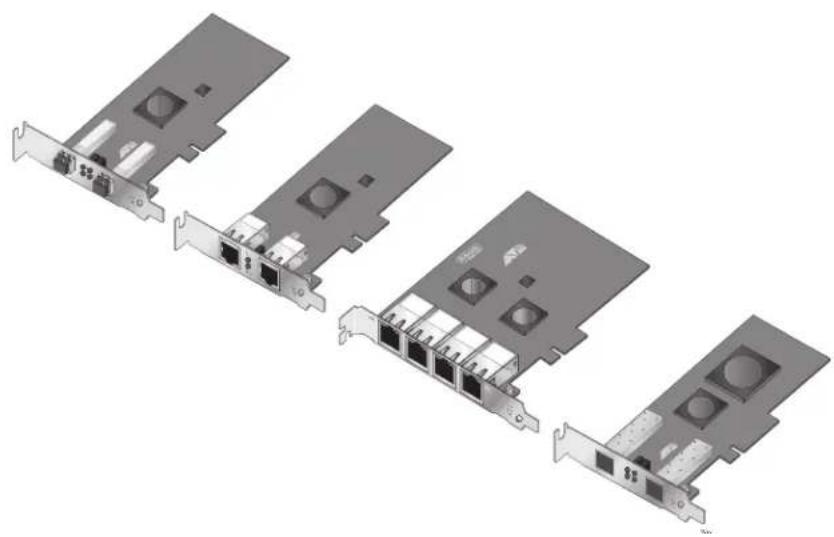
The AT-2973SX, AT-2973T, AT-2973T/4, and AT-VNC10S Broadcom NetXtreme II adapters are a new class of Gigabit Ethernet (GbE) and 10 Gigabit Ethernet (10GbE) converged network interface controllers (C-NIC). They can perform accelerated Ethernet data networking and storage networking simultaneously for all popular protocols used in the data center, and include features such as:
☐ TCP Offload Engine (TOE) for accelerating TCP
☐ Internet Small Computer Systems Interface (iSCSI) offload for accelerating network storage access
Enterprise networks that use multiple protocols and multiple network fabrics benefit from the C-NICs ability to combine data communications, storage, and clustering over a single Ethernet fabric and to boost server CPU processing performance and memory utilization while alleviating I/O bottlenecks.
The basic characteristics of the adapters are listed in Table 1.
Table 1. Network Adapter Cards
| Adapter | Number of Ports or Slots | Speed | Maximum Distance | Bus Connector |
| AT-2973SX T | two fiber optic ports with duplex LC connectors | 1000 Mbps (1000Base-SX) | 220 (722 feet) or 550 meters (1,804 feet) ^1 | PCIe x4 |
| AT-2973T Two | twisted pair ports with RJ-45 connectors | 10, 100, or 1000 Mbps (10/100/1000Base-T) | 100 meters (328 feet) | PCIe x4 |
| AT-2973T/4 F | four twisted pair ports with RJ-45 connectors | 10, 100, or 1000 Mbps (10/100/1000Base-T) | 100 meters (328 feet) | PCIe x4 |
| AT-VNC10S T | two slots for SFP+ transceivers | 10 Gbps | _2 | PCIe x8 |
- The maximum operating distances of the fiber optic ports on the AT-2973SX adapter depend on the fiber optic cable.
- The maximum operating distances of the SFP+ slots on the AT-VNC10S adapter depend on the transceivers. Contact your Allied Telesis sales representative for a list of supported transceivers for the AT-VNC10S adapter.
As part of the company's green range, all four adapters are engineered to reduce power consumption. They incorporate centralized power management features that automatically place idle circuitry into a lower power mode to save energy.
The following sections provide functional descriptions of the adapters:
☐ "AT-2973SX Adapter" on page 19
☐ "AT-2973T Adapter" on page 20
☐ "AT-2973T/4 Adapter" on page 22
☐ "AT-VNC10S Adapter" on page 23
AT-2973SX Adapter
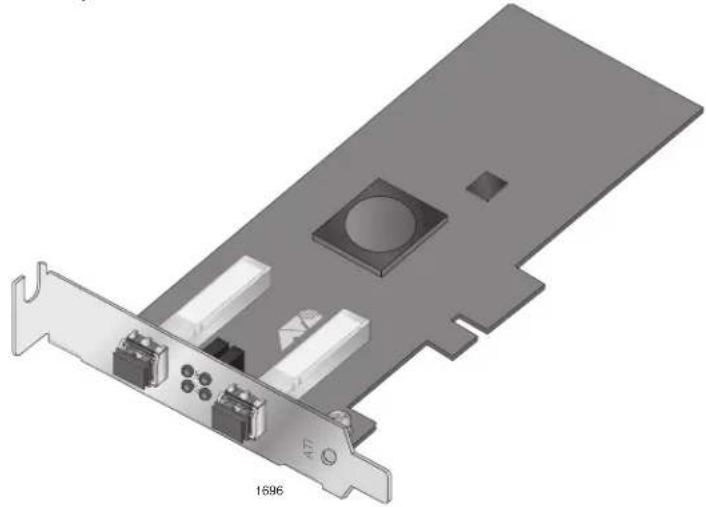
The AT-2973SX adapter, show in Figure 1, has two fiber optic ports that have duplex LC connectors and operate at 1000 Mbps in full duplex mode. You cannot change the speed or duplex mode of this adapter. The ports have a maximum operating distance of 220 meters (722 feet) with 62.5/125 μm (core/cladding) multimode cable or 550 meters (1,804 feet) with 50/125 μm fiber optic cable.
The adapter has an PCIe x4 motherboard bus connector.
natural_image
3D diagram of a computer motherboard showing two connectors and a central chip (no text or symbols)Figure 1. AT-2973SX Adapter
AT-2973SX Adapter Physical Description
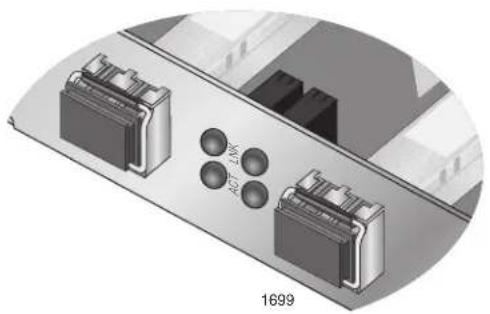
The faceplate on the AT-2973SX adapter provides two fiber optic connectors for attaching the adapter to a compatible link partner. See Figure 2 for an illustration of the adapter's faceplate.
The AT-2973SX adapter has two fiber ports and two LEDs per port, as shown in Figure 2 and described in Table 2 on page 20.
natural_image
3D diagram of a device rear panel with two connectors and four spherical components, labeled '1699' (no text or symbols on the diagram itself)Figure 2. AT-2973SX Faceplate
For AT-2973SX LED information, see Table 2.
Table 2. AT-2973SX Network Link and Activity LEDs
| Port LED L | LED State Network State | |
| Link LED Off | No link (cable disconnected) | |
| Steady On Link | ||
| Activity LED Off | No network activity | |
| Blinking Network activity | ||
AT-2973T Adapter
The AT-2973T and AT-2973T/4 adapters include a 10/100/1000-Mbps Ethernet MAC with both half-duplex and full-duplex capability and a 10/100/1000-Mbps PHY. The transceiver is fully compatible with the IEEE 802.3 standard for auto-negotiation of speed and duplex mode.
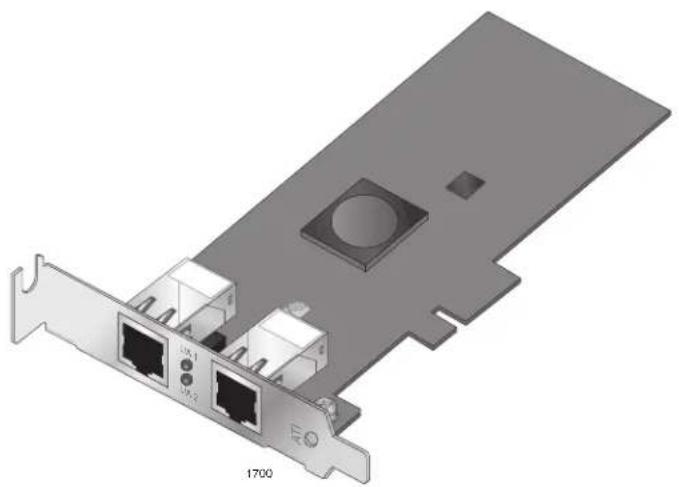
The AT-2973T adapter operates at speeds of 10/100/1000T Mbps in either full-duplex or half-duplex mode. This adapter has two twisted-pair connectors and two LEDs, as shown in Figure 3 on page 21.
natural_image
3D diagram of a network card with two Ethernet ports and a central port, labeled 1700 (no text or symbols on the diagram itself)Figure 3. AT-2973T Adapter
AT-2973T Adapter Physical Description
The faceplate on the AT-2973T adapter has two twisted-pair connectors for attaching the adapter to compatible link partners. See Figure 4 on page 21 for an illustration of the adapter's faceplate and LEDs.
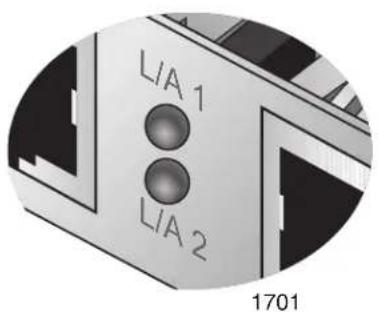
Figure 4. AT-2973T Faceplate
Each port has one LED. The LED labeled L/A1 is for port 1 and the LED labeled L/A2 is for port 2. See Table 3 on page 22.
Table 3. AT-2973T Network Link and Activity LEDs
| Port LED ED State Network State | ||
| L/A | Off No link (cable disconnected) | |
| Steady On Link | ||
| Blinking Network activity | ||
AT-2973T/4 Adapter
The AT-2973T/4 adapter, shown in Figure 5 on page 22, is a PCI-Express adapter. It has four twisted-pair ports, with speeds of 10, 100, or 1000 Mbps in either full-duplex and half-duplex mode. The card has eight LEDs.
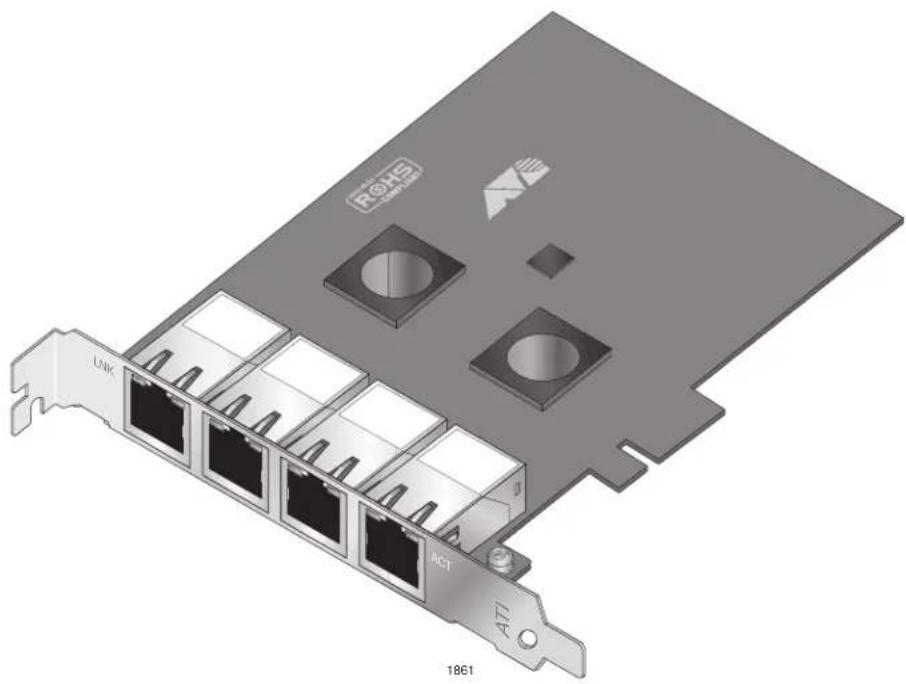
Figure 5. AT-2973T/4 Adapter
AT-2973T/4 Adapter Physical Description
The faceplate on the AT-2973T/4 adapter provides four twisted-pair connectors for attaching the adapter to a compatible link partner. The ports numbers are not shown on the card. See Figure 6 on page 23 for the port numbers and the LED assignments. When the adapter is mounted vertically, the top LED is the Link LED and the bottom LED is the activity (ACT) LED.
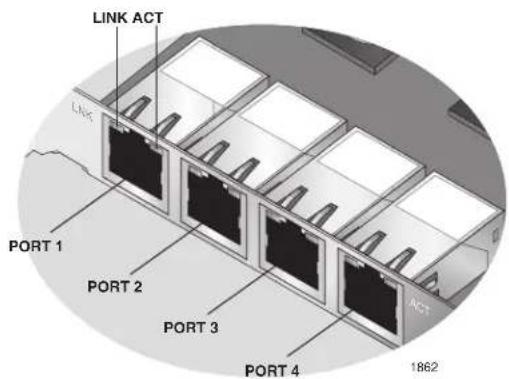
Figure 6. AT-2973T/4 Faceplate
The functions of the LEDs for the RJ-45 connectors are described in Table 4.
Table 4. AT-2973T/4 Network Link and Activity LEDs
| Port LED L | ED State Network State | |
| Link LED Off | No link (cable disconnected) | |
| Steady On Link | ||
| Activity LED Off | No network activity | |
| Blinking Network activity | ||
AT-VNC10S Adapter
The AT-VNC10S adapter, shown in Figure 7 on page 24, has two slots for SFP+ modules and a PCIe x8 controller bus.
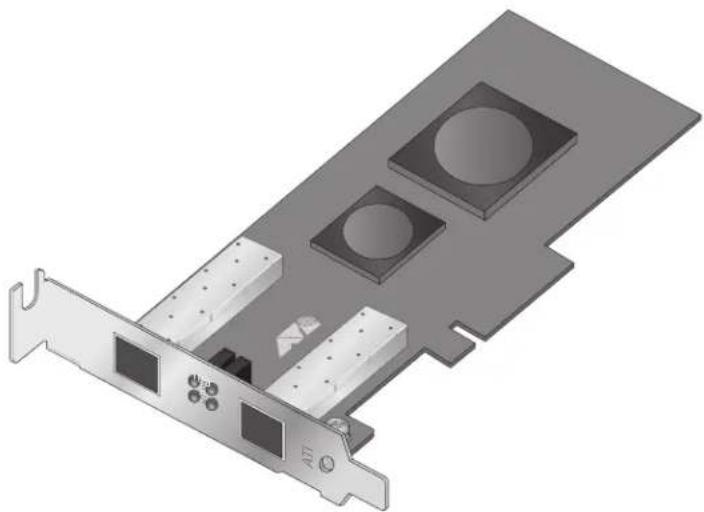
natural_image
3D diagram of a computer RAM card with two ports and mounting holes (no text or symbols)Figure 7. AT-VNC10S Adapter
AT-VNC10S Adapter Physical Description
The faceplate on the AT-VNC10S adapter, shown in Figure 8, has two slots for SFP+ transceivers and four LEDs.
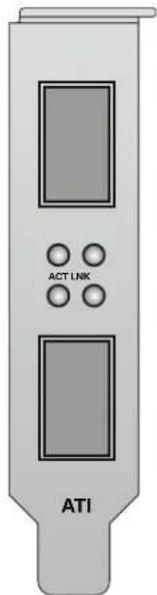
Figure 8. AT-VNC10S Faceplate
The functions of the LEDs for the SFP+ slots are described in Table 5.
Table 5. AT-VNC10S Network Link and Activity LEDs
| Port LED L | ED State Network State | |
| ACT LED Off | No network activity | |
| Blinking Network activity | ||
| LNK LED Off | No link (cable disconnected) | |
| Steady On Link |
Features
The following list of adapter features applies to the AT-2973SX, AT-2973T, and AT-2973T/4 adapters:
☐ Dual 10/100/1000 triple-speed MAC
Dual 10BASE-T/100BASE-TX/1000BASE-T Transceivers
Dual 1000BASE-X 1.25-GBAUD/3.125-Gbaud SerDes transceivers
□ X4 PCIe v1.1
X4 PCIe 2.0 v1.0
64KB receive buffer
☐ 24KB payload transmit buffer
□ Adaptive interrupt frequency
□ Wake on LAN support (AT-2973T and AT-2973T/4 only)
The following list of features applies to the AT-VNC10S adapter:
Dual 10 Gbps MAC
Dual XAUI/10GBASE-CX4/10GBASE-KX4
☐ PCI Express x8 v2.0, 5 GTps-compliant
PCI Express x8 v1.1, 2.5 GTps-compliant
The following features are common to all of the adapters:
☐ TCP Offload Engine (TOE)
☐ Internet Small Computer Systems Interface (iSCSI) controller
☐ TCP segmentation offload
☐ PXE v2.1 remote boot
□ Receive side scaling (RSS) for IPv4 and IPv6
□ Statistics gathering (SNMP MIB II)
☐ Comprehensive diagnostic and configuration software suite
☐ ACPI compliant power management
☐ Virtual LANs-802.1q VLAN tagging
☐ Jumbo frames (up to 9 KB). The OS and the link partner must support jumbo frames.
□ MSI, MSI-X
☐ Simultaneous operation of Layer 2 Ethernet, TCP Offload Engine (TOE), and iSCSI
LiveLink™
TCP Offload Engine (TOE)
□ Smart Load Balancing Teaming
☐ IEEE Std 802.3ad teaming
The TCP/IP protocol suite is used to provide transport services for a wide range of applications for the Internet, LAN, and for file transfer. The TCP protocol is specifically designed to insure that data packets are delivered error free and in the correct sequence from an application running a one computer to the receiving application. The TCP protocol suite historically has run on the host CPU, but with higher data rates, this consumes a very high percentage of its resources while leaving little resources for the applications. With the use of the Broadcom NetXtreme II adapter and the TCP Offload Engine feature, the TCP/IP processing can be moved to hardware, freeing the CPU for application processing and other higher priority tasks.
The Broadcom NetXtreme II adapter's TOE functionality allows simultaneous operation of up to 1024 fully offloaded TCP connections for 1-Gbps network adapters. The TOE support on the adapter significantly reduces the host CPU utilization while preserving the implementation of the operating system stack.
Internet Small Computer Systems Interface (iSCSI)
The IETF has standardized the Internet Small Computer Systems Interface (iSCSI). SCSI is a popular protocol that enables systems to communicate with storage devices, using block-level transfer (that is, address data stored on a storage device that is not a whole file). In addition, iSCSI maps the SCSI request and response application protocols and its standardized command set over TCP/IP networks.
As iSCSI utilizes TCP as its sole transport protocol, it greatly benefits from hardware acceleration of the TCP processing (that is, use of a TOE). However, iSCSI as a Layer 5 protocol has additional mechanisms beyond the TCP layer. iSCSI processing can also be offloaded, thereby reducing CPU utilization even further.
The Broadcom NetXtreme II adapter targets best-system performance, maintains system flexibility to changes, and supports current and future OS convergence and integration. Therefore, the adapter's iSCSI offload architecture is unique as evident by the split between hardware and host processing.
Power Management
When the system is down and waiting for a wake-up signal, the adapter speed connection may be at 10 Mbps or 100 Mbps. However, it can return to 1000 Mbps when the system is up and running if it is connected to a 1000 Mbps capable switch. For this reason, connect systems that use the Wake on LAN (WOL) feature to a switch capable of both 1000 and 10/100 Mbps speeds.
Wake on LAN (WOL) Feature
The WOL feature sets the speed at which the network adapter connects to the network while the adapter is in Wake on LAN (WOL) mode which is enabled automatically. The default speed for WOL mode is 100 Mb. An adapter can negotiate speeds between 10 Mb and 100 Mb. You cannot configure this feature because it is enabled automatically.
Note
The WOL feature is supported on the AT-2973T and AT-2973T/4 adapters. It is not supported on the AT-2973SX and AT-VNC10S adapters. For more information, see “Limitations” on page 66.
Note
For specific systems, see your system documentation for information about support of the WOL feature.
Adaptive Interrupt Frequency
The adapter driver intelligently adjusts host interrupt frequency based on traffic conditions to increase overall application throughput. When traffic is light, the adapter driver interrupts the host for each received packet, minimizing latency. When traffic is heavy, the adapter issues one host interrupt for multiple, back-to-back incoming packets, preserving host CPU cycles.
ASIC with Embedded RISC Processor
The core control for Broadcom NetXtreme II adapters resides in a tightly integrated, high-performance ASIC. The ASIC includes a RISC processor. This functionality provides the flexibility to add new features to the card and adapts it to future network requirements through software downloads. This functionality also enables the adapter drivers to exploit the built-in host offload functions on the adapter as host operating systems are enhanced to take advantage of these functions.
Supported Operating Environments
The Broadcom NetXtreme II adapter has software support for the following operating systems:
☐ Microsoft Windows Server 2003 (32-bit and 64-bit extended)
☐ Microsoft Windows Server 2008 (32-bit and 64-bit extended)
☐ Microsoft Windows Server 2008 R2 (32-bit and 64-bit extended)
☐ Microsoft Windows Vista (32-bit and 64-bit extended)
☐ Microsoft Windows 7 (32-bit and 64-bit extended)
☐ Microsoft Windows Server 2008 R2 Hyper-V
☐ Linux (32-bit and 64-bit extended)
□ MS-DOS
□ ESX Server (VMware)
Citrix XenServer
Chapter 2
Installing the Hardware
This chapter describes how to install the AT-2973SX, AT-2973T, AT-2973T/4, and AT-VNC10S adapters in a PC and discusses the following topics:
☐ “Reviewing the Contents of Your Shipment” on page 30
☐ “Reviewing Safety Precautions” on page 31
☐ “Reviewing Cabling Requirements” on page 33
☐ "Pre-Installation Checklist" on page 34
☐ "Replacing the Bracket" on page 35
☐ “Installing a Network Adapter Card” on page 37
☐ “Installing SFP+ Transceivers in the AT-VNC10S Adapter” on page 41
Reviewing the Contents of Your Shipment
The following items are included with your adapter:
☐ Antistatic bag (used for protecting the adapter when stored or shipped). Keep the adapter in its packaging until ready for installation.
☐ Low-profile bracket (The low-profile bracket is not included with the AT-2973T/4 adapter.)
Standard bracket
Inform your network supplier of any missing or damaged items. If you need to return the adapter, you must pack it in the original (or equivalent) packing material or the warranty will be voided. See “Returning Products” on page 16.
The documentation for these adapters is available in portable document format (PDF) on our web site at www.alliedtelesis.com/support/software. After you have accessed this website, enter the model number in the Search by Product Name box and then click Find to view the current list of documents.
Reviewing Safety Precautions
Please review the following safety precautions before you begin to install a network adapter card.
Note
The ^64 indicates that a translation of the safety statement is available in a PDF document titled “Translated Safety Statements” on the Allied Telesis website at www.alliedtelesis.com/support/software. After you have accessed this website, enter the model number in the Search by Product Name box and then click Find to view the current list of documents.

Warning
This is a Class 1 Laser product. L1

Warning
The fiber optic ports contain a Class 1 Laser device. When the ports are disconnected, always cover them with the provided plug. Exposed ports may cause skin or eye damage. ∞ L4

Warning
Do not stare into the laser beam. ∞ L2

Warning
Do not look directly at the fiber optic cable ends or inspect the cable ends with an optical lens. ∞ L6

Warning
Do not work on this equipment or cables during periods of lightning activity. E2
Note
All Countries: Install this product in accordance with local and National Electric Codes. E8

Warning
The adapter is being installed in a system that operates with voltages that can be lethal. Before you remove the cover of your system, you must observe the following precautions to protect yourself and to prevent damage to the system components.
- Remove any metallic objects or jewelry from your hands and wrists.
- Make sure to use only insulated or nonconducting tools.
- Verify that the system is powered OFF and unplugged before accessing internal components.
- Installation or removal of adapters must be performed in a static-free environment. The use of a properly grounded wrist strap or other personal antistatic devices and an antistatic mat is strongly recommended. E39
Reviewing Cabling Requirements
The cabling requirements for the twisted pair ports on the AT-2973T and AT-2973T/4 adapters are listed in Table 6.
Table 6. Cable Requirements for the AT-2973T and AT-2973T/4 Adapters
| Speed Cable | Type Maximum Distance | |
| 10 Mbps Standard TI | A/EIA 568-B-compliant Category 3 or higher shielded or unshielded cabling with 100 ohm impedance and a frequency of 16 MHz. | 100 meters (328 feet) |
| 100 Mbps Standard | TIA/EIA 568-B-compliant Category 3 or higher shielded or unshielded cabling with 100 ohm impedance and a frequency of 16 MHz. | 100 meters (328 feet) |
| 1000 Mbps Standard | TIA/EIA 568-A-compliant Category 5 or higher shielded or unshielded cabling with 100 ohm impedance and a frequency of 100 MHz. | 100 meters (328 feet) |
The cabling requirements for the fiber optic ports on the AT-2973SX adapter are listed in Table 7.
Table 7. Cable Requirements for the AT-2973SX Adapter
| Cable Type Maximum Distance | |
| 62.5/125 μm (core/cladding) multimode fiber optic cable | 220 meters (722 feet) |
| 50/125 μm (core/cladding) multimode fiber optic cable | 550 meters (1,804 feet) |
For the latest fiber optic cable requirements for the SFP+ modules for the AT-VNC10S adapter, contact your Allied Telesis sales representative.
Pre-Installation Checklist
Before you install an adapter card, do the following:
- Verify that your system is using the latest BIOS.
- If your system is active, shut it down.
- When the system shut down is complete, power OFF and unplug your system.
- Holding the adapter card by the edges, remove it from its shipping package and place it on an antistatic surface.
- Check the adapter for visible signs of damage, particularly on the card's edge connector.

Caution
Do not attempt to install a damaged adapter. If the adapter is damaged, report it to Allied Telesis. See “Contacting Allied Telesis” on page 16.
Replacing the Bracket
The AT-2973SX, AT-2973T, AT-VNC10S adapters are shipped with the low-profile bracket attached to the adapter. In addition, the standard bracket is included in the shipment. Depending on your PC, you may need to replace the bracket attached to your adapter.
Note
The AT-2973T/4 adapter is shipped with a standard bracket attached to the card. A low-profile bracket is not included with this adapter.
The following procedure describes how to remove the low-profile bracket from the adapter and replace it with the standard bracket. You can also use this procedure to remove the standard bracket and replace it with the low-profile bracket.
To replace the low-profile bracket with the standard bracket, do the following:
- Remove the screws that attach the bracket to the adapter. See Figure 9.
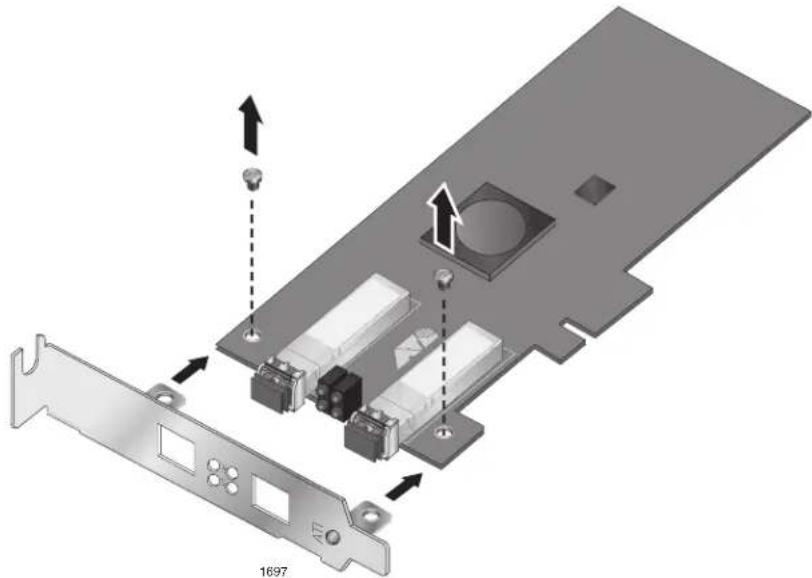
natural_image
3D diagram of a computer motherboard showing a card slot, connectors, and drive components (no text or symbols)Figure 9. Removing the Low-Profile Bracket
- Align the tabs of the standard bracket with the holes on the adapter and fasten the screws onto the adapter. See Figure 10.
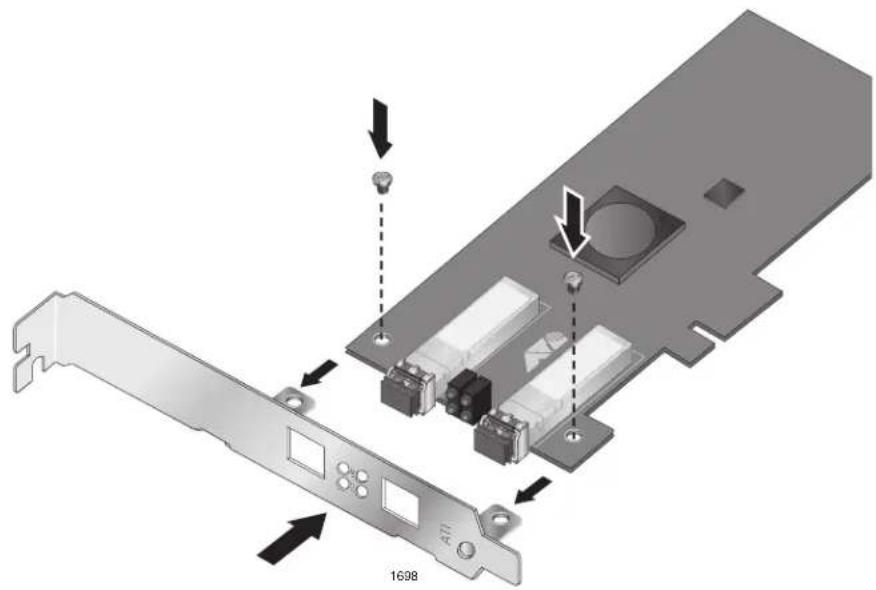
natural_image
Diagram of a computer motherboard showing a card slot and connector components with arrows indicating assembly (no text or symbols present)Figure 10. Fastening Screws onto Standard Bracket
Installing a Network Adapter Card
The following instructions apply to installing the adapter in most systems. For details about performing these tasks on your particular system, refer to the manuals that were supplied with your system.
Note
To perform this procedure, you need to supply a Phillips-head screw.
Note
The AT-2973SX, AT-2973T, and AT-2973T/4 adapters require a PCIe x4 PC. The AT-VNC10S adapter requires a PCIe x8 PC.
To install the adapter, do the following:
- Review the "Pre-Installation Checklist" on page 34 and "Reviewing Safety Precautions" on page 31.
Before installing the adapter, ensure the system power is OFF and unplugged from the power outlet, and that proper electrical grounding procedures have been followed.

Warning
High voltage inside the system presents a safety hazard. Make sure the power is off before removing the cover.
- Remove the system cover and select any appropriate empty PCIe slot. See Figure 11 on page 38.
If you do not know how to identify an appropriate PCIe slot, refer to the system documentation that was included with your PC.
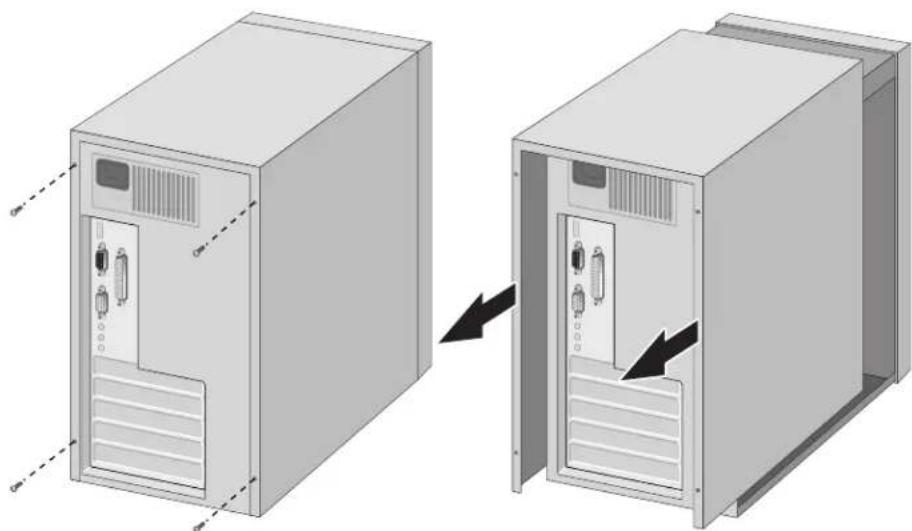
natural_image
Diagram showing two views of a server rack unit with internal components, one being removed and the other inside (no text or symbols present)Figure 11. Removing the PC Cover
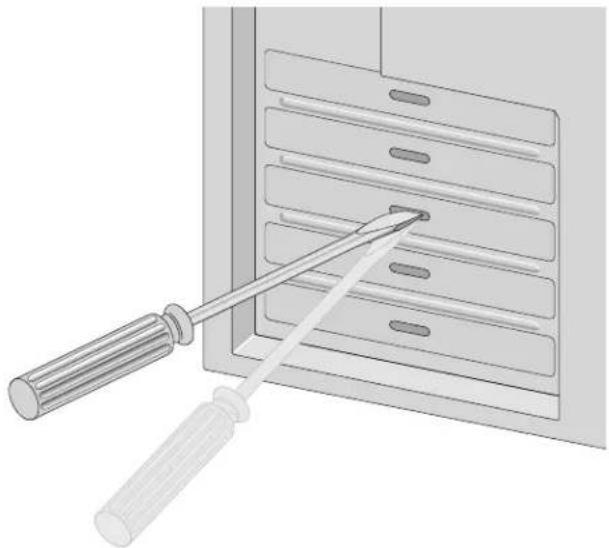
- Select an empty, non-shared PCIe slot and remove the faceplate.
Keep the faceplate in a safe place. You may need it for future use. See Figure 12.
natural_image
Illustration of a screwdriver inserted into a rack with multiple slots (no text or symbols)Figure 12. Removing the Faceplate From PCIe Slot
Note
If you cannot locate or do not know how to find an appropriate PCIe slot, refer to the documentation that came with your system.
- Remove the network adapter card from the shipping package and store the packaging material in a safe location.

Caution
Wear a grounding device and observe electrostatic discharge precautions when installing the network adapter card in a system. Failure to observe this caution could result in damage to the card.
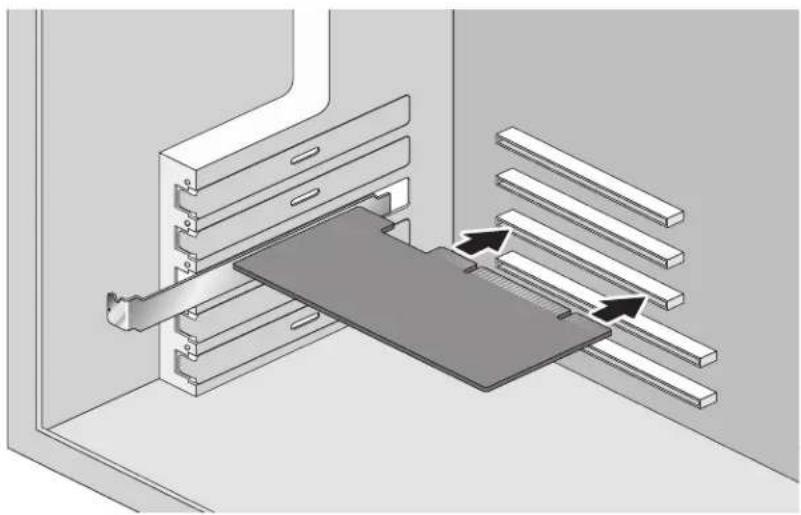
- Applying even pressure at both corners of the card, push the adapter card until it is firmly seated in the appropriate PCIe slot.
Make sure the card is securely seated. To insert the network adapter card, see Figure 13.
natural_image
3D diagram of a mechanical assembly with a bracket and slatted components, showing directional arrows (no text or symbols)Figure 13. Inserting the Adapter with a High-profile Bracket

Caution
Do not use excessive force when seating the card, because this may damage the system or the adapter. If the card resists seating, remove it from the system, realign it, and try again.
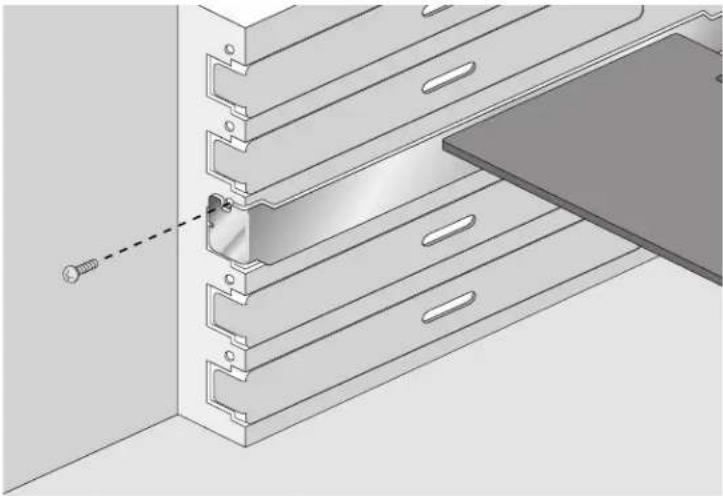
- Secure the network adapter card to the chassis with a Phillips-head screw (not provided). See Figure 14 on page 40.
natural_image
Technical illustration of a mechanical assembly with a screw inserted, showing layered components and a separate panel (no text or symbols)Figure 14. Securing the Adapter with a High-profile Bracket
- Replace the system's cover and secure it with the screws removed in Step 2.
- Disconnect any personal antistatic devices.
- If you are installing the AT-VNC10S Adapter, go to "Installing SFP+Transceivers in the AT-VNC10S Adapter" on page 41.
- For all other adapters, connect the network cables to the ports on the adapter.
- Power the system on.
Installing SFP+ Transceivers in the AT-VNC10S Adapter
Here are the guidelines to installing and cabling SFP+ transceivers in the AT-VNC10S adapter:
☐ SFP+ transceivers can be hot-swapped while the adapter is powered on. However, you should always disconnect the fiber optic cables first before removing a transceiver.
☐ You should install the transceiver before connecting the fiber optic cable.
☐ Fiber optic transceivers are dust sensitive. Always keep the plug in the optical bores when a fiber optic cable is not installed, or when you store the transceiver. When you do remove the plug, keep it for future use.
☐ Unnecessary removal and insertion of a transceiver can lead to premature failure.
☐ The connector on the fiber topic cable should fit snugly into the port on the adapter, and the tab should lock the connector into place.
☐ Do not remove the dust cover from a fiber optic port until you are ready to connect a fiber optic cable. Dust contamination can adversely affect the operation of a fiber optic port.

Warning
A transceiver can be damaged by static electricity. Be sure to observe all standard electrostatic discharge (ESD) precautions, such as wearing an antistatic wrist strap, to avoid damaging the device.

Warning
The fiber optic ports contain a Class 1 laser device. When the ports are disconnected, always cover them with the provided plug. Exposed ports may cause skin or eye damage. L4
Note
The cable specifications for the SFP+ transceivers are found in the installation guides that ship with the devices.
Note
For information about cleaning a fiber optic connector on the AT-VNC10S adapter, see Appendix B “Cleaning Fiber Optic Connectors” on page 173.
Chapter 2: Installing the Hardware
Chapter 3
Installing Broadcom Boot Agent Driver Software
This chapter provides information about how to install the Broadcom Boot Agent Driver Software and discusses the following topics:
☐ "Overview" on page 44
☐ “Setting Up MBA in a Client Environment” on page 45
☐ "Setting Up MBA in a Server Environment: Red Hat Linux PXE Server" on page 47
Overview
The AT-2973SX, AT-2973T, AT-2973T/4, and AT-VNC10S NetXtreme II Family adapters support Preboot Execution Environment (PXE). Multi-Boot Agent (MBA) is a software module that allows your network computer to boot with the images provided by remote servers across the network. The Broadcom MBA driver complies with PXE 2.1 code.
The MBA module operates in a client/server environment. A network consists of one or more boot servers that provide boot images to multiple computers through the network. The Broadcom implementation of the MBA module has been tested successfully in the following environments:
☐ Linux Red Hat PXE Server. Broadcom PXE clients are able to remotely boot and use network resources (NFS mount, and so forth) as well as perform Linux installations. In the case of a remote boot, the Linux universal driver binds seamlessly with the Broadcom Universal Network Driver Interface (UNDI) and provides a network interface in the Linux remotely-booted client environment.
Intel APITEST. The Broadcom PXE driver passes all API compliance test suites.
☐ MS-DOS UNDI. The MS-DOS Universal Network Driver Interface (UNDI) seamlessly binds with the Broadcom UNDI to provide a network adapter driver interface specification (NDIS2) interface to the upper layer protocol stack. This allows computers to connect to network resources in an MS-DOS environment.
☐ Remote Installation Service (RIS). The Broadcom PXE clients are able to remotely boot to a Windows Server 2003 (SP1 and older) system running RIS to initialize and install Windows Server 2003 and prior operating systems. To extend the functions beyond basic network connectivity when loading an operating system through RIS, see "Using the NetXtreme II Monolithic Driver" on page 50.
☐ Windows Deployment Service (WDS). For Windows Server 2003 SP2, RIS was replaced by WDS, which offers a Broadcom PXE client to install Windows operating systems, including Windows Vista, Windows Server 2008 and Windows Server 2008 R2. To extend the functions beyond basic network connectivity when loading an operating system through WDS, see “Using the NetXtreme II Monolithic Driver” on page 50.
☐ Automated Deployment Service (ADS). The Broadcom PXE client can connect to a Windows Server 2003 system and run a deployment agent that allows one to perform some administrative functions, including, but not limited to, deploying a Windows Server 2003 image. To extend the functions beyond basic network connectivity when loading an operating system through ADS, see “Using the NetXtreme II Monolithic Driver” on page 50.
Setting Up MBA in a Client Environment
| Setting up a Multiple Boot Agent (MBA) in a client environment involves the following:☐ “Enabling the MBA Driver” on page 45☐ “Configuring the MBA Driver” on page 45☐ “Setting Up the BIOS” on page 46 | |
| Enabling the MBA Driver | To enable or disable the MBA driver, do the following:1. Boot up your system in DOS mode. |
| NoteThe uxdiag.exe file is included in when you download the driver software files from the Allied Telesis web site. | |
| 2. Enter the following:uxdiag -mba [ 0-disable | 1-enable ] -c devnumwheredevnum is the specific device(s) number (0,1,2, ...) to be programmed. | |
| Configuring the MBA Driver | This procedure describes how to configure the MBA driver on the AT-2973SX, AT-2973T, AT-2973T/4, and AT-VNC10S adapters.To configure the MBA driver, do the following: |
| NoteYou can use the MBA Configuration Menu to configure the MBA driver one adapter at a time as described below, or you can use the MS-DOS based application to simultaneously configure the MBA driver for multiple adapters. See Chapter 12, “User Diagnostics” on page 157. |
- Restart your system.
You are prompted to press CTRL +S.
- Press CTRL+S within 4 seconds after the prompt is displayed.
Note
The message prompting you to press CTRL+S is displayed once for each Broadcom NetXtreme II adapter you have in your system that has MBA enabled. The messages are displayed in the same order as the assigned adapter device number.
- Use the UP ARROW and DOWN ARROW keys to move to the Boot Protocol menu item.
Note
If you have multiple adapters in your system and you are unsure which adapter you are configuring, press CTRL+F6, which causes the port LEDs on the adapter to start blinking.
- Use the UP ARROW, DOWN ARROW, LEFT ARROW, and RIGHT ARROW keys to move to and change the values for other menu items, as desired.
- Press F4 to save your settings.
- Press ESC when you are finished.
Setting Up the BIOS
To boot from the network with the MBA, make the MBA enabled adapter the first bootable device under the BIOS. This procedure depends on the system BIOS implementation. Refer to the user manual for the system BIOS implementation for instructions.
Setting Up MBA in a Server Environment: Red Hat Linux PXE Server
The Red Hat Enterprise Linux distribution has PXE Server support. It allows users to remotely perform a complete Linux installation over the network. The distribution comes with the boot images boot kernel (vmlinuz) and initial ram disk (initrd), which are located on the Red Hat disk#1:
/images/pxeboot/vmlinuz /images/pxeboot/initrd.img
Refer to the Red Hat documentation for instructions on how to install PXE Server on Linux.
However, the Initrd.img file distributed with Red Hat Enterprise Linux, does not have a Linux network driver for the Broadcom NetXtreme II adapters. This version requires a driver disk for drivers that are not part of the standard distribution. You download the driver software files from the Allied Telesis web site.
Chapter 4
Installing the Monolithic Software Driver
A monolithic driver allows you to download an image of a PC onto an image server and then to another PC with an adapter installed. Often, multiple images are downloaded. The NetXtreme II Monolithic software driver allows remote installation of an image of a PC with an AT-2973SX, AT-2973T, AT-2973T/4, or AT-VNC10S adapter installed. This chapter describes how to install the monolithic driver software for remote installation and discusses the following topics:
☐ "Using the NetXtreme II Monolithic Driver" on page 50
☐ "Inserting the NetXtreme II Monolithic Driver in a WinPE 2.0 Image" on page 51
☐ “Configuring the Speed and Duplex Settings” on page 53
Using the NetXtreme II Monolithic Driver
The NetXtreme II Monolithic driver is used with a remote imaging software such as WinPE, although it is not associated with any operating system. Before you install a monolithic driver, you must install an AT-2973SX, AT-2973T, AT-2973T/4, or AT-VNC10S adapter in a PC (or multiple PCs) that you want to act as a remote node. Once you install the adapter and the monolithic driver software, your can download the image from an image server to the PCs with an installed adapter.
The NetXtreme II Family Adapters, based on its advanced functionalities, uses a software architecture that includes a Virtual Bus Device (VBD) to extend functionalities beyond basic network connectivity. However, Microsoft, does not currently support this architecture when loading an operating system through its Windows Deployment Services (WDS), which was previously known as Remote Installation Services (RIS), or for the deployment agent used in the Automated Deployment Services (ADS). Therefore, a separate driver was created to accommodate these Microsoft deficiencies. This driver is known as the NetXtreme II monolithic driver, but it is sometimes referred to as the RIS driver.
The NetXtreme II monolithic driver was developed to work only for the text mode portion of a WDS legacy installation and to establish connectivity with a deployment agent for ADS. It is not intended to be used as a driver loaded in the running state of an operating system. The exception to this is the Windows Preinstallation Environment (WinPE).
For WDS, this driver is used similarly to any other network adapter driver for supporting network connectivity after the PXE boot to the WDS server. When placed in the I386 or AMD64 directory (depending on the version of the operating system being deployed), the monolithic driver is called to establish that there is driver support for the NetXtreme II Family Adapter included in the WDS legacy image.
For ADS, the driver is placed in the PreSystem directory on the server running ADS to establish connectivity with the deployment agent on remote systems with NetXtreme II adapters when booting from PXE.
While Windows PE 2005 natively supports the VBD architecture, it was found that using the minint switch in the startnet.cmd file does not. The minint switch performs a limited scan of the system bus to identify network devices only and, therefore, does not support the VBD architecture. Since only network connectivity is required in Windows PE, the only supported driver is the monolithic driver for the NetXtreme II Family adapter in this environment as well. Place the b06nd.inf file in the INF directory within the Windows PE image, and place the appropriate driver file (b06nd51a.sys for x64-based builds or b06nd51.sys for x86-based builds) in the drivers directory. If Windows PE is deployed as a flat image from a RIS or WDS server, you must also place both the b06nd.inf and the appropriate driver file in the I386 or AMD64 directory containing the image.
Inserting the NetXtreme II Monolithic Driver in a WinPE 2.0 Image
By default, the monolithic driver is not included in the boot.wim and install.wim files that come with the Windows Vista, Windows Server 2008, and Windows Server 2008 R2 Operating Systems. Microsoft's Windows Automated Installation Kit (AIK) allows you to modify the default boot.wim and install.wim files and create WinPE 2.0 images to include the NetXtreme II monolithic driver in the Windows Vista, Windows Server 2008, and Windows Server 2008 R2 installation.
To insert Broadcom's NetXtreme II monolithic driver in a WinPE 2.0 image (for Windows Vista, Windows Server 2008, and Windows Server 2008 R2), download AIK from www.microsoft.com/downloads/Search.aspx?displaylang=en, type in "automated install kit" in the Search field. Then install AIK.
After installing AIK, copy the latest monolithic driver to a directory on the local hard drive of the system you installed the AIK. Follow the procedure below to insert the monolithic driver into a WinPE 2.0 boot image.
Note
The directory structure c:\VistaPEx86 is used throughout this procedure.
To insert the monolithic driver into a WinPE 2.0 boot image, do the following:
- Download the monolithic driver files, b06nd.inf and b06nd.sys.
Go to the Allied Telesis website at www.alliedtelesis.com/support/software. After you have accessed this website, enter the model number in the Search by Product Name box and then click Find to view the current list of files.
-
From All Programs, open Windows AIK and select Windows PE Tools Command prompt.
-
At the command prompt, run the copye.cmd script. The script requires two arguments: hardware architecture and destination location. The command syntax is:
copype.cmd
For example: copye x86 c:\VistaPEx86
- Mount the base image to a local directory so that you can add or remove packages by entering:
imagex /mountrw c:\VistaPEx86\winpe.wim 1 c:\VistaPEx86\mount
- Place the monolithic driver and inf file in c:\drivers\x32\ by entering:
peimg /inf=c:\Drivers\x32\b06nd.inf
c:\VistaPEx86\mount\windows
AIK inserts the driver into the WinPE 2.0 image.
- To complete the customization of the image, prepare the image for deployment, enter:
peimg /prep c:\VistaPEx86\mount\windows
- When asked to continue and have the program prepare the image for deployment, enter:
yes
- To commit the changes to the original image file (Winpe.wim), enter:
imagex /unmount c:\VistaPEx86\mount /commit
- To replace the default Boot.wim file in the \ISO directory with your new custom image, enter:
copy c:\VistaPex86\winpe.wim
c:\VistaPEx86\ISO\sources\boot.wim
Configuring the Speed and Duplex Settings
Since the typical environment where the NetXtreme II monolithic driver is used does not provide the means to configure advanced network adapter properties, the driver file (b06nd.inf) was modified to include a section that allows it to be configured for a specific speed and duplex mode. This provides a more robust connection to the network as it allows the adapter to match the settings of its link partner (for example, a switch or a router).
To manually configure the speed and duplex, do the following:
- Open the b06nd.inf file with a text editor like Microsoft Notepad or WordPad.
- Search the file for Registry parameters to locate the section that allows you to configure the adapter speed and duplex mode.
Once located, notice the following information:
[params_utp]
hkr, , req_medium, 2, "0"
[params_fiber]
hkr, , req_medium, 2, "65283"
These are two separate sections that can be configured: one for standard RJ-45 copper interfaces (params_utp) and one for fiber devices (params_fiber).
- As described in the file, replace the value above in quotation marks under the correct section, depending upon the network adapter in your system. The available values are shown below.
Options for copper interfaces:
- Auto (1 Gbps is enabled when that speed is supported) = "0"
- 10 Mbps Half Duplex = "65794"
- 10 Mbps Full Duplex = "258"
- 100 Mbps Half Duplex = "66050"
- 100 Mbps Full Duplex = "514"
Options for fiber interfaces:
- Auto (1 Gbps is enabled when that speed is supported) = "0"
- 1 Gbps Full Duplex = "771"
- Auto with 1 Gbps Fallback = "33539"
- Hardware default = "65283"
The following example shows how to configure a copper interface for a 10 Mbps Full Duplex connection:
hkr, , req_medium, 2, "258"
Chapter 5
Installing the NDIS2 Driver Software
This chapter provides procedures to install the NDIS2 driver on the Microsoft Network Client and DOS NDIS platforms.
This chapter discusses the following topics:
☐ “Overview” on page 56
☐ “Checking Pre-installation Requirements” on page 57
☐ “Installing the NDIS2 Driver Software on MS-DOS Platforms” on page 58
☐ “Using Keywords for the Drivers” on page 63
Overview
The BXND20X Broadcom NetXtreme II Gigabit Ethernet driver is described in this chapter. This driver can be installed on AT-2973SX, AT-2973T, AT-2973T/4, and AT-VNC10S adapters that are installed in systems running an MS-DOS platform. See the following sections:
☐ “Checking Pre-installation Requirements” on page 57
☐ "Installing the NDIS2 Driver Software on MS-DOS Platforms" on page 58
☐ "Using Keywords for the Drivers" on page 63
Checking Pre-installation Requirements
Before you can successfully install the NDIS2 driver software, you must do the following:
□ Physically install the network adapter in the server.
☐ Install the networking software that is appropriate to the operating system (such as Microsoft LAN Manager 2.2 for MS-DOS). The networking software must be running on your server.
Installing the NDIS2 Driver Software on MS-DOS Platforms
The NDIS2 driver software can be run from an MS-DOS startup disk using Microsoft Network Client 3.0 or from the hard disk using Microsoft LAN Manager 2.2.
This section describes how to create a startup disk and modify it. See the following:
☐ "Creating a Startup Disk" on page 58
☐ “Modifying the Startup Disk” on page 59
Creating a Startup Disk
To create a startup disk to run a Microsoft Network client, you must have the following:
Windows NT Server 4.0 CD-ROM
☐ A blank MS-DOS system disk (3.5" high-density floppy disk)
☐ Access to the Broadcom NDIS2 driver file (BXND20X.dos). This file is located on the driver source media.
After creating the startup disk, follow the instructions in “Modifying the Startup Disk” on page 59.
Note
Windows NT Server 4.0 users: When running Setup for Microsoft Network Client v3.0 for MS-DOS, click any network card from the list (NE2000 Compatible, for example) to create the startup disk.
To create a startup disk, do the following:
- Create a folder called NCADMIN in the root of the C drive.
- Copy the NCADMIN.CN_, NCADMIN.EX_, and NCADMIN.HL_ files from the I386 folder on the Windows NT Server 4.0 CD-ROM.
- Open a command prompt window and change the directory to C:\NCADMIN.
- Enter the following:
expand -r ncadmin.*
-
Close the command prompt window by typing exit and then pressing Enter.
-
Start Windows Explorer.
-
Open the NCADMIN folder and double-click ncadmin.exe.
- Follow the on-screen instructions to make the network startup disk (choose NE2000 Compatible from the list of adapters).
Modifying the Startup Disk
To modify the startup disk, do the following:
- Edit A:\Net\Protocol.ini with Notepad or a similar text editor.
a. Change DriverName=\to DriverName=BXND20X\.
b. Remove all other parameter entries under the [MS\$NE2CLONE] or equivalent section such as IOBASE=0x300 or INTERRUPT=3, and so on.
Example Protocol.ini file for IP
The following is an example of an protocol.ini file for IP:
[network.setup]
version=0x3110
netcard=msne2clone,1,MSNE2CLONE,1
transport=tcpip,TCPIP
lana0=ms$ne2clone,1,tcpip
[MS$NE2CLONE]
DriverName=BXND20X$
[protman]
DriverName=PROTMAN$
PRIORITY=MS$NDISHLP
[tcpip]
NBSessions=6
DefaultGateway=0
SubNetMask=255 0 0 0
IPAddress=192 168 0 1
DisableDHCP=0
DriverName=TCPIP$
BINDINGS=MS$NE2CLONE
LANABASE=0
Example Protocol.ini file for NetBEUI
The following is an example of an protocol.ini file for NetBEUI:
[network.setup]
version=0x3110
netcard=msne2clone,1,MSNE2CLONE,1
transport=msndishlp,MSNDISHLP
transport=msnetbeui,MSNETBEUI
lana0=msne2clone,1,msndishlp
lana1=msne2clone,1,msnetbeui
[MS$NE2CLONE]
DriverName=BXND20X$
[protman]
DriverName=PROTMAN$
PRIORITY=MS$NDISHLP
[MS$NDISHLP]
DriverName=ndishlp$
BINDINGS=MS$NE2CLONE
[MS$NETBEUI]
DriverName=netbeui$
SESSIONS=10
NCBS=12
BINDINGS=MS$NE2CLONE
LANABASE=0
- Edit A:\Net\System.ini.
- Change netcard= to netcard=BXND20X.dos.
- Check for references to C:\NET and change C:\NET to A:\NET if necessary.
Example system.ini file
The following is an example of a system.ini file:
[network]
sizworkbuf=1498
filesharing=no
printsharing=no
autologon=yes
computername=MYPC
lanroot=A:\NET
username=USER1
workgroup=WORKGROUP
reconnect=yes
dospophotkey=N
lmlogon=0
logondomain=
preferredredir=basic
autostart=basic
maxconnections=8
[network drivers]
netcard=BXND20x.dos
transport=ndishlp.sys,*netbeui
devdir=A:\NET
LoadRMDrivers=yes
-
Copy BXND20X.dos to A:\Net.
-
Create the appropriate Autoexec.bat file in drive A for the chosen protocol as shown:
TCP/IP
Here is an example of the TCP/IP autoexec.bat file:
path=a:\net
a:\net\net initialize
a:\net\netbind.com
a:\net\umb.com
a:\net\tcptsr.exe
a:\net\tinyrfc.exe
a:\net\nmtsr.exe
a:\net\emsbfr.exe
a:\net\net start basic
net use z: \\SERVERNAME\SHARENAME
NetBEUI
Here is an example of the NetBEUI autoexec.bat file:
SET PATH=A:\NET
A:\NET\NET START BASIC
net use z: \\SERVERNAME\SHARENAME
- Create a Config.sys file on the startup disk in drive A as shown:
files=30
device=a:\net\ifshlp.sys
lastdrive=z
Installing the DOS NDIS2 Driver Software
To install the DOS NDIS2 Driver Software on the hard disk, do the following:
- Verify that the system has Microsoft LAN Manager 2.2 installed, with a protocol such as NetBEUI configured.
- Create a folder on your hard disk to store the NDIS 2.01 driver.
Example: C:\LANMAN
-
Copy the BXND20X.dos file to this folder.
-
Edit the Config.sys file by adding the following lines:
DEVICE = C:\LANMAN\PROTMAN.DOS
DEVICE = C:\LANMAN\BXND20X.DOS
DEVICE = C:\LANMAN\NETBEUI.DOS
- Edit the Autoexec.bat file by adding the following lines:
C:\LANMAN\NETBIND.EXE
C:\LANMAN\NET START WORKSTATION
C:\LANMAN\NET USE drive letter: \\server name\resource name
- Edit the Protocol.ini file (located in C:\LANMAN) to configure the driver to bind with NetBEUI or any other protocols.
Here is an example:
[PROTOCOL MANAGER]
DriverName = PROTMAN$
[NETBEUI_XIF]
DriverName = netbeui$
BINDINGS = BXND20X
[BXND20X]
DriverName = "BXND20X$"
- Restart the computer to complete the installation.
Note
The driver loads during system configuration and displays the Broadcom banner, controller name, MAC address, IRQ number, detected line speed, and the controller BusNum and DevNum. If the driver fails to load, an initialization fail message is displayed. For more information about the BusNum and DevNum keywords, see "Using Keywords for the Drivers" on page 63.
Using Keywords for the Drivers
The Protocol.ini file contains certain keywords that are used by the BXND20X.dos driver. These keywords are listed below:
□ BusNum. Specifies the number of the PCI bus on which the network adapter is located. This keyword requires a value ranging from 0 to 255.
☐ DevNum. Specifies the device number assigned to the network adapter when it is configured by the PCI BIOS. This keyword requires a value ranging from 0 to 255.
☐ FuncNum or PortNum. Specifies the PCI function or port number assigned to the network controller. This keyword requires a value ranging from 0 to 7.
Note
The BusNum, DevNum, and FuncNum (or PortNum) keywords are needed when multiple adapters are installed in the server and when a specific controller must be loaded in a certain order. These keywords are used concurrently and are included for manufacturing purposes. Do not use them unless you are familiar with how to configure PCI devices. A PCI device scan utility is needed to find this information.
☐ LineSpeed. Specifies the speed of the network connection in Mbit/s. The values are 10, 100, or 1000 Mbit/s. Technically, a line speed of 1000 Mbit/s cannot be forced and is achievable only through auto-negotiation. For the sake of simplicity, the driver performs auto-negotiation when the line speed is set to a value of 1000.
Note
The LineSpeed variable is not available on the AT-VNC10S adapter.
☐ Duplex. Specifies the duplex mode of the network adapter. Requires a setting of either Half or Full. When this keyword is used, the LineSpeed keyword must also be used. If neither keyword is used, the network adapter defaults to auto-negotiation mode.
Note
The LineSpeed variable is not available on the AT-VNC10S adapter.
☐ NodeAddress. Specifies the network address used by the network adapter. If a multicast address or a broadcast address is specified, the adapter uses the default MAC address.
☐ FixCheckSumOff. Turns off the driver's workaround for the TCP/IP stack to recognize the 1s complemented version of the checksum.
☐ AcceptAllMC. Informs the driver to deliver all multicast packets to the upper protocol.
See below for an example of the keywords:
[BXND20X]
DriverName = "BXND20X$",
BusNum = 3
DevNum = 14
PortNum = 2
LineSpeed = 1000
Duplex = Full
NodeAddress = 001020304050
Chapter 6
Installing the Linux Drivers
This chapter provides procedures to install the Linux drivers for the adapters.
This chapter discusses the following topics:
☐ "Overview" on page 66
☐ "Installing Linux Driver Software" on page 68
Overview
This chapter discusses the Linux drivers for the Broadcom NetXtreme II network adapters and describes how to install them. For a description of the drivers, see Table 8.
Table 8. Broadcom NetXtreme II Linux Drivers
| Linux Driver Description | |
| bnx2cnic | Indicates the Linux drivers for the AT-2973SX AT-2973T, AT-2973T/4, and AT-VNC10S network adapters. The bnx2 driver is the networking driver and the cnic driver supports additional features required by the bnx2i iSCSI offload driver. The bnx2i iSCSI driver is packaged separately. |
| bnx2i Indicates the | Linux driver that enables iSCSI offload on the AT-2973SX, AT-2973T, AT-2973T/4, and AT-VNC10S network adapters. |
Limitations This section describes the testing limitations of the following Linux drivers:
☐ "bnx2 Driver" on page 66
☐ "bnx2i Driver" on page 66
bnx2 Driver
The current version of the driver has been tested on 2.4.x kernels (starting from 2.4.24) and all 2.6.x kernels. The driver may not compile on kernels older than 2.4.24.
Testing is concentrated on i386 and x86_64 architectures. Only limited testing has been done on other architectures. You may need to make minor changes to some source files and the Makefile on some kernels. In addition, the Makefile does not compile the cnic driver on kernels older than 2.6.16. iSCSI offload is only supported on 2.6.16 and newer kernels.
Support for the 2.4.21 kernels is provided in Red Hat Enterprise Linux 3.
bnx2i Driver
The current version of the driver has been tested on 2.6.x kernels, starting from 2.6.18 kernel. The driver may not compile on older kernels with the exception of SLES 10 SP1, which runs the 2.6.16.46 kernel. SUSE upgraded the iscsi_transport kernel module in SLES 10 SP1. In addition,
Broadcom iSCSI offload initiators is supported on SLES 10 SP1. Testing is concentrated on i386 and x86_64 architectures, Red Hat EL5, and SUSE 10 SP1 distributions.
Packaging
The Linux driver is released in the packaging formats shown in Table 9. The NetXtreme2 package contains the bnx2 (1 Gb network adapter) and drivers for source RPM and compressed tar.
Table 9. Linux Driver Packaging
| Format | bnx2 Driver bnx2i (iSCSI) Driver |
| Source RPM netxtreme2-version.src.rpm | bnx2i-version.src.rpm |
| Compressed tar netxtreme2-version.tar.gz | bnx2i-version.tar.gz |
| Supplemental tar netxtreme2_sup-version.tar.gz | bnx2i_sup-version.tar.gz |
Identical source files to build the driver are included in both RPM and TAR source packages. The supplemental tar file contains additional utilities such as patches and driver diskette images for network installation.
The following updated open-iSCSI components are released in source RPM format:
☐ iscsi-initiator-utils-6.2.0.868-0.7c.src.rpm: updated open-iscsi for Red Hat 5 distributions
□ open-iscsi-2.0.707-0.25b.src.rpm: updated open-iscsi components for SLES 10 SP1 distribution
□ open-iscsi-2.0.707-0.44b.src.rpm: updated open-iscsi components for SLES 10 SP2 distribution
Installing Linux Driver Software
There are two ways to install the Linux driver software— from the Source RPM Package or build the driver from the source TAR file. See the following sections:
☐ "Installing the Source RPM Package" on page 68
☐ “Building the Driver from the Source TAR File” on page 70
Note
If a bnx2 or bnx2i driver is loaded and you update the Linux kernel, you must recompile the driver module if it was installed using the source RPM or the TAR package.
Installing the Source RPM Package
The procedure in this section describes how to install the Source RPM Package. The examples in the following procedure refer to the bnx2 driver, but also apply to the bnx2i driver.
To install the Source RPM Package, do the following:
- Enter the following command:
rpm -ivh netxtreme2-version.src.rpm
- Change the directory to the RPM path and build the binary driver for your kernel (the RPM path is different for each Linux distribution):
cd /usr/src/redhat,OpenLinux,turbo,packages,rpm ...
rpm -bb SPECS/bnx2.spec
or
rpmbuild -bb SPECS/bnx2.spec (for RPM version 4.x.x)
Note
During your attempt to install a source RPM package, the following message may be displayed: error: cannot create %sourcedir /usr/src/redhat/SOURCES
The most likely cause of the error is that the rpm-build package has not been installed. Locate the rpm-build package on the Linux installation media and install it using the following command: rpm - ivh rpm-build-version.arch.rpm
Then complete the installation of the source RPM.
- Install the newly built package which includes the driver and man page:
rpm -ivh RPMS/i386/bnx2-version.arch.rpm
If you are installing over an existing distribution that may already contain an older version of the driver, the —force option is needed.
Depending on the kernel, the driver is installed to one of the following paths:
2.4.x kernels
/lib/modules/kernel_version/kernel/drivers/net/bnx2.o
2.6.x kernels
/lib/modules/kernel_version/kernel/drivers/net/bnx2.ko
For the bnx2i driver, the driver is installed on one of the following paths:
- 2.6.16 kernels and newer (bnx2 driver)
/lib/modules/kernel_version/kernel/drivers/net/bnx2.ko
/lib/modules/kernel_version/kernel/drivers/net/cnic.ko
- 2.6.16 kernels and newer (bnx2i driver)
/lib/modules/kernel_version/kernel/drivers/iscsi/bnx2i.ko
- To load the driver, enter one of the following commands:
insmod bnx2
or
modprobe bnx2
- To load the cnic driver (if applicable), enter one of the following commands:
insmod cnic.ko
or
modprobe cnic
Building the Driver from the Source TAR File
To configure the network protocol and address, refer to the documentation provided with your operating system.
This procedure describes how to build the bnx2 and bnx2i Linux drivers from the Source TAR file. See the following sections:
☐ "Building the bnx2 Driver" on page 70
☐ "Building the bnx2i Driver" on page 71
Building the bnx2 Driver
To build the bnx2 Linux driver from the Source TAR file, do the following:
- Create a directory and extract the TAR files to the following directory:
tar xvzf netxtreme2-version.tar.gz -
Build the driver bnx2.ko (or bnx2.o) as a loadable module for the running kernel. Enter the following commands:
cd bnx2-version/src make -
Test the driver by loading it (if necessary, first unload the existing driver). Enter the following commands:
rmmod bnx2 insmod bnx2.o modprobe crc32 && insmod bnx2.o or, for Linux 2.6 kernels: rmmod bnx2 insmod bnx2.ko
- Load the cnic driver, if applicable. Enter the following command:
insmod cnic.ko
- Install the driver and man page by entering the following command:
make install
Note
See the “Installing the Source RPM Package” on page 68 for the location of the installed driver.
To configure the network protocol and address after building the driver, refer to the manuals supplied with your operating system.
Building the bnx2i Driver
To build the bnx2i Linux driver from the Source TAR file, do the following:
-
Create a directory and extract the TAR files to the directory by entering the following command:
tar xvzf bnx2-version.tar.gz -
Build the driver bnx2.ko as a loadable module for the running kernel by entering the following command:
cd bnx2i-version/drivermake
- Test the driver by loading it (if necessary, first unload the existing driver). Enter the following commands:
rmmod bnx2i insmod bnx2i.ko
- Install the driver and man page, by entering:
make install
Note
See the "Installing the Source RPM Package" on page 68 for the location of the installed driver.
- Install the user daemon (bnx2id), by entering:
cd \${DRV_BASE}/driver make install_usr
The make install_usr command installs the bnx2id binary under /sbin.
To use Broadcom iSCSI, see “Load and Run Necessary iSCSI Software Components” on page 71 to load the necessary software components.
Load and Run Necessary iSCSI Software Components
The Broadcom iSCSI Offload software suite consists of three kernel modules and a user daemon. To load the required software components either manually or through system services, do the following:
- Unload existing driver and kill the user daemon, if necessary. Do the following:
Manual:
rmmod bnx2i pkill -9 bnx2id
Using system service:
service bnx2id stop
- Load the iSCSI driver and the user daemon. Do the following:
Manual:
bnx2id
insmod bnx2i.ko
or
modprobe bnx2i
Using system service:
service bnx2id start
Unloading the Linux Driver
You can unload, or remove, the Linux Driver from an RPM or TAR installation. See the following:
☐ “Unloading the Driver from an RPM Installation” on page 72
☐ “Unloading the Driver from a TAR Installation” on page 73
Unloading the Driver from an RPM Installation
This section describes how to unload, or remove, a Linux driver from an RPM installation.
Note
The examples used in this procedure refer to the bnx2 driver, but also apply to the bnx2i driver.
Note
On 2.6 kernels, it is not necessary to bring down the eth# interfaces before unloading the driver module.
Note
If the cnic driver is loaded, unload the cnic driver before unloading the bnx2 driver.
Note
Before unloading the bnx2i driver, disconnect all active iSCSI sessions to targets.
To unload the driver, use ifconfig to bring down all eth# interfaces opened by the driver, and then enter:
rmmod bnx2
If the driver was installed using the rpm command, enter the following command to remove it:
rpm -e netxtreme2
Unloading the Driver from a TAR Installation
If the driver was installed using make install from the tar file, manually delete the bnx2.o or bnx2.ko driver file from the operating system. See "Installing the Source RPM Package" on page 68 for the location of the installed driver.
Patching PCI Files (Optional)
This is an optional procedure that describes how to patch PCI files for identification by other vendors.
For hardware detection utilities, such as Red Hat kudzu, to properly identify bnx2 supported devices, you may need to update a number of files containing PCI vendor and device information.
Note
The examples used in this procedure refer to the bnx2 driver, but also apply to the bnx2i driver.
Apply the updates by running the scripts provided in the supplemental tar file. For example, on Red Hat Enterprise Linux, apply the updates by entering the following commands:
./patch_pcitbl.sh /usr/share/hwdata/pcitable pci.updates /usr/share/hwdata/pcitable.new bnx2
./patch_pciids.sh /usr/share/hwdata/pci.ids pci.updates /usr/share/hwdata/pci.ids.new
Next, back up the old files and the rename the new files by entering the following copy commands:
cp /usr/share/hwdata/pci.ids /usr/share/hwdata/ old.pci.ids
cp /usr/share/hwdata/pci.ids.new /usr/share/hwdata/pci.ids
Network Installations
cp /usr/share/hwdata/pcitable /usr/share/hwdata/ old.pcitable
cp /usr/share/hwdata/pcitable.new /usr/share/hwdata/pcitable
For network installations through NFS, FTP, or HTTP (using a network boot disk or PXE), a driver disk that contains the bnx2 driver may be needed. The driver disk images for the most recent Red Hat and SuSE versions are included. Boot drivers for other Linux versions can be compiled by modifying the Makefile and the make environment. Further information is available from the Red Hat website at http://www.redhat.com.
Setting Values for Optional Properties
You can set values for optional properties for the bnx2 and bnx2i Linux drivers. See the following sections:
☐ “Setting Optional Properties for the bnx2 Driver” on page 74
☐ “Setting Optional Properties for the bnx2i Driver” on page 75
Setting Optional Properties for the bnx2 Driver
The disable_msi optional property can be supplied as a command line argument to the insmod or modprobe command. The property can also be set in the modprobe.conf command. See the man page for more information.
All other driver settings can be queried and changed using the ethtool utility. See the ethtool man page for more information. The ethtool settings do not persist across a reboot or module reload. In addition, you can put the ethtool commands in a startup script, such as /etc/rc.local, to preserve the settings across a reboot.
Note
Some combinations of property values may conflict and result in failures. The driver cannot detect all conflicting combinations.
This property is used to disable Message Signal Interrupts (MSI). The property is valid only on 2.6 kernels that support MSI. This property cannot be used on 2.4 kernels. By default, the driver enables MSI if it is supported by the kernel. It runs an interrupt test during initialization to determine if MSI is working. If the test passes, the driver enables MSI. Otherwise, it uses legacy INTx mode. To set the bnx2 driver, enter one of the following:
insmod bnx2.ko disable_msi=1
or
modprobe bnx2 disable_msi=1
Setting Optional Properties for the bnx2i Driver
You can supply the optional parameters en_tcp_dack, error_mask1 and error_mask2 as command line arguments to the insmod or modprobe command for the bnx2i driver.
error\_mask1 and error\_mask2
Use “Config FW iSCSI Error Mask #” to configure certain iSCSI protocol violations to be treated either as a warning or a fatal error. All fatal iSCSI protocol violations result in session recovery (ERL 0). These are bit masks. By default, all violations are treated as errors.

Caution
Do not use the error_mask parameter if you are not sure about the consequences. Discuss these values with the Broadcom development team on a case-by-case basis. This is a mechanism to work around iSCSI implementation issues on the target side and without proper knowledge of iSCSI protocol details, users are advised not to experiment with these parameters.
en\_tcp\_dack
The "Enable TCP Delayed ACK" parameter enables or disables the TCP delayed ACK feature on offloaded iSCSI connections. The TCP delayed ACK feature is ENABLED by default. To set the en_tcp_dack parameter in the bnx2i driver, enter one of the following commands:
insmod bnx2i.ko en_tcp_dack=0
or
modprobe bnx2i en_tcp_dack=0
Default: ENABLED
sq\_size
Use the "Configure SQ size" parameter to select the send-queue size for offloaded connections. The SQ size determines the maximum SCSI commands that can be queued. Also, SQ size has a bearing on the number of connections that can be offloaded; as QP size increases, the number of connections supported decreases. With the default values, the AT-2973SX, AT-2973T, AT-2973T/4, and AT-VNC10S adapters can offload 28 connections.
Defaults: 128
Range: 32 to 128
Note
Broadcom validation is limited to a power of 2; for example, 32, 64, or 128.
rq\_size
Use the “Configure RQ size” parameter to choose the size of asynchronous buffer queue size per offloaded connections. The RQ size is not required to be greater than 16 because it is used to place iSCSI ASYNC/NOP/REJECT messages and SCSI sense data.
Defaults: 16
Range: 16 to 32
Note
Broadcom validation is limited to a power of 2; for example, 16, 32, or 128.
event_coal_div
The Event Coalescing Divide Factor parameter is a performance tuning parameter used to moderate the rate of interrupt generation by the iscsi firmware.
Defaults: 1
Valid values: 1, 2, 4, 8
bnx2i_nopout_when_commands_active
The “iSCSI NOOP even when connection is not idle” parameter enables the offload initiator to send iSCSI NOP-OUT on wire even when the link is not truly idle. This parameter was introduced to avoid unnecessary session recoveries induced by some older targets when iSCSI NOP-OUT and iSCSI CMD pdus are intermixed. Newer iSCSI target systems are immune to this condition and this parameter is turned ON for quite some time.
Defaults: 1
Values: Binary parameter, 0/1
The parameters can also be set in the modprobe.conf command. See the man page for more information.
Checking the bnx2 Driver Defaults
The bnx2 driver defaults to the following settings:
Speed: Autonegotiation with all speeds advertised
Flow Control: Autonegotiation with RX and TX advertised
MTU: 1500 (range is 46–9000)
RX Ring Size: 255 (range is 0–4080)
RX Jumbo Ring Size: 0 (range 0–16320) adjusted by the driver based on MTU and RX Ring Size
TX Ring Size: 255 (range is (MAX_SKB_FRAGS+1)-255).
MAX_SKB_FRAGS varies on different kernels and different architectures. On a 2.6 kernel for x86, MAX_SKB_FRAGS is 18.
Coalesce RX Microseconds: 18 (range is 0–1023)
Coalesce RX Microseconds IRQ: 18 (range is 0–1023)
Coalesce RX Frames: 6 (range is 0–255)
Coalesce RX Frames IRQ: 6 (range is 0–255)
Coalesce TX Microseconds: 80 (range is 0–1023)
Coalesce TX Microseconds IRQ: 80 (range is 0–1023)
Coalesce TX Frames: 20 (range is 0–255)
Coalesce TX Frames IRQ: 20 (range is 0–255)
Coalesce Statistics Microseconds: 999936 (approximately 1 second) (range is 0–16776960 in increments of 256)
MSI: Enabled (if supported by the 2.6 kernel and the interrupt test passes)
TSO: Enabled (on 2.6 kernels)
WoL: Initial setting based on NVRAM's setting
Checking Driver Messages
The following are the most common sample messages that may be logged in the /var/log/messages file for the bnx2 and bnx2i drivers. Use dmesg - n
☐ “Checking the bnx2 Driver Messages” on page 78
☐ “Checking bnx2i Driver Messages” on page 78
Checking the bnx2 Driver Messages
The following are the most common bnx2 driver messages:
Driver Sign on
Broadcom NetXtreme II Gigabit Ethernet Driver bnx2 v1.6.3c (July 23, 2007)
CNIC Driver Sign on
Broadcom NetXtreme II cnic v1.1.19 (Sep 25, 2007)
NIC Detected
eth#: Broadcom NetXtreme II BCM5708 1000Base-T (B0) PCI-X 64-bit 133MHz found at mem f6000000, IRQ 16, node addr 0010180476ae
cnic: Added CNIC device: eth0
Link Up and Speed Indication
bnx2: eth# NIC Link is Up, 1000 Mbps full duplex
Link Down Indication
bnx2: eth# NIC Link is Down
MSI enabled successfully (bnx2 only)
bnx2: eth0: using MSI
Checking bnx2i Driver Messages
The following are the most common bnx2i driver messages:
BNX2I Driver signon
Broadcom NetXtreme II iSCSI Driver bnx2i v1.0.30 (Sep 29, 2007)
Network port to iSCSI transport name binding
bnx2i: netif=eth2, iscsi=bcm570x-050000
bnx2i: netif=eth1, iscsi=bcm570x-030c00
Driver completes handshake with iSCSI offload-enabled CNIC device
bnx2i [05:00.00]: ISCSI_INIT passed
Note
This message is displayed only when the user attempts to make an iSCSI connection.
Driver detects iSCSI offload is not enabled on the CNIC device
bnx2i: iSCSI not supported, dev=eth3
bnx2i: bnx2i: LOM is not enabled to offload iSCSI
connections, dev=eth0
Driver unable to allocate TCP port for iSCSI connection
bnx2i: run 'bnx2id' daemon to alloc TCP ports
Exceeds maximum allowed iSCSI connection offload limit
bnx2i: unable to allocate iSCSI context resources
Network route to target node and transport name binding are two different devices
bnx2i: conn bind, ep=0x... (\ROUTE_HBA) does not belong to hba \USER_CHOSEN_HBA
where
ROUTE_HBA is the net device on which connection was offloaded based on route information
USER_CHOSEN_HBA is the HBA to which target node is bound (using iscsi transport name)
Target cannot be reached on any of the CNIC devices
bnx2i: check route, cannot connect using cnic
Network route is assigned to network interface, which is down
bnx2i: check route, hba not found
Attempting to offload iSCSI connection onto a Jumbo Frame-enabled device
bnx2i: eth# network i/f mtu is set to #mtu
bnx2i: iSCSI HBA can support mtu of 1500
Note
Change mtu to 1500 using ifconfig and restart the interface in order to offload iSCSI connections.
SCSI-ML initiated host reset (session recovery)
bnx2i: attempting to reset host, #3
CNIC detects iSCSI protocol violation - Fatal errors
bnx2i: iscsi_error - wrong StatSN rcvd
bnx2i: iscsi_error - hdr digest err
bnx2i: iscsi_error - data digest err
bnx2i: iscsi_error - wrong opcode rcvd
bnx2i: iscsi_error - AHS len > 0 rcvd
bnx2i: iscsi_error - invalid ITT rcvd
bnx2i: iscsi_error - wrong StatSN rcvd
bnx2i: iscsi_error - wrong DataSN rcvd
bnx2i: iscsi_error - pend R2T violation
bnx2i: iscsi_error - ERL0, U0
bnx2i: iscsi_error - ERL0, U1
bnx2i: iscsi_error - ERL0, U2
bnx2i: iscsi_error - ERL0, U3
bnx2i: iscsi_error - ERL0, U4
bnx2i: iscsi_error - ERL0, U5
bnx2i: iscsi_error - ERL0, U
bnx2i: iscsi_error - invalid resi len
bnx2i: iscsi_error - MRDSL violation
bnx2i: iscsi_error - F-bit not set
bnx2i: iscsi_error - invalid TTT
bnx2i: iscsi_error - invalid DataSN
bnx2i: iscsi_error - burst len violation
bnx2i: iscsi_error - buf offset violation
bnx2i: iscsi_error - invalid LUN field
bnx2i: iscsi_error - invalid R2TSN field
bnx2i: iscsi_error - invalid cmd len1
bnx2i: iscsi_error - invalid cmd len2
bnx2i: iscsi_error - pend r2t exceeds
MaxOutstandingR2T value
bnx2i: iscsi_error - TTT is rsvd
bnx2i: iscsi_error - MBL violation
bnx2i: iscsi_error - data seg len != 0
bnx2i: iscsi_error - reject pdu len error
bnx2i: iscsi_error - async pdu len error
bnx2i: iscsi_error - nopin pdu len error
bnx2i: iscsi_error - pend r2t in cleanup
bnx2i: iscsi_error - IP fragments rcvd
bnx2i: iscsi_error - IP options error
bnx2i: iscsi_error - urgent flag error
CNIC detects iSCSI protocol violation - non-FATAL, warning
bnx2i: iscsi_warning - invalid TTT
bnx2i: iscsi_warning - invalid DataSN
bnx2i: iscsi_warning - invalid LUN field
Note
The driver needs to be configured to consider certain violations as a warning and not as a critical error.
Driver puts a session through recovery
conn_err - hostno 3 conn 03fbcd00, iscsi_cid 2 cid a1800
Reject iSCSI PDU received from the target
bnx2i - printing rejected PDU contents
[0]: 1 ffffffa1 0 0 0 0 20 0
[8]: 0 7 0 0 0 0 0 0
[10]: 0 0 40 24 0 0 ffffff80 0
[18]: 0 0 3 ffffff88 0 0 3 4b
[20]: 2a 0 0 2 ffffffc8 14 0 0
[28]: 40 0 0 0 0 0 0
Open-iSCSI daemon handing over session to driver
bnx2i: conn update - MBL 0x800 FBL 0x800MRDSL_I 0x800 MRDSL_T 0x2000
Teaming with Channel Bonding
With the Linux drivers, you can team adapters together using the bonding kernel module and a channel bonding interface. For more information, see the Channel Bonding information in your operating system documentation.
Statistics
You can view detailed statistics and configuration information using the ethtool utility. See the ethtool man page for more information.
Linux iSCSI Offload
This section describes how to install and run Linux iSCSI applications. The following recommendations apply to offloading Linux iSCSI programs:
☐ Not all Broadcom NetXtreme II adapters support iSCSI offload.
☐ The iSCSI session will not recover after a hot remove and hot plug.
☐ The iSCSI driver/firmware will not offload iSCSI connections onto a jumbo frame-enabled CNIC device.
☐ For MPIO to work properly, iSCSI nopout should be enabled on each iSCSI session. Refer to open-iscsi documentation for procedures on setting up noop_out_interval and noop_out_timeout values.
☐ In the scenario where multiple CNIC devices are in the system and the system is booted via Broadcom's iSCSI boot solution, ensure that the iscsi node under /etc/iscsi/nodes for the boot target is bound to the NIC that is used for booting.
See the following sections:
☐ "Installing User Application - bnx2id" on page 82
☐ "Installing Open iSCSI User Applications" on page 82
☐ “Binding iSCSI Target to Broadcom NX2 iSCSI Transport Name” on page 83
☐ “Making Connections to iSCSI Targets” on page 84
☐ "Maximizing Offload iSCSI Connections" on page 85
Installing User Application - bnx2id
When the bnx2i RPM package is installed, install the bnx2id application under /sbin. See “Installing the Source RPM Package” on page 68 for information. Run the bnx2id daemon before attempting to create iSCSI connections. The driver does not establish connections to the iSCSI target without the daemon's assistance.
bnx2id
The bnx2id daemon requires mknod and sh shell, which are standard on any regular server.
Installing Open iSCSI User Applications
Install and run the open-iscsi programs, iscsid and iscsiadm, from the Broadcom distributed open-iscsi packages. See “Packaging” on page 67 for details. Before you can install the Broadcom iSCSI-supported packages, remove all pre-installed open-iscsi packages.
To install and run the iscsid and iscsiadm programs, do the following:
- Remove all existing open-iscsi packages.
RHEL5
rpm -e iscsi-initiator-utils
SLES10 SP1
rpm -e open-iscsi
- Install the source RPM package by entering:
rpm -ivh <open-iscsi-package-name>.src.rpm
- CD to the RPM path and build the binary driver for your kernel. Enter:
cd /usr/src/{redhat,OpenLinux,turbo,packages,rpm}
rpm -bb SPECS/<open-iscsi-package-name>.spec
or
rpmbuild -bb SPECS/<open-iscsi-package-name>.spec (for RPM version 4.x.x)
Note
The RPM path is different for each Linux distribution.
- Install the newly built package by entering:
rpm -ivh RPMS/<arch>/<open-iscsi-package-name>.<arch>.rpm
where <arch> is the machine architecture such as i386.
rpm -ivh RPMS/i386/<open-iscsi-package-name>.i386.rpm
- Start the daemon by entering:
iscsid
Binding iSCSI Target to Broadcom NX2 iSCSI Transport Name
By default, the open-iscsi daemon connects to discovered targets using software initiator (transport name = 'tcp'). If you want to offload an iSCSI connection onto CNIC device should explicitly change the transport binding of the iSCSI node. This can be done using iscsiadm cli utility as follows:
iscsiadm --mode node --targetname iqn.2004-06.com.broadcom:tg1 \
--portal 192.168.1.100 --op=update \
--name=node.transport_name --value=${XPORT_NAME}
where XPORT_NAME=bcm570x-xyyyzz
xx - pci bus number of the NX2 device
yy - pci device number of the NX2 device
zz - pci function number of the NX2 device
Network interface to iscsi transport name binding can be obtained by executing:
dmesg | grep "bnx2i: netif"
Sample output in a system with two NetXtreme II devices:
bnx2i: netif=eth1, iscsi=bcm570x-050000
bnx2i: netif=eth0, iscsi=bcm570x-030000
If you want to switch back to using the software initiator, enter the following:
iscsiadm --mode node --targetname iqn.2004-06.com.broadcom:tg1 \
--portal 192.168.1.100 --op=update \
--name=node.transport_name --value=tcp
Making Connections to iSCSI Targets
Refer to open-iscsi documentation for a comprehensive list of iscsiadm commands. The following is a sample list of commands to discovery targets and to create iscsi connections to a target:
Adding static entry
iscsiadm -m node -p <ipaddr[:port]> -T iqn.2007-05.com.broadcom:target1 -o new
iSCSI target discovery using 'SendTargets'
iscsiadm -m discovery --type sendtargets -p <ipaddr[:port]>
Login to target using 'iscsiadm' command
iscsiadm --mode node --targetname <iqn.targetname> --portal <ipaddr[:port]> --login
List all drives active in the system
'fdisk -l'
Maximizing Offload iSCSI Connections
With default driver parameters set, which includes 128 outstanding commands, bnx2i can offload a maximum of 28 iSCSI connections. This is not a hard limit, but simple on-chip resource allocation math. The bnx2i driver can offload > 28 connections by reducing the shared queue size which, in turn, limits the maximum outstanding tasks on a connection. See "Setting Values for Optional Properties" on page 74 for information on sq_size and rq_size. The driver logs the following message to syslog when the maximum allowed connection offload limit is reached - "bnx2i: unable to allocate iSCSI context resources."
Chapter 6: Installing the Linux Drivers
Chapter 7
Installing the Windows Drivers
This chapter provides procedures to install and remove the driver software for all of the Windows Operating Systems supported by the AT-2973SX, AT-2973T, AT-2973T/4, and AT-VNC10S adapters. In addition, it describes how to display and change adapter properties including power management options. This chapter discusses the following topics:
☐ "Supported Versions of Microsoft Windows" on page 88
☐ "Installing the Windows Driver Software" on page 89
☐ “Removing the Device Drivers” on page 97
Supported Versions of Microsoft Windows
Table 10 lists the versions of Microsoft Windows supported by the adapters.
Table 10. Supported Versions of Microsoft Windows
| Version of Microsoft Windows Operating System | AT-2973 Series | AT-VNC10S |
| Windows Vista 32/64 Yes- | ||
| Windows 7 32/64 Yes- | ||
| Windows Server 2003 32/64 Yes Yes | ||
| Windows Server 2008 32/64 Yes Yes | ||
| Windows Server 2008 R2 32/64 Yes | Yes |
Installing the Windows Driver Software
This chapter describes how to install all of the following Windows Operating Systems:
□ Microsoft Windows Server 2003 (32-bit and 64-bit extended)
☐ Microsoft Windows Server 2008 (32-bit and 64-bit extended)
☐ Microsoft Windows Server 2008 R2 (32-bit and 64-bit extended)
□ Microsoft Windows Vista™ (32-bit and 64-bit extended)
☐ Microsoft Windows 7 ^TM (32-bit and 64-bit extended)
The Windows driver software for all of the Windows Operating Systems is available on the Allied Telesis website at www.alliedtelesis.com/support/software. After you have accessed this website, enter the model number in the Search by Product Name box and then click Find to display the current list of software drivers.
If the adapter is installed in a Windows 2003 system, the operating system automatically detects the new hardware and prompts you to install the driver software for that device. You also receive this same prompt when you remove an existing device driver.
There are two methods to install the software drivers on all of the Windows Operating Systems supported by the AT-2973SX, AT-2973T, AT-2973T/4, and AT-VNC10S adapters: the Installer and Silent installation. The Installer uses a graphical interactive mode. The Silent Installation is a command-line interface for unattended installation. See the following sections:
☐ "Using the Installer" on page 90
☐ "Using Silent Installation" on page 94
Note
These instructions are based on the assumption that your adapter was not factory installed. If your controller was installed at the factory, the driver software has been installed for you.
Note
Before installing the driver software, verify that the Windows operating system has been upgraded to the latest version with the latest service pack applied.
Note
You must physically install a network device driver before the Broadcom NetXtreme II Controller can be used with your Windows Operating System. There is no installation CD. You must download the drivers from the Allied Telesis website at
www.alliedtelesis.com/support/software. After you have accessed this website, enter the model number in the Search by Product Name box and then click Find to view the current list of documents and drivers.
Note
To use the TCP/IP Offload Engine (TOE), you must have Windows Server 2003 with Service Pack 2 (SP2) and a license key preprogrammed in the hardware. If supported, for iSCSI you only need a license key.
Using the Installer
Please read the following information before installing the driver:
☐ Microsoft Windows 2003 has a Found New Hardware Wizard that starts automatically whenever a new device, such as a new network adapter, is detected by the operating system. Do not run the wizard. If the wizard starts, click Cancel to stop it.
☐ Other Microsoft Windows Operating Systems do not have wizards but will attempt to install the driver automatically. These processes should be cancelled. Only the installer should be used to install the driver.
Note
Do not use any Microsoft Windows wizards to install the driver. All wizards and informational boxes should be closed or cancelled before running the installer.
The Installer has a graphical interactive installation mode. To install the AT-2973SX, AT-2973T, AT-2973T/4, and AT-VNC10S drivers on a Windows Operating System, do the following:
- From the driver directory, select the setup.exe file and Run.
The Broadcom NetXtreme II Driver Installer - InstallShield Wizard Page is displayed. See Figure 15.
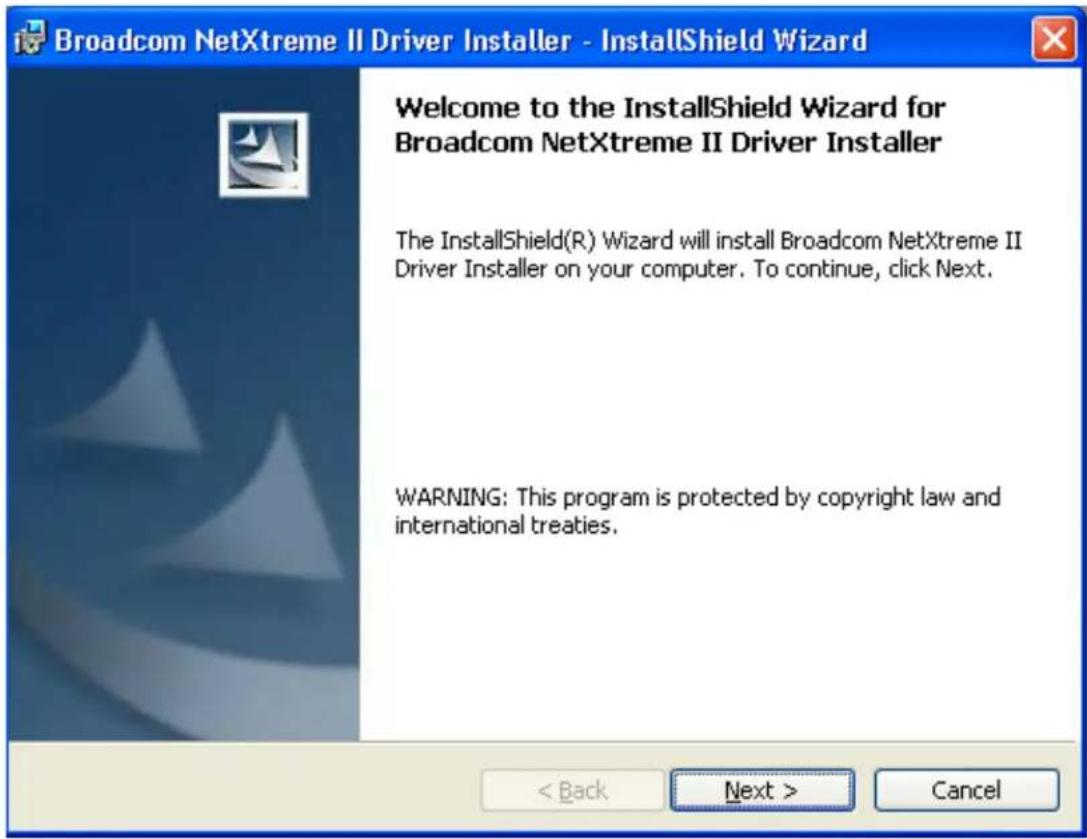
Figure 15. Broadcom NetXtreme II Driver Installer - InstallShield Wizard Page
- Click Next to continue.
The License Agreement Page is displayed. See Figure 16 on page 92.
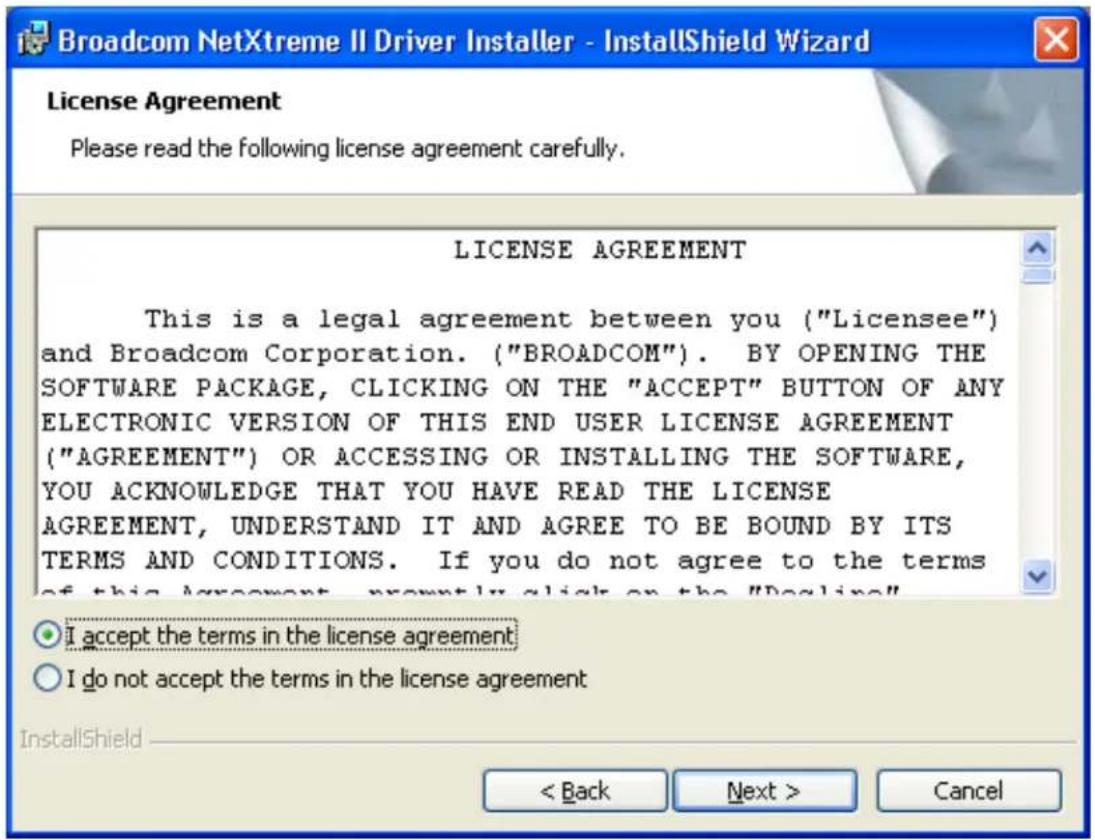
Figure 16. License Agreement Page
- After you review the license agreement, click I accept the terms in the license agreement and then click Next to continue.
The Ready to Install the Program Page is displayed. See Figure 17 on page 93.
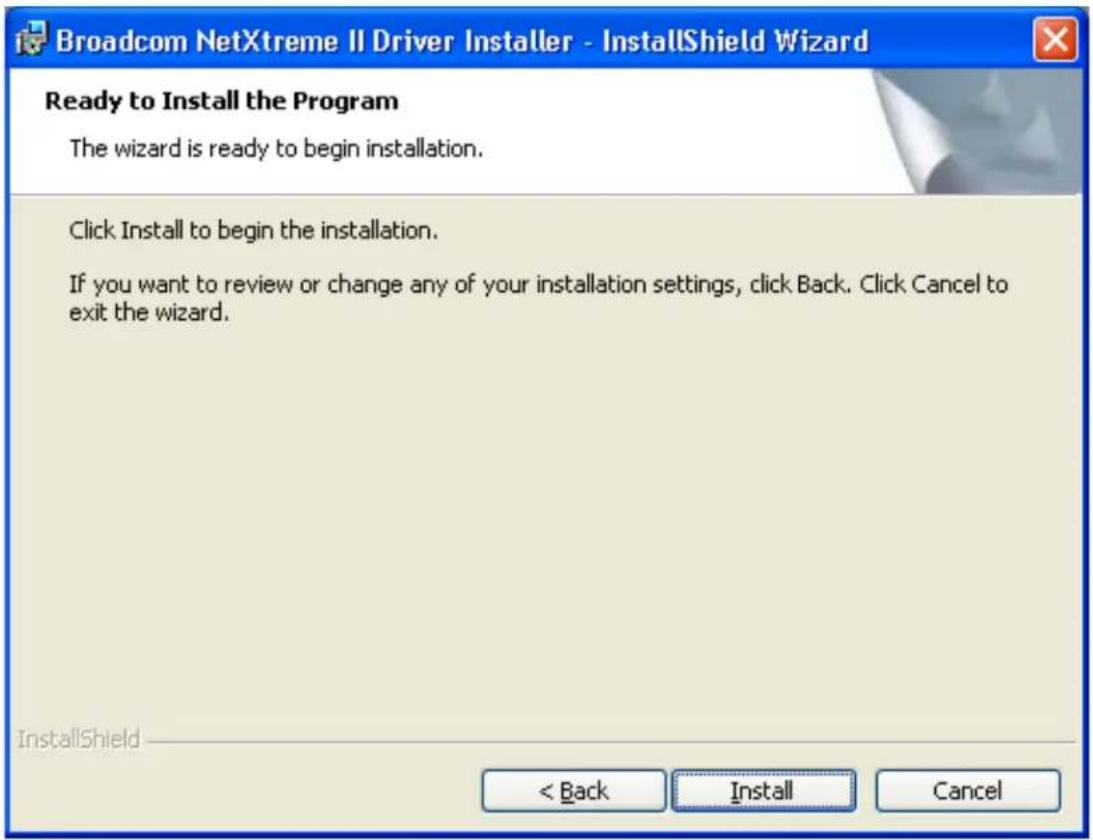
Figure 17. Ready to Install the Program Page
4. Click Install.
The InstallShield Wizard Completed Page is displayed. See Figure 18 on page 94.
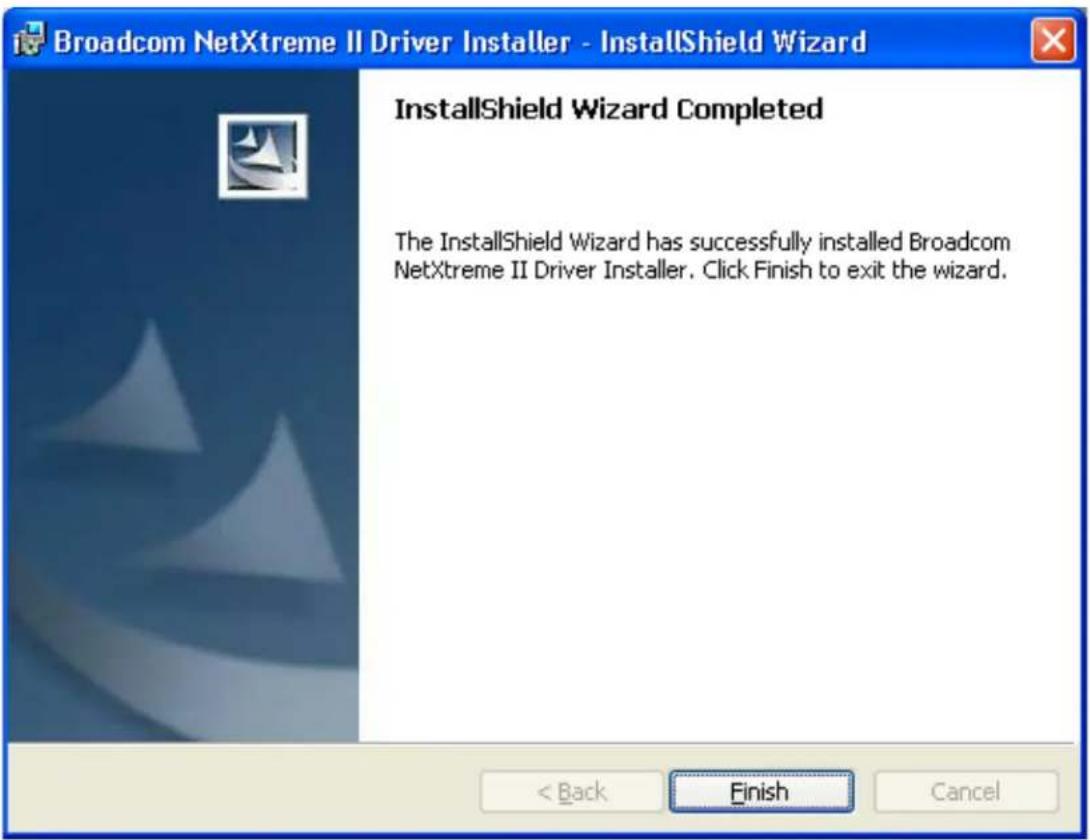
Figure 18. InstallShield Wizard Completed Page
- Click Finish to close the wizard.
- The installer determines if a system restart is necessary. Follow the on-screen instructions.
Using Silent Installation
Silent installation provides a command-line silent mode which allows for unattended installation. This section discusses the various ways to perform a silent installation on all of the Windows Operating Systems supported by the AT-2973SX, AT-2973T, AT-2973T/4, and AT-VNC10S adapters. See the following:
☐ "Performing a Silent Install" on page 95
☐ "Performing a Silent Install and Creating a Log File" on page 95
☐ "Performing a Silent Upgrade" on page 95
☐ "Performing a Silent Uninstall" on page 95
☐ "Performing a Silent Reinstall" on page 96
Note
All commands are case sensitive.
Note
User must "Run as Administrator" for Vista when using "msiexec" for "silent" install or uninstall procedures.
Note
For detailed instructions and information about unattended installs, refer to the Silent.txt file in the DrvInst folder.
Performing a Silent Install
To perform a silent install from within the installer source folder, enter one of the following:
setup /s /v/qn
or
msiexec /i "BDrv5706.msi" /qn
Performing a Silent Install and Creating a Log File
To perform a silent install and create a log file at (f:\1testlog.txt), enter:
setup /s /v"/qn /L f:\1testlog.txt"
Performing a Silent Upgrade
To perform a silent upgrade from within the installer source folder, enter:
setup /s /v/qn
Performing a Silent Uninstall
There are two ways to perform a silent uninstall— from the installer source folder and from the any folder.
In some circumstances, you must reboot your system before uninstallation can continue. If you used REBOOT=ReallySuppress to suppress the reboot, the uninstallation may be suspended. In this case, you need to reboot manually for the uninstallation to continue.
To perform a silent uninstall from within the installer source folder, enter:
msiexec /x "BDrv5706.msi" /qn
To perform a silent uninstall from any folder, enter:
msiexec /x " {F0DA8A3F-1457-419E-96F4-235DD3EF41E1}" /qn
Note
The hexadecimal number above may differ from your current installer. Check the Key name in HKLM\Software\Microsoft\Windows\CurrentVersion\Uninstall for the correct hexadecimal number.
Performing a Silent Reinstall
To perform a silent reinstall of the same installer, enter:
setup /s /v"/qn REINSTALL=ALL"
Note
Use REINSTALL switch only if the same installer is already installed on the system. If you are upgrading an earlier version of the installer, use setup /s /v/qn as described above.
Removing the Device Drivers
This section discusses how to remove the device drivers.
Note
Windows Server 2003, Windows Server 2008, and Windows Server 2008 R2 provide the Device Driver Rollback feature to replace a device driver with one that was previously installed. However, the complex software architecture of the NetXtreme II device may present problems if the rollback feature is used on one of the individual components. Therefore, Allied Telesis recommends that changes to driver versions be made only through the use of a driver installer.
To remove the device drivers, do the following:
- In Control Panel, double-click Add or Remove Programs.
- Click Broadcom NetXtreme II GigE Driver Installer, and then click Remove. Follow the on screen prompts.
- Click Yes to restart your system.
- or -
- Click No to restart your system at a later time.
- Click OK to acknowledge that the installation has been suspended.
The uninstallation of the driver is postponed until the next restart of your system.
Chapter 7: Installing the Windows Drivers
Chapter 8
Setting Advanced Properties
For all of the Windows operating systems, you access the Windows Advanced Properties from the Advanced Tab. Although the default values of the Advanced Properties are appropriate in most cases, you can change any of the available options to meet the requirements of your system.
This chapter discusses the following topics:
☐ “Advanced Features” on page 100
☐ “Accessing the Advanced Tab” on page 105
☐ “Modifying the Advanced Properties” on page 114
Advanced Features
Table 11 lists the advanced network adapter features in Microsoft Windows that are supported by the AT-2973 Adapter Series. Default values are marked with an asterisk.
Table 11. Advanced Features in Microsoft Windows Supported by the AT-2973 Adapter Series
| Feature | Windows Vista 32/64 | Windows 7 32/64 | Windows Server 2003 32/64 | Windows Server 2008 32/64 | Windows Server 2008 R2 32/64 |
| 802.1p QoS - - | Enabled* | Disabled | - | - | |
| Ethernet@ Wirespeed | Enabled* Disabled | Enabled* Disabled | Enabled* Disabled | Enabled* Disabled | Enabled* Disabled |
| Flow Control Auto* | Auto* Disabled RX and TX Enabled RX Enabled TX Enabled | Auto* Disabled RX and TX Enabled RX Enabled TX Enabled | Auto* Disabled RX and TX Enabled RX Enabled TX Enabled | Auto* Disabled RX and TX Enabled RX Enabled TX Enabled | Auto* Disabled RX and TX Enabled RX Enabled TX Enabled |
| Interrupt Moderation | Enabled* Disabled | Enabled* Disabled | Enabled* Disabled | Enabled* Disabled | Enabled* Disabled |
| IPv4 Checksum Offload | None RX Enabled TX Enabled TX/RX Enabled* | None RX Enabled TX Enabled TX/RX Enabled* | None RX Enabled TX Enabled TX/RX Enabled* | None RX Enabled TX Enabled TX/RX Enabled* | None RX Enabled TX Enabled TX/RX Enabled* |
| IPv4 Large Send Offload | Enabled* Disabled | Enabled* Disabled | Enabled* Disabled | Enabled* Disabled | Enabled* Disabled |
| IPv6 Checksum Offload | None RX Enabled TX Enabled TX/RX Enabled* | None RX Enabled TX Enabled TX/RX Enabled* | - None | RX Enabled TX Enabled TX/RX Enabled* | None RX Enabled TX Enabled TX/RX Enabled* |
| IPv6 Large Send Offload | Enabled* Disabled | Enabled* Disabled | - Enabled* | Disabled | Enabled* Disabled |
| Jumbo Packet | 1500* to 9000 bytes in increments of 500 bytes | 1500* to 9000 bytes in increments of 500 bytes | 1500* to 9000 bytes in increments of 500 bytes | 1500* to 9000 bytes in increments of 500 bytes | 1500* to 9000 bytes in increments of 500 bytes |
Table 11. Advanced Features in Microsoft Windows Supported by the AT-2973 Adapter Series
| Feature | Windows Vista 32/64 | Windows 7 32/64 | Windows Server 2003 32/64 | Windows Server 2008 32/64 | Windows Server 2008 R2 32/64 |
| Locally Administered Address | No value* No value* | No value* No value* | No value* No value* | ||
| Number of RSS Queues | 248Auto* | 248Auto* | 248Auto* | 248Auto* | 248Auto* |
| Pause on Exhausted Host Ring | Enabled Disabled* | Enabled Disabled* | Enabled Disabled* | Enabled Disabled* | Enabled Disabled* |
| Priority and VLAN | Priority/VLAN Enabled* Priority/VLAN Disabled Priority Enabled VLAN Enabled | Priority/VLAN Enabled* Priority/VLAN Disabled Priority Enabled VLAN Enabled | - Priority/VLAN | Enabled* Priority/VLAN Disabled Priority Enabled VLAN Enabled | Priority/VLAN Enabled* Priority/VLAN Disabled Priority Enabled VLAN Enabled |
| Receive Buffers (0=Auto) | 0* to 3000 in increments of 50 | 0* to 3000 in increments of 50 | 0* to 3000 in increments of 50 | 0* to 3000 in increments of 50 | 0* to 3000 in increments of 50 |
| Receive Side Scaling | Enabled* Disabled | Enabled* Disabled | Enabled* Disabled | Enabled* Disabled | Enabled* Disabled |
| Speed and Duplex Mode | 1 Gb Full Auto10 Mb Full10 Mb Half100 Mb Full100 Mb Half Auto* | 1 Gb Full Auto10 Mb Full10 Mb Half100 Mb Full100 Mb Half Auto* | 1 Gb Full Auto10 Mb Full10 Mb Half100 Mb Full100 Mb Half Auto* | 1 Gb Full Auto10 Mb Full10 Mb Half100 Mb Full100 Mb Half Auto* | 1 Gb Full Auto10 Mb Full10 Mb Half100 Mb Full10 Mb Half Auto* |
| TCP Connection Offload (IPv4) | - Enabled | Disabled* | - Enabled* | Disabled | Enabled* Disabled |
| TCP Connection Offload (IPv6) | - Enabled | Disabled* | - Enabled* | Disabled | Enabled* Disabled |
Table 11. Advanced Features in Microsoft Windows Supported by the AT-2973 Adapter Series
| Feature | Windows Vista 32/64 | Windows 7 32/64 | Windows Server 2003 32/64 | Windows Server 2008 32/64 | Windows Server 2008 R2 32/64 |
| Transmit Buffers (0=Auto) | 0* to 5000 in increments of 50 | 0* to 5000 in increments of 50 | 0* to 5000 in increments of 50 | 0* to 5000 in increments of 50 | 0* to 5000 in increments of 50 |
| Virtual Machine Queues | - - - - Enabled* | Disabled | |||
| VLAN ID | 0* to 4094 | 0* to 4094 | - | 0* to 4094 | 0* to 4094 |
| VMQ Lookahead Split | - - - - Enabled* | Disabled |
Table 12 lists the advanced network adapter features in Microsoft Windows that are supported by the AT-VNC10S Adapter. Default values are marked with an asterisk.
Table 12. Advanced Features in Microsoft Windows Supported by the AT-VNC10S Adapter Series
| Feature | Windows Server 2003 32/64 | Windows Server 2008 32/64 | Windows Server 2008 R2 32/64 |
| 802.1p QoS Enabled* Disabled | - | - | |
| Ethernet@ Wirespeed | --- | ||
| Flow Control Auto* Disabled RX and TX Enabled RX Enabled TX Enabled | Auto* Disabled RX and TX Enabled RX Enabled TX Enabled | Auto* Disabled RX and TX Enabled RX Enabled TX Enabled | |
| Interrupt Moderation | Enabled* Disabled | Enabled* Disabled | Enabled* Disabled |
| IPv4 Checksum Offload | None RX Enabled TX Enabled TX/RX Enabled* | None RX Enabled TX Enabled TX/RX Enabled* | None RX Enabled TX Enabled TX/RX Enabled* |
Table 12. Advanced Features in Microsoft Windows Supported by the AT-VNC10S Adapter Series
| Feature | Windows Server 2003 32/64 | Windows Server 2008 32/64 | Windows Server 2008 R2 32/64 |
| IPv4 Large Send Offload | Enabled* Disabled | Enabled* Disabled | Enabled* Disabled |
| IPv6 Checksum Offload | - None | RX Enabled TX Enabled TX/RX Enabled* | None RX Enabled TX Enabled TX/RX Enabled* |
| IPv6 Large Send Offload | - Enabled* | Disabled | Enabled* Disabled |
| Jumbo Packet 15 | 00* to 9600 bytes in increments of 100 bytes | 1500* to 9600 bytes in increments of 100 bytes | 1500* to 9600 bytes in increments of 100 bytes |
| Locally Administered Address | No value* No value* | No value* | |
| Number of RSS Queues | 2 | 2 | 2 |
| 4 | 4 | 4 | |
| 8 | 8 | 8 | |
| Auto* | 16 | 16 | |
| Auto* | Auto* | ||
| Pause on Exhausted Host Ring | Enabled Disabled* | Enabled Disabled* | Enabled Disabled* |
| Priority and VLAN | - Priority/VLAN | Enabled* Priority/VLAN Disabled Priority Enabled VLAN Enabled | Priority/VLAN Enabled* Priority/VLAN Disabled Priority Enabled VLAN Enabled |
| Receive Buffers (0=Auto) | 0* to 3000 in increments of 50 | 0* to 3000 in increments of 50 | 0* to 3000 in increments of 50 |
| Receive Side Scaling | Enabled* Disabled | Enabled* Disabled | Enabled* Disabled |
Table 12. Advanced Features in Microsoft Windows Supported by the AT-VNC10S Adapter Series
| Feature | Windows Server 2003 32/64 | Windows Server 2008 32/64 | Windows Server 2008 R2 32/64 |
| Speed and Duplex Mode | 1 Gb Full10 Gb Full* | 1 Gb Full10 Gb Full* | 1 Gb Full10 Gb Full* |
| TCP Connection Offload (IPv4) | - Enabled* | Disabled | Enabled*Disabled |
| TCP Connection Offload (IPv6) | - Enabled* | Disabled | Enabled*Disabled |
| Transmit Buffers (0=Auto) | 0* to 5000 in increments of 50 | 0* to 5000 in increments of 50 | 0* to 5000 in increments of 50 |
| Virtual Machine Queues | -- Enabled* | Disabled | |
| VLAN ID - 0* to 4 | 094 0* to 4094 | ||
| VMQ Lookahead Split | -- Enabled* | Disabled |
Accessing the Advanced Tab
Selecting the Advanced Tab in Windows Server 2003
To modify the configuration properties of the Windows Operating systems, you must access the Advanced Tab. Depending on your operating system, there are several ways to do this. See the following procedures:
☐ “Selecting the Advanced Tab in Windows Server 2003” on page 105
☐ “Selecting the Advanced Tab in Windows Server 2008, Windows Server 2008 R2, and Windows 7” on page 110
☐ “Selecting the Advanced Tab in Windows Vista” on page 112
After you have installed the adapter driver software, you can use this procedure to access the System Property Dialog box which provides access to the Advanced Properties on the Advanced Tab.
To access the System Properties Dialog box, do the following:
- Start a Windows Server 2003 system and log in.
You must have Administrator privileges to update the driver software. - On the desktop, right click My Computer.
The My Computer window opens. - Select Properties from the menu.
The System Properties Dialog box opens, as shown in Figure 19 on page 106.
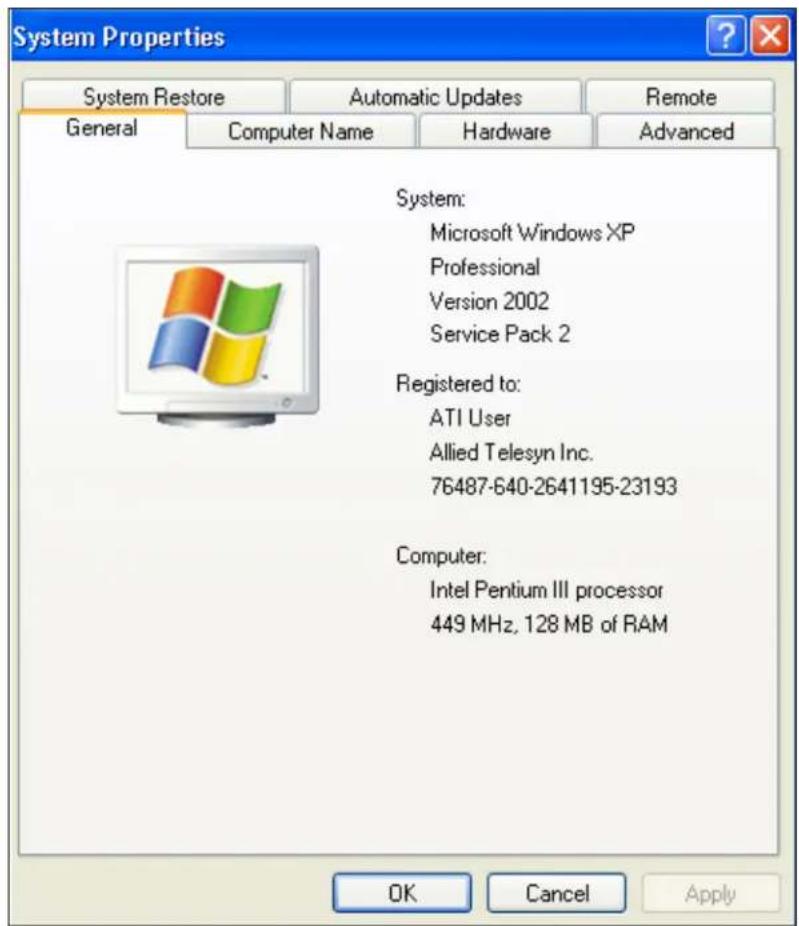
Figure 19. System Properties Dialog Box
- Click the Hardware tab at the top of the System Properties dialog box. Refer to Figure 20 on page 107.
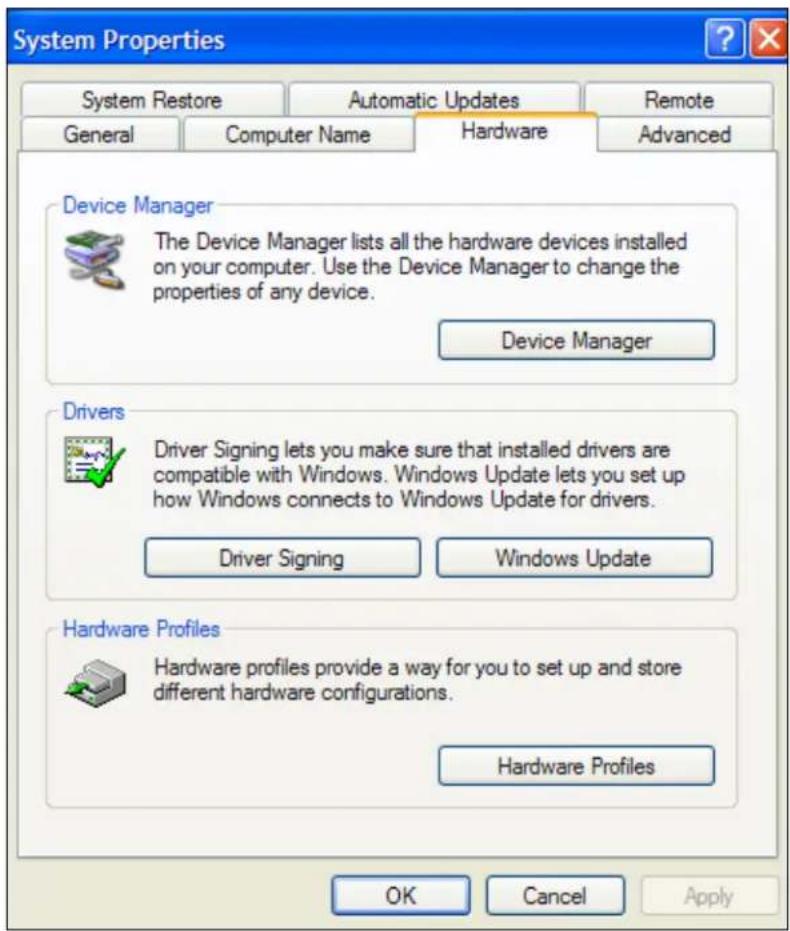
Figure 20. System Properties Hardware Tab
- Click the Device Manager button to display the window in Figure 21 on page 108.
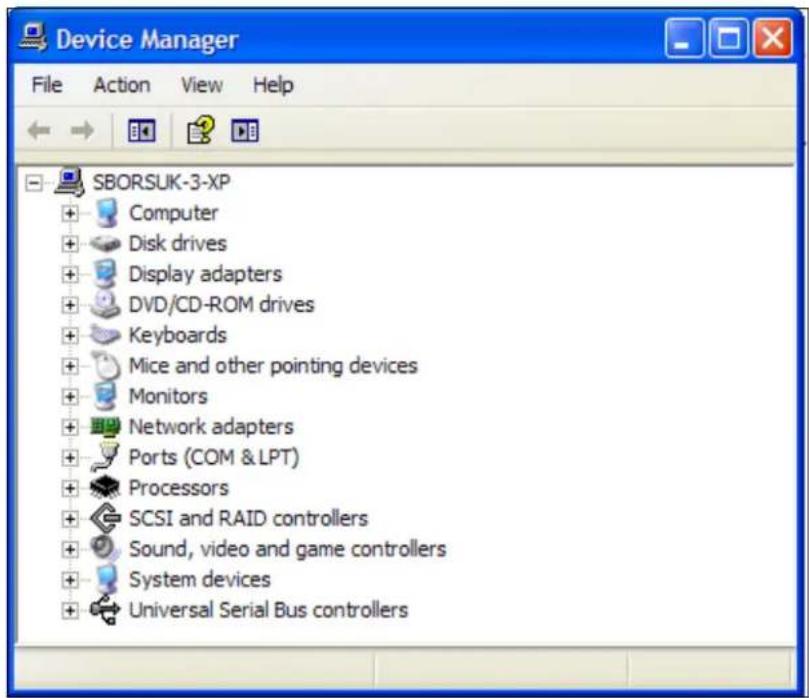
Figure 21. Device Manager Window
-
Double-click on the Network adapters option.
-
In the Broadcom network adapter window, click the Advanced tab, shown in Figure 22.
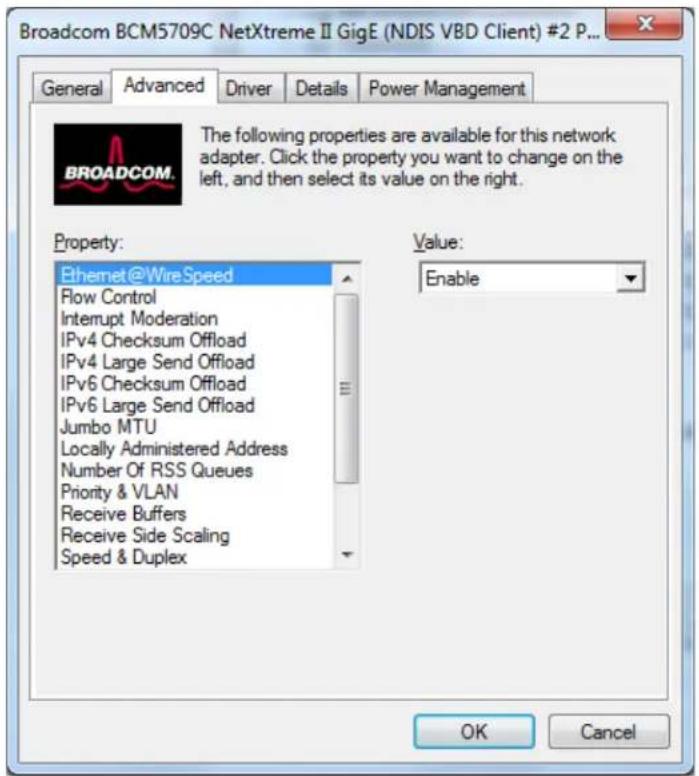
Figure 22. Advanced Tab
Selecting the Advanced Tab in Windows Server 2008, Windows Server 2008 R2, and Windows 7
To select the Advanced Tab in Windows Server 2008, Windows Server 2008 R2, or Windows 7 Operating systems, do the following:
- Select the Start button. See Figure 23.
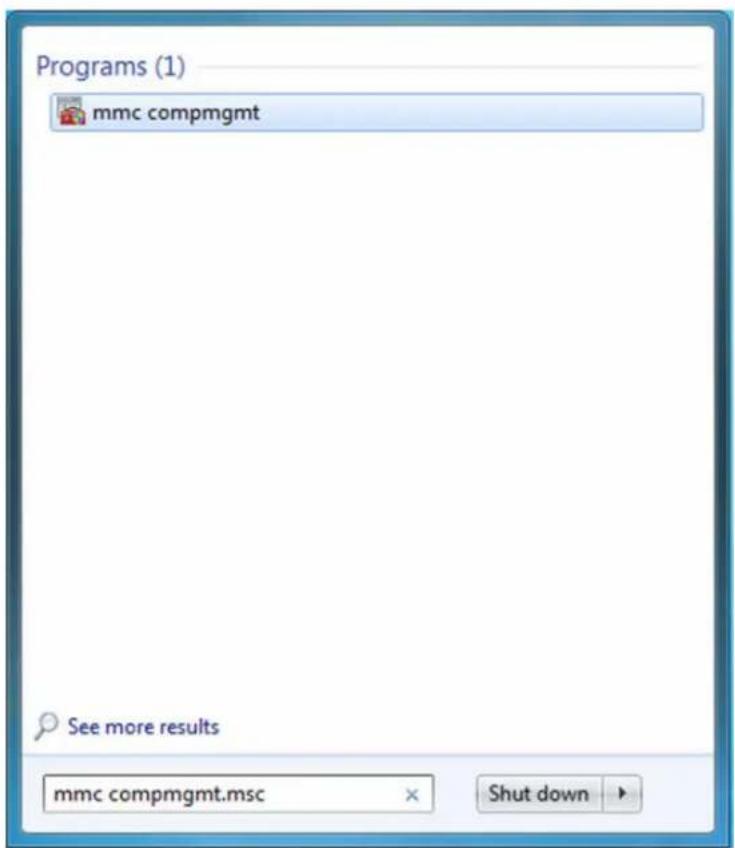
Figure 23. Windows Server 2008, Windows Server 2008 R2, and Windows 7 Search Box
- Enter the following command:
mmc devmgmt.msc
The Device Manager window is displayed. See Figure 24 on page 111.
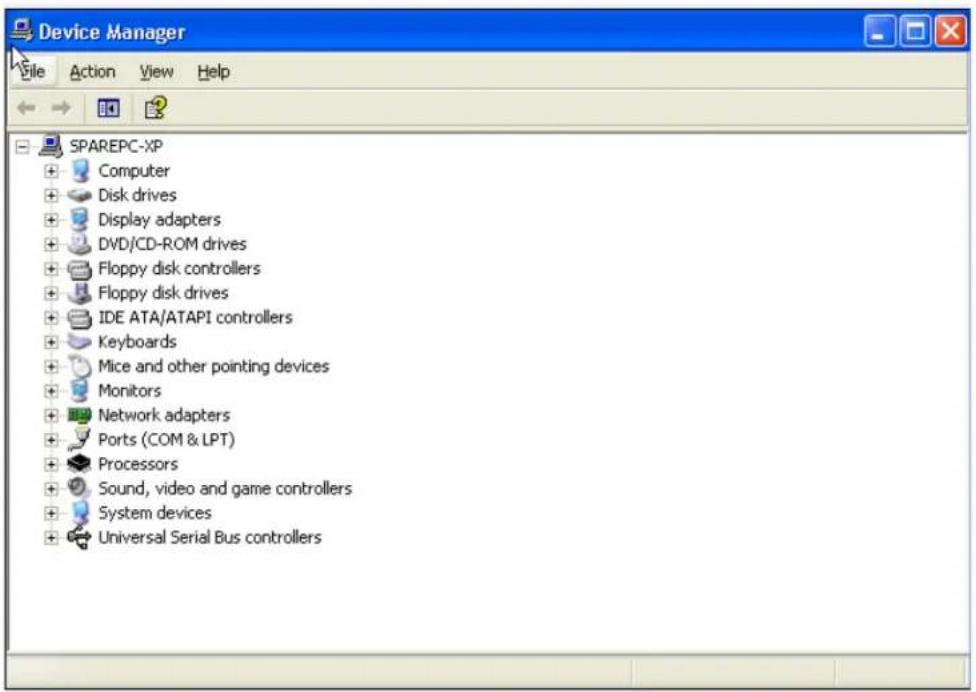
Figure 24. Device Manager Window
- Open the Network Adapters folder.
The list of installed adapters is displayed.
- Right click on one of the following adapters and select Properties from the menu:
□ Allied Telesis AT-2973SX
□ Allied Telesis AT-2973T
□ Allied Telesis AT-2973T/4
□ Allied Telesis AT-VNC10S
The adapter window is displayed.
- Select the Advanced tab.
The Advanced tab is shown in Figure 22 on page 109.
Selecting the Advanced Tab in Windows Vista
In the Windows Vista Operating System, you access the Advanced Tab through the Device Manager.
To select the Device Manager in the Windows Vista Operating System, do the following:
- Select the Start menu.
See Figure 25 for an example of the Windows Vista Start menu.
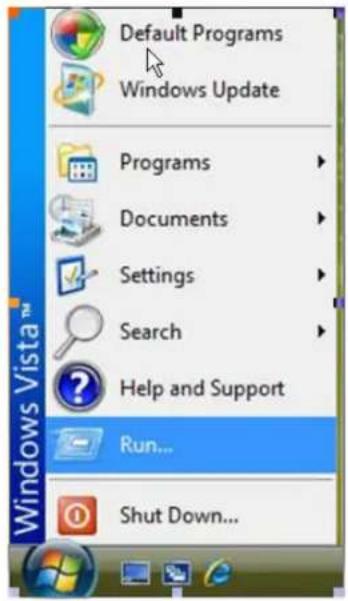
Figure 25. Windows Vista Start Menu
- From the Start Menu, select Run.
The Windows Vista Run window is displayed. See Figure 26.
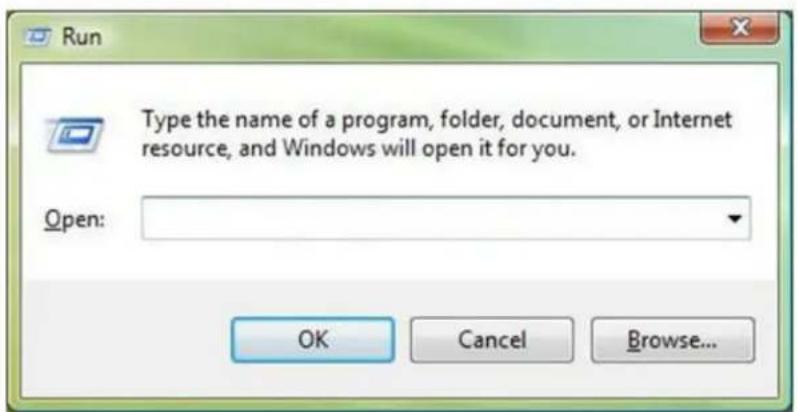
Figure 26. Windows Vista Run Window
- Enter the following command in the Run window:
mmc compmgmt.msc
- From the Computer Management Window, select Device Manager in the left panel.
The Device Manager window is displayed. See Figure 24 on page 111.
- Open the Network Adapters folder.
The list of installed adapters is displayed.
- Right click on one of the following adapters and select Properties from the menu:
□ Allied Telesis AT-2973SX
□ Allied Telesis AT-2973T
□ Allied Telesis AT-2973T/4
□ Allied Telesis AT-VNC10S
The adapter window is displayed.
- Select the Advanced tab.
The Advanced tab is shown in Figure 22 on page 109.
Modifying the Advanced Properties
After you have installed the driver software, you can use Table 13 to verify or change the adapter properties:
Note
After you upgrade the driver software, the Advanced Properties may change.
Note
The configuration steps in the table may differ slightly if the “Classic Start Menu” is set on your computer.
Table 13. Advanced Features in Microsoft Windows
| Feature Description | Configuration Steps | |
| 802.1p QoS The "802.1p QOS" parameter is a standard that enables Quality of Service (QoS). It is responsible for the QoS provisions on the local segment, and the avoidance of the "all packets are treated equally" issue, which falls onto the hub or switch servicing segment. 802.1p QOS provides prioritization of packets traversing a subnet. | 1. In Microsoft Windows, right-click the Network Adapter in Network Connections and, then click Properties.2. Click the Configure button and then the Advanced tab.3. Set the desired Ethernet@WireSpeed value. | |
| Ethernet@Wirespeed | The Ethernet@WireSpeed property enables a 1000BASE-T Ethernet adapter to establish a link at a lower speed when only two pairs of wires are available in the cable plant. | 1. In Microsoft Windows, right-click the Network Adapter in Network Connections and, then click Properties.2. Click the Configure button and then the Advanced tab.3. Set the desired Ethernet@WireSpeed value. |
Table 13. Advanced Features in Microsoft Windows
| Feature Description | Configuration Steps | |
| Flow Control Enables | or disables the receipt or transmission of PAUSE frames. PAUSE frames allow the network adapter and a switch to control the transmit rate. The side that is receiving the PAUSE frame momentarily stops transmitting. By enabling TOE, network performance improves, but with the increased performance, TOE performance is more susceptible to packet loss when flow control is disabled. Enable flow control to reduce the number of packets lost. | 1. In Microsoft Windows, right-click the Network Adapter in Network Connections and then click Properties.2. Click the Configure button and then the Advanced tab.3. Set the desired Flow Control value. |
| Interrupt Moderation | Enables interrupt moderation, which limits the rate of interrupt to the CPU during packet transmission and packet reception. The disabled option allows one interrupt for every packet transmission and packet reception. Enable is the default option. | 1. In Microsoft Windows, right-click the Network Adapter in Network Connections and then click Properties.2. Click the Configure button and then the Advanced tab.3. Set the desired Interrupt Moderation value. |
| IPv4 Checksum Offload | Allows configuring checksum offload for the IPv4 protocol:☐ Disable - Disables checksum offload.☐ Rx Enabled - Enables receive TCP/IP/UDP checksum offload.☐ Tx Enabled - Enables transmit TCP/IP/UDP checksum offload.☐ TX & Rx Enabled (default) - Enables transmit and receive TCP/IP/UDP checks | 1. In Microsoft Windows, right-click the Network Adapter in Network Connections and then click Properties.2. Click the Configure button and then the Advanced tab.3. Set the desired IPv4 Checksum Offload value |
Table 13. Advanced Features in Microsoft Windows
| Feature Description Configuration Steps | ||
| IPv4 Large Send Offload | Normally, the TCP segmentation is done by the protocol stack. When you enable the Large Send Offload property, the TCP segmentation can be done by the network adapter. The default setting for this property is Enabled. This property is only available for Broadcom NetXtreme adapters. | 1. In Microsoft Windows, right-click the Network Adapter in Network Connections and then click Properties.2. Click the Configure button and then the Advanced tab.3. Set the desired IPv4 Large Send Offload value. |
| IPv6 Checksum Offload | Normally, the checksum function is computed by the protocol stack. When you select one of the Checksum Offload property values (other than None), the checksum can be computed by the network adapter.☐ Rx Enabled - Enables receive TCP/IP/UDP checksum offload.☐ Tx Enabled - Enables transmit TCP/IP/UDP checksum offload.☐ Tx/Rx Enabled - (default). Enables transmit and receive TCP/IP/UDP checksum offload.☐ None - Disables checksum offload. | 1. In Microsoft Windows, right-click the Network Adapter in Network Connections and then click Properties.2. Click the Configure button and then the Advanced tab.3. Set the desired IPv6 Checksum Offload value. |
| IPv6 Large Send Offload | Normally, the TCP segmentation is done by the protocol stack. When you enable the Large Send Offload property, the TCP segmentation can be done by the network adapter. The default setting for this property is Enabled. This property is only available for Broadcom NetXtreme adapters. | 1. In Microsoft Windows, right-click the Network Adapter in Network Connections and then click Properties.2. Click the Configure button and then the Advanced tab.3. Set the desired IPv6 Large Send Offload value. |
Table 13. Advanced Features in Microsoft Windows
| Feature Description | Configuration Steps | |
| Jumbo Packet Enables | the network adapter to transmit and receive oversized Ethernet frames that are greater than 1514 bytes, but less than or equal to 9000 bytes in length (9600 bytes for network adapters that operate at 10 Gbps). This property requires the presence of a switch that is able to process jumbo frames. This property is only available for Broadcom NetXtreme adapters.Frame size is set at 1500 bytes by default. To increase the size of the received frames, raise the byte quantity in 500-byte increments. | In Microsoft Windows, right-click the Network Adapter in Network Connections, and then click Properties.Click the Configure button and then the Advanced tab.Enter the desired Jumbo Packet value. |
| Locally Administered Address | The Locally Administered Address is a user-defined MAC address that is used in place of the MAC address originally assigned to the network adapter. Every adapter in the network must have its own unique MAC address. This locally administered address consists of a 12-digit hexadecimal number.Value - Assigns a unique node address for the adapter.Not Present (default) - Uses the factory-assigned node address on the adapter.The appropriate assigned ranges and exceptions for the locally administered address include the following:The range is 00:00:00:00:00:01 to FF:FF:FF:FF:FF:FD.Do not use a multicast address (least significant bit of the high byte = 1).Do not use all 0s or all Fs. | In Microsoft Windows, right-click the Network Adapter in Network Connections, and then click Properties.Click the Configure button and then the Advanced tab.Enter the desired network address value. |
Table 13. Advanced Features in Microsoft Windows
| Feature Description | Configuration Steps | |
| Number of RSS Queues | Allows configuring RSS queues. For 1 Gbps network adapters, the RSS queue options are Auto (default), 2, 4, and 8. For 10 Gbps network adapters, the RSS queue options are Auto (default), 2, 4, 8, and 16. | 1. In Microsoft Windows, right-click the Network Adapter in Network Connections and then click Properties.2. Click the Configure button and then the Advanced tab.3. Enter the desired RSS queues value. |
| Pause on Exhausted Host Ring | The AT-VNC10S network adapter has two possible scenarios that can trigger pause frames: a host ring buffer is exhausted or the on-chip buffers are depleted. With RSS enabled inside the system, it is possible to achieve better Ethernet throughput if no pause frames are being generated in a case where a host ring buffer (of multiple RSS rings) is exhausted. The default is Disabled. | 1. In Microsoft Windows, right-click the Network Adapter in Network Connections and then click Properties.2. Click the Configure button and then the Advanced tab.3. Set the desired Pause on Exhausted Host Ring value. |
| Priority and VLAN The options are:☐ Priority & VLAN Enabled (default) - Allows for packet prioritization and VLAN tagging.☐ Priority & VLAN Disabled - Prevents packet prioritization and VLAN tagging.☐ Priority Enabled - Allows packet prioritization only.☐ VLAN Enabled - Allows VLAN tagging only. | 1. In Microsoft Windows, right-click the Network Adapter in Network Connections and, then click Properties.2. Click the Configure button and then the Advanced tab.3. Set the desired Priority & VLAN value. | |
Table 13. Advanced Features in Microsoft Windows
| Feature Description Configuration Steps | ||
| Receive Buffers (0=Auto) | The number of receive buffers. Receive buffers are data segments that allow the network adapter to allocate receive packets to memory. For 1 Gbps adapters, the range of valid receive buffers is 50 to 5000 in increments of 1 with 750 receive buffers as the default value. For 10 Gbps adapters, the range of valid receive buffers is 0 to 3000 in increments of 50 with 0 receive buffers as the default value. | 1. In Microsoft Windows, right-click the Network Adapter in Network Connections and then click Properties.2. Click the Configure button and then the Advanced tab.3. Set the desired Receive Buffers value. |
| Receive Side Scaling | This parameter allows configuring network load balancing across multiple CPUs. The default setting for this property is Enabled.NoteFor all network adapters, IPv6 Receive Side Scaling is not supported on Windows Server 2003 due to a limitation in the operating system. However, BCM5709, BCM57710, and BCM57711 network adapters support IPv6 Receive Side Scaling on Windows Server 2008 and later. | 1. In Microsoft Windows, right-click the Network Adapter in Network Connections and then click Properties.2. Click the Configure button and then the Advanced tab.3. Set the desired Receive Side Scaling value. |
| Speed and Duplex Mode | The Speed & Duplex property sets the connection speed and mode to that of the network. Note that Full-Duplex mode allows the adapter to transmit and receive network data simultaneously. | 1. In Microsoft Windows, right-click the Network Adapter in Network Connections and click Properties.2. Click the Configure button and then the Advanced tab.3. Set the desired Speed & Duplex value. |
Table 13. Advanced Features in Microsoft Windows
| Feature Description Configuration Steps | ||
| TCP Connection Offload (IPv4) | Enables and disables TOE offload when using the IPv4 protocol. The default is Enabled. | 1. In Microsoft Windows, right-click the Network Adapter in Network Connections and click Properties.2. Click the Configure button and then the Advanced tab.3. Set the desired TCP Connection Offload (Ipv4) value. |
| TCP Connection Offload (IPv6) | Enables and disables TOE offload when using the IPv6 protocol. The default is Enabled. | 1. In Microsoft Windows, right-click the Network Adapter in Network Connections and click Properties.2. Click the Configure button and then the Advanced tab.3. Set the desired TCP Connection Offload (Ipv6) value. |
| Transmit Buffers (0=Auto) | The number of transmit buffers. Transmit buffers are data segments that allow the network adapter to monitor transmit packets in the system memory. The range of valid transmit buffers is 0 to 5000 in increments of 1 with 1500 transmit buffers as the default value. | 1. In Microsoft Windows, right-click the Network Adapter in Network Connections and then click Properties.2. Click the Configure button and then the Advanced tab.3. Set the desired Transmit Buffers value. |
| Virtual Machine Queues | The Virtual Machine Queues property defines whether the device has enabled or disabled the virtual machine queue (VMQ) feature. | 1. In Microsoft Windows, right-click the Network Adapter in Network Connections and then click Properties.2. Click the Configure button and then the Advanced tab.3. Set the desired Virtual Machine Queues value. |
Table 13. Advanced Features in Microsoft Windows
| Feature Description | Configuration Steps | |
| VLAN ID Enables VLAN | AN tagging and configures the VLAN ID when Priority & VLAN Enabled is selected as the Priority & VLAN setting. The range for the VLAN ID is 1 to 4094 and must match the VLAN tag value on the connected switch. A value of 0 (default) in this field disables VLAN tagging.Risk Assessment of VLAN Tagging through the NDIS Miniport DriverBroadcom's NDIS 6.0 miniport driver provides the means to allow a system containing a Broadcom adapter to connect to a tagged VLAN. On Windows XP systems, this support was only provided through the use of an intermediate driver (e.g., Broadcom Advanced Server Program - BASP). Unlike BASP, however, the NDIS 6 driver's support for VLAN participation is only for a single VLAN ID.Also unlike BASP, the NDIS 6.0 driver only provides VLAN tagging of the outbound packet, but does not provide filtering of incoming packets based on VLAN ID membership. This is the default behavior of all miniport drivers. While the lack of filtering packets based on VLAN membership may present a security issue, the following provides a risk assessment based on this driver limitation for an IPv4 network: | 1. In Microsoft Windows, right-click the Network Adapter in Network Connections and then click Properties.2. Click the Configure button and then the Advanced tab.3. Enter the desired VLAN ID in the VLAN ID field. |
Table 13. Advanced Features in Microsoft Windows
| Feature Description | Configuration Steps | |
| A properly configured network that has multiple VLANs should maintain separate IP segments for each VLAN. This is necessary since outbound traffic relies on the routing table to identify which adapter (virtual or physical) to pass traffic through and does not determine which adapter based on VLAN membership.Since support for VLAN tagging on Broadcom's NDIS 6.0 driver is limited to transmit (Tx) traffic only, there is a risk of inbound traffic (Rx) from a different VLAN being passed up to the operating system. However, based on the premise of a properly configured network above, the IP segmentation and/or the switch VLAN configuration may provide additional filtration to limit the risk.In a back-to-back connection scenario, two computers on the same IP segment may be able to communicate regardless of their VLAN configuration since no filtration of VLAN membership is occurring. However, this scenario assumes that the security may already be breached since this connection type is not typical in a VLAN environment.If the risk above is not desirable and filtering of VLAN ID membership is required, then support through an intermediate driver would be necessary. |
Table 13. Advanced Features in Microsoft Windows
| Feature Description | Configuration Steps | |
| VMQ Lookahead Split | The VMQ Lookahead Split property defines whether the device has enabled or disabled the ability to split receive buffers into lookahead and post-lookahead buffers. | 1. In Microsoft Windows, right-click the Network Adapter in Network Connections and then click Properties.2. Click the Configure button and then the Advanced tab.3. Set the desired VMQ Lookahead Split value. |
Chapter 9
Installing CIM and SNMP for Manageability
Both Common Information Model (CIM) and Simple Network Management Protocol (SNMP) are information models that allow you to monitor and manage a PC or a network. Both CIM and SNMP are supported on the Windows Server 2003, Windows Server 2008, and Windows Server 2008 R2 Operating Systems. The CIM standard defines managed elements and the SNMP standard defines events such as temperature threshold and power outages which are called traps.
This chapter discusses the following topics:
☐ "Installing CIM" on page 126
☐ "Installing SNMP" on page 129
Installing CIM
The Common Information Model (CIM) is an industry standard defined by the Distributed Management Task Force (DMTF). Microsoft implements CIM on Windows platforms. Also, Broadcom supports CIM on the Windows Server 2003, Windows Server 2008, and Windows Server 2008 R2 platforms.
Broadcom's implementation of CIM enables various classes to provide information through CIM client applications. The Broadcom CIM data provider provides data only. In addition, you can select your preferred CIM client software to browse the information exposed by the Broadcom CIM provider.
The Broadcom CIM provider provides information through the following classes:
BRCM_NetworkAdapter
□ BRCM_ExtraCapacityGroup
The BRCM_NetworkAdapter class provides network adapter information pertaining to a group of adapters including Broadcom and controllers from other vendors. The BRCM_ExtraCapacityGroup class provides team configuration for the Broadcom Advanced Server Program (BASP). Current implementation provides team information and information about physical network adapters in the team.
BASP provides information about events through event logs. You can use the either Event Viewer (provided by Windows Server 2003, Windows Server 2008, and Windows Server 2008 R2) or CIM to inspect and monitor these events. The Broadcom CIM provider also provides event information through the CIM generic event model. The following events are defined by CIM:
☐ _InstanceCreationEvent
☐ _InstanceDeletionEvent
□ InstanceModificationEvent
CIM requires the client application to register the events from the client application, using queries as examples to receive events properly. See the following examples:
SELECT * FROM __InstanceModificationEvent where TargetInstance ISA "BRCM_NetworkAdapter" SELECT * FROM __InstanceModificationEvent where TargetInstance ISA "BRCM_ExtraCapacityGroup" SELECT * FROM __InstanceCreationEvent where TargetInstance ISA "BRCM_NetworkAdapter"
SELECT * FROM __InstanceDeletionEvent
where TargetInstance ISA "BRCM_NetworkAdapter"
SELECT * FROM __InstanceCreationEvent
where TargetInstance ISA "BRCM_ActsAsSpare"
SELECT * FROM __InstanceDeletionEvent
where TargetInstance ISA "BRCM_ActsAsSpare"
For detailed information about these events, see the CIM documentation at:
http://www.dmtf.org/sites/default/files/standards/documents/DSP0004V2.3_final.pdf
Loading the CIM Libraries
By default, the Broadcom Advanced Control Suite utility does not load the CIM libraries. You need to select this option.
To load the CIM libraries on your PC, do the following:
- Download the BACS utility from the Allied Telesis website.
This utility is available from the www.alliedtelesis.com/support/software website. After you have accessed this website, enter the model number in the Search by Product Name box and click Find to view the current list of available files.
- Download BACS onto your PC.
- On your PC, open the InstallShield.
Within the BACS utility, there is an option to load the CIM libraries. The BACS CIM Option Window is displayed. See Figure 27 on page 128.
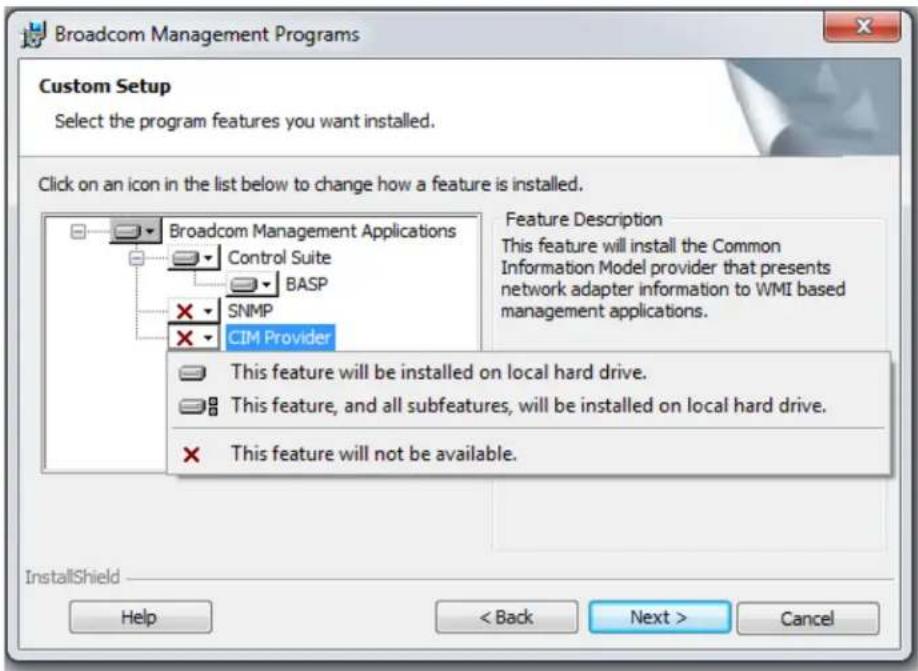
Figure 27. BACS CIM Option Window
- Select CIM Provider.
- Select one of the following:
☐ This feature will be installed on local hard drive
☐ This feature, and all subfeatures, will be installed on local hard drive
-
Click Next.
-
Follow the on-screen instructions to complete the installation.
The BASP version of SNMP has two components that are described in the following sections:
☐ "BASP Subagent" on page 129
☐ "BASP Extensible-Agent" on page 129
BASP Subagent
The BASP subagent, baspmgmt.dll, is designed for the Windows Server 2003, Windows Server 2008, and Windows Server 2008 R2 platforms. You must install the SNMP service before installing the BASP subagent.
The BASP subagent allows an SNMP manager software to actively monitor the configuration and performance of the Broadcom Advanced Server features. The subagent also provides an alarm trap to an SNMP manager to inform the manager of any changes to the conditions of the BASP component.
The BASP subagent allows monitoring of the configurations and statistics of the BASP teams, the physical NIC adapters participating in a team, and the virtual NIC adapters created as the result of teaming. Non-teamed NIC adapters are not monitored. The BASP configuration data includes information such as team IDs, physical-virtual-VLAN-team adapter IDs, physical-virtual-VLAN-team adapter descriptions, and the MAC addresses of the adapters.
The statistics include detailed information such as data packets transmitted and received for the physical-virtual-VLAN-team adapters.
The alarm trap forwards information about the changes in configuration of the physical adapters participating in a team, such as whether or not the physical adapter link is up or down and each time the adapter is installed or removed.
To monitor this information, an SNMP manager must load the Broadcom BASP MIB database files to allow monitoring of the information described above. The following files are posted on the Allied Telesis web site:
□ baspcfg.mib
□ baspstat.mib
□ basptrap.mib
BASP Extensible-Agent
The Broadcom NetXtreme II Gigabit Ethernet Controller Extended Information SNMP extensible-agent (bcmif.dll) is designed for Windows Server 2003, Windows Server 2008, and Windows Server 2008 R2 SNMP service. You must install the Windows 2000 Server SNMP service before installing the extensible-agent.
The extensible-agent allows the SNMP manager software to actively monitor the configurations of the Broadcom NetXtreme II adapter. It supplements the information already provided by the standard SNMP Management Network Interface information.
The extensible-agent provides in-depth information about a Broadcom NetXtreme II adapter including:
□ MAC address
☐ Bound IP address
□ IP subnet mask
□ Physical link status
Adapter state
□ Line speed
□ Duplex mode
□ Memory range
□ Interrupt setting
□ Bus number
□ Device number
Function number
To monitor this information, an SNMP manager needs to load the Broadcom Extended information MIB file to allow monitoring of the information listed above. See the following procedure.
The monitored workstation requires the installation of the Broadcom Extended Information SNMP extensible-agent, bcmif.dll, and requires the Microsoft Windows Server 2003, Windows Server 2008, or Windows Server 2008 R2 SNMP service to be installed and loaded.
Loading the SNMP Libraries
By default, the BACS utility does not load the SNMP libraries. You need to select this option.
To load the SNMP libraries on your PC, do the following:
- Download the BACS utility from the Allied Telesis website.
This utility is available from the www.alliedtelesis.com/support/software website. After you have accessed this website, enter the model number in the Search by Product Name box and click Find to view the current list of available files.
-
Download BACS onto your PC.
-
On your PC, open the InstallShield.
4. Select SNMP.
The BACS SNMP Option Window is displayed. See Figure 27.
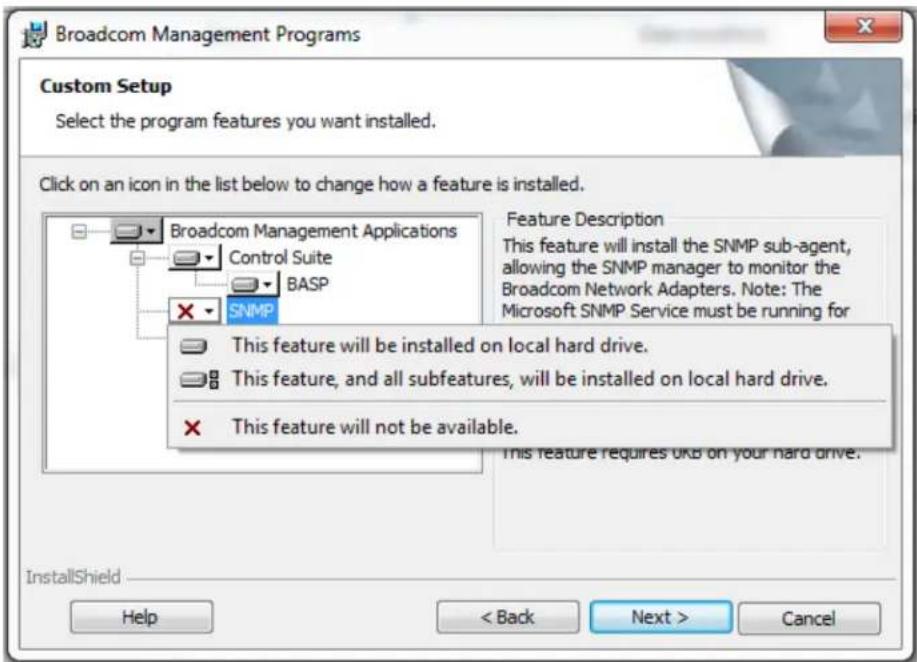
Figure 28. BACS SNMP Option Window
5. Select one of the following:
☐ This feature will be installed on local hard drive
☐ This feature, and all subfeatures, will be installed on local hard drive
6. Click Next.
- Follow the on screen instructions to complete the installation.
This chapter provides information about prerequisites for installing management applications as well as procedures instructions. This chapter discusses the following topics:
☐ "Installing Broadcom Advanced Control Suite 3 and Related Management Applications" on page 134
☐ “Modifying Management Applications” on page 139
☐ “Repairing Management Applications” on page 140
☐ “Removing Management Applications” on page 141
Installing Broadcom Advanced Control Suite 3 and Related Management Applications
The Broadcom Advanced Control Suite 3 (BACS 3) software and related management applications can be installed from the source-file directory or by using the silent install option. See the following:
☐ "Checking .NET Framework Requirements" on page 135
☐ "Using the Installer" on page 136
☐ "Using the Silent Install Option" on page 136
After you use the source-file directory or the silent install option, the following features are installed on your system:
☐ Control Suite. Broadcom Advanced Control Suite 3 (BACS 3).
☐ BASP. Installs Broadcom Advanced Server Program.
☐ SNMP. Installs the Simple Network Management Protocol subagent.
☐ CIM Provider. Installs the Common Information Model provider.
Note
Ensure that the Broadcom network adapter(s) is physically installed in the system before installing BACS 3.
Note
Before installing Broadcom Advance Control Suite 3, verify that .NET Framework 2.0, or above, is installed.
Note
Before you begin the installation, close all applications, windows, or dialog boxes.
Note
To use the TCP/IP Offload Engine (TOE), you must have Windows Server 2003 with Service Pack 2 (SP2).
Checking .NET Framework Requirements
Before you use either the source-file directory or the silent install option, you must make sure that your system meets the minimum installation requirements.
Microsoft .NET Framework 2.0 includes the runtime and associated files needed to run BACS 3, and must be installed on your system in order for BACS 3 to operate. For information on the minimum and recommended .NET Framework versions for your operating system, see Table 14.
Note
You do not need to upgrade .NET for the Windows Server 2008, Windows Server 2008 R2, Windows Vista, or Windows 7 Operating Systems.
Note
For optimal performance of BACS 3, Broadcom recommends .NET Framework 2.0 SP1, .NET Framework 3.0 SP1, or .NET Framework 3.5, depending on your operating system.
Table 14. Minimum and Recommended .NET Framework Versions for BACS 3
| Operating System | Minimum Required Recommended | |||
| Version How to Obtain Version How to Obtain | ||||
| Windows Server 2003 | .NET 2.0 Download from Microsoft | .NET 2.0 SP1 Download from Microsoft | ||
| Windows Server 2003 R2 | .NET 2.0 Included in OS package, but by default, not included during installation | .NET 2.0 SP1 Download from Microsoft | ||
| Windows Server 2008 | .NET 2.0 Included in .NET 2.0 SP1, which is included during OS installation | NET 2.0 SP1 Included in OS package | ||
Note
Starting BACS 3 without .NET Framework (version 2.0 or above) installed on your system results in an error.
Note
Long startup times for BACS 3 may be caused by a limitation of .NET Framework 2.0, as described in Microsoft knowledge base article KB936707. To improve the startup time of BACS 3, apply .NET Framework 2.0 SP1 (or appropriate version for your OS as shown in the Recommended column of Table 14), and reboot your system.
Using the Installer
The driver software is available for download from the Allied Telesis web site at www.alliedtelesis.com/support. After you have accessed this website, enter the model number in the Search by Product Name box and then click Find to view the current list of available software drivers.
To install the management applications, do the following:
Note
Before starting the installation, verify that .NET Framework 2.0 or above is installed. This ensures optimal performance of BACS 3.
- Open the MgmtApps folder, select IA32 or x64, and then double-click Setup.exe to open the InstallShield Wizard.
- Click Next to continue.
- After you review the license agreement, click I accept the terms in the license agreement and then click Next to continue.
- Select the features you want installed. If you receive a warning regarding .NET Framework 2.0, then press OK to continue installing BACS 3 and manually install .NET Framework 2.0 when installation completes, or Cancel to quit.
- Click Next.
- Click Install.
- Click Finish to close the wizard.
Using the Silent Install Option
You can use the silent install option to install from a source folder or any folder. You can create a log file during the installation procedure. In addition, you can specify which features you will install on your system. See the following sections:
☐ “Performing a Silent Install from the Installer Source Folder” on page 137
☐ “Performing a Silent Install and Creating a Log File” on page 137
☐ “Performing a Silent Install from any Folder” on page 137
☐ “Performing a Silent Install by Feature on IA32 Platforms” on page 138
☐ "Performing a Silent Install by Feature on AMD64/EM64T Platforms" on page 138
☐ “Performing a Silent Install from Within a Batch File” on page 138
Note
All commands are case sensitive.
Note
User must "Run as Administrator" for Vista when using "msiexec" for "silent" install/uninstall(s).
Performing a Silent Install from the Installer Source Folder
To perform a silent install (or upgrade) from within the installer source folder, enter:
setup /s /v/qn
If performing a silent upgrade, your system may reboot automatically. To suppress the reboot, enter:
setup /s /v"/qn REBOOT=ReallySuppress"
Performing a Silent Install and Creating a Log File
To perform a silent install and create a log file, enter:
setup /s /v"/qn /L f:\ia32\1testlog.txt"
The 1testlog.txt log file is created at f:\ia32.
Performing a Silent Install from any Folder
To perform a silent uninstall from any folder on the hard drive, enter:
msiexec /x " {26E1BFB0-E87E-4696-9F89-B467F01F81E5}" /qn
Note
The hexadecimal number above may differ from your current installer. Check the Key name corresponding with the Broadcom Advanced Control Suite 3 (BACS) application in HKLM\Software\Microsoft\Windows\CurrentVersion\Uninstall for the correct hexadecimal number.
Note
After performing a silent uninstall, it is necessary to reboot the system before reinstalling this installer. If you do not perform a reboot, BASP does not install correctly.
Performing a Silent Install by Feature on IA32 Platforms
To perform a silent install by feature on IA32 platforms, enter:
Note
CHM32 or CHM64 installs the BACS help file and must be included when installing the BACS feature.
Use ADDSOURCE to include any of the features listed below.
setup /s /v"/qn
ADDSOURCE=BACSi32,CHM32,BASPi32,SNMPi32,CIMi32"
Performing a Silent Install by Feature on AMD64/EM64T Platforms
To perform a silent install by feature on AMD64/EM64T platforms, enter:
setup /s /v"/qn
ADDSOURCE=BACSa64,CHMa64,BASPa64,SNMPa64"
Performing a Silent Install from Within a Batch File
To perform a silent install from within a batch file and wait for the install to complete before continuing with the next command line, enter:
start /wait setup /s /w /v/qn
Modifying Management Applications
To modify the management applications, do the following:
- In Control Panel, double-click Add or Remove Programs.
- Click Broadcom Management Programs and then click Change.
- Click Next to continue.
- Click Modify to change program features.
- Click Next to continue.
- Click on an icon to change how a feature is installed.
- Click Next.
- Click Install.
- Click Finish to close the wizard.
- Reboot your system to complete the modification of the management applications.
Repairing Management Applications
To repair or reinstall the management applications, do the following:
- In Control Panel, double-click Add or Remove Programs.
- Click Broadcom Management Programs, and then click Change.
- Click Next to continue.
- Click Repair to repair errors in installed applications.
- Click Next to continue.
- Click Install.
- Click Finish to close the wizard.
Removing Management Applications
To remove all management applications, do the following:
- In Control panel, double-click Add or Remove Programs.
- Click Broadcom Management Programs, and then click Remove.
- Reboot your system to complete the removal of management applications.
This chapter provides troubleshooting information. It discusses the following topics:
☐ “Checking Hardware Diagnostics” on page 144
☐ “Checking Port LEDs” on page 145
☐ “Consulting the Troubleshooting Checklist” on page 146
☐ "Solving Microsoft Windows Server 2008 R2 Hyper-V Issues" on page 149
☐ “Solving Broadcom Boot Agent and Broadcom Advanced Server Program (BASP) Issues” on page 152
☐ "Solving Miscellaneous Issues" on page 154
Within the chapter there are several references to the Broadcom Advanced Control Suite 3 User Guide. You can download this manual from the Allied Telesis Website at www.alliedtelesis.com/support/software. After you have accessed this website, enter the model number in the Search by Product Name box and then click Find to view the current list of documents.
Checking Hardware Diagnostics
Loopback diagnostic tests are available for testing the adapter hardware. These tests provide access to the adapter internal and external diagnostics, where packet information is transmitted across the physical link. For instructions and information on running tests in an MS-DOS environment, see Chapter 12, "User Diagnostics" on page 157. For Windows environments, see "Running Diagnostic Tests" in the Broadcom Advanced Control Suite 3 User Guide which you can download from the Allied Telesis website.
Checking Port LEDs
To check the state of the network link and activity, see the following sections:
☐ "AT-2973SX Adapter Physical Description" on page 19
☐ “AT-2973T Adapter Physical Description” on page 21
☐ “AT-2973T/4 Adapter Physical Description” on page 22
☐ “AT-VNC10S Adapter Physical Description” on page 24
Consulting the Troubleshooting Checklist

Caution
Before you open the cabinet of your server to add or remove the adapter, see “Reviewing Safety Precautions” on page 31.
The following checklist provides recommended actions to resolve problems installing or running the AT-2973SX, AT-2973T, AT-2973T/4, or AT-VNC10S adapter in your system:
☐ Inspect all cables and connections. Verify that the cable connections at the network adapter and the switch are attached properly. Verify that the cable length and rating comply with the requirements listed in "Reviewing Cabling Requirements" on page 33.
☐ Check the adapter installation by reviewing "Installing a Network Adapter Card" on page 37. Verify that the adapter is properly seated in the slot. Check for specific hardware problems, such as obvious damage to board components or the PCI edge connector.
☐ Check the configuration settings and change them if they are in conflict with another device.
☐ Verify that your server is using the latest BIOS.
☐ Try inserting the adapter in another slot. If the new position works, the original slot in your system may be defective.
☐ Replace the failed adapter with one that is known to work properly. If the second adapter works in the slot where the first one failed, the original adapter is probably defective.
☐ Install the adapter in another functioning system and run the tests again. If the adapter passed the tests in the new system, the original system may be defective.
☐ Remove all other adapters from the system and run the tests again. If the adapter passes the tests, the other adapters may be causing contention.
Checking Current Drivers
This section describes how to check that the current drivers are loaded properly for the Windows and Linux platforms.
Windows
See “Viewing Vital Signs” in the Broadcom Advanced Control Suite 3 User Guide to view vital information about the adapter, link status, and network connectivity.
Linux
To verify that the bnx2.o driver is loaded properly, enter:
1smod
If the driver is loaded, a line similar to one Table 15 is displayed, where size indicates the size of the driver in bytes, and n is the number of adapters configured.
Table 15. Linux Module Size
| Module Size Used by | |
| BCM5709 size n |
Running a Cable Length Test
For a Windows operating systems, see "Analyzing Cables" in the Broadcom Advanced Control Suite 3 User Guide for information on running a cable length test.
Testing Network Connectivity
This section describes how to test network connectivity for the Windows and Linux platforms.
Note
When using forced link speeds, verify that both the adapter and the switch are forced to the same speed, or that at least one link partner is configured for auto-negotiation.
Windows
In the Windows platforms, use the ping command to test network connectivity. If the new adapter is the only adapter in the system, you may test it by having it ping another device on the network. But if the new adapter is in a system that contains more than one adapter, you instead should test it by pinging it from another device on your network.
Note
Network connectivity can also be tested using the "Testing the Network" feature in the Broadcom Advanced Control Suite 3 User Guide.
To determine if the network connection is working, do the following:
- Click Start, and then click Run.
-
Type cmd in the Open box, and then click OK.
-
If you are performing the ping command at the system where the new adapter is installed, type ipconfig /all to verify that the new adapter is operational.
-
Type ping
, and then press Enter. If you are performing the ping command at the system where the new adapter is installed, specify the IP address of a remote device the adapter is to ping. If you are performing the command at another system, enter the IP address of the new adapter.
The ping statistics that are displayed indicate whether the network connection is working or not.
Linux
To verify that the Ethernet interface is up and running on a Linux platform, run ifconfig to check the status of the Ethernet interface. In addition, you can enter the netstat -i command to check the statistics on the Ethernet interface. See "Installing Linux Driver Software" on page 68 for information on ifconfig and netstat.
If the new adapter is the only adapter in the system, you may test it by having it ping another device on the network. But if the new adapter is in a system that contains more than one adapter, you instead should test it by pinging it from another device on your network.
Ping an IP host on the network to verify connection has been established. From the command line, type ping IP address, and then press Enter.
The ping statistics that are displayed indicate whether or not the network connection is working.
Solving Microsoft Windows Server 2008 R2 Hyper-V Issues
Microsoft Windows Server 2008 R2 Hyper-V™ is a hypervisor virtualization system. For detailed information about Hyper-V, see http://www.microsoft.com/windowsserver2008/en/us/hyperv.aspx.
This section addresses issues that affect the configuration of NetXtreme II network adapters and teamed adapters when Hyper-V is used.
Note
Ensure that Integrated Services, which is a component of Hyper-V, is installed in the guest operating system (child partition) for full functionality.
Single Network Adapter
When configuring a NetXtreme II network adapter for Hyper-V, be aware of the following:
☐ An adapter that is bound to a virtual network should not be configured for VLAN tagging through the driver's advanced properties. Instead, Hyper-V should manage VLAN tagging exclusively.
☐ Since Hyper-V does not support Jumbo Frames, it is recommended that this feature not be used or connectivity issues may occur with the child partition.
☐ The Locally Administered Address (LAA) set by Hyper-V takes precedence over an address set in the adapter's Advanced Properties.
☐ A TOE-enabled network adapter that is bound to a Hyper-V virtual network reports TOE as an offload capability in BACS; however, TOE does not work. This is a limitation of Hyper-V because this system does not support TOE.
☐ In an IPv6 network, a team that supports Checksum Offload (CO) and Large Send Offload (LSO) and is bound to a Hyper-V virtual network reports CO and LSO as an offload capability in BACS. Also, in an IPv6 network, a team that supports CO or LSO and is bound to a Hyper-V virtual network reports CO or LSO as an offload capability in BACS. However, in both instances CO and LSO do not work. This is a limitation of Hyper-V because this system does not support CO and LSO in an IPv6 network.
Teamed Network Adapters
The following Broadcom team types are supported with Hyper-V:
☐ Smart Load Balancing and Failover (configured only for one primary and one standby)
☐ Link Aggregation (IEEE 802.3ad LACP)
☐ Generic Trunking (FEC/GEC) 802.3ad Draft Static
When configuring a team of NetXtreme II network adapters on a Hyper-V system, be aware of the following:
☐ Create the team prior to binding the team to the Hyper-V virtual network
☐ Create a team only with an adapter that is not already assigned to a Hyper-V virtual network.
☐ A TOE-enabled team that is bound to a Hyper-V virtual network reports TOE as an offload capability in BACS; however, TOE does not work. This is a limitation of Hyper-V because this system does not support TOE.
☐ In an IPv6 network, a team that supports Checksum Offload (CO) and Large Send Offload (LSO) and is bound to a Hyper-V virtual network reports CO and LSO as an offload capability in BACS. Also, in an IPv6 network, a team that supports CO or LSO and is bound to a Hyper-V virtual network reports CO or LSO as an offload capability in BACS. However, in both instances CO and LSO do not work. This is a limitation of Hyper-V because this system does not support CO and LSO in an IPv6 network.
☐ To successfully perform VLAN tagging for both the host (parent partition) and the guest (child partition) with the BASP teaming software, you must configure the team for tagging. Unlike VLAN tagging with a single adapter, tagging cannot be managed by Hyper-V when using BASP software.
Removing the Device Drivers
Uninstall the Broadcom NetXtreme II device drivers from your system only through the InstallShield wizard. Uninstalling the device drivers with Device Manager or any other means may not provide a clean uninstall which, in turn, may cause the system to become unstable. For information on uninstalling Broadcom NetXtreme II device drivers, see “Removing the Device Drivers” on page 97.
Upgrading from Windows Server 2000 to Windows Server 2003
When a Broadcom NetXtreme II adapter is installed in your system, Allied Telesis recommends that you uninstall the adapter's driver before performing an OS upgrade from the Windows Server 2000 Operating System to the Windows Server 2003 Operating System. This ensures that no errors are encountered in the installation of the Windows Server 2003 drivers for the NetXtreme II adapters. There are individual device drivers for Windows Server 2000 and Windows Server 2003. As a result, you must install the Windows Server 2003 drivers after the OS upgrade is completed.
Preparing an Answer File
When creating an answer file for an unattended installation or for the System Preparation Tool (Sysprep) utility, the following lines must be included under the [Unattend] section:
OemPreinstall=Yes OemPnpDriversPath=Drivers\NIC
Note
This does not include an unattended installation when performed from a CD-ROM.
Note
The path shown in OemPnpDriversPath can be appended with the path to other applicable drivers.
For an unattended installation, place the Broadcom NetXtreme II driver files in the \OEM\\1\Drivers\NIC directory. For Sysprep, the drivers are located in Drivers\NIC at the root of the system drive. The Broadcom NetXtreme II driver files are listed below according to the operating system to be installed:
☐ Windows Server 2003 (ia32): bxvbd.inf, bxvbdx.sys, bxvbd.cat, bxnd.inf, bxnd.cat, bxnd52x.sys, bxndcox.dll, bxdiag.cat, bxdiag.inf, bxdiagx.sys, wdfcoinstaller01005.dll, and wUDFUpdate_01005.dll
☐ Windows Server 2003 (x64): bxvbd.inf, bxvbda.sys, bxvbd.cat, bxnd.inf, bxnd.cat, bxnd52a.sys, bxndcoa.dll, bxdiag.cat, bxdiag.inf, bxdiaga.sys, wdfcoinstaller01005.dll, and wUDFUpdate_01005.dll
When applying network properties through an answer file for a NetXtreme II device where the PnP iD is the identifier, as follows:
For a BCM5709C NetXtreme II GigE - Infld = "b06bdrv\l2nd&pci_163914e4"
For a BCM5709S Netxtreme II GigE - Infld = "b06bdrv\2nd&pci_163a14e4"
Currently, the PCI location (PCI bus, device, and function numbers) method is not supported for the NetXtreme II device as an identifier or the adapter in the answer file due to a limitation with the Windows operating system.
Solving Broadcom Boot Agent and Broadcom Advanced Server Program (BASP) Issues
This section discusses issues with the Broadcom Boot Agent and Broadcom Advanced Server (BASP) as well as provides solutions.
Problem: Unable to obtain network settings through DHCP using PXE.
Solution: For proper operation, make sure that the Spanning Tree Protocol (STP) feature is disabled or that portfast mode (for Cisco switches) is enabled on the port to which the PXE client is connected. For instance, set spantree portfast 4/12 enable.
Problem: A BASP team in Windows Server 2003 may not function properly if a team member driver property is modified.
Solution: Due to a limitation in Windows Server 2003, the features of team members should remain static during the entire life of the team. To change the characteristics of a team member, remove the team member from the team, modify the team member, and then the adapter to the team again. This limitation does not exist in Windows Server 2008 or Windows Server 2008 R2.
Problem: A system containing an 802.3ad team causes a Netlogon service failure in the system event log and prevents it from communicating with the domain controller during boot up.
Solution: Microsoft Knowledge Base Article 326152 (http://support.microsoft.com/kb/326152/en-us) indicates that Gigabit Ethernet adapters may experience problems with connectivity to a domain controller due to link fluctuation while the driver initializes and negotiates a link with the network infrastructure. The link negotiation is further affected when the Gigabit adapters are participating in an 802.3ad team due to the additional negotiation with a switch required for this team type. As suggested in the Knowledge Base Article above, disabling media sense as described in a separate Knowledge Base Article 239924 (http://support.microsoft.com/kb/239924/) has shown to be a valid workaround when this problem occurs.
Problem: The 802.3ad team member links disconnect and reconnect continuously (applies to all operating systems).
Solution: This is a third-party issue. It is seen only when configuring an 802.3ad team with more than two members on the server and connecting an HP2524 switch, with LACP enabled as passive or active. The HP switch shows an LACP channel being brought up successfully with only two team members. All other team member links disconnect and reconnect. This issue does not occur with the Cisco Catalyst 6500 switch.
Problem: A Generic Trunking (GEC/FEC) 802.3ad-Draft Static type of team may lose some network connectivity if the driver to a team member is disabled.
Solution: If a team member supports underlying management software (ASF/IPMI/UMP) or Wake-On-LAN, the link may be maintained on the switch for the adapter despite its driver being disabled. This may result in the switch continuing to pass traffic to the attached port rather than route the traffic to an active team member port. Disconnecting the disabled adapter from the switch allows traffic to resume to the other active team members.
Problem: Large Send Offload (LSO) and Checksum Offload are not working on my team.
Solution: If one of the adapters on a team does not support LSO, LSO does not function for the team. Remove the adapter that does not support LSO from the team or replace it with one that does. This same solution applies to Checksum Offload.
Problem: The advanced properties of a team do not change after changing the advanced properties of an adapter that is a member of the team.
Solution: If an adapter is included as a member of a team and you change any advanced property, then you must rebuild the team to ensure that the team's advanced properties are properly set.
Problem: Errors occur when an RSS-enabled adapter is included as a member of a team on Windows Server 2003, Windows Server 2008, and Windows Server 2008 R2 systems.
Solution: Disable RSS from all members of the team and rebuild the team.
Solving Miscellaneous Issues
This section presents issues and provides solutions for a variety of driver software issues.
Problem: Although installed, the Broadcom Advanced Control Suite 3 (BACS) application does not start and an error message appears.
Solution: NET Framework 2.0 is required for BACS 3 to operate. Install .NET Framework 2.0.
Problem: Broadcom Advanced Control Suite 3 takes a long time to start up.
Solution: This is a limitation of .NET Framework 2.0. Apply .NET Framework 2.0 SP1 and reboot your system.
Problem: The Broadcom NetXtreme II adapter may not perform at optimal levels on some systems if it is added after the system has booted.
Solution: The system BIOS in some systems does not set the cache line size and the latency timer if the adapter is added after the system has booted. Reboot the system after the adapter has been added.
Problem: Intelligent Platform Management Interface (IPMI) is not functioning properly.
Solution: IPMI works only when LiveLink™ is disabled. See “Configuring LiveLink for a Smart Load Balancing and Failover and SLB (Auto-Fallback Disable) Team” in the Broadcom Advanced Control Suite 3 User Guide.
Problem: Cannot configure Resource Reservations in BACS 3 after SNP is uninstalled.
Solution: Reinstall SNP. Prior to uninstalling SNP from the system, ensure that NDIS is enabled via the checkbox on the Resource Configuration screen, available from the Resource Reservations section of the Configurations tab (see Viewing Resource Reservations in the Broadcom Advanced Control Suite 3 User Guide). If NDIS is disabled and SNP is removed, there is no access to re-enable the device.
Problem: TOE performance is more susceptible to packet loss when flow control is disabled.
Solution: Enable flow control to reduce the number of packets lost.
Problem: A DCOM error message (event ID 10016) appears in the System Even Log during the installation of the Broadcom adapter drivers.
Solution: This is a Microsoft issue. For more information, see Microsoft knowledge base KB913119 at http://support.microsoft.com/kb/913119.
Problem: Performance is degraded when multiple BCM57710 network adapters are used in a system.
Solution: Ensure that the system has at least 2 GB of main memory when using up to four network adapters and 4 GB of main memory when using four or more network adapters.
Chapter 11: Troubleshooting
This chapter provides user diagnostic information for the MS-DOS platform. This chapter discusses the following topics:
☐ “Overview” on page 158
☐ "System Requirements" on page 159
☐ “Performing Diagnostics” on page 160
☐ "Diagnostic Test Descriptions" on page 163
Overview
Broadcom NetXtreme II User Diagnostics is an MS-DOS based application that runs a series of diagnostic tests. These tests allow you to update device firmware as well as to view and change settings for available adapter properties.
To run Broadcom NetXtreme II User Diagnostics, you must create an MS-DOS 6.22 bootable disk containing the uxdiag.exe file. Next, start the system with the boot disk in drive A. See the following sections:
☐ For a list of system requirements to run the diagnostic tests, see "System Requirements" on page 159.
☐ For instructions how to run diagnostic tests on the AT-2973SX, AT-2973T, AT-2973T/4, and AT-VNC10S adapters, see “Performing Diagnostics” on page 160.
☐ For descriptions of the available diagnostic tests, see “Diagnostic Test Descriptions” on page 163.
System Requirements
The following system requirements are needed to run user diagnostics:
☐ MS-DOS 6.22 Operating System
□ uxdiag.exe file
Performing Diagnostics
At the MS-DOS prompt, type uxdiag followed by the command options.
The uxdiag command options are shown in Table 16. For example, to run all of the diagnostic tests except Group B tests on adapter #1, enter:
c:>uxdiag -c 1 -t b
Note
You must include uxdiag at the beginning of the command string each time you type a command.
Table 16. uxdiag Command Options
| Command Options Description | |
| uxdiag Performs all tests on all BroadcomNetXtreme II adapters in your system. | |
| uxdiag -c Specifies the adapter (devnum) to test.Use a11 in place of a specific device number to test all adapters. | |
| uxdiag -cof Allows tests to continue after detecting a failure. | |
| uxdiag -F Forces an upgrade de the image without checking the version. | |
| uxdiag -fbc Specifies the bin file to update the bootcode. | |
| uxdiag -fibc Programs the iSCSI configuration block. Used only with -fib. | |
| uxdiag -fibp Programs the iSCSI configuration software. Used only with -fib. | |
| uxdiag -fipmi Specifies the bin file to update IPMI firmware. | |
| uxdiag -fmba Specifies the bin file to update the MBA. | |
| uxdiag -fncsi Specifies the bin file to update the NCSI firmware. | |
| uxdiag -fnvm Programs the raw image into NVM. | |
| Command Options | Description |
| uxdiag -fump | Specifies the bin file to update UMP firmware. |
| uxdiag -help Displays the | Broadcom NetXtreme IIUser Diagnostics, uxdiag, command options. |
| uxdiag -l | Specifies the number of iterations to run on the selected tests. |
| uxdiag -idmatch Enables | matching of VID, DID, SVID,and SSID from the image file with device IDs. Used only with -fnvm. |
| uxdiag -log Logs the | test results to a specified log file. |
| uxdiag -mba <1/0> Enables/disables Multiple Boot Agent (MBA) protocol where:1 = Enable0 = Disable | |
| uxdiag -mbap Sets the MBA boot protocol, where:0 = PXE1 = RPL2 = BOOTP | |
| uxdiag -mbas Sets the MBA/PXE speed, where:0 = Auto1 = 10H2 = 10F3 = 100H4 = 100F6 = 1000F | |
| uxdiag -mbav <1|0> Enables/disables MBA VLAN, where:1 = Enable0 = Disable | |
| uxdiag -mbavval Sets MBA VLAN (<65536). | |
| uxdiag -mfw <1/0> Enables/disables management firmware, where:1 = Enable0 = Disable | |
| uxdiag -tDisables certain groups or tests. | |
| uxdiag -TEnables certain groups or tests. | |
| Command Options Description | |
| uxdiag -ver Displays the version of BroadcomNetXtreme II User Diagnostics(uxdiag) and all installed adapters. | |
| uxdiag -wol <1/0> Enables/disables Magic Packet WOLwhere:1 = Enable0 = Disable | |
Diagnostic Test Descriptions
The diagnostic tests are divided into four groups:
☐ Basic Functional Tests (Group A)
☐ Memory Tests (Group B)
□ Block Tests (Group C)
☐ Ethernet Traffic Tests (Group D).
The diagnostic tests are described in Table 17.
Table 17. Diagnostic Tests
| Test | Description | |
| Number Name | ||
| Group A: Basic Functional Tests | ||
| A1 Register Verifies that registers accessible through the PCI/PCI-E interface implement the expected read-only or read/write attributes by attempting to modify those registers. | ||
| A2 | PCI Configuration | Checks the functionality of the PCI Base Address Register (BAR) by varying the amount of memory requested by the BAR and verifying that the BAR actually requests the correct amount of memory (without actually mapping the BAR into system memory). Refer to PCI or PCI-E specifications for details on the BAR and its addressing space. |
| A3 Interrupt Generates a PCI interrupt and verifies that the system receives the interrupt and invokes the correct ISR. A negative test is also performed to verify that a masked interrupt does not invoke the ISR. | ||
| A5 MSI Verifies that a Message Signaled Interrupt (MSI) causes an MSI message to be DMA'd to host memory. A negative test is also performed to verify that when an MSI is masked, it does not write an MSI message to host memory. | ||
| A6 | Memory BIST | Invokes the internal chip Built-In Self Test (BIST) command to test internal memory. |
| Group B: Memory Tests | ||
| B1 TXP Scratchpad | The Group B tests verify all of the memory blocks of the Broadcom NetXtreme II adapter by writing various data patterns (0x55aa55aa, 0xaa55aa55, walking zeroes, walking ones, address, etc.) to each memory location, reading back the data, and then comparing it to the value written. The fixed data patterns are used to ensure that no memory bit is stuck high or low, while the walking zeroes/ones and address tests are used to ensure that memory writes do not corrupt adjacent memory locations. | |
| B2 TPAT Scratchpad | ||
| B3 RXP Scratchpad | ||
| B4 COM Scratchpad | ||
| B5 CP Scratchpad | ||
| B6 MCP Scratchpad | ||
| B7 TAS Header Buffer | ||
| B8 TAS Payload Buffer | ||
| B9 RBUF via GRC | ||
| B10 RBUF via Indirect Access | ||
| B11 RBUF Cluster List | ||
| B12 TSCH List | ||
| B13 CSCH List | ||
| B14 RV2P Scratchpads | ||
| B15 TBDC Memory | ||
| B16 RBDC Memory | ||
| B17 CTX Page Table | ||
| B18 CTX Memory | ||
Group C: Block Tests
| C1 CPU Logic and DMA Interface | Verifies the basic logic functionality of all the on-chip CPUs. It also exercises the DMA interface exposed to those CPUs. The internal CPU tries to initiate DMA activities (both read and write) to system memory and then compares the values to confirm that the DMA operation completed successfully. | |
| Test | Description | |
| Number Name | ||
| C2 RBUF Allocation | Verifies the RX buffer (RBUF) allocation interface by allocating and releasing buffers and checking that the RBUF block maintains an accurate count of the allocated and free buffers. | |
| C3 CAM Access | Verifies the content-addressable memory (CAM) block by performing read, write, add, modify, and cache hit tests on the CAM associative memory. | |
| C4 | TPAT Cracker | Verifies the packet cracking logic block (that is, the ability to parse TCP, IP, and UDP headers within an Ethernet frame) as well as the checksum/CRC offload logic. In this test, packets are submitted to the chip as if they were received over Ethernet and the TPAT block cracks the frame (identifying the TCP, IP, and UDP header data structures) and calculates the checksum/CRC. The TPAT block results are compared with the values expected by Broadcom NetXtreme II User Diagnostics and any errors are displayed. |
| C5 FIO Register | The Fast IO (FIO) verifies the register interface that is exposed to the internal CPUs. | |
| C6 NVM Access | and Reset-Corruption | Verifies non-volatile memory (NVM) accesses (both read and write) initiated by one of the internal CPUs. It tests for appropriate access arbitration among multiple entities (CPUs). It also checks for possible NVM corruption by issuing a chip reset while the NVM block is servicing data. |
| C7 Core-Reset | Integrity | Verifies that the chip performs its reset operation correctly by resetting the chip multiple times, checking that the bootcode and the internal uxdiag driver loads/unloads correctly. |
| C8 DMA Engine | Verifies the functionality of the DMA engineblock by performing numerous DMA read and write operations to various system and internal memory locations (and byte boundaries) with varying lengths (from 1 byte to over 4 KB, crossing the physical page boundary) and different data patterns (incremental, fixed, and random). CRC checks are performed to ensure data integrity. The DMA write test also verifies that DMA writes do not corrupt the neighboring host memory. | |
| C9 VPD Exercises | the Vital Product Data (VPD)interface using PCI configuration cycles. You must program a proper bootcode into the non-volatile memory. If no VPD data is present (that is, the VPD NVM area is all 0s), the test first initializes the VPD data area with non-zero data before starting the test and restores the original data after the test completes. | |
| C11 | FIO Events | Verifies that the event bits in the CPU's Fast IO (FIO) interface are triggering correctly when a particular chip events occur, such as a VPD request initiated by the host, an expansion ROM request initiated by the host, a timer event generated internally, toggling any GPIO bits, or accessing NVM. |
Group D: Ethernet Traffic Tests
| D1 MAC Loopback Enables MAC loopback mode in the adapter and transmits 5000 Layer 2 packets of various sizes. As the packets are received by Broadcom NetXtreme II User Diagnostics, they are checked for errors. Packets are returned through the MAC receive path and never reach the PHY. The adapter should not be connected to a network. |
Table 17. Diagnostic Tests (Continued)
| Test | Description | |
| Number Name | ||
| D2 PHY Loopback Enables PHY loopback mode in the adapter and transmits 5000 Layer 2 packets of various sizes. As the packets are received by Broadcom NetXtreme II User Diagnostics, they are checked for errors. Packets are returned through the PHY receive path and never reach the wire. The adapter should not be connected to a network. | ||
| D4 LSO Verifies the functionality of the adapter's Large Send Offload (LSO) support by enabling MAC loopback mode and transmitting large TCP packets. As the packets are received by Broadcom NetXtreme II User Diagnostics, they are checked for proper segmentation (according to the selected MSS size) and any other errors. The adapter should not be connected to a network. | ||
| D5 | EMAC Statistics | Verifies that the basic statistics information maintained by the chip is correct by enabling MAC loopback mode and sending Layer 2 packets of various sizes. The adapter should not be connected to a network. |
| D6 RPC Verifies the Receive Path Catch-up (RPC) block by sending packets to different transmit chains. The packets traverse the RPC logic (though not the entire MAC block) and return to the receive buffers as received packets. This is another loopback path that is used by Layer 4 and Layer 5 traffic within the MAC block. As packets are received by Broadcom NetXtreme II User Diagnostics, they are checked for errors. The adapter should not be connected to a network | ||
Chapter 12: User Diagnostics
Physical Specifications
This section provides the dimensions and weight of the adapters.
Dimensions: AT-2973SX: 14.47 cm x 5.61 cm (5.7 in. x 2.2 in.)
AT-2973T: 14.47 cm x 5.61 cm (5.7 in. x 2.2 in.)
AT-2973T/4: 14.47 cm x 5.61 cm (5.7 in. x 2.2 in.)
AT-VNC10S: 16.0 cm x 6.89 cm (6.3 in. x 2.71 in.)
Weight: AT-2973SX: 68.0 g (.15 lbs.)
AT-2973T: 68.0 g (.15 lbs.)
AT-2973T/4: 113.4 g (.25 lbs.)
AT-VNC10S: 90.0 g (.2 lbs)
Environmental Specifications
The following environmental specifications apply to the AT-2973SX, AT-2973T, and AT-2973T/4 adapters:
Operating Temperatures:
AT-2973SX, AT-2973T,
and AT-2973T/4 0°C to 40°C (+32°F to +104°F)
AT-VNC10S: 0^ C to 50^ C (+32°F to +122°F)
Storage Temperature: -20°C to +70°C (-4°F to +158°F)
Operating Humidity: 30% to 80% (noncondensing)
Storage Humidity: 10% to 95% (noncondensing)
Maximum Operating Altitude: 10,000
Maximum Storage Altitude 35,000 ft.
Power Specifications
The following power specifications apply to the AT-2973SX, AT-2973T, AT-2973T/4, and AT-VNC10S adapters:
Operating Voltage: AT-2973SX: +3.3V AT-2973T: +3.3V AT-2973T/4: +3.3V AT-VNC10S: +12.0V
Maximum Power AT-2973SX: 5.28 Watts
Consumption: AT-2973T: 4.1 Watts
AT-2973T/4: 7.1 Watts
AT-VNC10S: 12.0 Watts
Performance Specifications
The following performance specifications apply to the AT-2973SX, AT-2973T, and AT-2973T/4 adapters:
x4 PCIe v2.0 and v1.1 compliant
The following performance specifications apply to the AT-VNC10S adapter:
x8 PCIe v2.0 compliant
Operating Specifications
The following operating specifications apply to the AT-2973SX adapter:
Output Optical Power: -9.5 dBm minimum to -1.5 dBm maximum
Input Optical Power: -17 dBm
Receive Sensitivity: -12.5 dBm with 62.5 m fiber or -13.5 dBm with 50 m fiber
Operating Wavelength: 850 nm
10/100/1000Base-T Twisted-Pair Port Connectors
This section lists the pin signals for the 10/100/1000Base-T twisted-pair ports for the AT-2973T and AT-2973T/4 adapters. Figure 29 illustrates the pin layout to an RJ-45 connector and port.
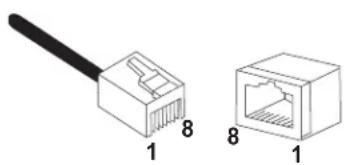
natural_image
Two Ethernet connectors shown in line drawings, labeled with pin numbers 1 and 8 (no text or symbols on the devices themselves)Figure 29. RJ-45 Connector and Port Pin Layout
Table 18 lists the RJ-45 connector pins and their signals when a 1000Base-T port is operating at 1000 Mbps.
Table 18. RJ-45 1000Base-T Connector Pinouts ^a
| Pin Pair Signal | ||
| 1 1 TX and RX+ | ||
| 2 1 TX and RX- | ||
| 3 2 TX and RX+ | ||
| 4 3 TX and RX+ | ||
| 5 3 TX and RX- | ||
| 6 2 TX and RX- | ||
| 7 4 TX and RX+ | ||
| 8 4 TX and RX- |
a. Bi-directional data on each pair.
Appendix A: Specifications
The fiber optic connector consists of a fiber optic plug and its adapter. The end of the fiber optic cable is held in the core of the ferrule in the plug. Light signals are transmitted through the core of the fiber. Even minor smudges or dirt on the end face of the fiber, completely invisible to the naked eye, can disrupt light transmission and lead to failure of the component or of the entire system. Therefore, it is of utmost importance to clean all fiber optic connectors before use.
Figure 30 shows the ferrule in an SC connector.
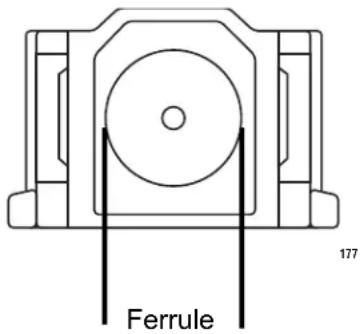
Figure 30. Ferrule in an SC Connector Plug
Figure 31 shows part of the end face of an unclean and clean ferrule.
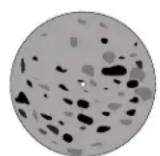

Unclean Clean
156
Figure 31. Unclean and Clean Ferrule
This appendix provides the following procedures
☐ "Using a Cartridge-Type Cleaner" on page 174
☐ "Using a Swab" on page 176
Using a Cartridge-Type Cleaner
Fiber optic cartridge cleaners are available from many vendors and are typically called “cartridge cleaners,” as shown in Figure 32.
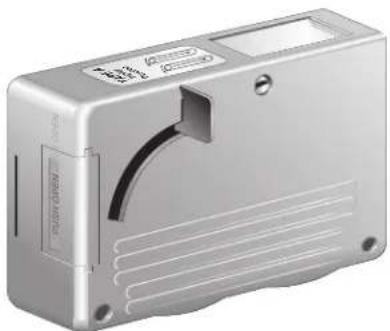
natural_image
Exterior view of a silver compact electronic device casing (no visible text or symbols)Figure 32. Cartridge Cleaner
Note
Do not use compressed air or aerosol air to clean a fiber optic connector.
To clean a fiber optic connector using a cartridge cleaner, perform the following procedure.
-
With one hand, hold the cartridge cleaner and push the lever on the cleaning cartridge in the direction of the arrow to expose the cleaning surface, as shown in Figure 33.
-
Place the ferrule tip on the exposed cleaning surface and rub the ferrule in a downward direction, as shown in Figure 33.
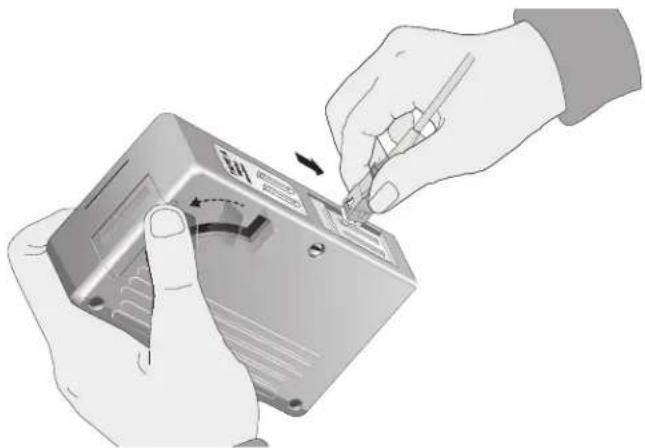
natural_image
Illustration of hands installing or adjusting a device component with a tool (no text or symbols visible)Figure 33. Rubbing the Ferrule Tip on the Cleaning Surface
Note
Rub the ferrule tip on the cleaning surface in one direction only.
- When you reach the end of the cleaning surface, pick up the ferrule tip, rotate and place it at the top and rub downwards at least 2 times.

Caution
Failing to pick up the ferrule tip when you reach the bottom of the cleaning surface can result in static electricity that can damage the fiber optic cable.
-
If desired, repeat steps 3 and 4.
-
If a fiber inspection scope is available, use the scope to inspect the ferrule end face to make sure that it is clean.
-
Reconnect the cable to the port or protect the ferrule tip with a dust cap.
Note
Always keep a dust cap on a fiber optic cable when it is not in use.
Note
Do not touch the end face of the ferrule in the connector.

Warning
Do not stare into the laser beam. ∞ L2

Warning
Do not look directly at the cable ends or inspect the cable ends with an optical lens. ∞ E29
Using a Swab
Specially treated swabs, known as stick cleaners, are available for cleaning inside connector adapters or hard-to-reach ferrule tips. These swabs, often referred to as "lint free" or "alcohol free" swabs, are available from many vendors, as shown in Figure 34. Stick cleaners are available in both 2.5 mm and 1.25 mm sizes for use on SC and MU connectors respectively.
Note
NEVER use a household cotton swab and/or alcohol to clean a fiber optic connector. This may leave a residue on the ferrule tip.
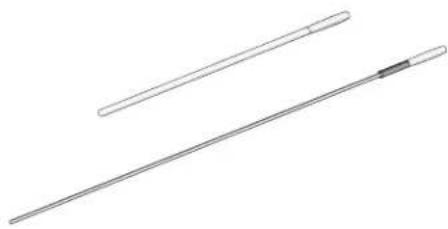
natural_image
Two elongated metal rods with a central pin, shown from different angles (no text or symbols)Figure 34. Lint-Free and Alcohol-Free Swabs
Note
Do not use compressed air or aerosol air to clean a fiber optic connector.
To clean a recessed ferrule using a swab, perform the following procedure.
- Insert the swab into the adapter as shown in Figure 33 and rub the ferrule tip with the swab.
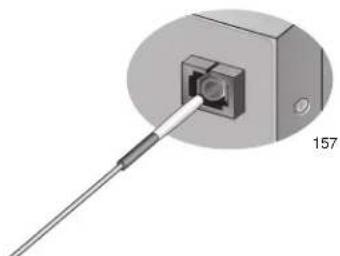
natural_image
Diagram of a connector with a cable inserted into a housing, labeled with number 157 (no text or symbols on the diagram itself)Figure 35. Cleaning a Recessed Ferrule
-
If desired, repeat step 1.
-
If a fiber inspection scope is available, use the scope to inspect the connector to make sure that it is clean and to check for scratches, pits, or other problems that may affect performance.
Note
Always keep a dust cap on a fiber optic cable when it is not in use.

Warning
Do not stare into the laser beam. ∞ L2

Warning
Do not look directly at the cable ends or inspect the cable ends with an optical lens. E29