RollerMouse Re:d - Ergonomic mouse BakkerElkhuizen - Free user manual and instructions
Find the device manual for free RollerMouse Re:d BakkerElkhuizen in PDF.


User questions about RollerMouse Re:d BakkerElkhuizen
0 question about this device. Answer the ones you know or ask your own.
Ask a new question about this device
Download the instructions for your Ergonomic mouse in PDF format for free! Find your manual RollerMouse Re:d - BakkerElkhuizen and take your electronic device back in hand. On this page are published all the documents necessary for the use of your device. RollerMouse Re:d by BakkerElkhuizen.
USER MANUAL RollerMouse Re:d BakkerElkhuizen
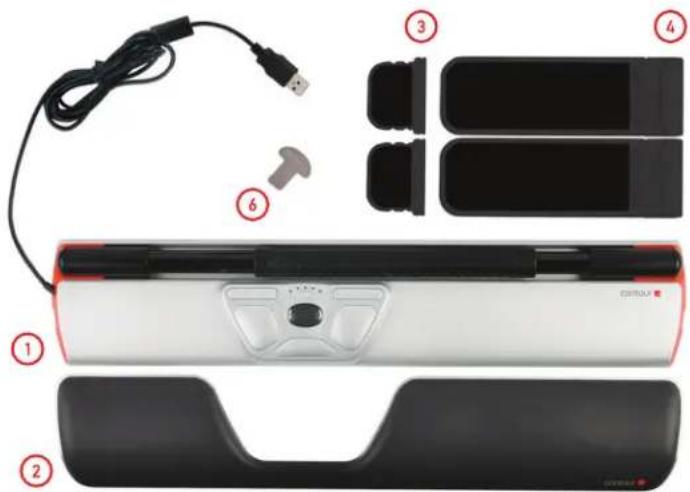
- RollerMouse Re:d
- Wrist rest
- Two short keyboard risers
- Two long keyboard risers
- User guide
- Wrist rest removal key
natural_image
Top-down view of a car interior showing steering wheel, dashboard, and seat (no text or symbols visible)5
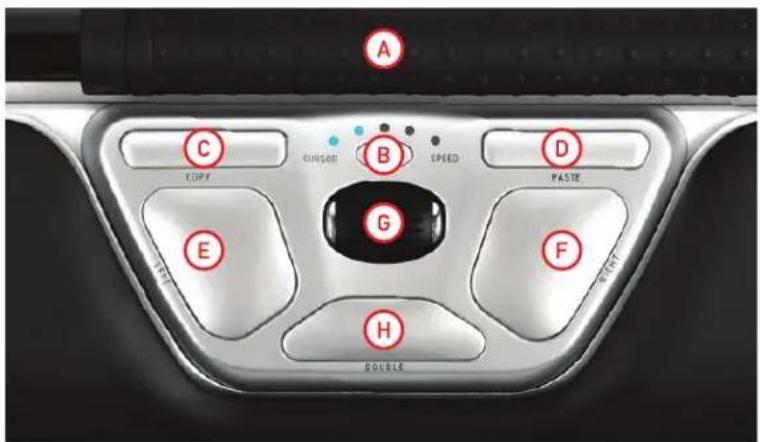
RollerMouse functions
A. Rollerbar
B. Cursor speed adjustment
C. Copy
D. Paste
E. Left-click
F. Right-click
G. Scroll wheel
H. "One touch" double-click
Keyboard positioning
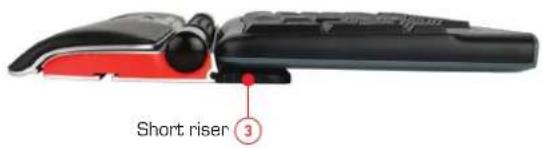
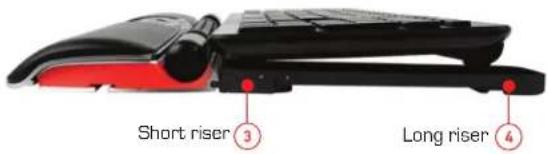
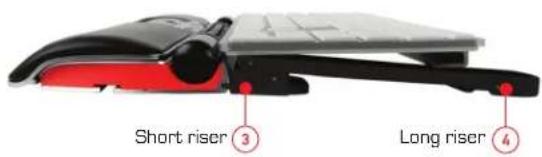
Before plugging in the unit take a moment to check the height and angle of your keyboard, and find the arrangement that's most comfortable for you. The package includes keyboard risers
③ ④ that can help you to achieve the correct angle and height regardless of the type of keyboard you are using. The spacebar on your keyboard should come just above your Rollerbar. To achieve a proper ergonomic position, the top of the keyboard should be level.
The following examples show three different ways of arranging the keyboard. These are typical configurations. Your set-up may vary.
Example 1 - Thick keyboard
Example 2 - Standard keyboard - top of long riser is level
Example 3 - Thin keyboard - top of long riser tilts down
Inserting the keyboard risers
natural_image
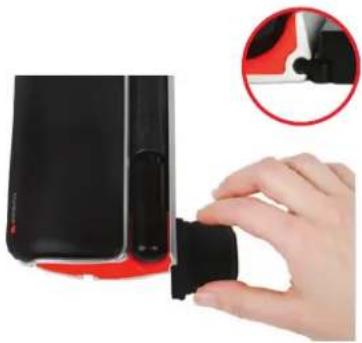
Close-up of a hand inserting a black plastic clip into a black plastic device, with an inset showing the same clip (no text or symbols visible)Fit the end of the short riser ③ into the slot on the back of the RollerMouse unit.
natural_image
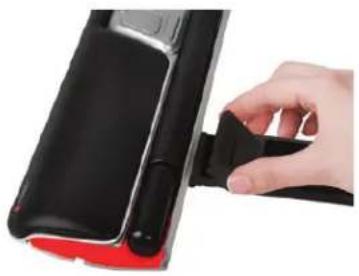
Close-up of a hand inserting a black cable into a black plastic device with red buttons (no text or symbols visible)Press the end of the long riser ④ over the top of the short riser.
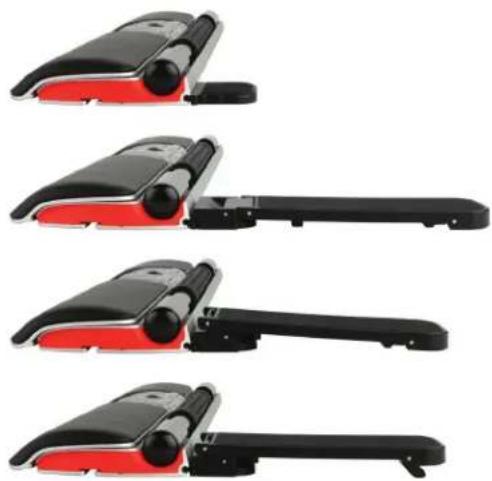
Adjust keyboard risers to preferred angle and height.
Connecting to a computer
natural_image
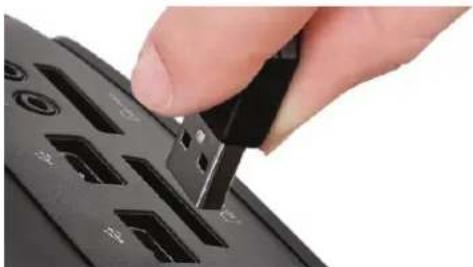
Close-up of a hand inserting a USB into a black device with multiple ports (no visible text or symbols)Plug the RollerMouse Re:d into your computer's USB port. Allow your computer a few seconds to automatically install it.
Using the Rollerbar
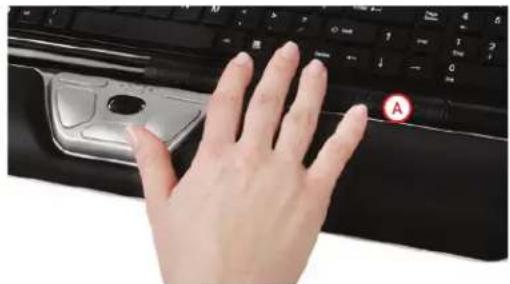
The Rollerbar A provides two functions:
- Pressing down on the Rollerbar performs a left-click.
- Moving the Rollerbar side to side and up and down performs cursor movement.
natural_image
Close-up of a hand pressing on a black keyboard with a red circular icon labeled 'A' (no text or symbols on the keyboard)Changing cursor speed
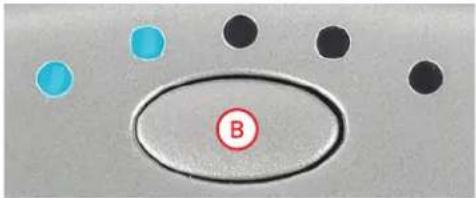
Press button B to change cursor speed. There are five speed selections from slow to fast that are indicated by the LEDs.
Rollerbar click force adjustment
Click force refers to how hard or soft it is to click the Rollerbar.
To change the click force, press and hold both the E and the B button for two seconds, the LED light will show current click force setting. While continuing to hold button E release button B and use scroll wheel G to change click force setting. Let go of E to select click force setting.
Note: The Rollerbar click function can be turned off using the above adjustment method, by moving the scroll wheel until all LEDs are lit.
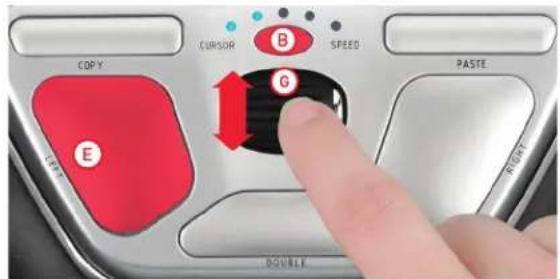
Click volume adjustment
To change the click volume setting, press and hold both the and the button for two seconds, the LED light will show current click volume setting. While continuing to hold button release button and use scroll wheel to change click volume setting. Let go of to select click volume setting.
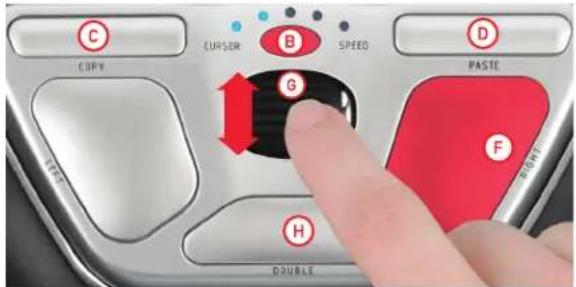
Changing the 'Double' Click button to Middle Button Function
To change button H from double click function to a middle button function, hold button B and H for two seconds until LEDs flashes to confirm. Repeating this process will revert back to double click function.
Adjusting to Mac operating systems
The Copy and Paste buttons on your RollerMouse can be adjusted for use with Mac operating systems. To switch to Mac mode press and hold C and D buttons for two seconds. The right-most LED will flash to indicate RollerMouse is in Mac mode. Repeating this process will revert back to Windows mode. The left-most LED will flash to indicate Windows mode.
Wrist rest
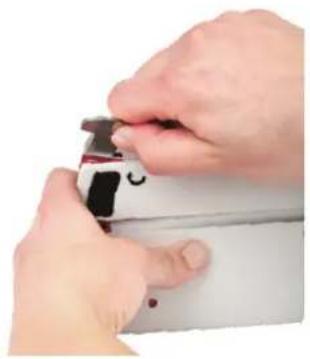
We recommend that you use the wrist rest ②, however, if for any reason you would like to remove the wrist rest, lift the front edge of the RollerMouse and rest it in your left hand. Fit the wrist rest removal key ⑥ into the slot at the right end of the unit and twist the key counter-clockwise.
To install the wrist rest after removal, snap it into the slot on the front edge of your RollerMouse Re:d.
natural_image
Close-up of hands using a spray gun to apply liquid onto a white surface (no text or symbols visible)