Office 54 - Porte-documents BakkerElkhuizen - Free user manual and instructions
Find the device manual for free Office 54 BakkerElkhuizen in PDF.


| Type de produit | Porte-documents (Document Holder) |
| Marque | BakkerElkhuizen |
| Modèle | Office 54 |
| Matériau principal | Plastique ABS avec base antidérapante |
| Dimensions (L x P x H) | 370 x 250 x 30 mm |
| Poids | 0,6 kg |
| Capacité de charge maximale | 2 kg |
| Nombre de compartiments | 2 (principal + pochette avant) |
| Réglage en hauteur | 3 positions inclinables |
| Alimentation | Aucune (dispositif mécanique) |
| Utilisation recommandée | Bureau, télétravail, classeur |
| Entretien et nettoyage | Essuyer avec un chiffon doux et sec ; éviter les solvants |
| Consignes de sécurité | Ne pas exposer à des températures extrêmes ; tenir éloigné des enfants |
| Garantie | 2 ans |
| Pièces détachées disponibles | Bases de rechange, patins antidérapants |
| Réparabilité | Conception modulaire, démontable pour réparation |
| Informations générales | Conçu pour un usage professionnel, compatible formats A4 et Letter |
Frequently Asked Questions - Office 54 BakkerElkhuizen
User questions about Office 54 BakkerElkhuizen
0 question about this device. Answer the ones you know or ask your own.
Ask a new question about this device
Download the instructions for your Porte-documents in PDF format for free! Find your manual Office 54 - BakkerElkhuizen and take your electronic device back in hand. On this page are published all the documents necessary for the use of your device. Office 54 by BakkerElkhuizen.
USER MANUAL Office 54 BakkerElkhuizen
Table of the Contents
About This User's Manual....2
Notes for This Manual 2
Safety Information .... 3
Care and Cleaning 3
- Product Introduction...... 4
Package Contents 5
Tablet 6
Digital Pen 8
- Getting Started .... 10
Installation 11
Windows 11
Mac OS....13
Configuration 16
Windows....16
Mac OS....27
- Using the Tablet 38
Holding the Pen 39
Working Area 40
Positioning 41
Clicking 42
Dragging 43
Pressure Control 44
- Using the Bundled Software ..... 45
System Requirements 46
Introduction to Tablet Software ..... 47
Supporting Operating Systems ...... 48
Installing Tablet Software 49
Uninstalling Tablet Software .... 51
- Specification Summary ..... 52
Tablet 53
Digital Pen 54
Testing your device 56
FAQ 58
Service and Technical Support ...... 60
Driver Download 61
Appendix 62
Declarations and Safety Statements ... 63
FCC 63
CE....63
Ordering Components and
Accessories 64
Copyright Information 65
Limitation of Liability 66
About This User's Manual
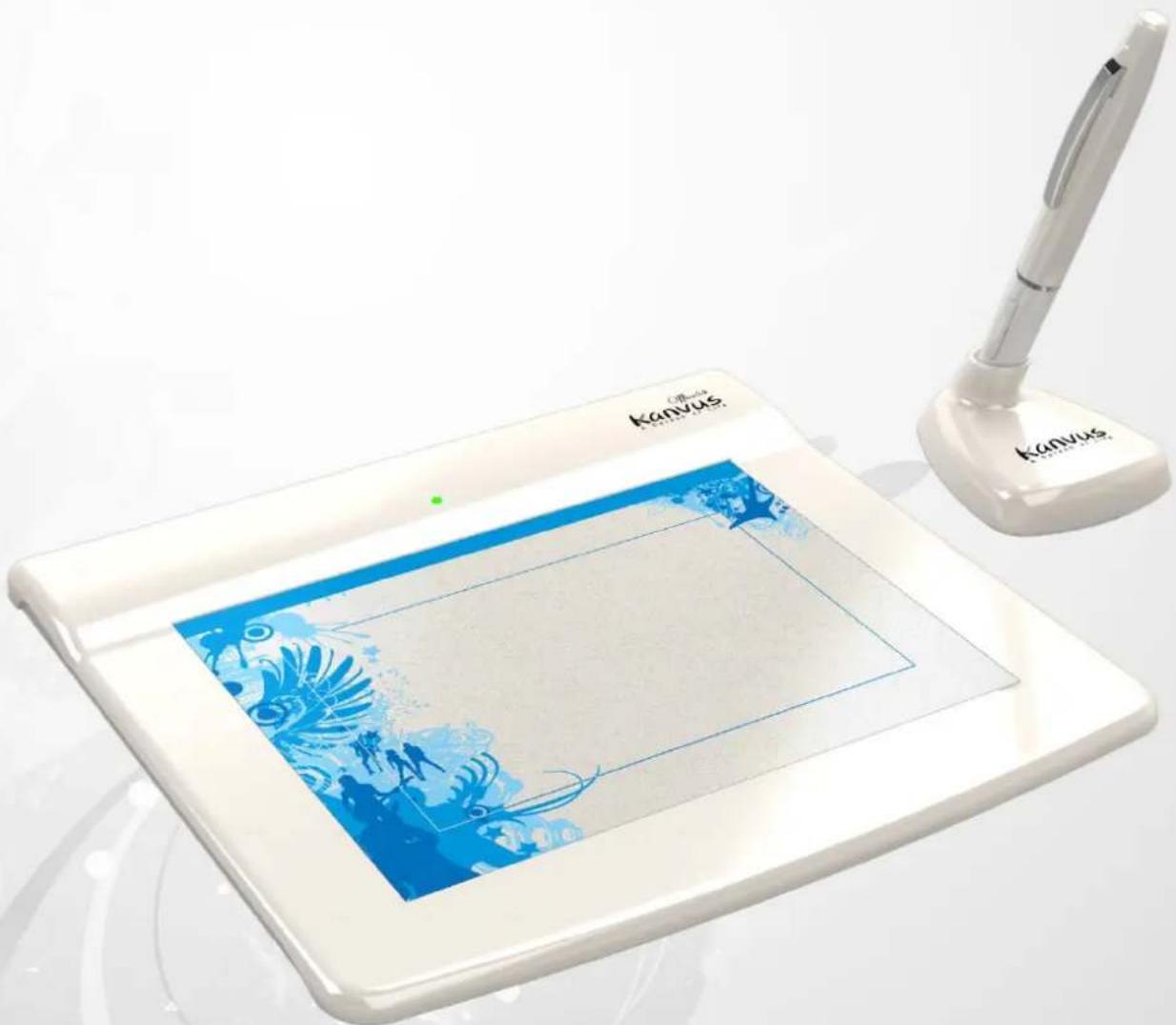
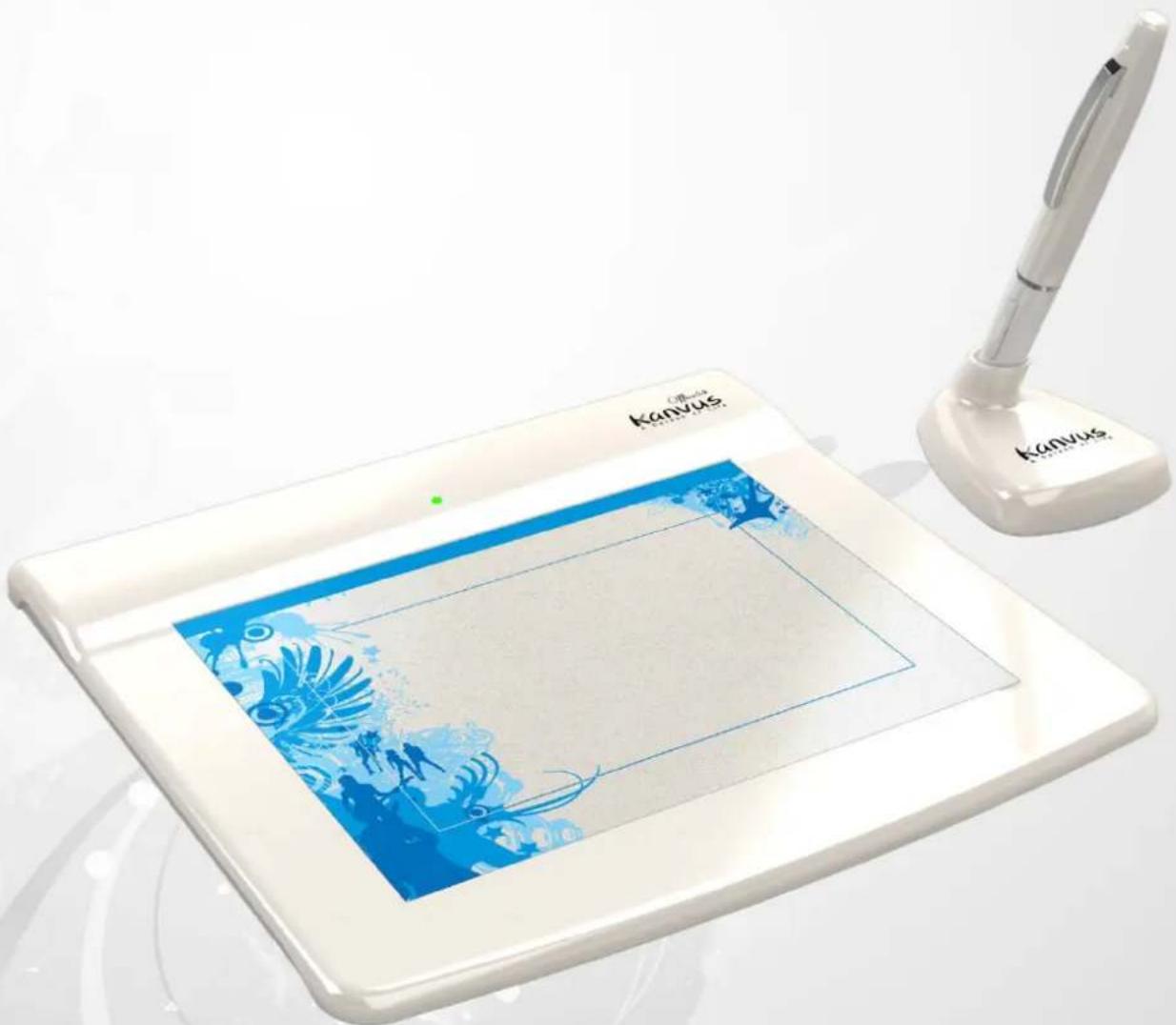
You are reading the Kanvus Office 54 Graphic Tablet User Manual. This Manual provides information regarding the components in the Kanvus Graphic Tablet and how to use them. The following are major sections of this User's Manual :
1. Product Introduction
Provides information on the Kanvus Graphic Tablet's components.
2. Getting Started
Provides information on getting started with the Kanvus Graphic Tablet.
3. Using the Tablet
Provides information on using the Kanvus Graphic Tablet.
4. Using the Bundled Software
Provides information on using the Kanvus Graphic Tablet's utility.
5. Specification Summary
Gives you specifications summary of Kanvus Graphic Tablet.
6. Troubleshooting
Provides information on Kanvus Graphic Tablet, where you can find the answers to most common questions.
Notes for This Manual
A few notes and manuals are used throughout this guide, allowing you to complete certain tasks safely and effectively.
1.

WARNING
Important Information that must be followed for safe operation.
2.

IMPORTANT
Vital information that must be followed to prevent damage to data, components, or persons.
3.

TIP
Tips for completing tasks.
4.

NOTE
Information for special situations.
Safety Information
Adhering to the following safety information will prolong the life of the Tablet.
- DO NOT try to open the housing of the tablet and the digital pen. It will void your warranty.
- DO NOT expose to or use near liquids, rain, or moisture.
- DO NOT place or drop objects on top of the Tablet.
- DO NOT expose to strong magnetic or electrical fields.
- DO NOT throw the Tablet in municipal waste. The product has been designed for proper reuse and recycling of parts. The symbol of the crossed-out wheeled bin indicates that the product should not be placed in municipal waste. Check your local regulations for disposal of electronic products.
Care and Cleaning
- DO NOT expose to dirty or dusty environments to avoid wearing-down the surface of the tablet.
- Regular cleaning of the tablet surface with a soft cloth will help expand the life span of your tablet. DO NOT use any kind of volatile liquid on the tablet surface, as it will damage the plastic case.
- Store your tablet and the pen in a clean, dry place and avoid extreme temperatures.
1. Product Introduction
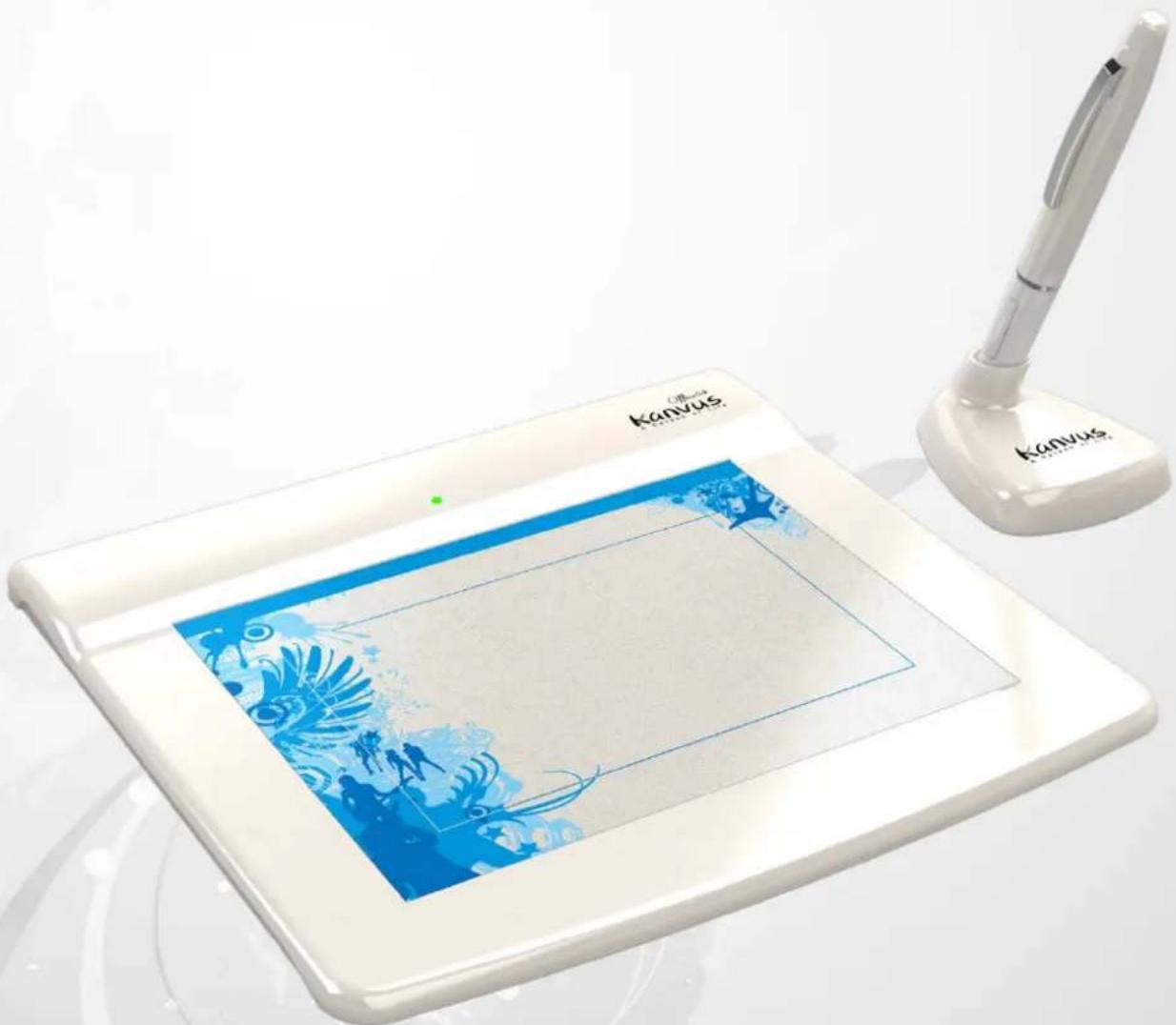
natural_image
White digital tablet with blue floral design and a white pen beside it (no visible text or symbols on the device itself)-Package Contents
-Tablet
-Digital Pen
Package Contents
Check your package for the following items.
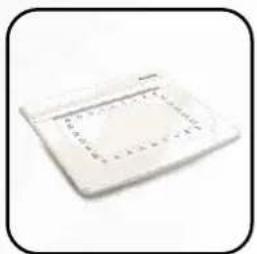
natural_image
White rectangular electronic device with a dotted square outline on its surface (no visible text or symbols)● Kanvus Office 54 Digital Tablet
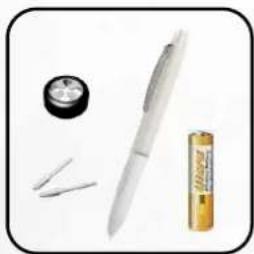
natural_image
Assorted items including a pen, inkwell, and cylindrical battery (no visible text or symbols)- Digital Pen & 1.5V AAA Battery & Refills & Pen Clip
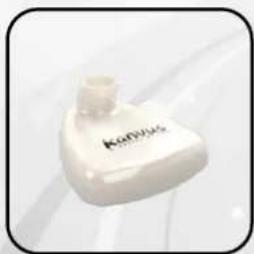
natural_image
White medical device labeled 'Kapitus' with a small protrusion, shown against a light background (no additional text or symbols visible)- Pen Stand
natural_image
Blue floral border on white background, no text or symbols present• Office Canvas Cover

- Installation CD

- Canvas Tutorial DVD

- Quick Guide
Tablet
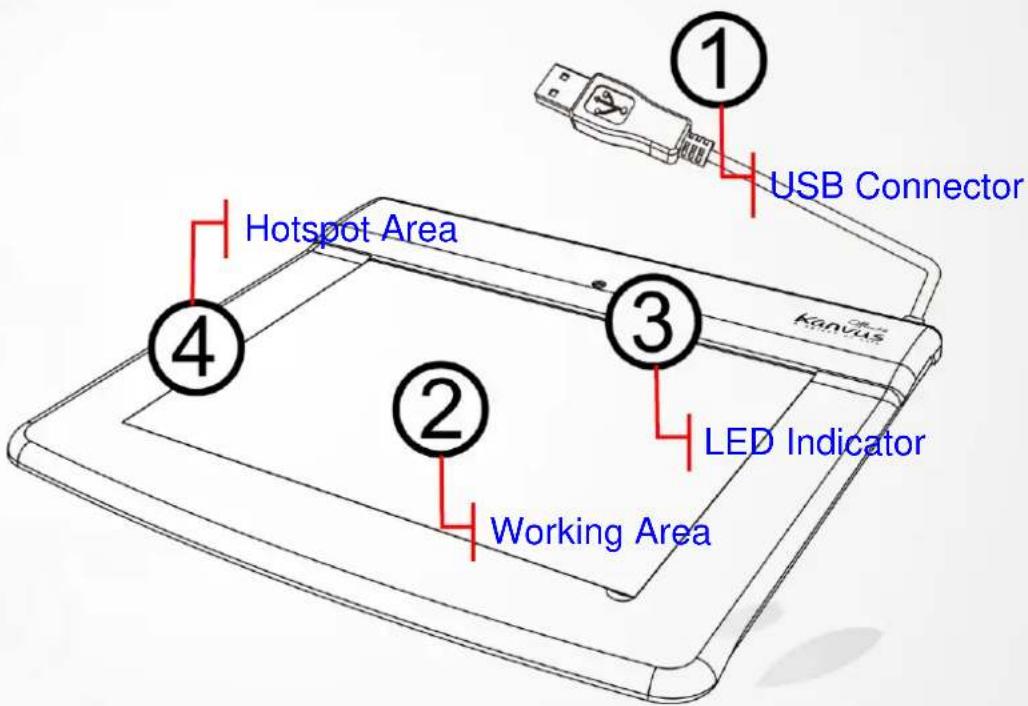
Refer to the picture below.
Descriptions
① — USB Connector : Connect to a USB port on your PC.
② — Working Area : Please refer to Working area section for detail descriptions.
③ — LED Indicator : The green LED light on the tablet is the main indicator for hardware operation. This LED normally stays off, and will only be turned on/off in response to certain conditions. Pay attention to the states of the LED when you are encountering the following situations :
(a) A built-in power saving function would execute the power saving mode for the pen if it is left unused for a period of time. Tap anywhere on the surface with the tip of the pen to “wake it up” if it has gone into power saving mode.
(b) When the pen tablet is re-activated, the LED light will go on for a moment, and will then turn off again.
(c) When the tablet detects the digital pen, the LED will blink slowly. This happens when the pen tip is idling or is being placed within the working area on the tablet.
(d) When you press a button on the pen barrel, the LED light will be turned on.
(e) Moving the pen around the working area will cause the cursor on the screen to move accordingly.

After the tablet's device driver has been properly installed, a small tablet icon will appear in the System Tray, which is normally at the lower right corner of the desktop.
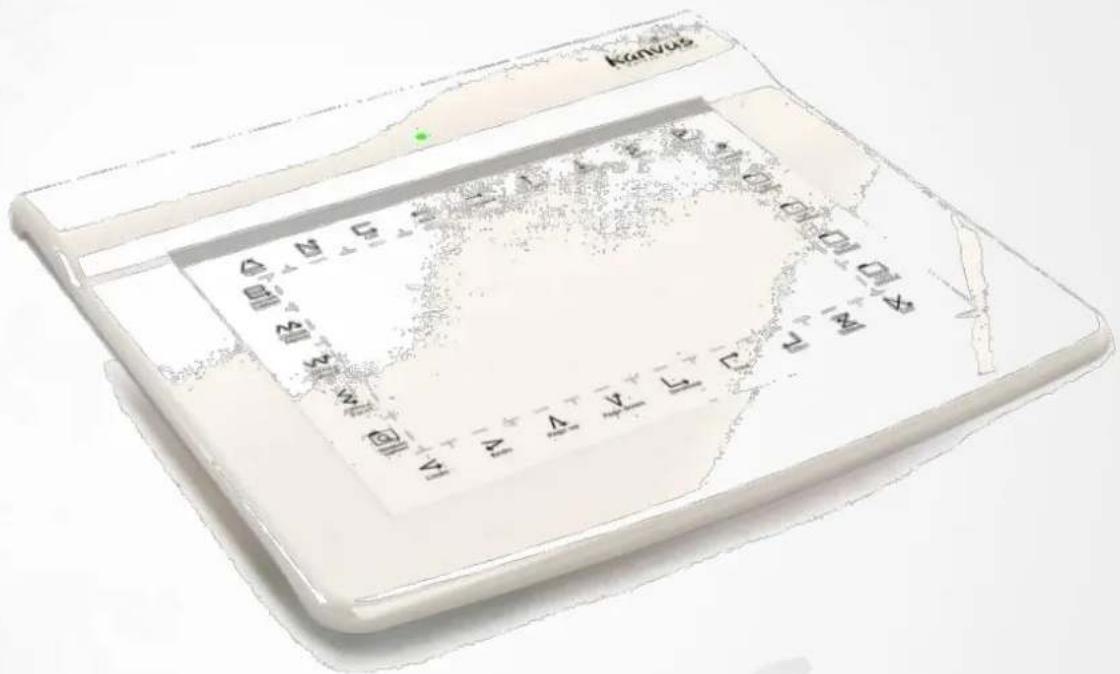
(4) — Hotspot Area : The hotspot area is located at the edge of the working area. A hotspot is used as a hot key. Press the hotspot to start a default or user-defined application or function.
Digital Pen
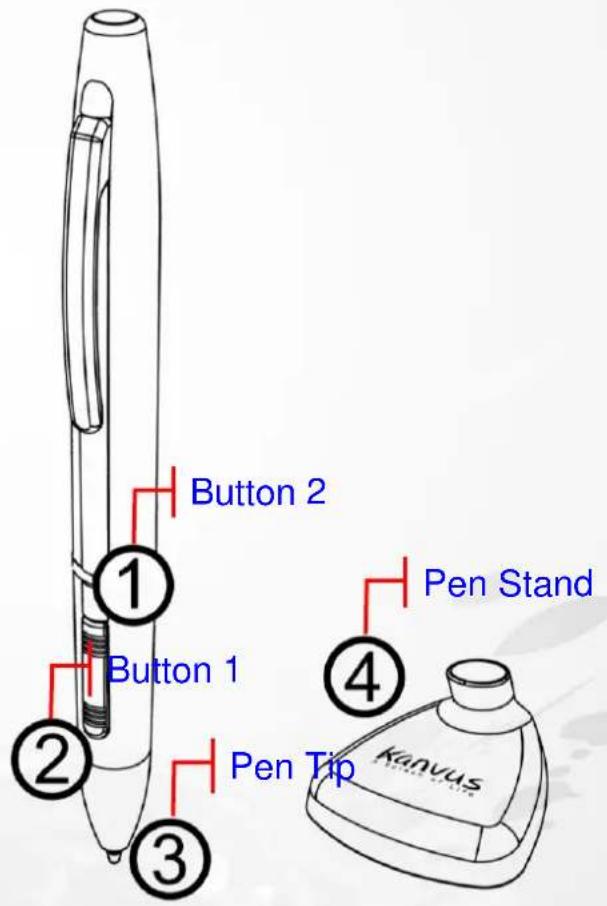
Refer to the pictures below.
Descriptions
① — Button 2 : This button functions as the Right Click of the mouse (by default).
② — Button 1 : Functions like the scroll of the mouse, you can move up/down/left/right (by default).
(3) — Pen Tip: It is a pressure-sensitive freehand tool for image editing and creating pen strokes similar to real handwriting. Tap the Pen tip on tablet acts as the Left Click of the mouse (by default).
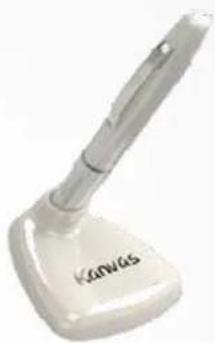
④ — Pen Stand : Use the Pen stand to store the pen between tasks.
natural_image
White Lenovo stand with a metallic handle and base (no visible text or symbols)
Please refer to Configuration section for more detail settings.
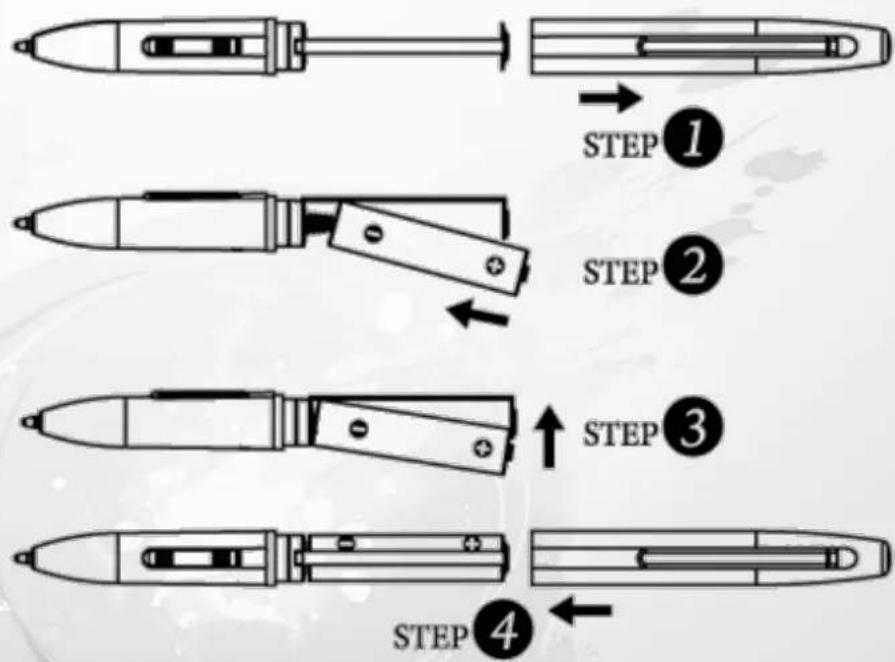
Changing the battery
flowchart
graph TD
    A["Step 1: Screen with handle"] --> B["Step 2: Folded pen with handle"]
    B --> C["Step 3: Inserted pencil with handle"]
    C --> D["Step 4: Reformed pencil with handle"]

The power saving mode will be activated if the pen is left unused for about 3 minutes. To wake the pen up, please press the pen tip once anywhere on the surface before you start writing again.
2. Getting Started
natural_image
Digital drawing tablet with blue floral design and a white canvas, next to a white stand with a pen (no visible text or symbols on the device itself)-Installation
-Configuration
Installation
Windows
Installing the Driver Software on Windows
Please follow the installation instructions below for Microsoft Windows XP, Vista and 7 operating systems :
- Insert the packaged installation CD into CD-ROM drive.
- The main installation window will appear automatically. If not, please start the installation manually by opening 【My Computer】▶【CD/DVD ROM】▶ then click on the 【Autorun】 program.
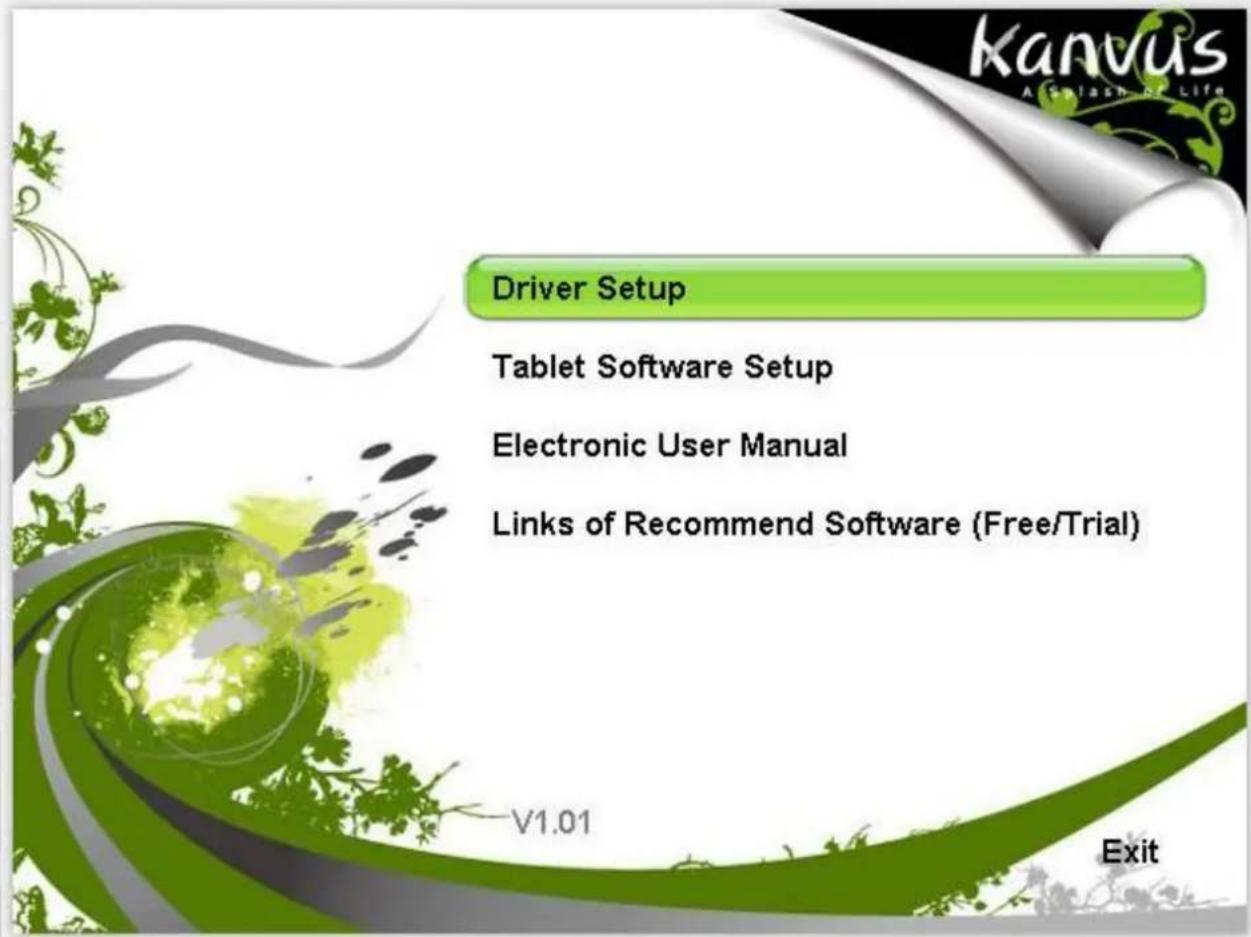
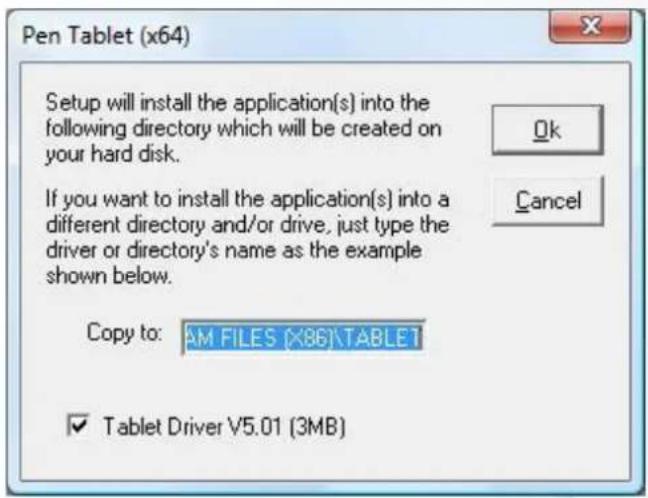
- When installing the driver, please follow the installation instructions on screen and press the "Enter" key for each step. After the installation is completed, please reboot the computer (recommended).
Hardware Installation
Connect the tablet to a PC via an available USB port, after you have installed the driver and rebooted your PC.

Driver must be installed before you connect the device.
Mac OS
Installing the Driver Software on Mac OS
Please follow the steps below to install the driver :
- Place Tablet CD into the CD-ROM drive.
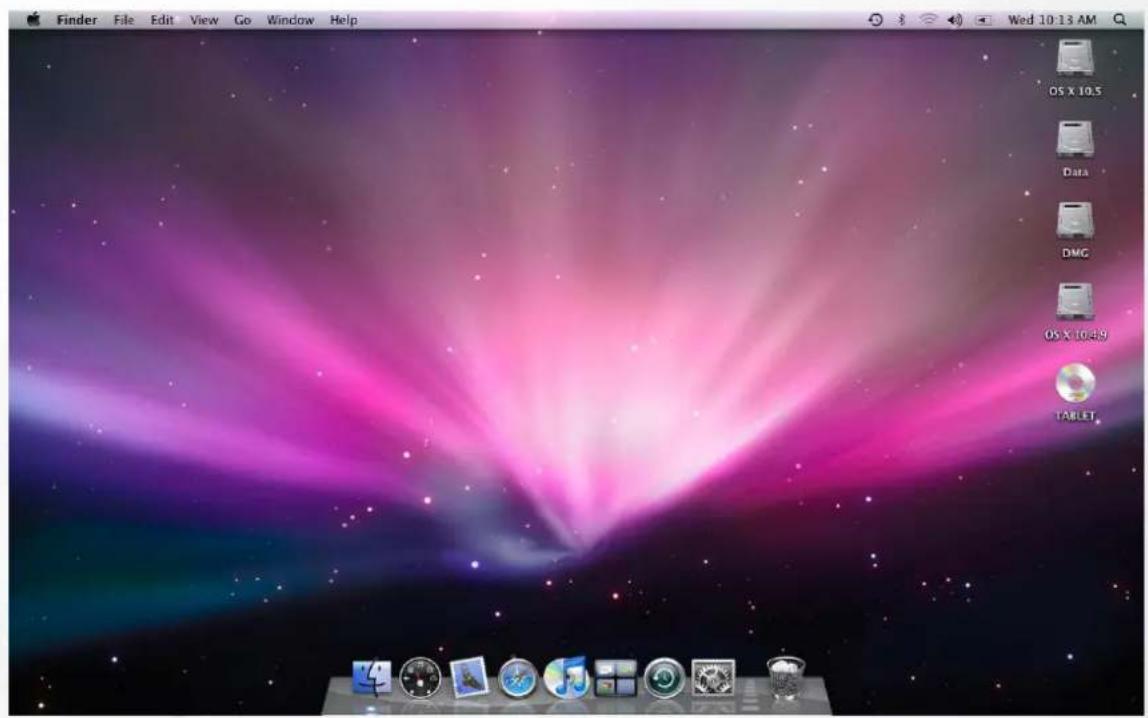
- Click "DriverSetup" on the TABLET window.
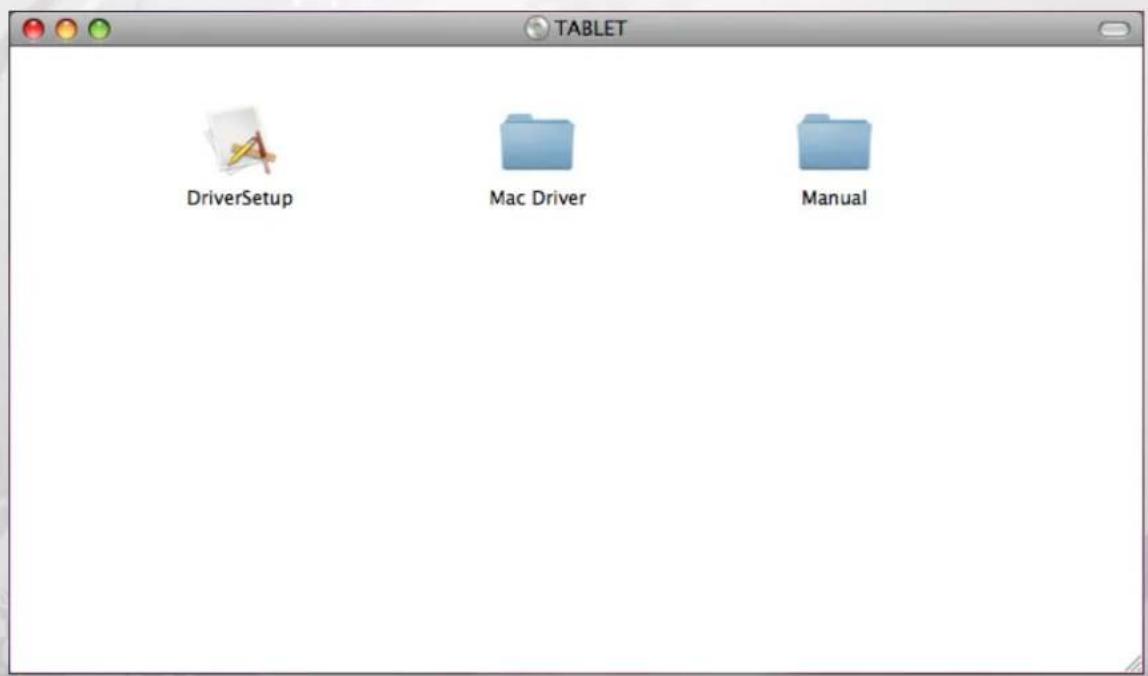
- Choose "Driver Setup" when the "Setup Items" dialog box appears.
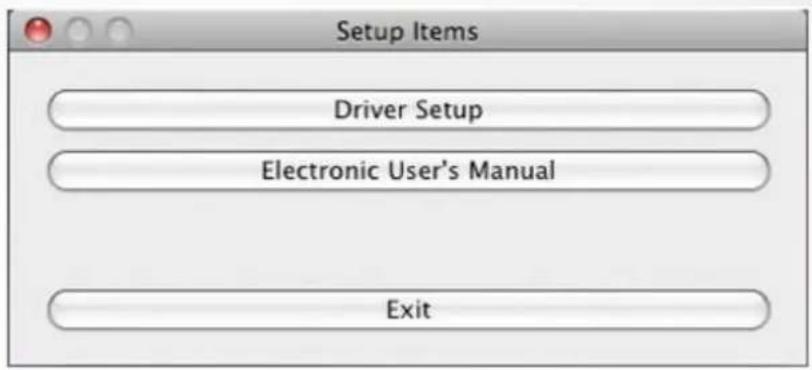
- Key-in your name and password (Mac computers require username and password).
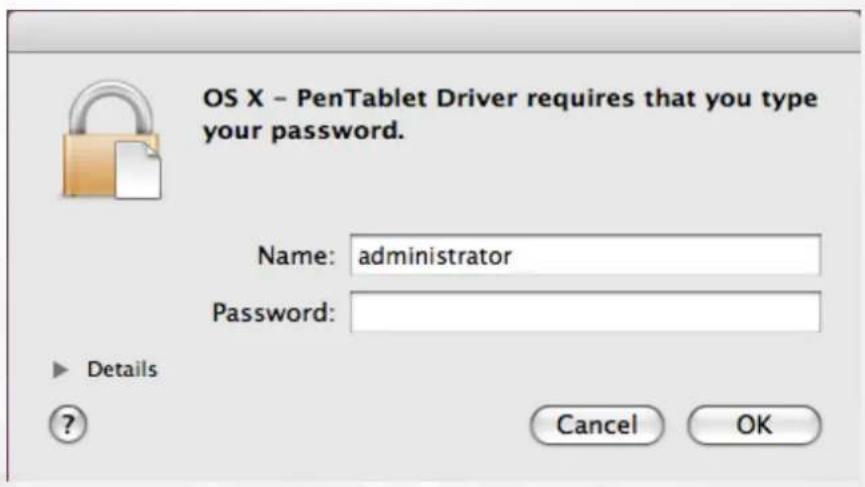
- Click "Install" when the "OS X - PenTablet Driver" message appears.
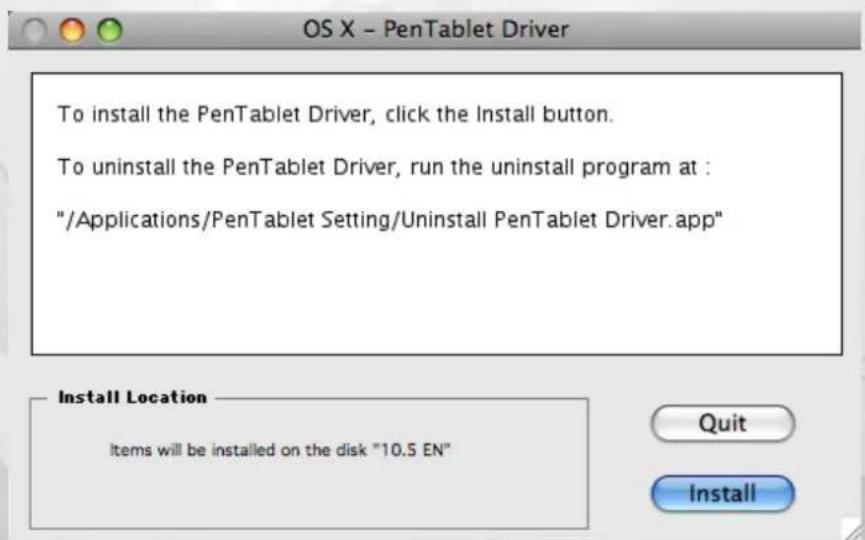
- Click "Quit" once the system message showed that "The software was successfully installed".

The software was successfully installed.
Quit
Hardware Installation
Connect the tablet to a PC via an available USB port, after you have installed the driver and rebooted your PC.

Driver must be installed before you connect the device.
Configuration
Windows
To configure your tablet, please press 【Start】▶【Settings】▶【Control Panel】, and double-tap the【Tablet Setting】icon.
Or tap on the tablet icon ( ) in the System Tray (located at the lower right corner of the screen).
There are 5 tabs : Info, Button, Scope, Hot Cells, Pressure.
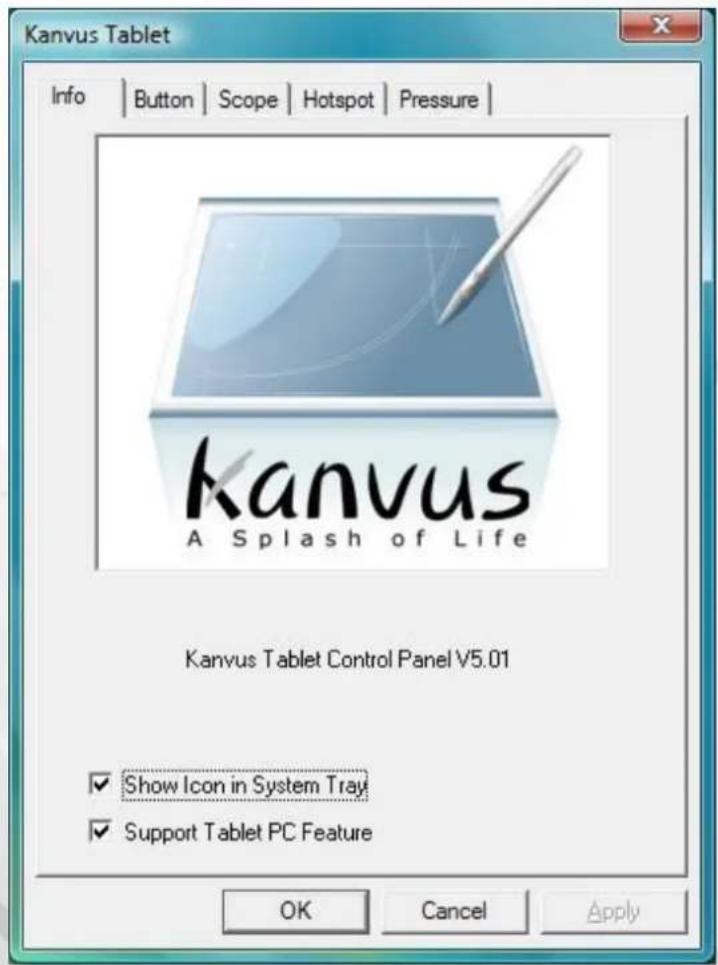
1. Info
The Info tab displays the version number of the driver and Tablet PC function.
(1) Show Icon in System Tray : Tick the box beside it if you want to show the tablet icon (12) in the system tray.
(2) Support Tablet PC Feature : Tick the box Support Tablet PC Feature to enable the Tablet PC function of pressure sensitivity.
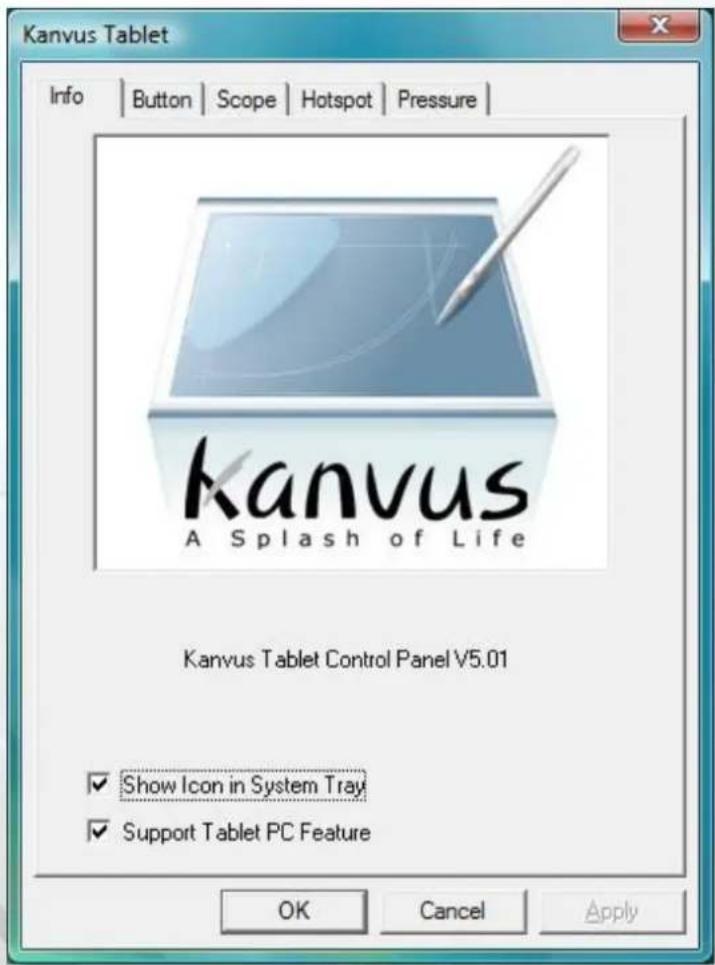

Once the Tablet driver is installed in Windows, the Tablet PC setting will support pressure in MS Journal, OneNote (2003, 2007) etc.

Even when the Tablet PC setting is disabled, the pen pressure for most of the art software packages (Photoshop, Illustrator, Corel Painter) will still be working, but the pen pressure will not function in MS Journal, OneNote (2003,2007) etc.
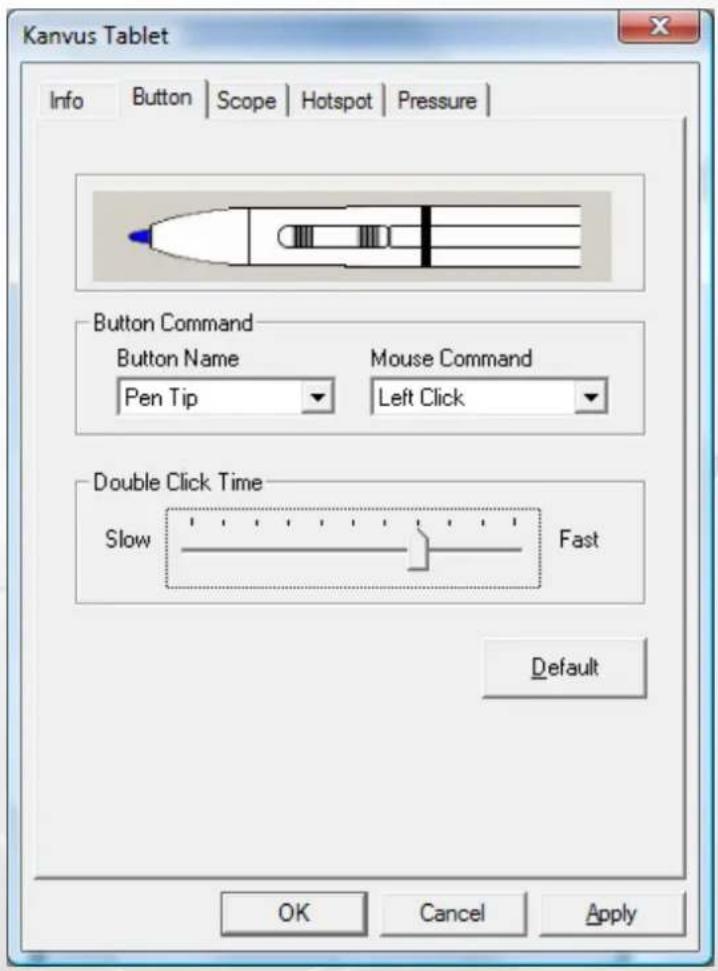
2. Button
(1) Button Name
You may configure the functions of Pen Tip, Barrel Button 1 and Barrel Button 2 by clicking the drop-down menu for Button Name. Assign a command according to the Mouse Command list.
You can select No Action, Left Click, Left Double Click, Middle Click, Middle Double Click, Right Click, or Right Double Click.
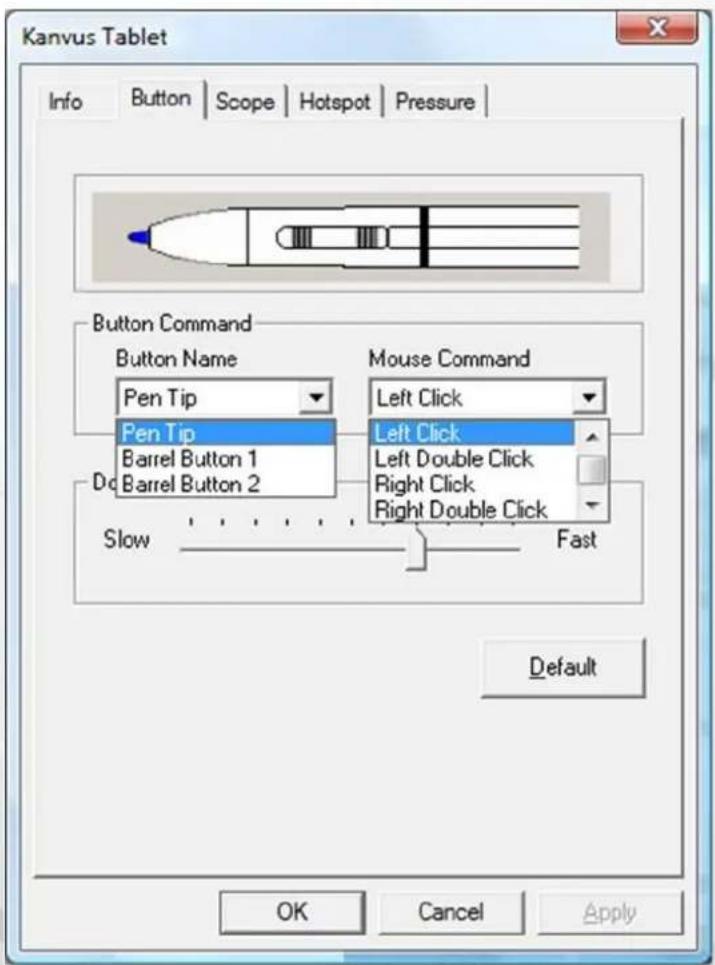

The Mouse Command is based on the three-button mouse model.
(2) Double Click Time
Move the cursor towards “Slow” if you want a slower double-tapping time with the Pen Tip, or move towards “Fast” if you want it faster. You can achieve the same setting if you go to the Double-click Speed page displayed by selecting 【Start】▶【Control Panel】▶【Mouse】▶【Buttons】, which allows you to adjust the speed setting.
(3) Default
Tap on the "Default" button to return to the factory default setting.
3. Scope
(1) Full Area
Tap on the "Full Area" button to enable the full working area.
![Kanvus Tablet Info | Button | Scope | Hotspot | Pressure | Pen Area Full Area Screen Ratio Reserve Edges 0.16 Inch Pen Area Dimensions : Width [X] 4.83 Inch Height [Y] 3.33 Inch Pen Area Offset : Offset [X] 0.00 Inch Offset [Y] 0.00 Inch OK Cancel Apply](/content/2026/06/1185583/images/3886d0015aea9b655771e706098882634aef0fe21e2807377106acbd52a591b8.jpg)
(2) Screen Ratio
Set the tablet screen ratio. The screen ratio you set will then be the screen size of your working area.
![Kanvus Tablet Info | Button | Scope | Hotspot | Pressure | Pen Area Full Area Screen Ratio Reserve Edges 0.16 Inch Pen Area Dimensions : Width [X] 4.83 Inch Height [Y] 3.02 Inch Pen Area Offset : Offset [X] 0.00 Inch Offset [Y] 0.16 Inch OK Cancel Apply](/content/2026/06/1185583/images/b65824085c0139a5a7b79347d0f675e06393b4da422b7fecd96f67fbb6562504.jpg)
(3) Reserve Edges
Tap on the "Reserve Edges" button to allocate spaces for the tablet's hotspots.
![Kanvus Tablet Info | Button | Scope | Hotspot | Pressure | Pen Area Full Area Screen Ratio Reserve Edges 0.16 Inch Pen Area Dimensions : Width [X] 4.51 Inch Height [Y] 3.01 Inch Pen Area Offset : Offset [X] 0.16 Inch Offset [Y] 0.16 Inch OK Cancel Apply](/content/2026/06/1185583/images/bd67e7aa6d6c478bde10e0503b6a990fda583cd7780231b40776ab62e0c60904.jpg)
(4) Pen Area Dimensions
This indicates the current height and width in the Pen Area Dimensions. Enter new values here if you wish to change the dimensions of the pen area.
![Kanvus Tablet Info | Button | Scope | Hotspot | Pressure | Pen Area Full Area Screen Ratio Reserve Edges 0.16 Inch Pen Area Dimensions : Width [X] 2.00 Inch Height [Y] 1.50 Inch Pen Area Offset : Offset [X] 0.14 Inch Offset [Y] 1.67 Inch OK Cancel Apply](/content/2026/06/1185583/images/18ead5e2b517cc3a360b455341a678c336cb2fa6d46943e4efe7766925adbd60.jpg)
(5) Pen Area Offset
This indicates the horizontal and vertical distances from the upper left corner of the Pen Area to the upper left corner of the maximum Pen Area. Enter new values by typing in numbers or clicking the up/down arrows if you wish to adjust the offset distance.
![Kanvus Tablet Info | Button | Scope | Hotspot | Pressure | Pen Area Full Area Screen Ratio Reserve Edges 0.16 Inch Pen Area Dimensions : Width [X] 4.51 Inch Height [Y] 3.01 Inch Pen Area Offset : Offset [X] 0.16 Inch Offset [Y] 0.32 Inch OK Cancel Apply](/content/2026/06/1185583/images/47a1262bffc66a60a3ba3cf2fb8e05963af6b507bc3ee9683285dfe8cb5f6d58.jpg)
4. Hotspot
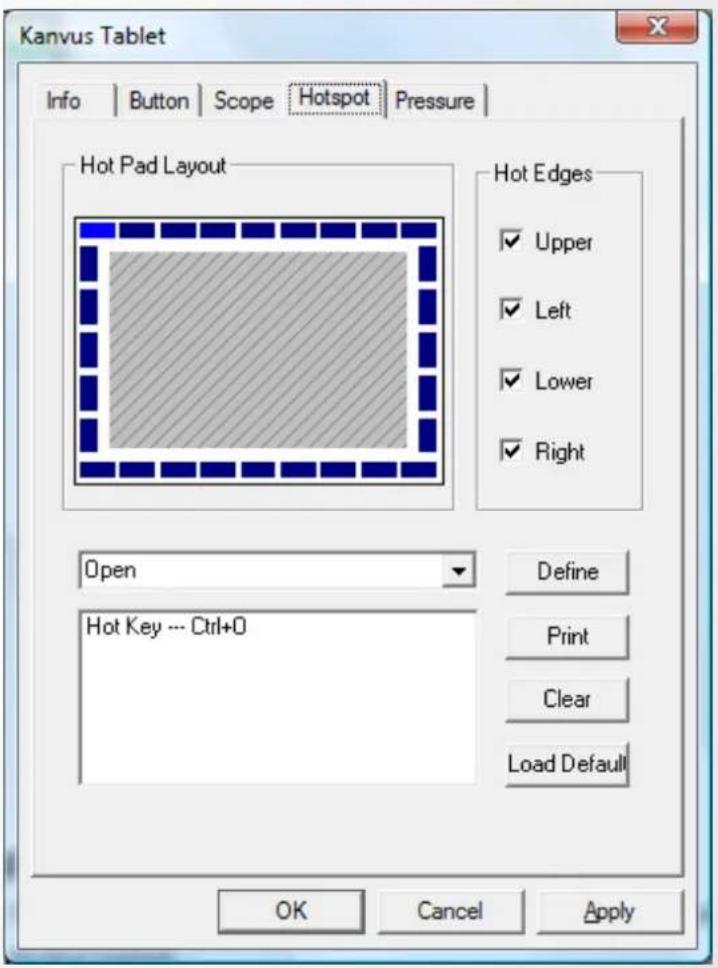
(1) Hot Pad Layout
You can see the properties of the hot keys by clicking the blue blocks at the edges of the digital tablet.
(2) Hot Edges
There are four edges around the tablet for you to allocate the hot keys.
(3) Define
Press the Define key to configure hotspots for running programs, the Internet or hot keys.
(a) Define Hotspot – Run
Run – You may use the browse button to select a file and run it, or you may type in a file name with complete the path.
Start in – This is the initial folder from where the program starts to run.
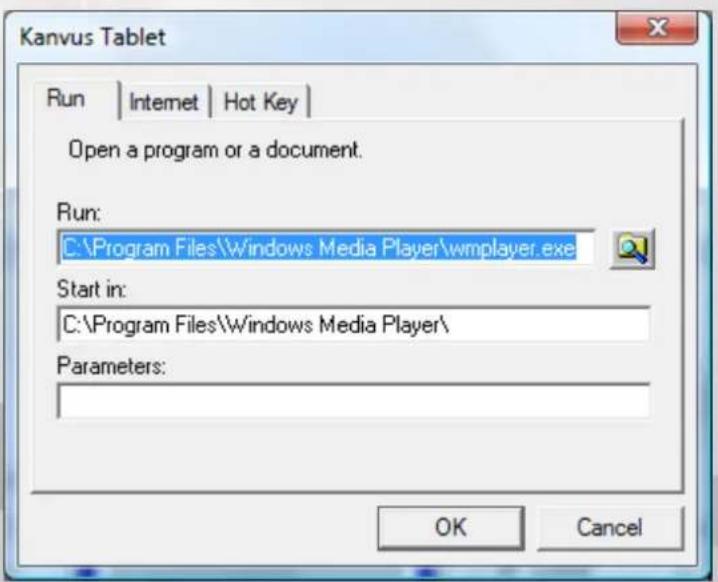
Parameters – The string type will be passed to the program as parameters. For example, you may type in a document name here and it will be passed to a word processing program. Then it will be run as the Run option above.
(b) Define Hotspot – Internet
Kind of Service – You can select some Internet services, for example, browsing a website, newsgroup, sending an E-mail, or using other Internet services. The exact program to be initiated (for example, the
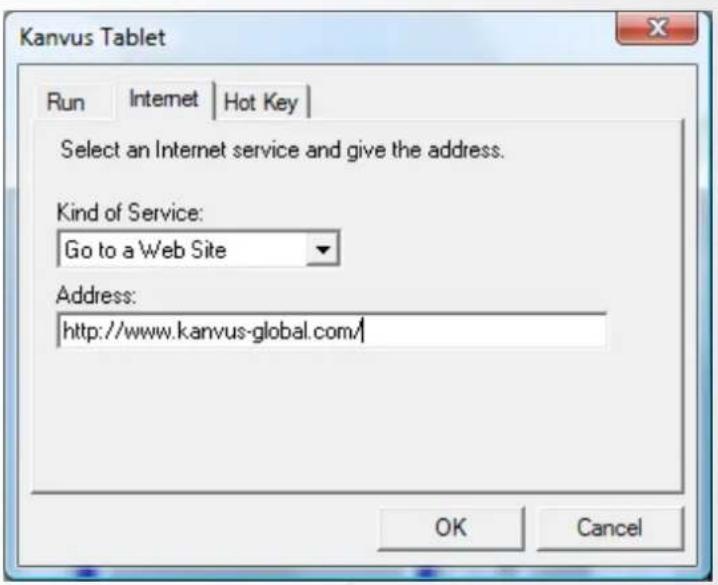
browser program) depends on the system settings.
Address – The URL address for the selected service. For example, the Website or e-mail addresses.
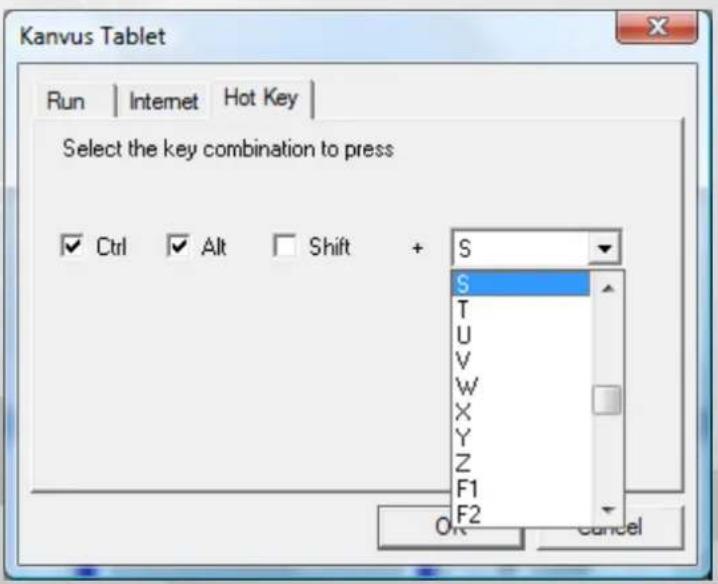
(c) Define Hotspot – Hot Key
Configure the key combination –
You may select any key such asalphabet, numeric key or cursorcontrol key, to be combined withShift, Ctrl and / or ALT key.
(4) Print
Tap on the "Print" button to print an overview of all hot spot functions.
(5) Clear
Tapping on this button will clear up the definition of the selected Hotspot, so no action will be taken when the Hotspot is tapped later on.
(6) Load Default
Return to original default.
5. Pressure
(1) Pressure Test
You can click the slide bar below to adjust pressure sensitivity and there are 4 color choices for the pen : Black, Red, Green and Blue. There is a Pressure Test area to see the thickness of a line for a certain sensitivity of the pen tip on the tablet pad. The numerical value of the pressure level is shown in a box above the "Clear" button.
(2) Clear
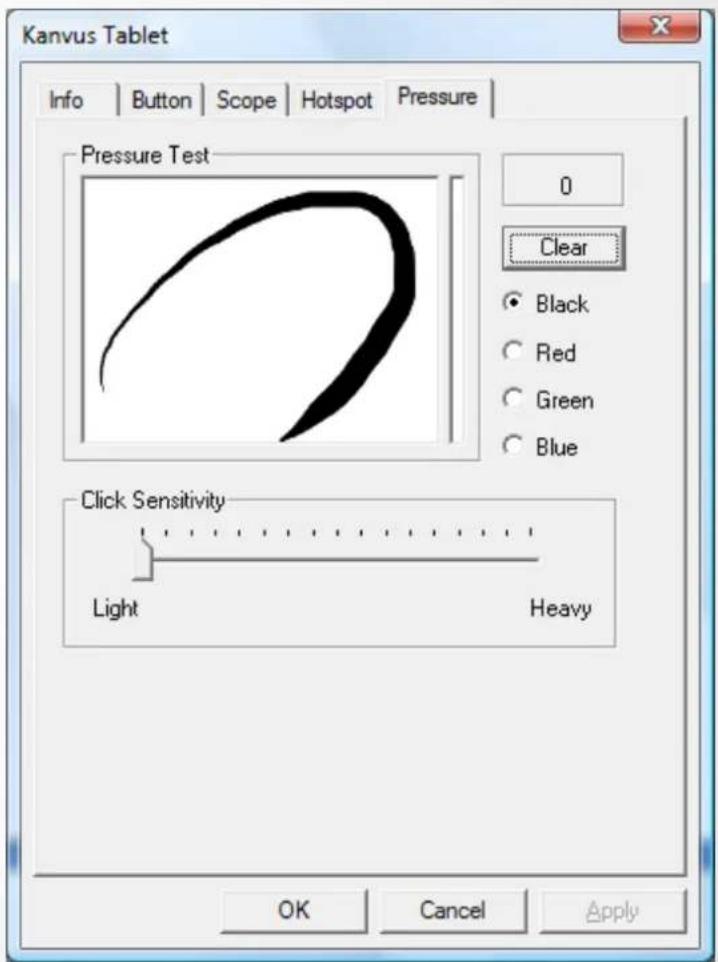
Tap on the "Clear" button to clean up the space in the Pressure Test area.
(3) Click Sensitivity
You can tap with the pen tip or left-click the mouse to move the slider in order to adjust the sensitivity of the pen tip (it is assumed that you are in the default setting). Light allows the pen tip to react quickly with just a slight press, while Heavy means the pen needs greater pressure applied to it.
Mac OS
Go to Tablet Setting Page
1.1 Click【GO】▶【Applications】
![Finder File Edit View Go Window Help Back Forward Enclosing Folder Computer Home Desktop Network iDisk Applications Utilities Recent Folders Go to Folder... Connect to Server... [ ] ↑C H D K A U G K](/content/2026/06/1185583/images/36223cd87ca7e52797b671686939d6c8d0320b6b46a187677b4bca9f915c8761.jpg)
1.2 Click Pen Tablet Setting
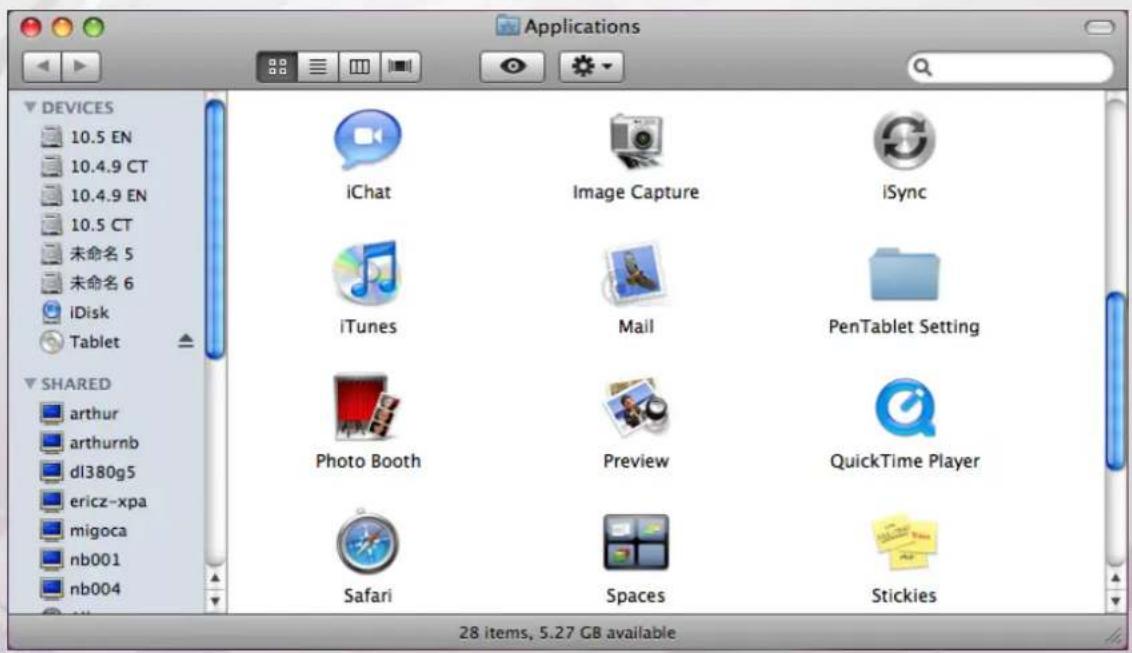
1.3 Click Tablet Setting
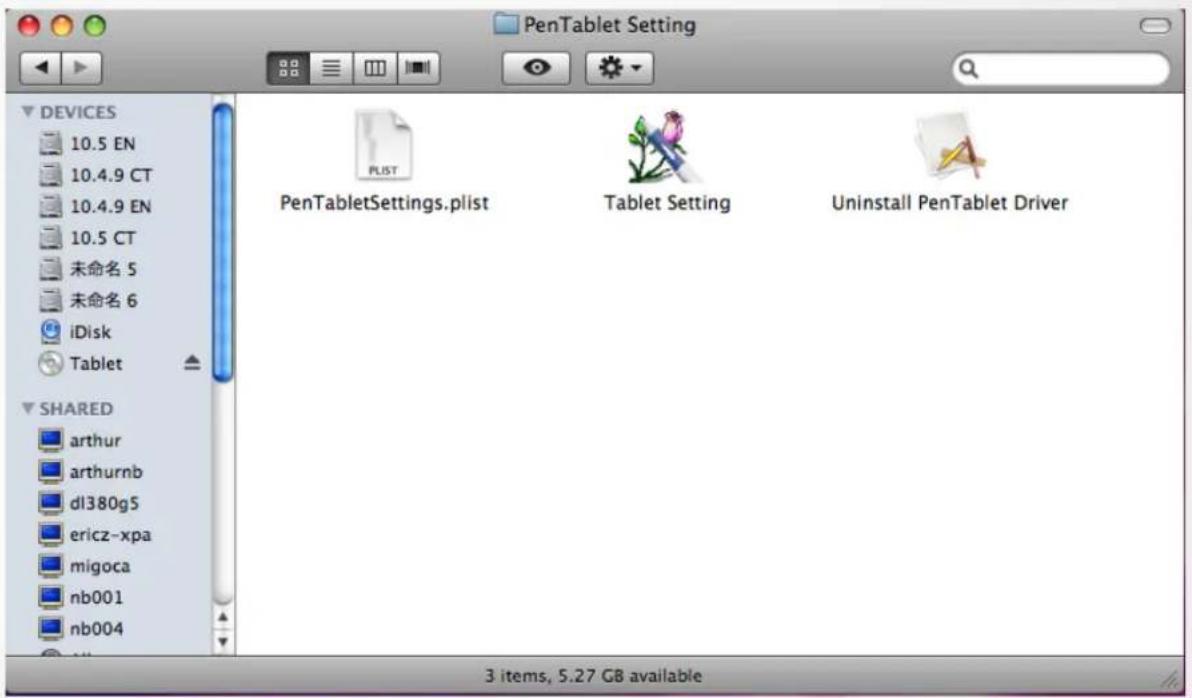
There are 5 tabs : Info, Button, Scope, Hot Cells, Pressure.
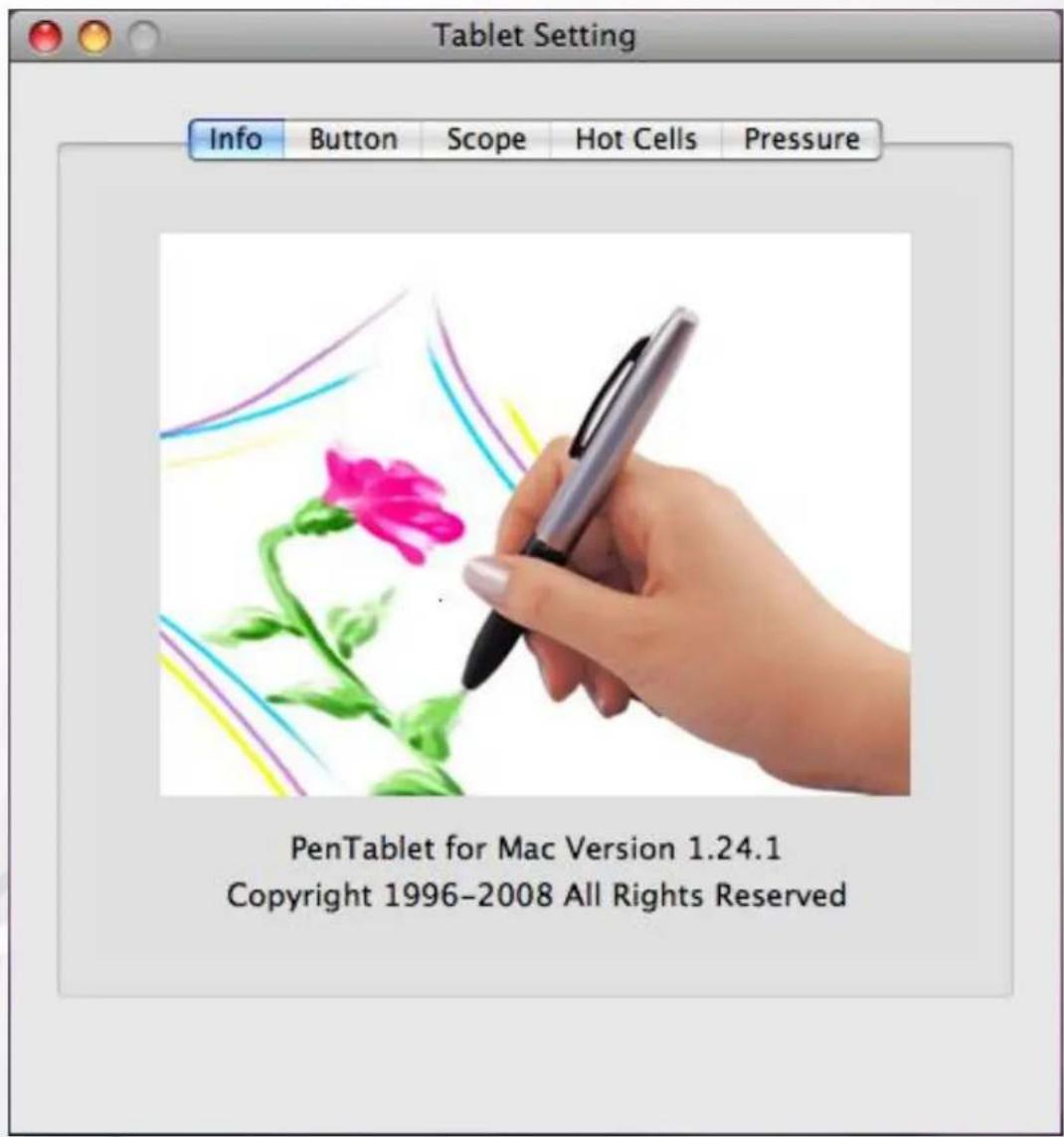
1. Info
The Info tab displays the version number of the driver and Tablet Mac information.
2. Button
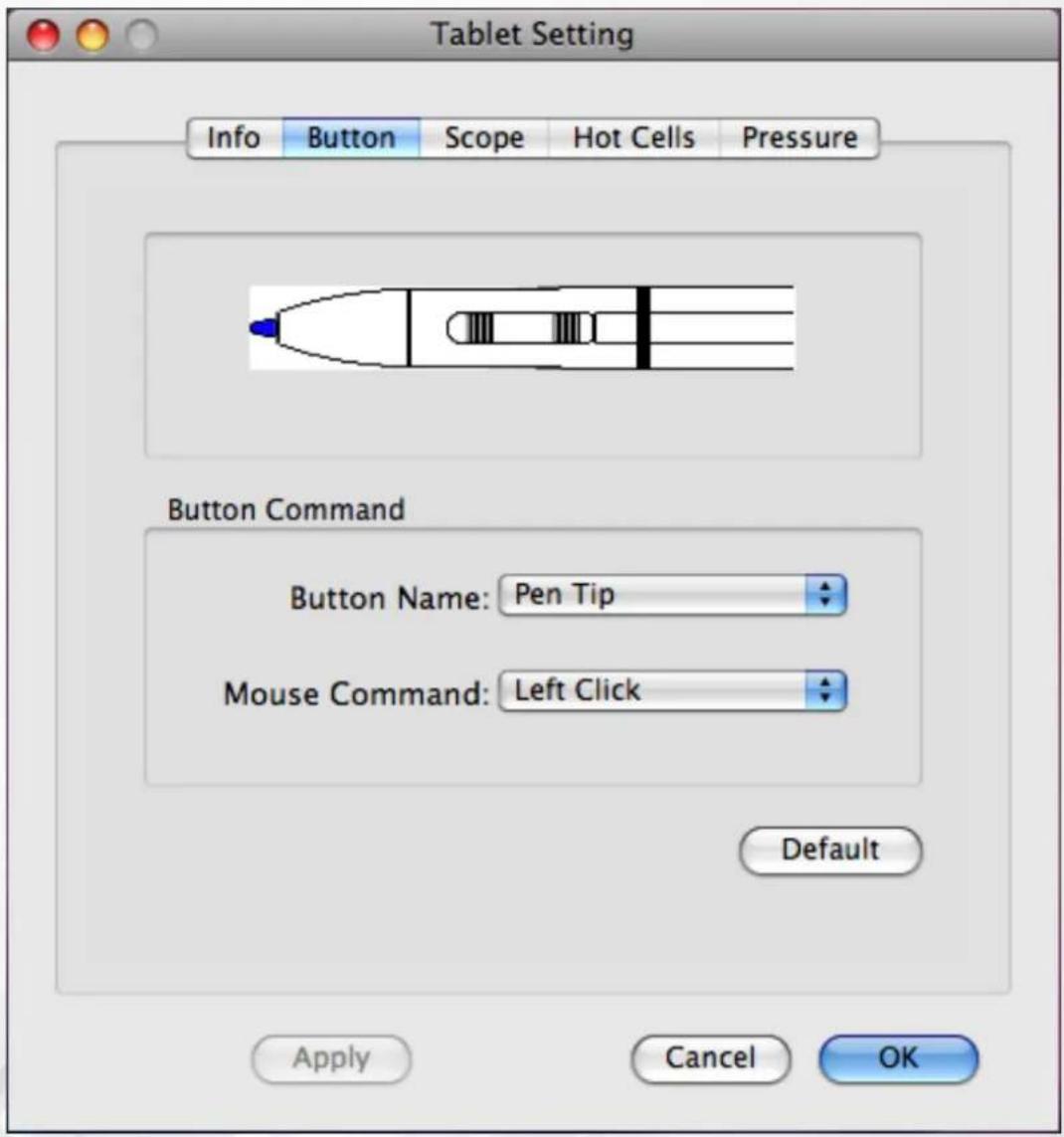
(1) Button Name
You may configure the commands of the pen tip and the two barrel buttons by selecting the button name from the drop down menu and assigning a command based on a traditional three-button mouse. You can select No Action, Left Click, Left Double Click, Right Click, or Right Double Click.
(2) Default
Tap on the "Default" button to return to the factory default settings.
3. Scope
(1) Full Area
Tap on the "Full Area" button to enable full working area.
![Tablet Setting Info Button Scope Hot Cells Pressure Pen Area Full Area Screen Ratio Reserved Edges 0.16 Inch Pen Area Dimensions: Width [X] 7.33 Inch Height [Y] 5.33 Inch Pen Area Offset: Offset [X] 0.33 Inch Offset [Y] 0.33 Inch Apply Cancel OK](/content/2026/06/1185583/images/ccafa4ad1d1da7a6a2cb2effb2c226392744ae27a16143f96432c517bc9d6428.jpg)
(2) Screen Ratio
Set the screen ratio for the tablet working area. The screen ratio chosen will be the screen size for the working area.
![Tablet Setting Info Button Scope Hot Cells Pressure Pen Area Full Area Screen Ratio Reserved Edges 0.16 Inch Pen Area Dimensions: Width [X] 7.33 Inch Height [Y] 4.58 Inch Pen Area Offset: Offset [X] 0.33 Inch Offset [Y] 0.70 Inch Apply Cancel OK](/content/2026/06/1185583/images/93241f78fc736e2ee4c6e5b77000d9f6b701a1409cf21d87c23799318c43af1a.jpg)
(3) Reserve Edges
Tap on the "Reserve Edges" button to allocate spaces for the tablet's hotspots.
![Tablet Setting Info Button Scope Hot Cells Pressure Pen Area Full Area Screen Ratio Reserved Edges 0.16 Inch Pen Area Dimensions: Width [X] 7.01 Inch Height [Y] 5.01 Inch Pen Area Offset: Offset [X] 0.49 Inch Offset [Y] 0.49 Inch Apply Cancel OK](/content/2026/06/1185583/images/b4549f286fe6246f8ac543e1dd08493c8f9856854be0d7f1d0bd44e2e855b4e7.jpg)
(4) Pen Area Dimensions
This indicates the current height and width of the Pen Area Dimensions. Enter new values here if you wish to change the dimensions of the pen area.
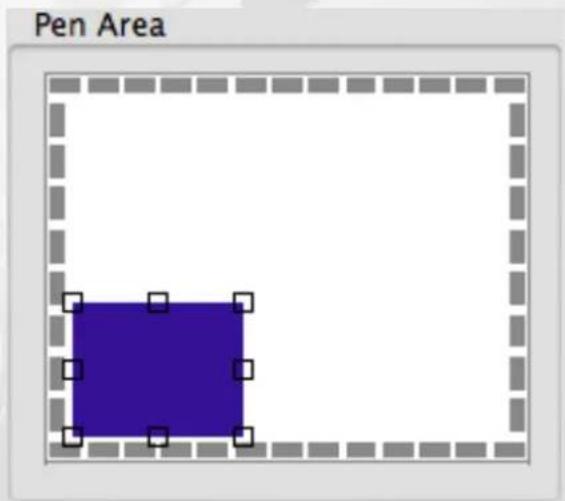
(5) Pen Area Offset
This indicates the horizontal and vertical distances from the upper left corner of the Pen Area to the upper left corner of the maximum Pen Area. Enter new values by typing in numbers or clicking the up / down arrows if you wish to adjust the offset distance.
4. Hot Cells
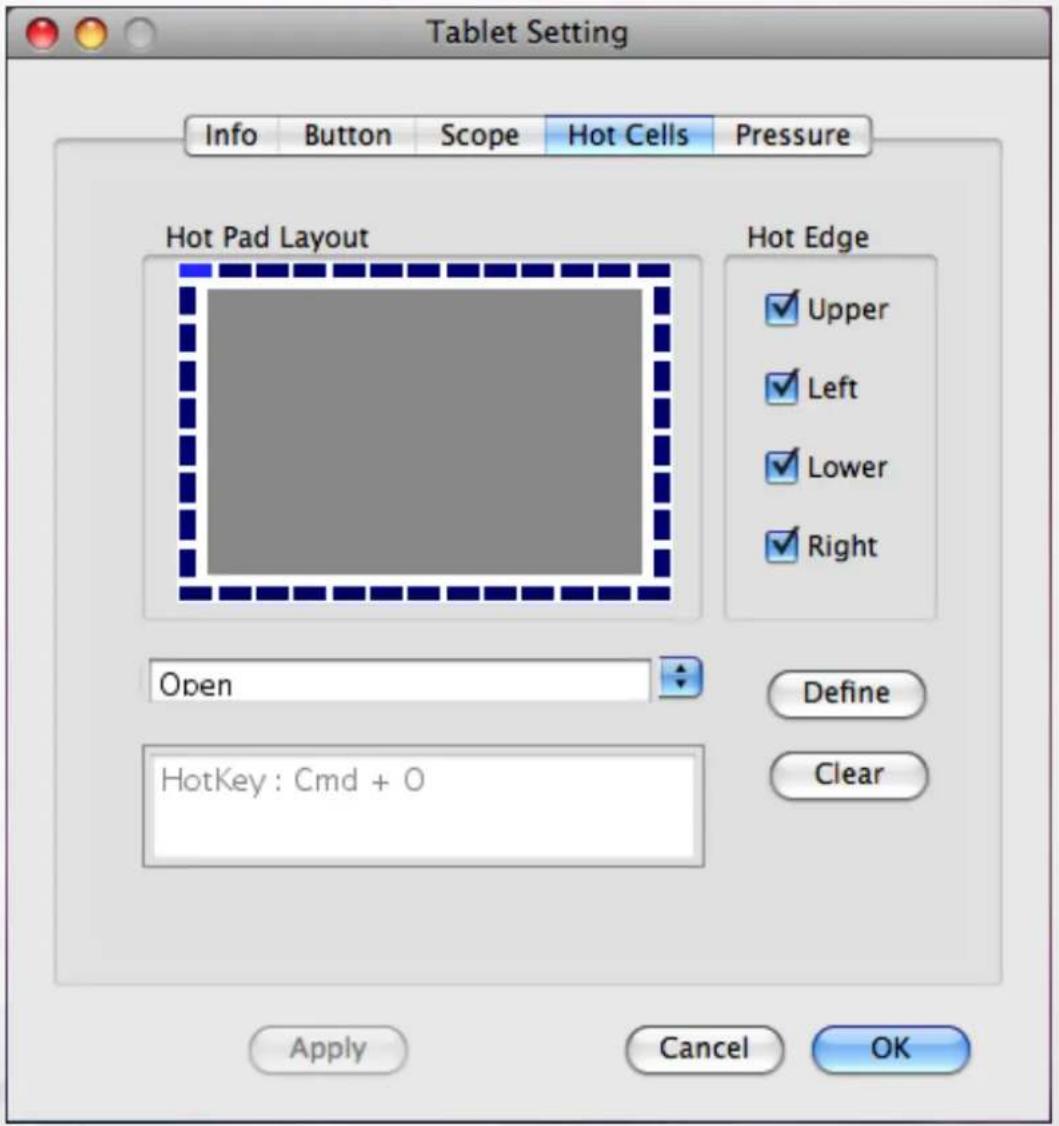
(1) Hot Pad Layout
You can see the property of a hot key by clicking the blue cells surrounding the digital tablet.
(2) Hot Edges
There are four edges around the tablet where you can allocate your hot key locations.
(3) Define
Press the "Define" key to define Run, Internet or Hot Key functions.
(a) Define Hot Cells – Run
Run – You may use the browse button to select a file and run it, or you may type in a file name with the complete path.
(b) Define Hot Cells – Internet
Kind of Service – You can select some Internet services, for example, browsing a website, newsgroup, sending an E-mail, or using other Internet services. The exact program to be initiated (for example, the browser program) depends on your system settings.
Address – The URL address for the selected service. For example, the Website or e-mail addresses.
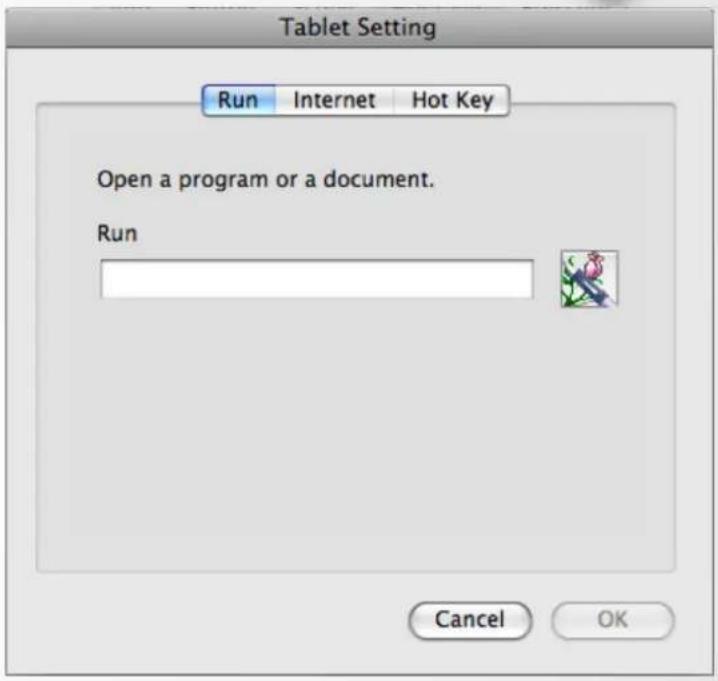
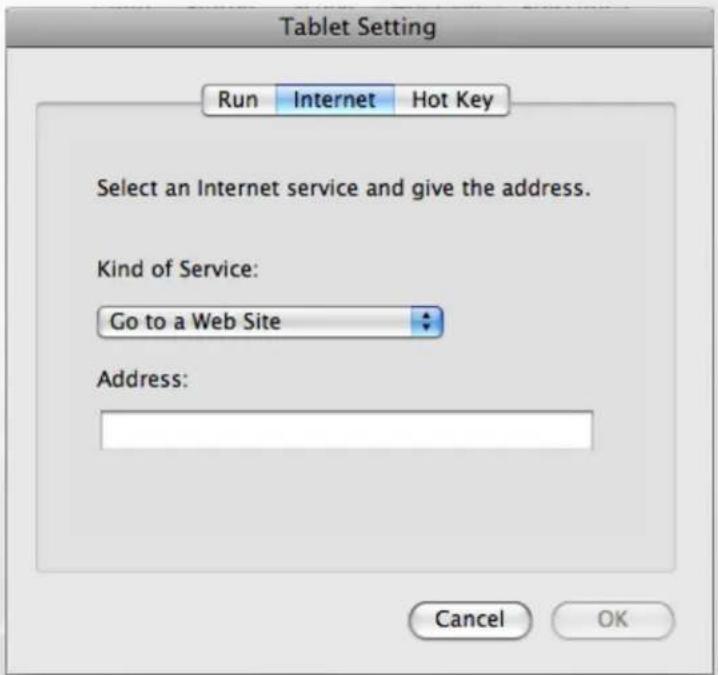
(c) Define Hot Cells – Hot Key
Configure the key combination – You may select any key such as alphabet, numeric key or cursor control key to be combined.
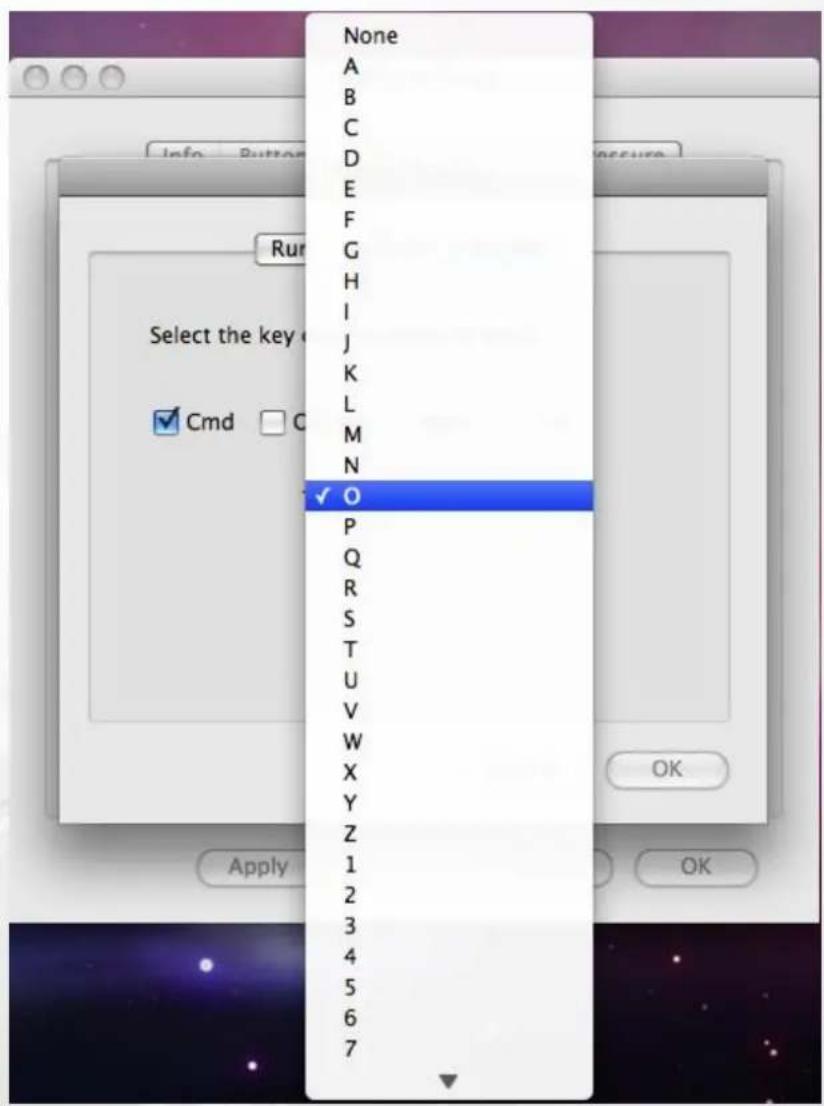
(4) Clear
Tapping on this button will clear up the definition of the selected Hot Cell, so there is no action will be taken when the Hot Cell is tapped later on.
5. Pressure
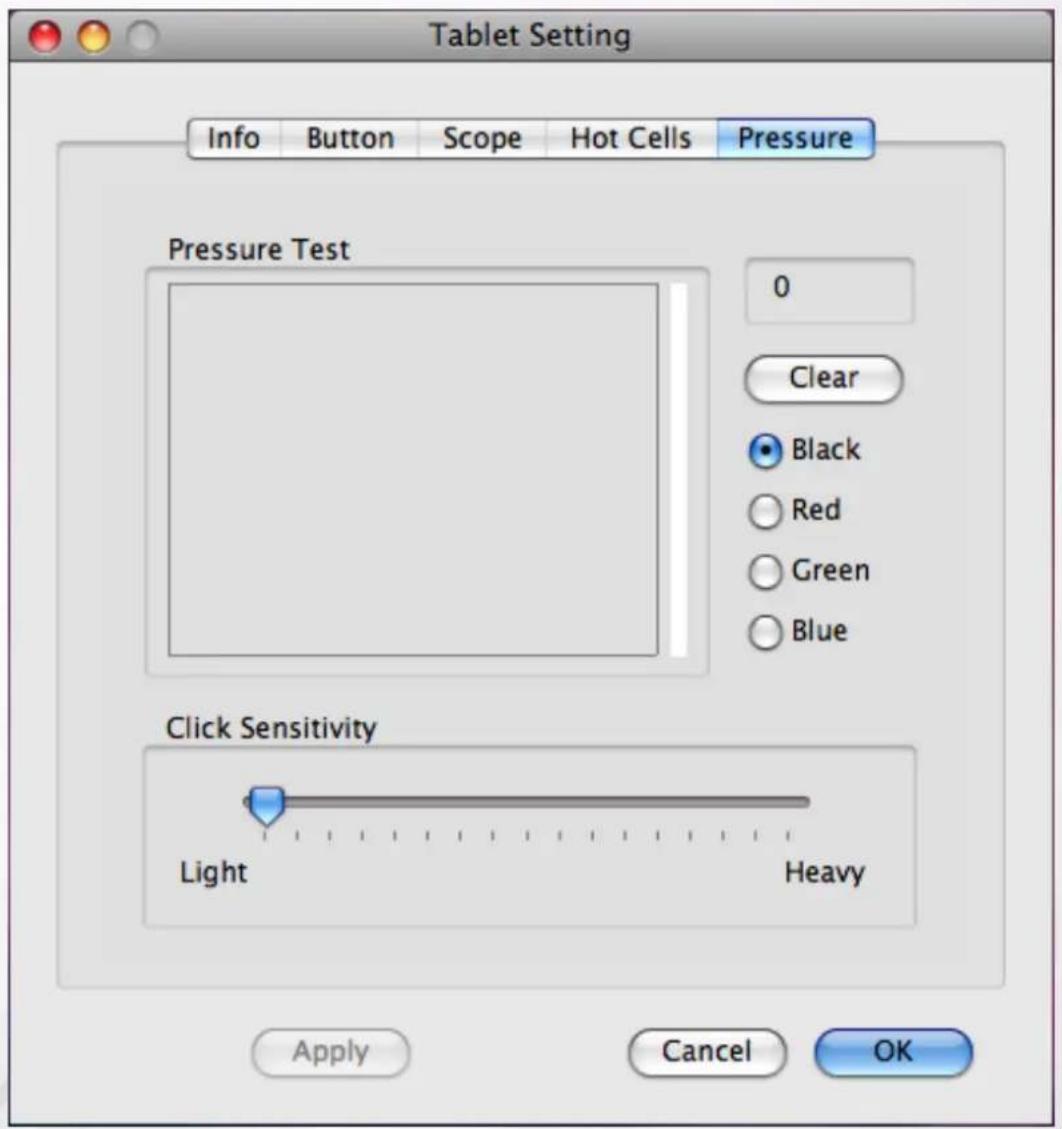
(1) Pressure Test
There are four different colors for selecting and the pressure sensitivity of the pen tablet can be adjusted in this tab. There is a test area to see the thickness of a line by pressing a certain pressure of pen tip on the tablet pad. The numerical value of the pressure level is shown in the field above the “Clear” button.
(2) Clear
Tap on the "Clear" button to clean the space up in the Pressure Test area.
(3) Click Sensitivity
By default setting, tapping with the pen tip is equivalent to a left click of a mouse. Move the slider in the sensitivity bar to adjust the response of the pen tip. Light means when presses the pen tip that will be reacted very quickly with a slight power, but the heavy function is opposite.
3. Using the Tablet
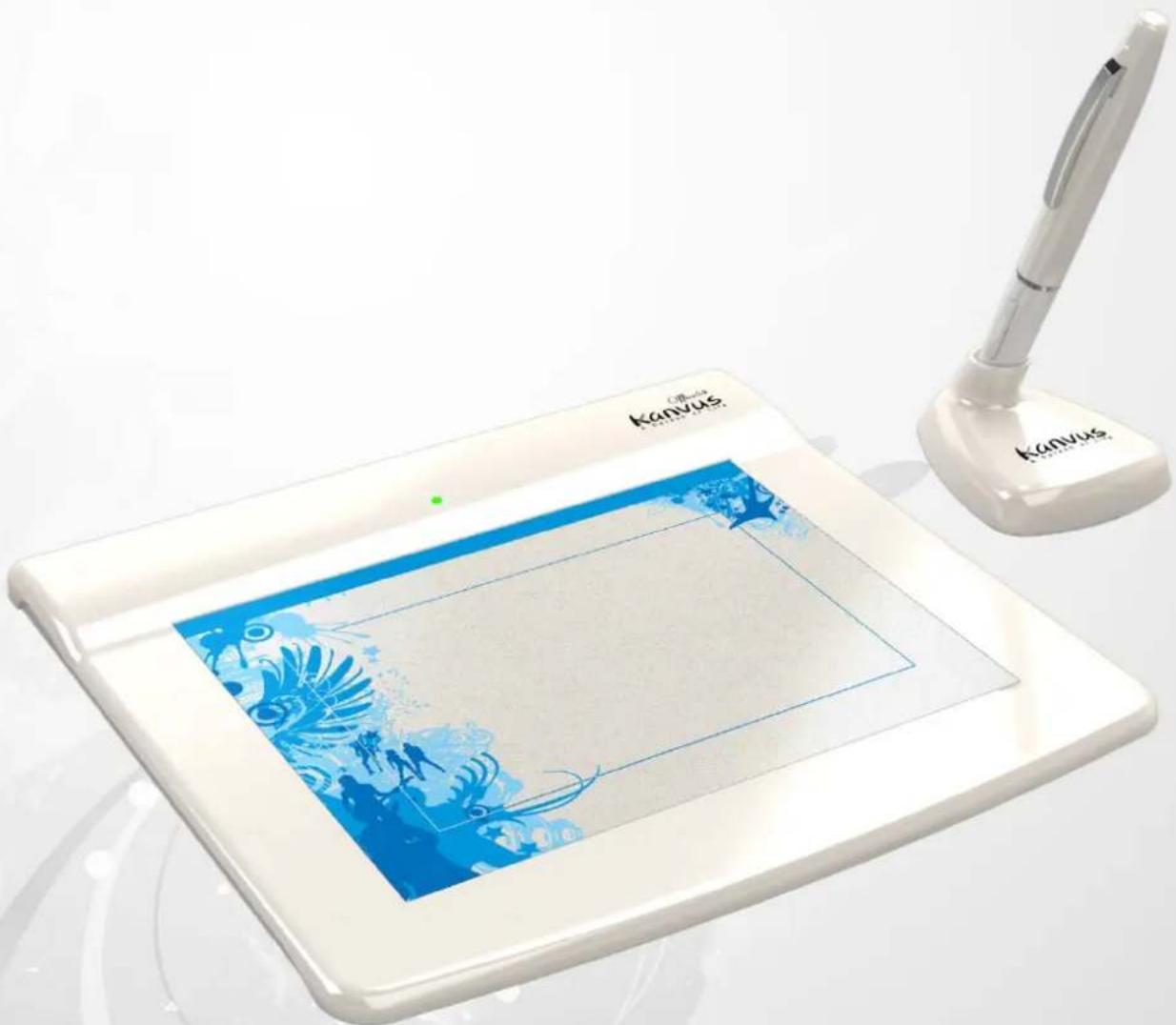
natural_image
Digital drawing tablet with blue floral design and a white canvas, next to a white stand with a pen (no visible text or symbols on the device itself)-Holding the Pen
-Working Area
-Positioning
-Clicking
-Dragging
-Pressure Control
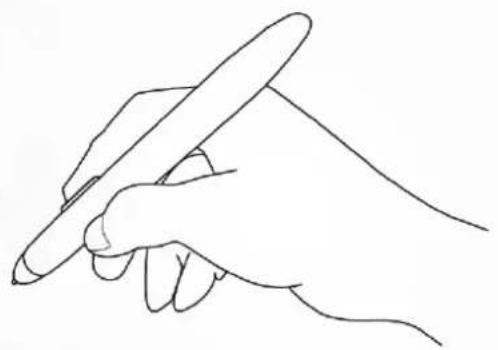
Holding the Pen
Hold the digital pen as you would hold a pencil. Keep the buttons of the pen close to your index finger or thumb so that you can click the button easily.
natural_image
Line drawing of a hand holding a pen, no text or symbols present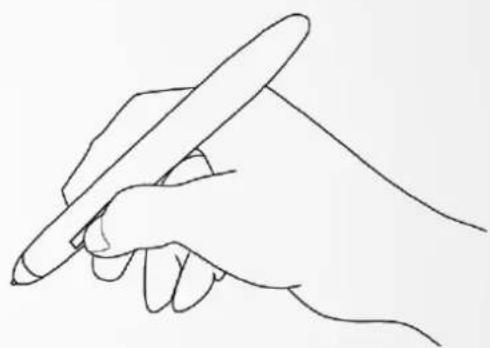
natural_image
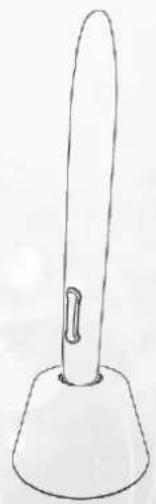
Line drawing of a hand holding a pen, no text or symbols presentWhen the pen is not in use, place it in the pen stand or lay it flat on your desk.
natural_image
Simple line drawing of a pen-like object with a curved tip and base (no text or symbols)
To maintain the sensitivity of your pen tip, do not store the pen in a container where it will rest on its tip.
Working Area
Working area is the area of the tablet that can sense the movement of the digital pen. The working area of the tablet corresponds with the screen of your PC.
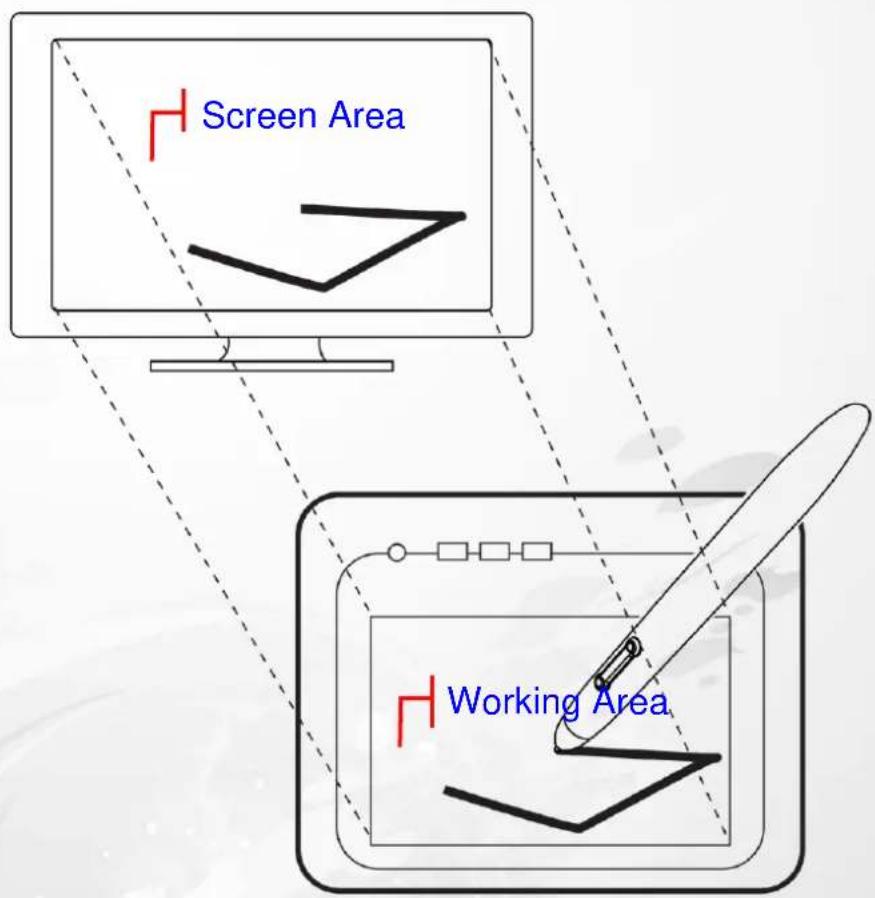

The cursor in the screen area indicates pen position, and the cursor follows the movement of the pen.
Positioning
Use the digital pen to position the cursor on your PC screen.
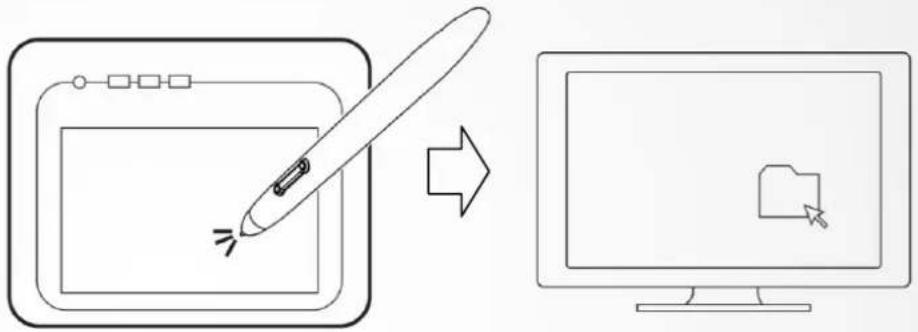
flowchart
graph LR
    A["Digital Sign"] --> B["Computer Icon with File Icon"]
The distance between the pen tip and the tablet surface must be less than 10mm so that the
tablet can sense the movement / location of the pen. The cursor location on the screen corresponds with the location of your pen tip on the tablet.
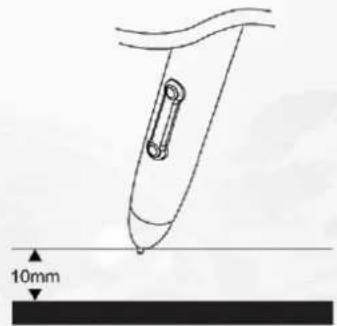
Lift the pen tip and place the pen tip in a new location on the tablet. The cursor will jump to the new position.

natural_image
Diagram showing a digital drawing tool interacting with a computer monitor, illustrating the process of editing and visualization (no text or symbols present)Clicking
One Click : Tapping the pen tip once on the tablet surface within the working area performs a click. A "Click" is used to select something.
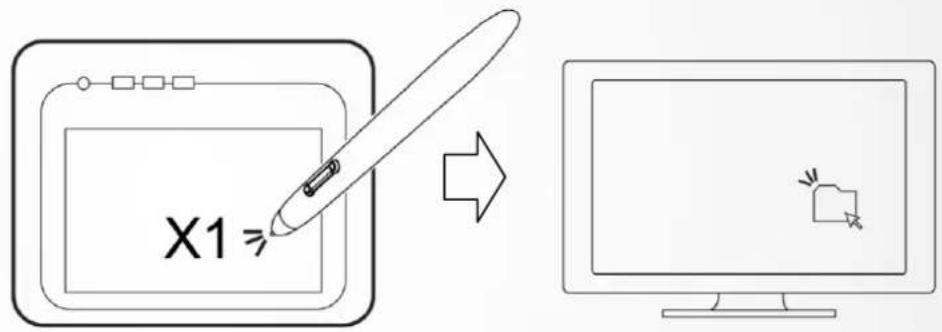
Double Click : A double tap with the pen tip in the working area performs a double-click.
"Double-Click" is used to open something you select.
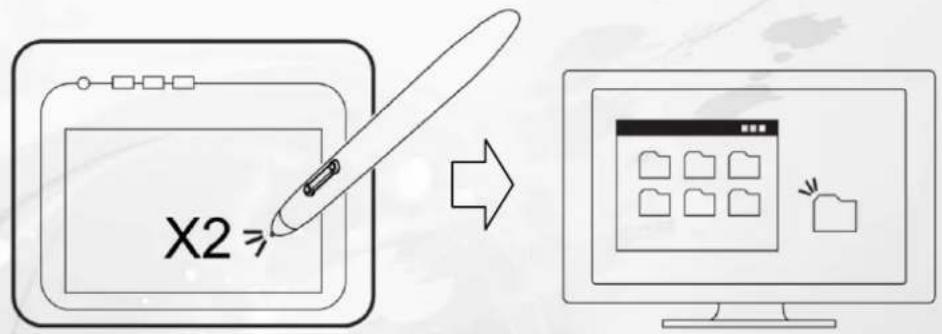

You can also set the function of pen buttons to click or double-click. To assign new switch functions, see "Configuration".
Dragging
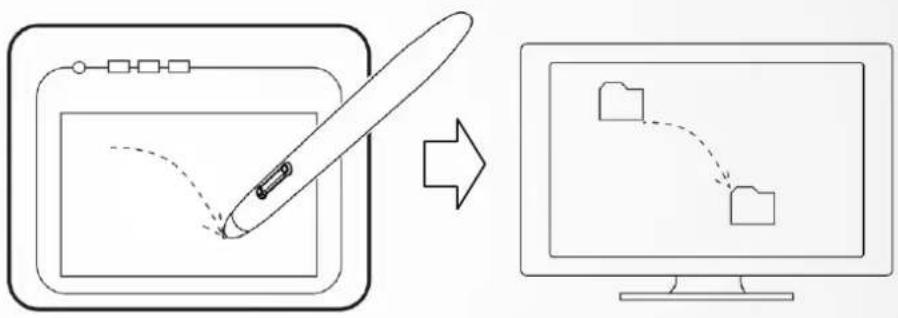
To drag an object, simply point to and click on the object (to highlight the object), then move the pen tip to the location you want to drag to.
flowchart
graph TD
    A["Document Icon"] --> B["Arrow to Computer Screen"]
    B --> C["Computer Screen with File icon"]
    style A fill:#f9f,stroke:#333
    style B fill:#ccf,stroke:#333
Pressure Control
The tablet comes with drawing applications that support pressure sensitivity, so you can change the thickness of the line you draw with different pressure, just as if you were using a real pen or pencil.
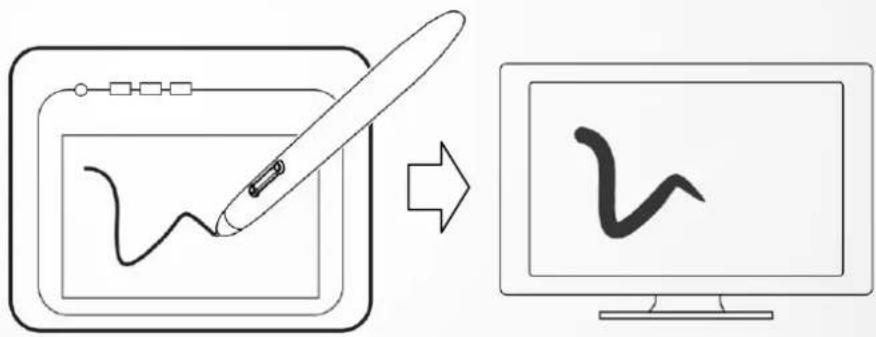
To draw with pressure sensitivity, first select a pressure-sensitive tool from your application's tool bar. Then draw along the surface of the tablet while applying various amounts of pressure downward on the tip of the pen. Press hard for thick lines or thin lines or dense color. Press gently for thin lines or softer color.
4. Using the Bundled Software
natural_image
Digital drawing tablet with blue floral design and a white canvas, next to a white desk lamp (no visible text or symbols on the device itself)-System Requirements
-Introduction to Tablet Software
-Supporting Operating Systems
-Installing Tablet Software
-Uninstalling Tablet Software
System Requirements
| Operating System | Windows XP, Vista or 7 |
| CPU | Pentium III or above |
| Hard Disk | 256 MB or Higher |
| RAM (Memory) | 256 MB (Windows XP), 1 GB (Windows Vista / 7) |
| Equipments | USB connector, CD/DVD ROM |
Introduction to Tablet Software

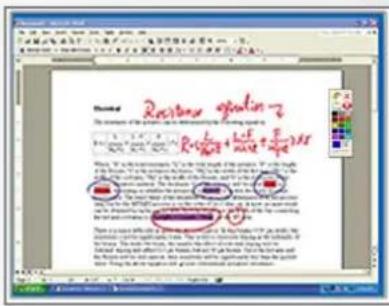
K-WorkInk
Allows you to handwrite, make notes or put annotations on Microsoft Word documents and you can save the handwriting / notes.

K-Notice
You can take a snapshot of the pictures on the screen and then insert your selected text and pictures for use in presentations or e-mails.

K-Command
Allows you to write down the command symbols directly on the digital pen tablet in order to execute computer commands or open files.

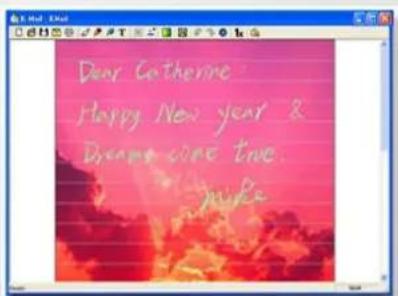
K-Mail
You can write your own signature for your e-mails to family and friends.
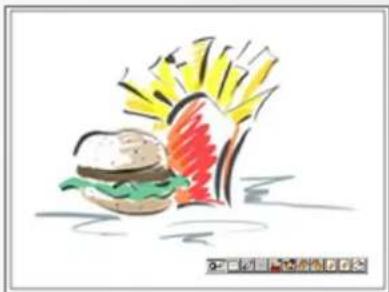
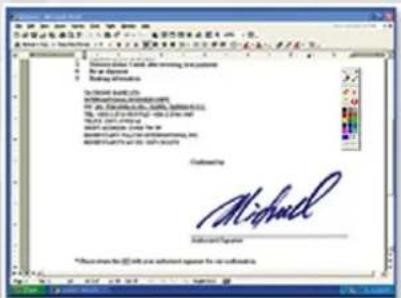
K-Signer
Insert signatures or hand drawn graphics onto the document.
natural_image
Illustration of a hamburger with a red and yellow explosion effect (no text or symbols)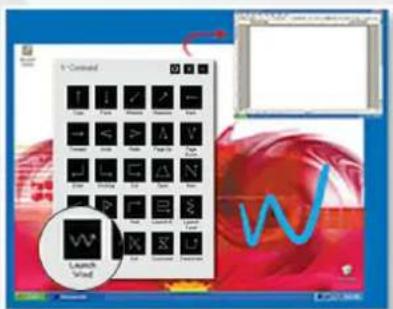
Supporting Operating Systems
| Operating System | Windows XP | Windows XP 64 | Windows Vista | Windows 7 |
| K-Notice | V | V | V | V |
| K-Mail | V | V | V | V |
| K-WorkInk | V | V | X | X |
| K-Command | V | V | X | X |
| K-Signer | V | V | V | V |

K-WordInk : Suggestion! Windows Vista / 7 users are able to use the Annotation function through MS OFFICE 2003 or 2007.

K-Command : Suggestion! Windows Vista / 7 users are able to use the handwriting and input function built-in under the Windows Vista / 7 system.
Installing Tablet Software

To use the Tablet software, you need to install the Driver first and then install the Tablet Software. (For more information about the installation of driver, please refer to the included Driver Installation Manual.)
- Open your computer and start the Windows.
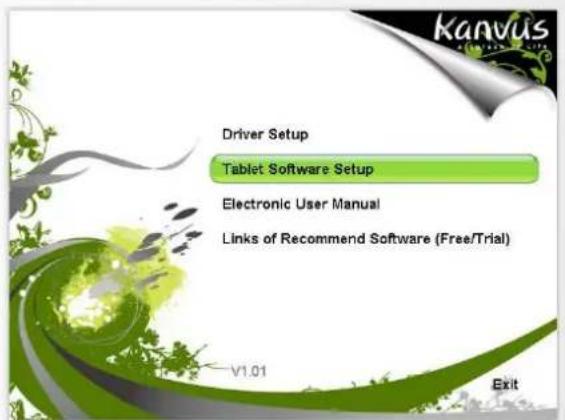
Place the CD disc into the CD/DVD ROM driver and the installation program will be automatically
- activated (See figure to the right).
Select "Tablet Software Setup", and press the "Enter" key to start the Tablet Software installation.
The message box will come out with the software selection. Select the software you want to install and confirm the installation location. Then, press "OK" to install.
- After the installation is completed, press "OK" finish software installation.
![Tablet Software Setup will install the application(s) into the following directory which will be created on your hard disk. Ok Cancel If you want to install the application(s) into a different directory and/or drive, just type the driver or directory's name as the example shown below. Copy to: 5RAM FILES [X86]TABLET SOFTWARE ✓ K-Mail V3.27.2009.1 (900KB) ✓ K-Signer V3.18.2009.1 (500KB) ✓ K-Notice V1.05.2009 (3MB) ✓ Tablet Software Manual (2.2MB)](/content/2026/06/1185583/images/5c3908e644b6d0b541374085da139e20a9c58711fbc8ac339e005d3e5d0e1178.jpg)
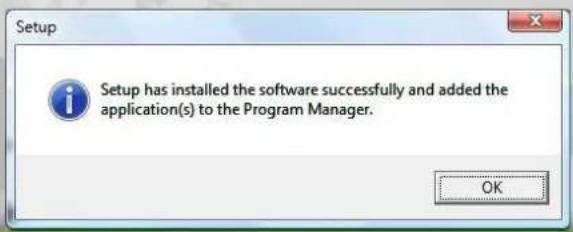

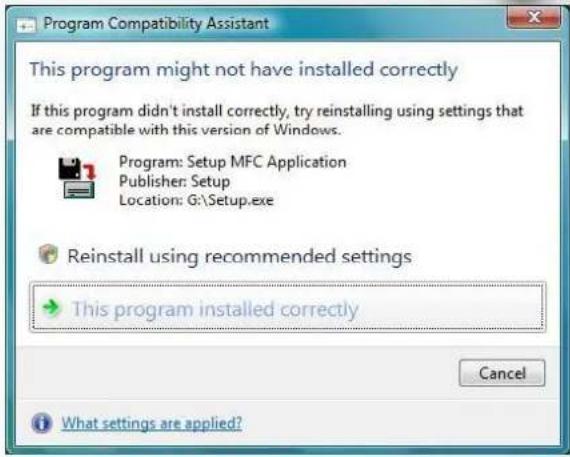
When you run the installation with Windows Vista/7, after you finish step 4, please wait until you see the message box (see figure to the right) and select "This program installed correctly". After your computer system has finished reading the data from the CD/DVD ROM, take the CD out and finish the installation.
Uninstalling Tablet Software
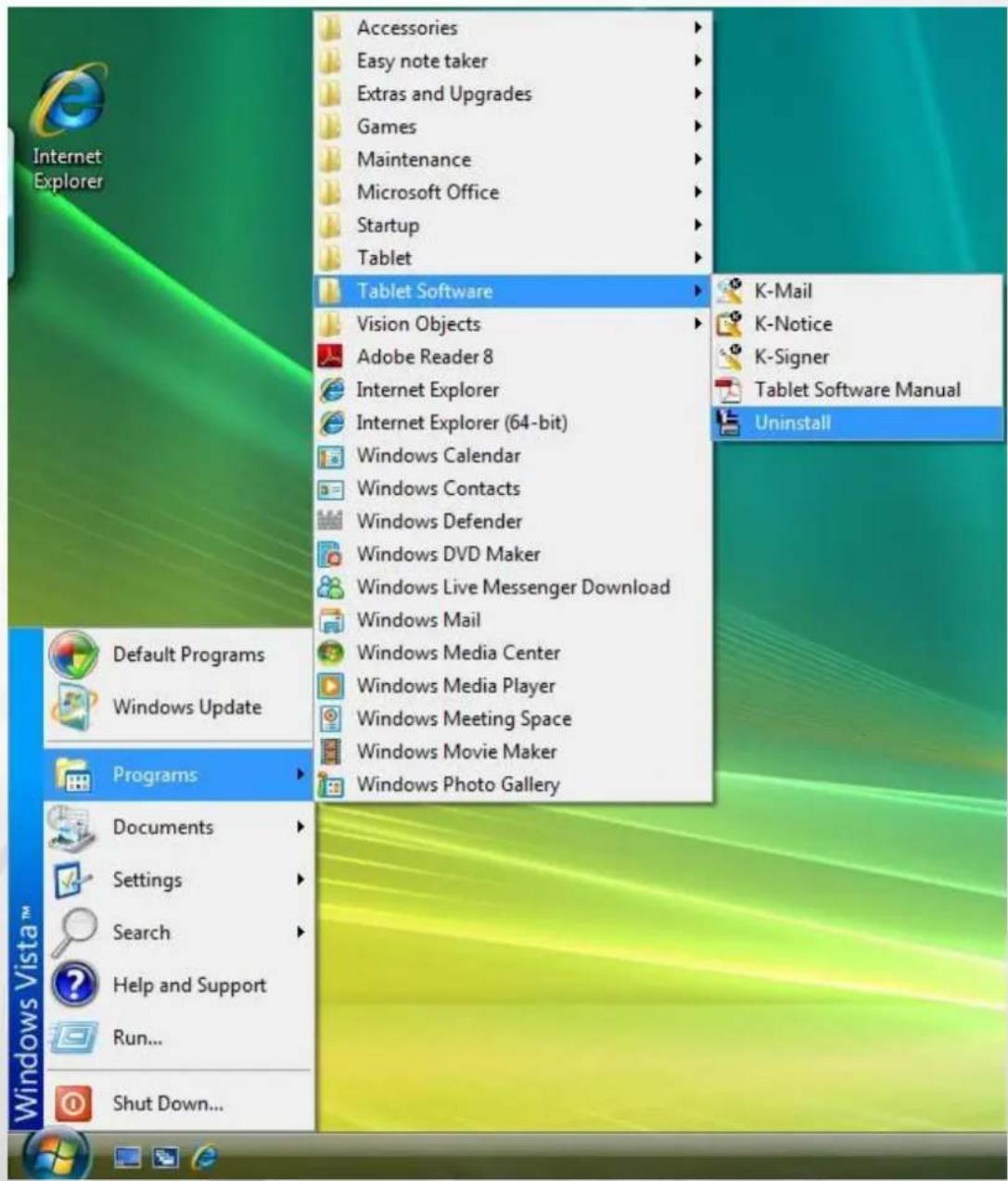
In order to uninstall the Tablet Software, move your cursor to the lower left corner of the screen
【Start】▶【Programs】▶【Tablet Software】▶【Uninstall】.
5. Specification Summary
natural_image
Digital drawing tablet with blue floral design and a white canvas, next to a white desk lamp (no visible text or symbols on the device itself)-Tablet
-Digital Pen
Tablet
| Active area | 5.5" X 4" |
| Dimension (L X W X H) | 204 X 191 X 9.2 mm |
| Weight | 318g |
| Interface | USB 1.1 (Full Speed) |
| Resolution | 2540 LPI |
| Report rate | 100 RPS |
| Pressure sensitivity | 1024 Level |
| Reading height | 10 mm (From up case) |
| Hotspot | 28 Hotspots(Top : 9, Bottom : 9, Left : 5, Right : 5) |
| Power consumption | 0.35 W |
| USB cable length | 1.5 m |
| Windows® OS | Windows® XP / Vista / 7 |
| Macintosh® OS | Mac OS X 10.4 above |
Digital Pen

natural_image
White cylindrical pen with metallic scroll and eraser, no visible text or symbols| Dimension | 137.7 X 12 / 16.4 mm |
| Weight | 9g (Except battery) |
| Power supply | One 1.5V AAA alkaline battery |
| Power consumption | 180 uW |
| Buttons | 3 keys (Pen Tip, Side Button x 2) |
| Power saving Mode | Yes |
| Time to stand by | 5 ~ 30 Min. |
| Durability batteries | 5000 Hr. |
6. Troubleshooting
natural_image
Digital drawing tablet with blue floral design and a white canvas, next to a white desk lamp (no visible text or symbols on the device itself)-Testing your device
-FAQ
-Service and Technical Support
-Driver Download
Testing your device
Please do the following tests first to identify your problem.
1. Check the connection :
After you connect the device to your computer, you should see a tablet icon in the system tray. If you do not see the icon, please follow these steps :
(1) Make sure the USB cable is properly connected to a USB port.
(2) Try connecting to another USB port.
(3) If the device is connected to a USB Hub, please make sure the USB Hub is properly connected to a USB port.
(4) Check if your USB controller is activated or not.
2. Diagnose the device :
If the pen or the tablet still do not work properly, please follow these steps to help diagnose the problem with the device.
(1) Pull off the tablet's USB plug from the computer.
(2) Remove the Tablet driver from the system.
(3) Re-connect the Tablet's USB to the computer.
(a) Check whether the tablet's LED is blinking or not. If the LED is not on, that means there is an error with your tablet.
(b) Test your wireless digital pen on the tablet working area. If it can work as a mouse, it
means the hardware is OK. If it does not work, try replacing the battery.
(c) After changing the pen's battery, if it is still not working, this means there is an error with the hardware.
(4) Download the latest version of the driver directly from our official website. You can also check the latest FAQ on our web site for other information.
(5) After installing the new version of the driver, the system will require you to restart your computer.
(6) After restarting your computer, you can find the tablet icon ( ) at the bottom right of the screen.
(a) If you cannot find the tablet icon ( ) at the bottom right of the screen, it means the driver failed during startup. This might be caused by an incompatibility issue.
(b) Check from 【My Computer】▶【Properties】▶【Hardware】▶【Device Manager】, if there is an exclamation mark, it means the installed tablet driver is incompatible with the windows system. If you have this problem, please contact us immediately for help.
(7) By clicking the tablet icon ( ) at the bottom right of the screen, you can test the pressure sensitivity to see whether the pen pressure function works or not. (Refer to Configuration.)

If you do not have the pen pressure, it means the pen itself might be faulty.
FAQ
Question : Why is the LED of the tablet blinking continuously ?
Answer : It means that the USB port on your PC has a bad connection or the power supply is not stable. Please re-plug in your USB again. If the problem persists, try changing to another USB port.
Question : How can I get the updated software ?
Answer : You can download the new driver from our website.
- Uninstall your old driver : Click 【Start】▶【Programs】▶【Kanvus Tablet】▶【Uninstall】
- Download the latest version of the driver in the download section and save it onto your hard drive.
- Unzip the file in a folder on your hard drive (with Windows built-in unzip utility or a program like Winzip for instance).
- Double-click the Setup.exe in the folder where you unzipped the file.
Question : How to install a new Pad-Cover ?
Answer : Please follow the steps below.
- Remove the device from USB port.
- Remove the current Pad-Cover. (need some force)
- Clean the surface with a wet cloth to keep it clean and smooth.
- Tear off the protective film on the double-sided tape of the new Pad-Cover.
- Put the new Pad-Cover on the tablet
Question : Why can't I select K-WordInk or K-Command to install during installation ?
Answer : Because both K-WordInk and K-Command are for Windows 2000 or XP version only. For Windows Vista/7 user, Windows Vista/7 has built-in Annotation function through Office 2003 / 2007 which is similar to K-WordInk, and also the built-in Pen flicks function that can perform common actions as K-Command.
We suggest users to use the built-in applications under the Windows Vista/7 system for more ensured compatibility.
Service and Technical Support
If your tablet does not work properly, please check the Troubleshooting procedure and FAQ first.
You can go to our web site to download the latest driver/software and check the updated FAQ. If
your problem still remains unsolved, please contact our service and technical support staff.
support@kanvus-global.com
KWorld Computer Co., Ltd.
6/F, No. 113, Jian 2 ^nd Road Jhonghe City, Taipei County 235, Taiwan (R.O.C.)
http://www.kanvas-global.com/
Driver Download
You can download the latest driver and e-documents from the following web sites.
http://www.kanvus-global.com/
Appendix
natural_image
Digital drawing tablet with blue floral design and a white canvas, next to a white stand with a pen (no visible text or symbols on the device itself)-Declarations and Safety Statements
-Ordering Components and Accessories
-Copyright Information
-Limitation of Liability
Declarations and Safety Statements
FCC
This device complies with Part 15 of the FCC Rules. Operation is subject to the following two conditions:
(1) This device may not cause harmful interference, and
(2) This device must accept any interference received, including interference that may cause undesired operation.
This equipment has been tested and found to comply with the limits for a Class B digital device, according to Part 15 of FCC Rules. These limits are designed to provide reasonable protection against harmful interference in a residential installation.
This equipment generates, uses, and can radiate radio frequency energy and, if not installed and used in accordance with the instructions, may cause harmful interference to radio communications. However, there is no guarantee that interference will not occur in a particular installation.
You can determine whether the equipment is causing interference by disconnecting it from your computer. If the interference stops, it was probably caused by the equipment.
If the equipment does cause interference to radio or television, you may be able to correct the interference by using one or more of the following measures :
1 Rotate the television or radio antenna until the interference stops.
2 Move the equipment farther away form the television or radio.
3 Plug the equipment and computer into an outlet that is on a different circuit form the television or radio.
If necessary, consult with your dealer or an experienced radio/television technician for help.
CE
The Kanvus tablet has been tested and found to comply with the following harmonized European Norms :
1 EN55024 (electromagnetic immunity)
2 EN55022 (electromagnetic emissions)
Ordering Components and Accessories
To purchase parts and accessories, please contact your local dealer or distributor.
Copyright Information
No part of this manual, including the products and software contained in it, may be reproduced, transmitted, transcribed, stored in a retrieval system, or translated into any language in any form or by any means, without the legal, written permission of Kworld Computer Co.LTD.
Kanvus PROVIDES THIS MANUAL “AS IS” WITHOUT WARRANTY OF ANY KIND, EITHER EXPRESSED OR IMPLIED, INCLUDING BUT NOT LIMITED TO THE IMPLIED WARRANTIES OR CONDITION OF MERCHANTABILITY FOR A PARTICULAR PURPOSE. IN NO EVENT SHALL KANVUS, ITS DIRECTORS, OFFICERS, EMPLOYEES OR AGENTS BE LIABLE FOR ANY direct or indirect, INCIDENTAL, OR CONSEQUENTIAL DAMAGES (INCLUDING DAMAGES FOR LOSS OF PROFIT, LOSS OF BUSINESS, LOSS OF DATA, INTERRUPTION OF BUSINESS AND THE LIKE), EVEN IF KANVUS HAS BEEN ADVISED OF THE POSSIBILITY OF SUCH DAMAGES ARISING FROM ANY DEFECT OR ERROR IN THIS MANUAL OR PRODUCT.
Products and corporate names appearing in this manual may or may not be registered trademarks or copyrights of their respective companies and are used only for identification or explanation and to the owners' benefit, without intent to infringe.
SPECIFICATIONS AND INFORMATION CONTAINED IN THIS MANUAL ARE PROVIDED FOR INFORMATION ONLY AND ARE SUBJECT TO CHANGE WITHOUT NOTICE, AND SHOULD NOT BE CONSTRUED AS A COMMITMENT BY KANVUS. KANVUS ASSUMES NO RESPONSIBILITY OR LIABILITY FOR ANY ERRORS OR INACCURACIES THAT MAY APPEAR IN THIS MANUAL, INCLUDING THE PRODUCTS AND SOFTWARE DESCRIBED IN IT.
Copyright© 2009 Kworld Computer Co. Ltd. All Rights Reserved.
Limitation of Liability
Circumstances may arise where because of a default on Kanvus part or other liability, you are entitled to recover damages from Kanvus. In each such instance, regardless of the basis on which you are entitled to claim damages from Kanvus, Kanvus is liable for no more than damages for bodily injury (including death), damage to real property and tangible personal property; or any other actual and direct damages resulted from omission or failure in performing legal duties under this warranty statement, up to the listed contract price of each product.
Kanvus will only be responsible for or indemnify you for loss, damages or claims based on contract, tort or infringement under this Warranty Statement.
This limit also applies to Kanvus suppliers and its distributors. It is the maximum for which Kanvus, its suppliers, and its distributors are collectively responsible.
UNDER NO CIRCUMSTANCES IS KANVUS LIABLE FOR ANY OF THE FOLLOWING :
(1) THIRD-PARTY CLAIMS AGAINST YOU FOR DAMAGES;
(2) LOSS OF, OR DAMAGE TO, YOUR RECORDS OR DATA; OR
(3) SPECIAL, INCIDENTAL, OR INDIRECT DAMAGES, OR FOR ANY ECONOMIC CONSEQUENTIAL DAMAGES (INCLUDING LOSS OF PROFITS OR SAVINGS), EVEN IF KANVUS, ITS SUPPLIERS OR DISTRIBUTORS ARE INFORMED OF THEIR POSSIBILITY.