
ATAB701 - Tablet AKAI - Free user manual and instructions
Find the device manual for free ATAB701 AKAI in PDF.


| Product Type | Tablet PC for children |
| Brand | AKAI |
| Model | ATAB701 |
| Display Size | 7 inches |
| Display Type | Digital TFT capacitive touch screen |
| Display Resolution | 800 x 480 pixels (16:9) |
| Operating System | Android (preinstalled) |
| Wireless Connectivity | Wi-Fi 802.11b/g, USB LAN support |
| Front Camera | 3.0 Megapixel |
| Battery Capacity | 2800mAh li-poly |
| Battery Life | Up to 3 hours (web surfing, video, music) |
| Memory Card Slot | Micro SD (T-Flash) |
| USB Port | Micro USB 2.0, USB OTG |
| Headphone Jack | 3.5mm stereo |
| Dimensions (W x H x D) | 217.2mm × 129mm × 11.3mm |
| Weight | 310g |
| Package Contents | Tablet, Micro USB cable, Adapter, Earphones, Quick start guide |
| Parental Controls | Passcode protection, app management, time limits, separate children mode |
| Preloaded Content | Educational games, mini games, family games, funny camera effects |
| Video Playback Support | AVI, RM, RMVB, WMV, MOV, MP4, DAT, VOB, MPEG, FLV, ASF, TS, 3GP, MPG, HD 1080P, WebM VP8 |
| Audio Support | MP3, WMA, OGG, AAC, FLAC, APE, WAV |
| Cleaning | Soft cloth, mild soap solution; microfibre cloth for screen |
Frequently Asked Questions - ATAB701 AKAI
User questions about ATAB701 AKAI
0 question about this device. Answer the ones you know or ask your own.
Ask a new question about this device
Download the instructions for your Tablet in PDF format for free! Find your manual ATAB701 - AKAI and take your electronic device back in hand. On this page are published all the documents necessary for the use of your device. ATAB701 by AKAI.
USER MANUAL ATAB701 AKAI
natural_image
Colorful children's tablet devices with colorful screens and floating app icons (no text or symbols on main body)Index
• 1. Intended use
2. Safety
- 2.1.Labels in this manual
- 2.2. General safety instructions
• 3. Preparations for use
o 3.1. Unpacking
- 3.2. Package contents
• 4. For use
o 4.1. Charging
- 4.2. LED Indication
- 4.3. Connecting peripherals
• 5. Overview buttons and other controls
- 5.1. Overview of the tablet
-
5.2. Selection of icons on your tablet
-
Use
-
6.1. Using the on/off button
o 6.2. Locking/unlocking the screen (sleep mode) - 6.3. Splash Screen
- 6.4. "Parents" mode (for parents)
- 6.4.1 Log in to tablet
- 6.4.2 Log in as a parent to the "Children" mode
- 6.4.3 Manage Settings
o 6.4.3.1 Setting the period after which the tablet turns off
- 6.4.3.2 Setting the brightness of the screen
- 6.4.3.3 Manage Applications
- 6.4.3.4 Change pass codes for the "Parents" mode
- 6.5.3.5 Change pass codes for the "Children" mode
- 6.5. "Children" mode (for children)
- 6.5.1 Log in to tablet
-
6.5.2 Overview icons "Children" mode
-
6.5.2.1 Taking a picture with a funny effect
- 6.5.2.2 Set Alarm
o 6.5.2.3 Play family games - 6.5.2.4 View Photos
- 6.5.2.5 View available Apps
- 6.5.2.6 Using the calculator
- 6.5.2.7 Play educational games
- 6.5.2.8 View and play the list of music files
- 6.5.2.9 Play mini games
- 6.5.2.10 View and play the list of video files
- 6.5.2.11 Taking pictures and videos
- 6.6. Android Operating System (OS)
- 6.7. WiFi connection
- 6.7.1 Enable Wifi
- 6.7.2 Disable Wifi
- 6.8. Browsing the Internet
- 6.9. Memory Card: Placement and access
- 6.10. Connecting a USB to a computer
- 6.11. Settings Menu
- 6.12. Battery
- 6.13. Factory Settings
- 6.13.1 Restore the tablet of factory settings
- 6.13.2 Re-register games from the "Children" mode
• 7. Technical data
• 8. Cleaning and maintenance
• 9. Disposal of used electric and electronic equipment
• 10. Solving problems
1. Intended use
The ATAB701 is a tablet PC for children, designed for playing and managing media files, running applications and browsing the Internet. The device is fitted with a touch screen, USB and Micro SD Memory Card Slot. The device can be connected to a PC.
2.Safety
2.1. Labels in this manual

WARNING A warning means that injury or death is possible if the instructions are not obeyed.

CAUTION A caution means that damage to the equipment is possible.

A note gives additional information, e.g. for a procedure.
2.2. General safety instructions

WARNING Do not use the tablet while driving a vehicle or while walking.

WARNING When using the headphones pay attention to the volume level. Too high sound levels can cause hearing loss. Therefore, set the volume of the player at a moderate level and limit the time of use.

CAUTION Do not suddenly disconnect the tablet during formatting or uploading and downloading. This can result in program errors and a non-functional product.

CAUTION Do not try to disassemble this device and do not use alcohol, thinners or petrol to clean the surface of the device.

CAUTION This tablet is neither moisture nor water resistant. Not to be used in a damp environment.

CAUTION Do not drop the tablet or hit it against a hard surface, as this may damage the screen.

CAUTION Do not spill any liquid on the appliance.

Caution! The new battery performs best after it has been fully charged and discharged 2-3 times.

This appliance is double insulated; therefore no earth wire is required. Always check that the mains voltage corresponds to the voltage on the rating plate.
3.Preparations for use
3.1. Unpacking
- Unpack the appliance carefully.
- Check the package contents as described below. If any item is missing, please contact your reseller.
- Remove the labels from the front panel carefully if present.

We recommend that you retain the original carton and packing materials in case it ever becomes necessary to return your product for service. This is the only way to safely protect the product against damage in transit. If you do dispose of the carton and the packing materials, please remember to recycle with due care to the environment.
3.2. Package contents

natural_image
Line drawing of a smartphone with attached earplands and cable, no text or symbols presentThe following items are included in the received package:
1 x ATAB701 kids tablet
1 x Micro USB cable
1 x Adapter
1 x Earphones
1 x Quick start guide

If any item is missing, please contact your reseller.
4. For use
4.1. Charging
To charge the battery, connect the adapter to the DC power connector of the device and to the power supply. Charge the battery at least 12 hours before first usage.

4.2. LED Indication
Blue LED: Power is switched on
Red LED: Product is charging
Red LED will change to blue LED: Product is fully charged
4.3. Connecting peripherals
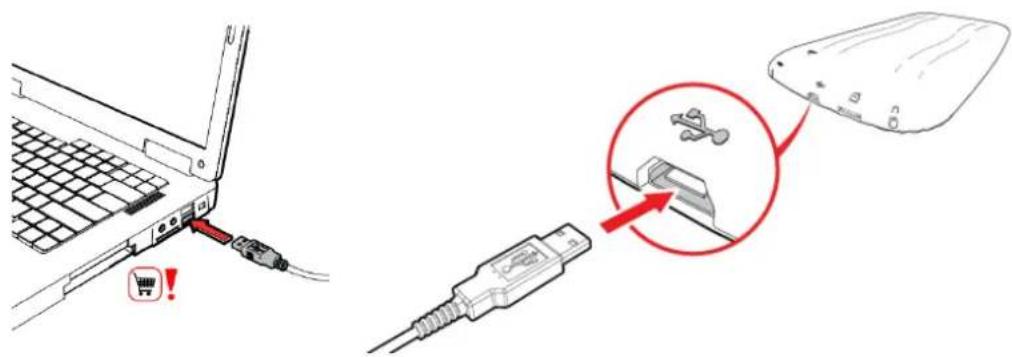
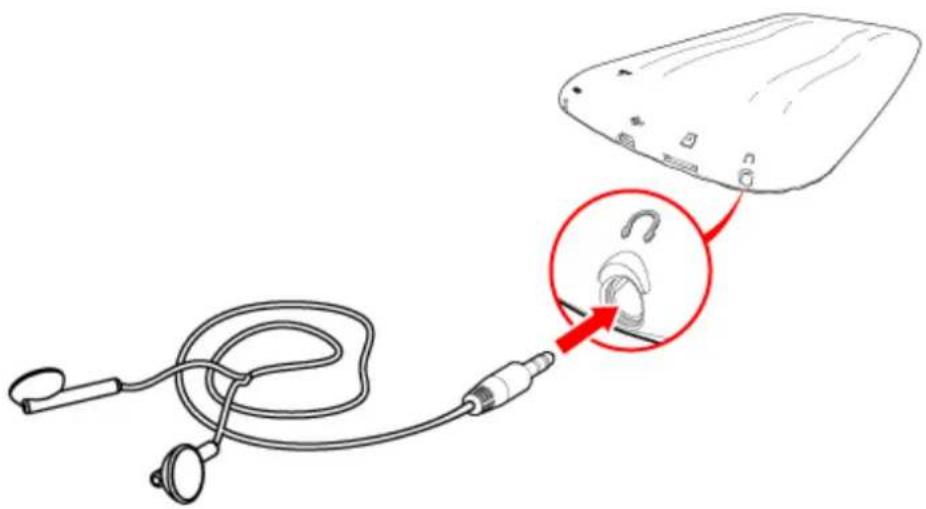
5.Overview buttons and other controls
5.1. Overview of the tablet
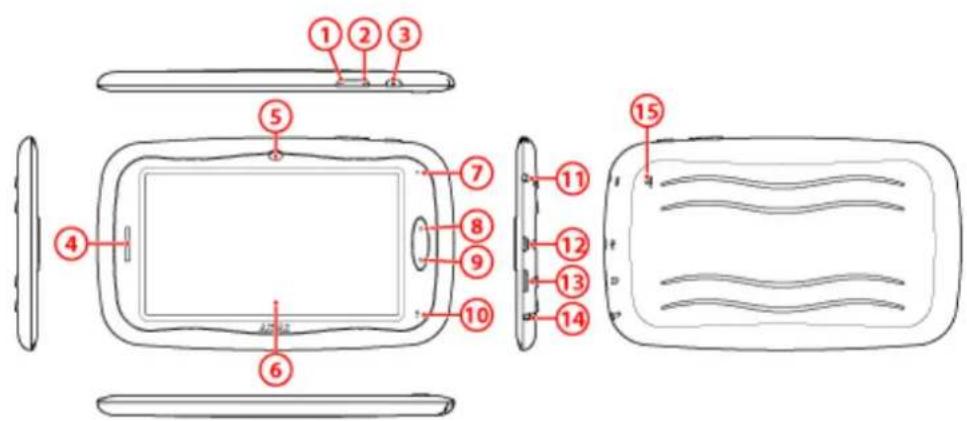
- VOL -
- VOL +
- POWER
- Loudspeaker
- Camera
- Display
- LED Indicator
- Home button
- ESC (back button)
- Microphone
- DC connection
- USB 2.0 slot
- Slot-in for micro SD card
- 3.5 mm headphones jack
- Reset opening
5.2. Selection of icons on your tablet
This chapter contains a selection of icons you will come across when using your tablet. These symbols are regularly referred to further in the manual.

Return to the previous screen.

To the start screen of the "children" mode.
In Android Operating System, you can view and turn off all active applications here.

natural_image
Two speaker icons on a black background, no text or symbols presentTurn the volume up or down.

A USB device is connected to the tablet.
Time display.

Display of the WiFi connection.

Display of the battery status.
6.Use
6.1. Using the on/off button

Turning on the product
- Press and hold the ON button for 3 seconds when the product is turned off.
- After starting your tablet, drag the padlock icon to the open lock symbol. The splash screen appears.
Turning off the product
- If the product is turned on, and not in sleep mode, press and hold the ON button for 3 seconds. The "Turn off" message appears.
- Press OK to turn off the product.
6.2. Locking / unlocking the screen (sleep mode)

Unlocking the screen
- Press the ON button to make the screen visible.
- Slide the lock symbol with your finger in the direction of the open lock symbol. The screen has now been unlocked.
Locking the screen
- If the product is on, press the ON button once. The screen dims and is locked.
6.3. Splash Screen
In the splash screen you can log in as a parent in the "Parents" mode, or as a child in the "Children" mode.
In the "Parents" mode you can adjust settings such as passwords (section 6.4).
The "Children" mode allows you to work with all applications (section 6.5).

6.4. "Parents" mode (for parents)
6.4.1 Log in to tablet
- Press "Parents Mode Enter" in the Splash Screen if you have not done so yet.

- Press one of the four boxes under "Enter Passcode" and enter the pass code. The pass code is preset to 8888.
- Press √ next to "Show Passcode" to display the pass code. If the pass code is entered correctly, √ will be displayed. If the pass code is entered incorrectly, √ will be displayed.
• To return to the previous screen, press .
When the correct pass code has been entered the following screen appears.

A1 Children Mode: Here you can log in as a parent to the Children Mode. Go to Subsection 6.4.2 for more details.
A2 Parents Setting: Here you can manage settings as a parent. Go to subsection 6.4.3 for more details.
A3 Android Operating System (OS): Here you can use the tablet in the "Parents" mode. Go to section 6.6 for more details.
6.4.2 Log in as a parent to the "Children" mode
- Press one of the four boxes under "Enter Passcode" and enter the pass code. The pass code is preset to 8888.
- Press √ next to "Show Passcode" to display the pass code. If the pass code is entered correctly, √ will be displayed. If the pass code is entered incorrectly, √ will be displayed.
- To return to the previous screen, press .

When the correct pass code is entered the "Children" mode screen appears.

6.4.3 Manage Settings
- Log in as a parent and press the "Parents setting" button (go to section 6.4 "Parents" mode for more details). The following screen appears:
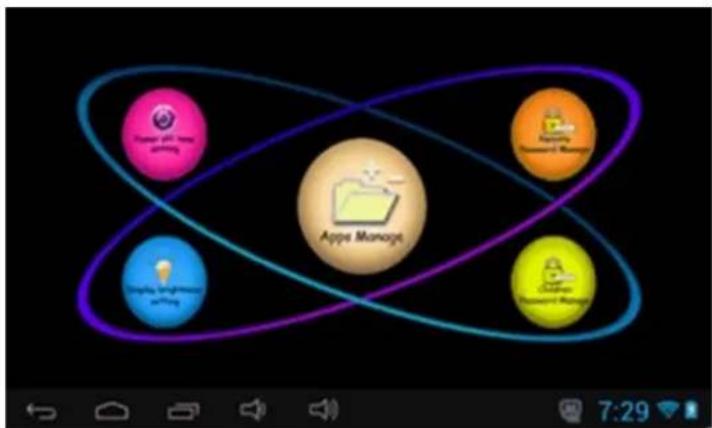
Power off time setting: Here you can set the tablet to turn off after a certain period of time. Go to subsubsection 6.4.3.1 for more details.
Display brightness setting: Here you can adjust the brightness of the screen. Go to subsubsection 6.4.3.2 for more details.
Apps Manage: Here you can set which Apps your children may use. Go to subsection 6.4.3.3 for more details.
Parents Passcode Manage: Here you can change the pass codes for the "Parents" mode. Go to subsubsection 6.4.3.4 for more details.
Children Passcode Manage: Here you can change the pass codes for the "Children" mode. Go to subsubsection 6.4.3.5 for more details.
6.4.3.1 Setting the period after which the tablet turns off

- Press the time after which you want the tablet to turn off automatically. This time can be set between 0 and 180 minutes.
- Press to confirm your selection.
• To return to the previous screen, press .
6.4.3.2 Setting the brightness of the screen

- By sliding the blue dot the brightness of the screen changes. Slide the blue dot to the right to make the screen brighter and slide the blue dot to the left to make the screen less bright.
- Press √ to confirm your choice and to return to the previous screen.
6.4.3.3 Manage Applications

- Press the box behind the name of the App to make it available or not available to your child. When a box is checked, your child can use the App in the "Children" mode.
- Drag your finger inside the two black bars from the bottom up to view the rest of the Apps in the list.
- Press √ at the bottom of the list to confirm your choice and to return to the previous screen.
Selected Apps can be found under the button on the "Children mode" screen. Go to subsection 6.5.2.5 for more information about this button.
6.4.3.4 Change pass codes for the "Parents" mode
First time changing the pass code
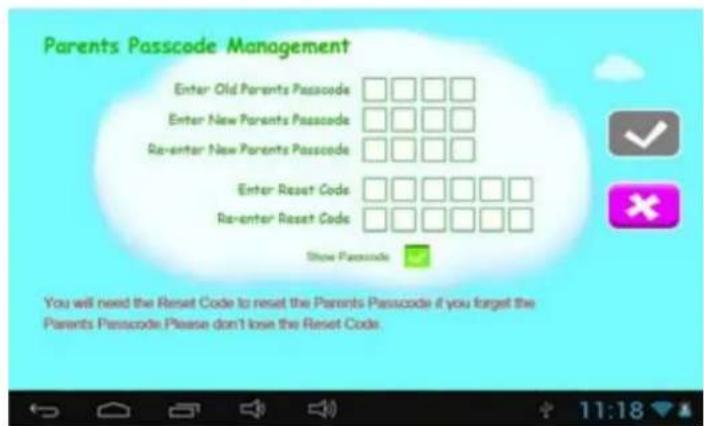
- Enter the default pass code 8888 at "Enter Old Parents Passcode". Press one of the boxes to bring up the keyboard.
- Enter the new pass code at "Enter New Parents Passcode" and at "Re-enter New Parents Passcode".
- Think of a Reset Code and enter it at "Enter Reset Code" and at "Re-enter Reset Code".
- Press √ to confirm your choice and to return to the previous screen.

Caution! Keep the Reset Code in a safe place, you will need it if you do not remember the pass code for the "Parents" mode.
Changing the pass code when it has been set before

- Enter the pass code (you have chosen) at "Enter Old Parents Passcode". Press one of the boxes to bring up the keyboard.
- Enter the new pass code at "Enter New Parents Passcode" and at "Re-enter New Parents Passcode".
- Think of a Reset Code and enter it at "Enter Reset Code" and at "Re-enter Reset Code".
- Press √ to confirm your choice and to return to the previous screen.
Forgotten the pass code
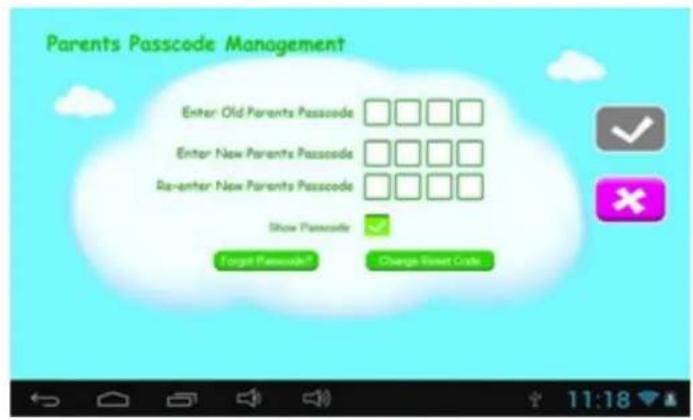
- Press "Forgot Passcode?" The following screen opens:
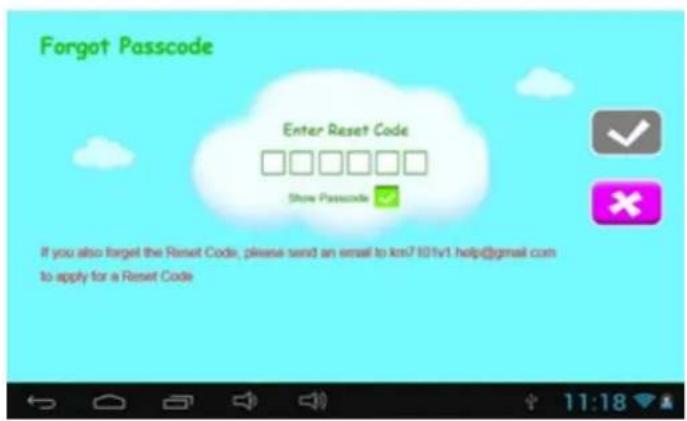
- Enter the reset code, press one of the boxes to bring up the keyboard.
- Press to confirm your selection. The following screen appears:

The pass code has been reset to the default code 8888.
Forgotten the Reset Code
If you have forgotten the Reset Code, you need to contact the AKAI helpdesk.
Changing the Reset Code

- Enter the Reset Code (you have chosen) at "Enter Old Reset Code". Press one of the boxes to bring up the keyboard.
- Enter the new Reset Code at "Enter New Reset Code" and at "Re-enter New Reset Code".
- Press √ to confirm your choice and to return to the previous screen.
6.4.3.5 Change pass codes for the "Children" mode
Changing the pass code
Since you are logged in to the "Parents" mode, you can directly change the pass code.
- Press √ to confirm your choice and to return to the previous screen.
Changing the pass code
Use the pass code of your "Parents" mode to change the pass code of the "Children" mode.
- Press √ to confirm your choice and to return to the previous screen.
6.5. "Children" mode (for children)
6.5.1 Log in to tablet
- Press "Children Mode Enter" on the Splash Screen if you have not done so yet.
- Press one of the four boxes under "Enter Passcode" and enter the pass code.
- Press next to "Show Passcode" to display the pass code. If the pass code is entered correctly, will be displayed. If the pass code is entered incorrectly, will be displayed.
• To return to the previous screen, press .
When the correct pass code is entered the "Children" mode screen appears:
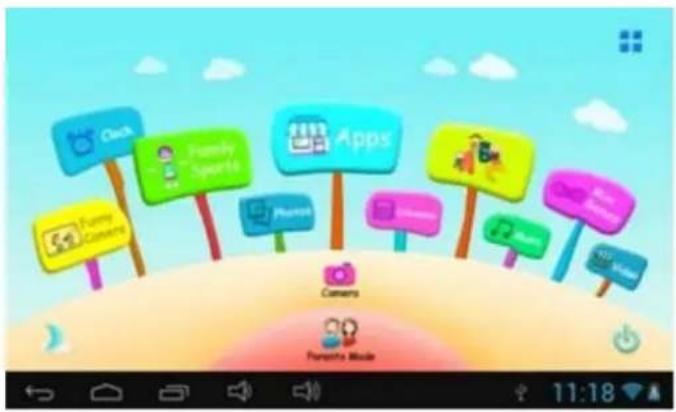
6.5.2 Overview icons "Children" mode

Taking a picture with a funny effect

Set Alarm

Play family games

View Photos

View the available Apps

Use the calculator

Play educational games

View and play the list of music files

Play mini games

View and play the list of video files

Camera
Taking pictures and videos

Parents Mode
Log in to the "Parents" mode

Turning off the tablet

Manually set the background to night time

Manually set the background to daytime
The background changes automatically from day to night after 18:00 hours and automatically changes from night to day at 06:00 hours.

Background set to daytime
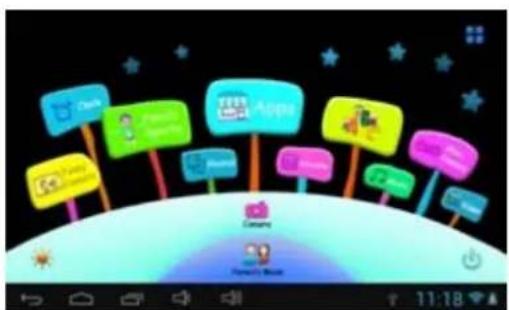
Background set to night time

6.5.2.1 Taking a picture with a funny effect
- Press "Funny Camera" if you have not done this yet. The following screen appears:

flowchart
graph TD
    A["1"] --> B["Clock"]
    C["2"] --> D["Action"]
    E["3"] --> F["Action"]
    G["4"] --> H["Action"]
    I["5"] --> J["Action"]
    K["6"] --> L["Action"]
    M["7"] --> N["Action"]
    O["8"] --> P["Action"]
    Q["9"] --> R["Action"]
    S["Start"] --> T["End"]
- Press "animation" (9).
A pop-up appears with 4 options:
Photo frame (5):
Here you can choose from 11 different frames. Press a frame to select it.
Stamp (4):
Here you can choose from 16 different stamps. Press a stamp to select it.
Funny face (3):
Here you can choose from 11 different faces. Press a face to select it.
Kaleidoscope (2):
Here you can choose from different shapes. Press a shape to select it. The photo is displayed repeatedly in these shapes.
Timer (1):
Here you can set the number of seconds for the camera to wait to take a picture. You can choose from 3, 5, 7 or 10 seconds.

- Select the desired effect.
- Press the camera (6) to take a picture.
• To view the photos, press the album (8).

6.5.2.2 Set Alarm
Press "Clock" if you have not done this yet. The following screen appears:

- Press "Set Alarm" to go to the alarm settings:
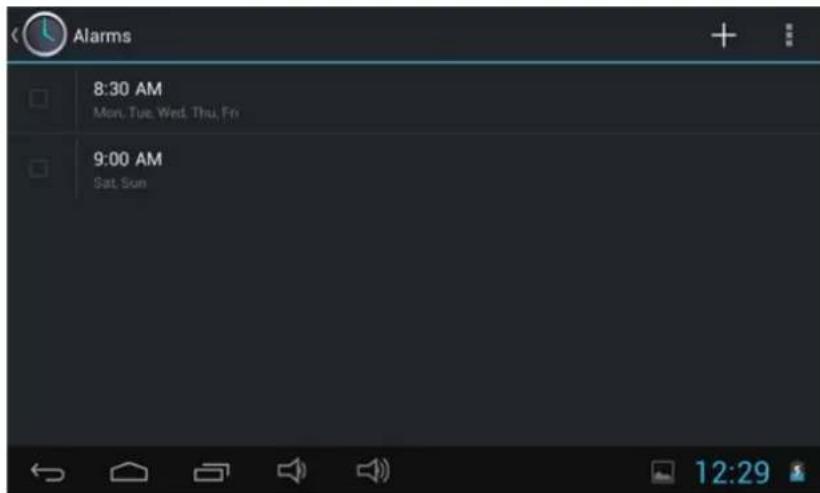
- Press the "+" to add a new alarm.
- Enter the desired time, date, alarm and other information and press "save" to save the alarm.
- The stored alarm appears under "Alarms".
- Press the box for the saved alarm to activate the alarm. The activated alarm also appears in the locked screen under the date.
6.5.2.3 Play family games

- Press "Family Sports" if you have not done this yet. The following screen appears:

The tablet contains 9 Olympic family games.
- Press "Start" and select one of the games.
6.5.2.4 View Photos

- Press "Photos" if you have not done this yet. The following screen appears:

- Press the photo you wish to display enlarged. If the pictures are in a folder, first press the folder and then press the desired picture.
If there are no pictures on the tablet and you have inserted a micro SD card in the tablet, the tablet will automatically load the pictures stored on the micro SD card.
6.5.2.5 View available Apps

- Press "Apps" if you have not done this yet. You can also press the button in the upper right
corner to go to the same menu. The following screen appears:

- Press the desired App to start it up. See subsection for managing the available Apps.
6.5.2.6 Using the calculator
- Press "Calculator" if you have not done this yet. The following screen appears:


6.5.2.7 Play educational games
- Press "ABC" if you have not done this yet. The following screen appears:

Here you find three educational games:
Learning Animal: To teach your child animal names and sounds Learning Transport: To teach your child various forms of transport Learning Fruits: To teach your child various types of fruit
- Press one of the icons in order to start the game.

6.5.2.8 View and play the list of music files
- Press "Music" if you have not done this yet. The following screen appears:

- Press the desired music file to play it.
If there are no music files on the tablet and you have inserted a micro SD card in the tablet, the tablet will automatically load the music files stored on the micro SD card.

- Press "Mini Games" if you have not done this yet. The following screen appears:
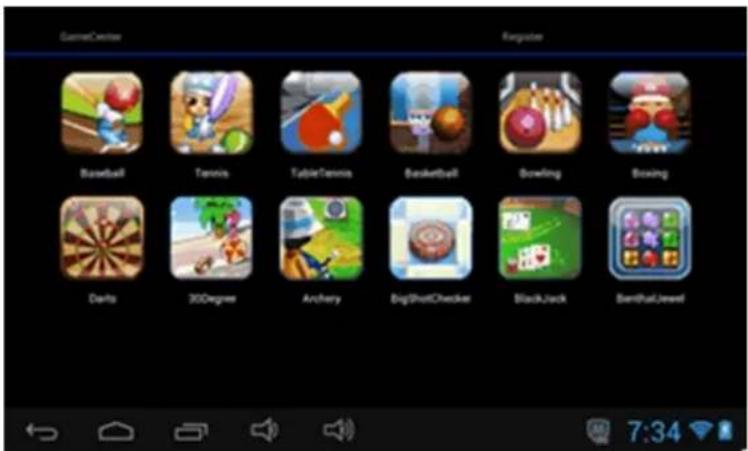
The tablet contains 50 mini games.
- Press the desired mini game to start it.

6.5.2.10 View and play the list of video files
- Press "Video" if you have not done this yet. The following screen appears:

- Press the desired video file to play it. During playback, you can drag the pointer on the playback bar.
If there are no videos on the tablet and you have inserted a micro SD card in the tablet, the tablet will automatically load the videos stored on the micro SD card.

6.5.2.11 Taking pictures and videos
- Press "Camera" if you have not done this yet.
- Press "Picture/Video Camera" to switch between picture and video.
- Press the red record button to take a picture or video.
- Press the red record button again to stop recording a video.
6.6. Android Operating System (OS)
- Log in as a parent in the "Parents" mode (see section for further details). The following screen appears:


- Press. The following screen appears:
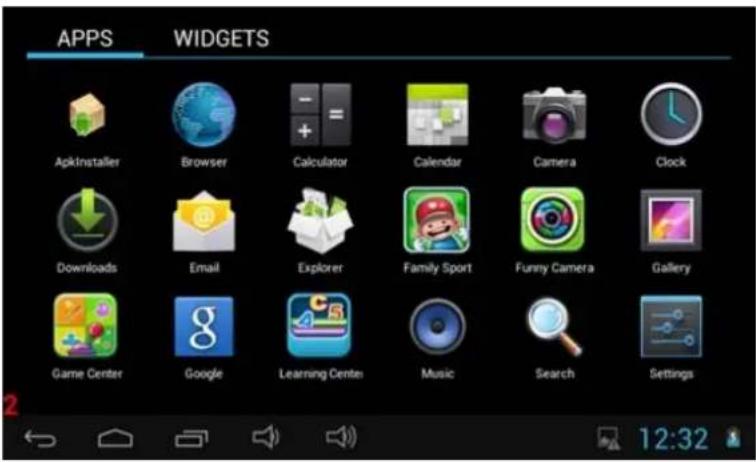
6.6.1 Overview icons "Android Operating System (OS)"

View downloads

View email

View my documents

Recording sound

Manage Settings

Manage Google Settings
6.7. WiFi connection

Caution! Setting a WiFi connection is only accessible in the "Parents" mode. You also need to indicate that your child is allowed to use the WiFi connection. For this, go to subsubsection 6.4.3.3.
- Start the Android Operating System (see section 6.4 for more details) and press following screen appears:
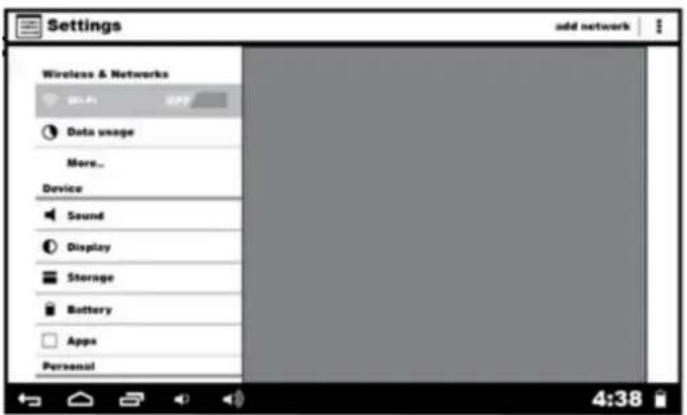
6.7.1 Enable WiFi

- Slide the "OFF" key to the right. The "ON" button appears, as well as a list of available networks.

- Press the desired available network.

- Enter the correct password and press "Connect".
6.7.2 Disable WiFi

- Slide the "ON" key to the left. The WiFi connection has been disabled.
6.8. Browsing the Internet
Browsing the standard Internet is only possible in the "Parents" mode via the browser App. To make this feature is also available in the "Children" mode, you must allow the browser App. Go to subsubsection 6.4.3.3.
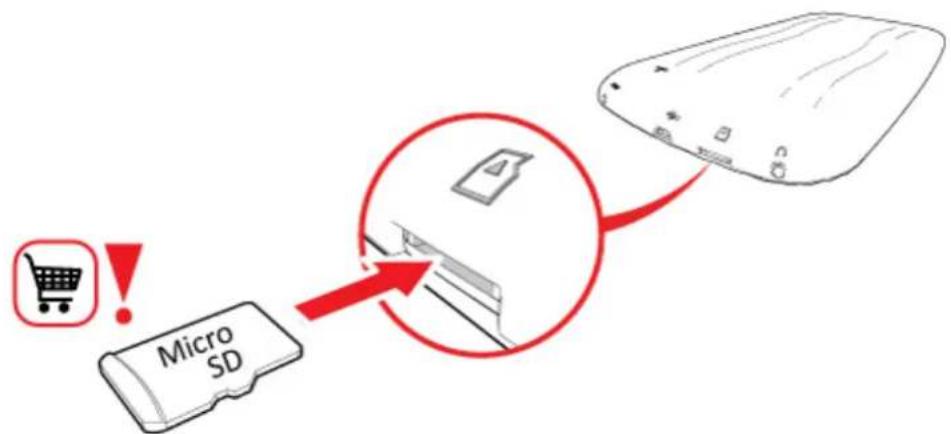
6.9. Memory Card: Placement and access
- Insert a Micro SD memory card into the tablet.
flowchart
graph TD
    A["Micro SD"] --> B["Shipped Device"]
    style A fill:#f9f,stroke:#333
    style B fill:#ccf,stroke:#333
You can browse the files on the Micro SD memory card using the "View my documents" button. For more details, see subsection 6.6.1.
6.10. Connecting a USB to a computer
- Install the software for the tablet on your computer. The software can be downloaded from www.akai.nl.

- Insert the USB cable into the tablet and the computer.
When the tablet is properly connected to the computer, a USB symbol appears at the bottom of the black bar.

- Press the USB icon, a pop-up appears:

- Press the "USB connected" text. The following screen appears:
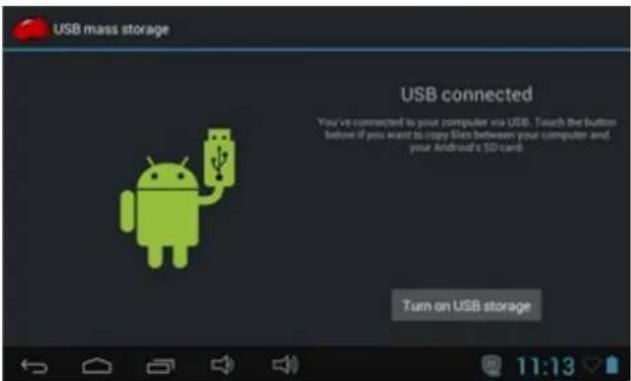
- Press "Turn on USB storage" to make information on the tablet accessible from the computer. If this is successful, the following screen appears:

The tablet is now connected to the computer. Follow the instructions on the computer.
6.11. Settings Menu
Wireless & Network Settings:
Here you can set up a WiFi network and view the data usage.
Sound Settings:
Here you can adjust the settings of several sounds.
Display Settings:
Here you can adjust the brightness, the automatic rotation of the screen and more.
Storage Settings:
Here you can view the storage space and format or add Micro SD cards.
Battery Settings:
Here you can view the status of the battery.
Apps Settings:
Here you can manage Applications and view the storage locations.
Security Settings:
Here you can set a screen saver and select administrators.
Privacy Settings:
Here you can create a backup of your files and reset the tablet to factory settings.
Language and Input Settings:
Here you can set the language for the tablet and select the input method of the keyboard.
Date and Time Settings:
Here you can set the date and time.
About the tablet:
Here you find information about the tablet, such as the software version.
6.12. Battery
The charging status symbol is located in the bottom right corner of your screen. The following indicators are important:
Low battery

Battery fully charged

Battery is charging
6.13. Factory Settings
6.13.1 Restore the tablet to factory settings.

Caution! When you restore your tablet's factory settings, you need to re-register the games (Family Sports, ABC and Mini Games) in the "Children" mode (see subsection 6.12.2).
Start the Android Operating System (see section 6.4 for more details) and press 📄. The following screen appears:

- Press "Privacy".
- Press "Factory Reset". The Tablet has now been reset to factory settings.
6.13.2 Re-register games from the "Children" mode
Start the Android Operating System (see section 6.4 for more details) and press screen appears:
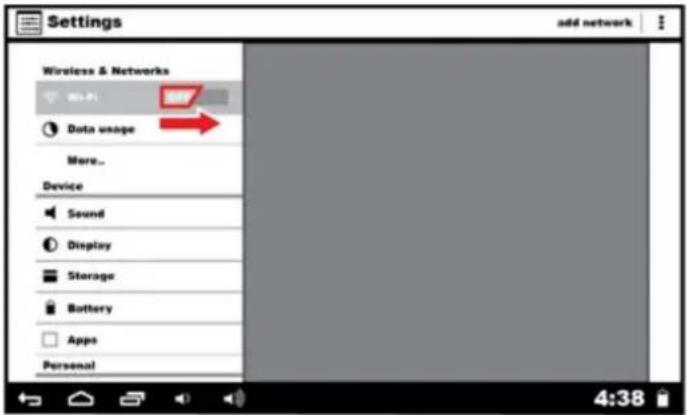
- Slide the "OFF" key to the right.
- The "ON" button appears, as well as a list of available networks.
- Press "back".

- Add Family Sports, ABC or Mini Games and press Re-register. Re-registration is successful.
7. Technical data
Operation System
- Android preinstalled.
Wireless
Built-in Wi-Fi 802.11b/g. Support USB _LAN
Display
- 7-inch Digital TFT Full Screen capacitive touch screen
- 800 x 480 pixels (16:9) display resolution
Cameras and Photos
- Features a 3.0 Megapixel front camera.
- Can use it for video conference through Skype, MSN or any other instant messenger. Easy to shoot and share photos and videos wherever you are.
Parental Controls
- Preloaded with educational content and games for kids.
- Parents can easily pick and choose which Apps the kids are allowed to use.
- Parents can unlock device and turn it into a full-featured tablet.
Video
- Supports all major video formats such as Flash player 10.1, Plays Flash player 10.1, AVI, RM, RMVB, WMV, MOV, MP4, DAT(VCD), VOB(DVD), MPEG, MPG, FLV, ASF, TS, 3GP, MPG etc. HD 1080P, WebM VP8 decoding video format files.
Music Player
• Support MP3,WMA, OGG,AAC, FLAC,APE, WAV.
Power and Battery
• Built-in 2800mAh li-poly Battery
- Up to 3 hours of surfing the web on Wi-Fi, watching video, or listening to music.
- Charging via power adapter or USB to computer system
Input / Output
• T-Flash Card slot
- Mini 5p USB Jacket
- USB OTG port
• 3.5-mm stereo headphone mini jacket
- DC Jacket
Windows System Requirements
• PC with USB 2.0 port
• Windows 7; Windows Vista; or Windows XP Home or Professional with Service Pack 3 or later
- Internet access
Size and Weight
• Size: 217.2mm×129mm×11.3mm
• Weight: 310g
8.Cleaning and maintenance

WARNING Before performing any cleaning or maintenance, switch off and unplug the appliance. Clean the outside of the appliance with a soft cloth. When the appliance is very dirty, dampen the cloth slightly with water and a neutral solution.
Clean the screen with a microfibre cloth and suitable screen spray.
9. Disposal of used electric and electronic equipment

The meaning of the symbol on the material, its accessory or packaging indicates that this product shall not be treated as household waste. Please, dispose of this equipment at your applicable collection point for the recycling of electrical and electronic equipments waste. In the European Union and Other European countries which there are separate collection systems for used electrical and electronic product. By ensuring the correct disposal of this product, you will help prevent potentially hazardous to the environment and to human health, which could otherwise be caused by unsuitable waste handling of this product. The recycling of materials will help conserve natural resources. Please do not therefore dispose of your old electrical and electronic equipment with your household waste.
For more detailed information about recycling of this product, please contact your local city office, your household waste disposal service or the shop where you purchased the product.
For more information and warranty conditions, please visit: www.akai.eu

Do not dispose of batteries as household waste but take them to a battery recycling facility.
10.Solving problems
1. Tablet does not turn on
- Check the battery status, charge if necessary before starting the tablet.
- If you are still unable to turn on your tablet, you can try to reset it.
2. No sound from headphones
- Check whether the sound is off or set to "0". Try another set of headphones to make sure your current set is not broken.
3. Loud noise
- Check if there is dust in the headphones or the loudspeaker. Check if the music file you want to play is damaged.
4. Tablet freezes and does not respond
- Use a pointed object to reset your tablet and to start the tablet again. The reset button is located on the back of the tablet.
5. Screen Deviations or screen does not respond
- Re-start the tablet.
6. Application does not work
- Possible causes are that this App is not compatible with Android or the downloaded file is corrupted.
For all your questions about your product within the warranty period, please visit: www.akai.nl On this website you will find manuals and FAQ (Frequently Asked Questions) about your product, as well as information about our helpdesk.
- Index
- Intended use
- 2.Safety
- Labels in this manual
- General safety instructions
- 3.Preparations for use
- Unpacking
- Package contents
- For use
- Charging
- LED Indication
- Connecting peripherals
- 5.Overview buttons and other controls
- Overview of the tablet
- Selection of icons on your tablet
- 6.Use
- Using the on/off button
- Turning on the product
- Turning off the product
- Locking / unlocking the screen (sleep mode)
- Unlocking the screen
- Locking the screen
- Splash Screen
- "Parents" mode (for parents)
- Log in to tablet
- Log in as a parent to the "Children" mode
- Manage Settings
- Setting the period after which the tablet turns off
- Setting the brightness of the screen
- Manage Applications
- Change pass codes for the "Parents" mode
- Change pass codes for the "Children" mode
- "Children" mode (for children)
- Log in to tablet
- Overview icons "Children" mode
- Taking a picture with a funny effect
- Set Alarm
- Play family games
- View Photos
- View available Apps
- Using the calculator
- Play educational games
- View and play the list of music files
- View and play the list of video files
- Taking pictures and videos
- Android Operating System (OS)
- Overview icons "Android Operating System (OS)"
- WiFi connection
- Enable WiFi
- Disable WiFi
- Browsing the Internet
- Memory Card: Placement and access
- Connecting a USB to a computer
- Settings Menu
- Battery
- Factory Settings
- Restore the tablet to factory settings.
- Re-register games from the "Children" mode
- Technical data
- Operation System
- Wireless
- Display
- Cameras and Photos
- Parental Controls
- Video
- Music Player
- Power and Battery
- Input / Output
- Windows System Requirements
- Size and Weight
- 8.Cleaning and maintenance
- Disposal of used electric and electronic equipment
- 10.Solving problems
- Tablet does not turn on
- No sound from headphones
- Loud noise
- Tablet freezes and does not respond
- Screen Deviations or screen does not respond
- Application does not work
Brand : AKAI
Model : ATAB701
Category : Tablet