Novel 9 - Electronic device Pandigital - Free user manual and instructions
Find the device manual for free Novel 9 Pandigital in PDF.


User questions about Novel 9 Pandigital
0 question about this device. Answer the ones you know or ask your own.
Ask a new question about this device
Download the instructions for your Electronic device in PDF format for free! Find your manual Novel 9 - Pandigital and take your electronic device back in hand. On this page are published all the documents necessary for the use of your device. Novel 9 by Pandigital.
USER MANUAL Novel 9 Pandigital
Package Contents
- pandigital novel
■ Power Adapter - Tabletop Stand
- USB Cable
■ Stylus
■ Quick Start Guide
■ User Guide (pre-loaded in device)
Getting Started
1 Charge your Device
Plug the power adapter into an electrical wall outlet, and then connect to your device to fully charge the battery before use (approx. 4 hours).
✿ You cannot charge the battery using the USB cable.
While charging, the battery icon displays as: 📋When fully charged, the battery icon displays as: 🔍
You can use the device while the battery is charging.
2 Turn Device On
Press the power button approximately 3 seconds until you see the boot up message. Wait until the Home screen is displayed.
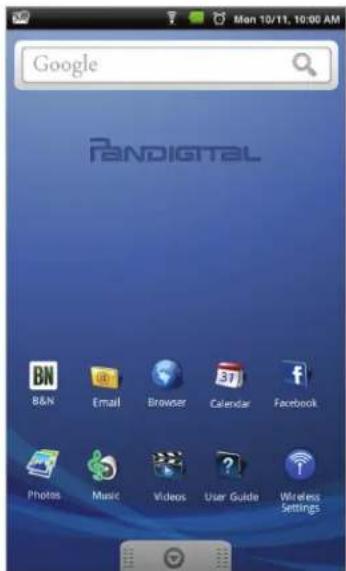
3 Set Date & Time
IMPORTANT - In order to connect with your Barnes & Noble online account, the Date and Time must be set correctly according to your location.
- Tap 🔒, and then tap the Settings application icon.
-
Tap Date & time.
-
Tap Set date, and then use the + or - to set the current date; tap Set.
-
Tap Select time zone, and then select the correct time zone for your location. (Finger slide vertically to scroll the list.)
-
Tap Set time, and then use the + or - to set the correct time according to your location; tap Set.
-
Select your desired time format:
12 = 12:00am-12:00pm
24 = 12:00-24:00 (default)
- Press 📄 to return to the Settings screen.
4 Wi-Fi Network Setup
Since many features require a Wi-Fi connection, we recommend you set up your Wi-Fi network now.
- Tap the Wireless Settings application icon.
- Make sure the Wi-Fi is selected √.
- Tap Wi-Fi settings. The device automatically scans and lists all local Wi-Fi networks found.
If your Wi-Fi broadcast is set as hidden, tap Add Network to enter the network name and password, and then tap Connect. - Tap the desired network to which you want to connect.
- If the network is secure, tap in the password entry field to enter the Network Password.
- Tap Connect.
- After connection is made, press 🔍 🔍 to exit and return to the Home screen.
Connecting to Public Wi-Fi Hotspot
If you are connecting via a public Wi-Fi hotspot, it may be necessary to immediately launch the browser and provide the hotspot login information prior to having an active internet connection.
- Follow steps 1-7 above to select the hotspot Wi-Fi network.
- Select the Browser application icon.
- When prompted, enter the hotspot login information.
Home Screen
① Notification icons (i.e., Email, SD card, etc.)
② Wi-Fi connection status
Battery charge level status
Active Alarm(s) are set
Current Time
③ Widgets and Shortcuts can be added to the Home screen.
④ Touch & hold in an empty spot to display the menu for adding application shortcuts, widgets, and so on.
⑤ Tap to shop the Barnes & Noble Bookstore, and access My Library to download and read purchased B&N media.
⑥ Tap or finger slide up to open the Launcher screen to access all your applications.
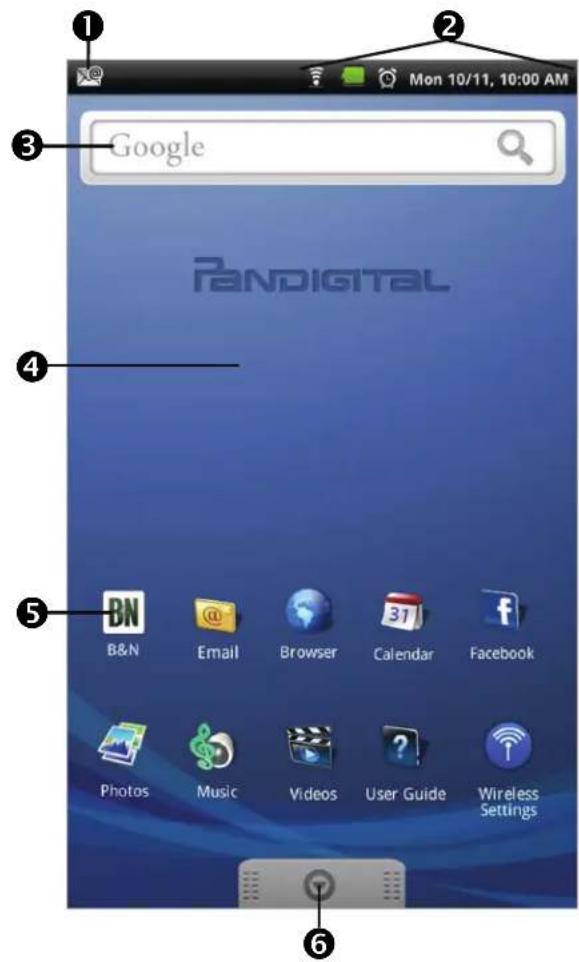
◆ Tap on any application icon to launch it.
❖ Touch, hold and slide an application icon to reposition it on the screen.
✿ Touch, hold and slide an application icon onto 📄 to remove it from the Home screen. (The 📋 changes to 📌 when you touch & hold.)
To view extensions of the Home screen, finger slide the screen horizontally.
✿ Press Menu to display application function options (i.e., add Shortcuts & Widgets, set Wallpaper).
To return to the Home screen at any time in any application, press
Applications
Tap or finger slide up on to access all applications.
 | Adobe® eBooks | Read and manage eBooks copied from Adobe Digital Editions (ADE). |
 | Alarm | Use as alarm clock with scheduled alarms. |
 | B&N | Shop the Barnes & Noble website. |
 | Browser | Access the Internet and ‘surf the web’ whenever desired. |
 | Calculator | Use the calculator for basic math equations. |
 | Calendar | Display monthly calendar and schedule events. |
 | Contacts | Create a list of personal contacts. |
 | Dictionary | Quick access to the built-in dictionary. |
 | Send/Receive email using your existing email addresses. | |
 | ES File Explorer | Use ES File Explorer to view & manage apps, install AndroidTM apps, and to backup files to your SD card. |
 | Quick access to the Facebook website. | |
 | Import SD | Import media files into the internal memory. |
 | Media Search | Search device or bookstore for specific string of text. |
 | Music | Play and manage audio files (MP3, WAV, AAC) |
 | Photos | View and manage photo files (JPG, JPEG, BMP, PNG, non-animated GIF) |
 | Reader | Open last read book. |
 | Settings | Multiple settings for personalizing and enhancing the device. |
 | Stocks | Check the status of specific company's stock offerings. |
 | User Guide | View full pandigital novel User Guide. |
 | Videos | Play and manage video files (MPEG4) |
 | Weather | Check the weather forecasts of locations of your choice. |
 | Wireless Settings | Quick access to set up & connect to a Wi-Fi network. |
To move an icon to the Home screen, touch & hold on the icon, and then release it when it appears on the Home screen. Touch, hold, and then slide the icon to reposition it on the screen.
Overview of Buying & Downloading Media to Device
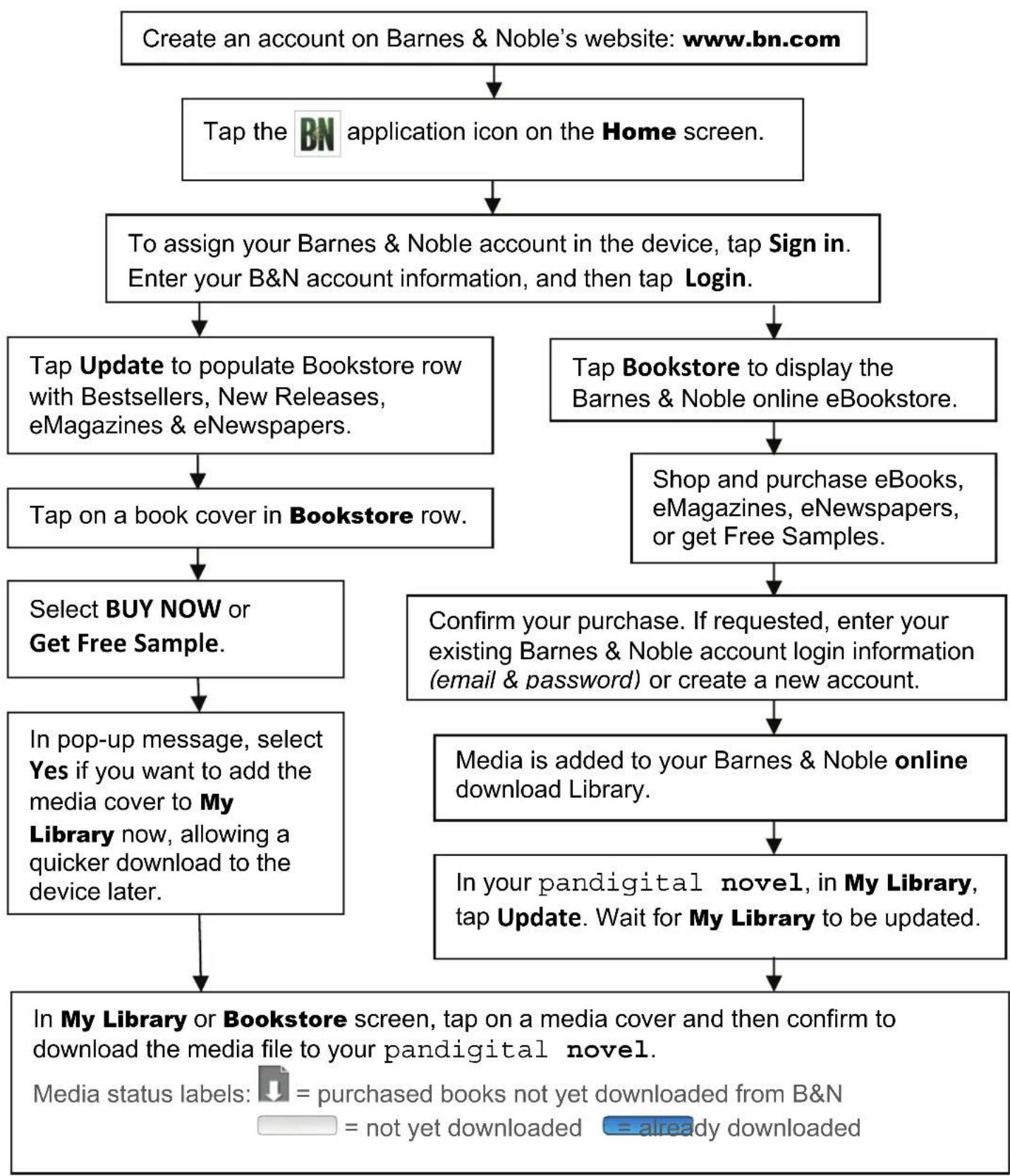
flowchart
graph TD
    A["Create an account on Barnes & Noble's website: www.bn.com"] --> B["Tap the BN application icon on the Home screen."]
    B --> C["To assign your Barnes & Noble account in the device, tap Sign in. Enter your B&N account information, and then tap Login."]
    C --> D["Tap Update to populate Bookstore row with Bestsellers, New Releases, eMagazines & eNewspapers."]
    C --> E["Tap Bookstore to display the Barnes & Noble online eBookstore."]
    D --> F["Tap on a book cover in Bookstore row."]
    E --> G["Shop and purchase eBooks, eMagazines, eNewspapers, or get Free Samples."]
    F --> H["Select BUY NOW or Get Free Sample."]
    G --> I["Confirm your purchase. If requested, enter your existing Barnes & Noble account login information (email & password) or create a new account."]
    H --> J["In pop-up message, select Yes if you want to add the media cover to My Library now, allowing a quicker download to the device later."]
    I --> K["Media is added to your Barnes & Noble online download Library."]
    K --> L["In your pandigital novel, in My Library, tap Update. Wait for My Library to be updated."]
    L --> M["In My Library or Bookstore screen, tap on a media cover and then confirm to download the media file to your pandigital novel."]
    M --> N["Media status labels: = purchased books not yet downloaded from B&N = not yet downloaded = already downloaded"]
Barnes & Noble BOOKSTORE
The first time you access the Barnes & Noble application, the Bookstore and My Library rows are empty. Sign into your Barnes & Noble account to populate the Bookstore and My Library rows.
Although you can populate the Bookstore row without signing into your B&N account, we recommend signing in first so you can shop and download media right away.
You must be connected to a Wi-Fi network to connect to Barnes & Noble.
Sign into your B&N Account
- Tap the BN application icon to display the Barnes & Noble screen.
If you have not yet registered an account with Barnes & Noble, tap Create an Account. The browser opens to the B&N account registration page. Follow all prompts to create your account. - If you have an existing Barnes & Noble account, tap Sign in.
- Enter your B&N account information (email & password), and then tap Login.
Populate Bookstore row
In the Barnes & Noble screen, tap Update to sync with the Barnes & Noble store and populate the row with their Bestsellers, New Releases, Magazines and Newspapers.
After populating the Bookstore row, tap on any book cover to display its descriptive information and buy buttons.
Populate My Library rows
After shopping, tap Update Library to update My Library with all the downloadable media in your Barnes & Noble account.
To download a book to your pandigital novel, tap on the book cover and then confirm to download.
After you purchase a book or get a sample, you are prompted to add the book cover to My Library now, allowing a quicker download to your pandigital novel later. Tap Skip if you want to continue shopping.
Tap eMagazines or eNewspapers to purchase monthly periodical subscriptions. Purchase and download using same method as books.
MY LIBRARY
To access My Library, tap the BN application icon, → tap My Library.
① Function Menu
② To access and open books on a SD card or imported from a SD card or computer, tap Date, Title or Author, and then tap SD or Local from the drop-down list.
③ Row 1: Quick launch area for your last read media (non scrollable).
4 Rows 2-4: Downloaded and downloadable media in your Barnes & Noble online account (scrollable).
⑤ Tap on a media cover to download and/or open it in the Reader.
⑥ Quick jump to other bookshelves. (Use Bookshelves function to create new bookshelves.)
⑦ Tap Update to sync with your Barnes & Noble account and update rows 2-4.
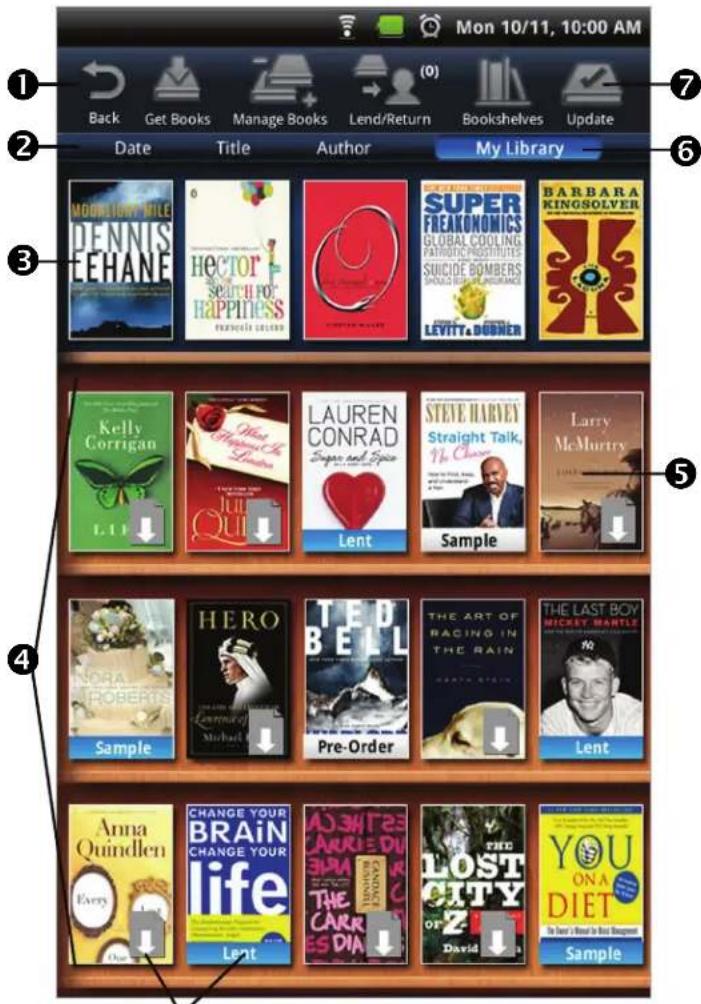
Media status labels
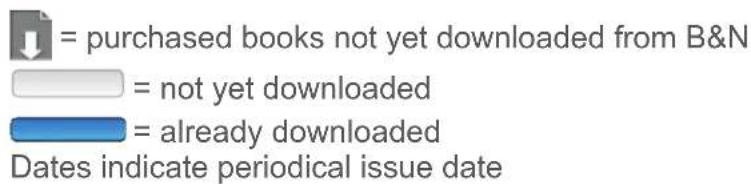
To search for a downloaded book title, press 📂 → Media Search. Enter title text, → tap Search Novel.
When you have multiple issues of a periodical, only the most recent issue appears in My Library without a date. Tap on the shown issue to display a list of all available issues, and then select the desired issue to open.
✿ Lent books are not available to read until they are returned from recipient.
Reader
The Reader application is used to display your downloaded eBooks.
✿ eBook supported formats: EPUB and PDF
Reader Function Menu
Tap on the top of the screen
or press

display the menu.

Tap in upper right corner to bookmark a page (when Reader Function Menu is not displayed).
Finger slide right-to-left for next page.
To highlight text, touch, hold & slide across the desired text, and then select Highlight from the Reader Options window.
To add a Note or access the Dictionary, touch & hold on a word to display the Reader Options window, and then select Dictionary or Add Notes.
✿ While viewing eBook, you can turn the device 90 degrees to the right to rotate the orientation of the screen from vertical to horizontal.
If unit goes into sleep mode (power saving feature), lightly press & release the power button quickly to turn sleep mode off.
User Guide
To view the full pandigital novel User Guide, tap the application icon. The User Guide opens in the Reader.

User Guide

Once open, you can use the standard Reader functions to search and navigate through the document in the same manner as your downloaded eBooks.
If you want to print the User Guide, copy it to your computer using the Connect to Computer instructions in the User Guide.
The User Guide is also posted on our website: www.pandigital.net/downloads.
Customer Support
Before calling customer support, you may find the answers to your questions in the Frequently Asked Questions section in the User Guide.
For Customer Support, call 1-800-715-5354.
Register your pandigital novel
Register your product warranty at www.pandigital.net.*
Qualify to win a FREE digital photo frame!** (valid in USA only)
If you must mail your registration rather than register online, please send your name, address, phone number, model number, serial number, and when & where you purchased the device to: Pandigital, P.O. Box 2969, Dublin, CA 94568-2969 USA
* The online registration is for the purpose of user and product registration. Failure to register does not in any way diminish any of your standard warranty rights, as described in the documentation included with your product.
** For details, go to our website www.pandigital.net.
pandigital novel License Agreement & Terms of Use
By activating and using the pandigital novel, you hereby consent and agree to our License Agreement and Terms of Use as outlined in the User Guide. Please see the User Guide for more information (tap UG application icon in device or download UG from www.pandigital.net/downloads).
Limited Warranty
The limited warranty set forth below is given by Pandigital with respect to the Pandigital Novel™ line of products (the "Device") purchased and used in the United States of America. Pandigital warrants this product as follows:
LABOR: For a period of one (1) year from the date of purchase, if this Device is found to be defective, Pandigital will repair or replace the Device, at its sole option, at no charge. After this one (1) year period, labor charges will be charged on a case by case basis. If your Device is repaired or replaced during the Warranty Period, it will be covered by this Limited Warranty for the remainder of the original Warranty Period or ninety (90) days from the date of shipme whichever is longer
PARTS: For a period of one (1) year from the date of purchase, if this Device is found to be defective, Pandigital will supply at no cost, new or rebuilt replacement parts, at its option, at no charge. After this one (1) year period, parts will be charged for on a case by case basis. Modifications not approved by the party responsible for compliance will void user's authority to operate the equipment. If your Device is repaired or replaced during the Warranty Period, it will be covered by this Limited Warranty for the remainder of the original Warranty Period or ninety (90) days from the date of shipment of the replaced Device, whichever is longer
This Limited Warranty does not cover damage or malfunctions caused by accident, disaster, misuse, abuse, negligence or other external causes; third-party products; Internet or telecommunications failures; commercial use; unauthorized opening, use, service, tampering, alteration, repair or modification; or inadequate packing or shipping procedures. This Limited Warranty does not cover damage caused by third party applications such as viruses, malware or other software. This Limited Warranty also does not cover cosmetic damage or normal wear and tear. This Limited Warranty does not apply to Devices sold as used, refurbished or reconditioned. This Limited Warranty will be void if the Serial Number on your Device has been removed, tampered with or defaced or if your Device has been opened or serviced without authorization, tampered with, altered or modified. This Limited Warranty applies to your Device only (i.e., the hardware), and not to the software within your device. Similarly, this Limited Warranty does not cover downloaded data or materials, or accessories and peripherals, except as expressly provided above. This warranty is valid only in the United States.
The Device must be accompanied by a copy of the original retail purchase receipt for the warranty to be valid. If no proof of purchase is attached, the warranty will not be honored and repair costs incurred will be the responsibility of the end user. This warranty is only valid with written documentation detailing the complaint attached to the outside or inside of the carton. This warranty does not provide protection for the loss of data, regardless of format or cause. Pandigital reserves the right to modify and change the design of this Device without prior notice, written or otherwise.
Limitations. TO THE EXTENT PERMITTED BY LAW, THE WARRANTY AND REMEDIES SET FORTH ABOVE ARE EXCLUSIVE AND IN LIEU OF ALL OTHER WARRANTIES AND REMEDIES, AND WE SPECIFICALLY DISCLAIM ALL STATUTORY OR IMPLIED WARRANTIES, INCLUDING, BUT NOT LIMITED TO, WARRANTIES OF MERCHANTABILITY, FITNESS FOR A PARTICULAR PURPOSE AND AGAINST HIDDEN OR LATENT DEFECTS. IF WE CANNOT LAWFULLY DISCLAIM STATUTORY OR IMPLIED WARRANTIES, EXTENT PERMITTED BY LAW, ALL SUCH WARRANTIES SHALL BE LIMITED IN DURATION TO THE
DURATION OF THIS EXPRESS LIMITED WARRANTY AND TO REPAIR OR REPLACEMENT SERVICE.
SOME JURISDICTIONS DO NOT ALLOW LIMITATIONS ON HOW LONG A STATUTORY OR IMPLIED WARRANTY LASTS, SO THE ABOVE LIMITATION MAY NOT APPLY TO YOU. WE ARE NOT RESPONSIBLE FOR DIRECT, SPECIAL, INCIDENTAL OR CONSEQUENTIAL DAMAGES RESULTING FROM ANY BREACH OF WARRANTY OR UNDER ANY OTHER LEGAL THEORY. IN SOME JURISDICTIONS THE FOREGOING LIMITATION DOES NOT APPLY TO DEATH OR PERSONAL INJURY CLAIMS, OR ANY STATUTORY LIABILITY FOR INTENTIONAL AND GROSS NEGLIGENT ACTS AND/OR OMISSIONS, SO THE ABOVE EXCLUSION OR LIMITATION MAY NOT APPLY TO YOU. SOME JURISDICTIONS DO NOT ALLOW THE EXCLUSION OR LIMITATION OF DIRECT, INCIDENTAL OR CONSEQUENTIAL DAMAGES, SO THE ABOVE EXCLUSION OR LIMITATION MAY NOT APPLY TO YOU.
All content included on the Pandigital website as well as Pandigital Devices, including pre-loaded demonstration images, digital media, digital cookbooks, text, graphics, logos, designs, photographs, button icons, images, audio/video clips, digital downloads, data compilations, and software, are the property of Pandigital or its suppliers and is protected by United States and international copyright laws or other intellectual property laws and treaties. Said content shall not be reproduced or used without express written permission from Pandigital and its suppliers respectively.
Use of this product constitutes acceptance of these terms and conditions of warranty.
To obtain warranty service, refer to the Customer Support section at www.pandigital.net.
Technical support telephone number: 1-800-715-5354.
FCC Notices
FCC ID: POTPRD09TW
This device complies with Part 15 of the FCC Rules. Operation is subject to the following two conditions: (1) this device may not cause harmful interference, and (2) this device must accept any interference received, including interference that may cause undesired operation.
FEDERAL COMMUNICATIONS COMMISSION (FCC) STATEMENT INFORMATION TO THE USER WARNING: Changes or modifications to this device not expressly approved by the party responsible for compliance could void the user's authority to operate the equipment.
This equipment has been tested and found to comply with the limits for a Class B digital device, pursuant to Part 15 of the Federal Communication Commission (FCC) Rules. These limits are designed to provide reasonable protection against harmful interference in a residential installation. This equipment generates, uses, and can radiate radio frequency energy and if not installed and used in accordance with the instructions, may cause harmful interference to radio communications. However, there is no guarantee that interference will not occur in a particular installation. If this equipment does cause harmful interference to radio or television reception, which can be determined by turning the equipment off and on, the user is encouraged to try to correct the interference by one or more of the following measures:
■ Reorient or relocate the receiving antenna.
- Increase the separation between the equipment and receiver.
- Connect the equipment to an outlet on a circuit different from that to which the receiver is connected.
- Consult the dealer or an experienced radio/TV technician for help.
RF Exposure Information (SAR):
This device meets the government's requirements for exposure to radio waves.
This device is designed and manufactured not to exceed the emission limits for exposure to radio frequency (RF) energy set by the Federal Communications Commission of the U.S. Government.
The exposure standard employs a unit of measurement known as the Specific Absorption Rate, or SAR. The SAR limit set by the FCC is 1.6W/kg. Tests for SAR are conducted using standard operating positions accepted by the FCC with the EUT transmitting at the specified power level in different channels.
The highest SAR value for the device as reported to the FCC is 0.612 W/kg when placed next to the body. The FCC has granted an Equipment Authorization for this device with all reported SAR levels evaluated as in compliance with the FCC RF exposure guidelines. SAR information on this device is on file with the FCC and can be found under the Display Grant section of www.fcc.gov/oet/ea/fccid after searching on FCC ID: POTPRD09TW.
This device is compliance with SAR for general population /uncontrolled exposure limits in ANSI/IEEE C95.1-1999 and had been tested in accordance with the measurement methods and procedures specified in OET Bulletin 65 Supplement C.
Disclaimers
© 2010 Pandigital, Inc. or its affiliates. All rights reserved. Pandigital, the Pandigital logo, Pandigital Novel, are trademarks of Pandigital Inc. Barnes & Noble and the "BN" logo are registered trademarks of Barnesandnoble.com LLC. All rights reserved. Facebook and the "f" logo are registered trademarks of Facebook Inc. All rights reserved. Java and all Java based trademarks and logos are trademarks or registered trademarks of Sun Microsystems, Inc. in the U.S. and other countries.
Pandigital Novel contains Adobe ^® Reader ^® Mobile software under license from Adobe Systems Incorporated, Copyright © 1995-2009 Adobe Systems Incorporated. All rights reserved. Adobe and Reader are trademarks of Adobe Systems Incorporated.
CE Notice
Pandigital hereby declares that the essential requirements set out in the R&TTE Directive 99/5/EC have been fully fulfilled on our product with indication below:
Product Name: Pandigital Novel Mule-Rader
Model Name: PRD09TW-R90L200
Brand Name: Pandigital
The following standards have been applied for the investigation of compliance:
EN 50332-2 2003
EN 300 328 V1.7.1:2006
EN 301 489-1 V1.8.1 2008-04
EN 301 489-17 V2.1.1 2009-05
EN 62311:2008
CAUTION: Risk of explosion if battery is replaced by an incorrect type. Dispose of used batteries according to the instructions.
IC Notice
Product Name: Pandigital Novel Mule-Rader
Model Name: PRD09TW-R90L200
IC: 4773A-PRD09TW
This Class B digital apparatus complies with Canadian ICES-003.
"Operation is subject to the following two conditions: (1) this device may not cause interference, and (2) this device must accept any interference, including interference that may cause undesired operation of the device.