Novel R90L200 - Graphic tablet Pandigital - Free user manual and instructions
Find the device manual for free Novel R90L200 Pandigital in PDF.


| Brand | Pandigital |
| Model | Novel R90L200 |
| Type | Graphic Tablet |
| Dimensions (W x D x H) | Approx. 10.2 x 6.5 x 0.4 inches (259 x 165 x 10 mm) |
| Active Area | Approx. 8.5 x 5.3 inches (216 x 135 mm) |
| Weight | Approx. 0.66 lbs (300 g) |
| Pressure Levels | 2048 |
| Connectivity | USB (Micro USB) |
| Power Source | USB bus-powered (5V DC) |
| Compatible Systems | Windows, macOS (drivers required) |
| Pen | Battery-free, pressure-sensitive stylus |
| Pen Buttons | 2 side buttons (programmable) |
| Report Rate | 133 points per second (typical) |
| Resolution | 4000 LPI (lines per inch) |
| Included Accessories | Pen, USB cable, replacement pen nibs |
| Cleaning Instructions | Clean with a soft, lint-free cloth; avoid liquids and abrasive cleaners. |
| Storage Temperature | -10°C to 60°C (14°F to 140°F) |
| Operating Temperature | 0°C to 40°C (32°F to 104°F) |
| Spare Parts Availability | Replacement pens and nibs available from Pandigital or third-party retailers. |
| Repairability | Not user-serviceable; contact Pandigital support for repairs. |
Frequently Asked Questions - Novel R90L200 Pandigital
User questions about Novel R90L200 Pandigital
0 question about this device. Answer the ones you know or ask your own.
Ask a new question about this device
Download the instructions for your Graphic tablet in PDF format for free! Find your manual Novel R90L200 - Pandigital and take your electronic device back in hand. On this page are published all the documents necessary for the use of your device. Novel R90L200 by Pandigital.
USER MANUAL Novel R90L200 Pandigital
Register your pandigital novel
natural_image
Abstract black-and-white geometric shape with a square frame (no text or symbols)Qualify to win a FREE digital photo frame!* (valid in USA only)
Register your FREE 1-year warranty!**
Register now at www.pandigital.net
*For details, go to our website: www.pandigital.net
**The online signup is for the purpose of user and product registration. Failure to register does not in any way diminish any of your standard warranty rights, as described in the documentation included with your product.
NOTE: If you must mail your 1-year registration, please send your name, address, phone number, model, serial number, and when and where purchased to: Pandigital, P.O. Box 2969, Dublin, CA 94568-2969 USA
Note: Your device style and features may differ from those documented in this User Guide.
UG-E_R90L200_v1.8_11-10
Table of Contents
Device Overview 9
Package Contents ......9
Power Button Usage 10
Touch-Screen Navigation 10
Using the Stylus.... 10
Reset Device....10
Getting Started 11
Home Screen 13
Applications....14
Application Function Menu 15
Add.... 16
Wallpaper 17
Search....17
Notifications 18
Settings 18
Overview of Buying & Downloading Media to Device....18
Use Populated Bookstore Row 18
Use Barnes & Noble Bookstore 19
BARNES & NOBLE....19
Sign into your B&N Account.... 19
Populate Bookstore row.... 20
Populate My Library rows 20
Populated Barnes & Noble screen.... 20
Access Imported or Copied Books....21
Access Books on SD card 21
Purchase a Book.... 21
Purchase Magazines or Newspapers 22
Get Free Sample.... 22
Buy Sample Books.... 23
Search Bookstore 23
Sign Out of your Barnes & Noble Account.... 24
Shop B&N 24
Downloading Purchased Media 24
MY LIBRARY 24
Get Books 25
Manage Books 26
Lend/Return Books 27
Loan a Book 27
Check for Offers 28
Opening Borrowed Books 28
Return a Borrowed Book.... 29
Buy Returned or Expired Books.... 29
Bookshelves....29
Add New Bookshelf....29
Manage Bookshelf 30
Display Shelf 30
Quick Open another Bookshelf 30
Delete Shelf....30
Update 31
MEDIA SEARCH....31
READER 31
Reader Function Menu 32
Library 32
Table of Contents.... 33
Bookmarks 33
Bookmarks 33
Notes.... 33
Add Notes 33
View Notes 34
Edit Notes.... 34
Delete Notes 34
Highlights 34
Add Highlights 34
View Highlights.... 34
Hide all Highlights 35
Delete Highlights 35
Go To 35
Display Table of Contents 35
Jump to Page 35
Search for Specific Text 35
Last Read.... 36
Font Size 36
Night Read 36
Screen Orientation - Lock 36
Play Music in Background while Reading 37
BROWSER....37
Enter a Website URL Address 37
Browser Function Menu 38
Go to Bookmarked Web Page 39
Manage Bookmarks 40
Open Bookmarked page 40
Edit Bookmark.... 40
Add Shortcut to Home Screen 40
Share Link....40
Copy & Paste URL 40
Delete Bookmark 40
Windows 40
Open New Window 40
Switch Windows 41
Close Windows 41
Refresh 41
Add bookmark....41
Find on Page 42
Select Text 42
Downloads 42
Browser Settings 43
Page content settings.... 43
Privacy settings 43
Security settings.... 44
Advanced Settings 44
WIRELESS SETTINGS....44
SETTINGS 46
Wireless & networks 46
Sound & display 46
Location & security.... 46
Applications.... 47
Accounts & sync 47
Privacy 47
SD card & eREader storage 48
Search....48
Language & keyboard 48
Date & time 48
About Pandigital Novel.... 49
MUSIC....49
Play Music....49
Music Play Screen 50
Music Control Options.... 50
Delete Music Files....51
Playlist....51
Create New Playlist.... 51
Add Songs to Playlist 51
Play songs in Playlist 52
Remove songs from Playlist.... 52
Rename or Delete a Playlist.... 52
PHOTOS 52
Photo Function Menu....53
Delete Photos....53
VIDEOS....54
Delete Videos.... 55
EMAIL 55
Add Email Accounts 55
Set up Yahoo! Plus Account 56
Set up Juno Platinum or Turbo Account 56
Email Inbox 56
Open Email Message 56
Compose New Email Message 57
Edit Email Account....57
Delete Email Accounts 57
Set Default Email Account 58
ALARM 58
Add Alarm 58
Shut Off Alarm Alert 59
De-Activate Alarms 59
Edit Alarm 59
Delete Alarm 59
CALENDAR 59
Add Event 60
Edit Event....60
Event Reminder Alerts 60
Delete Events....61
CONTACTS 61
Add New Contacts 61
Add Contact to Favorites 61
Edit Contacts....62
Email Contacts....62
Delete Contacts 62
DICTIONARY 62
ES FILE EXPLORER....63
View Complete User Manual 63
Manage Media files....63
ES Function Menu 64
Install Android ^TM Applications using ES File Explorer 66
Download Android™ Applications direct from Website 66
Stopping Android ^TM Applications 67
Uninstalling Android ^TM Applications 67
IMPORT SD CARD 67
Read Imported eBooks 68
Delete Local eBooks 68
Connect to Computer....68
Connect to Windows PC 68
Connect to Macintosh Computer 70
Read Copied Digital Media 71
Adobe® eBooks....72
USER GUIDE....73
UPDATE FIRMWARE....74
Frequently Asked Questions....75
Battery Management 80
Important Safety Precautions....80
Cleaning the device 81
Technical Specifications....81
Release Notes......81
Limited Warranty 82
FCC Notices....83
RF Exposure Information (SAR): 84
Disclaimers 84
License Agreement and Terms of Use 84
CE Notice 87
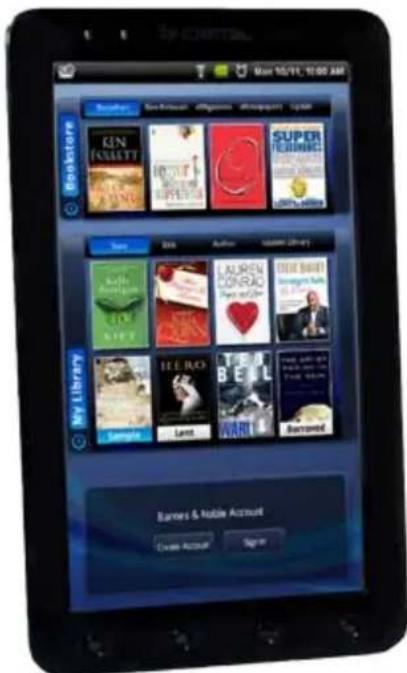
pandigital novel
A contemporary multimedia device designed for straightforward functionality, featuring a full color TFT LCD display and convenient touch-screen navigation.
Your pandigital novel is a light and stylish electronic multimedia eReader which allows you to quickly and easily download and read digital eBooks, Magazines or Newspapers anytime and anywhere.
Connect to a Wi-Fi network to shop, purchase and download eBooks, Magazines and Newspapers from the Barnes & Noble bookstore.
You can also browse the web, send/receive email, view photos, watch videos, listen to music, and much more!
READ. SURF. PLAY.
Your pandigital novel is a step up in multimedia devices.
Congratulations on your choice!
Device Overview
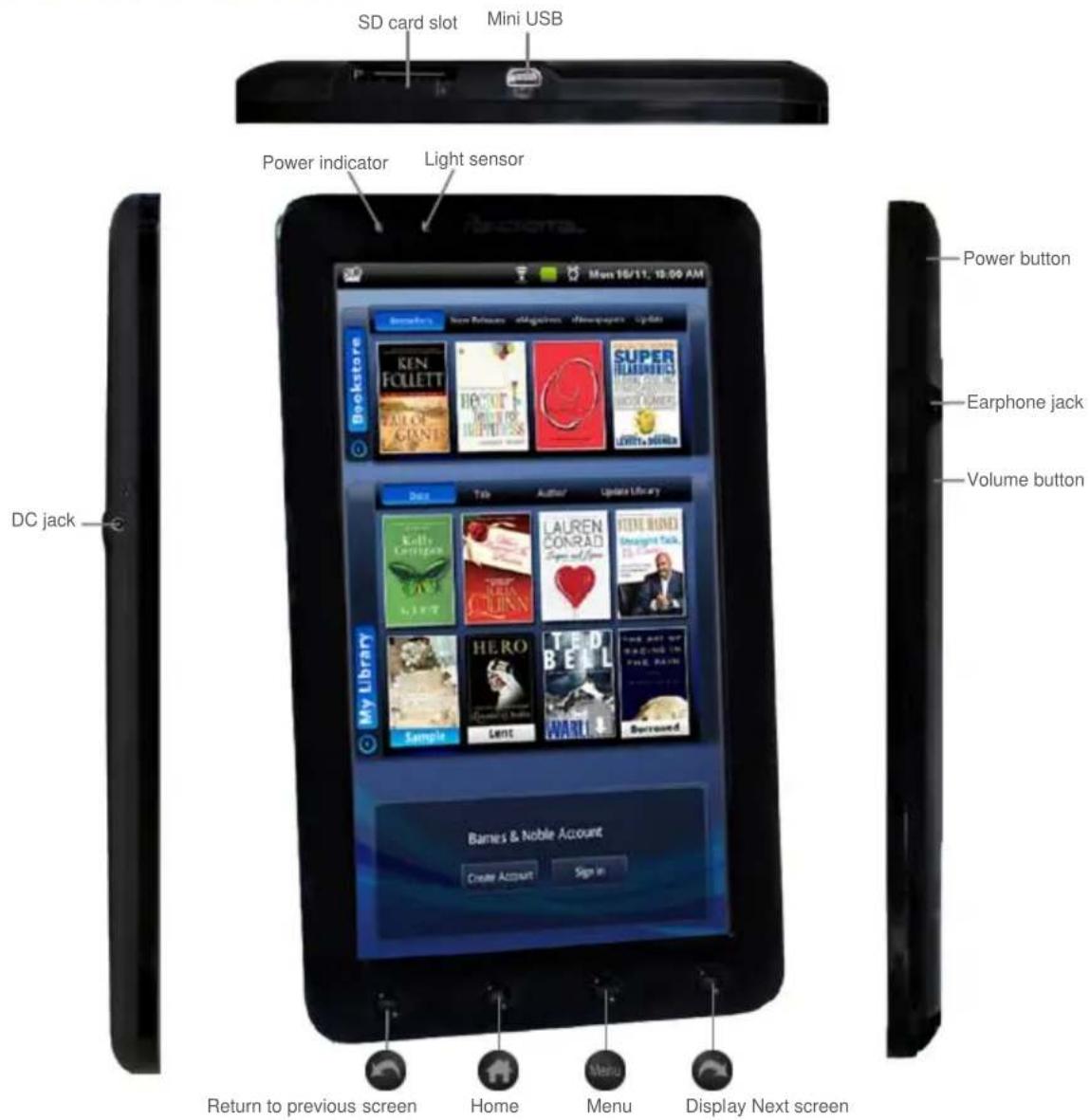
Package Contents
■ pandigital novel
■ Power Adapter
- Tabletop Stand
- USB Cable
■ Stylus
- Quick Start Guide
■ User Guide (pre-loaded in device)
Power Button Usage
Turn On: Press and hold the power button at least 3 seconds or until the boot up message appears.
Turn Off: Press and hold the power button for 3 seconds, and then tap Power off, and tap OK confirm the power off or Cancel to leave the device on.
Sleep Mode On/Off (energy saver): While unit is on, press & release the power button quickly.
Touch-Screen Navigation
The touch-screen allows for quick, easy and convenient navigation for all applications. Throughout the User Guide, you are instructed to use the following touch navigation methods:
Tap = quick touch and release your finger on an item on the screen (i.e., type on the onscreen keyboard, select item buttons).
Touch & hold = touch your finger and hold in place until a response by application (i.e., display dictionary, add note to book page). To open a menu for customizing the Home screen, touch and hold in an empty area on the screen until the menu appears.
Touch & drag = touch & hold an item for a moment and then, without lifting your finger, move your finger on the screen until you reach the target position (i.e., reposition icons on Home screen).
Finger slide = quick light touch & slide your finger across the screen, and then release (i.e., turning pages of your book, scrolling screen up/down).
Touch, hold & slide = touch your finger, hold & slide your finger across the screen, and then release (i.e., highlighting text, selecting text to paste).
Using the Stylus
A stylus is conveniently stored in the bottom right end of the device. When desired, you can use it instead of your finger for easier and sometimes more accurate screen navigation when tapping small options.
Reset Device
In the event that the device does not respond to your touch, you can reboot/restart it by pressing and holding the power button for 10 seconds.
Getting Started
1 Charge your Device
Plug the power adapter into an electrical wall outlet, and then connect to your device to fully charge the battery (approx. 4 hours).
✿ You cannot charge the battery using the USB cable.
✿ You can use the device while the battery is charging.
❖ A fully discharged battery takes approximately 8 hours to fully charge.
While charging, the battery icon displays as:
When fully charged, the battery icon displays as: 📄.
2 Turn Device On
Press the power button approximately 3 seconds until you see the boot up message.
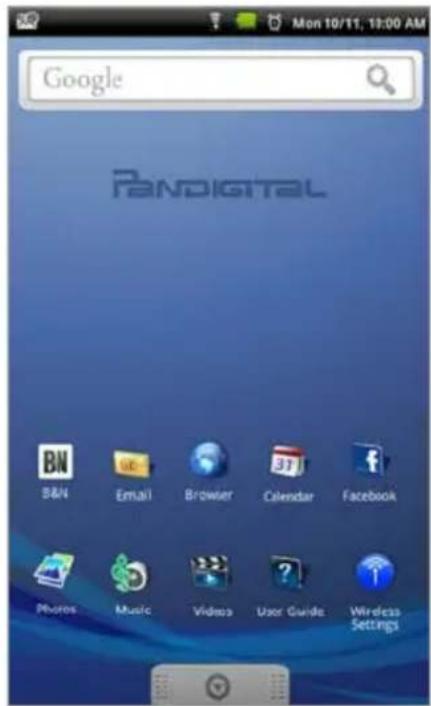
Wait until the Home screen is displayed.
3 Set Date & Time
IMPORTANT - In order to connect with your Barnes & Noble online account, the Date and Time must be set correctly according to your location.
-
Tap 📋, and then tap the 🖼️ Settings application icon.
-
Tap Date & time.
- Tap Set date, and then use the + or - to set the current date; tap Set.
- Tap Select time zone, and then select the correct time zone for your location. (Finger slide vertically to scroll the list.)
- Tap Set time, and then use the + or - to set the correct time according to your location; tap Set.
- Select your desired time format:
$$ \mathbf {1 2} = 1 2: 0 0 \mathrm{am} - 1 2: 0 0 \mathrm{pm} $$
$$ \mathbf {2 4} = 1 2: 0 0 - 2 4: 0 0 (d e f a u l t) $$
- Press 📄 to return to the Settings screen.
4 Wi-Fi Network Setup
Since many features require an Internet connection, we recommend you set up your Wi-Fi network now.
- Tap the Wireless Settings application icon.
- Make sure the Wi-Fi is selected √.
- Tap Wi-Fi settings. The device automatically scans and lists all local Wi-Fi networks found.
If your Wi-Fi broadcast is set as hidden, tap Add Network to enter the network name and password, and then tap Connect.
-
Tap the desired network to which you want to connect.
-
If the network is secure, tap in the password entry field to enter the Network Password.
-
Tap Connect.
-
After connection is made, press 🔒 🔒 to exit and return to the Home screen.
Connecting to Public Wi-Fi Hotspot
If you are connecting via a public Wi-Fi hotspot, it may be necessary to immediately launch the browser and provide the hotspot login information prior to having an active internet connection.
- Follow steps 1-7 above to select the hotspot Wi-Fi network.
- Select the Browser application icon.
- When prompted, enter the hotspot login information.
Home Screen
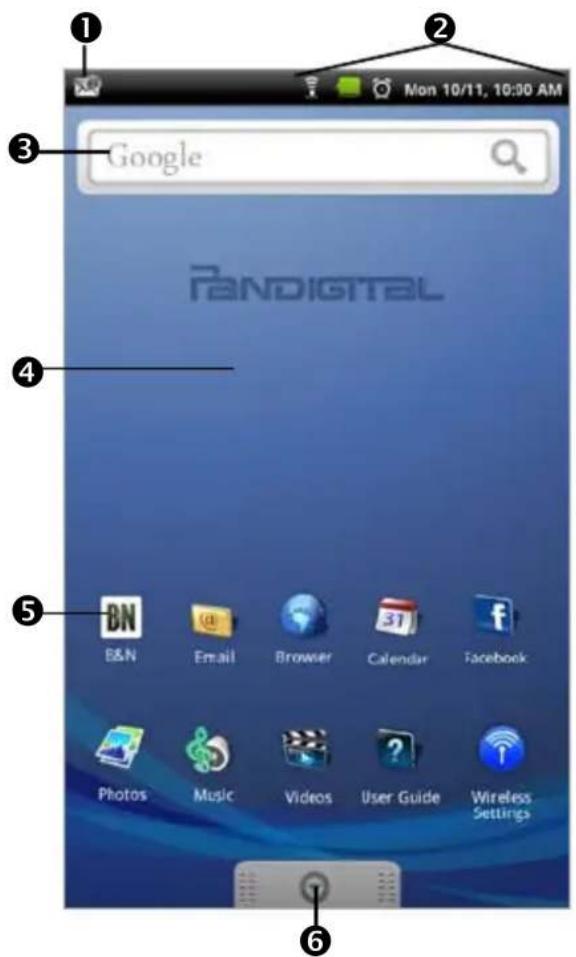
① Notification icons (i.e., Email, SD card)
② Wi-Fi connection status
Battery charge level status
Active Alarm(s) are set
Current Time
③ Widgets and Shortcuts can be added to the Home screen.
④ Touch & hold in an empty spot to display the menu for adding application shortcuts, widgets, and so on.
⑤ Tap to shop the Barnes & Noble Bookstore, and access My Library to download and read purchased B&N media.
⑥ Tap or finger slide up to open the Launcher screen to access all your applications.
◆ Tap on any application icon to launch it.
❖ Touch, hold and slide an application icon to reposition it on the screen.
✿ Touch, hold and slide an application icon onto 📄 to remove it from the Home screen. (The 📋 changes to 📋 when you touch & hold.)
To view extensions of the Home screen, finger slide the screen horizontally.
✿ Press menu to display application function options (i.e., add Shortcuts & Widgets, set Wallpaper).
To return to the Home screen at any time in any application, press 📁.
Applications
Tap or finger slide up on to access all applications.
 | Adobe® eBooks | Read and manage eBooks copied from Adobe Digital Editions (ADE). |
 | Alarm Clock | Use as alarm clock with scheduled alarms. |
 | B&N | Shop the Barnes & Noble website. |
 | Browser | Access the Internet and ‘surf the web’ whenever desired. |
 | Calculator | Use the calculator for basic math equations. |
 | Calendar | Display monthly calendar and schedule events. |
 | Contacts | Create a list of personal contacts. |
 | Dictionary | Quick access to the built-in dictionary. |
 | Send/Receive email using your existing email addresses. | |
 | ES File Explorer | File Manager application for viewing and managing files and apps. Use ES File Explorer to install AndroidTM apps, and to backup files to your SD card. |
 | Quick access to the Facebook website. | |
 | Import SD | Import media files into the internal memory. |
 | Media Search | Search device or bookstore for specific string of text. |
 | Music | Play and manage audio files (MP3, WAV, AAC) |
 | Photos | View and manage photo files (JPG, JPEG, BMP, PNG, non-animated GIF) |
 | Reader | Open last read book. |
 | Settings | Multiple settings for personalizing and enhancing the device. |
 | Stocks | Check the status of specific company's stock offerings. |
 | User Guide | View full pandigital novel User Guide. |
 | Videos | Play and manage video files (MPEG4) |
 | Weather | Check the weather forecasts of locations of your choice. |
 | Wireless Settings | Quick access to set up & connect to a Wi-Fi network. |
To move an icon to the Home screen, touch & hold on the icon, and then release it when it appears on the Home screen. Touch, hold, and then slide the icon to reposition it on the screen.
Application Function Menu
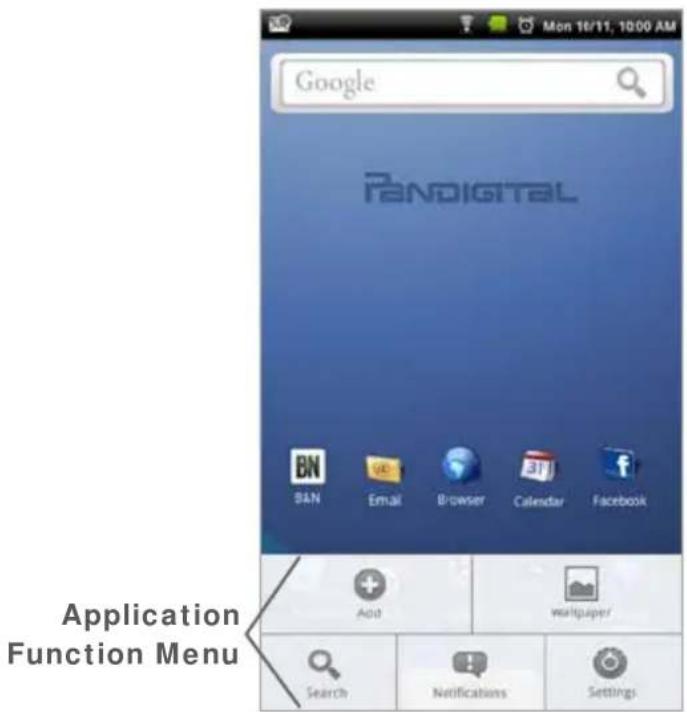
On the Home screen, press Function Menu.

to display the Application

Add
Tap Add on the Application Function Menu to add Shortcuts, Widgets, Folders and assign Wallpaper on your Home screen.
The viewable portion of the Home screen allows only 15 icons. In order to add more items, finger slide the screen horizontally to expose available space, and then tap the Add button again.
Shortcuts
If you select items that are shortcuts already on the Home screen, they will be duplicated, resulting in multiple icons for the same item.
Applications Select the application to be added as a shortcut on the Home screen.
Bookmark Select a bookmarked web page to be added as a shortcut on the Home screen.
Contacts Select the contact to be added as a shortcut on the Home screen.
Music playlist Select the playlist to be added as a shortcut on the Home screen.
Widgets
Analog clock Add a clock on the Home screen.
B&N Widget Add a large B&N shortcut on the Home screen.
Calendar Add a calendar widget to the Home screen, which can also be tapped to quickly open the Calendar screen without launching the Calendar application.
Music Add a music widget to the Home screen which can be tapped to quickly begin playing music without launching the music application.
Search Add a Google Search widget to the Home screen for performing quick Google searches without launching the Web application.
Folders
New folder Add a quick launch icon on the Home screen to a folder into which you can add applications as desired. To move applications on the Home screen into
the folder, touch, hold & drag the icons directly on top of the folder icon. To add applications from the Launcher screen, first tap on the folder to open it, open the Launcher, and then touch & hold on an application icon. It is copied into the folder.
When you close the folder the first time, you are prompted to rename the folder as desired (i.e., Favorites). If you want to rename the folder later, open the folder and touch & hold on the folder name at the top. The Rename folder window appears.
All contacts Add a quick launch icon on the Home screen to the complete contact list in the Contacts application.
Starred contacts Add a shortcut icon on the Home screen to the list of your contacts you've marked as favorites.
Wallpapers
Use this function to assign a different photo as your background image. Use the following instructions under "Wallpaper" to set your desired wallpaper.

Wallpaper
Tap Wallpaper on the Application Function Menu to assign a different photo as your background image.
Pictures
- Select desired photo from your personal photos in Photos.
- A cropping frame appears on the picture. Touch and drag the edges of the frame to re-adjust the size. Touch and drag the entire frame to reposition it.
- Tap Save.
Wallpaper gallery
Select desired photo from preloaded photos, → tap Set wallpaper.

Search
Tap Search on the Application Function Menu to perform a quick Google search using the Google widget.
- Tap in the Google entry field, → enter the desired search text.
- Tap 🔒 on the keypad or on the Google widget.
The browser launches and displays your search results.

Notifications
Tap Notifications on the Application Function Menu to list any pending notifications (i.e., new email, calendar events, etc.).
Tap on a notification to launch the corresponding application.

Settings
Tap Settings on the Application Function Menu to quickly display the Settings screen.
See “Settings” on page 46 for complete instructions.
Overview of Buying & Downloading Media to Device
Use Populated Bookstore Row
A. Create an account on Barnes & Noble's website: www.bn.com
B. Tap the BN application icon on the Home screen.
C. Tap Sign in to assign your B&N account in the device.
D. Enter your B&N account information (email & password), and then tap Login.
E. Tap Update to populate Bookstore row with Bestsellers, New Releases, eMagazines & eNewspapers.
F. Tap on a book cover in Bookstore row.
G. Select BUY NOW or Get Free Sample.
H. In pop-up message, select Yes if you want to add the media cover to My Library now, allowing a quicker download to the device later.
- In My Library or Bookstore screen, tap on a media cover and then confirm to download the media file to your pandigital novel.
Media status labels: ↓ = purchased books not yet downloaded from B&N
= not yet downloaded = already downloaded
Use Barnes & Noble Bookstore
A. Create an account on Barnes & Noble's website: www.bn.com
B. Tap the BN application icon on the Home screen.
C. Tap Sign in to assign your B&N account in the device.
D. Enter your B&N account information (email & password), and then tap Login.
E. Tap Bookstore to display the Barnes & Noble online eBookstore.
F. Shop and purchase eBooks, eMagazines, eNewspapers, or get Free Samples.
G. Confirm your purchase. If requested, enter your existing B&N account login information or create a new account.
H. Media is added to your Barnes & Noble online download Library.
I. In your pandigital novel, in My Library, tap Update. Wait for My Library to be updated.
J. In My Library or Bookstore screen, tap on a media cover and then confirm to download the media file to your pandigital novel.
Media status labels: ↓ = purchased books not yet downloaded from B&N
= not yet downloaded = already downloaded
BN
BARNES & NOBLE
The first time you access the Barnes & Noble application, the Bookstore and My Library rows are empty. Sign into your Barnes & Noble account to populate the Bookstore and My Library rows.
Although you can populate the Bookstore row without signing into your B&N account, we recommend signing first so you can shop and download media right away.
- You must be connected to a Wi-Fi network to connect to Barnes & Noble.
Sign into your B&N Account
- Tap the BN application icon to display the Barnes & Noble screen.
If you have not yet registered an account with Barnes & Noble, tap Create an Account. The browser opens to the B&N account registration page. Follow all prompts to create your account.
- If you have an existing Barnes & Noble account, tap Sign in.
- Enter your B&N account information (email & password), and then tap Login.
Populate Bookstore row
In the Barnes & Noble screen, tap Update to sync with the Barnes & Noble store and populate the row with their Bestsellers, New Releases, Magazines and Newspapers.
Populate My Library rows
The My Library screen displays the purchased or sample media that you have added to your Barnes & Noble online account.
To populate the rows, in the Barnes & Noble screen, tap Update Library.
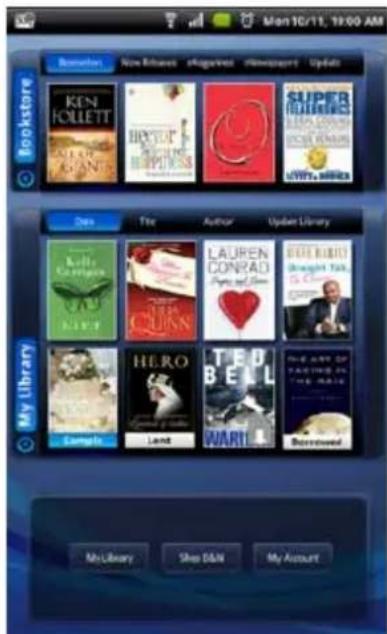
Populated Barnes & Noble screen
After logging in and populating the Bookstore and My Library rows, the Barnes & Noble screen resembles the following example:
Media status labels:

To search for a book title, press → Media Search. Enter title text, → tap Search Novel/Search Bookstore.
Access Imported or Copied Books
- To access and open books imported from a SD card or your computer, tap My Library.
- Tap Date, Title or Author, and then tap Local from the drop-down list.
Access Books on SD card
- To access and open books stored on a SD card, tap My Library.
- Tap Date, Title or Author, and then tap SD from the dropdown list.
When you remove the SD card, the books are no longer displayed in My Library.
Purchase a Book
- To be sure you are viewing the most current media on the Barnes & Noble website, in the Bookstore screen tap Update above the Bookstore row.
- Tap on any book in the Bookstore row to display the book details, including pricing, sample availability, and a synopsis (example below).
![Mon 10/11, 13:00 AM Bestsellers Fall of Giants by Allen Follett Type: album Last Price: $25.00 eBook From Sample: $19.69 Download sample before purchasing Tap BUY NOW to purchase immediately Synopsies Rating: 4 Ken Follett's World Without End was a global phenomenon, a work of grand historical swop, beloved by millions of readers and acclaimed by critics as "well-researched, beautifully detailed [with] a terrifically compelling plot" (The Washington Post) and "wonderful history wrapped around a gripping story" (St. Louis Post- Dispatch) Fall of Giants is his magnificent new historical topic. The first novel in The Century Trilogy, it follows the faxes of five interrelated families-American, German, Russian, English, and Welsh-as they move through the world-shaking dramas of the First World War., the Russian Revolution, and the struggle for women's suffrage. Thirteen-year-old Billy Williams enters a man's world in the Welsh mining pits...Gus Dewa, an American law student rejected in love, find a surprising new career in Woodrow Wilson's White House...two orphaned Russian](/content/2026/05/1059433/images/bfa619256c4cfcfff0cf155bc05dfb07f205c3be1924741c292ee0e7b1c1b9fa.jpg)
-
In the book's descriptive window, tap BUY NOW.
-
Tap OK in the confirmation screen. The book is added to your Barnes & Noble online account download library.
- After the book is added, a pop-up message appears. Tap Yes to add the book cover to My Library now, allowing a quicker download to the device later.
Tap Skip if you want to continue shopping. After you have purchased all desired books, tap Update Library in My Library to update with new book covers. - Tap on covers with a download icon ↓ to download the books.
- After downloading, tap on a cover to open the book in the Reader.
Purchase Magazines or Newspapers
- To be sure you are viewing the most current media on the Barnes & Noble website, in the Bookstore screen tap Update above the Bookstore row.
- Tap eMagazines or eNewspapers to display only that media.
- Tap on any publication cover to display the publication price and purchase buttons.
- Tap Buy Current Issue or Subscribe Now, → tap Confirm in the confirmation screen. The publication is added to your Barnes & Noble online account download library.
- After the publication is added, a pop-up message appears. Tap Yes to add the publication cover to My Library now, allowing a quicker download to the device later.
Tap Skip if you want to continue shopping. After you have purchased all desired publications, tap Update Library in My Library to update with new publication covers. - Tap on a cover with white Date or a periodical with multiple issues to download the issues.
- After downloading, tap on the cover to open it in the Reader.
Get Free Sample
Some, but not all, books offer a free sample that you can download and read before purchasing the book.
-
To be sure you are viewing the most current media on the Barnes & Noble website, in the Bookstore screen tap Update above the Bookstore row.
-
Tap on any book in the Bookstore row to display the book details, including pricing, sample availability, and a synopsis.
-
If available, tap the Get Free Sample button to add the sample to your Barnes & Noble online account.
-
After the book is added, a pop-up message appears. Tap Yes to add the sample book cover to My Library now, allowing a quicker download to the device later.
Tap Skip if you want to get more samples now. After you have chosen all desired free samples, tap Update Library in My Library to update with new sample book covers.
-
Tap on covers with white label Sample to download the sample books.
-
After downloading, tap on a cover to open the sample book in the Reader.
Buy Sample Books
You can quickly and easily buy the full version of a sample book that is listed in My Library.
- In the My Library screen, touch and hold on the "Sample" book cover that you want to purchase.
- In the pop-up window, tap Purchase this ebook, → tap OK.
- Tap OK to confirm the purchase.
- After the purchase is confirmed, the device automatically syncs with your Barnes & Noble online account to update My Library.
The sample book is changed from "Sample" to "purchased" status.
Tap on the book cover to download your purchased book.
Search Bookstore
You can search the Bookstore for text within an eBook title.
To search the Bookstore, the top Bookstore row must be populated.
- In the Bookstore screen, press

-
Tap Search Media.
-
Enter the desired string of text, → tap Search Bookstore.
-
The search results are displayed; tap on a listing to display the description/synopsis.
Sign Out of your Barnes & Noble Account
In the Barnes & Noble screen, tap My Account.
Tap Sign out, or tap Back to remain signed in.
Shop B&N
Shopping directly on the Barnes & Noble website allows you to view full details about a book, including Editorial and Customer Reviews, along with the synopsis.
- Tap the BN application icon.
- In the Barnes & Noble screen, tap Shop B&N.
- The browser opens to the Barnes & Noble store.
Downloading Purchased Media
After purchasing books, in the Barnes & Noble or My Library screen, tap on a book cover to download it from your Barnes & Noble online account into your device.
MY LIBRARY
To access My Library, tap the Library.

application icon, → tap My
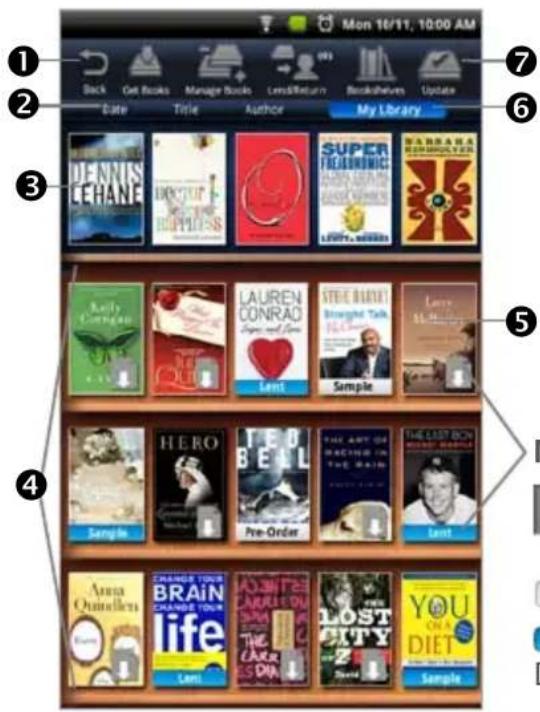
To search for a downloaded book title, press → Media Search. Enter title text, → tap Search Novel.
① Function Menu.
Media status labels
= purchased books not yet downloaded from B&N
= not yet downloaded
= already downloaded
Dates indicate periodical issue date
② To access and open books imported from a SD card or computer, tap Date, Title or Author, and then tap Local from the drop-down list.
③ Row 1: Quick launch area for your last read media (non scrollable).
4 Rows 2-4: Downloaded and downloadable media in your Barnes & Noble online account (scrollable).
⑤ Tap on a media cover to download and/or open it in the Reader.
⑥ Quick jump to other bookshelves. (Use Bookshelves function to create new bookshelves.)
⑦ Tap Update to sync with your Barnes & Noble account and update rows 2-4.
If your Wi-Fi connection is unstable, the Update request may fail. If subsequent update attempts are not successful, sign out, sign back in, and then try again.
When you have multiple issues of a periodical, only the most recent issue appears in My Library without a date. Tap on the shown issue to display a list of all available issues, and then select the desired issue to open.
✿ Lent books are not available to read until they are returned from recipient.

Get Books
The Get Books feature is used if you want to download all your media files at one time. Otherwise, to download individual media files, simply tap on a cover in the Barnes & Noble or My Library screens, and then select the download function.
To use the Get Books feature, you must have an account with Barnes & Noble. If you have not yet registered an account, go to the Barnes & Noble website to register now: www.bn.com.
- You must have already set up your Barnes & Noble account in the device.
If you have multiple Barnes & Noble accounts, the only media that will appear as downloadable is media associated with the account that you have registered in the device.
- You must be connected to a Wi-Fi network in order to connect to and download media from the Barnes & Noble website.
If your Wi-Fi connection is unstable, the Get Books request may fail. If subsequent update attempts are not successful, sign out, sign back in, and then try again.
✿ eBooks downloaded from Barnes & Noble to a Macintosh computer are saved in an unsupported .pdb format. If you copy the .pdb formatted eBooks into your pandigital novel, they will not be recognized. You should always use Get Books to download eBooks directly from your Barnes & Noble download library into your pandigital novel. Music, Video and Photo files can be copied from a Macintosh computer into your pandigital novel as long as they are in a supported file format.
- Tap BN application icon, → tap My Library.
- To be sure you are viewing the most current media in your Barnes & Noble account, tap Update.
- After My Library has been updated, tap Get Books.
- To download all media, tap Download All. To download selected media, tap next to the items you want to download, → tap Download Selected.
- The media is downloaded and added to My Library.
- When media is sorted by Date, it is displayed by the date it was added to your Barnes & Noble online account, not the date you downloaded it to the device. To find your newly downloaded media quicker, sorting by Title or Author may help.
- Tap on a media cover to open it in the Reader.
When you tap on a downloaded book, you may be presented with an ‘unlock’ message requesting your credit card information to unlock the media file. Tap into the entry fields to enter your credit card information, → tap OK. Upon completion, the book is unlocked and automatically open in the Reader.
When you have multiple issues of the same eMagazine and/or eNewspaper, only the most recent issue appears in My Library. Tap on the shown issue to display a list of all available issues, and then select the issue you want to open.

Manage Books
Use this feature to delete media from My Library.
- Tap BN application icon, → tap My Library.
- Tap Manage Books to display a complete list of all media you have downloaded to My Library.
- Media is sorted by date; if desired, tap Title or Author (first name) to re-sort your media accordingly.
- Tap ☐ next to the media you want to delete, → tap Delete Selected.

Lend/Return Books
There are some books that Barnes & Noble classifies as “lendable”, which means that those books can be loaned to others who also have a Barnes & Noble account.
Please be aware of the following considerations before loaning or borrowing any books:
- In order to unlock and open a loaned book, the recipient must use their name and credit card number that is registered with their Barnes & Noble account.
■ The book can only be loaned for 14 days. -
Only one copy of a book can be read at a time. Therefore, you won't have access to the book until after it has been returned from the recipient.
-
You must be connected to a Wi-Fi network before you can use the Lend/Return Books function.
When present, the number that appears with the Lend/Return icon indicates new activity within this feature.
✿ After launching the Lend/Return feature, a window appears. The number behind Return books indicates the number of borrowed books to be returned. The number behind Check for offers indicates new offers pending.
Loan a Book
- Tap BN application icon, → tap My Library.
- To be sure you are viewing the most current media in your Barnes & Noble account, tap Update.
- After My Library has been updated, tap Lend/Return.
- Tap Lend books in the pop-up window.
-
Tap 📄 next to a book that you want to lend, → tap Lend.
-
Tap in the email address entry field to enter the email address that is registered with the recipient's Barnes & Noble account.
✿ CAUTION: Enter the email address carefully. If you enter an invalid email address, the book will be in a locked state until the offer expires in 7 days.
- Tap in the message window to enter a personal message to accompany the media.
The personal message appears in an email that is sent to the recipient and in their Barnes & Noble account.
- Tap Lend Book.
The book's status changes to ‘LENT’ and remains in a locked state until it is returned to your account.
If the recipient declines the loan offer, the book will be available in My Library after you perform an Update to sync with your Barnes & Noble account again.
Check for Offers
Use this function to check for book loan offers that you have not yet accepted or declined.
◆ Offers expire after 7 days.
-
Tap BN application icon, → tap My Library.
-
Tap Update to sync with your Barnes & Noble account.
-
After My Library has been updated, tap Lend/Return.
-
Tap Check for offers in the pop-up window.
-
Tap 📄 next to an offer, tap → Accept or Decline as desired.
-
In My Library, tap on the borrowed book to download it to your device.
✿ Declined books are permanently removed from the Book Offers screen.
Opening Borrowed Books
After you accept and download a loaned book, it appears in My Library.
Tap on the book cover to download it and then open it in the Reader.
- You may be required to unlock the book using the credit card name and number that is registered with your Barnes & Noble account.
Return a Borrowed Book
-
In the Bookstore or My Library screen, touch & hold on a borrowed book, → tap Return this eBook. OR Tap BN application icon, → tap My Library.
-
Tap Lend/Return.
- Tap Return books in the pop-up window.
- Tap 📄 next to the borrowed book that you want to return, → tap Return.
- The book is labeled "Returned" in My Library.
Buy Returned or Expired Books
You can quickly and easily buy a copy of a returned book.
- Tap BN application icon, → tap My Library.
- Touch and hold on the "Returned" or "Expired" book cover that you want to purchase.
- In the pop-up window, tap Purchase this ebook, → tap OK.
- Tap OK to confirm the purchase.
- After the purchase is confirmed, the device automatically syncs with your Barnes & Noble online account to update My Library.
- The book is changed from "Returned/Expired" to "purchased" status. Tap on the book cover to download your purchased book.

Bookshelves
Use Bookshelves to create and manage personalized bookshelves into which you want to save your downloaded media (i.e., Short Stories, Drama, etc.).
The number of books within a bookshelf is displayed in the right column.
Add New Bookshelf
- Tap BN application icon, → tap My Library.
- Tap Bookshelves.
- Tap Add Shelf.
-
Enter the desired bookshelf name (i.e., Short Stories, Drama, etc.).
-
Tap ⚠️ to create the new bookshelf. (Use Manage Bookshelf to add media to the new bookshelf.)
Manage Bookshelf
Use Manage Bookshelf to add to and remove media from bookshelves.
-
Tap BN application icon, → tap My Library.
-
Tap Bookshelves.
-
Tap 📄 next to the bookshelf you want to add or remove media, → tap Manage Bookshelf.
-
Media is sorted by date; if desired, tap Title or Author to re-sort your media accordingly.
-
Tap ☑ next to the media you want to add to the bookshelf, or tap ☑ to delete from the bookshelf.
-
Tap Save to update your bookshelf.
Display Shelf
-
Tap BN application icon, → tap My Library.
-
Tap Bookshelves.
-
Tap 📄 next to the bookshelf you want to display, → tap Display Shelf.
-
The screen's layout resembles the My Library screen, with your last read media in the top row and the media you added in rows 2-4.
-
Media is sorted by date; if desired, tap Title or Author to re-sort your media accordingly.
Quick Open another Bookshelf
Tap the bookshelf name in the upper right of any bookshelf screen to display the list of all bookshelves, → tap the desired bookshelf to open.
Delete Shelf
-
Tap BN application icon, → tap My Library.
-
Tap Bookshelves.
-
Tap 📄 next to the bookshelf you want to delete.
-
Tap Delete.
-
Deleting a bookshelf does not delete the books from the device. They are still in My Library.
Update
You must be connected to a Wi-Fi network before you can perform the Update function.
-
Tap BN application icon, → tap My Library.
-
To be sure you are viewing the most current media in your Barnes & Noble account, tap Update.
-
Rows 2-4 are updated with all downloadable media in your Barnes & Noble online account.
-
Please wait...this could take several minutes depending on how many items are in your online account.
To help speed up your future updates, after downloading your media you can log into your Barnes & Noble online account and move the downloaded items into your Archive folder.

MEDIA SEARCH
-
Tap the Media Search application icon.
-
Enter the desired string of text.
-
Tap Search Novel to search for text within media file names, or tap Search Bookstore to search for text within an eBook title.
To search the Bookstore, the top Bookstore row must be populated.
-
The search results are displayed, sorted according to Bookstore, Books, Photos, Music, or Videos.
-
Tap on a listed file to access it in the applicable application, or media cover to display the description/synopsis.
READER
The Reader application is used to display your downloaded eBooks, Magazines and Newspapers.
❖ Supported formats: EPUB and PDF
Reader Function
Menu
Tap on the
top of the screen
or press Menu to
display the menu.
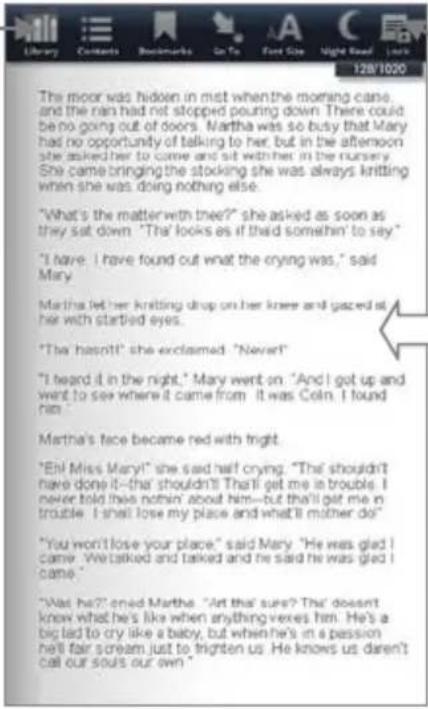
Tap in upper right corner to bookmark a page (when Reader Function Menu is not displayed).
Finger slide right-to-left for next page.
To highlight text, touch, hold & slide across the desired text, and then select Highlight from the Reader Options window.
To add a Note or access the Dictionary, touch & hold on a word to display the Reader Options window, and then select Dictionary or Add Notes.
✿ While viewing digital media, you can turn the device 90 degrees to the right to rotate the orientation of the screen from vertical to horizontal.
If unit goes into sleep mode (power saving feature), lightly press & release the power button quickly to turn sleep mode off.
Reader Function Menu
In the Reader, tap on the top of the screen to display the Reader Function Menu.


Library
To access My Library bookshelf while viewing a book page, display the Reader Function Menu, → tap Library.

Table of Contents
Display the Table of Contents of the currently open book, allowing you to quickly display a desired chapter/page.
- While viewing a book page, display the Reader Function Menu, → tap Contents.
- The Table of Contents is displayed; tap on a chapter/page to display it.

Bookmarks
When desired, you can bookmark, add notes to, and highlight text on pages, making it quick and easy to return to those pages when desired.
Bookmarks
- To bookmark a page, tap in the upper right corner of the page. The symbol changes to , indicating the page has been bookmarked.
- To display the list of all bookmarks you have created in the book you are currently viewing, display the Reader Function Menu, → tap Bookmarks.
- To return to a bookmarked page, tap 📋 next to desired bookmark, → tap View.
- To delete bookmarks, tap on ☐ while displaying a bookmarked page, or while in the Bookmarks screen, tap ☑ next to the desired bookmark, → tap Delete Selected.
Notes
As you read your digital media, you can quickly and easily make notes on pages for later reference.
Add Notes
- On a page, touch & hold on any word to open the Reader options window.
- Tap Add Notes. The Notes dialog window opens.
- Tap into the note entry area, enter the desired text, → tap Add.
- The word related to the note is highlighted in blue.
View Notes
- To display a list of all notes you have added to a book file, display the Reader Function Menu, → tap Bookmarks.
- Tap Notes.
- To view a note, tap on it.
- To jump to the page associated with a note, tap next to the note, → tap View.

Edit Notes
- Display the Reader Function Menu, → tap Bookmarks.
- Tap Notes.
- Tap 📋 next to the note you want to edit, → tap Edit.
- Tap into the note entry area, make desired edits, → tap Save.
Delete Notes
-
Display the Reader Function Menu, → tap Bookmarks.
-
Tap Notes.
-
Tap ☐ next to the notes you want to delete, → tap Delete Selected.
Highlights
As you read your book, you may want to highlight points of interest for later reference.
Add Highlights
- On a page, touch, hold & slide your finger across the text that you want to highlight.
- Tap Highlight in the Reader options window.
- The selected text is highlighted in yellow.
View Highlights
- To display a list of all highlights you have added in a book, display the Reader Function Menu, → tap Bookmarks.
- Tap Highlights.
- Tap on the highlight you want to view.
- To jump to the page associated with a highlight, tap next to the highlight, → tap View.

Hide all Highlights
- To turn all highlights off in the currently open book, display the Reader Function Menu, → tap Bookmarks.
- Tap Highlights.
- Tap Highlights Off.
- To show highlights again, tap Highlights On.
Delete Highlights
- Display the Reader Function Menu, → tap Bookmarks.
- Tap Highlights.
- Tap ☑ next to the highlights you want to delete, → tap Delete Selected.

Go To
Use the Go To function for quick access to the Table of Contents, a particular page, or string of text (word or phrase) within the book you are viewing.
Display Table of Contents
- While viewing a book page, display the Reader Function Menu, → tap Go To.
- Tap Contents to display the Table of Contents.
- Tap on a chapter title to jump to it.
Jump to Page
-
While viewing a book page, display the Reader Function Menu, → tap Go To.
-
Tap Page.
-
Enter the page number you want to view, → tap Go.
Search for Specific Text
- While viewing a book page, display the Reader Function Menu, → tap Go To.
- Tap Word.
- Enter the desired text, → tap Go. The first instance of the found text is highlighted.
-
Tap ◀ ➤ to scroll through all found instances of the text throughout the media file.
-
Tap Cancel Find (in top left corner) to return to the original page you were viewing. OR
You can touch any of the highlighted text to automatically cancel the find mode, and then that page becomes the current page.
Last Read
A page must be displayed at least 15 seconds to be saved as “last read”.
Device only saves 50 last read items, therefore the 51^st “last read” item is saved and the oldest saved item is eliminated (last in, first out).
After performing searches and displaying other pages, quickly return to your last read page.
- Display the Reader Function Menu.
- Tap Go To, → tap Last Read.

Font Size
For optimal viewing, you can adjust the size of the onscreen text by changing the Font Size.
- While viewing a book page, display the Reader Function Menu, → tap Font Size to change the text size.
- Tap the desired font size from the drop-down list.

Night Read
You can switch the background to black with white text, allowing you to view digital media without emitting as much light as the normal view mode.
Normal view mode is white background with black text.
Night Read view mode is black background with white text.
- While viewing a book page, display the Reader Function Menu, → tap Night Read.
- Night Read view mode stays in effect until you switch back to normal view mode by tapping Day Read.

Screen Orientation - Lock
For optimal viewing while reading, the orientation of the screen automatically rotates from vertical to horizontal depending on
how you hold the device.
When desired, you can lock the screen in the desired orientation to prevent the auto-rotation (in Reader only).
While viewing a book page in the desired orientation, display the Reader Function Menu, → tap Lock.
To unlock, display the Reader Function Menu, → tap Unlock.
Play Music in Background while Reading
You can play music in the background as you read digital media.
Open the desired eBook, Magazine or Newspaper in the Reader.
Tap in the upper left corner of the screen to display the music navigation bar.
Tap to begin playing the music.
Use the controls to pause/play and play previous/next song. Use the volume buttons on the side of the device to adjust the volume.
Tap 📋 to close the navigation bar and leave music playing.
Tap to re-display the music navigation bar.
Tap ✗ to stop the music and close the navigation bar.

BROWSER
Use the Web feature to access the Internet and ‘surf the web’ and visit your favorite websites.
The Browser requires a connection to a Wi-Fi network. If you have not set up your Wi-Fi network, do so now using the instructions on page 46.
✿ While viewing the browser, you can turn the device to rotate the orientation of the screen from vertical to horizontal.
Enter a Website URL Address
- Tap the Browser application icon to launch the internet browser.
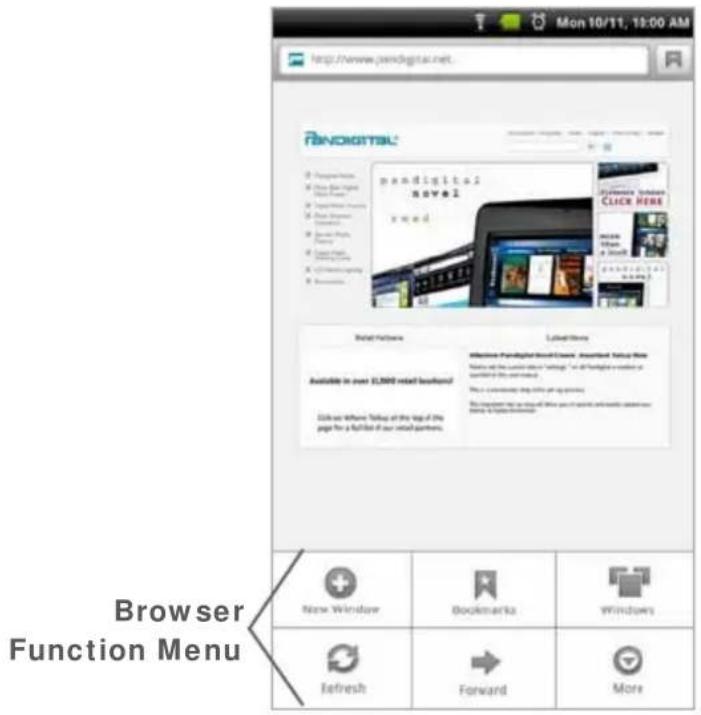
- To go to a new website, tap in the web address entry field at the top of the screen.
- Enter the desired website address, → tap Go.
Browser Function Menu
| Functions | |
 New Window New Window | Tap to open a new browser window. |
 Bookmarks Bookmarks | Tap to bookmark currently displayed web page, access list of all bookmarks, and manage bookmarks. |
 Windows Windows | Tap to view open browser windows.You can have up to 8 browser windows open at a time. |
 Stop Stop | (Displays only when web page is in process of loading into browser)Refreshes the screen by re-loading the current web page. |
 Refresh Refresh | (Displays only after web page is completely loaded in browser)Tap to refresh the screen by re-loading the current web page. |
 Forward Forward | Tap to re-display previously viewed web page.Tap to displayMenu page 2. |
Menu page 2
| Functions | |
| Add bookmark Tap | tap to bookmark currently open webpage. |
| Find on page | Tap to search for string of text on the current web page. |
| Select text | Tap to select text on the current web page and paste into web or other application entry fields. |
| Page info | Tap to view information including the web address of currently viewed page. |
| Share page | Tap to send the URL address of the webpage you are viewing to others via email. |
| Downloads | Tap to cancel or clear browser download history. |
| Settings Tap | to set multiple browser settings as desired. |

Browser Bookmarks
Bookmarked web pages can be quickly launched to re-visit at any time.
Bookmark a Web Page
- In an open browser window, press 📂 → tap Bookmarks.
- Tap Add Boomark.
- If you want to rename the bookmark, tap in the Name field and enter the desired name.
- Tap OK.
Go to Bookmarked Web Page
- In an open browser window, press 📄 → tap Bookmarks.
- In the Bookmarks window, tap on the desired web page.
- The browser displays the selected web page.
Manage Bookmarks
- In an open browser window, press 📄, → tap Bookmarks.
- In the Bookmarks window, touch & hold on a bookmark to display a Bookmark options menu.
Open Bookmarked page
- To open web page in same browser window, tap Open.
- To open web page in new browser window, tap Open in new window.
Edit Bookmark
Tap Edit bookmark, → make desired edits to the Name and Location address, → tap OK.
Add Shortcut to Home Screen
Tap Add shortcut to Home to quickly add a shortcut to the bookmarked web page on the Home screen.
Share Link
Tap Share link to email a bookmarked web page's URL address to someone. The email Compose window immediately opens with the URL already listed in the body of the message.
Copy & Paste URL
Tap Copy link URL to copy the bookmarked web page's URL so you can paste it into an application's entry field. To paste, touch & hold in the entry field to display a pop-up menu, → tap Paste.
Delete Bookmark
- Tap Delete bookmark.
- Tap OK to confirm deletion.
Windows
Up to the last 8 websites you have visited are cached and shown in the Windows screen allowing you to quickly return to them.
Open New Window
-
In an open browser window, press New, → tap New Window.
-
If only one window was open, the new window opens immediately. If you already have multiple windows open, tap 📋 to open a new window.
-
Press 📁, → tap Go and enter the new website address.
-
Tap Go.
Switch Windows
- In an open browser window, press Manul, → tap New Window.
- Tap on the window that you want to view.
If more than 4 windows are open, finger slide vertically to view all windows.
Close Windows
- In an open browser window, press New, → tap New Window.
- Tap ✗ on each window you want to close.
When you're in the Browser application, at least one window must be open, so if you close all windows, a new window automatically opens to your designated home web page.

Refresh
After a web page has completely loaded, you can tap Refresh to re-load it.
If you want to stop the reload, press 📄, → tap ⊖.
Add bookmark
You can search for a string of text within the currently displayed web page.
- In an open browser window, press → tap ▼ to display Menu page 2.
- Tap Find on page.
- Enter the desired string of text (word, phrase, etc.) in the entry field. All matching text is highlighted as you enter the text.
Find on Page
You can search for a string of text within the currently displayed web page.
- In an open browser window, press Menu page 2.
Menu, → tap ▼ to display - Tap Find on page.
- Enter the desired string of text (word, phrase, etc.) in the entry field. All matching text is highlighted as you enter the text.
- If you want to scroll through multiple matches, tap
- Tap ✗ to close the entry box and resume normal viewing.
Select Text
You can select the text of a webpage address on the web page you're viewing, and then you can paste the text into web or other application entry fields.
- On the browser window, press Menu page 2.
Menu, → tap ▼ to display - Tap Select Text.
- Touch, hold & slide your finger across the text you want to copy. The text is copied to the clipboard.
- Open an application with entry fields (i.e., Email), touch & hold in the desired entry field, → tap Paste from the pop-up Edit text window.
- Tap Go on keypad.
Downloads
As you download files from websites, the download history is recorded in the device. You can cancel downloads or clear the history through this feature.
- On the browser window, press Menu page 2.
Menu, → tap ▼ to display - Tap Downloads.
- Tap Clear download list if you want to clear all download history.
- Tap Cancel all downloads if you want to stop all pending downloads from downloading.
Browser Settings
You can set browser settings to enhance your Internet browsing.
-
On the browser window, press 📋, → tap ▼ to display Menu page 2.
-
Tap Settings.
❖ Finger slide vertically to view all browser setting options.
Page content settings
Set the following options pertaining to viewing web pages:
■ Text size (display text as Tiny, Small, Normal, Large, Huge)
■ Default zoom (Far, Medium, Close)
- Open pages in overview (show overview of newly opened pages)
■ Text Encoding (Latin-1, Unicode, Japanese)
- Block pop-up windows (prevents pop-up windows from automatically displaying when web pages include them)
- Load images (display images if included on web pages)
■ Auto-fit pages (automatically fit the webpage to the screen)
■ Landscape-only display (display web pages only in the wider landscape screen orientation)
- Enable JavaScript (allows JavaScripts to run if included on web page)
■ Enable plug-ins (allows plug-ins to run if included on web pages)
- Open in background (open new window when you select a link on a web page, rather than replace the current web page)
- Set home page (desired web page to be displayed when browser opens)
Privacy settings
Set the following options pertaining to your privacy level when viewing web pages:
- Clear cache (delete all cached information from visited web pages)
- Clear history (clear the browser navigation history)
- Accept cookies (allow websites to save and read “cookie” data from the device whenever you visit their site)
- Clear all cookie data (clears all browser cookies that have been saved)
- Remember form data (remembers data you entered into forms for later use)
- Clear form data
■ Enable location (allow other websites to request access to your location) - Clear location access (Clear location access for all websites)
Security settings
Set the following options pertaining to the security level when logging into secure web pages:
- Remember passwords (saves your user names and passwords for all websites that require that information when establishing accounts with them)
- Clear passwords (clears all the saved usernames and passwords)
- Show security warning (alerts you of a problem with website's security)
Advanced Settings
Set the following advanced options:
- Reset to default (clears all browser data and resets to default settings)
WIRELESS SETTINGS
In order to connect to your email or use the web browser, you must have a Wi-Fi network set up on your device.
Wi-Fi On/Off
Tap Wi-Fi to turn on so you can connect to Wi-Fi networks.
Wi-Fi settings
- Tap Wi-Fi settings to select and connect to a local wireless network.
The device automatically scans and lists local Wi-Fi Networks found.
A indicates secure networks that require login name/key to connect.
2. Tap the desired network to which you want to connect.
If your Wi-Fi broadcast is set as hidden, it won't be found by the auto scan. Tap Add Network and then enter the network name and key, → tap Save.
3. If the network is secure, tap in the password entry field to enter the Network Password.
4. Tap Connect.
5. Press 📄 to return to previous screens.
✿ The 📞 icon on the top of the screen indicates the Wi-Fi is connected, otherwise no icon is displayed.
❖ (Advanced): After saving the Wi-Fi network, you can change your network settings by selecting Manual Setup, and then follow the prompts.
Connecting to a Public Wi-Fi Hotspot
If you are connecting via a public Wi-Fi hotspot, it may be necessary to immediately launch the browser and provide the hotspot login information prior to having an active internet connection.
- Follow step 1-5 above to select the hotspot Wi-Fi network.
- Tap the Web application icon.
- When prompted, enter the hotspot login information.
'Forget' remembered Wi-Fi Network
When you connect to a Wi-Fi network, the device remembers the settings for future connections. If you have previously connected to networks that you no longer want ‘remembered’, tap on a network and select Forget.
VPN settings
Set up and manage Virtual Private Networks (VPNs).
CAUTION: This feature is offered for advanced Android ^TM application users. Please refer to Android's documentation to use this feature.
SETTINGS
Use the Settings feature to set various functions that affect the normal usage of your device. You can also set your personal preferences for some functions.
Tap the Settings application icon, or press to access all setting functions.
Wireless & networks
See WIRELESS NETWORKS (pg. 44).
Sound & display
Silent mode When selected, all sounds except alarms are silenced (i.e., keyboard click, end of row ding, warning ding, etc.).
Media volume To adjust the music and video volume, tap & slide and then tap OK.
Notification ringtone Select desired notification tone.
Audible touch tones When selected, a sound is played when tapping on keypad.
Audible selection When selected, a sound is played when making screen selections.
SD card notifications When selected, a tone sounds when a SD card is inserted or removed from the device.
Orientation When selected, the orientation of the screen switches between Portrait (vertical) and Landscape (horizontal) automatically when you rotate the device.
Animation When selected, animations are shown when opening and closing windows.
Brightness Tap & slide to adjust the screen brightness as desired, → tap OK.
Screen timeout Adjust the delay before the screen automatically turns off (default = 2 minutes).
Location & security
Set unlock pattern Create a personal screen unlock pattern to secure your device.
Visible passwords When selected, you can see passwords as you enter them.
Install from SD card Install encrypted certificates from SD card.
Set password Set or change the credential storage password.
Applications
Unknown sources When selected you are allowed to install third party Android applications on your device.
Manage applications Manage and remove installed applications.
WARNING! Making changes to applications can result in errors and failed launches. If you aren't sure of what each setting is/does, we recommend not making changes.
Running services View and control currently running services
Development Set options for application development.
USB debugging When selected the device is in debug mode when USB is connected.
Stay awake When selected the screen never goes into sleep mode while charging.
Accounts & sync
Background data When selected, applications can sync, send, and receive data at any time.
Auto-sync When selected, applications sync data automatically when launched.
Privacy
Factory data reset Tap to reset the eReader to its initial factory state, erasing all data and downloaded applications.
Tap Reset eReader to proceed with reset, or press 📄 to cancel and return to previous screen.
WARNING! All Barnes & Noble account information will be deleted.
Adobe DRM Activation records will be deleted. All personalized data (email accounts, contacts, etc.) will be deleted.
SD card & eREader storage
Total space Total space on a SD card.
Available space Available storage space on the SD card.
Unmount SD card Tap to safely remove the SD card.
Format SD card Tap to format and erase the contents of the SD card. Tap Format SD card to proceed with the format, or press 📄 to cancel and return to previous screen.
Internal device storage – Available space Available storage space in the device for your applications, photos, music and video files.
Search
Google search settings
Show web suggestions When selected, suggestions are shown from Google as you enter text.
Searchable items Choose what you want to search on the device.
Apps When selected, you can search names of installed applications.
Contacts When selected, you can search for contact names.
Browser When selected, you can search bookmarked web pages and web history.
Music When selected, you can search names of artists, albums and music tracks.
Language & keyboard
Select locale Select the language and region according to your location.
Android keyboard Select to set Android keyboard behavior options.
User dictionary You can add words to a personal dictionary, words that may not be included in the default dictionary.
Date & time
-
Tap Set date, and then use the + or - to set the current date; tap Set.
-
Tap Select time zone, and then select the correct time zone for your location. (Finger slide vertically to scroll the list.)
- Tap Set time, and then use the + or - to set the correct time according to your location; tap Set.
- Select your desired time format:
$$ \mathbf {1 2} = 1 2: 0 0 \mathrm{am} - 1 2: 0 0 \mathrm{pm} $$
$$ \mathbf {2 4} = 1 2: 0 0 - 2 4: 0 0 (d e f a u l t) $$
- Press 📄 to return to the Settings screen.
About Pandigital Novel
Status Check the battery and wireless network status.
Battery use View battery usage status.
Legal Information View the Open source licenses.
Technical information The Model number, Baseband version, Kernel version, Hardware platform, Platform Software, Application package, and Adobe RMSDK is information that may be asked for if you contact Customer Support.

MUSIC
These audio file formats are supported: MP3, WAV and AAC
To add audio files to your Music Library, copy them from your computer into the Music folder on your device (via USB connection, pg. 68).
Play Music
- Tap the Music application icon to display the Music screen.
- Select the desired sort format:
Artists Lists all artists. Tap individual artist, → tap on an album to display songs on album, → tap on song to play it.
Albums Lists all albums. Tap individual album to display songs from that album, → tap on a song to play it.
Songs Lists all songs. Simply tap on a song to play it.
Playlists Lists all songs that you've added to the Playlist (pg. 51).
-
To search for a specific song title, press 📄, → tap Search, → tap into search entry field, → enter text string, → tap 🔒. Titles with matching text string are listed.
-
To leave the music playing and return to previous screens, press 🎨, or press 🔒 to return to the Home screen.
-
To stop the music, tap the Pause 🎯icon.
Music Play Screen
When you select a song to play, the Music Play screen is displayed:
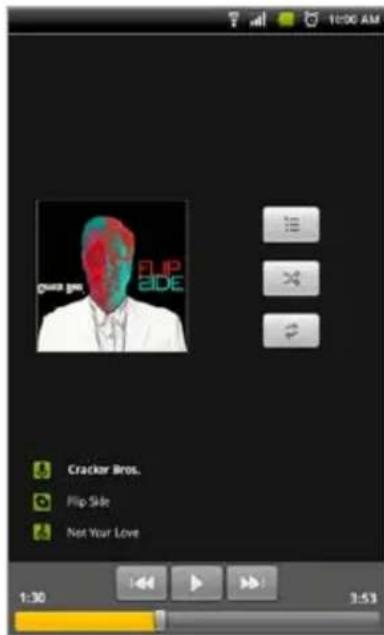
■ List view View currently selected song list. Tap on any song to play it immediately.
- Shuffle Play songs in random order. When off, songs play in the order listed in the Music Library.
- Repeat Play songs continuously until you stop them. When off, songs play through once and then stop.
- Restart song Restart currently playing song.
■ Pause/Stop Pause or stop song. Tap to play.
- Skip to next song Play next song in song library.
- Use or the volume buttons on the side of the device to adjust the volume.
Music Control Options
When the Music Play screen is displayed, press 📷 to display music control options.
■ Library Return to the main Music screen.
- Party Shuffle Play songs from your SD card in random order, until you turn Party Shuffle off.
- Add to playlist Add the currently playing song to a playlist.
- Delete Permanently delete the currently playing song from the media source (internal memory or SD card).
Delete Music Files
You can delete music files using the following methods.
A. In a Music Library screen, touch & hold on an item, → tap Delete.
B. When the Music Play screen is displayed, press 📋 to display music control options, tap ⚙ Delete.
Playlist
You can create individual playlists of selected audio files from your Music Library, allowing you to play a selected list at any time (i.e., your favorites, specific genre, specific artist, etc.).
Create New Playlist
- When viewing songs in the library, touch & hold on the song you want to add to a playlist.
- Tap Add to Playlist, → tap New.
- Tap in the Playlist name entry field → enter desired name, → tap Save.
The new playlist is added to the Playlist library.
You can also add the song that is playing in the Playback screen as the first song in a playlist by pressing 📄 and tapping Add to playlist.
Add Songs to Playlist
- When viewing a list of songs in the library, touch & hold on a listing you want to add to a playlist.
- Tap Add to Playlist.
- Tap the name of the desired playlist.
The song is added to the playlist.
You can also add the song that is playing in the Playback screen as the first song in a playlist by pressing 📄 and tapping Add to playlist.
Play songs in Playlist
- In the Music Library screen, tap Playlists, → tap desired playlist.
- Tap on desired song title to play.
Remove songs from Playlist
- In a Playlist screen, touch & hold on a song you want to remove.
- Tap Delete, → tap OK to confirm deletion.
- Deleting songs from a playlist does not delete them from the main Music Library.
Rename or Delete a Playlist
- Open the Playlist library.
- Touch & hold on the playlist name, → tap Rename or Delete.
- If renaming, tap in the Playlist name entry field → enter desired name change, → tap Save.
- Deleting playlists does not delete songs from the main Music Library.
PHOTOS
To add photo files to your device, connect to your computer (via USB connection, pg. 68) and copy the files into the Photos folder.
✿ Photo file formats supported: JPEG, BMP, PNG, and non-animated GIF
✿ While viewing your photos, you can turn the device to rotate the orientation of the screen from vertical to horizontal.
- Scroll through multiple pages of photos in a photo collection by finger sliding vertically from top or bottom of screen.
-
Tap the Photos icon.
-
Tap on the photo collection you want to open. The collections are titled by the folder name containing the photo files, so the internal memory collection is titled Photos. If you have a SD card inserted, your SD card collection's title is based on what you have named the folder containing your photos (i.e., images, At Zoo 2010, Vacation, etc.).
If you title your SD folder "Photos", the first Photo collection shown in the Gallery is the internal memory, the second Photo collection is your SD card.
If you have multiple folders on your SD card containing photos, each folder is shown as a separate collection.
- To view a single photo, tap on the desired photo.
- To view a slideshow of all photos, press Menu, → tap Slideshow.
- With a photo displayed, tap on the screen to display zoom in/out icons.
Photo Function Menu
When a photo is displayed individually or during a slideshow, press 📋 to display the Photo Function Menu.
| Share | Email the displayed photo |
| Rotate | Rotate photo 90 degrees clockwise; tap multiple times until desired orientation is achieved. Rotated version is saved. |
| Delete | Delete the displayed photo |
| Crop | Crop the photo as desired |
| Set as | Set the displayed photo as a Contact icon or Wallpaper |
| More | Display additional options |
| Details View photo file name, size, and resolution | |
| Show on Maps | Not applicable for this device |
| Slideshow Play slideshow of photos | |
| Settings | Access the photo and slideshow settings (i.e., transition speed, etc.) |
✿ In a Photo Collection screen, touch & hold on a photo to display a similar function menu.
Delete Photos
- Tap the

Photos icon.
-
Select desired photo collection.
-
Touch & hold on the photo you want to delete, → tap Delete.
-
Tap OK to confirm the deletion.

VIDEOS
To add video files to your device, connect to your computer (via USB connection, pg. 68) and copy the files into the Videos folder.
✿ While viewing your videos, you can turn the device to rotate the orientation of the screen from vertical to horizontal.
- Scroll through multiple pages of videos in a video collection by finger sliding vertically from top or bottom of screen.
❖ Video file formats: H.264 AVC and Mp4 SP
-
Tap the Videos icon.
-
Tap on the video collection you want to open. The collections are titled by the folder name containing the video files, so the internal memory collection is titled Videos. Your SD card collection's title is based on what you have named the folder containing your videos (i.e., movies, Kids at Grams, Vacation, etc.).
If you title your SD folder "Videos", the first Videos collection shown in the Gallery is the internal memory, the second Videos collection is your SD card.
If you have multiple folders on your SD card containing videos, each folder is shown as a separate collection.
- Tap on a video to play it.
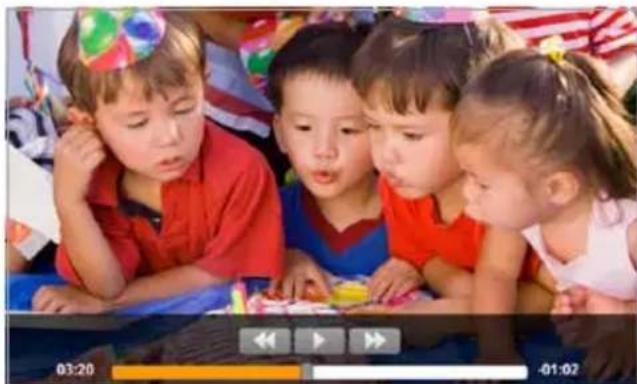
- While a video is playing, tap on the screen to display the video controls.
natural_image
Group of children gathered around a table, one girl in red shirt and party hat, others looking surprised (no visible text or symbols)Pause, Play, Back Forward.
Use or the volume button on the
side of the device to adjust the volume.
- Press 📄 to return to the Videos screen.
Delete Videos
- Tap the

Videos icon.
-
Select desired video collection.
-
Touch & hold on the video you want to delete, → tap Delete.
-
Tap OK to confirm the deletion.
POP3, SMTP, IMAP, and EXCHANGE accounts are supported.
✿ While viewing your email, you can turn the device to rotate the orientation of the screen from vertical to horizontal.
Add Email Accounts
You can enter one or more personal email addresses that you would like to access through your pandigital novel.
- Tap the

Email application icon.
- Tap in the Email address entry field, → enter your email address.
- Tap in the Password entry field, → enter your email password, → tap Done on the keypad.
- Manual Setup (optional): The server settings are automatically populated based on your email account provider (i.e., gmail.com, etc.). However, if you need to change the server settings tap Manual Setup and make necessary changes.
- Tap Next.
- Optional: Enter a name for the account and name for outgoing messages, → tap Done.
✿ After setup, if you are unable to connect to a free email account, check with your email provider to make sure their servers support free accounts on Post Office Protocol (POP) or Simple Mail Transfer Protocol (SMTP).
Set up Yahoo! Plus Account
✿ Your pandigital novel does not support free Yahoo email accounts.
Yahoo! Plus accounts must use the following data when setting up your email account.
- Incoming Mail Server Settings
■ POP server: plus.pop.mail.yahoo.com - Use SSL
■ Port: 995 - Outgoing Mail Server Settings
- SMTP server: plus.smtp.mail.yahoo.com
- Use SSL
- Port: 465
■ Use Authentication
- Account Name/Login Name: Your Yahoo! Mail ID (your email address without the "@yahoo.com", for example "testing80")
- Email Address: Your Yahoo! Mail address (for example, testing80@yahoo.com)
■ Password: Your Yahoo! Mail password
Set up Juno Platinum or Turbo Account
✿ Your pandigital novel does not support free Juno email accounts.
Platinum or Turbo Juno accounts must use the following data when setting up your email account.
- Incoming Mail Server Settings
■ POP server: pop.juno.comnovel - Outgoing Mail Server Settings
- SMTP server: authsmtp.juno.com
Email Inbox
- Tap the @ Email application icon.
-
If you set up only one email account, it opens immediately. If you set up multiple accounts, they are listed in the Accounts screen.
-
Tap on the desired email account, → tap Inbox.
Open Email Message
- On the Inbox screen, tap on an email to open it.
- For attachments, tap Save to save attachment in Music, Photos, Videos, or eBooks folder.
✿ Attachments must be of a supported format in order to be opened directly into your pandigital novel.
- To reply, tap Reply or Reply all.
a. Tap in the Compose Mail entry field to enter your reply message.
b. Tap Send to send immediately, Save as draft to save without sending, or Discard to discard without saving or sending.
- To delete the email immediately, tap Delete.
Compose New Email Message
- On the Inbox screen, → press 📋, → tap Compose.
- Tap in the To entry field and then enter the recipient's email address.
- Optionally, if you want to add Cc or Bcc recipients, → press Menu, → tap Add Cc/Bcc, and then enter the recipient's email address.
- Tap in the Subject entry field to enter your desired subject title.
- Tap in the Compose Mail area to enter your personal message.
- If desired, press 📋, → tap Add Attachment to attach a file.
- Tap Send when ready to send your email.
- You can save your message without sending it by tapping Save as Draft.
- If you do not want to send or save the message, tap Discard.
Edit Email Account
- Tap the @ Email application icon.
- On the Inbox screen, → press 📋, → tap Account settings.
- Set your desired preferences to customize your email account.
- Press to return to the Inbox screen.
- Press 📋 or 🏠 to return to the Home screen.
Delete Email Accounts
If you have multiple accounts, and you delete the account designated as the default account, the next email listed is automatically set as the default.
- Tap the @ Email application icon.
- On the Inbox screen, → press 📋, → tap Accounts.
- Touch & hold on the account you want to delete.
- In the pop-up Account options window, tap Remove account.
- Tap OK to confirm the deletion.
Set Default Email Account
You must always have one account designated as the default account, so if you have multiple email accounts, you can select any one as the default.
- Tap the @ Email application icon.
- On the Inbox screen, → press 📄, → tap Account Settings.
- Tap Default Account to select it.
If you delete the account that was designated as the default account, the next email listed is automatically designated as the default.
ALARM
You can use your pandigital novel as an alarm clock by setting multiple alarms.
✿ A clock icon 🔒 appears at the top of the screen indicating that one or more active alarms are set.
Add Alarm
- Tap the Alarm Clock application icon.
- Press ☐, → tap Add Alarm.
- Tap Time, → tap + and - and AM/PM to set the desired time, → tap Set.
- Tap Ringtone to select the desired alarm alert sound, → tap OK.
-
Tap Repeat if you want the alarm to repeat on specific days, → tap ☐ on each desired day.
If you don't select a repeat, the alarm is automatically deleted after it is activated. -
Tap Label to add a title for your alarm, → tap into the label entry field, → enter the desired title (i.e., lunch with friend, meeting, etc.), → tap OK.
- Press 📄 to return to previous screens.
Shut Off Alarm Alert
When a scheduled alarm is activated, a pop-up window with the alarm title appears.
Tap Snooze if you want to be reminded again in 10 minutes.
Tap Dismiss to cancel the alert.
De-Activate Alarms
On alarms that you have set to repeat, you may want to temporarily de-activate alarms rather than delete them.
- In the Alarm screen, tap √ on the alarm(s) you want to de-activate.
- Tap ☑ to re-activate.
Edit Alarm
- Tap the Alarm Clock application icon.
- Tap on the alarm you want to edit, → make desired edits.
- Press 📋 to return to previous screens.
Delete Alarm
- Tap the Alarm Clock application icon.
- Tap on the alarm you want to delete.
- Press Menu, → tap Delete Alarm.
CALENDAR
Tap the 31 Calendar application icon.
The calendar screen is displayed in full month view. To change to a different view, press 📄 and select desired view (Day, Week).
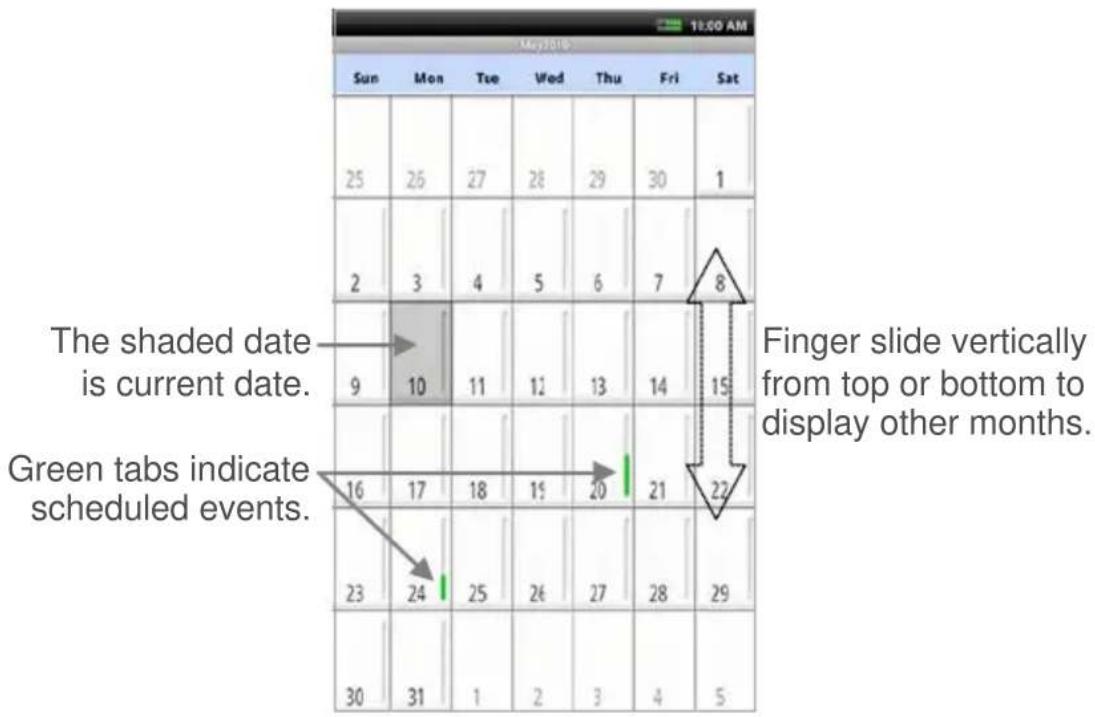
Add Event
- On the Calendar screen, → press Menu.
- Tap New Event.
- Tap in each entry field to enter the desired event information, → tap Save.
- Press 📋 to return to the Calendar screen or 🔍 to return to the Home screen.
Edit Event
- On the Calendar screen, tap on the date with the event you want to edit.
- Tap on the event you want to change, → press 📄, → tap Edit event.
- Make desired changes, → tap Done.
- Press 📋 or 🏠 to return to the Home screen.
Event Reminder Alerts
Single Reminder
If you assigned one event reminder, a pop-up alert appears before the event by the number of minutes you selected.
Tap Snooze if you want to be reminded again in 5 minutes, or tap Dismiss to cancel the alert.
Multiple Reminders
If you assigned multiple event reminders, the first pop-up alert appears before the event by the number of minutes you selected for the first reminder.
Tap Dismiss to cancel the first alert.
Subsequent pop-up alerts appear before the event by the number of minutes you selected for each reminder.
Tap Dismiss to cancel the alert.
If you tap Snooze, multiple alerts appear every 5 minutes until you tap Dismiss.
Delete Events
- On the Calendar screen, tap on the date with the event you want to delete.
- Tap on the event you want to delete, → press 📄, → tap Delete event.
- Tap OK to confirm delete.
- Press 📄 or 🏠 to return to the Home screen.
CONTACTS
You can create an address book of your personal contacts, including personal notes as desired.
Add New Contacts
- Tap the Contacts application icon.
- Press Menul, → tap New Contact.
- Tap in each entry field to enter your contact information.
- Tap Done.
Add Contact to Favorites
- In the Contacts screen, tap on the desired contact name.
- Tap ★ in the upper right corner.
- Press to return to the Contacts screen.
- Tap Favorites to view list of favorites contacts.
Edit Contacts
- In the Contacts screen, tap on the desired contact name that you want to edit.
- Press Menu, → tap Edit contact.
- Make desired changes, → tap Done.
Email Contacts
You must have a default email account set up before using this feature. If you have not yet set up your account, do so now (pg. 55).
1. In the Contacts screen, touch & hold on a contact that you want to email.
2. In the pop-up, tap Send email.
3. Tap in the Subject and Compose Mail fields to enter your message.
4. Optionally, if you want to add Cc or Bcc recipients, → press 📄, → tap Add Cc/Bcc, and then enter the recipient's email address.
5. Tap Send.
Delete Contacts
- In the Contacts screen, tap on the contact you want to delete.
- Press Menu, → tap Delete contact.
- Tap OK to confirm the deletion.
DICTIONARY
The built-in dictionary allows you to quickly and conveniently look up the definition of words, either within the media you are viewing or any other words.
- Tap the Dictionary application icon
- Enter the word you want to look up; as you begin to enter text, matching words appear.
- Tap the desired word from the matching word list; the definition appears and the keyboard disappears.
- Tap New Search to clear the entry field and display the keyboard again.
ES FILE EXPLORER
Use the ES File Explorer to view the files on a SD card, and to quickly & easily install Android ^TM application on your device.
✿ ES File Explorer is a third party application designed for phones. References to phones and multiple features are not applicable to this device.
View Complete User Manual
- Tap the ES File Explorer application icon.
- Tap on the system status bar to display option buttons.

- Tap 🔒 to display the User Manual.
Manage Media files
- Insert a SD card containing media files (i.e., photos, music, videos).
- Tap the 📄 ES File Explorer application icon; the folder and file structure on your SD card is listed.
- To view contents of a folder, tap on the folder.
- Tap on a file to launch the applicable application.
- Touch & hold on a folder or file to launch option menus:
| Paste | Paste copied folder/file. |
| Open As | Open file as Text / Audio / Video / Image. |
| Cut | Cuts item and places on clipboard so you can paste elsewhere. |
| Copy | Copy selected item. |
| Rename | Rename selected item. |
| Delete | Delete selected item. |
| Select All | Selects all listed items. |
| Bookmark | Add shortcut or bookmark on Home screen to selected item. |
| Shortcut | Add shortcut on Home screen to selected item. |
| Compress | Create Zip file for the selected item. |
| Send | Email item to desired email address. |
| Set As Home | Sets selected folder as the default location when launching application. |
| Properties | Lists properties of items. |
ES Function Menu
While in an ES File Explorer screen, press 📄 to display these functions:
| Operations Paste | Paste copied folder/file. | |
| Open As Open 1 ^st listed file as Text / Audio / Video / Image. | ||
| Cut Cuts item and places on clipboard so you can paste elsewhere. | ||
| Copy Copy 1 ^st listed item. | ||
| Rename Rename 1 ^st listed item. | ||
| Delete Delete 1 ^st listed item. | ||
| Select All Selects all listed items. | ||
| Send Email 1 ^st listed item to desired email address. | ||
| Properties Lists properties of items. | ||
| New | File | Add new text file in current folder. Tap on file, → open as Text, → select ES Edit note, → tap in file body to enter text, → press ▼, → tap Save. |
| Folder | Add new empty folder into which you can copy or add files. | |
| Search | Search all Video/Audio files, all Image files, Runnable apps, and .zip files. Tap Search any file by Name to specify a name and search through all file types. | |
| Manager | Task Manager | Used to manually stop (kill) applications. (You must install the Task Manager module.) |
| App Manager | Lists applications on device. Tap on application to launch. Press for application function options. | |
| Security Manager | Used to set application protection and a backup feature. (You must install the Security Manager module.) | |
| SD Card Analyst | Analyzes storage usage on SD card. | |
| Show/Hide Tabs | Shows Local/LAN/FTP tabs across top of screen (unless removed in Settings>Layout Settings). | |
| Settings | Theme Settings | Choose a theme or color for your UI & background. |
| Layout Settings | Hide/show some UI components (i.e.,non-applicable LAN, FTP). | |
| File Settings | Hide files, Thumbview (use thumbnail as image icons), SD capacity. | |
| View | Choose desired view of items as Icons, List, or list with Details (date & attributes). | |
| Size | Select desired size of item icons. | |
| Sort By | Name, Type, Size, Modified, Random>Ascending/Descending. | |
| Home Directory | Set desired default Home directory which displays when ES File Explorer is launched. | |
| App Backup Directory | Set desired default Backup directory for backed up apps. | |
| Bluetooth options | N/A for this device. | |
| Root options | N/A for this device. | |
| More | Display the following options | |
| Refresh | Refreshes the screen. | |
| Flip orientation | Flips between Landscape/Portrait orientations. | |
| Bookmark | N/A for this device. | |
| Help Center | Tap Help to view the complete ES File Explorer User Manual. | |
| About us | ES File Explorer version, EStrong's website & Copyright notice. | |
| Exit | Closes ES File Explorer app. | |
Install Android ^TM Applications using ES File Explorer
Purchased or free Android ^TM third party applications that you have downloaded to your computer can be installed quickly & easily on your device using the ES File Explorer application.
- Copy the .apk files that you want to install onto a SD card, → insert SD card into your device.
- Tap the ES File Explorer application icon.
- Locate the folder on your SD card in which the .apk application files were saved.
- Tap on a .apk file, → tap Install. The application is installed and the application icon is added to the Launcher screen.
- Tap Done.
Download Android ^TM Applications direct from Website
You can download Android ^TM third party applications directly from websites, and then quickly and easily install them on your device.
- Tap the browser. Web application icon to launch the internet
- Enter the website URL, and tap the download link for the application you want to install on your device.
- After the download is complete, touch & hold on the download file (in the Download history screen), → tap Open, → tap Install.
Stopping Android ^TM Applications
Android ^TM does not automatically stop applications after they are loaded, so you can manually stop (kill) the applications as desired.
- Tap the ES File Explorer application icon.
- Press tap Manager Task Manager.
- The first time, you are prompted to install the Task Manager module; tap Yes to do so (you need an Internet connection).
- The list of applications is displayed. Tap on an application whose status is "BACKGROUND", → tap Kill Selected.
✿ After installing the module, the ES Task Manager icon

is added to the Applications screen. Tap on the icon for subsequent launches.
Uninstalling Android ^TM Applications
You can uninstall the Android ^TM applications that you have installed.
- Press Menu, → tap Applications, → Manager → App Manager.
- Touch & hold on the application you want to uninstall, → tap Uninstall.
- Tap OK to confirm the requested uninstall.
IMPORT SD CARD
You can quickly and easily import all media files of selected media types from your SD card.
It is highly recommended that you use a SD card with at least 1GB capacity. If you do not have a large enough capacity SD card, you may want to copy files to the device from your computer via USB cable instead (pg. 68).
✿ Macintosh users must format SD cards using the FAT32 option in order for your pandigital novel to read the card.
- Insert your SD card.
- Tap the Import SD application icon.
- In the Import Media window, tap 📋 next to the desired media type(s) you want to import.
4. Tap Import.
If you import eBooks with separate cover images, the cover image file must be named the same as the eBook files, (for example, myebook.pdf, myebook.jpg) and it must not be larger than 10KB. File names should NOT include special characters; otherwise they are not recognized by the device.
Read Imported eBooks
Follow these steps to access and open eBooks that you have imported into the device.
- Tap BN application icon, → tap My Library.
- Tap Date, Title or Author, → tap Local in the drop-down list to display the eBooks you've imported.
- Tap on a book cover to open it in the Reader.
Delete Local eBooks
Follow these steps to delete eBooks that you have imported into the device.
- Tap BN application icon, → tap My Library.
- Tap Manage Books.
- Tap Date, Title or Author, → tap Local in the drop-down list to display the books you've imported.
- Tap ☐ next to the eBooks you want to delete, → tap Delete Selected.
- Tap Yes to confirm the deletion.
Connect to Computer
You can connect your pandigital novel to a Windows PC or Macintosh computer via a USB cable to copy files between the two devices.
Connect to Windows PC
PC System Requirements
- Operating system: WINDOWS XP, WINDOWS VISTA, WINDOWS 7
Intel Pentium IV processor
■ 1.2GHz or better processor speed
■ 512MB RAM - Free hard disk space (for backup or file transfer – depends on content size)
-
USB 2.0 port
-
Connect the small end of the USB cable to the pandigital novel
mini USB port, and the larger end to an available USB port on your computer.
-
Windows Explorer opens with the list all drives connected to your computer; the pandigital novel drive is listed as PD_Novel.
-
To copy files into your pandigital novel, select and drag the desired files into the appropriate pre-assigned folder based on file type.
- eBooks, Magazines and Newspapers (EPUB, PDF) Separate cover image files:
- must be named the same as the media files, (for example, mybook.pdf, mybook.jpg)
- must be copied into the eBooks>.thumbnail folder
- must not be larger than 10KB
-
Photos (JPG, JPEG, BMP, PNG, non-animated GIF)
■ Music (MP3, WAV, AAC)
■ Videos (MPEG4)
❖ File names should NOT include special characters; otherwise they are not recognized by the device. -
To copy files from your pandigital novel into your computer, select and drag the desired files to any desired location on your computer.
Disconnect
It is important to always perform a safe PC ‘release’ before disconnecting the USB cable from the pandigital novel and computer.
✿ After disconnecting the USB cable from your pandigital novel, the device shuts down and automatically restarts, which may take up to 20 seconds. Please wait and allow the Home screen to be displayed again.
Windows 7
- On the Windows System Tray, click the hardware removal icon.
- Click the Eject Removable Disk message corresponding with the pandigital novel device drive.
- When the message "Safe to Remove Hardware" appears, you can disconnect the USB cable from your pandigital novel and computer.
Windows VISTA
- On the Windows System Tray, click the hardware removal icon.
- Click the Safely remove USB mass Storage device message corresponding with the pandigital novel device drive.
- When the message "This device can now be safely removed from the computer" appears, you can disconnect the USB cable from your pandigital novel and computer.
Windows XP
- On the Windows System Tray, click the hardware removal icon.
- Click Remove Hardware Safely.
- Select the storage device corresponding with the pandigital novel, and then click Stop to disconnect. A final dialog box opens.
- Click Close.
- When the message "It is now Safe to Disconnect Hardware" appears, you can disconnect the USB cable from your pandigital novel and computer.
Connect to Macintosh Computer
Macintosh System Requirements
- Operating system: MACINTOSH OS X v10.6.x, MACINTOSH OS X v10.5.x, MACINTOSH OS X v10.4.x
Intel Duo core/G3 processor
■ 1.2GHz or better/G3 processor speed
■ 128MB RAM
■ 200MB free disk space
USB 2.0 port
✿ eBooks downloaded from Barnes & Noble to a Macintosh computer are saved in an unsupported .pdb format. If you copy the .pdb formatted eBooks into your device, they will not be recognized. You should always use the Purchase History feature to download eBooks directly from your Barnes & Noble account into the device. Music, Video and Photo files can be copied from a Macintosh computer into your device as long as they are in a supported file format.
-
Connect the small end of the USB cable to the pandigital novel mini USB port, and the larger end to an available USB port on your computer.
-
Macintosh recognizes the pandigital novel as an external storage device titled PD_Novel.
-
To copy files into your pandigital novel, select and drag the desired files into the appropriate pre-assigned folder based on file type.
- eBooks, Magazines and Newspapers (EPUB, PDF) Separate cover image files:
- must be named the same as the media files, (for example, mybook.epub, mybook.jpg)
- must be copied into the eBooks>.thumbnail folder
-
must not be larger than 10KB
-
Photos (JPG, JPEG, BMP, PNG, non-animated GIF)
■ Music (MP3, WAV, AAC) -
Videos (MPEG4)
❖ File names should NOT include special characters; otherwise they are not recognized by the device. -
To copy files from your pandigital novel into your computer, select and drag the desired files to any desired location on your computer.
✿ See Read Copied Digital Media to read books you copy into the eBooks folder (pg. 71).
Disconnect
✿ After disconnecting the USB cable from your pandigital novel, the device shuts down and automatically restarts, which may take up to 20 seconds. Please wait and allow the Home screen to be displayed again.
-
To safely disconnect from your Macintosh, select the PD_Novel icon on your desktop and press Command-e to eject the disk.
-
When the icon is no longer on the desktop, it is safe to unplug the USB cable.
Read Copied Digital Media
Follow these steps to access and open eBooks, Magazines and Newspapers that you have copied into the device from your computer.
-
Tap the BN application icon, → tap My Library.
-
Tap on Date, Title or Author and then select Local from the drop-down list.
- Tap on a book cover to open it in the Reader.
Adobe® eBooks
Adobe® eBooks is designed for reading and managing eBooks and other digital content transferred from Adobe Digital Editions (ADE).
To view Adobe® eBooks, you need a free Adobe account and Adobe Digital Editions software. Register your account and then download the software on the Adobe website: http://www.adobe.com/products/digitaleditions
Authorize your pandigital novel for ADE
After you authorize your pandigital novel, it appears as a device in ADE (titled PD_NOVEL). You can then copy eBooks from your ADE collection to your pandigital novel and vice versa.
- Start ADE on your computer.
- Connect your pandigital novel to your computer using the USB cable.
- ADE detects your pandigital novel and displays the Device Setup Assistant.
- Click Authorize Device, → click Finished.
Transfer eBooks from ADE into your pandigital novel
-
With your pandigital novel still connected to the computer, drag and drop the eBooks from the ADE collection into your pandigital novel device (titled PD_NOVEL).
-
Disconnect the USB cable.
Read Adobe eBooks
- Tap the application icon.
- The eBooks you transferred to PD_NOVEL are listed.
- Tap on a book to open it in the Reader.
If you attempt to open a book but an error message states the book cannot be opened, it may be an expired book or the activation record has been erased. Re-start your pandigital novel and then re-connect to the computer to re-activate the authorization.
If an Adobe eBook has an expiration date, it also expires in your pandigital novel. If an eBook is returned in ADE before it expires, the next time you connect your device to your computer, ADE updates the status of the returned eBook on your device and you will not be able to read it.
Your pandigital novel supports eBooks borrowed from a public library using a global distributor such as Overdrive.com. Simply download the books to your computer and then use Adobe Digital Editions software to transfer them to your device.
Delete Adobe eBooks
- Launch your Adobe Digital Editions program on your computer.
- Connect your pandigital novel device to your computer.
- Click on PD_Novel to display the eBooks in the Library window.
- Cursor over the eBook you want to delete, click the upper left corner arrow to display the Item Options.
- Click Delete Item from the drop down list.

USER GUIDE
To view the full pandigital novel User Guide, tap the

User Guide application icon.
The User Guide opens in the Reader.
Once open, you can use the standard Reader functions to search and navigate through the document in the same manner as your downloaded .pdf eBooks.
If you want to print the User Guide, copy it to your computer using the Connect to Computer instructions (pg. 68).
The User Guide is also posted on our website: www.pandigital.net/downloads.
UPDATE FIRMWARE
WARNING!
Performing a firmware update resets all settings to factory defaults, and all your personalized data (email accounts, contacts, etc.) is deleted.
Your Barnes & Noble eBooks are deleted, so you must re-download them to My Library after the update is complete.
The local media that you imported from SD card or copied from computer remains in the device.
IMPORTANT: This firmware update procedure is only available for Windows PC users at this time. We recommend Mac users to locate a Windows PC that can be used for the firmware update at this time. Mac based update procedures will be available in future.
If the device has a low battery charge, you may not be able to perform a successful update. It is recommended that you connect the device to the power adapter before performing the firmware upgrade.
Windows PC Users
- Back up all your media files to your computer.
- On your computer, go to www.pandigital.net/downloads.
- Select the appropriate model.
- Choose the Update with Your PC option.
- When prompted, you can either Save the program or Run it from the website. (The Run method may result in a slower process than saving & running the program directly from your computer).
- Follow the prompts in the Upgrader window to download the firmware into your device.
- After the download is complete, turn your device off.
- Press the Volume + button and then the power key and hold both approximately 10 seconds until you see the upgrade text appear on the screen, and then release both buttons immediately.
- Your device updates and restarts automatically.
- Reset the Date and Time and set up your Wi-Fi network again by following the initial setup instructions (pg. 11).
- You must re-download your Barnes & Noble eBooks to repopulate My Library.
When you download the first eBook, you are prompted for your Barnes & Noble login information.
Frequently Asked Questions
ADOBE® eBooks
Q: Does the pandigital novel support Adobe® eBooks which have Digital Rights Management (DRM) on them?
A: Yes, as long as the eBook is in .epub or .pdf format.
Q: Does the pandigital novel support eBooks borrowed from a public library using a global distributor such as Overdrive.com?
A: Yes. Download the books to your computer and then use Adobe Digital Editions software to transfer them to your pandigital novel.
ANDROID™
Q: What Android ^TM OS version is on my device?
A: 2.0
Q: What Android™ applications are compatible with my device?
A: Applications which are compatible with Android ^TM OS 2.0. However, as of the writing of this document, the majority of applications have been designed for phones, so even though they are compatible with OS 2.0, they may not function properly or not at all on your pandigital novel.
Q: How do I install Android ^TM applications on my device?
A: You can use the ES File Explorer application or download & install applications directly from a website. See Install Android™ Applications on page 66.
BASIC FUNCTIONALITY
Q: Do I have to charge the battery before use?
A: You should charge the battery for at least 4 hours, but you can use the device while it's charging. Use the included power adapter to charge. You cannot charge the battery using the USB cable.
Q: My unit seems to be frozen and is un-responsive. What do I do?
A: Reset the device by pressing and holding the power button for 10 seconds.
Q: I have attempted to perform a firmware update but it consistently fails.
A: If the device has a low battery charge, you may not be able to perform a successful update. Connect the device to the power adapter and then try again.
Q: How do I contact Customer Support?
A: If this FAQ section doesn't answer your questions, you can contact Customer Support at 1-800-715-5354.
COMPUTER COMPATIBILITY
Q: Which media cards are compatible with my pandigital novel?
A: SD/MMC Cards.
Q: Which Operating Systems are compatible with my pandigital novel?
A: Microsoft Windows XP, VISTA, 7, MAC OS.
Q: How do I connect my pandigital novel with my computer?
A: Use the USB cable included with the device, or any standard USB cable. Refer to the Connect to Computer function (pg. 68).
Q: Can I use any of my personal email addresses to send/receive email?
A: Your pandigital novel supports POP3, SMTP and IMAP accounts. Some free email accounts are not supported on mobile devices. Check with your email provider to see if your account is supported.
B&N BOOKSTORE and eBOOKS
Q: How do I log into my Barnes & Noble account through my pandigital novel?
A: Tap the BN application icon, and then tap Sign In. Enter your account information, and then tap Login. Your login information is remembered for future logins.
Q: What types of eBooks files are compatible with my pandigital novel?
A: EPUB and PDF formats only.
Q: Are digital books other than from Barnes & Noble compatible with the pandigital novel?
A: Yes, as long as the eBook is in .epub or .pdf format.
Q: Can I download eBooks from my Barnes & Noble account directly onto a SD card?
A: No. All eBooks are downloaded directly into the internal memory.
Q: Does the pandigital novel support eBooks borrowed from a public library using a global distributor such as Overdrive.com?
A: Yes. Download the books to your computer and then use Adobe Digital Editions software to transfer them to your
pandigital novel (pg. 72).
MUSIC
Q: What type of audio files can I play on my pandigital novel?
A: MP3, WAV and AAC
Q: How do I add audio files to my pandigital novel?
A: You can copy audio files from your computer (pg. 68).
Q: Can I create a separate list of my favorite songs?
A: Yes. Use the Playlist feature (pg. 51).
MY LIBRARY
Q: How do I add eBooks to My Library?
A: You can download media from Barnes & Noble, import media from your SD card, or copy media files from your computer.
Q: Why can't I find books I've copied from my computer?
A: Copied books can be accessed in My Library by tapping on Date, Title or Author and then select Local from the drop-down list.
Q: Why can't I see my Barnes & Noble eBooks in My Library anymore?
A: You may be displaying “local” eBooks instead. Tap Date, Title or Author and then select B&N from the drop-down list.
Q: I performed a firmware update and now my Barnes & Noble books are not displayed in My Library.
A: Performing a firmware update deletes all Barnes & Noble eBooks. Re-download them from your Barnes & Noble account using the Get Books feature (pg. 25).
Q: Can I create personal bookshelves for organizing my eBooks?
A: Yes. In My Library, tap Bookshelves (pg. 29).
Q: Do I need an account with Barnes & Noble to download from their site?
A: Yes. You do need an account to download sample eBooks or purchased eBooks from their site into the device.
PHOTOS
Q: What type of photo files can I view on my pandigital novel?
A: JPG, JPEG, BMP, PNG, non-animated GIF
Q: How do I add photo files to my pandigital novel?
A: You can copy photo files from your computer (pg. 68).
READER
Q: Can I view media files in either vertical or horizontal orientation?
A: Yes, to automatically switch viewing orientation, simply turn the device while viewing.
Q: Can I change the size of the displayed text?
A: Yes. Tap on the top of the screen to display the Reader Function Menu,
→ tap Font Size and then select the desired size from the drop-down list.
Q: Can I easily jump to a specific page?
A: Yes. Use either Bookmarks (pg. 33) or the Go To function (pg. 35).
Q: Can I play music and read at the same time?
A: Yes. You can tap the 📋 icon in the upper left corner to display the music navigation bar, and then tap ▶.
Q: How do I display the Reader Function Menu while reading?
A: Simply tap on the top of the screen.
Q: How do I bookmark a page?
A: Tap the in the upper right corner of the page (pg. 33).
Q: Can I highlight text on a page?
A: Yes. On a page, touch, hold & slide your finger across the text that you want to highlight. Tap Highlight in the Reader options window that appears (pg. 34).
Q: Can I add a note to a page?
A: Yes. On a page, touch & hold on a word that is related to the note. Use the Reader options window that appears (pg. 33).
Q: Does the Reader have a built-in Dictionary?
A: Yes. On a page, touch & hold on the word you want to look up. Tap Dictionary in the Reader options window that appears (pg. 31).
Q: Can I read books stored on my SD card?
A: Yes. You can access them in My Library by tapping on Date, Title or Author and then select SD from the dropdown list.
Q: Why doesn't my pandigital novel read my SD card?
A: If you create a SD card using a Macintosh computer, you
must use the FAT32 option when formatting the SD card, otherwise the device will not read the card.
VIDEO
Q: What type of video files can I play on my pandigital novel?
A: MPEG4
Q: What type of video files can I play on my pandigital novel?
A: The video resolution supported is 640x480. For videos with higher resolution, they will not be supported. When you launch the Videos application, the higher resolution video files may not be displayed.
Q: Can I stream videos on my pandigital novel?
A: No. Only MPEG4 formats are compatible.
Q: Can I play YouTube videos on my pandigital novel?
A: No, the file format is not supported.
Q: How do I add video files to my pandigital novel?
A: You can copy video files from your computer (pg. 68).
WEB
Q: Do I need a Wi-Fi adapter to connect to the Internet?
A: No. The Wi-Fi adapter is built-in to your pandigital novel.
Q: Can I have multiple browser windows open at the same time?
A: Yes, up to 8 windows (pg. 40).
Q: Can I change browser settings?
A: Yes. There are multiple settings you can set as desired, including privacy & security options (pg. 43).
Q: Can I search a web page for specific text?
A: Yes. Use the Find on Page function (pg. 42).
Q: Can I bookmark web pages?
A: Yes. Use the browser Bookmarks function (pg.39).
WI-FI CONNECTIVITY
Q: How do I connect to my local Wi-Fi network?
A: You must set up the network in the device (pg. 44).
Q: How do I know if I'm connected to a Wi-Fi network?
A: The 📋 icon appears at the top of the screen when you're connected.
Q: Can I turn off the Wi-fi connection?
A: Yes, in fact it's recommended to turn it off when you're reading or using applications that don't require Wi-Fi to conserve battery energy, (pg. 44).
Battery Management
The pandigital novel battery is not fully charged out of the box, so it is recommended that you charge the battery for at least 4 hours when you first received it.
Plug the power adapter into an electrical wall outlet, and then connect to the device to fully charge the battery (approx. 4 hours).
While charging, the battery icon displays as: 📄. When fully charged, the battery icon displays as: 📋
❖ You can not use the USB cable to charge the battery.
❖ A fully discharged battery takes approximately 8 hours to fully charge, but you can use the device while plugged in when desired.
The rechargeable battery is designed and manufactured to be used and recharged frequently. As with all batteries, the capacity of the battery reduces each time it is charged/depleted. However, you can still try to prolong the battery's lifetime by following the suggestions below:
■ Use the device at least once a week.
- Charge the battery regularly and fully. Never leave the battery fully discharged for a long period of time.
- Always keep the device and the battery away from heat.
Important Safety Precautions
Always follow these basic safety precautions when using your pandigital novel. This reduces the risk of fire, electric shock, and injury.
- Do not expose this product to rain or moisture.
- Keep your pandigital novel out of direct sunlight and heat sources.
- Protect the power cord. Route power cords so that they are not likely to be walked on or pinched by items placed on or against them. Pay particular attention to the point where the cord attaches to the device.
- Only use the AC adapter included with the pandigital novel. Using any other power adapter voids your warranty.
- Do not remove the cover. There are no user-serviceable parts inside.
Cleaning the device
Treat the screen gently. To clean fingerprints or dust from the screen, we recommend using a soft, non-abrasive cloth such as a camera lens cloth.
Technical Specifications
| Product Specs | 9" Digital TFT LCD Display 480x800 pixels | |
| Compatible Media Sources | Secure DigitalTM (SD), MMC | |
| Features | Display eBooksPlay digital Audio and Video filesDisplay digital Photo files individually or as slideshowAlarm Clock and CalendarConnect to Wi-Fi networksSend and Receive EmailAutomatic rotation of screen orientationEarphone jack includedStylus and Tabletop stand included | |
| Compatible File Formats | eBooks EPUB, PDF | |
| Photo | JPG, JPEG, BMP, PNG, non-animated GIF | |
| Audio MP3, WAV, AAC | ||
| Video | H.264 AVC and Mp4 SP, 640x480 | |
| USB Ports Mini USB | 2.0 | |
| Internal Memory 2GB | ||
| Internet Access Built-in Wi-Fi adapter | ||
| Audio output | Built-in stereo speakersStereo-mini earphone jack | |
| Power Adapter 5V, 2A | ||
| Battery Rechargeable | 3400mAh, 3.7V | |
Release Notes
- In some screens, references to "phone" or "camera" may be shown. This is a result of the AndroidTM OS framework and
should be ignored as it does not affect the intended operation of your pandigital novel.
- Some entry dialog boxes are pre-loaded with instruction text (i.e., email address, password, etc.). To replace with your personal information, simply tap in the entry box and begin entering your text. The pre-loaded text disappears as soon as you enter the first character.
Limited Warranty
The limited warranty set forth below is given by Pandigital with respect to the Pandigital Novel™ line of products (the "Device") purchased and used in the United States of America. Pandigital warrants this product as follows:
LABOR: For a period of one (1) year from the date of purchase, if this Device is found to be defective, Pandigital will repair or replace the Device, at its sole option, at no charge. After this one (1) year period, labor charges will be charged on a case by case basis. If your Device is repaired or replaced during the Warranty Period, it will be covered by this Limited Warranty for the remainder of the original Warranty Period or ninety (90) days from the date of shipment of the replaced Device, whichever is longer.
PARTS: For a period of one (1) year from the date of purchase, if this Device is found to be defective, Pandigital will supply at no cost, new or rebuilt replacement parts, at its option, at no charge. After this one (1) year period, parts will be charged for on a case by case basis. Modifications not approved by the party responsible for compliance will void user's authority to operate the equipment. If your Device is repaired or replaced during the Warranty Period, it will be covered by this Limited Warranty for the remainder of the original Warranty Period or ninety (90) days from the date of shipment of the replaced Device, whichever is longer
This Limited Warranty does not cover damage or malfunctions caused by accident, disaster, misuse, abuse, negligence or other external causes; third-party products; Internet or telecommunications failures; commercial use; unauthorized opening, use, service, tampering, alteration, repair or modification; or inadequate packing or shipping procedures. This Limited Warranty also does not cover cosmetic damage or normal wear and tear. This Limited Warranty does not apply to Devices sold as used, refurbished or reconditioned. This Limited Warranty does not cover damage caused by third party applications such as viruses, malware or other software. This Limited Warranty will be void if the Serial Number on your Device has been removed, tampered with or defaced or if your Device has been opened or serviced without authorization, tampered with, altered or modified. This Limited Warranty applies to your Device only (i.e., the hardware), and not to the software within your device. Similarly, this Limited Warranty does not cover downloaded data or materials, or accessories and peripherals, except as expressly provided above. This warranty is valid only in the United States.
The Device must be accompanied by a copy of the original retail purchase receipt for the warranty to be valid. If no proof of purchase is attached, the warranty will not be honored and repair costs incurred will be the responsibility of the end user. This warranty is only valid with written documentation detailing the complaint attached to the outside or inside of the carton. This warranty does not provide protection for the loss of data, regardless of format or cause. Pandigital reserves the right to modify and change the design of this Device without prior notice, written or otherwise.
Limitations. TO THE EXTENT PERMITTED BY LAW, THE WARRANTY AND REMEDIES SET FORTH ABOVE ARE EXCLUSIVE AND IN LIEU OF ALL OTHER WARRANTIES AND REMEDIES, AND WE SPECIFICALLY DISCLAIM ALL STATUTORY OR IMPLIED WARRANTIES, INCLUDING, BUT NOT LIMITED TO, WARRANTIES OF MERCHANTABILITY, FITNESS FOR A PARTICULAR PURPOSE AND AGAINST HIDDEN
OR LATENT DEFECTS. IF WE CANNOT LAWFULLY DISCLAIM STATUTORY OR IMPLIED WARRANTIES, THEN TO THE EXTENT PERMITTED BY LAW, ALL SUCH WARRANTIES SHALL BE LIMITED IN DURATION TO THE DURATION OF THIS EXPRESS LIMITED WARRANTY AND TO REPAIR OR REPLACEMENT SERVICE.
SOME JURISDICTIONS DO NOT ALLOW LIMITATIONS ON HOW LONG A STATUTORY OR IMPLIED WARRANTY LASTS, SO THE ABOVE LIMITATION MAY NOT APPLY TO YOU. WE ARE NOT RESPONSIBLE FOR DIRECT, SPECIAL, INCIDENTAL OR CONSEQUENTIAL DAMAGES RESULTING FROM ANY BREACH OF WARRANTY OR UNDER ANY OTHER LEGAL THEORY. IN SOME JURISDICTIONS THE FOREGOING LIMITATION DOES NOT APPLY TO DEATH OR PERSONAL INJURY CLAIMS, OR ANY STATUTORY LIABILITY FOR INTENTIONAL AND GROSS NEGLIGENT ACTS AND/OR OMISSIONS, SO THE ABOVE EXCLUSION OR LIMITATION MAY NOT APPLY TO YOU. SOME JURISDICTIONS DO NOT ALLOW THE EXCLUSION OR LIMITATION OF DIRECT, INCIDENTAL OR CONSEQUENTIAL DAMAGES, SO THE ABOVE EXCLUSION OR LIMITATION MAY NOT APPLY TO YOU.
All content included on the Pandigital website as well as Pandigital Devices, including pre-loaded demonstration images, digital media, digital cookbooks, text, graphics, logos, designs, photographs, button icons, images, audio/video clips, digital downloads, data compilations, and software, are the property of Pandigital or its suppliers and is protected by United States and international copyright laws or other intellectual property laws and treaties. Said content shall not be reproduced or used without express written permission from Pandigital and its suppliers respectively.
Use of this product constitutes acceptance of these terms and conditions of warranty.
To obtain warranty service, refer to the Customer Support section at www.pandigital.net.
Technical support telephone number: 1-800-715-5354.
FCC Notices
FCC ID: POTPRD09TW
This device complies with Part 15 of the FCC Rules. Operation is subject to the following two conditions: (1) this device may not cause harmful interference, and (2) this device must accept any interference received, including interference that may cause undesired operation.
Federal Communications Commission (FCC) Statement Information to the User
WARNING! Changes or modifications to this device not expressly approved by the party responsible for compliance could void the user's authority to operate the equipment.
This equipment has been tested and found to comply with the limits for a Class B digital device, pursuant to Part 15 of the Federal Communication Commission (FCC) Rules. These limits are designed to provide reasonable protection against harmful interference in a residential installation. This equipment generates, uses, and can radiate radio frequency energy and if not installed and used in accordance with the instructions, may cause harmful interference to radio communications. However, there is no guarantee that interference will not occur in a particular installation. If this equipment does cause harmful interference to radio or television reception, which can be determined by turning the equipment off and on, the user is encouraged to try to correct the interference by one or more of the following measures:
■ Reorient or relocate the receiving antenna.
■ Increase the separation between the equipment and receiver.
- Connect the equipment to an outlet on a circuit different from that to which the receiver is connected.
- Consult the dealer or an experienced radio/TV technician for help.
RF Exposure Information (SAR):
This device meets the government's requirements for exposure to radio waves. This device is designed and manufactured not to exceed the emission limits for exposure to radio frequency (RF) energy set by the Federal Communications Commission of the U.S. Government.
The exposure standard employs a unit of measurement known as the Specific Absorption Rate, or SAR. The SAR limit set by the FCC is 1.6W/kg. Tests for SAR are conducted using standard operating positions accepted by the FCC with the EUT transmitting at the specified power level in different channels.
The highest SAR value for the device as reported to the FCC is 0.612 W/kg when placed next to the body.
The FCC has granted an Equipment Authorization for this device with all reported SAR levels evaluated as in compliance with the FCC RF exposure guidelines. SAR information on this device is on file with the FCC and can be found under the Display Grant section of www.fcc.gov/oet/ea/fccid after searching on FCC ID:
POTPRD09TW.
This device is compliance with SAR for general population /uncontrolled exposure limits in ANSI/IEEE C95.1-1999 and had been tested in accordance with the measurement methods and procedures specified in OET Bulletin 65 Supplement C.
Disclaimers
Barnes & Noble and the “BN” logo are registered trademarks of Barnesandnoble.com LLC. All rights reserved.
Facebook and the "f" logo are registered trademarks of Facebook Inc. All rights reserved.
Yahoo! ^® is a registered trademark of Yahoo!
Contains Reader ^® Mobile technology by Adobe Systems Incorporated.
License Agreement and Terms of Use
By activating and using the pandigital novel, you hereby consent and agree to our License Agreement and Terms of Use.
The Device and Related Services
The Pandigital Novel (the "Device") is a portable electronic reading device that utilizes wireless connectivity to enable users to shop for, download, browse, and read books, newspapers, magazines, blogs, access websites, e-mail and other materials, all subject to the terms and conditions of this Agreement. The "Service" means the wireless connectivity, provision of digital content, software and support, and other services and support that Pandigital provides Device users.
Wi-Fi Connectivity
Coverage and Service Interruptions: You acknowledge that if your Device is located in any area without applicable wireless connectivity, you may not be able to use some or all elements of the wireless services. Pandigital is not responsible for the unavailability of wireless service or any interruptions of wireless connectivity.
Digital Content
The Barnes & Noble Store: The Barnes & Noble Store enables you to download, display and use on your Device a variety of digitized electronic books as determined by Barnes & Noble from time to time (individually and collectively, "Digital Content").
Use of Digital Content: Upon your payment of the applicable fees set by Barnes & Noble, Barnes & Noble grants you the non-exclusive right to keep a permanent copy of the applicable Digital Content and to view, use, and display such Digital Content an unlimited number of times, solely on the Device or as authorized by Barnes & Noble as part of the Service and solely for your personal, non-commercial use. Digital Content will be deemed licensed to you by Barnes & Noble under this Agreement unless otherwise expressly provided by Barnes & Noble. Usage of the Barnes & Noble Store constitutes acceptance of all terms and conditions as defined by Barnes & Noble.
Restrictions: Unless specifically indicated otherwise, you may not sell, rent, lease, distribute, broadcast, sublicense or otherwise assign any rights to the Digital Content or any portion of it to any third party, and you may not remove any proprietary notices or labels on the Digital Content. In addition, you may not, and you will not encourage, assist or authorize any other person to, bypass, modify, defeat or circumvent security features that protect the Digital Content.
Software
Definitions: The following terms apply to the Device and to (a) all software (and the media on which such software is distributed) of Pandigital or third parties that are pre-installed on the Device at time of purchase or that Pandigital provides as updates/upgrades to the pre-installed software (collectively, the "Device Software"), unless you agree to other terms as part of an update/upgrade process; and (b) any printed, on-line or other electronic documentation for such software (the "Documentation"). As used in this Agreement, "Software" means, collectively, the Device Software and Documentation.
Use of the Device Software: You may use the Device Software only on the Device. You may not separate any individual component of the Device Software for use on another device or computer, may not transfer it for use on another device or use it, or any portion of it, over a network and may not sell, rent, lease, lend, distribute or sublicense or otherwise assign any rights to the Software in whole or in part.
No Reverse Engineering, Decompilation, Disassembly or Circumvention: You may not, and you will not encourage, assist or authorize any other person to, modify, reverse engineer, decompile or disassemble the Device or the Software, whether in whole or in part, create any derivative works from or of the Software, or bypass, modify, defeat or tamper with or circumvent any of the functions or protections of the Device or Software or any mechanisms operatively linked to the Software, including, but not limited to, augmenting or substituting any digital rights management functionality of the Device or Software.
Automatic Updates: In order to keep your Software up-to-date, Pandigital may automatically provide your Device with updates/upgrades to the Software.
Export Regulations: You agree to comply with all export and re-export restrictions and regulations of the Department of Commerce and other United States agencies and authorities, and not to transfer, or encourage, assist or authorize the transfer of the Software to a prohibited country or otherwise in violation of any such restrictions or regulations.
General
No Illegal Use and Reservation of Rights: You may not use the Device, the Service or the Digital Content for any illegal purpose. You acknowledge that the sale of the Device to you does not transfer to you title to or ownership of any intellectual property rights of Pandigital or its suppliers. All of the Software is licensed, not sold, and such license is non-exclusive.
Information Received: The Device Software will provide Pandigital with data about your Device and its interaction with the Service (such as available memory, up-time, log files and signal strength) and information related to the content on your Device and your use of it (such as automatic bookmarking of the last page read and content deletions from the Device). Information we receive is subject to the Pandigital Privacy Notice.
Patents: The Device and/or methods used in association with the Device may be covered by one or more patents or pending patent applications.
Termination: Your rights under this Agreement will automatically terminate without notice from Pandigital if you fail to comply with any term of this Agreement. Pandigital's failure to insist upon or enforce your strict compliance with this Agreement will not constitute a waiver of any of its rights.
Disclaimer of Warranties: YOU EXPRESSLY ACKNOWLEDGE AND AGREE THAT USE OF THE SERVICE, DEVICE, DIGITAL CONTENT AND SOFTWARE IS AT YOUR SOLE RISK. EXCEPT FOR THE ONE-YEAR LIMITED WARRANTY, THE SERVICE, DEVICE, DIGITAL CONTENT AND SOFTWARE ARE PROVIDED "AS IS" WITH ALL FAULTS AND WITHOUT WARRANTY OF ANY KIND AND PANDIGITAL AND ITS SUPPLIERS AND LICENSORS DISCLAIM ALL WARRANTIES, EXPRESS OR IMPLIED, INCLUDING, BUT NOT LIMITED TO, THE IMPLIED WARRANTIES OF MERCHANTABILITY, FITNESS FOR A PARTICULAR PURPOSE, ACCURACY, QUIET ENJOYMENT AND NON-INFRINGEMENT OF THIRD-PARTY RIGHTS. NO ORAL OR WRITTEN INFORMATION OR ADVICE GIVEN BY PANDIGITAL OR AN AUTHORIZED REPRESENTATIVE OF PANDIGITAL SHALL CREATE A WARRANTY. THE LAWS OF CERTAIN JURISDICTIONS DO NOT ALLOW THE DISCLAIMER OF IMPLIED WARRANTIES. IF THESE LAWS APPLY TO YOU, SOME OR ALL OF THE ABOVE DISCLAIMERS, EXCLUSIONS OR LIMITATIONS MAY NOT APPLY TO YOU, AND YOU MAY HAVE ADDITIONAL RIGHTS.
Limitation of Liability: TO THE EXTENT NOT PROHIBITED BY LAW, NEITHER PANDIGITAL NOR ITS SUPPLIERS OR LICENSORS SHALL BE LIABLE TO YOU FOR ANY INCIDENTAL OR CONSEQUENTIAL DAMAGES FOR BREACH OF ANY EXPRESS OR IMPLIED WARRANTY, BREACH OF CONTRACT, NEGLIGENCE, STRICT LIABILITY OR ANY OTHER LEGAL THEORY RELATED TO THE SERVICE, DEVICE, DIGITAL CONTENT OR SOFTWARE, INCLUDING, BUT NOT LIMITED TO, ANY DAMAGES ARISING OUT OF LOSS OF PROFITS, REVENUE, DATA OR USE OF THE DEVICE OR SOFTWARE OR ANY ASSOCIATED PRODUCT, EVEN IF PANDIGITAL HAS BEEN ADVISED OF THE POSSIBILITY OF SUCH DAMAGES. IN ANY CASE, PANDIGITAL'S AGGREGATE LIABILITY UNDER THIS AGREEMENT SHALL BE LIMITED TO THE AMOUNT ACTUALLY PAID FOR THE DEVICE. THE LAWS OF CERTAIN JURISDICTIONS DO NOT ALLOW THE EXCLUSION OR LIMITATION OF INCIDENTAL OR CONSEQUENTIAL DAMAGES. IF THESE LAWS APPLY TO YOU, SOME OR ALL OF THE ABOVE EXCLUSIONS OR LIMITATIONS MAY NOT APPLY TO YOU, AND YOU MAY HAVE ADDITIONAL RIGHTS.
Disputes: ANY DISPUTE ARISING OUT OF OR RELATING IN ANYWAY TO THIS AGREEMENT SHALL BE SUBMITTED TO CONFIDENTIAL ARBITRATION IN ALAMEDA COUNTY, EXCEPT THAT, TO THE EXTENT YOU HAVE IN ANY MANNER VIOLATED OR THREATENED TO VIOLATE PANDIGITAL'S INTELLECTUAL PROPERTY RIGHTS, PANDIGITAL MAY SEEK INJUNCTIVE OR OTHER APPROPRIATE RELIEF IN ANY STATE OR FEDERAL COURT IN THE COUNTY OF ALAMEDA, AND YOU CONSENT TO EXCLUSIVE JURISDICTION AND VENUE IN SUCH COURTS. The arbitrator's award shall be binding and may be entered as a judgment in any court of competent jurisdiction. To the fullest extent permitted by applicable law, no arbitration under this Agreement shall be joined to an arbitration involving any other party subject to this Agreement, whether through class arbitration proceedings or otherwise.
Severability: If any term or condition of this Agreement shall be deemed invalid, void, or for any reason unenforceable, that part shall be deemed severable and shall not affect the validity and enforceability of any remaining term or condition.
Amendment: Pandigital reserves the right to amend any of the terms of this Agreement at its sole discretion by posting the revised terms on the Pandigital.net website. Your continued use of the Device and Software after the effective date of any such amendment shall be deemed your agreement to be bound by such amendment.
Contact Information: For communications concerning this Agreement, you may contact Pandigital by writing to Pandigital, Attn: Legal Department, 6375 Clark Avenue, Suite 100, Dublin, CA 95468.
© 2010 Pandigital, Inc. or its affiliates. All rights reserved. Pandigital, the Pandigital logo, Pandigital Novel, are trademarks of Pandigital Inc. Barnes & Noble and the "BN" logo are registered trademarks of Barnesandnoble.com LLC. All rights reserved. Facebook and the "f" logo are registered trademarks of Facebook Inc. All rights reserved. Java and all Java based trademarks and logos are trademarks or registered trademarks of Sun Microsystems, Inc. in the U.S. and other countries.
Pandigital Novel contains Adobe ^® Reader ^® Mobile software under license from Adobe Systems Incorporated, Copyright © 1995-2009 Adobe Systems Incorporated. All rights reserved. Adobe and Reader are trademarks of Adobe Systems Incorporated.
CE Notice
Pandigital hereby declares that the essential requirements set out in the R&TTE Directive 99/5/EC have been fully fulfilled on our product with indication below:
Product Name: Pandigital Novel Mule-Rader
Model Name: PRD09TW-R90L200
Brand Name: Pandigital
The following standards have been applied for the investigation of compliance:
EN 50332-2 2003
EN 300 328 V1.7.1:2006
EN 301 489-1 V1.8.1 2008-04
EN 301 489-17 V2.1.1 2009-05
EN 62311:2008
CAUTION: Risk of explosion if battery is replaced by an incorrect type. Dispose of used batteries according to the instructions.
IC Notice
Product Name: Pandigital Novel Mule-Rader Model Name: PRD09TW-R90L200 IC ID: 4773A-PRD09TW
This Class B digital apparatus complies with Canadian ICES-003.
"Operation is subject to the following two conditions: (1) this device may not cause interference, and (2) this device must accept any interference, including interference that may cause undesired operation of the device.
IC Radiation Exposure Statement
This EUT is in compliance with SAR for general population/uncontrolled exposure limits in IC RSS-102 and has been tested in accordance with the measurement methods and procedures specified in IEEE 1528.
The County Code Selection feature is disabled for products marketed in the US/Canada. For products available in the USA/Canada markets, only channel 1-11 can be operated. Selection of other channels is not possible.