6519DB - Television SYLVANIA - Free user manual and instructions
Find the device manual for free 6519DB SYLVANIA in PDF.


| Product Type | LED Television |
| Model | 6519DB |
| Brand | Sylvania |
| Screen Size | 32 inches (approximately) |
| Display Resolution | 1366 x 768 (HD Ready) |
| Aspect Ratio | 16:9 |
| Refresh Rate | 60 Hz |
| Power Consumption (Typical) | 50 W |
| Standby Power | < 0.5 W |
| Voltage | AC 100-240V, 50/60Hz |
| Weight (with stand) | Approx. 4.5 kg |
| Dimensions (with stand) | 732 x 480 x 180 mm |
| Connectivity | 2x HDMI, 1x USB, AV input, RF input, Headphone jack |
| Audio Output | 2 x 8W speakers |
| Remote Control | Included (battery type: AAA) |
| Wall Mount Compatible | VESA 200 x 200 mm |
| Energy Efficiency Class | F (estimated) |
| Cleaning Instructions | Wipe with soft dry cloth; avoid liquids directly on screen |
| Safety Information | Do not expose to rain or moisture; unplug during storms |
| Spare Parts Availability | Contact Sylvania support for remote, stand, or power board |
| Repairability | User replaceable: remote batteries; professional service for internal parts |
| General Information | Designed for home entertainment; features digital tuner (DVB-T2/C) |
Frequently Asked Questions - 6519DB SYLVANIA
User questions about 6519DB SYLVANIA
0 question about this device. Answer the ones you know or ask your own.
Ask a new question about this device
Download the instructions for your Television in PDF format for free! Find your manual 6519DB - SYLVANIA and take your electronic device back in hand. On this page are published all the documents necessary for the use of your device. 6519DB by SYLVANIA.
USER MANUAL 6519DB SYLVANIA
natural_image
Line drawing of a vintage CRT television with front panel, buttons, and speaker grille (no text or symbols)
VIDEO

DIGITAL AUDIO


TruSurround™ by SRS (●)
SUPPLIED ACCESSORIES
| ACCESSORIES | PART NO. |
| Remote Control Unit | N0287UD |
| Batteries | 2 AA Batteries |
If you need additional assistance for set-up or operating after reading owner's manual, please call TOLL FREE : 1-800-968-3429
WARNING: TO REDUCE THE RISK OF FIRE OR ELECTRIC SHOCK, DO NOT EXPOSE THIS APPLIANCE TO RAIN OR MOISTURE.

CAUTION
RISK OF ELECTRIC SHOCK
DO NOT OPEN

CAUTION: TO REDUCE THE RISK OF ELECTRIC SHOCK, DO NOT REMOVE COVER (OR BACK). NO USER SERVICEABLE PARTS INSIDE. REFER SERVICING TO QUALIFIED SERVICE PERSONNEL.

THIS SYMBOL INDICATES THAT DANGEROUS VOLTAGE CONSTITUTING A RISK OF ELECTRIC SHOCK IS PRESENT WITHIN THIS UNIT.

THIS SYMBOL INDICATES THAT THERE ARE IMPORTANT OPERATING AND MAINTENANCE INSTRUCTIONS IN THE LITERATURE ACCOMPANYING THE APPLIANCE.
The caution marking is located on the rear of the cabinet.
IMPORTANT SAFEGUARDS
- Read instructions- All the safety and operating instructions should be read before the appliance is operated.
- Retain Instructions-The safety and operating instructions should be retained for future reference.
3.Heed Warnings-All warnings on the appliance and in the operating instructions should be adhered to. - Follow Instructions-All operating and use instructions should be followed.
- Cleaning-Unplug TV/DVD from the wall outlet before cleaning. Do not use liquid cleaners or aerosol cleaners. Use a damp cloth for cleaning.
EXCEPTION: A product that is meant for uninterrupted service and, that for some specific reason, such as the possibility of the loss of an authorization code for a CATV converter, is not intended to be unplugged by the user for cleaning or any other purpose, may exclude the reference to unplugging the appliance in the cleaning description otherwise required in item 5. - Attachments-Do not use attachments not recommended by the TV/DVD manufacturer as they may cause hazards.
- Water and Moisture-Do not use this TV/DVD near water-for example, near a bath tub, wash bowl, kitchen sink, or laundry tub, in a wet basement, or near a swimming pool, and the like.
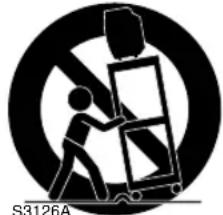
- Accessories-Do not place this TV/DVD on an unstable cart, stand, tripod, bracket, or table. The TV/DVD may fall, causing serious injury to someone, and serious damage to the appliance. Use only with a cart, stand, tripod, bracket, or table recommended by the manufacturer, or sold with the
TV/DVD. Any mounting of the appliance should follow the manufacturer's instructions and should use a mounting accessory recommended by the manufacturer. An appliance and cart combination should be moved with care.
Quick stops, excessive force, and uneven surfaces may cause the appliance and cart combination to overturn.
PORTABLE CART WARNING
AVERTISSEMENT POUR UNE
TABLE ROULANTE PORTATIVE
natural_image
Symbolic illustration of a person pushing a cart with a monitor, enclosed in a circle (no text or symbols)-
Ventilation-Slots and openings in the cabinet and the back or bottom are provided for ventilation and to ensure reliable operation of the TV/DVD and to protect it from overheating, and these openings must not be blocked or covered. The openings should never be blocked by placing the TV/DVD on a bed, sofa, rug, or other similar surface. This TV/DVD should never be placed near or over a radiator or heat register. This TV/DVD should not be placed in a built-in installation such as a bookcase or rack unless proper ventilation is provided or the manufacturer's instructions have been adhered to.
-
Power Sources-This TV/DVD should be operated only from the type of power source indicated on the marking label. If you are not sure of the type of power supply to your home, consult your appliance dealer or local power company. For TV/DVDs intended to operate from battery power, or other sources, refer to the operating instructions.
-
Grounding or Polarization-This TV/DVD is equipped with a polarized alternating-current line plug(a plug having one blade wider than the other). This plug will fit into the power outlet only one way. This is a safety feature. If you are unable to insert the plug fully into the outlet, try reversing the plug. If the plug should still fail to fit, contact your electrician to replace your obsolete outlet. Do not defeat the safety purpose of the polarized plug.
text_image
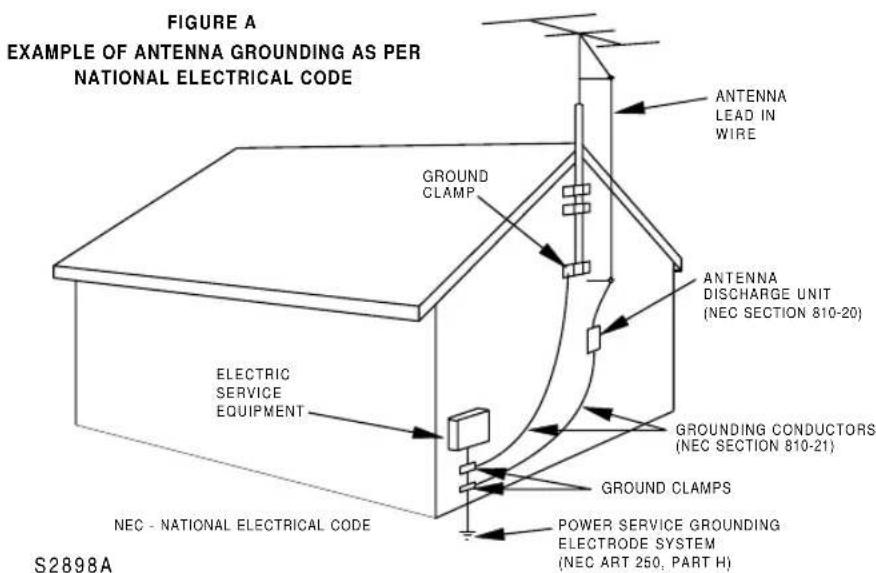
FIGURE A EXAMPLE OF ANTENNA GROUNDING AS PER NATIONAL ELECTRICAL CODE ANTENNA LEAD IN WIRE GROUND CLAMP ANTENNA DISCHARGE UNIT (NEC SECTION 810-20) ELECTRIC SERVICE EQUIPMENT GROUNDED CONDUCTORS (NEC SECTION 810-21) GROUND CLAMPS POWER SERVICE GROUNDING ELECTRODE SYSTEM (NEC ART 250, PART H) NEC - NATIONAL ELECTRICAL CODE S2898A-
Power-Cord Protection-Power-supply cords should be routed so that they are not likely to be walked on or pinched by items placed upon or against them, paying particular attention to cords at plugs, convenience receptacles, and the point where they exit from the appliance.
-
Outdoor Antenna grounding-If an outside antenna or cable system is connected to the TV/DVD, be sure the antenna or cable system is grounded so as to provide some protection against voltage surges and built-up static charges. Article 810 of the National Electrical Code, ANSI/NFPA No. 70, provides information with respect to proper grounding of the mast and supporting structure, grounding of the lead-in wire to an antenna discharge unit, size of grounding conductors, location of antenna-discharge unit, connection to grounding electrodes, and requirements for the grounding electrode. (Fig. A)
-
Lightning-For added protection for this TV/DVD receiver during a lightning storm, or when it is left unattended and unused for long periods of time, unplug it from the wall outlet and disconnect the antenna or cable system. This will prevent damage to the TV/DVD due to lightning and power-line surges.
-
Power Lines- An outside antenna system should not be located in the vicinity of overhead power lines or other electric light or power circuits, or where it can fall into such power lines or circuits. When installing an outside antenna system, extreme care should be taken to keep from touching such power lines or circuits as contact with them might be fatal.
-
Overloading-Do not overload wall outlets and extension cords as this can result in a risk of fire or electric shock.
17.Object and Liquid Entry-Never push objects of any kind into this TV/DVD through openings as they may touch dangerous voltage points or short out parts that could result in a fire or electric shock. Never spill liquid of any kind on the TV/DVD.
-
Servicing-Do not attempt to service this TV/DVD yourself as opening or removing covers may expose you to dangerous voltage or other hazards. Refer all servicing to qualified service personnel.
-
Damage Requiring Service-Unplug this TV/DVD from the wall outlet and refer servicing to qualified service personnel under the following conditions:
a. When the power-supply cord or plug is damaged or frayed.
b. If liquid has been spilled, or objects have fallen into the TV/DVD.
c. If the TV/DVD has been exposed to rain or water.
d. If the TV/DVD does not operate normally by following the operating instructions. Adjust only those controls that are covered by the operating instructions, as improper adjustment of other controls may result in damage and will often require extensive work by a qualified technician to restore the TV/DVD to its normal operation.
e. If the TV/DVD has been dropped or damaged in any way.
f. When the TV/DVD exhibits a distinct change in performance-this indicates a need for service.
-
Replacement Parts-When replacement parts are required, be sure the service technician has used replacement parts specified by the manufacturer that have the same characteristics as the original part. Unauthorized substitutions may result in fire, electric shock, injury to persons or other hazards.
-
Safety Check-Upon completion of any service or repairs to this TV/DVD, ask the service technician to perform routine safety checks to determine that the TV/DVD is in proper operating condition.
-
Heat-This TV/DVD product should be situated away from heat sources such as radiators, heat registers, stoves, or other products (including amplifiers) that produce heat.
IMPORTANT COPYRIGHT INFORMATION
Unauthorized copying, broadcasting, public performance and lending of discs are prohibited.
FCC WARNING- This equipment may generate or use radio frequency energy. Changes or modifications to this equipment may cause harmful interference unless the modifications are expressly approved in the instruction manual. The user could lose the authority to operate this equipment if an unauthorized change or modification is made.
RADIO-TV INTERFERENCE
This equipment has been tested and found to comply with the limits for a Class B digital device, pursuant to Part 15 of the FCC Rules. These limits are designed to provide reasonable protection against harmful interference in a residential installation. This equipment generates, uses, and can radiate radio frequency energy and, if not installed and used in accordance with the instructions, may cause harmful interference to radio communications.
However, there is no guarantee that interference will not occur in a particular installation. If this equipment does cause harmful interference to radio or television reception, which can be determined by turning the equipment off and on, the user is encouraged to try to correct the interference by one or more of the following measures:
1) Reorient or relocate the receiving antenna.
2) Increase the separation between the equipment and receiver.
3) Connect the equipment into an outlet on a circuit different from that to which the receiver is connected.
4) Consult the dealer or an experienced radio/TV technician for help.
LASER SAFETY
This unit employs a laser. Only a qualified service person should remove the cover or attempt to service this device, due to possible eye injury.
CAUTION: USE OF CONTROLS OR ADJUSTMENTS OR PERFORMANCE OF PROCEDURES OTHER THAN THOSE SPECIFIED HEREIN MAY RESULT IN HAZARDOUS RADIATION EXPOSURE.
CAUTION: VISIBLE AND INVISIBLE LASER RADIATION WHEN OPEN AND INTERLOCK DEFEATED. DO NOT STARE INTO BEAM. LOCATION: INSIDE, NEAR THE DECK MECHANISM.
This Class B digital apparatus complies with Canadian ICES-003.
For safe operation and satisfactory performance of your TV/DVD, keep the following in mind when selecting a place for its installation:
- Shield it from direct sunlight and keep it away from sources of intense heat.
- Avoid dusty or humid places.
- Avoid places with insufficient ventilation for proper heat dissipation. Do not block the ventilation holes at the top and bottom of the unit. Do not place the unit on a carpet because this will block the ventilation holes.
• Install unit in a horizontal position. - Avoid locations subject to strong vibration.
- Do not place the TV/DVD near strong magnetic fields.
- Avoid moving TV/DVD to locations where temperature differences are extreme.
AVOID THE HAZARDS OF ELECTRICAL SHOCK AND FIRE
- Do not handle the power cord with wet hands.
- Do not pull on the power cord when disconnecting it from an AC wall outlet. Grasp it by the plug.
- If, by accident, water is spilled on your unit, unplug the power cord immediately and take the unit to our Authorized Service Center for servicing.
- Do not put your fingers or objects into the TV/DVD disc loading tray.
- Do not place anything directly on top of the unit.
WARNING
Moisture condensation may occur inside the unit when it is moved from a cold place to a warm place, or after heating a cold room or under conditions of high humidity. If a DVD is played in a TV/DVD which has moisture, it may damage the DVD and TV/DVD. Therefore when the condensation occurs inside the unit, turn the POWER button on and allow at least 2 hours for the unit to dry out.
A NOTE ABOUT RECYCLING
This product's packaging materials are recyclable and can be reused. Please dispose of any materials in accordance with your local recycling regulations.
Batteries should never be thrown away or incinerated but disposed of in accordance with your local regulations concerning chemical wastes.
The serial number of this product may be found on the back of the unit. No other TV/DVD has the same serial number as yours. You should record the number and other vital information here and retain this book as a permanent record of your purchase to aid identification in case of theft. Serial numbers are not kept on file.
| Date of Purchase | |
| Dealer Purchase from | |
| Dealer Address | |
| Dealer Phone No. | |
| Model No. | |
| Serial No. |
■IMPORTANT SAFEGUARDS ....2
■PRECAUTIONS ....4
LOCATION 5
AVOID THE HAZARDS OF ELECTRICAL SHOCK AND FIRE....5
WARNING 5
■FEATURES....7
■SUPPLIED ACCESSORIES ....7
■OPERATING CONTROLS AND FUNCTIONS 8
■PREPARATION FOR USE....10
ANTENNA/CABLE CONNECTIONS .....10
INSTALLING THE BATTERIES .....12
CONNECTING TO EXTERNAL INPUT JACKS .12
CONNECTING TO A STEREO SYSTEM (for DVD) .13
CONNECTING TO AN AMPLIFIER EQUIPPED WITH DIGITAL INPUT JACKS, MD DECK OR DAT DECK (for DVD) .....13
CONNECTING TO A DOLBY DIGITAL DECODER OR DTS DECODER (for DVD) ..14
TV SECTION
■SET UP FOR USE .....15
LANGUAGE SELECTION .....15
CHANNEL PRESETTING .....15
■OPERATIONS....16
WATCHING A TV PROGRAM .....16
SELECTING THE SLEEP TIMER .....16
CLOSED CAPTION .....16
PICTURE ADJUSTMENT .....17
V-CHIP SET UP....18
DVD SECTION
■ABOUT THE DISCS....20
PLAYABLE DISCS .....20
DISC TYPES .....20
SYMBOLS USED IN THIS MANUAL .....20
■PLAYING A DISC .....21
PLAYING A DVD VIDEO OR AN AUDIO CD .21
USING THE DVD MENUS .....21
USING THE TITLE MENU .....22
PAUSING PLAYBACK OR DISPLAYING A STILL PICTURE ....22
RESUMING PLAYBACK FROM THE POINT WHERE PLAYBACK STOPPED . . .22
STEPPING THROUGH FRAMES .....22
FAST FORWARD/REVERSE .....23
SLOW MOTION .....23
STARTING FROM A DESIRED TRACK . . .23
STARTING FROM A DESIRED TIME COUNT.23
PLAYING FROM A DESIRED TITLE OR CHAPTER....24
RANDOM (Audio CD) .....24
REPEAT 24
A-B REPEAT....25
PROGRAM (Audio CD) .....25
■ SETTINGS ....26
CHANGING THE AUDIO LANGUAGE OR SOUND MODE....26
CHANGING THE SUBTITLE LANGUAGE . .27
CHANGING THE CAMERA ANGLE (Multi-Angle Pictures) .....27
CHANGING THE ON-SCREEN DISPLAY . . .28
■CHANGING THE SETUP ITEMS .....29
LANGUAGE SETTINGS .....29
VIDEO SETTINGS ....30
AUDIO SETTINGS ....30
PARENTAL LOCK ....31
OTHER SETTINGS....32
■LANGUAGE CODE LIST....33
■TROUBLESHOOTING GUIDE .....34
■MAINTENANCE....37
DISC HANDLING ....37
■SPECIFICATIONS ....38
■WARRANTY ....Back Cover
TV
- Tinted, Bright Black Matrix Picture Tube
• 181 Channel Selection
All VHF/UHF channels plus up to 125 cable channels.
- PLL Frequency Synthesized Tuning
The latest PLL frequency synthesized electronic tuning system provides free and easy channel selection, and lets you tune directly to any channel using the channel number buttons (0\~9 and +100-key) on the remote control.
- On-Screen Function Display.
• Full-Function Remote Control
- Sleep Timer
- Closed Caption Decoder
You may view specially labeled (cc) TV programs, movies, news, prerecorded tapes, etc. with either a dialogue caption or text display added to the program.
• Auto Shut Off Function
If there is no air signal input from the antenna terminal and no operation for 15 minutes, the TV will turn itself off automatically.
• V-CHIP
Enables parents to prevent their children from watching inappropriate material on TV.
DVD
• Dolby Digital sound
This player can handle Dolby Digital surround sound having 5.1 channels when connected to a Dolby Digital decoder.
- Still/fast/slow/step playback
Various playback modes are available including still pictures, fast forward/reverse, slow motion and step frames.
- Random playback for audio CD
This player can shuffle the order of tracks to play them in random order.
- Program playback for audio CD
You can program the order of tracks to play them in any desired order.
• DVD menus in a desired language
You can display DVD menus in a desired language, if available on a DVD.
- Screen saver/Auto power-off functions
The screen saver program starts when there is no input from the player for five minutes in the stop mode. When the screen saver program is activated for 30 minutes, the power is automatically turned off.
- Subtitles in a desired language
You can select a desired language for the display subtitles, if that language is available on a disc.
- Selecting a camera angle
You can select the desired camera angle, if a disc contains sequences recorded from different angles.
- Choices for audio language and sound mode
You can select the desired audio language and sound mode, if different languages and modes are available on a disc.
- Parental lock
You can set the control level to limit playback of discs which may not be suitable for children.
• Automatic detection of discs
This player automatically detects if a loaded disc is DVD or audio CD.
- On-screen display
Information about the current operation can be displayed on a TV screen, allowing you to confirm the currently active functions (such as program playback), on the TV screen using the remote control.
• DTS (Digital Theater System)
Sound system different from Dolby Digital sound system
- Search
Chapter search: Search for the chapter designated by user is possible.
Title search: Search for the title designated by user is possible.
Track search: Search for the track designated by user is possible.
Time search: Search for the time designated by user is possible.
- Repeat
Chapter: Repeated playback of the chapter of the disc being played is possible.
Title: Repeated playback of the title of the disc being played is possible.
Track: Repeated playback of the track of the disc being played is possible.
Disc(audio CD): Repeated playback of the entire disc being played is possible.
A-B: The part between A and B designated by user is possible.
- Zoom
4-time magnified screen can be displayed.
- Marker
The part designated by user can be called back.
- Resume Play
User can resume to playback from the part at which the play was stopped.
- SRS TruSurround
You can enjoy stereophonic virtual space on your existing stereo system.
- Dimmer
Brightness of the display can be varied.
- Bit rate indication
• Dynamic range control
This unit employs TruSurround system
TruSurround by SRS(●) of SRS Labs, Inc. as virtual technology.
TruSurround and the (●) symbol are trademarks of SRS Labs, Inc.
TruSurround technology is incorporated under license from SRS Labs, Inc.
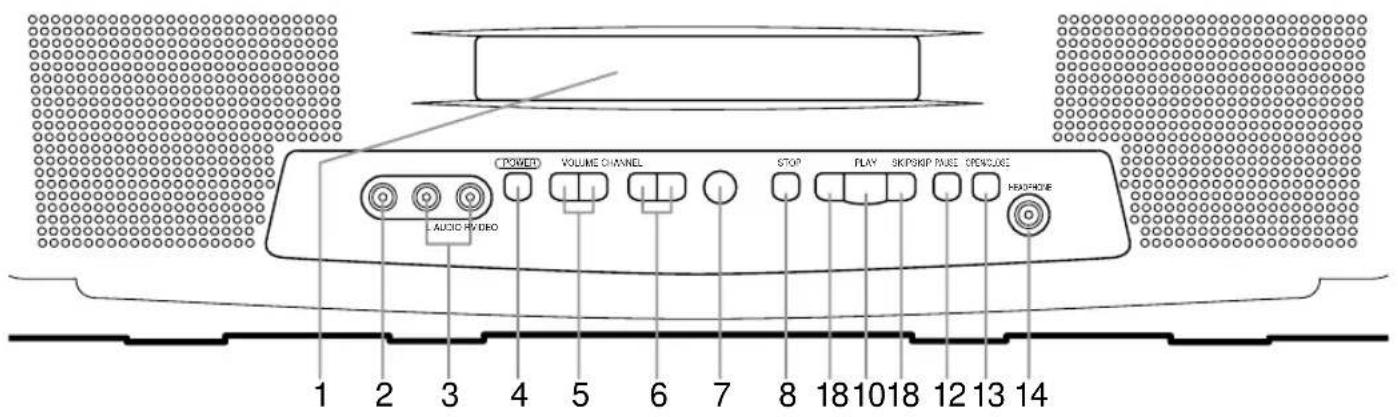
TV/DVD FRONT PANEL [Fig. 1]
text_image
L. AUDIO VIDEO POWER VOLUME CHANNEL STOP PLAY SKIP/PIP RUSE SPONSUE HOLD/PO Box 1 2 3 4 5 6 7 8 18 10 18 12 13 14REMOTE CONTROL | [Fig. 2]

text_image
POWER PICTURE SELECT OPEN/ CLOSE 13 34 1 2 3 CH. 6 16 4 5 6 7 8 9 VOL. 5 SLEEP 0 +100 +10 SKIP ZOOM MUTE 18 35 19 10 9 PLAY REV STOP FWD 11 8 PAUSE DISC MENU 12 II DISPLAY ENTER 33 23 SETUP TITLE RETURN 32 20 CLEAR SEARCH MODE REPEAT A-B 31 21 22 MODE AUDIO SUBTITLE ANGLE 15 28 24 27 25-
Disc loading tray
-
VIDEO input jack
Connect to the video output jack of a video camera or VCR.
- AUDIO L/R input jacks
Connect to the audio output jacks of a video camera or VCR.
- POWER button
Press to turn the power on and off.
5.VOLUME ▲/▼buttons
Press to control the volume level for the DVD and TV.
6.CHANNEL ▲/▼ buttons
Press to select memorized channel.
Press to change to TV mode when DVD mode.
- Remote Sensor Window
8.STOP button
Stops operation of the disc.
9.REV button
Fast reverses playback to a desired point.
- PLAY button
Starts playback of the disc contents.
Press to change to DVD mode when TV mode.
- FWD button
Fast forwards playback to a desired point.
- PAUSE button
Pauses the current disc operation.
- OPEN/CLOSE button
Press to insert discs into or remove them from the tray.
- HEADPHONE jack
To connect headphone (not supplied) for personal listening.
- MODE button
Activates program playback or random playback mode.
16.NUMBER button
TV Mode:
Press two digits to directly access the desired channel.
Remember to press a "0" before a single digit channel.
+100 button-
Press to select cable channels which are equal or greater than number 100.
DVD Mode:
Press to enter the desired number.
+10 button-
Press to enter the desired numbers which are equal or greater than number 10.
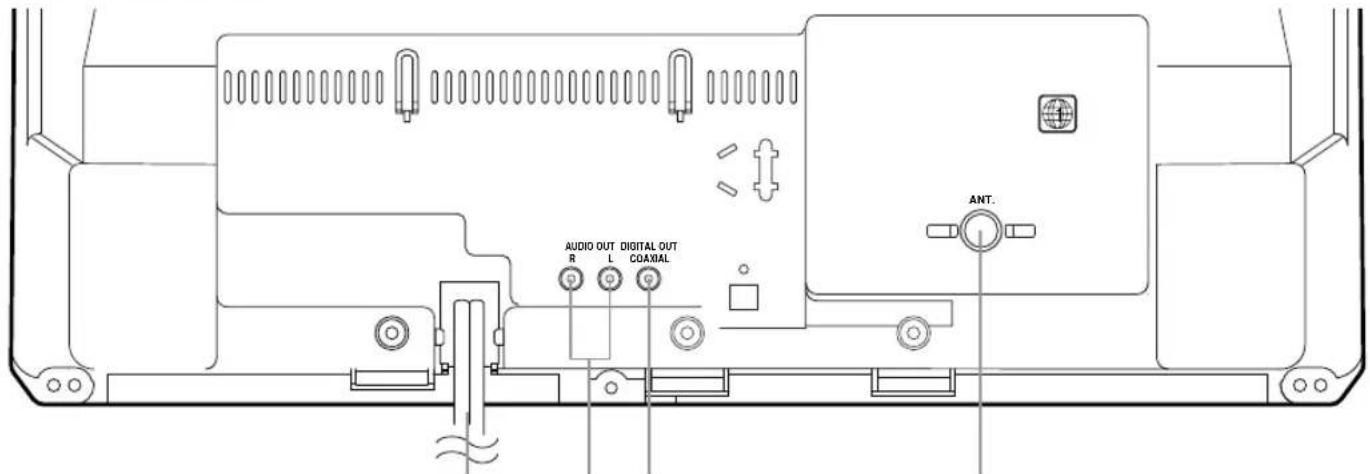
REAR VIEW
[Fig. 3]
text_image
AUDIO OUT DIGITAL OUT R L COAXIAL ANT.38 403937
17. SLEEP button
Press the SLEEP button to display the sleep timer and start the function. The shut off time can be determined by the number of times you press the button. (0, 10, 20, 30,..90, 0 minutes)
18. SKIP buttons
Skip chapters or tracks to a desired point.
19.ZOOM Button
Enlarges part of a DVD-reproduced image.
20.SETUP button
Press to enter or exit the TV menu or DVD setup mode.
21. TITLE button
Displays the title menu.
22. CLEAR button
Resets a setting.
23. DISPLAY button
TV Mode:
Press to display the channel number on the screen. If you press it again, the channel number will disappear.
DVD Mode:
Displays the current status on the TV screen for checking purposes.
24. SEARCH MODE button
Press to locate a desired point.
25. AUDIO button
Press to select a desired audio language or sound mode.
26. SUBTITLE button
Press to select a desired subtitle language.
27. REPEAT button
Repeats playback of the current disc, title, chapter or track.
28. ANGLE button
Press to change the camera angle to see the sequence being played back from a different angle.
29.A-B REPEAT button
Repeats playback of a selected section.
30. RETURN button
Returns to the previous operation.
31. ENTER button
Press to accept a setting.
32. Arrow buttons
TV Mode:
Press to select a setting mode from the menu on the TV screen.
Press to select or adjust from a particular menu.
DVD Mode:
Use when making settings while watching the display on a TV screen.
33. DISC MENU button
Displays the menus in the DVD.
34. SELECT button
Press to change to TV mode, external input mode or DVD mode.
35. MUTE button
Press the MUTE button to turn off the sound portion of the TV program. (Volume level display turns LIGHT RED from LIGHT BLUE.) Press the MUTE button again or press the VOL(ume) ▲or ▼button to restore sound.
36. PICTURE button
Press to enter picture adjustment mode.
37. Power cord
Connect to a standard AC outlet (120V/60Hz).
NOTE: Remove the power cord from the hook to avoid breaking a wire before you connect to a standard AC outlet.
38. COAXIAL digital audio out jack
Connect to the digital input of an external amplifier or decoder.
39. AUDIO L/R output jack
Connect to the analog audio input of an external amplifier or decoder.
NOTE: The AUDIO output jacks (red/white) on the rear panel serve to give out DVD sound, not TV sound and external input sound.
40. ANT. in jack
Connect to an antenna, cable system, or satellite system.
ANTENNA/CABLE CONNECTIONS
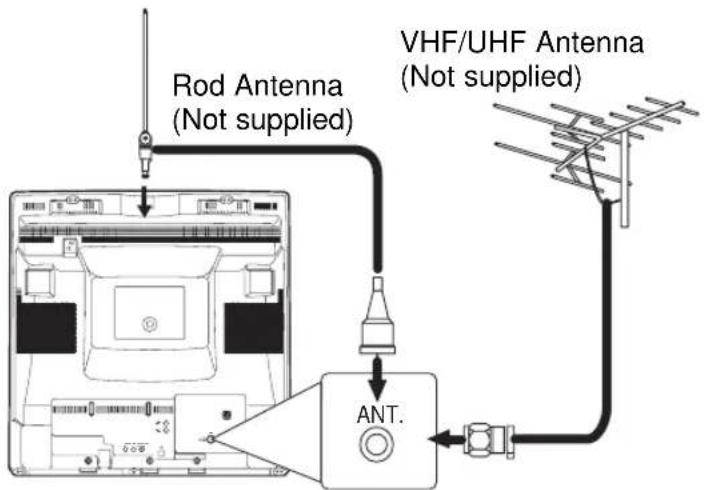
VHF/UHF COMBINED ANTENNA
The VHF/UHF Rod Antenna (not supplied) is detachable. Insert the stem of the antenna into the hole on the upper-back portion of the TV/DVD. Connect the VHF/UHF Rod Antenna or VHF/UHF Combination Antenna to the ANT. terminal of the TV/DVD as shown in the diagram below. For the best reception, fully extend the VHF/UHF Rod Antenna and make the necessary adjustments. (Avoid touching the top section when adjusting.)
NOTE:
Before plugging the Rod antenna into antenna terminal, check that the pin is not bent. If it is bent, straighten the pin as illustrated, then plug the pin into antenna terminal.
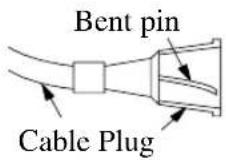
(Needs to be straightened)
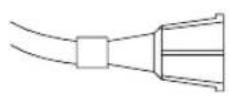
(Straight pin)
text_image
Rod Antenna (Not supplied) VHF/UHF Antenna (Not supplied) ANT.[Fig. 4]
NOTE:
The connection of an indoor antenna may not always give acceptable TV reception.
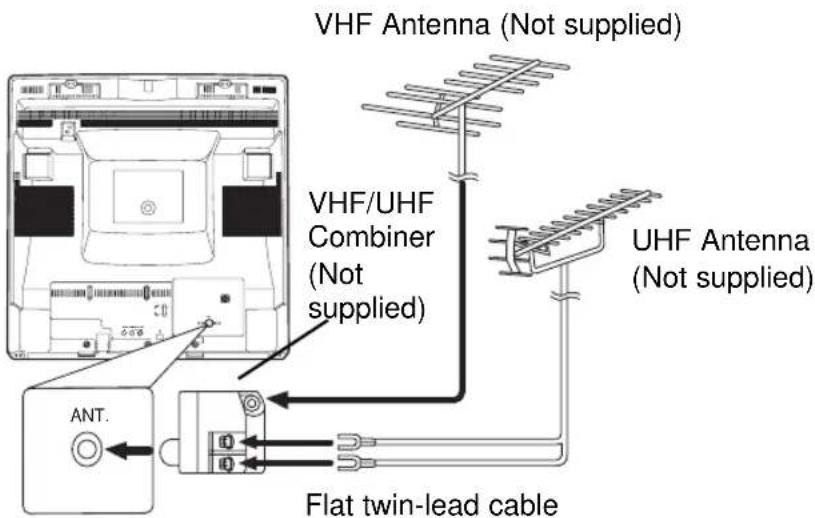
VHF/UHF SEPARATE ANTENNAS
In some areas it will be necessary to use an outdoor antenna.
text_image
VHF Antenna (Not supplied) VHF/UHF Combiner (Not supplied) UHF Antenna (Not supplied) ANT. Flat twin-lead cable[Fig. 5]
CABLE WITHOUT CONVERTER/ DESCRAMBLER BOX
Use this connection if your cable system connects directly to your TV/DVD without a converter box.
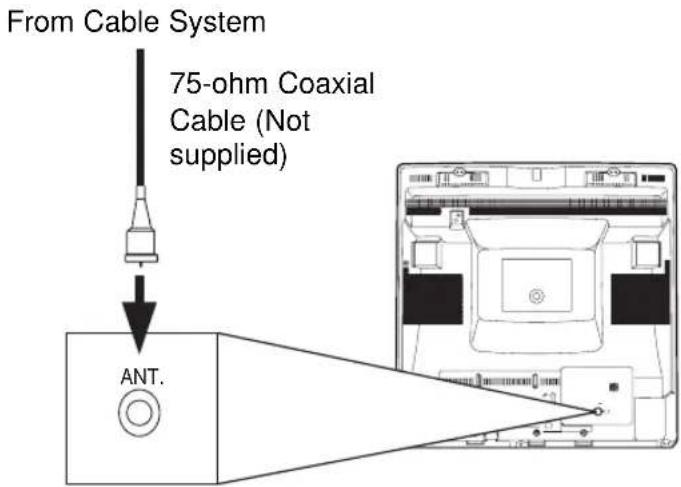
text_image
From Cable System 75-ohm Coaxial Cable (Not supplied) ANT.[Fig. 6]
CABLE WITH CONVERTER/ DESCRAMBLER BOX OR SATELLITE BOX
If your cable service supplies you with a converter box or if you use a satellite system, you can use the basic connection shown here.
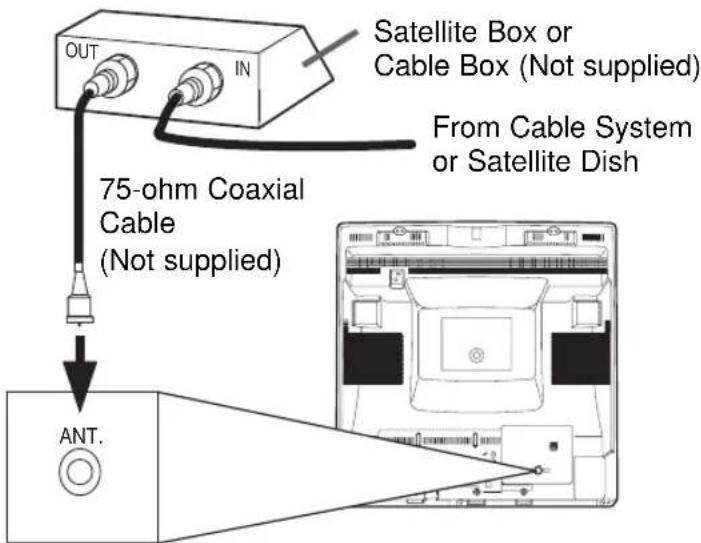
text_image
OUT IN Satellite Box or Cable Box (Not supplied) From Cable System or Satellite Dish 75-ohm Coaxial Cable (Not supplied) ANT.[Fig. 7]
Note to CATV system installer:
This reminder is provided to call the CATV system installer's attention to Article 820-40 of the NEC that provides guidelines for proper grounding and, in particular, specifies that the cable ground shall be connected to the grounding system of the building as close to the point of cable entry as practical.
INSTALLING THE BATTERIES
1) Open the battery compartment cover by pressing the cover on the remote unit in the direction of the arrow.
2) Insert 2 "AA" penlight batteries into the battery compartment in the direction indicated by the polarity (+/-) markings.
3)Replace the cover.
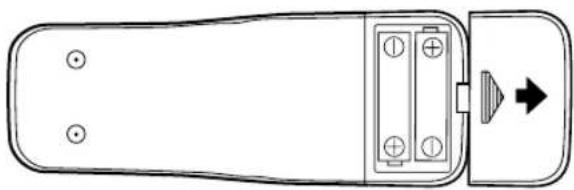
natural_image
Top-down schematic of a remote control device with battery and switch components (no text or labels)CONNECTING TO EXTERNAL INPUT JACKS
When you watch a program recorded on an another source (VCR or video camera), use the audio/video input jacks on the front of the TV/DVD.
Connect the audio/video output jacks of another source to the AUDIO L/R and VIDEO jacks of this TV/DVD. Then press the SELECT button until "VIDEO" appears on the screen.
NOTE:
- When you connect a monaural VCR (another source) to this TV/DVD, connect the Audio output jack of the monaural VCR (another source) to the AUDIO L jack of this TV/DVD. The audio will output in both L and R channel equally.
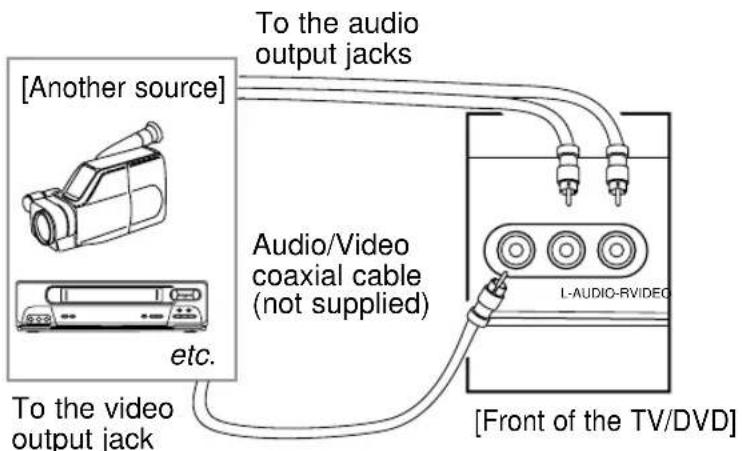
text_image
[Another source] To the audio output jacks Audio/Video coaxial cable (not supplied) L-AUDIO-RVIDEO [Front of the TV/DVD] etc.[Fig. 8]
Antenna/Cable Connections Continued on the Next Page.
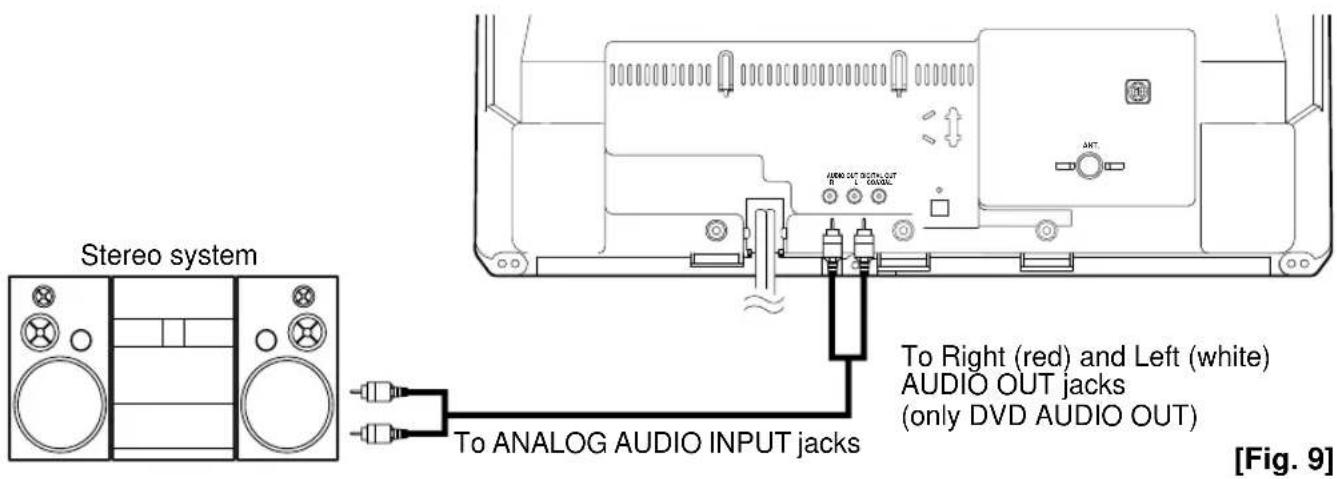
CONNECTING TO A STEREO SYSTEM (for DVD)
text_image
Stereo system To Analog AUDIO INPUT jacks To Right (red) and Left (white) AUDIO OUT jacks (only DVD AUDIO OUT) [Fig. 9]NOTES:
- Be sure to turn off the power to all components in the system before connecting another component.
- Refer to the Owner's Manuals for your, stereo system and any other components to be connected to the TV/DVD.
- The AUDIO output jacks (red/white) on the rear panel serve to give out DVD sound, not TV sound and external input sound.
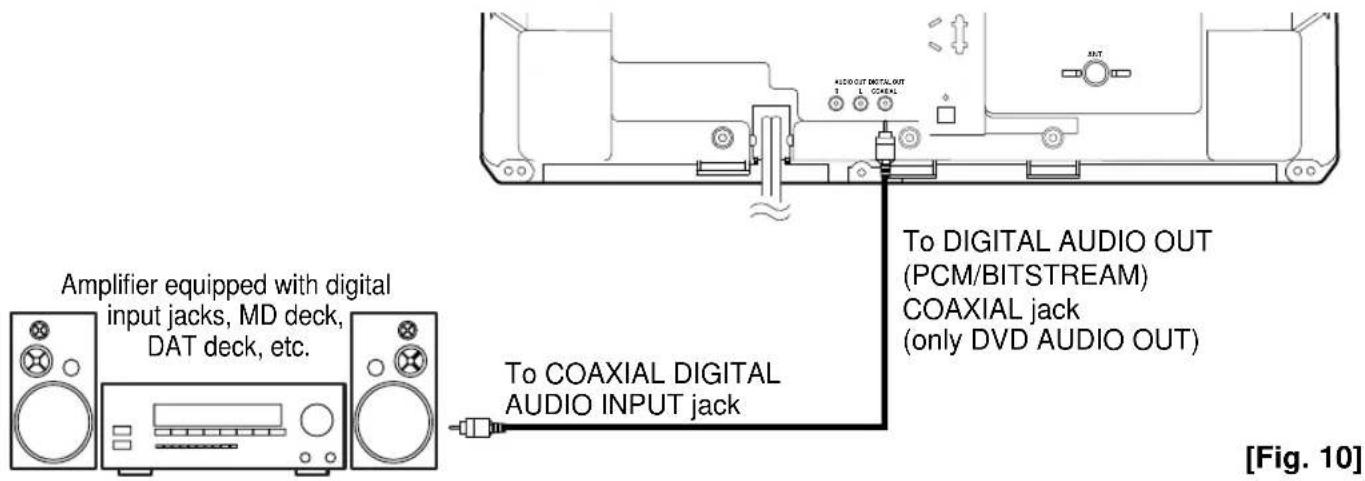
CONNECTING TO AN AMPLIFIER EQUIPPED WITH DIGITAL INPUT JACKS, MD DECK OR DAT DECK (for DVD)
Use an audio coaxial digital cable (commercially available) for the audio connections.
text_image
Amplifier equipped with digital input jacks, MD deck, DAT deck, etc. To DIGITAL AUDIO OUT (PCM/BITSTREAM) COAXIAL jack (only DVD AUDIO OUT) To COAXIAL DIGITAL AUDIO INPUT jack [Fig. 10]NOTES:
- The audio source on a disc in a 5.1 channel Dolby Digital surround format cannot be recorded as digital sound by an MD or DAT deck.
- Be sure to turn off the power to all components in the system before connecting another component.
- Refer to the Owner's Manuals for the components to be connected to the TV/DVD.
- Set DOLBY DIGITAL and DTS to OFF for audio output in the setup mode. Playing a TV/DVD using incorrect settings may generate noise distortion, and may also damage the speakers.
- When DOLBY DIGITAL is set to OFF and VIRTUAL 3D to ON for audio output in the setup mode and you select the audio source in a 5.1 channel Dolby Digital surround format, the audio will be muted.
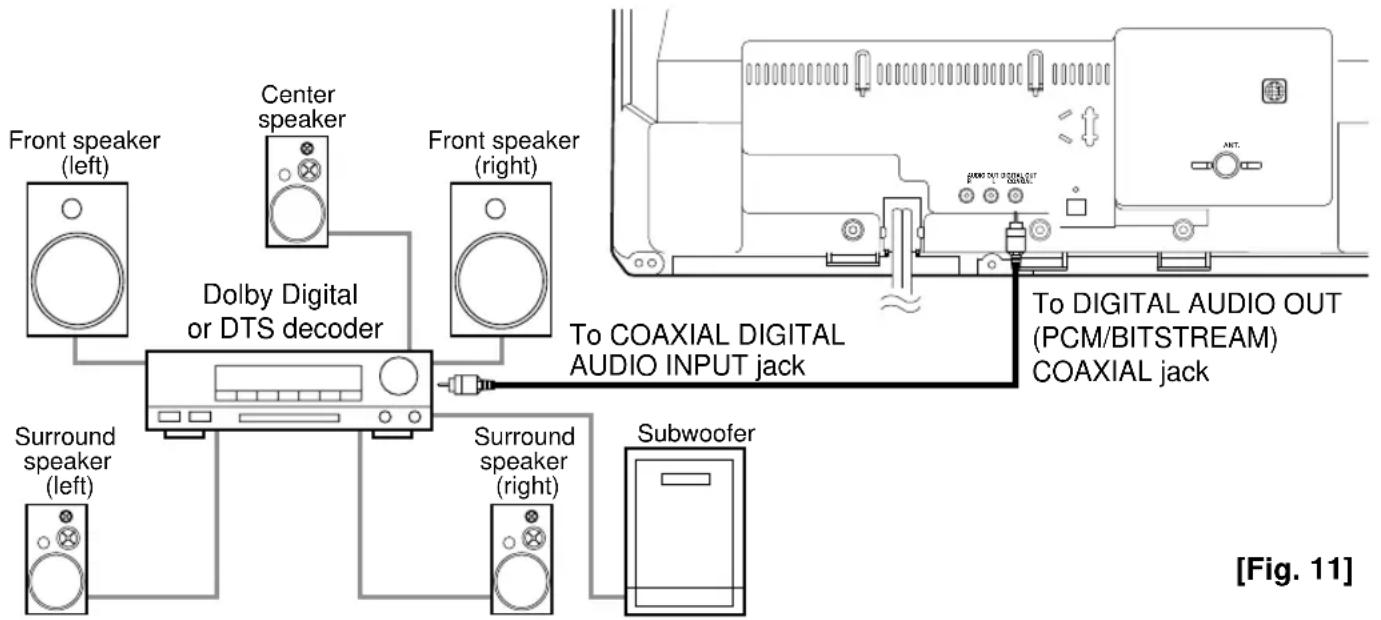
CONNECTING TO A DOLBY DIGITAL DECODER OR DTS DECODER (for DVD)
If using this TV/DVD to play back a TV/DVD in a 5.1 channel Dolby Digital surround or DTS surround format, the TV/DVD outputs a Dolby Digital or DTS data stream from its COAXIAL digital audio out jack. By hooking the player up to a Dolby Digital or DTS decoder, you can enjoy a more convincing, realistic ambience with powerful and high-quality surround sound of a professional standard such as can be heard in movie theaters.
Use audio coaxial digital cables (commercially available) for the audio connections.
flowchart
graph TD
    A["Front speaker (left)"] --> B["Dolby Digital or DTS decoder"]
    C["Center speaker"] --> B
    D["Front speaker (right)"] --> B
    E["Surround speaker (left)"] --> B
    F["Surround speaker (right)"] --> B
    G["Subwoofer"] --> B
    H["To COAXIAL DIGITAL AUDIO INPUT jack"] --> B
    I["To DIGITAL AUDIO OUT (PCM/BITSTREAM) COAXIAL jack"] --> B
    J["Antenna"] --> K["Device with AC/DC ports"]
NOTES:
- Be sure to turn off the power to all components in the system before connecting another component.
- Refer to the Owner's Manuals for the components to be connected to the TV/DVD.
- If connected to a Dolby Digital decoder, set DOLBY DIGITAL to ON for audio output in the setup mode.
- If connected to a DTS decoder, set DTS to ON for audio output in the setup mode.
- Unless connected to a Dolby Digital decoder or a DTS decoder, set DOLBY DIGITAL and DTS to OFF for audio output in the setup mode. Playing a TV/DVD using incorrect settings may generate noise distortion, and may also damage the speakers.
- When DOLBY DIGITAL is set to OFF and VIRTUAL 3D to ON for audio output in the setup mode and you select the audio source in a 5.1 channel Dolby Digital surround format, the audio will be muted.
Manufactured under license from Dolby Laboratories. "Dolby" and the double-D symbol are trademarks of Dolby Laboratories. Confidential Unpublished Works. ©1992-1997 Dolby Laboratories, Inc. All rights reserved.
"DTS" and "DTS Digital Out" are trademarks of Digital Theater Systems, Inc.
Getting started
1
Connect the power cord to a standard AC outlet.
NOTE: If some digits appear in the corner of the screen, press the POWER button without unplugging the power cord.
2
Press the POWER button to turn on the TV/DVD.
3
Press the SELECT button on the remote control until channel number or "TV" appears on the screen.
Then press the TV button.
LANGUAGE SELECTION
If you want to change the language of the on-screen menu, follow the procedure below.
1
Press the SETUP button so that the setup display appears on the TV screen.
▶ CHANNEL SET LANGUAGE [ENGLISH] ESPAÑOL FRANÇAIS V-CHIP SET UP CAPTION [OFF]
2
Press the Arrow ▲ or ▼ button to point to "LANGUAGE".
CHANNEL SET ▶ LANGUAGE [ENGLISH] ESPAÑOL FRANÇAIS V-CHIP SET UP CAPTION [OFF]
3
Select "ENGLISH", "ESPAÑOL" = Spanish or "FRANÇAIS" = French by using the Arrow ▶ or ◀ button.
4
Press the SETUP button to exit the setup.
NOTE: An on-screen display language must be selected each for the TV mode and DVD mode.
CHANNEL PRESETTING
To preset a channel or to change a preset channel, follow the procedure below.
1
Press the SETUP button so that the setup display appears on the TV screen.
▶ CHANNEL SET LANGUAGE [ENGLISH] ESPANOL FRANÇAIS V-CHIP SET UP CAPTION [OFF]
2
Press the Arrow ▲or ▼button to point to "CHANNEL SET". Then, press the Arrow ▶button.
▶ CHANNEL SET LANGUAGE [ENGLISH] ESPANOL FRANÇAIS V-CHIP SET UP CAPTION [OFF]
3
Press the Arrow ▲or ▼button to point to "AUTO MEMO". Then, press the Arrow ▶button. The tuner scans and memorizes all active channels in your area.
ADD/DELETE AUTO MEMO
- The TV distinguishes between standard TV channels and cable channels.
- When AUTO MEMO action is completed, the lowest memorized channel reappears on the screen.
- When you press the Arrow ▲ or ▼ button after selecting AUTO MEMO, the tuner will stop at the memorized channels only.
- The TV/VCR may memorize TV channels as CATV channels if reception conditions are poor. If this happens, try the AUTO MEMO action again when reception conditions are better.
[ADD/DELETE FUNCTION]
1) Press the SETUP button so that the setup display appears on the TV screen.
2) Press the Arrow ▲ or ▼ button to point to "CHANNEL SET". Then, press the Arrow ▶ button.
3) Press the Arrow ▲ or ▼ button to point to "ADD/DELETE". Then press the Arrow ▶ button.
4) Use the Arrow ▲ or ▼ button to select the channel you wish to put into memory or to erase fro
▶ CHANNEL SET
LANGUAGE [ENGLISH]
ESPAÑOL
FRANÇAIS
V-CHIP SET UP
CAPTION [OFF]
▶ ADD/DELETE AUTO MEMO
NOTE: The display will return to the screen in about 10 seconds. Perform "ADD/DELETE" function while this display appears on the screen.
- Press the Arrow ▶ or ◀ button to light up the channel number in LIGHT BLUE if you wish to add the channel into memory.
- Press the Arrow ▶ or ◀ button to light up the channel number in LIGHT RED if you wish to erase the channel from memory.
5) Press the SETUP button to exit the setup.
WATCHING A TV PROGRAM
1
Select the desired channel with the CH(annel) ▲or ▼button.
2
Adjust the volume to the desired listening level using the VOL(ume) ▲ or ▼button.
3
Adjust picture controls for a natural looking image. (See "PICTURE ADJUSTMENT".)
Note: Suppose that the TV/DVD is shut off or in any other mode than TV. Press the CHANNEL ▲ or ▼ button on the TV/DVD, and the TV/DVD will be in the TV mode to watch television.
SELECTING THE SLEEP TIMER
The sleep timer function enables you to shut off the power without pressing the POWER button after a desired time period.
1
Press the SLEEP button on the remote control.
2
You may change the sleep time with pressing the SLEEP button on the remote control repeatedly. The timer is set up to 90 minutes, 10
SLEEP 10
minutes each time the SLEEP button is pushed. (The timer display counts up and sleep timer will be displayed on the screen when you press the SLEEP button on remote control.)
To cancel the sleep timer:
Press the SLEEP button repeatedly until "SLEEP 0" is displayed.
NOTES:
- When you disconnect the unit from the AC outlet, or if you have a power failure, the sleep time will be lost.
- When the TV mode is changed to the DVD mode, the sleep time will be lost.
DEGAUSSING
Magnetism from nearby appliances might affect the color of the TV picture.
If this happens, move this unit away from the appliance. If the color is still not correct, disconnect power cord from AC outlet then reconnect it after 30 minutes.
CLOSED CAPTION
This TV can receive C1 and C2 of Caption and Text.
CAPTION MODE
1) Characters can be displayed on the TV screen when the received broadcast signal contains the Caption Signals.
2) Paint-on mode: Displays input characters on the screen immediately.
Pop-on mode: Once characters are stored in memory, it is displayed all at once.
Roll-up mode: Displays the characters continuously by scrolling (max. 4 lines)
NOTE: If the CAPTION C1 or C2 is selected but the caption signal is not included, characters will not be displayed.
TEXT MODE
1) Displays the text on the screen by scrolling (max. 7 lines)
2) If the received broadcast signal does not contain the caption or text signal, no change will occur.
NOTES:
1) When your TV receives a special effects playback signal (i.e., Search, Slow, Still) from a VCR's video output channel (CH3 or CH4), your TV may not display the correct caption or text.
2) Captions and texts may not match the TV voice exactly.
3) Interference may cause the closed caption system not to function properly.
4) The caption or text characters will not be displayed while the setup display or function's display is shown.
5) If you see this screen!!
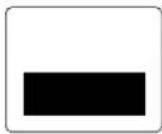
If your TV displays a black box on the screen, this means that your TV is set to TEXT mode. To clear screen, select CAPTION C1, C2 or CAPTION [OFF].
CLOSED CAPTION SELECTION
You may view specially labeled (cc) TV programs, movies, news, prerecorded tapes, etc. with either a dialogue caption or text display added to the program.
1
Press the SETUP button so that the setup display appears on the TV screen.
2
Press the Arrow ▲ or ▼ button to point to "CAPTION".
3
Press the Arrow ▶ or ◀ button to select the mode you wish.
4
When done, press the SETUP button to exit the setup.

: Press the Arrow▶or◀ button.
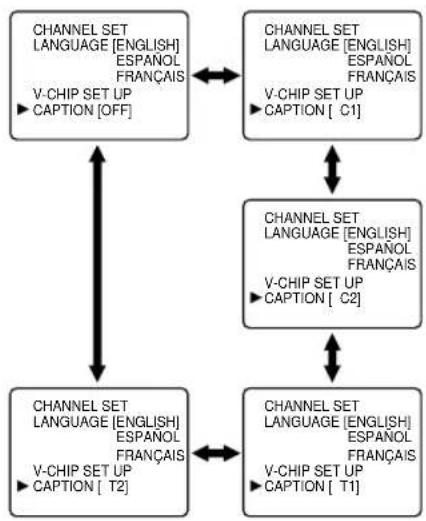
flowchart
graph TD
    A["CHANNEL SET LANGUAGE [ENGLISH"] ESPAÑOL FRANÇAIS_V-CHIP_SET_UP_CAPTION["OFF"]] <--> B["CHANNEL SET LANGUAGE [ENGLISH"] ESPAÑOL FRANÇAIS_V-CHIP_SET_UP_CAPTION["C1"]]
    B <--> C["CHANNEL SET LANGUAGE [ENGLISH"] ESPAÑOL FRANÇAIS_V-CHIP_SET_UP_CAPTION["C2"]]
    C <--> D["CHANNEL SET LANGUAGE [ENGLISH"] ESPAÑOL FRANÇAIS_V-CHIP_SET_UP_CAPTION["T1"]]
    D <--> E["CHANNEL SET LANGUAGE [ENGLISH"] ESPAÑOL FRANÇAIS_V-CHIP_SET_UP_CAPTION["T2"]]
    E <--> F["CHANNEL SET LANGUAGE [ENGLISH"] ESPAÑOL FRANÇAIS_V-CHIP_SET_UP_CAPTION["T3"]]
    F <--> G["CHANNEL SET LANGUAGE [ENGLISH"] ESPAÑOL FRANÇAIS_V-CHIP_SET_UP_CAPTION["T4"]]
    G <--> H["CHANNEL SET LANGUAGE [ENGLISH"] ESPAÑOL FRANÇAIS_V-CHIP_SET_UP_CAPTION["T5"]]
    H <--> I["CHANNEL SET LANGUAGE [ENGLISH"] ESPAÑOL FRANÇAIS_V-CHIP_SET_UP_CAPTION["T6"]]
    I <--> J["CHANNEL SET LANGUAGE [ENGLISH"] ESPAÑOL FRANÇAIS_V-CHIP_SET_UP_CAPTION["T7"]]
PICTURE ADJUSTMENT
1
Press the PICTURE button.
2
Select the feature you wish to adjust with the Arrow ▲ or ▼ button and adjust it with the Arrow ▶ or ◀ button.
GAME MODE
Set to the most suitable position for TV GAME.
BRIGHT
Adjust until the whitest parts of the picture are as bright as you prefer.
CONTRAST
Adjust to increase or decrease contrast.
COLOR
Adjust to be brilliant or pale color.
TINT
Adjust to obtain natural skin tones.
NOTES:
- In the above steps, the picture adjustment display will disappear from the TV screen after about 10 seconds unless you press any buttons, even though you may not be finished. Press the SETUP and Arrow ▶ button so that "PICTURE" mode is selected. Then, press the Arrow ▲ or ▼ button repeatedly until the display returns to the screen. - If you adjust the other Picture control after you set the Game mode to [ON], the Game mode is set to [OFF] automatically. If you want to set the Game mode, reset it to [ON].

: Press the Arrow ▲ or ▼ button.
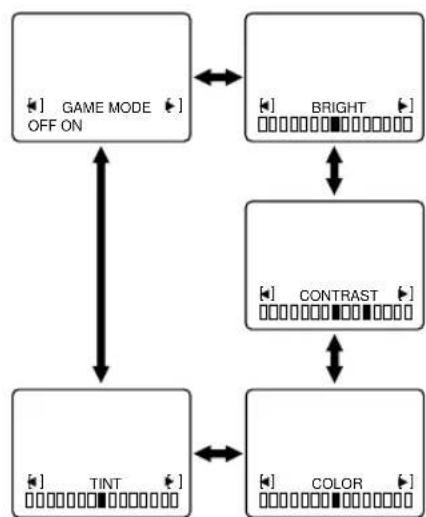
flowchart
graph TD
    A["GAME MODE OFF ON"] <--> B["BRIGHT"]
    B <--> C["CONTRAST"]
    C <--> D["COLOR"]
    D <--> E["TINT"]
    E --> A
V-CHIP SET UP
V-CHIP enables parents to prevent their children from watching inappropriate material on TV. V-CHIP reads the ratings for programming (except for news and sports programs, unedited movies on premium cable channels, and Emergency Broadcast System signals), then denies access to programming if the program's rating meets the limitations you select. In this case, "PROTECTED PROGRAM by ..." message appears on the TV screen. You can watch the protected program by entering access code (default 0000).
To block ratings, follow the steps below.
- Programming may be rated by the Motion Picture Association of America (MPAA) or according to the Television Parental Guidelines. In order to block any inappropriate programming, set your limits in both places (MPAA RATING and TV RATING).
- You cannot access the menu when the "PROTECTED PROGRAM by ..." message appears. In this case, change to the unblocked channel, then press the SETUP button.
[MPAA RATING SET UP]
1
Press the SETUP button so that the setup display appears on the TV screen.
2
Press the Arrow ▲or ▼button to point to "V-CHIP SET UP". Then, press the Arrow ▶button.
CHANNEL SET
LANGUAGE [ENGLISH]
ESPANOL
FRANÇAIS
▶ V-CHIP SET UP
CAPTION [OFF]
3
Use the number buttons to enter 4-digit access code. The default code is 0000.
ACCESS CODE

4
Press the Arrow ▲or ▼button to point to "MPAA RATING". Then, press the Arrow ▶button.
TV RATING ▶ MPAA RATING CHANGE CODE
5
Press the Arrow ▲or ▼button to point to your desired item. Then, press the Arrow ▶button to select [BLOCK] or [VIEW].
| G | [VIEW] |
| PG | [VIEW] |
| PG-13 | [VIEW] |
| R | [BLOCK] |
| NC-17 | [BLOCK] |
| X | [BLOCK] |
• G: General Audience
• PG: Parental Guidance suggested.
• PG-13: Unsuitable for children under 13
• R: Restricted; under 17 requires
accompanying parent or adult
guardian
• NC-17: No one under 17 admitted
• X: Mature audience only
- When you select the rating category and turn it [BLOCK], the higher rating will turn [BLOCK] automatically. Also, the lower rating will turn [VIEW] automatically.
- When you turn "G" to [BLOCK] or [VIEW], the all ratings will turn to [BLOCK] or [VIEW] automatically.
- When you turn "X" to [VIEW], the all ratings will turn to [VIEW] automatically.
5
Press the SETUP button to exit the setup.
[TV RATING SET UP]
1
Press the SETUP button so that the setup display appears on the TV screen.
2
Press the Arrow ▲ or ▼ button to point to "V-CHIP SET UP". Then, press the Arrow ▶ button.
CHANNEL SET
LANGUAGE [ENGLISH]
ESPANOL
FRANÇAIS
▶ V-CHIP SET UP
CAPTION [OFF]
3
Use the number buttons to enter 4-digit access code. The default code is 0000.
ACCESS CODE

4
Press the Arrow ▲or ▼button to point to "TV RATING". Then, press the Arrow ▶button.
TV RATING
MPAA RATING
CHANGE CODE
4
Press the Arrow ▲ or ▼ button to point to your desired item. Then, press the Arrow ▶ button to select [BLOCK] or [VIEW].
| TV-Y | [VIEW] |
| TV-Y7 ( ) | [VIEW] |
| TV-G | [VIEW] |
| TV-PG ( ) | [VIEW] |
| TV-14 ( ) | [VIEW] |
| TV-MA ( ) | [VIEW] |
• TV-Y: Appropriate for all children
• TV-Y7: Appropriate for children seven and older
• TV-G: General Audience
• TV-PG: Parental Guidance suggested.
• TV-14: Unsuitable for children under 14
• TV-MA: Mature audience only
- When you select the rating category and turn it [BLOCK], the higher rating will turn [BLOCK] automatically. Also, the lower rating will turn [VIEW] automatically.
- When you turn "TV-Y" to [BLOCK] or [VIEW], the all ratings will turn to [BLOCK] or [VIEW] automatically.
- When you turn "TV-MA" to [VIEW], the all ratings will turn to [VIEW] automatically.
When you select TV-Y7, TV-PG, TV-14, or TV-MA and you press the Arrow ▶ button, the sub-ratings will appear on the TV screen.
If you select the rating category (example: TV-PG) and turn it [BLOCK] or [VIEW], the sub-ratings (example: V for Violence) will turn [BLOCK] or [VIEW] automatically.
You can set the sub-ratings to [BLOCK] or [VIEW] individually when the rating category is set to [BLOCK]. To set the sub-ratings individually, follow the steps below.
- When you select [TV-Y7]: Press the Arrow ▲ or ▼button to select "FV" (Fantasy Violence). Then, press the Arrow
▶button to select [BLOCK] or [VIEW].
- When you select [TV-PG], [TV-14] or [TV-MA]:
Press the Arrow ▲or ▼button to select "D"(Suggestive Dialog), "L"(Coarse Language), "S"(Sexual Situation), or "V"(Violence). Then, press the
Arrow ▶ button to select [BLOCK] or [VIEW].
NOTE: When you select [TV-MA], "D" does not appear on the TV screen.
- The sub-ratings which set to [BLOCK] appears next to the rating category in the TV RATING menu.
| TV-Y7 | [BLOCK] |
| ▶FV | [BLOCK] |
| TV-PG | [BLOCK] |
| D | [BLOCK] |
| L | [BLOCK] |
| S | [BLOCK] |
| V | [BLOCK] |
| TV-Y | [VIEW] |
| TV-Y7 ( ) | [VIEW] |
| TV-G | [BLOCK] |
| TV-PG (DLSV) | [BLOCK] |
| TV-14 (DLSV) | [BLOCK] |
| TV-MA ( LSV) | [BLOCK] |
[CHANGE ACCESS CODE]
To change access code, follow the steps.
1
Press the SETUP button so that the setup display appears on the TV screen.
2
Press the Arrow ▲ or ▼ button to point to "V-CHIP SET UP". Then, press the Arrow ▶ button.
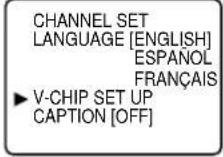
3
Use the number buttons to enter 4-digit access code. The default code is 0000.
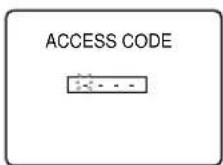
4
Press the Arrow ▲ or ▼ button to point to "CHANGE CODE". Then, press the Arrow ▶ button.
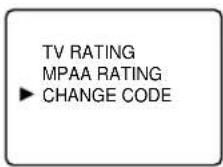
5
Use the number buttons to enter your desired access code in the NEW CODE space. Then enter the same code in the CONFIRM CODE space. V-CHIP SET UP screen appear on the screen.
- If you enter wrong code, repeat step 5, making sure you enter the same new code exactly in the confirm code space.
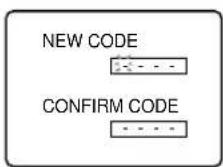
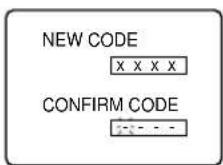
6
Press the SETUP button to exit the setup.
Note:
- If you unplug the power code or power failure occurs, the changed access code will be lost and will return to default (0000). Change your access code again as necessary.
5
Press the SETUP button to exit the setup.
PLAYABLE DISCS
The following discs can be played back on this DVD player.
| Logo | ContentsD | sD=TypSize | Maximum Playback Time | |
| DVD Video |  | Sound and Pictures | 12 cm | Approx. 4 h (single-sided) Approx. 8 h (double-sided) |
| 8 cm | Approx. 80 min (single-sided) Approx. 160 min (double-sided) | |||
| Audio CD |  | Sound | 12 cm | 74 min |
| 8 cm (singles) | 20 min |
This player conforms to the NTSC color system. You cannot play discs recorded in other color systems such as PAL or SECAM.
- Some discs include region codes as shown below.


- The number inside the symbol refers to a region of the world, and a disc encoded in a specific region format can only be played back on DVD players with the same region code.
The following discs cannot be played back on this DVD player.
• DVD with region codes other than 1 or ALL.
• DVD-ROM
- DVD-RAM (Never play back, otherwise malfunction may result.)
- CD-ROM
• VSD
• CDV (Only plays back the audio part.)
• CD-G (Only plays back the sound.)
• CD-R
(Never play back, otherwise malfunction may result.)
• CD-I
(Never play back, otherwise malfunction may result.)
- Photo CD (Never play back, otherwise malfunction may result.)
- Video CD (Never play back, otherwise malfunction may result.)
Any other discs without compatibility indications
DISC TYPES
[DVD]
Data on a DVD is divided into sections called "titles", and then into subsections called "chapters", each of which is given a title or chapter number. Playback conditions are preset on some DVD video discs, and these playback conditions take priority over user operations on this player. If a function you selected do not run as desired, refer to the manual accompanying the disc.
![SYLVANIA 6519DB - [DVD] - 1](/content/2026/05/1142885/images/a2f79bc3344daabd3717533d52ed985ef63806521e07db2d7f0fea81e83e5619.jpg)
text_image
Example Title 1 Title 2 Chapter 1 Chapter 2 Chapter 1 Chapter 2 Chapter 3 Chapter 4[AUDIO CD]
Data on an audio CD is divided into sections called "tracks", each of which is given a track number.
![SYLVANIA 6519DB - [AUDIO CD] - 1](/content/2026/05/1142885/images/401298d49d45baec49a34f2006aa71c50e11d853ff19eb9320e9cfa9659f8a00.jpg)
text_image
Example Track 1 Track 2 Track 3 Track 4 Track 5 Track 6PLAYING A DVD VIDEO OR AN AUDIO CD
CDDVD
Getting started
Turn on the power of the TV, amplifier and any other components which are connected to the DVD player. (Change the input system to suit the DVD player, and check that the sound volume is correct.)
1 Press the POWER button.
- The power will turn on.
2 Press the OPEN/CLOSE button.
- The disc loading tray will open.
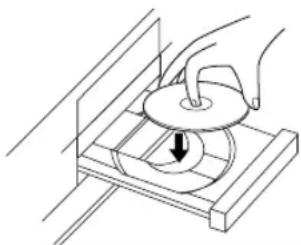
3 Place a disc into the tray.
- Make sure the disc is sitting properly in the correct recess, with the label side up.
natural_image
Line drawing of a hand using a circular tool on a wooden base, with a downward arrow indicating motion (no text or symbols)4 Press the PLAY button.
- The tray will close automatically, and playback will then start from the first chapter or track of the disc. You need to press the PLAY button only when the tray has been closed by pressing the OPEN/CLOSE button.
- When you play back the DVD which a title menu is recorded, the menu may appear on the screen. In this case, refer to “USING THE TITLE MENU”.
5 Press the STOP button to stop play.
Notes
- When the DVD mode has been switched to the TV mode, the DVD mode shut down first and then TV picture and sound appears in about 4 seconds. Similarly, when the POWER button is pressed off in the DVD mode, this mode shut down first and then the set's power is turned off.
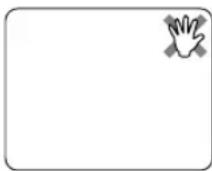
- A “prohibited icon” may appear at the top-right on the TV screen during operation, warning that a prohibited operation has been encountered by the DVD player or the disc.
- If a disc is dirty or has scratches, the pictures may appear distorted and the playback operation may stop. In such cases, clean the disc and unplug the power cord and then plug it again before resuming playback.
- With DVDs that use some titles for playback program signals, playback may start from the second title, or it may skip these titles.
USING THE DVD MENUS
DVD
Some DVDs contain their own menus, such as a guidance menu which describes the contents of the disc or a selection menu for sound, language and other customized settings.
1 Press the DISC MENU button.
• The DVD menu will appear.
2 Select the desired title.
- Press the arrow buttons ( /// ) to change the setting, and then press the ENTER button.
3 Playback will start from the selected title.
USING THE TITLE MENU
DVD
With a DVD containing a title menu, you can select desired titles from the menu.
1 Press the TITLE button.
- The title menu will appear.
2 Select the desired title.
- Press the arrow buttons ( /// ) to change the setting, and then press the ENTER button.
CALLING UP A MENU SCREEN DURING PLAYBACK
For DVDs
- Press the DISC MENU button to call up the DVD menu.
- Press the TITLE button to call up the title menu.
Note
- Contents of menus and corresponding menu operations may vary between discs. Refer to the manual accompanying the disc for details.
PAUSING PLAYBACK OR DISPLAYING A STILL PICTURE
CDDVD
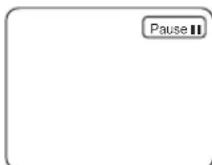
1 Press the PAUSE button during playback.
- Playback will pause, with sound muted.
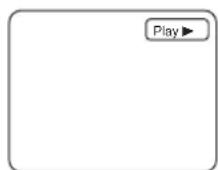
2 Press the PLAY button to resume playback.
RESUMING PLAYBACK FROM THE POINT WHERE PLAYBACK STOPPED
CDDVD
1 Press the STOP button during playback.
- Playback will stop, and then appear the resuming message at the center.
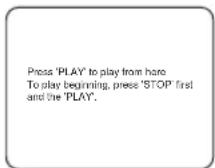
2 Press the PLAY button. Playback will start from the point where the previous playback session was stopped.
Notes
- Resuming playback is not available with some discs.
- If you switch to the TV mode during DVD playback, the resuming
- It is possible to switch from the DVD play mode to the TV mode. Even if the power is turned off, the resume function enables to playback on from the previously interrupted point. But note that the Marker commands are not saved.
- The resume function can be reset by pressing the STOP button twice or by opening the disc loading tray.
STEPPING THROUGH FRAMES
DVD
1 Press the PAUSE button while playback is paused.
- The next picture frame is displayed with sound muted each time the button is pressed.
2 Press the PLAY button to resume playback.
FAST FORWARD/REVERSE
CDDVD
1 Press the FWD ▶▶ or REV ◀◀ button during playback.
- For DVDs, pressing the FWD ▶▶ or REV ◀◀ button cycles the playback speed in three steps.
- For audio CDs, the playback speed is · 16 fixed.
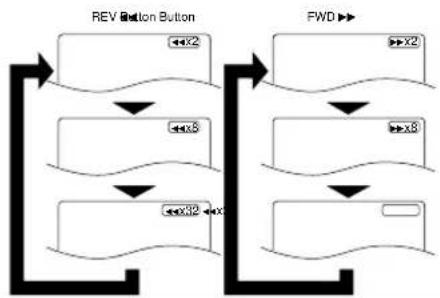
flowchart
graph TD
    A["REV Button Button"] --> B["State x2"]
    A --> C["State x3"]
    A --> D["State x4"]
    E["FWD"] --> F["State x2"]
    E --> G["State x3"]
    E --> H["State x4"]
    B --> I["Downward Arrow"]
    C --> J["Downward Arrow"]
    D --> K["Downward Arrow"]
2 Press the PLAY button to return to normal playback speed.
SLOW MOTION
DVD
1 Press the FWD ▶ button while playback is paused. (Sound remains muted.)
- Slow motion mode will be activated.
- Pressing the FWD ▶ button cycles the playback speed in three steps. Select an appropriate speed while referring to the speed indication on the screen.
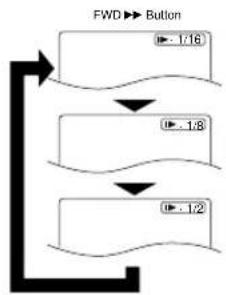
flowchart
graph TD
    A["Start"] --> B["Step 1: 1/16"]
    B --> C["Step 2: 1/8"]
    C --> D["Step 3: 1/2"]
2 Press the PLAY button to return to normal playback speed.
Notes
- Slow playback is not available with audio CDs.
- The reverse of slow playback is not available.
STARTING FROM A DESIRED TRACK
CD
1 Press the numeric buttons to enter the desired track number.
- The selected track will be located, and playback will start. You can also press the SEARCH MODE button, use the numeric buttons to enter the track number, when the track number is entered in the
entry box, playback of the desired track will start automatically.
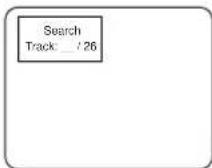
TRICKS WITH THE SKIP BUTTONS (|◀◀, ▶▶)
If the SKIP button ▶▶lis pressed during playback or while playback is paused, the current track is skipped and the next track is played. When the SKIP button ◀◀◀ is pressed once, the top of the current track is located for replaying. When the SKIP button ◀◀◀ is pressed again while Within 2-second playback, the previous track is located.
STARTING FROM A DESIRED TIME COUNT
CDDVD
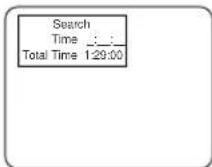
1 Press the SEARCH MODE button.
- Press the button twice for DVDs or two times for audio CDs.
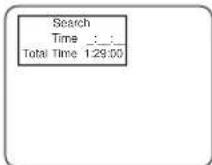
2 Press the numeric buttons to set the desired time count.
• Example: 1 hour, 23 minutes and 30 seconds
$$ 1 \rightarrow 2 \rightarrow 3 \rightarrow 3 \rightarrow 0 $$
Notes
- In the case of DVD, Time Search in Title is effective. (But Time Search in Chapter is ineffective.)
- In the case of CD, Time Search in Track is effective. (But Time Search in the entire disc is ineffective.)
- Playback from a desired time count is not available with some discs.
- Specific time playback is not available with some discs or if the unit is in stop mode.
PLAYING FROM A DESIRED TITLE OR CHAPTER
DVD
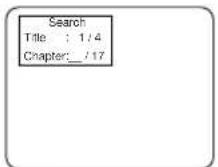
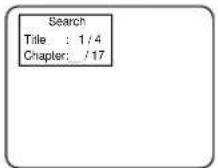
You can also press the SEARCH MODE button, use the numeric buttons to enter the chapter number.
- Perform the title search and the chapter search after setting them on the same screen at the same time. Changeover by ▲/▼ buttons.
Note
- Playback from a desired title or chapter is not available with some DVDs.
RANDOM (Audio CD)
CD
1 Press the MODE button in stop mode.
- The program setting menu screen will appear.
2 Press the MODE button again.
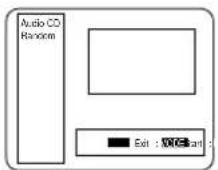
3 Press the PLAY button. Random playback will then start.
Note
- Program playback is not available during random playback.
REPEAT
CDDVD
1 Press the REPEAT button.
For DVDs
- A single title or chapter is played back repeatedly. - Pressing the REPEAT button cycles the display on the screen as follows.
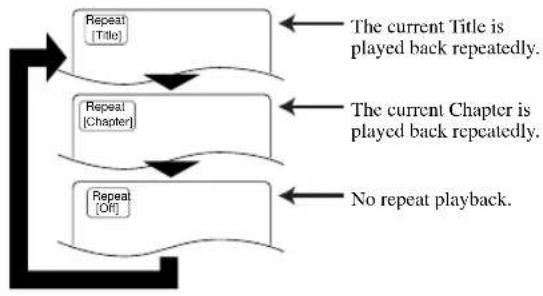
flowchart
graph TD
    A["Repeat [Title"]] --> B["Repeats"]
    C["Repeat [Chapter"]] --> D["Repeats"]
    E["Repeat [Off"]] --> F["Repeats"]
    B --> G["The current Title is played back repeatedly."]
    D --> H["The current Chapter is played back repeatedly."]
    F --> I["No repeat playback."]
For audio CDs
- The whole disc or a single track is played back repeatedly. - Pressing the REPEAT button cycles the display on the screen through All, Repeat Track and Off.
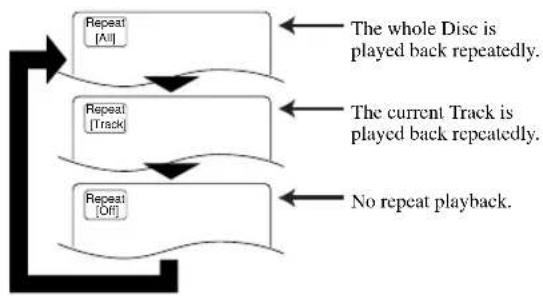
flowchart
graph TD
    A["Repeat [All"]] --> B["Repeat [Track"]]
    B --> C["Repeat [Off"]]
    D["The whole Disc is played back repeatedly."] --> A
    E["The current Track is played back repeatedly."] --> B
    F["No repeat playback."] --> C
If the REPEAT button is pressed once during program/random playback, the program/random playback is performed repeatedly.
If the REPEAT button is pressed again, the current track is played back repeatedly.
Notes
- Repeat playback is not available with some discs. - The REPEAT setting will be cleared when moving to other title, chapter or track.
CDDVD
CD
You can define a section to be played back repeatedly.
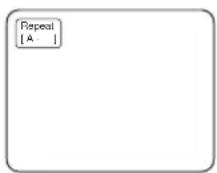
1 Press the A-B REPEAT button during playback.
- The starting point (A) will then be selected.
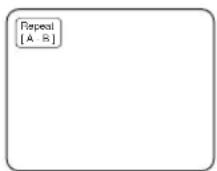
2 Press the A-B REPEAT button again at the end point (B) of the desired section.
- The selected section will be played back repeatedly.
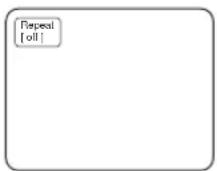
3 To exit A-B repeat playback, press the A-B REPEAT button and set it to OFF.
Notes
- With DVDs, the A-B repeat section can be set only within the current title.
- With audio CDs, the A-B repeat section can be set within the current track.
- A-B repeat is not available with some scenes in DVD.
- To cancel the A point which was set, press RETURN button.
1 Press the MODE button in stop mode.
- The program screen will appear.
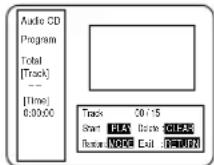
2 Press the numeric buttons to enter the desired track numbers.
- The total playback time for the selected tracks will appear on the TOTAL line.
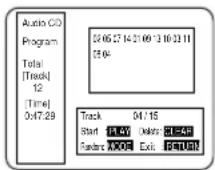
3 Press the PLAY button.
- Playback will start in the programmed order.
- While the program is being played back, the STOP button works as follows.
- Press the STOP button once and then the PLAY button again, playback will restart from the point where the STOP button was pressed. (Program continued)
- Press the STOP button twice and then the PLAY button again, playback will restart from the first tune in the program in the usual way. (Program continued)
- Press the STOP button three times and then the PLAY button again, playback will restart from the track in the usual way. (Program cleared)
Notes
- Adding programs is not possible during program playback. You must stop the current playback before such operations can be carried out.
- Press the CLEAR button to cancel a program. The most recently entered program will then be deleted.
- Numbers which exceed the number of tracks on the disc in the tray are not accepted.
- Playback from a desired track and random playback are not available during program playback.
- Program settings are cleared when the power is turned off or the disc loading tray is opened.
- If the track no. is once set in the program, the setting cannot be changed.
ZOOM PLAYBACK (enlargement onscreen)
DVD
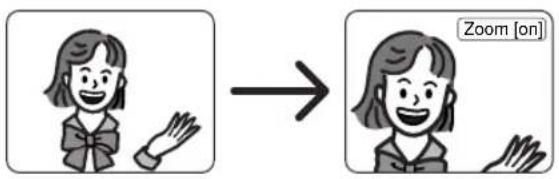
Images can be enlarged four times on the screen to your taste.
Press the ZOOM button during playback.
- An image will be enlarged at the center of the screen.
- Press the ZOOM button again, and the image will be back to the previous size.
text_image
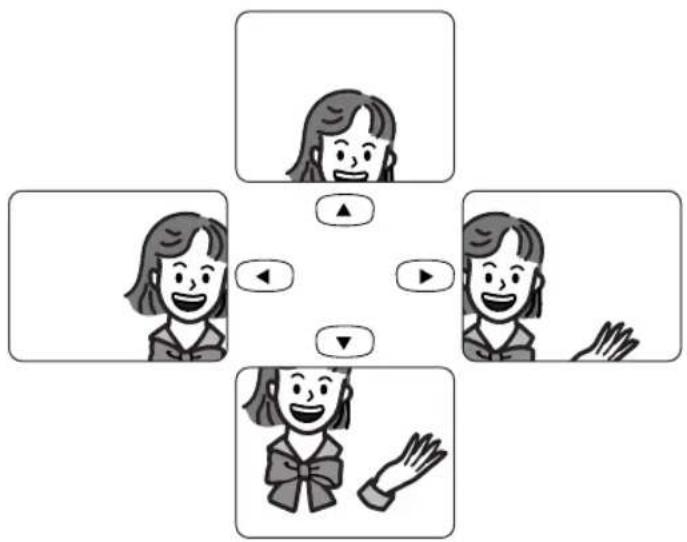
Zoom [on]When the cursor (▲/▼/◄/►) button is pressed during zoom play, the part to be zoomed moves.
- The zooming frame can be moved from the center .... 4 steps to the right. 4 steps to the left. 4 steps to the top. 4 steps to the bottom.
text_image
Diagram showing four cartoon women with different expressions and directional arrows, likely illustrating a social or emotional interaction.Note
- Zooming function does not work while operation display screen is shown.
CHANGING THE AUDIO LANGUAGE OR SOUND MODE
DVD
The DVD player has a function which allows you to select the desired audio language and sound mode.
For DVDs
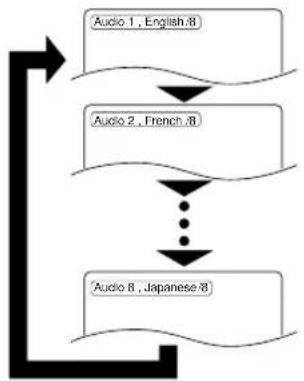
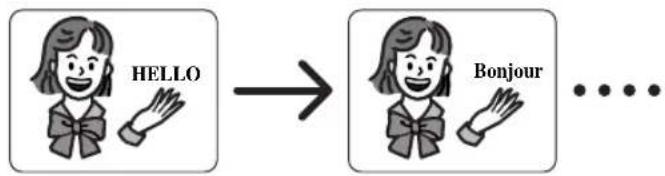
Press the AUDIO button during playback, and then press the AUDIO button to select the desired audio language.
- The audio language can be changed if multiple languages are recorded on the DVD being played.
flowchart
graph TD
    A["Audio 1, English:8"] --> B["Audio 2, French:8"]
    B --> C["..."]
    C --> D["Audio 8, Japanese:8"]
    D --> E["Output"]
text_image
HELLO → BonjourNotes
- Pressing the Audio button may not work on some DVDs with multiple audio languages (e.g. DVDs which allow audio language setting on the disc menu). Operation varies between discs, so refer to the manual accompanying the disc.
- If a desired language is not shown after pressing the Audio button several times, the disc does not have an audio source in that language.
- The audio language resets to the one which has been selected in the setup mode, every time the power is turned on or discs are replaced. If that language is not available on a disc, a language defined by the disc is selected.
- The screen display will disappear after about 5 seconds.
CHANGING THE SUBTITLE LANGUAGE
DVD
CHANGING THE CAMERA ANGLE (Multi-Angle Pictures)
DVD
The DVD player has a function which allows you to select the desired language for subtitles.
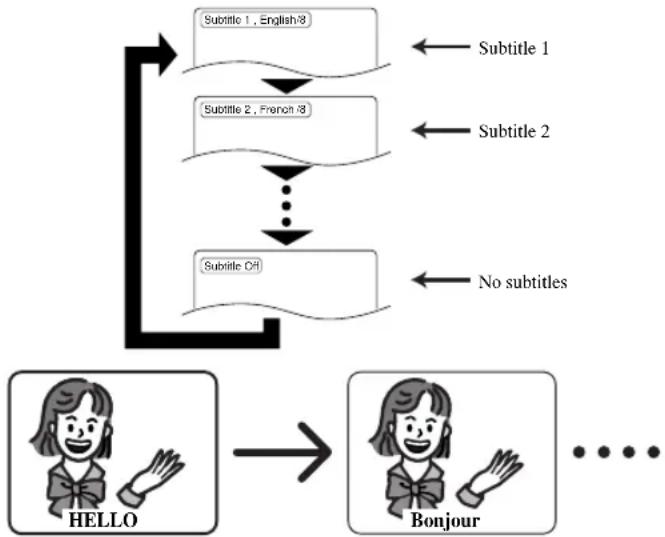
Press the SUBTITLE button during playback, and then press the SUBTITLE button to select the desired subtitle language.
- The subtitle language can be changed if the subtitles are recorded in multiple languages on the DVD being played.
- The subtitle language cannot be changed if the subtitles are recorded in a single language on the DVD being played.
flowchart
graph TD
    A["Subtitle 1, English/8"] --> B["Subtitle 2, French/8"]
    B --> C["..."]
    C --> D["Subtitle Off"]
    E["No subtitles"] --> D
    F["HELLO"] --> G["Bonjour"]
    style F fill:#f9f,stroke:#333
    style G fill:#f9f,stroke:#333
- Pressing the SUBTITLE button cycles the subtitle language from SUBTITLE 1, SUBTITLE 2 and all the languages recorded through to off.
Notes
- Some discs allow subtitle language setting on the disc menu. (Operation varies between discs, so refer to the manual accompanying the disc.)
- If the desired language is not shown after pressing the SUBTITLE button several times, the disc does not have subtitles in that language.
- The subtitle language resets to the one which has been selected in the setup mode, every time the power is turned on or discs are replaced. If that language is not available on a disc, a language defined by the disc is selected.
- It may take time to display the subtitles in the selected language.
- The screen display will disappear after about 5 seconds.
- When “Subtitle Not Available” appears onscreen, it means no subtitle is recorded on the scene.
The DVD player has a function which allows you to select the desired camera angle.
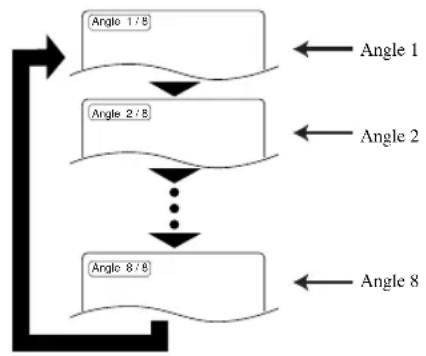
1 Press the ANGLE button during playback.
- If the disc contains sequences recorded from different camera angles, the angle icon ( ) will appear at the top-right of the screen. You can change the camera angle when the icon appears on the screen.
- The camera angle cannot be changed if the disc does not contain sequences recorded from different camera angles.
2 Press the ANGLE button while the angle number is shown on the screen.
flowchart
graph TD
    A["Angle 1/8"] --> B["Arrow"]
    C["Angle 2/8"] --> D["Arrow"]
    E["..."] --> F["Arrow"]
    G["Angle 8/8"] --> H["Arrow"]
    I["Angle 1"] --> J["Arrow"]
    K["Angle 2"] --> L["Arrow"]
    M["Angle 8"] --> N["Arrow"]
Note
- The screen display will disappear after about 5 seconds.
CHANGING THE ON-SCREEN DISPLAY
CDDVD
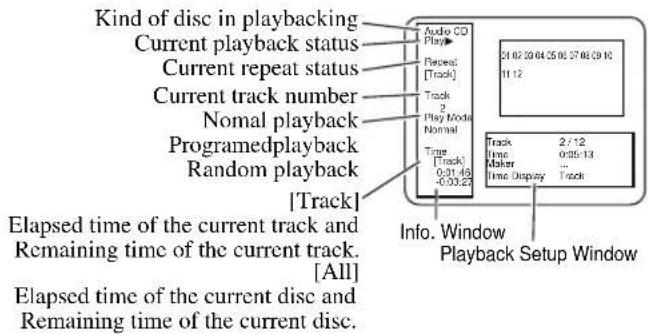
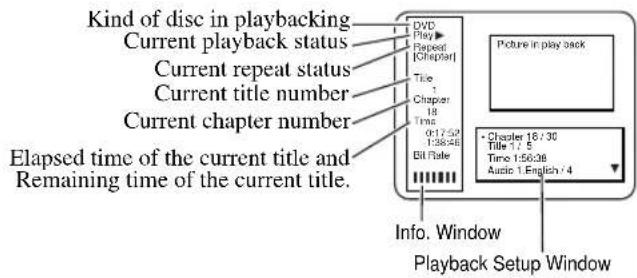
You can check the information about the disc by pressing the DISPLAY button on the remote control.
For audio CDs and DVDs
1
Press the DISPLAY button, the display appears on the screen.
2
For the selecting the item of the Playback Setup Window, press the ▲▼ button to select the item, then press the ENTER button.
For audio CDs
text_image
Kind of disc in playbacking Current playback status Current repeat status Current track number Nomal playback Programed playback Random playback [Track] Elapsed time of the current track and Remaining time of the current track. [All] Elapsed time of the current disc and Remaining time of the current disc. Audio CD Play Repeat: [Track] Track 2 Play Mode Normal Time [Track] 0:31.48 -0:03.27 21 02 20 04 25 06 27 08 29 30 11 12 Track 2 / 12 Time Maker ... Time Display Track Info. Window Playback Setup WindowPlayback Setup Window (CD)
| ITEM DISPLAY CONTENTS | |
| Track | Current track number / the number of total tracks |
| Time Total time of the current track | |
| Marker | Place the cursor and press the ENTER button to activate the Marker function.[Set the marker]Using ▲/▼ button, position the cursor on to the marker number shown as “Not Set”. Press the ENTER button when the screen to be reviewed appears.Up to 5 points can be marked.[Call back the marker]Using ▲/▼ button, position the cursor on to the marker number to be called back and press the ENTER button.[Clear the marker]Using ▲/▼ button, position the cursor on to the marker number to be cleared and press the CLEAR button.To clear all markers, place the cursor on “All Clear Markers” and press the ENTER button. |
| Time Display | The time informations displays on the left side of the screen (Track/All) |
For DVDs
text_image
Kind of disc in playbacking Current playback status Current repeat status Current title number Current chapter number Elapsed time of the current title and Remaining time of the current title. DVD Play Repeat [Chapter] Title: Chapter 18 Time: 0:17:50 1:38:48 Bit Rate Picture in play back • Chapter 18/30 Title 1/5 Time 1:56:38 Audio 1:English / 4 Info. Window Playback Setup WindowPlayback Setup Window (DVD)
| ITEM DISPLAY CONTENTS | |
| Chapter | Current chapter number / the number of total chapters |
| Title | Current title number / the number of total titles |
| Time Total time of the current title | |
| Audio | Audio No., audio language / the number of available audio languages in the disc |
| Subtitle | Subtitle No., subtitle language / the number of available subtitle languages in the discOff : Subtitle is not displays.Not Available : Subtitle is not included. |
| Angle | Angle No. / total number of the angles 1/1 : Multi angle is not included in the disc. |
| Marker | Place the cursor and press the ENTER button to activate the Marker function.[Set the marker]Using ▲/▼ button, position the cursor on to the marker number shown as “Not Set”. Press the ENTER button when the screen to be reviewed appears.Up to 5 points can be marked.[Call back the marker]Using ▲/▼ button, position the cursor on to the marker number to be called back and press the ENTER button.[Clear the marker]Using ▲/▼ button, position the cursor on to the marker number to be cleared and press the CLEAR button.To clear all markers, place the cursor on “All Clear Markers” and press the ENTER button. |
| SRS TruSurround | The current setting (On/Off) is displayed. |
To exit the display (DVD and CD):
Press the RETURN button.
In the playback Setup Window, press the RETURN button to change the present indication to the former one.
Note
- When you change the setup items, press the STOP button if you are in playback mode.
LANGUAGE SETTINGS
1 Press the SETUP button.
- The setup screen appears.
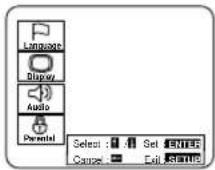
2 Press the ▲/▼ buttons to select Language, and then press the ENTER button.
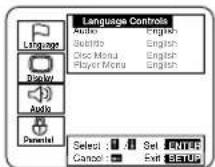
3 Press the ▲/▼ buttons to select an item, and then press the ENTER button.
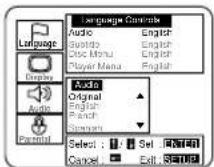
(Voice is played back in selected language.)
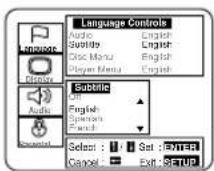
(Subtitles are shown in selected language.)
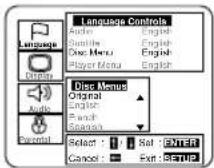
(The disc menu appears in selected language.)
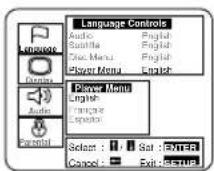
(The on-screen display appears in selected language.)
4 Press the ▲/▼ buttons to select a desired item, and then press the ENTER button.
- If Other is selected on the Audio, Subtitle or Disc Menu setting screen, the Language Code setting screen will appear. Press the numeric buttons to enter the desired language code while referring to the list on page 25.
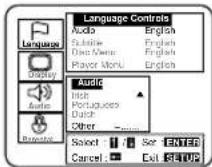
5 Press the SETUP button.
- The setup mode will be canceled and the ordinary screen will appear.
Note
- Language Setting for Audio and Subtitle is not available with some discs. Then use the Audio and Subtitle button. Details are on pages 18 and 19.
DISPLAY SETTINGS
1 Press the SETUP button.
- The setup screen will appear.
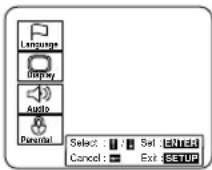
4 Press the ▲/▼ buttons to select a desired item, and then press the ENTER button.
5 Press the SETUP button.
- The setup mode will be canceled and the ordinary screen will appear.
2 Press the ▲/▼ buttons to select Display and then press the ENTER button.

3 Press the ▲/▼ buttons to select an item, and then press the ENTER button.
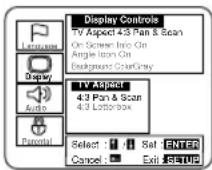
TV Aspect
(Default : 4:3 Pan & Scan)
4:3 Pan & Scan : Full height picture, trimmed both sides
4:3 Letter Box : Wide screen with black bars on top and bottom
Notes
- Some discs do not contain pan and scan images.
- Some discs do not contain letter box images.
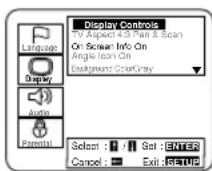
On Screen Info (Default : On)
Display or not display the disc status (Example “PLAY▶”).
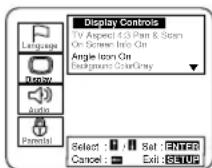
Angle Icon (Default : On)
Display or not display the Angle icon on the screen.
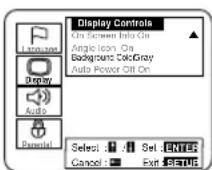
Background Color (Default : Gray)
Select gray or blue
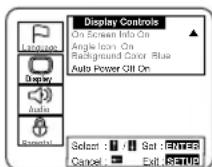
Auto Power Off (Default : On)
Set or not set to turn off after the screen saver is started and no keys are pressed for 30 minutes..
AUDIO SETTINGS
1 Press the SETUP button.
- The setup screen will appear.
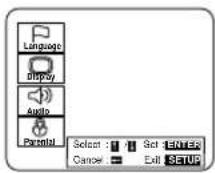
2 Press the ▲/▼ buttons to select Audio and then press the ENTER button.
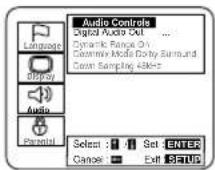
3 Press the ▲/▼ buttons to select an item, and then press the ENTER button.
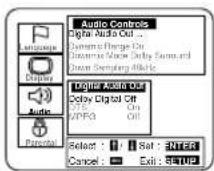
Digital audio out setting (Next step)
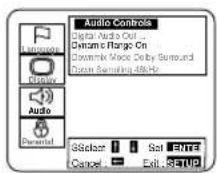
Dynamic Range (Default : Off) On : Dynamic range is available
- This function is for controlling the range of sound volume. By compressing the range of sound volume, it is possible not only to suppress the output of loud sound at night and but also to raise the volume of low sound.
- However, this function is effective only for the sound recorded by Dolby Digital recording. When the sound recorded by Dolby Digital 5.1ch is outputted, the sound is compressed automatically even with this function being set at "Off".
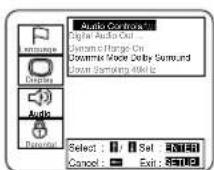
Downmix Mode
(Default : Dolby Surround)
Dolby Surround: When the player is connected to an audio component that conforms to
Dolby Surround Pro Logic
STEREO: When the player is connected to a normal audio component
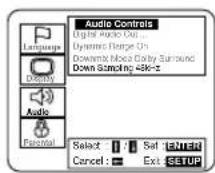
Down Sampling (Default : 48kHz)
Set the output for the DVD recorded in PCM 96kHz (96kHz or 48kHz)
4 Press the ▲/▼ buttons to select a desired item, and then press the ENTER button.
- If PCM, Dolby Digital or DTS MPEG is selected on the Digital Audio Out setting screen, press the ▲/▼ buttons again to select a further item, and then press the ENTER button.
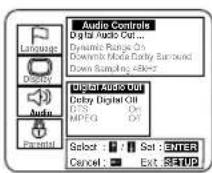
Dolby Digital (Default : Off)
On : Output by Dolby Digital.
Set to On when the unit is connected to Dolby Digital Decoder.
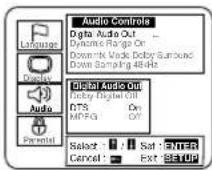
DTS (Default : Off)
On : Output DTS sound
Set to On when the unit is connected to DTS Decoder.
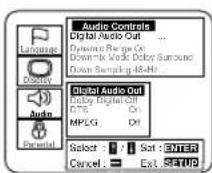
MPEG (Default : Off)
On : Output by MPEG
Off : Convert the MPEG to PCM
Set to On when the unit is connected to MPEG2 Decoder.
5 Press the SETUP button.
- The setup mode will be canceled and the ordinary screen will appear.
PARENTAL LOCK
1 Press the SETUP button.
- The setup screen will appear.
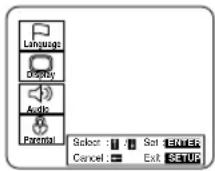
2 Press the ▲/▼ buttons to select Parental, and then press the ENTER button.
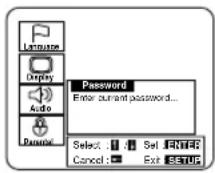
3 Press the numeric buttons to enter the 4-digit password, and then press the ENTER button.
- When doing this for the first time, enter any 4 digits. That number will be used as the password from the second time onward.
- By entering the password, you can then change the control level and password settings.
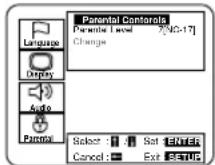
4 Press the ▲/▼ buttons to select an item, and then press the ENTER button.
When Parental Level is selected
- Press the ▲/▼ buttons to select an item from 8 to 1 and then press the ENTER button.
- When Change is selected, press the numeric buttons to enter the four digits password. Then press the ENTER button.
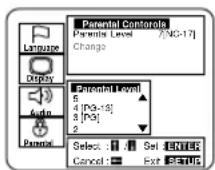
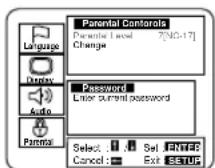
5 Press the RETURN button.
- The setup screen will appear.
CONTROL LEVELS
• Level 8
DVD software of any grade (adult/general/children) can be played back.
- Levels 7 to 2
Only DVD software intended for general use and children can be played back.
- Level 1
Only DVD software intended for children can be played back, with those intended for adult and general use prohibited.
Notes
- With some DVDs, it may be difficult to find if they are compatible with parental lock. Be sure to check if the parental lock function operates in the way that you have set.
- Record the password in case you forget it.
1) Open the tray.
2) Press the 1, 2, 3, 4, then DISPLAY button on the remote control. the default setup screen will appear. Then, press the ENTER button.
3) Disconnect the power once and reconnect, then proceed the step 1 to 4 of the PARENTAL LOCK again.
Note: If you proceed the above steps, ALL the settings of the DVD player will be cleared. To use the DVD player under the previous settings, set each setting item all over again.
DVD
| No. | Language | Country code |
| 1 | Afar 4747 | |
| 2 | Abkhazian 4748 | |
| 3 | Afrikaans | |
| 4 | Amharic 4759 | |
| 5 | Arabic 4764 | |
| 6 | Assamese 4765 | |
| 7 | Aymara 4771 | |
| 8 | Azerbaijani 4772 | |
| 9 | Bashkir 4847 | |
| 10 | Byelorussian 4851 | |
| 11 | Bulgarian 4853 | |
| 12 | Bihari 4854 | |
| 13 | Bislama | 4855 |
| 14 | Bengali;Bangla | 4860 |
| 15 | Tibetan | 4861 |
| 16 | Breton | 4864 |
| 17 | Catalan 4947 | |
| 18 | Corsican | 4961 |
| 19 | Czech 4965 | |
| 20 | Welsh | 4971 |
| 21 | Danish | 5047 |
| 22 | German (GER) | 5051 |
| 23 | Bhutani | 5072 |
| 24 | Greek | 5158 |
| 25 | English (ENG) | 5160 |
| 26 | Esperanto | 5161 |
| 27 | Spanish (SPA) | 5165 |
| 28 | Estonian | 5166 |
| 29 | Basque | 5167 |
| 30 | Persian | 5247 |
| 31 | Finnish | 5255 |
| 32 | Fiji | 5256 |
| 33 | Faroese 5261 | |
| 34 | French (FRE) | 5264 |
| 35 | Frisian | 5271 |
| 36 | Irish | 5347 |
| 37 | Scots Gaelic | 5350 |
| 38 | Galician | 5358 |
| 39 | Guarani | 5360 |
| 40 | Gujarati | 5367 |
| 41 | Hausa | 5447 |
| 42 | Hindi | 5455 |
| 43 | Croatian | 5464 |
| 44 | Hungarian | 5467 |
| 45 | Armenian | 5471 |
| 46 | Interlingua 5547 | |
| 47 | Interlingue 5551 | |
| 48 | Inupiak | 5557 |
| 49 | Indonesian | 5560 |
| 50 | Icelandic | 5565 |
| 51 | Italian (ITA) | 5566 |
| 52 | Hebrew 5569 | |
| 53 | Japanese (JPN) | 5647 |
| 54 | Yiddish | 5655 |
| 55 | Javanese | 5669 |
| 56 | Georgian | 5747 |
| 57 | Kazakh 5757 | |
| 58 | Greenlandic | 5758 |
| 59 | Cambodian | 5759 |
| 60 | Kannada | 5760 |
| 61 | Korean (KOR) | 5761 |
| 62 | Kashmiri | 5765 |
| 63 | Kurdish | 5767 |
| 64 | Kirghiz | 5771 |
| 65 | Latin | 5847 |
| 66 | Lingala | 5860 |
| 67 | Laothian | 5861 |
| 68 | Lithuanian | 5866 |
| No. | Language | Country code |
| 69 | Latvian; Lettish | 5868 |
| 70 | Malagasy | 5953 |
| 74 | Māori | 5955 |
| 72 | Macedonian | 5957 |
| 73 | Malayalam | 5958 |
| 74 | Mongolian | 5960 |
| 75 | Moldavian | 5961 |
| 76 | Marathi 5964 | |
| 77 | Malay | 5965 |
| 78 | Maltese | 5966 |
| 79 | Burmese | 5971 |
| 80 | Nauru | 6047 |
| 81 | Nepali 6051 | |
| 82 | Dutch (DUT) | 6058 |
| 83 | Norwegian | 6061 |
| 84 | Occitan | 6149 |
| 85 | (Afan)Oromo | 6159 |
| 86 | Oriya | 6164 |
| 87 | Panjabi 6247 | |
| 88 | Polish | 6258 |
| 89 | Pashto; Pushto | 6265 |
| 90 | Portuguese | 6266 |
| 91 | Quechua | 6367 |
| 92 | Rhaeto-Romance | 6459 |
| 93 | Kirundi | 6460 |
| 94 | Romanian | 6461 |
| 95 | Russian | 6467 |
| 96 | Kinyarwanda | 6469 |
| 97 | Sanskrit | 6547 |
| 98 | Sindhi | 6550 |
| 99 | Sangho 6553 | |
| 100 | Serbo-Croatian | 6554 |
| 101 | Singhalese 6555 | |
| 102 | Slovak | 6557 |
| 103 | Slovenian | 6558 |
| 104 | Samoan | 6559 |
| 105 | Shona | 6560 |
| 106 | Somali | 6561 |
| 107 | Albanian | 6563 |
| 108 | Serbian 6564 | |
| 109 | Siswat | 6565 |
| 110 | Sesotho 6566 | |
| 111 | Sundanese | 6567 |
| 112 | Swedish | 6568 |
| 113 | Swahili | 6569 |
| 114 | Tamil | 6647 |
| 115 | Telugu | 6652 |
| 116 | Tajik | 6653 |
| 117 | Thai | 6654 |
| 118 | Tigrinya | 6655 |
| 119 | Turkmen | 6657 |
| 120 | Tagalog | 6658 |
| 121 | Setswana | 6660 |
| 122 | Tonga | 6661 |
| 123 | Turkish | 6664 |
| 124 | Tsonga | 6665 |
| 125 | Tatar | 6666 |
| 126 | Twi | 6669 |
| 127 | Ukrainian 6757 | |
| 128 | Urdu | 6764 |
| 129 | Uzbek 6772 | |
| 130 | Vietnamese | 6855 |
| 131 | Volapuk | 6861 |
| 132 | Wolof 6961 | |
| 133 | Xhosa 7054 | |
| 134 | Yoruba | 7161 |
| 135 | Chinese (CHI) | 7254 |
| 136 | Zulu | 7267 |
TV
Sometimes a performance problem can be easily solved by checking seemingly apparent but often overlooked possibilities. Before arranging for service, check these items. It could save your time and money.
| Problem Corrective Action | |
| Remote Control Doesn’t Work | • Is TV/DVD plugged in?• Power at outlet?• Check batteries in Remote Control. |
| Bars On Screen | • If outside antenna is being used, check for broken wire.• Check for local interference. |
| Picture Distorted or Blurred | • Try a new channel, if OK, then possible station trouble.• If outside antenna is being used, check for broken wire. |
| Picture Rolls VerticallyLines or Streaks in Picture | • Try a new channel, if OK, then possible station trouble.• If outside antenna is being used, check for broken wire.• Check for local interference. |
| No Color | • Try a new channel, if OK, then possible station trouble.• Is antenna connected to terminal on the back of the set?• If outside antenna is being used, check for broken wire.• Adjust COLOR control. |
| Poor Reception on Some ChannelsGhosts in Picture | • Try a new channel, if OK, then possible station trouble.• Is antenna connected to terminal on the back of the set?• If outside antenna is being used, check for broken wire.• Check for local interference. |
| Weak Picture | • Try a new channel, if OK, then possible station trouble.• Is antenna connected to terminal on the back of the set?• If outside antenna is being used, check for broken wire.• Adjust CONTRAST & BRIGHT control. |
| Sound OK, Picture Poor | • Try a new channel, if OK, then possible station trouble.• Is antenna connected to terminal on the back of the set?• If outside antenna is being used, check for broken wire.• Check for local interference.• Adjust CONTRAST & BRIGHT control. |
| Picture OK, Sound Poor | • Try a new channel, if OK, then possible station trouble.• Check for local interference. |
| No Picture or Sound | • Try a new channel, if OK, then possible station trouble.• Is TV/DVD plugged in?• Power at outlet?• Is TV/DVD’S POWER button on?• Is antenna connected to terminal on the back of the set?• If outside antenna is being used, check for broken wire.• Turn off with POWER button and then turn it on after about a minute. |
| Closed Caption Problem Possible Remedy | |
| My TV is showing captions that are misspelled. | ·You are watching a live broadcast and spelling errors made by the closed captioning production company may pass through uncorrected. A prerecorded program will not show any misspelled words because of the normal time available for editing the captions. |
| My TV will not show the text in its entirety or there is a delay of what is being said. | ·Captions that are delayed a few seconds behind the actual dialogue are common for live broadcast. Most captioning production companies can display a dialogue to a maximum of 220 words per minute. If a dialogue exceeds that rate, selective editing is used to insure that the captions remain up-to-date with the current TV screen dialogue. |
| My captions are scrambled with white boxes on the TV screen. | ·Interference caused by building, power lines, thunderstorms, etc. may cause scrambled or incomplete captions to appear. |
| My program guide listed a TV show as being closed captioned but none of the captions were displayed. | ·Broadcasters may at times use a time compression process to the actual program so that additional advertising time can be given. Since the decoder cannot read the compressed information, captions will be lost. |
| My TV screen shows a black box on certain channels. | ·You are in the TEXT mode. Select CAPTION mode or CAPTION [OFF]. |
DVD
If the TV/DVD does not perform properly when operated as instructed in this Owner's Manual, check the player, consulting the following checklist.
| Symptom Cause | Remedy | |
| No power. let. | Loose power plug. | Insert the power plug firmly into the wall outlet. |
| The player does not respond to the remote control. | The remote control is not aimed at the sensor on the TV/DVD.Obstacles present between the remote control and the sensor.The remote control is too far away from the TV/DVD.Dead batteries. | Aim the remote control directly at the sensor on the TV/DVD.Remove the obstacles from the signal path.Use the remote control within 7m of the TV/DVD.Replace the batteries. |
| No picture | Loose video connection.Wrong disc. | Connect the video cables firmly.Insert a correct video disc that plays on this TV/DVD. |
| Disc cannot be played | No disc.Dirty disc.Disc is placed upside down.Parental lock is active. | Insert a disc.Clean the disc.Place the disc correctly, with the label side up.Cancel the parental lock or change the control level. |
| No sound | Loose audio connection.The power of the connected audio component is off.Wrong audio output settings.Wrong input settings on the connected audio component. | Connect the audio cables firmly.Turn the power of the audio component on.Correct the audio output settings.Correct the input settings on the audio component. |
| Distorted picture | Immediately after playing, press fast forward or in reverse. | There are some cases where pictures may be slightly distorted, which are not a sign of a malfunction. |
| Audio or subtitle language does not match the setup. | The selected language is not available for audio or subtitles on the DVD. | No malfunction. |
| The camera angle cannot be changed. | The DVD does not contain sequences recorded from different camera angles. | No malfunction. |
| Audio or subtitle language cannot be changed. | The DVD does not contain audio source or subtitles in the selected language. | No malfunction. |
| "Prohibited icon" appears on the screen, prohibiting an operation. | That operation is prohibited by the TV/DVD or disc. | No malfunction. |
| CD sound dropout No CD reproduction DVD picture dropout DVD picture freeze DVD picture in mosaic No DVD reproduction | Scratched disc | Replace the disc with unscratched one. |
NOTES:
- Some functions are not available in specific modes, but this is not a malfunction. Read the description in this Owner's Manual for details on correct operations.
- Playback from a desired track and random playback are not available during program playback.
CABINET CLEANING
- Wipe the front panel and other exterior surfaces of the TV/DVD with a soft cloth immersed in lukewarm water and wrung dry.
- Never use a solvent or alcohol. Do not spray insecticide liquid near the TV/DVD. Such chemicals may cause damage and discoloration to the exposed surfaces.
SERVICING
- Should your TV/DVD become inoperative, do not try to correct the problem by yourself. There are no user-serviceable parts inside. Turn off, unplug the power cord, and please call our help line at 1-800-968-3429, to locate an Authorized Service Center.
IF THE LASER OPTICAL PICKUP UNIT IS DIRTY
- If the player still does not perform properly when it is operated while referring to the relevant sections and to "TROUBLESHOOTING GUIDE" in this Owner's Manual, the laser optical pickup unit may be dirty. Consult your dealer or an Authorized Service Center for inspection and cleaning of the laser optical pickup unit.
DISC HANDLING
- Use discs which have the following logos on them. (Optical audio digital discs.)


- Handle the discs so that fingerprints and dust do not adhere to the surfaces of the discs.
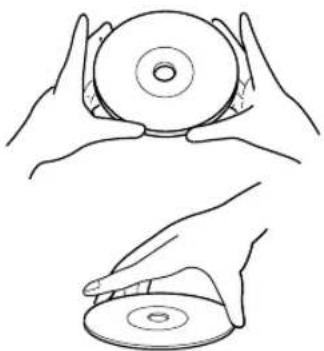
natural_image
Line drawing of two hands holding a CD or DVD disc, no text or symbols present• Always store the disc in its protective case when it is not used.
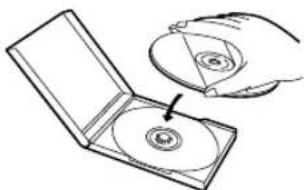
natural_image
Illustration of a CD or DVD disc open with an arrow pointing to it, showing the disc and surrounding ring (no text or symbols)• To clean-off, use a soft cloth.
- Do not use a hard cloth since this will mar the disc.
- Wipe the disc in a straight line from center to edge.
- Never wipe with a circular motion.
- Do not use detergent or abrasive cleaning agents.
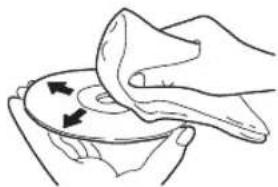
natural_image
Illustration of hands performing a medical procedure on a patient's abdomen (no text or symbols present)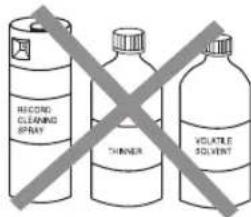
text_image
SECOND CLEANING SPRAY CHINER VOLUTLE SOLVENTGENERAL SPECIFICATIONS ELECTRICAL SPECIFICATIONS
TV
Television system: NTSC-M
TV Standard
Closed caption system: §15.119/FCC
Channel coverage:
VHF: 2 \~ 13
UHF: 14 \~ 69
CATV: 2 \~13, A \~ W,
W + 1 W + 84,
A-5 \~ A-1, 5A
Tuning System: 181 channel
frequency synthesized
tuning system
Channel access: Direct access keyboard,
programmable
scan and up/down
DVD
Product type: DVD Player
Discs: DVD video, Audio CD
Output signal format: NTSC color
Frequency response
(out put jack)
DVD (linear sound): 20 Hz to 22 kHz
(sample rate: 48 kHz)
20 Hz to 44 kHz
(sample rate: 96 kHz)
CD: 20 Hz to 20 kHz
Signal-to-noise ratio
(S/N ratio)(out put jack)
CD: 100 dB (EIAJ)
Dynamic range
(out put jack)
DVD (linear sound): 85 dB
CD: 84 dB (EIAJ)
Total distortion factor
CD: 0.07% (EIAJ)
Wow and flutter: Below the measurement
limitation (+/-0.001%
W PEAK) (EIAJ)
Sound output: 2 speakers, 1W, 8 ohm
OTHER SPECIFICATIONS
Terminals
Antenna input: VHF/UHF/CATV 75 ohm unbalanced (F-type)
Video input: RCA connector × 1
Audio L/R input: RCA connector × 2
Headphone: 1/8" stereo (3.5 mm)
Coaxial digital
audio output
(only DVD): One pin jack, 500m Vpp (75 ohm)
Analog audio L/R output (only DVD): RCA connector × 2
Remote control: Digital encoded infrared light system
Operating
temperature: 5°C to 40°C
(41°F\~104°F)
Power requirements: AC 120V, 60Hz
Power consumption
(Maximum): 90W
Picture tube: 19"
Dimensions: H:19-5/8" (498mm)
W:19-3/16" (487mm)
D:18-21/32" (474mm)
Weight: 41.9 lbs (19kg)
Accessories: Remote Control Unit with
2"AA"batteries
Owner's Manual
- Designs and specifications are subject to change without notice and without our legal obligation.
- If there is a discrepancy between languages, the default language will be English.
FUNAI CORP. will repair this SYLVANIA product, free of charge in the USA in the event of defect in materials or workmanship as follows:
DURATION:
PARTS: FUNAI CORP. will provide parts to replace defective parts without charge for one (1) year from the date of original retail purchase. Two (2) years for Picture Tube. Certain parts are excluded from this warranty.
LABOR: FUNAI CORP. will provide the labor without charge for a period of ninety (90) days from the date of original retail purchase.
LIMITS AND EXCLUSIONS:
This warranty is extended only to the original retail purchaser. A purchase receipt or other proof of original retail purchase will be required together with the product to obtain service under this warranty.
This warranty shall not be extended to any other person or transferee.
This warranty is void and of no effect if any serial numbers on the product are altered, replaced, defaced, missing or if service was attempted by an unauthorized service center. This SYLVANIA Limited warranty does not apply to any product not purchased and used in the United States.
This warranty only covers failures due to defects in material or workmanship which occurs during normal use. It does not cover damage which occurs in shipment, or failures which are caused by repairs, alterations or product not supplied by FUNAI CORP., or damage which results from accident, misuse, abuse, mishandling, misapplication, alteration, faulty installation, improper maintenance, commercial use such as hotel, rental or office use of this product or damage which results from fire, flood, lightning or other acts of God.
THIS WARRANTY DOES NOT COVER PACKING MATERIALS, ANY ACCESSORIES (EXCEPT REMOTE CONTROL), ANY COSMETIC PARTS, COMPLETE ASSEMBLY PARTS, DEMO OR FLOOR MODELS.
FUNAI CORP. AND ITS REPRESENTATIVES OR AGENTS SHALL IN NO EVENT BE LIABLE FOR ANY GENERAL, INDIRECT OR CONSEQUENTIAL DAMAGES ARISING OUT OF OR OCCASIONED BY THE USE OF OR THE INABILITY TO USE THIS PRODUCT. THIS WARRANTY IS MADE IN LIEU OF ALL OTHER WARRANTIES, EXPRESS OR IMPLIED, AND OF ALL OTHER LIABILITIES ON THE PART OF FUNAI, ALL OTHER WARRANTIES INCLUDING THE WARRANTY OF MERCHANTABILITY, AND FITNESS FOR A PARTICULAR PURPOSE, ARE HEREBY DISCLAIMED BY FUNAI AND ITS REPRESENTATIVES IN THE UNITED STATES.
ALL WARRANTY INSPECTIONS AND REPAIRS MUST BE PERFORMED BY A FUNAI AUTHORIZED SERVICE CENTER. THIS WARRANTY IS VALID WHEN THE UNIT IS CARRIED-IN TO FUNAI AUTHORIZED SERVICE FACILITY.
IMPORTANT:
THIS LIMITED WARRANTY GIVES YOU SPECIFIC LEGAL RIGHTS, YOU MAY HAVE OTHER RIGHTS THAT VARY FROM STATE TO STATE, IF, AT ANY TIME DURING THE WARRANTY PERIOD, YOU ARE UNABLE TO OBTAIN SATISFACTION WITH THE REPAIR OF THIS PRODUCT, PLEASE CONTACT FUNAI CORP.
ATTENTION:
FUNAI CORP. RESERVES THE RIGHT TO MODIFY ANY DESIGN OF THIS PRODUCT WITHOUT PRIOR NOTICE.
To locate your nearest SYLVANIA Authorized Service Center or for general service procedure, please call 1-800-968-3429 or write to the following:
FUNAI CORPORATION, INC.
Customer Service
100 North Street; Teterboro, NJ 07608
Tel :1-800-968-3429
PLEASE DO NOT SHIP YOUR UNIT TO THE TETERBORO ADDRESS.