
Lible-Pro AEBK01WF - Electronic accessory Aluratek - Free user manual and instructions
Find the device manual for free Lible-Pro AEBK01WF Aluratek in PDF.


| Product Type | E-Book Reader |
| Brand | Aluratek |
| Model | Lible-Pro AEBK01WF |
| Display Size | 6 inches |
| Display Resolution | 800 x 600 pixels |
| Display Technology | E-Ink (Electronic Paper) |
| Backlight | Yes, adjustable warm light |
| Storage Capacity | 4 GB internal (expandable via microSD) |
| Supported Formats | PDF, EPUB, MOBI, TXT, HTML, RTF, JPEG, BMP |
| Connectivity | 802.11 b/g/n Wi-Fi, USB-C |
| Battery Capacity | 1500 mAh Li-Polymer |
| Battery Life | Up to 4 weeks (based on 30 min/day) |
| Charging | USB-C, 5V/1A, approx. 3 hours |
| Weight | Approx. 170 g |
| Dimensions | 157 x 110 x 8.5 mm |
| Operating System | Linux-based proprietary OS |
| Languages Supported | English, Spanish, French, German, Italian, and more |
| Accessories Included | USB-C cable, quick start guide |
| Warranty | 1 year limited warranty |
| Compatible With | Windows, macOS, Linux (for file transfer) |
| Color | Black |
| Dust/Water Resistance | Not specified |
Frequently Asked Questions - Lible-Pro AEBK01WF Aluratek
User questions about Lible-Pro AEBK01WF Aluratek
0 question about this device. Answer the ones you know or ask your own.
Ask a new question about this device
Download the instructions for your Electronic accessory in PDF format for free! Find your manual Lible-Pro AEBK01WF - Aluratek and take your electronic device back in hand. On this page are published all the documents necessary for the use of your device. Lible-Pro AEBK01WF by Aluratek.
USER MANUAL Lible-Pro AEBK01WF Aluratek
Instructional Manual

Aluratek
Chapter 1: Introduction 04
1.1 Overview 05
1.2 Features 05
1.3 Package Contents 05
1.4 Product Overview - Front 06
1.5 Product Overview - Back 07
1.6 Product Overview - Bottom & Top 08
1.7 Product Overview - Power On to Enter Main Menu 08
1.8 Product Overview - Basic Operation 09
1.9 Product Overview - Reading Operation 09
Chapter 2: Operating Instructions 10
2.1 Charging the Battery 10
2.2 Inserting a Memory Card 10
2.3 Power On 10
2.4 To read an eBook on the included memory card 11
2.5 Finding and downloading free eBooks online 11
2.6 To copy an eBook to the Libre 12
2.7 Resetting your Libre 13
Chapter 3: Recent Readings 14
3.1 Recent Readings 14
Chapter 4: eBooks 15
4.1 To Read an eBook 15
4.2 To Go to a Particular Bookmark 15
4.3 To Bookmark a Page 15
4.4 To Remove Bookmark 15
4.5 To Search a Particular Keyword Within a Document 15
4.6 To Jump to a Certain Page 16
4.7 To Change a Font Size 16
4.8 To Setup Auto Turn Page 16
4.9 To Rotate 16
4.10 To Set the Codepage 16
4.11 To Set the Alignment 17
4.12 To Start / Stop Background Music 17
Chapter 5: Pictures 18
5.1 To Display Picture 18
5.2 To Rotate a Picture 18
5.3 To Zoom In / Out 18
5.4 To View the Picture in Full Screen 18
5.5 To Reset the Picture to the Original Size 18
5.6 To Setup Auto Turn Page (slide show) 18
5.7 To Start / Stop Background Music 19
19
Chapter 6: MP3 Player 19
6.1 To Play Music 19
6.2 To Show Playlist 19
6.3 To Turn Off LCD 19
6.4 To Select Play Mode (repeat one, repeat all, random) 19
6.5 To Start / Stop Background Music 19
6.6 To Show the Instruction of the Keys for the MP3 Control
19
19
19
19
19
[Non-Text]
Chapter 7: Settings 20 20
7.1 To Set the Language for the Unit 20
7.2 To Set Auto Power Off 20
7.3 To Set Auto Turn Page 20
7.4 To Set the Volume 20
7.5 To Set the Font 20
7.6 To Show the Serial Number of the Device 20
7.7 To Show the Battery Level 21
7.8 To Show the Internal Battery Memory Capacity / Usage 21
7.9 To Show the External SD Card Memory Capacity / Usage21
7.10 To Show the Firmware Number of the Device 21
7.11 To Restore the System to Factory Default 21
7.12 To Upgrade the Firmware 21
7.13 Internal File Manager 21
7.14 SD Card File Manager 21
7.15 To Setup Background Music for the System
20
20
20
20
20
20
21
21
21
21
21
21
21
21
[Non-Text]
Chapter 8: Help 23
Technical Support 24
Radio and TV Interference Statement 25
Warranty
19
20
20
22
23
24
25
1.1 Overview
Thank you for choosing Aluratek's® LIBRE PRO eBook Reader. In addition to making sure only quality materials are used for manufacturing, Aluratek® is also dedicated to provide the best customer satisfaction and support.
The goal of Aluratek is to embody “Simple Elegance” in every product it designs, manufactures and sells.
The product focus of Aluratek is to bring simple yet elegant connectivity solutions to the consumers to enhance their consumer electronics, communications and computing experience. Each product is carefully designed with the consumer in mind. Each product is solution-driven to address the need of the consumers and deliberately planned to provide the ultimate user experience.
Read this guide thoroughly and follow the installation and operation procedures carefully to prevent any damage to the unit and / or any of the devices it connects to.
1.2 Features
• Supports EPUB, PDF, TXT*, FB2*, MOBI*, PRC*, RTF* electronic book formats (* non DRM)
• Supports BMP, JPG, GIF, animated GIF picture format
- Content search for easy navigation between books and pages
• Bookmark and auto page turn function
- Adjustable font type and size
- Screen rotation support (portrait and landscape mode)
• Built-in MP3 player with background playback support
• SD card slot - up to 32GB
- Internal lithium-ion polymer battery (24 hrs continuous use / 2 weeks standby time)
- Battery level indicator and low level warning
• 1 Year Warranty
1.3 Package Contents
Your order has been carefully packaged and inspected. The following should be included in your package. Please inspect the contents of the package to ensure that you have received all items and that nothing has been damaged. If you discover a problem, please contact us immediately for assistance.
• Libre eBook Reader PRO
- USB Cable
- Earphones
- Power Adapter
- Hand Strap
- 2GB SD Card
- Carrying Case
- Quick Start Guide
- Download Guide
• Warranty / Registration Card
1.4 Product Overview - Front
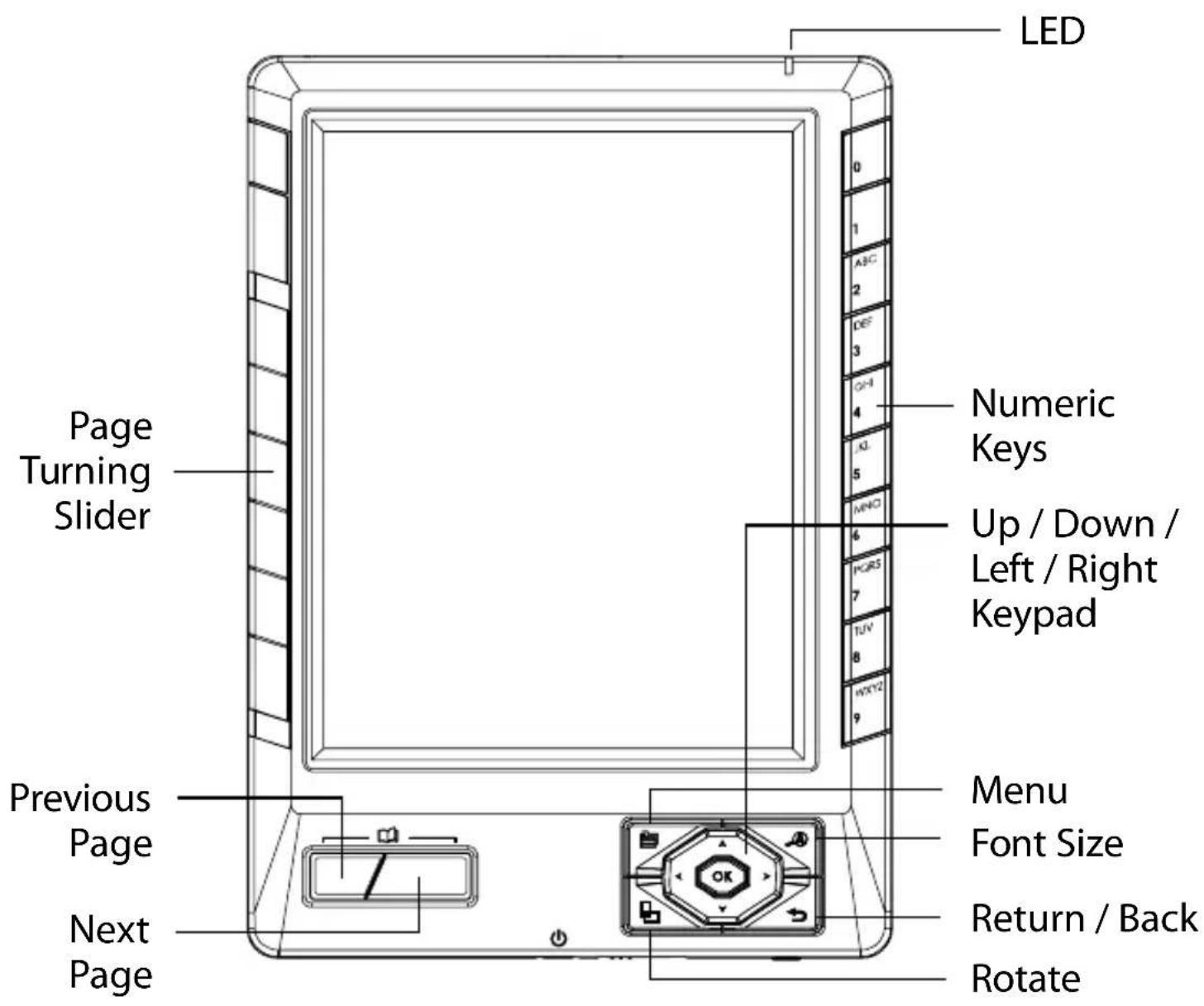
1.5 Product Overview - Back
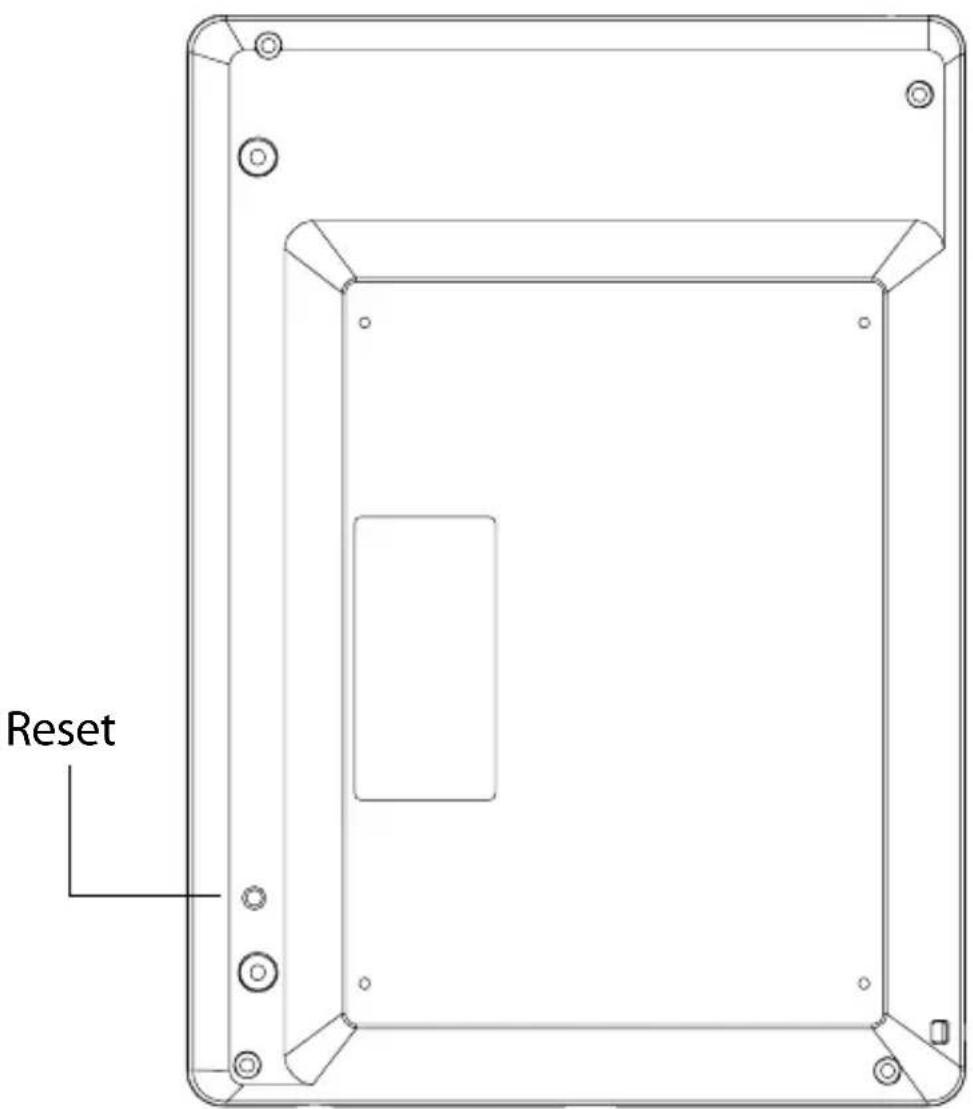
1.6 Product Overview - Bottom & Top
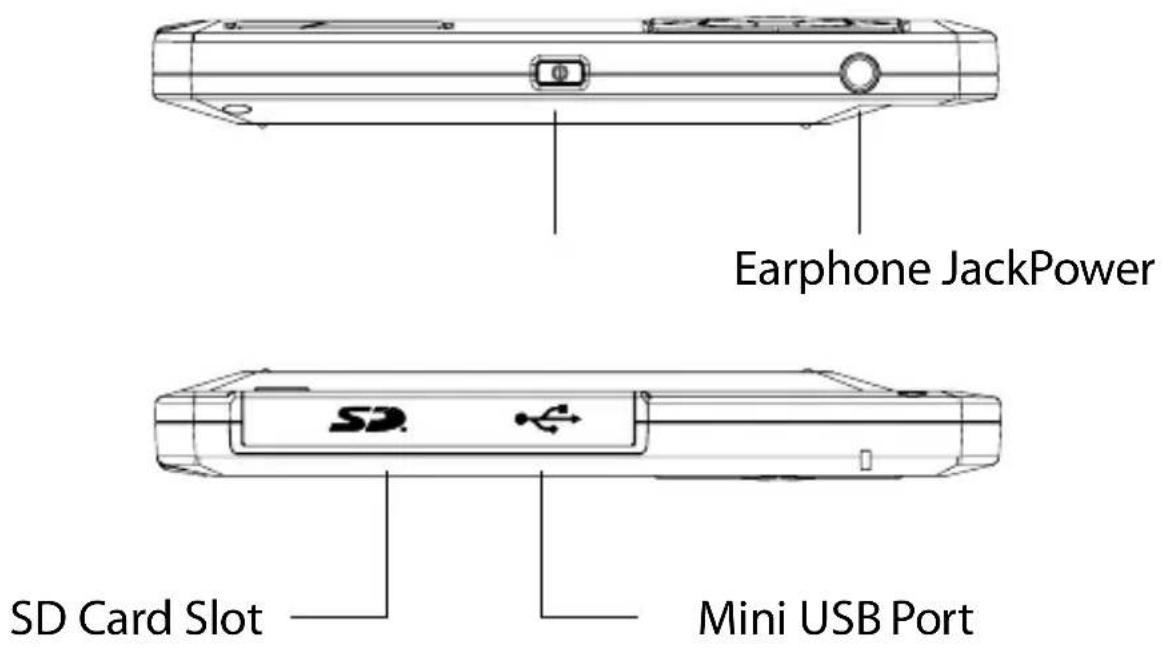
1.7 Product Overview - Power On to Enter Main Menu
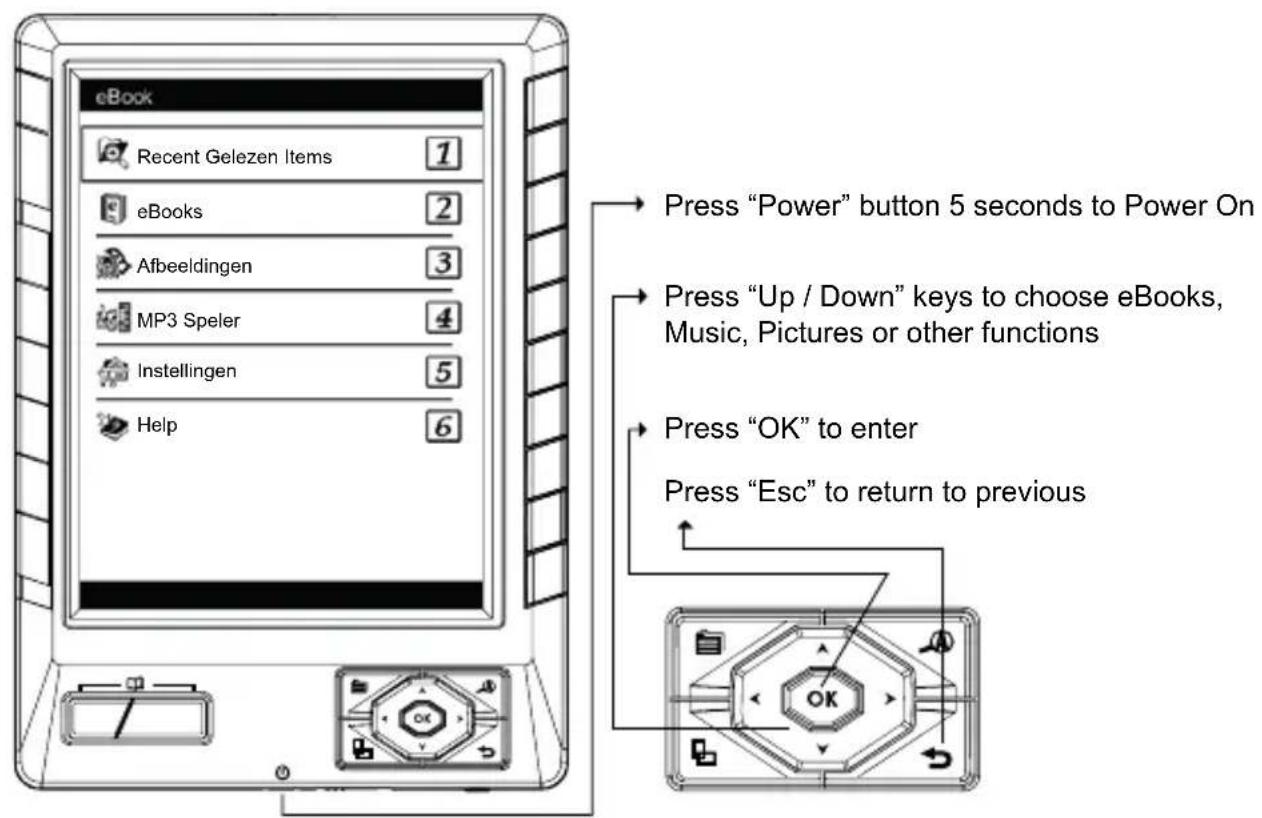
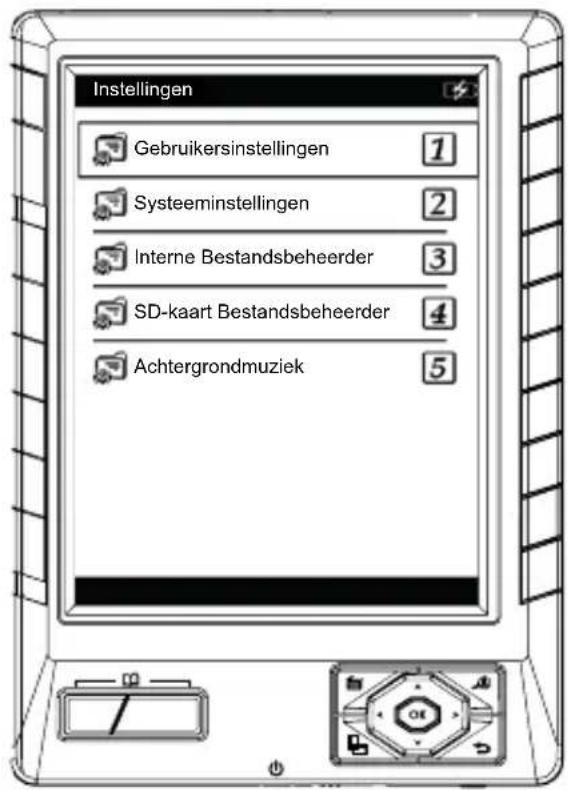
1.8 Product Overview - Basic Operation
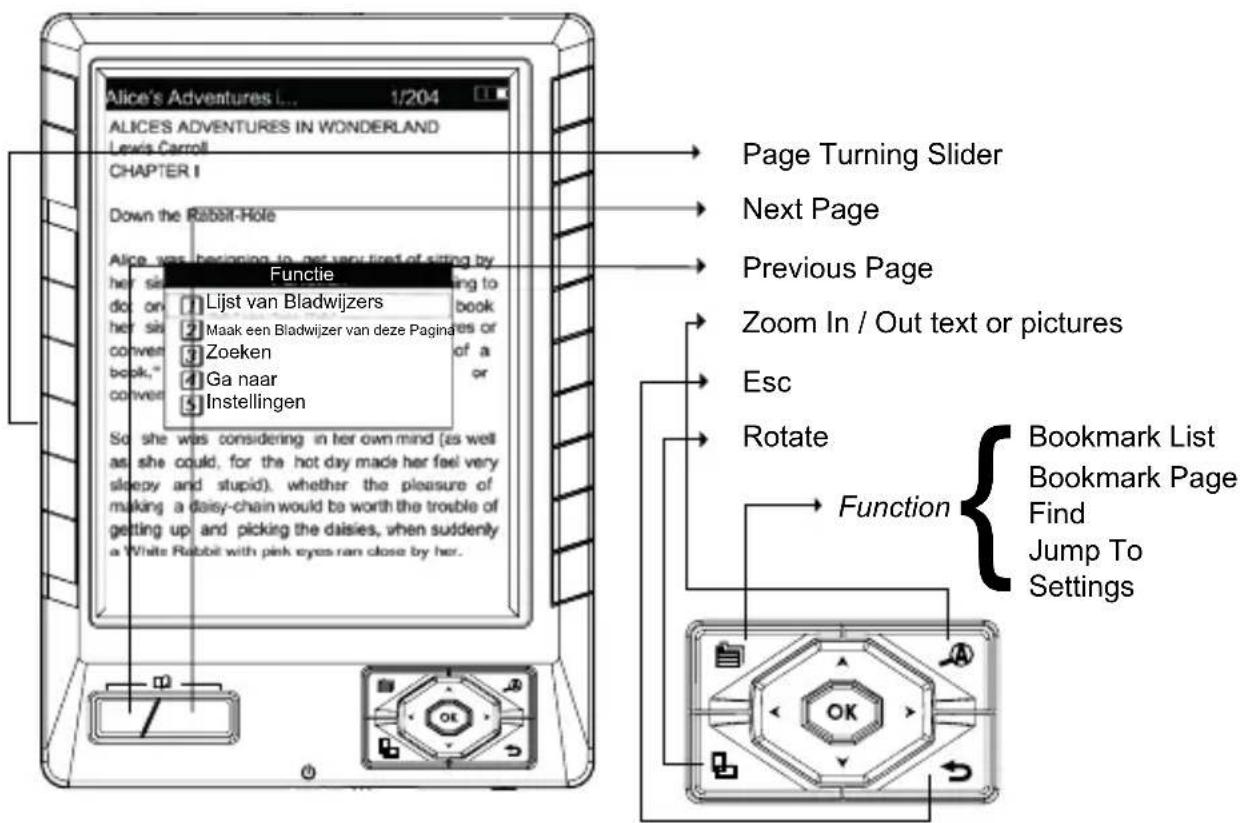
1.9 Product Overview - Reading Operation
2.1 Charging the Battery:
The battery is not fully charged and it is highly recommended that you charge your LIBRE before you begin using it.
Note: Using the LIBRE “out of the box” will not harm the device. You will experience reduced battery life as the unit will not be fully charged.
Connect the power adapter to the LIBRE's USB port and you will see an animation of a battery charging on the LIBRE's display. Please charge the battery for a minimum of four (4) hours using the power adapter. You may also charge the battery by connecting your LIBRE to the USB port of your PC using the USB cable included with your LIBRE. However, using this method will extend the charging time to approximately seven (7) hours.
Please note, the animation simply informs the user that the LIBRE is in charging mode. Please do not rely on the animation to verify the battery level. To verify the battery level, please go to the Main Menu, select Settings, System Settings and then Battery.
2.2 Powering On your LIBRE:
To properly power ON your LIBRE for the first time, press and hold the POWER button until you see the Aluratek logo on the LIBRE's display then release. The Main Menu should appear in approximately one minute.
To power the LIBRE ON or OFF for everyday use, simply press and release the POWER button. Please DO NOT hold down or press the POWER button repeatedly, the LIBRE will not respond properly.
To extend battery life, you can set the LIBRE to power OFF automatically after 3 to 30 minutes. From the Main Menu, go to “Settings”, then “User Settings” and select “Auto Power Off”. You may select from the following choices: Never, 3 Minutes, 5 Minutes, 10 Minutes, 15 Minutes or 30 Minutes. Select your choice by using the up or down arrow keys and then press “OK”.
If you have any issues powering your LIBRE ON or OFF, please RESET your LIBRE (see Resetting your LIBRE section).
2.3 Reading books on your LIBRE:
There are 100 english language books preloaded on the SGB SD Card. To access these 100 free books:
- Turn off the LIBRE eBook Reader if it is currently powered on
- Open the memory card cover on the top edge of the LIBRE eBook Reader
- Insert the SD card into LIBRE eBook Reader SD card slot
Note: There is only one correct direction to insert the SD memory card into the slot. Do not force the card into the slot, or else it may damage both the "Libre" eBook Reader and the SD memory card.
To turn pages use the page turn buttons located on the lower left of the LIBRE or use the page turn slider (See diagram)
"To zoom or enlarge the font" press the magnifying glass on the lower right of the LIBRE.
To go back to your previous menu or to exit to the main menu, press the button.
As you become more familiar with your Libre you will notice there are some advanced features to navigate thru the books and also bookmark. These are mainly accessed from the settings menu while you are in the book.
2.4 To Purchase new books for the LIBRE:
Follow the separate step by step instruction guide included with the LIBRE titled “Guide to Purchase & Download eBooks from Google Books”.
This guide will walk you thru how to connect and download new books from Google Books.
2.5 Copying free eBooks, Music and Photo files to your LIBRE:
You may copy free (non-DRM-restricted) ebooks, MP3 music files and photo files directly to your LIBRE from a computer. Please power ON your LIBRE and connect your LIBRE to your PC using the USB cable. Click on START, then open MY COMPUTER or COMPUTER. Your LIBRE should
show up in the MY COMPUTER or COMPUTER window as two removable drive icons: one representing the LIBRE's internal memory and the second representing the SD card slot in your LIBRE. Please note that the drive letter for the SD card slot is usually one letter higher than the internal memory's drive letter. (Note: you will only see the removable drive icon for the SD card slot if you have a SD card inserted)
Copy and paste or drag and drop the free ebooks, MP3 music and photo files from your PC to either the internal memory or the SD card remove-able drive icons. You should then able to view the free eBook titles under eBooks, play the MP3 music files using the LIBRE's MP3 Player or in the background while reading an eBook or view the files by selecting Pictures from the Main Menu.
Note: There are millions of free ebooks available to download. Borders.com offers a nice selection of free ebooks as well as www.manybooks.net, www.ebooks.com, and www.gutenberg.org. Tip – search google for “free ebooks” as many additional new sites are appearing.
We recommend for free ebooks to save and download the eBooks as "Text" (.txt) format but other formats are supported. Follow the instructions above to copy to your Libre once downloaded.
2.6 Memory Card Expansion Slot:
Your LIBRE supports SD and SDHC cards up to 32GB if you need additional storage capacity. The FAT or FAT32 format is preferred for SD and SDHC cards used with your LIBRE.
The SD card slot is located at the top edge of the LIBRE under the plastic slot cover.
If your LIBRE fails to recognize your SD card when inserted, please RESET your LIBRE (see next topic).
2.7 Resetting your LIBRE:
From time to time, it may be necessary to RESET your LIBRE if it becomes unresponsive. Resetting your LIBRE does not harm the device or any data contained on the LIBRE.
To properly reset the LIBRE, press and hold the RESET button on the back of the LIBRE for 3 seconds using a paperclip or toothpick. Please DO NOT use a pen or pencil, it may not engage the RESET button properly. If the RESET button is engaged properly, the LIBRE will power OFF and the display will go blank. Then power ON the LIBRE by pressing and holding the POWER button until the Aluratek logo shows on the screen and then release the POWER button. The Main Menu should display shortly thereafter.
Resetting the LIBRE should resolve any of your technical issued but if you are still having issues please contact Aluratek technical support dept. at (800) 664-8172 toll free.
Congratulations on your purchase and enjoy your LIBRE!
eBook

Recent Readings
1

eBooks
2

Pictures
3

MP3 Player
4

Settings
5

Help
6
Main menu screen
3.1 Recent Readings
To read a book that you read recently:
- Select "Recent Readings" from the main menu and press "OK"
- Select the desired book from the list and press "OK"
4.1 To Read an eBook
- Select "eBooks" from the main menu and press "OK"
- Select the desired book from the list and press "OK"
While reading a book, you can also select these options.
4.2 To Go to a Particular Bookmark
- Press “☐” and select “Bookmark List” using the arrow buttons (or the “1” button) and press “OK”
- Select the desired book using the arrow buttons and press "OK"
4.3 To Bookmark a Page
- Press “☐” and select “Bookmark This Page” using the arrow button (or the “2” button) and press “OK”
4.4 To Remove Bookmark
- Press “☐” and select “Remove Bookmark” using the arrow buttons (or the “2” button) and press “OK”
4.5 To Search a Particular Keyword Within a Document
- Press “☐” and select “Find” using the arrow buttons (or the “3” button) and press “OK”
- Enter the keyword using the buttons on the right side of the unit.
For example, to search for "car": Press the "2" button and select "c" from the list Press the "2" button and select "l" from the list Press the "7" button and select "u" from the list
Once the desired keyword is entered, press "OK".
If the keyword is found, it will be highlighted, To go to the next match, press “>” or “down” and press “<” or “^” for previous match.
4.6 To Jump to a Certain Page
- Press “☐” and select “Jump To” using the arrow buttons (or the “4” button) and press “OK”
- Enter the page number and press "OK".
4.7 To Change a Font Size
- Press “☐” and select “Setting” using the arrow button (or the “5” button) and press “OK”
- Select "Font Size" and press "OK"
- Select the desired font size and press "OK"
4.8 To Setup Auto Turn Page
- Press “☐” and select “Setting” using the arrow button (or the “5” button) and press “OK”
- Select "Auto Turn Page" and press "OK"
- Select the desired interval and press "OK"
4.9 To Rotate
- Press the “☐” or press “☐” and select “Setting” using the arrow button (or the “5” button) and press OK
- Select "Rotate" using the arrow button (or the "3" button)
4.10 To Set the Codepage (only when different codepage is available)
- Press “☐” and select “Setting” using the arrow button (or the “5” button) and press “OK”
- Select "Select Codepage" and press "OK"
- Select the desired Codepage and press "OK"
4.11 To Set the Alignment

- Press “” and select “Setting” using the arrow button (or the “5” button) and press “OK”
- Select "Alignment" using the arrow button and press "OK"
- Select the desired alignment and press "OK"
4.12 To Start / Stop Background Music

- Press “” and select “Setting” using the arrow button (or the “5” button) and press “OK”.
- Select "Background Music" using the arrow button and press "OK"
- Select "Start" or "Stop" to start or stop background music
5.1 To Display Picture
- Select "Pictures" from the main menu and press "OK"
- Select the desired picture file and press "OK"
While viewing a picture, you can select these options
5.2 To Rotate a Picture
- Press “☐” and select “Rotate” using the arrow button (or the “1” button) and press “OK”.
5.3 To Zoom In / Out
- Press “☐” and select “Zoom in” or “Zoom out” using the arrow button (or the “2”, “3” button respectively) and press “OK”.
5.4 To View the Picture in Full Screen
- Press “☐” and select “Full Screen” using the arrow button (or the “4” button) and press “OK”.
5.5 To Reset the Picture to the Original Size
- Press “☐” and select “Original Size” using the arrow button (or the “5” button) and press “OK”.
5.6 To Setup Auto Turn Page (slide show)
- Press “☐” and select “Auto Turn Page” using the arrow button (or the “6” button) and press “OK”.
- Select the desired interval and press "OK"
5.7 To Start / Stop Background Music
-
Press “☐” and select “Background Music” using the arrow button (or the “7” button) and press “OK”.
-
Select "Start" or "Stop" to start or stop background music
6.1 To Play Music
- Select "MP3 Player" from the main menu and press "OK"
- Select the desired music file and press "OK"
- While music is playing, you can press the "page up" or "page down" for previous or next song, you can also adjust the volume by pressing "<" or ">bill buttons
While listening to music, you can select these options:
6.2 To Show Playlist
- Press “☐” and select “Playlist” using the arrow button (or the “1” button) and press “OK”.
6.3 To Turn Off LCD
- Press “☐” and select “Turn off LCD” using the arrow button (or the “2” button) and press “OK”.
- To turn on the LCD again, please press either the "OK" or "→".
6.4 To Select Play Mode (repeat one, repeat all, random)
- Press “☐” and select “Play Modes” using the arrow button (or the “3” button) and press “OK”.
- Select the desired mode and press "OK"
6.5 To Start / Stop Background Music
- Press “☐” and select “Background Music” using the arrow button (or the “4” button) and press “OK”.
6.6 To Show the Instruction of the Keys for the MP3 Control
- Press “☐” and select “Hot keys” using the arrow button (or the “5” button) and press “OK”.
Select Settings from the main menu.
User Settings:
7.1 To Set the Language for the Unit
- Select "Languages" using the arrow button (or the "1" button) and press "OK".
- Select the desired language and press "OK".
7.2 To Set Auto Power Off
- Select "Auto Power Off" using the arrow button (or the "2" button) and press "OK".
- Select the desired time and press "OK".
7.3 To Set Auto Turn Page
- Select "Auto Turn Page" using the arrow button (or the "3" button) and press "OK".
- Select the desired time and press "OK".
7.4 To Set the Volume
- Select "Volume" using the arrow button (or the "4" button) and press "OK".
- Select the desired volume and press "OK".
7.5 To Set the Font
- Select "Fonts" using the arrow button (or the "5" button) and press "OK".
- Select the desired font and press "OK".
System Settings:
7.6 To Show the Serial Number of the Device
- Select "Serial Number" using the arrow button (or the "1" button) and press "OK".
7.7 To Show the Battery Level
- Select "Battery" using the arrow button (or the "2" button) and press "OK".
7.8 To Show the Internal Battery Memory Capacity / Usage
- Select "Memory Capacity" using the arrow button (or the "3" button) and press "OK".
7.9 To Show the External SD Card Memory Capacity / Usage
- Select "Card Capacity" using the arrow button (or the "4" button) and press "OK".
7.10 To Show the Firmware Number of the Device
- Select "Firmware Version" using the arrow button (or the "5" button) and press "OK".
7.11 To Restore the System to Factory Default
-
Select "Restore Defaults" using the arrow button (or the "6" button) and press "OK".
-
Press OK to confirm or "return" to cancel.
7.12 To Upgrade the Firmware
-
Select "Upgrade Patch" using the arrow button (or the "7" button) and press "OK".
-
Press OK to confirm or "return" to cancel.
7.13 Internal File Manager
You can navigate the files in the internal memory by selecting “Internal File Manager”.
7.14 SD Card File Manager
You can navigate the files of the SD card by selecting "SD Card File Manager".
7.15 To Setup Background Music for the System
-
Select "Background Music" using the arrow button (or the "5" button) and press "OK".
-
Select "Start" or "Stop" to start or stop background music
Chapter 8: Help
A copy of this Instructional Manual in PDF format is available under the Help menu of the main menu.
If you need further assistance, please contact Aluratek support department prior to returning this device.
E-mail: support@aluratek.com
Web: www.aluratek.com/support
Local (Tustin, CA): 714-586-8730
Toll free: 1-866-580-1978
WARNING!!! This equipment has been tested and found to comply with the limits of a Class B digital device, pursuant to part 15 of the FCC rules. These limits are designed to provide reasonable protection against harmful interference in a residential installation
This equipment generates, uses and can radiate radio frequency energy and, if not installed and used in accordance with the instruction, may cause harmful interference to radio communications. However, there is no guarantee that interference will not occur in a particular installation. If this equipment does cause harmful interference to radio or television reception, which can be determined by turning the equipment off and on, the user is encouraged to try to correct the interference by whatever measures may be required to correct the interference.
Aluratek warrants this product against defect in material or workmanship for 1 Year from the date of purchase.
This warranty becomes invalid if the factory-supplied serial number or "warranty void" sticker has been removed or altered on the product.
This warranty does not cover:
A) Cosmetic damage or damage due to acts of God
B) Accident, misuse, abuse, negligence or modification of any part of the produc
C) Damage due to improper operation or maintenance, connection to improper equipment, or attempted repair by anyone other than Aluratek.
D) Products sold AS IS or WITH FAULTS.
IN NO EVENT SHALL ALURATEK'S LIABILITY EXCEED THE PRICE PAID FOR THE PRODUCT FROM DIRECT, INDIRECT, SPECIAL, INCIDENTAL, OR CONSEQUENTIAL DAMAGES RESULTING FROM THE USE OF THE PRODUCT, IT'S ACCOMPANYING SOFTWARE, OR IT'S DOCUMENTATION.
Aluratek makes no warranty or representation, expressed, implied, or statutory, with respect to it's products, contents or use of this documentation and all accompanying software, and specifically disclaims it's quality, performance, merchantability, or fitness for any particular purpose. Aluratek reserves the right to revise or update it's product, software or documentation without obligation to notify any individual or entity.
Aluratek aluratek.com

- Instructional Manual
- Chapter 1: Introduction 04
- Chapter 2: Operating Instructions 10
- Chapter 3: Recent Readings 14
- Chapter 4: eBooks 15
- Chapter 5: Pictures 18
- Chapter 6: MP3 Player 19
- Chapter 7: Settings 20 20
- Chapter 8: Help 23
- Technical Support 24
- Radio and TV Interference Statement 25
- Warranty
- Overview
- Features
- Package Contents
- Product Overview - Front
- Product Overview - Back
- Product Overview - Bottom & Top
- Product Overview - Power On to Enter Main Menu
- Product Overview - Basic Operation
- Product Overview - Reading Operation
- Charging the Battery:
- Powering On your LIBRE:
- Reading books on your LIBRE:
- To Purchase new books for the LIBRE:
- Copying free eBooks, Music and Photo files to your LIBRE:
- Memory Card Expansion Slot:
- Resetting your LIBRE:
- eBook
- Recent Readings
- To Read an eBook
- To Go to a Particular Bookmark
- To Bookmark a Page
- To Remove Bookmark
- To Search a Particular Keyword Within a Document
- To Jump to a Certain Page
- To Change a Font Size
- To Setup Auto Turn Page
- To Rotate
- To Set the Codepage (only when different codepage is available)
- To Set the Alignment
- To Start / Stop Background Music
- To Display Picture
- To Rotate a Picture
- To Zoom In / Out
- To View the Picture in Full Screen
- To Reset the Picture to the Original Size
- To Setup Auto Turn Page (slide show)
- To Start / Stop Background Music
- To Play Music
- To Show Playlist
- To Turn Off LCD
- To Select Play Mode (repeat one, repeat all, random)
- To Start / Stop Background Music
- To Show the Instruction of the Keys for the MP3 Control
- To Set the Language for the Unit
- To Set Auto Power Off
- To Set Auto Turn Page
- To Set the Volume
- To Set the Font
- System Settings:
- To Show the Serial Number of the Device
- To Show the Battery Level
- To Show the Internal Battery Memory Capacity / Usage
- To Show the External SD Card Memory Capacity / Usage
- To Show the Firmware Number of the Device
- To Restore the System to Factory Default
- To Upgrade the Firmware
- Internal File Manager
- SD Card File Manager
- To Setup Background Music for the System
- Chapter 8: Help
- Aluratek aluratek.com
Brand : Aluratek
Model : Lible-Pro AEBK01WF
Category : Electronic accessory