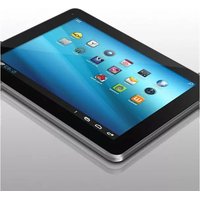
Cinepad AT108F - Tablet Aluratek - Free user manual and instructions
Find the device manual for free Cinepad AT108F Aluratek in PDF.


Pick your language and provide your email: we'll send you a specifically translated version.
| Product Type | Tablet |
| Brand | Aluratek |
| Model | Cinepad AT108F |
| Display Size | 10.1 inches |
| Display Resolution | 1280 x 800 pixels |
| Operating System | Android 10 |
| Processor | Quad-core 1.5 GHz |
| RAM | 2 GB |
| Storage Capacity | 16 GB eMMC |
| Expandable Storage | microSD up to 128 GB |
| Rear Camera | 5 MP |
| Front Camera | 2 MP |
| Connectivity | Wi-Fi 802.11 b/g/n, Bluetooth 4.0 |
| Ports | Micro-USB, 3.5mm headphone jack |
| Battery Capacity | 6000 mAh |
| Battery Life | Up to 6 hours of video playback |
| Dimensions | 10.04 x 6.89 x 0.39 inches (25.5 x 17.5 x 1.0 cm) |
| Weight | 1.19 lbs (540 g) |
| Power Supply | AC adapter 5V/2A included |
| Main Functions | Web browsing, video streaming, social media, e-reading, gaming |
| Cleaning and Maintenance | Wipe screen with dry microfiber cloth; avoid harsh chemicals |
| Safety Considerations | Do not expose to extreme heat or moisture; no user-serviceable parts inside |
| Spare Parts and Repairability | Not user-serviceable; contact Aluratek support for repairs |
Frequently Asked Questions - Cinepad AT108F Aluratek
How do I turn on the Aluratek Cinepad AT108F?
Press and hold the Power button located on the edge of the tablet for 3 seconds until the screen lights up. If the device is unresponsive, connect it to a charger and wait a few minutes.
How do I connect to a Wi-Fi network?
Go to Settings > Wi-Fi, toggle Wi-Fi on, and select your network. Enter the password when prompted.
How do I insert a microSD card?
Locate the microSD slot on the side of the tablet. Use a thin tool to open the cover, insert the card with the gold contacts facing down until it clicks, then close the cover.
How do I perform a factory reset?
Back up your data first. Go to Settings > System > Reset > Factory data reset, then confirm. This will erase all data and restore the tablet to its original state.
How do I take a screenshot?
Press and hold the Power button and Volume Down button simultaneously for about 2 seconds. The screenshot will be saved in your album.
Why is my tablet not charging?
Use the included AC adapter and micro-USB cable. Try a different outlet. If it still doesn't charge, clean the port gently and restart the device. If the problem persists, contact support.
How do I extend battery life?
Lower screen brightness, disable unused wireless connections (Wi-Fi/Bluetooth), close background apps, and enable Battery Saver mode in Settings.
How do I transfer files to a computer?
Use a micro-USB cable to connect the tablet to a computer. Swipe down to select File Transfer mode on the tablet, then manage files via the computer's file explorer.
Can I charge the tablet with a phone charger?
Yes, if it provides 5V/2A output. Using a slower charger will increase charging time but is safe. However, avoid high-voltage fast chargers.
How do I clean the screen safely?
Turn off the tablet and disconnect power. Use a soft, dry microfiber cloth to gently wipe the screen. For stubborn dirt, slightly dampen the cloth with water, but do not allow moisture into any openings.
User questions about Cinepad AT108F Aluratek
0 question about this device. Answer the ones you know or ask your own.
Ask a new question about this device
No questions yet. Be the first to ask one.
Download the instructions for your Tablet in PDF format for free! Find your manual Cinepad AT108F - Aluratek and take your electronic device back in hand. On this page are published all the documents necessary for the use of your device. Cinepad AT108F by Aluratek.
USER MANUAL Cinepad AT108F Aluratek


Manual assistant
Powered by Anthropic
Waiting for your message
Product information
Brand : Aluratek
Model : Cinepad AT108F
Category : Tablet