MBP43S-4 - Baby monitor MOTOROLA - Free user manual and instructions
Find the device manual for free MBP43S-4 MOTOROLA in PDF.


| Product Type | Baby Monitor with Video |
| Brand | Motorola |
| Model | MBP43S-4 |
| Display Size | 4.3 inches |
| Display Type | Color LCD |
| Video Resolution | 480 x 320 pixels |
| Night Vision | Automatic infrared (up to 5 meters) |
| Two-Way Audio | Yes, with talk-back function |
| Wireless Range | Up to 300 meters (outdoor, line of sight) |
| Frequency | DECT 6.0 (1.9 GHz) |
| Power Supply | AC adapter (5V DC, 1A) for each unit |
| Parent Unit Battery | Rechargeable Li-ion (3.7V, 1500 mAh) |
| Charging Time | Approximately 3 hours |
| Battery Life | Up to 8 hours (normal use) |
| Temperature Sensor | Yes, displayed on parent unit |
| Lullabies | 5 built-in melodies |
| Voice Activation (VOX) | Yes, eco mode |
| Encryption | DECT 6.0 digital encryption |
| Dimensions (Parent Unit) | 120 x 80 x 60 mm |
| Weight (Parent Unit) | 200 g |
| Cleaning | Wipe with a dry cloth; do not use liquids or chemicals |
| Spare Parts | Battery, power adapter, and charging cables available from Motorola |
| Safety Certification | FCC, CE |
| Warranty | 1 year limited warranty |
Frequently Asked Questions - MBP43S-4 MOTOROLA
User questions about MBP43S-4 MOTOROLA
0 question about this device. Answer the ones you know or ask your own.
Ask a new question about this device
Download the instructions for your Baby monitor in PDF format for free! Find your manual MBP43S-4 - MOTOROLA and take your electronic device back in hand. On this page are published all the documents necessary for the use of your device. MBP43S-4 by MOTOROLA.
USER MANUAL MBP43S-4 MOTOROLA
natural_image
Abstract black circular logo with white stylized letter M (no text or symbols)motorola
natural_image
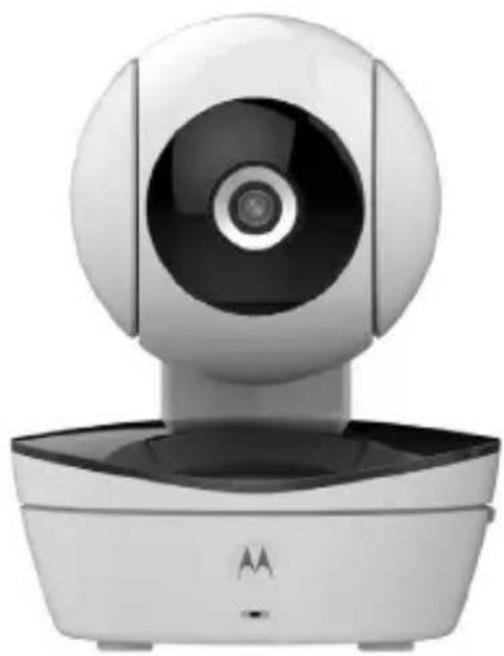
White and black digital camera with circular head and screen, mounted on a base (no visible text or symbols)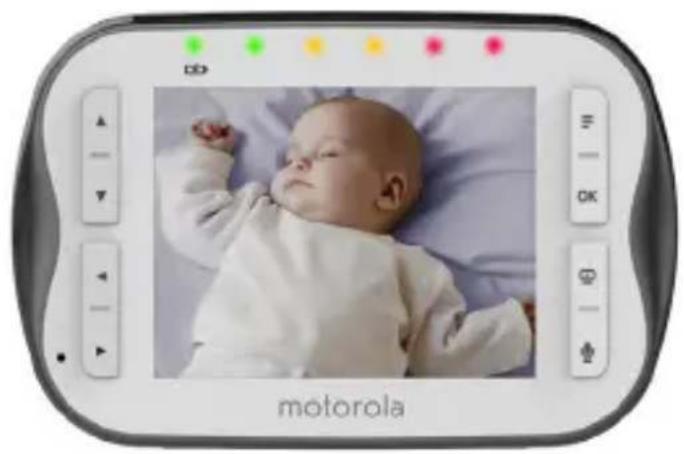
natural_image
Motorola remote screen displaying a baby photo with color-coded buttons (no readable text or symbols on the image itself)User's Guide
Digital Video Baby Monitor
Models: MBP43S, MBP43S-2, MBP43S-3, MBP43S-4
The features described in this User's Guide are subject to modifications without prior notice.
Welcome...
to your new Motorola Digital Video Baby Monitor!
Thank you for purchasing the Digital Video Baby Monitor. Now you can view and hear your baby sleeping in another room or you can monitor your older children in their play room.
Please retain your original dated sales receipt for your records. For warranty service of your Motorola product, you will need to provide a copy of your dated sales receipt to confirm warranty status. Registration is not required for warranty coverage.
For product-related questions, please call:
US and Canada 1-888-331-3383
Email: support@motorolamonitors.com
This User's Guide provides you with all the information you need to get the most from your product.
Before you use the Digital Video Baby Monitor, we recommend that you insert and fully charge the battery in the Parent Unit, so that it continues to work if you disconnect it from the electrical outlet to carry it to another location. Please read the Safety Instructions on pages 6 - 8 before you install the units.
Got everything?
- 1x Parent Unit
- 1 x Baby Unit (Camera)
- 1 x Rechargeable Ni-MH battery pack for the Parent Unit
- 1 x Power adapter for the Parent Unit
• 1 x Power adapter for the Baby Unit
In packs with multi Baby Units, you will find one or more additional Baby Units with power adapters.
Overview of the Parent Unit
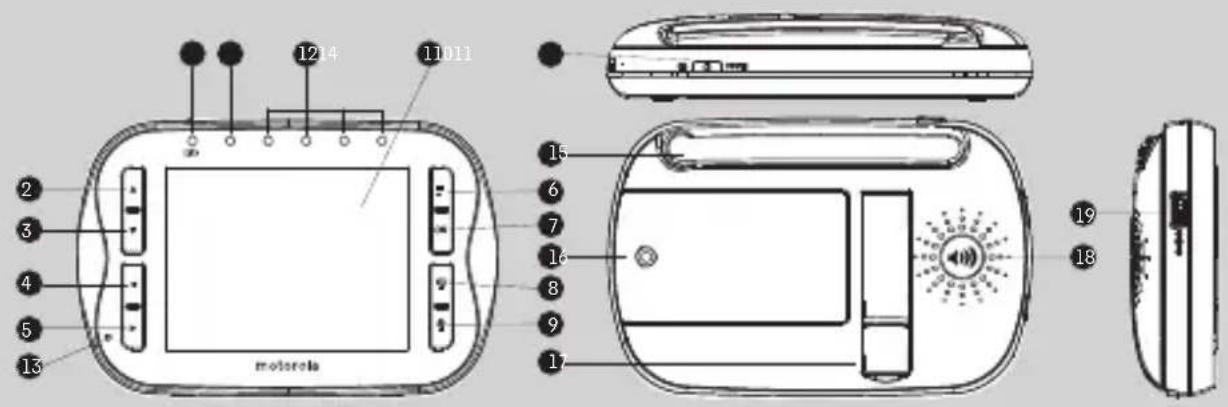
-
LCD display
-
Up Key ▲
Normal Mode: Tilt Up
Menu Mode: Up
- Down Key ▼
Normal Mode: Tilt Down
Menu Mode: Down
- Left Key ◀
Normal Mode: Pan Left
Menu Mode: Left
- Right Key ▶
Normal Mode: Pan Right
Menu Mode: Right
- Menu Key

Press to open the Menu options.
- OK Key

- Video ON/OFF Key

Press to turn OFF the LCD display.
Press again to turn ON the LCD display.
- Talk Key
Press and hold to speak to your baby.
- Power Adapter / Battery LED
BLUE when the adapter is powered on.
RED when battery low.
-
Unit ON/OFF LED (Green)
-
Audio Level LED (Green, Orange, Red, Red)
-
Microphone
-
Power Key
Press and Hold to switch the unit ON/OFF.
- Antenna
Lift up the antenna for optimal reception.
-
Battery cover
-
Stand
-
Speaker
-
USB power adapter socket
Parent unit menu icons
| Signal Level (4 Levels) | |
| Night Vision Mode (Screen changes to Black/White) | |
| Talk Mode | |
| Battery Level Control (4 Levels) | |
| Pan Left | |
| Pan Right | |
| Tilt Up | |
| Tilt Down | |
| Volume Level Control (8 Levels) |
Parent unit menu icons (cont'd)
| Zoom Level Control (1X, 2X) | |
| Brightness Level Control (8 Levels) | |
| Lullaby Control (5 Song Selections) | |
| Alarm Setting (6h, 4h, 2h, Off) | |
| Temperature scale selection (°C / °F).Readings display in BLUE, but turn RED if >29 °C / 84 °F or <14 °C / 57 °F.Displays HH °C / °F if >36 °C / 97 °F.Displays LL °C / °F if <1 °C / 34 °F. | |
| Cam Control (scan, view, add, delete) | |
| View multiple cameras on screen (Picture in Picture). Available when you have more than 1 Baby Unit (Camera). | |
| Set Video On Timer (5min, 30min, 60min) |
Overview of the Baby Unit
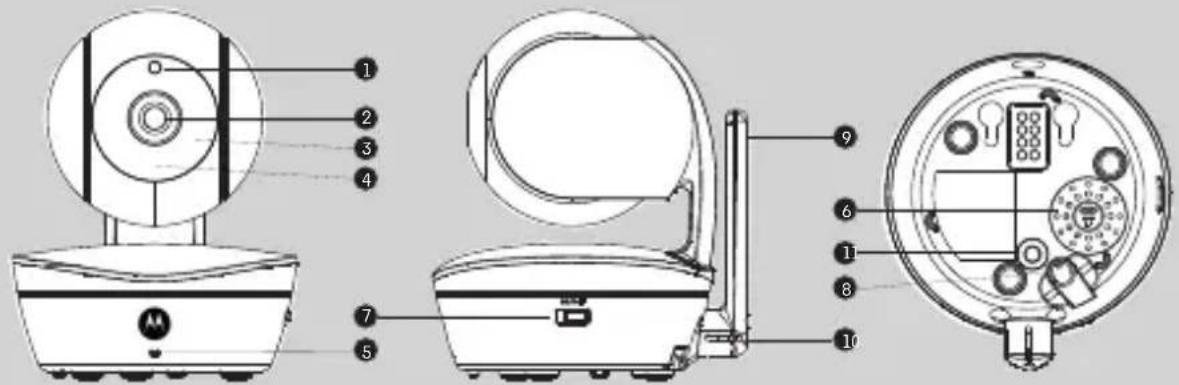
- Photo Sensor (Night Vision Mode)
- Camera Lens
- Infrared LEDs
- Power LEDs
- Microphone
6.Speaker
7.ON/OFF Switch
8. Power Adapter Socket
9.Antenna
10. Temperatu re Senso r
11. Pair Key
Important guidelines for installing your Digital Video Baby Monitor
• To use your Baby Unit and Parent Unit together, you must be able to establish a radio link between them, and the range will be affected by environmental conditions.
- Any large metal object, like a refrigerator, a mirror, a filing cabinet, a metallic door or reinforced concrete, between the Baby Unit and Parent Unit may block the radio signal.
- The signal strength may also be reduced by other solid structures, like walls, or by radio or electrical equipment, such as TVs, computers, cordless or mobile phones, fluorescent lights or dimmer switches.
- Use of other 2.4 GHz products, such as wireless networks (Wi-Fi ^ routers), Bluetooth ^ systems, or microwave ovens, may cause interference with this product, so keep the baby monitor away at least 5ft (1.5m) from these types of products, or turn them off if they appear to be causing interference.
- If the signal is poor, try lifting up the Parent Unit Antenna, or moving the Parent Unit and/or the Baby Unit to different positions in the rooms.
Table of contents
- Safety Instructions....6
- Getting Started....9
2.1 Baby Unit Power Supply....9
2.2 Parent Unit Battery Installation 9
2.3 Parent Unit Power Supply 10
2.4 Registration (Pairing)....11
- Using the Digital Video Baby Monitor ....12
3.1 Setting up....12
3.2 Pan and Tilt 12
3.3 Night Vision Mode....12
3.4 Talk Mode....12
3.5 Video ON/OFF....12
3.6 Temperature Display (HH °C / °F or LL °C / °F)....12
- Parent Unit Menu Options.... 13
4.1 Volume....13
4.2 Brightness ....13
4.3 Lullaby....13
4.4 Zoom....13
4.5 Alarm....13
4.6 Camera Control 14
4.7 Temperature....15
4.8 Power Saving Mode 15
-
Disposal of the Device (environment)....16
-
Cleaning 17
- Troubleshooting ....18
- General Information ......20
- Technical Specifications ......26
1. Safety Instructions

WARNING:
Strangulation Hazard. Children have STRANGLED in cords. Keep this cord out of the reach of children (more than 3ft (1m) away). Never use extension cords with AC Adapters. Only use the AC Adapters provided.
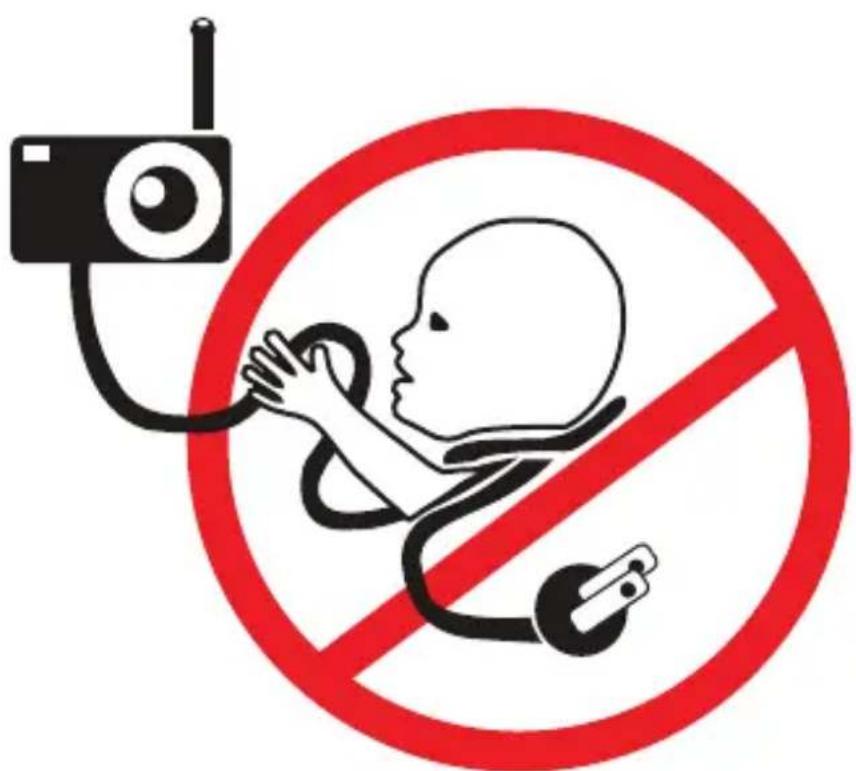
BABY UNIT SET UP & USE:
- Choose a location for the Baby Unit that will provide the best view of your baby in his/her crib.
- Place the Baby Unit on a flat surface, such as a dresser, bureau or shelf, or mount the Unit on a wall securely using the keyhole slots under the stand.
- NEVER place the Baby Unit or cords within the crib.
- Do not place the Baby Unit or cords in the crib or within reach of the baby (the unit and cords should be more than 3 feet away).
WARNING
This Digital Video Baby Monitor is compliant with all relevant standards regarding electromagnetic fields and is, when handled as described in the User's Guide, safe to use. Therefore, always read the instructions in this User's Guide carefully before using the device.
- Adult assembly is required. Keep small parts away from children when assembling.
- This product is not a toy. Do not allow children to play with it.
- This Digital Video Baby Monitor is not a substitute for responsible adult supervision.
- Keep this user's guide for future reference.
- Keep the cords out of reach of children.
- Do not cover the Digital Video Baby Monitor with a towel or blanket.
- Test this monitor and all its functions so that you are familiar with it prior to actual use.
- Do not use the Digital Video Baby Monitor in damp areas or close to water.
- Do not install the Digital Video Baby Monitor in extreme cold or heat, direct sunlight, or close to a heat source.
- Only use the chargers and power adapters provided. Do not use other chargers or power adapters as this may damage the device and battery pack.
-
Only insert a battery pack of the same type.
-
Do not touch the plug contacts with sharp or metal objects.
- Connect the power adapters to easily accessible electrical outlets.
CAUTION
There is a risk of explosion if the battery is replaced by an incorrect type.
Only use a Ni-MH rechargeable battery pack with rating: 3.6V, 900mAh.
Dispose of used batteries according to the instructions.
2. Getting Started
2.1 Baby Unit Power Supply
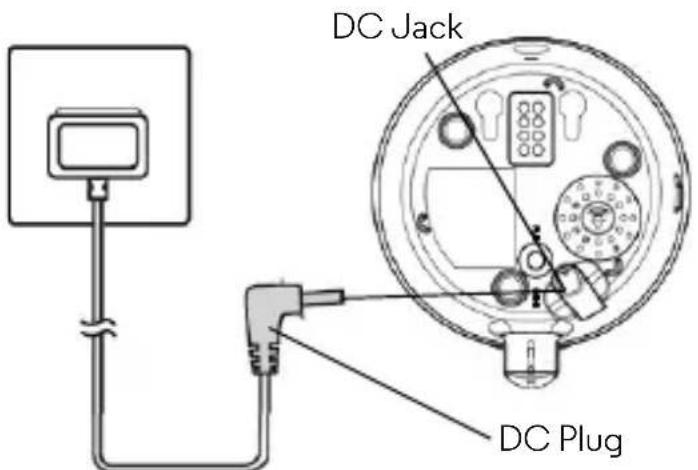
- Connect the DC plug of the power adapter to the DC jack at the bottom of the Baby Unit and the other end to the electrical outlet.
NOTE
Only use the supplied power adapter (5V DC / 1000mA).
- Slide the ON/OFF switch to the ON position.
The power LED will light up in green.
- Slide the ON/OFF switch to the OFF position to turn the Baby Unit off.
2.2 Parent Unit Battery Installation
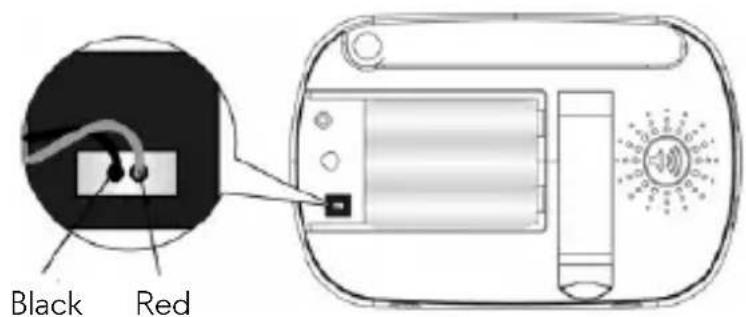
-
Insert the wire tabs of the rechargeable battery pack into the contact slots as shown above and fit the battery pack into the compartment.
-
Place the battery compartment cover over the battery, making sure that the battery wires are carefully pushed down and the cover fits properly.
-
Gently tighten the screw in a clockwise direction using a small cross head or flat end screwdriver.
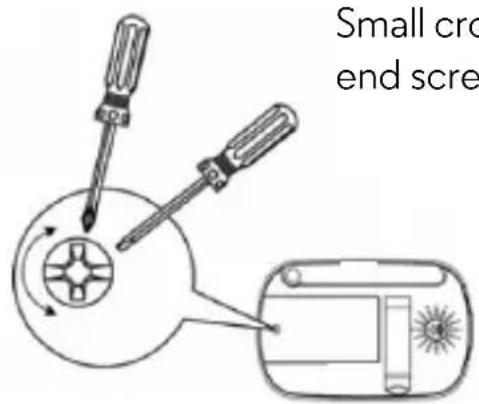
Small cross head or flat end screwdriver
2.3 Parent Unit Power Supply
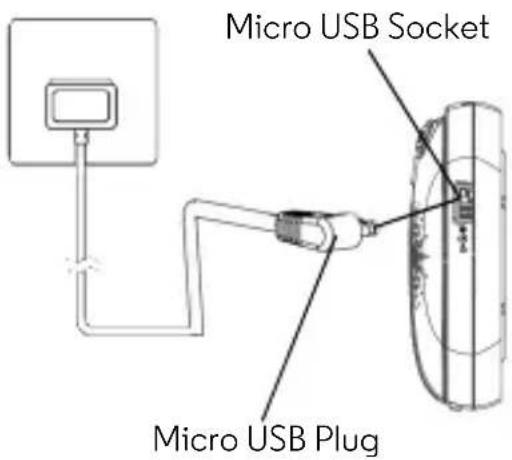
IMPORTANT
Installing the rechargeable battery pack and charging it fully before use is recommended. This will allow the unit to operate on battery in the event of a power failure.
- Connect the small plug of the power adapter to the Parent Unit and the other end to the electrical outlet. Only use the supplied power adapter (5V DC / 600mA) with the Micro USB plug.
- Press and hold the ⏻ POWER ON/OFF button for 1 second to switch ON the Parent Unit.
- Once the Baby and Parent Units are switched on, the display on the Parent Unit will show the video captured by the Baby Unit.
-
If there is no connection or you are out of range, the video display will be replaced by a symbol and the unit will beep every 5 seconds. Move the Parent Unit closer to the Baby Unit until the link is re-established.
-
To turn off the Parent Unit, press and hold the ⏻ POWER ON/OFF button until the progress bar finishes scrolling.
NOTE
The battery icon turns RED and the unit emits a beep every 16 seconds to indicate that the battery is low and needs to be recharged. The battery pack takes about 12 hours to charge fully.
When charging
- During charging, the battery icon at the top right of the screen indicates that it is charging. If the Parent Unit is powered off while charging, a power plug icon is displayed for 5 seconds, followed by a battery icon for 45 seconds. The Blue LED at the top left corner lights up to indicate that the power adapter is plugged in.
2.4 Registration (Pairing)
The Baby Unit is pre-registered to your Parent Unit. You do not need to register it again unless the Baby Unit loses its link with the Parent Unit.
To re-register your Baby Unit, or register a new Baby Unit, follow the procedure below:
- Press the ≡ button of the Parent Unit and the menu bar will pop up.
- Press the ◀ LEFT button or ▶ RIGHT button until 🔒 is highlighted. The del / add / view / scan menu will pop up.
- Press the ▲ UP button or ▼ DOWN button to select add, and press the OK button to confirm.
cam / cam / cam / cam will pop up. - Press the ▲ UP button or ▼ DOWN button to select the desired Camera and press the OK button to start searching for a camera unit. The green audio level LED will flash rapidly while searching.
- Press the OK button to confirm.
- Press and hold the PAIR button underneath the Baby Unit until the Parent Unit finds the camera, beeps and the video from the camera appears.
NOTE
If a particular Baby Unit was registered previously, registering this current Baby Unit again will overwrite the old registration.
3. Using the Digital Video Baby Monitor
3.1 Setting up
- Place the Baby Unit in a convenient location (e.g. on a table) and point the camera lens towards the area you want to monitor.
- Adjust the Baby Unit's camera angle by rotating the camera up, down, left and right until you are satisfied with the image in the Parent Unit.
NOTE
Do not place the Baby Unit within baby's reach! If there is interference with the picture or sound, try moving the units to different locations, and ensure that they are not close to other electrical equipment.
3.2 Pan and Tilt
The camera can be remotely controlled from the Parent Unit.
- Press the ▲ UP button or ▼ DOWN button to tilt upward or downward.
- Press the ◀ LEFT button or ▶ RIGHT button to pan left or right.
3.3 Night Vision Mode
The Baby Unit has 8 high-intensity infrared LEDs for picking up clear images in the dark. When the built-in photo sensor detects a low level of ambient light, the LEDs will automatically activate and the screen on the Parent Unit will display in black and white. The icon will be displayed at the top of the LCD screen.
3.4 Talk Mode
Press and hold the 🔔 TALK button on the Parent Unit to talk to your baby through the Baby Unit's loudspeaker. The 🔔 icon will be displayed at the top of the LCD screen.
3.5 Video ON/OFF
Press the 📋 VIDEO ON/OFF button to turn the LCD display on or off. The audio monitor will remain On.
3.6 Temperature Display (HH °C / °F or LL °C / °F)
The temperature reading from the temperature sensor at the back of the Baby Unit will be displayed at the top of the LCD screen. The readings will turn RED if the temperature goes above 29^ C / 84^ F or below 14^ C / 57^ F. The reading will change to HH ^ C / ^ F if the temperature goes above 36^ C / 97^ F. The reading will change to LL ^ C / ^ F and icon flashes in red if the temperature goes below 1^ C / 34^ F.
4. Parent Unit Menu Options
4.1 Volume
- Press the ≡ button.
The menu bar will pop up and is highlighted.
- Press the ▲ UP button or ▼ DOWN button to select the desired volume level from Level0\~8. (The default Volume level setting is Level 4.)
4.2 Brightness
-
Press the ≡ button and the menu bar will pop up.
-
Press the ◀ LEFT button or ▶ RIGHT button until ✿ is highlighted.
-
Press the ▲ UP button or ▼ DOWN button to select the desired brightness level from Level1 \~ 8.(The default brightness level setting is Level 5.)
4.3 Lullaby
-
Press the ≡ button and the menu bar will pop up.
-
Press the ◀ LEFT button or ▶ RIGHT button until ♪ is highlighted.
-
Press the ▲ UP button or ▼ DOWN button to select the desired song from the 5 lullabies available, or the cycle option to play all 5 songs in turn. If an individual song is selected it will only play once. (The default setting is OFF.)
-
Press OK on the selected lullaby, and then press the ▲ UP button or ▼ DOWN button to select the desired volume level.
4.4 Zoom
-
Press the ≡ button and the menu bar will pop up.
-
Press the ◀ LEFT button or ▶ RIGHT button until 🔒 is highlighted.
-
Press the ▲ UP button or ▼ DOWN button to select 1X or 2X zoom. (The default setting is 1X.)
4.5 Alarm
-
Press the ≡ button and the menu bar will pop up.
-
Press the ◀ LEFT button or ▶ RIGHT button until 🔒 is highlighted.
-
Press the ▲ UP button or ▼ DOWN button to select the alarm time (6h, 4h, 2h). (The default setting is OFF.)
If an alarm time is selected, the Parent Unit will beep for about 45 seconds after every 6, 4 or 2 hour period.
4.6 Camera Control
4.6.1 Add (pair) a camera
- Press the ≡ button and the menu bar will pop up.
- Press the ◀ LEFT button or ▶ RIGHT button until 🔒 is highlighted. The del / add / view / scan menu will pop up.
- Press the ▲ UP button or ▼ DOWN button to select 📄, and press the OK button to confirm. 📋/prep/ugn / cam
- Press the ▲ UP button or ▼ DOWN button to select the desired Camera, and press the OK button to start searching for a camera unit. The green audio level LED will flash rapidly while searching.
- Press and hold the PAIR button underneath the Baby Unit until the Parent Unit finds the camera, beeps and the picture from the camera appears.
NOTE
A camera can only be registered to one Parent Unit at any one time.
4.6.2 View a camera
- Press the ≡ button and the menu bar will pop up.
- Press the ◀ LEFT button or ▶ RIGHT button until 🔒 is highlighted. The pollen will open.
- Press the ▲ UP button or ▼ DOWN button to select 📂, and press the OK button to confirm. 📁/prep/u6m / 📞
- Press the ▲ UP button or ▼ DOWN button to select desired Camera, and press the OK button to view the picture from that camera.
TIP
Quick Method to View Cameras. Directly press OK repeatedly to select
cam 1, cam 2, cam 3, cam 4, scan instead of entering the menu bar.
4.6.3 Delete a camera
- Press the ≡ button and the menu bar will pop up.
- Press the ◀ LEFT button or ▶ RIGHT button until 🔒 is highlighted. The del / add / view / scan menu will pop up.
- Press the ▲ UP button or ▼ DOWN button to select del, and press the OK button to confirm. wll/prop/ug / cam
- Press the ▲ UP button or ▼ DOWN button to select the desired Camera, and press the OK button to delete that registration.
4.6.4 Scan camera
This function is only available when you have more than 1 Baby Unit (Camera).
- Press the ≡ button and the menu bar will pop up.
- Press the ◀ LEFT button or ▶ RIGHT button until 🔒 is highlighted. The del / add / view / scan menu will pop up.
- Press the ▲ UP button or ▼ DOWN button to select 📄, and press the OK button to confirm.
- The screen will then display images from the different registered cameras in a loop of , changing about every 12 seconds.
TIP
Quick Method to View Cameras. Directly press OK repeatedly to select cam 1, cam 2, cam 3, cam 4, act instead of entering the menu bar.
4.6.5 View multiple cameras on screen (Picture in Picture)
This function is only available when you have more than 1 Baby Unit (Camera). When the Picture in Picture function is On, you can view multiple cameras on the screen.
- Press the ≡ button and the menu bar will pop up.
- Press the ◀ LEFT button or ▶ RIGHT button until 📁 is highlighted.
- Press the ▲ UP button or ▼ DOWN button to select Picture in Picture On/Off.
- When the Picture in Picture function is On, you can press the ◀ LEFT button/▶ RIGHT button/▲ UP button /▼ DOWN button to switch between cameras.
4.7 Temperature
- Press the ≡ button and the menu bar will pop up.
- Press the ◀ LEFT button or ▶ RIGHT button until ↓ is highlighted.
- Press the ▲ UP button or ▼ DOWN button to select °C or °F.
4.8 Power Saving Mode
- Press the ≡ button and the menu bar will pop up.
- Press the ◀ LEFT button or ▶ RIGHT button until 🔒 is highlighted.
- Press the ▲ UP button or ▼ DOWN button to select auto video off after 5, 30 or 60 mins if it is not charging.
5. Disposal of the Device (environment)
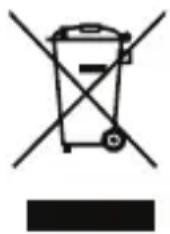
At the end of the product life cycle, you should not dispose of this product with normal household waste. Take this product to a collection point for the recycling of electrical and electronic equipment. The symbol on the product, user's guide and/or box indicates this.
natural_image
Symbol of a trash bin with crossed lines indicating no waste or discharge (no text or labels)Some of the product materials can be re-used if you take them to a recycling point. By reusing some parts or raw materials from used products you make an important contribution to the protection of the environment.
Please contact your local authorities in case you need more information on the collection points in your area.
Dispose of the battery pack in an environmentally-friendly manner according to your local regulations.
6. Cleaning
Clean your Digital Video Baby Monitor with a slightly damp cloth or with an anti-static cloth. Never use cleaning agents or abrasive solvents.
Cleaning and care
- Do not clean any part of the Digital Video Baby Monitor with thinners or other solvents and chemicals - this may cause permanent damage to the product which is not covered by the warranty.
- Keep your Digital Video Baby Monitor away from hot, humid areas or strong sunlight, and do not let it get wet.
- Every effort has been made to ensure high standards of reliability of your Digital Video Baby Monitor. However, if something does go wrong, please do not try to repair it yourself - contact Customer Service for assistance.
IMPORTANT
Always power off and disconnect the power adapter before cleaning your Digital Video Baby Monitor.
7. Troubleshooting
Display
No display
- Try recharging or replacing the battery pack.
- Reset the units. Disconnect the battery pack of the Parent Unit and unplug the power supply of both the units, then plug them back in.
- Is the unit turned on?
Press and hold the POWER ON/OFF button 🤨 on the Parent Unit to turn it ON.
• Is the correct camera selected?
Change the camera number, if necessary. See 4.6.2 View a camera.
• Is the video display turned on?
Press the VIDEO ON/OFF button 🔔 to turn it on.
- When operating using batteries only, the display will go blank after 5, 30 or 60 minutes to save power (depending on the Video On/Off setting. See 3.5 Video ON/OFF). The unit will remain active and emit audio alerts. You can reactivate the screen by pressing any button.
Registration
If the Baby Unit has lost its link with the Parent Unit
- Try recharging or replacing the battery pack.
- The Baby Unit may go out of range if it is too far away. Move the Baby Unit closer to the Parent Unit.
- Reset the units by disconnecting them from the battery and power supply. Wait for about 15 seconds before reconnecting. Allow up to one minute for the Baby Unit and the Parent Unit to synchronize.
• See 2.4 Registration (Pairing), if there is a need to re-register the units.
Interference
Noise interference on your Parent Unit
- Your Baby and Parent Units may be too close to each other. Move them farther apart.
- Make sure that there is at least 3 to 6 feet between the 2 units to avoid audio feedback.
- The Baby Unit may go out of range if it is too far away. Move the Baby Unit closer to the Parent Unit.
- Make sure that the Baby and Parent Units are not near other electrical equipment, such as a television, computer or cordless/mobile telephone.
- Use of other 2.4 GHz products, such as wireless networks (Wi-Fi ^ routers), Bluetooth ^ systems, or microwave ovens, may cause interference with this product, so keep the Digital Video Baby Monitor at least 5ft (1.5m) away from these types of products, or turn them off if they appear to be causing interference.
- If the signal is weak, try moving the Parent and/or Baby Unit to different positions in the rooms.
8. General Information
If your product is not working properly...
- Read this User's Guide or the Quick Start Guide.
- Visit our website: www.motorola.com
- Contact Customer Service at
US and Canada 1-888-331-3383
Email: support@motorolamonitors.com
To order a replacement battery pack for Parent Unit, contact customer service.
Consumer Products and Accessories Limited Warranty ("Warranty")
Thank you for purchasing this Motorola branded product manufactured under license by Binatone Electronics International LTD ("BINATONE")
What Does this Warranty Cover?
Subject to the exclusions contained below, BINATONE warrants that this Motorola branded product ("Product") or certified accessory ("Accessory") sold for use with this product that it manufactured to be free from defects in materials and workmanship under normal consumer usage for the period outlined below. This Warranty is your exclusive warranty and is not transferable.
Who is covered?
This Warranty extends only to the first consumer purchaser, and is not transferable.
What will BINATONE do?
BINATONE or its authorized distributor at its option and within a commercially reasonable time, will at no charge repair or replace any Products or Accessories that does not conform to this Warranty. We may use functionally equivalent reconditioned/ refurbished/ pre-owned or new Products, Accessories or parts.
What Other Limitations Are There?
ANY IMPLIED WARRANTIES, INCLUDING WITHOUT LIMITATION THE IMPLIED WARRANTIES OF MERCHANTABILITY AND FITNESS FOR A PARTICULAR PURPOSE, SHALL BE LIMITED TO THE DURATION OF THIS LIMITED WARRANTY, OTHERWISE THE REPAIR OR REPLACEMENT PROVIDED UNDER THIS EXPRESS LIMITED WARRANTY IS THE EXCLUSIVE REMEDY OF THE CONSUMER, AND IS PROVIDED IN LIEU OF ALL OTHER WARRANTIES, EXPRESS OR IMPLIED. IN NO EVENT SHALL MOTOROLA OR BINATONE BE LIABLE, WHETHER IN CONTRACT OR TORT (INCLUDING NEGLIGENCE) FOR DAMAGES IN EXCESS OF THE PURCHASE PRICE OF THE PRODUCT OR ACCESSORY, OR FOR ANY INDIRECT, INCIDENTAL, SPECIAL OR CONSEQUENTIAL DAMAGES OF ANY KIND, OR LOSS OF REVENUE OR PROFITS, LOSS OF BUSINESS, LOSS OF INFORMATION OR OTHER FINANCIAL LOSS ARISING OUT OF OR IN CONNECTION WITH THE ABILITY OR INABILITY TO USE THE PRODUCTS OR ACCESSORIES TO THE FULL EXTENT THESE DAMAGES MAY BE DISCLAIMED BY LAW.
Some jurisdictions do not allow the limitation or exclusion of incidental or consequential damages, or limitation on the length of an implied warranty, so the above limitations or exclusions may not apply to you. This Warranty gives you specific legal rights, and you may also have other rights that vary from one jurisdiction to another.
| Products Covered Length of Coverage | |
| Consumer Products One (1) year from the date of the products original purchase by the first consumer purchaser of the product. | |
| Consumer Accessories | Ninety (90) days from the date of the accessories original purchase by the first consumer purchaser of the product. |
| Consumer Products and Accessories that are Repaired or Replaced | The balance of the original warranty or for Ninety (90) days from the date returned to the consumer, whichever is longer. |
Exclusions
Normal Wear and Tear. Periodic maintenance, repair and replacement of parts due to normal wear and tear are excluded from coverage.
Batteries. Only batteries whose fully charged capacity falls below 80% of their rated capacity and batteries that leak are covered by this Warranty.
Abuse & Misuse. Defects or damage that result from: (a) improper operation, storage, misuse or abuse, accident or neglect, such as physical damage (cracks, scratches, etc.) to the surface of the product resulting from misuse; (b) contact with liquid, water, rain, extreme humidity or heavy perspiration, sand, dirt or the like, extreme heat, or food; (c) use of the Products or Accessories for commercial purposes or subjecting the Product or Accessory to abnormal usage or conditions; or (d) other acts which are not the fault of MOTOROLA or BINATONE., are excluded from coverage.
Use of Non-Motorola branded Products and Accessories. Defects or damage that result from the use of Non-Motorola branded or certified Products or Accessories or other peripheral equipment are excluded from coverage.
Unauthorized Service or Modification. Defects or damages resulting from service, testing, adjustment, installation, maintenance, alteration, or modification in any way by someone other than MOTOROLA, BINATONE or its authorized service centers, are excluded from coverage.
Altered Products. Products or Accessories with (a) serial numbers or date tags that have been removed, altered or obliterated; (b) broken seals or that show evidence of tampering; (c) mismatched board serial numbers; or (d) nonconforming or non-Motorola branded housings, or parts, are excluded from coverage.
Communication Services. Defects, damages, or the failure of Products or Accessories due to any communication service or signal you may subscribe to or use with the Products or Accessories is excluded from coverage.
How to Obtain Warranty Service or Other Information?
To obtain service or information, please call:
US and Canada 1-888-331-3383
Email: support@motorolamonitors.com
You will receive instructions on how to ship the Products or Accessories at your expense and risk, to a BINATONE Authorized Repair Center.
To obtain service, you must include: (a) the Product or Accessory; (b) the original proof of purchase (receipt) which includes the date, place and seller of the Product; (c) if a warranty card was included in your box, a completed warranty card showing the serial number of the Product; (d) a written description of the problem; and, most importantly; (e) your address and telephone number.
These terms and conditions constitute the complete warranty agreement between you and BINATONE. regarding the Products or Accessories purchased by you, and supersede any prior agreement or representations, including representations made in any literature publications or promotional materials issued by BINATONE. or representations made by any agent employee or staff of BINATONE, that may have been made in connection with the said purchase.
FCC, ACTA and Industry Canada (IC) Regulations
FCC Part 15
NOTE: This equipment has been tested and found to comply with the limits for a Class B digital device, pursuant to Part 15 of the Federal Communications Commission (FCC) rules. These limits are designed to provide reasonable protection against harmful interference in a residential installation. This equipment generates, uses and can radiate radio frequency energy and, if not installed and used in accordance with the instructions, may cause harmful interference to radio communications. However, there is no guarantee that interference will not occur in a particular installation. If this equipment does cause harmful interference to radio or television reception, which can be determined by turning the equipment off and on, the user is encouraged to try to correct the interference by one or more of the following measures:
- Reorient or relocate the receiving antenna.
- Increase the separation between the equipment and receiver.
- Connect the equipment into an outlet on a circuit different from that to which the receiver is connected.
- Consult the dealer or an experienced radio/TV technician for help.
Changes or modifications to this equipment not expressly approved by the party responsible for compliance could void the user's authority to operate the equipment.
This device complies with Part 15 of the FCC rules. Operation is subject to the following two conditions: (1) this device may not cause harmful interference, and (2) this device must accept any interference received, including interference that may cause undesired operation. Privacy of communications may not be ensured when using this device.
To ensure safety of users, the FCC has established criteria for the amount of radio frequency energy that can be safely absorbed by a user or bystander according to the intended usage of the product. This product has been tested and found to comply with the FCC criteria. The Baby Unit shall be installed and used such that parts of the user's body other than the hands are maintained at a distance of approximately 8 inches (20 cm) or more.
This Class B digital apparatus complies with Canadian ICES-003. CAN ICES-3(B)/NMB-3(B)
WARNING
Changes or modifications, to this equipment not expressively approved by the party responsible for compliance could void the user's authority to operate the equipment.
The socket-outlet shall be installed near the equipment and shall be easily accessible.
Industry Canada
This device complies with Industry Canada licence-exempt RSS standard(s): Operation is subject to the following Two conditions:(1) this device may not cause interference, and (2) this device must accept any interference, including interference that may cause undesired operation of the device.
The term "IC:" before the certification/registration number only signifies that the Industry Canada technical specifications were met. This product meets the applicable Industry Canada technical specifications.
9. Technical Specifications
Baby Unit
Frequency 2.4 GHz to 2.48 GHz
Image sensor Color CMOS 0.3M Pixels
Lens f 2.5mm, F 2.8
IR LED 8 pcs
Power Adapter: Ten Pao International Ltd.
S006MU0500100; Input: AC100-240V,
50/60HZ 300mA; Output: DC5V, 1000mA
OR
Adapter: Kuantech Incorporated Company
KSAS0050500100VUD; Input: AC100-240V,
50/60Hz 300mA; Output: DC5V, 1000mA
WARNING
Use only the supplied power adapter.
Parent Unit
Frequency 2.4 GHz to 2.48 GHz
Display 3.5" diagonal TFT LCD
Display color 16.7M color LCD
Brightness control 8 steps
Volume control 8 steps
Power Adapter: Ten Pao International Ltd.
S003IU0500060; Input: AC100-240V,
50/60Hz 150mA; Output: DC5V, 600mA
OR
Adapter: ShenZhen Frecom Electronic Co., LTD
F05W-050060SPAU
Input: AC100-240V, 50/60Hz 150mA;
Output: DC5V, 600mA
WARNING
Use only the supplied power adapter.
Battery: GPI GPRHCH93C021 Ni-MH AAA 3.6V
900mAh rechargeable battery pack
OR
JUSTHIGH Ni-MH AAA 3.6V 900mAh rechargeable battery pack
WARNING
Do not use non-rechargeable batteries for the Parent Unit. Risk of explosion if battery is replaced by an incorrect type. Dispose of used batteries according to the instructions.
Specifications are subject to change without prior notice.

motorola
Manufactured, distributed or sold by Binatone Electronics International LTD., official licensee for this product. MOTOROLA and the Stylized M Logo, are trademarks or registered trademarks of Motorola Trademark Holdings, LLC. and are used under license. All other trademarks are the property of their respective owners. © 2015 Motorola Mobility LLC. All rights reserved.

US_EN Version 10.0
Printed in China