
TF700T-1I0 - Tablet ASUS - Free user manual and instructions
Find the device manual for free TF700T-1I0 ASUS in PDF.


User questions about TF700T-1I0 ASUS
0 question about this device. Answer the ones you know or ask your own.
Ask a new question about this device
Download the instructions for your Tablet in PDF format for free! Find your manual TF700T-1I0 - ASUS and take your electronic device back in hand. On this page are published all the documents necessary for the use of your device. TF700T-1I0 by ASUS.
USER MANUAL TF700T-1I0 ASUS
ASUS Transformer Pad User Manual
TF700/TF0070 series
Charging Your Batteries
If you intend to use battery power, be sure to fully charge your battery pack before going on long trips. Remember that the power adapter charges the battery pack as long as it is plugged into the computer and an AC power source. Be aware that it takes much longer to charge the battery pack when the ASUS Transformer Pad is in use.
Fully charge the battery up to eight hours for the first-time use. The battery reaches its maximum capacity after one full charging and discharging cycle.
Airplane Precautions
Ask an airline personnel if you want to use your ASUS Transformer Pad onboard an aircraft. Most airlines have restrictions for using electronic devices. Most airlines allow electronic use only between and not during takeoffs and landings.

There are three main types of airport security devices: X-ray machines (used on items placed on conveyor belts), magnetic detectors (used on people walking through security checks), and magnetic wands (hand-held devices used on people or individual items). You can send your ASUS Transformer Pad through airport X-ray machines. But do not send your ASUS Transformer Pad through airport magnetic detectors or expose it to magnetic wands.
Contents
Charging Your Batteries. 1
Airplane Precautions 1
Contents 2
Package Contents 5
Your ASUS Transformer Pad. 6
Charging the ASUS Transformer Pad. 10
Installing and removing a microSD card 11
Turning your ASUS Transformer Pad on. 12
Turning your ASUS Transformer Pad off. 12
Putting your ASUS Transformer Pad on sleep mode 12
Forcing your ASUS Transformer Pad to shut down 12
Shutting down your ASUS Transformer Pad............12
To Begin 13
Unlocking your ASUS Transformer Pad 13
Quick Camera Mode 13
Home Screen 14
ASUS Launcher 15
Locking the screen orientation. 15
Touch Panel Control 16
Managing Apps. 18
Task Manager 21
File Manager 22
Market 25
Settings 27
Power Management. 30
ASUS Battery 30
Music 31
Image 33
Gallery 33
Camera 37
Mail 39
Email 39
Gmail 41
Reading 42
MyLibrary 42
Locating 45
Places and Maps 45
Documenting 46
Polaris® Office 46
Sharing. 51
MyNet 51
MyCloud 55
AppLocker 65
App Backup 66
SuperNote 68
Using SuperNote. 69
UsingASUSPadPC Suite. 73
My Desktop PC Server. 73
ASUS Webstorage. 73
ASUS Sync 74
All about the ASUS Transformer Pad mobile dock (optional) 76
ASUS Transformer Pad mobile dock 76
Special Keyboard Functions 79
Docking the ASUS Transformer Pad. 81
Undocking the ASUS Transformer Pad 82
Charging the ASUS Transformer Pad on the mobile dock.83
Installing and removing an SD card. 84
Declarations and Safety Statements. 85
Federal Communications Commission Statement. 85
RF Exposure Information (SAR) 85
IC Regulations. 86
IC Radiation Exposure Statement. 86
CE Mark Warning. 87
Power Safety Requirement 87
ASUS Recycling/Takeback Services. 87
Copyright Information 89
Limitation of Liability. 89
Package Contents
| ASUS Transformer Pad | USB Charger |
| USB Dock cable | User Manual |
| Cleaning cloth | Warranty Card |
| ASUS Transformer Pad mobile dock (optional) |

If any of the items is damaged or missing, contact your retailer.
The bundled power plug varies with country or region.
- ASUS Transformer Pad mobile dock is purchased separately. For more details about using the mobile dock, refer to the section All about the ASUS Transformer Pad mobile dock (optional).
Your ASUS Transformer Pad
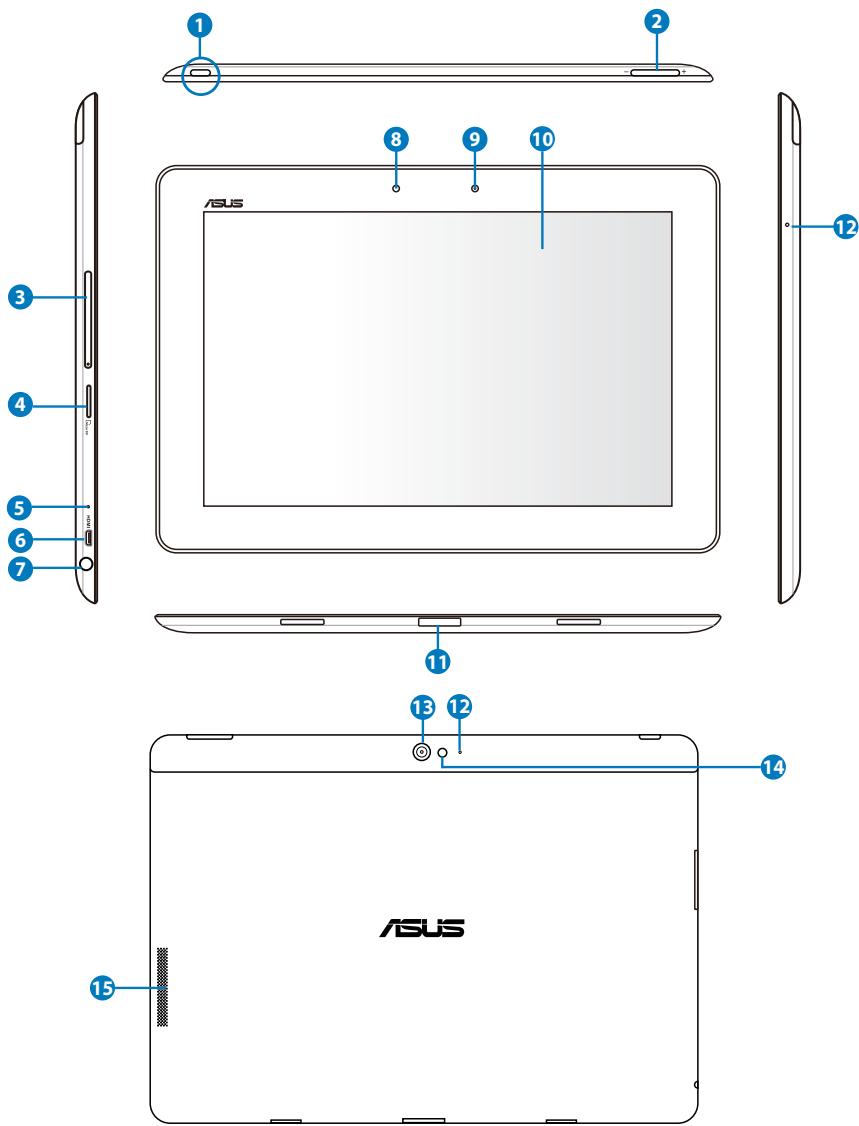
Power button
Press and hold the Power button for one second to power on your ASUS Transformer Pad.
When the ASUS Transformer Pad is powered on, press the Power button to put the ASUS Transformer Pad into sleep mode or wake it up from sleep mode.
Press the Power button for one second to display the shutdown dialog box, and tap OK.
Battery charge indicator (dual-color)
Dim: The power charger is not plugged in the ASUS Transformer Pad.
Green: The battery level is up to 100%
Orange: The ASUS Transformer Pad is in battery charging mode.
Volume key
Press this button to increase or decrease the system volume.
SIM card slot (for 3G/LTE models only)
Insert a 3G SIM/LTE card into this slot.
Micro SD card slot
Insert Micro SD card into this slot.

For details, refer to the section Installing and removing a micro SD card.
5 Reset button
If the system becomes unresponsive, use a paper clip to press the reset button and force the ASUS Transformer Pad to restart.

Forcing the system to restart may result in data loss. We strongly recommend that you back up your important data regularly.
6 Micro HDMI port
Insert a micro HDMI cable into this port to connect to a high-definition multimedia interface (HDMI) device.
7 Headphone output/Microphone input combo jack
The stereo combo jack (3.5mm) connects the ASUS Transformer Pad's audio out signal to amplified speakers or headphones. Using this jack automatically disables the built-in speaker.
The jack is also designed to connect the microphone used for voice narrations or simple audio recordings.
Light sensor
The light sensor detects the amount of light in your environment and automatically adjusts the brightness of the touch screen panel for better viewing.
Built-in front camera
Use the built-in camera for picture taking, video recording, video conferencing and other interactive applications.
10 Touch screen panel
The touch screen panel allows you to operate your ASUS Transformer Pad using touch gestures.
Dock port
- Insert the power adapter into this port to supply power to your ASUS Transformer Pad and charge the internal battery pack. To prevent damage to your ASUS Transformer Pad and battery pack, always use the bundled power adapter.
- Connect the USB Dock cable to the ASUS Transformer Pad and another system (notebook or desktop PC) for data transmission.
- Dock the ASUS Transformer Pad to the mobile dock for extended functions, such as keyboard, touchpad and USB connectivity.
Built-in microphone (right and front)
The built-in mono microphone can be used for video conferencing, voice narrations or simple audio recordings.
Built-in rear camera
Use the built-in camera for picture taking, video recording, video conferencing and other interactive applications.
14 Camera LED flash
Use the flash to take photos when lighting conditions are poor or when there is a backlight.
15 Audio speaker system
Your ASUS Transformer Pad is equipped with a built-in high quality stereo speaker. Audio features are software controlled.
Charging the ASUS Transformer Pad
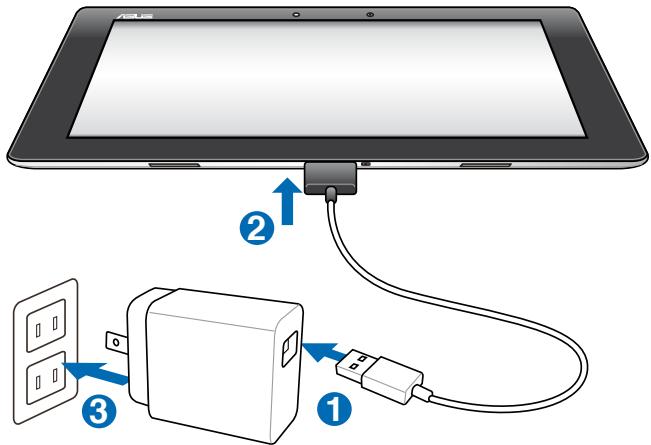

- Use only the power adapter that comes with your device. Using a different power adapter may damage your device.
- Using the bundled power adapter and USB Dock cable to connect your ASUS Transformer Pad to a power outlet is the best way to charge the ASUS Transformer Pad.
- Ensure that the 40-pin USB connector is fully inserted into your ASUS Transformer Pad.
- The input voltage range between the wall outlet and the power adapter is AC 100V–240V, and the output voltage of the power adapter is DC 15V, 1.2A.

Fully charge the battery up to eight hours for first-time use.
- Ensure that your ASUS Transformer Pad is turned off before charging it via your computer's USB port.
- Charging through the USB port may take a longer time to complete.
If your computer does not provide enough power for charging the ASUS Transformer Pad, use the wall outlet instead.
Installing and removing a microSD card

To install a microSD card:
- Insert the card into the microSD card slot at the Eee Pad's left side.
- Push the card all the way into the slot until it fits completely.

A microSD card fits only in one orientation, and slides smoothly into the slot if inserted correctly. DO NOT force the card into the slot.
To remove the microSD card
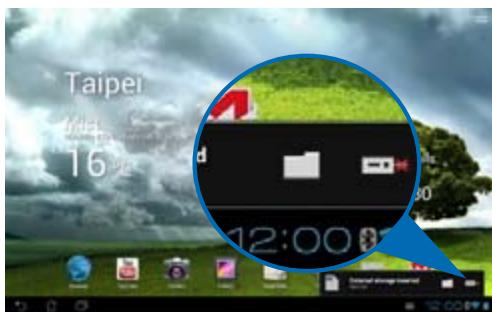
- Tap the microSD card icon at the bottom right corner and tap to safely remove the microSD card.
2 Press the card slightly until it ejects.
Turning your ASUS Transformer Pad on
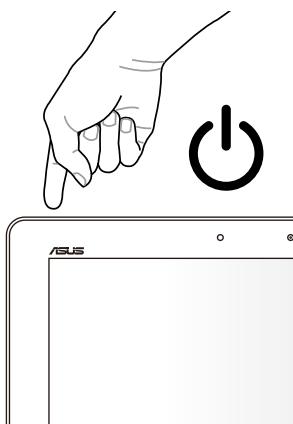
To turn your ASUS Transformer Pad on:
Press and hold the power button for one (1) second.
Turning your ASUS Transformer Pad off
Putting your ASUS Transformer Pad on sleep mode
To put your ASUS Transformer Pad on sleep mode:
When your ASUS Transformer Pad is on, press the Power button once.
Forcing your ASUS Transformer Pad to shut down
To force your ASUS Transformer Pad to shut down:
If your ASUS Transformer Pad is unresponsive, press and hold the power button for at least eight (8) seconds.
Shutting down your ASUS Transformer Pad
To shut down your ASUS Transformer Pad:
Press the Power button for four (4) seconds and when prompted, tap OK.

Forcing the system to shut down may lead to data loss. Ensure that you back up your data regularly.
To Begin
Unlocking your ASUS Transformer Pad
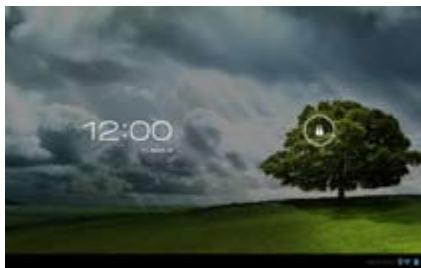
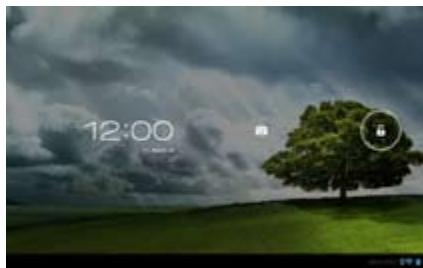
Tap and drag the lock out from the circle to the lock icon to unlock your ASUS Transformer Pad.
Quick Camera Mode
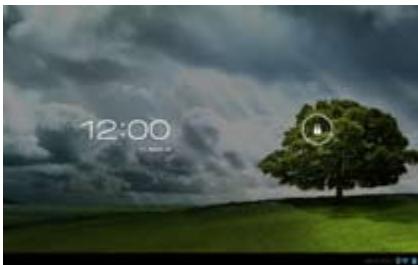
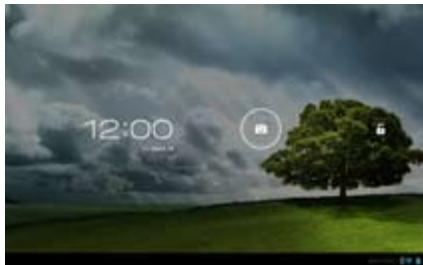
Tap and drag the lock out from the circle to the camera icon to enter the Camera mode.
Home Screen
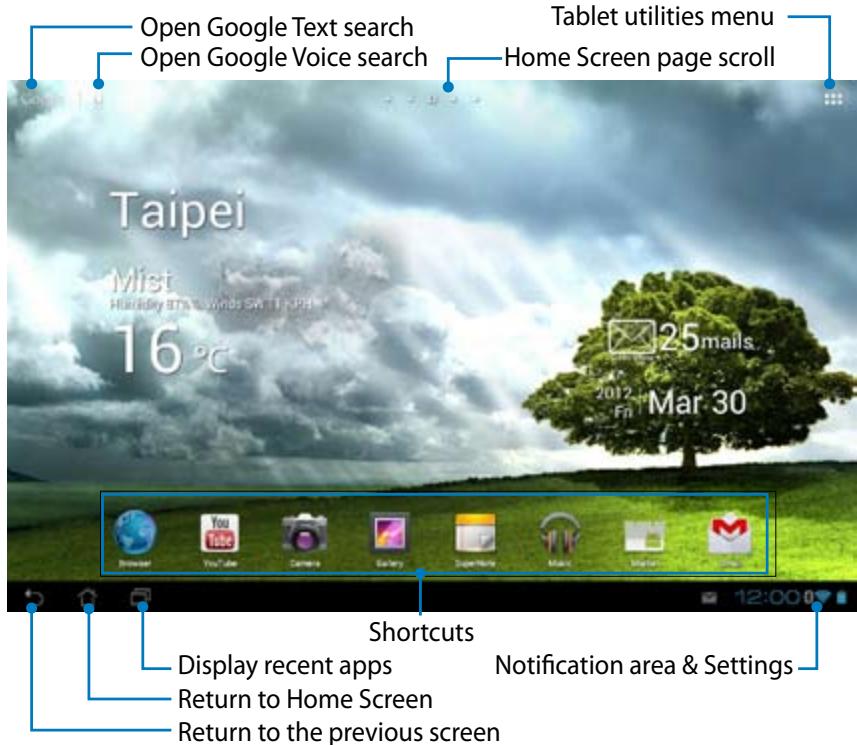

The Home Screen may update and change with Android OS.
ASUS Launcher
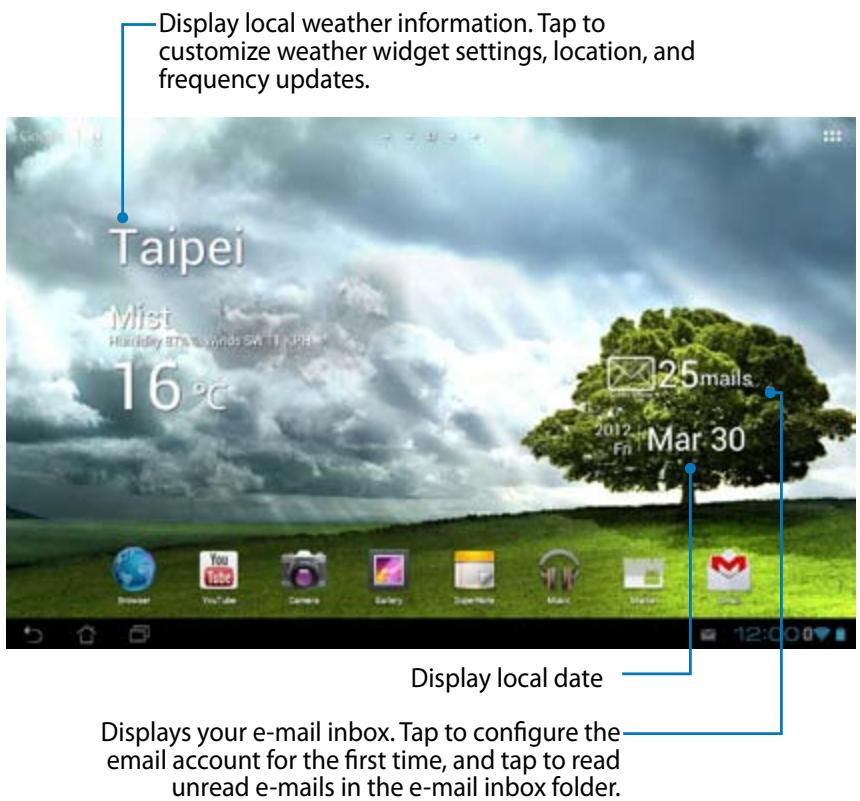
Locking the screen orientation
By default, your ASUS Transformer Pad screen automatically changes its orientation from Portrait to Landscape mode and vice-versa depending on the way you hold your ASUS Transformer Pad.
To disable this auto-rotate screen function, follow these steps:
- Tap on the top right corner of the Home Screen to access the tablet utilities.
- Tap Settings > Screen.
- Tap to deselect Auto-rotate screen.
Touch Panel Control
Single-tapping
- Single-tapping the touch panel allows you to select a desired item or activate an application.
- Single-tapping in the File Manager allows you to open, select, Copy, Cut, Delete, or Rename the desired files.
Tapping-and-holding
- Tap and hold an application to drag and drop it or its shortcut to another Home Screen page.
- Tap and hold the Recent Apps Key to capture screen images. (To enable Screenshot, go to Settings>ASUS customized setting)
- Tap and hold a file in the Gallery to enter selection mode.
Zooming
Spread apart or bring two fingers together to zoom in or out an image in Gallery, Maps, or Places.
Flipping
Use one finger to flip back and forth between home screens, through different images in the Gallery or pages in MyLibrary and SuperNote.
Inputting, inserting, selecting, and copying text
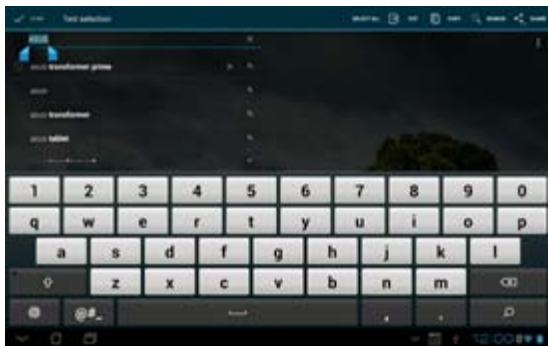
When the ASUS Transformer Pad is not docked, the panel keyboard appears when tapping on any text insertion bars or word processors. On Google Text Search on the upper left corner, type in the web browser bar to search the web and your tablet, or to launch apps.
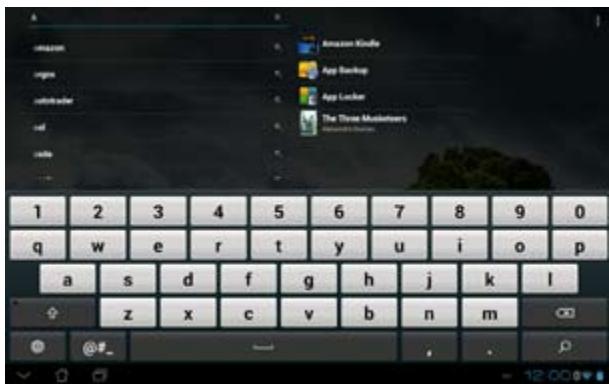
After typing in Google Text Search, tap the text you have just entered and you will see an insertion point. To move the insertion point, drag and tap the space you would like to insert a letter or a word.
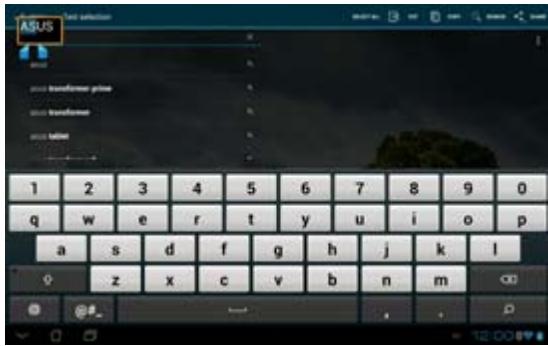
Double-tap or hold the text to cut or copy the selected text. You can move the selection tab to expand or reduce the range of the selected text.
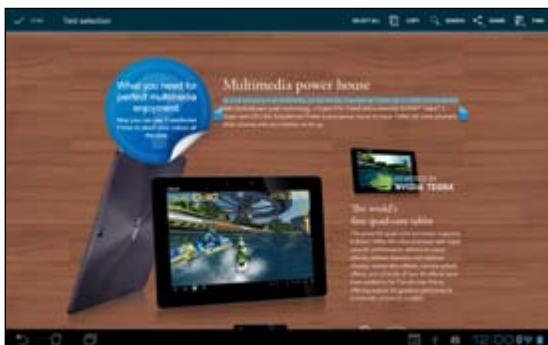
Tap or hold the desired text on the web page and a tool bar appears on the top. You can copy, share, select, find, or search on the web.
Managing Apps
App Shortcut
You can create shortcuts for your favorite apps on your ASUS Transformer Pad Home Screen.
To create an app shortcut:
- Tap on the top right corner of the Home Screen to access the tablet utilities.
- In the Apps menu, tap and hold the desired app and it will take you to the Home Screen.
- Drag and place the app on your desired Home Screen page.
App info
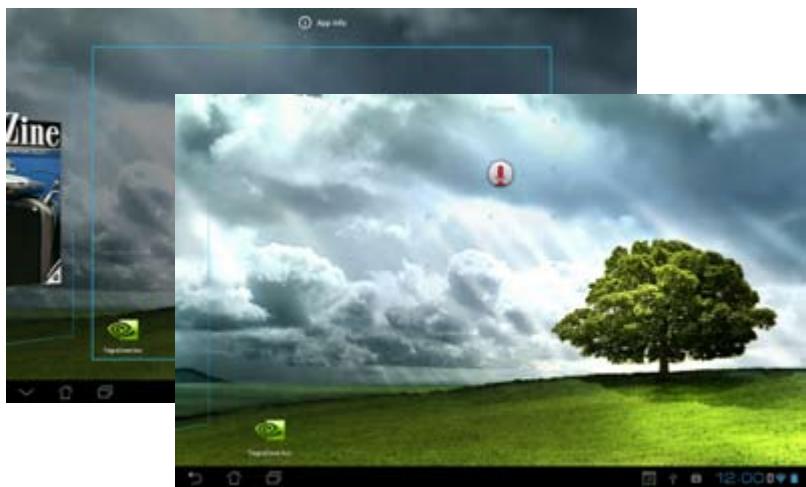
You can view the detailed app information while you are creating a shortcut for the app. When holding an app from Apps menu to Home Screen, the App info will appear on the top of the Home Screen page. Continue dragging the held app to App info to display its detailed information.
Removing an App shortcut from the Home Screen
You can remove app shortcuts from your ASUS Transformer Pad Home Screen.
To move an app shortcut from the Home Screen:
- Tap and hold the app shortcut on your Home Screen. Remove will appear on the top of the Home Screen page.
- Drag the app to Remove.
App Folder
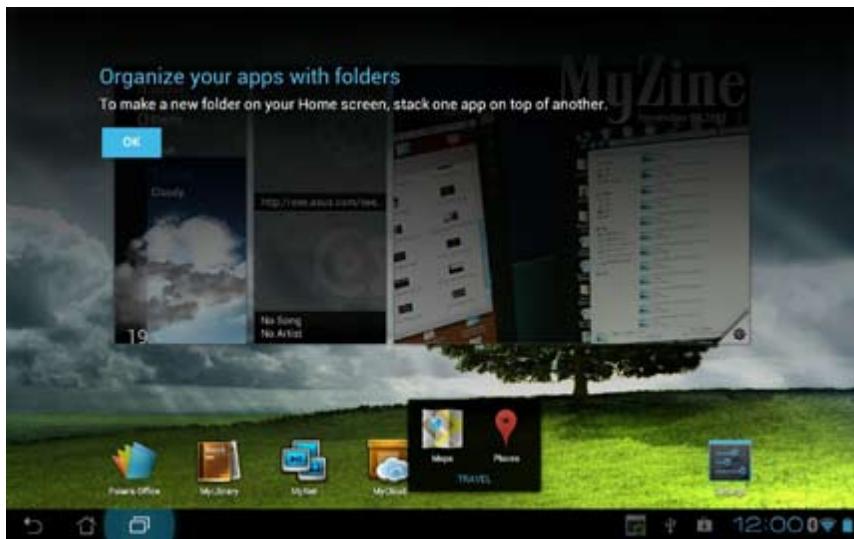
Create folders to organize your applications and shortcuts on your ASUS Transformer Pad Home Screen.
To create an App folder:
- On your Home Screen, tap and drag an app or shortcut into another app or shortcut. A folder will appear.
- Tap the new folder and tap Unnamed Folder to rename the folder.
Recent Apps
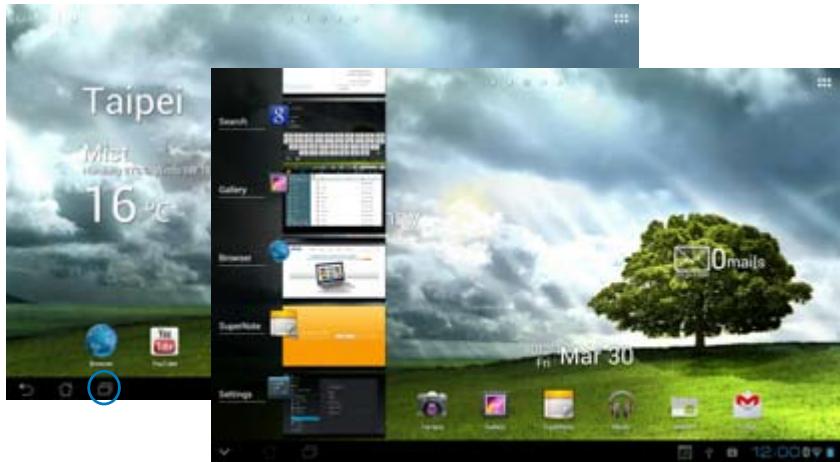
Recent apps are displayed in the left panel of the Home Screen. You can find detailed information and manage your apps from the Recent Apps list.
To manage your recent apps:
- Tap the Recent Apps icon at the lower left corner of the Home Screen.
-
Do any of the following:
-
Swipe up and down the list to view Recent Apps. Swipe a recent app to the left or right to remove from list.
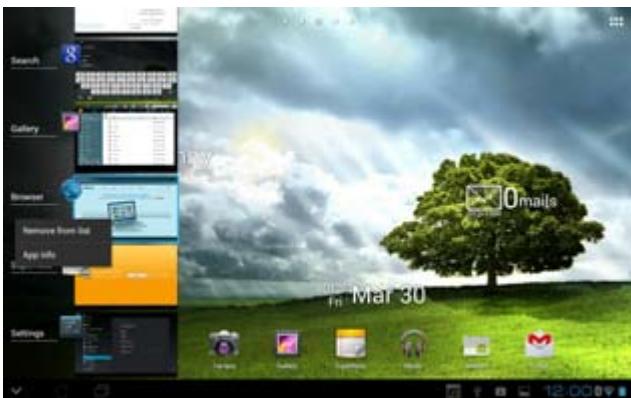
- Tap and hold a recent app to display menu. Select to remove app from list or display app information.
Task Manager
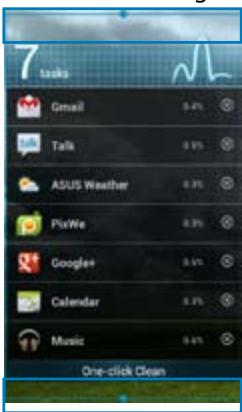
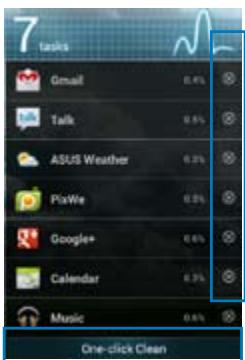
ASUS widget displays a list of currently running utilities and applications and their usages in percentages on your ASUS Transformer Pad.
To use the Task Manager:
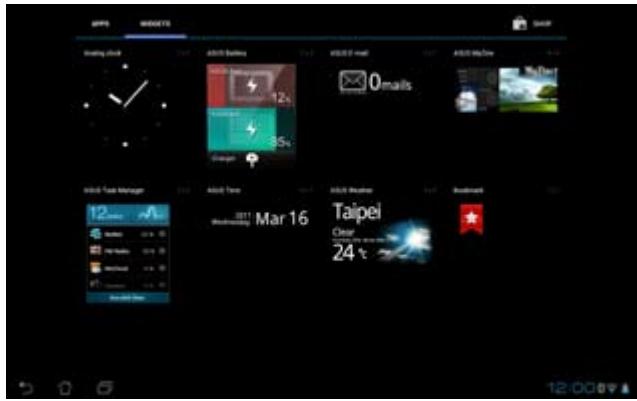
- Tap on the top right corner of the Home Screen to access the tablet utilities.
- Tap Widgets to display the widget menu.
- Tap and hold ASUS Task Manager. The ASUS Task Manager box will appear on the Home Screen.
- Tap and hold the widget to display the sizing brackets. Pull up or downwards to show the complete list of tasks.
- Tap the x icons on the right of the tasks to shut down task. Tap One-click Clean to close all running tasks or apps.
File Manager
File Manager allows you to view and manage all your files in the internal and removable storage devices.
To access the internal storage device:
- Tap on the top right corner of the Home Screen to access the tablet utilities.
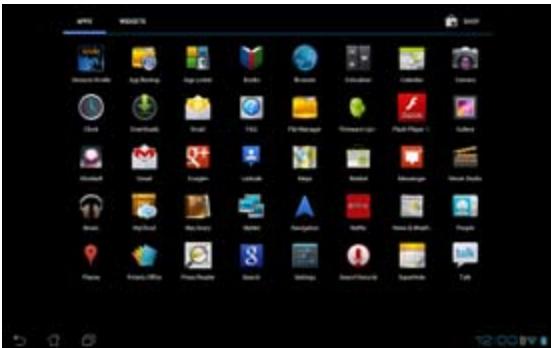
- In the Apps menu, tap File Manager to go into My Storage.
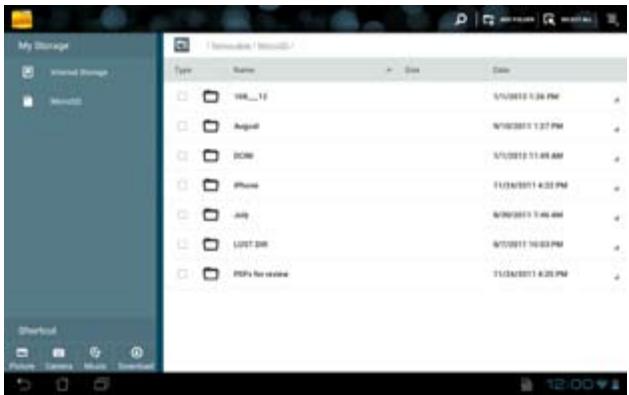
- The Internal Storage (/sboard/) and any connected external storage devices (/Removable/) are displayed on the left panel. Tap on the source icon on the left panel to display the content list. Tap to select a source and view its contents.
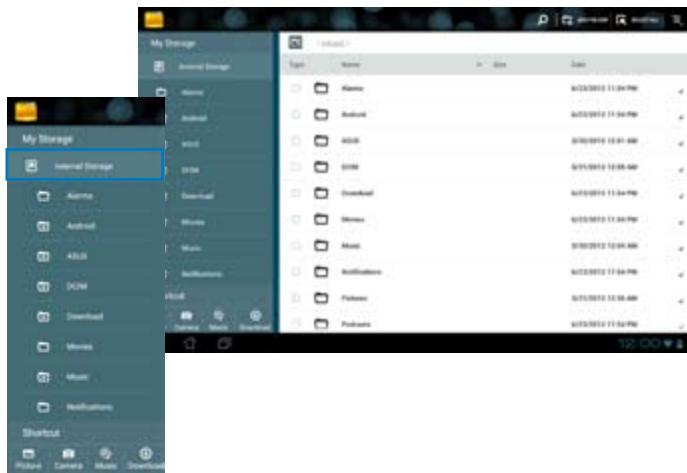
- Tap the Return folder icon to return to the root directory of My Storage.
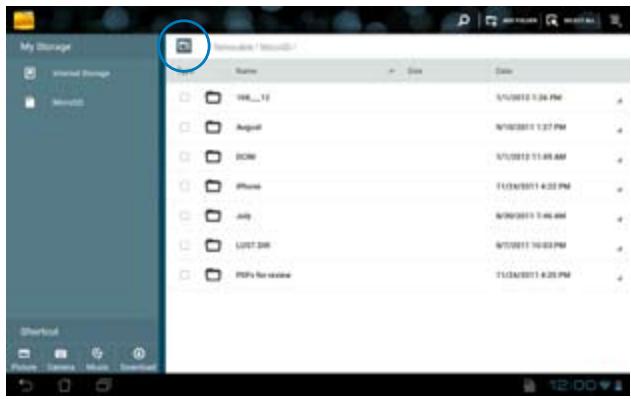
To access the external storage device directly:
- Tap the USB or SD card icon on the bottom right corner.
- Tap the folder icon in the pop-up notification box.
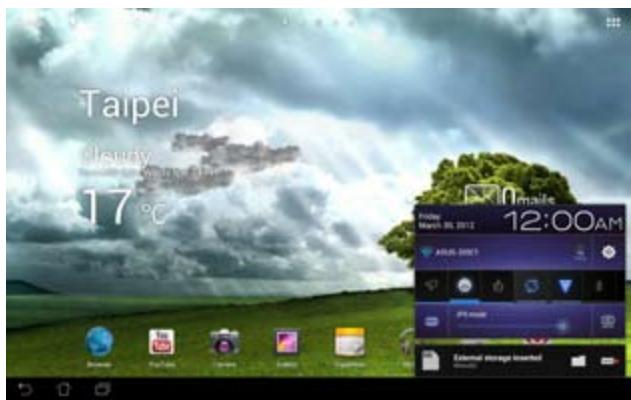
- The content of the external storage device (Removable/XXX/) is displayed.
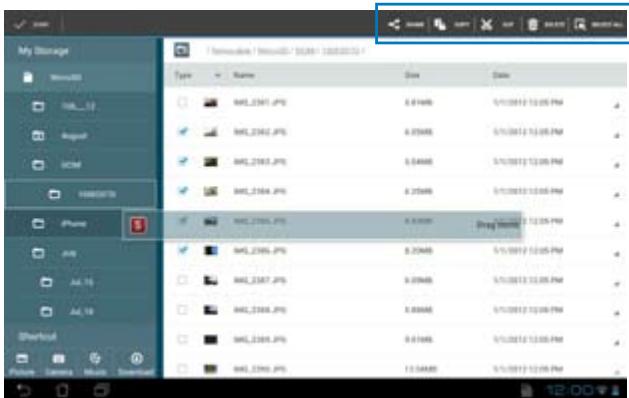
To copy, cut, delete, or share files:
Tick the file and tap the action icon at the tool bar on the upper right. You can also tick the file and drag to drop in the destination folder.
Market
Android Market provides you with the latest applications, games, movies, or e-books that you can download and install on your Android devices such as your ASUS Transformer Pad.
Use your existing Google account to access the Android Market. If you don't have a Google account, create one.

For details on setting up a Google account (Gmail) using your ASUS Transformer Pad, refer to the section Gmail.
To access the Android Market:
- Tap on the top right corner of the Home Screen to access tablet utilities.
- In the Apps Menu, tap Market.
- If you have a Google account, tap Existing to continue. Otherwise, tap New to create your Google account.
- Enter your Email and Password to Sign in if you already have an account.
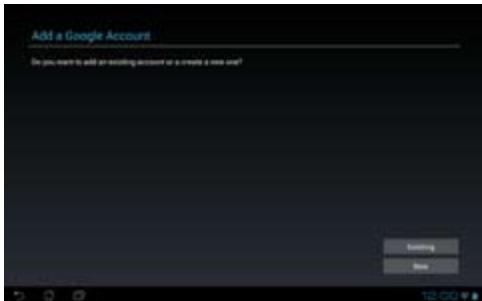
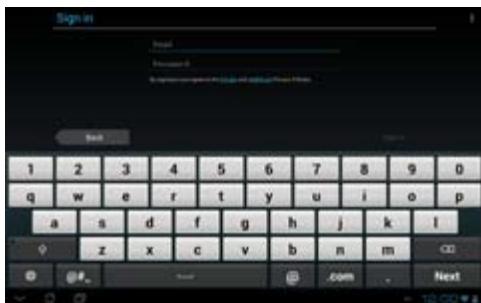
- You can now download and install applications from the Android Market.

Some applications are free and some might charge you through a credit card.

Download the latest Adobe Flash Player version 11.1.112.60 for ICS devices.
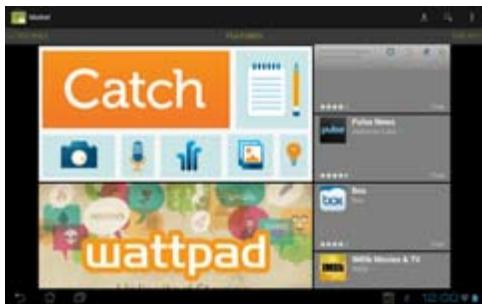

You cannot restore the deleted applications, but you can login with the same ID and download them again.
Settings
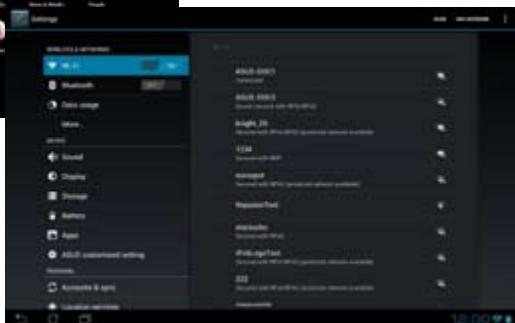
Settings screen allows you to configure the settings of your ASUS Transformer Pad, including Wireless & networks, Device, Personal, and System. Tap the tabs on the left to switch screens and do the configurations.
There are two ways to enter the Settings screen.
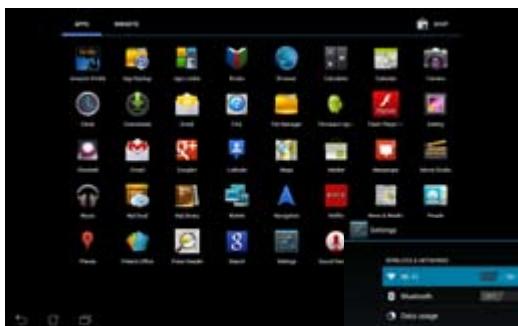
From the Apps menu:
Tap Settings to display the settings menu.
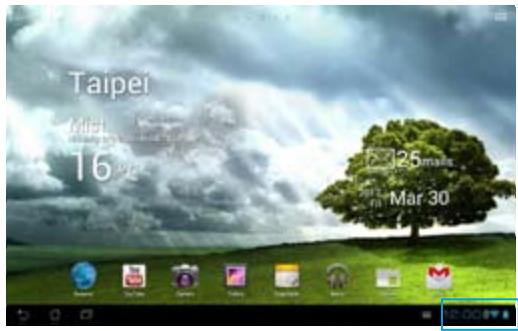
From ASUS Quick Setting:
Tap the notification area on the bottom right corner. The Quick Setting panel will pop up on the right.
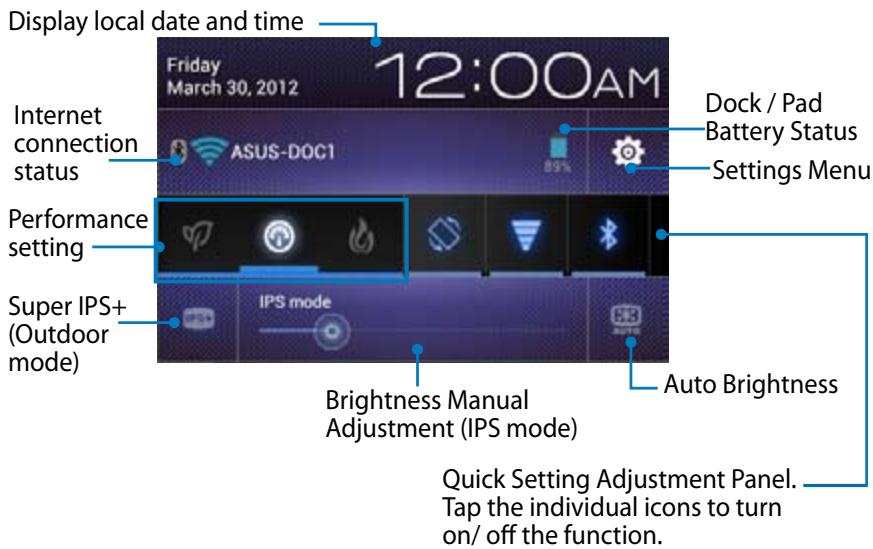
ASUS Quick Setting Adjustment Panel
Tap the individual utility icons to enable or disable its function.


- Balanced mode [Default mode]: Balances the system's performance and power usage.
- Performance mode: Maximizes the system's performance but consumes more battery power.
Power saving mode: Energy saving mode.
Notification Panels
Notification panels will appear under the Quick Setting panel for alerts or updates in apps, incoming emails, and utility status.
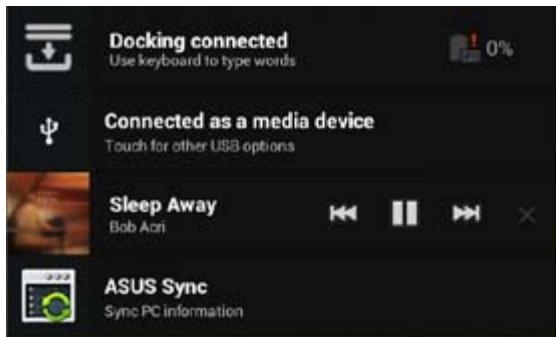

- Swipe an alert/update to the left or right to remove from list.
- You can enable or disable ASUS Quick Setting to Simplified Mode in Settings>ASUS customized setting>NOTIFICATION PANEL.
Power Management
ASUS Battery
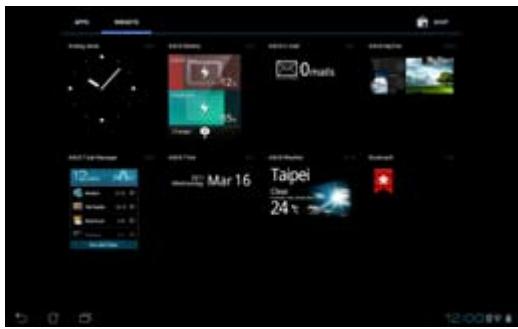
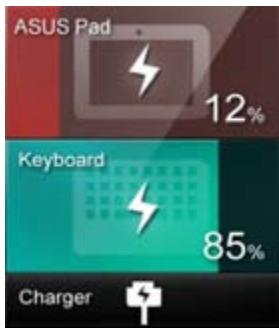
This special widget shows the individual battery status of the ASUS Transformer Pad and keyboard dock in percentage and colors. The more battery power, the brighter the color.
- Tap the top right corner of the Home Screen to access the tablet utilities.
- Tap Widgets to display the widgets menu.
- Tap and hold ASUS Battery. The ASUS Battery box will appear on the Home Screen.
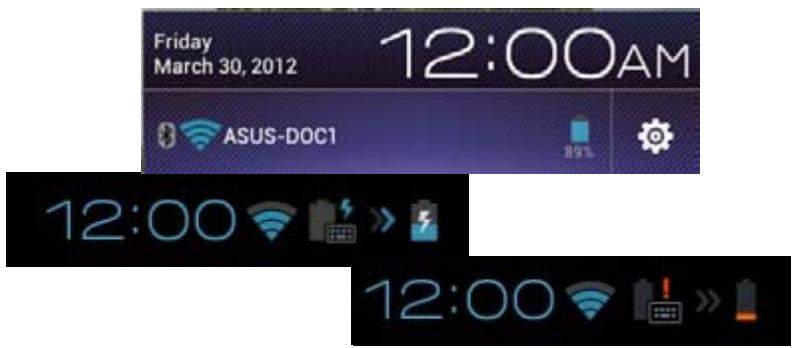
ASUS Quick Setting and the notification panel also display the battery status. The battery status of the ASUS Transformer Pad and dock are shown separately. When the battery is low, the battery icon turns from blue to red accompanied with an exclamation mark. There will also be a warning sound to notify you when the battery is running low.
Music
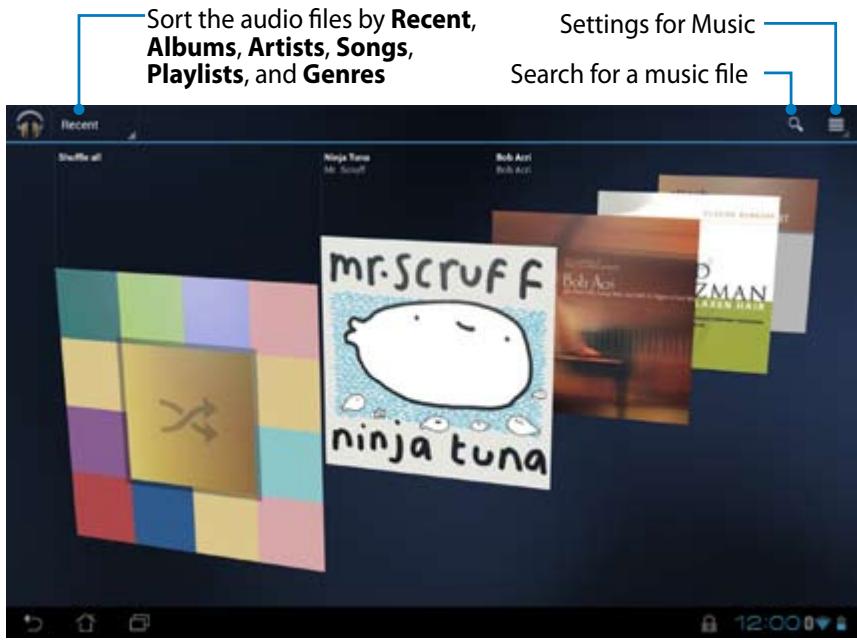
Tap Music on the Home Screen to play your music files. This application automatically collects and displays all the audio files stored in your ASUS Transformer Pad and the connected external storage devices.
You can shuffle and play all audio files randomly or flip to select an albumto play.
Use the top buttons to sort or search your audio files quickly.

The audio and video codec supported by TF700/TF0070:
Decoder
Audio Codec: AAC LC/LTP, HE-AACv1(AAC+), HE-AACv2(enhanced AAC+), AMR-NB, AMR-WB, MP3, FLAC, MIDI, PCM/WAVE, Vorbis, WAV a-law/mu-law, WAV linear PCM, WMA 10, WMA Lossless, WMA Pro LBR
Video Codec: H.263, H.264, MPEG-4, VC-1/WMV, VP8
Encoder
Audio Codec: AAC LC/LTP, AMR-NB, AMR-WB
Video Codec: H.263, H.264, MPEG-4
Image
Gallery
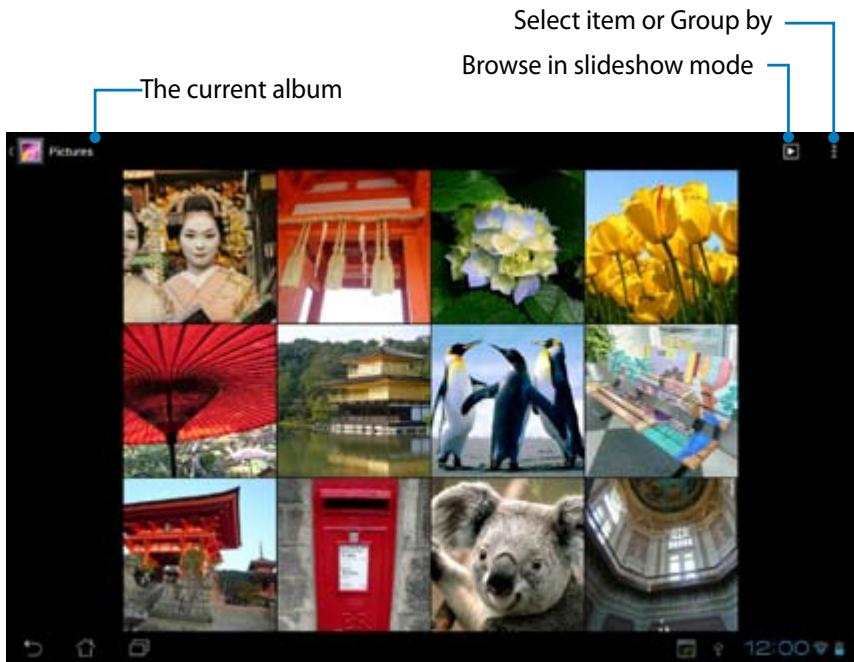
Tap Gallery on the Home Screen to browse for image or video files. This application automatically collects and displays all the image and video files stored in your ASUS Transformer Pad.
You can play all image files in a slideshow, or tap to select for image or video files.
Use the button on the top to sort the files by album, by location, by time, by people, or by tags.
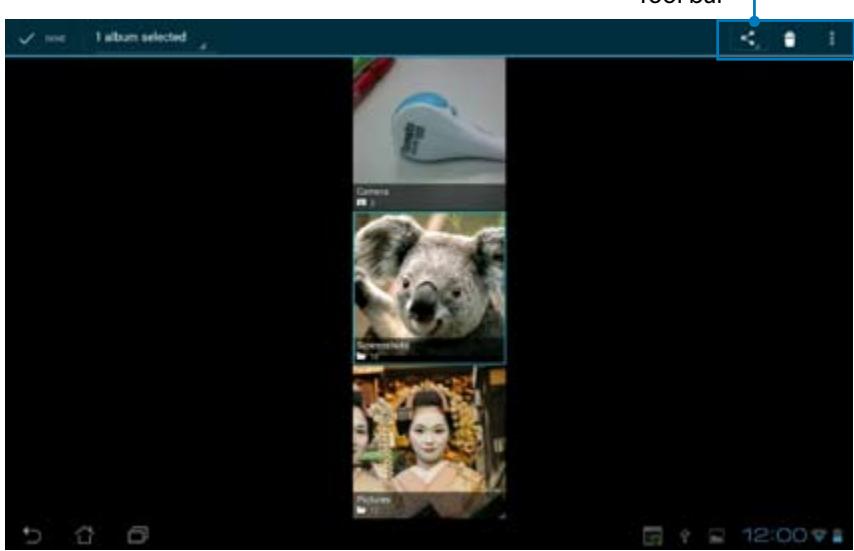
Sharing, and deleting albums
Tap a desired album in the gallery and hold until the tool bar on the top appears. You can upload, delete, or share selected albums through the Internet. Tool bar
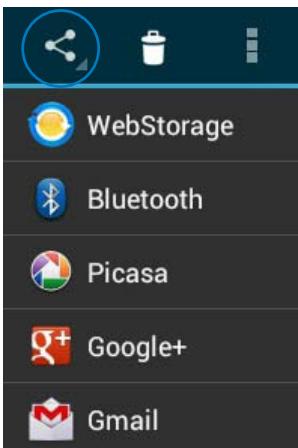
Share the selected album through
ASUS Webstorage, Bluetooth®, Picasa®, Google+, or Gmail®.
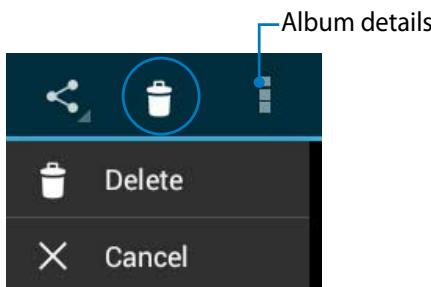
Delete or cancel the selected album.
Sharing, deleting, and editing images
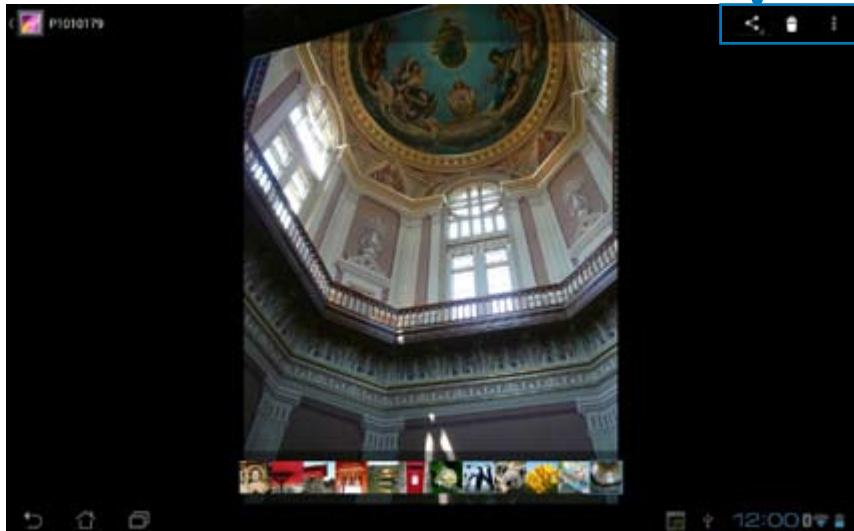
Tap an image in the gallery and use the tool bar on the top right corner to share, delete, or edit a selected image.
Tool bar
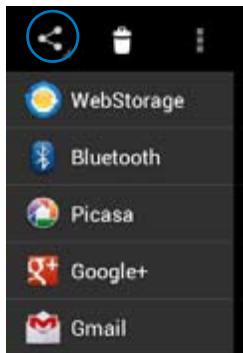
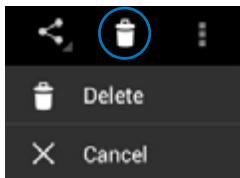
Delete or cancel the selected image.
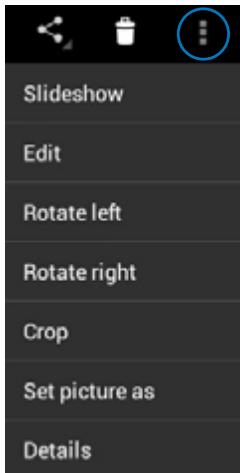
Check the image information, and edit the selected image.
Share the selected album through ASUS Webstorage, Bluetooth®, Picasa®, Google+, or Gmail.

You cannot restore a deleted file.
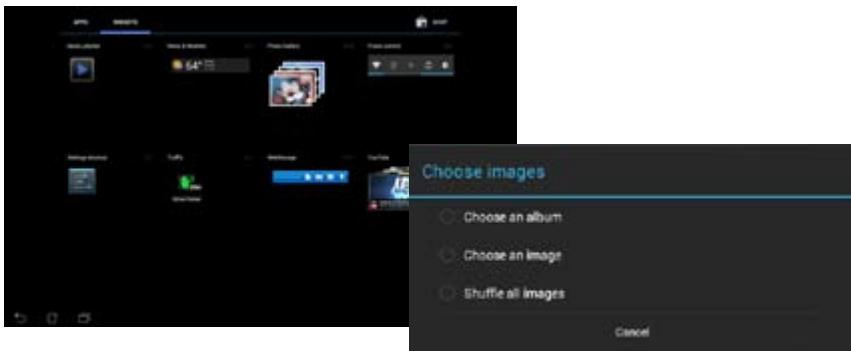
Gallery widget
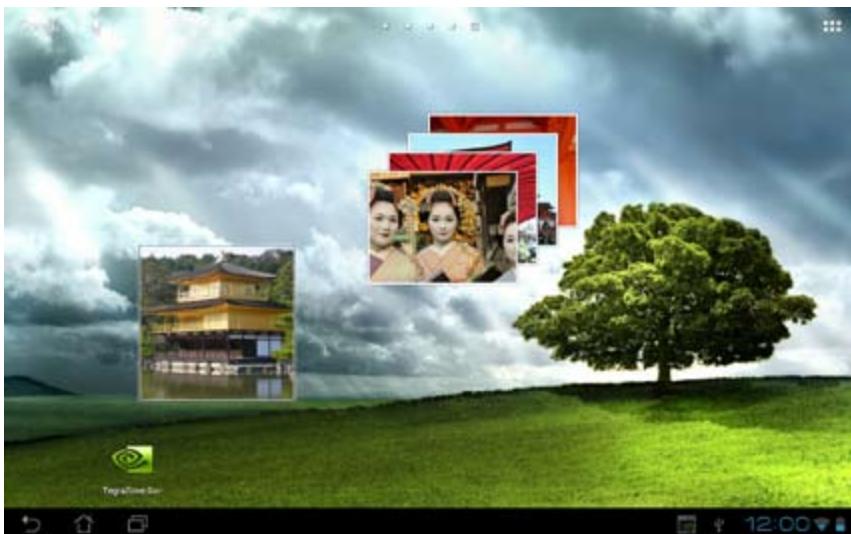
The Photo Gallery widget allows immediate access to your favorite photos or albums right from the Home Screen.
- Tap the top right corner of the Home Screen to access the tablet utilities.
- Tap Widgets to display the widgets menu.
- Tap and hold Photo Gallery. The gallery widget box will take you the Home Screen and a Choose images menu box appears.
- Choose the album or image to which you want to create a shortcut on the Home Screen.
Camera
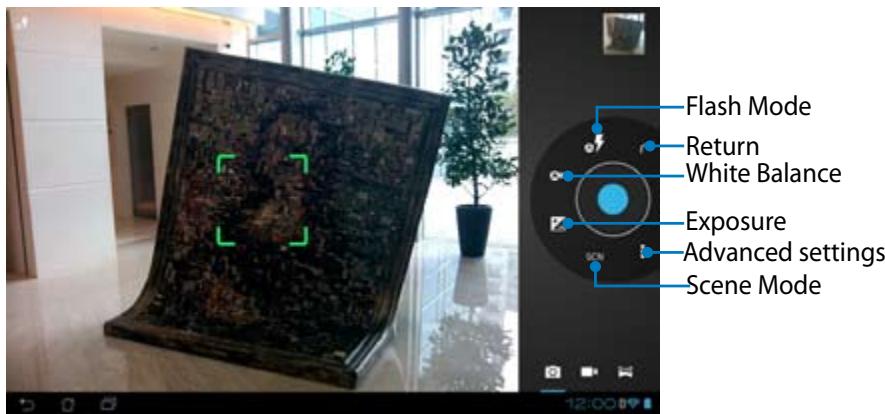
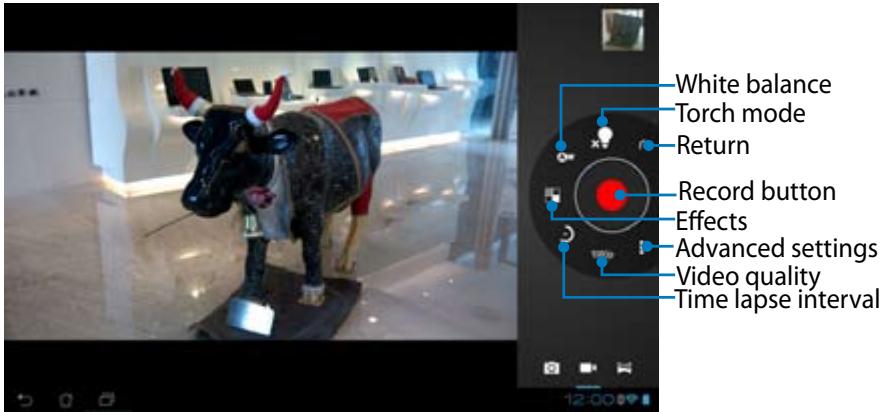
Tap Camera on the Apps menu to take pictures, record videos, and create panoramic images. You can use the front camera or the back camera to take pictures or record videos.
The image files will be saved to Gallery automatically.
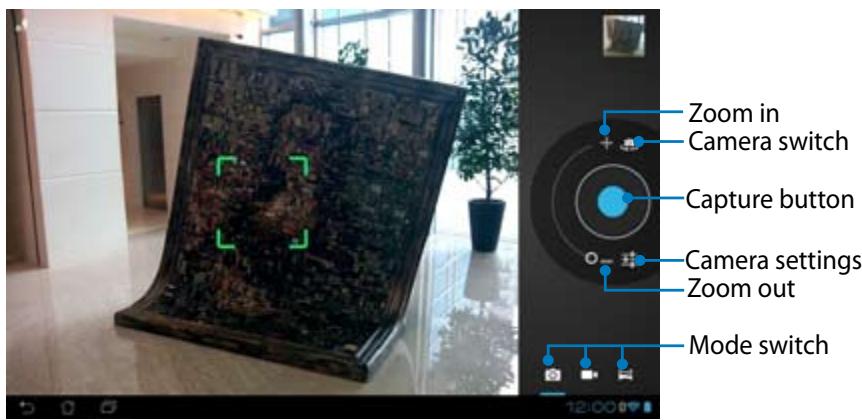
Camera mode
Video mode
Panoramic mode
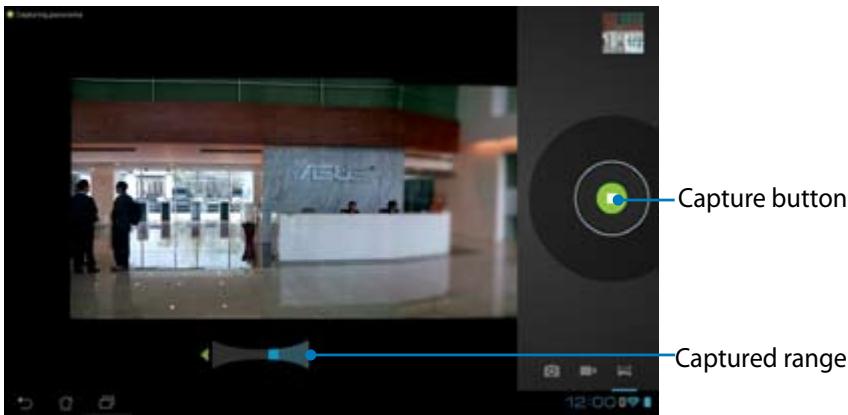
Panoramic image

Email allows you to add several e-mail accounts and conveniently browse and manage your e-mails.
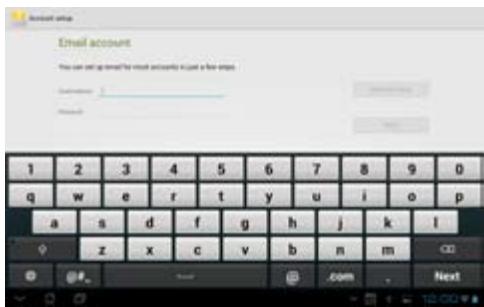
To set up an Email account:
- Tap Email on the Apps menu. Enter your Email address and Password, then tap Next.
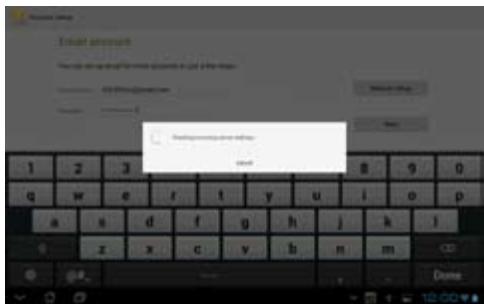
- Please wait while the ASUS Transformer Pad automatically checks your outgoing mail server settings.
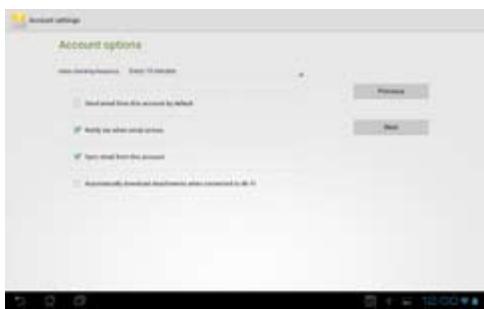
- Configure the Account options and tap Next.
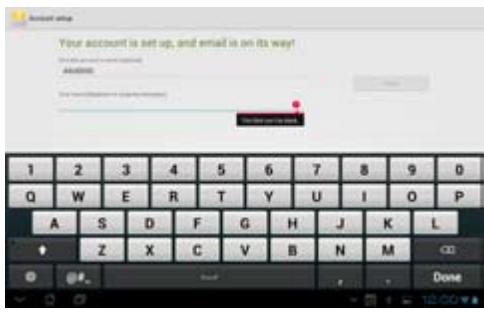
- Name the account and enter the name that you want displayed on the outgoing messages. Tap Next to log into your mail inbox directly.
To add Email accounts:
- Tap Email and log in using the account that you have previously set up.
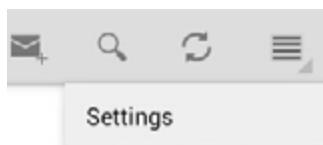
- Tap Settings on the top right corner.
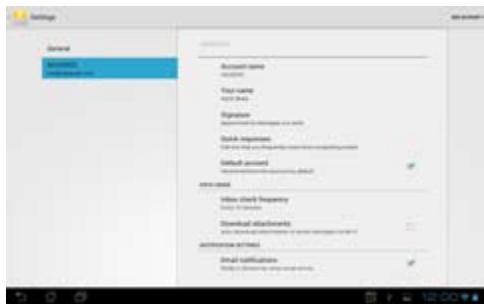
- All the preferences of this account are displayed. Tap Add account on the top right corner to add another account.

You can include all your e-mail accounts in Email.
Gmail
Gmail (Google mail) allows you to access your Gmail account, receive, and compose e-mails.
To set up a Gmail account:
- Tap Gmail on the Apps menu. Tap Existing and enter your existing Email and Password, then tap Sign in.

Tap New if you do not own a Google Account.
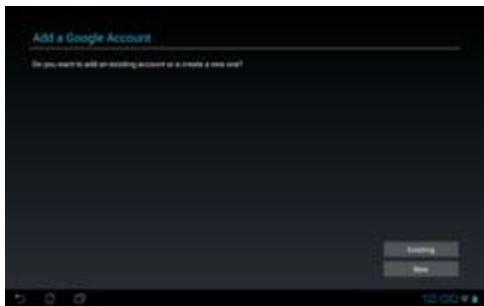
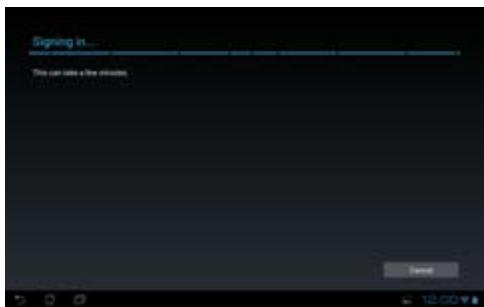
- Wait while your ASUS Transformer Pad communicates with Google servers to set up your account.
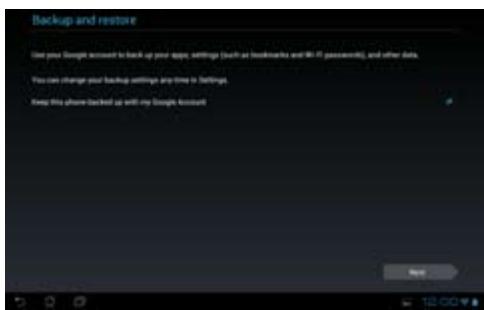
- You can use your Google account to backup and restore your settings and data. Tap Done to sign in to your Gmail.

If you have several e-mail accounts in addition to Gmail, use Email to set up and access all your e-mail accounts at the same time.
Reading
MyLibrary
MyLibrary, an integrated interface for your book collections, allows you to place your purchased or downloaded e-books into different bookshelves and genres.

Login @Vibe to download more e-books.

MyLibrary supports e-books in ePub, PDF and TXT format.
- You may need Adobe Flash® player to open some e-books. Download Adobe Flash® player before using MyLibrary.
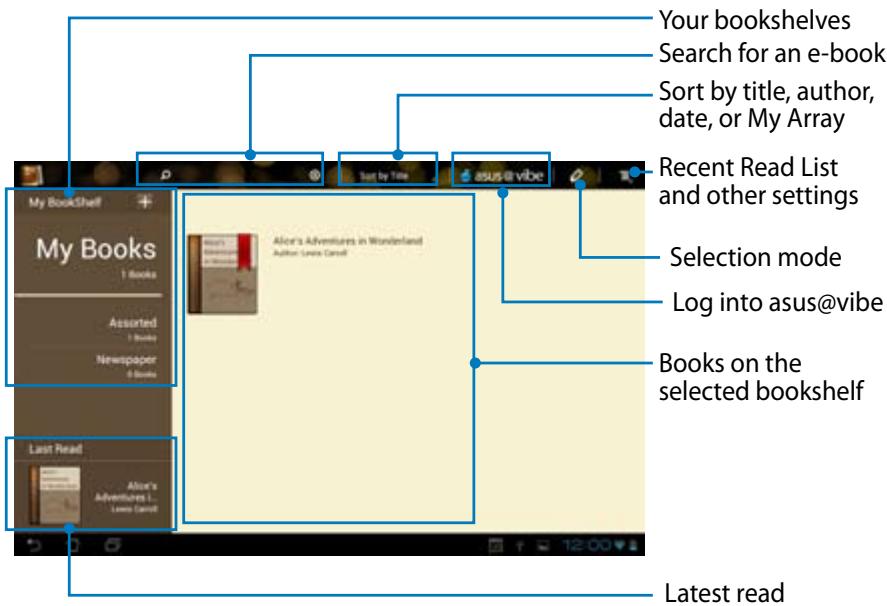
Reading your e-books
- Select and tap an e-book on the bookshelf.
- Tap the screen to show the tool bar on the top.
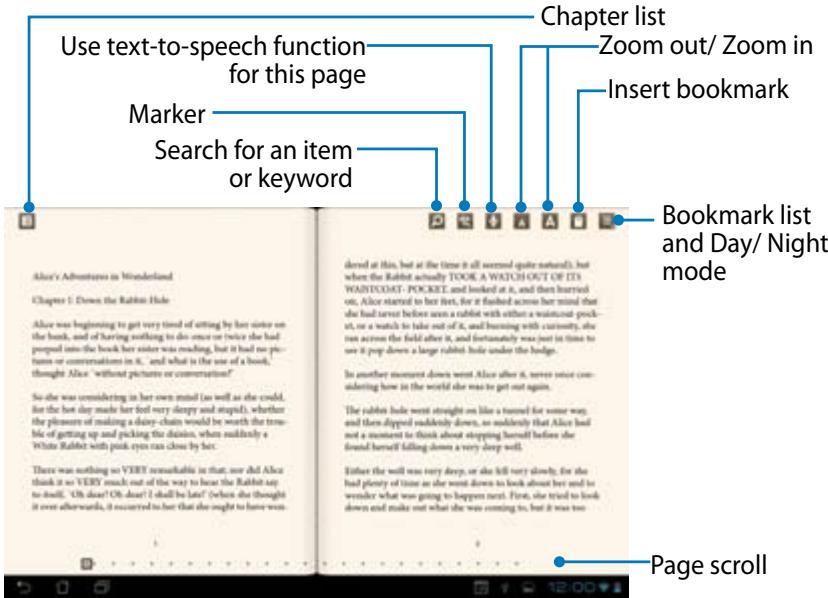

- Android initiates the download and installation of necessary resource if you would like to use the text-to-speech function.
-
Tap the bookmark list and select the marked page to show the bookmark icon on the upper right corner of the screen.
-
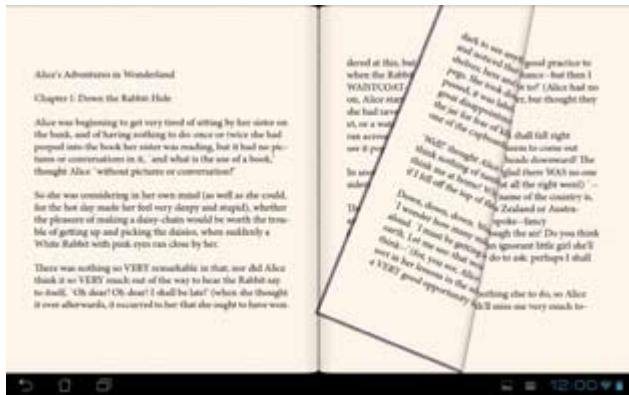
Flip the pages like a real book or move the page scroll at the bottom.
Making notes on your eBooks
- Tap and hold the word or sentence until the tool menu and the dictionary definition are displayed.
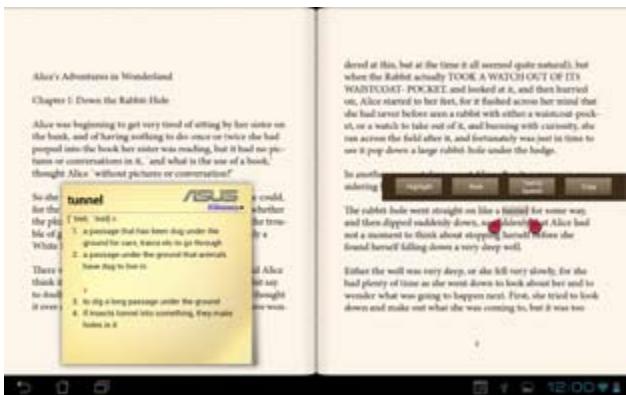
- You can highlight the selected word with a marker, add a note, use text-to-speech function for the selected text, or simply copy the word.
- Move the selection tab to extend the selected region to a whole phrase or sentence if needed.
Locating
Places and Maps
Google Places
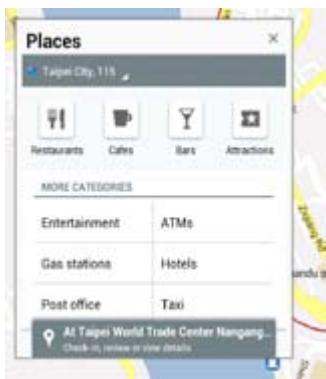
Google Places allows you to easily find places such as nearby attractions, restaurants, coffee shops, or gas stations. It also allows you to check in your current location at a specific time and share this information with others.
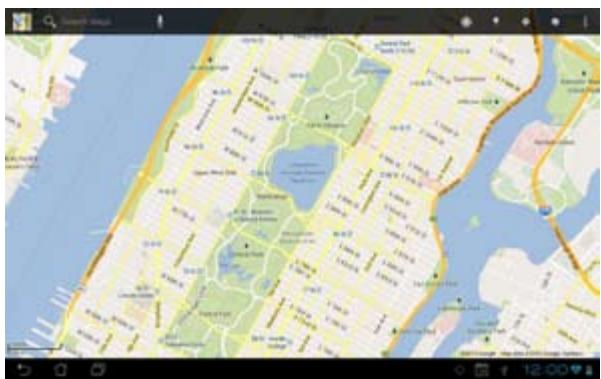
Google Maps
Google Maps allows you to find establishments, view maps, and get directions.
Use the toolbar on top to get directions or create your own maps.
Documenting
Polaris® Office
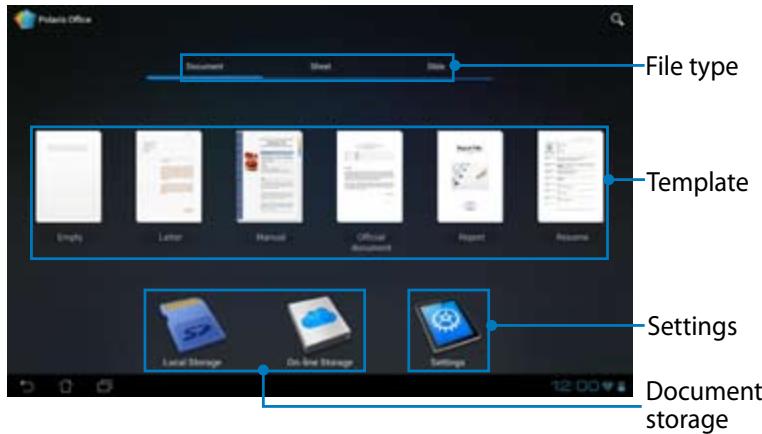
Polaris® Office is an office software that allows you to create, read, and edit documents, spreadsheets, and presentations:
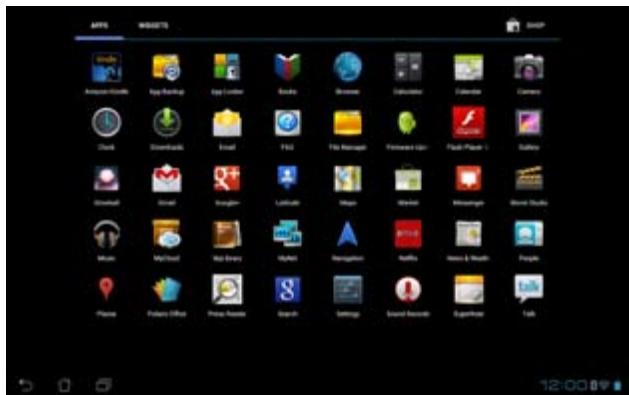
To use Polaris® Office:
- Tap the top right corner of the Home Screen to access the tablet utilities.
- In the Apps menu, tap Polaris® Office.
- To create a new file, tap a file type and select a template.
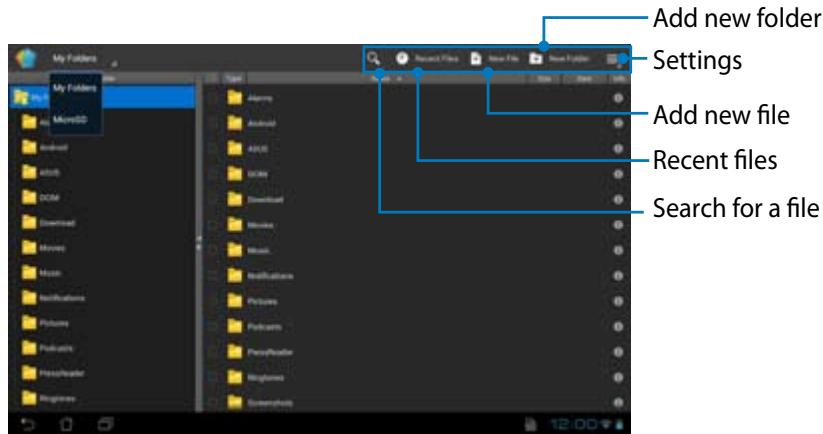
- To open a file in the internal storage device, tap Local Storage > My Folders on the upper left and select the file.
Adding New Files
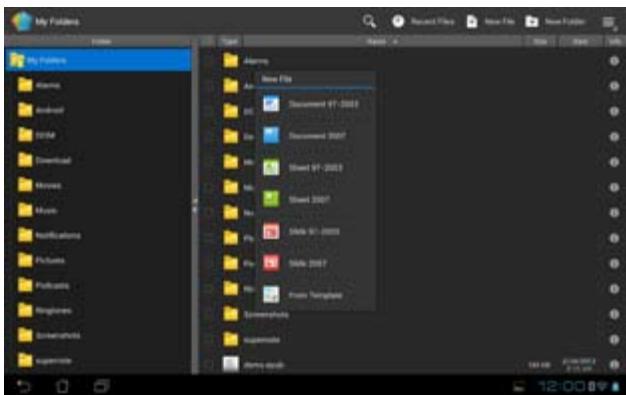
Tap New File on the upper right corner, then do the following:
- Tap Document to start the word processor to edit documents.
- Tap Sheet to start the spreadsheet to perform calculation and manage information.
- Tap Slide to start the application to create and share presentations.

-
Polaris® Office 3.5 supports file types as below:
-
Microsoft Word: .doc/.docx
- Microsoft Excel: .xls/.xlsx
- Microsoft PowerPoint: ppt/.pptx
- Adobe Acrobat: .pdf
-
Text:.txt
Images:.bmp/ .jpg/ .jpeg/ .png/ .gif/ .wbpm
Zip Archives: .zip -
Polaris® Office 3.5 currently saves files into .doc/.xls/.ppt formats only.
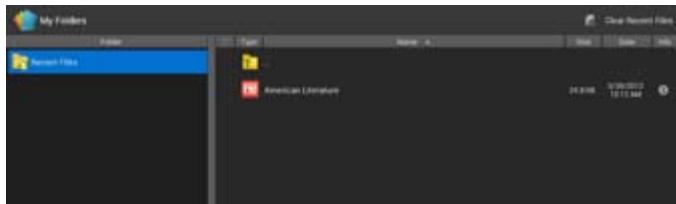
Accessing/Clearing your recent files
To access and clear your recent files, do either of the following:
- From the Polaris® Office screen, tap Recent Files on the upper right corner to quickly access your recently-edited files.
- From the Polaris® Office screen, tap Clear Recent Files on the upper right corner to delete your recent files.
Adding service accounts
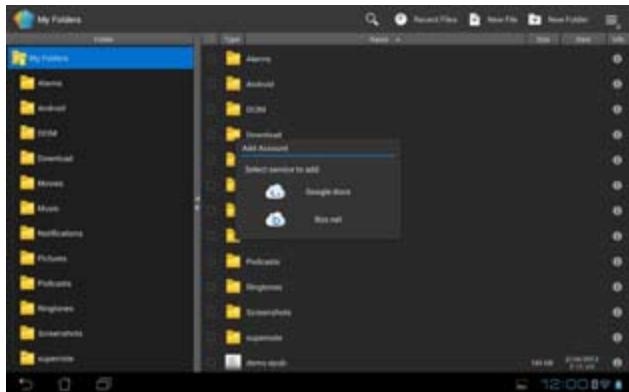
You can use Polaris® Office to edit your files from the file management services such as Google docs and Box.net.
To add a service account:
- From the Polaris® Office screen, tap > Add account.
- Tap the service that you want to add.
- Key in the e-mail account and password, and tap OK to add the account.

For more details about Google docs or Box.net, visit their official websites.
Configuring the Settings
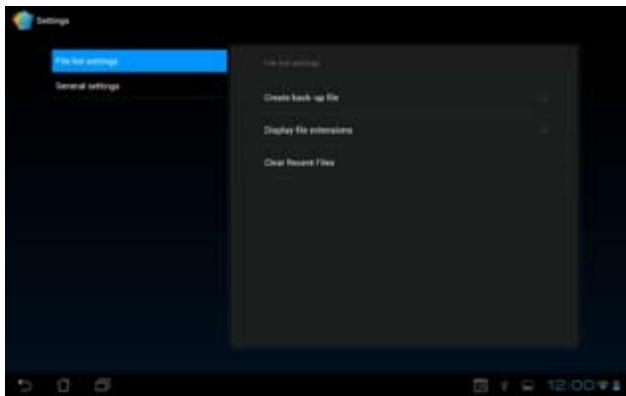
To configure the settings:
- From the Polaris® Office screen, tap > Settings.
- Tap to enable any of these settings: Create backup file, Display file extensions, or Pivot lock.
Sharing
MyNet
MyNet allows you to store, save, and stream audio, video, and images files between your Eee Pad and a DLNA device such as your computer, TV, or speakers.

DLNA (Digital Living Network Alliance) is the networking standard that allows network devices to seamlessly communicate with each other.

- MyNet only works with Microsoft Media Player 11 or later version.
- MyNet will not work if the devices are connected via 3G network.
- Your Eee Pad and the DLNA device such as computer, TV, or speakers must be connected to the same wireless network. Otherwise, MyNet will not function.
To use MyNet:
- Ensure that your ASUS Transformer Pad and PC are connected to the same wireless access point (AP).
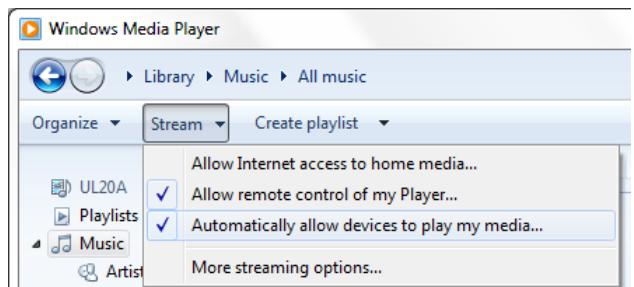
- Click and enable Allow remote control of my Player and Automatically devices to play my media on your computer's media player on the PC. Go to More streaming options... to configure if necessary.
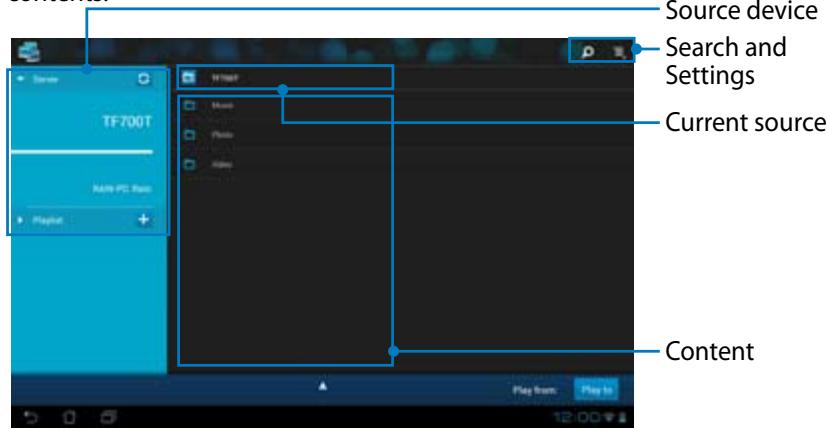
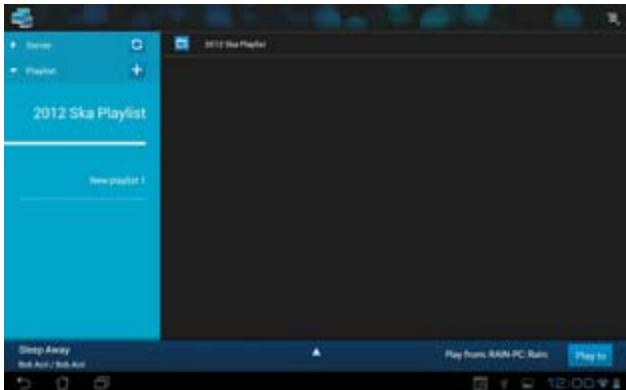
- On the Server list, select the source device on the left panel to view the contents.
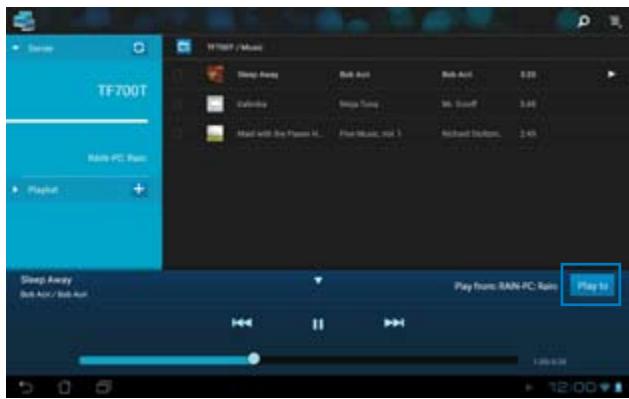
- Select a file and tap Play to on the bottom right to start playing on the target device.
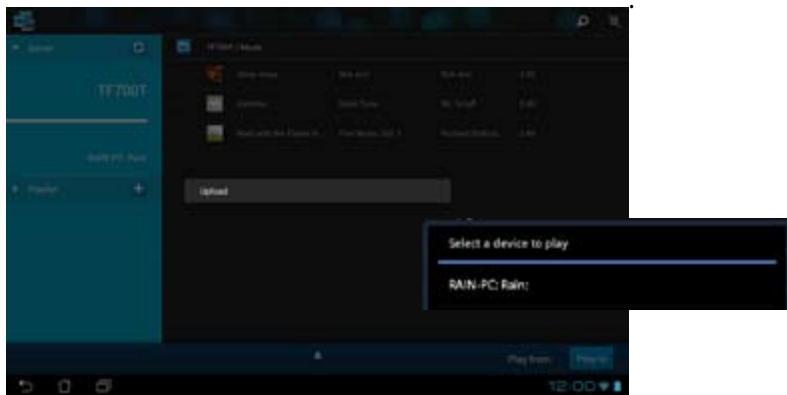
Tap and hold a media file to upload or download the file to and from the connecting devices.
You can also select a file from the Playlist. The Playlist offers a common space for the connected devices to share files. Tap the plus sign (+) to create new lists.
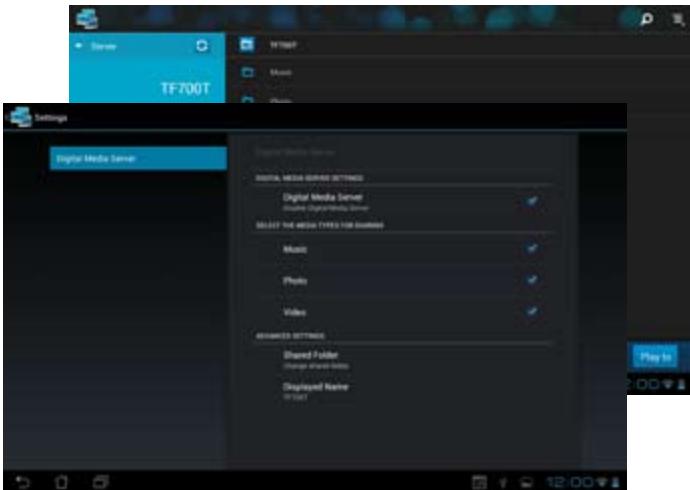
- To enable Digital Media Server, tap Settings at the upper right corner and tick Digital Media Server Settings to allow the other connecting devices to access media files on your ASUS Transformer Pad. You can also select the location of the file you want to share.
MyCloud
MyCloud allows you to safely access your files from your ASUS Webstorage cloud account and synchronize them with your Eee Pad; remotely access or control your computer; and access radio stations and music files for streaming.

- Before using MyCloud, ensure that you install the Eee Pad PC Suite on your computer. You can download Eee Pad PC Suite from the ASUS Support site at support.asus.com
- For details on Eee Pad PC Suite, refer to the section Using Eee Pad PC Suite.
To launch MyCloud:
- Tap MyCloud on the Apps Menu.
- Tap Next to continue.
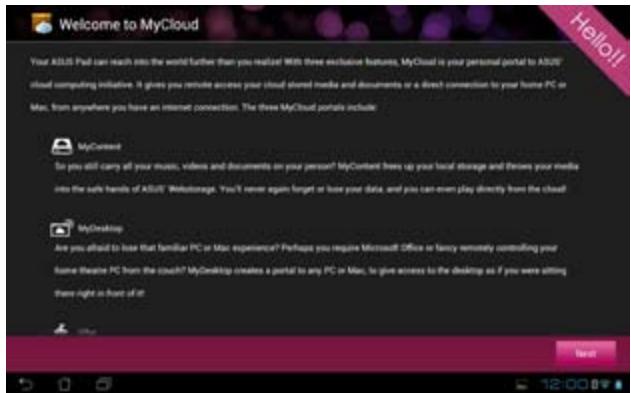
- MyCloud needs to work with ASUS Pad PC Suite to avail its full function. Download and install ASUS Pad PC Suite from the ASUS support site at support.asus.com to your PC. Click Next to continue.

Accessing files via My Content
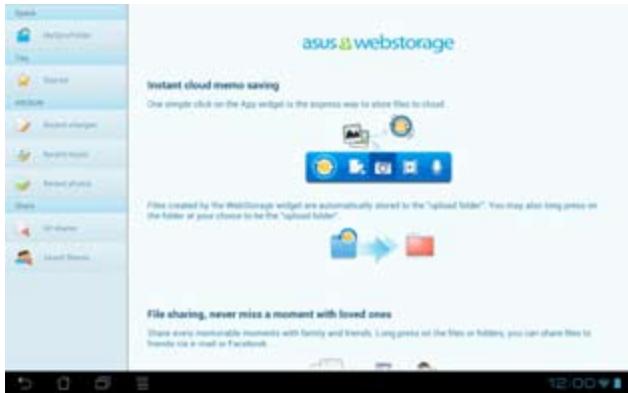
MyContent allows you to access your data such as music, videos, or audio files from ASUS Webstorage.
To use MyContent:
- Tap I have an account to sign in or tap Create an account to create your free account.
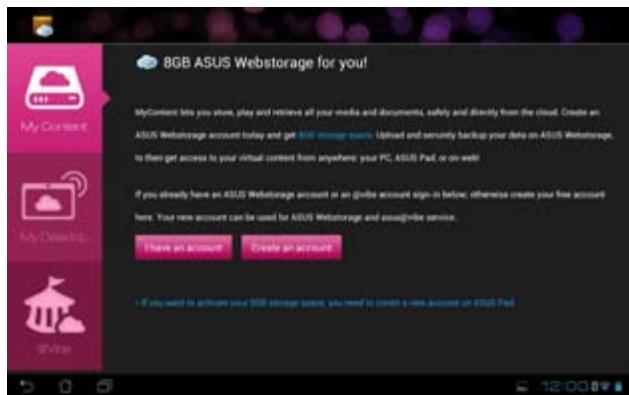
- After signing in, you will see all your data stored in ASUS Webstorage. Look for your data according to its category.
Remote controlling via My Desktop
MyDesktop allows you to remotely control your other PC from your ASUS Transformer Pad.

Download the ASUS Transformer Pad PC Suite from the ASUS Support site at support.asus.com.
Installing and setting up Eee Pad Suite on your computer To install and set up Eee Pad PC Suite on your computer:
- Ensure that your computer has Internet connection.
- Double-click the executable file you downloaded from the ASUS support site.
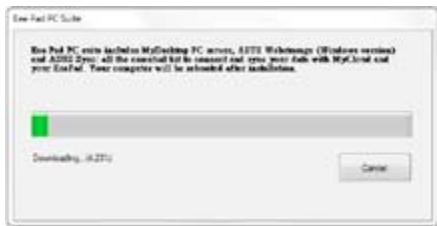
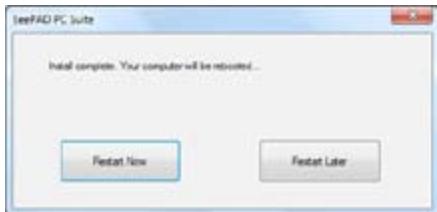
- Click Restart Now to reboot your computer.
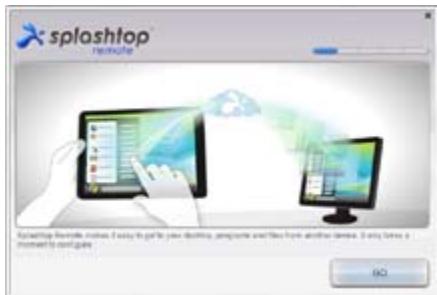
- Click Go.
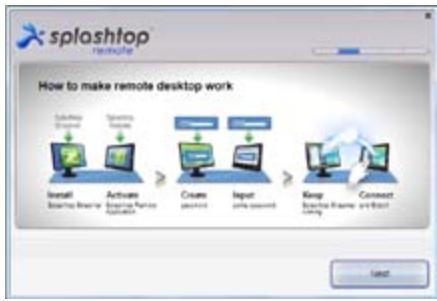
- Click Next to continue.
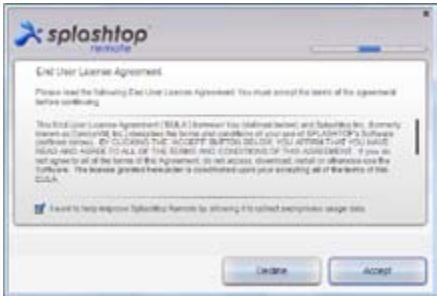
- Read the license agreement and click Accept to continue.
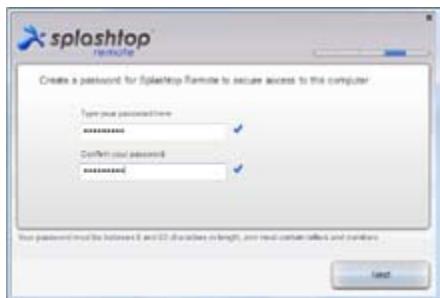
- Create your security code or password and click Next.
- Click Enjoy Now to continue.
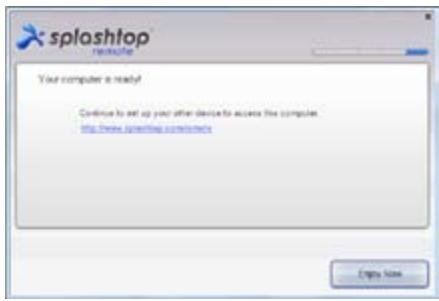
- Copy the IP address of your PC on your ASUS Transformer Pad for later use.
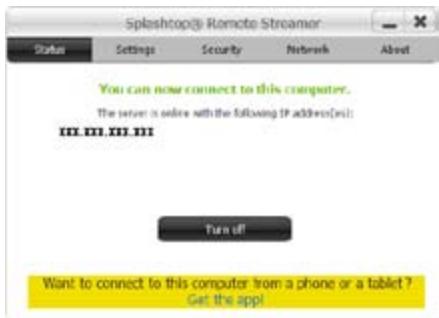
Using MyDesktop on your ASUS Transformer Pad:
- Ensure that your ASUS Transformer Pad and the PC are connected to the same wireless access point (AP).
- Tap Start to scan all available devices.
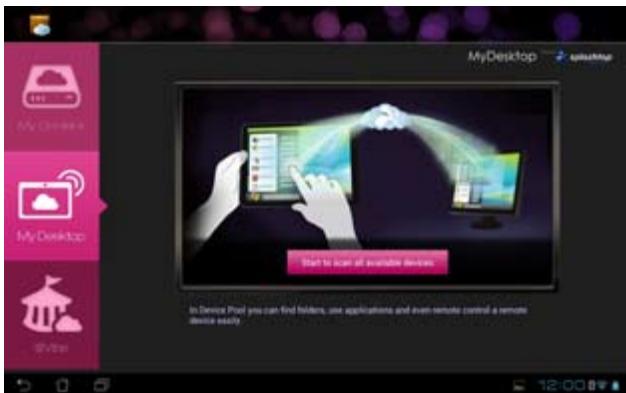
- Tap the plus sign (+) on the top right corner to add your computer's information.
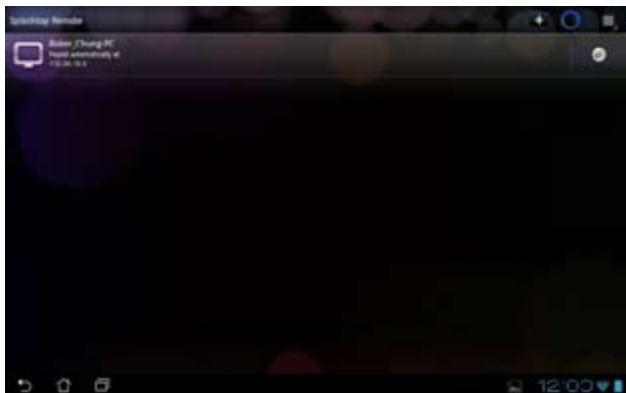
- Tap OK to continue.
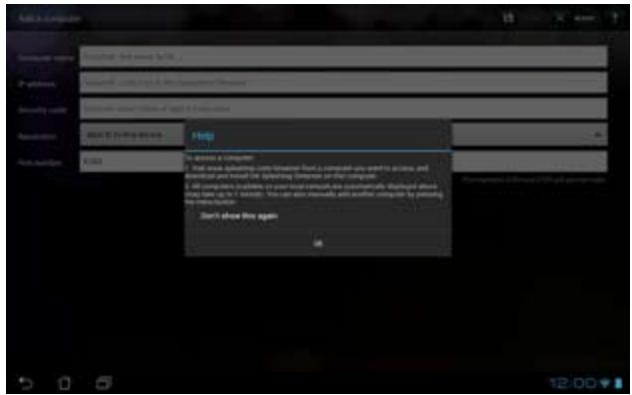
- Manually enter all the information of your client PC, including the IP address and the password you previously copied and tap Done to add the client.
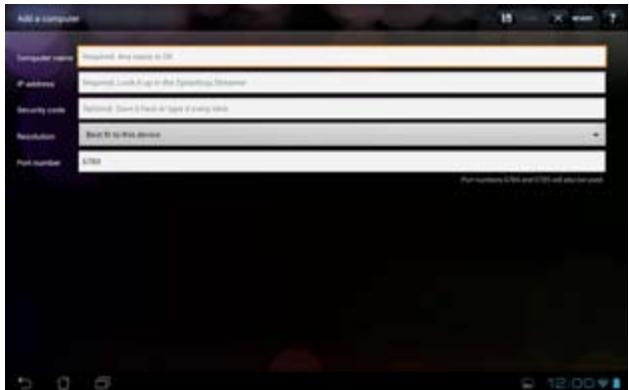

My Desktop will not be able to function when connecting through 3G network connection.
Setting up Internet Discovery for My Desktop
To set up Internet Discovery on your PC:
- Download and activate Splashtop Streamer from the ASUS support site.
- Click Network.
- Enter your Google credentials in the Email and Password fields and click Sign in.
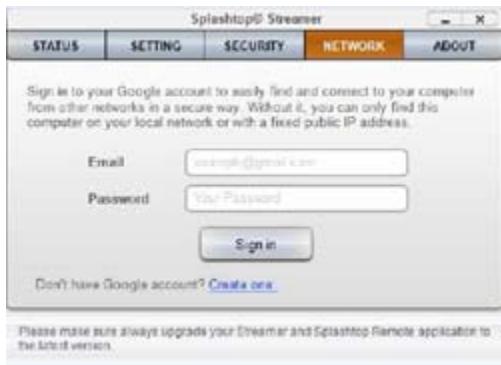
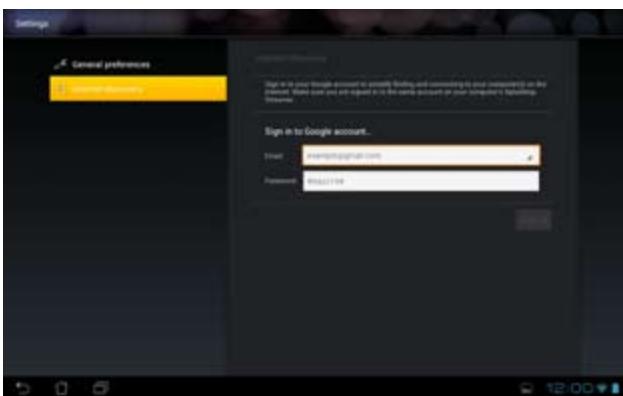
To set up Internet Discovery on your ASUS Transformer Pad:
Tap Settings on the top right corner and enter your Google account in Internet discovery. Your device will automatically detect your PC.
@Vibe
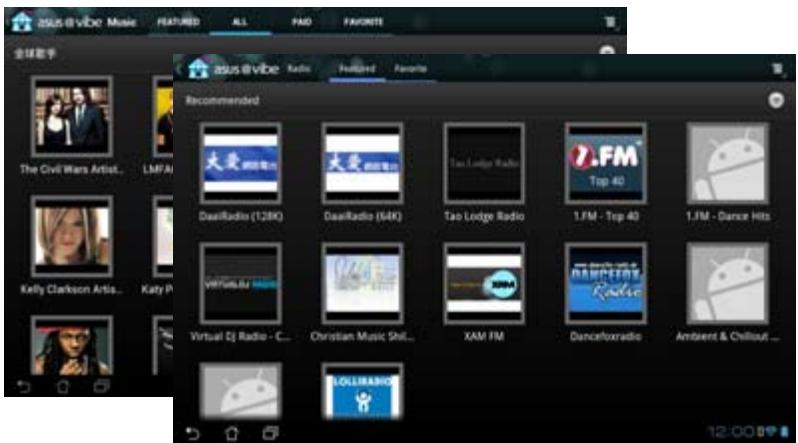
ASUS@Vibe is a one-stop entertainment platform that serves as a value-added service for all ASUS products. With the asus@vibe platform, you can access or download a wealth of exciting and engaging digital content such as music, videos, games, magazines, eBooks, as well as tune into you favorite radio stations and stream live TV anytime and anywhere.

The contents supplied may vary with the country or region.
To use @Vibe:
- Tap Apps menu and tap @Vibe.
- Log into your account.
- Select Music or Radio.
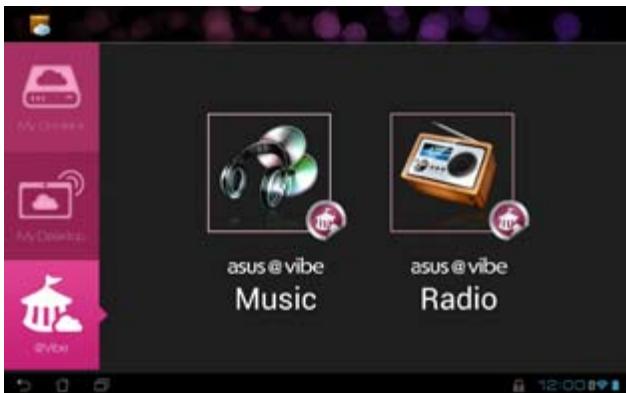
- Scroll and select your desired disc or radio station.
App Locker
App Locker allows you to password-protect your apps.
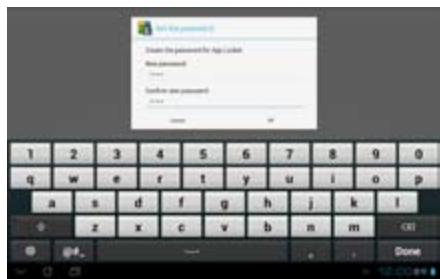
To use App Locker:
- Tap App Locker from the Apps Menu.
- Set up your password.
- Tick the apps you would like to lock.
- Activate App Locker from Settings on the upper right corner.
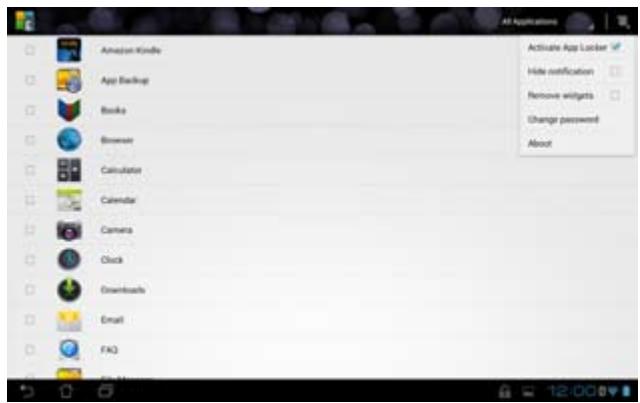
- Locked apps will have locked icons on the Home Screen.
- You will be asked for your password every time you access the locked apps.

App Backup
App Backup allows you to back up your installed apps and app data on the internal storage and to an external storage device. App Backup can also restore your installed apps and app data after updating your device to make sure your data will not be lost.

App Backup cannot restore apps that require an account authentication. If you encounter problems, please clear data for the apps via the path: Settings>Apps and log in again.
To use App Backup:
- Tap App Backup from the Apps Menu.
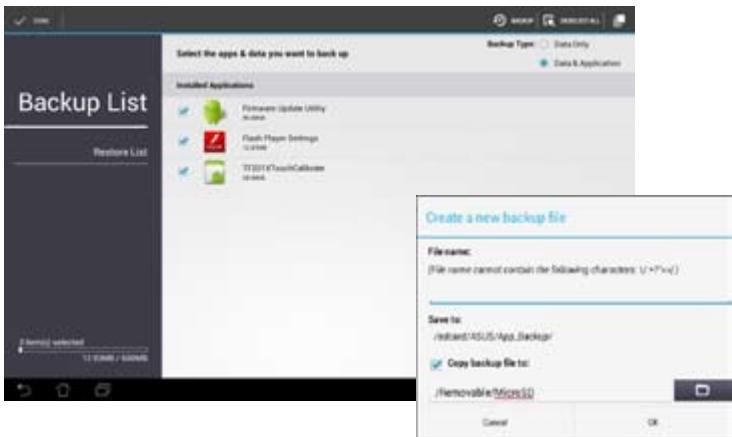
- The Backup List shows the installed applications on your ASUS Transformer Pad downloaded from the Android Market. Select the apps you want to back up and tap Backup.
- Insert a MicroSD card or other storage devices if necessary. Tap File Manager at the lower right of the dialog box to select the destination folder of your back up files.
- Key in the file name of new backup file to create and select OK. Backup files are automatically stored in App_Backup folder in the internal storage and in your external storage device.
To use App Restore:
- Tap Restore List to show the app files stored.
- Tap a backup file to restore or tap Browse on the upper right corner to access the files in the internal or external storage device.
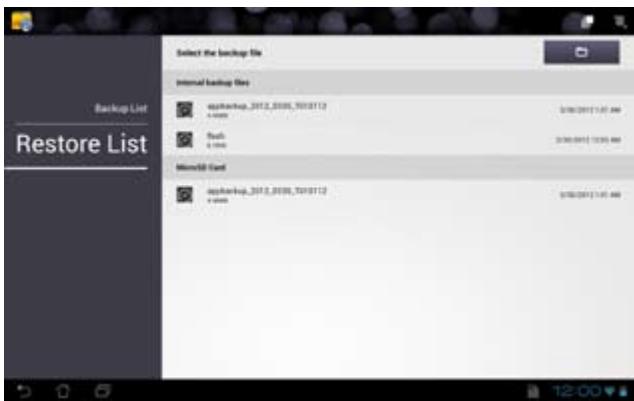
- Enter the file password to decrypt the backup file and restore contents to your ASUS Transformer Pad.
SuperNote
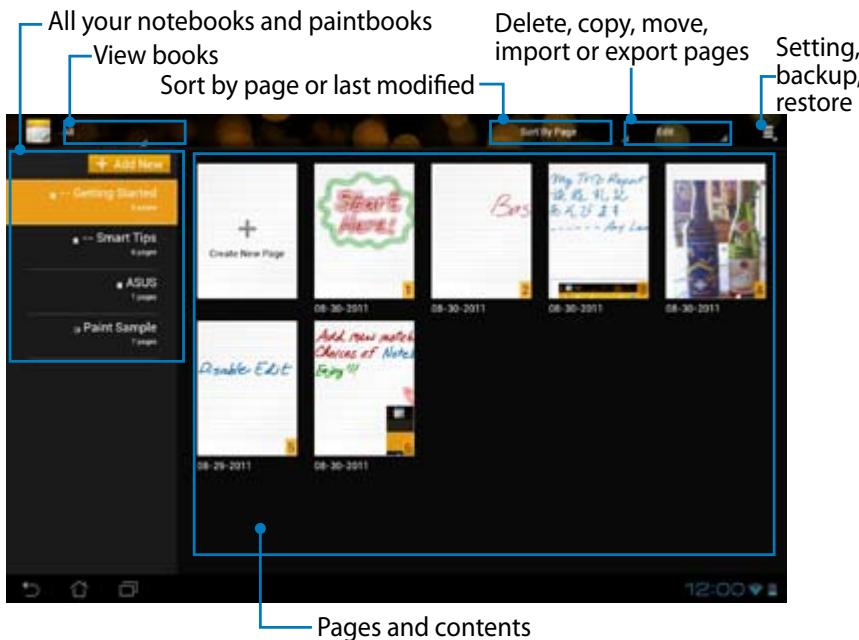
SuperNote is a convenient app used for writing and painting on your ASUS Transformer Pad. You can take notes, send instant messages, draw sketches, create e-cards with audio recordings or diaries with video, and lots more.
Using SuperNote
To create a new notebook or paintbook:
- Tap + Add New on the left panel of the SuperNote main page.
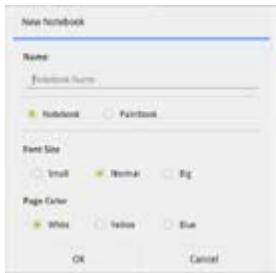
- Name the file and choose Notebook or Paintbook.
- Select a font size and page background color, then tap OK. The new note page appears instantly.
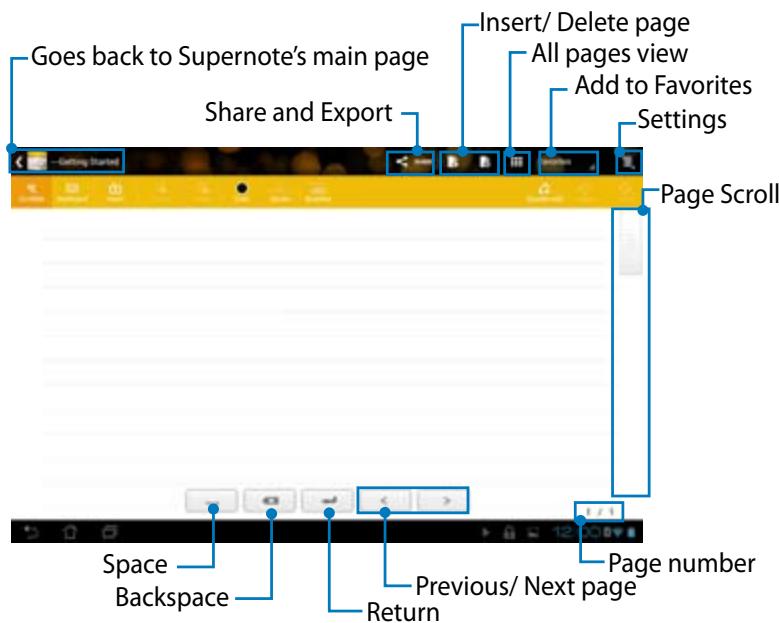
- Tap on the return path on the upper left for an overall view of the books and note pages.
- On the upper right, tap Share to share by e-mail, webstorage, social networks, or online gallery.
Using the SuperNote Notebook
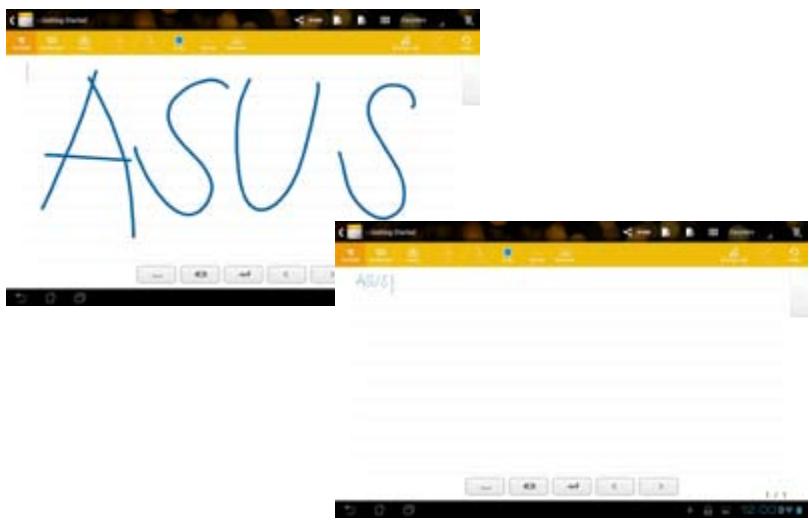
SuperNote Notebook is designed to allow you to scribble on the ASUS Transformer Pad continuously regardless of page lines. The app automatically adjusts the scribbled notes.
- Choose Scribble mode or Keyboard mode to enter your notes.
- In Scribble mode, select Color and Stroke weight to customize strokes.
- Tap to set a spot for the text cursor, then scribble on the tablet. The scribbled note automatically adjusts into the page lines.
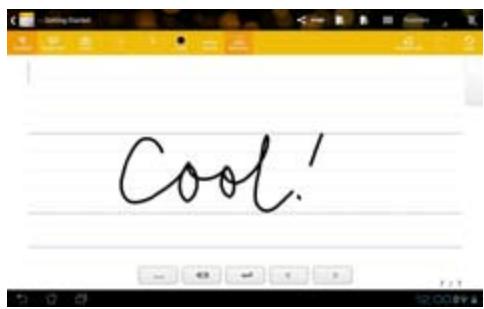
- Tap Baseline for penmanship guidelines, if necessary.
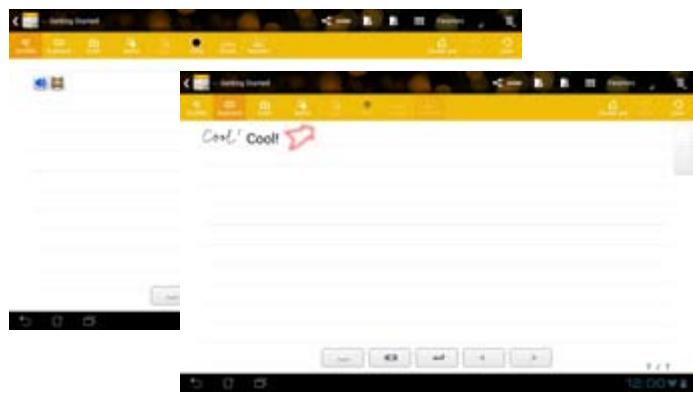
- Tap Insert to make annotations, create time stamps, insert photos, drawings from paintbook, picture from gallery, voice, video, or other text and picture file.
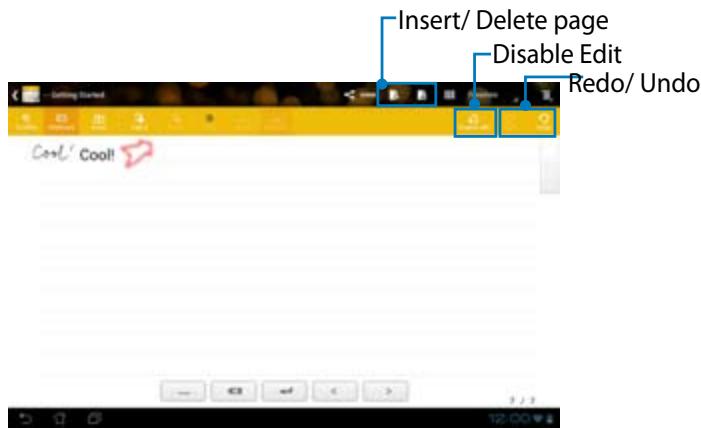
- Insert a new page in the notebook or delete to discard unwanted pages.
- Tap Disable Edit to enable Read Only mode to view and flip through the note pages and avoid entering unnecessary marks on the pages.
- Tap Undo to delete changes. Tap Redo to keep the changes.
- SuperNote automatically saves and sorts the files by date in /sdcard/supernote.
Using the SuperNote Paintbook
SuperNote Paintbook provides you with an immediate interface to draw and save to an electronic file. The Paintbook is similar to the Notebook in structure with additional color options and brush selections for you to draw freely on a canvas.
- Select Brush, Stroke, and Color to customize strokes.
- Tap Tools to display Brush and Color palettes.
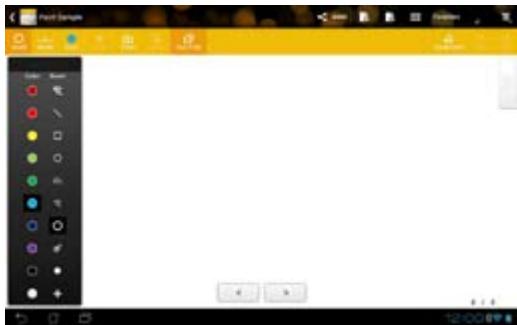
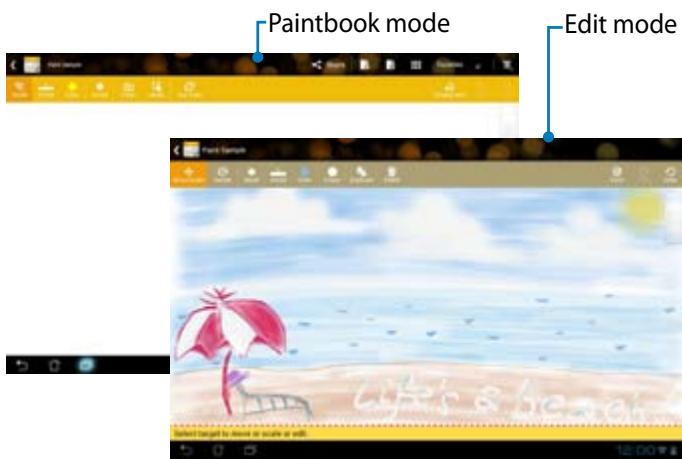
- Once you enter the first stroke or tap Select, the canvas switches to Edit mode.
- Tap Select to move, scale, rotate, or edit the selected area. A red dotted box will appear to designate the area.
- Tap Done to return to Paintbook mode.
Using ASUS Pad PC Suite
ASUS Pad PC Suite consists of My Desktop PC Server, ASUS Webstorage and ASUS Sync. It allows you to connect your ASUS Transformer Pad to your computer.
My Desktop PC Server
My Desktop PC Server allows you to remotely access your computer from your ASUS Transformer Pad.
For more details, refer to section MyCloud.
ASUS Webstorage
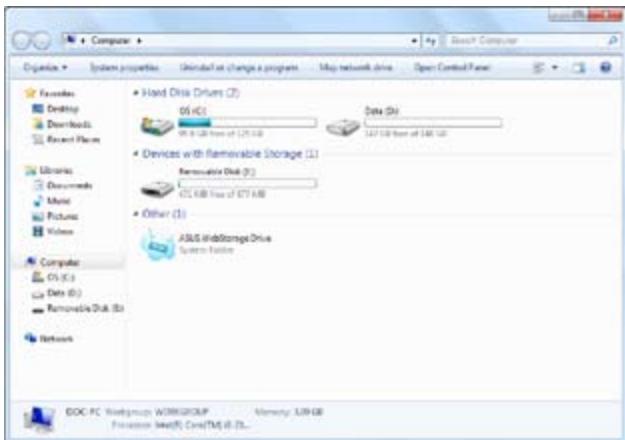
ASUS Webstorage is an a online repository for your files that you can access anytime and anywhere.
After installing ASUS Pad PC Suite on your computer, the ASUS Webstorage drive appears in Computer. Double-click the drive to log in.

Ensure that you have Internet connection before accessing the ASUS Webstorage drive.
ASUS Sync
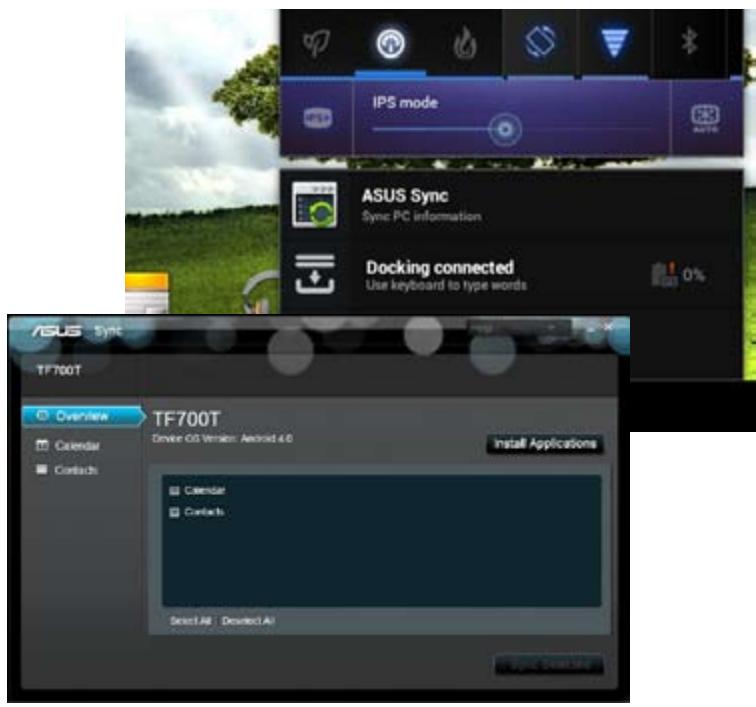
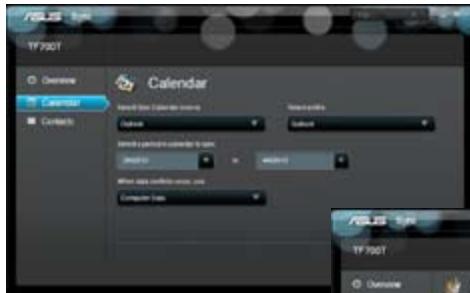
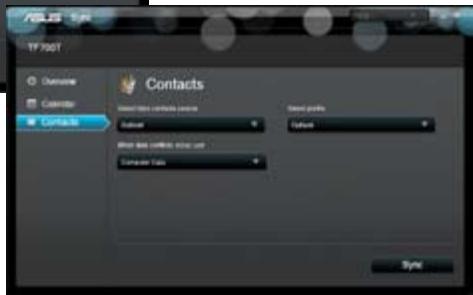
ASUS Sync helps you synchronize the Contacts and Calendar of your Outlook on your PC with your ASUS Transformer Pad.
To synchronize your ASUS Transformer Pad with your PC:
- Use the bundled USB Dock cable to connect your ASUS Transformer Pad to your computer.
- Click the ASUS Sync on the bottom right corner to connect your ASUS Transformer Pad to your computer.
- Start ASUS Sync on your computer.

- For Calendar synchronization, ASUS Sync supports Outlook (2003 or later version), and Windows Vista Calendar.
For Contacts synchronization, ASUS Sync supports Outlook (2003 or later version), Outlook Express, and Windows Vista Contacts.
- Click the item you want to synchronize and click Sync Selected, or you can click Select All to sync both items.
- Click Calendar or Contacts on the left for detailed configurations.
All about the ASUS Transformer Pad mobile dock (optional)
ASUS Transformer Pad mobile dock

The ASUS Transformer Pad mobile dock is purchased separately.


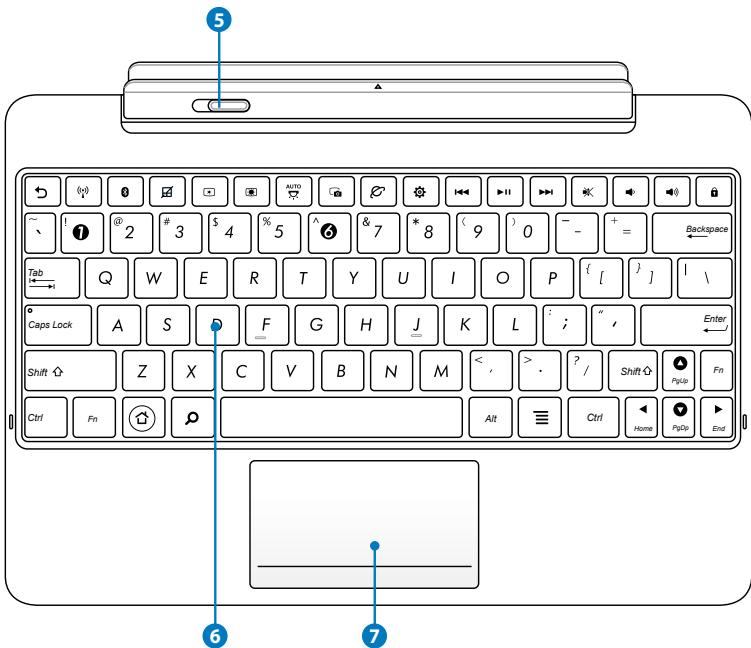
USB Dock port
Insert the USB Dock cable into this port to supply power to your ASUS Transformer Pad mobile dock and charge the internal battery pack. To prevent damage to your ASUS Transformer Pad mobile dock and battery pack, always use the bundled power adapter.
2 Battery charge indicator (dual-color)
Dim: The power charger is not plugged in the mobile dock.
Green: The battery level is up to 95% .
Orange: The mobile dock is in battery charging mode.
3 SD card slot
Insert an SD card into this slot.

For details, refer to section Installing and removing an SD card.
4 USB port (2.0)
The USB (Universal Serial Bus) port is compatible with USB 2.0 or USB 1.1 devices such as keyboards, pointing devices, flash disk drives and hard disk drives.
5 Mobile dock latch
Move the mobile dock latch to the left to release the ASUS Transformer Pad from the mobile dock.
6 Keyboard
The keyboard provides comfortable key travel, which is the depth that the keys can be pressed to reliably enter the characters, and palm rest for both hands.

The keyboard differs by territory.
Touchpad
Click the touchpad area marked below to simulate the left and right mouse buttons.
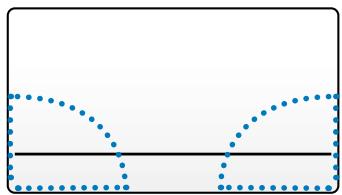

Use the hot key to disable the touchpad.
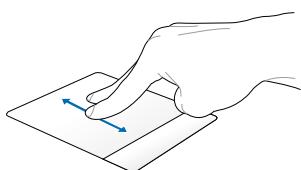
Using the Touchpad
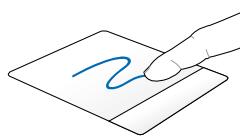
A
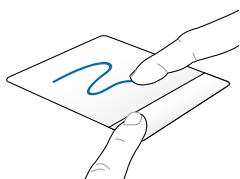
Slide your finger across the touchpad to move the pointer. You can also hold the left button and slide your finger to drag the selected item.
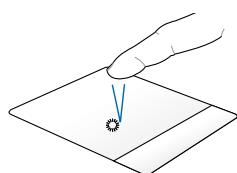
B
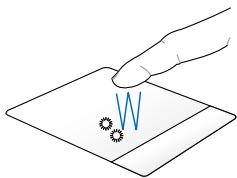
Single tap to select an item. Double tap to launch item.
C
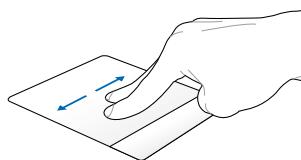
Slide two fingers to scroll up/ down or move up/down/left/right.

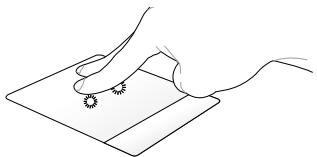
Use two fingers to hold a selected item.
Special Keyboard Functions
Some special keys on your mobile dock's keyboard have standalone functions and some must be used with the function key <Fn> .

The special keys' locations on the mobile dock's keyboard vary with country or region, but their functions remain the same.

Returns to the previous page.

Toggles the internal wireless LAN ON or OFF.

Toggles the internal Bluetooth ON or OFF.

Toggles the touchpad ON or OFF.

Decreases the display brightness.

Increases the display brightness.

Toggles the ambient light sensor ON or OFF.

Captures the screen image.

Launches the web browser.

Launches the Settings screen.

Returns to the previous track when playing music.

Starts playing music from your playlist. Resumes or pauses the current playback.

Fast forwards or skips to the next track during playback.

Mutes the speaker.

Decreases the speaker volume.

Increases the speaker volume.

Locks the ASUS Transformer Pad and puts it into sleep mode.

Returns to Home Screen.

Browsing the contents in the ASUS Transformer Pad and the web.

Activates the properties menu and is equivalent to or on the screen.


Press <Fn> and the arrow keys to scroll up and down or scroll to the start and end of a document or web page.
Docking the ASUS Transformer Pad
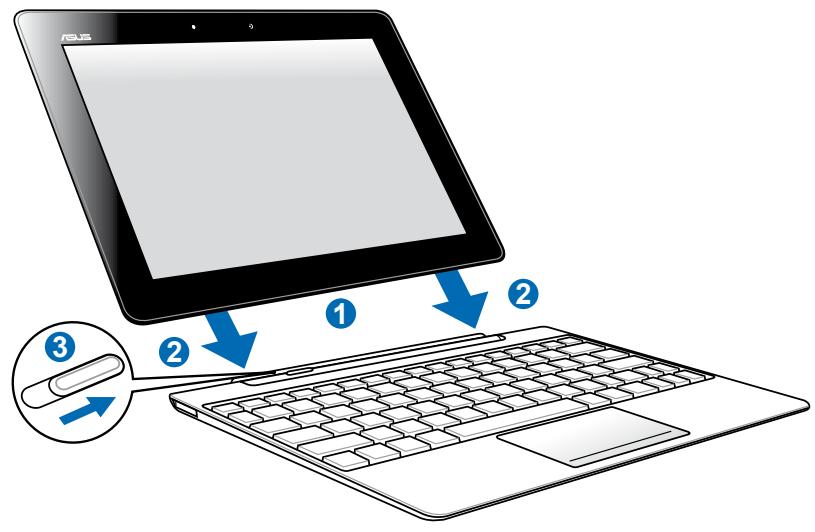
To dock the ASUS Transformer Pad:
- Align the ASUS Transformer Pad with the mobile dock.
- Firmly insert the ASUS Transformer Pad into the socket until it clicks, indicating that the ASUS Transformer Pad is securely seated on the dock.
- Ensure that the latch completely moves to the right.

Always pick up the entire device assembly from the bottom when your ASUS Transformer Pad is attached to the mobile dock.
Undocking the ASUS Transformer Pad
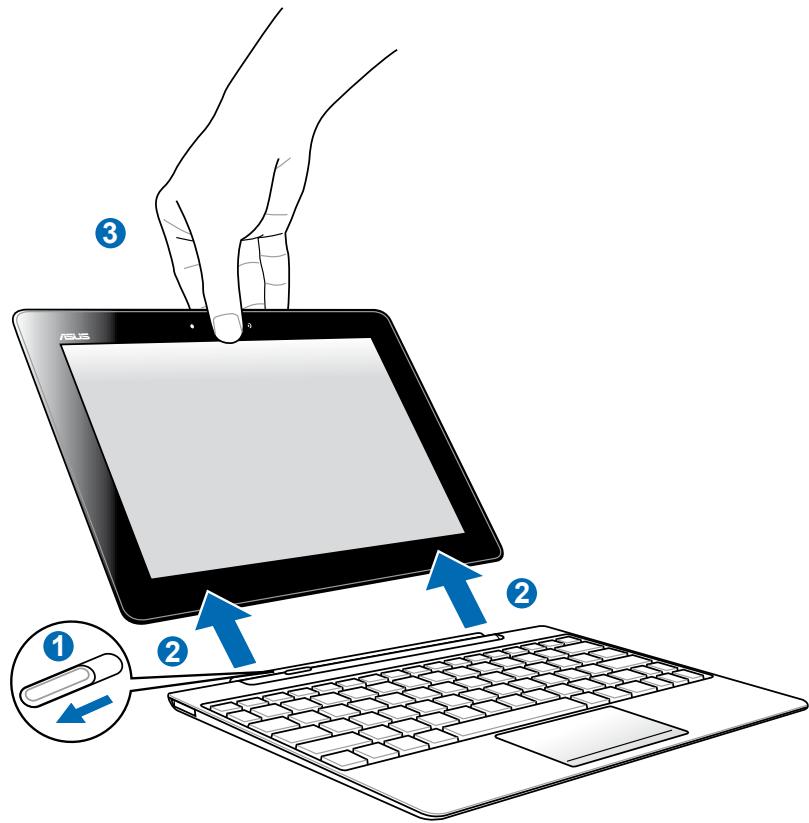
To undock the ASUS Transformer Pad:
- Use one hand to move the latch to the left to release the ASUS Transformer Pad and stabilize the mobile dock.
- Use the other hand to remove the ASUS Transformer Pad from the mobile dock.
Charging the ASUS Transformer Pad on the mobile dock
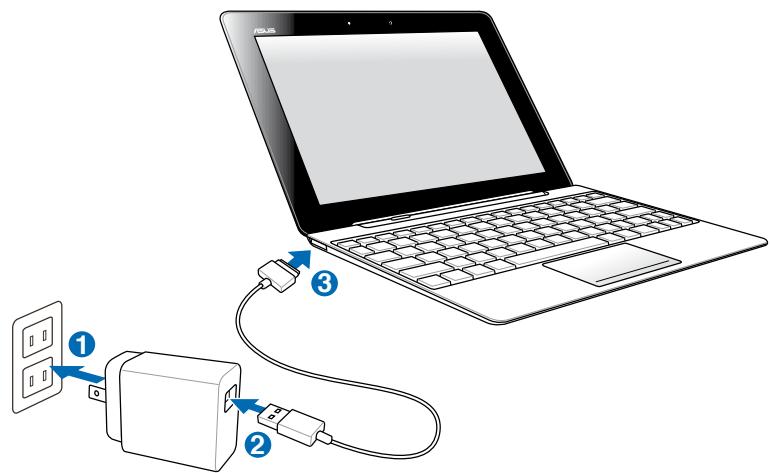

- Use only the power adapter that comes with your device. Using a different power adapter may damage your device.
- Ensure that the 40-pin USB connector is fully inserted into your ASUS Transformer Pad or mobile dock.
- The input voltage range between the wall outlet and this adapter is AC 100V–240V, and the output voltage of this adapter is DC 15V, 1.2A.

Fully charge the battery up to eight hours for first-time use.
- The ASUS Transformer Pad cannot be charged via the USB Dock cable when it is connected to the mobile dock.
Installing and removing an SD card
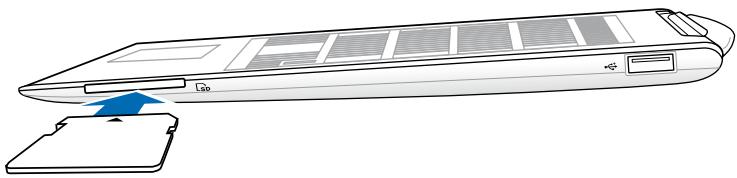
To install the SD card:
- Remove the SD slot cover from the SD card slot.
- Insert the SD card into the SD card slot.
- Push the SD card until it locks in place.
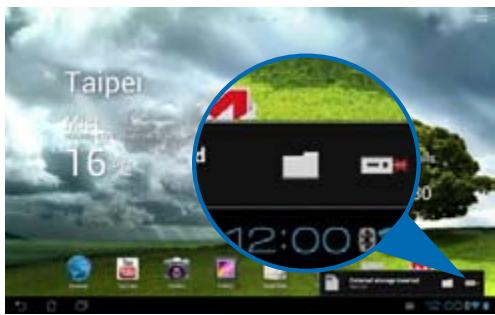
To remove the SD card
- Tap the SD card icon at the bottom right corner and tap to safely remove the microSD card.
2 Press the card slightly until it ejects.
Declarations and Safety Statements
Federal Communications Commission Statement
This device complies with part 15 of the FCC Rules. Operation is subject to the following two conditions: (1) This device may not cause harmful interference, and (2) this device must accept any interference received, including interference that may cause undesired operation.
This device has been tested and found to comply with the limits for a Class B digital device, pursuant to Part 15 of the FCC Rules. These limits are designed to provide reasonable protection against harmful interference in a residential installation. This equipment generates, uses and can radiated radio frequency energy and, if not installed and used in accordance with the instructions, may cause harmful interference to radio communications. However, there is no guarantee that interference will not occur in a particular installation. If this equipment does cause harmful interference to radio or television reception, which can be determined by turning the equipment off and on, the user is encouraged to try to correct the interference by one or more of the following measures:
Reorient or relocate the receiving antenna.
- Increase the separation between the equipment and receiver.
- Connect the equipment into an outlet on a circuit different from that to which the receiver is connected.
- Consult the dealer or an experienced radio/TV technician for help.
Changes or modifications not expressly approved by the party responsible for compliance could void the user's authority to operate the equipment.
The antenna(s) used for this transmitter must not be co-located or operating in conjunction with any other antenna or transmitter.
RF Exposure Information (SAR)
This device meets the government's requirements for exposure to radio waves. This device is designed and manufactured not to exceed the emission limits for exposure to radio frequency (RF) energy set by the Federal Communications Commission of the U.S. Government.
The exposure standard employs a unit of measurement known as the Specific Absorption Rate, or SAR. The SAR limit set by the FCC is 1.6W / kg . Tests for SAR are conducted using standard operating positions accepted by the FCC with the EUT transmitting at the specified power level in different channels.
The highest SAR value for the device as reported to the FCC is 0.45 W/kg when placed next to the body.
The FCC has granted an Equipment Authorization for this device with all reported SAR levels evaluated as in compliance with the FCC RF exposure guidelines. SAR information on this device is on file with the FCC and can be found under the Display Grant section of www.fcc.gov/oet/ea/fccid after searching on FCC ID: MSQTF201.
This device is compliance with SAR for general population /uncontrolled exposure limits in ANSI/IEEE C95.1-1999 and had been tested in accordance with the measurement methods and procedures specified in OET Bulletin 65 Supplement C.
IC Regulations
This device complies with Industry Canada licence-exempt RSS standard(s). Operation is subject to the following two conditions: (1) this device may not cause interference, and (2) this device must accept any interference, including interference that may cause undesired operation of the device.
This Class B digital apparatus complies with Canadian ICES-003.
This Category II radiocommunication device complies with Industry Canada Standard RSS-310.
This EUT is compliance with SAR for general population/uncontrolled exposure limits in IC RSS-102 and had been tested in accordance with the measurement methods and procedures specified in lep 1528. This equipment should be installed and operated with minimum distance 0cm between the radiator & your body.
This device and its antenna(s) must not be co-located or operating in conjunction with any other antenna or transmitter.
The County Code Selection feature is disabled for products marketed in the US/Canada.
For product available in the USA/ Canada markets, only channel 1~11 can be operated. Selection of other channels is not possible.
CE Mark Warning
C E
CE marking for devices without wireless LAN/Bluetooth
The shipped version of this device complies with the requirements of the EEC directives 2004/108/EC "Electromagnetic compatibility" and 2006/95/EC "Low voltage directive".

CE marking for devices with wireless LAN/ Bluetooth
This equipment complies with the requirements of Directive 1999/5/EC of the European Parliament and Commission from 9 March, 1999 governing Radio and Telecommunications Equipment and mutual recognition of conformity.
Power Safety Requirement
Products with electrical current ratings up to 6A and weighing more than 3Kg must use approved power cords greater than or equal to: H05VV-F, 3G, 0.75mm^2 or H05VV-F, 2G, 0.75mm^2 .
ASUS Recycling/Takeback Services
ASUS recycling and takeback programs come from our commitment to the highest standards for protecting our environment. We believe in providing solutions for you to be able to responsibly recycle our products, batteries, other components as well as the packaging materials. Please go to http://csr.asus.com/english/Takeback.htm for detailed recycling information in different regions.

Risk of Explosion if Battery is Replaced by an Incorrect Type. Dispose of Used Batteries According to the Instructions.

DO NOT throw the battery in municipal waste. The symbol of the crossed out wheeled bin indicates that the battery should not be placed in municipal waste.

DO NOT throw the ASUS Transformer Pad in municipal waste. This product has been designed to enable proper reuse of parts and recycling. The symbol of the crossed out wheeled bin indicates that the product (electrical, electronic equipment and mercury-containing button cell battery) should not be placed in municipal waste. Check local regulations for disposal of electronic products.

SAFE TEMP: This ASUS Transformer Pad should only be used in environments with ambient temperatures between 0^ ( 32^ ) and 35^ ( 95^ ).

Tuxera software provides support for NTFS format.
AccuWeather.com
The weather information is provided by AccuWeather.com.

ARPHIC
The iFont font format adopted in this product is developed by Arphic.

Adobe® Flash® Player support+
+Flash Player 10.2 is now available for download on Android Market. This is a production GA (General Availability) release for Android 2.2 (Froyo) and 2.3 (Gingerbread) devices and an initial beta release for Android 3.x (Honeycomb) tablets that include at least Google's 3.0.1 system update.
For more details, please visit http://blogs.adobe.com/flashplayer/.

Download the latest Adobe Flash Player version 11.1.112.60 for ICS devices.
Copyright Information
No part of this manual, including the products and software described in it, may be reproduced, transmitted, transcribed, stored in a retrieval system, or tranPadd into any language in any form or by any means, except documentation kept by the purchaser for backup purposes, without the express written permission of ASUSTeK COMPUTER INC. ("ASUS").
ASUS and ASUS Transformer Pad logo are trademarks of ASUSTek Computer Inc.
Information in this document is subject to change without notice.
Copyright © 2012 ASUSTeK COMPUTER INC. All Rights Reserved.
Limitation of Liability
Circumstances may arise where because of a default on ASUS' part or other liability, you are entitled to recover damages from ASUS. In each such instance, regardless of the basis on which you are entitled to claim damages from ASUS, ASUS is liable for no more than damages for bodily injury (including death) and damage to real property and tangible personal property; or any other actual and direct damages resulted from omission or failure of performing legal duties under this Warranty Statement, up to the listed contract price of each product.
ASUS will only be responsible for or indemnify you for loss, damages or claims based in contract, tort or infringement under this Warranty Statement.
This limit also applies to ASUS' suppliers and its reseller. It is the maximum for which ASUS, its suppliers, and your reseller are collectively responsible.
UNDER NO CIRCUMSTANCES IS ASUS LIABLE FOR ANY OF THE FOLLOWING: (1) THIRD-PARTY CLAIMS AGAINST YOU FOR DAMAGES; (2) LOSS OF, OR DAMAGE TO, YOUR RECORDS OR DATA; OR (3) SPECIAL, INCIDENTAL, OR INDIRECT DAMAGES OR FOR ANY ECONOMIC CONSEQUENTIAL DAMAGES (INCLUDING LOST PROFITS OR SAVINGS), EVEN IF ASUS, ITS SUPPLIERS OR YOUR RESELLER IS INFORMED OF THEIR POSSIBILITY.
| Manufacturer | ASUSTek COMPUTER INC. |
| Address, City | No. 150, LI-TE RD., PEITOU, TAIPEI 112, TAIWAN R.O.C |
| Country | TAIWAN |
| Authorized Representative in Europe | ASUS COMPUTER GmbH |
| Address, City | HARKORT STR. 21-23, 40880 RATINGEN |
| Country | GERMANY |