GTB-DVIKVM-ELR - Équipement AV Gefen - Free user manual and instructions
Find the device manual for free GTB-DVIKVM-ELR Gefen in PDF.


| Product Type | DVI KVM Extender |
| Brand | Gefen |
| Model | GTB-DVIKVM-ELR |
| Video Interface | DVI-D Single Link |
| Max Resolution | 1920x1200 @ 60Hz |
| Transmission Distance | Up to 100 meters over CAT5e/6 |
| USB Support | Yes (keyboard & mouse) |
| Power Supply | 5V DC 2A (included) |
| Dimensions (WxDxH) | 120mm x 70mm x 30mm |
| Weight | 0.5 kg |
| Housing Material | Metal |
| Input Connectors | 1x DVI-D, 1x USB-B |
| Output Connectors | 1x DVI-D, 2x USB-A |
| Operating Temperature | 0°C to 50°C |
| Storage Temperature | -20°C to 70°C |
| Cable Type Required | CAT5e or CAT6 UTP |
| Audio Support | No (DVI only) |
| Control Method | Plug and play, no software needed |
| Maintenance | Clean with a dry soft cloth |
| Safety | Use only the provided power adapter |
| Spare Parts Availability | Check with Gefen support |
| Repairability | Not user-serviceable; contact support |
Frequently Asked Questions - GTB-DVIKVM-ELR Gefen
User questions about GTB-DVIKVM-ELR Gefen
0 question about this device. Answer the ones you know or ask your own.
Ask a new question about this device
Download the instructions for your Équipement AV in PDF format for free! Find your manual GTB-DVIKVM-ELR - Gefen and take your electronic device back in hand. On this page are published all the documents necessary for the use of your device. GTB-DVIKVM-ELR by Gefen.
USER MANUAL GTB-DVIKVM-ELR Gefen
Technical Support Hours:
8:00 AM to 5:00 PM Monday thru Friday.
Write To:
Gefen LLC
c/o Customer Service
20600 Nordhoff St
Chatsworth, CA 91311
www.gefen.com
support@gefen.com
Notice
Gefen LLC reserves the right to make changes in the hardware, packaging and any accompanying documentation without prior written notice.
DVIKVM Extra Long Range Extender
is a trademark of Gefen LLC
1 Introduction
2 Operation Notes
3 Features
4 Sender Unit Layout
5 Sender Unit Descriptions
6 Receiver Unit Layout
7 Receiver Unit Descriptions
8 Connecting and Operating the DVIKVM Extra Long Range Extender
9 DIP Switch Configuration
13 Firmware Update
14 Network Cable Wiring Diagram
15 Mounting Plate Installation
16 Specifications
17 Warranty
Congratulations on your purchase of the GefenToolBox DVIKVM Extra Long Range Extender. Your complete satisfaction is very important to us.
About Gefen
We specialize in total integration for your home theater, while also focusing on going above and beyond customer expectations to ensure you get the most from your hardware. We invite you to explore our distinct product line. Please visit http://www.gefen.com for the latest offerings in High-Definition signal solutions or call us between the hours of 8:00 am and 5:00 pm Monday-Friday, Pacific Standard Time for assistance with your A/V needs. We'll be happy to assist you.
Why GefenToolBox?
The GefenToolBox line offers portable and easy-to-install solutions for common A/V system integration setups using DVI and HDMI connectivity. GefenToolBox products are wall-mountable and small in size. GefenToolBox products are easily transported in the field and are ready for immediate and simple installations in working environments. These products come finished in a glossy color to blend in with either a white wall or black cabinet.
The GefenToolBox DVIKVM Extra Long Range Extender
The DVIKVM ELR extender extends any DVI, Ethernet, RS-232, and USB source from a computer to a monitor, touch screen display, or other digital signage application over a distance up to 330 feet (100 meters) using two Cat-5 cables.
USB 2.0 data rates up to 480 Mbps are supported in addition to backward-compatibility with USB 1.1. The Receiver Unit allows the connections of up to two (2) USB devices, providing access to printers, scanners, cameras, external storage media, digital signage, and automated control systems.
This product uses Gefen ELR technology, allowing DVI, Ethernet, and RS-232 signals to travel along the same Cat-5 cable, reducing cabling costs and providing easier installation. A second Cat-5 cable is used for USB extension.
How It Works
Place the DVIKVM ELR Sender Unit next to the DVI source. Use the included DVI cable to connect the computer or other DVI source to the Sender Unit. Use the supplied USB cable to connect the USB host (source) device to the USB port on the Sender Unit. Connect the Receiver Unit to the monitor or digital signage display with a DVI cable. Connect the USB devices to the Receiver Unit. Use two Cat-5 cables, up to 330 feet (100 meters), to connect the Sender Unit to the Receiver Unit. Connect the included locking power supplies to the Sender Unit and Receiver Unit, and then connect both power cords to available electrical outlets.
PLEASE READ THESE NOTES BEFORE INSTALLING OR OPERATING THE DVIKVM EXTRA LONG RANGE EXTENDER
- CAT-5 or CAT-6 cables should not exceed 330 feet (100 meters).
- Shielded (STP) CAT-5 or CAT-6 is recommended. However, un-shielded (UTP) CAT-5 or CAT-6 is acceptable.
NOTE: The shielded cable has an advantage by providing immunity to Electromagnetic Interference (EMI), cell phones and A/C motors.
- The GefenToolBox DVIKVM Extra Long Range Extender Over One CAT5 features the ability to generate compatible EDID and Hot Plug signals when working with different brands of source devices and monitors.
Features
- Supports DVI resolutions up to 1920x1200 @ 60 Hz or 1080p at 330 feet (100 meters)
- Extends USB 2.0 up to 330 feet (100 meters)
• Supports USB 2.0 480 Mbps - Backward-compatible with USB 1.1 devices
- Extends Ethernet and RS-232 signals
- Works with PC and Mac computers
- Locking Power Supplies
- Wall-mountable
Package Includes
(1) GefenToolBox DVIKVM Extra Long Range Extender - Sender Unit
(1) GefenToolBox DVIKVM Extra Long Range Extender - Receiver Unit
(1) 6 ft. DVI Cable (M-M)
(1) 6 ft. USB cable (A-B)
(2) 5V DC Locking Power Supplies
(1) Quick-Start Guide
Right Side

natural_image
Front view of a network switch device with three Ethernet ports labeled 1, 2, and 3 (no additional text or symbols)Left Side
text_image
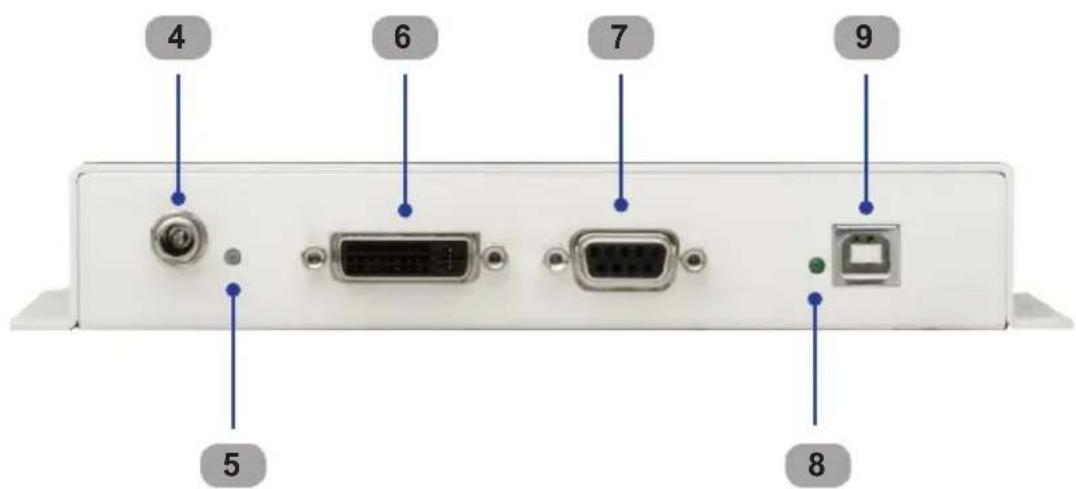
4 6 7 9 5 81 USB Link Connector
Connects the USB signals from the Sender Unit to the Receiver Unit using CAT-5e / CAT-6 cable.
2 DVI / RS-232 Link Connector
Connects the DVI and RS-232 signals from the Sender Unit to the Receiver Unit using CAT-5e / CAT-6 cable.
3 Ethernet Input
Connect a CAT-5 cable from a port on a local Ethernet switch to this jack. The DVIKVM-ELR supports 10/100BaseT Ethernet.
4 5 V DC Locking Power Connector
Connect the included 5 V DC locking power supply to this connector.
5 Power Indicator
This LED will glow red once the included 5V DC locking power supply has been properly connected to the unit and the locking power supply has been connected to an available electrical outlet.
6 DVI In
Connect a DVI cable from the computer to this DVI-I connector.
7 RS-232 Port
Connect a RS-232 Serial Cable from the RS-232 host device to this port.
8 USB Indicator
This LED glows green when a USB device is connected to the Sender Unit.
9 USB In
Connects the Sender Unit to the computer using a USB cable.
Right Side
natural_image
Front view of a network switch device with three ports labeled 1, 2, and 3 (no text or symbols on the device body)Left Side

text_image
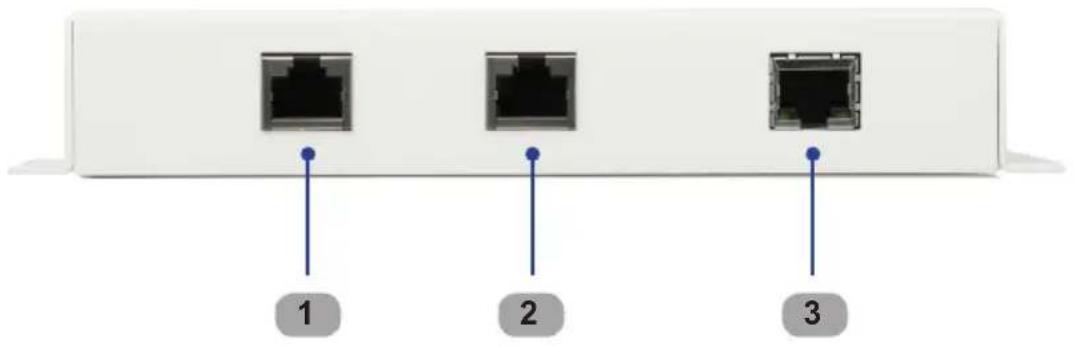
4 6 7 8 5 91 Remote Ethernet Port
Connect a CAT-5 Cable from this jack to the remote device that needs an Ethernet LAN connection. Up to 100BaseT speeds are supported.
2 DVI / RS-232 Link Connector
Connects the DVI and RS-232 signals from the Receiver Unit to the Sender Unit using CAT-5e / CAT-6 cable.
3 USB Link Connector
Connects the USB signals from the Receiver Unit to the Sender Unit using a second CAT-5e / CAT-6 cable.
4 USB Indicator
This LED glows green when a USB source is connected to the Receiver Unit.
5 USB Output Connectors
Connect the USB remote devices, such as a keyboard and mouse, to these ports.
6 RS-232 Port
Connect an RS-232 Serial Cable from this port to the device being controlled.
7 DVI Out
Connect a display to this DVI-I connector.
8 Power Indicator
This LED will glow red once the included 5V DC locking power supply has been properly connected to the unit and the locking power supply has been connected to an available electrical outlet.
9 5V DC Locking Power Connector
Connect the included 5 V DC locking power supply to this connector.
How to Connect the DVIKVM Extra Long Range Extender
- Connect the computer DVI output to the Sender Unit using the provided DVI cable. Connect the monitor to the Receiver Unit using a DVI cable.
- Connect the included USB cable from the computer to the Sender Unit.
- Connect the USB devices to the Receiver Unit.
- Connect the Ethernet port on the Sender Unit to an Ethernet source.
- Connect the Ethernet port on the Receiver Unit to the Ethernet (LAN) port on the display device.
- Connect the RS-232 ports to the host and display devices.
- Connect CAT-5e or CAT-6 cables between the Link ports on the Sender Unit and the Link ports on the Receiver Unit.
NOTE: If terminating network cables in the field, please adhere to the TIA/EIA568B specification (see page 14).
- Connect the 5V DC locking power supplies to the Sender Unit and Receiver Unit. Do not overtighten the locking connectors. Plug the two (2) AC power cords from the power supplies to available electrical outlets.
Wiring Diagram for the DVIKVM Extra Long Range Extender Over One CAT5

flowchart
graph LR
    A["DVI Source Computer"] --> B["100BASE-T Router or Ethernet switch"]
    B --> C["Sender"]
    C --> D["Receiver"]
    D --> E["Monitor or Kiosk Touchscreen Display"]
    style A fill:#f9f,stroke:#333
    style B fill:#ccf,stroke:#333
    style C fill:#cfc,stroke:#333
    style D fill:#fcc,stroke:#333
    style E fill:#cff,stroke:#333
Sender Unit
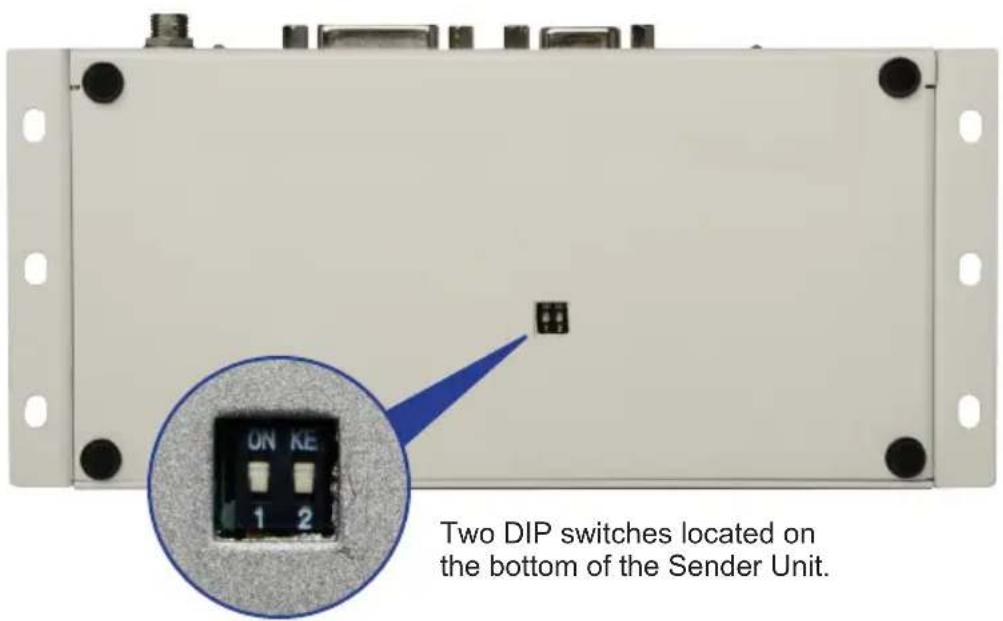
The Gefen DVIKVM Extra Long Range Extender contains DIP switches on the bottom of the Sender Unit. Each DIP switch performs a different function.
text_image
Two DIP switches located on the bottom of the Sender Unit.DIP Switch 1 - Power Management (Default = ON)
• OFF - Enable Green Mode
When DIP switch 1 is set to the OFF position, the Sender unit is powered only when 5V is present on the HDMI / DVI cable. Automatic Power Mode consumes less than 1 Watt of power.
• ON - Disable Green Mode
If DIP switch 1 is set to the ON position, then the Sender unit is placed in Power Always Mode. In this mode, the Receiver unit is always powered.
DIP Switch 2 - RS-232 Mode (Default = OFF)
• OFF - Pass-through Mode
Pass-through mode for RS-232. This is default position.
• ON - Firmware Upgrade Mode
Firmware Upgrade mode (See page 13 for instructions). Both DIP switches (1 and 2) must be set to the ON position to perform a firmware upgrade. If DIP switch 2 is in the ON position, RS-232 cannot be extended.
Receiver Unit
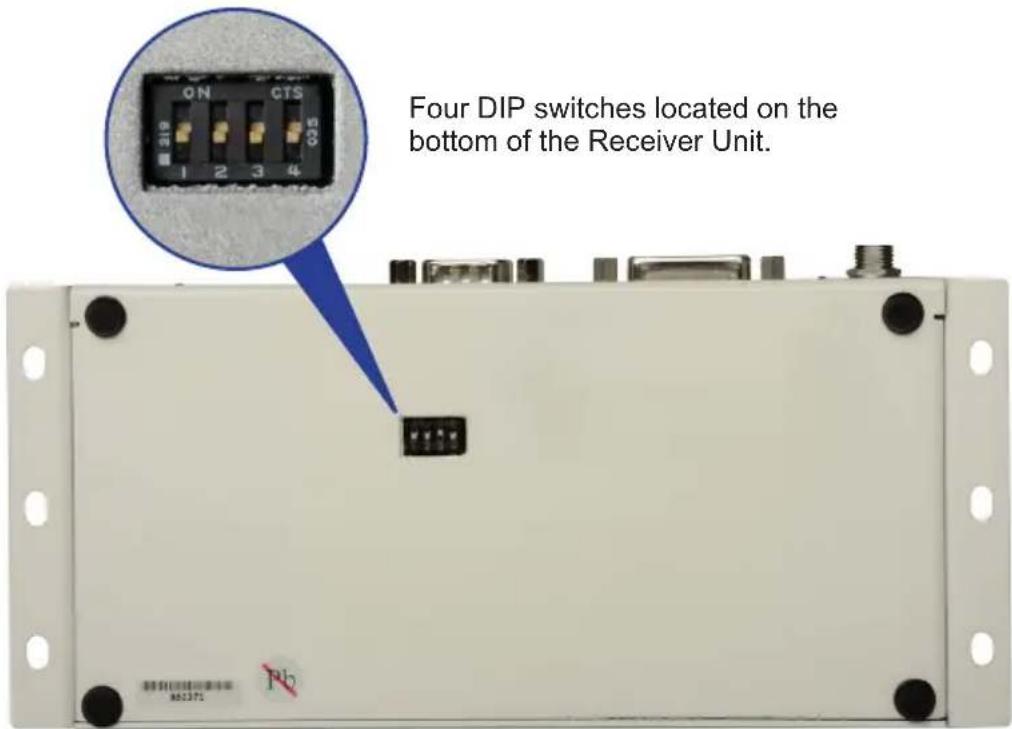
The Gefen DVIKVM Extra Long Range Extender contains four (4) DIP switches on the bottom of the Receiver Unit. Each DIP switch performs a different function.
text_image
Four DIP switches located on the bottom of the Receiver Unit.DIP Switch 1 - EDID Mode (Default = OFF)
• ON - Pass-Through Mode
DDC and HPD are passed through. Both the connection status and the full video capabilities of the monitor are used by the source device.
• OFF - Local EDID Mode
Local EDID is used instead of the EDID from the display device. EDID features newer than HDMI 1.3 are removed when the display is read. This provides a general EDID which is compatible with more displays.
DIP Switch 2 - Hot Plug Detect (Default = OFF)\*
• ON - HPD Pass-Through
HPD follows upstream HPD towards the source. The HPD signal will reflect the connection status between the display device and the source device. If the source or monitor is temporarily disconnected then reconnected, there will be a delay of 20 - 30 seconds before the content is restored to the monitor.
• OFF - HPD Always High
The HPD signal remains high regardless of the downstream HPD state. If the source or monitor does not properly handle HPD (no picture after connecting / reconnecting source or display), set this DIP switch to the OFF position.
DIP Switch 3 - Supports DVI Connections (Default = ON) ^*
- ON - Disable HDCP
If a DVI connection is used, set DIP 3 to the ON position. DVI is supported by disabling HDCP pass-through.
- OFF - Enable HDCP
If an HDMI device is connected, set DIP 3 in the OFF position.
*DIP switch is only operational when using Local EDID (DIP 1 = OFF).

IMPORTANT: The Green Mode feature on the Receiver unit is not implemented on hardware versions prior to 9502. Check the hardware version, printed on the bottom of the Receiver unit. For example, the sample image below indicates hardware version 9401 which does not have the Green Mode feature.

text_image
CE GU90071343 912108 9401-07 PbDIP Switch 4 - Green Mode (Default = ON)
• OFF - Enable Green Mode
When DIP switch 1 is set to the OFF position, the Receiver unit is powered only when 5V is present on the HDMI / DVI cable. Automatic Power Mode consumes less than 1 Watt of power.
• ON - Disable Green Mode
If DIP switch 1 is set to the ON position, then the Receiver unit is placed in Power Always Mode. In this mode, the Receiver unit is always powered.
Updating the Firmware

STOP: Before beginning the update process, disconnect the Sender unit from the Receiver unit.
- Connect an RS-232 cable from the computer to the Sender Unit.
- Set all DIP switches on the Sender unit to the ON position.
- Connect the 5V DC locking power supply to the Sender Unit.
- Go to the directory where the firmware files are stored.
- Double-click the .BAT file. A screen similar to the following will appear:
Found sink on port 4 Autodetect platform: full sink Autodetect platform: spi. Autodetect size: 128k Erasing Eeprom....Done. progress: 100% Total bytes: 38804. Total time: 99.906000 seconds Burn succeeded. Verifying file... progress: 100% Total bytes: 38804. Total time: 88.266000 seconds Verification succeeded!!!
- Return both DIP switches on the Sender unit to the OFF position.
- To update the firmware on the Receiver unit, set ALL DIP switches on the Receiver unit to the ON position.
- Connect the 5V DC locking power supply to the Receiver unit.
- Repeat steps 4 and 5.
- The firmware update process is complete.

natural_image
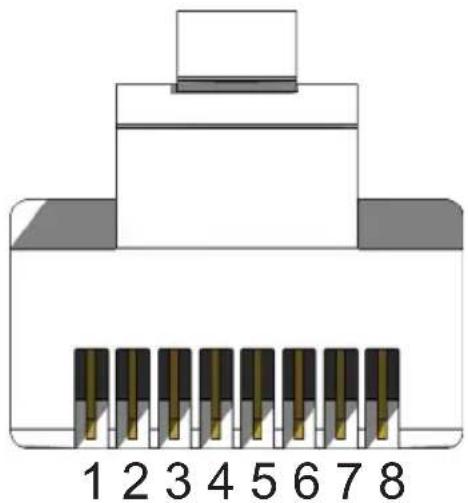
3D cutaway illustration of an Ethernet cable connector showing internal structure and terminal connections (no text or symbols)Gefen recommends the TIA/EIA-568-B wiring option. Please adhere to the table below when field terminating cable for use with Gefen products.
| Pin Color |
| 1 Orange / White |
| 2 Orange |
| 3 Green / White |
| 4 Blue |
| 5 Blue / White |
| 6 Green |
| 7 Brown / White |
| 8 Brown |
natural_image
Diagram of an 8-pin electronic connector with pin numbering (1–8) and a top connector, no text or symbols present.CAT-5, CAT-5e, and CAT-6 cabling comes in stranded and solid core types. Gefen recommends using solid core cabling.
It is recommended to use one continuous run from one end to the other. In some cases, connecting through a patch might not work.

text_image
Gefen TOOLBOX New USB Div USB Link RS-232 Div DVI RS232 Link DVI RS232 Ethernet DVIKVM ELR R DVI·RS232 ETHERNET·USB 2.0 Power BV DCThe GefenToolBox DVIKVM ELR Sender and Receiver may be mounted vertically in a wall or cabinet with wood/drywall screws as shown in the diagram above. There should be an inch or two of clearance between the edges of the unit and any walls or vertical surfaces to allow for enough clearance for insertion and retraction of cables at the DVI and RS-232 connectors.
For installation on a drywall surface, use a #6 drywall screw. It is recommended when installing on a drywall surface that studs be used to secure the Splitter should undue stress be applied when connecting and disconnecting HDMI cables.
Maximum Pixel Clock....165 MHz
Maximum TMDS Pixel Clock....165 MHz
DVI Connectors (Sender / Receiver)......DVI-I 29-pin (digital only)
USB Connector (Sender Unit)....(1) Type B
USB Connectors (Receiver Unit)....(2) Type A
Link Connectors (Sender / Receiver)....(2) RJ-45
Ethernet Connectors (Sender / Receiver)....(2) RJ-45 (1 per unit)
RS-232 Connector (Sender)......DB-9, female
RS-232 Connector (Receiver)......DB-9, male
RS-232 Baud Rate....19200 bps
Power Supply (Sender / Receiver)....5V DC
Power Consumption....10 W per unit (max.)
Operating Temperature....0 - 40 °C
Dimensions....3.3" W x 6.7" H x 1.2" D
Shipping Weight....6 lbs.
Gefen warrants the equipment it manufactures to be free from defects in material and workmanship.
If equipment fails because of such defects and Gefen is notified within two (2) years from the date of shipment, Gefen will, at its option, repair or replace the equipment, provided that the equipment has not been subjected to mechanical, electrical, or other abuse or modifications. Equipment that fails under conditions other than those covered will be repaired at the current price of parts and labor in effect at the time of repair. Such repairs are warranted for ninety (90) days from the day of reshipment to the Buyer.
This warranty is in lieu of all other warranties expressed or implied, including without limitation, any implied warranty or merchantability or fitness for any particular purpose, all of which are expressly disclaimed.
- Proof of sale may be required in order to claim warranty.
- Customers outside the US are responsible for shipping charges to and from Gefen.
- Copper cables are limited to a 30 day warranty and cables must be in their original condition.
The information in this manual has been carefully checked and is believed to be accurate. However, Gefen assumes no responsibility for any inaccuracies that may be contained in this manual. In no event will Gefen be liable for direct, indirect, special, incidental, or consequential damages resulting from any defect or omission in this manual, even if advised of the possibility of such damages. The technical information contained herein regarding the features and specifications is subject to change without notice.
For the latest warranty coverage information, refer to the Warranty and Return Policy under the Support section of the Gefen Web site at www.gefen.com.
PRODUCT REGISTRATION
Please register your product online by visiting the Register Product page under the Support section of the Gefen Web site.

text_image
* M A - G T B - D V I K V M - E L R *20600 Nordhoff St., Chatsworth CA 91311 1-800-545-6900 818-772-9100 fax: 818-772-9120 www.gefen.com support@gefen.com