V464-T-CE - Network switch Moxa - Free user manual and instructions
Find the device manual for free V464-T-CE Moxa in PDF.


| Product Type | Industrial Ethernet Switch |
| Model | V464-T-CE |
| Brand | Moxa |
| Ports | 4 x 10/100/1000Base-T (RJ45) |
| Switching Capacity | 8 Gbps |
| MAC Address Table | 8K entries |
| Power Supply | 12-48 VDC (dual redundant inputs) |
| Power Consumption | 12 W max |
| Dimensions (W x H x D) | 105 x 80 x 30 mm |
| Weight | 300 g |
| Mounting | DIN-rail or wall mount |
| Operating Temperature | -40°C to 75°C |
| Storage Temperature | -40°C to 85°C |
| Operating Humidity | 5% to 95% (non-condensing) |
| Protection Class | IP30 |
| Standards Compliance | IEEE 802.3, 802.3u, 802.3ab, 802.3x |
| Safety | Overload and short circuit protection |
| Maintenance | Clean with dry cloth; no user-serviceable parts inside |
| Warranty | 5 years |
Frequently Asked Questions - V464-T-CE Moxa
User questions about V464-T-CE Moxa
0 question about this device. Answer the ones you know or ask your own.
Ask a new question about this device
Download the instructions for your Network switch in PDF format for free! Find your manual V464-T-CE - Moxa and take your electronic device back in hand. On this page are published all the documents necessary for the use of your device. V464-T-CE by Moxa.
USER MANUAL V464-T-CE Moxa
Fourth Edition, April 2009
www.moxa.com/product
MOXA®
© 2009 Moxa Inc. All rights reserved. Reproduction without permission is prohibited.
V460 Series WinCE User's Manual
The software described in this manual is furnished under a license agreement and may be used only in accordance with the terms of that agreement.
Copyright Notice
Copyright © 2009 Moxa Inc.
All rights reserved.
Reproduction without permission is prohibited.
Trademarks
MOXA is a registered trademark of Moxa Inc.
All other trademarks or registered marks in this manual belong to their respective manufacturers.
Disclaimer
Information in this document is subject to change without notice and does not represent a commitment on the part of Moxa.
Moxa provides this document “as is,” without warranty of any kind, either expressed or implied, including, but not limited to, its particular purpose. Moxa reserves the right to make improvements and/or changes to this manual, or to the products and/or the programs described in this manual, at any time.
Information provided in this manual is intended to be accurate and reliable. However, Moxa assumes no responsibility for its use, or for any infringements on the rights of third parties that may result from its use.
This product might include unintentional technical or typographical errors. Changes are periodically made to the information herein to correct such errors, and these changes are incorporated into new editions of the publication.
Technical Support Contact Information www.moxa.com/support
Moxa Americas:
Toll-free: 1-888-669-2872
Tel: +1-714-528-6777
Fax: +1-714-528-6778
Moxa China (Shanghai office):
Toll-free: 800-820-5036
Tel: +86-21-5258-9955
Fax: +86-10-6872-3958
Moxa Europe:
Tel: +49-89-3 70 03 99-0
Fax: +49-89-3 70 03 99-99
Moxa Asia-Pacific:
Chapter 1 Introduction....1-1
Overview....1-2
Package Checklist....1-2
Product Features 1-4
Software Features 1-4
Applications Development Environment 1-4
Networking and Communications Capabilities 1-5
Supporting Servers and Daemons 1-5
Graphics and Multimedia Tools 1-6
Learning Firmware Build Versions 1-7
Memory and File Systems 1-7
Hive-Based Registry 1-7
Inserting a CompactFlash Card.... 1-8
Inserting a USB Mass Storage 1-8
RS-232/422/485 Serial Ports.... 1-8
PCMCIA (V462 Only) 1-9
Unmanaged Switch Ports (V466 Only).... 1-9
Digital IO (V468 Only).... 1-9
Chapter 2 Getting Started....2-1
Starting your V460 Computer 2-2
Resetting Your V460 Computer 2-2
Changing the Network Settings 2-3
Use Windows CE Network Control Panel utility 2-3
Using the Command Line to Configure Network Settings.... 2-4
Operating Your V460 Computer via Telnet Client.... 2-5
User/Group Management.... 2-6
Adjusting Time Zone 2-7
Starting and Stopping Services 2-7
Troubleshooting Network Connectivity 2-7
Simple Network Management Protocol (SNMP).... 2-9
Chapter 3 Management Tools....3-1
System Information.... 3-2
Serial Port Configuration 3-2
Process (Thread) Monitoring/Control.... 3-3
Services Monitoring/Control 3-3
Automatic Launch.... 3-4
Display.... 3-5
User/Group Management.... 3-5
Auto Launch Configuration 3-7
Web Server Configuration 3-7
Chapter 4 System Recovery ....4-1
Recovery Environment 4-2
Hardware....4-2
Recovery Programs....4-2
Recovery Procedures 4-2
Appendix A Firmware Upgrade Procedure....A-1
Microsoft® Windows® CE 6.0 is an open, scalable, 32-bit operating system (OS) that allows you to build a wide range of innovative, small footprint devices. A typical Windows® CE-based device is designed for a specific use, and often runs disconnected from other computers, or distributed as a front-end to a centralized host. Examples include enterprise tools, such as industrial controllers, communications hubs, point-of-sale terminals, and display devices, such as HMI, advertisement appliances, and interactive panels.
Moxa pays attention to the requirements of Windows® developers to provide the Windows® CE solution for the Moxa V460 Series series ready-to-run embedded computer, including IA261-CE, and IA262-CE. The Moxa professional kernel development experience on embedded small footprint communication devices provides the intense technological skills required while porting the Windows® CE 6.0 kernel.
The following topics are covered in this chapter:
Overview
Package Checklist
□ Product Features
□ Software Features
Applications Development Environment
▶ Networking and Communications Capabilities
Supporting Servers and Daemons
▶ Graphics and Multimedia Tools
□ Learning Firmware Build Versions
□ Memory and File Systems
□ Hive-Based Registry
☐ Inserting a CompactFlash Card
☐ Inserting a USB Mass Storage
☐ RS-232/422/485 Serial Ports
□ PCMCIA (V462 Only)
☐ Unmanaged Switch Ports (V466 Only)
Digital IO (V468 Only)
Overview
The V460 series of x86 ready-to-run embedded computers is designed around the AMD LX800 and Geode chipset, which exhibits low power consumption and high reliability. In addition to the usual computer peripherals, the V460 integrates dual or quad LAN ports, 4 USB 2.0 hosts, and 4 serial ports, making the V460 into an ideal industrial embedded computer for handling not only communication tasks, but also applications that require advanced computing power. In addition, all output and information can be displayed onscreen through the built-in VGA interface. The V460 series offers a variety of I/O options for use in a variety of applications and vertical markets.
The on-board CompactFlash and DDR SDRAM provide ample storage capacity, and the Windows-based operating system comes pre-installed and ready-to-run, providing a Windows-like environment for easy software development. Software written for desktop PCs can be easily ported to the V460 using a common complier, which means that programmers do not need to spend a lot of time modifying existing software code. In addition, the operating system, device drivers, and user-developed software can all be stored in the pre-installed CompactFlash memory Card to enhance system reliability.
Package Checklist
V462-CE
x86 Ready-to-Run Embedded Computer with AMD LX 800, VGA, Dual LANs, 4 Serial Ports, CompactFlash, PCMCIA, USB, Audio, WinCE 6.0
V462-T-CE
x86 Ready-to-Run Embedded Computer with AMD LX 800, VGA, Dual LANs, 4 Serial Ports, CompactFlash, PCMCIA, USB, Audio, WinCE 6.0, Wide Temperature.
V464-CE
x86 Ready-to-Run Embedded Computer with AMD LX 800, VGA, Quad LANs, 4 Serial Ports, CompactFlash, USB, Audio, WinCE 6.0
V464-T-CE
x86 Ready-to-Run Embedded Computer with AMD LX 800, VGA, Quad LANs, 4 Serial Ports, CompactFlash, USB, Audio, WinCE 6.0, Wide Temperature.
V466-CE
x86 Ready-to-Run Embedded Computer with AMD LX 800, VGA, Quad LANs, 4 Serial Ports, 8 Unmanaged Switch Ports, CompactFlash, USB, Audio, WinCE 6.0
V466-T-CE
x86 Ready-to-Run Embedded Computer with AMD LX 800, VGA, Quad LANs, 4 Serial Ports, 8 Unmanaged Switch Ports, CompactFlash, USB, Audio, WinCE 6.0, Wide Temperature.
V468-CE
x86 Ready-to-Run Embedded Computer with AMD LX 800, VGA, Quad LANs, 4 Serial Ports, 8DI, 8DO, CompactFlash, USB, Audio, WinCE 6.0
V468-T-CE
x86 Ready-to-Run Embedded Computer with AMD LX 800, VGA, Quad LANs, 4 Serial Ports, 8DI, 8DO, CompactFlash, USB, Audio, WinCE 6.0, Wide Temperature.
V462-XPE
x86 Ready-to-Run Embedded Computer with AMD LX 800, VGA, Dual LANs, 4 Serial Ports, CompactFlash, PCMCIA, USB, Audio, WinXP embedded
V462-T-XPE
x86 Ready-to-Run Embedded Computer with AMD LX 800, VGA, Dual LANs, 4 Serial Ports, CompactFlash, PCMCIA, USB, Audio, WinXP embedded, Wide Temperature.
V464-XPE
x86 Ready-to-Run Embedded Computer with AMD LX 800, VGA, Quad LANs, 4 Serial Ports, CompactFlash, USB, Audio, WinXP embedded
V464-T-XPE
x86 Ready-to-Run Embedded Computer with AMD LX 800, VGA, Quad LANs, 4 Serial Ports, CompactFlash, USB, Audio, WinXP embedded, Wide Temperature.
V466-XPE
x86 Ready-to-Run Embedded Computer with AMD LX 800, VGA, Quad LANs, 4 Serial Ports, 8 Unmanaged Switch Ports, CompactFlash, USB, Audio, WinXP embedded
V466-T-XPE
x86 Ready-to-Run Embedded Computer with AMD LX 800, VGA, Quad LANs, 4 Serial Ports, 8 Unmanaged Switch Ports, CompactFlash, USB, Audio, WinXP embedded, Wide Temperature.
V468-XPE
x86 Ready-to-Run Embedded Computer with AMD LX 800, VGA, Quad LANs, 4 Serial Ports, 8DI, 8DO, CompactFlash, USB, Audio, WinXP embedded
V468-T-XPE
x86 Ready-to-Run Embedded Computer with AMD LX 800, VGA, Quad LANs, 4 Serial Ports, 8DI, 8DO, CompactFlash, USB, Audio, WinXP embedded, Wide Temperature.
All models of the V462/464/466/468 series are shipped with the following items:
• 1 V460 Series Embedded Computer
- Quick Installation Guide
- Document and Software CD
- Ethernet Cable: RJ45 to RJ45 cross-over cable, 100 cm
• PS2 to KB/MS Y type Cable
- Din-Rail Kit
• Product Warranty Statement
Optional Accessories
Switching Power Adaptor:
60W, 24 VDC output, 100 to 240 VAC input (Order No.: 1117224250210), power cord must be ordered separately
- Power Cords:
Power cord with Australia Plug (Order No.: 9199000000500)
Power Cord with UK Plug (Order No.: 9199000000600)
Power Cord with Euro Plug (Order No.: 9199000000700)
Power Cord with US Straight Plug (Order No.: 9199000000800)
NOTE: Notify your sales representative if any of the above items are missing or damaged.
Product Features
• AMD Geode LX 800@0.9W CPU, 500 MHz
• Built-in 256 MB DDR SDRAM (512MB for XPE version)
• Built-in 256 MB Industrial DOM to store OS (1GB for XPE version)
• 256K battery backup SRAM
- Two RS-232, two RS-232/422/485 serial ports
- Serial ports 3 and 4 support non-standard baudrates
• 2 or 4 10/100 Mbps Ethernet for network redundancy
- Provides 8 unmanaged switch ports
- 8 + 8 DI / DO with 3KV isolation protection
- CompactFlash socket for storage expansion
• 4 USB 2.0 hosts that support system boot up
• LED indicators for Power, Battery, Storage
• Ready-to-Run WinCE 6.0 platform
• Din-rail and Wall mount installation
- Robust, Fanless Design
Software Features
The V460 series of WinCE ready-to-run embedded computers are network-centric, head-less computers that are designed to be programmable for embedded communication applications. The V460-CE models have the following software features:
Applications Development Environment
To provide the V460 with an easy-to-use programming environment, the Windows® CE environment provides the following common, popular application development features that make programming as convenient and easy as in a PC environment.
- C Libraries and Run-times - Compared to the C libraries and run-times used on a desktop PC running Windows®, the C libraries and run-times on a V460 Series is a subset of the WIN32 APIs. It supports full ANSI C run time, standard input/output library, standard input/output ASCII library and standard ASCII string functions. In addition, it supports compiler C++ exception handling equivalent and Run-Time Type Information (RTTI) equivalent to the desktop C++ compilers.
- Component Services (COM and DCOM) - The Common Object Model (COM) is an operating system-independent, object-oriented system for creating binary software components that can interact with other COM-based components in the same process space, in other processes, or on remote machines.
- Microsoft® Foundation Classes (MFC) - MFC is a comprehensive class library and complete object-oriented application framework designed to help build applications, COM components, and controls.
- SOAP Toolkit - SOAP is an XML-based protocol for object exchange and remote procedure calls. Microsoft® Windows® CE 6.0 provides functionality similar to the SOAP Toolkit version 2 on the desktop. It provides a layer that allows COM objects to use SOAP as the transport protocol for remote procedure calls and to interact with Web services.
- Microsoft® .NET Compact Framework 2.0 with service pack 2 - It offers a choice of languages, initially Microsoft® Visual Basic® and Microsoft® Visual C#, and eliminates the common problems faced with language interoperability.
- XML- Provides the Document Object Model (DOM) for base XML functionality, support for XML Query Language (XQL) and XPATH, Extensible Style Sheet Language Transformations (XSLT) that enables you to transform one class of XML document to another, SAX2 support for event-based parsing of XML documents and includes MSXML Writer, and parsing based on Simple API for XML (SAX) for resource-constrained target devices.
- Winsock 2.2 - Provides enhanced capabilities over Winsock 1.1, including installable service providers for additional third-party protocols, as well as Media sense.
Networking and Communications Capabilities
For network-centric embedded application usage, the V460 series provides powerful communication hardware interfaces that include dual/quad Ethernet, 4 serial ports, 8 switching ports (V466), and also supports the networking and communications capabilities that are built into the Windows CE6.0 OS. The following features are supported:
- Simple Network Management Protocol (SNMP) - Monitors remote connections to the network.
- Simple Network Time Protocol (SNTP) Client - Provides support for synchronizing the device's system time with a SNTP server, and supports Daylight Saving Time.
- Serial Communications - In addition to the 16550 UART driver bound to a debug port and the console port, it includes a special driver for 8 additional Moxa home-made serial ports.
- Network Utilities (IpConfig, Ping, Route) - Utilities for troubleshooting various network problems.
- TCP/IP - Includes IP, Address Resolution (ARP), Internet Control Message (ICMP), Internet Group Membership (IGMP), Transmission Control (TCP), User Datagram (UDP), name resolution and registration, and DHCP.
Supporting Servers and Daemons
In addition to the development and communication capability, the services and daemons listed below are also embedded in the V460 series. These common and easy-to-use application services help users migrate industrial communication applications to the V460 series embedded computer easily and conveniently.
- Telnet Server - A sample server that allows remote administration through a standard telnet client.
- FTP Server - A sample server used for transferring files to and from remote computer systems over a network using TCP/IP.
- File Server - The File Server functionality in Microsoft® Windows® CE enables clients to access files and other resources over the network.
- Web Server (HTTPD) - Includes ASP, ISAPI Secure Socket Layer support, SSL 2, SSL 3, and Transport Layer Security (TLS/SSL 3.1) public key-based protocols, and Web Administration ISAPI Extensions.
- Dial-up Networking - Consists of RAS client API and the Point to Point Protocol (PPP). RAS and PPP support Extensible Authentication Protocol (EAP) and RAS scripting.
- Watchdog Service – It's a CPU Hardware function for reset CPU in a user specified time interval. You must call the Moxa library function to trigger it.
Graphics and Multimedia Tools
The V460 embeds high-performance multimedia technologies found on desktop computers. These technologies provide the V460 series with a friendly graphical user interface, and support waveform audio playback and capture.
- Graphics Device Interface (GDI) - Provides information about the fundamental graphics architecture for Windows CE.
- Diect3D Mobile Display Drivers - Provides information about creating a display driver that supports Direct3D Mobile.
- DirectDraw Display Drivers - Provides information about creating a display driver that supports DirectDraw.
• Audio Codecs and Renderers
| G.711 Audio Codec |
| GSM 6.10 Audio Codec |
| IMA ADPCM Audio Codec |
| MP3 Codec |
| MPEG-1 Layer 1 and 2 Audio Codec |
| MS ADPCM Audio Codec |
| Wave/AIFF/au/snd File Parser |
| Waveform Audio Renderer |
| WMA Codec |
| WMA Voice Codec |
| WMAPro over s/PDIF Packetizer |
• Video Codecs and Renderers
| DirectShow Video Codec |
| MPEG-I Video Codec |
| MS RLE Video Codec |
| Overlay Mixer |
| Video/Image Compression Manager |
| EMA/MEPG-4 Video Codec |
Learning Firmware Build Versions
There are two ways to determine the firmware version of the V460 embedded computer. This information is important for identifying which features are supported.
- Examine the welcome message after you logon the computer.
- Log on to the web-based management system (described in a later chapter) to view system information.
Memory and File Systems
The 256 MB of SDRAM is divided into the main memory, which uses about 196 MB of space and includes the operating system and user applications, and the kernel image, which occupies the rest of the space.
The V460's internal file system controls access to CF flash and also provides file storage in the object store. The file system provides persistent storage for applications and their related data even when the main power supply is lost. The file system integrates the read-only files that are stored in Flash ROM, with the read/write files of both applications and users.
The system provides a function help to speed up program operating and extend Flash memory life developed by Moxa, the RAMDisk. It assigns 1 MB of RAM-based storage by default under the RAMDisk directory. Although data saved in RAM will be deleted when the system shuts down, RAM storage has the advantages of faster read/write access and no life cycle. For applications that require transmitting important data immediately and directly to a host, you can store the necessary log data in RAM. After the host receives the data, the data does not need to be retained and can be deleted.
Since embedded computers have resource limits, integrators must store data wisely. In general, you should only store data when you need to, and you should be sure to use the most appropriate storage medium.
Additional file systems for USB storage devices are placed at the root of the internal file system. If you intend to use the devices to port data between your PC and the V460 computer, you should format them as the FAT file system on your PC. These devices need to be formatted as FAT .Otherwise, the V460 computer may not recognize the NTFS or any other format.
Hive-Based Registry
The registry for the V460 is a hive-based registry, instead of a RAM-based registry. The hive-based registry stores registry data inside files, or hives, which can be kept on file system. This removes the need for performing backup and restore on power off. The registry data is stored in the “\Registry” directory.
Inserting a CompactFlash Card
The V460 has a type II CompactFlash slot that supports cards of both types I and II. A mass storage card is considered to be secondary storage for the computer. When a mass storage card is inserted, the V460 creates a directory named "HardDisk" under the root directory, and the newly created directory serves as a link to the storage space. Before installing the CF card, please make sure that the system power is off.
The following table is the compatible CF cards that we tested. Cards not listed below are not promised could work properly with the V460.
| Brand | Size |
| Afaya | 256MB |
| Afaya | 1GB |
| Transcend | 512MB(80x) |
| Transcend | 4GB(120x) |
| SILICON POWER 1GB(Industrial) | |
| SILICON POWER 2GB(Industrial) | |
| SanDisk | 1GB(Ultra |
II)
Inserting a USB Mass Storage
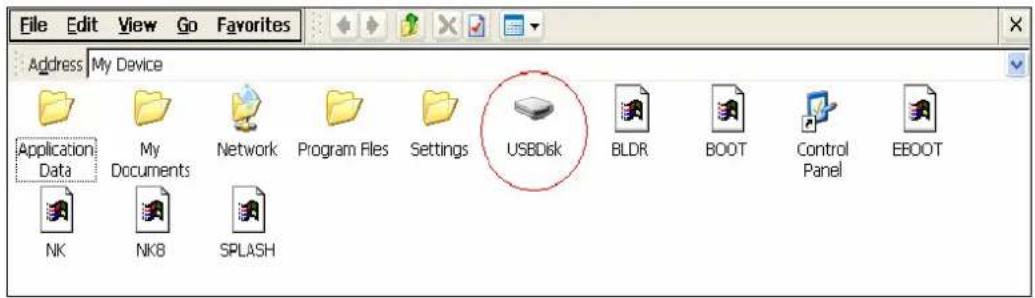
USB mass storage devices are useful for porting data between your PC and the V460 computer. We suggest that you format your devices with the FAT format. When the first USB storage device is plugged into the V460, a directory named USBDisk under the root directory is created as a link to the storage, on the internal file system. The directory created for the second USB device is USBDisk2.
RS-232/422/485 Serial Ports
The V460's serial ports are numbered from left to right and bottom using the names: COM1, COM2, COM3, and COM4. The serial ports are reliable, operate at speeds up to 921600 bps, and support the RS-232, RS-422, and RS-485 standard.
The V460's serial ports are named from left to right and bottom to top with the most common names, starting from COM1 to COM4. COM3 and COM4 operate at speeds up to 921600 bps, and support the RS-232, RS-422, and RS-485 interfaces. Each of these ports supports baudrate settings up to 921,600 bps. COM1 and COM2 are standard RS-232 interface and operate at speed up to 115,200 bps with no hardware flow control.
PCMCIA (V462 Only)
The PCMCIA slot supports the CardBus (Card-32) Card standard and 16-bit (PCMCIA 2.1/JEIDA 4.2) Card standard. It supports +3.3V, +5V, and +12V at a working voltage of 120 mA. Wireless LAN card expansion is optional.
Unmanaged Switch Ports (V466 Only)
The V466 has an 8-port Ethernet switch with one Ethernet port for CPU tunnel. You can program the TCP/UDP code to send / receive Ethernet packets
Digital IO (V468 Only)
The V468 provides 8 digital in and 8 digital out ports for controlling digital signals
In this chapter, we explain how to operate a V460 computer from a PC. For clarity, the PC will be referred to as a “development workstation,” and the V460 embedded computer will be called a “target computer.” In addition, we give steps for facilitating operations such as system time adjustment, troubleshooting network connectivity, etc. Some of these operations can be done with system commands after gaining access to the computer, and others can be done by a “System Manager” application, which is described in a later chapter
The following topics are covered in this chapter:
□ Starting your V460 Computer
☐ Resetting Your V460 Computer
□ Changing the Network Settings
➢ Use Windows CE Network Control Panel utility
➢ Using the Command Line to Configure Network Settings
☐ Operating Your V460 Computer via Telnet Client
□ User/Group Management
□ Adjusting Time Zone
☐ Starting and Stopping Services
□ Troubleshooting Network Connectivity
☐ Simple Network Management Protocol (SNMP)
SNMP Manager
Starting your V460 Computer
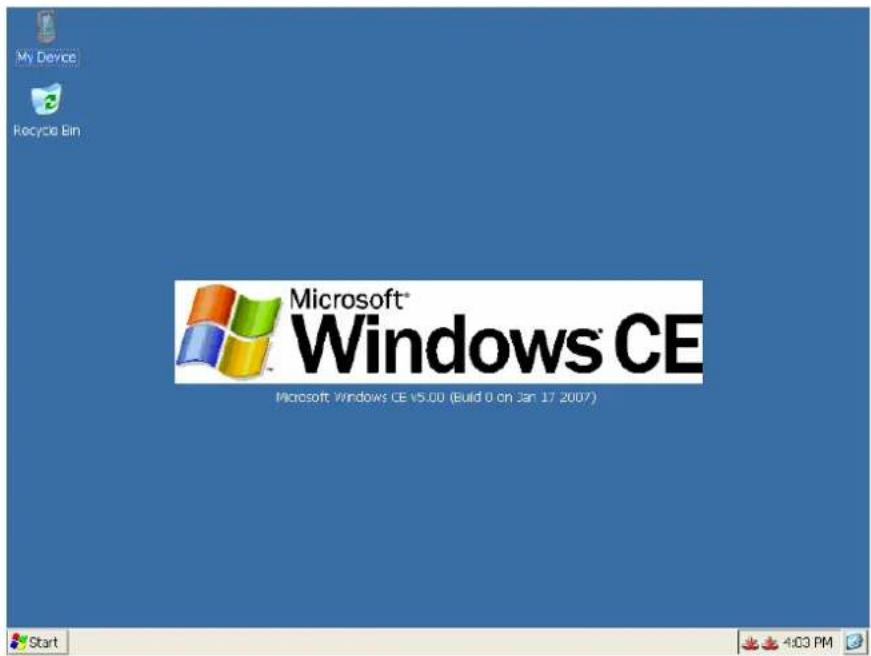
Connect the CRT monitor or LCD monitor to the target computer, and then power it on by connecting it to the power adaptor. It takes about 15 to 20 seconds for the system to boot up. During the boot process, you will see the following startup screen with a progress bar.

Microsoft® Windows CE
Once the system is ready, the Windows CE desktop window will appear.
Resetting Your V460 Computer
Reset button
It may be necessary to reset the system if the computer stops responding or an application locks up. The reset button is located on the V460's outer casing. After pressing the "Reset" button, the computer will boot up automatically.
Reset to factory default
The V460 embedded computer is based on Windows CE 6.0 and uses a CompactFlash card for the internal file system. The WinCE 6.0 supports the FAT file system.
If you find that files, directories, or the FAT table are damaged because of an unstable power supply or application issues, then you will need to reset to factory defaults. To do this, power on the V460 computer, and then press 8 when you see the Windows CE startup screen. System prompts will guide you through the step-by-step reset procedure.
Step1: Scan Disk (Automatically)
The system will scan the disk automatically when you start the reset procedure.
Step2: Reset to Default? (Y/N)
After the disk scan is complete, the system will ask you to confirm that you want to reset to defaults.
Press Y to reset to defaults. This will revert all settings to the factory default values.
Step3: Clean all files and directories? (Y/N)
You will be asked whether you want to delete all files and directories. Press Y if you would like to delete all files in the "Program Files" directory.
Step4: Proceed? (Y/N)
You will be asked to confirm. Press Y to proceed to the reset process.
NOTE: After the disk scan finishes, you may find some files named FILE00xx.chk. This means that some files or directories were damaged and have been fixed.
Changing the Network Settings
The V460 computer comes with two network interfaces. The default IP addresses and netmask of the network interfaces are as follows:
| Default | IP | Address | |
| LAN 1 | 192.168.3.127 | 255.255.255.0 | |
| LAN 2 | 192.168.4.127 | 255.255.255.0 | |
| LAN 3 | 192.168.5.127 | 255.255.255.0 | |
| LAN 4 | 192.168.6.127 | 255.255.255.0 |
Netmask
The V462 has 2 LAN ports and the V464, V466, and V468 have 4 LAN ports by default. There are two ways to change the network settings.
Use Windows CE Network Control Panel utility
Network interface settings can be configured with the Windows utility.
- Go to [Start] → [Settings] → [Network and Dial-Up Connections]. You will see all network interfaces of the system.

- Right-Click the LAN interface that you would like to configure and then click [property]. A configuration window will pop up.
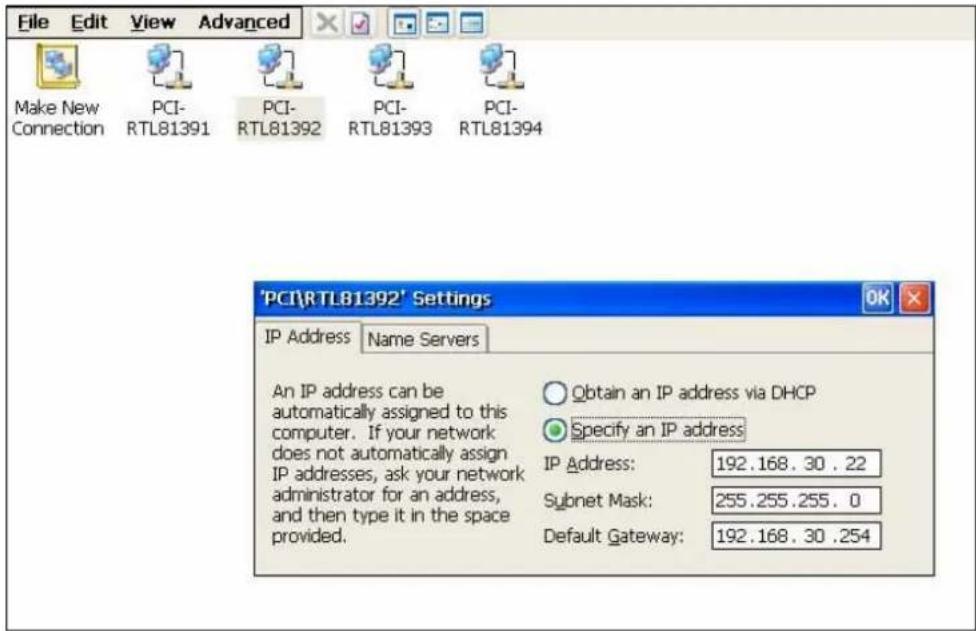
- Input the new IP address and netmask and then click OK.
Using the Command Line to Configure Network Settings
Use the netconfig utility to change network settings. Note that you can type netconfig -h to display the system's help content for this utility.
\> netconfig -h
Usage: netconfig -n <AdapterName | Alias> [-EnableDHCP] [-i <IP address>] [-m <netmask>] [-g <gateway>] [-d <DNS server>] [-w <WINS Server>] [-noask]
e.g.: netconfig -n PCI\E100CE1 -i 192.168.10.101 -g 192.168.10.254
: netconfig -n PCI\RTL81391 -EnableDHCP
Alias:
LAN1=PCI\RTL81391
LAN2=PCI\RTL81392
For example, if you want to change the IP address of the development workstation's LAN port to 192.168.1.5, and the Domain Name Server's (DNS) IP address is 192.168.2.6, then execute the following command:
netconfig -n LAN1 -i 192.168.1.5 -m 255.255.255.0 -g 192.168.1.254 -d 192.168.2.6
Use the command netconfig to view the new settings.
> netconfig
Ethernet Adapter [PCI\RTL81391]:
IP Address: 192.168.1.5
SubNet Mask: 255.255.255.0
Gateway: 192.168.1.254
DNS: 192.168.2.6
Ethernet Adapter [PCI\RTL81392]:
IP Address: 192.168.4.127
SubNet Mask: 255.255.255.0
Operating Your V460 Computer via Telnet Client
Before operating your V460 computer from a Telnet client, we suggest that you change the network settings of the computer (see the previous section) so that at least one of the two network ports are on the same LAN as your development workstation.
Use a cross-over Ethernet cable to connect your development workstation directly to the target computer, or use a straight-through Ethernet cable to connect the computer to a LAN hub or switch. Next, use a Telnet client on your development workstation to connect to the Telnet console utility on the target computer. After establishing a connection, type the login name and password as requested to logon to the computer.
The default login name and password are both admin.
Login: admin
Password: admin
After logging in through the console port or Telnet client, you have several commands available to operate the computer. Type HELP to display all of the commands, or type HELP [command name] to display detailed help for a particular command. Some of these commands, such as DATE and TIME, are very useful and make it easily to manage the computer's system time. Other commands, such as DIR and MKDIR, are good utilities for file management. For example, to inspect the file structure of the root directory, type DIR.
> dir /b
Network
BLDR
SPLASH.BMX
EBOOT.BIX
BOOT.INI
NK.BIN
NK8.BIN
Settings
Program Files
My Documents
Application Data
User/Group Management
User Group: You should assign specific services, such as ftp and telnet, to define user groups such that these services are accessible only by the users within the permissible user group. Three user groups, namely “ftpd,” “telnetd,” and “httpd,” were created by default for your convenience.
Adding a Group: Use the command useradd -g
\> useradd -g yyyy
group yyyy has been added.
Deleting a Group: To remove a group, use the command userdel -g
\> userdel -g yyyy
group yyyy has been removed.
Adding a User: Use the command useradd
\> useradd xxxx
user xxxx has been added.
In addition, you can permit this user to access a particular service by typing -g followed by the user group name of the service, i.e., useradd -g
\> useradd -g telnetd xxxx
user xxxx is existent
group telnetd is existent
user xxxx has been added to group telnetd
Deleting a User: Use the command userdel
\> userdel xxxx
user xxxx has been deleted
You can also just remove a user from a user group by using the command userdel -g
\> userdel -g yyyy xxxx
user xxxx has been removed from group yyyy
Adjusting Time Zone
Setting the System Time Manually: Use the date, and time commands to query the current system date/time or to set a new system date/time. The system time is save in RTC. Stopping the system won't affect the system time.
\> date
The current date is: Tuesday, November 22, 2005
Enter the new date (mm-dd-[yy]yy): 12-23-05
\> date /T
Wednesday, November 23, 2005
\> time
The current time is: 5:27:17 PM
Enter the new time (hh:mm:ss): 16:02:00
\> time /T
4:02:04 PM
Setting the Time Zone: Windows CE 6.0 supports Time Zone. You can use [Control Panel] → [Date/Time] to adjust your current Time Zone. It also supports Daylight Date and Daylight Time.
Starting and Stopping Services
After booting up, the V460 computer runs several services continuously to serve requests from users or other programs. Notable services include telnet (“TEL0:”), World Wide Web HTTP (“HTP0:”), and file transfer FTP (“FTP0:”). Most users will not use these services. However, you can start or stop a service by using the “services” command. For example,
Start the FTP service by typing
\> services start FTP0:
Stop the FTP service by typing
\> services stop FTP0:
The default services in the V460 are:
TEL0: Telnet Service
FTP0: FTP Service
CON0: Console Service
Troubleshooting Network Connectivity
The ipconfig tool prints the TCP/IP-related configuration data of a host, including the IP addresses, gateway, and DNS servers.
\> ipconfig /all
Windows IP configuration
Ethernet adapter Local Area Connection:
IP Address: 192.168.4.127
Subnet Mask: 255.255.255.0
Adapter Name: PCI\E100CE1
Description: PCI\E100CE1
Adapter Index: 2
Address: 80 86 33 33 34 12
DHCP Enabled: NO
Ethernet adapter Local Area Connection:
IP Address: 192.168.14.202
Subnet Mask: 255.255.248.0
Default Gateway: 192.168.15.254
Adapter Name: PCI\RTCENIC1
Description: PCI\RTCENIC1
Adapter Index: 3
Address: 78 56 34 91 cc dd
DHCP Enabled: NO
Host name: V460
Domain Name:
DNS Servers: 192.168.1.6
NODETYPE: 8
Routing Enabled: NO
Proxy Enabled: NO
To troubleshoot network connectivity, reach-ability, and name resolution, use the ping command. This command verifies IP-level connectivity to another TCP/IP computer by sending Internet Control Message Protocol (ICMP) Echo Request messages. The corresponding return Echo Reply messages are displayed, along with round-trip times. For more information, type ping without parameters.
> ping www.Moxa.com
Pinging Host www.Moxa.com [192.168.1.16]
Reply from 192.168.1.16: Echo size=32 time<1ms TTL=126
Reply from 192.168.1.16: Echo size=32 time<1ms TTL=126
Reply from 192.168.1.16: Echo size=32 time<1ms TTL=126
The route utility allows you to view or modify network routing tables. Type this command without parameters to view a list of functions.
> route
To view current routing items in the tables,
> route PRINT
To add a routing item on network interface 1,
> route ADD 192.168.0.0 MASK 255.255.0.0 192.168.15.254
To delete a routing item,
> route DELETE 192.168.0.0
Simple Network Management Protocol (SNMP)
SNMP is the Internet Standard protocol for network management and part of the TCP/IP protocol suite. SNMP was developed to monitor and manage networks. It uses a distributed architecture that consists of agents and managers:
SNMP agent
The SNMP agent is an SNMP application that monitors network traffic and responds to queries from SNMP manager applications. The agent also notifies the manager, by sending a trap, when significant events occur.
SNMP Manager
An SNMP manager is an SNMP application that generates queries to SNMP-agent applications and receives traps from SNMP-agent applications.
The V460 computer installs an SNMP agent to serve as an SNMP device. You should install the SNMP manager on the workstation computer (for example, a Linux system) that monitors the network. After installing the nodes, you need to configure the SNMP manager and agent.
To check SNMP agent capabilities in a target V460 (e.g., network IP at 192.168.3.127) computer, please logon the workstation computer that, for example, a Linux-based computer, the SNMP manager resides and type
> snmpwalk -v 2c -c public 192.168.3.127 system
SNMPv2-MIB::sysDescr.0 Microsoft Windows CE Version 6.0
SNMPv2-MIB::sysObjectID.0 SNMPv2-SMI::enterprises.8691.13.7420
SNMPv2-MIB::sysUpTime.0 1282929
SNMPv2-MIB::sysContact.0 Your System Contact Here
SNMPv2-MIB::sysName.0 WindowsCE
You will see a series of messages from the SNMP agent in the V460 computer. From there, you can monitor and manage the computer.
The V460 of ready-to-run embedded computers are network-centric platforms designed to serve as front-end computers for data acquisition and industrial control. Due to the distributed characteristics of the devices that these computers control, they are often located near the devices in harsh environments, and are usually far away from system administrators. Managing the computers requires being able to modify the network/server configuration, take care of file management, and handle process (thread) monitoring/control.
A management system is provided with the V460 computer to assist administrators with these tasks.
The following topics are covered in this chapter:
□ System Information
Serial Port Configuration
☐ Process (Thread) Monitoring/Control
□ Services Monitoring/Control
□ Automatic Launch
□ Display
□ User/Group Management
□ Auto Launch Configuration
□ Web Server Configuration
System Information
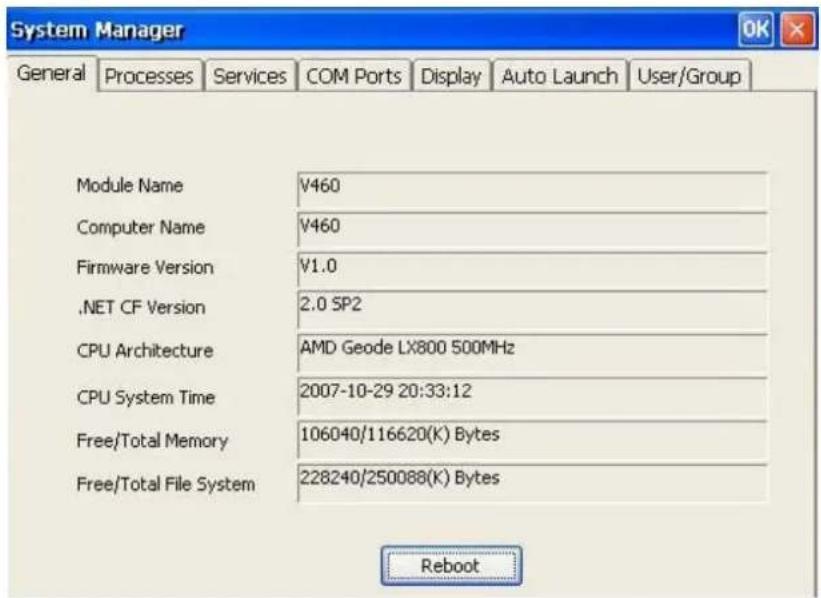
The first page displays the system information of the V460 computer, including the firmware version of the computer, .Net CF version, the system time, and system resources including main memory and file system usage.
Serial Port Configuration
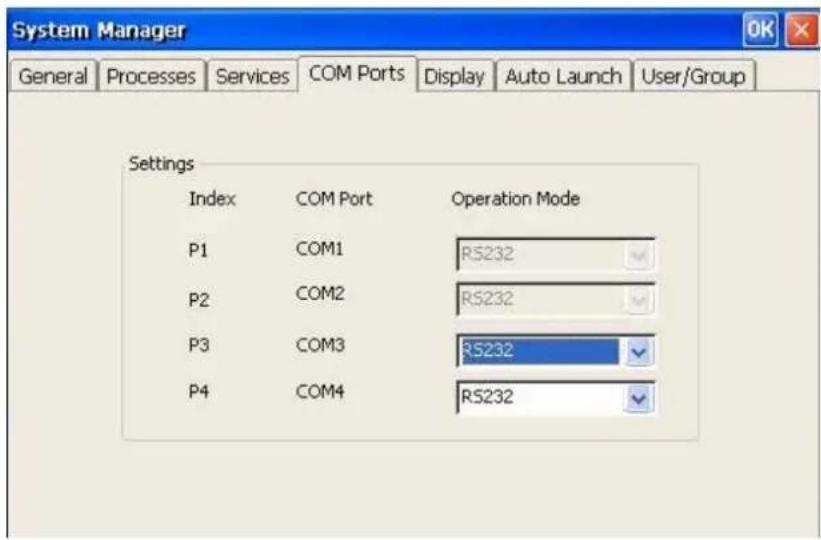
The V460 contains 2 high-performance 3 in 1 serial ports and 2 RS-232 generic serial ports. When the system starts up you can specify the default operation mode of COM3: and COM4: (RS-232, 422 or 485) in. The factory default mode would be RS-232.
The COM1: and COM2: support RS-232 mode only.
Process (Thread) Monitoring/Control
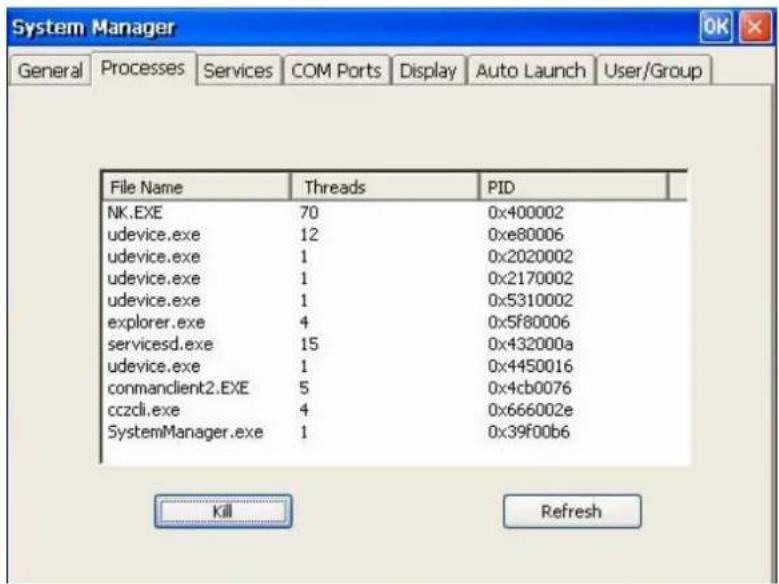
At runtime, the V460 computer manages up to 32k applications. You can use the management system to monitor and control them. To view current processes, please click the Processes item on the tab bar. The running processes are then displayed. You can kill a process by clicking the kill button next to the process name.
Services Monitoring/Control
Some services run on the background to provide services, such as FTP, Telnet and HTTP, for user requests. You can click on a check box to toggle a start/stop operation for a service.
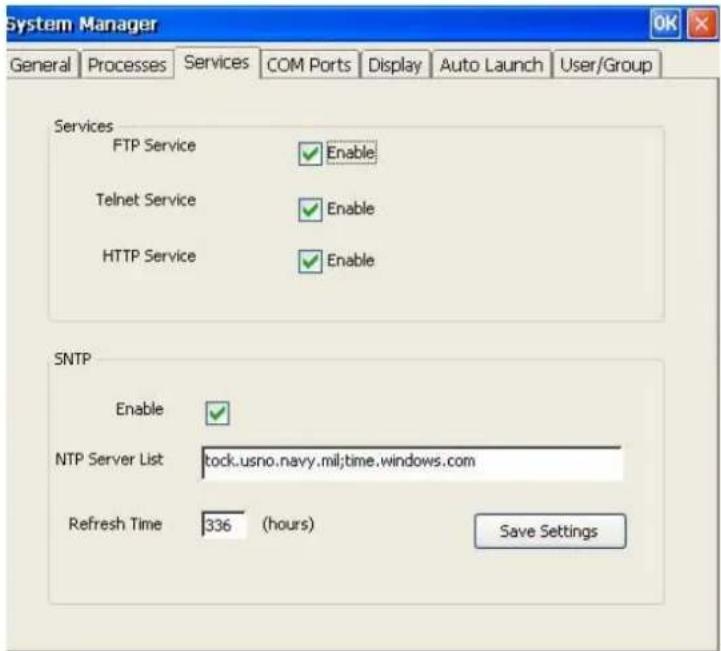
You can also adjust the time automatically by using SNTP. Click on the check box to enable the service and click the button to activate.
Some listed services cannot be stopped in order to maintain normal operation of the computer. Such services do not have a check box next to them.
Automatic Launch
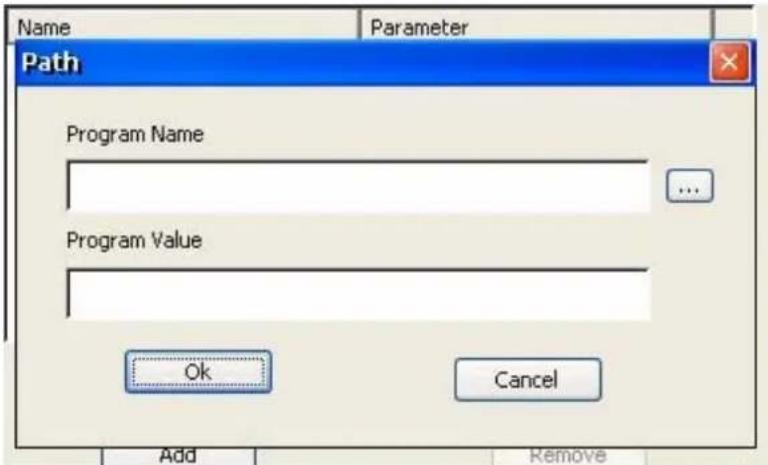
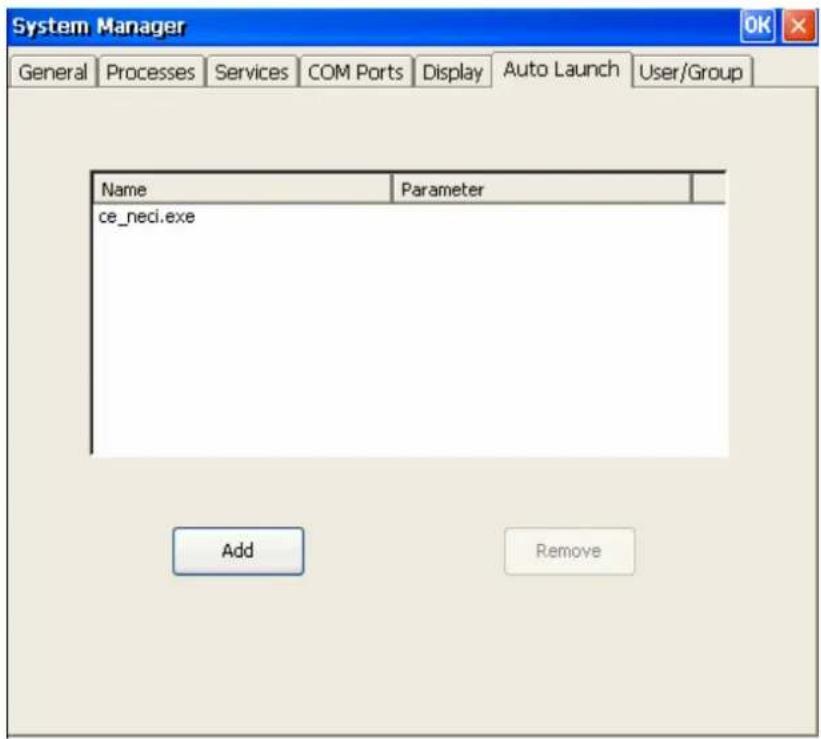
We often put the executable file that we developed into the file system, and then we launch it by File Explorer. But we know in the runtime you couldn't do it by yourself, you hope it can be executed automatically. So you can input the executable file path into the management tool.
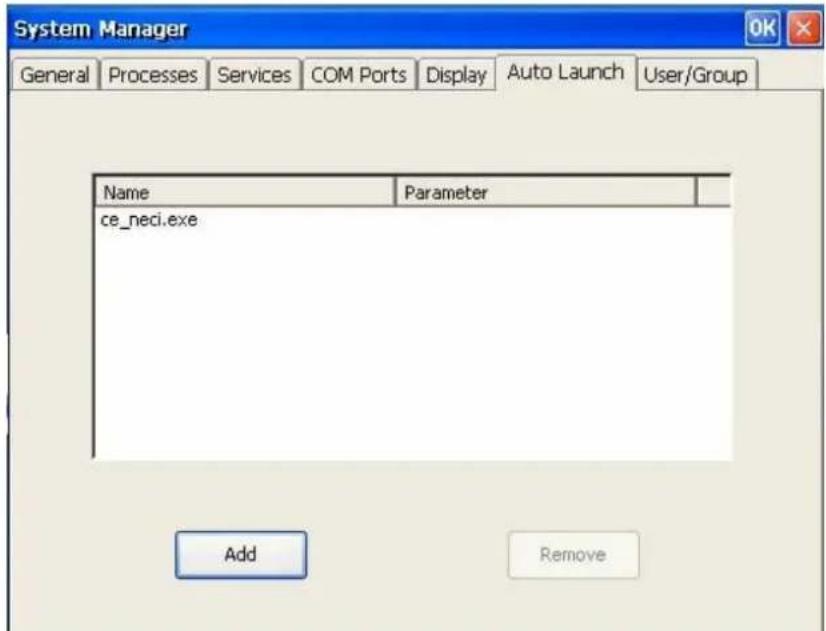
If you click [Add] button there is a dialog would be popped up for input the executable file path and its arguments.
Display
The V460 VGA output works through a CRT connector to display the Windows CE desktop on an LCD monitor or CRT monitor. The default setting is 800x600, 16-bit, and 60 Hz. For general purposes, you should tune the setting to match your LCD or CRT specifications. In the Display setting window you can adjust the setting and then press Apply to save the settings.
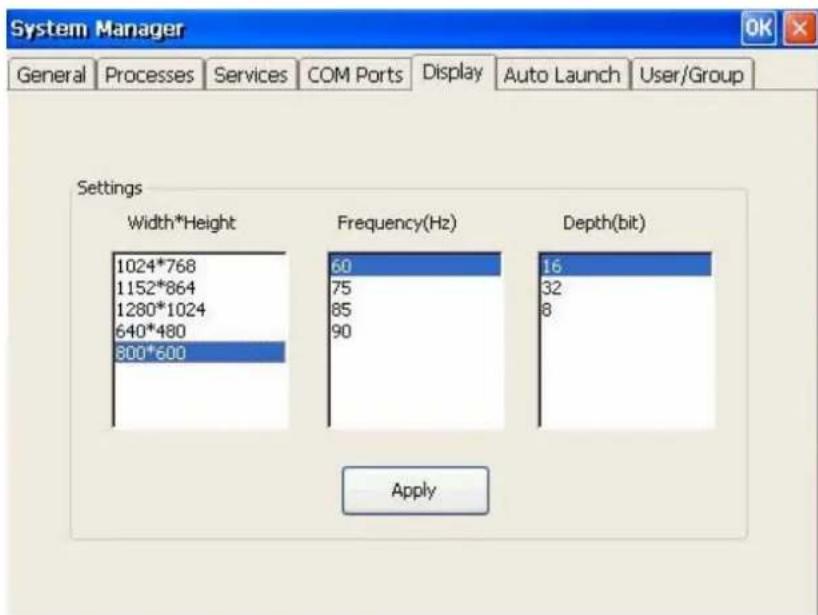
You must restart (reboot) the V460 computer so that settings will take effect.
User/Group Management
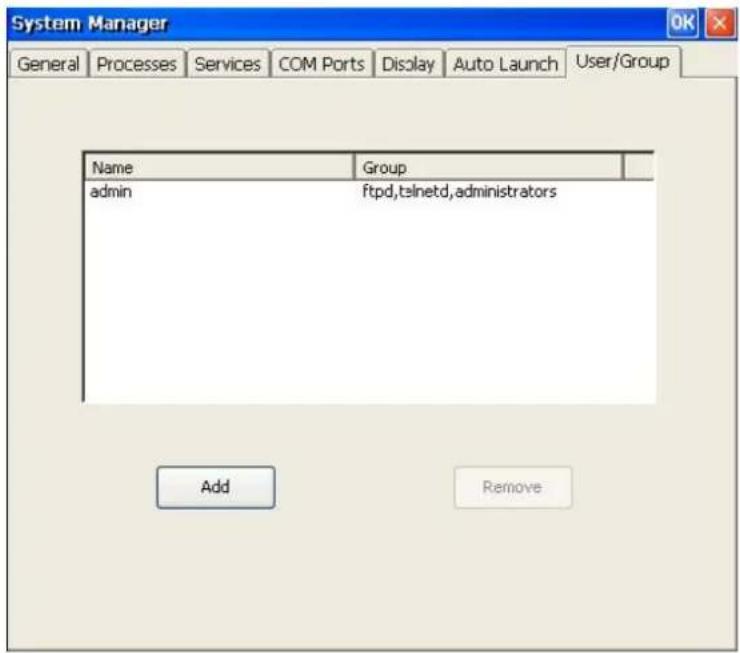
You can add users by clicking the Add button to assign specific services, such as ftp and telnet, to define user groups so that these services are accessible and remove users by clicking the Remove button. The default password for a new user is the user name.
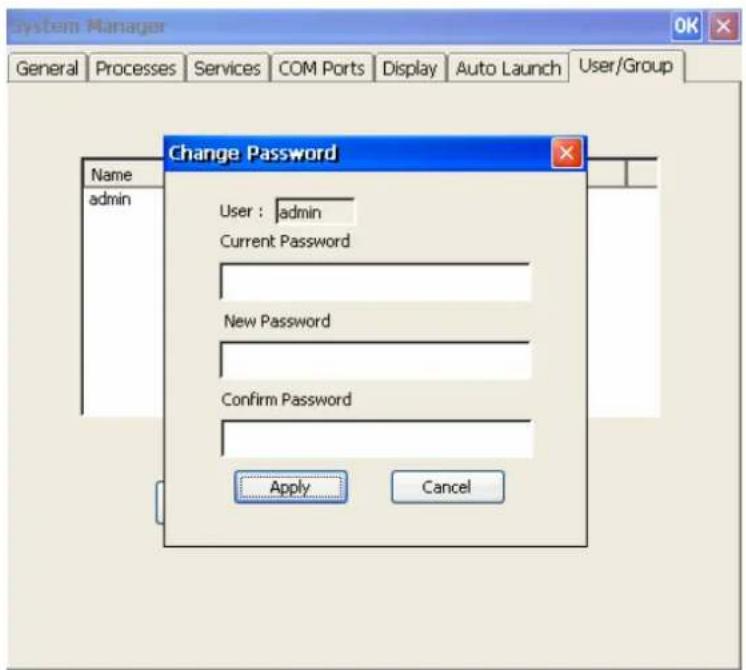
Users can change the login password by clicking expectative name twice.
Auto Launch Configuration
You can specify programs to execute automatically after booting up. Click the Add button to add the program and restart the V460 to execute these programs.
Web Server Configuration
You will need Windows 2000 or Windows XP for Web administration. Try to open an IE window and then navigate to http://192.168.3.127/WebAdmin (e.g., the V460 network IP address is 192.168.3.127).
After seeing the logon information you should see the standard Web server Administration page.
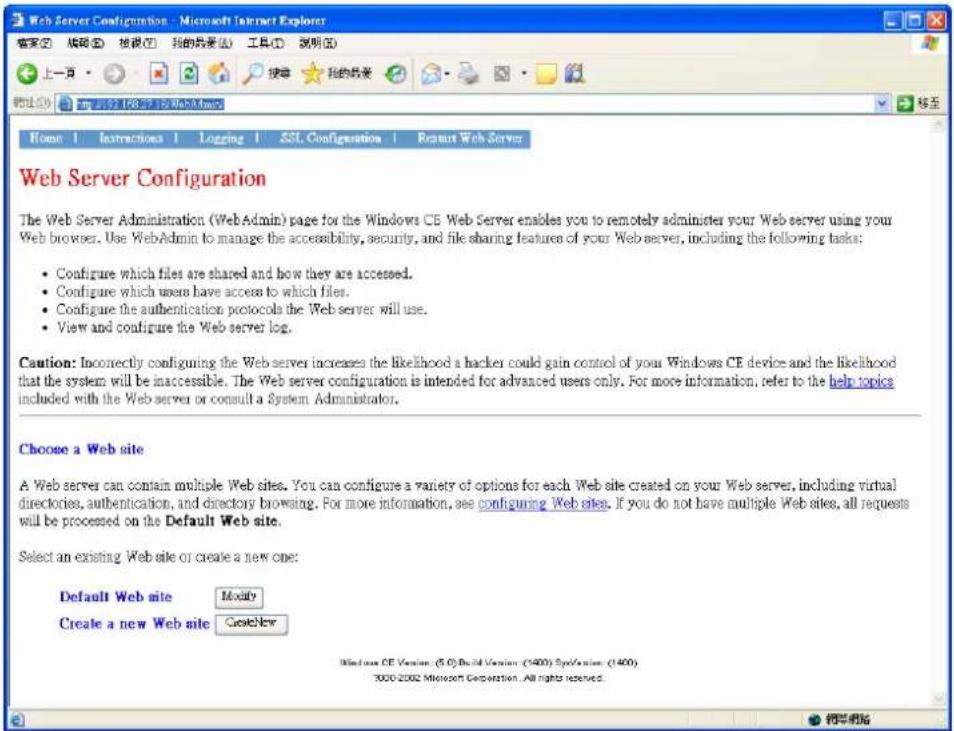
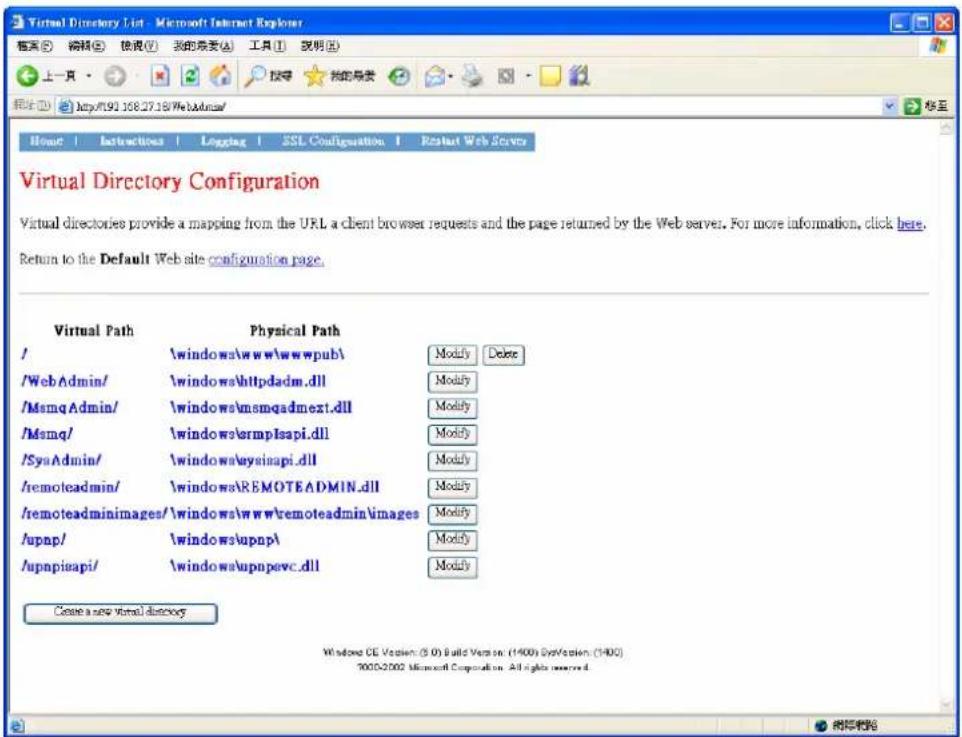
On this administration page, you can create a new web site or create a virtual web path for your web application.
The V460 series of ready-to-run embedded computers are Windows CE 6.0 OS platforms, and the internal file systems support FAT. Although it happens rarely, you may find on occasion that operating system files become damaged. In this chapter, we explain how to revert to the original OS configuration.
The following topics are covered in this chapter:
□ Recovery Environment
Hardware
□ Recovery Programs
□ Recovery Procedures
Recovery Environment
The environment includes the hardware and recovery programs for conducting preliminary tests.
Hardware
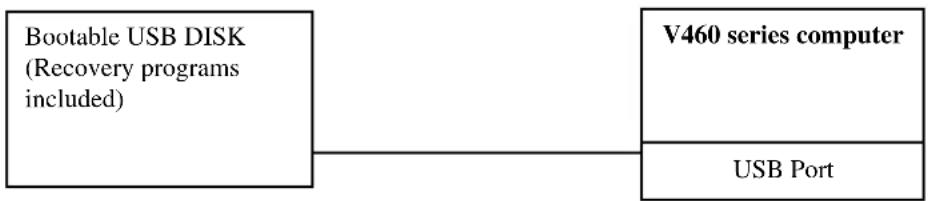
The hardware used for system recovery includes a V460 computer and a bootable USB disk that contains the recovery programs.
flowchart
graph LR
    A["Bootable USB DISK\n(Recovery programs included)"] --> B["V460 series computer"]
    A --> C["USB Port"]
Recovery Programs
We have created programs to recover system image files and executable files.
Recovery Procedures
The recovery procedure is as follows:
- Create a bootable USB disk.
a. Copy system files kernel.sys and command.com to a specific directory.
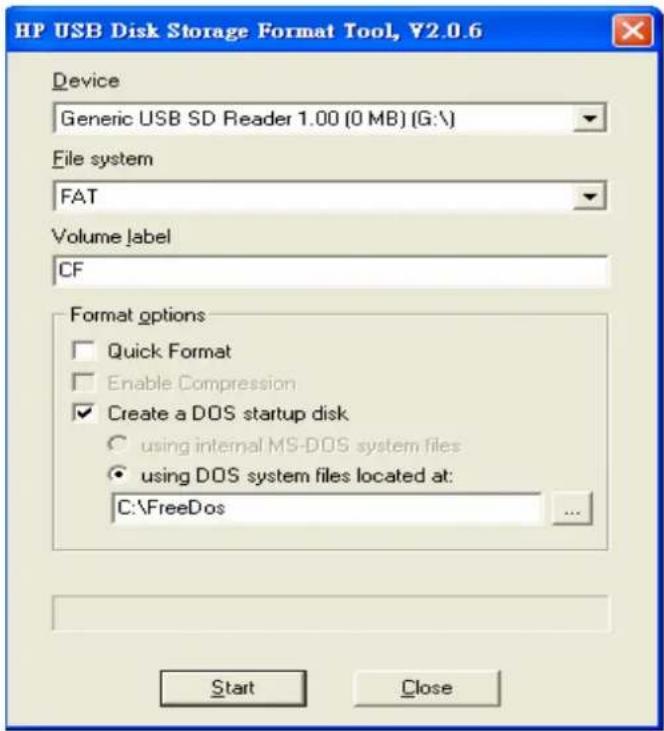
b. Open the HP USB Disk Storage Format Tool.
NOTE: The HP USB Disk Storage Format Tool can be downloaded from the Internet. Use the keyword HP USB Disk Storage Format Tool to search for and download this tool.
c. Select the USB device you want to use as a bootable disk in device options.
d. Select FAT for the File system.
e. Type the disk name in the volume label.
f. Check the option Create a DOS startup disk in the format options.
g. Specify the directory that includes the system files.
h. Press start to format the USB disk.
i. Copy the ceboot directory from the product CD to the USB disk.
- Bios setup on the V460.
a. Insert the USB disk into the V460 computer.
b. Power on and press DEL to enter the bios setup menu.
c. Select [Advanced] → [hard Disk Boot Priority] and then press Enter.
d. In the setup menu, use or to select the USB device.
e. Press + to move the device to the top, and then press ESC to exit the setup menu.
f. Make sure the first boot device is "Hard Disk." If not, press Enter to change it.
g. Select [Exit] → [Save & Exit Setup] and then press Enter.
h. Select Y to save to CMOS and exit.
| ► Hard Disk Boot Priority First Boot Device [Hard Disk] Second Boot Device [CDROM] Third Boot Device [Hard Disk] Boot Other Device [Enabled] | Item Help |
| Menu Level ► Select Your Boot Device Priority. Please set 'Peripherals + Onboard Device + Onboard LAN Boot ROM' to enable when you would like to boot from onboard Lan. | |
| ► Advanced BIOS Features ► Advanced Chipset Features ► PnP/PCI Configurations ► Frequency/Voltage Control | |
| ↑↓++:Move Enter:Select +/-/PU/PD:Value F18:Save ESC:Exit F1:General Help F5:Previous Values F6:Default Settings F7:Turbo Settings | |
| Hard Disk Boot Priority | Item Help |
| 1. USB-HOOB : JetFlashTS2GJFU38 2. Bootable Add-in Cards | Menu Level ▶▶ Use (↑) or (↓) to select a device, then press (•) to move it up, or (-) to move it down the list. Press <ESC> to exit this menu. |
| ↑↓:Move PU/PD/•-:Change Priority F10:Save ESC:Exit F5:Previous Values F6:System Defaults F7:Turbo Defaults | |
- System recovery
a. If the bios setup is correct, the computer will restart and boot from the USB disk.
b. Under command prompt, type cd ceboot
c. In the c:\ directory type mkdisk to initiate the recovery procedure.
d. When the execution is completed, power off and remove the USB disk.
e. Power on the computer to activate the operating system.
To upgrade the V460 firmware, you must download the firmware upgrade installation file. This firmware installation file is on the software CD. You may also download the latest file from the Moxa Download Center.
The URL link of Moxa Download Center:
http://web4.moxa.com/support/download_center.asp
Use the following step-by-step procedure to update the firmware:
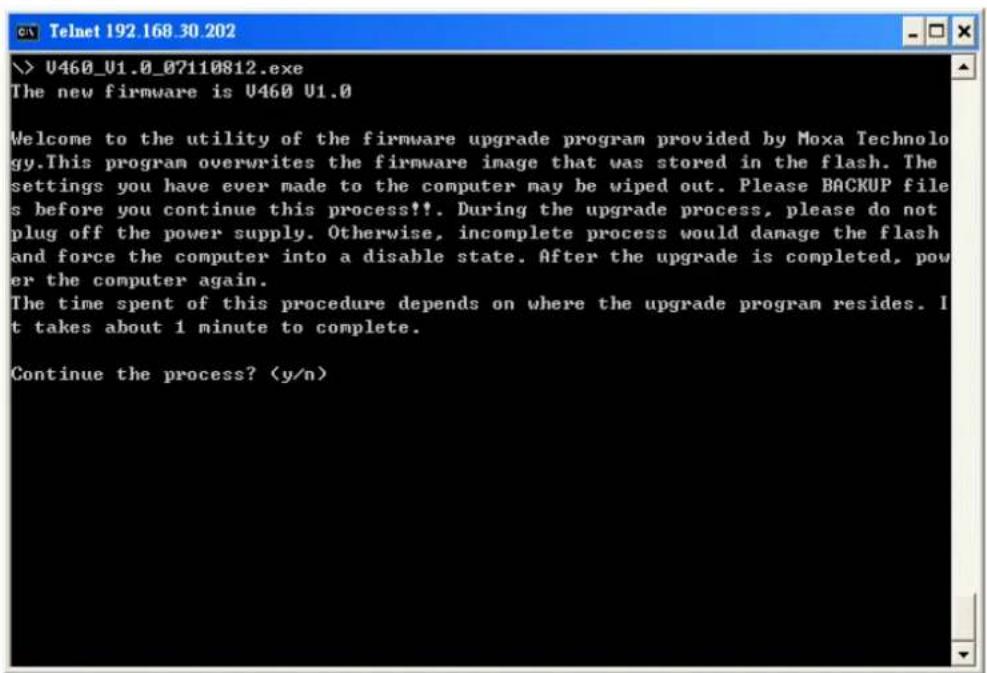
- You will need the firmware file (e.g., V460_V1.0.07070311.exe).
- Upload this file to the target machine under the root directory (i.e., ). If you place this file on a CompactFlash or a USB device, copy it to the root directory first for a faster upgrade. Executing the program from a USB 1.1 device will take much longer.
- Log on to the target computer through a Telnet or console connection.
- Execute the program from the command prompt.
- Press Y to continue the process.
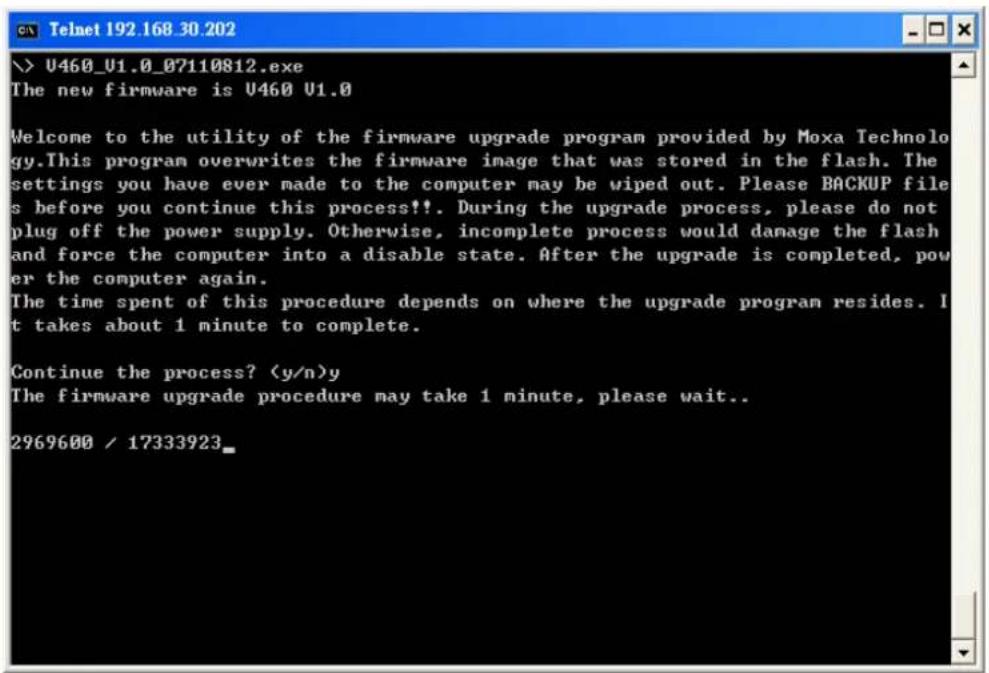
- Please allow at least one minute to complete the upgrade process. After the firmware has been upgraded successfully, press Y to keep the current network settings. Press N to reset to factory default values.
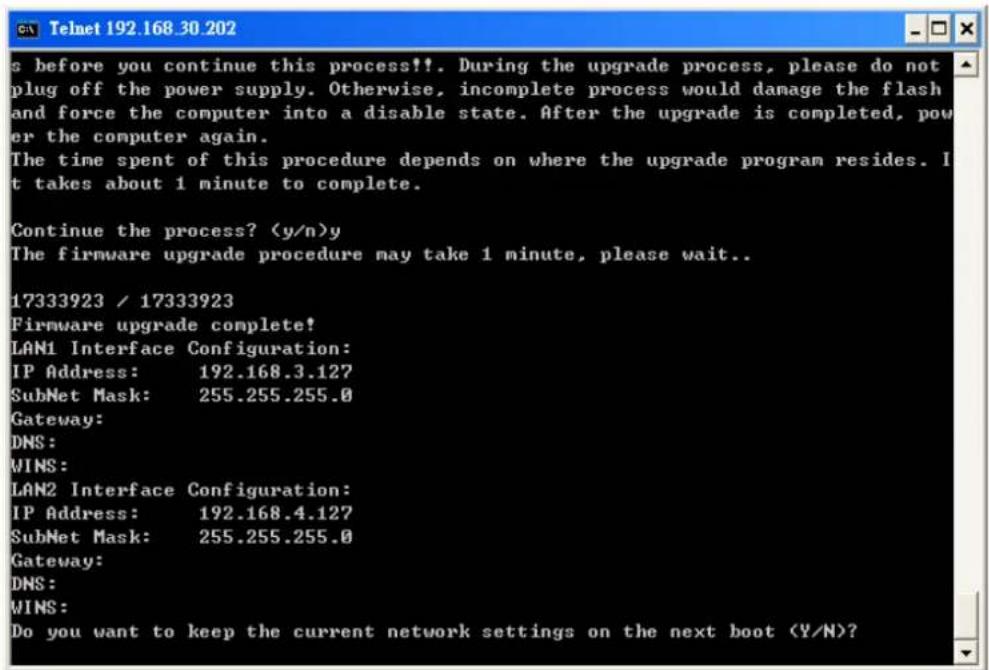
- Press Y to reboot the target computer.