SJ42DMBE - TV Hanns.G - Free user manual and instructions
Find the device manual for free SJ42DMBE Hanns.G in PDF.


| Product Type | LED Television |
| Brand | Hanns.G |
| Model | SJ42DMBE |
| Screen Size | 42 inches (diagonal) |
| Resolution | 1920 x 1080 (Full HD) |
| Refresh Rate | 60 Hz |
| Aspect Ratio | 16:9 |
| Dimensions (without stand) | Approx. 970 x 570 x 80 mm (W x H x D) |
| Weight (without stand) | Approx. 8.5 kg |
| Power Consumption (typical) | 70 W |
| Standby Power | < 0.5 W |
| Inputs | HDMI (2), USB, VGA, Composite, RF |
| Audio Output | 3.5 mm headphone jack, optical audio |
| Built-in Speakers | 2 x 8W |
| VESA Mount | 200 x 200 mm |
| Energy Class | A+ |
| Remote Control | Included (batteries not included) |
| Cleaning Instructions | Wipe with a soft, dry cloth. Do not use liquid or abrasive cleaners. |
| Safety Warnings | Do not open the TV. Risk of electric shock. Keep away from moisture. |
| Repairability | Only authorized technicians should perform repairs. Spare parts available via service centers. |
Frequently Asked Questions - SJ42DMBE Hanns.G
User questions about SJ42DMBE Hanns.G
0 question about this device. Answer the ones you know or ask your own.
Ask a new question about this device
Download the instructions for your TV in PDF format for free! Find your manual SJ42DMBE - Hanns.G and take your electronic device back in hand. On this page are published all the documents necessary for the use of your device. SJ42DMBE by Hanns.G.
USER MANUAL SJ42DMBE Hanns.G
Regulatory Information 3
Description of Warning Symbols 3
Safety Notices.... 4
Preface 6
Warranty and Service 6
- Getting Started ....8
1.1 Package Contents ....8
1.2 Introducing the TV 9
1.3 Features ......9
1.4 Control Panel 10
1.5 Input and Output Jacks.... 10
1.6 Remote Control 12
1.7 Inserting the Remote Control Batteries ....16
- Setting up your TV ....18
2.1 Power Connection .... 18
2.2 Rear Connections....18
2.3 Using the TV 20
2.3.1 Turning the TV On and Off 20
2.3.2 Switching Source Signals....20
2.3.3 Performing an Automatic Channel Search....20
2.3.4 Selecting Channels....20
2.3.5 Adjusting the Volume....20
- Adjusting On-Screen Display (OSD) Settings 21
3.1 OSD Setting Menus 22
3.2 Adjusting Picture Settings 22
3.3 Adjusting Sound Settings....23
3.4 Adjusting TV Settings 24
3.5 Adjusting Features Settings ......27
3.6 Adjusting Parental Settings....29
Table of Contents
- Troubleshooting .... 30
- Support Timing ....31
- Specifications ....32
- Dissembling the stand base....33
- Using the Cable Organizer ...... 34
CE Conformity Statement
This device is in conformity with the requirements of EU Council Directive 2004/108/EC on the approximation of the laws of the Member States relating to electromagnetic compatibility and Directive 2006/95/EC on the harmonization of the laws of Member States relating to electrical equipment for use within certain voltage limits. Hannspree cannot accept responsibility for any failure to satisfy the requirements resulting from a non-recommended modification of the device.
Description of Warning Symbols

WARNING

This symbol is used to alert users to pay attention to important descriptions regarding usage, maintenance (repair), and additional important information related to this TV.
CAUTION

This symbol is used to alert users to the risk of electric shocks due to dangerous and uninsulated components.

Installation Safety Notes
Location
Avoid allowing the TV to get prolonged exposure to sunlight or other strong sources of heat. Leave sufficient distance between the TV and the wall to provide enough space for the emission of heat.

WARNING
To reduce the risk of fire or electric shock, do not expose this apparatus to rain or moisture.
Apparatus shall not be exposed to dripping or splashing and no objects filled with liquids, such as vases, shall be placed on the apparatus.

CAUTION
These servicing instructions are for use by qualified service personnel only. To reduce the risk of electric shock, do not perform any servicing other than that contained in the operating instructions unless you are qualified to do so.

WARNING
To prevent the spread of fire, keep candles or other open flames away from this product at all times.
Notes:
- The LCD TV is for entertainment use only and visual display tasks are excluded.
- This device uses a VGA connector to connect to a PC. To reduce the influence of main frequency on the source signal, use a VGA monitor cable with ferrite shield.
Personal Safety
- To avoid overloading the power supply, never plug too many electrical devices into an outlet, power strip, or extension cable.
- Dangerous high-voltage electric power components are located inside the TV. To avoid electric shock, do not disassemble the casing.
- Do not place or drop metals, small objects, or flammable materials into the vent of the TV.
- If the TV is dropped, falls down, or is otherwise damaged, unplug the power cord immediately and contact an authorized service technician.
- If any fluid is sprayed or dropped into the TV, contact an authorized service technician.
- The screen of the TV is made of glass. Avoid hitting or scraping it. If the screen is broken, do not touch the broken glass.
- Do not allow children to use the TV unattended.
- Be careful when disconnecting the power plug. Hold the plug. Do not attempt to disconnect the plug by pulling on the power cord.
Installation
- Do not place the TV in locations where there is excessive steam or dust.
- Avoid blocking the TV's vents, do not place the TV on a bed, sofa, carpet, or in a sealed cabinet.
- Install the outdoor antenna away from power transmission lines to avoid possible danger.
Preface
Thank you for purchasing a Hannspree Liquid Crystal Display Television (LCD TV). Your new TV will allow you to enjoy superior audio and video while enriching your lifestyle with advanced technology.
Please carefully read this manual in its entirety before setting up, using or operating your TV. To ensure the safe and correct installation and operations of the TV, it is important that the safety and operation instructions in this manual are followed.
This instruction manual is designed to assist you in setting up and using the TV. The information in this manual has been carefully checked for accuracy; however, no guarantee is given to the correctness of the contents. The information in this manual is subject to change without notice.
To the extent allowed by applicable law, Hannspree, Inc. (“Hannspree”) shall not be liable for direct, indirect, special, exemplary, incidental or consequential damages arising from any defect or omission in this manual, even if advised of the possibility of such damages in advance.
Warranty and Service
For complete warranty service information, please refer to the "Warranty Card" enclosed with your TV.
Copyright
© Copyright 2010 Hannspree, Inc.
All rights reserved. This manual is protected by copyright and distributed under licenses restricting its use, copying and distribution. No part of this manual may be reproduced in any form by any means without the prior written authorization of Hannspree. The TV described in this manual may include copyrighted software of Hannspree (or other third parties). Hannspree (or other third parties) preserves the exclusive rights for copyrighted software, such as the right to distribute or reproduce the copyrighted software. Accordingly, and to the extent allowed by applicable law, any copyrighted software contained in the product described herein shall not be distributed, modified, reverse engineered, or reproduced in any manner without the prior written authorization of Hannspree (or of other third parties).
The Hannspree logos presented herein are trademarks of Hannspree. All other product names, trademarks or logos mentioned herein are used for identification purpose only, and may be the trademarks or registered trademarks of their respective owners.
The purchase of the product described herein shall not be deemed to grant, either directly or by implication, estoppel or otherwise, any license under the copyrights, patents, patent applications or trademarks of Hannspree, except for the normal, non-exclusive use that arises by operation of law in the sale of a product.
Trademark Notice
HDMI
Hannspree products incorporate High-Definition Multimedia Interface (HDMI ^TM ) technology.
HDMI, the HDMI logo and High-Definition Multimedia Interface are trademarks or registered trademarks of HDMI Licensing LLC.
License Notice and Trademark Acknowledgment

Manufactured uder license from Dolby Laboratories. "Dolby" and the double-D symbol are trademarks of Dolby Laboratories.
1
Getting Started
1.1 Package Contents
Make sure the following components are included in the box. Please contact Hannspree Customer Service immediately if anything is missing or damaged.
• TV
- User's manual
- Quick start guide
- Warranty card
- Power cord
- Remote control and batteries
- TV cleaning cloth
- Stand screws x 4 (for 27.5"/31.5"/42")

ME61

According to WEEE regulation, this TV can't be handled as normal trash in Europe when it is out of usage. Please refer to the recycle information from our website to handle it.
1.2 Introducing the TV
You can watch SECAM/ PAL/ DVB-T broadcast, cable, or digital television channels, and easily connect a VCR, STB or DVD player to the SCART, HDTV (Component), AV (Composite), and HDMI input ports (location of these ports depends on model). You can also use the TV as a monitor for your PC by connecting it through the VGA port.
Convenient control buttons located on the TV and a handy remote control let you change channels, adjust the volume, and change display settings through an easy-to-use on-screen display menu system. The built-in stereo speakers provide full rich sound and a convenient audio output port lets you connect to an external audio system or earphones.
1.3 Features
• TV Tuner: Built-in TV Tuner
• Audio/ Video support:
- SCART inputs
- VGA (PC) input
- HDMI inputs
– HDTV (Component) input - R/L audio inputs
- PC line input
- 3.5 mm stereo earphone output
- AV (Composite) input
- SPDIF output (27.5"/31.5"/42")
- SPDIF output (digital audio out) (18.5"/21.6"/24.6")
- On-Screen Display (OSD) menu system
- Teletext (TV RF+SCART) 1.5v. with 100 pages memory
• Built-in stereo speakers - Image Enhancement Technology
- 3:2/2:2 pull down
- 3D Comb Filter
- HD-ready TV
- Noise Reduction
- Advanced 3D de-interlacing
- Edge Enhancement
Note:
- The supporting devices mentioned in this manual may vary on different models. For more information, please refer to the manufacturer's user manual or the Quick Start Guide of your TV model.
1.4 Control Panel
| Description Button Function | ||
| Power Press to turn the TV on or off. | ||
| Input source | INPUT | Press to select the proper input source. |
| Menu MENU | Press to turn the on-screen display (OSD) menu on / off. | |
| Program select P▲ | Press to increase the program number or move upward to the previous item on the OSD menu. | |
| Program select P▼ | Press to decrease the program number or move downward to the next item on the OSD menu. | |
| Volume adjust VOL + | Press to increase the volume or move to the right on the OSD menu. | |
| Volume adjust VOL - | Press to decrease the volume or move to the left on the OSD menu. | |
| Remote IR sensor | Receive incoming remote control commands. | |
| Power/ Standby indicator | Indicate power or standby status, power on/off represent to Green/Red light indicators. | |
Speakers Deliver high-quality sounds.
1.5 Input and Output Jacks
Description Connector Function
Cable/Antenna Connector an antenna or cable TV.
| Description Connector Function | ||
| Earphone Output |  | Connect to earphones or external speakers with built-in amplifier. |
| Component/ CVBS Inputs (Audio) | L-AUDIO-R[YOWB] | Connect to an external device, such as a VCR, STB, or a DVD player. |
| Component Inputs (Video) |  [YZ68] Y-PB-PR [YZ68] Y-PB-PR | Connect to an external device, such as a VCR, STB, or a DVD player. |
| PC Audio Input Connect to a PC's line / audio port. | ||
| SCART 1 | SCART 1[GSAT] | Connect to an external device, such as a VCR, STB, or a DVD player with AV, S-Video, RGB, L/R IN, Analog TV Out, and L/R Out. |
| SCART 2 | 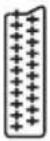 SCART 2 SCART 2 | Connect to an external device, such as a VCR, STB, or a DVD player with AV, S-Video, RGB, L/R IN, Analog TV Out, and L/R Out. |
VGA (PC) Input Connec  VGA port. VGA port. | ||
Service Service only. Not   SERVICE SERVICE | ||
| Video | VIDEO | Connect to an external device, such as a VCR, STB, or a DVD player. |
CI Connect to a CI device - CI SLOT  | ||
| HDMI 1 Input |  HDMI 1 HDMI 1 | Connect a HDMI equipment or an HDMI-DVI adapter cable to devices such as a DVD player or set-top box. |
| HDMI 2 Input |  HDMI 2 HDMI 2 | Connect a HDMI equipment or an HDMI-DVI adapter cable to devices such as a DVD player or set-top box. |
| HDMI 3 Input | HDMI 3 | Connect a HDMI equipment or an HDMI-DVI adapter cable to devices such as a DVD player or set-top box. |
| SPDIF |  SPDIF SPDIF | Connect to a digital audio output device such as a home theater. |
| Power Connector Connected AC IN | included power cord. | |
1.6 Remote Control
| Description Icon Function | ||
| Power Press to turn the TV on or off. | ||
| Input Signal Type | INPUT | Press to select the input signal type selections: TV, DTV, SCART, AV, HDMI 1, HDMI 2, HDTV, and PC. |
| Keypad | 1 2 34 5 67 8 90 | Use to select a program directly. Press 0-9 to enter the program numbers (press 1 and 0 for program 10). |
| Pro.List Pro.LIST | Press to display the programs contained. | |
| Last Press to return to the last channel selected. | ||
| Information INFO | 1. Press to display current channel/program information.2. During DTV menu selection, press to display help information about Channel Organizer, Channel Sorting, Channel Grouping, Time and Parental Rating. | |
| Menu MENU | Press to turn the on-screen display (OSD) menu on / off. | |
| OK OK Press to confirm selection. | ||
| Arrows | Press up, down, left or right to scroll through the on-screen display menus. | |
| Electronic Program Guide | EPG | Press to display detailed programming information for channels (only for DTV). |
| Teletext mode TEXT | Press to active teletext. | |
| Volume adjust | VOL+VOL - | Press VOL + to increase audio volume. Press VOL - to decrease audio volume. |
| Mute | MUTE | Press to eliminate sound. Press it again or press the volume adjust buttons to restore sound. |
| Dual sound |  | Press to change the multi sound selection of the TV channel. |
| Select program |  | Press P▲ to increase the program number. Press P▼ to decrease the program number. |
| Red, Green, Yellow, Blue |  | Press the colored buttons to perform specific tasks in the OSD menu or teletext mode. |
| Index |   | Press to display a table of the available teletext subjects.(Programmable in the teletext mode only) |
| Mix |   | Press to display the teletext over the program on the screen. (Programmable in the teletext mode only) |
| Adjust size |   | Press to adjust screen size. (Programmable in the teletext mode only) |
| Subtitle |   | With an ATV source, if teletext mode is activated and the teletext has a subtitle page, press to display the subtitle page. With a DTV source, press to display the subtitle OSD, and select the language. |
| Hold |  [SDTK] [SDTK] | Press to inactivate automatic page change which only occurs when more than one teletext page exists.(Programmable in the teletext mode only) |
| Reveal |   | Press to display the hidden information, such as solutions to puzzles. (Programmable in the teletext mode only) |
| Sound Mode |   | Press continuously to toggle through all the sound setting: Standard, Music, Movie, Speech, or User. |
| Picture Mode | PIC | Press continuously to toggle through all the picture setting: Vivid, Soft, User, Standard. |
| Favorite channel | FAV. | Press to open favorite list menu and press / to select channels. Press OK to go to the selected channel. |
| Freeze | FREEZE | Press to pause a video frame on-screen. (Programmable in the TV source only) |
| Sleep timer | SLEEP | Press repeatedly to set the sleep timer (15, 30, 45, 60, 90 or 120 minutes). Cancel the timer by selecting the Sleep Off option. |
| Aspect ratio | ASPECT | Press to adjust the width-to-height ratio of the image with aspect ratio: AUTO, Full, Normal, Panorama, Zoom, Subtitle and Wide. |
Note:
- For best results, use the remote control within a proper distance from the front of the TV. Do not exceed an angle of 30 degrees when pointing at TV.
- The operational distance may be shortened when the signal sensor is directly exposed to strong light.
- Aim the transmitter on the remote control at the signal sensor and ensure that there are no obstacles between them.
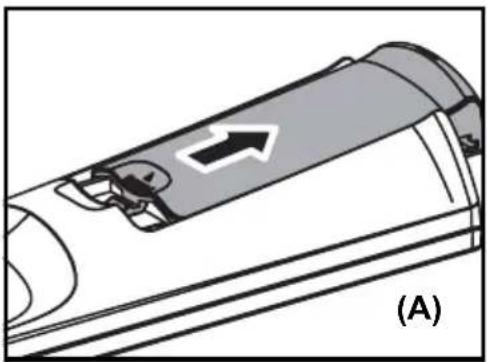
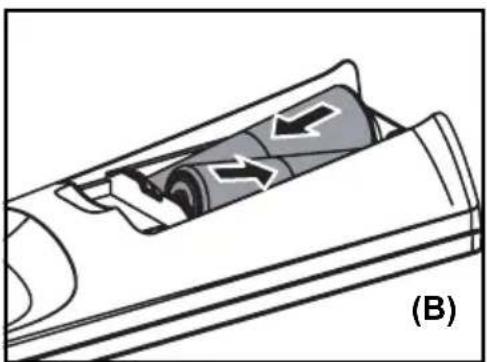
1.7 Inserting the Remote Control Batteries
1 Open the battery compartment cover at the back of the remote control (A).
natural_image
Diagram of a car interior with directional arrow and labeled section (A), no readable text or symbols present.2 Insert the batteries paying attention to the polarity markings inside the battery compartment (B).
natural_image
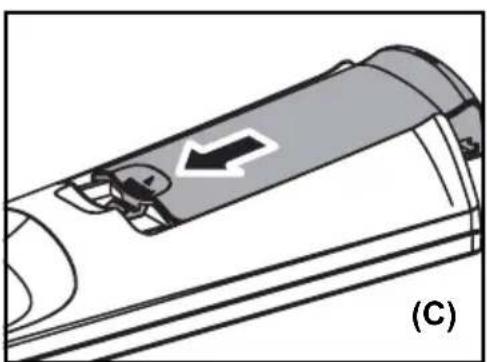
Diagram of a mechanical component with directional arrows indicating movement or flow (no text or symbols)3 Replace the battery compartment cover (C).
natural_image
Diagram of a device with a directional arrow and labeled section (C), no readable text or symbols present.
CAUTION
- If the remote control is not used for a long period, remove the batteries and store them properly.
- Handle damaged or leaking batteries carefully, and wash hands with soap if they come in contact with leaked chemical fluids.
- If your remote control has two batteries, do not mix new and old batteries, or the life of the new batteries will be shortened. Chemical fluids may leak from the old batteries.
- Danger of explosion if battery is incorrectly replaced. Replace only with the same or equivalent type recommended by the equipment manufacturer. Discard used batteries according to manufacturer's instructions.
- Refer to your local recycling or waste disposal rules and contact a local waste disposal vendor to dispose of used batteries.
- The remote control cover may have a magnet in it, so do not place magnetic sensitive items such as watches, credit cards, or flash media close to the cover.
- Do not use force when pulling the remote control cover open; you may damage the hinge.
2
Setting up your TV
2.1 Power Connection
1 Connect the power cord to the AC IN input jack on the rear of the TV.
2 Insert the plug at the other end of the power cord into a power outlet.
2.2 Rear Connections
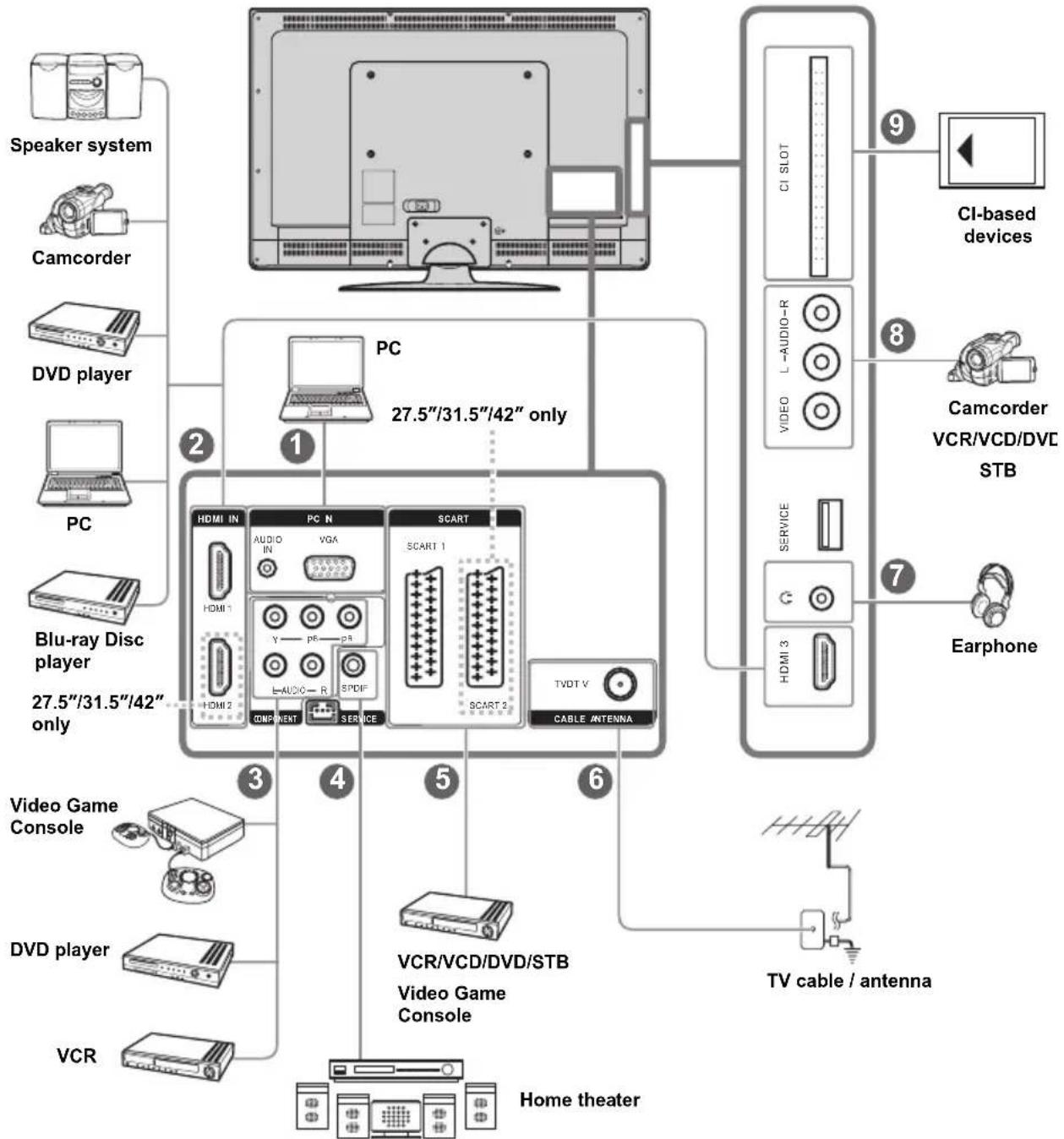
See the illustration and table below for device connection instructions.
flowchart
graph TD
    A["Speaker system"] --> B["PC"]
    C["Camcorder"] --> B
    D["DVD player"] --> B
    E["PC"] --> B
    F["Blu-ray Disc player"] --> B
    G["27.5"/31.5"/42" only"] --> B
    H["Video Game Console"] --> I["Home theater"]
    J["DVD player"] --> I
    K["VCR"] --> I
    L["TV cable / antenna"] --> I
    M["PCI-SLOT"] --> N["CI-based devices"]
    O["VIDEO"] --> P["L-AUDIO-R"]
    Q["VIDEO"] --> R["L-AUDIO-R"]
    S["VIDEO"] --> T["L-AUDIO-R"]
    U["VIDEO"] --> V["L-AUDIO-R"]
    W["VIDEO"] --> X["L-AUDIO-R"]
    Y["VIDEO"] --> Z["L-AUDIO-R"]
    AA["VIDEO"] --> AB["L-AUDIO-R"]
    AC["VIDEO"] --> AD["L-AUDIO-R"]
    AE["VIDEO"] --> AF["L-AUDIO-R"]
    AG["VIDEO"] --> AH["L-AUDIO-R"]
    AI["VIDEO"] --> AJ["L-AUDIO-R"]
    AK["VIDEO"] --> AL["L-AUDIO-R"]
    AM["VIDEO"] --> AN["L-AUDIO-R"]
    AO["VIDEO"] --> AP["L-AUDIO-R"]
    AQ["VIDEO"] --> AR["L-AUDIO-R"]
    AS["VIDEO"] --> AT["L-AUDIO-R"]
    AU["VIDEO"] --> AV["L-AUDIO-R"]
    AW["VIDEO"] --> AX["L-AUDIO-R"]
    AY["PCI-SLOT"] --> Z
    AZ["CI-based devices"] --> AA
    BA["Camcorder VCR/VCD/DVC STB"] --> BB["8"]
    BC["Earphone"] --> BD["7"]
    BE["Video Game Console"] --> BF["3"]
    BG["VCR/VCD/DVD/STB Video Game Console"] --> BH["4"]
    BI["Home theater"] --> BJ["5"]
    BK["TV cable / antenna"] --> BL["6"]
| No. | Connector Notes | / Instructions |
| 1 VGA • The VGA andAUDIO In | audio cables are optional. | |
| 2 HDMI 1 • The HDMI | cable is optional.When the HDMI to HDMI cable is connected, connecting the audio cable is not necessary.However it's necessary to do so if a HDMI to DVI cable is connected. | |
| 3 ComponentVideo Inputs | • The video and audio cables are optional. | |
| 4 SPDIF • The SPDIF | cable is optional. | |
| 5 SCART 1 • If your AV devices are not equipped with SCART connectors, you will also need a SCART adapter except for a SCART to SCART cable.When a SCART adapter is used, the S-Video connector and AV connectors cannot be connected at the same time, or the wrong signals might be generated.The SCART to SCART cable and SCART adapter are optional. | ||
| 6 Cable/Antenna • If you cannot receive channels after connecting to a TV cable or antenna, try scanning for channels. | ||
| 7 | Earphone • The internal TV speakers will not output sound when a speaker or earphone is plugged in. | |
| 8 | Composite Video Input | • The video and audio cables are optional. |
| Composite Audio Inputs | ||
| 9 | CI | • The Common Interface cable is optional. |
| Note:The available connectors may vary depending on your TV model. | ||
2.3 Using the TV
2.3.1 Turning the TV On and Off
1 Press ⏻ on the control panel or remote control. The power LED indicator on the TV changes from red to green, indicating that the TV is on.
2 Press again. The power LED changes from green to red, indicating that the TV is off.
2.3.2 Switching Source Signals
Press INPUT on the control panel or remote control to select the incoming source signal.
2.3.3 Performing an Automatic Channel Search
Before using the TV to view programs, you need to activate the channel search first.
1 Press MENU on the control panel or remote control, then select to enter the Channel / DTV menu.
2 Select Auto Search.
3 Press on the remote control to run the channel search.
2.3.4 Selecting Channels
- Press P▲ on the remote control or control panel to increase the channel number.
- Press P▼ on the remote control or control panel to decrease the channel number.
- Enter the specific channel number by pressing the number buttons on the remote control.
2.3.5 Adjusting the Volume
1 Press VOL+ on the control panel or remote control to increase the volume.
2 Press VOL- on the control panel or remote control to decrease the volume.
3 Press MUTE to eliminate sounds, and press MUTE again or press the volume buttons to restore the original volume.
3 Adjusting On-Screen Display (OSD) Settings
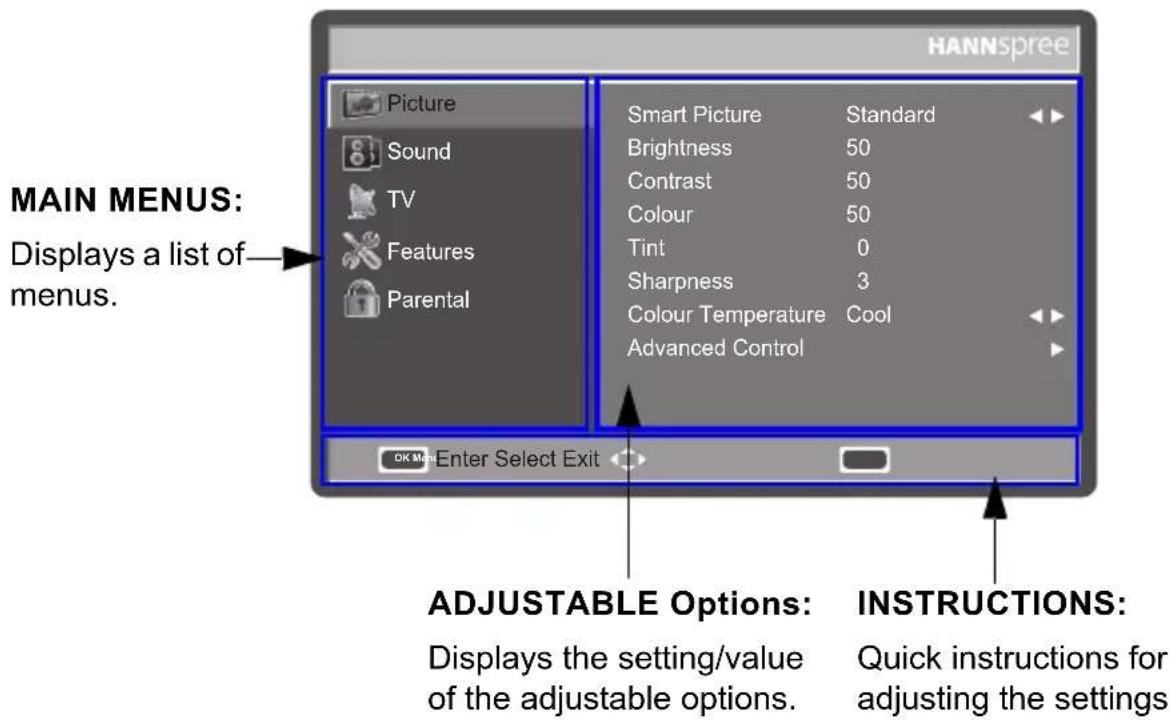
The On-Screen Display (OSD) menu system provides a quick and simple method to adjust the TV settings. The OSD menu can be accessed conveniently through the buttons on the remote control.
Before going into details of each OSD option, you may get acquainted with the placement of the OSD system:.
| Function TV Control Panel Remote Control | ||
| OSD Menu MENU | MENU | |
| Up P▲ | Arrow ^ | |
| Down P▼ | Arrow √ | |
| Select/ Increase | VOL + | Arrow > |
| Select/ Decrease | VOL - | Arrow < |
| Return MENU | MENU | |
3.1 OSD Setting Menus
Follow the instructions indicated on the down side of the OSD Function Menu. Press P ▲/P▼ on the control panel or ∧ / √ arrow keys to scroll through the menus, VOL + on the control panel or the > arrow key to select an item, or MENU to exit the OSD menu.
The following menus can be set by different adjustment methods.
3.2 Adjusting Picture Settings
1 Press MENU to enter the OSD Main Menu screen. The Picture menu is then displayed.
2 Press > to enter the Picture menu.
3 Press ∧ / ∨ to select an item.
4 Press < / > to adjust the scales or options settings.
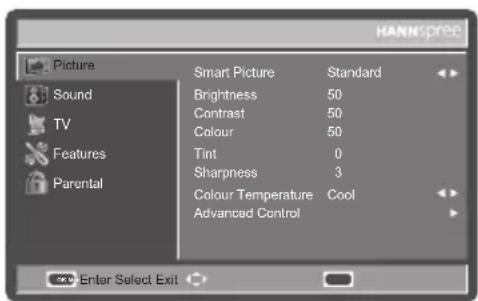
5 Press MENU to return to the Picture menu entry.
6 Press MENU to exit the OSD menu.
- The Picture menu can be used to adjust the Smart Picture, Brightness, Contrast, Colour, Tint, Sharpness, Colour Temperature, Advanced Control, and Advanced Video (PC only) settings.
- The Smart Picture can be set to Standard, Vivid, Movie, Eco, or Personal.
- The Brightness, Contrast, and Colour can be adjusted by pressing < / > to move the scales from 0 to 100.
- The Tint can be adjusted by pressing > to move the scales from -32 to 32.
- T h Sharpness can be adjusted by pressing < / > to move the scales from 0 to 7.
- The Colour Temperature can be set to Standard, Warm, or Cool.
- The Advanced Control can be used to adjust the Noise Reduction, Flesh Tone, Backlight, and X-Contrast.
- The Noise Reduction can be set to Auto, Off, Low, Medium, or High.
- The Flesh Tone can be set to On or Off.
- The Backlight can be adjusted by pressing 1 to adjust the scales from 0 to 100.
- The X-Contrast can be set to On or Off.
- The Advanced Video can be used to adjust the Auto Config, Horizontal, Vertical, Phase, Clock, and Resolution settings for PC mode.
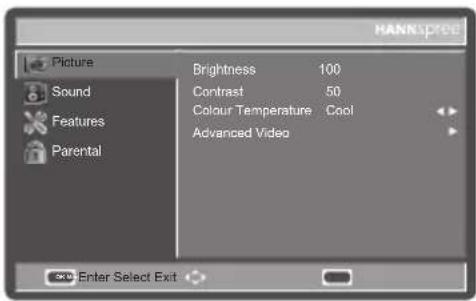
Note: The options available on the OSD may vary depending on the input signal source.
3.3 Adjusting Sound Settings
1 Press MENU to enter the OSD Main Menu screen.
2 Press √ to select the Sound menu.
3 Press > to enter the Sound menu.
4 Press ∧ / ∨ to select an item.
5 Press / to adjust the scales or options settings.
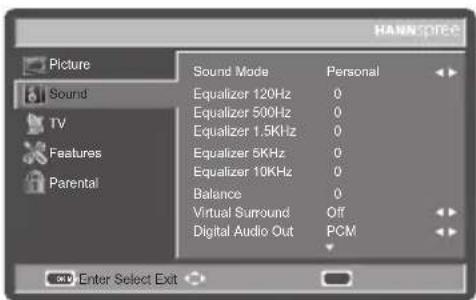
6 Press MENU to return to the Sound menu entry.
7 Press MENU to exit the OSD menu.
- The Sound menu can be used to adjust the Sound Mode, Equalizer 120Hz, Equalizer 500Hz, Equalizer 1.5KHz, Equalizer 5KHz, Equalizer 10KHz, Balance, Virtual Surround, Digital Audio Out, SPDIF Delay, AVL, Type, and Audio Description settings.
• The Sound Mode can be set to Music, Speech, or Personal. - The Equalizer 120Hz, Equalizer 500Hz, Equalizer 1.5KHz, Equalizer 5KHz, and Equalizer 10KHz can be adjusted by pressing to move the scales from -6 to 6.
-
The Balance can be adjusted by pressing to move the scales from -50 to 50.
• The Virtual Surround can be set to On or Off.
• The Digital Audio Out can be set to Dolby Digital, PCM, or Off. -
The SPDIF Delay can be adjusted by pressing / to move the scales from 0 to 250.
• The AVL can be set to On or Off. - The Type can be set to Normal, Hard of Hearing, or Audio Description.
- To adjust the Audio Description, select Audio Description in the Type setting first. Press <1 to adjust the scales from 0 to 100.
Note: The options available on the OSD may vary depending on the input signal source.
3.4 Adjusting TV Settings
1 Press INPUT and select TV as the signal type.
2 Press MENU to enter the OSD Main Menu screen.
3 Press √ to select the TV menu.
4 Press > to enter the TV menu.
5 Press ∧ / ∨ to select an item.
6 Press < / > to adjust the scales or options settings.
7 Press MENU to return to the TV menu entry.
8 Press MENU to exit the OSD menu.
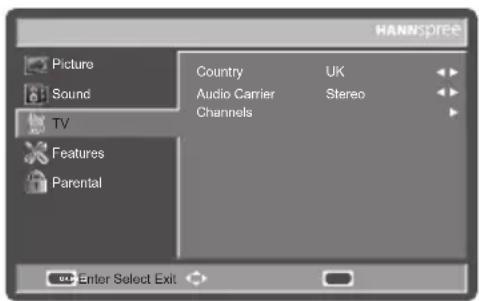
- The TV menu can be used to adjust the Country, Audio Carrier, and Channels settings.
- The Country can be set to Austria, Belgium, Bulgaria, Croatia, Czech Republic, Denmark, Finland, France, Germany, Greece, Hungary, Iceland, Ireland, Italy, Luxembourg, Netherlands, Norway, Poland, Portugal, Romania, Russia, Serbia, Slovakia, Slovenia, Spain, Sweden, Switzerland, Turkey, and UK.
- The Audio Carrier can be set to Dual I, Dual II, Mono, and Stereo.
- The Channels can be used to perform or adjust the Channel Scan, Update Scan, Single RF Scan, Analog Manual Scan, Channel Skip, Channel Sort, Channel Edit, Decoder, and Analog Ch Fine Tune settings.
- Select Channel Scan to activate the automatic TV channel search.
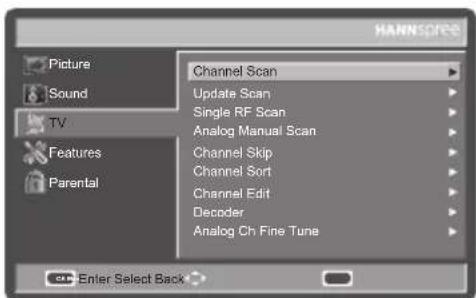
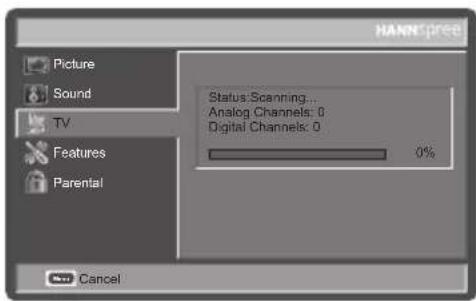
- Select Update Scan to automatically add channels to the existing channel list.
- Select Single RF Scan to search for digital channels within the selected RF (Radio Frequency) channel.
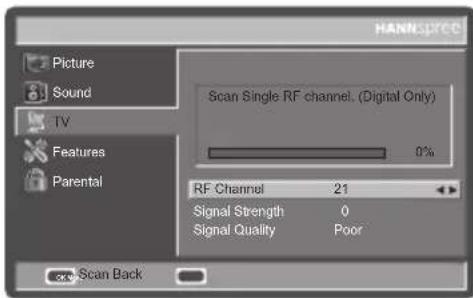
- Select Analog Manual Scan to search for analog channels within the specified frequency range.
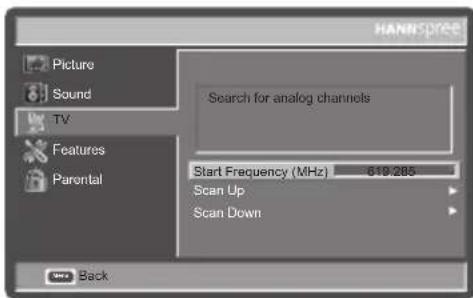
- Use Channel Skip to prevent the desired channels from being accessed by pressing P▲/P▼ on the remote control or control panel.
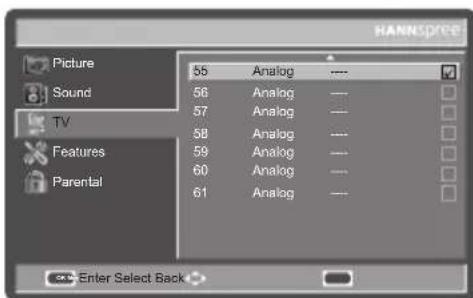
- Select the Channel Sort to change the order of the channel list.
- The Channel Edit allows you to adjust the detailed items, including Channel Number, Channel Name, Frequency, Colour System, and Sound System for each channel.
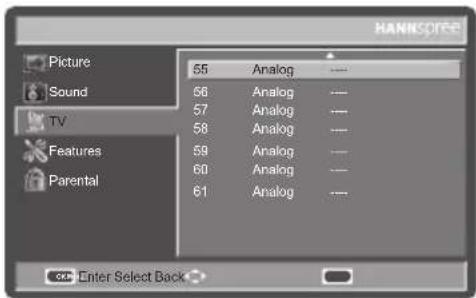
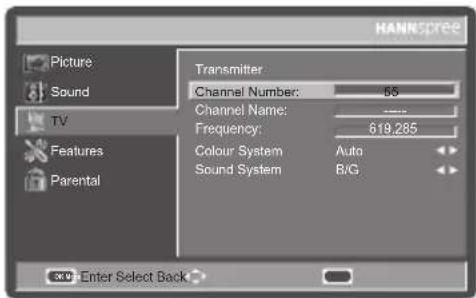
- To change the channel number, select Channel Number and use the number keys on the remote control to type numbers.
- To change the channel name, select Channel Name and use the number keys on the remote control to type letters, digits, or symbols. Press keys repeatedly to toggle different characters.
KEY CHARACTER
| 0 | - | @ | 0 | ||||||
| 1_-1 | |||||||||
| 2A | B | C | a | b | c | 2 | |||
| 3 | D | E | F | d | e | f | 3 | ||
| 4 | G | H | l | g | h | i | 4 | ||
| 5 | J | K | L | j | k | l | 5 | ||
| 6 | M | N | O | m | n | o | 6 | ||
| 7PQRSp qrs 7 | |||||||||
| 8T | U | V | t | u | v | 8 | |||
| 9 | W | X | Y | Z | w | x | y | z | 9 |
- To change the channel frequency, select Frequency and use the number keys on the remote control to type the desired frequency.
- The Colour System can be set to Auto, DAL, or SECAM.
- The Sound System can be set to I, D/K, A2 D/K, A2 D/K1, B/G, A2 B/G, L, or L'.
- The Decoder supports the Canal+ (paid TV channel with encrypted programs).
- Select Analog Ch Fine Tune to adjust precisely the analog channel frequency to ensure high signal quality.
Note: The TV Settings are only available in TV mode.
3.5 Adjusting Features Settings
1 Press MENU to enter the OSD Main Menu screen.
2 Press √ to select the Features menu.
3 Press > to enter the Features menu.
4 Press ∧ / ∨ to select an item.
5 Press < / > to change the options settings.
6 Press MENU to return to the Features menu entry.
7 Press MENU to exit the OSD menu.
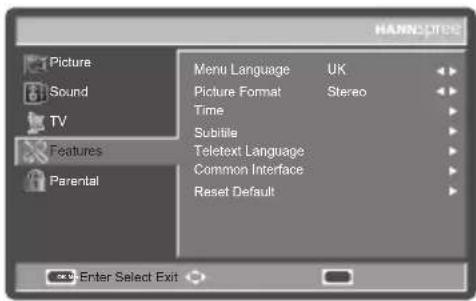
- The Features menu can be used to adjust the Menu Language, Picture Format, Time, Subtitle, Teletext Language, Common Interface, Reset Default, and HDMI Scan Info (HDMI only) settings.
• The available menu languages are English, Deutsch, Français, Italiano, Español, Português, Nederlands, българский, Dansk, Suomi, Svenska, Norsk, Polski, Русский, Ceský, Hrvatski, Magyar, Română, Slovenský, Slovenščina, Srpski, Türkçe, and Еллэнвика, and Українська. - The Time can be used to adjust the Time Zone, Time, and Sleep Timer settings.
- The Subtitle can be used to adjust the Analog Subtitle, 1st Subtitle, 2nd Subtitle, and Subtitle Type settings.
- The Teletext Language can be used to adjust the Digital Teletext Lang. and Decode Page Lang. settings.
- Select Common Interface to view the CI supplier information.
- Select Reset Default to restore all settings to the defaults.
- The HDMI Scan Info can be used to adjust the Automatic, Underscan, and Overscan settings.
- The Picture Format selections include Auto, Normal, Zoom1, Zoom2, Full, Subtitle, Native, and Wide. Please see below for details.
| Auto | 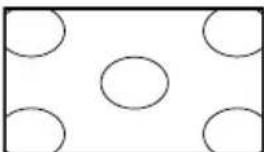 |
| Normal | 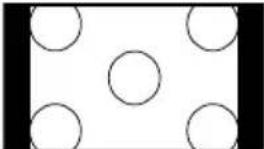 |
| Zoom1 | 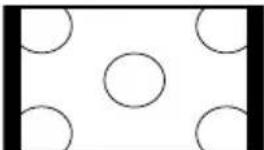 |
| Zoom2 | 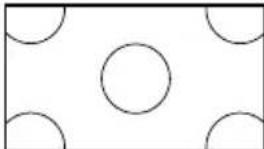 |
| Full | 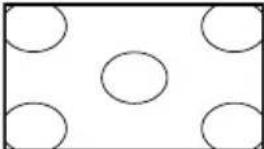 |
| Subtitle | 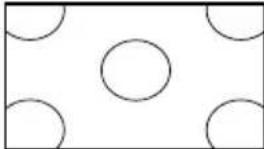 |
| Native | 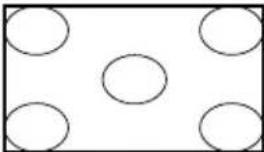 |
| Wide | 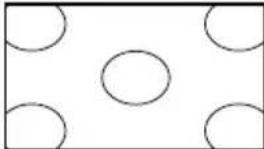 |
Note: The options available on the OSD may vary depending on the input signal source.
3.6 Adjusting Parental Settings
1 Press INPUT and select TV as the signal type.
2 Press MENU to enter the OSD Main Menu screen.
3 Press √ to select the Parental menu.
4 Press > to enter the Parental menu.
5 Type the password. The default is 0000.
6 Press ∧ / ∨ to select an item.
7 Press < / > to adjust the options settings.
8 Press MENU to return to the Parental menu entry.
9 Press MENU to exit the OSD menu.
- The Parental menu can be used to adjust the Channel Block, Parental Guidance, Input Block, Set Password, and Clear All settings.
- Select Channel Block to block desired channels.
- Select Parental Guidance to set Age Rating. Press < / > to adjust the value from 4 to 18 or to set as None.
- Select Input Block to block desired input sources.
- Select Set Password to change the password.
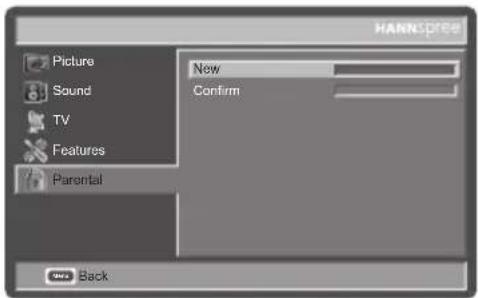
- Select Clear All to restore defaults for all parental settings.
Note: The Channel Block is only accessible in TV mode.
Troubleshooting
Situation Solution
| No picture and sound. | Connect the power cord properly.Check if the power LED is on or not.Press on the control panel or remote control.Press Input to cycle through connected video sources.P r P▲ orP▼s to switch to other TV programs.Make sure all cables are connected properly. |
| No picture, or poor picture, sound is OK. | Check the antenna and cable connections.Adjust the brightness in thePicture OSD menu. |
| Picture is not in color. | Adjust thecolouroption in thePicture OSD menu. |
| Picture is OK, no sound. | Make sure the source device is functioning properly.Make sure the audio cable is connected securely.Turn the mute off.P r e s s VOL + on the control panel or remote control |
| One of the speakers has no sound. | Adjust thebalancein theSound OSD menu. |
| Cannot receive some TV channels using cable TV. | Try theAuto Searchfunction in theChannel or DTV OSD menu. |
| Want to reset TV settings. | Use theResetfunction in theSetup OSD menu. |
| Cannot operate menus. | If OSD items are colored in gray, the system is in a state such that those settings are not available. |
| Screen image turns over. • Make sure the video signal cable is connected properly. | |
| Snow appears on the screen. | Adjust the location of the antenna, placing it far from roads or sources of interference.Check the antenna and the video signal line connections. |
| Blurred or overlapped images. | Adjust the sharpness setting.Choose programs with high quality signals.Adjust the direction of the antenna or replace the video signal cable. |
| Remote control doesn't work. | Make sure the battery is inserted correctly.Replace the battery with a new one.Make sure the TV power cord is plugged in.Make sure the path between the remote control and the sensor is clear.Try operating the remote control at a closer distance to the TV. |
PC Mode Support Timing
| Mode Resolution | Horizontal Freq. (KHz) | Vertical Freq. (Hz) | Pixel Clock (MHz) | SJ19DMAB SJ22DMAB | SJ25DMAB SJ28DMBB SJ32DMBB SJ42DMBB | |
| 1 640 x | 480 | 31.469 59.94 2 | 5.175 V V | |||
| 2 640 x | 480 37.861 72.809 | 31.5 V V | ||||
| 3 640 x | 480 37.5 75 31.5 V | V | ||||
| 4 720 x | 400 31.469 70.087 | 28.322 V V | ||||
| 5 800 x | 600 35.156 56.25 | 36 V V | ||||
| 6 800 x | 600 37.879 60.317 | 40 V V | ||||
| 7 800 x | 600 48.077 72.188 | 50 V V | ||||
| 8 800 x | 600 46.875 75 49.5 V | V | ||||
| 9 1024 x | 768 48.363 60.00 | 4 65 V V | ||||
| 10 | 1024 x 768 56. | 476 70.069 75 V V | ||||
| 11 | 1024 x 768 60. | 023 75.029 78.75 V V | ||||
| 12 | 1280 x 720 44. | 772 59.855 74.25 V V | ||||
| 13 | 1280 x 768 47. | 776 59.87 79.5 V V | ||||
| 14 | 1360 x 768 47. | 712 60.015 85.5 V | ||||
| 15 | 1280 x1024 | 63.981 60.02 108 | V V | |||
| 16 | 1440 x 900 55. | 935 59.887 106.5 | V | |||
| 17 | 1680 x 1050 65. | 29 59.954 146.25 | V | |||
| 18 | 1920 x 1080 | 66.587 59.934 | 138.5 | V | ||
| 19 | 1920 x 1200 | 66.587 59.934 | 138.5 | V(SJ28DMBB) | ||
Video Mode Support Timing
| Resolution (active dot) | HDMI/YPbPr |
| 480i | V |
| 576i | V |
| 480p | V |
| 576p | V |
| 720p | V |
| 1080i | V |
| 1080p(SJ25DMAB, SJ28DMBB, SJ32DBB, SJ42DMBB only) | V |
Specifications
| Model No. | SJ19DMAB | SJ22DMAB | SJ25DMAB | SJ28DMBB | SJ32DMBB | SJ42DMBB |
| DISPLAY | ||||||
| Aspect Ratio 16:9 | 16:9 16:9 16:10 16:9 16:9 | |||||
| Resolution 1366 x | 768 1366 x 768 1920 x 1080 | 1920 x 1200 | 1920 x 1080 19 | 20 x 1080 | ||
| OSD Language | Bulgarian, Croatian, Czech, Danish, Dutch, English, Finnish, French, Ukrainian, German, Greek, Hungarian, Italian, Norwegian, Polish, Portuguese, Romanian, Russian, Serbian, Slovak, Slovenian, Spanish, Swedish, Turkish | |||||
| ENHANCEMENT | ||||||
| Sound Output (RMS Watts) | 3 W 3 W 5 W | 10 W 10 W 10 W | ||||
| Sound Mode Personal, Music, Speech | ||||||
| Picture Format | Auto, Normal, Zoom1, Zoom2, Full, Subtitle, Wide (70cm/27.5" only), Native (HDMI only) | |||||
| Picture Mode Standard, Vivid, Movie, Eco, Personal | ||||||
| CONNECTION | ||||||
| Rear Connector | Tuner Input (75 Ω)PC IN: D-SUB and PC AudioComponent Video and L/R Audio Input | |||||
| SCART 1SPDIF Output(Digital audio out)HDMI 1 | SCART 1SPDIF Output(Digital audio out)HDMI 1 | SCART 1SPDIFHDMI 1 | SCART 1SCART 2SPDIFHDMI 1HDMI 2 | SCART 1SCART 2SPDIFHDMI 1HDMI 2 | SCART 1SCART 2SPDIFHDMI 1HDMI 2 | |
| Side Connector | Common InterfaceAV In (Composite Audio/Video) | |||||
| EarphoneHDMI 2 | EarphoneHDMI 2 | EarphoneHDMI 2 | EarphoneHDMI 3 | EarphoneHDMI 3 | EarphoneHDMI 3 | |
| WEIGHT & DIMENSION | ||||||
| Product Dimension(W x H x D mm) | 457.3 x 346 x 170.4 | 527.9 x 389 x 170.4 | 594.5 x 430.7 x 184.5 | 665.2 x 529.4 x 225.5 | 790.5 x 569.6 x 255.3 | 1015.4 x 711.2 x 279.5 |
| Net Weight | 4.4 kg 4.9 kg | 6.9 kg 9.1 kg | 1 kg 20.9 kg | |||
| POWER | ||||||
| Operation (Max.) | 50 W | 60 W | 60 W | 130 W | 130 W | 200 W |
| Standby | < 1 W | |||||
| Main Power | AC100~240V50~60 Hz | AC100~240V50~60 Hz | AC100~240V50~60 Hz | AC100~240V50~60 Hz | AC100~240V50~60 Hz | AC100~240V50~60 Hz |
| Ambient Temperature | 5 °C~ 35 °C | |||||
7
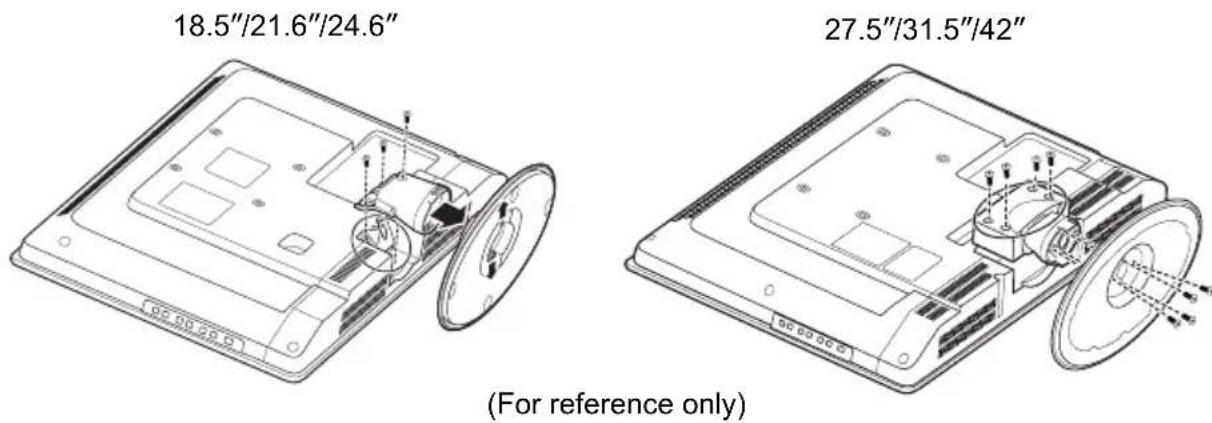
Dissembling the stand base
1 Disconnect all the cables and cords from the TV to prevent breakage.
2 Carefully place the TV face down on a soft and flat surface (blanket, foam, cloth, etc) to prevent any damage to the TV.
3 Remove the screws so that the stand base can be removed.
4 Gently remove the stand base.
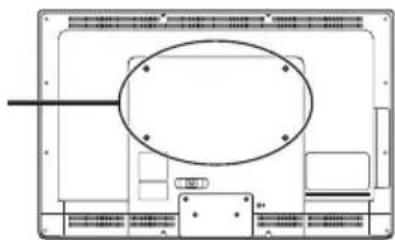
Wall mounting the TV:
| Model Name | VESA-compatible wall bracket (WxH) | Mount holes number | Screw type Maximum loading | |
| SJ19DMAB | 100x100 mm | 4 | Metric 4 x 10 mm | 15 kg |
| SJ22DMAB 100 | x100 mm 4 Metric 4 x 10 | mm 18 kg | ||
| SJ25DMAB | 200x100 mm | 4 | Metric 4 x 10 mm | 24 kg |
| SJ28DMBB 200 | x100 mm 4 Metric 6 x 10 | mm 30 kg | ||
| SJ32DMBB | 200x200 mm | 4 | Metric 6 x 10 mm | 36 kg |
| SJ42DMBB 400 | x200 mm 4 Metric 6 x 10 | mm 72 kg | ||
1 Purchase a VESA compatible wall bracket (please refer to the table above).
2 Locate your ideal TV position on the wall.
3 Fix the wall bracket firmly on the wall.
4 Secure the TV to the bracket using the 4 mount holes on the back and center of the TV.
natural_image
Top-down schematic of a computer monitor layout with no visible text or symbolsNote:
- Please read the instructions of your specific wall bracket to properly wall mount the TV.
- The TV stand base can be screwed on a table or a hard surface using the hole on the back of the stand base.
8
Using the Cable Organizer
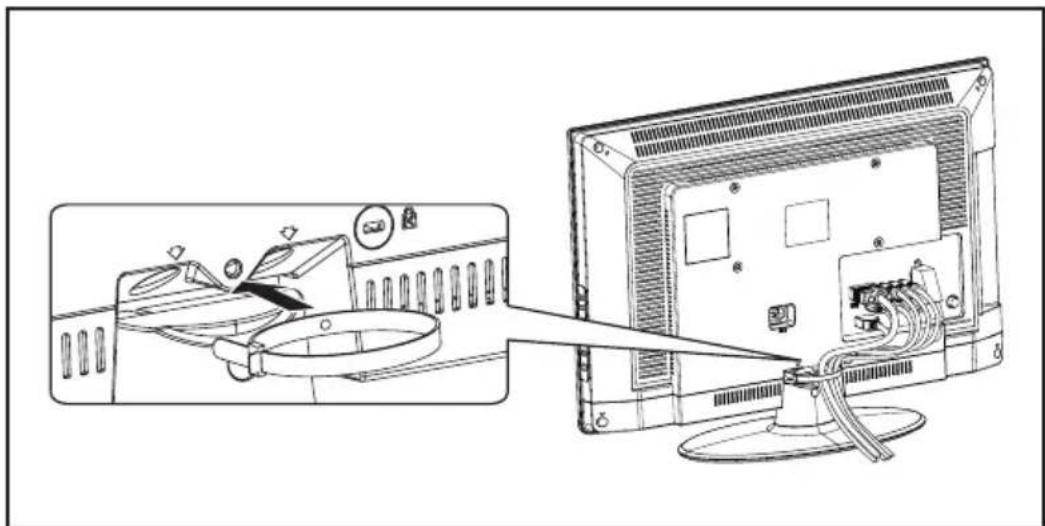
Route the cables through the cable clamp as shown: