AntiVirus Plus 2013 - Antivirus BITDEFENDER - Free user manual and instructions
Find the device manual for free AntiVirus Plus 2013 BITDEFENDER in PDF.


User questions about AntiVirus Plus 2013 BITDEFENDER
0 question about this device. Answer the ones you know or ask your own.
Ask a new question about this device
Download the instructions for your Antivirus in PDF format for free! Find your manual AntiVirus Plus 2013 - BITDEFENDER and take your electronic device back in hand. On this page are published all the documents necessary for the use of your device. AntiVirus Plus 2013 by BITDEFENDER.
USER MANUAL AntiVirus Plus 2013 BITDEFENDER
All rights reserved. No part of this book may be reproduced or transmitted in any form or by any means or mechanical, including photocopying, recording, or by any information storage and retrieval system, without written permission from an authorized representative of Bitdefender. The inclusion of brief quotations in review: may be possible only with the mention of the quoted source. The content can not be modified in any way
Warning and Disclaimer. This product and its documentation are protected by copyright. The information in this document is provided on an "as is" basis, without warranty. Although every precaution has been taken preparation of this document, the authors will not have any liability to any person or entity with respect to loss or damage caused or alleged to be caused directly or indirectly by the information contained in this book contains links to third-party Websites that are not under the control of Bitdefender, therefore Bitdefender is not responsible for the content of any linked site. If you access a third-party website listed in this document will do so at your own risk. Bitdefender provides these links only as a convenience, and the inclusion of it does not imply that Bitdefender endorses or accepts any responsibility for the content of the third-party site.
Trademarks. Trademark names may appear in this book. All registered and unregistered trademarks in this document are the sole property of their respective owners, and are respectfully acknowledged.
Table of Contents
Installation 1
- Preparing for installation ..... . . .... . . .... . . .... . . ..
- System requirements ..... . . . ... . . . ... . . . ... . .
2.1. Minimum system requirements . . . . . . . . . . . . . . . . .
2.2. Recommended system requirements . . . . . . . . . . . . . . . .
2.3. Software requirements ...... 3
-
Installation scenarios .. . . .... . . .... . . .... . . .... . .
-
Installing your Bitdefender product ..... . . .... . . .... . .
Getting started 11
- The basics . . . . . . . . . . . . . . . . . . . . .
5.1. Opening the Bitdefender window . . . . . . . . . . . . . . . . .
5.2. Fixing issues 12
5.2.1. Fix All Issues wizard 13
5.2.2. Conguring status alerts 14
5.3. Events 14
5.4.Autopilot 15
5.5. Game Mode and Laptop Mode . . . . . . . . . . . . . . . . .
5.5.1.Game Mode 16
5.5.2. Laptop Mode 18
5.6. Password-protecting Bitdefender settings . . . . . . . . . . . . . .
5.7. Anonymous usage reports 19
10.1. How do I install Bitdefender on a second computer?
10.2. When should I reinstall Bitdefender?
10.3. How do I switch from one Bitdefender 2013 product to another?
10.4. How do I remove Bitdefender?
11. Registration 40
11.1. What Bitdefender product am I using?
11.2.How do I register a trial version? 40
11.3. When does my Bitdefender protection expire?
11.4. How do I register Bitdefender without an Internet connection?
11.5. How do I renew my Bitdefender protection?
12. Scanning with Bitdefender 43
12.1.How do I scan a le or a folder? 43
12.2.How do I scan my system? 43
12.3. How do I create a custom scan task?
12.4. How do I exclude a folder from being scanned?
12.5. What to do when Bitdefender detected a clean le as infected?
12.6. How do I check what viruses Bitdefender detected?
13. Privacy Control 47
13.1. How do I make sure my online transaction is secure?
13.2. How do I protect my Facebook account?
13.3. How do I remove a le permanently with Bitdefender?
14. Useful Information 49
14.1. How do I automatically shut down the computer after the scan is ov
14.2. How do I congure Bitdefender to use a proxy Internet connection?
14.3. Am I using a 32 bit or a 64 bit version of Windows?
14.4. How do I display hidden objects in Windows?
14.5. How do I remove other security solutions?
14.6. How do I use System Restore in Windows?
14.7.How do I restart in Safe Mode? 52
Managing your security 54
15. Antivirus protection 55
15.1. On-access scanning (real-time protection)
15.1.1. Turning on or o real-time protection
15.1.2. Adjusting the real-time protection level
15.1.3. Conguring the real time protection settings
15.1.4. Restoring the default settings
15.2. On-demand scanning 61
15.2.1.Autoscan 61
15.2.2. Scanning a le or folder for malware
15.2.3. Running a Quick Scan
Bitdefender Antivirus Plus 2013
15.2.4. Running a System Scan . . . . . . . . . . . . . . . . .
15.2.5. Conguring a custom scan . . . . . . . . . . . . . . . . .
15.2.6. Antivirus Scan Wizard . . . . . . . . . . . . . . . . . .
15.2.7. Checking scan logs 68
15.3. Automatic scan of removable media . . . . . . . . . . . . . .
15.3.1.How does it work? 69
15.3.2.Managing removable media scan . . . . . . . . . . . . .
15.4. Conguring scan exclusions 70
15.4.1. Excluding les or folders from scanning . . . . . . . . . . .
15.4.2. Excluding le extensions from scanning . . . . . . . . . . .
15.4.3.Managing scan exclusions . . . . . . . . . . . . . . . .
15.5.Managing quarantined les 72
15.6. Active Virus Control 73
15.6.1. Checking detected applications . . . . . . . . . . . . . . .
15.6.2. Turning on or o Active Virus Control . . . . . . . . . . . .
15.6.3. Adjusting the Active Virus Control protection . . . . . . . .
15.6.4.Managing excluded processes
15.7. Fixing system vulnerabilities 75
15.7.1. Scanning your system for vulnerabilities . . . . . . . . . .
15.7.2. Using automatic vulnerability monitoring . . . . . . . . . . .
21.2. Scan doesn't start 97
21.3. I can no longer use an application
21.4. How to update Bitdefender on a slow Internet connection
21.5. My computer is not connected to the Internet. How do I update Bitdefender? 99
21.6. Bitdefender services are not responding
21.7. Bitdefender removal failed 100
21.8. My system doesn't boot up after installing Bitdefender
22. Removing malware from your system
22.1. Bitdefender Rescue Mode 102
22.2. What to do when Bitdefender nds viruses on your computer?
22.3. How do I clean a virus in an archive?
22.4. How do I clean a virus in an e-mail archive?
22.5. What to do if I suspect a le as being dangerous?
22.6. How to clean the infected les from System Volume Information
22.7. What are the password-protected les in the scan log?
22.8. What are the skipped items in the scan log?
22.9. What are the over-compressed les in the scan log?
22.10. Why did Bitdefender automatically delete an infected le?
Contact us 110
23. Asking for help
24. Online resources
24.1. Bitdefender Support Center 113
24.2. Bitdefender Support Forum 113
24.3.HOTforSecurity Portal 114
25. Contact information
25.1. Web addresses 115
25.2. Local distributors 115
25.3. Bitdefender oces 115
Glossary
Installation
1. Preparing for installation
Before you install Bitdefender Antivirus Plus 2013, complete these preparat ensure the installation will go smoothly:
- Make sure that the computer where you plan to install Bitdefender minimum system requirements. If the computer does not meet all the system requirements, Bitdefender will not be installed or, if installed, it work properly and it will cause system slowdowns and instability. For list of system requirements, please refer to "System requirements" (p. 3).
- Log on to the computer using an Administrator account.
- Remove any other similar software from the computer. Running two s programs simultaneously may aect their operation and cause major prob with the system. Windows Defender will be disabled during the installat
It is recommended that your computer be connected to the Internet installation, even when installing from a CD/DVD. If newer versions of application les included in the installation package are available, Bitdefer can download and install them.
2. System requirements
You may install Bitdefender Antivirus Plus 2013 only on computers running following operating systems:
● Windows XP with Service Pack 3 (32-bit)
● Windows Vista with Service Pack 2
- Windows 7 with Service Pack 1
Windows 8
Before installation, make sure that your computer meets the minimum sy requirements.

Note
To nd out the Windows operating system your computer is running and h information, right-click My Computer on the desktop and then select Properties from the menu.
2.1. Minimum system requirements
1.8 GB available free hard disk space (at least 800 MB on the sys
800 MHz processor
1 GB of memory (RAM)
2.2. Recommended system requirements
2.8 GB available free hard disk space (at least 800 MB on the sys
Intel CORE Duo (1.66 GHz) or equivalent processor
● Memory (RAM):
▶ 1 GB for Windows XP
1.5 GB for Windows Vista, Windows 7 and Windows 8
2.3. Software requirements
To be able to use Bitdefender and all its features, your computer need following software requirements:
- Internet Explorer 7 or higher
- Mozilla Firefox 3.6 or higher
- Yahoo! Messenger 8.1 or higher
. NET Framework 3.5 (automatically installed with Bitdefender if missing)
3. Installation scenarios
Fresh installation
There is no older version of Bitdefender installed on the computer. proceed according to the instructions provided in "Installing your Bitdefender product" (p. 5).
Upgrade installation
An older version is already installed on the computer and you are to Bitdefender 2013. In this case, the older version must be removed the installation.
For example, to remove Bitdefender 2012 before installing Bitdefender Plus 2013:
- Follow this path from the Windows start menu: Start → All Programs → Bitdefender 2012 → Repair or Remove.
- Select Remove.
- Wait for Bitdefender to complete the action you have selected. T take several minutes.
- Reboot the computer to complete the process.
If you do not remove the older version before beginning the installa Bitdefender Antivirus Plus 2013, you will be prompted to do so at the installation process. Follow the instructions to complete the remov older version.
4. Installing your Bitdefender product
You can install Bitdefender from the Bitdefender installation disc or using installer downloaded on your computer from the Bitdefender website or fi authorized websites (for example, the website of a Bitdefender partner or shop). You can download the installation le from the Bitdefender website following address: http://www.bitdefender.com/Downloads/.
If your purchase covers more than one computer (for example, you purc Bitdefender Antivirus Plus 2013 for 3 PCs), repeat the installation process your product with the license key on every computer.
- To install Bitdefender from the installation disc, insert the disc in the A welcome screen should be displayed in a few moments. Follow the to start installation.

Note
The welcome screen provides an option to copy the installation package installation disc to a USB storage device. This is useful if you need to Bitdefender on a computer that does not have a disc drive (for example netbook). Insert the storage device into the USB drive and then click Afterwards, go to the computer without a disc drive, insert the storage the USB drive and double-click runsetup.exe from the folder where y saved the installation package.
If the welcome screen does not appear, use Windows Explorer to brow disc's root directory and double-click the le autorun.exe.
- To install Bitdefender using the web installer downloaded on your cor locate the le and double-click it.
Validating the installation
Bitdefender will rst check your system to validate the installation.
If your system does not meet the minimum requirements for installing E you will be informed of the areas that need improvement before you c If an incompatible antivirus program or an older version of Bitdefender i you will be prompted to remove it from your system. Please follow the to remove the software from your system, thus avoiding problems occurr on. You may need to reboot your computer to complete the removal o antivirus programs.
The Bitdefender Antivirus Plus 2013 installation package is constantly upda you are installing from a CD/DVD, Bitdefender can download the newest of the les during the installation. Click Yes when prompted in order to allow
Bitdefender Antivirus Plus 2013
Bitdefender to download the les, ensuring you are installing the very lat of the software.

Note
Downloading the installation files can take a long time, especially over slow connections.
Once the installation is validated, the setup wizard will appear. Follow the install Bitdefender Antivirus Plus 2013.
Step 1 - Welcome
The welcome screen lets you choose what type of installation you want For a completely hassle-free installation experience, just click the Install Bitdefender will be installed in the default location with default settings will skip directly to Step 3 of the wizard.
If you wish to congregate the installation settings, select I want to custom installation and then click Install to move on to the next step.
Two additional tasks can be performed during this step:
- Please read the End User License Agreement before proceeding with installation. The License Agreement contains the terms and conditions up which you may use Bitdefender Antivirus Plus 2013. If you do not agree to these terms, close the window. The installation be abandoned and you will exit setup.
- Enable sending Anonymous Usage Reports. By enabling this option, reports containing information about how you use the product are sent to Bit servers. This information is essential for improving the product and can oer you a better experience in the future. Please note that these rep contain no confidential data, such as your name or IP address, and th not be used for commercial purposes.
Step 2 - Customize installation settings

Note
This step appears only if you have chosen to customize the installation d previous step.
The following options are available:
Installation Path
By default, Bitdefender Antivirus Plus 2013 will be installed in C:\Pr Files\Bitdefender\Bitdefender 2013. If you want to change the
Bitdefender Antivirus Plus 2013
installation path, click Change and select the folder in which you w Bitdefender to be installed.
Congure Proxy Settings
Bitdefender Antivirus Plus 2013 requires access to the Internet for pr registration, downloading security and product updates, in-cloud detection components etc. If you use a proxy connection instead of a direct connection, you must select this option and congure the proxy setting
The settings can be imported from the default browser or you can manually.
Click Install with custom settings to conrm your preferences and begin installation.
Step 3 - Installation in progress
Wait for the installation to complete. Detailed information about the prog displayed.
Critical areas on your system are scanned for viruses, the latest version application les are downloaded and installed, and the Bitdefender services started. This step can take a couple of minutes.
Step 4 - Installation completed
A summary of the installation is displayed. If any active malware was removed during the installation, a system reboot may be required.
You can either close the window, or continue with the initial setup of by clicking Get started.
Step 5 - Register your product

Note
This step appears only if you have selected Get Started during the previ
To complete the registration of your product you need to enter a licen: active Internet connection is required.
Proceed according to your situation:
• I purchased the product
In this case, register the product by following these steps:
-
Select I purchased Bitdefender and I want to register now.
-
Type the license key in the corresponding eld.

Note
You can nd your license key:
▶ on the CD/DVD label.
▶ on the product registration card.
in the online purchase e-mail.
3. Click Register Now.
I want to evaluate Bitdefender
In this case, you can use the product for a 30 day period. To begin select I want to evaluate the product.
Click Next.
Step 6 - Congure product behavior
Bitdefender can be congured to automatically manage your security perma or in certain situations. Use the switches to turn on or o Autopilot, Automatic Laptop Mode and Automatic Game Mode.
Enable the Autopilot for completely silent security. While on Autopilot, Bit makes all security related decisions for you and you don't have to con settings. For more information, please refer to "Autopilot" (p. 15).
If you play your fair share of games, enable Automatic Game Mode an will detect when you launch a game and will enter Game Mode, modify so as to keep its impact on your system's performance to a minimum. information, please refer to "Game Mode" (p. 16).
For laptop users, enabling Automatic Laptop Mode will make Bitdefender laptop mode when it detects that your laptop is running on battery power its settings so as to keep its impact on battery consumption to a minimum information, please refer to "Laptop Mode" (p. 18).
Click Next.
Step 7 - Congure connection Iters
This is where you can select which connection filters to activate. These that actively ensure you are protected during your Internet activities.
Use the switches to enable / disable:
Web Antimalware
- Antiphishing
Antifraud
Search Advisor
Bitdefender Antivirus Plus 2013
You can turn the filters on or off at any time after the installation from interface. To achieve the best level of protection, it is recommended to the Iters.
Click Next.
Step 8 - Login to MyBitdefender
A MyBitdefender account is required in order to use the online features product. For more information, please refer to "MyBitdefender account" (p. 31).
Proceed according to your situation.
I want to create a MyBitdefender account
To successfully create a MyBitdefender account, follow these steps:
- Select Create new account.
A new window will appear.
- Type the required information in the corresponding elds. The data provide here will remain condential.
E-mail - enter your e-mail address.
- User name - enter a user name for your account.
- Password - enter a password for your account. The password must be at least 6 characters long.
- Conrm password - retype the password.

Note
Once the account is created, you can use the provided e-mail addr password to log in to your account at https://my.bitdefender.com.
-
Click Create.
-
Before being able to use your account, you must complete the Check your e-mail and follow the instructions in the conrmation e-r by Bitdefender.
I want to log in using my Facebook or Google account
To log in with your Facebook or Google account, follow these steps:
-
Select the service you want to use. You will be redirected to tl of that service.
-
Follow the instructions provided by the selected service to link you to Bitdefender.
Bitdefender Antivirus Plus 2013

Note
Bitdefender does not get access to any confidential information such as password of the account you use to log in, or the personal informati friends and contacts.
I already have a MyBitdefender account
If you have logged in to an account from your product before, Bit detection it and prompt you to enter the password to log in to that. If you already have an active account, but Bitdefender does not det you simply want to log in with a dierent account, enter the e-mail password and click Login to MyBitdefender.
Postpone for later
If you want to leave this task for another time, click Ask me later that you must log in to an account to use the online features of
Getting started
5. The basics
Once you have installed Bitdefender Antivirus Plus 2013, your computer is against all kinds of malware (such as viruses, spyware and trojans).
You can engage the Autopilot to enjoy completely silent security and yo required to conjure any settings. However, you may want to take advar the Bitdefender settings to ne-tune and improve your protection.
Bitdefender will make most security-related decisions for you and will range pop-up alerts. Details about actions taken and information about program are available in the Events window. For more information, please refer to "Events" (p. 14).
From time to time, you should open Bitdefender and x the existing issue may have to congregate specific Bitdefender components or take preventive issues to protect your computer and your data.
If you have not registered the product, remember to do so until the t For more information, please refer to "Registering Bitdefender" (p. 29).
To use the online features of Bitdefender Antivirus Plus 2013, make sure computer to a MyBitdefender account. For more information, please refer "MyBitdefender account" (p. 31).
If you experience issues while using Bitdefender, check the "Solving common issues" (p. 96) section for possible solutions to the most common problems. The (p. 37) section is where you will nd step-by-step instructions on how to common tasks.
5.1. Opening the Bitdefender window
To access the main interface of Bitdefender Antivirus Plus 2013, use the Start menu, by following the path Start → All Programs → Bitdefender 2013 → Bitdefender Antivirus Plus 2013 or, quicker, double-click the Bitdefender in the system tray.
For more information about the Bitdefender window and icon in the syst please refer to "Bitdefender interface" (p. 21).
5.2. Fixing issues
Bitdefender uses an issue tracking system to detect and inform you about that may act the security of your computer and data. By default, it only a series of issues that are considered to be very important. However, configure it as needed, choosing which specific issues you want to be rDetected issues include important protection settings that are turned o and conditions that can represent a security risk. They are grouped into two
Bitdefender Antivirus Plus 2013
● Critical issues - prevent Bitdefender from protecting you against malware or represent a major security risk.
● Minor (non-critical) issues - can aect your protection in the near future.
The Bitdefender icon in the system tray indicates pending issues by cha color as follows:
B Red color: Critical issues are aecting the security of your system. Th your immediate attention and must be xed as soon as possible.
B Yellow color: Non-critical issues are aecting the security of your syste should check and x them when you have the time.
Also, if you move the mouse cursor over the icon, a pop-up will confirm of pending issues.
When you open the Bitdefender window, the Security status area on the toolbar will indicate the number and nature of issues aecting your syste
5.2.1. Fix All Issues wizard
To x detected issues follow the Fix All Issues wizard.
- To open the wizard, do any of the following:
● Right-click the Bitdefender icon in the system tray and choose Fix All Issues.
Depending on the detected issues, the icon is either red (indicating issues) or yellow (indicating non-critical issues).
Open the Bitdefender window and click anywhere inside the Security
area on the upper toolbar (for example, you can click the Fix All button).
- You can see the issues aecting the security of your computer and current issues are selected to be xed.
If you do not want to fix a specific issue right away, clear the cor box. You will be prompted to specify for how long to postpone xing Choose the desired option from the menu and click OK. To stop mo respective issue category, choose Permanently.
The issue status will change to Postpone and no action will be take issue.
- To x the selected issues, click Start. Some issues are xed immediat others, a wizard helps you x them.
The issues that this wizard helps you x can be grouped into these ma
● Disabled security settings. Such issues are xed immediately, by enabling the respective security settings.
Bitdefender Antivirus Plus 2013
● Preventive security tasks you need to perform. When xing such issues, a wizard helps you successfully complete the task.
5.2.2. Conguring status alerts
Bitdefender can inform you when issues are detected in the operation of program components:
Antivirus
Update
- Browser Security
You can congregate the alert system to best serve your security needs by which specific issues to be informed about. Follow these steps:
- Open the Bitdefender window.
- Click the Settings button on the upper toolbar.
- In the Settings Overview window, select General.
- In the General Settings window, select the Advanced tab.
- Click the Congure status alerts link.
- Click the switches to turn on or o status alerts according to your
5.3. Events
Bitdefender keeps a detailed log of events concerning its activity on you. Whenever something relevant to the security of your system or data has new message is added to the Bitdefender Events, in a similar way to appearing in your Inbox.
Events are a very important tool in monitoring and managing your Bitdefender protection. For instance, you can easily check if the update was successful performed, if malware was found on your computer etc. Additionally, you further action if needed or change actions taken by Bitdefender.
To access the Events log, follow these steps:
- Open the Bitdefender window.
- Click the Events on the upper toolbar to open the Events Overview window.
Messages are grouped according to the Bitdefender module whose activity related to:
Antivirus
- Privacy Control
Update
Safego
Bitdefender Antivirus Plus 2013
Events counters are displayed in the Bitdefender interface to allow easy identification of areas with outstanding events. These are icons appearing modules that indicate the number of unread critical events related to a activity.
For example, if there is one unread critical event related to the activity module, the icon appears on the Update panel.
A counter showing the total number of unread messages from all modul on the Events button in the main window.
A list of events is available for each category. To nd out information particular event in the list, click it. Event details are displayed in the the window. Each event comes with the following information: a short d the action Bitdefender took on it when it happened, and the date and occurred. Options may be provided to take further action if needed.
You can iter events by their importance. There are three types of ever type indicated by a specific icon:
Information events indicate successful operations.
Warning events indicate non-critical issues. You should check and fix you have the time.
Critical events indicate critical issues. You should check them immediat
To help you easily manage logged events, each section of the Events provides options to delete or mark as read all events in that section.
5.4. Autopilot
For all the users who want nothing more from their security solution that protected without being bothered, Bitdefender Antivirus Plus 2013 has been with a built-in Autopilot mode.
While on Autopilot, Bitdefender applies an optimal security conguration and all security-related decisions for you. This means you will see no pop-up and you will not have to conjure any settings whatsoever.
In Autopilot mode, Bitdefender automatically fixes critical issues, enables an manages:
● Antivirus protection, provided by on-access scanning and continuous sca
- Privacy protection, provided by antiphishing and antimalware Itering for web browsing.
Automatic updates.
To turn the Autopilot on or o, follow these steps:
- Open the Bitdefender window.
Bitdefender Antivirus Plus 2013
- Click the User Mode / Autopilot switch on the upper toolbar. When the switch is on the User Mode position, the Autopilot is o.
As long as the Autopilot is on, the Bitdefender icon in the system tray.

Important
While the Autopilot is on, modifying any of the settings it manages will being turned o.
To see a history of actions performed by Bitdefender while Autopilot was open the Events window.
5.5. Game Mode and Laptop Mode
Some computer activities, such as games or presentations, require increase responsiveness and performance, and no interruptions. When your laptop is on battery power, it is best that unnecessary operations, which consume power, be postponed until the laptop is connected back to A/C power.
To adapt to these particular situations, Bitdefender Antivirus Plus 2013 in special operation modes:
Game Mode
- Laptop Mode
5.5.1. Game Mode
Game Mode temporarily modies protection settings so as to minimize the on system performance. The following settings are applied when Game M
All Bitdefender alerts and pop-ups are disabled.
● On-access scanning is set to the Permissive protection level.
- Autoscan is turned o. Autoscan nds and uses time-slices when system usage falls below a certain threshold to perform recurring scans of the system.
● Auto Update is turned o.
The Bitdefender toolbar in your web browser is disabled when you p browser-based online games.
While in Game Mode, the Bitdefender icon in the system may changes
Using Game Mode
By default, Bitdefender automatically enters Game Mode when you start from the Bitdefender's list of known games or when an application goes
Bitdefender Antivirus Plus 2013
screen. Bitdefender will automatically return to the normal operation mode you close the game or when the detected application exits full screen.
If you want to manually turn on Game Mode, use one of the following
- Right-click the Bitdefender icon in the system tray and select Turn Game Mode On.
- Enable using Game Mode keyboard shortcut. Press Ctrl+Shift+Alt+G (the default hotkey).

Important
Do not forget to turn Game Mode o when you nish. To do this, use tl methods you did when you turned it on.
Turning on or o automatic Game Mode
To turn on or o automatic game mode, follow these steps:
-
Open the Bitdefender window.
-
Click the Settings button on the upper toolbar.
-
In the Settings Overview window, select General.
-
In the General Settings window, select the General tab.
-
Turn on or o automatic game mode by clicking the corresponding sv
Manually adding games to the Game list
If Bitdefender does not automatically enter Game Mode when you launch game or application, you can manually add the application to the Game an application is added to the list, Bitdefender will operate in Game Mode as the application is in use.
To view and manage the Game list, follow these steps:
-
Open the Bitdefender window.
-
Click the Settings button on the upper toolbar.
-
In the Settings Overview window, select General.
-
In the General Settings window, select the General tab.
-
Click the Game list link.
Two buttons are available at the bottom of the list:
- Add game - add a new game or application to the Game list.
A new window will appear. Browse to the application's executable le, and click OK to add it to the list.
- Remove game - remove a selected game or application from the list.
Bitdefender Antivirus Plus 2013
Game Mode keyboard shortcut
To set and use a keyboard shortcut for entering / leaving Game Mode, steps:
- Open the Bitdefender window.
- Click the Settings button on the upper toolbar.
- In the Settings Overview window, select General.
- In the General Settings window, select the General tab.
- Make sure the Game Mode keyboard shortcut switch is on.
- Set the desired combination:
a. The default combination is Ctrl+Alt+Shift+G.
Choose the modier keys you want to use by checking one the foll Control key (Ctrl), Shift key (Shift) or Alternate key (Alt).
b. In the edit eld, type the letter corresponding to the regular key use.
For example, if you want to use the Ctrl+Alt+D hotkey, you must Ctrl and Alt and type D.

Note
To disable the shortcut, turn o the Game Mode keyboard shortcut sv
5.5.2. Laptop Mode
Laptop Mode is especially designed for laptop and notebook users. Its point to minimize Bitdefender's impact on power consumption while these devices are running on battery. When Bitdefender operates in Laptop Mode, the Auto Update features are turned o, as they require more system resources implicitly, increase power consumption.
Bitdefender detects when your laptop has switched to battery power and automatically enters Laptop Mode. Likewise, Bitdefender automatically exits Mode, when it detects the laptop is no longer running on battery.
To turn on or o automatic laptop mode, follow these steps:
- Open the Bitdefender window.
- Click the Settings button on the upper toolbar.
- In the Settings Overview window, select General.
- In the General Settings window, select the General tab.
- Turn on or o automatic laptop mode by clicking the corresponding s
If Bitdefender is not installed on a laptop, turn o automatic laptop moc
5.6. Password-protecting Bitdefender settings
If you are not the only person with administrative rights using this command recommended that you protect your Bitdefender settings with a password.
To congure password protection for the Bitdefender settings, follow these
- Open the Bitdefender window.
- Click the Settings button on the upper toolbar.
- In the Settings Overview window, select General.
- In the General Settings window, select the General tab.
- Turn on password protection by clicking the switch.
-
Click the Change password link.
-
Enter the password in the two elds and then click OK. The passwo at least 8 characters long.
Once you have set a password, anyone trying to change the Bitdefende will rst have to provide the password.

Important
Be sure to remember your password or keep a record of it in a safe the password, you will have to reinstall the program or to contact Bitdefe support.
To remove password protection, follow these steps:
- Open the Bitdefender window.
- Click the Settings button on the upper toolbar.
- In the Settings Overview window, select General.
- In the General Settings window, select the General tab.
- Turn o password protection by clicking the switch. Enter the password click OK.
5.7. Anonymous usage reports
By default, Bitdefender sends reports containing information about how yo to Bitdefender servers. This information is essential for improving the pro can help us offer you a better experience in the future. Please note th will contain no condential data, such as your name or IP address, and will not be used for commercial purposes.
In case you want to stop sending Anonymous usage reports, follow thes
Bitdefender Antivirus Plus 2013
- Open the Bitdefender window.
- Click the Settings button on the upper toolbar.
- In the Settings Overview window, select General.
- In the General Settings window, select the Advanced tab.
- Click the switch to turn o Anonymous usage reports.
6. Bitdefender interface
Bitdefender Antivirus Plus 2013 meets the needs of computer beginners at technical people alike. Its graphical user interface is designed to suit each category of users.
To see the status of the product and perform essential tasks, the Bitde tray icon is available at any time.
The main window gives you access to important product information, the modules and lets you perform common tasks. From the main window you the settings window for detailed conguration and advanced administrative and the Events window for an in-depth log of Bitdefender activity.
If you want to keep a constant eye on essential security information and access to key settings, add the Security Widget to your desktop.
6.1. System tray icon
To manage the entire product more quickly, you can use the Bitdefende the system tray.

Note
If you are using Windows Vista or Windows 7, the Bitdefender icon may at all times. To make the icon appear permanently, follow these steps:
- Click the arrow in the lower-right corner of the screen.
- Click Customize... to open the Notification Area Icons window.
- Select the option Show icons and notifications for the Bitdefender Agent icon.
If you double-click this icon, Bitdefender will open. Also, by right-clicking a contextual menu will allow you to quickly manage the Bitdefender pro
● Show - opens the main window of Bitdefe
- About - opens a window where you can information about Bitdefender and where to help in case something unexpected appears.
- Fix All Issues - helps you remove current vulnerabilities. If the option is unavailable, there no issues to be xed. For detailed information, refer to "Fixing issues" (p. 12).
- Turn Game Mode On / O - activates / Game Mode.
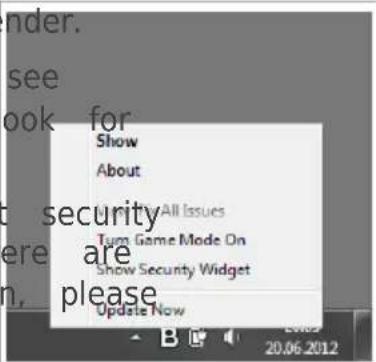
deactivates fray Icon
Bitdefender Antivirus Plus 2013
- Hide / Show Security Widget - enables / disables Security Widget.
- Update Now - starts an immediate update. You can follow the update status in the Update panel of the main Bitdefender window.
The Bitdefender system tray icon informs you when issues aect your col how the product operates, by displaying a special symbol, as follows:
B Critical issues are aecting the security of your system. They require immediate attention and must be xed as soon as possible.
B Non-critical issues are aecting the security of your system. You should and x them when you have the time.
The product operates in Game Mode.
Bitdefender Autopilot is engaged.
If Bitdefender is not working, the system tray icon appears on a gray
B. This usually happens when the license key expires. It can also occur Bitdefender services are not responding or when other errors act the n operation of Bitdefender.
6.2. Main window
The main Bitdefender window allows you to perform common tasks, quick security issues, view information about events in product operation and c product settings. Everything is just a few clicks away.
The window is organized in two main areas:
Upper toolbar
This is where you can check your computer's security status and account important tasks.
Panels area
This is where you can manage the main Bitdefender modules.
The MyBitdefender drop-down menu at the top of the window lets you account and access the online features of your product from the account
You can nd several useful links on the lower part of the window. These also available in the Events and Settings windows.
DescriptionLink
Number of daysThe time remaining before your current license expires left displayed. Click the link to open a window where you more information about your license key or register you product with a new license key.
Bitdefender Antivirus Plus 2013
| DescriptionLink | |
| Feedback | Opens a web page in your browser where you can ta survey about your experience in using the product. We on your feedback in our constant quest to improve Bitc products. |
| Help and Support | Click this link if you need help with Bitdefender. A ne will appear where you can open the product help, go Support Center or contact support. |
| ? | Adds question marks in dierent areas of the Bitdefende window to help you easily nd information about the di interface elements.Move your mouse cursor over a mark to see quick in about the element next to it. |
6.2.1. Upper toolbar
The upper toolbar contains the following elements:
● Security Status Area on the left side of the toolbar, informs you if there are any issues affecting your computer's security and helps you x them.
The color of the security status area changes depending on the detect and dierent messages are displayed:
The area is colored green. There are no issues to x. Your computer and data are protected.
The area is colored yellow. Non-critical issues are aecting the security of your system. You should check and x them when you have the tin
The area is colored red. Critical issues are aecting the security of your system. You should address these issues immediately.
By clicking View Issu in the center of the toolbar or anywhere in security status area to its left, you can access a wizard that will he remove any threats from your computer. For detailed information, please to "Fixing issues" (p. 12).
● Events allows you to access a detailed history of relevant events that occurred in the activity of the product. For detailed information, please refer to "Events" (p. 14).
● Settings allows you to access the settings window from where you can congregate the product settings. For detailed information, please refer to "Settings Overview window" (p. 26).
Bitdefender Antivirus Plus 2013
- Autopilot / User Mode allows you to engage the Autopilot and enjoy completely silent security. For detailed information, please refer to "Autopilot" (p. 15).
6.2.2. Panels area
The panels area is where you can directly manage the Bitdefender mod To browse through the panels, use the slider below the panels area or located to the right and to the left.
Each module panel contains the following elements:
The name of the module and a status message.
An icon is available on the upper-right corner of most panels. Clickir you directly to that modules' advanced settings window.
The icon of the module.
If there are any events related to a module's activity that you have an event counter will be displayed next to the module icon. For example, is one unread event related to the activity of the Update module, then appears on the Update panel. Click the counter to go directly to that Events window.
A button that lets you perform important tasks related to the modul
A switch is available on certain panels allowing you to turn on or feature of the module.
You can organize the panels as you wish, by following these steps:
-
Click on the left side of the slider below the panels to open the Overview window.
-
Drag individual module panels and drop them in other slots to rearr according to your needs.
-
Click to return to the main window.
The panels available in this area are:
Antivirus
Antivirus protection is the foundation of your security. Bitdefender protein in real-time and on-demand against all sorts of malware, such as virus spyware, adware, etc.
From the Antivirus panel you can easily access important scan tasks.
Now and select a task from the drop-down menu:
Quick Scan
Full System Scan
Custom Scan
Bitdefender Antivirus Plus 2013
• Vulnerability Scan
- Rescue Mode
The Autoscan switch allows you to turn the Autoscan feature on or. For more information about scan tasks and how to configure antivirus please refer to “Antivirus protection” (p. 55).
Privacy
The privacy control module helps you keep important personal data protection you while on the Internet against phishing attacks, fraud at private data leaks, and more.
- File Shredder - starts a wizard that will allow you to delete files permanently.
The Antiphishing switch allows you to turn on or o antiphishing prot For more information about how to configure Bitdefender to protect yo please refer to "Privacy Control" (p. 79).
Update
In a world where cyber criminals constantly try to come up with no cause harm, it is essential to keep your security solution up to date to stay one step ahead of them.
By default, Bitdefender automatically checks for updates every hour. If want to turn o automatic updates, use the Auto Update switch on panel.

Warning
This is a critical security issue. We recommend you to disable automa for as little time as possible. If Bitdefender is not updated regularly, be able to protect you against the latest threats.
Click the Update Now button on the panel to start an immediate
For more information about conguring updates, please refer to "Keeping Bitdefender up-to-date" (p. 34).
Safego
To help you stay safe on social networks, you can access Safego, the security solution for social networks, directly from Bitdefender Antivirus 2013.
Click the Manage button on the Safego panel and select a task from drop-down menu:
● Activate for Facebook through your MyBitdefender account. If Safego has already been activated, you will be able to access statistics regard activity by selecting View Reports for Facebook in the menu.
Bitdefender Antivirus Plus 2013
● Activate for Twitter through your MyBitdefender account. If Safego has already been activated, you will be able to access statistics regard activity by selecting View Reports for Twitter in the menu.
For more information, please refer to "Safego protection for social networks" (p. 90).
ID Theft Protection
Bitdefender oers a comprehensive identity theft protection service.

Note
This feature is available only for users in the United States.
Activate the service through your MyBitdefender account by clicking th on the ID Theft Protection panel. If the service has already been a will be able to access statistics regarding its activity by clicking the corresponding button.
For more information, please refer to "ID theft protection" (p. 86).
6.3. Settings Overview window
The Settings Overview window gives you access to the advanced settings product. This is where you can congure Bitdefender in detail.
Select a module to configure its settings or perform security or administ. The following list brief describes each module.
General
Allows you to configure general product settings, such as the settings Game Mode, Laptop Mode, proxy settings and status alerts.
Antivirus
Allows you to congregate your protection against malware, detect and x vulnerabilities of your system, set scan exclusions and manage quarar les.
Privacy Control
Allows you to prevent data leaks and protect your privacy while you. Congure protection for your web browser, instant messaging software, data protection rules, and more.
Update
Allows you to congregate the update process in detail.
To return to the main window click on the upper-left corner of the w
Bitdefender Antivirus Plus 2013
6.4. Security Widget
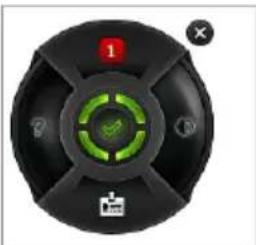
Security Widget is the quick and easy way to monitor and control Bit Antivirus Plus 2013. Adding this small and unintrusive widget to your de you see critical information and perform key tasks at all times:
• monitor scanning activity in real-time.
- monitor the security status of your system and x any existing issues
• view notifications and get access to the latest events reported by Bit
● one click access to your MyBitdefender account.
- scan les or folders by dragging and dropping one or multiple items widget.
natural_image
Circular black device with green control knob and red indicator lights (no text or symbols)Security Widget
The overall security status of your computer is displayed at the center widget. The status is indicated by the color and shape of the icon that in this area.

Critical issues are aecting the security of your system.
They require your immediate attention and must be xed as soon as pc the status icon to begin xing the reported issues.

Non-critical issues are aecting the security of your system. You show x them when you have the time. Click the status icon to begin ted issues.

Your system is protected.

When an on-demand scan task is in progress, this animated icon is When issues are reported, click the status icon to launch the Fix Issues
The button on the left side of the widget gives you direct access to settings window, and also doubles up as a real-time graphical representation firewall activity. When a blue bar appears on this button, it means the
Bitdefender Antivirus Plus 2013
is actively ltering network connections. The taller the blue bar, the more is the activity of this module.

Note
Firewall is not available in Bitdefender Antivirus Plus 2013.
The upper side of the widget displays the unread events counter (the outstanding events reported by Bitdefender, if any). Click the event count example for one unread event, to open the Events Overview window. For information, please refer to "Events" (p. 14).
The button on the right side of the widget gives you direct access to settings window, and also doubles up as a real-time graphical representation scanning activity. When a blue bar appears on this button, it indicates real-time antivirus scanning activity. The taller the blue bar, the more inactivity of this module.
The button on the lower side of the widget launches your MyBitdefend control panel in a web browser window. For more information, please re "MyBitdefender account" (p. 31).
6.4.1. Scanning les and folders
You can use the Security Widget to quickly scan les and folders. Drag folder you want to be scanned and drop it over the Security Widget.
The Antivirus Scan wizard will appear and guide you through the scanni. The scanning options are pre-congured for the best detection results and be changed. If infected les are detected, Bitdefender will try to disinfect (remove the malware code). If disinfection fails, the Antivirus Scan wizard you to specify other actions to be taken on infected les.
6.4.2. Hide / show Security Widget
When you no longer want to see the budget, click .
To restore Security Widget, follow these steps:
- Right-click the Bitdefender icon in the system tray.
- Click Show Security Widget in the contextual menu that appears.
7. Registering Bitdefender
In order to be protected by Bitdefender, you must register your product license key. The license key species how long you may use the product as the license key expires, Bitdefender stops performing its functions and your computer.
You should purchase a license key or renew your license a few days current license key expires. For more information, please refer to "Buying or renewing license keys" (p. 29). If you are using a trial version of Bitdefender, you must register it with a license key if you want to continue using it after the trial
7.1. Entering your license key
If, during the installation, you selected to evaluate the product, you can a 30-day trial period. To continue using Bitdefender after the trial period you must register it with a license key.
A link that indicates the number of days left on your license appears of the Bitdefender window. Click this link to open the registration window
You can see the Bitdefender registration status, the current license key many days are left until the license expires.
To register Bitdefender Antivirus Plus 2013:
- Type the license key in the edit eld.

Note
You can nd your license key:
on the CD label.
on the product registration card.
in the online purchase e-mail.
If you do not have a Bitdefender license key, click the link provided i to open a web page from where you can purchase one.
2. Click Register Now.
Even after you purchase a license key, until the in-product registration is completed, Bitdefender Antivirus Plus 2013 will continue to appear as version.
7.2. Buying or renewing license keys
If the trial period is going to end soon, you must purchase a license your product. Similarly, if your current license key is going to expire so renew your license.
Bitdefender Antivirus Plus 2013
Bitdefender will alert you when the expiration date of your current licen approaching. Follow the instructions in the alert to purchase a new licer
You can visit a web page from where a license key can be purchased by following these steps:
-
Open the Bitdefender window.
-
Click the link that indicates the number of days left on your license the bottom of the Bitdefender window, to open the product registration
-
Click Don't have a license key? Buy one now!
-
A web page will open on your web browser where you can purchase license key.
8. MyBitdefender account
The online features of your product and additional Bitdefender services are exclusively through MyBitdefender. You must link your computer to MyBitd by logging in to an account from Bitdefender Antivirus Plus 2013 in order of the following:
● Recover your license key, should you ever lose it.
- Get protection for your Facebook and Twitter accounts with Safego.
Manage Bitdefender Antivirus Plus 2013 remotely.
Multiple Bitdefender security solutions for PCs as well as other platforms with MyBitdefender. You can manage the security of all the devices link account from a single centralized dashboard.
Your MyBitdefender account can be accessed from any device connected Internet at https://my.bitdefender.com.
You can also access and manage your account directly from your produ
-
Open the Bitdefender window.
-
Click MyBitdefender at the top of the window and select an option drop-down menu:
Account Settings
Log in to an account, create a new account, congure MyBitdefender
- Dashboard
Launch the MyBitdefender dashboard in your browser.
8.1. Linking your computer to MyBitdefender
To link your computer to a MyBitdefender account, you must log in to from Bitdefender Antivirus Plus 2013. Until you link your computer to Myit you will be prompted to log in to MyBitdefender every time you want that requires an account.
To open the MyBitdefender window from which you can create or log in follow these steps:
- Open the Bitdefender window.
- Click MyBitdefender at the top of the window and then select Account settings from the drop-down menu.
If you have already logged in to an account, the account you are log displayed. Click Go to MyBitdefender to go to your dashboard. To change account linked to the computer, select to log in to another account.
Bitdefender Antivirus Plus 2013
If you have not logged in to an account, proceed according to your si
I want to create a MyBitdefender account
To successfully create a MyBitdefender account, follow these steps:
- Select Create a new account.
A new window will appear.
- Type the required information in the corresponding elds. The data yo here will remain condential.
- Email - enter your e-mail address.
- User name - enter a user name for your account.
- Password - enter a password for your account. The password must be at least 6 characters long.
- Conrm password - retype the password.
-
Click Create.
-
Before being able to use your account, you must complete the regist your e-mail and follow the instructions in the conrmation e-mail sent Bitdefender.
I want to log in using my Facebook or Google account
To log in with your Facebook or Google account, follow these steps:
-
Click the icon of the service you want to use to log in. You will the login page of that service.
-
Follow the instructions provided by the selected service to link your Bitdefender.

Note
Bitdefender does not get access to any credential information such as the of the account you use to log in, or the personal information of your fi contacts.
I already have a MyBitdefender account
If you already have an account but you have not logged in to it yet, steps to log in:
- Type the e-mail address and the password of your account in the fields.

Note
If you have forgotten your password, click Forgot password and follow the instructions to retrieve it.
2. Click Login to MyBitdefender.
Once the computer is linked to an account, you can use the provided and password to log in at https://my.bitdefender.com.
You can also access your account directly from Bitdefender Antivirus Plus using the drop-down menu at the top of the window.
9. Keeping Bitdefender up-to-date
New malware is found and identified every day. This is why it is very keep Bitdefender up to date with the latest malware signatures.
If you are connected to the Internet through broadband or DSL, Bitdefer care of this itself. By default, it checks for updates when you turn on and every hour after that. If an update is detected, it is automatically and installed on your computer.
The update process is performed on the y, meaning that the les to be are replaced progressively. In this way, the update process will not act operation and, at the same time, any vulnerability will be excluded.

Important
To be protected against the latest threats keep Automatic Update turned
In some particular situations, your intervention is required in order to ke Bitdefender protection up-to-date:
- If your computer connects to the Internet through a proxy server, you congregate the proxy settings as described in "How do I congregate Bitdefender to use a proxy Internet connection?" (p. 49).
- If you do not have Internet connection, you can update Bitdefender described in "My computer is not connected to the Internet. How do I update Bitdefender?" (p. 99). The manual update le is released once a week.
- Errors may occur while downloading updates on a slow Internet conn end out how to overcome such errors, please refer to "How to update Bitdefender on a slow Internet connection" (p. 98).
- If you are connected to the Internet through a dial-up connection, the recommended to regularly update Bitdefender by user request. For more information, please refer to "Performing an update" (p. 35).
9.1. Checking if Bitdefender is up-to-date
To check if your Bitdefender protection is up-to-date, follow these steps:
- Open the Bitdefender window.
- On the Update panel, look for the time of the last update just ur name.
For detailed information about the latest updates, check the update even
-
In the main window, click Events on the upper toolbar.
-
In the Events Overview window, click Update.
Bitdefender Antivirus Plus 2013
You can nd out when updates were initiated and information about then they were successful or not, if they require a restart to complete the If required, restart the system at your earliest convenience.
9.2. Performing an update
In order to perform updates, an Internet connection is required.
To start an update, do any of the following:
- Open the Bitdefender window and click Update now on the Update panel.
- Right-click the Bitdefender icon Ⓑ in the system tray and select Update now.
The Update module will connect to the Bitdefender update server and it for updates. If an update is detected, you will be asked to conrm it will be performed automatically, depending on the update settings.

Important
It may be necessary to restart the computer when you have completed t We recommend doing it as soon as possible.
9.3. Turning on or o automatic update
To turn on or o automatic update, follow these steps:
- Open the Bitdefender window.
- On the Update panel, click the Auto Update switch.
- A warning window will appear. You must conrm your choice by selecting the menu how long you want the automatic update to be disabled. You use the automatic update for 5, 15 or 30 minutes, for an hour, permane the system restart.

Warning
This is a critical security issue. We recommend you to disable automatic as little time as possible. If Bitdefender is not updated regularly, it will protect you against the latest threats.
9.4. Adjusting update settings
The updates can be performed from the local network, over the Internet or through a proxy server. By default, Bitdefender will check for updates over the Internet, and install the available updates without alerting you.
The default update settings are suited for most users and you do not to change them.
To adjust the update settings, follow these steps:
Bitdefender Antivirus Plus 2013
- Open the Bitdefender window.
- Click the Settings button on the upper toolbar.
-
In the Settings Overview window, select Update.
-
In the Update Settings window, adjust the settings according to you preferences.
Update location
Bitdefender is congured to update from the Bitdefender update servers of Internet. The update location is a generic Internet address that is autom redirected to the closest Bitdefender update server in your region.
Do not change the update location unless advised by a Bitdefender repr or by your network administrator (if you are connected to an oce netw You can switch back to the generic Internet update location by clicking
Update processing rules
You can choose between three ways to download and install updates:
- Silent update - Bitdefender automatically downloads and implements the update.
- Prompt before downloading - every time an update is available, you will be prompted before downloading it.
- Prompt before installing - every time an update was downloaded, you will be prompted before installing it.
Some updates require a restart to complete the installation. By default, requires a restart, Bitdefender will keep working with the old les until t voluntarily restarts the computer. This is to prevent the Bitdefender update from interfering with the user's work.
If you want to be prompted when an update requires a restart, turn of reboot option by clicking the corresponding switch.
How to
10. Installation
10.1. How do I install Bitdefender on a second comp
If you have purchased a license key for more than one computer, you same license key to register a second PC.
To install Bitdefender correctly on a second computer, follow these steps:
- Install Bitdefender from the CD/ DVD or using the installer provided purchase e-mail and follow the same installation steps.
- When the registration window appears, enter the license key and click Now.
- At the next step, you have the option to log in to your MyBitdefe create a new MyBitdefender account.
You can also choose to create a MyBitdefender account later on.
- Wait until the installation process is completed and close the window
10.2. When should I reinstall Bitdefender?
In some situations, you may need to reinstall your Bitdefender product.
Typical situations when you would need to reinstall Bitdefender include the
- you have reinstalled the operating system
you have purchased a new computer - you want to change the display language of the Bitdefender interface
To reinstall Bitdefender you can use the installation disc you purchased a new version from the Bitdefender website.
During the installation, you will be asked to register the product with y key.
If you cannot nd your license key, you can log in to https://my.bitdefender.com to retrieve it. Type the e-mail address and the password of your account corresponding elds.
10.3. How do I switch from one Bitdefender 2013 pr another?
You can easily switch from one Bitdefender 2013 product to another.
The three Bitdefender 2013 products you can install on your system are
Bitdefender Antivirus Plus 2013
Bitdefender Antivirus Plus 2013
Bitdefender Internet Security 2013
Bitdefender Total Security 2013
If you want to install another Bitdefender 2013 product on your system one you purchased, follow these steps:
- Open the Bitdefender window.
- A link that indicates the number of days left on your license appear of the Bitdefender window. Click this link to open the registration window
- Enter the license key and click Register Now.
- Bitdefender will inform you that the license key is for a dierent pro give you the option to install it. Click the corresponding link and foli procedure to perform the installation.
10.4. How do I remove Bitdefender?
If you want to repair or remove Bitdefender Antivirus Plus 2013, follow from the Windows start menu: Start → All Programs → Bitdefender 2013 → Repair or Uninstall.
Select the action you want to perform:
- Repair - to re-install all program components.
- Remove - to remove all installed components. You must conrm your choice by selecting Uninstall in the following screen.

Note
We recommend that you choose Remove for a clean re-installation.
Wait for Bitdefender to complete the action you have selected. This will minutes.
You will need to restart the computer to complete the process.
11. Registration
11.1. What Bitdefender product am I using?
To nd out which Bitdefender program you have installed, follow these st
- Open the Bitdefender window.
- At the top of the window you should see one of the following:
Bitdefender Antivirus Plus 2013
Bitdefender Internet Security 2013
Bitdefender Total Security 2013
11.2. How do I register a trial version?
If you have installed a trial version, you may only use it for a limited To continue using Bitdefender after the trial period expires, you must re product with a license key.
To register Bitdefender, follow these steps:
- Open the Bitdefender window.
- A link that indicates the number of days left on your license appear of the Bitdefender window. Click this link to open the registration win
- Enter the license key and click Register Now.
If you do not have a license key, click the link provided in the wir web page from where you can purchase one. - Wait until the registration process is completed and close the window
11.3. When does my Bitdefender protection expire?
To nd out the remaining number of days from your license key, follow
- Open the Bitdefender window.
- A link that indicates the number of days left on your license appear of the Bitdefender window.
- For additional information, click the link to open the registration wind
- In the Register Your Product window, you can:
• See the current license key
- Register with another license key
● Purchase a license key
11.4. How do I register Bitdefender without an Internet connection?
If you just purchased Bitdefender and you do not have an Internet con can still register Bitdefender oine.
To register Bitdefender with your license key, follow these steps:
-
Go to a PC connected to the Internet. For example, you can use a computer or a PC from a public location.
-
Go to https://my.bitdefender.com to create a MyBitdefender account.
-
Log in to your account.
-
Click your user name at the top and select Products from the dro
-
Click Oine registration.
-
Enter the license key you purchased.
-
Click Submit to obtain an authorization code.

Important
Write down the authorization code.
-
Go back to your PC with the authorization code.
-
Open the Bitdefender window.
10 A link that indicates the number of days left on your license appears of the Bitdefender window. Click this link to open the registration win
11 Enter the authorization code in the corresponding eld and click Register Now.
12 Wait until the registration process is completed.
11.5. How do I renew my Bitdefender protection?
When your Bitdefender protection is about to expire, you must renew your key.
- Follow these steps to visit a website where you can renew your Bitcoin key:
-
Open the Bitdefender window.
-
A link that indicates the number of days left on your license app bottom of the Bitdefender window. Click this link to open the regist window.
-
Click Don't have a license key? Buy one now!
Bitdefender Antivirus Plus 2013
- A web page will open on your web browser where you can purchase Bitdefender license key.

Note
As an alternative, you can contact the retailer you bought your Bitdefen from.
Follow these steps to register your Bitdefender with the new license
-
Open the Bitdefender window.
-
A link that indicates the number of days left on your license app bottom of the Bitdefender window. Click this link to open the regist window.
-
Enter the license key and click Register Now.
-
Wait until the registration process is completed and close the wind. For more information, you can contact Bitdefender for support as described "Asking for help" (p. 111).
12. Scanning with Bitdefender
12.1. How do I scan a le or a folder?
The easiest and recommended way to scan a le or folder is to right-c you want to scan, point to Bitdefender and select Scan with Bitdefenc the menu. To complete the scan, follow the Antivirus Scan wizard. Bitde automatically take the recommended actions on detected les.
If there remain unresolved threats, you will be prompted to choose the be taken on them.
Typical situations when you would use this scanning method include the
- You suspect a specific le or folder to be infected.
- Whenever you download from the Internet les that you think they m dangerous.
- Scan a network share before copying les to your computer.
12.2. How do I scan my system?
To perform a full scan on the system, follow these steps:
- Open the Bitdefender window.
- On the Antivirus panel, click Scan Now and select System Scan from the drop-down menu.
- Follow the Antivirus Scan wizard to complete the scan. Bitdefender was automatically take the recommended actions on detected les. If there is unresolved threats, you will be prompted to choose the actions to be them. For more information, please refer to "Antivirus Scan Wizard" (p. 65).
12.3. How do I create a custom scan task?
If you want to scan specific locations on your computer or to congregate options, congregate and run a Custom Scan.
To create a customized scan task, proceed as follows:
- Open the Bitdefender window.
- On the Antivirus panel, click Scan Now and select Custom Scan from the drop-down menu.
- Click Add Target to select the les or folders to be scanned.
- If you want to congregate the scanning options in detail, click Scan C
Bitdefender Antivirus Plus 2013
You can easily congregate the scanning options by adjusting the scan level, the slider along the scale to set the desired scan level.
You can also choose to shutdown the computer when the scan is over are found. Remember that this will be the default behavior every time this task.
-
Click Start Scan and follow the Antivirus Scan wizard to complete the scan. At the end of the scan, you will be prompted to choose the actions to the detected les, if any.
-
If you want to save the scan task for future use, open the custom conguration window again.
-
Locate the scan you have just run in the Recent scans list.
-
Go with the mouse cursor over the name of the scan and click the scan to the Favorite Scans list.
-
Enter a suggestive name for the scan.
12.4. How do I exclude a folder from being scanned
Bitdefender allows excluding specific les, folders or le extensions from scan Exclusions are to be used by users having advanced computer knowledge in the following situations:
- You have a large folder on your system where you keep movies ar
- You have a large archive on your system where you keep dierent
- You keep a folder where you install dierent types of software and a for testing purposes. Scanning the folder may result in losing some of
To add the folder to the Exclusions list, follow these steps:
-
Open the Bitdefender window.
-
Click the Settings button on the upper toolbar.
-
In the Settings Overview window, select Antivirus.
-
In the Antivirus Settings window, select the Exclusions tab.
-
Make sure Exclusions for les is turned on by clicking the switch.
-
Click the Excluded les and folders link.
-
Click the Add button, located at the top of the exclusions table.
-
Click Browse, select the folder that you want to be excluded from then click OK.
-
Click Add and then click OK to save the changes and close the window.
12.5. What to do when Bitdefender detected a clean infected?
There are cases when Bitdefender mistakenly flags a legitimate file as be (a false positive). To correct this error, add the le to the Bitdefender area:
- Turn o the Bitdefender real-time antivirus protection:
a. Open the Bitdefender window.
b. Click the Settings button on the upper toolbar.
c. In the Settings Overview window, select Antivirus.
d. In the Antivirus Settings window, select the Shield tab.
e. Click the switch to turn o on-access scanning.
-
Display hidden objects in Windows. To nd out how to do this, please "How do I display hidden objects in Windows?" (p. 51).
-
Restore the le from the Quarantine area:
a. Open the Bitdefender window.
b. Click the Settings button on the upper toolbar.
c. In the Settings Overview window, select Antivirus.
d. In the Antivirus Settings window, select the Quarantine tab.
e. Select the le and click Restore.
-
Add the le to the Exclusions list. To nd out how to do this, please refer to "How do I exclude a folder from being scanned?" (p. 44).
-
Turn on the Bitdefender real-time antivirus protection.
-
Contact our support representatives so that we may remove the dete signature. To nd out how to do this, please refer to "Asking for help" (p. 111).
12.6. How do I check what viruses Bitdefender detect
Each time a scan is performed, a scan log is created and Bitdefender detected issues.
The scan log contains detailed information about the logged scanning process as scanning options, the scanning target, the threats found and the action on these threats.
You can open the scan log directly from the scan wizard, once the scan by clicking Show Log.
To check a scan log or any detected infection at a later time, follow
Bitdefender Antivirus Plus 2013
- Open the Bitdefender window.
- Click the Events button on the upper toolbar.
- In the Events Overview window, select Antivirus.
- In the Antivirus Events window, select the Virus Scan tab. This is where you can nd all malware scan events, including threats detected by on-accscanning, user-initiated scans and status changes for automatic scans.
- In the events list, you can check what scans have been performed an event to view details about it.
- To open a scan log, click View log. The scan log will open in a
13. Privacy Control
13.1. How do I make sure my online transaction is
To make sure your online operations remain private, you can use the I provided by Bitdefender to protect your transactions and home banking app. Bitdefender Safepay is a secured browser designed to protect your credit information, account number or any other sensitive data you may enter accessing dierent online locations.
To keep your online activity secure and private, follow these steps:
-
Double-click the Bitdefender Safepay icon on your desktop. Bitdefender Safepay browser will appear.
-
Click the button to access the Virtual Keyboard.
-
Use the Virtual Keyboard when typing sensitive information such as passwords.
13.2. How do I protect my Facebook account?
Safego is a Facebook application developed by Bitdefender to keep your networking account safe.
Its role is to scan the links you receive from your Facebook friends and account privacy settings.
To access Safego from your Bitdefender product, follow these steps:
- Open the Bitdefender window.
- On the Safego panel, click Manage and select Activate for Facebook from the drop-down menu. You will be directed to your account.
If you already activated Safego for Facebook, you will be able to acc regarding its activity by clicking the View Reports for Facebook button. - Use your Facebook login information to connect to the Safego applica
- Allow Safego access to your Facebook account.
13.3. How do I remove a le permanently with Bitdef
If you want to remove a le permanently from your system, you need data physically from your hard disk.
The Bitdefender File Shredder will help you to quickly shred les or fold your computer using the Windows contextual menu, by following these st
Bitdefender Antivirus Plus 2013
- Right-click the le or folder you want to permanently delete, point to and select File Shredder.
- A conrmation window will appear. Click Yes to start the File Shredder wizard.
- Wait for Bitdefender to nish shredding the les.
- The results are displayed. Click Close to exit the wizard.
14. Useful Information
14.1. How do I automatically shut down the computer the scan is over?
Bitdefender oers multiple scan tasks that you can use to make sure yo is not infected with malware. Scanning the entire computer may take lo to complete depending on your system's hardware and software congruration
For this reason, Bitdefender allows you to congregate Bitdefender to shut a system as soon as the scan is over.
Consider this example: you have nished your work at the computer and to go to sleep. You would like to have your entire system checked for Bitdefender.
This is how you set up Bitdefender to shut down your system at the
-
Open the Bitdefender window.
-
On the Antivirus panel, click Scan Now and select Custom Scan from the drop-down menu.
-
Click Add Target to select the les or folders to be scanned.
-
If you want to congregate the scanning options in detail, click Scan C
-
Choose to shutdown the computer when the scan is over if no three
-
Click Start Scan.
If no threats are found, the computer will shut down.
If there remain unresolved threats, you will be prompted to choose the be taken on them. For more information, please refer to "Antivirus Scan Wizard" (p. 65).
14.2. How do I congregate Bitdefender to use a proxy connection?
If your computer connects to the Internet through a proxy server, you r Bitdefender with the proxy settings. Normally, Bitdefender automatically det and imports the proxy settings from your system.

Important
Home Internet connections do not normally use a proxy server. As a rule check and conjure the proxy connection settings of your Bitdefender program updates are not working. If Bitdefender can update, then it is properly connected to the Internet.
Bitdefender Antivirus Plus 2013
To manage the proxy settings, follow these steps:
- Open the Bitdefender window.
- Click the Settings button on the upper toolbar.
- In the Settings Overview window, select General.
- In the General Settings window, select the Advanced tab.
- Turn on proxy usage by clicking the switch.
-
Click the Manage proxies link.
-
There are two options to set the proxy settings:
- Import proxy settings from default browser - proxy settings of the current user, extracted from the default browser. If the proxy server requires username and a password, you must specify them in the correspond

Note
Bitdefender can import proxy settings from the most popular browsers, the latest versions of Internet Explorer, Mozilla Firefox and Opera.
- Custom proxy settings - proxy settings that you can congregate yourself. The following settings must be specified:
▶ Address - type in the IP of the proxy server.
▶ Port - type in the port Bitdefender uses to connect to the proxy server.
▶ User name - type in a user name recognized by the proxy.
▶ Password - type in the valid password of the previously specied user.
- Click OK to save the changes and close the window.
Bitdefender will use the available proxy settings until it manages to con Internet.
14.3. Am I using a 32 bit or a 64 bit version of
To nd out if you have a 32 bit or a 64 bit operating system, follow
For Windows XP:
- Click Start.
- Locate My Computer on the Start menu.
-
Right-click My Computer and select Properties.
-
If you see x64 Edition listed under System, you are running the 64 bit version of Windows XP.
If you do not see x64 Edition listed, you are running a 32 bit Windows XP.
Bitdefender Antivirus Plus 2013
For Windows Vista and Windows 7:
- Click Start.
- Locate Computer on the Start menu.
-
Right-click Computer and select Properties.
-
Look under System in order to check the information about your
14.4. How do I display hidden objects in Windows?
These steps are useful in those cases where you are dealing with a m and you need to nd and remove the infected les, which could be hide
Follow these steps to display hidden objects in Windows:
- Click Start, go to Control Panel and select Folder Options.
- Go to View tab.
- Select Show hidden les and folders.
- Clear Hide le extensions for known le types.
- Clear Hide protected operating system les.
-
Click Apply and then OK.
-
Select Display contents of system folders (for Windows XP only).
14.5. How do I remove other security solutions?
The main reason for using a security solution is to provide protection at your data. But what happens when you have more than one security p the same system?
When you use more than one security solution on the same computer, becomes unstable. The Bitdefender Antivirus Plus 2013 installer automatical detects other security programs and oers you the option to uninstall the If you did not remove the other security solutions during the initial insta these steps:
For Windows XP:
- Click Start, go to Control Panel and double-click Add / Remove programs.
- Wait a few moments until the list of installed software is displayed
- Find the name of the program you want to remove and select R
- Wait for the uninstall process to complete, then reboot your system
For Windows Vista and Windows 7:
- Click Start, go to Control Panel and double-click Programs and Features.
Bitdefender Antivirus Plus 2013
- Wait a few moments until the installed software list is displayed.
- Find the name of the program you want to remove and select U
- Wait for the uninstall process to complete, then reboot your system. If you fail to remove the other security solution from your system, get tool from the vendor website or contact them directly in order to provide the uninstall guidelines.
14.6. How do I use System Restore in Windows?
If you cannot start the computer in normal mode, you can boot up in use System Restore to restore to a time when you could start the co errors.
To perform the System Restore, you must be logged on to Windows as administrator.
To use System Restore, follow these steps:
In Windows XP:
- Log on to Windows in Safe Mode.
- Follow the path from the Windows start menu: Start → All Programs → System Tools → System Restore.
- On the Welcome to System Restore page, click to select the Restore my computer to an earlier time option, and then click Next.
- Follow the wizard steps and you should be able to boot up the mode.
In Windows Vista and Windows 7:
- Log on to Windows in Safe Mode.
- Follow the path from the Windows start menu: All Programs → Accessories → System Tools → System Restore.
- Follow the wizard steps and you should be able to boot up the mode.
14.7. How do I restart in Safe Mode?
Safe mode is a diagnostic operating mode, used mainly to troubleshoot affecting normal operation of Windows. Such problems range from conflict in to viruses preventing Windows from starting normally. In Safe Mode only applications work and Windows loads just the basic drivers and a minim operating system components. This is why most viruses are inactive when using Windows in Safe Mode and they can be easily removed.
Bitdefender Antivirus Plus 2013
To start Windows in Safe Mode:
- Restart the computer.
- Press the F8 key several times before Windows starts in order to a menu.
- Select Safe Mode in the boot menu or Safe Mode with Networking if you want to have Internet access.
- Press Enter and wait while Windows loads in Safe Mode.
- This process ends with a conrmation message. Click OK to acknowledge
- To start Windows normally, simply reboot the system.
Managing your security
15. Antivirus protection
Bitdefender protects your computer from all kinds of malware (viruses, Tr spyware, rootkits and so on). The protection Bitdefender oers is divided categories:
- On-access scanning - prevents new malware threats from entering you Bitdefender will, for example, scan a word document for known threats open it, and an e-mail message when you receive one.
On-access scanning ensures real-time protection against malware, being a essential component of any computer security program.

Important
To prevent viruses from infecting your computer keep on-access scannin enabled.
- On-demand scanning - allows detecting and removing the malware tha resides in the system. This is the classic scan initiated by the user what drive, folder or le Bitdefender should scan, and Bitdefender scans on-demand.
With Autoscan turned on, there is hardly any need to manually run a malware. Autoscan will scan your computer over and over again, taking actions when malware is detected. Autoscan runs only when enough sy resources are available so as not to slow down the computer.
Bitdefender automatically scans any removable media that is connected to computer to make sure it can be safely accessed. For more information, to “Automatic scan of removable media” (p. 69).
Advanced users can congregate scan exclusions if they do not want specific types to be scanned. For more information, please refer to “Conguring scan exclusions” (p. 70).
When it detects a virus or other malware, Bitdefender will automatically remove the malware code from the infected le and reconstruct the origi. This operation is referred to as disinfection. Files that cannot be disinfected moved to quarantine in order to contain the infection. For more informa refer to “Managing quarantined les” (p. 72).
If your computer has been infected with malware, please refer to “Removing malware from your system” (p. 102). To help you clean your computer of malware that cannot be removed from within the Windows operating system, Bitdefender provided with Rescue Mode. This is a trusted environment, especially designed for malware removal, which enables you to boot your computer independent of Windows the computer runs in Rescue Mode, Windows malware is inactive, making to remove.
Bitdefender Antivirus Plus 2013
To protect you against unknown malicious applications, Bitdefender uses A Virus Control, an advanced heuristic technology, which continuously monitor applications running on your system. Active Virus Control automatically displays applications that exhibit malware-like behavior to stop them from damaging computer. Occasionally, legitimate applications may be blocked. In such site you can congregate Active Virus Control not to block those applications again creating exclusion rules. To learn more, please refer to "Active Virus Control" (p. 73).
Many forms of malware are designed to infect systems by exploiting the vulnerabilities, such as missing operating system updates or outdated appl Bitdefender helps you easily identify and x system vulnerabilities in order your computer more secure against malware and hackers. For more infor please refer to “Fixing system vulnerabilities” (p. 75).
15.1. On-access scanning (real-time protection)
Bitdefender provides continuous, real-time protection against a wide range malware threats by scanning all accessed les, e-mail messages and the communications through Instant Messaging Software applications (ICQ, NetMe Yahoo Messenger, MSN Messenger).
The default real-time protection settings ensure good protection against m with minor impact on system performance. You can easily change the re protection settings according to your needs by switching to one of the protection levels. Or, if you are an advanced user, you can configure the scan settings in detail by creating a custom protection level.
15.1.1. Turning on or o real-time protection
To turn on or o real-time protection against malware, follow these steps
- Open the Bitdefender window.
- Click the Settings button on the upper toolbar.
- In the Settings Overview window, select Antivirus.
- In the Antivirus Settings window, select the Shield tab.
-
Click the switch to turn on or o on-access scanning.
-
If you want to disable real-time protection, a warning window will appear to must conrm your choice by selecting from the menu how long you will be real-time protection to be disabled. You can disable real-time protection 15 or 30 minutes, for an hour, permanently or until the system resta

Warning
This is a critical security issue. We recommend you to disable real-time for as little time as possible. If real-time protection is disabled, you will protected against malware threats.
15.1.2. Adjusting the real-time protection level
The real-time protection level denes the scan settings for real-time protected can easily change the real-time protection settings according to your need switching to one of the predetermined protection levels.
To adjust the real-time protection level, follow these steps:
- Open the Bitdefender window.
- Click the Settings button on the upper toolbar.
- In the Settings Overview window, select Antivirus.
- In the Antivirus Settings window, select the Shield tab.
- Drag the slider along the scale to set the desired protection level. description on the right side of the scale to choose the protection lev ts your security needs.
15.1.3. Conguring the real time protection settings
Advanced users might want to take advantage of the scan settings Bitdoers. You can congregate the real-time protection settings in detail by create custom protection level.
To congregate the real time protection settings, follow these steps:
- Open the Bitdefender window.
- Click the Settings button on the upper toolbar.
- In the Settings Overview window, select Antivirus.
- In the Antivirus Settings window, select the Shield tab.
- Click Custom.
- Congure the scan settings as needed.
- Click OK to save the changes and close the window.
Information on the scan options
You may nd this information useful:
- If you are not familiar with some of the terms, check them in the glossary. You can also nd useful information by searching the Internet.
Bitdefender Antivirus Plus 2013
- Scan options for accessed les. You can set Bitdefender to scan all accessed
les or applications (program les) only. Scanning all accessed les provide protection, while scanning applications only can be used for better syst performance.
By default, both local folders and network shares are subject to on-ac scanning. For better system performance, you can exclude network local from on-access scanning.
Applications (or program les) are far more vulnerable to malware attack other types of les. This category includes the following le extensions:
386; a6p; ac; accda; accdb; accdc; accde; accdp; accdr; accd; accdu; acl; acr; action; ade; adp; air; app; as; asd; asp; awk; bas; bat; bin; cgi; chm; cla; class; cmd; cnv; com; c csc; csh; dat; dek; dld; dll; doc; docm; docx; dot; dotm; dotx; drv; ds; ebm; esh; exe; ezs; fky; frs; fxp; gadget; g hlp; hms; hta; htm; html; iaf; icd; ini; inx; ipf; isu; ja js; jse; jsx; kix; laccdb; lnk; maf; mam; maq; mar; mat; m mda; mdb; mde; mdt; mdw; mem; mhtml; mpp; mpt; mpx; ms; ms msi; msp; mst; msu; oab; obi; obs; ocx; oft; ole; one; onep ost; ovl; pa; paf; pex; pfd; php; pif; pip; pot; potm; pot ppa; ppam; pps; ppsm; ppsx; ppt; pptm; pptx; prc; prf; prg; pst; pub; puz; pvd; pwc; py; pyc; pyo; qpx; rbx; rgs; rox; rpj; rtf; scar; scr; script; sct; shb; shs; sldm; sldx; smm snp; spr; svd; sys; thmx; tlb; tms; u3p; udf; url; vb; vbe; vbs; vbscript; vxd; wbk; wcm; wdm; wiz; wll; wpk; ws; wsf xar; xl; xla; xlam; xlb; xlc; xll; xlm; xlsb; xlsm; xl xlt; xltm; xltx; xlw; xml; xqt; xsf; xsn; xtp
- Scan inside archives. Scanning inside archives is a slow and resource-intensive
process, which is therefore not recommended for real-time protection. Arc containing infected les are not an immediate threat to the security of your system. The malware can aect your system only if the infected le is from the archive and executed without having real-time protection enable If you decide on using this option, you can set a maximum accepted archives to be scanned on-access. Select the corresponding check box the maximum archive size (in MB).
- Scan options for e-mail, web and instant messaging trac. To prevent
malware from being downloaded to your computer, Bitdefender automatically scans the following malware entry points:
▶ incoming and outgoing e-mails
web trac
les received via Yahoo! Messenger
Scanning the web trac may slow down web browsing a little, but it will block malware coming from the Internet, including drive-by downloads.
Bitdefender Antivirus Plus 2013
Though not recommended, you can disable e-mail, web or instant mess antivirus scan to increase system performance. If you disable the corre scan options, the e-mails and les received or downloaded from the Int not be scanned, thus allowing infected les to be saved to your comp is not a major threat because real-time protection will block the malw the infected les are accessed (opened, moved, copied or executed).
- Scan boot sectors. You can set Bitdefender to scan the boot sectors of your hard disk. This sector of the hard disk contains the necessary comput start the boot process. When a virus infects the boot sector, the drive inaccessible and you may not be able to start your system and acc
- Scan only new and changed les. By scanning only new and changed les, you may greatly improve overall system responsiveness with a minimum in security.
- Scan for keyloggers. Select this option to scan your system for keylogger applications. Keyloggers record what you type on your keyboard and se over the Internet to a malicious person (hacker). The hacker can nd information from the stolen data, such as bank account numbers and and use it to gain personal benets.
Actions taken on detected malware
You can congregate the actions taken by the real-time protection.
To congregate the actions, follow these steps:
- Open the Bitdefender window.
- Click the Settings button on the upper toolbar.
- In the Settings Overview window, select Antivirus.
-
In the Antivirus Settings window, select the Shield tab.
-
Click Custom.
-
Congure the scan settings as needed.
-
Click OK to save the changes and close the window.
The following actions can be taken by the real time protection in Bitde
Take proper actions
Bitdefender will take the recommended actions depending on the type of detected le:
- Infected les. Files detected as infected match a malware signature in the Bitdefender Malware Signature Database. Bitdefender will automatically attempt to remove the malware code from the infected le and re the original le. This operation is referred to as disinfection.
Bitdefender Antivirus Plus 2013
Files that cannot be disinfected are moved to quarantine in order the infection. Quarantined les cannot be executed or opened; thereof risk of getting infected disappears. For more information, please refer "Managing quarantined les" (p. 72).

Important
For particular types of malware, disinfection is not possible because detected le is entirely malicious. In such cases, the infected le is from the disk.
● Suspicious les. Files are detected as suspicious by the heuristic analysis.
Suspicious les cannot be disinfected, because no disinfection routine available. They will be moved to quarantine to prevent a potential By default, quarantined les are automatically sent to Bitdefender Lal order to be analyzed by the Bitdefender malware researchers. If m presence is confirmed, a signature is released to allow removing the
Archives containing infected les.
Archives that contain only infected les are deleted automatically.
If an archive contains both infected and clean files, Bitdefender to delete the infected les provided it can reconstruct the archive clean les. If archive reconstruction is not possible, you will be in that no action can be taken so as to avoid losing clean les.
Move les to quarantine
Moves detected les to quarantine. Quarantined les cannot be executed opened; therefore, the risk of getting infected disappears. For more in please refer to “Managing quarantined les” (p. 72).
Deny access
In case an infected le is detected, the access to this will be denied
15.1.4. Restoring the default settings
The default real-time protection settings ensure good protection against m with minor impact on system performance.
To restore the default real-time protection settings, follow these steps:
- Open the Bitdefender window.
- Click the Settings button on the upper toolbar.
- Click Antivirus on the left-side menu and then the Shield tab.
- Click Default.
Bitdefender Antivirus Plus 2013
15.2. On-demand scanning
The main objective for Bitdefender is to keep your computer clean of v is rst and foremost done by keeping new viruses out of your computer scanning your e-mail messages and any new les downloaded or copied system.
There is a risk that a virus is already lodged in your system, before Bitdefender. This is why it's a very good idea to scan your computer viruses after you've installed Bitdefender. And it's definitely a good idea to scan your computer for viruses.
On-demand scanning is based on scan tasks. Scan tasks specify the scan and the objects to be scanned. You can scan the computer whenever running the default tasks or your own scan tasks (user-dened tasks). If to scan specific locations on your computer or to congregate the scan optic congregate and run a custom scan.
15.2.1. Autoscan
Autoscan is a light on-demand scan that silently scans all your data fo and takes the appropriate actions for any infections found. Autoscan nds time-slices when system resource usage falls below a certain threshold to recurring scans of the entire system.
Benets of using Autoscan:
It has close to zero impact on the system.
- By pre-scanning the entire hard-disk, future on-demand tasks will be extremely fast.
- On-access scanning will also take significantly less time.
To turn on or o Autoscan, follow these steps:
- Open the Bitdefender window.
- On the Antivirus panel, click the switch to turn on or o Autoscan.
15.2.2. Scanning a le or folder for malware
You should scan les and folders whenever you suspect they might be i Right-click the le or folder you want to be scanned, point to Bitdefence select Scan with Bitdefender. The Antivirus Scan wizard will appear and guide you through the scanning process. At the end of the scan, you will be choose the actions to be taken on the detected les, if any.
Bitdefender Antivirus Plus 2013
15.2.3. Running a Quick Scan
Quick Scan uses in-the-cloud scanning to detect malware running in your Running a Quick Scan usually takes less than a minute and uses a frasystem resources needed by a regular virus scan.
To run a Quick Scan, follow these steps:
- Open the Bitdefender window.
-
On the Antivirus panel, click Scan Now and select Quick Scan from the drop-down menu.
-
Follow the Antivirus Scan wizard to complete the scan. Bitdefender w automatically take the recommended actions on detected les. If there i unresolved threats, you will be prompted to choose the actions to be them.
15.2.4. Running a System Scan
The System Scan task scans the entire computer for all types of malware, its security, such as viruses, spyware, adware, rootkits and others. If you use Autoscan, it is recommended to run a System Scan at least once a

Note
Because System Scan performs a thorough scan of the entire system, that take a while. Therefore, it is recommended to run this task when you are your computer.
Before running a System Scan, the following are recommended:
- Make sure Bitdefender is up-to-date with its malware signatures. Scanr computer using an outdated signature database may prevent Bitdefender detecting new malware found since the last update. For more informati refer to "Keeping Bitdefender up-to-date" (p. 34).
- Shut down all open programs.
If you want to scan specific locations on your computer or to congregate options, congregate and run a custom scan. For more information, please r "Conguring a custom scan" (p. 63).
To run a System Scan, follow these steps:
- Open the Bitdefender window.
-
On the Antivirus panel, click Scan Now and select System Scan from the drop-down menu.
-
Follow the Antivirus Scan wizard to complete the scan. Bitdefender w automatically take the recommended actions on detected les. If there I
Bitdefender Antivirus Plus 2013
unresolved threats, you will be prompted to choose the actions to be them.
15.2.5. Conguring a custom scan
To congregate a scan for malware in detail and then run it, follow these
- Open the Bitdefender window.
- On the Antivirus panel, click Scan Now and select Custom Scan from the drop-down menu.
-
If you want to, you can quickly rerun a previous custom scan by corresponding entry in the Recent Scans or Favorite Scans list.
-
Click Add Target, select the check boxes corresponding to the locations you want to be scanned for malware and then click OK.
-
Click Scan Options if you want to congregate the scan options. A ne appear. Follow these steps:
a. You can easily congregate the scanning options by adjusting the scan the slider along the scale to set the desired scan level. Use the right side of the scale to identify the scan level that better than Advanced users might want to take advantage of the scan settings oers. To congregate the scan options in detail, click Custom. You can information about them at the end of this section.
b. You can also congregate these general options:
- Run the task with low priority. Decreases the priority of the scan process. You will allow other programs to run faster and increase the time for the scan process to nish.
- Minimize Scan Wizard to system tray. Minimizes the scan window to the system tray. Double-click the Bitdefender icon to open it.
- Specify the action to be taken if no threats are found. c. Click OK to save the changes and close the window.
- Click Start Scan and follow the Antivirus Scan wizard to complete the scan. Depending on the locations to be scanned, the scan may take a whi of the scan, you will be prompted to choose the actions to be take detected les, if any.
Saving a custom scan to favorites
When you congregate and run a custom scan, it is automatically added to list of recent scans. If you plan to reuse a custom scan in the future to save it to the favorite scans list.
Bitdefender Antivirus Plus 2013
To save a recently run custom scan to the favorite scans list, follow t
- Open the custom scan conguration window.
a. Open the Bitdefender window.
b. On the Antivirus panel, click Scan Now and select Custom Scan from the drop-down menu.
-
Locate the desired scan in the Recent scans list.
-
Go with the mouse cursor over the name of the scan and click the scan to the favorite scans list.
Scans saved to favorites are marked using the icon. If you click this i scan is removed from the favorite scans list.
Information on the scan options
You may nd this information useful:
- If you are not familiar with some of the terms, check them in the glossary. You can also nd useful information by searching the Internet.
- Scan les. You can set Bitdefender to scan all types of les or applications (program les) only. Scanning all les provides best protection, while scan applications only can be used to perform a quicker scan.
Applications (or program les) are far more vulnerable to malware attack other types of les. This category includes the following le extensions: a6p; ac; accda; accdb; accdc; accde; accdp; accdr; accdt; accdu; acl; acr; action; ade; adp; air; app; as; asd; asp; awk; bas; bat; bin; cgi; chm; cla; class; cmd; cnv; com; cpl; csc; csh; dat; dek; dld; dll; doc; docm; docx; dot; dotm; dotx; drv; ds; ebm; esh; exe; ezs; fky; frs; fxp; gadget; grv; hlp; hms; hta; htm; html; iaf; icd; ini; inx; ipf; isu; jar; js; jse; jsx; kix; laccdb; lnk; maf; mam; maq; mar; mat; mcr; mda; mdb; mde; mdt; mdw; mem; mhtml; mpp; mpt; mpx; ms; msg; msi; msp; mst; msu; oab; obi; obs; ocx; oft; ole; one; onepkg; ost; ovl; pa; paf; pex; pfd; php; pif; pip; pot; potm; potx; ppa; ppam; pps; ppsm; ppsx; ppt; pptm; pptx; prc; prf; prg; pst; pub; puz; pvd; pwc; py; pyc; pyo; qpx; rbx; rgs; rox; rpj; rtf; scar; scr; script; sct; shb; shs; sldm; sldx; smm; snp; spr; svd; sys; thmx; tlb; tms; u3p; udf; url; vb; vbe; vbs; vbscript; vxd; wbk; wcm; wdm; wiz; wll; wpk; ws; wsf; xar; xl; xla; xlam; xlb; xlc; xll; xlm; xls, xlsb, xlsm, xlsx, xlt, xltm, xltx, xlw, xml, xqt, xsf, xsn, xtp
- Scan options for archives. Archives containing infected les are not an immediate threat to the security of your system. The malware can ae
Bitdefender Antivirus Plus 2013
system only if the infected le is extracted from the archive and exec having real-time protection enabled. However, it is recommended to use option in order to detect and remove any potential threat, even if it immediate threat.

Note
Scanning archived les increases the overall scanning time and requires m system resources.
- Scan boot sectors. You can set Bitdefender to scan the boot sectors of your hard disk. This sector of the hard disk contains the necessary comput start the boot process. When a virus infects the boot sector, the drive inaccessible and you may not be able to start your system and acce
- Scan memory. Select this option to scan programs running in your system's memory.
- Scan registry. Select this option to scan registry keys. Windows Registry is a database that stores configuration settings and options for the Windows system components, as well as for installed applications.
- Scan cookies. Select this option to scan the cookies stored by browsers on your computer.
- Scan only new and changed les. By scanning only new and changed les, you may greatly improve overall system responsiveness with a minimum in security.
- Ignore commercial keyloggers. Select this option if you have installed and use commercial keylogger software on your computer. Commercial keylog are legitimate computer monitoring software whose most basic function record everything that is typed on the keyboard.
- Scan for rootkits. Select this option to scan for rootkits and objects hidden using such software.
15.2.6. Antivirus Scan Wizard
Whenever you initiate an on-demand scan (for example, right-click a fold to Bitdefender and select Scan with Bitdefender), the Bitdefender Antivirus wizard will appear. Follow the wizard to complete the scanning process.

Note
If the scan wizard does not appear, the scan may be congured to run background. Look for the scan progress icon in the system tray. You can icon to open the scan window and to see the scan progress.
Bitdefender Antivirus Plus 2013
Step 1 - Perform scan
Bitdefender will start scanning the selected objects. You can see real-time about the scan status and statistics (including the elapsed time, an estir the remaining time and the number of detected threats). To see more the Show more link.
Wait for Bitdefender to nish scanning. The scanning process may take a depending on the complexity of the scan.
Stopping or pausing the scan. You can stop scanning anytime you w clicking Stop&Yes. You will go directly to the last step of the wizard. To temporarily stop the scanning process, just click Pause. You will have to click Resume to resume scanning.
Password-protected archives. When a password-protected archive is detected depending on the scan settings, you may be prompted to provide the Password-protected archives cannot be scanned unless you provide the pa The following options are available:
- Password. If you want Bitdefender to scan the archive, select this option and type the password. If you do not know the password, choose one of options.
- Don't ask for a password and skip this object from scan. Select this option to skip scanning this archive.
- Skip all password-protected items without scanning them. Select this option if you do not want to be bothered about password-protected an Bitdefender will not be able to scan them, but a record will be kept log.
Choose the desired option and click OK to continue scanning.
Step 2 - Choose actions
At the end of the scan, you will be prompted to choose the actions the detected les, if any.

Note
When you run a quick scan or a full system scan, Bitdefender will autor the recommended actions on detected files during the scan. If there remain unresolved threats, you will be prompted to choose the actions to be taken on their
The infected objects are displayed in groups, based on the malware they with. Click the link corresponding to a threat to nd out more information infected objects.
Bitdefender Antivirus Plus 2013
You can choose an overall action to be taken for all issues or you can actions for each group of issues. One or several of the following option on the menu:
Take proper actions
Bitdefender will take the recommended actions depending on the type detected le:
● Infected les. Files detected as infected match a malware signature in the
Bitdefender Malware Signature Database. Bitdefender will automatically attempt to remove the malware code from the infected le and re the original le. This operation is referred to as disinfection.
Files that cannot be disinfected are moved to quarantine in order the infection. Quarantined les cannot be executed or opened; thereof risk of getting infected disappears. For more information, please refer "Managing quarantined les" (p. 72).

Important
For particular types of malware, disinfection is not possible because detected le is entirely malicious. In such cases, the infected le is from the disk.
● Suspicious les. Files are detected as suspicious by the heuristic analysis.
Suspicious les cannot be disinfected, because no disinfection routine available. They will be moved to quarantine to prevent a potential
By default, quarantined les are automatically sent to Bitdefender Lal order to be analyzed by the Bitdefender malware researchers. If m presence is confirmed, a signature is released to allow removing the
Archives containing infected les.
Archives that contain only infected les are deleted automatically.
If an archive contains both infected and clean files, Bitdefender to delete the infected les provided it can reconstruct the archive clean les. If archive reconstruction is not possible, you will be in that no action can be taken so as to avoid losing clean les.
Delete
Removes detected les from the disk.
If infected les are stored in an archive together with clean les, Bit will attempt to delete the infected les and reconstruct the archive v clean les. If archive reconstruction is not possible, you will be inform no action can be taken so as to avoid losing clean les.
Bitdefender Antivirus Plus 2013
Take no action
No action will be taken on the detected les. After the scan is con can open the scan log to view information on these les.
Click Continue to apply the specied actions.
Step 3 - Summary
When Bitdefender nishes xing the issues, the scan results will appear in window. If you want comprehensive information on the scanning process, Log to view the scan log.
Click Close to close the window.

Important
In most cases Bitdefender successfully disinfects the infected les it detects isolates the infection. However, there are issues that cannot be solved aut If required, please restart your system in order to complete the cleaning more information and instructions on how to remove malware manually, please to "Removing malware from your system" (p. 102).
15.2.7. Checking scan logs
Each time a scan is performed, a scan log is created and Bitdefender detected issues in the Antivirus Overview window. The scan log contains information about the logged scanning process, such as scanning options, scanning target, the threats found and the actions taken on these threat. You can open the scan log directly from the scan wizard, once the scan by clicking Show Log.
To check a scan log or any detected infection at a later time, follow
- Open the Bitdefender window.
- Click the Events button on the upper toolbar.
- In the Events Overview window, select Antivirus.
- In the Antivirus Events window, select the Virus Scan tab. This is where you can nd all malware scan events, including threats detected by on-accept scanning, user-initiated scans and status changes for automatic scans.
- In the events list, you can check what scans have been performed an event to view details about it.
- To open the scan log, click View log. The scan log will open in browser.
15.3. Automatic scan of removable media
Bitdefender automatically detects when you connect a removable storage to your computer and scans it in the background. This is recommended to prevent viruses and other malware from infecting your computer.
Detected devices fall into one of these categories:
CDs/DVDs
USB storage devices, such as ash pens and external hard-drives
- mapped (remote) network drives
You can congregate automatic scan separately for each category of storage. Automatic scan of mapped network drives is 0 by default.
15.3.1. How does it work?
When it detects a removable storage device, Bitdefender starts scanning malware in the background (provided automatic scan is enabled for that device). A Bitdefender scan icon will appear in the system tray. You can icon to open the scan window and to see the scan progress.
If Autopilot is on, you will not be bothered about the scan. The scan logged and information about it will be available in the Events window.
If Autopilot is o:
- You will be notified through a pop-up window that a new device has and it is being scanned.
- In most cases, Bitdefender automatically removes detected malware or infected les into quarantine. If there are unresolved threats after the will be prompted to choose the actions to be taken on them.

Note
Take into account that no action can be taken on infected or suspicious detected on CDs/DVDs. Similarly, no action can be taken on infected or les detected on mapped network drives if you do not have the approp privileges.
- When the scan is completed, the scan results window is displayed to if you can safely access les on the removable media.
This information may be useful to you:
- Please be careful when using a malware-infected CD/DVD, because the cannot be removed from the disc (the media is read-only). Make sure protection is turned on to prevent malware from spreading to your sy best practice to copy any valuable data from the disc to your system dispose of the disc.
Bitdefender Antivirus Plus 2013
- In some cases, Bitdefender may not be able to remove malware from its due to legal or technical constraints. Such an example are the archive proprietary technology (this is because the archive cannot be recreated. To end out how to deal with malware, please refer to "Removing malware from your system" (p. 102).
15.3.2. Managing removable media scan
To manage automatic scan of removable media, follow these steps:
- Open the Bitdefender window.
- Click the Settings button on the upper toolbar.
- In the Settings Overview window, select Antivirus.
- In the Antivirus Settings window, select the Exclusions tab.
For best protection, it is recommended to turn on automatic scan for a removable storage devices.
The scanning options are pre-congured for the best detection results. If les are detected, Bitdefender will try to disinfect them (remove the mal or to move them to quarantine. If both actions fail, the Antivirus Scan allow you to specify other actions to be taken on infected les. The sc are standard and you cannot change them.
15.4. Conguring scan exclusions
Bitdefender allows excluding specific les, folders or le extensions from scan. This feature is intended to avoid interference with your work and it can improve system performance. Exclusions are to be used by users having computer knowledge or, otherwise, following the recommendations of a Bit representative.
You can congregate exclusions to apply to on-access or on-demand scanning to both. The objects excluded from on-access scanning will not be scanned matter if they are accessed by you or by an application.

Note
Exclusions will NOT apply for contextual scanning. Contextual scanning is a on-demand scanning: you right-click the le or folder you want to scan an Scan with Bitdefender.
15.4.1. Excluding les or folders from scanning
To exclude specific les or folders from scanning, follow these steps:
- Open the Bitdefender window.
Bitdefender Antivirus Plus 2013
-
Click the Settings button on the upper toolbar.
-
In the Settings Overview window, select Antivirus.
-
In the Antivirus Settings window, select the Exclusions tab.
-
Turn on scan exclusions for les using the corresponding switch.
-
Click the Excluded les and folders link. In the window that appear to manage the les and folders excluded from scanning.
-
Add exclusions by following these steps:
a. Click the Add button, located at the top of the exclusions table.
b. Click Browse, select the le or folder that you want to be exclud scanning and then click OK. Alternatively, you can type (or copy all the path to the le or folder in the edit eld.
c. By default, the selected le or folder is excluded from both on-acce on-demand scanning. To change when to apply the exclusion, select the other options.
d. Click Add.
- Click OK to save the changes and close the window.
15.4.2. Excluding le extensions from scanning
When you exclude a le extension from scanning, Bitdefender will no long files with that extension, regardless of their location on your computer. T also applies to les on removable media, such as CDs, DVDs, USB storage or network drives.

Important
Use caution when excluding extensions from scanning because such exclusio make your computer vulnerable to malware.
To exclude le extensions from scanning, follow these steps:
-
Open the Bitdefender window.
-
Click the Settings button on the upper toolbar.
-
In the Settings Overview window, select Antivirus.
-
In the Antivirus Settings window, select the Exclusions tab.
-
Turn on scan exclusions for les using the corresponding switch.
-
Click the Excluded extensions link. In the window that appears, you can manage the le extensions excluded from scanning.
-
Add exclusions by following these steps:
Bitdefender Antivirus Plus 2013
a. Click the Add button, located at the top of the exclusions table.
b. Enter the extensions that you want to be excluded from scanning, them with semicolons (;). Here is an example:
txt;avi;jpg
c. By default, all les with the specied extensions are excluded from on-access and on-demand scanning. To change when to apply the e select one of the other options.
d. Click Add.
- Click OK to save the changes and close the window.
15.4.3. Managing scan exclusions
If the congured scan exclusions are no longer needed, it is recommended to delete them or disable scan exclusions.
To manage scan exclusions, follow these steps:
- Open the Bitdefender window.
- Click the Settings button on the upper toolbar.
- In the Settings Overview window, select Antivirus.
- In the Antivirus Settings window, select the Exclusions tab. Use the options in the Files and folders section to manage scan exclusions.
- To remove or edit scan exclusions, click one of the available links. follows:
● To remove an entry from the table, select it and click the Remove button.
- To edit an entry from the table, double-click it (or select it and click the Edit button). A new window will appear where you can change the exter path to be excluded and the type of scanning you want them to from, as needed. Make the necessary changes, then click Modify.
- To turn o scan exclusions, use the corresponding switch.
15.5. Managing quarantined les
Bitdefender isolates the malware-infected files it cannot disinfect and the les in a secure area named quarantine. When a virus is in quarantine any harm because it cannot be executed or read.
By default, quarantined les are automatically sent to Bitdefender Labs in be analyzed by the Bitdefender malware researchers. If malware presence conrmed, a signature is released to allow removing the malware.
Bitdefender Antivirus Plus 2013
In addition, Bitdefender scans the quarantined les after each malware sig update. Cleaned les are automatically moved back to their original location
To check and manage quarantined les, follow these steps:
- Open the Bitdefender window.
- Click the Settings button on the upper toolbar.
- In the Settings Overview window, select Antivirus.
- In the Antivirus Settings window, select the Quarantine tab.
- Quarantined les are managed automatically by Bitdefender according to default quarantine settings. Though not recommended, you can adjust the quarantine settings according to your preferences.
Rescan quarantine after virus denitions update
Keep this option turned on to automatically scan quarantined les a virus denitions update. Cleaned les are automatically moved back to original location.
Submit suspicious quarantined les for further analysis
Keep this option turned on to automatically send quarantined les t Bitdefender Labs. The sample les will be analyzed by the Bitdefend malware researchers. If malware presence is conrmed, a signature is released to allow removing the malware.
Delete content older than {30} days
By default, quarantined les older than 30 days are automatically d If you want to change this interval, type a new value in the co eld. To disable automatic deletion of old quarantined les, type 0.
- To delete a quarantined le, select it and click the Delete button. I restore a quarantined le to its original location, select it and click Re
15.6. Active Virus Control
Bitdefender Active Virus Control is an innovative proactive detection technology which uses advanced heuristic methods to detect new potential threats in
Active Virus Control continuously monitors the applications running on the looking for malware-like actions. Each of these actions is scored and an is computed for each process. When the overall score for a process re threshold, the process is considered to be harmful and it is blocked au
If Autopilot is o, you will be noticed through a pop-up window about the application. Otherwise, the application will be blocked without any notification can check what applications have been detected by Active Virus Control Events window.
15.6.1. Checking detected applications
To check the applications detected by Active Virus Control, follow these
- Open the Bitdefender window.
- Click the Events button on the upper toolbar.
-
In the Events Overview window, select Antivirus.
-
In the Antivirus Events window, select the Active Virus Control tab.
-
Click an event to view details about it.
-
If you trust the application, you can congregate Active Virus Control no anymore by clicking Allow and monitor. Active Virus Control will cont monitor excluded applications. If an excluded application is detected to suspicious activities, the event will simply be logged and reported to Cloud as detection error.
15.6.2. Turning on or o Active Virus Control
To turn on or o Active Virus Control, follow these steps:
- Open the Bitdefender window.
- Click the Settings button on the upper toolbar.
- In the Settings Overview window, select Antivirus.
- In the Antivirus Settings window, select the Shield tab.
- Click the switch to turn on or o Active Virus Control.
15.6.3. Adjusting the Active Virus Control protection
If you notice that Active Virus Control detects legitimate applications often should set a more permissive protection level.
To adjust the Active Virus Control protection, follow these steps:
- Open the Bitdefender window.
- Click the Settings button on the upper toolbar.
- In the Settings Overview window, select Antivirus.
- In the Antivirus Settings window, select the Shield tab.
-
Make sure Active Virus Control is turned on.
-
Drag the slider along the scale to set the desired protection level. description on the right side of the scale to choose the protection lev ts your security needs.
Bitdefender Antivirus Plus 2013

Note
As you set the protection level higher, Active Virus Control will require of malware-like behavior to report a process. This will lead to a higher applications being reported and, at the same time, to an increased likelihood false positives (clean applications detected as malicious).
15.6.4. Managing excluded processes
You can configure exclusion rules for trusted applications so that Active Virus C does not block them if they perform malware-like actions. Active Virus C continue to monitor excluded applications. If an excluded application is done to perform suspicious activities, the event will simply be logged and reported Bitdefender Cloud as detection error.
To manage Active Virus Control process exclusions, follow these steps:
- Open the Bitdefender window.
- Click the Settings button on the upper toolbar.
- In the Settings Overview window, select Antivirus.
-
In the Antivirus Settings window, select the Exclusions tab.
-
Click the Excluded processes link. In the window that appears, you can manage the Active Virus Control process exclusions.
-
Add exclusions by following these steps:
a. Click the Add button, located at the top of the exclusions table.
b. Click Browse, nd and select the application you want to be exclu then click OK.
c. Keep the Allow option selected to prevent Active Virus Control from the application.
d. Click Add.
- To remove or edit exclusions, proceed as follows:
● To remove an entry from the table, select it and click the Delete button.
● To edit an entry from the table, double-click it (or select it) and click the Modify button. Make the necessary changes, then click Modify.
- Save the changes and close the window.
15.7. Fixing system vulnerabilities
An important step in protecting your computer against malicious persons applications is to keep up to date the operating system and the applic regularly use. You should also consider disabling Windows settings that m
Bitdefender Antivirus Plus 2013
system more vulnerable to malware. Moreover, to prevent unauthorized ph access to your computer, strong passwords (passwords that cannot be ea guessed) must be congured for each Windows user account.
Bitdefender provides two easy ways to x the vulnerabilities of your syst
- You can scan your system for vulnerabilities and x them step by st Vulnerability Scan wizard.
- Using automatic vulnerability monitoring, you can check and x detected vulnerabilities in the Events window.
You should check and x system vulnerabilities every one or two weeks.
15.7.1. Scanning your system for vulnerabilities
To x system vulnerabilities using the Vulnerability Scan wizard, follow the
- Open the Bitdefender window.
-
On the Antivirus panel, click Scan Now and select Vulnerability Scan from the drop-down menu.
-
Follow the six-step guided procedure to remove vulnerabilities from yo You can navigate through the wizard using the Next button. To exit click Cancel.
a. Protect your PC
Select vulnerabilities to check.
b. Check for issues
Wait for Bitdefender to nish checking your system for vulnerabilities.
C. Windows updates
You can see the list of critical and non-critical Windows updates that currently installed on your computer. Select the updates you want to To initiate the installation of selected updates, click Next. Please now may take a while to install the updates and some of them may not restart to complete the installation. If required, restart the system at earliest convenience.
d. Application updates
If an application is not up to date, click the provided link to dow version.
e. Weak passwords
You can see the list of the Windows user accounts configured on y and the level of protection their password provides.
Bitdefender Antivirus Plus 2013
Click Fix to modify the weak passwords. You can choose between user to change the password at the next logon or changing the p yourself immediately. For a strong password, use a combination of u and lowercase letters, numbers and special characters (such as #, \$ or @).
f. Summary
This is where you can view the operation result.
15.7.2. Using automatic vulnerability monitoring
Bitdefender scans your system for vulnerabilities regularly, in the backgrou keeps records of detected issues in the Events window.
To check and x the detected issues, follow these steps:
- Open the Bitdefender window.
- Click the Events button on the upper toolbar.
- In the Events Overview window, select Antivirus.
-
In the Antivirus Events window, select the Vulnerability tab.
-
You can see detailed information regarding the detected system vulnerability. Depending on the issue, to x a specific vulnerability proceed as follows
- If Windows updates are available, click Update now to open the Vulnerability Scan wizard and install them.
- If an application is outdated, click Update now to nd a link to the vendor web page from where you can install the latest version of that app
- If a Windows user account has a weak password, click Fix password to force the user to change the password at the next logon or change the yourself. For a strong password, use a combination of uppercase and letters, numbers and special characters (such as #, \$ or @).
- If the Windows Autorun feature is enabled, click Disable to disable it.
To congregate the vulnerability monitoring settings, follow these steps:
- Open the Bitdefender window.
- Click the Settings button on the upper toolbar.
- In the Settings Overview window, select Antivirus.
-
In the Antivirus Events window, select the Vulnerability tab.
-
Click the switch to turn on or o Automatic Vulnerability Scan.

Important
To be automatically noticed about system or application vulnerabilities, kee Automatic Vulnerability Scan enabled.
Bitdefender Antivirus Plus 2013
- Choose the system vulnerabilities you want to be regularly checked by corresponding switches.
Critical Windows updates
Check if your Windows operating system has the latest critical sec updates from Microsoft.
Regular Windows updates
Check if your Windows operating system has the latest regular sec updates from Microsoft.
Application updates
Check if crucial web-related applications installed on your system ar up-to-date. Outdated applications can be exploited by malicious softw making your PC vulnerable to outside attacks.
Weak passwords
Check whether the passwords of the Windows accounts congured or system are easy to guess or not. Setting passwords that are hard (strong passwords) makes it very difficult for hackers to break into system. A strong password includes uppercase and lowercase letters, numbers and special characters (such as #, \$ or @).
Media autorun
Check the status of the Windows Autorun feature. This feature ena applications to be automatically started from CDs, DVDs, USB drives external devices.
Some types of malware use Autorun to spread automatically from media to the PC. This is why it is recommended to disable this feature.

Note
If you turn o monitoring of a specic vulnerability, related issues will no be recorded in the Events window.
16. Privacy Control
Your private information is a constant target for cyber criminals. As the spread to nearly the entire spectrum of online activities, improperly protect instant messaging and web browsing can lead to information leaks that your privacy.
Additionally, important files you store on your computer can one day find in the wrong hands.
Bitdefender Privacy Control addresses all these threats with a multitude of components.
- Antiphishing Protection - oers a comprehensive set of features that preentire web browsing experience, including preventing you from disclosing information to fraudulent websites disguised as legitimate ones.
- IM Encryption - encrypts your IM conversations to ensure their content between you and your chat partner.
● Data Protection - helps you make sure that your personal information from your computer without your consent. It scans the e-mail and install sent from your computer, as well as any data sent via web pages, piece of information protected by the Data Protection rules you have
- File Shredder - permanently erases les and their traces from your cc
ID theft protection - for users in the United States, Bitdefender oers comprehensive identity theft protection service.
16.1. Antiphishing protection
Bitdefender Antiphishing prevents you from disclosing personal information, browsing the Internet by alerting you about potential phishing web pages
Bitdefender provides real-time antiphishing protection for:
- Internet Explorer
- Mozilla Firefox
Google Chrome
Safari - Opera
Yahoo! Messenger
To congure Antiphishing settings, follow these steps:
- Open the Bitdefender window.
- Click the Settings button on the upper toolbar.
- In the Settings Overview window, select Privacy Control.
Bitdefender Antivirus Plus 2013
- In the Privacy Control Settings window, select the Antiphishing tab.
Click the switches to turn on or o:
- Showing the Bitdefender toolbar in the web browser.

Note
The Bitdefender browser toolbar is not enabled by default.
- Search advisor, a component that rates the results of your search engine and the links posted on social networking websites by placing an icon every result:
You should not visit this web page.
This web page may contain dangerous content. Exercise caution if you to visit it.
This is a safe page to visit.
Search Advisor rates the search results from the following web search
Google
Yahoo!
Bing
Baidu
Search Advisor rates the links posted on the following online social news services:
Facebook
▶ Twitter
- Scanning SSL web trac.
More sophisticated attacks might use secure web trac to mislead their It is therefore recommended to enable SSL scanning.
● Protection against fraud.
● Protection against phishing.
● Protection for instant messaging.
You can create a list of web sites that will not be scanned by the Antiphishing engines. The list should contain only web sites you fully true example, add the web sites where you currently shop online.
To congregate and manage the antiphishing whitelist, click the Whitelist lin window will appear.
To add a site to the whitelist, provide its address in the corresponding Add.
Bitdefender Antivirus Plus 2013
To remove a web site from the list, select it in the list and click the Remove link.
Click Save to save the changes and close the window.
16.1.1. Bitdefender protection in the web browser
Bitdefender integrates directly through an intuitive and easy-to-use toolbar following web browsers:
- Internet Explorer
- Mozilla Firefox
- Google Chrome
Safari - Opera
The Bitdefender toolbar is not your typical browser toolbar. The only thin your browser is a small dragger at the top of every web page. Click the toolbar.
The Bitdefender toolbar contains the following elements:
Page Rating
Depending on how Bitdefender classifies the web page you are current one of the following ratings is displayed on the left side of the to
- The message "Page not safe" appears on a red background - you the web page immediately. To nd out more about this threat, click symbol on the page rating.
The message "Caution is advised" appears on an orange background web page may contain dangerous content. Exercise caution if you visit it. - The message "This page is safe" appears on a green background safe page to visit.
Sandbox
Click to launch the browser in a Bitdefender-provided environment, iso it from the operating system. This prevents browser-based threats from exploiting browser vulnerabilities to gain control of your system. Use when visiting web pages you suspect may contain malware.
Browser windows opened in Sandbox will be easily recognizable through modified outline and Sandbox icon added at the center of the title I

Note
Sandbox is not available on computers running Windows XP.
Bitdefender Antivirus Plus 2013
Settings
Click to select individual features to turn on or o:
- Antiphishing Filter
- Antimalware Web Filter
Search Advisor
Power Switch
To enable / disable the toolbar features completely, click on the rigl of the toolbar.
16.1.2. Bitdefender alerts in the browser
Whenever you try to visit a website classified as unsafe, the website is a warning page is displayed in your browser.
The page contains information such as the website URL and the detecte You have to decide what to do next. The following options are availabl
● Navigate away from the web page by clicking Take me back to safety.
● Disable blocking pages that contain phishing by clicking Disable Antiphishing Iter.
● Disable blocking pages that contain malware by clicking Disable Antimalware Iter.
- Add the page to the Antiphishing whitelist by clicking Add to whitelist. The page will no longer be scanned by Bitdefender Antiphishing engines.
● Proceed to the web page, despite the warning, by clicking I understand the risks, take me there anyway.
16.2. IM encryption
The contents of your instant messages should remain between you and partner. By encrypting your conversations, you can make sure anyone try intercept them on their way to and from your contacts will not be ab contents.
By default, Bitdefender encrypts all your instant messaging chat sessions that:
- Your chat partner has a Bitdefender product installed that supports IM and IM Encryption is enabled for the instant messaging application user chatting.
- You and your chat partner use Yahoo! Messenger.

Important
Bitdefender will not encrypt a conversation if one of the chat partners web-based chat application such as Meebo.
Bitdefender Antivirus Plus 2013
Once the prerequisites are met, Bitdefender will inform you of the encry of your chat session through messages displayed in the chat window.
To turn instant messaging encryption on or o follow these steps:
- Open the Bitdefender window.
- Click the Settings button on the upper toolbar.
- In the Settings Overview window, select Privacy Control.
-
In the Privacy Control Settings window, select the Chat Encryption tab.
-
Click the switch to turn on or o instant messaging encryption. By c encryption is enabled.
16.3. Data protection
Data protection prevents sensitive data leaks when you are online.
Consider a simple example: you have created a data protection rule that your credit card number. If a spyware software somehow manages to in computer, it cannot send your credit card number via e-mail, instant me web pages. Moreover, your children cannot use it to buy online or reve they met on the Internet.
16.3.1. About data protection
Whether it is your e-mail or your credit card number, when they fall in hands such information may cause you damage: you may nd yourself do in spam messages or you might be surprised to access an emptied ac
Based on the rules you create, Data Protection scans the web, e-mail a messaging trac leaving your computer for specific character strings (for ex your credit card number). If there is a match, the respective web page instant message is blocked.
You can create rules to protect any piece of information you might con or condential, from your phone number or e-mail address to your bank information. Multiuser support is provided so that users logging on to di Windows user accounts can congure and use their own rules. If your V account is an administrator account, the rules you create can be congur apply when other users of the computer are logged on to their Window accounts.
16.3.2. Conguring data protection
If you want to use data protection, follow these steps:
- Open the Bitdefender window.
- Click the Settings button on the upper toolbar.
Bitdefender Antivirus Plus 2013
- In the Settings Overview window, select Privacy Control.
- In the Privacy Control Settings window, select the Data Protection tab.
- Make sure data protection is enabled.
- Create rules to protect your sensitive data. For more information, please "Creating data protection rules" (p. 84).
Creating data protection rules
To create a rule, click the Add rule button and follow the conguration can navigate through the wizard using the Next and Back buttons. To exit the wizard, click Cancel.
1. Describe Rule
You must set the following parameters:
- Rule Name - type the name of the rule in this edit eld.
- Rule Type - choose the rule type (address, name, credit card, PIN, SSN etc).
- Rule Data - type the data you want to protect in this edit eld. For example, if you want to protect your credit card number, type all or part c

Important
It is recommended to enter at least three characters in order to avoid blocking messages and web pages. However, for extra safety, only ent data (for example, only a part of your credit card number).
- Rule Description - enter a short description of the rule in the edit eld. Since the blocked data (character string) is not displayed in plain text when the rule, the description should help you easily identify it.
2. Congure rule settings
a. Select the type of trac you want Bitdefender to scan.
- Scan Web (HTTP trac) - scans the HTTP (web) trac and blocks the outgoing data that matches the rule data.
- Scan e-mail (SMTP trac) - scans the SMTP (mail) trac and blocks the outgoing e-mail messages that contain the rule data.
You can choose to apply the rule only if the rule data matches v if the rule data and the detected string case match.
b. Specify the users for which the rule applies.
● Only for me (current user) - the rule will apply only to your user account.
● All users - the rule will apply to all Windows accounts.
Bitdefender Antivirus Plus 2013
- Limited user accounts - the rule will apply to you and all limited Windows accounts.
Click Finish. The rule will appear in the table.
From now on, any attempt to send the rule data through the selected fail. An entry will be displayed in the Events window indicating that Bit blocked identity specific content from being sent.
16.3.3. Managing rules
To manage the data protection rules:
- Open the Bitdefender window.
- Click the Settings button on the upper toolbar.
- In the Settings Overview window, select Privacy Control.
- In the Privacy Control Settings window, select the Data Protection tab.
You can see the rules created so far listed in the table.
To delete a rule, select it and click the Remove rule button.
To edit a rule select it and click the Edit rule button. A new window Here you can change the name, description and parameters of the rule and trac). Click OK to save the changes.
16.4. Deleting les permanently
When you delete a file, it can no longer be accessed through normal in the le continues to be stored on the hard disk until it is overwritten new les.
The Bitdefender File Shredder will help you permanently delete data by removing it from your hard disk.
You can quickly shred les or folders from your computer using the Win contextual menu, by following these steps:
- Right-click the le or folder you want to permanently delete.
- Select Bitdefender > File Shredder in the context menu that appears.
- A conrmation window will appear. Click Yes to start the File Shredder wizard.
- Wait for Bitdefender to nish shredding the les.
- The results are displayed. Click Close to exit the wizard.
Alternatively, you can shred les from the Bitdefender interface. - Open the Bitdefender window.
Bitdefender Antivirus Plus 2013
-
On the Privacy panel, click Secure and select File Shredder from the drop-down menu.
-
Follow the File Shredder wizard:
a. Select le/folder
Add the les or folders you want to be permanently removed.
b. Shredding Files
Wait for Bitdefender to nish shredding the les.
C. Results
The results are displayed. Click Close to exit the wizard.
16.5. ID theft protection
To protect you against identity theft, Bitdefender comes with the ID the protection service.

Note
This service is available only for users in the United States.
This service monitors and identities changes in both public and private re as national security watch lists, Social Security records, national phone re criminal records, DMV and driving records, medical collections and much
To activate this service. use the button on the ID Theft Protection pa main Bitdefender window.
ID theft protection can be congured exclusively through your MyBitdefender account. Click the provided link to log in to https://my.bitdefender.com, where you can learn more about this service and set up identity protection.
17. Safepay secure online transactions
The computer is fast becoming THE tool for shopping and banking. Paying transferring money, buying pretty much anything you can imagine has not quicker or easier.
This involves sending personal information, account and credit card data, and other types of private information over the Internet, in other words type of information ow that cyber-criminals are very interested to tap in are relentless in their eorts to steal this information, so you can never careful about securing online transactions.
Bitdefender Safepay oers a unied solution for the various ways in which private data can be compromised. It is a protected browser, a sealed e that is designed to keep your online banking, e-shopping and any other online transaction private and secure. You can launch Bitdefender Safepay you want to send sensitive information over the Internet, or set it up automatically when you visit certain websites.
Bitdefender Safepay oers the following features:
It blocks access to your desktop and any attempt to take snapshots
It comes with a virtual keyboard which, when used, makes it impossible to read your keystrokes.
It is completely independent from your other browsers.
- It comes with built-in hotspot protection to be used when your comp connected to unsecured Wi- networks.
It supports bookmarks and allows you to navigate between your favor banking/shopping sites.
It is not limited to banking and e-shopping. Any website can be op Bitdefender Safepay.
17.1. Using Bitdefender Safepay
By default, Bitdefender detects when you navigate to an online banking online shop in any browser on your computer and prompts you to launch Bitdefender Safepay.
To open Bitdefender Safepay manually, follow this path: Start → All Programs → Bitdefender 2013 → Bitdefender Safepay or, quicker, double-click the Bitdefender Safepay shortcut on your desktop.
If you are used to web browsers, you will have no trouble using Bitde - it looks and behaves like a regular browser:
● enter URLs you want to go to in the address bar.
Bitdefender Antivirus Plus 2013
- add tabs to visit multiple websites in the Bitdefender Safepay window +.
- navigate back and forward and refresh pages using respectively.
- access Bitdefender Safepay settings by clicking .
- manage your bookmarks by clicking next to the address bar.
- open the virtual keyboard by clicking .
17.2. Conguring settings

congure the following settings:
General Bitdefender Safepay behavior
Choose what will happen when you access an online shop or Internet site in your regular web browser:
● Automatically open in Bitdefender Safepay.
● Have Bitdefender prompt you for action each time.
● Never use Bitdefender Safepay for pages visited in a regular brow
Domains list
Choose how Bitdefender Safepay will behave when you visit websites specific domains in your regular web browser by adding them to the list and selecting the behavior for each one:
● Automatically open in Bitdefender Safepay.
● Have Bitdefender prompt you for action each time.
- Never use Bitdefender Safepay when visiting a page from the door regular browser.
17.3. Managing bookmarks
If you disabled the automatic detection of some or all websites, or Bit simply doesn't detect certain websites, you can add bookmarks to Bitdefer Safepay so that you can easily launch favorite websites in the future.
Follow these steps to add a URL to Bitdefender Safepay bookmarks:
- Click next to the address bar to open the Bookmarks page.

Note
The Bookmarks page is opened by default when you start Bitdefender S
Bitdefender Antivirus Plus 2013
-
Click the + button to add a new bookmark.
-
Enter the URL and the title of the bookmark and click Create. The added to the Domains list on the settings page.
17.4. Hotspot protection for unsecured networks
When using Bitdefender Safepay while connected to unsecured Wi- networ example, a public hotspot) an extra layer of security is oered by the protection feature. This service encrypts Internet communication over unsec connections, helping you maintain your privacy no matter what network ) connected to.
The following prerequisites must be met for Hotspot protection to work:
- You are logged in to a MyBitdefender account from Bitdefender Antivi 2013.
- Your computer is connected to an unsecured network.
Once the prerequisites are met, Bitdefender will automatically prompt you the secured connection whenever you open Bitdefender Safepay. All you do is enter your MyBitdefender credentials when prompted.
The secure connection will be initialized and a message will be displayed. Bitdefender Safepay window when the connection is established. The symbol appears in front of the URL in the address bar to help you easily identify connections.
18. Safego protection for social networks
You trust your online friends, but do you trust their computers? Use Safe for social networks to protect your account and your friends from online
Safego is a Bitdefender application developed to keep your Facebook and accounts safe. Its role is to scan the links you receive from your friend your account privacy settings.

Note
A MyBitdefender account is required in order to use this feature.
For more information, please refer to "MyBitdefender account" (p. 31).
Safego protection for Facebook
These are the main features available for your Facebook account:
● automatically scans the posts in your News Feed for malicious links.
- protects your account against online threats.
When it detects a post or a comment which is a spam, a phishing you will receive a warning message.
● warns your friends on suspicious links posted on their News Feed.
- helps you build a safe network of friends using the Friend'O'Meter feature.
- get a system safety status check provided by Bitdefender QuickScan.
To access Safego for Facebook from your Bitdefender product, follow the
-
Open the Bitdefender window.
-
On the Safego panel, click Manage and select Activate for Facebook from the drop-down menu. You will be directed to your account.
If you already activated Safego for Facebook, you will be able to acc regarding its activity by clicking the View Reports for Facebook button.
-
Use your Facebook login information to connect to the Safego applica
-
Allow Safego access to your Facebook account.
Safego protection for Twitter
These are the main features available for your Twitter account:
• permanently scans your account in the background.
- when a threat is detected, you are notied through a direct message can take the necessary actions to neutralize it.
Bitdefender Antivirus Plus 2013
- sends a direct message from your account to those persons on your in whose accounts issues have been detected.
• scans your private messages for spam, phishing and malware. -
automatically posts weekly security statistics about the activity in your To access Safego for Twitter from your Bitdefender product, follow these
-
Open the Bitdefender window.
- On the Safego panel, click Manage and select Activate for Twitter from the drop-down menu. You will be directed to your account.
If you already activated Safego for Twitter, you will be able to access regarding its activity by clicking the View Reports for Twitter button. - Use your Twitter login information to connect to the Safego application
- Allow Safego access to your Twitter account.
19. USB Immunizer
The Autorun feature built into Windows operating systems is a very useful allows computers to automatically execute a le from media connected to example, software installations can start automatically when a CD is inserted the optical drive.
Unfortunately, this feature can also be used by malware to automatically and infiltrate your computer from rewritable media such as USB ash drive memory cards connected through card readers. Numerous Autorun based data have been created in recent years.
With USB Immunizer you can prevent any NTFS, FAT32 or FAT formatted from automatically executing malware ever again. Once an USB device is malware can no longer conjure it to run a certain application when the connected to a computer running Windows.
To immunize an USB device, follow these steps:
- Connect the ash drive to your computer.
-
Browse your computer to locate the removable storage device and rig icon.
-
In the contextual menu, point to Bitdefender and select Immunize this drive.

Note
If the drive has already been immunized, the message The USB device protected against autorun-based malware will appear instead of the Im option.
To prevent your computer from launching malware from unimmunized USB disable the media autorun feature. For more information, please refer to "Using automatic vulnerability monitoring" (p. 77).
20. Managing your computers remotely
Your MyBitdefender account allows you to manage the Bitdefender products on your computers remotely.
Use MyBitdefender to create and apply tasks to your computers from a location.
Any computer will be managed from MyBitdefender account if it meets the conditions:
- you have installed a Bitdefender 2013 product on the computer
- you have linked the Bitdefender product to the MyBitdefender account.
● the computer is connected to the Internet
20.1. Accessing MyBitdefender
Bitdefender enables you to control the security of your computers by ac to your Bitdefender products.
With Bitdefender you can access your MyBitdefender account on any com mobile device connected to the Internet.
Access MyBitdefender:
- On any device with Internet access:
- Open a web browser.
- Go to: https://my.bitdefender.com
- Log in to your account using your user name and password.
From your Bitdefender 2013 interface:
- Open the Bitdefender window.
- Click the MyBitdefender button at the top of the window and se Dashboard from the drop-down menu.
20.2. Running tasks on the computers
To run a task on one of your computers, access your MyBitdefender as if you click a computer icon at the bottom of the window, you can s administrative tasks you can run on the remote computer.
Product registration
Allows you to register Bitdefender on the remote computer by enter in key.
Perform a complete scan of your PC
Allows you to run a complete scan on the remote computer.
Bitdefender Antivirus Plus 2013
Scan critical areas to detect active malware
Allows you to run a quick scan on the remote computer.
Fix critical issues
Allows you to x the issues that are aecting the security of the re computer.
Product update
Initiates the update process for the Bitdefender product installed on 1 computer.
Troubleshooting
21. Solving common issues
This chapter presents some problems you may encounter when using Bit and provides you with possible solutions to these problems. Most of the can be solved through the appropriate conguration of the product setting
● "My system appears to be slow" (p. 96)
- "Scan doesn't start" (p. 97)
● "I can no longer use an application" (p. 97)
● "How to update Bitdefender on a slow Internet connection" (p. 98)
- “My computer is not connected to the Internet. How do I update B (p. 99)
● "Bitdefender services are not responding" (p. 99)
● "Bitdefender removal failed" (p. 100)
● "My system doesn't boot up after installing Bitdefender" (p. 100)
If you cannot nd your problem here, or if the presented solutions do you can contact the Bitdefender technical support representatives as present chapter "Asking for help" (p. 111).
21.1. My system appears to be slow
Usually, after installing a security software, there may appear a slight sl the system, which to a certain degree is normal.
If you notice a significant slowdown, this issue can appear for the follow
- Bitdefender is not the only security program installed on the s
Though Bitdefender searches and removes the security programs found the installation, it is recommended to remove any other antivirus program may use before installing Bitdefender. For more information, please refer to "How do I remove other security solutions?" (p. 51).
The Minimum System Requirements for running Bitdefender are n
If your machine does not meet the Minimum System Requirements, the will become sluggish, especially when multiple applications are running a same time. For more information, please refer to "Minimum system requirements" (p. 3).
- Your hard disk drives are too fragmented.
File fragmentation slows down le access and decreases system performa
To defragment your disk using your Windows operating system, follow from the Windows start menu: Start → All Programs → Accessories → System Tools → Disk Defragmenter.
21.2. Scan doesn't start
This type of issue can have two main causes:
A previous Bitdefender installation which was not completely ren or a faulty Bitdefender installation.
In this case, follow these steps:
- Remove Bitdefender completely from the system:
a. Go to http://www.bitdefender.com/uninstall and download the uninstall tool on your computer.
b. Run the uninstall tool using administrator privileges.
c. Restart your computer.
- Reinstall Bitdefender on the system.
- Bitdefender is not the only security solution installed on your system.
In this case, follow these steps:
-
Remove the other security solution. For more information, please refer to "How do I remove other security solutions?" (p. 51).
-
Remove Bitdefender completely from the system:
a. Go to http://www.bitdefender.com/uninstall and download the uninstall tool on your computer.
b. Run the uninstall tool using administrator privileges.
c. Restart your computer.
- Reinstall Bitdefender on the system.
If this information was not helpful, you can contact Bitdefender for supp described in section "Asking for help" (p. 111).
21.3. I can no longer use an application
This issue occurs when you are trying to use a program which was w before installing Bitdefender.
You may encounter one of these situations:
- You could receive a message from Bitdefender that the program is t a modification to the system.
- You could receive an error message from the program you're trying
Bitdefender Antivirus Plus 2013
This type of situation occurs when the Active Virus Control module mista detects some applications as malicious.
Active Virus Control is a Bitdefender module which constantly monitors the applications running on your system and reports those with potentially m behavior. Since this feature is based on a heuristic system, there may when legitimate applications are reported by Active Virus Control.
When this situation occurs, you can exclude the respective application from monitored by Active Virus Control.
To add the program to the exclusions list, follow these steps:
- Open the Bitdefender window.
- Click the Settings button on the upper toolbar..
- In the Settings Overview window, select Antivirus.
- In the Antivirus Settings window, select the Exclusions tab.
-
Click the Excluded Processes link. In the window that appears, you can manage the Active Virus Control process exclusions.
-
Add exclusions by following these steps:
a. Click the Add button, located at the top of the exclusions table.
b. Click Browse, nd and select the application you want to be exclu then click OK.
c. Keep the Allow option selected to prevent Active Virus Control from the application.
d. Click Add.
If this information was not helpful, you can contact Bitdefender for supp described in section "Asking for help" (p. 111).
21.4. How to update Bitdefender on a slow Internet
If you have a slow Internet connection (such as dial-up), errors may occur the update process.
To keep your system up to date with the latest Bitdefender malware si follow these steps:
- Open the Bitdefender window.
- Click the Settings button on the upper toolbar.
- In the Settings Overview window, select Update.
- In the Update Settings window, select the Update tab.
- Under Update processing rules, select Prompt before downloading.

-
Click to return to the main window.
-
Go to the Update panel and click Update Now.
-
Select only Signatures updates and then click OK.
-
Bitdefender will download and install only the malware signature update
21.5. My computer is not connected to the Internet. update Bitdefender?
If your computer is not connected to the Internet, you must download manually to a computer with Internet access and then transfer them to computer using a removable device, such as a ash drive.
Follow these steps:
-
On a computer with Internet access, open a web browser and go http://www.bitdefender.com/site/view/Desktop-Products-Updates.html
-
In the Manual Update column, click the link corresponding to your system architecture. If you do not know whether your Windows is run or 64 bits, please refer to "Am I using a 32 bit or a 64 bit version of Windows?" (p. 50).
-
Save the le named weekly.exe to the system.
-
Transfer the downloaded le on a removable device, such as a ash then to your computer.
-
Double-click the le and follow the wizard steps.
21.6. Bitdefender services are not responding
This article helps you troubleshoot the Bitdefender Services are not re: error. You may encounter this error as follows:
● The Bitdefender icon in the system tray is grayed out and you are informed that the Bitdefender services are not responding.
The Bitdefender window indicates that the Bitdefender services are not. The error may be caused by one of the following conditions:
an important update is being installed.
● temporary communication errors between the Bitdefender services.
- some of the Bitdefender services are stopped.
other security solutions running on your computer at the same time Bitdefender.
Bitdefender Antivirus Plus 2013
To troubleshoot this error, try these solutions:
-
Wait a few moments and see if anything changes. The error may be
-
Restart the computer and wait a few moments until Bitdefender is in Bitdefender to see if the error persists. Restarting the computer usually the problem.
-
Check if you have any other security solution installed as they may normal operation of Bitdefender. If this is the case, we recommend you all of the other security solutions and then reinstall Bitdefender.
For more information, please refer to "How do I remove other security solutions?" (p. 51).
If the error persists, please contact our support representatives for help in section "Asking for help" (p. 111).
21.7. Bitdefender removal failed
This article helps you troubleshoot errors that may occur when removing There are two possible situations:
During removal, an error screen appears. The screen provides a button uninstall tool that will clean up the system.
● The removal hangs out and, possibly, your system freezes. Click Cancel to abort the removal. If this does not work, restart the system.
If removal fails, some Bitdefender registry keys and files may remain in. Such remainders may prevent a new installation of Bitdefender. They may act system performance and stability.
In order to completely remove Bitdefender from your system, follow these
- Go to http://www.bitdefender.com/uninstall and download the uninstall tool on your computer.
- Run the uninstall tool using administrator privileges.
- Restart your computer.
If this information was not helpful, you can contact Bitdefender for supp described in section "Asking for help" (p. 111).
21.8. My system doesn't boot up after installing Bitde
If you just installed Bitdefender and cannot reboot your system in normal anymore there may be various reasons for this issue.
Most probably this is caused by a previous Bitdefender installation which removed properly or by another security solution still present on the sys
Bitdefender Antivirus Plus 2013
This is how you may address each situation:
You had Bitdefender before and you did not remove it properly.
To solve this, follow these steps:
-
Reboot your system and enter in Safe Mode. To nd out how to refer to "How do I restart in Safe Mode?" (p. 52).
-
Remove Bitdefender from your system:
a. Go to http://www.bitdefender.com/uninstall and download the uninstall tool on your computer.
b. Run the uninstall tool using administrator privileges.
c. Restart your computer.
- Reboot your system in normal mode and reinstall Bitdefender.
- You had a dierent security solution before and you did not re properly.
To solve this, follow these steps:
-
Reboot your system and enter in Safe Mode. To nd out how to refer to "How do I restart in Safe Mode?" (p. 52).
-
Remove Bitdefender from your system:
a. Go to http://www.bitdefender.com/uninstall and download the uninstall tool on your computer.
b. Run the uninstall tool using administrator privileges.
c. Restart your computer.
-
In order to correctly uninstall the other software, go to their webs their uninstall tool or contact them directly in order to provide you uninstall guidelines.
-
Reboot your system in normal mode and reinstall Bitdefender.
You have already followed the steps above and the situation is r
To solve this, follow these steps:
- Reboot your system and enter in Safe Mode. To nd out how to do refer to "How do I restart in Safe Mode?" (p. 52).
- Use the System Restore option from Windows to restore the compute earlier date before installing the Bitdefender product. To nd out how t please refer to "How do I use System Restore in Windows?" (p. 52).
- Reboot the system in normal mode and contact our support represent help as described in section "Asking for help" (p. 111).
22. Removing malware from your system
Malware can affect your system in many different ways and the Bitdefenc depends on the type of malware attack. Because viruses change their b frequently, it is difficult to establish a pattern for their behavior and thei
There are situations when Bitdefender cannot automatically remove the main infection from your system. In such cases, your intervention is required.
● "Bitdefender Rescue Mode" (p. 102)
- "What to do when Bitdefender nds viruses on your computer?" (p. 1)
● "How do I clean a virus in an archive?" (p. 105)
- "How do I clean a virus in an e-mail archive?" (p. 106)
- "What to do if I suspect a le as being dangerous?" (p. 107)
● "How to clean the infected les from System Volume Information" (p. 107)
- “What are the password-protected les in the scan log?” (p. 108)
- "What are the skipped items in the scan log?" (p. 109)
- "What are the over-compressed les in the scan log?" (p. 109)
● "Why did Bitdefender automatically delete an infected le?" (p. 109)
If you cannot nd your problem here, or if the presented solutions do you can contact the Bitdefender technical support representatives as prese chapter "Asking for help" (p. 111).
22.1. Bitdefender Rescue Mode
Rescue Mode is a Bitdefender feature that allows you to scan and dis existing hard drive partitions outside of your operating system.
Once Bitdefender Antivirus Plus 2013 is installed, Rescue Mode can be used if you are no longer able to boot into Windows.
Starting your system in Rescue Mode
You can enter Rescue Mode in one of two ways:
From the Bitdefender window
To enter Rescue Mode directly from Bitdefender, follow these steps:
- Open the Bitdefender window.
- On the Antivirus panel, click Scan Now and select Rescue Mode from the drop-down menu.
A conrmation window will appear. Click Yes to reboot your comput
Bitdefender Antivirus Plus 2013
- After the computer restarts, a menu will appear prompting you to operating system. Choose Bitdefender Rescue Image and press the key to boot into a Bitdefender environment from where you can your Windows partition.
- If prompted, press Enter and select the screen resolution closest you normally use. Then press Enter again.
Bitdefender Rescue Mode will load in a few moments.
Boot your computer directly into Rescue Mode
If Windows no longer starts, you can boot your computer directly into Rescue Mode by following the steps below.

Note
This method is not available on computers running Windows XP.
- Start / reboot your computer and start pressing the space key keyboard before the Windows logo appears.
- A menu will appear prompting you to select an operating system Press TAB to go to the tools area. Choose Bitdefender Rescue and press the Enter key to boot into a Bitdefender environment you can clean up your Windows partition.
- If prompted, press Enter and select the screen resolution closest you normally use. Then press Enter again.
Bitdefender Rescue Mode will load in a few moments.
Scanning your system in Rescue Mode
To scan your system in Rescue Mode, follow these steps:
- Enter Rescue Mode, as described in "Starting your system in Rescue 102).
- The Bitdefender logo will appear and the antivirus engines will start
- A welcome window will then appear. Click Continue.
- An update of the antivirus signatures is started.
- After the update is completed, the Bitdefender On-demand Antivirus Software window will appear.
- Click Scan Now, select the scan target in the window that appears Open to start scanning.
It is recommended to scan your entire Windows partition.
Bitdefender Antivirus Plus 2013

Note
When working in Rescue Mode, you are dealing with Linux-type partition Disk partitions will appear as sda1 probably corresponding to the (C:)
Windows-type partition, sda2 corresponding to (D:) and so on.
-
Wait for the scan to complete. If any malware is detected, follow t to remove the threat.
-
To exit Rescue Mode, right-click in an empty area of the desktop, in the menu that appears and then choose whether to reboot or shut computer.
22.2. What to do when Bitdefender nds viruses on y computer?
You may nd out there is a virus on your computer in one of these
- You scanned your computer and Bitdefender found infected items on
● A virus alert informs you that Bitdefender blocked one or multiple vi computer.
In such situations, update Bitdefender to make sure you have the latest signatures and run a Full System Scan to analyze the system.
As soon as the full scan is over, select the desired action for the inf (Disinfect, Delete, Move to quarantine).

Warning
If you suspect the le is part of the Windows operating system or that infected le, do not follow these steps and contact Bitdefender Customer C soon as possible.
If the selected action could not be taken and the scan log reveals an could not be deleted, you have to remove the le(s) manually:
The rst method can be used in normal mode:
- Turn o the Bitdefender real-time antivirus protection:
a. Open the Bitdefender window. b. Click the Settings button in the upper toolbar.
c. Select Antivirus.
d. Click the Shield tab in the Antivirus Settings window. e. Click the switch to turn o On-access scanning.
- Display hidden objects in Windows. To nd out how to do this, pleas "How do I display hidden objects in Windows?" (p. 51).
Bitdefender Antivirus Plus 2013
- Browse to the location of the infected le (check the scan log) and
- Turn on the Bitdefender real-time antivirus protection.
In case the rst method failed to remove the infection, follow the
- Reboot your system and enter in Safe Mode. To nd out how to do refer to "How do I restart in Safe Mode?" (p. 52).
- Display hidden objects in Windows.
- Browse to the location of the infected le (check the scan log) and
- Reboot your system and enter in normal mode.
If this information was not helpful, you can contact Bitdefender for supp described in section "Asking for help" (p. 111).
22.3. How do I clean a virus in an archive?
An archive is a le or a collection of les compressed under a special reduce the space on disk necessary for storing the les.
Some of these formats are open formats, thus providing Bitdefender the scan inside them and then take appropriate actions to remove them.
Other archive formats are partially or fully closed, and Bitdefender can (the presence of viruses inside them, but is not able to take any other
If Bitdefender noties you that a virus has been detected inside an arch action is available, it means that removing the virus is not possible due on the archive's permission settings.
Here is how you can clean a virus stored in an archive:
- Identify the archive that includes the virus by performing a System system.
- Turn o the Bitdefender real-time antivirus protection:
a. Open the Bitdefender window.
b. Click the Settings button in the upper toolbar.
c. Select Antivirus.
d. Click the Shield tab in the Antivirus Settings window.
e. Click the switch to turn o On-access scanning.
- Go to the location of the archive and decompress it using an archiv like WinZip.
- Identify the infected le and delete it.
- Delete the original archive in order to make sure the infection is to
Bitdefender Antivirus Plus 2013
-
Recompress the les in a new archive using an archiving application,
-
Turn on the Bitdefender real-time antivirus protection and run a Full in order to make sure there is no other infection on the system.

Note
It's important to note that a virus stored in an archive is not an immune your system, since the virus has to be decompressed and executed in or your system.
If this information was not helpful, you can contact Bitdefender for supp described in section "Asking for help" (p. 111).
22.4. How do I clean a virus in an e-mail archive?
Bitdefender can also identify viruses in e-mail databases and e-mail archi on disk.
Sometimes it is necessary to identify the infected message using the ini provided in the scan report, and delete it manually.
Here is how you can clean a virus stored in an e-mail archive:
-
Scan the e-mail database with Bitdefender.
-
Turn o the Bitdefender real-time antivirus protection:
a. Open the Bitdefender window.
b. Click the Settings button in the upper toolbar.
c. Select Antivirus.
d. Click the Shield tab in the Antivirus Settings window.
e. Click the switch to turn o On-access scanning.
-
Open the scan report and use the identification information (Subject, F of the infected messages to locate them in the e-mail client.
-
Delete the infected messages. Most e-mail clients also move the delet to a recovery folder, from which it can be recovered. You should make message is deleted also from this recovery folder.
-
Compact the folder storing the infected message.
In Outlook Express: On the File menu, click Folder, then Compact
- In Microsoft Outlook: On the File menu, click Data File Management personal folders (.pst) les you intend to compact, and click Settings. Compact.
- Turn on the Bitdefender real-time antivirus protection.
Bitdefender Antivirus Plus 2013
If this information was not helpful, you can contact Bitdefender for supp described in section "Asking for help" (p. 111).
22.5. What to do if I suspect a le as being dange
You may suspect a le from your system as being dangerous, even though Bitdefender product did not detect it.
To make sure your system is protected, follow these steps:
-
Run a System Scan with Bitdefender. To nd out how to do this, "How do I scan my system?" (p. 43).
-
If the scan result appears to be clean, but you still have doubts a sure about the le, contact our support representatives so that we may. To nd out how to do this, please refer to "Asking for help" (p. 111).
22.6. How to clean the infected les from System Vol Information
The System Volume Information folder is a zone on your hard drive create Operating System and used by Windows for storing critical information re the system conguration.
The Bitdefender engines can detect any infected les stored by the System Information, but being a protected area it may not be able to remove
The infected les detected in the System Restore folders will appear in as follows:
?:\System Volume Information_restore{B36120B2-BA0A-4E5D-...}
To completely and immediately remove the infected le or les in the da disable and re-enable the System Restore feature.
When System Restore is turned o, all the restore points are removed.
When System Restore is turned on again, new restore points are created schedule and events require.
In order to disable the System Restore follow these steps:
For Windows XP:
-
Follow this path: Start → All Programs → Accessories → System Tool → System Restore
-
Click System Restore Settings located on the left hand side of
-
Select the Turn o System Restore check box on all drives, and click Apply.
-
When you are warned that all existing Restore Points will be delet to continue.
Bitdefender Antivirus Plus 2013
- To turn on the System Restore, clear the Turn o System Restore check box on all drives, and click Apply.
For Windows Vista:
- Follow this path: Start → Control Panel → System and Maintenance → System
- In the left pane, click System Protection.
If you are prompted for an administrator password or conrmation, ty password or provide conrmation.
- To turn o the System Restore clear the check boxes corresponding drive and click OK.
- To turn on the System Restore select the check boxes correspondir drive and click OK.
For Windows 7:
- Click Start, right-click Computer and click Properties.
- Click System protection link in the left pane.
- In the System protection options, select each drive letter and click Configure.
- Select Turn o system protection and click Apply.
- Click Delete, click Continue when prompted and then click OK.
If this information was not helpful, you can contact Bitdefender for supp described in section "Asking for help" (p. 111).
22.7. What are the password-protected les in the sca
This is only a notification which indicates that Bitdefender has detected t are either protected with a password or by some form of encryption.
Most commonly, the password-protected items are:
- Files that belong to another security solution.
- Files that belong to the operating system.
In order to actually scan the contents, these les would need to either or otherwise decrypted.
Should those contents be extracted, Bitdefender's real-time scanner would automatically scan them to keep your computer protected. If you want to les with Bitdefender, you have to contact the product manufacturer in or provide you with more details on those les.
Our recommendation to you is to ignore those les because they are no for your system.
Bitdefender Antivirus Plus 2013
22.8. What are the skipped items in the scan log?
All les that appear as Skipped in the scan report are clean.
For increased performance, Bitdefender does not scan les that have not since the last scan.
22.9. What are the over-compressed les in the scan
The over-compressed items are elements which could not be extracted by scanning engine or elements for which the decryption time would have long making the system unstable.
Overcompressed means that Bitdefender skipped scanning within that archiv because unpacking it proved to take up too many system resources. Th will be scanned on real time access if needed.
22.10. Why did Bitdefender automatically delete an inf le?
If an infected le is detected, Bitdefender will automatically attempt to die if disinfection fails, the le is moved to quarantine in order to contain
For particular types of malware, disinfection is not possible because the le is entirely malicious. In such cases, the infected le is deleted from
This is usually the case with installation files that are downloaded from websites. If you nd yourself in such a situation, download the installation the manufacturer's website or other trusted website.
Contact us
23. Asking for help
Bitdefender strives to provide its customers with an unparalleled level of accurate support. If you experience any issue with or if you have any your Bitdefender product, you can use several online resources to quickly solution or an answer. Or, if you prefer, you can contact the Bitdefender Care team. Our support representatives will answer your questions in a manner and they will provide you with the assistance you need.
The "Solving common issues" (p. 96) section provides you with the necessary information regarding the most frequent issues you may encounter when product.
If you do not nd the solution to your problem in the provided resourc contact us directly:
● "Contact us directly from your Bitdefender product" (p. 111)
● "Contact us through our online Support Center" (p. 112)

Important
To contact the Bitdefender Customer Care you must register your Bitdefender. For more information, please refer to "Registering Bitdefender" (p. 29).
Contact us directly from your Bitdefender product
If you have a working Internet connection, you can contact Bitdefender for directly from the product interface.
Follow these steps:
-
Open the Bitdefender window.
-
Click the Help and Support link, located at the bottom-right corner window.
-
You have the following options:
Bitdefender Help.
Browse the Bitdefender documentation articles and try the proposed s
Support Center
Access our database and search for the necessary information.
Contact Support
Use the Contact Support button to launch the Support Tool and c Customer Care Department. You can navigate through the wizard using Next button. To exit the wizard, click Cancel.
a. Select the agreement check box and click Next.
Bitdefender Antivirus Plus 2013
b. Complete the submission form with the necessary data:
i. Enter your e-mail address.
ii. Enter your full name.
iii. Choose your country from the corresponding menu.
iv. Enter a description of the issue you encountered.
c. Please wait for a few minutes while Bitdefender gathers product information. This information will help our engineers nd a solution problem.
d. Click Finish to send the information to the Bitdefender Customer Department. You will be contacted as soon as possible.
Contact us through our online Support Center
If you cannot access the necessary information using the Bitdefender product refer to our online Support Center:
-
Go to http://www.bitdefender.com/support/consumer.html. The Bitdefender Support Center hosts numerous articles that contain solutions to Bitdefender-related issues.
-
Select your product and search the Bitdefender Support Center for ar may provide a solution to your problem.
-
Read the relevant articles or documents and try the proposed solution
-
If the solution does not solve your problem, go to http://www.bitdefender.com/support/contact-us.html and contact our support representatives.
24. Online resources
Several online resources are available to help you solve your Bitdefender problems and questions.
● Bitdefender Support Center: http://www.bitdefender.com/support/consumer.htm
Bitdefender Support Forum: http://forum.bitdefender.com
● the HOTforSecurity computer security portal: http://www.hotforsecurity.com
You can also use your favorite search engine to nd out more informative computer security, the Bitdefender products and the company.
24.1. Bitdefender Support Center
The Bitdefender Support Center is an online repository of information about Bitdefender products. It stores, in an easily accessible format, reports on of the ongoing technical support and bugxing activities of the Bitdefender and development teams, along with more general articles about virus pre the management of Bitdefender solutions with detailed explanations, and r other articles.
The Bitdefender Support Center is open to the public and freely searching extensive information it contains is yet another means of providing Bitdefender customers with the technical knowledge and insight they need. All valid for information or bug reports coming from Bitdefender clients eventually way into the Bitdefender Support Center, as bugfix reports, workaround on or informational articles to supplement product helples.
The Bitdefender Support Center is available any time at http://www.bitdefender.com/support/consumer.html.
24.2. Bitdefender Support Forum
The Bitdefender Support Forum provides Bitdefender users with an easy help and to help others.
If your Bitdefender product does not operate well, if it cannot remove s from your computer or if you have questions about the way it works, problem or question on the forum.
Bitdefender support technicians monitor the forum for new posts in order you. You may also get an answer or a solution from a more experien user.
Before posting your problem or question, please search the forum for a related topic.
Bitdefender Antivirus Plus 2013
The Bitdefender Support Forum is available at http://forum.bitdefender.com, in 5 different languages: English, German, French, Spanish and Romanian. Click Home & Home Office Protection link to access the section dedicated to products.
24.3. HOTforSecurity Portal
The HOTforSecurity portal is a rich source of computer security information you can learn about the various threats your computer is exposed to which to the Internet (malware, phishing, spam, cyber-criminals). A useful dictionary you understand the computer security terms that you are not familiar with New articles are posted regularly to keep you up-to-date with the latest discovered, the current security trends and other information on the com security industry.
The HOTforSecurity web page is http://www.hotforsecurity.com.
25. Contact information
Ecient communication is the key to a successful business. During the past years BITDEFENDER has established an unquestionable reputation by constant striving for better communication so as to exceed the expectations of our and partners. Should you have any questions, do not hesitate to contact
25.1. Web addresses
Sales department: sales@bitdefender.com
Support Center: http://www.bitdefender.com/help
Documentation: documentation@bitdefender.com
Local distributors: http://www.bitdefender.com/partners
Partner program: partners@bitdefender.com
Media relations: pr@bitdefender.com
Careers: jobs@bitdefender.com
Virus submissions: virus_submission@bitdefender.com
Spam submissions: spam_submission@bitdefender.com
Report abuse: abuse@bitdefender.com
Web site: http://www.bitdefender.com
25.2. Local distributors
The Bitdefender local distributors are ready to respond to any inquiries in their areas of operation, both in commercial and in general matters.
To nd a Bitdefender distributor in your country:
-
Go to http://www.bitdefender.com/partners/#Partner Locator/.
-
The contact information of the Bitdefender local distributors should be automatically. If this does not happen, select the country you reside in the information.
-
If you do not nd a Bitdefender distributor in your country, feel free us by e-mail at sales@bitdefender.com. Please write your e-mail in English in order for us to be able to assist you promptly.
25.3. Bitdefender oces
The Bitdefender oces are ready to respond to any inquiries regarding th of operation, both in commercial and in general matters. Their respective and contacts are listed below.
U.S.A
Bitdefender, LLC
Bitdefender Antivirus Plus 2013
PO Box 667588
Pompano Beach, Fl 33066
Phone (oce&sales): 1-954-776-6262
Sales: sales@bitdefender.com
Technical support: http://www.bitdefender.com/help
Web: http://www.bitdefender.com
UK and Ireland
Genesis Centre Innovation Way
Stoke-on-Trent, Staordshire
ST6 4BF
E-mail: info@bitdefender.co.uk
Phone: +44 (0) 8451-305096
Sales: sales@bitdefender.co.uk
Technical support: http://www.bitdefender.com/help
Web: http://www.bitdefender.co.uk
Germany
Bitdefender GmbH
Airport Oce Center
West Gate Park, Building H2, 24 Preciziei Street
Bucharest
Bitdefender Antivirus Plus 2013
Fax: +40 21 2641799
Sales phone: +40 21 2063470
Sales e-mail: sales@bitdefender.ro
Technical support: http://www.bitdefender.ro/suport
Website: http://www.bitdefender.ro
United Arab Emirates
Dubai Internet City
Building 17, Oce # 160
Dubai, UAE
Sales phone: 00971-4-4588935 / 00971-4-4589186
Sales e-mail: sales@bitdefender.com
Technical support: http://www.bitdefender.com/suport
Website: http://www.bitdefender.com/world
Glossary
ActiveX
ActiveX is a model for writing programs so that other programs and system can call them. ActiveX technology is used with Microsoft Internet to make interactive Web pages that look and behave like computer rather than static pages. With ActiveX, users can ask or answer que push buttons, and interact in other ways with the Web page. Active are often written using Visual Basic.
Active X is notable for a complete lack of security controls; compute experts discourage its use over the Internet.
Adware
Adware is often combined with a host application that is provided as long as the user agrees to accept the adware. Because adware are usually installed after the user has agreed to a licensing agree states the purpose of the application, no oense is committed.
However, pop-up advertisements can become an annoyance, and in some degrade system performance. Also, the information that some of these applications collect may cause privacy concerns for users who were aware of the terms in the license agreement.
Archive
A disk, tape, or directory that contains les that have been backed A le that contains one or more les in a compressed format.
Backdoor
A hole in the security of a system deliberately left in place by de maintainers. The motivation for such holes is not always sinister; some systems, for example, come out of the box with privileged accounts for use by eld service technicians or the vendor's maintenance progr
Boot sector
A sector at the beginning of each disk that identities the disk's arch (sector size, cluster size, and so on). For startup disks, the boot se contains a program that loads the operating system.
Boot virus
A virus that infects the boot sector of a xed or oppy disk. An at from a diskette infected with a boot sector virus will cause the viral active in memory. Every time you boot your system from that point have the virus active in memory.
Bitdefender Antivirus Plus 2013
Browser
Short for Web browser, a software application used to locate and di pages. The two most popular browsers are Netscape Navigator and M Internet Explorer. Both of these are graphical browsers, which means can display graphics as well as text. In addition, most modern brow present multimedia information, including sound and video, though they plug-ins for some formats.
Command line
In a command line interface, the user types commands in the space directly on the screen using command language.
Cookie
Within the Internet industry, cookies are described as small les containformation about individual computers that can be analyzed and usedadvertisers to track your online interests and tastes. In this realm, otechnology is still being developed and the intention is to target adsto what you've said your interests are. It's a double-edge sword forbecause on one hand, it's ecient and pertinent as you only see adwhat you're interested in. On the other hand, it involves actually "tr"following" where you go and what you click. Understandably so, thedebate over privacy and many people feel oended by the notion thaviewed as a "SKU number" (you know, the bar code on the backthat gets scanned at the grocery check-out line). While this viewpointextreme, in some cases it is accurate.
Disk drive
It's a machine that reads data from and writes data onto a disk.
A hard disk drive reads and writes hard disks.
A oppy drive accesses oppy disks.
Disk drives can be either internal (housed within a computer) or exte in a separate box that connects to the computer).
Download
To copy data (usually an entire le) from a main source to a perip The term is often used to describe the process of copying a le fr service to one's own computer. Downloading can also refer to copying from a network le server to a computer on the network.
Electronic mail. A service that sends messages on computers via local networks.
Bitdefender Antivirus Plus 2013
Events
An action or occurrence detected by a program. Events can be user such as clicking a mouse button or pressing a key, or system occurs as running out of memory.
False positive
Occurs when a scanner identities a le as infected when in fact it is
Filename extension
The portion of a lename, following the nal point, which indicates the data stored in the le.
Many operating systems use lename extensions, e.g. Unix, VMS, and They are usually from one to three letters (some sad old OSes sup than three). Examples include "c" for C source code, "ps" for PostSc for arbitrary text.
Heuristic
A rule-based method of identifying new viruses. This method of scanning not rely on specific virus signatures. The advantage of the heuristic set is not fooled by a new variant of an existing virus. However, it occasionally report suspicious code in normal programs, generating the "false positive".
IP
Internet Protocol - A routable protocol in the TCP/IP protocol suite that responsible for IP addressing, routing, and the fragmentation and reassess of IP packets.
Java applet
A Java program which is designed to run only on a web page. To on a web page, you would specify the name of the applet and the width, in pixels) that the applet can utilize. When the web page the browser downloads the applet from a server and runs it on the machine (the client). Applets dier from applications in that they are by a strict security protocol.
For example, even though applets run on the client, they cannot read data onto the client's machine. Additionally, applets are further restricted that they can only read and write data from the same domain that served from.
Keylogger
A keylogger is an application that logs anything you type.
Keyloggers are not malicious in nature. They can be used for legitin purposes, such as monitoring employees or children activity. However,
Bitdefender Antivirus Plus 2013
are increasingly being used by cyber-criminals for malicious purposes example, to collect private data, such as login credentials and social numbers).
Macro virus
A type of computer virus that is encoded as a macro embedded in Many applications, such as Microsoft Word and Excel, support powerful languages.
These applications allow you to embed a macro in a document, and macro execute each time the document is opened.
Mail client
An e-mail client is an application that enables you to send and rec
Memory
Internal storage areas in the computer. The term memory identifies data that comes in the form of chips, and the word storage is used for exists on tapes or disks. Every computer comes with a certain amount of memory, usually referred to as main memory or RAM.
Non-heuristic
This method of scanning relies on specific virus signatures. The advan the non-heuristic scan is that it is not fooled by what might seem and does not generate false alarms.
Packed programs
A file in a compression format. Many operating systems and application commands that enable you to pack a le so that it takes up less example, suppose you have a text le containing ten consecutive space characters. Normally, this would require ten bytes of storage.
However, a program that packs les would replace the space character special space-series character followed by the number of spaces being In this case, the ten spaces would require only two bytes. This is j technique - there are many more.
Path
The exact directions to a le on a computer. These directions are described by means of the hierarchical ling system from the top do The route between any two points, such as the communications channel two computers.
Phishing
The act of sending an e-mail to a user falsely claiming to be an legitimate enterprise in an attempt to scam the user into surrenderin
Bitdefender Antivirus Plus 2013
information that will be used for identity theft. The e-mail directs the visit a Web site where they are asked to update personal information passwords and credit card, social security, and bank account numbers the legitimate organization already has. The Web site, however, is based up only to steal the user's information.
Polymorphic virus
A virus that changes its form with each le it infects. Since they h consistent binary pattern, such viruses are hard to identify.
Port
An interface on a computer to which you can connect a device. Pe computers have various types of ports. Internally, there are several p connecting disk drives, display screens, and keyboards. Externally, pers computers have ports for connecting modems, printers, mice, and other peripheral devices.
In TCP/IP and UDP networks, an endpoint to a logical connection. The number identities what type of port it is. For example, port 80 is u trac.
Report le
A le that lists actions that have occurred. Bitdefender maintains a listing the path scanned, the folders, the number of archives and le how many infected and suspicious les were found.
Rootkit
A rootkit is a set of software tools which oer administrator-level acc system. The term was rst used for the UNIX operating systems and to recompiled tools which provided intruders administrative rights, allow them to conceal their presence so as not to be seen by the syste administrators.
The main role of rootkits is to hide processes, les, logins and logs. also intercept data from terminals, network connections or peripherals, incorporate the appropriate software.
Rootkits are not malicious in nature. For example, systems and even applications hide critical les using rootkits. However, they are mostly hide malware or to conceal the presence of an intruder into the sy combined with malware, rootkits pose a great threat to the integrity security of a system. They can monitor traffic, create backdoors into alter les and logs and avoid detection.
Script
Another term for macro or batch le, a script is a list of command executed without user interaction.
Bitdefender Antivirus Plus 2013
Spam
Electronic junk mail or junk newsgroup postings. Generally known as unsolicited e-mail.
Spyware
Any software that covertly gathers user information through the user's connection without his or her knowledge, usually for advertising purposes. Spyware applications are typically bundled as a hidden component of or shareware programs that can be downloaded from the Internet; he should be noted that the majority of shareware and freeware application is not come with spyware. Once installed, the spyware monitors user access to the Internet and transmits that information in the background to some Spyware can also gather information about e-mail addresses and even passwords and credit card numbers.
Spyware's similarity to a Trojan horse is the fact that users unwitting the product when they install something else. A common way to be victim of spyware is to download certain peer-to-peer le swapping pro that are available today.
Aside from the questions of ethics and privacy, spyware steals from by using the computer's memory resources and also by eating bandv sends information back to the spyware's home base via the user's I connection. Because spyware is using memory and system resources, applications running in the background can lead to system crashes o system instability.
Startup items
Any les placed in this folder will open when the computer starts. For a startup screen, a sound le to be played when the computer rst reminder calendar, or application programs can be startup items. Norm alias of a le is placed in this folder rather than the le itself.
System tray
Introduced with Windows 95, the system tray is located in the Wind (usually at the bottom next to the clock) and contains miniature ICO access to system functions such as fax, printer, modem, volume, and Double click or right-click an icon to view and access the details a
TCP/IP
Transmission Control Protocol/Internet Protocol - A set of networking p widely used on the Internet that provides communications across interco networks of computers with diverse hardware architectures and various operating systems. TCP/IP includes standards for how computers comm and conventions for connecting networks and routing trac.
Bitdefender Antivirus Plus 2013
Trojan
A destructive program that masquerades as a benign application. Unlike Trojan horses do not replicate themselves but they can be just as One of the most insidious types of Trojan horse is a program that your computer of viruses but instead introduces viruses onto your co
The term comes from a story in Homer's Iliad, in which the Greeks wooden horse to their foes, the Trojans, ostensibly as a peace oerin after the Trojans drag the horse inside their city walls, Greek soldie out of the horse's hollow belly and open the city gates, allowing the to pour in and capture Troy.
Update
A new version of a software or hardware product designed to replace version of the same product. In addition, the installation routines for often check to make sure that an older version is already installed computer; if not, you cannot install the update.
Bitdefender has it's own update module that allows you to manually updates, or let it automatically update the product.
Virus
A program or piece of code that is loaded onto your computer with knowledge and runs against your will. Most viruses can also replicate themselves. All computer viruses are manmade. A simple virus that is itself over and over again is relatively easy to produce. Even such virus is dangerous because it will quickly use all available memory; the system to a halt. An even more dangerous type of virus is or transmitting itself across networks and bypassing security systems.
Virus signature
The binary pattern of a virus, used by the antivirus program to de eliminate the virus.
Worm
A program that propagates itself over a network, reproducing itself a It cannot attach itself to other programs.