
Nl-707502 - Gps Icidu - Free user manual and instructions
Find the device manual for free Nl-707502 Icidu in PDF.


| Product Type | GPS Navigation Device |
| Brand | Icidu |
| Model | Nl-707502 |
| Dimensions (W x H x D) | 120 x 80 x 15 mm |
| Weight | 200 g |
| Power Source | Rechargeable lithium-ion battery, USB charging (5V/1A) |
| Battery Life | Up to 4 hours continuous use |
| Display | 5.0 inch touchscreen, 480 x 272 pixels |
| GPS Chipset | SiRFstar IV or equivalent |
| Maps | Preloaded with detailed maps of North America/Europe (region dependent) |
| Points of Interest (POI) | Millions of preloaded POIs including gas stations, restaurants, hotels |
| Route Planning | Turn-by-turn voice guidance, lane guidance, junction view |
| Connectivity | USB 2.0, microSD card slot (max 32GB), Bluetooth (optional) |
| Traffic Information | Real-time traffic updates (requires TMC receiver or subscription) |
| Languages | Multiple language support |
| Maintenance | Clean screen with soft, dry cloth. Avoid harsh chemicals. |
| Safety Precautions | Do not use while driving; mount securely on windshield or dashboard. |
| Spare Parts / Repairability | Battery replaceable by service center; no user-serviceable parts. |
| General Information | User manual available for free download at notice-facile.com |
Frequently Asked Questions - Nl-707502 Icidu
User questions about Nl-707502 Icidu
0 question about this device. Answer the ones you know or ask your own.
Ask a new question about this device
Download the instructions for your Gps in PDF format for free! Find your manual Nl-707502 - Icidu and take your electronic device back in hand. On this page are published all the documents necessary for the use of your device. Nl-707502 by Icidu.
USER MANUAL Nl-707502 Icidu
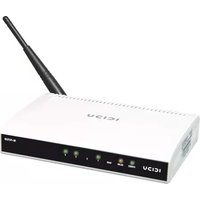
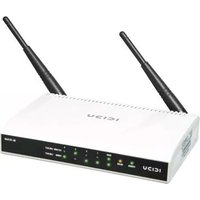
B R O A D B A N D 1 1 G W I R E L E S 5 4 M B P S
M A N U A L
N I - 7 0 7 5 0 2
- CONTENTS OF THE PACKAGE 4
- TECHNICAL SPECIFICATIONS 4
-RANGE OF APPLICATIONS 4 - HARDWARE INSTALLATION 5
- ROUTER CONFIGURATION 6

Thank you for buying this XR technology router. The eXtended Range technology extends your wireless coverage to up to three times more than that of a standard 54 Mbps product.
If you want to interconnect several PCs for shared Internet access, you will need an additional component to connect the PCs. This router allows you to set up a wireless network, quickly and efficiently.
- CONTENTS OF THE PACKAGE
Before starting the installation first check that all necessary parts are present. The box should contain:
- 4 Port wireless router
- Power adapter 9V\~ 800mA / 7.2VA
- CD with full manual
- User manual
- TECHNICAL SPECIFICATIONS
- 802.11g wireless protocol
- Maximum wireless data transfer speed: 54 Mbps
- eXtended Range Technology
- Web Based Management
- Supports: Dynamic IP, Static IP, PPPoE
- 1 x WAN, 4 x LAN RJ-45 UTP ports
- Built-in NAT and DHCP server
- Supports: VPN pass through
- Independent of operating system
- Supports: IEEE 803.3, IEEE 803.3u, IEEE 802.11b, and IEEE 802.11g
- Supports: WEP/WPA/WPA2/802.1X data encryption
- Supports: 64/128/152 bit WEP encryption security
- RANGE OF APPLICATIONS
This router allows you to set up a wireless broadband Internet connection on multiple computers. Op top of a shared Internet connection, you can also set up a network between several PCs. Connect the ADSL modem to the WAN port of the
router and after a few seconds the WAN LED will light up. You can now connect the PCs. Once the PCs have been started up, the relevant LED will light up.
- HARDWARE INSTALLATION
As soon as you have connected the router to the power adapter, the power LED (Green) will light up and the link/act LEDs will flash once. The other LEDs (Green) will light up as soon as one of the UTP ports are connected to the computer. When data is transferred from one computer to another the LEDs will start to flash.
- LED INDICATORS

| Name LED Action Description | ||
| PWR | OFF No Po | wer |
| ON Po | wer ON | |
| SYS | ON Router is starting up | |
| Flashing Router is r | eady to use | |
| OFF Har | dware Error (reset the router) | |
| WLAN | OFF Wir | eless connection is disabled |
| Flashing Wir | eless connection is enabled | |
| WAN, 1-4 | OFF Ther | e is no network connection between computer and router |
| ON Ther | e is a network connection between computer and router | |
| Flashing Ther | e is data activity on the network | |
- OVERVIEW OF CONNECTIONS AT THE BACK OF THE ROUTER
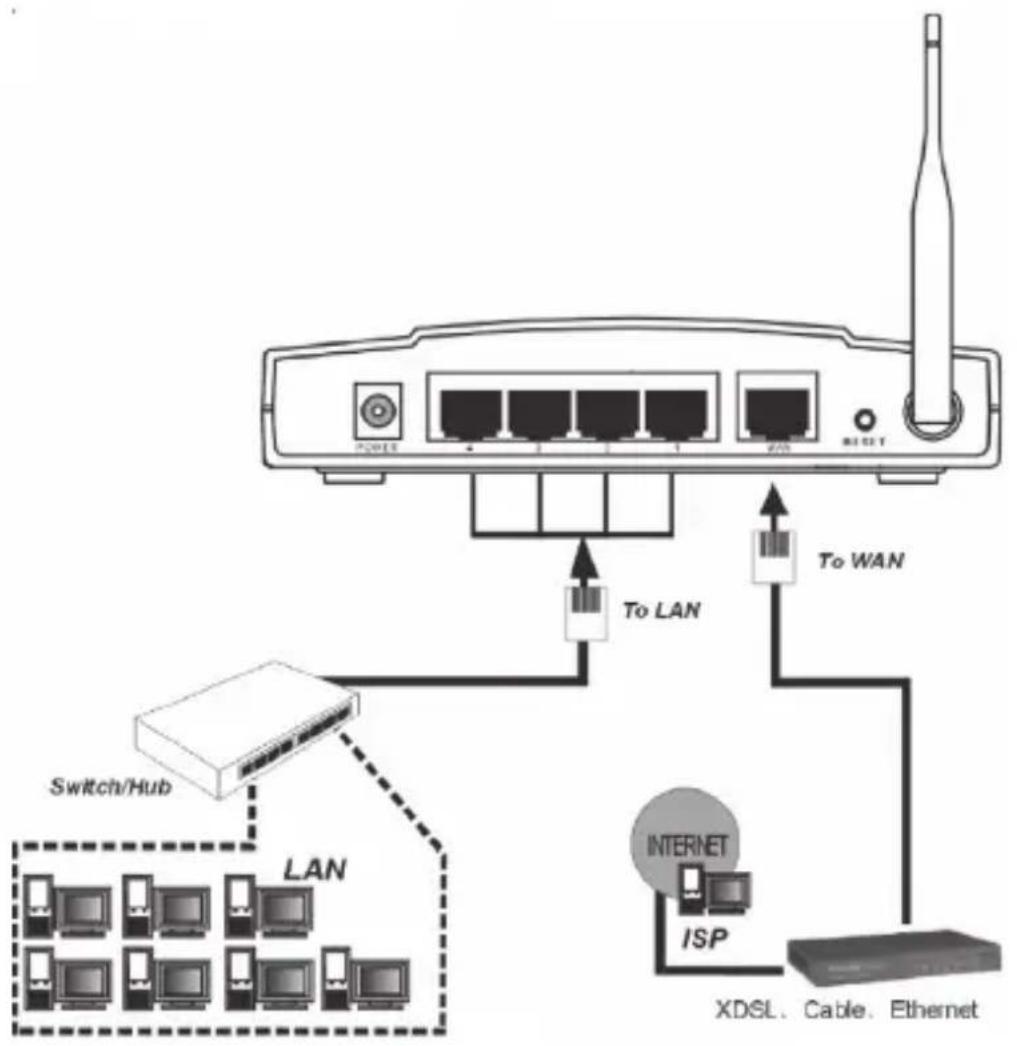
flowchart
graph TD
    A["Router"] -->|To LAN| B["Switch/Hub"]
    A -->|To WAN| C["Internet"]
    C --> D["XDSL Cable Ethernet"]
    B --> E["Computer 1"]
    B --> F["Computer 2"]
    B --> G["Computer 3"]
    B --> H["Computer 4"]
    B --> I["Computer 5"]
    C --> J["ISP"]
    style A fill:#f9f,stroke:#333
    style B fill:#ccf,stroke:#333
    style C fill:#cfc,stroke:#333
    style D fill:#fcc,stroke:#333
    style E fill:#ffc,stroke:#333
    style F fill:#ffc,stroke:#333
    style G fill:#ffc,stroke:#333
    style H fill:#ffc,stroke:#333
    style I fill:#ffc,stroke:#333
- ROUTER CONFIGURATION
After you have correctly connected the router, you can start to configure it. For some providers you will need addition information, such as your username and a password.
Start up the Internet browser and enter the following address in the address bar http://192.168.1.1 and press "Enter"

The following screen is displayed. To access the router enter “admin” for username and “password” for password and then click “OK”

After clicking "OK" the router setup screen is displayed.
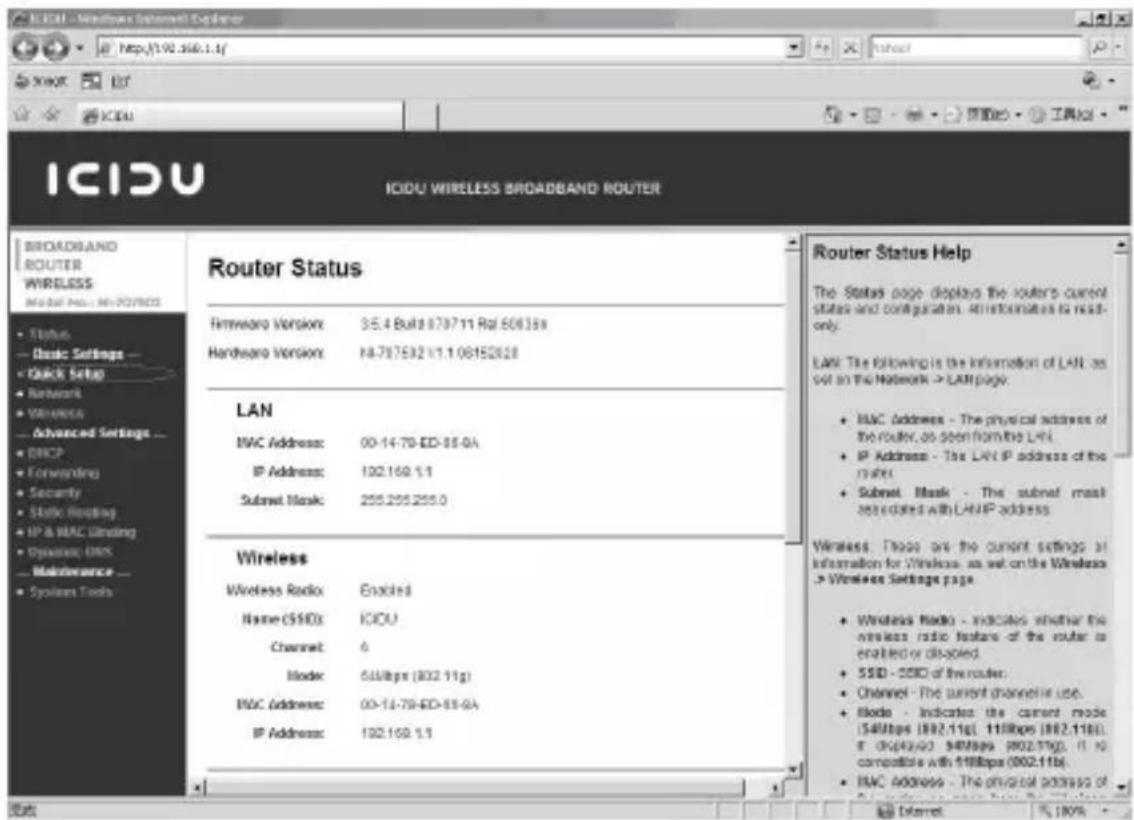
Click on “Quick Setup” and then click on “Next”. Select your Internet connection, and after your provider has given you a username and password, which is needed for cable connections, select the PPPoE option.
If you already have an ADSL connection with an ADSL modem then select 'Dynamic IP'. The IP address is automatically allocated by your provider which the router will then use.
Quick Setup - Choose WAN Connection Type
Please choose WAN Connection Type:

PPPoE

Dynamic IP

Static IP
Back
Next
If you have Dynamic IP click on "Next" to go directly to the "Quick Setup – Wireless" screen
Quick Setup - Choose WAN Connection Type
Please choose WAN Connection Type:

PPPoE

Dynamic IP

Static IP
Back
Next
If you have a PPPoE connection, enter your username in the “Account name” field and the password you were given by your provider in the “Password” field. Then click on “Next”.
Quick Setup - PPPoE
Account Name:
Password:

natural_image
Two horizontal rectangular frames with no text or symbols inside, arranged horizontally (no text or symbols)Back
Next
After clicking on "Next" the "Quick Setup - Wireless" screen is displayed.
Quick Setup - Wireless
If you modify the following settings, please reboot the router manually to take effect the changes.
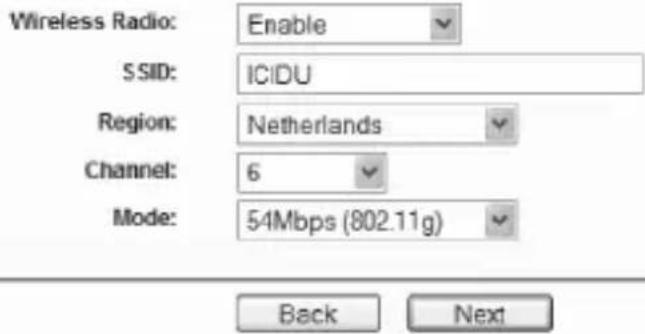
If there is nothing you want to change, click on "Next".
Quick Setup - Finish
Congratulations! The router is now connecting you to the Internet. For detail settings, please contact other menus if necessary.
Back
Finish
After you have clicked on "Finish" you will return to the "Router status" screen.
Now that the router has been set up it is important that the wireless function of the router is protected. If you do not protect the router then the people around you will be able to use your Internet connection.
In the main screen of the router, click the “Wireless” → “Wireless Settings” option and the following screen is displayed. Enable the “Enable Wireless Security” function.
Wireless Settings
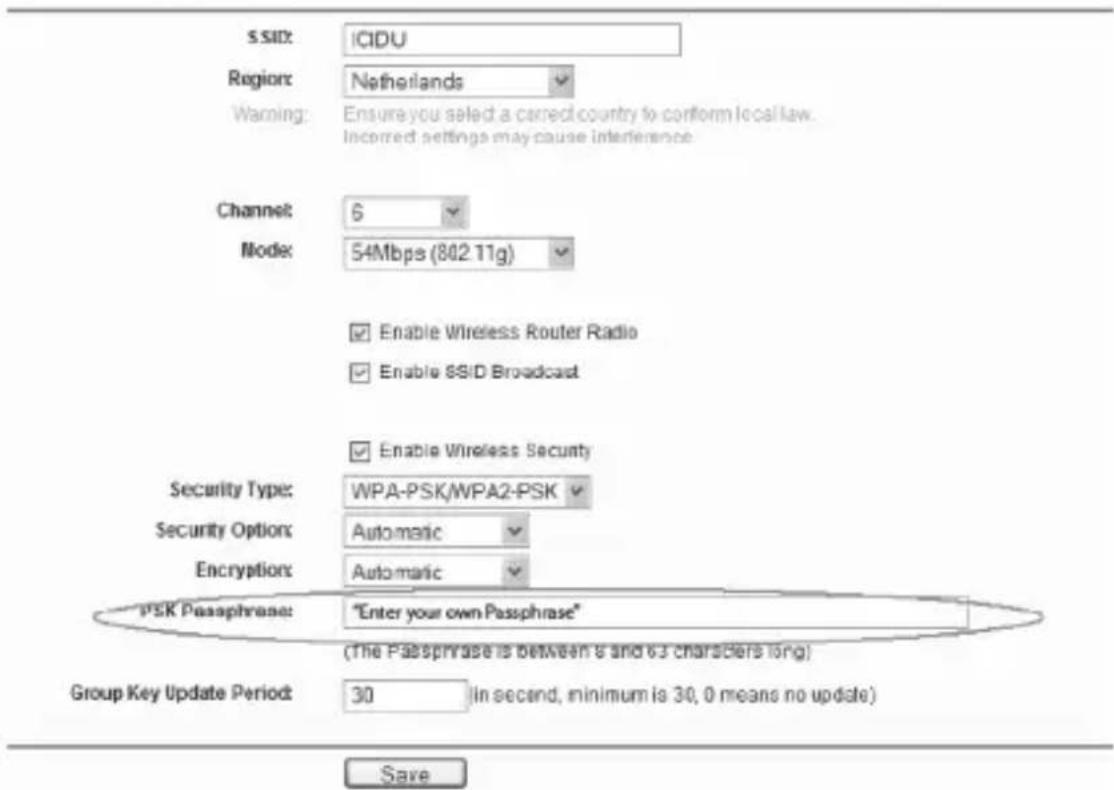
Select WPA-PSK/WPA2-PSK for security type.
For the “PSK Passphrase” function enter your own network key and make a note of the key as you will need it to make a wireless client connection with the router.
After you have entered all the details, click on "Save".
The following message appears: “Selecting the incorrect country may cause interference with other devices and violate the applicable law” Click “OK”.
Click 'OK' again to restart the router.
Use this space to write down your router's settings.
- WIRELESS SETTINGS
SSID: ....
To get the most out of your router, please see the complete manual on the CD-ROM.
WARRANTY
Unless specified otherwise, all items sold under the ICIDU name are covered by a two-year warranty. No warranty or support is provided for the software and rechargeable batteries that are provided. Claims under warranty can be made only via the dealer from whom the item was purchased.
Specifications can be changed without notice.
All ICIDU products comply with current European safety and environmental standards and legislation. For further details, visit our website www.icidu.com
ICIDU is a registered trademark. All other brand names and rights in connection with them are and remain the property of the rightful owner.
© Copyright 2007 ICIDU
All rights expressly reserved
- B R O A D B A N D 1 1 G W I R E L E S 5 4 M B P S
- - CONTENTS OF THE PACKAGE
- - TECHNICAL SPECIFICATIONS
- - RANGE OF APPLICATIONS
- - HARDWARE INSTALLATION
- - LED INDICATORS
- - OVERVIEW OF CONNECTIONS AT THE BACK OF THE ROUTER
- - ROUTER CONFIGURATION
- Quick Setup - Choose WAN Connection Type
- Quick Setup - PPPoE
- Quick Setup - Wireless
- Quick Setup - Finish
- Wireless Settings
- - WIRELESS SETTINGS
- WARRANTY
Brand : Icidu
Model : Nl-707502
Category : Gps