Sarix IME229-1IS - Surveillance Camera SCHNEIDER - Free user manual and instructions
Find the device manual for free Sarix IME229-1IS SCHNEIDER in PDF.


| Product Type | Surveillance Camera |
| Brand | Schneider (Pelco) |
| Model | Sarix IME229-1IS |
| Resolution | 2 MP (1920 x 1080) |
| Lens Type | Fixed varifocal 2.8–12 mm |
| IR Range | Up to 30 m |
| Power Supply | PoE (IEEE 802.3af) or 12 VDC |
| Dimensions (D x H) | 130 mm x 100 mm |
| Weight | 0.5 kg |
| Protection Rating | IP66, IK10 |
| Operating Temperature | -40°C to 60°C |
| Video Compression | H.264, H.265, MJPEG |
| Main Functions | Motion detection, day/night, wide dynamic range |
| Maintenance & Cleaning | Clean lens with soft dry cloth; keep vents clear |
| Safety | Use only PoE or specified power adapter |
| Spare Parts & Repairability | No user-serviceable parts; contact support |
| General Information | Indoor/outdoor use, wall or ceiling mount |
Frequently Asked Questions - Sarix IME229-1IS SCHNEIDER
User questions about Sarix IME229-1IS SCHNEIDER
0 question about this device. Answer the ones you know or ask your own.
Ask a new question about this device
Download the instructions for your Surveillance Camera in PDF format for free! Find your manual Sarix IME229-1IS - SCHNEIDER and take your electronic device back in hand. On this page are published all the documents necessary for the use of your device. Sarix IME229-1IS by SCHNEIDER.
USER MANUAL Sarix IME229-1IS SCHNEIDER
Next Gen Sarix® Enhanced IME Series Mini Dome Cameras

natural_image
Two PELCO security cameras with visible lens and camera modules (no text or symbols on the devices themselves)Installation Manual C1338M 8/16
Contents
Important Notices....3
Legal Notice....3
Regulatory Notices ....3
Korean Class A EMC ....3
Warranty Statement....3
Introduction 4
Models 5
Recommended Mounts....5
Optional Accessories ....5
Getting Started....6
Surface Mount Models....7
Supplied Parts List....7
User-Supplied Parts List....7
Product Overview 8
Installation....9
Installing the Mount....9
In-Ceiling: Indoor and Environmental 9
Pendant: Indoor and Environmental 12
Surface Mount: Indoor and Environmental 15
Wall Mount: Indoor 17
Cable Terminations 22
Ethernet Wiring Requirement for PoE 22
Alarm/Relay/Audio Port 23
IP Address Settings 24
Logging On to the Camera 24
Important Notices
For more information about Pelco's product-specific important notices and thereto related information, refer to www.pelco.com/legal.
Regulatory Notices
This device complies with Part 15 of the FCC Rules. Operation is subject to the following two conditions: (1) this device may not cause harmful interference, and (2) this device must accept any interference received, including interference that may cause undesired operation.
Radio and Television Interference
This equipment has been tested and found to comply with the limits of a Class A digital device, pursuant to Part 15 of the FCC rules. These limits are designed to provide reasonable protection against harmful interference when the equipment is operated in a commercial environment. This equipment generates, uses, and can radiate radio frequency energy and, if not installed and used in accordance with the instruction manual, may cause harmful interference to radio communications. Operation of this equipment in a residential area is likely to cause harmful interference in which case the user will be required to correct the interference at his own expense.
Changes and modifications not expressly approved by the manufacturer or registrant of this equipment can void your authority to operate this equipment under Federal Communications Commission's rules.
CAN ICES-3(A)/NMB-3(A).
Korean Class A EMC
For information about Pelco's product warranty and thereto related information, refer to www.pelco.com/warranty.
UL Safety Notices
This product is intended to be supplied by a Listed Power Unit marked "L.P.S." (or "Limited Power Source") and rate output 24Vac, 50/60Hz, 1.28 minimum or 48 Vdc, 0.35A minimum.
The product shall be installed by a qualified service person and the installation shall conform to local codes.
Introduction
The NextGen Sarix® IME Series IP cameras feature SureVision technology that seamlessly delivers advanced low-light performance with wide dynamic range (WDR) and anti-bloom technologies that operate simultaneously. They are part of Pelco's Enhanced (E) range of cameras, providing industry-leading image quality and performance.
The IME Series mini dome camera is easy to install, offers flexible mounting options, and uses a standard Web browser for easy remote setup and administration.
The IME Series easily connects to Pelco IP and hybrid systems such as VideoXpert™, Endura® version 2.0 (or later), and Digital Sentry® version 7.3 (or later). The camera is also conformant with ONVIF Profile S and Profile G for connection with third-party software. Pelco offers an application programming interface (API) and software developer's kit (SDK) for interfacing with Pelco's IP cameras.
This document describes the installation and initial setup procedures to begin operating the camera. For more information about operating your camera, refer to the operation manual specific to the product.
NOTE: For additional information about product documentation in English and other languages, go to www.pelco.com/sarix and navigate to the IME Series Web page
Models
IME129-1IS Indoor, 3 \~ 9 mm focal range, surface mount, 1MPx, white
IME229-1IS Indoor, 3 \~ 9 mm focal range, surface mount, 2MPx, white
IME329-1IS Indoor, 3 \~ 9 mm focal range, surface mount, 3MPx, white
IME129-1ES Environmental, 3 \~ 9 mm focal range, surface mount, 1MPx, light gray
IME229-1ES Environmental, 3 \~ 9 mm focal range, surface mount, 2MPx, light gray
IME329-1ES Environmental, 3 \~ 9 mm focal range, surface mount, 3MPx, light gray
IME129-1RS Environmental, 3 \~ 9 mm focal range, surface mount, 1MPx, light gray, IR LED
IME229-1RS Environmental, 3 \~ 9 mm focal range, surface mount, 2MPx, light gray, IR LED
IME329-1RS Environmental, 3 \~ 9 mm focal range, surface mount, 3MPx, light gray, IR LED
Recommended Mounts
WMVE-SR Pendant mount arm, 1.5in., NPT, environmental, light gray
WMVE-SW Pendant mount arm, 1.5in., NPT, indoor, white
IMEICM-E Environmental in-ceiling mount, light gray
IMEICM-I Indoor in-ceiling mount, white
IMEPMB-I Wall mount bracket, light duty, indoor, white
Optional Accessories
PA101 Pole adapter for use with WMVE-SR wall mount
IMEPM-E 1.5-inch NPT environmental pendant adapter, light gray
IMEPM-I 1.5-inch NPT indoor pendant adapter, white
IMEEBAP-E Environmental 4S electrical box and Type 4X adapter
IMEEBAP-I Indoor 4S electrical box adapter
- Contact Pelco Product Support for more information about the use of the Pelco IP camera tester with cameras
Getting Started
Before installing your device, thoroughly familiarize yourself with the information in the installation section of this manual.
NOTES:
- Pelco recommends connecting the device to a network that uses a Dynamic Host Configuration Protocol (DHCP) server to address devices.
- Do not use a network hub when configuring the network settings for the device.
• To ensure secure access, place the device behind a firewall when it is connected to a network.
To ensure secure access, place the device behind a firewall when it is connected to a network.
Surface Mount Models
Supplied Parts List
Qty Description
1 Camera
1 Mounting plate (Type 4X for environmental models only)
1 IME Series Mini Dome IP Camera Installation manual
1 Important Safety Instructions
1 Resource sheet
User-Supplied Parts List
Qty Description
1 Pipe/conduit (if applicable)
1 Conduit adapters (if applicable)
1 RJ-45 connector to terminate wires
1 Cat5 (or higher) cable
1 #2 Philips screwdriver
1 SD card, up to a 128 GB SanDisk Extreme® PLUS SDHC™ UHS-I MicroSD card, or with adapter to standard SD card size.
Product Overview

text_image
Technical diagram of a mechanical assembly with numbered components and labeled parts(1) RJ-45 Network Port: Connects the camera to the IP network. Also supplies power to the camera (PoE), through the same connector.
I. To purchase power adaptor, please contact Pelco for further information.
(2) BNC Connector: A two-pin connector for analog video output. Pin 1 is BNC; pin 2 is GND. Please contact the manufacturer for the compatible BNC cable.
(3) Power Connector: A two-pin connector for 12VDC and 24VAC. Pin 1 is 12VDC or 24VAC 1; Pin 2 is GND or 24VAC 2.
I. The ITE is to be connected only to PoE networks without routing to the outside plant or equivalent description.
(4) RS-485: A three-pin connector for RS-485 connection. Pin 1 is D+; pin 2 is D-; pin 3 is GND.
(5) Reset Button: Reboots the camera or restores the camera's factory default settings. This button is recessed. Using a small tool, such as a paper clip, press and release the reset button once to reboot the camera. Press and hold the reset button for 10 seconds to restore the camera to the factory default settings.
(6) Alarm/Relay/Audio Port: Connects to alarms, relays, and audio in/out.
(7) SD Card: Install the SD card into the card slot to store videos and snapshots. Do not remove the SD card when the camera is powered on. With regards to SD card installation, please note information listed below:
I. The SD card slot is located at the base of the camera module. To install the SD card, dome cover must be taken off from the camera. Take off the camera module and put SD card into SD card slot.
II. This camera supports a Micro SD card, in SD card adaptor.
Installation
Installing the Mount
You can install the IME Series mini domes using one of the following mounting methods:
• Installation in a suspended ceiling or a fixed ceiling. Refer to In-Ceiling: Indoor and Environmental with IMEICM-I or IMEICM-E
• Installation using a pendant mount. Refer to Pendant: Indoor and Environmental with WMVE-SR or WMVE-SW and IMEPM-I or IMEPM-E.
• Installation on a wall or a fixed ceiling. Refer to Surface Mount: Indoor and Environmental with IMEEBAP-E or Wall Mount: Indoor with IMEPMB-I
In-Ceiling: Indoor and Environmental with IMEICM-I or IMEICM-E
Supplied Parts List
Qty Description
1 In-Ceiling mount
1 Ceiling sticker
2 M4 mechanical screws
1 Trim ring
Installation Guide
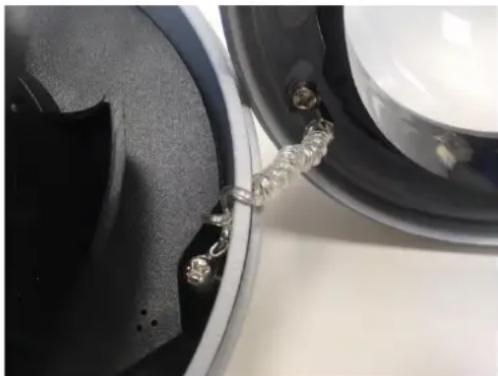
- Optional: Remove the camera dome from camera housing by removing the anti-drop chain. Or, leave the protective film on the dome and use care.
natural_image
Close-up of a speaker emitting sound waves with metal clips, no visible text or symbols- Secure the back box on the mounting bracket.
text_image
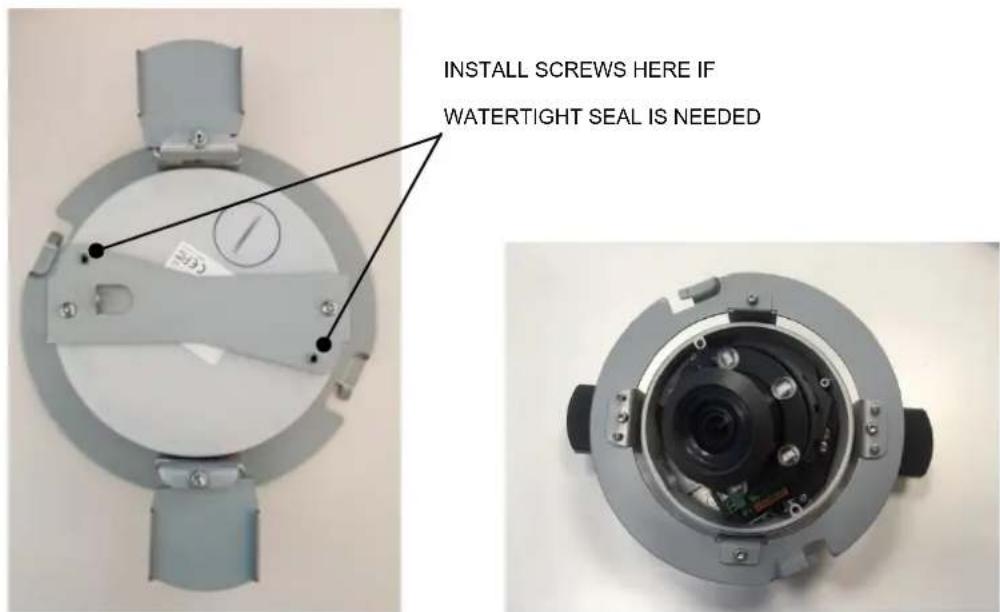
INSTALL SCREWS HERE IF WATERTIGHT SEAL IS NEEDED- Determine the mounting location in the ceiling.
- Use the template to mark the hole on the wall, ceiling, or ceiling tile.
- Cut the hole for the camera.
- Pull the wiring through the hole.
- Move the conduit plug to side or top where needed to use the other hole for wire entry. Tighten the plug.
- Install the back box as follows:
a. Attach and seal the conduit as needed.
b. If using conduit (not supplied): Feed wires into the back box, and plug camera in.
c. Fold the rubber holders inside to clear the hole.
d. Push the back box through the hole.
e. Rotate the screws clockwise to secure the bracket on the ceiling.
natural_image
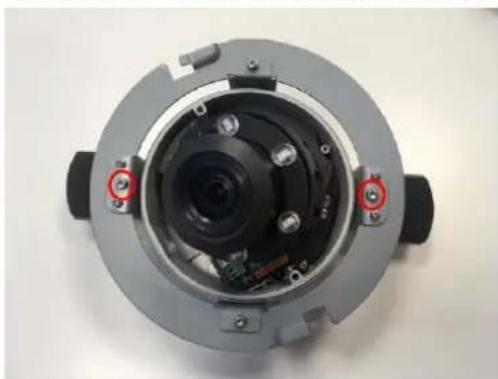
Top-down view of a mechanical device with internal components and mounting holes (no visible text or symbols)- Adjust the angle of lens by pan and tilt. Grasp the base of the lens assembly to adjust.

text_image
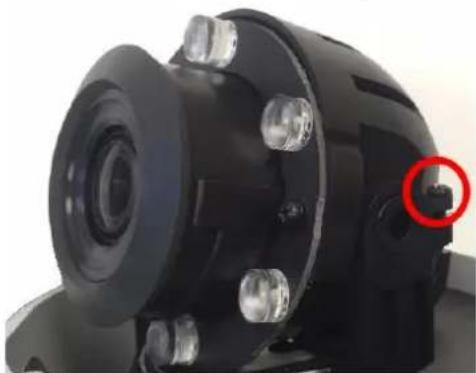
BASE- Tighten the locking screw to secure the camera module position.
natural_image
Close-up of a black mechanical component with a red circle highlighting a small feature (no visible text or symbols)- Secure the anti-drop chain, put on the dome cover, and tighten the dome cover.

natural_image
Top-down view of a circular mechanical device with a central transparent dome and black buttons (no visible text or symbols)- Put on the trim ring and rotate it clockwise to secure the trim ring on the bracket.

natural_image
Top-down view of a camera lens assembly with red-circled ports and internal components (no text or symbols visible)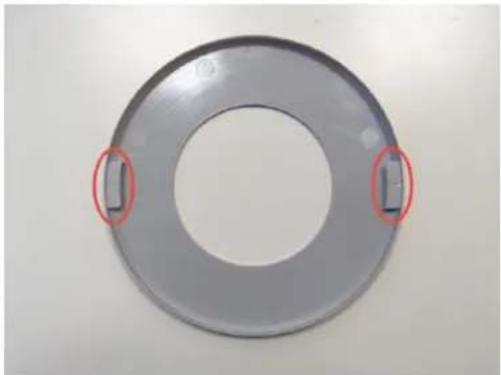
natural_image
Circular metallic ring component with two red oval highlights on the side (no text or symbols visible)Pendant: Indoor and Environmental with IMEPM-I or IMEPM-E and WMVE-SR or WMVE-SW
Supplied Parts List
Qty Description
1 Pendant cap
2 M4x8 mechanical screws
Installation Guide
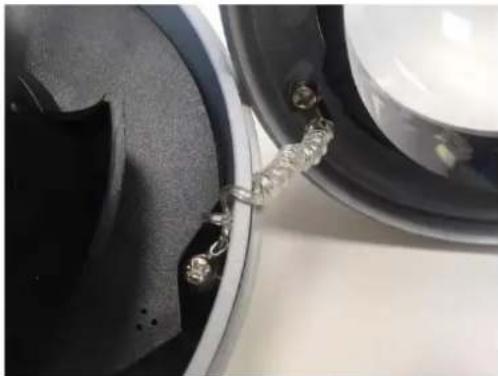
- Optional: Remove the camera dome from camera housing by removing the anti-drop chain.
natural_image
Close-up of a speaker emitting sound waves, showing black plastic components and metallic clips (no text or symbols visible)-
Put the conduit plug on the side of the camera box.
-
Apply grease or Teflon tape to the pendant threads.
-
Put the wiring through the hole on the top of the pendant cap into the camera.
-
Screw on the pendant to the pipe or support arm.
-
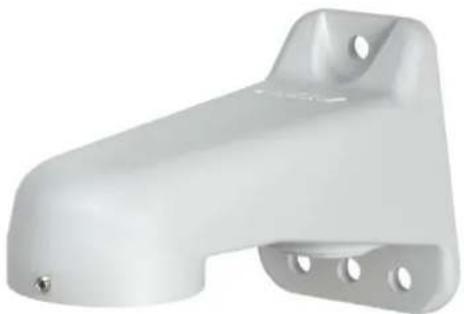
Add the support arm if purchased. Refer to the WMVE-SR and WMVE-SW installation manual on pelco.com for installing the wall mount arm.
WMVE-SR AND WMVE-SW WALL MOUNT ARM
natural_image
White plastic mechanical bracket with mounting holes and a small screw (no text or symbols visible)- Place the camera back box or full camera into the pendant cap and adjust the camera back box by using the self-positioning pillars in the pendant cap. Twist until it snaps fully in. Secure the 2 M4 screws.

natural_image
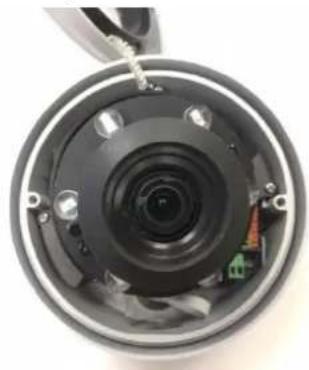
Close-up of a mechanical component with red circles highlighting specific areas (no text or symbols visible)- Replace the camera on the back box (if removed for installation ease).
natural_image
Top-down view of a camera lens assembly with visible internal components and mounting brackets (no text or symbols)- Adjust the angle of lens by pan and tilt by grasping the base.

text_image
BASE- Tighten the locking screw to secure the camera module position.
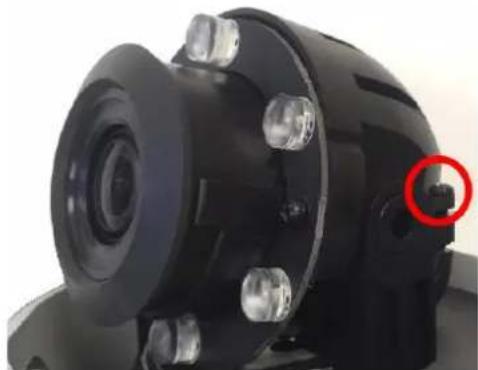
natural_image
Close-up of a black mechanical component with a red circular annotation highlighting a small feature (no visible text or symbols)- Secure the anti-drop chain, put on the dome cover, and tighten the dome cover.
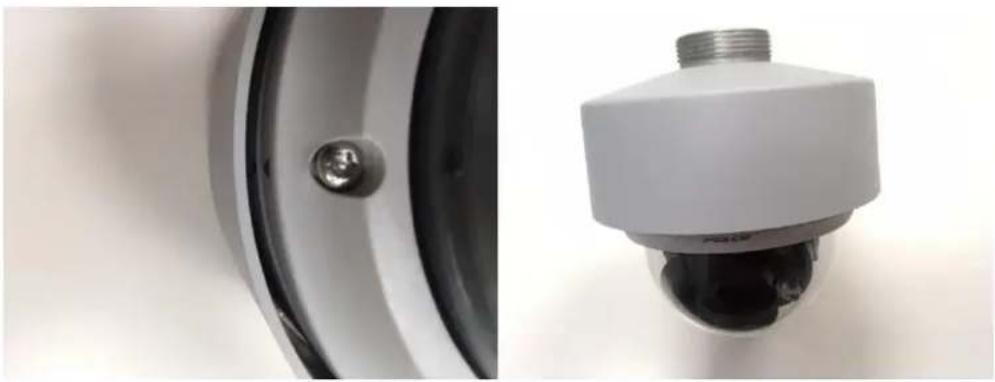
natural_image
Close-up of a metallic wall-mounted security camera component and its external view (no text or symbols visible)Surface and Type 4X Mount: Environmental with IMEEBAP-E Installation Guide
NOTE: The environmental camera is weather tight, rated IP66 if installed directly to a surface. So, this mounting plate is optional. However, to comply with Type 4X outdoor rating, one must install the Type 4X mounting plate. (The Type 4X plate has a dual function to mount to junction boxes, so you can ignore the additional holes if not installing to a junction box.
-
Install the Type 4X Electrical Adapter Plate (plate) on the surface or Type 4X electrical box and secure the screws.
-
Prepare the wire entry holes through the plate and camera box as follows:
a. Remove the conduit plug if required and move to the hole not used.
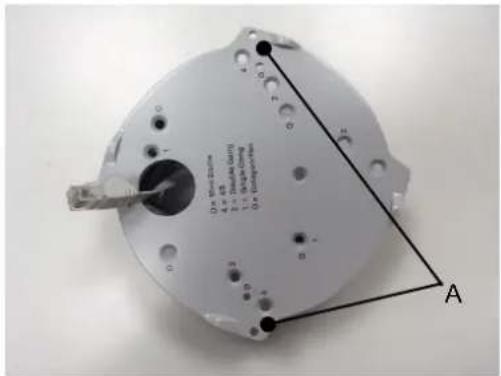
text_image
D:\Program Files\10\1 4.2 4.2 1.1 0.4 A
natural_image
Interior view of a mechanical device showing internal components and a circular housing (no text or symbols visible)-
Remove the dome cover from the camera (optional).
-
Install the camera to the plate.
-
Pull the wire through the conduit hole into the camera.
-
Mount the plate/camera to the surface using the holes marked "A" in the illustration above.
-
Connect and seal the conduit.
-
Adjust the angle of lens by pan and tilt by the base.

text_image
BASE- Tighten the locking screw to secure the camera module position.

natural_image
Close-up of a black mechanical component with a red circular annotation highlighting a small feature (no text or symbols visible)- Install the dome lanyard if removed and then the dome cover and tighten the dome cover screws.
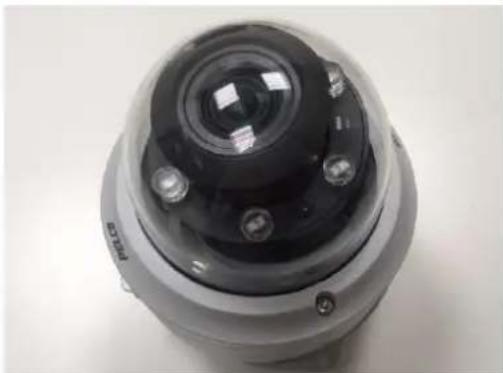
natural_image
Close-up of a camera lens mounted on a spherical device (no visible text or symbols)Surface Mount: Indoor
Installation Guide
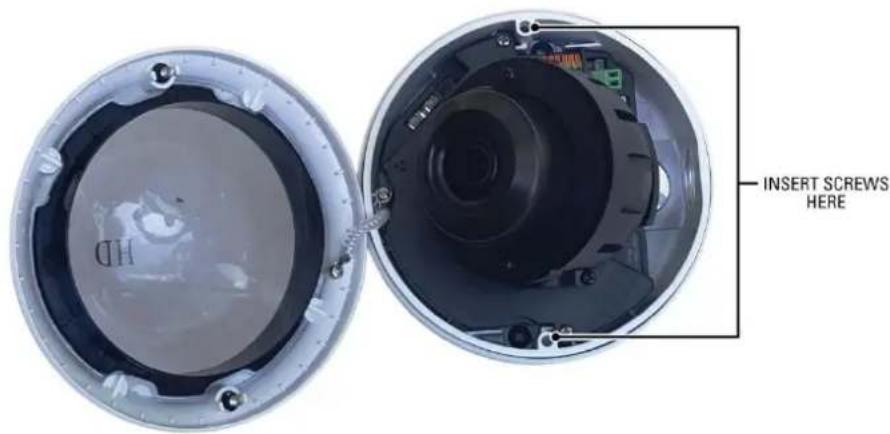
- Prepare the wire entry holes through the plate and camera box as follows: a. Remove the conduit plug if required and move to the hole not used.
text_image
INSERT SCREWS HERE- Remove the dome cover from the camera (optional).
- Pull the wire through the conduit hole into the camera.
- Mount the plate/camera to the surface.
- Adjust the angle of lens by pan and tilt by the base.

text_image
BASE- Tighten the locking screw to secure the camera module position.

natural_image
Close-up of a black mechanical component with a red circle highlighting a small feature (no visible text or symbols)- Install the dome lanyard if removed and then the dome cover and tighten the dome cover screws.

natural_image
Close-up of a camera lens mounted on a spherical device (no visible text or symbols)Wall Mount: Indoor with IMEPMB-I
Supplied Parts List
Qty Description
1 Wall mount bracket
2 Plastic screw anchors
2 M4x25 self-tapping screws
2 M4x8 mechanical screws
Installation Guide
- Place the wall mount bracket at the installation location.

natural_image
3D rendered white object with a curved top and side protrusion (no text or symbols)- Prepare the wire entry holes through the wall mount bracket and camera box. Move the plug if necessary.
- Install the camera to the wall mount bracket using 2 M4 screws.
- Adjust the angle of lens by pan and tilt.

text_image
BASE- Tighten the locking screw to secure the camera module position.

natural_image
Close-up of a black mechanical component with a red circle highlighting a small feature (no visible text or symbols)- Install the dome cover and tighten the dome cover.
Positioning the Camera
- Pan Adjustment (A): Rotate the lens base until you are satisfied with the field of view. Note that the side conduit hole of the lower case is the point where the camera lens shouldn't be rotated over.
- Horizontal Rotation (B): Rotate 3D assembly in the lens base, but do not turn assembly more than 355^ as this may cause the internal cables to be twisted, disconnected, or broken.
- Tilt Adjustment (C): Lift to open the inner liner, and tilt the camera lens to your desired angle. Restore the inner liner back to its default position after adjustment.
NOTE: Limitation for three axes position: Pan range: 355°, Rotate range: 340°, Tilt range: 75°
Cable Terminations
Ethernet Wiring Requirement for PoE
Connect a Cat5 cable or higher (Cat5e, Cat6) cable (not supplied) to the RJ-45 network connector. The 8-pin port includes video over Ethernet, and PoE for the camera. PoE (IEEE 802.3af) injects power over the same cabling that carries the network data, eliminating the need for a separate power supply. This simplifies the installation and operation of the camera without affecting network performance.

text_image
1 8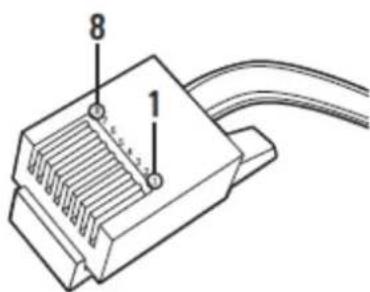
text_image
8 1Table 1 Pin Denion
| PoE Mode A | PoE Mode B | ||
| Pin | Funcon | Pin | Funcon |
| 1 | TX+, PoE 1-2 | 1 | TX+ |
| 2 | TX-, PoE 1-2 | 2 | TX- |
| 3 | RX+, PoE 3-4 | 3 | RX+ |
| 4 | Not used | 4 | PoE 1-2 |
| 5 | Not used | 5 | PoE 1-2 |
| 6 | RX-, PoE 3-4 | 6 | RX- |
| 7 | Not used | 7 | PoE 3-4 |
| 8 | Not used | 8 | PoE 3-4 |
Alarm/Relay/Audio Port
The 9-pin Alarm/Relay/Audio port has the following pins and pin assignments
Table 2 Pin Descriptions for Alarm/Relay/Audio Port
| No. | Connector | Pin | Definition | Remarks |
| 1 | Alarm & Audio I/O | 1 | GND | |
| 2 | Audio In | Audio In | ||
| 3 | GND | |||
| 4 | Audio Out L | Audio Out | ||
| 5 | Audio Out R | |||
| 6 | Alarm Out + | Alarm connection | ||
| 7 | Alarm Out - | |||
| 8 | Alarm In + | |||
| 9 | Alarm In - |
IP Address Settings
If the camera is connected to a Dynamic Host Configuration Protocol (DHCP) network and DHCP is set to On, the server automatically assigns an IP address to the camera. The default setting for the camera is DHCP On. To set the camera's IP address manually, set DHCP to Off.
NOTE:
- If the camera is not connected to a DHCP server but DHCP is set to On, the default IP address on subnet mask 255.255.0.0 is automatically assigned as 169.254.x.y where x and y will take a value from 0 to 255 randomly. Please note cameras under same subnet will not be assigned to same IP address to avoid IP conflict.
Logging On to the Camera
After logging on to the camera, you can view video from the Web user interface.
- Open the Web browser.
- Type the camera's IP address in the browser address bar, and then press Enter.
NOTE: If you do not know the camera's IP address, you can locate it using the Pelco Device Utility software.
- To access the device in its initial out-of-the-box state, you will be able to set the initial administrator account password.
NOTE: The initial out-of-the-box state is also called "Factory Default Status."
- Click Log In.
Pelco Troubleshooting Contact Information
If the instructions provided fail to solve your problem, contact Pelco Product Support at 1-800-289-9100 (USA and Canada) or +1-559-292-1981 (international) for assistance. Be sure to have the serial number available when calling.
Do not try to repair the unit yourself. Leave maintenance and repairs to qualified technical personnel only.

by Schneider Electric
Pelco by Schneider Electric
3500 Pelco Way Clovis, California 93612 USA
(800) 289-9100 Tel (800) 289-9150 Fax
+1 (559) 292-1981 International Tel
+1 (559) 348-1120 International Fax
www.pelco.com
Pelco, the Pelco logo, and other trademarks associated with Pelco products referred to in this publication are trademarks of Pelco, Inc. or its affiliates. ONVIF and the ONVIF logo are trademarks of ONVIF Inc. All other product names and services are the property of their respective companies. Product specifications and availability are subject to change without notice.
© Copyright 2015, Pelco, Inc. All rights reserved.