
NV-HS880EC - VCR PANASONIC - Free user manual and instructions
Find the device manual for free NV-HS880EC PANASONIC in PDF.


| Type | Video Cassette Recorder (VCR) |
| Brand | Panasonic |
| Model | NV-HS880EC |
| Dimensions (W x H x D) | 430 x 87 x 282 mm |
| Weight | 3.5 kg |
| Power Consumption | 21 W (NV-HS880 Series) |
| Standby Power Consumption | Approx. 3 W (Power save ON) |
| Power Source | 220-240 V AC, 50/60 Hz |
| Tape Format | S-VHS / VHS |
| Video Heads | 4 heads |
| Recording System | 2 rotary heads, helical scanning |
| Tape Speeds | SP (23.39 mm/s), LP (11.7 mm/s), EP (7.8 mm/s) |
| Max Recording Time (SP) | 240 min with E240 tape |
| FF/REW Time (E180 tape) | Approx. 60 s |
| Video Horizontal Resolution | >400 lines (S-VHS/SP); >240 lines (VHS/SP) |
| Audio Heads | 2 heads (Hi-Fi) |
| Audio Dynamic Range (Hi-Fi) | >90 dB |
| Signal-to-Noise Ratio (Video) | >45 dB (S-VHS/SP) |
| Inputs/Outputs | AV1 (Scart), AV2 (Scart), S-Video IN/OUT, Audio IN/OUT (RCA), RF IN/OUT |
| Special Features | ShowView, Intelligent Timer, Jet Search, 3D DNR, Auto Setup, Preset Download, S-VHS ET, Child Lock, CVC Super, Quasi-NTSC playback |
| Accessories | RF coaxial cable, remote control, 2 x R6 batteries, AC mains lead |
Frequently Asked Questions - NV-HS880EC PANASONIC
User questions about NV-HS880EC PANASONIC
0 question about this device. Answer the ones you know or ask your own.
Ask a new question about this device
Download the instructions for your VCR in PDF format for free! Find your manual NV-HS880EC - PANASONIC and take your electronic device back in hand. On this page are published all the documents necessary for the use of your device. NV-HS880EC by PANASONIC.
USER MANUAL NV-HS880EC PANASONIC
Operating Instructions
Bedienungsanleitung
NV-HS880 Series
NV-HS830 Series
natural_image
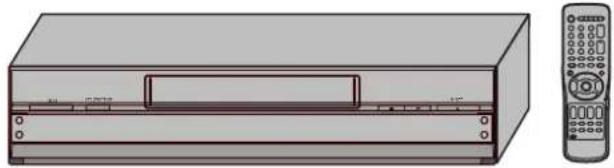
Illustration of a rectangular electronic device with a control panel and remote control (no text or symbols)SHOWVIEW


VHS PAL

SUPER DRIVE
| Contents | Page |
| Warning and Important Information 2 | |
| Controls and Components 3 | |
| Menu Operation 4 | |
| VCR Operation 4 | |
| TV Operation 4 | |
| Connecting and Setting up 5 | |
| Playback 9 | |
| Recording 10 | |
| Satellite or Digital Receiver 12 | |
| Connecting a Stereo Amplifier 13 | |
| Connecting a Decoder 13 | |
| Timer Recording 14 | |
| Intelligent Timer Function 16 | |
| Search Functions 17 | |
| Editing 17 | |
| Manual Tuning 18 | |
| Setting the VCR's Clock 20 | |
| Various Settings | 20 |
| Other Function 22 | |
| Before Requesting Service | 23 |
| Index | 25 |
| Specifications | 26 |
Please read through all these operating instructions (especially the safety information) before connecting or operating the video cassette recorder, or adjusting any settings.
Warning and Important Information
As this equipment gets hot during use, operate it in a well ventilated place; do not install this equipment in a confined space such as a book case or similar unit.
WARNING:
To reduce the risk of fire electric shock or product damage, do not expose this equipment to rain, moisture, dripping or splashing and ensure that no objects filled with liquids, such as vases, shall be placed on the equipment.
Important
Your attention is drawn to the fact that the recording of pre-recorded tapes or discs or other published or broadcast material may infringe copyright laws.
For your safety
Do not remove outer cover.
Touching internal parts of the VCR is dangerous, and may seriously damage it. To prevent electric shock, do not remove cover. There are no user serviceable parts inside. Refer all servicing to qualified service personnel.
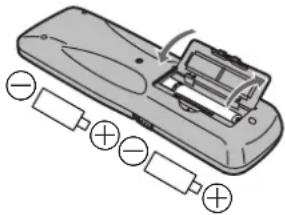
Inserting Remote Control Batteries
Insert the batteries with the polarity ( and ) correctly aligned.
natural_image
Diagram of a handheld device with battery and capacitor connections (no text or symbols)Notes:
- The service life of the batteries is approximately 1 year.
However, it varies considerably depending on the frequency of use. - When they are exhausted, replace them with two AA, UM3, or R6 size batteries.
- When the batteries are exhausted, remove them immediately and dispose of them correctly.
- Make sure that the batteries are inserted with the polarity (⊕ and ⊖) correctly aligned.
- Do not mix old battery with new battery.
- Do not mix different battery types, i.e. Alkaline and Manganese.
- Do not use rechargeable (Ni-Cd) batteries.
- Do not heat or short-circuit the batteries.
- When you do not use the remote control for a long time, take out the batteries and store them in a cool, dry place.
Conserve the environment
See [Power save] of page 20.
Disposal of old equipment
Batteries, packaging and old equipment should not be disposed of as domestic waste, but in accordance with the applicable regulations.

Cautions before you operate this VCR
Avoid:
- Humidity and dust.
- Extreme heat such as direct sunlight.
- Magnets or electromagnetic objects.
- Touching internal parts of the VCR.
• Water or some other liquid. - Lightning. (Disconnect the aerial plug from the VCR during lightning storms.)
- Anything heavy on the VCR.
- Connecting or handling the equipment with wet hands.
- Using a cell phone near the VCR because doing so may cause noise to adversely affect the picture and sound.
Do:
- Wipe the VCR with a clean and dry cloth.
• Install the VCR in a horizontal position. - Keep the VCR, TV and other equipment switched off until you have finished all connections.
Condensation may form in the following cases:
- The VCR is brought from cold surroundings into a well-heated room.
- The VCR is suddenly brought from cool surroundings, such as an air-conditioned room or car, to a place which is hot and humid.
Note:
- In any of the above-mentioned conditions, do not operate the VCR for at least 1 hour. This VCR is not equipped with a dew sensor.
Standard Accessories
1 pc. RF Coaxial cable
1 pc. Remote Control NV-HS880Series: N2QAKB000040 NV-HS830Series: N2QAKB000022 or N2QAKB000027
2 pcs. R6 size batteries
1 pc. AC mains lead
If the front panel comes off
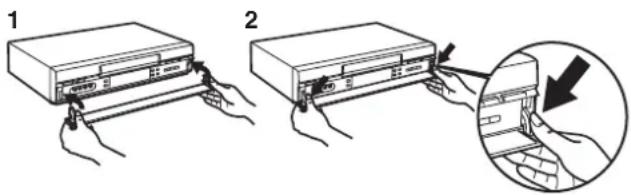
1) Insert the panel as show in the illustration.
2) Ensure the panel is parallel to the unit, then press firmly down and in on the levers until they click into place.
3) Check that the panel now moves correctly.
- If it does not, remove it and repeat the above procedure.
Front panel
A half-mirror is used in the front panel. Characters (tape counter, etc.) indicated in the display may be illegible depending on environmental brightness and light reflections.
Maintenance
When the half-mirror on the front panel gets dirty with fingerprints or dust, wipe it with lens cleaner for eyeglasses or cloth taking care not to damage the mirror.
Controls and Components
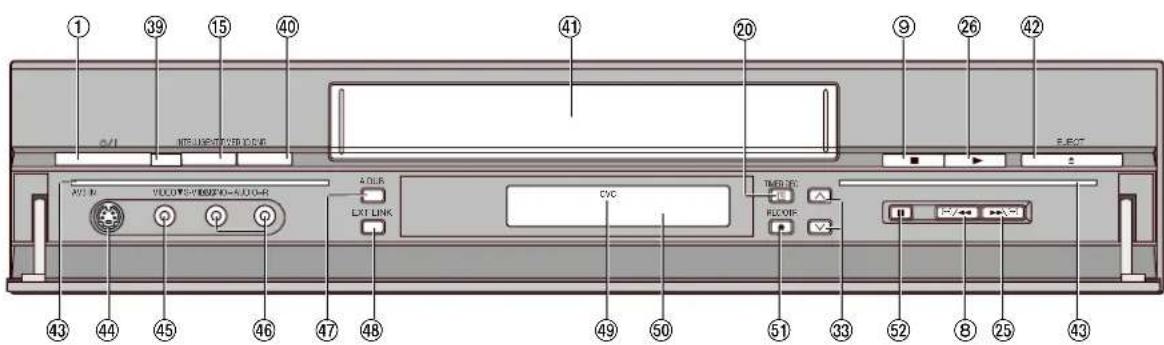
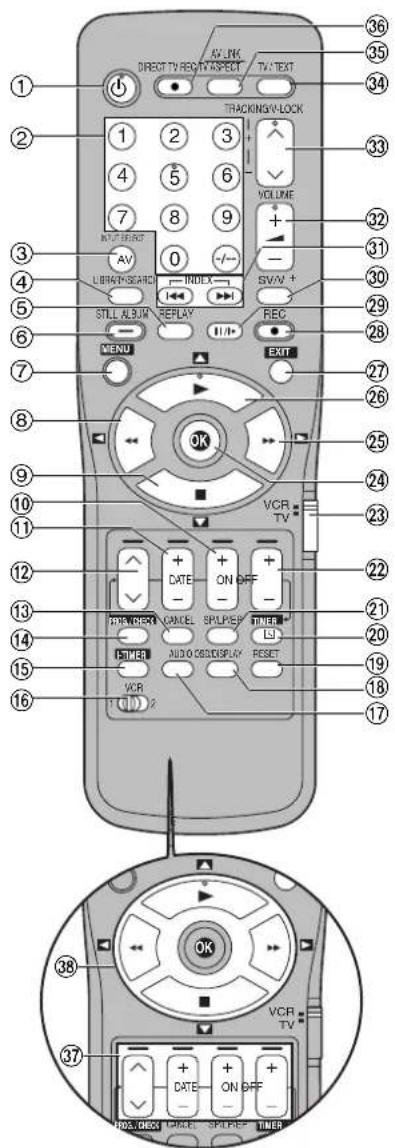
① [VCR-ON/OFF]/[TV-ON/OFF]
② [Numeric]
③ [AV/INPUT SELECT]
④ [LIBRARY/SEARCH]
⑤ [REPLAY]
⑥ [STILL ALBUM]
⑦ [MENU]
⑧ [Rewind]
⑨ [Stop]
10 [ON]
11 [DATE]
12 [CH]
13 [CANCEL]
14 [PROG./CHECK]
15 [I-TIMER]
16 [VCR 1/2] (→p. 21) (For NV-HS880 Series)
17 [AUDIO]
18 [OSD/DISPLAY]
19 [RESET]
To reset the tape counter (elapsed time) to [0:00.00].
- The tape counter is automatically reset to [0:00.00] when a video cassette is inserted.
20 [TIMER]
21 [SP/LP/EP]
22 [OFF]
23 [VCR/TV]
24 [OK]
25 [Fast Forward]
26 [Play]
27 [EXIT]
28 [REC]
29 [Pause/Slow]
30 [SV/V+] ([ShowView]) It may be displayed [ShowView] on some Remote Controls.
31 [INDEX]
32 [VOLUME]
33 [Channel]/[TRACKING/V-LOCK]
34 [TV/TEXT]
35 [AV LINK/TV ASPECT]
36 [DIRECT TV REC]
37 [Teletext]
38 [Cursor]
39 Infra-red Remote Control Receiver window
40 [3D DNR] (For NV-HS880 Series)
41 Cassette compartment
42 [EJECT]
43 Illumination strip (For NV-HS880 Series)
44 S-VIDEO IN socket (AV3)
45 VIDEO IN socket (AV3)
46 AUDIO IN socket (AV3)
47 [A.DUB] (For NV-HS880 Series)
48 [EXT LINK]
49 CVC (CVC Super) indicator
50 VCR display
51 [REC/OTR]
52 [Pause/Still]
53 VIDEO OUT socket
54 S-VIDEO OUT socket
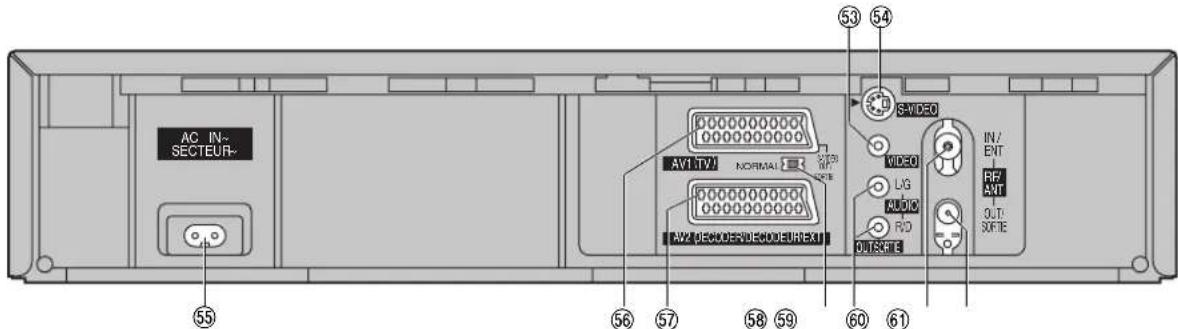
55 AC Input socket
56 AV1 21-pin Scart socket
57 AV2 21-pin Scart socket
58 [NORMAL/S-VIDEO OUT/SORTIE]
59 AUDIO OUT socket
60 RF IN socket
61 RF OUT socket
Menu Operation
[Cursor] 38
To select items on the menu.
[MENU] 7
To display the Main menu.
[EXIT] 27
To exit the menu.
[OK] 24
To confirm or store the selection.
VCR Operation
When you want to operate the VCR, set the [VCR/TV] 23 to [VCR].
[VCR-ON/OFF] 1
To switch the VCR from on to standby mode or vice versa. In the standby mode, the VCR is still connected to the mains.
[Numeric] 2
To select the programme positions (1–99) of the VCR.
Example: 9: ⑨
19: ① → ① → ⑨
To enter a SHOW VIEW number.
To enter numbers for various settings.
[AV LINK] 35
To switch the TV from normal TV reception over to the video playback channel (AV input) (and vice versa).
TV Operation
When you want to operate the TV, set the [VCR/TV] 23 to [TV].
[TV-ON/OFF] ①
To switch the TV on from standby mode or vice versa.
On some TVs it is only possible to switch the TV to standby mode with this button, but not on. In this case, try to turn the TV on with one of the following buttons:
[Numeric] 2
[AV] 3
[Channel] 33
[Numeric] 2
To select the programme positions (1–99) on the TV.
[AV] 3
To select the desired AV input on the TV.
[Channel] 33
To select the desired programme position (TV station) on the TV.
[TV ASPECT] 35
To switch the screen format between the wide-screen and other formats.
[VOLUME] 32
To adjust the volume of the TV.
[TV/TEXT] 34
To switch between normal TV mode and teletext mode.
[Teletext] 37
If your TV is equipped for Teletext reception, you can use these buttons to change the teletext information displayed on the screen and select desired information.
For details, refer to your TV's operating instructions.
Setting the Remote Control to Operate Your TV
(For NV-HS830 Series)
Only Panasonic TVs can be operated with the provided remote control. The settings for operating the TV with the remote control have already been made.
No additional settings need to be performed.
However, some Panasonic TVs can not be operated using this remote control.
(For NV-HS880 Series)
This setting procedure allows you to operate the TVs of most brands using the remote control supplied with this VCR.
- Some TV models cannot be operated with this remote control.
1) Set the [VCR/TV] 23 to [TV].
2) Look up your TV's manufacturer in the list of TVs compatible with the VCR's remote control.
3) While keeping the [TV-ON/OFF] ① pressed, use the [Numeric] ② to enter the manufacturer's code.
If there is more than one code listed for that manufacturer, try the first code.
Be sure to enter the code in two digits.
Example: 01
4) Check whether you can operate the TV correctly with the VCR's remote control.
If the TV cannot be operated properly:
In step 3, enter the other code listed for that manufacturer and repeat step 4.
List of TVs Compatible with the VCR's Remote Control
| [Brand] [Code] | [Brand] [Code] | ||
| Panasonic 01-04 | NOKIA | 25-27 | |
| AIWA 35 | NORDMENDE | 10 | |
| AKAI 27, 30 | ORION | 37 | |
| BLAUPUNKT 09 | PHILIPS | 05, 06 | |
| BRANDT 10, 15 | PHONOLA | 31, 33 | |
| BUSH 05, 06 | PIONEER | 38 | |
| CURTIS 31 | PYE | 05, 06 | |
| DESMET 05, 31, 33 | RADIOLA | 05, 06 | |
| DUAL 05, 06 | SABA | 10 | |
| ELEMIS 31 | SALORA | 26 | |
| FERGUSON | 10 | SAMSUNG | 31, 32 |
| GOLDSTAR/LG | 31 | SANSUI 05, 31, 33 | |
| GOODMANS | 05, 06, 31 | SANYO | 21 |
| GRUNDIG | 09 | SBR | 06 |
| HITACHI | 22, 23, 31, 40, 41, 42 | SCHNEIDER | 05, 06, 29, 30, 31 |
| INNO HIT | 34 | SELECO | 06, 25 |
| IRRADIO | 30 | SHARP | 18 |
| ITT | 25 | SIEMENS | 09 |
| JVC | 17, 39 | SINUDYNE | 05, 06, 33 |
| LOEWE | 07 | SONY | 08 |
| METZ | 28, 31 | TELEFUNKEN | 10-14 |
| MITSUBISHI | 06, 19, 20 | THOMSON | 10, 15 |
| MIVAR | 24 | TOSHIBA | 16 |
| NEC | 36 | WHITE WESTINGHOUSE 05, 06 | |
Connecting and Setting up
If you are connecting your VCR to a TV equipped with the [Q Link] ^1 function, then follow the steps.
For a TV equipped with the [DATA LOGIC] ^2 , [Easy Link] ^3 , [Megalogic] ^4 or [SMARTLINK] ^5 function and with a 21-pin Scart socket, also read from this page.
For details about the connections, also read TV's operating instructions.
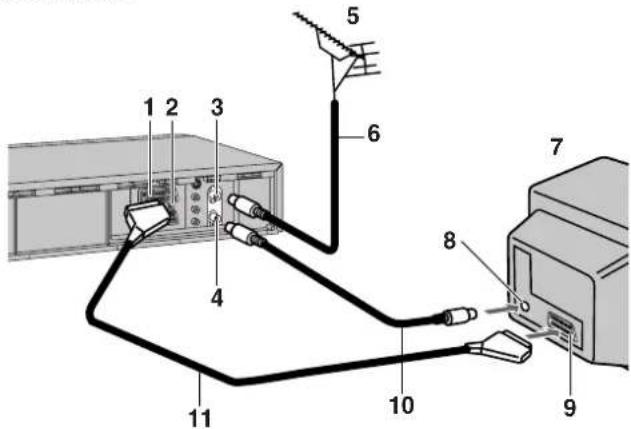
1 AV1 21-pin Scart socket
2 Normal/S-Video Output
3 Aerial Input socket
4 Aerial Output socket
5 Aerial (not supplied)
6 Aerial lead (not supplied)
7 TV equipped with the Q Link (not supplied)
8 Aerial Input socket
9 21-pin Scart socket
10 RF Coaxial cable (supplied)
11 Fully-wired 21-pin Scart cable (not supplied)
Hints:
- Q Link is an advanced system that offers a range of convenient functions such as automatic copying of the tuning position of all available TV stations into your VCR's memory (this is called Download) if you connect the VCR to your TV with a fully-wired 21-pin Scart cable (not supplied). Depending on the manufacturer, the equivalent of the Q Link function has a different name and may not work exactly the same.
^1 [Q Link] is a registered trademark of Panasonic.
^2 [DATA LOGIC] is a registered trademark of Metz.
^3 [Easy Link] is a registered trademark of Philips.
^4 [Megalogic] is a registered trademark of Grundig.
*5 [SMARTLINK] is a registered trademark of Sony.
For details, refer to your TV's operating instructions or consult your dealer.
- Unlike in most commercially sold 21-pin Scart cables, in fully-wired 21-pin Scart cables all 21 pins of one plug are connected to the matching pin of the plug on the other end of the cable.
- If the TV set is equipped with a 21-pin Scart socket that features Y/C signal separation, set the [Normal/S-Video Output] switch on the rear panel to [S-VIDEO OUT] so that you can play back with high picture quality and use a fully-wired 21-pin Scart cable (not supplied) to connect the VCR to the TV.
Preset Download
(To Simultaneously Set Up this VCR with a New TV)
First of all, make sure that the VCR is switched off.
1) Switch the TV on.
The TV starts to tune all available TV stations and to adjust the clock.
- When the TV has finished its own auto setup, the VCR is automatically switched on, and the downloading of the setup data from the TV to the VCR starts. (Applicable to TVs with [Q Link] or [DATA LOGIC] function)
| Download | Panasonic VCR |
| Download in progress,please wait. | |
| Position 67 |
If your TV is equipped with the [Easy Link], [Megalogic] or [SMARTLINK] function, the Country setting menu appears on the TV screen. Press the [Cursor] 38 ▲▼◀▶ to select the desired country and the [OK] 24.
| Country | Panasonic VCR |
| Belgien | Deutschland |
| Belgique | Österreich |
| België | Portugal |
| Danmark | Suomi |
| España | Sverige |
| Ellaàða | Schweiz |
| France | Suisse |
| Italia | Svizzera |
| Nederland | others |
| Norge |
- The downloading automatically starts.
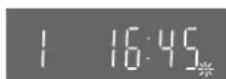
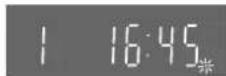
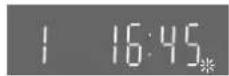
When the indication appears on the VCR display, the downloading is complete.
| 1 | 16:45* |
Note:
- If you accidentally switch on the VCR before the TV, downloading of the setup data from the TV may not be performed correctly. In this case, follow the operation steps.
1) Wait until the Auto Setup is complete on both the TV and the VCR.
2) Press the [MENU]⑦ to display the Main menu on the TV screen.
3) Press the [Cursor] 38 to select [Tuning] and then [Download].
4) Press the [OK] 24 twice. Downloading of the setup data from the TV to the VCR starts.
5) When the programme position and the current time appear in the VCR display, downloading is complete.
Hints:
- If you use a Panasonic TV, starting the downloading of the setup data will automatically display the [Download] indication. However, in case of a TV of another make, the [Download] indication may not appear. In this case, select the AV input on your TV if you want to see the [Download] indication.
- If you select [Schweiz], [Suisse] or [Svizzera] on the Country setting menu, the other setting menu appears automatically to let you set [Power save] to [ON]. In this setting, the VCR's power consumption is minimised when it is off (Standby mode). To turn the VCR on, keep the [VCR-ON/OFF] ① pressed on the VCR main unit, not with the remote control.
Preset Download
(To Set Up this VCR with a TV Already in Use)
1) Switch the TV on.
2) Select the AV input on your TV.
3) Set the [VCR/TV] 23 to [VCR].
4) Press the [VCR-ON/OFF] ① to switch the VCR on. Downloading of the setup data starts automatically. (Applicable to TVs with [Q Link] or [DATA LOGIC] function)
If your TV is equipped with the [Easy Link], [Megalogic] or [SMARTLINK] function, the Country setting menu appears on the TV screen. Press the [Cursor]
38 ▲▼◀▶ to select the desired country and the [OK] 24. The downloading automatically starts.
- When the indication appears on the VCR display, the downloading is complete.
| Download | Panasonic VCR |
| Download in progress,please wait. | |
| Position 67 |
| Country | Panasonic VCR |
| Belgien | Deutschland |
| Belgique | Österreich |
| België | Portugal |
| Denmark | Suomi |
| España | Sverige |
| Eλλάδα | Schweiz |
| France | Suisse |
| Italia | Svizzera |
| Nederland | others |
| Norge |
Hint:
If you select [Schweiz], [Suisse] or [Svizzera] on the Country setting menu, the other setting menu appears automatically to let you set [Power save] to [ON]. In this setting, the VCR's power consumption is minimised when it is off (Standby mode). To turn the VCR on, keep the [VCR-ON/OFF] ① pressed on the VCR main unit, not with the remote control.
If you are connecting your VCR to a TV using RF coaxial cable and 21-pin Scart cable, then follow the steps. (AV Connection)
RF Coaxial cable must be connected to watch TV channels even if 21-pin Scart cable is used to connect VCR to TV.
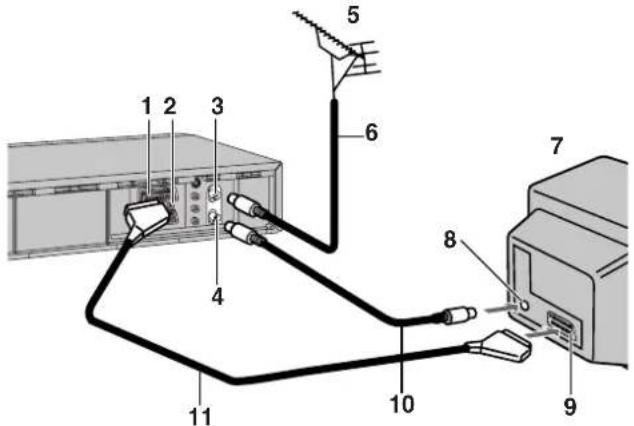
1 AV1 21-pin Scart socket
2 Normal/S-Video Output
3 Aerial Input socket
4 Aerial Output socket
5 Aerial (not supplied)
6 Aerial lead (not supplied)
7 TV (not supplied)
8 Aerial Input socket
9 21-pin Scart socket
10 RF Coaxial cable (supplied)
11 Fully-wired 21-pin Scart cable (not supplied)
Hint:
- If the TV set is equipped with a 21-pin Scart socket that features Y/C signal separation, set the [Normal/S-Video Output] switch on the rear panel to [S-VIDEO OUT] so that you can play back with high picture quality and use a fully-wired 21-pin Scart cable (not supplied) to connect the VCR to the TV.
If you are connecting your VCR to a TV using S-Video cable, then follow the steps. (S-Video Connection)
RF Coaxial cable must be connected to watch TV channels.
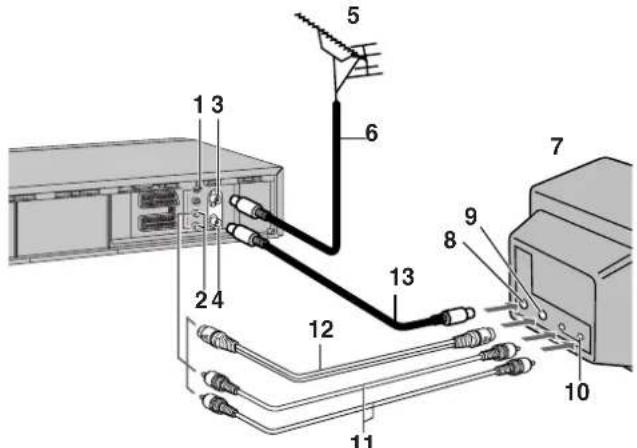
1 S-Video Output socket
2 Audio Output socket
3 Aerial Input socket
4 Aerial Output socket
5 Aerial (not supplied)
6 Aerial lead (not supplied)
7 TV with S-Video Input socket (not supplied)
8 Aerial Input socket
9 S-Video Input socket
10 Audio Input socket
11 Audio cables (not supplied)
12 S-Video cable (not supplied)
13 RF Coaxial cable (supplied)
Auto Setup Function
The Auto Setup function automatically tunes all available TV stations and sets the VCR's clock to the current date and time.
1) Press the [VCR-ON/OFF] ① to turn on the VCR.
The Country setting menu appears on the TV screen.
2) Press the [Cursor] 38 ▲▼◀▶. Select the country where you are using the VCR.
3) Press the [OK] 24. The VCR's Auto Setup automatically starts and tunes all available TV stations and also sets the clock. This takes about 5 minutes. When the indication appears on the VCR display, the Auto Setup is complete.
4) Press the [MENU] ⑦ for more than 5 seconds.
The RF output channel number appears on the VCR display.
The initial setting is channel 36.
5) Press the [Numeric] ② [0].
The displayed RF output channel number changes to
[--].
6) Press the [OK] 24 to conclude the setting.
To cancel the Auto Setup before it has finished Press the [EXIT] 27.
When the clock setting menu appears after Auto Setup has finished
1) Press the [Cursor] 38 ▲▼◀▶ to set the correct time and date.
2) Press the [OK] 24 to conclude the setting.
To confirm that the TV stations have been tuned correctly by the Auto Setup function See page 18.
When no station has been set, confirm all connections of the VCR again and restart the Auto Setup See page 19.
When the station names and/or channel numbers have not been set correctly See page 18.
Hint:
- If you select [Schweiz], [Suisse] or [Svizzera] on the Country setting menu, the other setting menu appears automatically to let you set [Power save] to [ON]. In this setting, the VCR's power consumption is minimised when it is off (Standby mode). To turn the VCR on, keep the [VCR-ON/OFF] ① pressed on the VCR main unit, not with the remote control.
(continues on the next page)
| Country | Panasonic VCR |
| Belgien | Deutschland |
| Belgique | Österreich |
| België | Portugal |
| Danmark | Suomi |
| Espana | Sverige |
| Ελλάδα | Schweiz |
| France | Suisse |
| Italia | Svizzera |
| Nederland | others |
| Norge |
| Auto-Setup | Panasonic VCR |
| Country | : others |
| Tuning | : Ch 21 |
If you are connecting your VCR to a TV using only RF coaxial cable, then follow the steps. (RF Connection) RF Coaxial cable must be connected to watch TV channels.
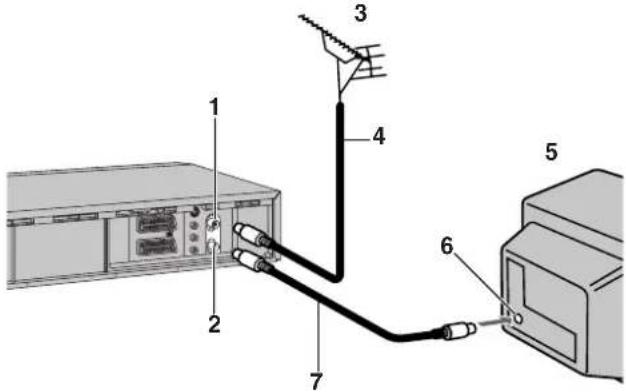
1 Aerial Input socket
2 Aerial Output socket
3 Aerial (not supplied)
4 Aerial lead (not supplied)
5 TV (not supplied)
6 Aerial Input socket
7 RF Coaxial cable (supplied)
1) Press the [VCR-ON/OFF] ① to turn on the VCR and tune your TV until the Country setting menu appears on the TV screen.
2) Press the [Cursor] 38 ▲▼◀▶. Select the country where you are using the VCR.
3) Press the [OK] 24.
The VCR's Auto Setup automatically starts and tunes all available TV stations and also sets the clock. This takes about 5 minutes.
- When the indication appears on the VCR display, the Auto Setup is complete.
| Country | Panasonic VCP |
| Belgien | Deutschland |
| Belgique | Österreich |
| Belgiö | Portugal |
| Denmark | Suomi |
| España | Sverige |
| Ellaüða | Schweiz |
| France | Suisse |
| Italia | Svizzera |
| Nederland | others |
| Norge |
If, after setup, the picture on the video playback channel is distorted, change the RF output channel on the VCR to another number.
1) Press the [MENU] ⑦ for more than 5 seconds.
The RF output channel number appears on the VCR display. The initial setting is channel 36.
2) Press the [Numeric] ②. Change the RF output channel.
Enter a channel number which differs by 2 or 3 from the one initially set number. For example, as the original number is 36, enter 39.
Retune your TV to the VCR's new RF output channel.
3) Press the [OK] 24 to conclude the setting.
To cancel the Auto Setup before it has finished Press the [EXIT] 27.
When the clock setting menu appears after Auto Setup has finished
1) Press the [Cursor] 38 ▲▼◀▶ to set the correct time and date.
2) Press the [OK] 24 to conclude the setting.
To confirm that the TV stations have been tuned correctly by the Auto Setup function See page 18
When no station has been set, confirm all connections of the VCR again and restart the Auto Setup See page 19.
When the station names and/or channel numbers have not been set correctly See page 18.
Hint:
- If you select [Schweiz], [Suisse] or [Svizzera] on the Country setting menu, the other setting menu appears automatically to let you set [Power save] to [ON]. In this setting, the VCR's power consumption is minimised when it is off (Standby mode). To turn the VCR on, keep the [VCR-ON/OFF] ① pressed on the VCR main unit, not with the remote control.
Playback
For Normal Playback
Press the [Play] 26.
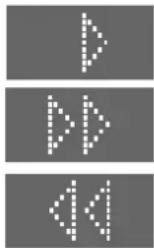
For Cue or Review Playback
During playback, tap the [Fast Forward] 25 or [Rewind] 8.
- To return to normal playback, press the [Play] 26.
- Press and hold down the [Fast Forward] 25 or [Rewind] 8. Cue or review playback continues for as long as you kept pressed.
For High speed Cue or Review Playback (JET SEARCH)
During playback, tap the [Fast Forward] 25 or [Rewind] 8 twice.
For Still Playback
During playback, press the [Pause/Slow] 29.
- To return to normal playback, press the [Play] 26 or the [Pause/Slow] 29.

For Slow Playback
During playback, keep the [Pause/Slow] 29 pressed for 2 seconds or more.
- To return to normal playback, press the [Play] 26.

Fast-forwarding or Rewinding the Tape
Press the [Fast Forward] 25 or [Rewind] 8 in the stop mode.
- To stop fast-forwarding or rewinding, press the [Stop] ⑨.
- To briefly view the picture during fast-forwarding or rewinding, press and hold down the corresponding button.
To Stop Playback
Press the [Stop] ⑨.
Notes:
- JET SEARCH, Cue, review or slow playback will be automatically cancelled after 10 minutes, and still playback after 5 minutes.
- During playback function other than normal playback, horizontal noise bars may appear in the picture, the colour of the picture may be unstable, or the picture may be otherwise distorted.
When you play back a tape recorded in the LP mode, the picture may be in black and white.
When you play back a tape recorded in the EP mode, the picture and the sound may be distorted.
However, these are not malfunctions.
To Play back a Recorded Part Repeatedly
Press the [Play] 26 on the remote control for more than 5 seconds.
The [R] indication appears on the TV screen.
- If [OSD] is set to [OFF] (See page 20), the [R] indication will not appear in repeat playback mode.
To Cancel the Repeat Playback Mode
Press the [Stop] 9.
To Rewind the Tape a Little to View the Same Scene Again (Replay Function)
Press the [REPLAY] ⑤.
Rewind the tape a little from its present position and play it back again.
- During review playback, when you press this button, the VCR briefly switches over to cue playback and play it back again.
- When the VCR is in the stop, rewind, fast-forward, slow playback, or standby mode, the Replay function does not work.
To Stop Playback Automatically (Playback Off Timer Function)
If you set the playback duration, the playback will stop automatically.
After the set playback time has elapsed, the VCR automatically stops playback and switches off.
During normal playback, press the [Play] 26 on the VCR for more than 2 seconds to put the VCR in the Playback Off Timer mode.
After that, press this button on the VCR repeatedly until the desired playback duration is displayed on the VCR display.
- Repeatedly pressing this button changes the indication in the following order.
Counter display (normal playback mode)
→30 (min.)→60 (min.)→120 (min.)
→180 (min.)→240 (min.)
→Counter display (normal playback mode)
To stop midway
Press the [Stop] 9.
To Ensure High Playback Picture Quality (3D DNR Function) (For NV-HS880 Series)
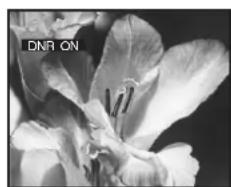
The 3-Dimensional Digital Noise Reduction (3D DNR) function is activated if the indicator (on the TV screen) is [DNR ON]. Use the [3D DNR] 40 to check the status or to activate the function. If you press this button once, the DNR indicator (on the TV screen) will display
current status ([DNR ON] or [DNR OFF]). And if you press the button once again, the status will change ([DNR ON]/[DNR OFF]).
- We recommend that you leave this function activated for normal use of the VCR. However, when performing editing, press the [3D DNR] 40 to turn this function off so that the [DNR OFF] indication appears on the TV screen, to ensure editing with optimal picture quality.
TV screen
natural_image
Close-up of a flower with visible petals and stamens (no text or symbols)Recording
1) Insert a video cassette with an intact erasure prevention tab.
- If it has already been inserted, press the [VCR-ON/OFF] ① to turn the VCR on.
2) Select the TV station using the [Channel] 33. (Set the [VCR/TV] 23 to [VCR].)
- It is also possible to select by pressing the [Numeric] ②.
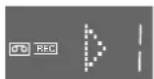
3) Press the [REC] 28 to start recording.
4) Press the [Stop] ⑨ to stop recording.

To Select the Desired Tape Speed
Press the [SP/LP/EP] 21 before recording.
- SP provides standard recording time and optimum picture quality.
LP provides double recording time with slightly reduced picture quality.
EP provides triple recording time with slightly reduced picture quality.

To Pause Recording
Press the [Pause/Slow] 29 during recording.
Press it again to continue recording.
To View One TV Programme while Recording Another TV Programme
After pressing the [REC] 28 to start recording, select on your TV the programme position of the TV programme that you want to view.
Notes:
- When playing back an E300 cassette recorded in the LP or EP mode, some picture distortion may occur. However, this is not a malfunction.
- The recording pause mode will be automatically cancelled after 5 minutes and return to the stop mode.
- The tape recorded in the EP mode on this VCR cannot be played back on the other VCR without EP mode function.
- On the other VCR (even with EP mode function), when you play back the tape recorded in the EP mode, the picture may be distorted. However, this is not a malfunction.
To Display the Approximate Remaining Tape Time
See page 20 to set the tape length.
Press the [OSD/DISPLAY] 18 repeatedly until the remaining tape time appears on the VCR display.
- Pressing the [OSD/DISPLAY] 18 once makes the On Screen Display appear; after that, pressing it repeatedly changes the indication in the following order.
- For certain cassettes, the remaining tape time may not be displayed correctly.
Clock→Counter→Remaining Tape Time→Clock
To Select the Recording Duration and Perform Timer Recording (OTR=One-Touch Recording)
1) Press the [REC/OTR] 51 to start recording.
2) Press the [REC/OTR] 51 on the VCR repeatedly to select the desired recording duration.
- Every time you press this button, the recording duration indicated in the VCR display changes in the following order.
Counter display (normal recording mode)
→30 (min.)→60 (min.)→120 (min.)
→180 (min.)→240 (min.)
→Counter display (normal recording mode)
To stop the OTR recording before the end Press the [Stop] 9.
Note:
- This function also works during Direct TV Recording.
To Prevent Accidental Erasure of Recorded Contents
Break out the erasure prevention tab after recording.
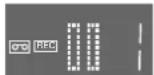
If you insert a video cassette with a broken out erasure prevention tab and press the [REC] 28, the [O] indication flashes on the VCR
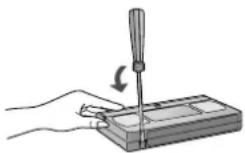
display to indicate that recording is not possible.
In this case, cover the tab hole with two layers of adhesive tape.
To Immediately Record the Same TV Programme That You Are Viewing on the TV
(Direct TV Recording)
This function allows you to immediately start recording the same programme that you are viewing on the TV.
The programme position selected on the VCR automatically changes to that of the TV programme that you are viewing on the TV.
- Your TV must be equipped with the [Q Link] function.
- The VCR must be connected to the TV via a fully-wired 21-pin Scart cable.
1) Press the [DIRECT TV REC] 36.
- Recording of the TV programme that you are viewing on the TV starts.
- In some cases, it may not be possible to change the programme position on the TV during Direct TV Recording.
- Do not press the [AV LINK] 35 during Direct TV REC, otherwise the recording may not be performed correctly.
2) Press the [Stop] ⑨ to stop recording.
Recording from an external source
Recording from an external source, for example from a video movie camera, can be performed.
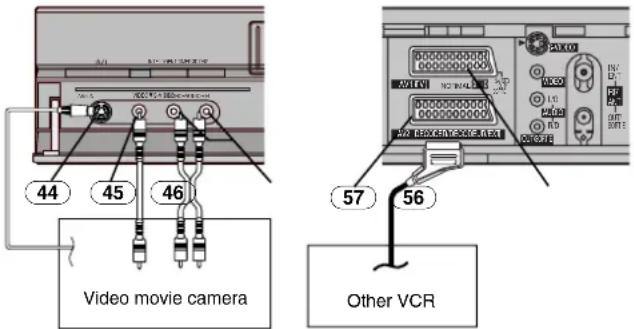
- Connect a video movie camera or a VCR to this VCR, as shown in the illustration.
- Press the [INPUT SELECT] ③ to select the AV Input according to the socket on the VCR to which the source unit has been connected.
A1: When connected to the AV1 21-pin Scart socket
A2: When connected to the AV2 21-pin Scart socket
• Make sure that [AV2] is set to [EXT]. (See page 21.)
A3: When connected to the Video Input socket/S-Video Input socket and Audio Input sockets on the front panel of this VCR
- Use the L connector for operations in the normal (monaural) mode.
1) Press the [Play] 26 to start playback.
2) At the point where you want to join a new scene, press the [Pause/Slow] 29 to put it in the still playback mode.
3) Press the [REC] 28 to put it in the recording pause mode.
- If you leave the VCR in the recording pause mode for more than 5 minutes, the VCR automatically switches over to the stop mode to protect the video heads.
4) Start playback on the source unit and search for the point from which you want to record (copy) onto this VCR.
5) When that point is reached, press the [Pause/Slow] 29 again to start recording the new picture and sound from the playback unit.
6) To record (copy) additional scenes, press the [Pause/ Slow] 29 to put this VCR in the recording pause mode and then perform above step again.
7) At the point where you want to stop recording, press the [Stop] ⑨ to finish recording.
Hint:
- The new sound is recorded on both the Hi-Fi audio tracks and the normal audio track. The sound recorded on the normal audio track is always in mono.
To Make an S-VHS Recording on a Cassette
For recordings that you intend to play back on this VCR or another S-VHS VCR, we recommend that you record in the S-VHS format to take advantage of this system's superior picture quality. Be sure to use a cassette bearing the S-VHS logo.
Insert an S-VHS cassette so that the S-VHS indicator is lit. Recording is performed in the S-VHS format.
- When a cassette that was recorded in the S-VHS format is played back on a VHS VCR without S-VHS quasi playback function, noisy playback picture will appear.
If you want to make a recording in the VHS format in order to play it back on a VHS VCR, set the [S-VHS] to [OFF], so that the S-VHS indicator goes out. (See page 21.)
Note:
- When receiving SECAM signals or when you set [Video system] on the Manual tuning menu or [TV system] on the Other settings menu to [MESECAM] (see pages 19 and 21), recording is automatically made in the VHS format even if the S-VHS indicator is lit.
To Record a VHS Cassette with S-VHS Quality (S-VHS Expansion Technology)
S-VHS ET stands for Super-VHS Expansion Technology. This function allows recording and playback in S-VHS picture quality on a normal VHS cassette.
Recording in this format is only possible in the SP mode.
If LP or EP mode is selected while setting up a timer recording, the S-VHS ET indicator turns off and S-VHS ET is cancelled.
Insert a VHS cassette and set the [S-VHS ET] to [ON], so that the S-VHS ET indicator is lit. (See page 21.)
Recording is performed in the S-VHS picture quality.
- When a cassette that was recorded using S-VHS ET function is played back on a VHS VCR without S-VHS quasi playback function, noisy playback picture will appear.
Notes:
- We recommend that you use cassettes other than type E300.
- When receiving SECAM signals or when you set [Video system] on the Manual tuning menu or [TV system] on the Other settings menu to [MESECAM] (see pages 19 and 21), recording is automatically made in the VHS format even if the S-VHS ET indicator is lit.
- If you want to record and playback with highest possible picture quality or store the cassettes for a long time, we recommend that you use S-VHS cassettes and record in the S-VHS format.
- If you record in the S-VHS ET format, the picture quality may not be very good with certain types of cassettes.
To avoid negative surprises, we recommend that you make a trial recording and confirm that the quality of the recorded picture is satisfactory.
To ensure optimum picture quality, we recommend the use of high-quality type cassettes.
(continues on the next page)
- We recommend entering [S-VHS ET] into the cassette label on any cassette that you have recorded using the S-VHS ET function so that you will be able to distinguish such cassettes from VHS cassettes.
The following table lists the playback formats that are compatible with this VCR's recording standard.
| Cassette | Recording format | Compatible Playback Equipment |
| VHS | VHS(SP/LP/EP) | VHS, S-VHS,VHS with SQPB*1 |
| S-VHS ET(SP) | S-VHS*2,VHS with SQPB | |
| S-VHS | VHS(SP/LP/EP) | VHS, S-VHS,VHS with SQPB |
| S-VHS(SP/LP/EP) | S-VHS,VHS with SQPB |
^*1 SQPB stands for S-VHS quasi playback.
^2 Some models are not compatible.
Satellite or Digital Receiver
Connecting the VCR to a Satellite Receiver or Digital Receiver
If the satellite receiver is equipped with a 21-pin scart socket
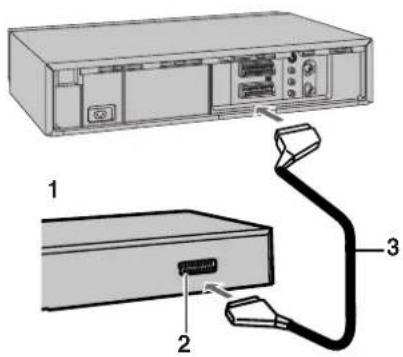
1 Satellite receiver (not supplied)
2 21-pin Scart socket
- If your satellite receiver has a VCR socket, connect the cable to it.
3 21-pin Scart cable (not supplied)
Set [AV2] to [EXT], [EXT LINK 1] or [EXT LINK 2].
For details, see page 21.
If the satellite receiver is not equipped with a 21-pin scart socket
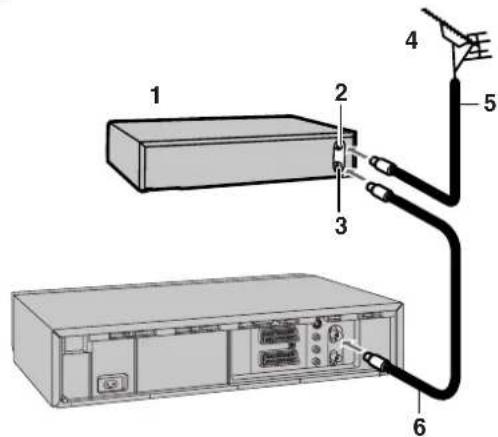
1 Satellite receiver (not supplied)
2 Aerial Input socket
3 Aerial Output socket
4 Aerial (not supplied)
5 Aerial lead (not supplied)
6 RF coaxial cable (not supplied)
Hint:
- The RF output channel of the satellite receiver should be adjusted away from channel 36, which is used by the VCR, e.g. re-adjust to channel 33.
Linked Timer Recordings by External Equipments (EXT LINK)
If an external equipment (for example a satellite receiver) with a timer function is connected to the AV2 socket of this VCR by a 21-pin cable, it is possible to control the recording of the VCR from this equipment.
Make sure that [AV2] is set to [EXT LINK 1] or [EXT LINK 2]. (See page 21.)
Timer programming has to be done and switch to the timer recording standby mode on the external equipment, refer to its operating instructions.
1) Press the [EXT LINK] 48 on the VCR to switch the VCR over to the timer recording standby mode.
- As long as a video picture is being transmitted by the Satellite or Digital Receiver, the VCR will record it. This notice is displayed on the TV screen.
(Only when [EXT LINK 2] is selected)
To delete it, press the [OK] 24.
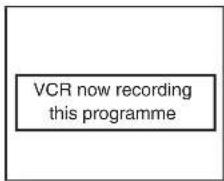
2) To cancel the external control, turn off the timer recording standby mode of the VCR by pressing the [EXT LINK] 48 again.
Notes:
- To switch TV automatically to the picture from the VCR in playback mode, connect the AV1 socket of this VCR to the TV by a 21-pin cable.
- Some external equipments may not work with this function, refer to its operating instructions.
Connecting a Stereo Amplifier
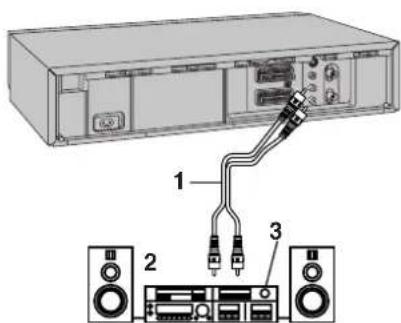
1 Audio cable (not supplied)
2 Stereo amplifier (not supplied)
3 Audio Input sockets
1) Connect an Audio cable (not supplied) to the Audio Output sockets on the VCR and to Audio Input sockets on the stereo amplifier.
2) Connect the stereo amplifier's mains lead to an AC mains socket.
Connecting a Decoder
Decoder here refers to the device used to decode scrambled broadcasts (Pay TV).
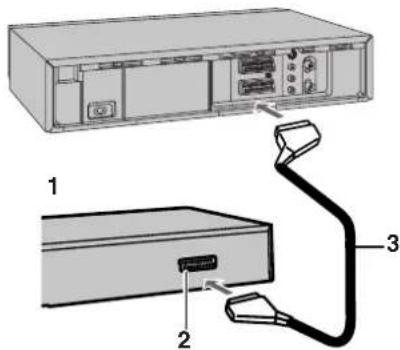
1 Decoder (not supplied)
2 21-pin Scart socket
3 21-pin Scart cable (not supplied)
1) Connect a 21-pin Scart cable (not supplied) to the AV2 21-pin Scart socket on the VCR and to the 21-pin Scart socket on the decoder.
2) Connect the decoder's mains lead to an AC mains socket.
3) Set [AV2] to [DECODER].
For details, see page 21.
AV Link Function
If the VCR is connected to the TV via a 21-pin Scart cable, you can use the [AV LINK] 35 to switch the TV from normal TV reception over to the video playback channel (AV input) (and vice versa). In the VCR mode (when the [VCR] indication in the VCR display is lit), the TV is switched to the video playback channel (AV input). In the TV mode (when the [VCR] indication is not lit), the TV is switched to TV reception.
- When you press the [MENU] ⑦ to display the menu on the TV screen, the TV is also automatically switched to the VCR mode, however, the [VCR] indication does not appear in this case.
- When you start playback on the VCR, the TV is automatically switched to the VCR mode. However, during playback, it is not possible to switch the TV back to the TV mode.
- If a Pay TV station has been selected on the VCR when you switch to the TV mode, the picture on the TV is scrambled when you select a Pay TV station on the TV. In this case, either switch to the VCR mode or select the AV input on the TV.
Hint:
- [RGB] means separate Red/Green/Blue colour signals. If you connect a TV equipped with RGB input capability to the AV1 socket on this VCR, and a decoder equipped with RGB output capability to the AV2 socket, the TV can receive RGB signal input from the decoder via the VCR.
Timer Recording
This VCR lets you programme up to 16 TV programmes (including weekly and daily programmes) for unattended recording up to one month in advance.
To Programme with the On Screen Display (OSD)
This method offers easy step-by-step programming with the remote control while you view the prompts on the TV screen.
Example:
Programming the timer recording of a TV programme broadcast on programme position 2 (ZDF) from 20:00 to 21:30 on 27 October.
1) Press the [PROG./CHECK] 14 to display the menu for programming timer recordings on the TV screen.
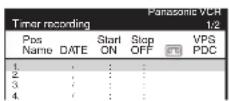
- Alternatively, you can press the [MENU] ⑦ and then select [Timer recording].
2) Press the [CH] 12 to select the programme position of the desired TV station.
- As an alternative method, after pressing the [CH] 12, you can use the [Cursor] 38 ▲▼◀▶.
3) Press the [DATE] 11 to set the date on which the TV programme will be broadcast.
4) Press the [ON] 10 to set the starting time.
- When it is kept pressed, the indication changes in 30-minute intervals.
5) Press the [OFF] 22 to set the ending time.
6) Press the [SP/LP/EP] 21 to set the desired tape speed. - Regarding the [A] indication, refer to page 15.
7) Press the [Cursor] 38 ▲▼◀▶ to set [VPS/PDC] to [ON] or [OFF] [---].
• See page 15 for VPS/PDC recording.
8) Press the [OK] 24 to conclude the setting.
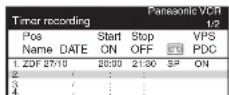
9) Press the [TIMER] 20 to switch the VCR over to the timer recording standby mode.
- Check that [☐] is lit on the VCR display. If it is flashing, check the timer recording details again. (See page 15.)
To Programme with the SHOWVIEW Function
The SHOWVIEW numbers make it extremely easy to set the VCR for timer recording.
The duration of a timer recording programmed with SHOWVIEW number may be slightly longer than the actual duration of the TV programme.
SHOWVIEW is a trademark of Gemstar Development Corporation. The SHOWVIEW system is manufactured under licence from Gemstar Development Corporation.
Example:
Programming a timer recording of a TV programme with the SHOWVIEW number 721114
1) Press the [SV/V+] ([ShowView]) 30 to display the menu for entering the SHOWVIEW number on the TV.
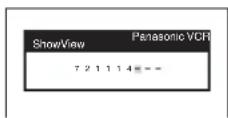
2) Press the [Numeric] ② to enter the SHOWVIEW number. • If you have entered a wrong digit, press the [Cursor] ③8 ◀ and then enter the correct digit.
3) Press the [OK] 24 to display the programmed content.
4) Press the [SP/LP/EP] 21 to set the desired tape speed.
- Regarding the [A] indication, refer to page 15.
- To change timer recording programmings, use the [Cursor] 38 ▲▼◀▶, the [CH] 12, [DATE] 11, [ON] 10 or [OFF] 22.
• See page 15 for VPS/PDC recording.
5) Press the [OK] 24 again to conclude the settings.
6) Press the [TIMER] 20 to switch the VCR over to the timer recording standby mode.
- Check that [☐] is lit on the VCR display. If it is flashing, check the timer recording details again. (See page 15.)
To Suspend the Timer Recording Standby Mode
Press the [TIMER] 20 so that the [☐] indication on the VCR display disappears.
After you have finished using the VCR, be sure to reactivate the timer recording standby mode by pressing the [TIMER] 20 again, otherwise the programmed timer recording will not be performed.
Note:
- If the VCR is not put in the timer recording standby mode at the latest 10 minutes before the programmed timer recording starting time, the [☐] flashes on the VCR display. In this case, press the [TIMER] 20 to put the VCR in the timer recording standby mode.
If [--] Appears under [Pos/Name] after Entering a SHOWVIEW Number
Pos/Name stands for Programme Position/TV Station Name. Normally, the name of the TV station or the number of the programme position is displayed under [Pos/Name]. However, if the [—] indication appears, follow the operation steps below.
Press the [CH] ⑫ repeatedly to select the programme position on which the TV programme to be recorded will be broadcast.
After you have entered the information of a TV station, it remains stored in the VCR's memory, and you do not need to enter it again in the future.
Setting the Recording Date/Day(s)
Press the [DATE] 11 to select the recording date (1 to 31), daily timer recording date (Su–Sa, Mo–Sa or Mo–Fr) or weekly timer recording date (Su to Sa).
- Programming a timer recording (setting the date) is possible up to one month ahead of the TV programme's broadcasting date and time. Daily and weekly timer recordings will continue until you cancel them.
Auto SP/LP Change Function
If the VCR determines that the remaining tape time is insufficient to record the whole programme, LP mode is automatically selected to ensure that the programme will be recorded as long as possible.
Press the [SP/LP/EP] 21 to select [A].
- This function cannot change the recording speed to the EP mode.
- If the remaining tape time is still not sufficient even in the LP mode, the programme cannot be recorded to its end.
- If the recording speed changes from SP to LP during a timer recording, some brief picture distortion occurs at that point.
VPS/PDC Function
If a TV programme, for example a football game runs longer than scheduled, is shortened or starts earlier or later, this function synchronises the recording start and stop with the actual broadcasting start and stop of the TV programme.
Press the [Cursor] 38 ▲▼◀▶ to make the [ON] indication appear.
- [ON] must be displayed under [VPS/PDC] on the TV screen.
- The TV station must broadcast VPS/PDC signals.
- The programme starting time must be set correctly to the starting time listed in the newspaper/magazine.
To Check, Change or Cancel Timer Recording Programmings
1) Press the [PROG./CHECK] 14 to display the timer recording programmings on the TV screen.
- When the VCR is in the timer recording standby mode for a VPS/PDC recording, the On Screen Display may be distorted.
2) Press the [Cursor] 38 ▲▼ to select the programming that you want to change or cancel.
3) Press [OK] 24.
4) To change or cancel timer recording programmings, use the [Cursor] 38 ▲▼◀▶, the [CH] 12, [DATE] 11, [ON] 10, [OFF] 22 or [CANCEL] 13.
5) Press the [OK] 24 to conclude the setting.
6) Press the [EXIT] 27 to exit the On Screen Display.
Notes:
In some cases, for example as listed below, the programming of a timer recording remains stored in the memory until 4 a.m. the next day. However, this is not a malfunction.
- When a timer recording was not performed up to the TV programme's ending time because the remaining tape time was not sufficient.
- When you have stopped the timer recording while it was being performed.
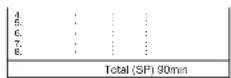
To Check the Total Timer Recording Programming Time
The total time indication for timer recording programming lets you check how many programmes can be recorded by comparing with the remaining tape time in the VCR dis
- The total time is calculated in the SP mode.
- The total time cannot be calculated when setting Daily/Weekly timer recording.
Intelligent Timer Function
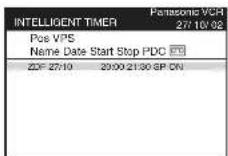
Many TV programmes are broadcast as a series, like dramas or Soaps, on different days of the week. These are often broadcast on the same channel and time each day. The Intelligent Timer Function remembers the channel number along with the start and end times of the last 8 programmes that you have recorded using timer recording or SHOWVIEW.
By simply pressing the [I-TIMER] 15 the details of the last 8 timer recording programmes are displayed on the screen with today or tomorrows date, (depending on whether the time set has elapsed yet). The details of each of the 8 memorised recordings can be used or changed to set a new timer recording.
Notes for using this function.
Details of up to 8 timer recordings are held in memory and are used to repeat a previous recording of a TV programme but on a new date and time. The Intelligent Timer Function cannot be used until at least one timer recording or SHOWVIEW programme has been recorded.
Details of Weekly or Daily Timer Recording are not memorised and cannot be used with this function.
Using the Intelligent Timer function
Intelligent Timer Function has two different operation A and B.
Operation A
When you want to set the programme as it is:
1) Press the [I-TIMER] 15 to display the menu.
2) Press the [Cursor] 38 ▲▼ or [I-TIMER] 15 to select the desired programme.
3) Press [TIMER] 20 to store the programming and the VCR will switch to the timer recording stand-by mode.
• The screen will change to the Timer recording listing.
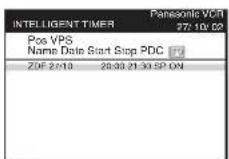
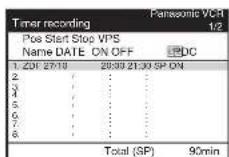
Operation B
When you want to edit the item of programme:
1) Press the [I-TIMER] 15 to display the menu.
2) Press the [Cursor] 38 ▲▼ or [I-TIMER] (15) to select the desired programme. You can now use the selected programme details if they are correct or change them if you need to adjust the date etc.
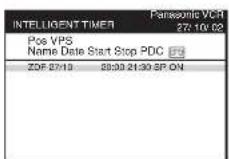
3) Press the [OK] 24. To change the details (date etc.) press the [Cursor] 38 ▶ to select the item that you want to change. Then press the [Cursor] 38
▲▼ or the [Numeric] ② to change the item.
It is also possible to use the [CH] 12, [DATE] 11, [ON] 10, [OFF] 22, or [SP/LP/EP] 21 to select each item directly.
4) When you are happy with all of the settings press the [OK] 24.
5) Press the [TIMER] 20 to switch the VCR over to the timer recording stand-by mode.
Note:
- Check that the [☐] is lit on the VCR display. If it is flashing, check the timer recording details again. (See page 15.)
Protecting programmes
1) Press the [I-TIMER] 15 to display the menu.
2) Press the [Cursor] 38 ▼▲ to select the programme details that you want to protect, then press the [Cursor] 38 ▶ to lock it. A lock symbol appears to the left of the programme. Locked programmes cannot be deleted.
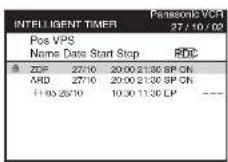
Releasing the protection
1) Press the [I-TIMER] 15 to display the menu.
2) Press the [Cursor] 38 ▼▲ to select the programme details that you want to release, then press the [Cursor] 38 ◀. The lock symbol disappears.
Deleting the recording details
Locked programmes must be unlocked before they can be deleted (see above for details).
Press the [Cursor] 38 ▼▲ to select the programme details that you want to delete, then press the [CANCEL] 13.
Notes:
- The Intelligent Timer Function can memorise the details of up to 8 timer recordings. If further timer recordings are made the Intelligent Timer Function will memorise the details of the new recording and the details of the oldest recording will be lost. To prevent losing a regularly used programme make sure the programme details are locked (see above).
- When Auto Setup Restart, Download Restart, shipping condition or etc. is done, all programmes of Intelligent Timer will be deleted automatically even if the programmes are protected.
Search Functions
Programme List Search
• Each timer recording programming on the tape must be at least 15 minutes long. (25 minutes in the EP mode)
1) Press the [LIBRARY/SEARCH] ④ to display the Programme List menu.
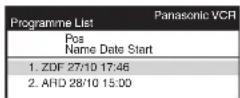
2) Press the [Cursor] 38 ▲▼ to select the programme that you want to locate and play back.
3) Press the [LIBRARY/SEARCH] ④ to start the search for the beginning of the selected programme.
• After the desired recorded programme has been found, playback starts automatically.
- If, after playback has started, you want to search for the beginning of the same or another programme, press the [LIBRARY/SEARCH] ④. Playback stops, and the Programme List menu appears.
To Cancel the Programme List Search
Press the [EXIT] 27.
Notes:
- If you take out the cassette after a timer recording has finished, pressing the [LIBRARY/SEARCH] ④ activates the Intro-Jet Scan.
- If you programme linked timer recordings, Programme List Search function does not work.
VISS=VHS Index Search System
• Each programme recorded on the tape must be at least 5 minutes long.
Press the [INDEX] 31 to start the index search. If you want to search for the 2nd recorded programme in forward direction, press the [INDEX] ▶▶1 31 twice.
- The VCR fast-forwards or rewinds the tape and searches for the specified index signal. When it has been found, playback starts automatically.
To Cancel the Index Search or to Stop Playback
Press the [Stop] ⑨.
Intro-Jet Scan
• Each programme recorded on the tape must be at least 15 minutes long. (25 minutes in the EP mode)
1) Press the [LIBRARY/SEARCH] ④ to start the Intro-Jet Scan.
- After rewinding the tape to the beginning, the VCR plays it back at high speed for approximately 10 seconds. It then fast-forwards the tape to the next tape position marked by an index signal (beginning of a programme), and every time an index signal is found, the VCR switches over to high-speed playback (Cue) for about 10 seconds.
2) When you have found the programme that you want to view, press the [Play] 26 to start normal playback.
To Cancel the Intro-Jet Scan or to Stop Playback
Press the [Stop] 9.
Note:
- If you press the [LIBRARY/SEARCH] ④ after a timer recording has finished, but before ejecting that cassette, the Programme List Search will be activated.
Editing
Album Function
The album function lets you collect desired scenes (both moving and still pictures) and create the equivalent of a photo album, but on video cassette.
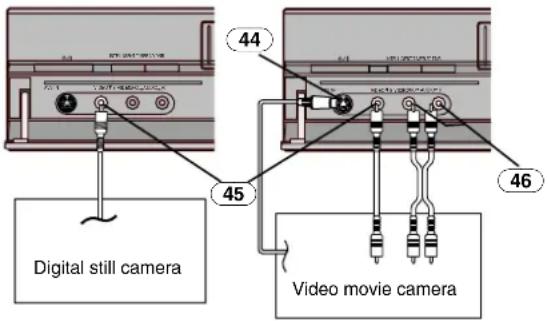
- Connect a digital still camera, a video movie camera or another external source to the Video Input socket/S-Video Input socket and Audio Input sockets on the front panel of this VCR.
1) Press the [STILL ALBUM] 6 on the remote control to put the VCR in the recording pause mode.
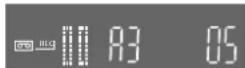
- The VCR automatically selects the AV Input (external input) [A3] and then switches over to the recording pause mode. The figure for the preset recording time (seconds) appears on the VCR display. The initial setting is [05] (5 seconds).
2) Press the [INDEX] ▶▶▶ I 31 or [INDEX] ◀◀◀ 31 to change the recording time. You can set any time between [3] and [20] seconds.
3) Start playback on the source unit to search for the point from which you want to copy onto this VCR.
4) When that point is reached, press the [STILL ALBUM] ⑥ on the remote control again to start recording.
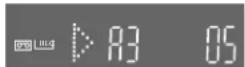
The VCR records the picture (and sound) for 5 seconds and then automatically switches over to the recording pause mode.
5) When you have recorded all desired scenes, press the [Stop] ⑨ to finish recording.
Hints:
- If you connect a digital still camera, use a camera equipped with the video output socket. Use the cable supplied with the still camera to connect it. For details, also read the operating instructions of the equipment to be connected.
- If you leave the VCR in the recording pause mode for more than 5 minutes, the VCR automatically switches over to the stop mode to protect the video heads. In this case, press the [STILL ALBUM] ⑥ again to put the VCR in the recording pause mode again.
- If you want to add background music or narration to the scenes recorded with the album function, perform Audio Dubbing as explained on page 18. (For NV-HS880 Series)
- Depending on the output system of the digital still camera, the pictures may not be recorded correctly.
- If you dub still pictures from a conventional analogue video movie camera or VCR, some picture distortion may occur in the recorded picture.
Audio Dubbing (For NV-HS880 Series)
The audio dubbing function lets you record new sound onto the normal (mono) audio track.
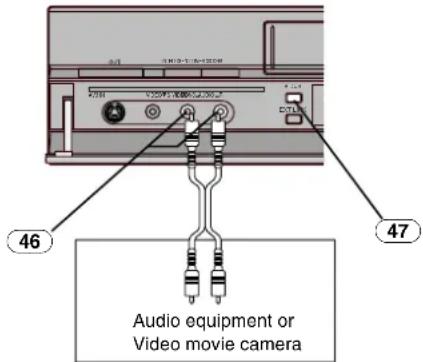
- Connect the audio equipment or a video movie camera to this VCR with an audio cable.
- Press the [INPUT SELECT] ③ to select the AV Input (external input) [A1], [A2] or [A3] according to the socket(s) on the VCR to which you have connected the source unit.
A1: When connected to the AV1 21-pin Scart socket
A2: When connected to the AV2 21-pin Scart socket • Make sure that [AV2] is set to [EXT]. (See page 21.)
A3: When connected to the Audio Input sockets on the front panel of this VCR
- Use the L connector for operations in the normal (monaural) mode.
1) Press the [Play] 26 on this VCR to start playback to search for the point from which you want to start audio dubbing.
2) At the point from which you want to perform audio dubbing, press the [Pause/Still] 52 on this VCR to put it in the still playback mode.
3) Press the [A.DUB] 47 on this VCR to put it in the recording pause mode.
4) Start playback on the source unit so that you can hear the sound.
5) When you reach the point from which you want to start audio dubbing, press the [Pause/Still] 52 on this VCR again to start recording the new sound or start your narration.
6) At the point where you want to stop audio dubbing, press the [Stop] ⑨ to finish recording.
Hints:
- The new sound is recorded on the normal audio track. The original sound remains on the Hi-Fi audio tracks. The sound recorded on the normal audio track is always in mono.
- For audio dubbing with narration, you can use the built-in microphone of the connected video movie camera.
- To listen to the sound recorded with audio dubbing, press the [AUDIO] 17 during playback to select the normal audio track. (For details, refer to page 22.)
- To listen to the sound recorded with audio dubbing together with the original sound, first set [Audio playback] to [MIX] (for details, refer to page 21) and then press the [AUDIO] 17 during playback to select the mixed sound.
Manual Tuning
This VCR has 99 programme positions that can be preset to receive TV stations.
If available TV stations are not received due to extraordinary transmission circumstances, or if you want to change the name of a TV station or change a TV station, you can set it up manually.
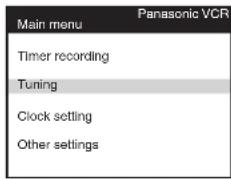
1) Press the [MENU] ⑦ to display the Main menu on the TV screen.
2) Press the [Cursor] 38 ▲▼ to select [Tuning].
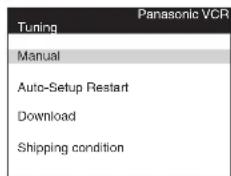
3) Press the [OK] 24 to display the Tuning menu on the TV screen.
4) Press the [Cursor] 38 ▲▼ to select [Manual].
5) Press the [OK] 24 to display the list of tuned TV stations.
6) Press the [Cursor] 38 ▲▼ to select the TV station that you want to tune manually.
7) Press the [OK] 24 to display the Manual Tuning menu.
8) Press the [Cursor] 38 ▲▼◀▶ to select the desired field.
| Tuning | Panasonic VCR | |
| Pos Name | Ch | |
| 1 ARD 1 | ||
| 2 ZDF 2 | ||
| 3 N3 | 19 | |
| 4 HR3 | 26 | |
| 5 BR3 | 18 | |
| 6 RB3 3 | ||
| 7 SFB3 | 36 | |
| 8 SW3 | 29 | |
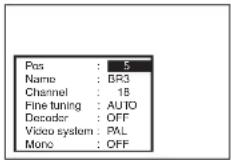
Pos: To change the order in which the TV stations are assigned to the programme positions.
- Press the [Numeric] ② to enter the number of the desired programme position.
Name: To enter or change the name of a TV station.
- Press the [Cursor] 38 ▲▼◀▶ and [OK] 24 to enter the station name.
- If the station name needs a blank space, select the blank between [Z] and [*].
Channel: To enter newly available TV stations or change the channel number of an already tuned TV station.
- Press the [Numeric] ② to enter the channel number of the desired TV station.
- Wait a few moments until the desired TV station has been tuned.
Fine tuning: To obtain the best tuning condition.
- Press the [Cursor] 38 ▲▼ to obtain the best tuning condition.
- If you do not want to change the tuning condition, press the [Cursor] 38 ▶ to return to the original condition [AUTO].
Decoder: To preset pay TV stations.
- Press the [Cursor] 38 ▲▼ to select [ON]. If [Decoder] is set to [OFF], normal TV stations are preset.
Video system: To change the type of video system.
- Press the [Cursor] 38 ▲▼ to select [PAL] or [MESECAM]. AUTO: The VCR automatically distinguishes PAL, SECAM/MESECAM system.
PAL: For receiving PAL signals. MESECAM: For receiving SECAM signals.
Mono: To select the type of sound to be recorded. (For NV-HS880EC and NV-HS830EC)
- Press the [Cursor] 38 ▲▼ to select [OFF].
- Select [ON] if you want to record the normal (mono) sound on the Hi-Fi audio tracks during a stereo, bilingual or NICAM broadcast, or if the stereo sound is distorted due to inferior reception conditions.
9) Press the [OK] 24 to conclude the setting.
10) Press the [EXIT] 27 to exit the On Screen Display.
To Delete, Add or Move a Programme Position
1) Press the [MENU] ⑦ to display the Main menu on the TV screen.
2) Press the [Cursor] 38 ▲▼ to select [Tuning]. Press the [OK] 24 to display the Tuning menu on the TV screen.
3) Press the [Cursor] 38 ▲▼ to select [Manual]. Press the [OK] 24 to display the list of tuned TV stations.
4) Press the [Cursor] 38 ▲▼ to select the desired TV station.
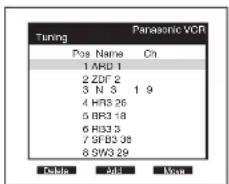
5) Follow the operations below.
To delete a programme position [Delete]: Press the [CH] 12 ( , red).
To insert a blank programme position [Add]: Press the [DATE] 11 (+, green).
To move a TV station to another programme position [Move]: Press the [ON] 10 (+, yellow), and then use the [Cursor] 38 ▲▼ to select the new programme position to which you want to assign the TV station.
6) Press the [OK] 24 to conclude the setting.
7) Press the [EXIT] 27 to exit the On Screen Display.
Note:
- If downloading of the setup data has been performed, only the instruction indication [Delete] appears.
Hint:
- If you have performed Manual Tuning to enter TV stations, the [—] indication may appear under [Pos/Name] on the On Screen Display when programming a SHOWVIEW timer recording.
To Restart the Auto Setup, Restart the Download or Return the VCR to the Shipping Condition
1) Press the [MENU] ⑦ to display the Main menu on the TV screen.
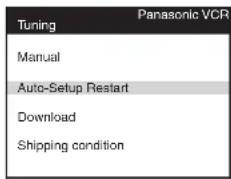
2) Press the [Cursor] 38 ▲▼ to select [Tuning]. Press the [OK] 24 to display the Tuning menu on the TV screen.
3) Press the [Cursor] 38 ▲▼ to select [Auto-Setup Restart], [Download] or [Shipping condition].
4) Press the [OK] 24 to prepare for Auto Setup start, Download start or resetting the VCR to the shipping condition.
5) Press the [OK] 24 again to actually start the Auto Setup, start the Download or change the settings back to the shipping condition.
- After returning the VCR to the shipping condition, disconnect and reconnect the AC Mains Cable to re-tune the VCR.
Setting the VCR's Clock
To Manually Adjust the Clock
| Clock setting | Panasonic VCR | |
| Clock setting | : | MAN. |
| Time | : | 20:30:24 |
| Date | : | 16.10.05 |
1) Press the [MENU]⑦ to display the Main menu on the TV screen.
2) Press the [Cursor] 38 ▲▼ to select [Clock setting]. Press the [OK] 24 to display the Clock setting menu on the TV screen.
3) Confirm that [Clock setting] is set to [MAN.], and then press the [OK] 24.
4) Use the [Cursor] 38 ▲▼◀▶ to set the date and time.
• Instead of the [Cursor] 38 ▲▼◀▶, you can also use the [Numeric] 2 to set the date and time.
5) Press the [OK] 24 to conclude the setting.
6) Press the [EXIT] 27 to exit the On Screen Display.
To Activate the Automatic Time Correction Function
If a TV station transmits a signal for time setting, performing the operation steps below activates the Automatic time correction function and the time is corrected automatically.
1) Press the [MENU] ⑦ to display the Main menu on the TV screen.
2) Press the [Cursor] 38 ▲▼ to select [Clock setting]. Press the [OK] 24 to display the Clock setting menu on the TV screen.
3) Press the [Cursor] 38 ▲▼ to set [Clock setting] to [AUTO].
| Clock setting | Panasonic VCR |
| Clock setting : AUTO | |
| Time : 20:30:24 | |
| Date : 16.10.05 | |
4) Press the [OK] 24 to conclude the setting.
- Under adverse reception conditions, etc., the Automatic time correction function may not work. In this case, the indication for [Clock setting] is automatically reset to [MAN.]. If the reception conditions improve later on, it may be possible to activate this function.
5) Press the [EXIT] 27 to exit the On Screen Display.
Hints:
- If [Clock setting] is set to [AUTO] when you open the Clock screen, do not set it to [MAN.], otherwise, the automatic time correcting function is deactivated.
• The built-in clock employs the 24-hour system. - In case of a power failure, an automatic back-up system automatically maintains the operation of the clock for approximate 60 minutes.
- When [Clock setting] is set to [AUTO], the automatic time correction function checks and if necessary adjusts the time several times every day. The automatic time correction function only works when the VCR is switched off; it does not work in the timer recording standby mode.
- If [Clock setting] is set to [MAN.] and [Power save] to [ON] (see page 20), the time may not be maintained correctly. In this case, manually adjust the clock.
- If [Clock setting] is set to [AUTO] and [Power save] to [ON], the Automatic time correction function does not work while the VCR is turned off. However, as soon as it is turned on, the Automatic time correction function is activated and the clock is set correctly.
Various Settings
1) Press the [MENU] ⑦ to display the Main menu on the TV screen.
NV-HS880 Series
2) Press the [Cursor] 38 ▲▼ to select [Other settings]. Press the [OK] 24 to display Other settings menu.
| Other settings | Panasonic VCR1/2 |
| Tape length | AUTO (◄ E-240) |
| OSD | 4:3 |
| Power save | OFF |
| VCR display | DIMMED |
| AV2 | DECODER |
| S-VHS | ON |
| S-VHS ET | OFF |
| Illumination | ON |
3) Press the [Cursor] 38 ▲▼◀▶ to select the desired field then desired position.
NV-HS830 Series
| Other settings | |
| Tape length | AUTO (◀ E-240) |
| OSD | 4.3 |
| Power save | OFF |
| VCR display | DIMMED |
| AV2 | DECODER |
| S-VHS | ON |
| S-VHS ET | OFF |
| TV system | AUTO |
| Language | English |
| Country | others |
Tape length: To set the Tape length of the cassette being used to ensure correct indication of the remaining tape time.
- Set Tape length as follows:
[AUTO (◀ E-240)]: The VCR automatically distinguishes E30, -60, -90, -120, -180 and -240 tapes.
[E-195]: For E195 tape
[E-260]: For E260 tape
[E-300]: For E300 tape
- Even if you have selected the correct tape length, the remaining tape time may not be indicated correctly with certain kinds of cassettes.
OSD: For automatic display on the TV screen of the TV station information, type of sound system of the programme being watched and the sound playback mode. (See page 22.)
- Set OSD mode as follows:
[4:3]: Indications can be displayed on the TV screen.
[16:9]: Indications can be displayed on the TV screen when using wide type of TV screen and selecting the wide screen mode on the TV setting.
- Even if setting to [16:9], indications may be cut off depending on the TV.
[OFF]: No indications appears.
Power save: To reduce the VCR's power consumption when the VCR is switched off.
- Set Power save mode as follows:
[ON]: The power consumption is greatly reduced when the VCR is turned off.
[OFF]: The power consumption is not reduced when the VCR is turned off.
Refer to the followings when [Power save] is set to [ON].
• [VCR display] is automatically set to [OFF].
- To turn the VCR on, keep the [VCR-ON/OFF] ① pressed on the VCR main unit. It is not possible to turn it on with the remote control.
- The Power save function does not work in the timer recording standby mode. After all programmed timer recordings have been made, and after all programmed data have been erased, the VCR switches over to the Power save mode.
- When the VCR is off, Pay TV programmes cannot be watched on the TV because the signal from the connected decoder is not looped through. To watch them, turn on the VCR.
VCR display: For automatic change of the brightness of the VCR display when the VCR is switched off.
- Set the brightness of the VCR display as follows:
[ON]: Indications are brightly lit.
[OFF]: Indications are not lit.
[DIMMED]: Indications are dimly lit.
AV2: To select the type of external source equipment which is connected to the VCR's AV2 21-pin socket.
- Set the external source equipment as follows:
[DECODER]: When a decoder is connected.
[EXT LINK 1]: When a digital receiver which transmits a special control signal recordings via the 21-pin Scart cable, for example the F.U.N. receiver (TU-DSF30/S3) is connected for the linked timer recordings. (See page 13.)
[EXT LINK 2]: When an external equipment with a timer function is connected for the linked timer recordings. (See page 13.)
[EXT]: When another VCR or a satellite receiver is connected.
S-VHS: To make an S-VHS recording on a S-VHS cassette. (See page 11.)
- Set the S-VHS switch as follows:
[ON]: To record in S-VHS format on S-VHS cassette.
[OFF]: To record in VHS format on S-VHS cassette.
S-VHS ET: To record a VHS cassette with S-VHS Quality. This format is only possible in the SP mode. (See page 11.)
- Set the S-VHS ET switch as follows:
[ON]: To record in S-VHS ET format on VHS cassette.
[OFF]: To record in VHS format on VHS cassette.
Illumination: To light the front illumination strip when the VCR is on. (For NV-HS880 Series)
- Set the lighting of the front illumination strip as follows:
[ON]: The front illumination strip is lit when the VCR is on.
[OFF]: The front illumination strip is not lit when the VCR is on.
TV system: To select the type of colour TV system to be used during playback or during recording from an external source.
- Set the colour TV system as follows:
[AUTO]: The VCR automatically distinguishes PAL, SECAM/MESECAM system. If the picture lacks colour, set to [PAL] or [MESECAM].
[PAL]: When PAL system is used.
[MESECAM]: When SECAM system is used.
Picture: To set the playback picture sharpness (sharper or softer). (For NV-HS880 Series)
- Adjust the picture sharpness as follows:
[AUTO]: To select automatic sharpness adjustment of the playback picture.
[SHARP]: To make the playback picture sharper.
[SOFT]: To make the playback picture softer.
Audio playback: To set the Audio mode to be used during playback. (For NV-HS880 Series)
- Set Audio mode as follows:
[NORMAL]: Normally set to this position.
[MIX]: Use this setting when playing back a cassette tape on which audio dubbing has been performed. The Hi-Fi sound track with the original sound and the normal sound track (mono) with the audio-dubbed sound are played back together.
Remote: To set the Remote control mode. (For NV-HS880 Series)
- Set the Remote control mode as follows:
[VCR 1]: Select this setting on both the VCR and the remote control for normal use with one VCR.
[VCR 2]: Select this setting on both the VCR and the remote control when using this VCR and another Panasonic VCR in the same place. This ensures that you can operate both VCRs independently with their respective remote control. It also allows you to operate both VCRs with a single remote control, simply by changing the remote control mode on the remote control.
- To change the remote control mode on the remote control itself, change the position of the [VCR 1/2] (16) to match the setting. If these settings are not matched, the remote control cannot be used to operate the VCR.
4) Press the [OK] 24 to conclude the setting. (Press it twice on the Remote control setting.)
5) Press the [EXIT] 27 to exit the On Screen Display.
Language or Country Setting
1) Press the [MENU] ⑦ to display the Main menu on the TV screen.
2) Press the [Cursor] 38 ▲▼ to select [Other settings]. Press the [OK] 24 to display Other settings menu.
3) Press the [Cursor] 38 ▲▼◀▶ to select [Language] or [Country] and the entry field for [Language] or [Country] in this order.
4) Press the [Cursor] 38 ▲▼ to select the desired language or country.
5) Press the [OK] 24 to conclude the setting.
6) Press the [EXIT] 27 to exit the On Screen Display.
NV-HS880 Series
| Other settings | Panasonic VCR2/2 |
| TV system | AUTO |
| Picture | AUTO |
| Audio playback | NORMAL |
| Remote | VCR 1 |
| Language | English |
| Country | others |
NV-HS830 Series
| Other settings | Panasonic VCR |
| Tape length | AUTO (◀ E-240) |
| OSD | 4:3 |
| Power save | OFF |
| VCR display | DIMMED |
| AV2 | DECODER |
| S-VHS | ON |
| S-VHS ET | OFF |
| TV system | AUTO |
| Language | English |
| Country | others |
Other Function
Indications that Can Be Displayed on the TV Screen
At a press of the [OSD/DISPLAY]
18, the following indications appear on the TV screen.
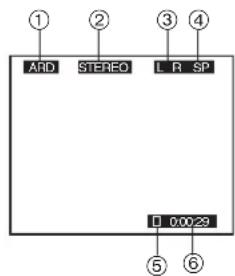
1) TV station name
2) STEREO or BILINGUAL Indicator (For NV-HS880EG and NV-HS830EG)
When receiving a TV programme, the type of sound system in which it is broadcast is automatically indicated.
STEREO, M1 and M2 Indicator (For NV-HS880EC and NV-HS830EC)
When receiving a TV programme with the Stereo, Bilingual or NICAM sound system, the type of sound system in which it is broadcast is automatically indicated.
STEREO: When receiving a Stereo/NICAM stereo broadcast.
M1/M2: When receiving a Bilingual/NICAM dual-sound broadcast.
M1: When receiving a NICAM monaural broadcast.
3) Sound mode during playback (L/R)
At each press of the [AUDIO] 17, the selected playback sound is indicated with L (Left) and R (Right).
Stereo playback: The L and R indications are displayed.
Left audio channel playback: The L indication alone is displayed.
Right audio channel playback: The R indication alone is displayed.
Playback of normal audio track: Neither L nor R indication is displayed.
4) Tape speed indicator
5) Tape running display
6) Present time/Tape counter/Remaining tape time/Index Search/One-Touch Recording (OTR)/Playback Off Timer Function
Present time 17:24:31
Tape counter - 2:35.47
Remaining tape time REMAIN: 2:34
Index Search ▶▶ 02
One-Touch Recording (OTR) OTR 60
Playback Off Timer Function 30
Notes:
- If [OSD] is set to [OFF], none of the above indications appear.
- None of the above indications appear during special playback.
- During playback and when the AV input for the external source is selected, indications 1 and 2 do not appear.
To Play Back NTSC Video Cassettes on Your PAL TV (Quasi-NTSC Playback Function)
This VCR allows playback of tapes recorded in the NTSC system on a normal PAL system TV with the same operations as usual.
On some TVs, however, the playback picture may roll up or down.
- If your TV has a V-HOLD control or equivalent adjustment function, use it to try to stop the picture movement.
Crystal View Control Super (CVC Super)
The crystal view control function ensures that you always obtain the optimum picture quality so that you get the best picture automatically.
While the VCR is turned on, the [CVC] indication is always displayed to show that the Crystal View Control Super is activated.
Child Lock Function buttons
([OK] 24 and [OFF (+)] 22)
This function deactivates all buttons on the VCR and the remote control. Use this function, when you do not want other people to operate the VCR.
To Activate the Child Lock Function
Hold down the [OK] 24 and the [OFF (+)] 22 simultaneously until the [▷ ◁ hold] indication appears in the VCR display.
- If you press a button while the Child Lock function is on, the [▷ ◀ hold] indication appears in the VCR display to inform you that no operation is possible.
To Cancel the Child Lock Function
Hold down the [OK] 24 and the [OFF (+)] 22
simultaneously until the [▷◀ hold] indication disappears.
- If you disconnect the power cable, the Child Lock function is automatically cancelled after the power backup time of approximately 60 minutes has elapsed.
- If you cannot cancel the Child Lock function, press the [EXIT] 27 and perform the operation.
NICAM Broadcasting System (For NV-HS880EC and NV-HS830EC)
NV-HS880EC and NV-HS830EC feature the NICAM digital sound system, a 2-channel sound broadcast system that provides either 2 high-quality stereo sound tracks or 2 independent mono sound tracks, M1 and M2.
NICAM programmes are always accompanied by standard (mono) sound broadcasts, and during playback, you can select the desired sound with the [AUDIO] 17.
- The NICAM stereo sound can only be recorded on the Hi-Fi audio tracks.
- If, for some reason, you want to record a stereo, bilingual or NICAM TV programme intentionally in mono on the Hi-Fi audio tracks, set [Mono] to [ON] for the programme position on which the desired programme is broadcast, as described on page 19.
Convenient Automatic Functions
VCR Auto Power On
When you insert a video cassette, the VCR switches on automatically.
Auto Playback Start
When you insert a video cassette with a broken erasure prevention tab, playback start automatically without having to press the [Play] 26.
VCR-off Playback
When the VCR is off, an inserted cassette can be played back by pressing the [Play] 26.
Auto Rewind
When the tape reaches the end, the VCR automatically rewinds it to the beginning.
- This function does not work during timer recording and OTR.
Automatic Switching Off and Ejection
When the VCR is switched off, and inserted cassette can be ejected simply by pressing the [EJECT] 42.
The VCR will eject the cassette and automatically turn itself off again.
VCR-off Search
When the VCR is off, the VCR starts Intro-Jet Scan of an inserted cassette by pressing the [LIBRARY/SEARCH] ④.
Adjusting the Playback Picture
Under normal conditions, the VCR automatically adjusts the playback picture for optimum quality. However, in some cases it may be necessary to adjust it manually.
If noise bars appear during normal playback, slow playback or still playback, follow the operations below.
During normal or slow playback, press the [TRACKING/V-LOCK]
33 ∨ (−) or ∧ (+) until the bars noise disappear.
- If the noise bars appear during still playback, switch the VCR over to the slow playback mode and then adjust the tracking as explained above.
TV screen
Playback picture containing noise bars
Press the [TRACKING/V-LOCK] 33 ∨ (−) and ∧ (+) simultaneously to return to Auto Tracking.
If the still picture scrolls up or down, perform the following operation.
During still playback, keep the [TRACKING/V-LOCK] 33 ∨ (−) or ∧ (+) pressed until the picture stops scrolling.
Precautions:
- With certain TV models and tapes, it may not be possible to adjust the tracking.
- If you play back a cassette that was recorded on another unit of VCR, the picture quality may be inferior in the normal playback, slow playback, and still playback, and it may need to manual adjust the tracking by above method. Also, on some TVs, the picture may scroll up and down in the special playback functions. However, these are not malfunctions.
Before Requesting Service
On Screen Display Messages
The error messages are given in brackets [ ].
[Please insert video tape!]
- You pressed the [REC] 28, [REC/OTR] 51, the [DIRECT TV REC] 36, the [Play] 26, the [Fast Forward] 25, the [Rewind] 8 or the [LIBRARY/SEARCH] 4 when no cassette was inserted in the VCR. You pressed the [TIMER] 20 when no cassette was inserted in the VCR with a timer recording programmed. Insert a video cassette.
[Please use tape with unbroken recording tab!]
- You pressed the [REC] 28, [REC/OTR] 51 or the [DIRECT TV REC] 36 when a cassette with a broken out erasure prevention tab was inserted in the VCR. You pressed the [TIMER] 20 when a cassette with a broken out erasure prevention tab was inserted in the VCR with a timer recording programmed. Insert a video cassette with an intact erasure prevention tab on which recording is possible.
[This action is not possible before time and date are set]
- You pressed the [SV/V+] ([ShowView]) 30 or the [PROG./CHECK] 14, even though the time and date have not yet been set on the VCR. Set the time and date.
[No timer programmes to be done!]
- You pressed the [TIMER] 20 even though no timer recording has been programmed. Programme a timer recording before pressing the [TIMER] 20.
[Please put VCR into stop mode first]
- You attempted to change the contents of the timer programming while a timer recording was being performed. Put the VCR into the stop mode first.
Other messages may also appear.
Follow the instructions given on the TV screen.
The VCR Does Not Work Correctly
[The VCR display is not illuminated.]
- The AC mains lead is disconnected. Connect the AC mains lead securely.
- VCR display setting is [OFF]. Set [VCR display] to [ON] or [DIMMED]. (See page 21.)
- Power save setting is [ON]. (See page 20.)
[The VCR display is illuminated, but the VCR cannot be operated.]
- The VCR is in the timer recording standby mode. Press the [TIMER] (20) to cancel the standby mode.
- Safety devices are operating. Disconnect the AC mains lead and wait approximately 1 minute before reconnecting. Then check if the VCR can be operated.
[The VCR picture does not appear on the TV screen.]
- The RF output channel is set to [---]. Change the RF output channel to a channel other than [---]. (See page 8.)
[Auto clock setting does not work correctly.] - Teletext information is not available or cannot be read. Set the clock manually.
[Download cannot be performed.] - The VCR is not connected to a TV equipped with the Q Link (or a similar) function via a fully-wired 21-pin Scart cable. Be sure to use a fully wired 21-pin Scart cable to connect the VCR to a TV with the Q Link (or a similar) function.
Playback Does Not Work Properly
[The playback picture is distorted or in black and white.
Or, horizontal noise bars appear in the picture or horizontal lines move up and down.]
- The tracking adjustment is not correct. Adjust the tracking. (See page 23.)
- The TV's video playback channel has not been tuned correctly. Re-tune the video playback channel.
- The video heads are clogged or worn. Consult your dealer for advice.
- The playback picture is distorted when using an E300 type video cassette that was recorded in the LP or EP mode. We recommend that you use video cassettes other than type E300.
- The playback picture is distorted when you record the tape in the EP mode using MESECAM system. However, this is not a malfunction. We recommend PAL system for recording in the EP mode.
- During high speed cue and review playback (JET SEARCH), the tape transport noise will increase. However, this is not a malfunction.
Recording Is Not Possible or Does Not Work Properly [When recording is attempted, the 00 indication flashes.]
- A video cassette with a broken out erasure prevention tab is used. Use a cassette with an intact tab, or if you want to erase the previously recorded contents on the cassette, cover the tab hole with two layers of adhesive tape.
[The playback picture of a recorded programme is distorted or no picture can be seen.]
- The aerial or aerial lead connection is defective. Check the connections. If the picture displayed on the TV is also distorted, there is something wrong with the installation of the aerial.
- No programme was recorded because the VCR is not tuned correctly. Tune it correctly.
- No programme was recorded because the AV input was selected on the VCR. Select the programme position of the desired TV programme.
[Timer recording does not work correctly.]
- Time and date are not set or they are set incorrectly. Set the time and date correctly.
- The starting time or ending time of the timer recording were not programmed correctly. Set the starting time or ending time correctly.
- The VCR was not put in the timer recording standby mode. After programming a timer recording, press the [TIMER] (20) to put the VCR in the timer recording standby mode.
[Recording from an external source connected to the VCR's AV input cannot be made.]
- The correct AV input is not selected. Select the correct AV input.
- The connections from the external source are not made correctly. Correct them. (See page 11.)
The Remote Control Does Not Work Correctly
[The remote control does not work correctly.]
- The remote control signal cannot reach the VCR. Aim the remote control at the VCR and make sure that the infrared beam's path is not obstructed.
- The distance to the VCR is too long. Use the remote control within 7 metres from the VCR. If you are using it within this range but the remote control still cannot operate the VCR, replace the batteries.
- The batteries are exhausted. Replace with new batteries.
- The batteries have been inserted with reversed polarities ( and ).
Insert the batteries correctly. (See page 2.)
• Power save setting is [ON]. (See page 20.) - The wrong remote control mode has been selected. Set the correct control mode. (See page 21.) (For NV-HS880 Series)
Index
A
Audio 21, 22
Audio dubbing 18
Auto Setup 7,19
AV input 4
AV link 13
B
Battery 2
C
Child lock 22
Clock 20
Condensation 2
Country setting 6,7,8,21
Cue 9
CVC Super 22
D
Decoder 13, 19, 21
Digital receiver 12
Direct TV recording 10
Download 6,19
E
EP 9,10,14
Erasure protection 10
EXT LINK 13,21
F
Fast forward 9
Fine tuning 18
■ H
Hi-Fi 11, 18, 19, 21, 22
■ 1
Intelligent timer 16
Intro-jet scan 17
■ J
JET SEARCH 9
■L
Language setting 21
LP 9,10,14,15
■ M
Manual tuning 18, 19
Menu 4
MESECAM 19,21
Mono 19
■N
NICAM 22
NTSC playback 22
■0
OSD 20,22
OTR 10
P
PAL 19,21
Playback 9
Playback off timer 9
Pos 15, 18
Power save 20
Programme list search 17
■Q
Q Link 5
■R
Recording 10
Remaining tape time ....10
Remote control mode 21
Repeat Playback 9
Replay 9
Reset 3
Review 9
Rewind 9
RF 5,7,8
■s
Satellite receiver ....12
Scart cable 5,7
Shipping condition 19
SHOWVIEW 14
Slow playback 9
SP 10, 14, 15
Stereo 22
Still album 17
Still playback 9
Stop 9
S-VHS 21
S-VHS ET 21
■T
Tape length 10,20
Tape speed 10, 14, 15, 22
Teletext 4
Timer Recording 14, 15
Tracking 23
TV aspect 4
TV system 21
■v
VCR display 21
Video system 19
VISS 17
Volume 4
VPS/PDC 15
Specifications
Power Source: 220–240 V AC 50/60 Hz
Power Consumption: 21 W (NV-HS 880 Series)
20 W (NV-HS 830 Series)
Power Consumption When in Standby Mode: Approx. 3 W (When Power save function is activated)
Video Recording System: 2 rotary heads, helical scanning system
Video Heads: 4 heads
Audio Heads: 2 heads (Hi-Fi)
Tape Speed: SP; 23.39 mm/s LP; 11.7 mm/s
Tape Format: S-VHS/VHS tape
Record/Playback Time: SP; 240 min with NV-E240 SP; 240 min with NV-SE240
LP; 480 min with NV-E240 LP; 480 min with NV-SE240
FF/REW Time: Approx. 60 s with NV-E180
VIDEO
Television System: CCIR; 625 lines, 50 fields, PAL colour signal
Modulation System: Luminance; FM azimuth recording
| Colour signal; converted subcarrier phase shift recording | |||
| Input Level: | AV1/AV2/AV3; | 1.0 Vp-p, | 75 ohm, terminated |
| Output Level: | AV1/AV2; | 1.0 Vp-p, | 75 ohm, terminated |
| VIDEO OUT (PHONO); | 1.0 Vp-p, | 75 ohm, terminated | |
| S-VIDEO OUT (PHONO); | 1.0 Vp-p, | 75 ohm, terminated | |
| RF Modulated; | UHF channel (21–69), | 75 ohm | |
| AUDIO | |||
| Input Level: | AV1/AV2/AV3; | -6 dBV, | more than 10 kohm |
| Output Level: | AV1/AV2; | -6 dBV, | less than 1 kohm |
| AUDIO OUT (PHONO); | -6 dBV, | less than 1 kohm | |
| Video Horizontal Resolution: | Colour; more than 240 lines (SP) | ||
| Colour; more than 400 lines (S-VHS/S-VHS ET) (SP) | |||
| Signal-to-Noise Ratio: | Video; more than 45 dB (S-VHS/SP) | ||
| Audio; more than 65 dB (Hi-Fi) | |||
| Dynamic Range: | Audio; more than 90 dB (Hi-Fi audio track) | ||
| Audio Frequency Response: | 20 Hz–20 kHz/Hi-Fi | ||
| Operating Temperature: | 5°C–40°C | ||
| Operating Humidity: | 35%–80% | ||
| Weight: | 3.5 kg | ||
| Dimensions: | 430 (W)×87 (H)×282 (D) mm | ||
Weight and dimensions shown are approximate. Specifications are subject to change without notice.
- NV-HS880 Series
- NV-HS830 Series
- Warning and Important Information
- WARNING:
- Important
- For your safety
- Inserting Remote Control Batteries
- Notes:
- Conserve the environment
- Disposal of old equipment
- Cautions before you operate this VCR
- Avoid:
- Do:
- Condensation may form in the following cases:
- Note:
- Standard Accessories
- If the front panel comes off
- Front panel
- Maintenance
- Menu Operation
- VCR Operation
- TV Operation
- Setting the Remote Control to Operate Your TV
- If the TV cannot be operated properly:
- Connecting and Setting up
- Hints:
- Preset Download
- (To Simultaneously Set Up this VCR with a New TV)
- (To Set Up this VCR with a TV Already in Use)
- Hint:
- Auto Setup Function
- When the clock setting menu appears after Auto Setup has finished
- If, after setup, the picture on the video playback channel is distorted, change the RF output channel on the VCR to another number.
- Playback
- For Normal Playback
- For Cue or Review Playback
- For High speed Cue or Review Playback (JET SEARCH)
- For Still Playback
- For Slow Playback
- Fast-forwarding or Rewinding the Tape
- To Stop Playback
- To Play back a Recorded Part Repeatedly
- To Cancel the Repeat Playback Mode
- To Rewind the Tape a Little to View the Same Scene Again (Replay Function)
- To Stop Playback Automatically (Playback Off Timer Function)
- To stop midway
- To Ensure High Playback Picture Quality (3D DNR Function) (For NV-HS880 Series)
- Recording
- To Select the Desired Tape Speed
- To Pause Recording
- To View One TV Programme while Recording Another TV Programme
- To Display the Approximate Remaining Tape Time
- To Select the Recording Duration and Perform Timer Recording (OTR=One-Touch Recording)
- To Prevent Accidental Erasure of Recorded Contents
- To Immediately Record the Same TV Programme That You Are Viewing on the TV
- (Direct TV Recording)
- Recording from an external source
- To Make an S-VHS Recording on a Cassette
- To Record a VHS Cassette with S-VHS Quality (S-VHS Expansion Technology)
- Recording in this format is only possible in the SP mode.
- Satellite or Digital Receiver
- Connecting the VCR to a Satellite Receiver or Digital Receiver
- Linked Timer Recordings by External Equipments (EXT LINK)
- Connecting a Stereo Amplifier
- Connecting a Decoder
- AV Link Function
- Timer Recording
- To Programme with the On Screen Display (OSD)
- Example:
- To Programme with the SHOWVIEW Function
- SHOWVIEW is a trademark of Gemstar Development Corporation. The SHOWVIEW system is manufactured under licence from Gemstar Development Corporation.
- To Suspend the Timer Recording Standby Mode
- If [--] Appears under [Pos/Name] after Entering a SHOWVIEW Number
- Setting the Recording Date/Day(s)
- Auto SP/LP Change Function
- VPS/PDC Function
- To Check, Change or Cancel Timer Recording Programmings
- To Check the Total Timer Recording Programming Time
- Intelligent Timer Function
- Notes for using this function.
- Intelligent Timer Function has two different operation A and B.
- Operation A
- Operation B
- Protecting programmes
- Releasing the protection
- Deleting the recording details
- Search Functions
- Programme List Search
- To Cancel the Programme List Search
- VISS=VHS Index Search System
- To Cancel the Index Search or to Stop Playback
- Intro-Jet Scan
- To Cancel the Intro-Jet Scan or to Stop Playback
- Editing
- Album Function
- Audio Dubbing (For NV-HS880 Series)
- Manual Tuning
- To Delete, Add or Move a Programme Position
- To Restart the Auto Setup, Restart the Download or Return the VCR to the Shipping Condition
- Setting the VCR's Clock
- To Manually Adjust the Clock
- To Activate the Automatic Time Correction Function
- Various Settings
- Language or Country Setting
- Other Function
- Indications that Can Be Displayed on the TV Screen
- STEREO, M1 and M2 Indicator (For NV-HS880EC and NV-HS830EC)
- To Play Back NTSC Video Cassettes on Your PAL TV (Quasi-NTSC Playback Function)
- Crystal View Control Super (CVC Super)
- Child Lock Function buttons
- ([OK] 24 and [OFF (+)] 22)
- To Activate the Child Lock Function
- To Cancel the Child Lock Function
- NICAM Broadcasting System (For NV-HS880EC and NV-HS830EC)
- Convenient Automatic Functions
- VCR Auto Power On
- Auto Playback Start
- VCR-off Playback
- Auto Rewind
- Automatic Switching Off and Ejection
- VCR-off Search
- Adjusting the Playback Picture
- Precautions:
- Before Requesting Service
- On Screen Display Messages
- The VCR Does Not Work Correctly
- Playback Does Not Work Properly
- Recording Is Not Possible or Does Not Work Properly [When recording is attempted, the 00 indication flashes.]
- The Remote Control Does Not Work Correctly
- Index
- A
- B
- C
- D
- E
- F
- ■ H
- ■ 1
- ■ J
- ■L
- ■ M
- ■N
- ■0
- P
- ■Q
- ■R
- ■s
- ■T
- ■v
- Specifications
Brand : PANASONIC
Model : NV-HS880EC
Category : VCR