TEL2201 - Smartphone Manta - Free user manual and instructions
Find the device manual for free TEL2201 Manta in PDF.


| Product Type | Smartphone |
| Brand | Manta |
| Model | TEL2201 |
| SIM Card Support | Single SIM (dual SIM settings available) |
| Memory Card Support | microSD card (up to capacity not specified) |
| Battery Type | Removable rechargeable battery |
| Charging Time (first charge) | At least 4 hours |
| Camera | Built-in, allows taking pictures |
| Video Recording | Yes, via camera menu |
| FM Radio | Built-in, requires earphone as antenna |
| Audio Player | Plays audio files from phone or memory card |
| Video Player | Plays movies stored on phone or memory card |
| Sound Recorder | Can record phone conversations and sounds |
| Connectivity | Bluetooth (for file transfer) |
| Input Method | Alphanumeric keypad with navigation keys |
| Call Features | Caller ID, call history, speakerphone, call waiting, call forwarding, call barring |
| Emergency Calls | Possible without SIM card |
| Language Support | Multiple languages selectable |
| Security | Phone lock, SIM lock, restore factory settings with code 1234 |
| Disposal | Do not dispose with household waste; take to designated collection point |
Frequently Asked Questions - TEL2201 Manta
User questions about TEL2201 Manta
0 question about this device. Answer the ones you know or ask your own.
Ask a new question about this device
Download the instructions for your Smartphone in PDF format for free! Find your manual TEL2201 - Manta and take your electronic device back in hand. On this page are published all the documents necessary for the use of your device. TEL2201 by Manta.
USER MANUAL TEL2201 Manta
natural_image
Abstract black-and-white circular logo design with interlocking curved shapes (no text or symbols)MANTA
INFOLINIA SERWISOWA
- Left soft key / Right button: Features shown in the left / bottom right-hand corner of the screen.
- Call / Receive (green):
Press after selecting a number to call.
Press to answer an incoming call.
Press in standby mode to go to the call history.
- End / Power button (red):
Press and hold to turn on / off the phone. Press to reject a call or exit the menu.
- OK: Confirmation or accept the selection on the menu.
Press in standby mode to enter the menu.
- Navigation keys: Press the up / down / left / right to scroll through the menu, viewing or editing. In Idle mode, press / up / down / left / right to select a shortcut.
- 0-9 alphanumeric keys: Press the keys to enter numbers when dialing numbers or numbers and characters when editing.
Press the "+" button to enter a "+" for international dialing.
Preparing Your Phone
1 Installing the SIM card
Keep the SIM card out of reach of children.
Be very careful when installing, removing, moving or storage card.
Before installing or removing the SIM card, make sure that the phone is turned off. Remove the back cover and remove the battery.
Note: During installation, make sure that the SIM card contacts are facing down and pay attention to the markings towards the slot.
2 Installing a memory card
This phone supports memory cards. Please make sure that the memory card is inserted correctly before use.
When mounting the microSD card, pay attention to the direction of the outlet, tilt the memory card slot cover, insert the memory card until it is fully seated in the slot and close the cover. The phone supports microSD cards
3 Installing the battery
Insert the battery according to the markings on the battery contacts in the phone contacts and press the top of the battery down until it is inserted into the battery compartment.
4 Remove the battery
First, turn off the phone, put it face down, remove the battery cover and remove
the battery.
5 Charging the battery
Insert one end of the adapter into the jack and the other end into the wall charger. If the phone is switched on the battery icon is displayed in the upper right corner of the screen. If the indicator is full and stop change, the battery is fully charged. If the phone is off during charging, high charging icon appears on the screen. When charging is finished, unplug.
NOTE: Before first use, charge the battery for at least 4 hours. Reaches its maximum capacity after several cycles of charging and discharging.
Using your phone
1 Turn on / off
Press and hold the End / Power key to turn on or turn off the phone.
2 Make a call
In standby mode, press the numeric buttons to enter a phone number, press right to remove invalid entries; press the left button or press the green button to connect.
3 Receiving a call
When there is an incoming call, if your network supports Caller ID, the screen will display the name or number of the caller (depending on whether there is information about the caller in the phone book).
1 Press the call button or press the left soft key to answer an incoming call.
2 If you do not want to answer an incoming call, press the End / Power key to reject it.
You can also press the End / Power key to end the call.
3 During a call, you can press the up / down to adjust the volume.
4 You can contact emergency services without a SIM card. Different network uses different emergency numbers, contact your network operator for details.
4 Emergency Number
You can directly dial the emergency ambulance or without a SIM card. Different networks use different numbers of emergency services. Please contact your network operator for details.
5 Using the menu when ringing
The phone allows certain operations and functions when you are in an active call.
Some of them are network dependent, please ask your network operator or service provider availability.
Press the right soft key to activate the speakerphone during a call in the same way you can disable the feature.
Press the left soft key [Menu] to enter the options menu call during an active call, and access additional options.
Menu functions
1 Write a message
Function: Create a new message, save and / or send it to the recipient.
Note: To send an SMS, you need to set the correct SMS service center number, which you can get from your network operator.
When writing, press # to change the input method, text messages can be up to 160 characters.
2 Inbox
Received SMS messages can be stored in the phone or on the SIM card, and are available here.
3 Drafts
Incompletely written and recorded messages can be stored and available here.
4 Sent
If a message is sent successfully, the SMS sent will be saved here.
relations
Stores and manages your contacts.
There are two places where you can store names and numbers on the SIM card and phone memory. The number of contacts that can be stored on the SIM card depends on the capacity of the SIM card.
After searching for a name, press the call key / Receive to select a number from the registry, and then press the Power / End key to complete the selection. Press the OK button to view the contact information, press the left soft key [Options] to access the menu options:
NEW
This menu allows you to add a new record to the SIM card or phone. Enter a phone number directly in the standby mode, then press the OK button to save the phone number on the SIM card or phone.
First you need to choose the storage: SIM or phone.
DELETE
Allows you to delete individual contacts or select and delete all of them.
IMPORT / EXPORT
It allows you to move contacts between the memory card and the SIM card OTHER
Allows you to check the options such as: memory status and presentations of a number.
Call History
This phone can record information received calls, dialed calls, missed calls and rejected, as well as the duration of the call. Only when the related function is supported by the network, and the phone is switched on and within the network, can record incoming and missed calls.
Call can be obtained by pressing the Answer button (green), in standby mode or to access the menu. There are different icons in front of different records.
- Missed / History / Inbox / Rejected
View a list of all / missed / dialed / received.
- Remove all
Remove dialed / received / missed / all calls
Multimedia
1 Audio Player
Plays audio files stored in the phone memory or memory card.
2 Camera
The phone is equipped with a camera and allows you to take pictures. You can save the photos on your phone or use as wallpaper.
Allows you to record video. Select Record to start or stop recording.
3 Preview
Selecting this option allows you to easily browse images stored in the album, press the OK button to display the selected image, press the left soft key [Options] to access additional options:
Email: Send photos via Bluetooth.
Set as: set as wallpaper / screensaver / power on / off
Rename: Rename the image.
Details: Displays information about the selected image.
4 Sound Recorder
The phone can record phone conversations and record sounds.
Select Record to start or stop recording.
5 Video Player
This menu allows you to play movies stored on your phone or memory card. 6 FM Radio
The phone comes with a built-in FM radio. To use it, connect the handset (used as an antenna). When you first use Rardio automatically search for available FM radio channels. Press the left soft key [Options] to access additional features such as automatic and manual channel search, the list of channels, recording radio programs.
Sound profiles
Allows you to change the sound profile: General, Silent, Vibrate
To change the ring tone and the volume level, press [Options] and select
[Settings]
Settings
1 Call Settings
You can choose the connection settings such as Dual-SIM settings, call forwarding, call waiting, call barring, etc.
2. Phone settings
-Date And time
Set time / date: Use the left or right navigator button to move the cursor to the item and use the numeric keys to enter the value and the navigation key up or down to select the time between the field and set the date, press OK when done to save.
-Language
You can select the language of your phone.
-Automatic On / off: You can set the time to automatically turn on and off the phone.
- Restore factory settings
The default code 1234
3. Display
Allows you to change settings such as wallpaper, contrast, screen off time
4. Security
You can set security options in the phone under this menu so that your phone or SIM card can not be illegally used.
Note!
Product design and Technical parameters may be change without notice. This mainly concerns parameters technical, software and user manual present. User's Manual is a general orientation on service product. Manufacturer and distributor do not assume any responsibility as compensation for any inaccuracies errors in the descriptions appearing in this user manual.
Note about disposal
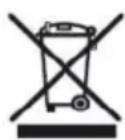
Older appliances, which display the symbol as shown in the picture, may not be discarded in household waste. You must take them to a specific disposal site (check with your local authority) or to your retailer. These sites will guarantee disposal without harming the environment

natural_image
Abstract black-and-white circular logo design with interlocking curves (no text or symbols)MANTA
CUSTOMER SERVICE
The manufacturer reserves the right to make changes to product specifications without notice.
Main page: www.manta.com.pl
Technical suport page: www.manta.info.pl



Made in P.R.C.
FOR MANTA EUROPE


- MANTA
- INFOLINIA SERWISOWA
- Preparing Your Phone
- Charging the battery
- Using your phone
- Turn on / off
- Make a call
- Receiving a call
- Emergency Number
- Using the menu when ringing
- Menu functions
- Write a message
- Inbox
- Drafts
- Sent
- Call History
- Multimedia
- Audio Player
- Camera
- Preview
- Sound Recorder
- Video Player
- Sound profiles
- Settings
- Call Settings
- Phone settings
- Display
- Security
- Note!
- Note about disposal
- CUSTOMER SERVICE
Brand : Manta
Model : TEL2201
Category : Smartphone