
503297 - Network card / adapter IC Intracom - Free user manual and instructions
Find the device manual for free 503297 IC Intracom in PDF.


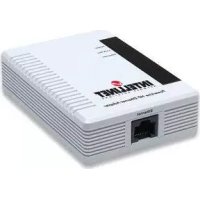
| Product Type | HomePlug Turbo Ethernet Bridge |
| Brand | IC Intracom |
| Model | 503297 |
| Dimensions (W x D x H) | 103 x 71.4 x 27.8 mm (4 x 2.8 x 1.1 in) |
| Weight | 153 g (5.4 oz) |
| Power Supply | AC 100-240 V, 50/60 Hz, 0.5 A |
| Network Interface | 1 x RJ-45 10/100 Mbps |
| Powerline Interface | 1 x AC powerline port |
| Standards | IEEE 802.3 10Base-T, IEEE 802.3u 100Base-TX, HomePlug 1.0 Turbo |
| Effective Throughput | Up to 25 Mbps |
| Chipset | Intellon INT5500 & RTL8201 |
| LED Indicators | Power (green), Powerline Link/Act (green), Ethernet Link/Act (green) |
| Operating Temperature | 0 to 40°C (32 to 104°F) |
| Storage Temperature | -25 to 75°C (-13 to 167°F) |
| Operating Humidity | 10 to 90% non-condensing |
| Storage Humidity | 0 to 95% non-condensing |
| Certifications | FCC Part 15, Class B; CE Class B |
| System Requirements | Windows 98SE/Me/2000/XP/Vista, Ethernet adapter, TCP/IP, CD-ROM drive |
| Package Contents | HomePlug Turbo Ethernet Bridge, Setup CD-ROM, Ethernet cable, Quick Installation Guide |
| Security | Supports private network via network password (DEK) using configuration utility |
| Safety | Plug directly into wall outlet; avoid power strips with surge protection or UPS |
Frequently Asked Questions - 503297 IC Intracom
User questions about 503297 IC Intracom
0 question about this device. Answer the ones you know or ask your own.
Ask a new question about this device
Download the instructions for your Network card / adapter in PDF format for free! Find your manual 503297 - IC Intracom and take your electronic device back in hand. On this page are published all the documents necessary for the use of your device. 503297 by IC Intracom.
USER MANUAL 503297 IC Intracom
TABLE OF CONTENTS
section
page
- Introduction ...... 3
- Planning Your HomePlug Network ....3
- Connecting the Bridge 4
Bridge Connections & LED Indicators 4
Connecting to a Router ....4
- Configuration Utility 4
Utility Installation & Access.... 5
Main Tab 6
Privacy Tab 8
Diagnostics Tab 9
About Tab 10
- Troubleshooting 11
- Specifications 11
HOW TO USE THIS MANUAL
This user manual has been designed to make understanding networking with the INTELLINET NETWORK SOLUTIONS™ HomePlug Turbo Ethernet Bridge easier than ever. Look for the following items when reading this manual:

This check mark means there is a note of interest about something you should pay special attention to while using the device.

This exclamation point means there is a caution or warning about something that could damage your property or the bridge.
1. INTRODUCTION
Congratulations on your purchase of the INTELLINET NETWORK SOLUTIONS HomePlug Turbo Ethernet Bridge, Model 502641. The bridge will allow you to network better than ever by letting you turn the existing AC power lines in your home or office into a high-speed network. Now you don't have to drill through the walls or climb through the attic or cellar to install network cables. Just use the wires that already run through the building.
What Does All This Mean?
Networks are useful tools for sharing computer resources. You can access one printer from different computers and access data located on another computer's hard drive. Networks are even used for playing multiplayer video games. So networks are not only useful in homes and offices, they can also be fun!
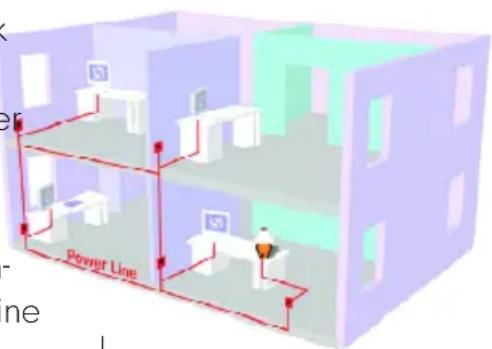
The HomePlug Turbo Ethernet Bridge interfaces Ethernet devices to the HomePlug network standard. Just plug the bridge into the wall, connect your Ethernet-equipped device to the bridge using the included network cable, and you've turned your whole house into a network infrastructure. Attach more computers to the network simply by plugging them into the wall anywhere in the house and using more bridges.
Once your computers are connected to the network, they can share resources such as printers and storage space, plus all kinds of files: music, digital pictures and documents. With up to 85 Mbps data rates, you can play head-to-head network computer games, too. And if you use a HomePlug Turbo Ethernet Bridge to interface broadband routers from your cable or DSL Internet connection to your network, you'll be able to get to the Internet from any computer in the house.
2. PLANNING YOUR NETWORK
With HomePlug devices, a computer network can be created using home power lines. The bridge connects an Ethernet-enabled computer to an AC power line network.
The bridge is also ideal for any user who already has a router and wants to share high-speed Internet access across the AC power line network. Connect the bridge to the router after y configured the bridge using the configuration utility. Connect a straight-through Category 5 Ethernet network cable to the uplink port of the router, or connect a crossover Category 5 Ethernet network cable to a LAN port on the router.
3. CONNECTING THE BRIDGE
Bridge Connections & LED Indicators
NOTE: To connect the powerline network to the Ethernet network, this device can be attached to a LAN switch port; however, each PC or server on the powerline
network needs to be directly attached to its own HomePlug bridge.
- Plug the Cat5e cable into the Ethernet ports of the computer and the bridge.
- Plug the electrical cable into the electrical port.
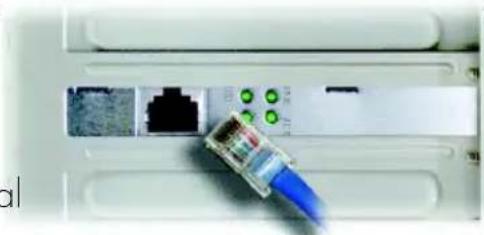
Computer Ethernet port
LED indicators
LED STATUS DESCRIPTION
Power On Power on
Off Power off
Link/Act On AC power line port detects another
HomePlug device
Blinking Looking for more HomePlug devices
Off AC power line port is not detecting
another HomePlug device
Ethernet On Ethernet port link
Blinking Ethernet activity
Off No Ethernet port link
Bridge Ethernet port


IMPORTANT: Because the INTELLINET NETWORK SOLUTIONS
HomePlug Turbo Ethernet Bridge sends data over a home's power lines,
plug it directly into an electrical outlet. It's recommended not to plug the device into a power strip with surge protection. And do not plug the device into a UPS: The bridge has its own power filter for protection against surges.
The installation of the bridge is complete. To configure the bridge, proceed to Section 4: Configuration Utility.
Router Connections
If you want to connect the bridge to a router, disconnect the network cable from the PC and connect it to the uplink port of the router. If you only have a LAN port available on the router, then use a crossover Category 5 Ethernet network cable to connect the bridge to the router. The installation of the bridge is complete.
4. CONFIGURATION UTILITY
After installing the bridge, run the Setup Wizard to install the Configuration Utility. Use this utility to check the PC's direct connection to the AC power line network, search for HomePlug devices on your network, and set up security using a network password.

NOTE: If you want the devices on your HomePlug network to share high-speed Internet access, connect the bridge to a router after you HomePlug Configuration Utility (refer to the previous section).
Utility Installation & Access
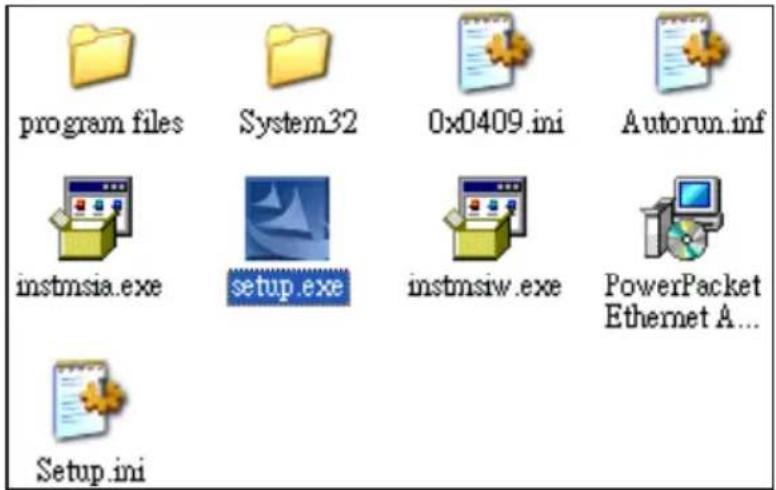
- Insert the included utility CD into the CD-ROM drive of your computer, then run the setup.exe program start to install.
- When the welcome screen comes up, click "Next" to continue.
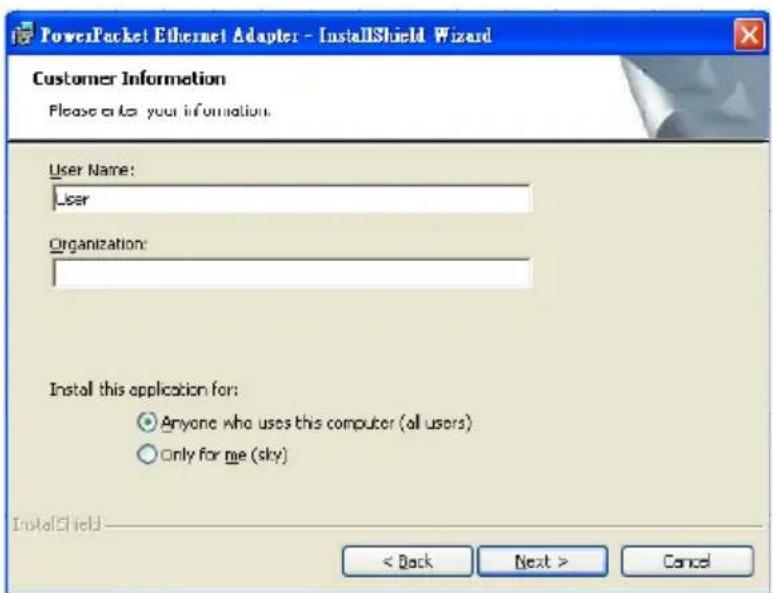
- Enter your information.
- The system will automatically search for the destination location; click "Next" to continue.

- Wait for the finish status, then click "Finish" to complete the installation.
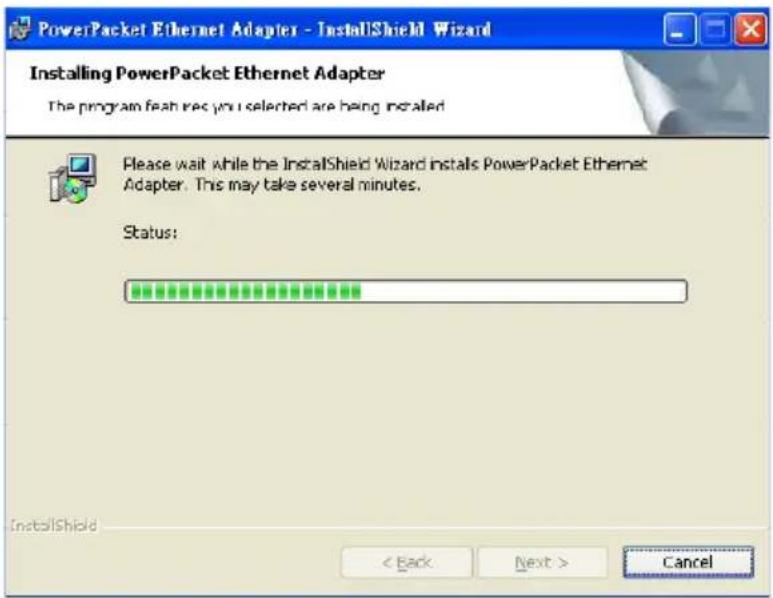

To access the configuration utility, double-click the PowerPacket Configuration Utility icon (shown at left) on your desktop.
Main Tab
Clicking on the Main tab shows the main screen of the configuration utility.
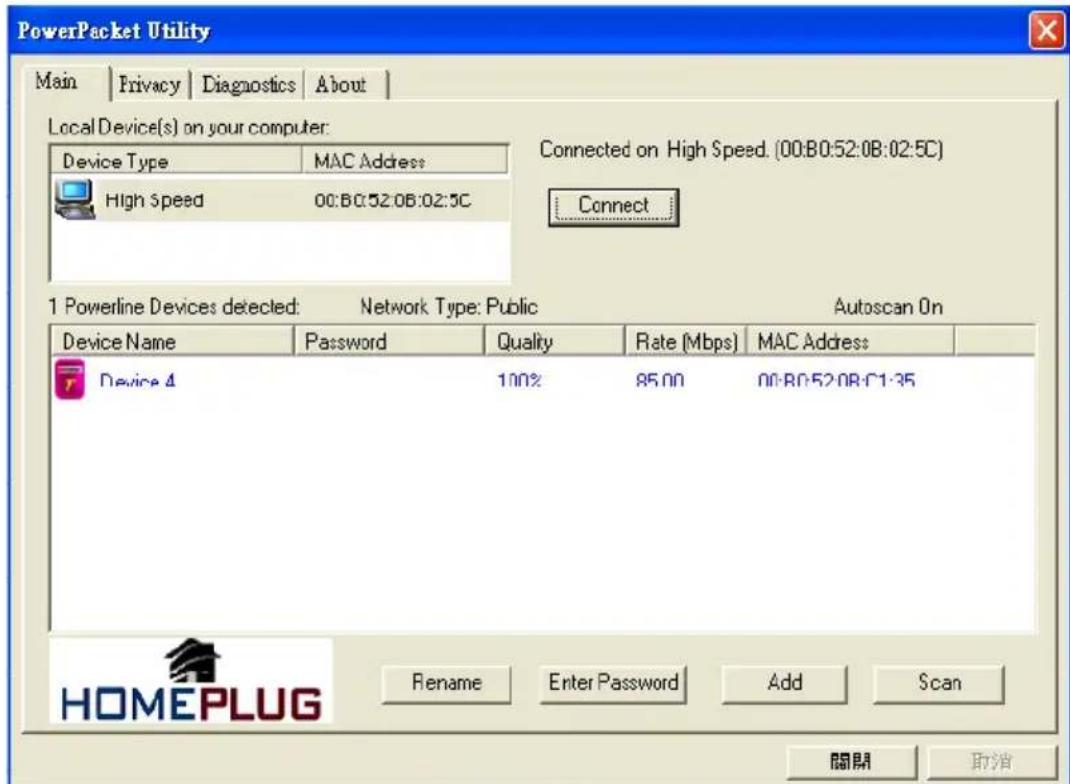
The upper window on the screen shows a HomePlug device connected locally to the host computer. In most cases, only one device will be seen. When there is more than one local device being connected, such as a USB or an Ethernet adapter, the user can select the local device by clicking on it and then clicking the "Connect" button to the right.
The lower window displays all the HomePlug remote devices detected on the current logical network. Just above this Remote Device window is the total number of remote devices connected on the same network; the type of network (public or private), based on the network status of the local device; and the scan status option, which shows whether the Autoscan functionality is turned on or off. The following information is displayed for all devices that appear in the lower panel.
- Device Name shows the default device name, which may be re-defined. A user can change the name either by using the "Rename" button or by clicking on the name and editing in-place. An icon is usually shown with the name. A color distinction in icons is made between HomePlug 1.0 and Turbo devices. By default, the icon is always accompanied by a device name.
- The Password column, by default, is blank. Clicking on "Enter Password"
allows a password to be entered. The DEK password is on the adapter's label. To set the password (required when creating a private network), first select the device by clicking on its name in the lower panel and then clicking "Enter Password." A dialog box will appear (as shown at right) to enter the password. The selected device name is shown above the password field; the password can be verified by clicking "OK." The password field accepts the password in any case format, with or without dashes.

A confirmation box appears if the password is entered correctly. If no device is found, the user will be notified and presented with suggestions for resolving common problems. This process can take a few seconds.
The "Add" button is used to add a remote device to the existing network by entering the device's password. A dialog box allows the user to enter both a device name and the password.
A confirmation box will appear if the password is entered correctly and if the device is found in the network. If a device is not found, the user will be notified and suggestions for resolving common problems will be presented.

The "Scan" button is used to perform an immediate search for the HomePlug devices connected to the network. By default, the utility automatically scans every few seconds and updates the display screen.
• Quality shows the quality between two devices.
- Rate shows the current transmission rate of selected devices.
• MAC Address shows the device's MAC address.
Privacy Tab
The Privacy tab brings up the privacy screen, which provides users with an option to maintain security for their logical network and also to select the devices that have to be included in the network. All HomePlug devices are set with a default logical network (network name), which is normally "HomePlug."
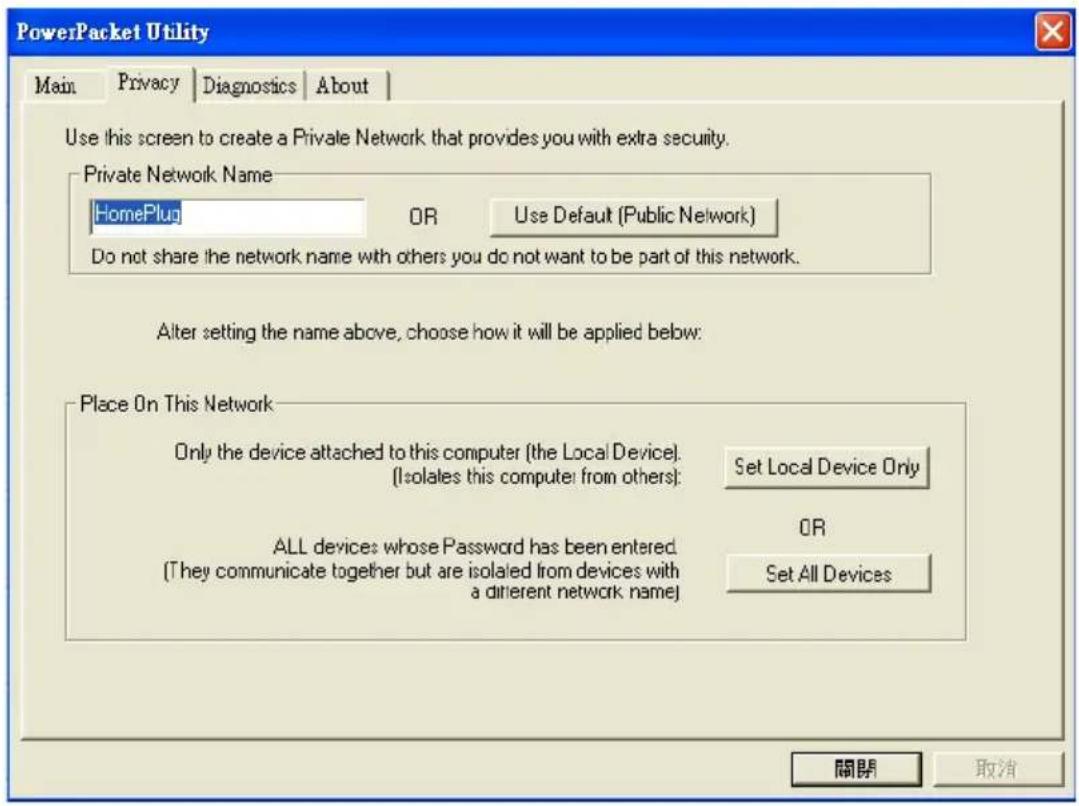
The Privacy dialog screen allows the user to change to a private network by changing the network name (network password) of the devices. The user can always reset to the HomePlug network (public) by entering "HomePlug" as the network name or by clicking on the "Use Default" button.
The "Set Local Device Only" button can be used to change the network name (network password) of the local device. If a new network password is entered, all the devices seen on the Main panel prior to this will no longer be present in the new network, effectively making the local devices unable to communicate with the devices that were in the old logical network. Devices previously set up with the same logical network (same network name) will appear in the device list after selecting this option.
The "Set All Devices" button is used to change the logical network of all devices that appear on the Main panel for which the password had been entered for the same logical network. A dialog window will appear to report the success of this operation. For devices in which the passwords were not entered, this operation will fail and will report a failure message.
Diagnostics Tab
The Diagnostics tab brings up the diagnostics screen, which shows system information and a history of all remote devices seen over a period of time. This screen is available for OEM/ODM customization.

The upper window shows technical data concerning software and hardware present on the host computer used to communicate over HomePlug on the AC power line network. It includes the following:
- Operating system platform/version
- Host network name
- Username
• MAC address of all NICs (network interface cards) connected to the host - Identification of versions of all driver DLLs and libraries used (NDIS)
• HomePlug chipset manufacturer name (Turbo Only devices)
• MAC firmware version (Turbo Only devices)
• MAC addresses of all devices connected locally to the host
• Version of the configuration utility - Vendor name
The lower window contains a history of all remote devices seen on the computer over a certain period of time. All devices that were on the HomePlug network are listed here, along with a few other parameters. Devices that are active on the current logical network will show a transfer rate in the Rate column; devices on other networks, or devices that may no longer exist, are shown with a “?” in the Rate column. The following remote device information is available from the diagnostics screen:
• Device alias name
• Device MAC address
- Device password
• Device last known rate
• Device last known network name
• HomePlug chipset manufacturer name
• Date device last seen on the network
• MAC firmware version (Turbo Only)
The diagnostics information displayed may be saved to a text file for later use, or can be printed for reference for a technical support call. Devices that are no longer part of the network can be deleted using the "Delete" button. A dialog window pops up with a confirmation message if an attempt is made to delete a device for which a password has been entered.
About Tab
The About tab brings up a screen that shows the software version and provides an HTML link to the generic Web site. Clicking on the Web address field will open a Web browser and take the user directly to the Web site. The following fields are available for OEM/ODM customization:
• OEM/ODM URL information
- OEM/ODM logo
• OEM/ODM logo
position and size
All of the above changes can be made without requiring a recompile.

The lower part of the panel may display options for user customizations or preferences (such as turning the auto-scan feature on or off).
5. TROUBLESHOOTING
Problem: None of the LEDs light up after installing the bridge.
Solution: Unplug the Category 5 Ethernet network cable from the computer. Unplug the bridge from the electrical outlet. Repeat the hardware installation process. Make sure the electrical outlet is working properly.
Problem: The Ethernet LED does not light up on the bridge.
Solution: When the Ethernet port detects a LAN connection, the Ethernet LED will light up. Check the computer's Ethernet adapter to see if the connection and adapter are working properly. Be sure you're using the included Category 5 Ethernet network cable (which is straight-through) to connect the bridge to your computer. Do not use a crossover cable.
Solution: For use with a router, connect a straight-through, Category 5 Ethernet network cable to the uplink port of the router; or connect a crossover, Category 5 Ethernet network cable to a LAN port on the router.
Problem: When scanning the network, not all of the devices can be detected.
Solution: Make sure all devices on the HomePlug network have been configured with the same network password. The network password must be identical for them to communicate with each other. See Section 4.
Problem: Can't connect to the Internet or other computers on the network.
Solution: Make sure the IP address and TCP/IP protocol are set up correctly for all the networked computers. For more information on IP addresses and TCP/IP, refer to your Windows help or documentation.
Solution: Make sure all devices on the network have been configured with the same network password. The network password must be identical in order for them to communicate with each other. See Section 4.
6. SPECIFICATIONS
General
- IEEE 802.3 10Base-T
- IEEE 802.3u 100Base-TX
- HomePlug 1.0 Turbo
• Effective throughput: up to 25 Mbps
- Chipset: Intellon INT5500 & RTL8201
Ports
• One 10/100 RJ-45 port
• One AC powerline port
LEDs
• Power: On = solid green
- Powerline: Link = solid green, Act = blinking green
- Ethernet: Link = solid green, Act = blinking green
Physical Characteristics
- Dimensions (W x D x H): 103 x 71.4 x 27.8 mm (4 x 2.8 x 1.1 in.)
• Weight: 5.4 oz. (153 g) - Operating temperature: 0 - 40°C (32 - 104°F)
- Operating relative humidity: 10 – 90%, non-condensing
- Storage temperature: -25 - 75°C (-13 - 167°F)
• Storage relative humidity: 0 – 95%, non-condensing
• Power: AC 100 - 240 V / 50 - 60 Hz / 0.5 A
Certifications
• FCC Part 15, Part B, Class B
- CE Class B
Minimum System Requirements
• Existing Ethernet network adapter
- TCP/IP protocol
- CD-ROM drive
- Configuration utility requires Windows 98SE, Me, 2000, XP or Vista
Package Contents
• HomePlug Turbo Ethernet Bridge
- Setup CD-ROM with user manual
- Ethernet network cable
- Quick installation guide

INTELLINET™
NETWORK SOLUTIONS
BRINGING NETWORKS TO LIFE
www.intellinet-network.com
Are you completely satisfied with this product?
Please contact your INTELLINET NETWORK SOLUTIONS™ dealer
with comments or questions.
Copyright © INTELLINET NETWORK SOLUTIONS
All products mentioned are trademarks or registered trademarks of their respective owners.
- TABLE OF CONTENTS
- HOW TO USE THIS MANUAL
- INTRODUCTION
- WHAT DOES ALL THIS MEAN
- PLANNING YOUR NETWORK
- CONNECTING THE BRIDGE
- BRIDGE CONNECTIONS & LED INDICATORS
- ROUTER CONNECTIONS
- CONFIGURATION UTILITY
- UTILITY INSTALLATION & ACCESS
- MAIN TAB
- PRIVACY TAB
- DIAGNOSTICS TAB
- ABOUT TAB
- TROUBLESHOOTING
- SPECIFICATIONS
- GENERAL
- PORTS
- LEDS
- PHYSICAL CHARACTERISTICS
- CERTIFICATIONS
- MINIMUM SYSTEM REQUIREMENTS
- PACKAGE CONTENTS
- INTELLINET™
Brand : IC Intracom
Model : 503297
Category : Network card / adapter