
460477 - Webcam MANHATTAN - Free user manual and instructions
Find the device manual for free 460477 MANHATTAN in PDF.


| Product Type | Webcam |
| Brand | Manhattan |
| Model | 460477 |
| Color | Black |
| Interface | USB 2.0 |
| Video Resolution | 1280 x 720 pixels |
| Frame Rate | 30 fps |
| Microphone | Built-in |
| Focus Type | Fixed focus |
| Field of View | 70 degrees |
| Dimensions (HxWxD) | 75 x 40 x 40 mm |
| Weight | 100 g |
| Power Supply | USB powered (5V) |
| Cable Length | 1.5 m |
| Compatibility | Windows, macOS, Linux |
| Mounting | Clip or stand |
| Special Features | Plug-and-play, noise reduction |
| Cleaning | Wipe with a soft dry cloth |
| Safety | Handle with care to avoid damage |
Frequently Asked Questions - 460477 MANHATTAN
User questions about 460477 MANHATTAN
0 question about this device. Answer the ones you know or ask your own.
Ask a new question about this device
Download the instructions for your Webcam in PDF format for free! Find your manual 460477 - MANHATTAN and take your electronic device back in hand. On this page are published all the documents necessary for the use of your device. 460477 by MANHATTAN.
USER MANUAL 460477 MANHATTAN
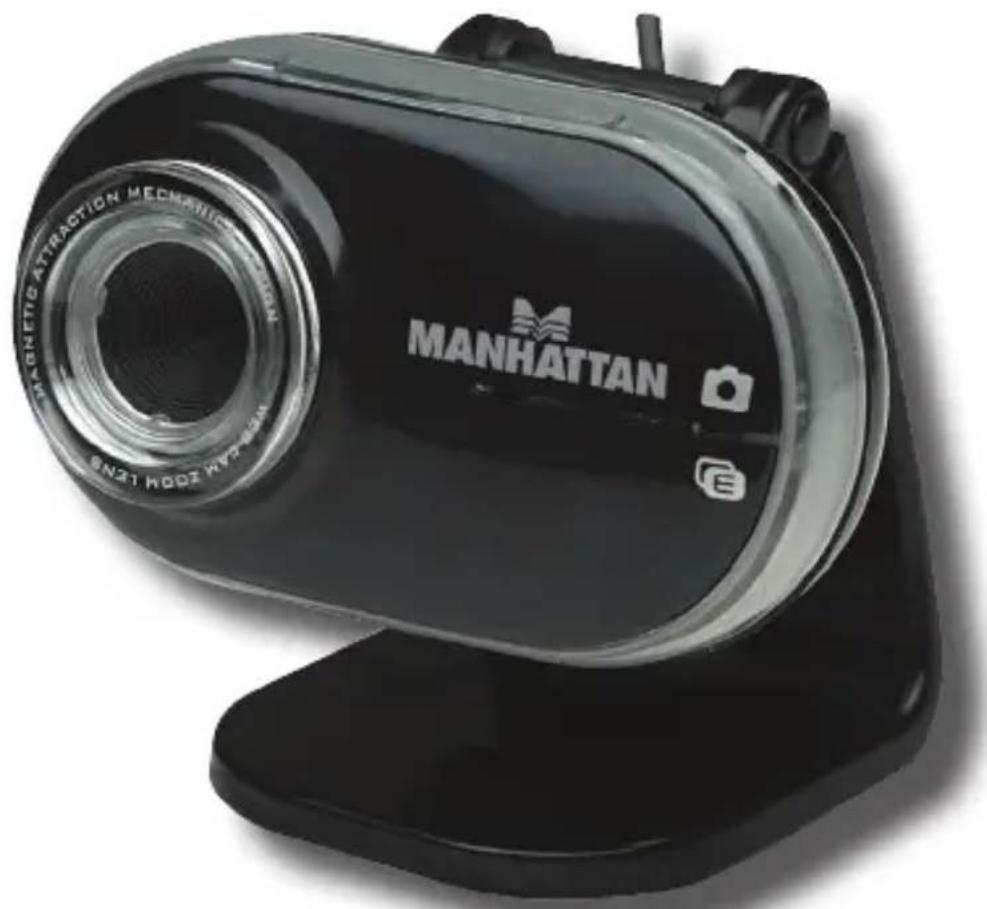
MEGA CAM USER MANUAL
MODEL 460477
MANHATTAN
MAN-460477-UM-0808-01
INTRODUCTION
Thank you for purchasing the MANHATTAN® Mega Cam, Model 460477.
Enhance online communications, instant messaging, blogs and more by easily capturing and sharing photos and video with this remarkable little camera! Plug and Play and Windows compatible, it's ready to go and easy to use, with included software that simplifies settings and operation.
The easy-to-follow instructions in this manual help make the Mega Cam setup quick and simple, so you'll also soon be enjoying the benefits of these additional features:
• Automatic tracking that keeps subjects sharp and in frame without adjusting camera position
- Self-adjusting color, exposure and brightness levels that maximize clarity in varying light conditions
- Special video and frame effects that make it fun to personalize images and online conversations
- High-performance megapixel sensor with powerful 4x digital zoom function
- Lifetime Warranty
NOTE: Some screen images have been modified to fit the manual format.
System Requirements
• Windows 2000, XP or Vista
• PC with USB interface
- Pentium 200 or higher CPU
- CD-ROM drive
• 200 MB free disk space
- 32 MB RAM
Package Contents
- Mega Cam, 1.3 M pixels
- Software CD
- User manual
INSTALLATION
Driver
Prior to installing the driver:
- Close any open software applications on your computer;
- Un-install any previously installed camera software or drivers;
- Disable any anti-virus software and any established firewall; and
- Ensure that the camera is not connected to the computer's USB port at this time.
With your computer turned on, insert the included CD in the CD-ROM drive. The installation interface will automatically display.
-
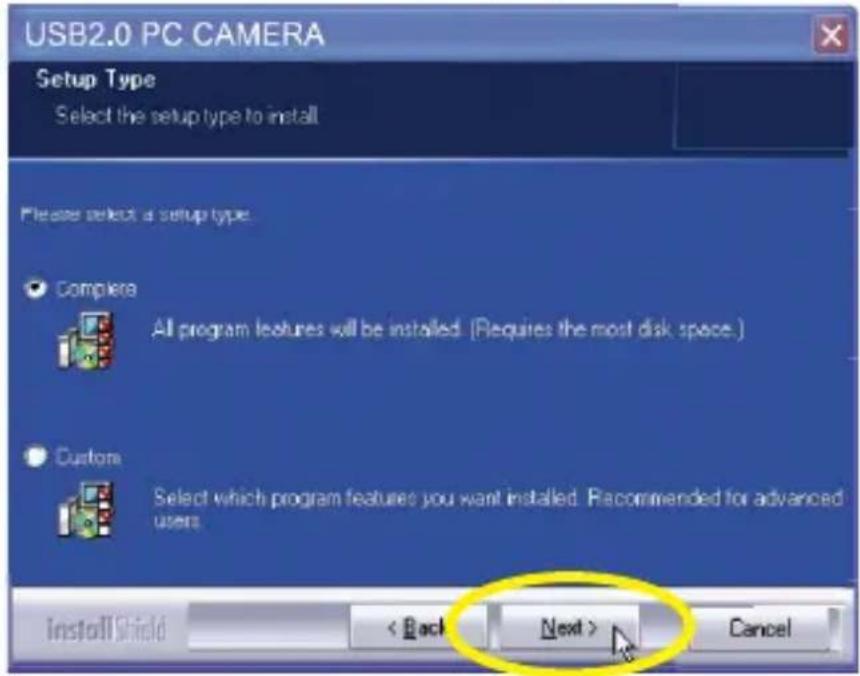
When presented with the first InstallShield Wizard screen prompt, click "Driver."
-
On the subsequent screens, click "Next" or "Continue Anyway" to proceed with the driver installation.
-
When the InstallShield Wizard prompts you with a screen saying the installation is complete, click "Finish
Hardware
- Connect the Mega Cam to your computer's USB port.
- After a few seconds, the computer's operating system will find and recognize the connected Mega Cam, initially displaying a Welcome to the Found New Hardware Wizard screen. Click "Next."
- On subsequent screens, click "Next" or "Continue Anyway" to proceed with the installation.
- When the Found New Hardware Wizard prompts you with a screen that says the software installation is complete, click "Finish."
Installation Verification
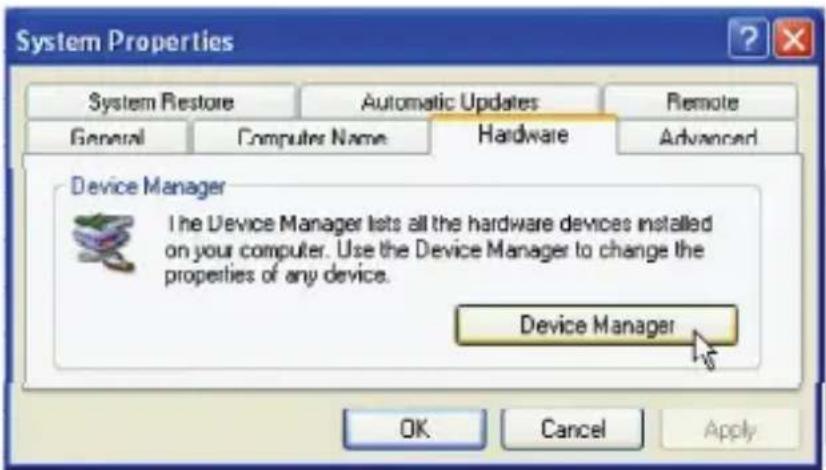
- From the desktop, go to My Computer, then Properties.
- Select/click on the Hardware tab, then click "Device Manager" to display your list of application folders.
-
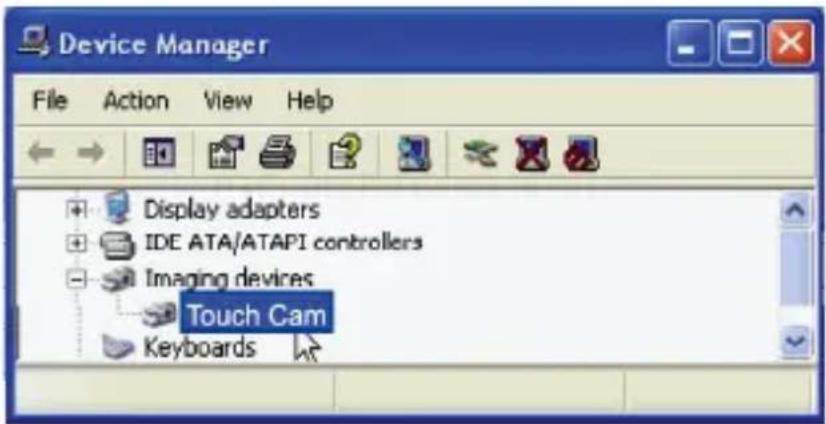
Confirm that the Mega Cam (or "Touch Cam") file appears in the Imaging Devices folder. NOTE: Make sure the folder doesn't have an exclamation point (!) next to it (which indicates an improper installation).
-
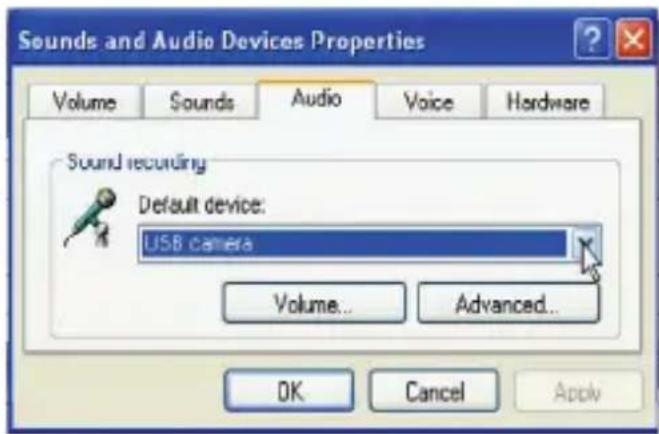
From the desktop, go to Control Panel, then click on Sounds and Audio Devices.
-
Select/click on the Audio tab.
- In the Sound Recording panel, select "USB Camera" from the Default Device drop-down menu in order to activate the Mega Cam's built-in microphone.

OPERATION
Quick-Access Controls
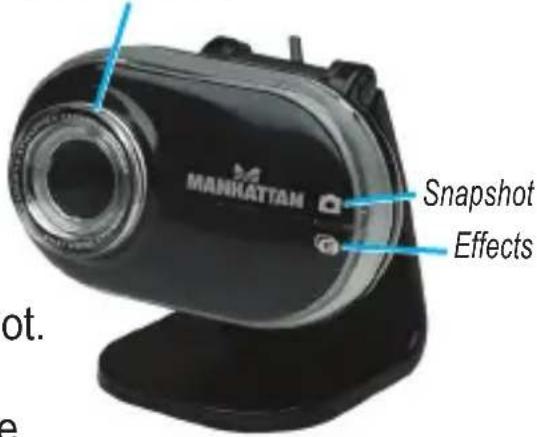
In addition to a convenient exterior focus ring, this Mega Cam features a pair of icons that let you quickly perform a couple of popular functions without the need to access a software menu.
- Press the camera icon to take a snapshot.
- Press the "E" ("effects") icon to move through a 26-option menu of useful frame
styles and special effects (ranging from “Postcard” to “Merry Christmas” and from “Aged Photo” to “Mosaic,” as displayed below in Advanced Settings on the Effects screen).
Adjustable focus ring
Advanced Settings
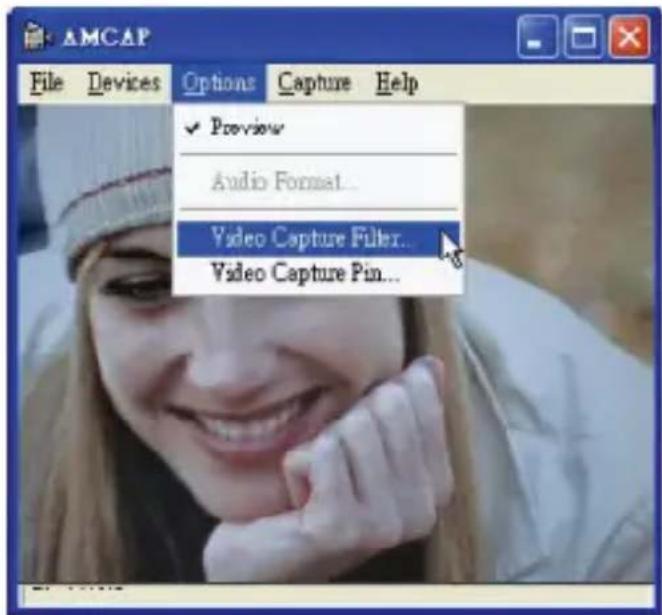
To make any changes to the Mega Cam settings (image controls and modes and such) or to take advantage of the variety of effects (special effects and frame options), open the AMCap application (which may be found in your Control Panel settings or on your desktop, depending on your operating system). For example:
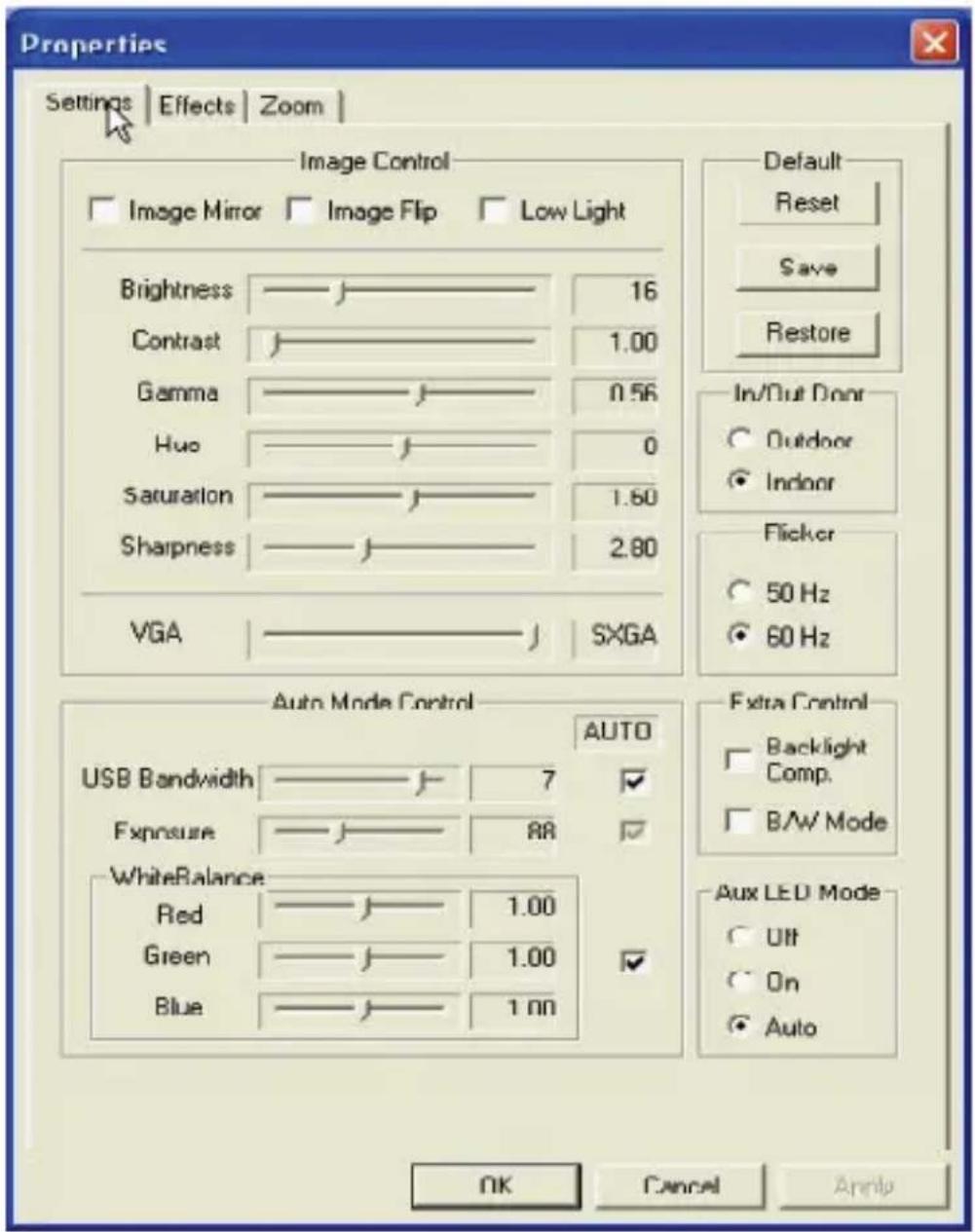
- To stabilize the video (if needed), go to Options, then to Video Capture Filter, and select the Settings tab to change between "50 Hz" and "60 Hz" to improve your results (see the screen image on the next page).
• To establish a new location for storing AVI images, go to File, then Set Capture.
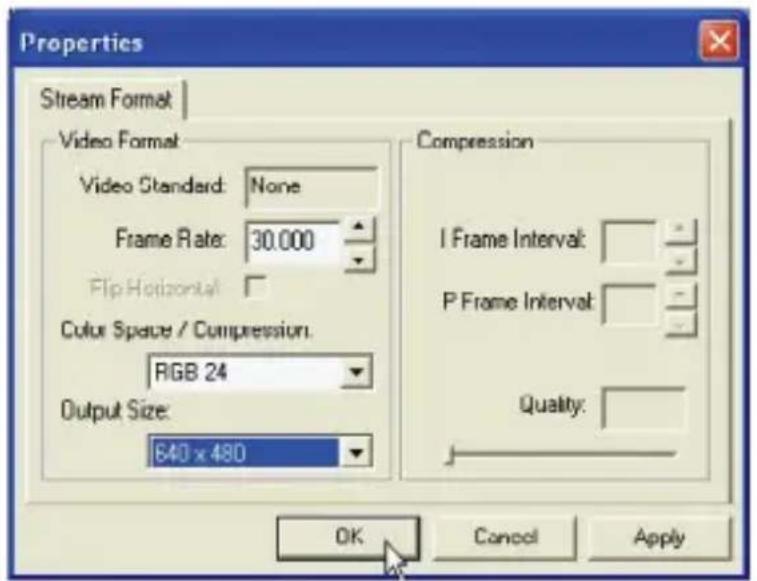
• To select a video output size, go to Options, then to Video
Capture Pin (which then displays the Stream Format screen and the Output Size drop-down menu, among several other Video Format and Compression options).

FREQUENTLY ASKED QUESTIONS
Q What can be done to rectify a dropped frame or video lag?
A The Mega Cam automatically activates White Balance and Exposure (both displayed on the Auto Mode Control panel of the Settings screen) when lighting is determined to be insufficient. If continuity or delay problems occur, deselect the "Auto" option for Exposure.
Q When using MSN, why isn't my voice heard?
A The built-in microphone probably isn't activated. Check the “Sounds and Audio Devices Properties” folder in the Device Manager or Control Panel and make sure that “USB Camera” is elected as the Default Device drop-down menu option in the Sound Recording panel. You can also make sure that your Instant Messenger software is defaulted to recognize the Mega Cam. Also, confirm that the other IM user has the same software version and not one that’s incompatible.
Q How do I take 1.3-megapixel snapshots?
A In the AMCAP application, go to Options, then Video Capture Pin to display the Stream Format screen. In the Output Size field, select "640 x 480" (VGA). Then return to Options and go to Video Capture Filter. In the Image Control panel, set the VGA/SXGA slide bar to "SXGA" (all the way to the right, which equates to 1280 x 960 pixels).
SPECIFICATIONS
Standards and Certifications
- USB 2.0
General
• CMOS Sonix 201 DSP color sensor; 1.3 M pixels
- Lens: plastic, 6 mm (0.25 in.); 64° angle; manual focus with ring
• Color depth: 24-bit true color
• Image focus: 30 mm to infinity; format, MPEG
• Built-in compression ratio (JPG)
• Automatic tracking, color equalizing, exposure and brightness balance adjustments
• Maximum resolution up to 3200 x 2400 (software enhanced)
• Supports video rates up to 30 fps (640 x 480 resolution, VGA), 10 fps (1280 x 1024, VGA)
• Built-in microphone with front-mount snapshot and effects buttons
• Power consumption: 60 mA
Physical
• LED indicator and decorative lighting
• USB cable, 1.5 m (5 ft.)
• Dimensions: 82 x 50 x 46 mm (3.2 x 2 x 1.8 in.)
• Weight: 86 g (3 oz.)
System Requirements
• Windows 2000, XP or Vista
• PC with USB interface
- Pentium 200 or higher CPU
- CD-ROM drive
• 200 MB free disk space
- 32 MB RAM
Package Contents
- Mega Cam, 1.3 M pixels
- Software CD
- User manual
MANHATTAN™
BRINGING COMPUTERS TO LIFE
MANHATTAN® offers a complete line of PC Components, Peripherals, Cables and Accessories. Ask your local computer dealer for more information or visit us online at
www.manhattan-products.com

- MEGA CAM USER MANUAL
- INTRODUCTION
- System Requirements
- Package Contents
- INSTALLATION
- Driver
- Hardware
- Installation Verification
- OPERATION
- Quick-Access Controls
- Advanced Settings
- FREQUENTLY ASKED QUESTIONS
- Q When using MSN, why isn't my voice heard?
- Q How do I take 1.3-megapixel snapshots?
- SPECIFICATIONS
- Standards and Certifications
- General
- Physical
- MANHATTAN™
Brand : MANHATTAN
Model : 460477
Category : Webcam