460545 - Webcam MANHATTAN - Free user manual and instructions
Find the device manual for free 460545 MANHATTAN in PDF.


| Type of product | Webcam |
| Brand / Model | Manhattan / 460545 |
| Dimensions (W x H x D) | 80 x 70 x 50 mm (3.15 x 2.75 x 2 in) |
| Weight | 80 g (2.8 oz) |
| Interface | USB 2.0 (compatible with USB 1.1) |
| Power supply | Via USB cable |
| Image sensor | CMOS 1/6" color sensor |
| Megapixels (hardware) | 1.3 MP (software enhanced up to 21 MP) |
| Video resolution | Up to 720p HD (1280 x 720) |
| Photo resolution (max) | 3200 x 2400 pixels (software enhanced) |
| Video frame rate | Up to 30 fps at VGA (640 x 480), 10 fps at SXGA (1280 x 1024) |
| Lens | Plastic, 6 mm (0.25 in), fixed focus, 64° angle |
| Focus range | 30 mm to infinity |
| Digital zoom | 4x |
| Microphone | Built-in, touch-sensitive snapshot and video record buttons |
| Image adjustments | Automatic color balance, exposure, brightness; manual settings available |
| Special effects | Built-in filters and frame effects |
| Software included | Webcam VideoCap application, drivers, user manual on CD |
| System requirements | Windows XP/Vista/7 or Mac OS 10.4.8; USB port; Pentium 200+; 32 MB RAM; 200 MB free disk space; CD-ROM drive |
| Mounting | Monitor clip with magnetic mount, fits most flat-panel displays and mobile PCs |
| Cable length | 1.2 m (4 ft) |
| Warranty | Lifetime warranty (see www.manhattan-products.com/warranty for details) |
| Certifications | CE, FCC, RoHS, WEEE |
| Color depth | 24-bit true color |
| Video format | MPEG (AVI) |
| Care instructions | Wipe with a soft cloth; avoid dropping, extreme temperatures, and dust |
Frequently Asked Questions - 460545 MANHATTAN
User questions about 460545 MANHATTAN
0 question about this device. Answer the ones you know or ask your own.
Ask a new question about this device
Download the instructions for your Webcam in PDF format for free! Find your manual 460545 - MANHATTAN and take your electronic device back in hand. On this page are published all the documents necessary for the use of your device. 460545 by MANHATTAN.
USER MANUAL 460545 MANHATTAN
With simple, operation and easy-to-use software, the camera's 21-megapixel (software interpolated) CMOS lens captures crisp images and smooth, steady video to share in widescreen HD resolutions up to 720p.
Automatic color balance, exposure and brightness controls help make professional-looking photos and video ready for upload to Facebook, YouTube, MySpace and more. Special, built-in filter and frame effects add customized, personal touches to images, and a sensitive, built-in microphone with a stable frequency and dynamic range adds voice and sound to video recordings and ensures clear communications with VoIP and Skype, Windows Live, Yahoo!, AIM, Google Talk and other instant messengers.
By following the instructions in this user manual — or the simpler setup procedure in the printed quick install guide included with the product — you'll soon be enjoying these additional features:
- Compact design that fits most flat-panel displays and mobile PCs
- Plug and Play installation – Windows compatibility
- Lifetime Warranty (For a complete list of country-specific warranties, go to www.manhattan-products.com/warranty.)
Package Contents
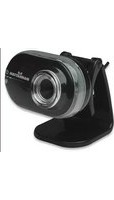
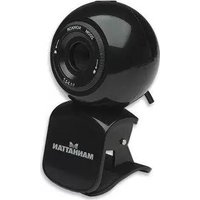
- Widescreen HD Webcam 860 Pro
- Software CD with user manual
- Quick install guide
System Requirements
- Windows XP/Vista/7 or Mac 10.4.8 compatible
• IBM PC with USB interface - Pentium 200 or higher CPU
- CD-ROM
• 200 MB free disk space
• 32 MB RAM
NOTE: The pathways and screen images that follow represent Windows XP and may vary slightly from those for Windows Vista and 7. Refer to your operating system user manual as needed. Some screen images have been modified to fit the format of this manual.
HARDWARE
NOTE: Before you connect the camera to your computer or install any of its software, un-install any other webam drivers or software programs to avoid any conflicts that could prevent proper operation of this webcam.
- Run the USB cable from the camera through the slot on the monitor clip. This
helps prevent the camera from hitting your desk, keyboard or other hard (and possibly damaging) surface if it's knocked from its magnetic mount.
-
Gently position the monitor clip in the desired location and position. Be careful not to scratch your screen.
-
Place the ball on the camera's back panel on the magnetic mount and adjust the angle of the camera. (Obviously, you can re-adjust the camera as needed after you view your initial snapshots.)
-
Plug the cable into an active USB port.
To protect your camera:
- Avoid dropping or otherwise mishandling it, as this can affect its performance.
- Do not place it in extremely hot, cold or dusty environments.
- Wipe with a soft cloth to clean.
natural_image
Black and orange handheld device labeled 'MANHATTAN' with orange circular logo (no readable text beyond branding)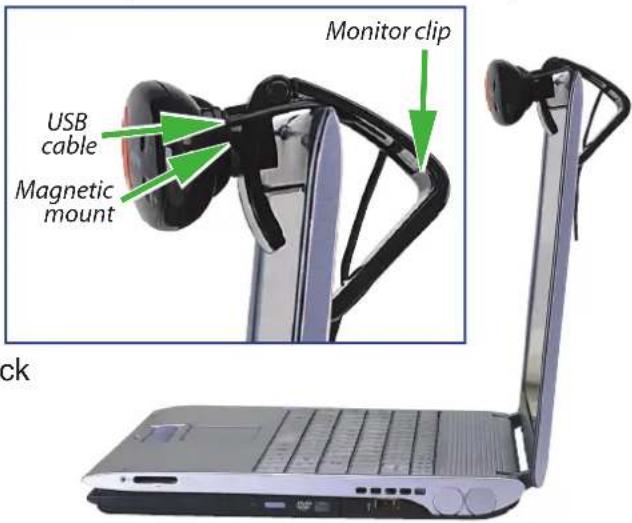

DRIVER INSTALLATION
- With the camera connected to a USB port on your computer, insert the included software CD in your CD/DVD drive.
- After a few moments, your system will detect the camera and you can begin the driver installation. On the initial screen of the InstallShield Wizard, click "Driver"; when the Ready to Install the Program screen displays, click "Install."

- When the next screen displays, click "Continue Anyway."

- The Setup Status screen will display to show the progress of the driver installation. If you need to interrupt the procedure, click "Cancel."

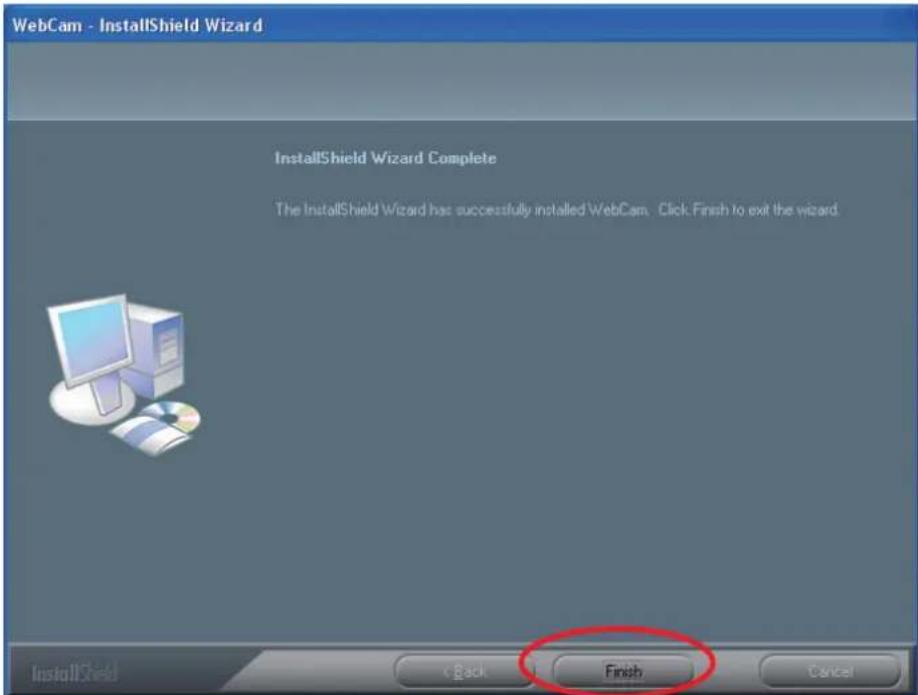
- When the InstallShield Wizard Complete screen displays, click "Finish" to complete the driver installation.
DRIVER & MICROPHONE INSTALL VERIFICATION
- From your desktop, go to My Computer, then Properties.

- On the Properties screen, go to the Hardware tab and click "Device Manager."

- Among your list of hardware icons, confirm that "USB 2.0 Webcam" is listed under Imaging Devices. If no exclamation point (!) appears in front of the listing, then the installation was successful.

- From the desktop, go to Control Panel, and then click on the Sound icon.
- Go to the Recording tab and select "USB Camera/Microphone" from the Default Device drop-down menu to activate the camera's built-in microphone.
QUICK-ACCESS CONTROLS
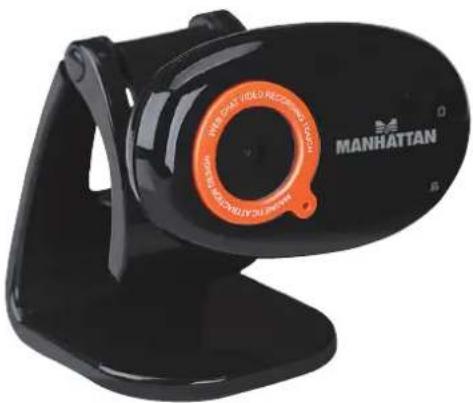
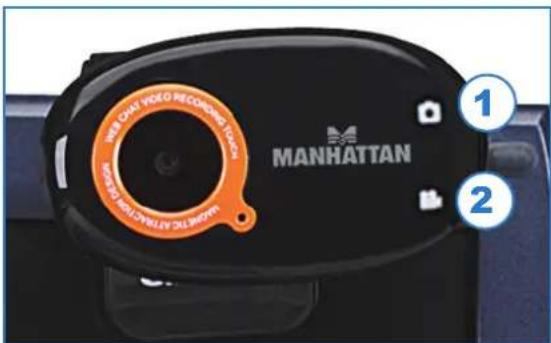
The two touch-sensitive buttons on the front of the camera — Snapshot and Video Record — allow you to quickly utilize/activate both functions. Both the Snapshot and the Video “buttons” are “touch-sensitive”; that is, the functions are activated without actually depressing a moving part as with a conventional button.
1 Press the camera icon to take a snapshot
2 Press the video camera icon to record video clips
NOTE: These functions work only when a video capture program such as Skype or MSN is being utilized.
ADVANCED SETTINGS
To make any changes to the camera settings (image controls and modes and such) or to take advantage of the variety of features (special effects and frame options), open the Webcam VideoCap application (in your Control Panel or on your desktop, depending on your operating system.

For example:
- To stabilize the video (if needed), go to Options, then go to Video Capture Filter and select the Settings tab to change between "50 Hz" and "60 Hz" to improve your results.
• To establish a new location for storing AVI images, go to File, then Set Capture. - To select a video output size, go to Options, then Video Capture Pin (which displays the Stream Format screen and the Output Size drop-down menu, plus several other Video Format and Compression options).
- You can also choose from many different special effect filters and photo frames. These are accessed by going to the Option tab of the Webcam Video application and then selecting Video Capture Filter, then Special Effects.
VIDEO RECORD
- Double-click on the Webcam VideoCap icon. NOTE: If the icon isn't displayed on your desktop, click on the Start icon, go to the All Programs tab, scroll down to and open the "Webcam" folder, then click on the Webcam VideoCap icon.

-
To begin recording video, simply touch the Video Record button on the front of the camera. (See Quick Access Controls above.)
-
When the Record window displays, you can set the format to either VGA or AVI.

- Drag the Record window so it overlaps and defines the area of the picture that you want to record.
![Start Recording Current Position: [0,0] Hint: Double is region to star record](/content/2026/05/1024118/images/aa23efbe2651ce6a2b45885887b0b008302e9520ab8dff48b1e70fa0fa8b086e.jpg)
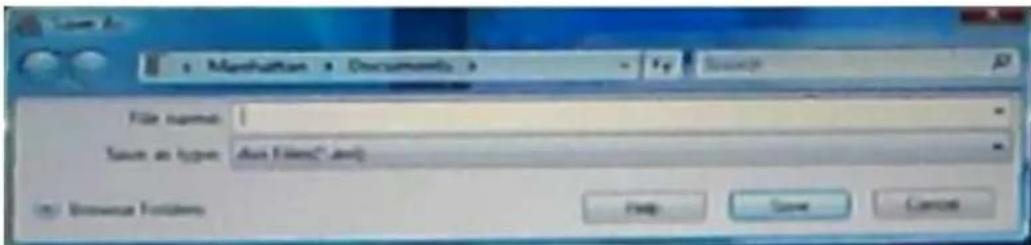
- Position your mouse anywhere within the Record area and double-click to display a Save As screen that lets you name your video file and designate a folder where you can save it.
-
Press
on your keyboard to begin recording. -
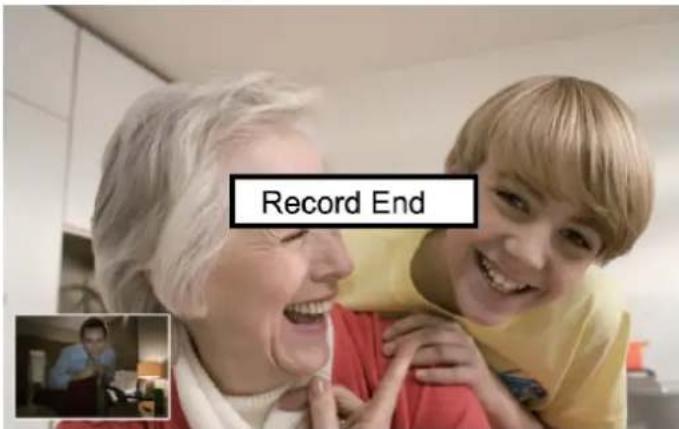
To stop recording, touch the Video Record button on the camera again. A Record End screen will display to confirm the recording has stopped.
SNAPSHOT
- Double-click on the Webcam VideoCap icon. NOTE: If the icon isn't displayed on your desktop, click on the Start icon, go to the All Programs tab, scroll down to and open the "Webcam" folder, then click on the Webcam VideoCap icon.
- To create a still-action image, simply touch the Snapshot button on the front of the camera. (See Quick Access Controls above.)
FREQUENTLY ASKED QUESTIONS
Q. What can be done to rectify a dropped frame or video lag?
A. The camera automatically activates White Balance and Exposure (both displayed on the Auto Mode Control panel of the Settings screen) when the lighting isn't sufficient. If continuity or delay problems occur, deselect the "Auto" option for Exposure.
Q. When using MSN, why isn't my voice heard?
A. The built-in microphone probably isn't activated. Click the Sound icon in the Device Manager or Control Panel and make sure "USB Camera/Microphone" is selected as the Default Device drop-down menu option in the Sound Recording tab. You can also check that your Instant Messenger software is defaulted to recognize the camera; and confirm that the other IM user has the same software version and not one that's incompatible.
Q. How do I take 1.3-megapixel snapshots?
A. Click on the Webcam VideoCap icon, go to Options, then Video Capture Pin to display the Stream Format screen. In the Output Size field, select "640 x 480" (VGA). Then return to Options and go to Video Capture Filter. In the Image Control panel, set the VGA/SXGA slide bar to "SXGA" (all the way to the right, which equates to 1280 x 960 pixels).
Q. After inserting the installation CD, the auto-run program doesn't work in Windows Vista or 7. How do I get the camera to install?
A. This is an issue involving how these two operating systems handle the autorun.exe file. To install the software and drivers, you'll need to manually open the disk.
- Right-click the My Computer icon and select "Explore."
- Browse the CD drive and right-click the setup program.
- Select "Run as administrator"; the installation will begin.
- Follow the prompts to complete the installation.
SPECIFICATIONS
Standards and Certifications
- USB 2.0
- USB 1.1
• CE
• FCC
• RoHS
• WEEE
Lens
- CMOS 1/6" color sensor; 1.3 megapixels 720p (software enhanced; interpolated to 21 megapixels) with 4x digital zoom
- Lens: plastic, 6 mm (0.25 in.); 64^ angle
• Image focus: 30 mm to infinity
Image
- Photo and video recording maximum resolution up to 3200 x 2400 (software enhanced)
- Supports video transfer rates up to 30 fps (640 x 480 resolution, VGA), 10 fps (1280 x 1024, VGA)
- Format: MPEG
• Color depth: 24-bit true color
General
- Fixed focus, color equalizing, exposure and brightness balance adjustments
• Built-in microphone with touch-sensitive snapshot and video record buttons
• Built-in compression ratio (JPG)
Physical
- USB cable, 1.2 m (4 ft.)
- Dimensions: 80 x 70 x 50 mm (3.15 x 2.75 x 2 in.)
• Weight: 80 g (2.8 oz.)
System Requirements
- Windows XP/Vista/7 or Mac 10.4.8 compatible
• IBM PC with USB interface - Pentium 200 or higher CPU
- CD-ROM
• 200 MB free disk space
• 32 MB RAM
WASTE ELECTRICAL & ELECTRONIC EQUIPMENT
Disposal of Electric and Electronic Equipment
(applicable in the European Union and other European countries with separate collection systems)
ENGLISH
This symbol on the product or its packaging indicates that this product shall not be treated as household waste. Instead, it should be taken to an applicable collection point for the recycling of electrical and electronic equipment. By ensuring this product is disposed of correctly, you will help prevent potential negative consequences to the environment and human health, which could otherwise be caused by inappropriate waste handling of this product. If your equipment contains easily removable batteries or accumulators, dispose of these separately according to your local requirements. The recycling of materials will help to conserve natural resources. For more detailed information about recycling of this product, contact your local city office, your household waste disposal service or the shop where you purchased this product. In countries outside of the EU: If you wish to discard this product, contact your local authorities and ask for the correct manner of disposal.
DEUTSCH
ENGLISH: For warranty information, go to www.manhattan-products.com/warranty.
This equipment has been tested and found to comply with the limits for a Class B digital device, pursuant to Part 15 of Federal Communications Commission (FCC) Rules. These limits are designed to provide reasonable protection against harmful interference in a residential installation. This equipment generates, uses and can radiate radio frequency energy, and if not installed and used in accordance with the instructions may cause harmful interference to radio communications. However, there is no guarantee that interference will not occur in a particular installation. If this equipment does cause harmful interference to radio or television reception, which can be determined by turning the equipment off and on, the user is encouraged to try to correct the interference by one or more of the following measures:
- Reorient or relocate the receiving antenna.
- Increase the separation between the equipment and the receiver.
- Connect the equipment to an outlet on a circuit different from the receiver.
- Consult the dealer or an experienced radio/TV technician for help.
R&TTE
ENGLISH
This device complies with the requirements of the R&TTE Directive 1999/5/EC.
DEUTSCH
MANHATTAN® offers a complete line of PC Components, Peripherals, Cables and Accessories. Ask your local computer dealer for more information or visit us online at
www.manhattan-products.com


- Package Contents
- System Requirements
- HARDWARE
- DRIVER INSTALLATION
- DRIVER & MICROPHONE INSTALL VERIFICATION
- QUICK-ACCESS CONTROLS
- ADVANCED SETTINGS
- VIDEO RECORD
- SNAPSHOT
- FREQUENTLY ASKED QUESTIONS
- SPECIFICATIONS
- Standards and Certifications
- Lens
- Image
- General
- Physical
- WASTE ELECTRICAL & ELECTRONIC EQUIPMENT
- ENGLISH
- DEUTSCH
- R&TTE
Brand : MANHATTAN
Model : 460545
Category : Webcam