
HD Web Cam 760 Pro 460514 - Webcam MANHATTAN - Free user manual and instructions
Find the device manual for free HD Web Cam 760 Pro 460514 MANHATTAN in PDF.


| Product Type | Webcam |
| Brand | Manhattan |
| Model | HD Web Cam 760 Pro 460514 |
| Resolution | HD (1280 x 720 pixels) |
| Frame Rate | Up to 30 fps |
| Lens | Fixed focus |
| Microphone | Built-in |
| Connection Interface | USB 2.0 |
| Cable Length | 1.5 m (approx.) |
| Dimensions (L x W x H) | 10 x 5 x 5 cm |
| Weight | 100 g |
| Power Source | USB bus powered |
| Compatible Operating Systems | Windows 7/8/10, macOS |
| Mounting | Clip/clamp for monitor or tripod mount |
| Field of View | 60 degrees (approx.) |
| Focus Type | Fixed |
| Main Functions | Video calling, streaming, recording |
| Cleaning and Maintenance | Wipe with a soft, dry cloth; avoid liquids |
| Safety Precautions | Keep away from moisture and extreme temperatures |
| Spare Parts and Repairability | No user-serviceable parts; contact support for repairs |
Frequently Asked Questions - HD Web Cam 760 Pro 460514 MANHATTAN
User questions about HD Web Cam 760 Pro 460514 MANHATTAN
0 question about this device. Answer the ones you know or ask your own.
Ask a new question about this device
Download the instructions for your Webcam in PDF format for free! Find your manual HD Web Cam 760 Pro 460514 - MANHATTAN and take your electronic device back in hand. On this page are published all the documents necessary for the use of your device. HD Web Cam 760 Pro 460514 by MANHATTAN.
USER MANUAL HD Web Cam 760 Pro 460514 MANHATTAN
natural_image
Black Manhattan 3.2 video camera with no visible text or symbols on the device bodyMANHATTAN
MAN-460514-UM-1010-01
INTRODUCTION
Thank you for purchasing the MANHATTAN ^® HD Web Cam 760 Pro, Model 460514.
Improve online communications, instant messaging, VoIP and social media with high-quality photos and video and better color. With Plug and Play with Windows and Mac compatibility, it's ready to go and easy to use, with included software that simplifies settings and operation.
The easy-to-follow instructions in this manual help make the camera's setup quick and simple, so you'll also soon be enjoying the benefits of these additional features:
- Easily capture, record and share widescreen HD photos and video up to 720p – upload to Facebook, YouTube and more
- 7.6 megapixel image resolution with powerful 4x digital zoom function and built-in microphone
- Face tracking, automatic color, exposure and brightness levels maximize clarity in varying light conditions
- Personalize conversations and images with special video and frame effects
- Versatile base with clip and swivel magnetic mount ideal for notebook and netbook computers
- Lifetime Warranty
NOTE: Some screen images have been modified to fit the manual format.
System Requirements
• Windows XP/Vista/7 or Mac 10.4.8
• IBM PC with USB interface
- Pentium 200 or higher CPU
- CD-ROM drive
• 200 MB free disk space
- 32 MB RAM
Package Contents
• HD Web Cam 760 Pro
- Software CD
INSTALLATION
Driver
Prior to installing the driver:
- Close any open software applications on your computer;
- Un-install any previously installed camera software or drivers;
- Disable any anti-virus software and any established firewall; and
- Ensure that the camera is not connected to the computer's USB port at this time.
With your computer turned on, insert the included CD in the CD-ROM drive. The installation interface will automatically display.
-
When presented with the first InstallShield Wizard screen prompt, click "Driver."
-
On the subsequent screens, click "Next" or "Continue Anyway" to proceed with the driver installation.
-
When the InstallShield Wizard prompts you with a screen saying the installation is complete, click "Finish

Hardware
- Connect the camera to your computer's USB port.
- After a few seconds, the computer's operating system will find and recognize the connected camera, initially displaying a Welcome to the Found New Hardware Wizard screen. Click "Next."
- On subsequent screens, click "Next" or "Continue Anyway" to proceed with the installation.
- When the Found New Hardware Wizard prompts you with a screen that says the software installation is complete, click "Finish."
Installation Verification
- From the desktop, go to My Computer, then Properties.
- Select/click on the Hardware tab, then click "Device Manager" to display your list of application folders.
-
Confirm the camera (or "USB 2.0 PC Camera") file appears in the Imaging Devices folder. NOTE: Make sure the folder doesn't have an exclamation point (!) next to it (which indicates an improper installation).
-
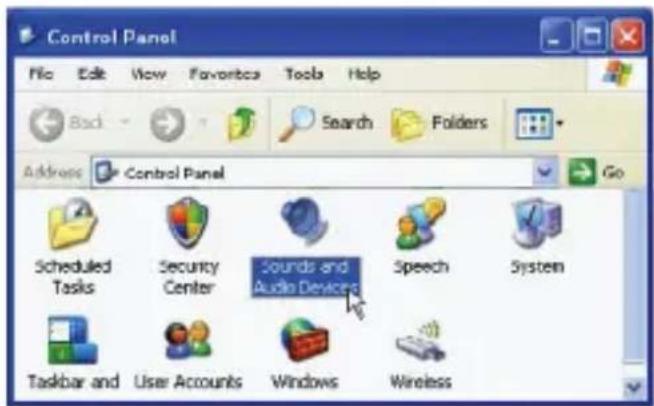
From the desktop, go to Control Panel, then click on Sounds and Audio Devices.
-
Select/click on the Audio tab.
- In the Sound Recording panel, select "USB Camera" from the Default Device drop-down menu in order to activate the camera's built-in microphone.



OPERATION
Quick-Access Controls
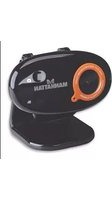
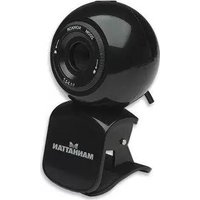
In addition to a convenient exterior focus ring, this camera features a snapshot button on the top of the device so you don't need to access the software menu to use this handy feature.
Adjustable focus ring
Clip with swivel magnetic mount

Advanced Settings
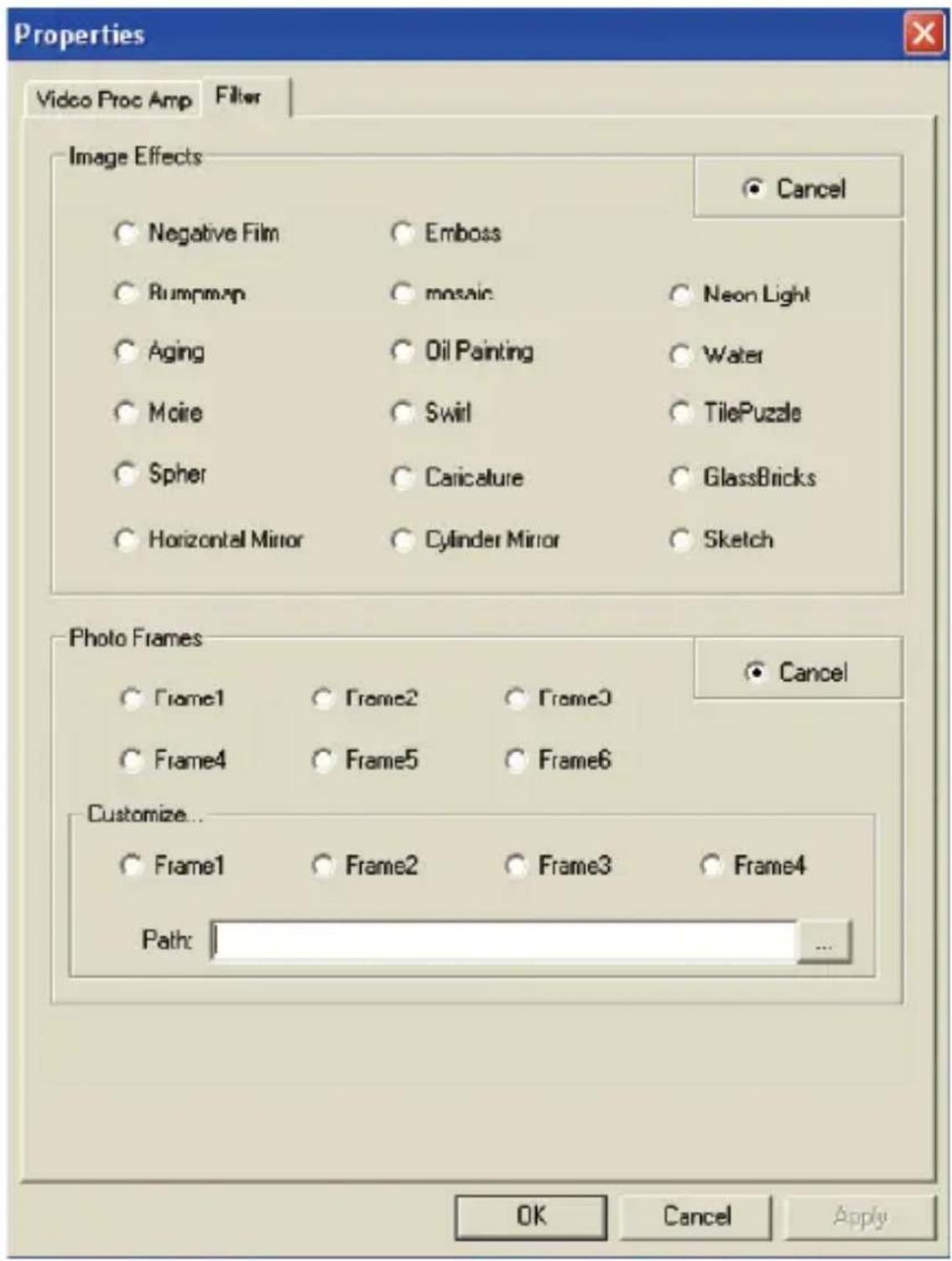
To make any changes to the camera settings (image controls and modes and such) or to take advantage of the variety of effects (special effects and frame options), open the AMCap application (which may be found in your Control Panel settings or on your desktop, depending on your operating system). For example:
- To stabilize the video (if needed), go to Options, then to Video Capture Filter, and select the Video Proc Amp tab to change between “50 Hz” and “60 Hz” to improve your results (see the screen image on the next page).
• To establish a new location for storing AVI images, go to File, then Set Capture.
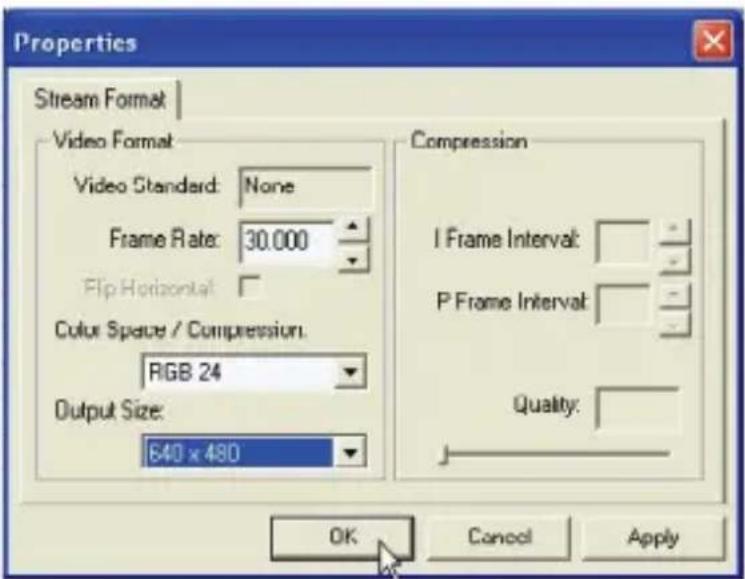
• To select a video output size, go to Options, then to Video

Capture Pin (which then displays the Stream Format screen and the Output Size drop-down menu, among several other Video Format and Compression options).

FREQUENTLY ASKED QUESTIONS
Q What can be done to rectify a dropped frame or video lag?
A The camera automatically activates Exposure (displayed on the Auto Mode Control panel of the Video Proc Amp screen) when lighting is determined to be insufficient. If continuity or delay problems occur, deselect the “Auto” option for Exposure.
Q When using MSN, why isn't my voice heard?
A The built-in microphone probably isn't activated. Check the “Sounds and Audio Devices Properties” folder in the Device Manager or Control Panel and make sure that “USB Camera” is elected as the Default Device drop-down menu option in the Sound Recording panel. You can also make sure that your Instant Messenger software is defaulted to recognize the camera. Also, confirm that the other IM user has the same software version and not one that's incompatible.
Q How do I take 1.3-megapixel snapshots?
A In the AMCAP application, go to Options, then Video Capture Pin to display the Stream Format screen. In the Output Size field, select "640 x 480" (VGA). Then return to Options and go to Video Capture Filter. In the Image Control panel, set the VGA/SXGA slide bar to "SXGA" (all the way to the right, which equates to 1280 x 960 pixels).
Q After inserting the installation CD, the autorun program doesn't work in Windows Vista or 7. How do I get the camera to install?
A This is an issue involving how these two operating systems handle the autorun.exe file. To install the software and drivers, you'll need to manually open the disk.
-
Right-click the My Computer icon and select "Explore."
-
Browse the CD drive and right-click the setup program.
-
Select "Run as administrator"; the installation will begin.
-
Follow the prompts to complete the installation.
SPECIFICATIONS
Standards and Certifications
- USB 2.0
• CE - FCC
• RoHS - WEEE
Lens
- CMOS 1/6" color sensor; 1.3 megapixels 720p (software enhanced; interpolated to 7.6 megapixels) with 4x digital zoom
- Lens: plastic, 6 mm (0.25 in.); 64° angle; manual focus with ring
• Image focus: 30 mm to infinity
Image
- Photo and video recording maximum resolution up to 3200 x 2400 (software enhanced)
• Supports video transfer rates up to 30 fps (640 x 480 resolution, VGA), 10 fps (1280 x 1024, VGA) - Format: MPEG
• Color depth: 24-bit true color
General
- Manual focus, color equalizing, exposure and brightness balance adjustments
• Built-in microphone with top-mount snapshot button
• Built-in compression ratio (JPG)
Physical
• USB cable, 1.2 m (3.9 ft.)
• Dimensions: 50 x 50 x 85 mm (2 x 2 x 3.3 in.)
• Weight: 65 g (2.3 oz.)
System Requirements
• Windows 2000, XP, Vista, Win7
• PC with USB interface
- Pentium 200 or higher CPU
- CD-ROM drive
• 200 MB free disk space - 32 MB RAM
Package Contents
• HD Web Cam 760 Pro
- Software CD
- Quick installation guide
MANHATTAN™ BRINGING COMPUTERS TO LIFE
MANHATTAN® offers a complete line of PC Components, Peripherals, Cables and Accessories. Ask your local computer dealer for more information or visit us online at
www.manhattan-products.com
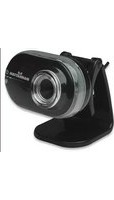

Brand : MANHATTAN
Model : HD Web Cam 760 Pro 460514
Category : Webcam