
C300GO - Smartphone LG - Free user manual and instructions
Find the device manual for free C300GO LG in PDF.


| Product Type | Smartphone |
| Brand | LG |
| Model | C300GO |
| Network Technology | GSM 850 / E-GSM 900 / DCS 1800 / PCS 1900 (Quad-band) |
| Dimensions (approx.) | 100 x 50 x 15 mm |
| Weight (approx.) | 80 g |
| Display | 2.0-inch main LCD |
| Camera | Integrated camera (VGA resolution typical) |
| Video Recording | Yes, via Video Camera |
| Music Player | MP3, WMA, AAC support |
| FM Radio | Yes, with headset as antenna |
| Bluetooth | Yes, with headset and handsfree profiles |
| Memory Card Slot | MicroSD (up to 16 GB) |
| Battery | Li-Ion, 1000 mAh (typical) |
| Charging | Via USB or standard charger |
| Key Features | Social networking services (SNS), Speed dial, Silent mode, Quick reference guide |
| Safety | SAR compliant; disposal per WEEE directive |
| Repairability | User-replaceable battery and SIM; manual provides disassembly guide |
Frequently Asked Questions - C300GO LG
User questions about C300GO LG
0 question about this device. Answer the ones you know or ask your own.
Ask a new question about this device
Download the instructions for your Smartphone in PDF format for free! Find your manual C300GO - LG and take your electronic device back in hand. On this page are published all the documents necessary for the use of your device. C300GO by LG.
USER MANUAL C300GO LG
* Make sure the number is correct before making a call.

CE0168

LG
Life's Good
NEDERLANDS
ENGLISH
natural_image
Simple line drawing of a cylindrical object with a pointed tip and internal structure, no text or symbols present.natural_image
Illustration of a remote control device with a black cover and an upward arrow indicating a component (no text or symbols present)natural_image
Top-down view of a white mobile phone casing with visible internal components and mounting holes (no text or symbols)
natural_image
Interior view of a mobile phone casing showing internal components and casing (no text or symbols visible)natural_image
Top-down view of a smartphone showing internal components and a highlighted screen area (no text or symbols visible)natural_image
Illustration of a mobile phone with a USB flash and control knob (no text or symbols)MicroSD
natural_image
Close-up of a mobile phone casing with a magnified inset showing internal components (no text or symbols visible)Auto retrieval in roaming -
New e-mail notification -
natural_image
Illustration of a handheld electrical plug with a coiled cable (no text or symbols)
natural_image
Black rectangular electronic device with 'DT' marking on front panel (no visible text or symbols beyond branding)Declaration of Conformity

LG Electronics
Suppliers Details
Name
LG Electronics Inc
Address
LG Electronics Inc, LG Twin Towers 20,
Yaozido-dong, Yeongtsungpo-gu, Seoul, Korea 150-721
Product Details
Product Name
GSM 850 / E-GSM 900 / DCS 1800 / PCS 1900 Quad band Terminal Equipment
Modal Name
LG-C310
Track Naftin
LG
CE 0168
Applicable Standards Details
RATTE Directive 1998/SEC
EN 301 489-01 V1.8.1, EN 301 489-07 V1.3.1, EN 301 489-17 V2.1.1
EN 301 511 V9.02
EN 60360.2001, EN62209-1 2016
EN 60950-12006
EN 300 328 V1.7.1
Supplementary Information
The conformity to above standards is verified by the following Notified Body(BAST)
BAST, Forsyth House-Churchfield Road - Walton-on-ThamesSurrey · KT12 2TD , United Kingdom Notified Body Identification Number : 0168
Declaration
I hereby declare under our sole responsibility that the product mentioned above to which this declaration relates complies with the above mentioned standards and Directives
LG Electronics Logistics and Services B.V.
Veluwezoom 16, 1327 AE Almere. The Netherlands
Nastki
Doc Huang Lee / Director
Issued Date
05.Sep.2010

Signature of representative
Problemen oplossen
Cut out Quick Reference Guide bound to this manual along the cutout line and fold as illustrated below.
How to cut
Cut out Quick Reference Guide along the cutout line.
You can place a scale on the cutoff line and cut as illustrated below.
- Be careful not to cut yourself when using scissors.

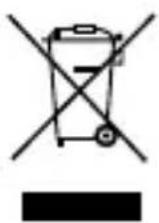
Disposal of your old appliance
1 When this crossed-out wheeled bin symbol is attached to a product it means the product is covered by the European Directive 2002/96/EC.
2 All electrical and electronic products should be disposed of separately from the municipal waste stream via designated collection facilities appointed by the government or the local authorities.
3 The correct disposal of your old appliance will help prevent potential negative consequences for the environment and human health.
4 For more detailed information about disposal of your old appliance, please contact your city office, waste disposal service or the shop where you purchased the product.
Getting to Know Your Phone
Earpiece
Send key
• Dials a phone number and answers a call.
- In standby mode: Shows the history of calls.
Alpha numeric keys
• In standby mode: Input numbers to dial Hold down
- International calls
- Connect voice mail centre
2 to 9 Speed dials Sym - Hold the key down n to go Silent mode
• In editing mode: Enter numbers & characters

Soft keys (Left soft key / Right soft key)
• These keys perform the function Indicated in the bottom of the display.
Main LCD
End key
- Switchon/off(hold down)
• End or reject a call.
Confirm key / OK key
- Selects menu options and confirms actions.
Navigation key
In standby mode:

Briefly: Mp3 player
Briefly: Camera

Briefly: Toolbar when it
was set. (Menu>Settings>Display>Homescreen>Display Items)
• In menu: Scroll up & down.
Open view


natural_image
Simple line drawing of a cylindrical object with a pointed tip and a small dot on the side (no text or symbols)Side keys
• In standby mode:
Controls the ring volume.
- During a call:
Earpiece volume adjustment
- During playing MP3 music: Audio volume adjustment


Camera
Taking a quick photo
1 Press Menu and select Camera and Camera.
2 When the camera has focused on your subject, select the Capture icon on the bottom-center of the screen and press OK to take a photo.
After taking a photo
Your captured photo will appear on the screen. The image name is shown on the bottom top of the screen with five icons on the bottom side.
Album - View the pictures and videos you have taken in your Album.
Send - Send the photo as MMS, as an Email or via Bluetooth.
New - Take another photo straight away.
Set as - Use the image as Wallpaper, as a Contact image, or in your Start up image or Shut down image.
Delete - Delete the photo you have just taken. The viewfinder will reappear.
Video camera
Shooting a quick video
1 Press Menu and select Camera and choose Video Camera. The video camera's viewfinder will appear on screen.
2 Focus the camera on what to record.
3 Select the Rec. icon on the bottom-center of the screen and press OK to take a video. Rec will appear at the bottom of the viewfinder. Press 🧑 gain to stop recording.
After you've shot your video
A still image representing your captured video will appear on screen.
After recording a video clip, you can check the menu as follow:
Album - View the pictures and videos you have taken in your Album.
Play - Play the file.
New - Press to shoot another video straight away.
Send - Send the video as Message, as an Email or via Bluetooth.
Delete - Delete the video you have just made. The viewfinder will reappear.
Music
MP3 Player
Your LG-C300 has a built-in music player so you can play all your favourite music.
Note:
- Before using music player, you will need to transfer music fi le onto your phone.
- Music player supports codec types as follows: MP3, WMA, AAC. Music player does not necessarily support all features and variations of file formats.
To access the music player, press Menu and select Music and select MP3
player. From here you can access to:
Recently played - View all of the songs you have played recently.
All songs - Contains all of the songs you have on your phone.
My Playlists - Contains all playlists you have created.
Artists - Allows you to view all tracks sorted by artist.
Albums - Allows you to view all tracks sorted by album.
Genres - Allows you to view all tracks sorted by genre.
Shuffle all songs - Allows you to play all of the songs in random order.
Playing a song
1 Press Menu and select Music, then choose MP3 player.
2 Choose All songs then select the song you want to play. Select OK.
3 Select OK to pause the song.
4 Select ■ to skip to the next song.
5 Select ■ to skip to the previous song.
6 Select Back to stop the music and return to the All songs menu.
TIP! To change the volume while listening to music, use the volume keys on the left hand side of your phone.
FM radio
Using the FM radio
Your LG-C300 has an FM radio feature so you can tune into your favorite stations and listen on the move.
Listening to the radio
1 Press Menu, select Music and choose FM radio.
2 Select the channel number of the station you would like to listen to.
Searching for stations
You can tune your phone to radio stations by searching for them either manually or automatically. They will then be saved to specific channel numbers, so you don't have to keep re-tuning
To auto tune:
1 Press Menu and select Music.
2 Select FM radio choose Options.
3 Select Auto-scan. A confirmation message appears. Select Yes, then the stations will be automatically found and allocated to a channel in your phone.
Note: If you are in an area with bad radio reception, you may have diffi culty listening to the radio.
You will need to insert your headphones in order to listen to the radio. Insert them into the headphone socket.
Note: You can also manually tune into a station by using ■ and ■ displayed in the centre of the screen. If you press ■ and ■ old and, the stations will be automatically found.
SNS
Social network services (SNS)
Your LG-C300 has SNS that lets you enjoy and manage your social network.
NOTE: An additional costs may be incurred when connecting and using online services. Check your data charges with your network provider.
Bluetooth
Changing your Bluetooth settings
1 Press Menu and select Settings and choose Connectivity.
2 Choose Bluetooth then Settings.
Make your changes to:
My device visibility - Set Visible or Visible for 1 min so that other devices can detect your phone when they are searching for a Bluetooth device. If you select Hidden, other devices will not be able to detect your phone when they are searching for a Bluetooth device.
My device name - You can name or rename your phone as it will appear on other devices. Your phone's name will be shown on other devices only when My device visibility is set to Visible.
Supported services - You can view the list of devices such as headsets and handsfree supported by Bluetooth enabled phone.
My address - Check your Bluetooth address here.
Note: To improve security, we recommend that once you have configured or paired with a device, Visibility be set to Hidden. For incoming connections, regardless of whether or not the other device has been paired with your phone, you can choose to accept or reject the connection.
Pairing with another Bluetooth device
By pairing your LG-C300 and another device, you can set up a passcode protected connection. This means your pairing is more secure.
1 Check your Bluetooth is Turn on and Visible. You can change your visibility in the Settings of Bluetooth menu, by selecting My device visibility, then Visible.
2 From Bluetooth, choose Activate Bluetooth and select Search new device.
3 Your LG-C300 will search for devices. When the search is completed Add and Refresh will appear on screen.
4 Choose the device you want to pair with, select Add and enter a passcode then choose OK.
5 Your phone will then connect to the other device, on which you should enter the same passcode.
6 Your passcode protected Bluetooth connection is now ready.
Using a Bluetooth headset
1 Check your Bluetooth is Activate Bluetooth and Visible.
2 Follow the instructions that came with your headset to place it in pairing mode and pair your devices.
3 Your LG-C300 will automatically connect to your Bluetooth headset and switch to headset profile.
MEMO
MEMO
- MicroSD
- Auto retrieval in roaming -
- New e-mail notification -
- Declaration of Conformity
- Suppliers Details
- Product Details
- Applicable Standards Details
- Supplementary Information
- Declaration
- Problemen oplossen
- How to cut
- Disposal of your old appliance
- Getting to Know Your Phone
- Earpiece
- Send key
- Alpha numeric keys
- Soft keys (Left soft key / Right soft key)
- Main LCD
- End key
- Confirm key / OK key
- Navigation key
- Open view
- Side keys
- Camera
- Taking a quick photo
- After taking a photo
- Video camera
- Shooting a quick video
- After you've shot your video
- Music
- MP3 Player
- Note:
- Playing a song
- FM radio
- Using the FM radio
- Listening to the radio
- Searching for stations
- SNS
- Social network services (SNS)
- Bluetooth
- Changing your Bluetooth settings
- Pairing with another Bluetooth device
- Using a Bluetooth headset
- MEMO
Brand : LG
Model : C300GO
Category : Smartphone