Reloop Beatmix 4 DJ Intro - DJ Equipment Serato - Free user manual and instructions
Find the device manual for free Reloop Beatmix 4 DJ Intro Serato in PDF.


| Product Type | DJ Controller |
| Brand | Serato |
| Model | Reloop Beatmix 4 DJ Intro |
| Channels | 4 |
| Software | Serato DJ Intro |
| Dimensions (W x D x H) | 52 x 35 x 7 cm |
| Weight | 3.5 kg |
| Power Supply | USB bus powered or 12V DC adapter |
| USB Connection | USB 2.0 Type B |
| Jog Wheels | 2 x touch-sensitive jog wheels |
| Pads | 8 x performance pads per deck |
| Faders | 4 x channel faders, 1 x crossfader |
| EQ | 3-band EQ per channel |
| Effects | Built-in effects via Serato DJ Intro |
| Audio Output | 1 x Master RCA, 1 x Booth RCA |
| Headphone Output | 1 x 1/4" stereo, 1 x 1/8" mini |
| Microphone Input | 1 x 1/4" TRS |
| Maintenance | Clean with dry cloth; avoid liquids |
| Safety | Keep away from moisture; use only approved power supply |
| Reparability | Contact authorized service center; no user-serviceable parts |
Frequently Asked Questions - Reloop Beatmix 4 DJ Intro Serato
User questions about Reloop Beatmix 4 DJ Intro Serato
0 question about this device. Answer the ones you know or ask your own.
Ask a new question about this device
Download the instructions for your DJ Equipment in PDF format for free! Find your manual Reloop Beatmix 4 DJ Intro - Serato and take your electronic device back in hand. On this page are published all the documents necessary for the use of your device. Reloop Beatmix 4 DJ Intro by Serato.
USER MANUAL Reloop Beatmix 4 DJ Intro Serato
Installation and Setup
The Reloop Beatmix 4 is a class compliant USB plug and play device and requires no further driver installation.
- Download and install the latest version of Serato DJ Intro from http://serato.com/dj-intro/downloads
- Connect your Reloop Beatmix 4 to an available USB Port.
- Open Serato DJ Intro.
serato

DJ INTRO
Controller
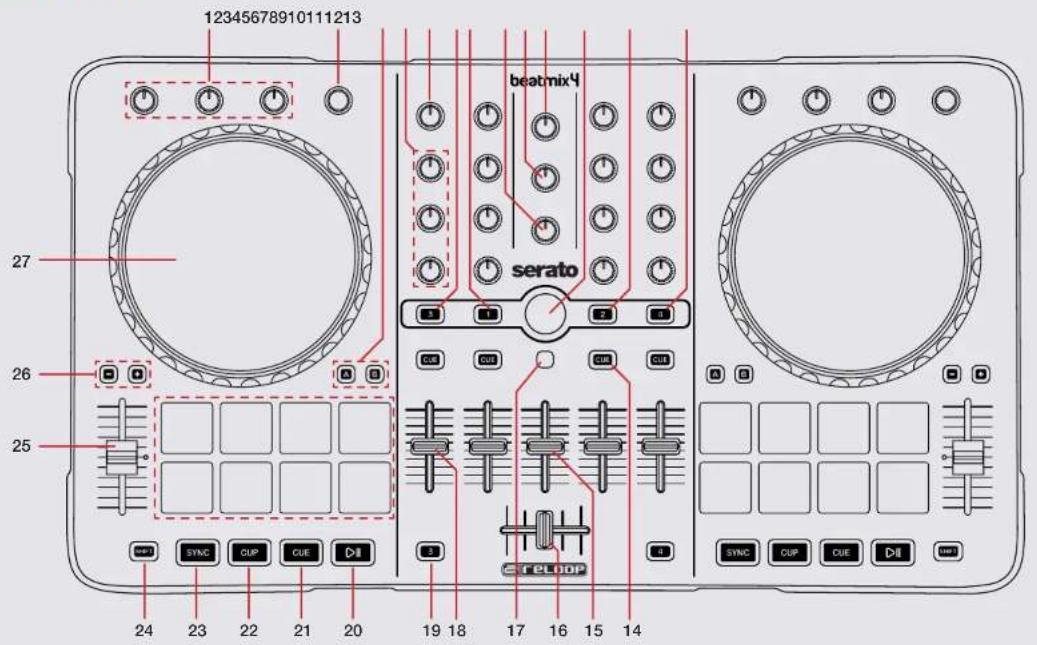
serato

DJ INTRO
| # Reloop Beatmix 4 Control | Serato DJ Function Shift Function | ||
| 1 | FX UNIT Adjust Slots 1-3 FX Parameters Tum to select FX for slots 1-3 | ||
| 2 | BEATS Turn to adjust beats value for FX / Tap to the set FX tempo. To return to AUTO mode, press and hold | ||
| 3 | PAD MODE Alternate between different performance pad modes or split mode | ||
| 4 | EQ Adjust Low/Mid/High | ||
| 5 | GAIN Adjust channel gain | ||
| 6 | 3 Load track to deck 3 Use to activate channel fader start | ||
| 7 | 1 Load track to deck 1 Use to activate channel fader start | ||
| 8 | CUE MIX Adjusts between Cue and Master in your headphones | ||
| 9 | PHONES Adjusts headphone volume | ||
| 10 | MASTER Adjusts master volume | ||
| 11 | LIBRARY SCROLL Scroll through currently focused area. Press to navigate forward through open panels | ||
| 12 | 2 Load track to deck 2 Use to activate channel fader start | ||
| 13 | 4 Load track to deck 4 Use to activate channel fader start | ||
| 14 | CUE Cue selected channel in headphones | ||
| 15 | SAMPLER Adjusts sampler volume | ||
| 16 | CROSSFADER Crossfades between the two channels | ||
| 17 | BACK Press to navigate backward through open panels | ||
| 18 | CHANNEL FADER Adjusts channel volume | ||
| 19 | DECK Use to swap the deck layer so you can control decks 3 & 4 | ||
| 20 | PLAY/PAUSE Play/Pause | ||
| 21 | CUE Temporary Cue Jump to start of track (more than 2 Sec elapsed) Previous track (less than 2 sec elapsed | ||
serato

DJ INTRO
| # Reloop Beatmix 4 Control | Serato DJ Function Shift Function | ||
| 22 | CUP Stutter Play Press to change range of pitch fader | ||
| 23 | SYNC Sync On Sync Off | ||
| 24 | SHIFT SHIFT button is used with other buttons that have shift modifier functions | ||
| 25 | PITCH FADER Adjust Tempo of playing track When in Sync mode, used to disable the Pitch Fader temporarily and change the zero position | ||
| 26 | PITCH Use to pitch bend playing track up or down | ||
| 27 | PLATTER Scratch or Jog deck Beat skip | ||
serato

DJ INTRO
Performance Pads
There are multiple performance pad modes for the Reloop Beatmix 4. You can alternate between all 3 by using the PAD MODE buttons.
Pad Mode A
In this mode pads 1-4 set and trigger HOT CUES. If you press pads 1-4 with SHIFT held you can delete the cues you have already set. Pads 5-8 set AUTO LOOPS of 1,2,4 and 8 bars from left to right. When pads 5-8 are pressed with SHIFT they perform other looping functions. 5 performs loop on / off, 6 halves the loop length, 7 doubles the loop length and 8 is reloop.
Pad Mode B
In this mode pads 1-4 play samples 1-4 in the sample bank. Pads 5-8 will stop samples 1-4 from playing. When pads 5-8 are pressed with SHIFT they will eject the samples from each SP6 sample slot.
Pad Mode SPLIT
In this mode pads 1-4 set and trigger HOT CUES. If you press pads 1-4 with SHIFT held you can delete the cues you have already set. Pads 5-8 play samples 1-4 in the sample bank.
serato

DJ INTRO
DJ-FX
You can have up to three different effects active per virtual deck within Serato DJ Intro with the Reloop Beatmix 4.
| Reloop Beatmix 4 Control | Single FX mode Shift | |
| FX 1 Adjust Slot 1 Parameter & EffectOn/Off when knob is turned | Select Effect in Slot 1 | |
| FX 2 Adjust Slot 2 Parameter & EffectOn/Off when knob is turned | Select Effect in Slot 2 | |
| FX 3 Adjust Slot 3 Parameter & EffectOn/Off when knob is turned | Select Effect in Slot 3 |
The effect time is set using the tracks BPM value, but by applying the Beats Multiplier you can increase or decrease the effect timing. Modify this by using the BEATS knob on the controller. Automatic tempo requires that the track on the deck assigned to the FX Unit has BPM information. Manual tempo mode allows you to tap in the tempo yourself.
NOTE: To change to Manual Tempo mode, simply tap the BEATS knob until a desired rate is established. To return to AUTO mode, click and hold BEATS for 1 second.
Using the Tool Tips
Click on the 7 icon to enable Tool Tips. This is located in next to the setup button in the top right hand corner of the screen. Tool Tips provide a handy way to learn the various features of Serato DJ Intro.
Move the mouse over a section of the screen to bring up a context sensitive tool tip. Holding the mouse over the button with Tool Tips turned on will show you a list of all keyboard shortcuts.
For more information about how to use Serato DJ Intro, please go to our website www.serato.com or refer to the Serato DJ Intro Software Manual. For more information on your controller, please refer to the hardware manual.
For further help, please contact support@serato.com or go to www.serato.com/dj-intro/support
serato

DJ INTRO