Reloop Beatmix 4 DJ - DJ Equipment Serato - Free user manual and instructions
Find the device manual for free Reloop Beatmix 4 DJ Serato in PDF.


User questions about Reloop Beatmix 4 DJ Serato
0 question about this device. Answer the ones you know or ask your own.
Ask a new question about this device
Download the instructions for your DJ Equipment in PDF format for free! Find your manual Reloop Beatmix 4 DJ - Serato and take your electronic device back in hand. On this page are published all the documents necessary for the use of your device. Reloop Beatmix 4 DJ by Serato.
USER MANUAL Reloop Beatmix 4 DJ Serato
Installation and Setup
The Reloop Beatmix 4 is a class compliant USB plug and play device and requires no further driver installation.
- Download and install the latest version of Serato DJ from http://serato.com/dj/downloads
- Connect your Reloop Beatmix 4 to an available USB Port.
- Open Serato DJ.
Serato DJ Activation
To find out how to activate Serato DJ by either starting your free 14 day trial, or purchasing a license for Serato DJ, click here for the most up to date information.
serato

DJ
Controller
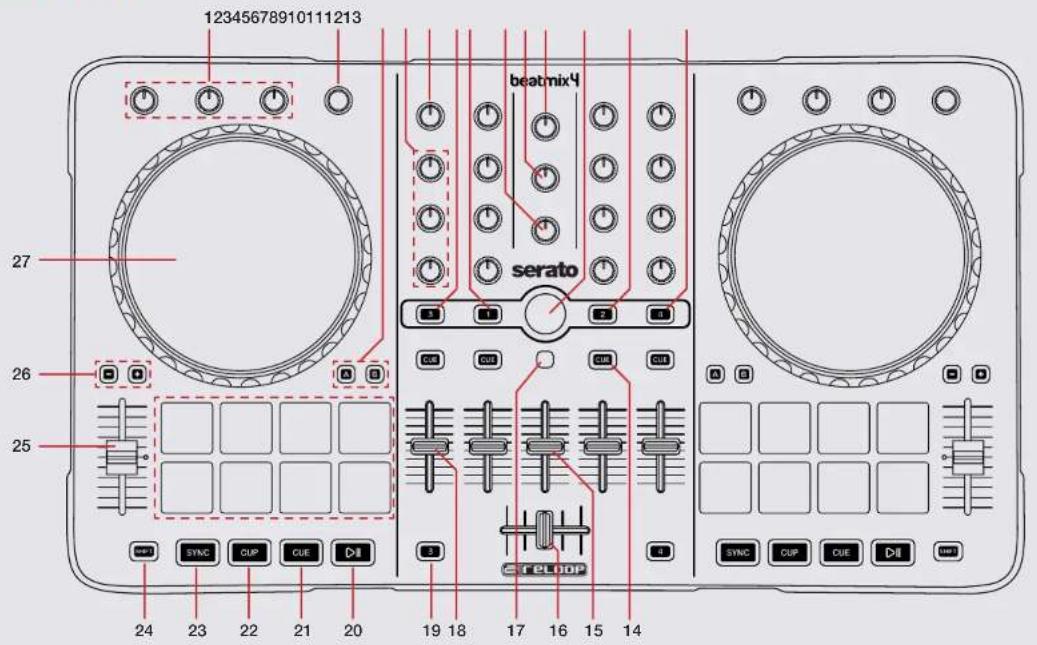
text_image
12345678910111213 beatmix4 serato 27 26 25 SYNC CUP CUE DII 24 23 22 21 20 19 18 17 16 15 14 SYNC CUP CUE DIIserato

DJ
| # Reloop Beatmix 2 Control | Serato DJ Function Shift Function | ||
| 1 | FX UNIT Adjust Slots 1-3 FX Parameters Tum to select FX for slots 1-3 | ||
| 2 | BEATS Turn to adjust beats value for FX / Tap to the set FX tempo. To return to AUTO mode, press and hold | ||
| 3 | PAD MODE Alternate between different performance pad modes or split mode | ||
| 4 | EQ Adjust Low/Mid/High | ||
| 5 | GAIN Adjust channel gain | ||
| 6 | 3 Load track to deck 3 Use to activate channel fader start | ||
| 7 | 1 Load track to deck 1 Use to activate channel fader start | ||
| 8 | CUE MIX Adjusts between Cue and Master in your headphones | ||
| 9 | PHONES Adjusts headphone volume | ||
| 10 | MASTER Adjusts master volume | ||
| 11 | LIBRARY SCROLL Scroll through currently focused area(?) | Use to scroll faster | |
| 12 | 2 Load track to deck 2 Use to activate channel fader start | ||
| 13 | 4 Load track to deck 4 Use to activate channel fader start | ||
| 14 | CUE Cue selected channel in headphones | ||
| 15 | SAMPLER Adjusts sampler volume | ||
| 16 | CROSSFADER Crossfades between the two channels | ||
| 17 | BACK Toggles focus between library/crates/open panels | ||
| 18 | CHANNEL FADER Adjusts channel volume | ||
| 19 | DECK Use to swap the deck layer so you can control decks 3 & 4 | ||
| 20 | PLAY/PAUSE Play/Pause | ||
| 21 | CUE Temporary Cue | Jump to start of track (more than 2 Sec elapsed)Previous track (less than 2 sec elapsed | |
serato

DJ
| # Reloop Beatmix 2 Control | Serato DJ Function Shift Function | ||
| 22 | CUP Stutter Play Press to change range of pitch fader | ||
| 23 | SYNC Sync On Sync Off | ||
| 24 | SHIFT SHIFT button is used with other buttons that have shift modifier functions | ||
| 25 | PITCH FADER Adjust Tempo of playing track When in Sync mode, used to disable the Pitch Fader temporarily and change the zero position | ||
| 26 | PITCH Use to pitch bend playing track up or down Use to assign FX units 1 or 2 to different decks | ||
| 27 | PLATTER Scratch or Jog deck Beat skip | ||
serato

DJ
Performance Pads
There are multiple performance pad modes for the Reloop Beatmix 4. You can alternate between all 3 by using the PAD MODE buttons.
Pad Mode A
In this mode pads 1-4 set and trigger HOT CUES. If you press pads 1-4 with SHIFT held you can delete the cues you have already set. Pads 5-8 set AUTO LOOPS of 1,2,4 and 8 bars from left to right. When pads 5-8 are pressed with SHIFT they perform other looping functions. 5 performs loop on / off, 6 halves the loop length, 7 doubles the loop length and 8 is reloop.
Pad Mode B
In this mode pads 1-4 play samples 1-4 in the active SP6 sample bank. If you press pads 1-4 with SHIFT held you can change the play mode for each respective SP6 sample slot. Pads 5-8 will stop samples 1-4 from playing. When pads 5-8 are pressed with SHIFT they will eject the samples from each SP6 sample slot.
Pad Mode SPLIT
In this mode pads 1-4 set and trigger HOT CUES. If you press pads 1-4 with SHIFT held you can delete the cues you have already set. Pads 5-8 play samples 1-4 in the active SP6 sample bank. If you press pads 5-8 with SHIFT held you can change the play mode for each respective SP6 sample slot.
serato

DJ
DJ-FX
The DJ-FX in Serato DJ are powered by iZotope™. Click the FX tab to open the FX panel. Select either 1, 2 or M to assign the selected effect bank to a deck or Master Output. To activate an effect, click the ON button on your FX UNIT in the software, or the EFFECT button on your controller. You can adjust effect parameters by using either software controls, or the SELECT/CONTROL knobs and the EFFECT button on the controller. There are two available modes in the DJ-FX. Single FX Mode allows you to select one effect per FX bank, and has multiple parameters that can be adjusted. Multi FX Mode allows you to select up to three effects per FX bank, and adjust only one parameter, the FX Depth. The same effects available in Single FX mode are available in Multi FX mode, as well some additional presets.
You can select between the two FX modes by clicking either the Single FX mode button or Multi FX mode button


| Reloop Beatmix $ Control | Single FX mode Shift | ||
| FX 1 | Adjust Parameter 1 | & Effect On/Offwhen knob is turned | Select Effect |
| FX 2 | Adjust Parameter 3 | Select Effect | |
| FX 3 | Adjust Parameter 5 | Select Effect | |
| Reloop Beatmix 2 Control | Single FX mode Shift | |
| FX 1 Adjust Slot 1 Parameter & Effect On/Off when knob is turned | Select Effect in Slot 1 | |
| FX 2 Adjust Slot 2 Parameter & Effect On/Off when knob is turned | Select Effect in Slot 2 | |
| FX 3 Adjust Slot 3 Parameter & Effect On/Off when knob is turned | Select Effect in Slot 3 | |
The effect time is set using the tracks BPM value, but by applying the Beats Multiplier you can increase or decrease the effect timing. Modify this by using the BEATS knob on the controller. Automatic tempo requires that the track on the deck assigned to the FX Unit has BPM information. Manual tempo mode allows you to tap in the tempo yourself.
NOTE: To change to Manual Tempo mode, simply tap the BEATS knob until a desired rate is established. To return to AUTO mode, click and hold BEATS for 1 second.
serato

DJ
SERATO VIDEO
Serato Video is a software plugin for Serato Software which adds the ability to playback and mix video files, use effects and fader transitions with your Serato DJ Controller, an additional MIDI controller or your mouse/keyboard.
For more information on Serato Video go to http://serato.com/video
MIDI
The MIDI control feature in Serato DJ provides the ability to map Serato DJ software functions to MIDI controller functions such as keyboards, triggers, sliders, and knobs. Integrating MIDI controllers into your Serato DJ setup can improve live performance usability, such as hitting pads on a MIDI controller to trigger Loops and Cue Points.
For more information download the Serato DJ manual by going to http://serato.com/dj/downloads
NOTE: You can not MIDI Map your Reloop Beatmix 4, you will need to connect an additional MIDI controller to use these MIDI functions.
Using the Tool Tips
Click on the Ⓞ icon to enable Tool Tips. This is located in between the MIDI and setup button in the top right hand corner of the screen. Tool Tips provide a handy way to learn the various features of Serato DJ.
Move the mouse over a section of the screen to bring up a context sensitive tool tip. Holding the mouse over the Ⓗ button with Tool Tips turned on will show you a list of all keyboard shortcuts.
For more information about how to use Serato DJ, please go to our website www.serato.com or refer to the Serato DJ Software Manual. For more information on your controller, please refer to the hardware manual.
For further help, please contact support@serato.com or go to www.serato.com/dj/support
serato

DJ