
ProFire Lightbridge - Audio recorder PINNACLE - Free user manual and instructions
Find the device manual for free ProFire Lightbridge PINNACLE in PDF.


| Product Type | FireWire Audio Interface / ADAT Recorder |
| Brand | Pinnacle |
| Model | ProFire Lightbridge |
| Form Factor | 1U Rackmount |
| Dimensions (HxWxD) | 1.75 x 19 x 6.5 inches (44 x 483 x 165 mm) |
| Weight | 2.3 kg (5.1 lbs) |
| Power Supply | FireWire bus-powered (6-pin) or external 12V DC adapter |
| Sample Rate | Up to 96 kHz, 24-bit |
| Number of ADAT I/O Ports | 2 x ADAT Optical Input, 2 x ADAT Optical Output |
| Maximum Channels via ADAT | Up to 16 inputs and 16 outputs at 48 kHz, 8+8 at 96 kHz |
| MIDI I/O | 1 x MIDI Input, 1 x MIDI Output |
| Digital Sync | Word Clock I/O (BNC) |
| Computer Connection | 2 x FireWire 400 (6-pin) ports (daisy-chainable) |
| Driver Support | Windows XP/Vista/7/8/10, Mac OS X 10.4+ (legacy) |
| Compatible Software | Any ASIO/Core Audio compatible DAW |
| Main Features | Low-latency performance, stand-alone operation mode, optical ADAT expansion |
| Maintenance & Cleaning | Wipe with a soft, dry cloth; avoid liquids and abrasive cleaners |
| Safety Precautions | Do not expose to moisture or extreme temperatures; unplug during storms |
| Spare Parts & Repairability | Contact Pinnacle support for service; no user-serviceable parts inside |
| Environmental | Operating temperature 5°C to 40°C, humidity 10% to 80% non-condensing |
Frequently Asked Questions - ProFire Lightbridge PINNACLE
User questions about ProFire Lightbridge PINNACLE
0 question about this device. Answer the ones you know or ask your own.
Ask a new question about this device
Download the instructions for your Audio recorder in PDF format for free! Find your manual ProFire Lightbridge - PINNACLE and take your electronic device back in hand. On this page are published all the documents necessary for the use of your device. ProFire Lightbridge by PINNACLE.
USER MANUAL ProFire Lightbridge PINNACLE
About ProFire Lightbridge....3
ProFire Lightbridge Features 4
System Requirements 5
Controls and Connectors 6
Front Panel. 6
Rear Panel....7
Driver Installation 8
Hardware Connections....8
Audio 8
MIDI....9
Word Clock 9
Using ProFire Lightbridge 9
The Software Control Panel 10
Hardware Page 10
About Page 13
Word Clock Synchronization 14
Understanding Word Clock. 14
Specifications 18
Warranty 19
Warranty Terms 19
Warranty Registration 19
Introduction
1
Thank you for purchasing M-Audio's ProFire Lightbridge interface. ProFire Lightbridge uses the ADAT optical I/O standard to bring extensive digital connectivity to your studio. With its four ADAT optical inputs, four ADAT optical outputs, S/PDIF coaxial input and output, and stereo analog outputs, ProFire Lightbridge lets you connect a variety of devices to your FireWire-equipped digital audio workstation.
Using the high-bandwidth, industry-standard FireWire (IEEE1394) protocol, ProFire Lightbridge gives your DAW up to 34 audio inputs and 36 outputs while connecting to your computer via a single cable. This makes it perfect for multi-channel transfers to and from external multitrack recorders. ProFire Lightbridge is also ideal for linking your DAW to an external digital mixer, or for connecting to another computer hosting soft synths and signal processors.
This manual will explain the features and operation of ProFire Lightbridge. Even if you are an experienced recording enthusiast, please take a moment to read this guide and familiarize yourself with all of the unique features of your ProFire Lightbridge.
What's in the Box
2
Your ProFire Lightbridge package contains each of the following:
■ ProFire Lightbridge audio interface
■ Printed Quick Start Guide
■ M-Audio FireWire Series CD-ROM
■ FireWire 400 6-pin cable – 6 ft.
■ FireWire 400 4-pin cable - 6 ft.
■ 12V DC 1A power supply
About ProFire Lightbridge
3
ProFire Lightbridge is a 1U, half-rack audio interface designed to greatly expand the power of your digital studio. It provides a total of 34 digital inputs and outputs plus two analog outputs over a single FireWire connection. The interface's four optical inputs, four optical outputs, and S/PDIF input and output let you connect all of your digital gear to your Windows or Mac computer and send and receive audio from all of these devices at the same time.
If your Windows PC is not equipped with a native FireWire port, you can purchase a FireWire add-on card at any computer electronics retailer. All compatible Macintosh computers have built-in FireWire ports.
Each of the ProFire Lightbridge interface's optical I/O ports can transmit multiple channels of digital audio using the ADAT Optical Standard. This format supports eight channels of audio when operating at a sampling rate of 44.1 or 48kHz, or four channels of high-resolution audio at 88.2 or 96kHz using S/MUX mode. Two channels of S/PDIF I/O are also provided via coaxial RCA connectors, as well as two channels of balanced analog outputs on 1/4" TRS connectors. By default, the analog outputs will mirror the S/PDIF outputs; however, the analog outputs can be configured as independent outputs via the software control panel. Finally, ProFire Lightbridge has a front-panel headphone output with its own dedicated level control.
This interface includes a multitude of word clock synchronization options and can operate as either a clock master or slave. As a word clock slave, the interface can sync to a digital source from any of its optical or S/PDIF inputs. Furthermore, the interface can sync to incoming word clock via its BNC word clock input, or output word clock via the BNC output.
ProFire Lightbridge is also equipped with on-board MIDI I/O ports, enabling you to connect your MIDI-compatible devices to your DAW through the interface. Use these ports to hook up a MIDI controller keyboard, synth module, or to input/output MIDI Time Code (MTC) to synchronize your hardware or software sequencer.
IMPORTANT: ProFire Lightbridge comes with premium six-pin-to-six-pin and four-pin-to-six-pin FireWire cables. We strongly suggest you use one of these cables to connect the interface to your computer. If you must use another FireWire cable, please use a high-quality cable to ensure optimum audio performance. If your computer is equipped with a six-pin interface, use the six-pin-to-six-pin cable; if your computer has a four-pin interface, use the four-pin-to-six-pin cable.
Note that when using the four-pin cable, the external power supply must be used. However, a six-pin cable draws power from the FireWire bus and therefore does not require the power supply.

NOTE: Some computer manufacturers may use a different nomenclature to refer to their FireWire connections, such as Sony's "iLink," or simply "1394." These connectors are compatible with ProFire Lightbridge.
ProFire Lightbridge Features
4
■ Four ADAT optical Lightpipe inputs and outputs
■ Two channels of coaxial S/PDIF I/O
■ Stereo balanced 1/4" analog outputs with dedicated level control
■ All 34 inputs and 36 outputs can be used simultaneously
■ Front-panel stereo headphone output with dedicated level control
■ Optical ports are S/MUX capable for high-resolution audio
■ Supports sample rates of 44.1, 48, 88.2, and 96kHz at up to 24-bit resolution
■ 16 channels of MIDI I/O
■ Word clock I/O on BNC connectors
■ Activity LEDs show enabled ports and valid data at the optical I/O ports
■ Sample rate LED indicators
■ Word clock source LED indicators
■ MIDI I/O LED indicators
■ External power supply input
System Requirements
5
Minimum System Requirements
16 channels of ADAT Lightpipe at 16-bit/44.1kHz
Windows:
Pentium IV 1.8 GHz
512 MB RAM
7200 rpm HD (8 MB buffer)
Available FireWire port or FireWire expansion card
Windows XP (SP2)
Macintosh:
Power Mac G4 1 GHz
(G4 accelerator cards not supported)
512 MB RAM
7200 rpm HD (8 MB buffer)
Native FireWire port
Mac OS X 10.3.9 / 10.4.7
Recommended System Requirements
32 channels of ADAT Lightpipe at 24-bit/48kHz or 16 channels of ADAT Lightpipe SIMUX at 24-bit/96kHz
Windows:
Pentium IV 2.8 GHz
1 GB RAM
7200 rpm HD (16 MB buffer)
Available FireWire port or FireWire expansion card
Windows XP (SP2)
Macintosh:
Power Mac G5 Dual 1.8 GHz
1 GB RAM
7200 rpm HD (16 MB buffer)
Available FireWire port
Mac OS X 10.3.9 / 10.4.7
Controls and Connectors

Front Panel
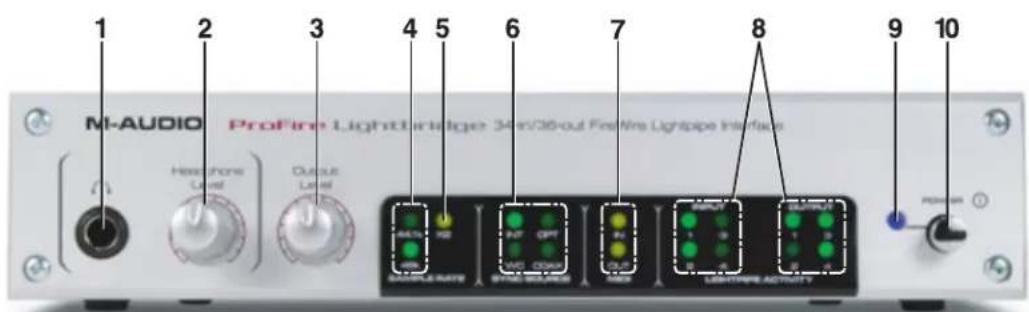
- Headphone Output – Accepts a standard 1/4" stereo headphone connector. This output always mirrors the analog line output. The headphone level is independent of the line output level, and is controlled by the headphone level knob (2).
- Headphone Level – Controls the volume level of the Headphone Output jack (1).
- Output Level - Controls the output level of the rear panel analog Line Outputs (16).
- Sample Rate Indicator LEDs – These LEDs display the sample rate of the current digital input signal, showing 44.1kHz or 48kHz. When the Sample Rate Multiplier LED (5) is lit, the sample rate indicated by these LEDs is doubled to 88.2kHz or 96kHz.
- Sample Rate Multiplier LED – This LED is used in conjunction with the Sample Rate Indicator LEDs (4) to display the sample rate of the current digital input signal. When the Sample Rate Multiplier LED is lit, the sample rate shown by the Sample Rate Indicator LEDs (4) is doubled.
- Sync Source LEDs – These LEDs light to indicate the master word clock synchronization source. The available sources are: internal word clock, external word clock via BNC input, optical input, or S/PDIF input. The associated LED will light steadily if the interface is receiving a valid clock signal, or it will flash if the interface is receiving a faulty signal.
- MIDI Indicator LEDs – These LEDs light to indicate activity at the MIDI input and output ports.
- Optical I/O Activity Indicator LEDs – When lit, these LEDs indicate the presence of a valid digital audio signal at the associated input or output.
- Power LED - This LED illuminates when the unit is powered on.
- Power Switch – Turns ProFire Lightbridge on and off.
Rear Panel

- Power Supply Connector - Connect the 12V DC 1A power supply here. Use only the power supply provided with the interface or an equivalent power supply with the same rating and polarity.
If you are using the six-pin-to-six-pin FireWire cable to attach ProFire Lightbridge to your computer, the interface will draw power from your host computer. It is recommend that you leave the power supply disconnected while operating ProFire Lightbridge on a bus-powered 6-pin FireWire port.
NOTE: Your computer's 6-pin FireWire port may not be able to supply adequate power to ProFire Lightbridge if additional devices, such as external FireWire harddisks, are powered through the same FireWire port. Also, 6-pin FireWire ports on PCMCIA FireWire expansion cards for laptops are generally not bus powered. Use the power supply or connect the ProFire Lightbridge to a different FireWire port to remedy potential low power problems you may encounter.
- Kensington Lock Connector – Connect a standard laptop-style locking security cable here to protect your ProFire Lightbridge from theft or accidental breakage.
13 FireWire Port - Connect ProFire Lightbridge to your computer using one of the supplied FireWire cables. - MIDI, S/PDIF, Word Clock Multi-Pin Connector - Connect the included breakout cable to this multi-pin connector. The breakout cable provides the following connections:
• S/PDIF coaxial (RCA) digital input and output
• MIDI input and output connectors
• Word clock BNC input and output connectors
- Optical Inputs and Outputs – Each of these optical inputs and outputs can support eight channels of digital audio at 44.1 or 48kHz, or four channels of digital audio at 88.2 or 96kHz.
NOTE: These inputs and outputs do not support the two-channel S/PDIF optical format.
- Line Outputs – These 1/4" TRS connectors output a balanced, line-level analog signal.
By default, these outputs mirror the S/PDIF digital output, but can be configured in the control panel to appear as an independent set of outputs for your DAW. The analog line outputs' signal level is controlled by the front-panel Output Level Control knob (3).
NOTE: The Headphone Output (1) always mirrors the signal that is coming out of the Line Outputs.
Driver Installation
7
For detailed instructions on installing ProFire Lightbridge drivers, please refer to the printed Quick Start Guide.
IMPORTANT: Do not connect ProFire Lightbridge to your computer until you have installed the driver files. If you have already connected the interface to your computer, please disconnect it and follow the driver installation instructions as detailed in the Quick Start Guide.
Hardware Connections
8
Audio
Connect your ADAT-optical digital audio devices to any of the four ADAT optical inputs and outputs of the ProFire Lightbridge. The front-panel optical input activity indicator LEDs (8) light to show the presence of a valid digital audio input signal. The front-panel output activity indicator LEDs (8) light to indicate the output of a valid digital audio signal.
Attach the included breakout cable to the rear-panel multi-pin connector (14) and connect a S/PDIF digital audio device to the S/PDIF ports on the breakout cable.
Connect the 1/4" analog outputs of ProFire Lightbridge to your mixer, powered monitors, or any other device with line level inputs.
If you would like to use headphones, connect them to the 1/4" headphone output on the front panel of the interface.
IMPORTANT: Be sure to check the word clock settings on all connected digital audio devices to make certain there is only one sync master. For more information on word clock synchronization, see Chapter 11 below.
MIDI
Connect a MIDI device to the MIDI I/O connectors on the breakout cable. The interface's MIDI connection appears as a standard MIDI data port in your audio workstation software. This connection can be used to connect any MIDI compatible synthesizer, drum machine, or controller to your computer. Alternatively, this connection can be used to input and output MIDI Time Code (MTC) and other synchronization formats for locking to a hardware or software sequencer.
Word Clock
Connect a valid word clock generator or other word clock-compatible device to the word clock BNC connectors on the breakout cable. This connection can be used to synchronize with any word clock-enabled device.
Using ProFire Lightbridge
9
Depending on your DAW software, the inputs and outputs of the ProFire Lightbridge will appear in your program as multiple stereo pairs, typically in blocks of eight. Some applications label these as "Input 1/2," "Input 3/4," etc., while others may refer to them as "Input 1L," "Input 1R," etc. In some applications, ProFire Lightbridge will be recognized as a single, multichannel device, while others may "see" it as multiple separate devices (e.g., "Device A" being the first bank of eight I/O, "Device B" being the second bank of eight I/O, etc.).
The ProFire Lightbridge interface's control panel gives you the option of enabling and disabling various digital ports. Disabling unused ports helps cut down on the processing demands placed on your computer. These options vary depending on whether you use a Mac OS X- or Windows XP-based computer:
Macintosh: On OS X, all inputs and outputs can be individually enabled or disabled. Once a port is disabled, that port will not appear in any of your audio applications.
Windows: On Windows XP, digital inputs can be enabled or disabled individually, while all output ports remain active. Your audio software will display all inputs and outputs regardless of each port's status, but any audio received on inactive input ports will be ignored.
NOTE: This is normal behavior for this device on this platform due to the way Windows currently handles enabling and disabling of audio channels.
You can conserve significant amounts of processing power by enabling and disabling digital ports wisely. For example, if you currently only own one ADAT device, disabling the unused ports allows you to free up processing power for other tasks such as running additional virtual instruments. Alternatively, when mixing a project, you might not require any inputs, but may want to run many plug-in effects. Temporarily disabling unused ports will free up your computer's processing power to help run those plug-ins.
Information on configuring the interface can be found in Chapter 10.
The Software Control Panel
10
After installing the ProFire Lightbridge drivers, you can use the control panel software to configure various parameters of the interface.
To access the control panel in Windows, click the red M-Audio icon in the system tray, or click Start > Control Panel and select the ProFire Lightbridge control panel icon.
On the Mac, the control panel can be accessed by double-clicking the M-Audio FireWire icon in the Applications folder or by selecting the M-Audio FireWire icon in System Preferences > Other.
Your DAW software may also allow you to access the control panel from within the program.
Hardware Page
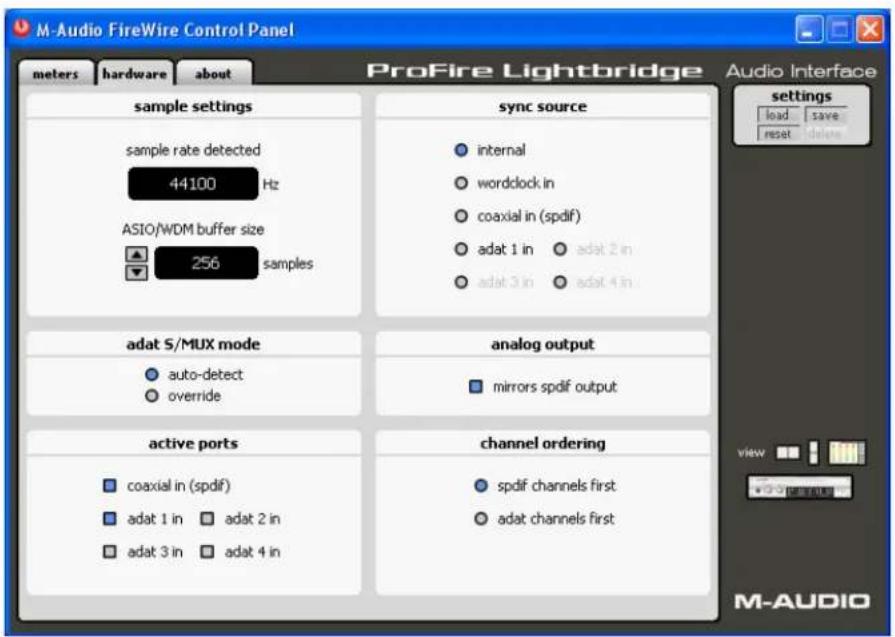
Windows
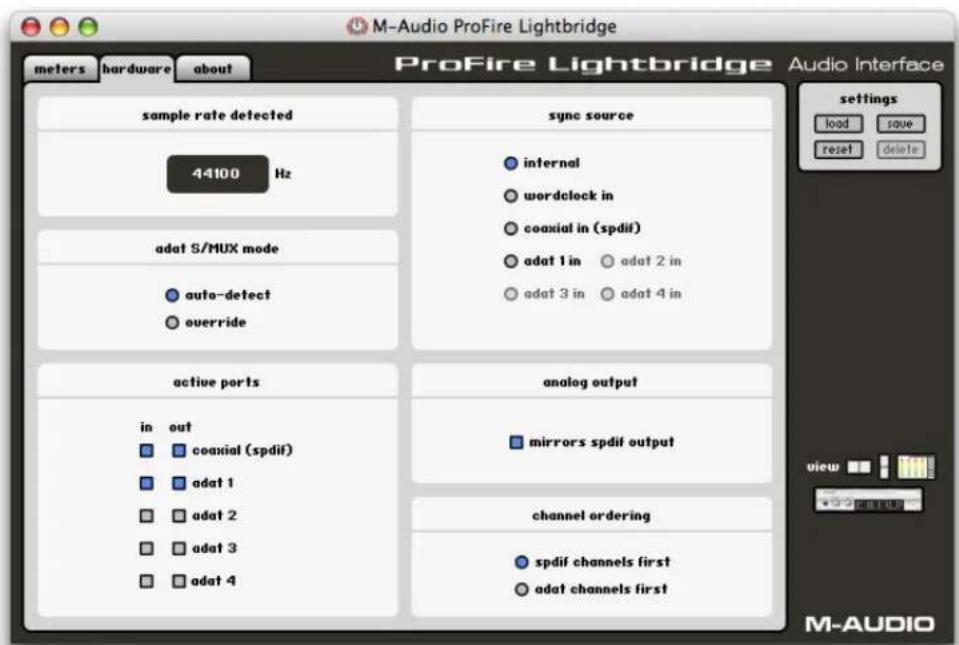
Macintosh
Sample Rate Detected
This window displays the incoming sample rate of the sync master source. This is an information-only display—the incoming sample rate must be changed through your audio software (if the sync source is set to internal), or by changing the sample rate output of the designated master device (if your sync source is set to any of the external options).
Note: This window will show "mismatch" if the ProFire Lightbridge detects different sample rates on at least two of its digital input ports. It is mandatory that all incoming digital audio streams are synchronized for proper operation. See chapter 11 for more information on word clock synchronization
Adat S/MUX mode
The ADAT format carries eight channels of audio when operating at standard sampling rates of 44.1 or 48kHz, or four channels when operating at high resolution sampling rates of 88.2 or 96kHz. This high resolution mode is known as "S/MUX" and is enabled when an ADAT source toggles a special bit in its output stream. This bit tells the destination device to switch to S/MUX mode in order to receive the high resolution signal correctly.
Unfortunately, some devices do not toggle the S/MUX bit and as a result, the ProFire Lightbridge may be unable to automatically detect whether the incoming signal is standard resolution or high resolution. The "Auto-Detect" and "Override" buttons allow you to resolve this issue:
Auto-Detect – This is the default setting and should work in most cases. When this mode is selected, ProFire Lightbridge observes the S/MUX bit of an incoming signal and automatically switches between standard and high resolution modes.
Override – This mode forces all of the ADAT ports of the ProFire Lightbridge to operate at high resolution. You should only select this mode if ProFire Lightbridge is unable to detect a high resolution ADAT input signal when Auto-Detect is selected.
ASIO/WDM Buffer Size (Windows Only)
In this field you can select the buffer size you wish to work with. Lowering the buffer size will result in lower latency ("latency" refers to the time it takes for your input signal to pass through your audio software and appear at the outputs). However, this may cause slower systems to become unstable or to generate clicks and pops in its audio streams. The default buffer size setting is 256 samples, but you may want to experiment with lower settings in order to minimize the latency of your system. If you experience stuttering or crackling in your audio playback, increase the buffer size until these artifacts disappear.
Active Ports
These checkboxes allow you to enable and disable various digital ports. Disabling unused ports not only helps to reduce the processing demands placed on your host computer but also provides a way to block out signals from connected, but currently unsynchronized external digital devices. This, in turn, helps to avoid conflicts between incompatible or unsynchronized digital clocks and provides for uncompromised word clock stability.
NOTE: Some DAW applications support only a limited number of physical inputs and outputs. If you are using a program that limits the number of inputs and/or outputs to fewer than the interface's 34 inputs or 36 outputs, you may not be able to access the S/PDIF I/O or analog outputs, depending on the channel order configuration (see page 14).
Sync Source
In this field you can select the source of your master word clock. (For more information on sync source, see chapter 11.)
- internal – ProFire Lightbridge's internal clock acts as the word clock master. This is the default selection.
word clock in – Word clock is derived from the BNC word clock input. - coaxial in (spdif) – Word clock is derived from the coaxial S/PDIF input.
■ adat 1 - 4 - Word clock is derived from one of the ADAT optical inputs.
NOTE: The sync source options for Word Clock, Coaxial, and ADAT 1-4 are only available if the input ports are active (these options are grayed out if the ports have been disabled).
Analog Output
This field lets you select the source for ProFire Lightbridge interface's analog outputs:
- mirrors spdif output – The analog outputs play back the same signal as routed through the S/PDIF output. In this configuration, the analog outputs do not appear in your DAW software as independent outputs.
If this box is left unchecked, the analog line outputs appear in your DAW as a separate, assignable output.
The headphone output always follows the analog output source. This means that if the “mirrors spdif output” box is checked, then both the analog outputs and the headphones mirror the S/PDIF output. If this box is left unchecked, then the S/PDIF and analog outputs are independent of each other and the headphone output only mirrors the analog outputs.
NOTE: This setting must be selected before launching your DAW application in order for the analog line outputs to appear correctly in the DAW application.
Channel Ordering
- spdif channels first – If this box is active, the interface's S/PDIF port will appear in your DAW first, followed by the optical, and then the analog outputs. That is, the S/PDIF port will be assigned to audio channels 1-2, while the optical ports are assigned to 3-10, 11-18, 19-26 and 27-34. By default, the analog outputs are configured to mirror the S/PDIF output and will carry signals sent from your DAW's output channels 1-2. If the “mirrors spdif output” checkbox is deactivated, then the analog outputs will be designated to output channels 35-36".
- adat channels first – When this box is active, the interface's optical ports will appear in your DAW first, followed by the S/PDIF and analog outputs. That is, the optical ports will be assigned to audio channels 1-8, 9-16, 17-24 and 25-32, with the S/PDIF and analog outputs assigned to 33-34. If the "mirrors spdif output" checkbox is left unchecked, the S/PDIF outputs will be assigned to 33-34, while the analog outputs will be designated to output channels 35-36.
Note: When running Mac OS X, the channel numbering and port arrangement may vary, depending on the number of active digital ports.
About Page
This page contains information about your hardware and current driver software versions. This information may be helpful, should you ever need to contact technical support. Clicking the M-Audio web links will take you directly to the designated page on our website (you will need an Internet connection to use this feature).

Word Clock Synchronization
11
Understanding Word Clock
Your computer-based DAW stores and manipulates music as digital samples. Those samples are sent to and from your DAW as "snapshots" of data. These snapshots are all the same size-16- or 24-bit, depending on your selected resolution-with a beginning and an end, and are sent one after the other as a stream of data. Think of this data stream as a sentence, made up of a series of words of identical length.
Precise, accurate timing in sending and receiving those words is critical. Each device in your interconnected digital world must share the same timing in order to communicate correctly—that is, their clocks must be synchronized.
This synchronization is achieved by designating one device as the timing "master," and all other connected devices as "slaves," locking the slaves to the master. Only one device in the chain can be the master, and all other devices must slave to that master. All devices must be running at the same sample rate as well. For example, if the master is running at 44.1kHz, no other device can be set to 48kHz.
Word clock is an important part of digital studios but is often overlooked by engineers new to digital recording. It is crucial to set up word clock correctly because without precise synchronization between your digital devices, your digital audio signal will be filled with clicks and pops, (if, in fact, it plays at all).
Scenario 1: ProFire Lightbridge as Word Clock Master
By selecting "internal" in the control panel, you designate ProFire Lightbridge as the word clock master. You will then need to select "slave" mode on each of your other digital devices (this is usually an internal menu setting on that device).
In Figure 1 below, digital multitracks are connected to optical ports 1 and 2 of the ProFire Lightbridge, and a DAT machine to the S/PDIF I/O. ProFire Lightbridge is selected as the master, and each of the other devices set to slave.

flowchart
graph TD
    A["Master"] --> B["S/PDIF (RCA)"]
    A --> C["Slave"]
    A --> D["Slave"]
    A --> E["Slave"]
    A --> F["Slave"]
    A --> G["Slave"]
    H["syno source"] --> I["internal"]
    H --> J["wordlock in"]
    H --> K["ccasial in (epdf)"]
    H --> L["adet in 1"]
    H --> M["adet in 2"]
    H --> N["adet in 3"]
    H --> O["adet in 4"]
Figure 1 - ProFire Lightbridge as clock master
Scenario 2: ProFire Lightbridge Slaved to an Optical Input
If you prefer to use another device as word clock master, you will need to configure that device to act as master and select that device's input on ProFire Lightbridge as the sync source. This slaves ProFire Lightbridge (and any other devices connected to the ProFire Lightbridge) to that master device.
In Figure 2 below, a digital multitrack recorder is configured as clock master, with ProFire Lightbridge and other devices (a DAT machine and another multitrack recorder, in this case) configured as slaves.

flowchart
graph TD
    subgraph Slave
        A["Slave"] --> B["Master"]
        B --> C["Slave"]
        C --> D["M-AUDIO"]
    end
    subgraph Master
        E["Slave"] --> F["Master"]
        F --> G["Slave"]
        G --> H["M-AUDIO"]
    end
    subgraph Slave
        I["S/PDIF (RCA)"] --> J["Slave"]
        K["SYNO source"] --> L["intector"]
        L --> M["wordclock in"]
        M --> N["coastal in (split)"]
        N --> O["odat in 1"]
        N --> P["odat in 2"]
        N --> Q["odat in 3"]
        N --> R["odat in 4"]
    end
Figure 2 - External device on optical input as clock master
Scenario 3: ProFire Lightbridge Slaved to S/PDIF Input
You may need to use a two-track device as word clock master. This is because many two-track digital devices, such as consumer CD players, are not designed to be slaved to other devices and must be selected as the word clock master when inputting a digital audio signal.
In Figure 3 below, the digital two-track is configured as the clock master, with ProFire Lightbridge and other devices configured as slaves.

flowchart
graph TD
    A["CD Player"] -->|S/PDIF (RCA)| B["Slave"]
    B --> C["Master"]
    B --> D["Slave"]
    B --> E["Slave"]
    F["syno source"] --> G["internet"]
    F --> H["wordlock in"]
    F --> I["coxonin (spdf)"]
    F --> J["odet in 1"]
    F --> K["odet in 2"]
    F --> L["odet in 3"]
    F --> M["odet in 4"]
Figure 3 - External Device on S/PDIF input as clock master
Scenario 4: ProFire Lightbridge Slaved to Word Clock BNC Input
In many larger digital setups, a master word clock generator is employed to provide an accurate timing reference to the entire setup. In this case, ProFire Lightbridge can be slaved to the word clock generator's BNC output, with other devices configured as slaves and receiving their word clock distribution via ProFire Lightbridge.
In Figure 4 below, ProFire Lightbridge is slaved to a master clock generator, with additional devices slaved to the same master clock through ProFire Lightbridge.

flowchart
graph TD
    A["Master"] --> B["Word Clock Generator"]
    B --> C["Slave"]
    C --> D["Slave Slave Slave"]
    C --> E["S/PDIF (RCA)"]
    C --> F["Word Clock (BNC)"]
    C --> G["sync source"]
    style A fill:#f9f,stroke:#333
    style B fill:#ccf,stroke:#333
    style C fill:#cfc,stroke:#333
    style D fill:#fcc,stroke:#333
    style E fill:#cff,stroke:#333
    style F fill:#ffc,stroke:#333
    style G fill:#fcf,stroke:#333
Figure 4 - ProFire Lightbridge slaved to master clock, providing clock distribution
For more information on selecting the word clock synchronization source, see the Software Control Panel section of this manual.
Specifications
12
| D/A Converters 44.1, 48, 88.2, 96kHz | |
| Supported Bit Rates 16-bit, 24-bit | |
| Digital Inputs 4 optical Lightpipe | stereo coaxial S/PDIF |
| Digital Audio Outputs 4 optical Lightpipe | stereo coaxial S/PDIF |
| Line Outputs 1/4" TRS balanced/unbalanced | |
| Output Impedance 300 Ohm balanced/150 Ohm unbalanced | |
| Maximum Output Level +10.2 dBu (2.5 Vrms) balanced+2.0 dBV (1.26 Vrms), unbalanced | |
| Channel-to-Channel Crosstalk < -1 dB @ 1kHz | |
| SNR -109 dB, A-weighted | |
| Dynamic Range 109 dB, A-weighted | |
| THD+N 0.00127 % (-98 dB) @ -1 dBFS, 1 kHz | |
| Frequency Response | 20 Hz to 20 kHz, +/- 0.1 dB @ 48 kHz sample rate20 Hz to 40 kHz, +/- 0.2 dB @ 96 kHz sample rate |
| Headphone Output | |
| Maximum Output | -3.0 dBV (1.71 Vrms) into 32 ohms |
| Working Range | 32 to 600 ohms |
| Impedance | 75 Ohm |
| Crosstalk | <-85 dB |
| THD+N 0.011% (-79 dB) @ -1 dBFS, 1 kHz | |
| SNR -108 dB, A-weighted | |
| Dynamic Range 108 dB, A-weighted | |
| Frequency Response | 20 Hz to 20 kHz, +/- 0.1 dB @ 48 kHz sample rate20 Hz to 40 kHz, +/- 0.2 dB @ 96 kHz sample rate |
48 kHz sampling rate unless otherwise stated
Warranty
13
Warranty Terms
M-Audio warrants products to be free from defects in materials and workmanship, under normal use and provided that the product is owned by the original, registered user. Visit www.m-audio.com/warranty for terms and limitations applying to your specific product.
Warranty Registration
Thank you for registering your new M-Audio product. Doing so immediately both entitles you to full warranty coverage and helps M-Audio develop and manufacture the finest quality products available. Register online at www.m-audio.com/register to receive FREE product updates and for the chance to win M-Audio giveaways.
WARNING: This product contains chemicals, including lead, known to the State of California to cause cancer, and birth defects or other reproductive harm. Wash hands after handling.
© 2006 Avid Technology, Inc. All rights reserved. Product features, specifications, system requirements and availability are subject to change without notice. Avid, M-Audio and ProFire Lightbridge are either trademarks or registered trademarks of Avid Technology, Inc. All other trademarks contained herein are the property of their respective owners.
M-Audio USA
5795 Martin Rd., Irwindale, CA 91706
Technical Support
web: www.m-audio.com/tech
tel (pro products): (626) 633-9055
tel (consumer products): (626) 633-9066
fax (shipping): (626) 633-9032
Sales
e-mail: sales@m-audio.com
tel: 1-866-657-6434
fax: (626) 633-9070
Web
www.m-audio.com
M-Audio U.K.
Floor 6, Gresham House, 53 Clarenden Road, Watford
WD17 ILA, United Kingdom
Technical Support
e-mail: support@maudio.co.uk
tel:(Mac support): +44 (0)1765 650072
tel: (PC support): +44 (0)1309 671301
Sales
tel: +44 (0)1923 204010
fax: +44 (0)1923 204039
Web
www.maudio.co.uk
M-Audio France
Floor 6, Gresham House, 53 Clarenden Road, Watford
WD17 ILA, United Kingdom
Assistance Technique
PC:0820000731
MAC: 0820391191
Assistance Technique
e-mail : support@m-audio.fr
mac@m-audio.fr
e-mail: support@m-audio.de
tel +49 (0)7941 - 9870030
fax: +49 (0)7941 98 70070
Sales
e-mail: info@m-audio.de
tel: +49 (0)7941 98 7000
fax: +49 (0)7941 98 70070
Web
www.m-audio.de
M-Audio Canada
1400 St-Jean Baptiste Ave. #150, Quebec City,
Quebec G2E 5B7, Canada
Technical Support
e-mail: techcanada@m-audio.com
phone: (418) 872-0444
fax: (418) 872-0034
Sales
e-mail: infocanada@m-audio.com
phone: (866) 872-0444
fax: (418) 872-0034
Web: www.m-audio.ca
M-Audio Japan


- Introduction
- 1
- What's in the Box
- 2
- About ProFire Lightbridge
- 3
- ProFire Lightbridge Features
- 4
- System Requirements
- 5
- Minimum System Requirements
- Windows:
- Macintosh:
- Recommended System Requirements
- Controls and Connectors
- Front Panel
- Rear Panel
- Driver Installation
- 7
- Hardware Connections
- 8
- Audio
- MIDI
- Word Clock
- Using ProFire Lightbridge
- 9
- The Software Control Panel
- 10
- Hardware Page
- Macintosh
- Sample Rate Detected
- Adat S/MUX mode
- ASIO/WDM Buffer Size (Windows Only)
- Active Ports
- Sync Source
- Analog Output
- Channel Ordering
- About Page
- Word Clock Synchronization
- 11
- Understanding Word Clock
- Scenario 1: ProFire Lightbridge as Word Clock Master
- Scenario 2: ProFire Lightbridge Slaved to an Optical Input
- Scenario 3: ProFire Lightbridge Slaved to S/PDIF Input
- Scenario 4: ProFire Lightbridge Slaved to Word Clock BNC Input
- Specifications
- 12
- Warranty
- 13
- Warranty Terms
- Warranty Registration
- M-Audio USA
- Technical Support
- Sales
- M-Audio U.K.
- M-Audio France
- Assistance Technique
- M-Audio Canada
- M-Audio Japan
Brand : PINNACLE
Model : ProFire Lightbridge
Category : Audio recorder