
49UF771V - Monitor LG - Free user manual and instructions
Find the device manual for free 49UF771V LG in PDF.


| Product Type | LED TV |
| Brand | LG |
| Model | 49UF771V |
| Screen Size | 49 inches (diagonal) |
| Display Resolution | 3840 x 2160 (4K UHD) |
| Smart Platform | webOS |
| Wireless Connectivity | Wi-Fi (802.11 a/b/g/n) |
| Wired Connectivity | Ethernet (RJ-45) |
| Wireless Display | Miracast, Intel WiDi |
| Wi-Fi Direct | Yes |
| SmartShare (DLNA) | Yes |
| Remote Control | Magic Remote (included) |
| Power Supply | AC 100-240V, 50/60Hz |
| Country of Manufacture | South Korea |
| Included Accessories | Remote control, power cord, user manual |
| Firmware Update | Via network (automatic or manual) |
| OSD Languages | Multiple languages |
Frequently Asked Questions - 49UF771V LG
User questions about 49UF771V LG
0 question about this device. Answer the ones you know or ask your own.
Ask a new question about this device
Download the instructions for your Monitor in PDF format for free! Find your manual 49UF771V - LG and take your electronic device back in hand. On this page are published all the documents necessary for the use of your device. 49UF771V by LG.
USER MANUAL 49UF771V LG
* Image shown may differ from your TV.
* Image shown on a PC or mobile phone may vary depending on the OS(Operating System).
* App icon positions may vary on the platform, depending on the software version.
Network Settings
1 Press the (Home) button on the remote to access the Home menu. Highlight the
(Settings) icon and select by pressing the Wheel (OK) button on the remote.

2 Highlight the ⚠ (Advanced) icon and select by pressing the ⏻ Wheel (OK) button on the remote.
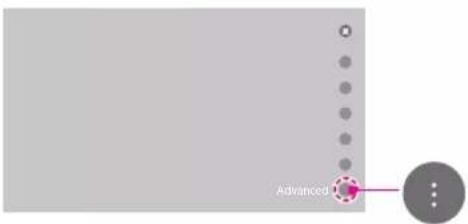
3 Select the Network → Wired Connection (Ethernet) or Wi-Fi Connection.

4 The device automatically tries to connect to the network available (wired network first).
When you select the Wi-Fi Connection, the network list available is displayed. Choose the network you wish to use.

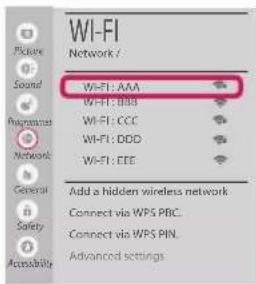
For wireless AP (Router) that have the
symbol, you need to enter the security key.
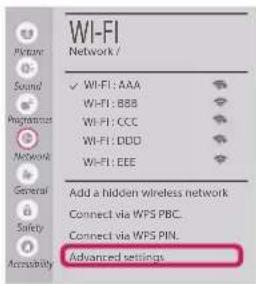
5 If the connection is successful, the "Connected to Internet" network is displayed.

You can check the status of connection in Advanced settings.

www.lg.com
P/NO:MBM64816712(1505-REV02)
Printed in Korea
Troubleshooting Network Problems
1 Press the (Home) button on the remote to access the Home menu. Highlight the (Settings) icon and select by pressing the Wheel (OK) button on the remote.

2 Highlight the ⏻ (Advanced) icon and select by pressing the ⏻ Wheel (OK) button on the remote.

3 Select the Network → Wired Connection (Ethernet) or Wi-Fi Connection → Advanced settings.
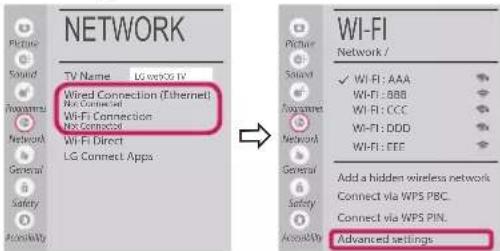
Follow the instructions below that correlate to your network status.
Check the TV or the AP (Router).

When X appears next to TV:
① Check the connection status of the TV, AP (Router).
② Power off and power on the TV, AP (Router).
③ If you are using a static IP, enter the IP directly.
4 Contact internet service provider or AP (Router) company.
Check the AP (Router) or consult your Internet service provider.

When X appears next to Gateway:
i Unplug the power cord of the AP (Router) and try to connect after 5 seconds.
② Initialize (Reset) the AP (Router).
③ Contact internet service provider or AP (Router) company.

flowchart
graph LR
    A["TV"] --> B["Wireless"]
    B --> C["DNS"]
    C --> D["Circle Icon"]
When X appears next to DNS:
① Unplug the power cord of the AP (Router) and try to connect after 5 seconds.
② Initialize (Reset) the AP (Router).
③ Check that the MAC address of the TV/AP (Router) is registered with your Internet service provider. (The MAC address displayed on the right pane of the network status window should be registered with your Internet service provider.)
4 Check the AP (Router) manufacturer's website to make sure your router has the latest firmware version installed.
SmartShare PC SW Installing & Setting
1 Install the SmartShare PC SW programme on your PC.
2 Go to www.lg.com. Then, select your region.
3 Select SUPPORT. Then, search for your model.
4 Select Drivers & Software or SOFTWARE UPDATE. Then, select SmartShare PC SW.
5 You can run the programme when installation is complete.

NOTE
- SmartShare service is only available if TV and other devices are connected via a single AP (Router).
SmartShare Connection to Smartphone

1 Check that Wi-Fi is enabled on your smartphone. To use SmartShare, both devices must on the same local network.
2 Install/run the app for sharing content on your smartphone (It's called SmartShare on LG phones).
3 Enable your smartphone to share content files with other devices.
4 Open SmartShare application. ⬤ (Home) → SmartShare.
5 Select the file type you want to play (movie, audio or photo).
6 Select a movie, music or photo file to play on the TV.
7 Play the media file to view and enjoy it on your TV.
Updating the TV Firmware
* If the TV is turned on for the first time after it was shipped from the factory, initialization of the TV may take a few minutes.

(Home)

(Settings)

(Advanced)

neral → About This TV →
CHECK FOR UPDATES
2 After checking the version of the software, update it.
If you check the "Allow Automatic Updates", you can update the software automatically.

Wi-Fi Direct Setting
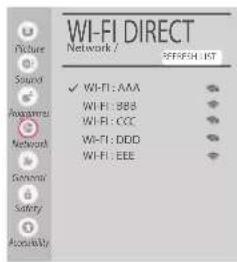
(Home) → (Settings) → (Advanced) → Network → Wi-Fi Direct
If a local network is not available, you can connect a portable device directly to the TV using Wi-Fi Direct.
With SmartShare, you can share files or screens of devices connected to Wi-Fi Direct.
1 When you open Wi-Fi Direct menu, a list of available devices appears.
2 When you are prompted to request connection, select Yes. Wi-Fi Direct is now connected to your TV.
Miracast Setting
Miracast allows a portable device to securely send video and sound to the TV wirelessly.

(Home) → Screen Share
1 Miracast should be set to "ON" on your portable device.
2 When your TV is detected, select the device on your portable device.
When connection is completed, the device screen appears on the TV screen.
WiDi (Wireless Display) Setting
Intel's WiDi (Wireless Display) technology enables easy and fast connection without wires or internet network for mirrored and dual monitor display on your TV. You can sit back and experience your favorite movies, videos, photos, online shows and more in full HD on your TV with great image clarity and sound.

(Home) → Screen Share
1 Intel's WiDi is set to On. Connect your laptop to AP (Router). (Without AP, it is possible to use this function; it is recommended to connect to AP.) Your laptop runs the Intel WiDi programme.
2 It detects LG webOS TVs available, which supports WiDi. In the list, select the TV you want and click Connect. Enter the number shown on the screen into the input field (a) on your laptop and then click Continue.
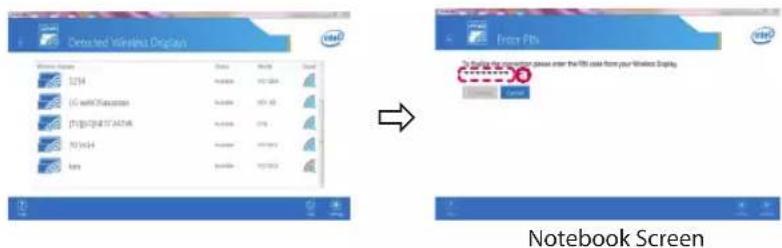
3 The laptop screen appears on the TV screen. The wireless environment may affect the screen display. If the connection is poor, the Intel WiDi connection may be lost.
* LG TVs do not need to register.
* For more information on Intel WiDi, visit http://intel.com/go/widi.
* You can control your PC using the Magic Remote.
Please call LG Customer Service if you experience any problems.
2 Выделите значок

(Расширенные
flowchart
graph LR
    A["TV"] --> B["Wireless Device"]
    B --> C["DNS × Mobile Phone Icon"]
(Home) → Screen Share
(Home) → Screen Share
Экран ноутбука
Ноутбук экраны
flowchart
graph LR
    A["TV"] --> B["Wireless Router"]
    B --> C["DNS × Mobile Icon"]
(DIM) → Screen Share
Екран ноутбука
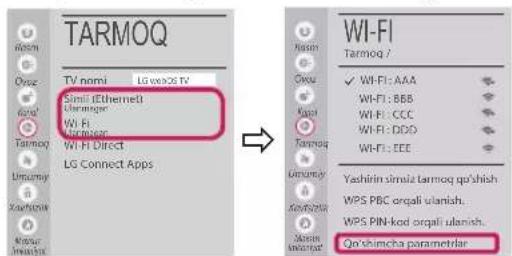
2 Masofadan boshqarish pultida G'ildirak (OK) tugmasini bosish orqali (Qo'shimcha) belgisini ajratib ko'rsating va tanlang.

3 Tarmoq → Simli (Ethernet) yoki Wi-Fi-ni tanlang.

Ulanishning holatini Qo'shimcha parametrlarda tekshirishingiz mumkin.
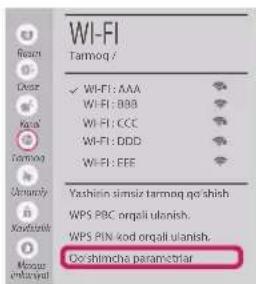

2 Masofadan boshqarish pultida G'ildirak (OK) tugmasini bosish orqali (Qo'shimcha) belgisini ajratib ko'rsating va tanlang.

3 Tarmoq → Simli (Ethernet) yoki Wi-Fi → Qo'shimcha parametrlar-ni tanlang.
X Televizor yonida paydo bo'lganda:
TV, Kirish nuqtasi (Router) ulanish holatini tekshiring.
② TV, Kirish nuqtasini (Router) o'chiring va yoqing.
③ Agar siz statik IP dan foydalansangiz, to'g'ridanto'g'ri IP ni kiriting.
4 Internet provayderi yoki KN (Ruter) kompaniyalariga murojaat qiling.
Rauterni tekshiring yoki Internet ta'minotchingiz bilan maslahatlashing.

X Shlyuz yonida paydo bo'Iganda:
① Kirish nuqtasi (Router) kabelini uzing va 5 soniyadan keyin ulashga urinib ko'ring.
② Kirish nuqtasini (Router) initsializatsiya qiling (qayta tiklang).
③ Internet provayderi yoki KN (Ruter) kompaniyalariga murojaat qiling.

flowchart
graph LR
    A["TV"] --> B["Radio Station"]
    B --> C["DNS"]
    C --> D[" globe icon"]
SmartShare PC SW ni o'rnatish va sozlash
1 Kompyuteringizga SmartShare PC SW (raqamli mediani multimedia qurilmalari orqali ulashish imkonini beruvchi Smart ulanish) dasturini o'rnating.
2 www.lg.com saytiga o'ting. Keyin mintaqangizni tanlang.
3 ПОДДЕРЖКА-ni tanlang. Keyin rusumingizni tanlang.
4 Drayverlar va Drivers & Software yoki ОБНОВЛЕНИЕ ПО-ni tanlang. So'ng SmartShare PC SW ga o'ting.
5 O'rnatish tugallangach, siz dasturni ishga tushirishingiz mumkin.

ESLATMA
- SmartShare xizmatidan faqat televizor va boshqa qurilmalar yagona rauter orqali ulangandagina foydalanish mumkin.
SmartShare smartfonga ulanish

1 Smartfoningizda Wi-Fi yoqilganligini tekshiring. SmartShare-dan foydalanish uchun ikkala qurilma bir xil mahalliy tarmoqda bo'lishi kerak.
2 Smartfoningizda tarkibni baham ko'rish uchun ilovani o'rnating/ishlating (U LG telefonlarida SmartShare deb ataladi).
3 Tarkib fayllarini boshqa qurilmalar bilan baham ko'rish uchun smartfoningizni yoqing.
4 SmartShare ilovasini oching. Ⓜ (Uy) → SmartShare.
5 O'ynatmoqchi bo'lgan fayl turini tanlang (film, audio yoki fotosurat).
6 Televizorda o'ynatish uchun video, musiqa yoki fotosurat faylini tanlang.
7 Televizoringizda media faylni ko'rish va zavqlanish uchun uni o'ynating.
Televizor mikrodasturini yangilash
(Uy)→ (PARAMETRLAR)→ (QO'SHIMCHA)→ Tarmoq → Wi-Fi Direct
Agar mahalliy tarmoq mavjud bo'lmasa, Wi-Fi Direct-dan foydalangan holda ko'chma qurilmani to'g'ridanto'g'ri televizorga ulashingiz mumkin.
SmartShare bilan siz Wi-Fi Direct ga ulangan qurilmalarning fayllari yoki ekranlidagi tasvirlarni ulashishingiz mumkin.
flowchart
graph LR
    A["TV"] --> B["Wireless Router"]
    B --> C["DNS × Mobile Phone Icon"]
(Гэр) → ⚙️ (ТОХИРГОО) → ⓣ (ДЭВШИЛТЭТ ТОХИРГОО) → Сүлжээ → Wi-Fi Direct
Тэмдэглэлийн Дэлгэц
- Network Settings
- Troubleshooting Network Problems
- Check the TV or the AP (Router).
- Check the AP (Router) or consult your Internet service provider.
- SmartShare PC SW Installing & Setting
- NOTE
- SmartShare Connection to Smartphone
- Updating the TV Firmware
- CHECK FOR UPDATES
- Wi-Fi Direct Setting
- Miracast Setting
- WiDi (Wireless Display) Setting
- Rauterni tekshiring yoki Internet ta'minotchingiz bilan maslahatlashing.
- SmartShare PC SW ni o'rnatish va sozlash
- ESLATMA
- SmartShare smartfonga ulanish
- Televizor mikrodasturini yangilash
Brand : LG
Model : 49UF771V
Category : Monitor