SCT014 - Memory card reader Sveon - Free user manual and instructions
Find the device manual for free SCT014 Sveon in PDF.


| Product type | Memory card reader |
| Brand | Sveon |
| Model | SCT014 |
| Dimensions (approx.) | 6.0 x 3.0 x 1.0 cm |
| Weight (approx.) | 30 g |
| Power supply | USB bus-powered (5V) |
| Supported card types | SD, SDHC, SDXC, microSD, microSDHC, microSDXC, MMC, MS, MS Pro, MS Duo |
| Interface | USB 2.0 (backward compatible with USB 1.1) |
| Maximum storage capacity | Up to 2 TB (depending on card) |
| Operating systems supported | Windows 7/8/10/11, macOS 10.6 and later, Linux (kernel 2.6+) |
| Plug and play | Yes, no driver required |
| Data transfer speed | Up to 480 Mbps (USB 2.0) |
| LED indicator | Blue LED for power/activity |
| Cable length | 15 cm (integrated) |
| Material | ABS plastic |
| Color | Black |
| Maintenance | Clean with a soft dry cloth; avoid contact with liquids |
| Safety | Keep away from moisture, heat, and magnetic fields |
| Spare parts / repairability | Non-user serviceable; no spare parts available |
| General information | Compact design for easy portability |
Frequently Asked Questions - SCT014 Sveon
User questions about SCT014 Sveon
0 question about this device. Answer the ones you know or ask your own.
Ask a new question about this device
Download the instructions for your Memory card reader in PDF format for free! Find your manual SCT014 - Sveon and take your electronic device back in hand. On this page are published all the documents necessary for the use of your device. SCT014 by Sveon.
USER MANUAL SCT014 Sveon
SCT014
Sconned series
44in1 SIM Card Reader
MS, MS Pro, HS MS Pro, MS Magic Gate, HS MS Magic Gate Pro, Extreme MS Pro, Extreme III MS Pro, Ultra MS Pro, MS ROM, MS Select. MS Duo, MS Pro Duo, HS MS Pro Duo, MS Magic Gate Pro Duo, HS MS Magic Gate Pro Duo.
XD, Micro SD, TF y M2
Compact Flash I y II.
- Welcome
- Features
- Technical Specifications
- System Requirements
- Content
- Hardware
- Installation
- SIM Editor
- Card Reader
- Uninstallation
- FAQs
1. Welcome
3. Technical Specifications
SIM card reader: 1 slot
Tarjeta SIM
Card Reader: 5 slots. Supported cards
SD, SD ROM, Extreme SD, Extreme II SD, Ultra SD, Ultra II SD, SD Pro, SD Elite Pro, HS SD, Ultra Speed SD, Micro SD, SD Ultra X, SDHC. Mini SD and HS Mini SD need adaptor
MMC, MMCII, MMC4.0, MMC Plus, HS MMC. RS MMC, MMC Mobile, HS RS MMC and DV-RS MMC 4.0 need adaptor.
MS, MS Pro, HS MS Pro, MS Magic Gate, HS MS Magic Gate Pro, Extreme MS Pro, Extreme III MS Pro, Ultra MS Pro, MS ROM, MS Select. MS Duo, MS Pro Duo, HS MS Pro Duo, MS Magic Gate Pro Duo, HS MS Magic Gate Pro Duo.
XD, Micro SD, TF and M2
Compact Flash I and II.
4. System Requirements
Pentium III 300MHz (or higher) with an available 2.0 USB Port (compliant with 1.1)
OS: Windows 2000, XP or Vista
CD ROM unit
5. Content
- Multi card reader
- USB Cable
- CD Driver (user guide included)
- Guarantee card
- Quick Installation Guide
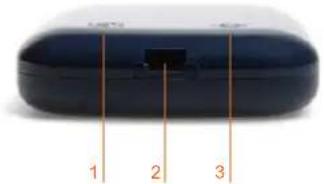
6. Hardware
- Card Reader LED
- USB Connector
- Status LED (power on / off)
- Slot for CF cards
- Slot for XD cards
- Slot for SIM cards
- Slot for M2 and Micro SD cards
- Slot for SD, MMC cards
- Slot for MS cards


SCTo14 User Guide
Index
- Welcome
- Features
- Technical Specifications
- System Requirements
- Content
- Hardware
- Installation
- SIM Editor
- Card Reader
- Uninstallation
- FAQs
7. Installation
- Before connecting the unit to your PC, insert the CD Driver provided with the unit in the CD or DVD ROM unit of your PC. The installation window will appear automatically; if it doesn't appear go to My Computer, select the CD or DVD ROM unit of your PC, click on "Windows" and run the file: "SCT014Driver and Sim Editor". Click on "Next" in the installation assistant.

- The installation assistant will ask you if you want to install the direct access icon in your taskbar or in your desktop. Select the option you prefer and then click on "Next".

- Wait until the installation process is finished.

- Once the drivers are completely installed we recommend you to restart your PC.

- After restarting your computer, connect the card reader and wait until your PC install and confirm if the device is ready to be used.

SIM Editor will allow you to manage all the information saved in the SIM card of your mobile phone. You will be able to edit, add, copy or delete contacts in your contact list, make a back up of your contact list, sort or delete SMS and even change the PIN code of your SIM card.
SIM Editor Icons:

SCTo14 User Guide
Index
-
Welcome
-
Features
-
Technical Specifications
-
System Requirements
-
Content
-
Hardware
-
Installation
-
SIM Editor
-
Card Reader
-
Uninstallation
-
FAQs
-
Load
- Save
- Import / Export
- SIM information
- Enable, disable or change the PIN code
- Unblock
- New
- Delete
- Select Language
- Close SIM Editor
1. How to obtain the information from your contact list or SMS
Insert the SIM card of your mobile in the correct slot of the card reader.

Run SIM Editor software by double clicking in the program icon installed in your taskbar or in your desktop. You can also access to the program from Start menu / Programs / SIM Card kits / SIM Editor.
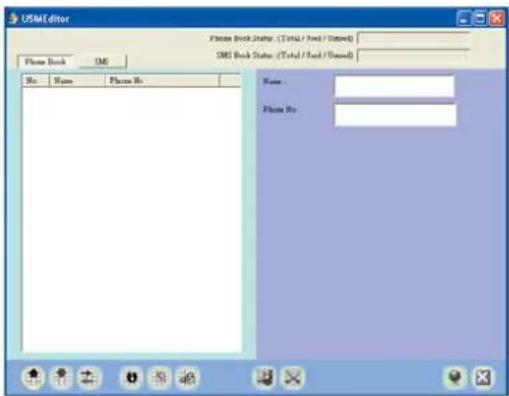
If you want to obtain the information from your contact list, make sure the tab "Directory" is marked and click on the icon located in the bottom left corner "Load". All the contact list will be displayed in the program window. Select any contact to view further information; this information will appear in the right part of the program window.

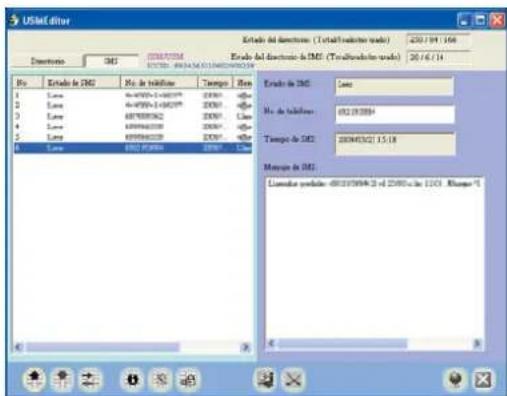
If you want to obtain the SMS (short messages) saved in your SIM card, make sure the option "SMS" is marked and click on the icon located in the bottom left corner of the program window "Load". The SMS list will be displayed. Select a message to display further information about the message in the right part of the program window: SMS status, telephone number used to send the message, date of send and content.
In the top of the program window SIM Editor software informs you about the maximum quantity of entries which can contain your contact list and SMS list. Besides the program offers information about the free and used entries.
SCTo14 User Guide
Index
- Welcome
- Features
- Technical Specifications
- System Requirements
- Content
- Hardware
- Installation
- SIM Editor
- Card Reader
- Uninstallation
- FAQs
2. Edit / Delete / Add entries
You can modify the name of a contact or its telephone number directly from the right part of the program window. To delete a contact, select it and click over "Delete" icon.

How to create a new contact: press over "New" icon and a new entry will be created in your contact list. Write the name for the new contact in "Name" field and then write the telephone number in "Telephone number" field in the right part of the program window.
You can also edit your SMS received messages directly from the right part of the program window. If you want to delete a SMS, select it and press over "Delete" icon.
SIM Editor allows you to create new SMS messages which will be sent when you turn your mobile phone on. Press over "New" icon, a new entry will appear. In "SMS Status" tab select "To be sent". Enter the telephone number you want to send the SMS and write the text.

Once you have made all the changes you want in your contact list and in your SMS list you have to press "Save" if you want to save all the changes. If you forgot to press "Save" all the changes will be lost.
3. Export
SIM Editor allows you to make a back up of the contact list of your mobile phone and of your SMS list. Click on "Import/Export", select "Export" function and select the folder in which you want to save the back up and the name you want to use for it (the name selected by default is phone.csv for contact list back up and sms.csv for SMS back up).
4. Import
Select "Import/Export" and "Import" function if you want to add new entries to your contact list. Choose the file .CSV you want to import. All the contacts saved in the CSV file will be added to your contact list automatically.
5. SIM information
Select this option to display all the information about the SIM card of your mobile phone. This information will be shown only if it is available.
6. Enable, disable or change PIN code
You are able to enable, disable or change the PIN code of your SIM card. Click over this icon and choose between the different options: "Enable PIN code", "Disable PIN code" or "Change PIN code". If you select "Change PIN code" you must enter the new PIN code you want to assign.
7. Unblock
This option allows you to unblock the SIM card of your mobile phone.
8. Select language
You can change the OSD language of the SIM Editor program. Click on "Select language" and select the OSD language you want to use from the list. Press "OK" to confirm or "Cancel" to cancel.

SCTo14 User Guide
Index
-
Welcome
-
Features
-
Technical Specifications
-
System Requirements
-
Content
-
Hardware
-
Installation
8. SIM Editor
-
Card Reader
-
Uninstallation
-
FAQs
9. Card Reader
Thanks to its multi-slot design you will be able to insert different memory cards simultaneously and share files between cards inserted in different slots.
The cards must be inserted in their slots smoothly. Please do not force the cards when you insert them in their slots because it could damage the device. When you insert a memory card, a red led will be turned on, it means the device has recognized correctly the new memory card. When you insert a SIM card an indicator green led will be turned on and it will turn into red when the card reader access to the SIM card content.
If you want to access to the files saved in the memory cards go to "My PC". The slots which have memory cards inside are marked in blue colour in My PC menu. Double click over the memory card where you want to access.
You will be able to copy files between memory cards inserted in different slots directly without needing to copy the file previously in your computer. First, you have to access to the memory card which contains the files you want to copy, select the file you want to copy by right clicking and then select "Copy". Then, you have to access to the memory card in where you want to copy the file, select it by right clicking and then select "Paste". The file will be copied directly.
10. Uninstallation
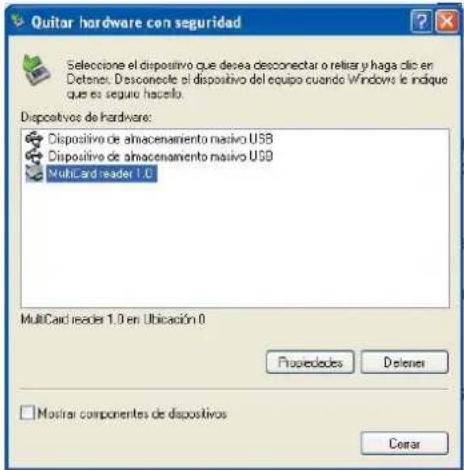
We suggest you to disconnect the device by clicking on "Remove hardware safety". Right clicking over the device icon in the window bar and then select "Remove hardware safely". Select the device and then click on "Stop". A confirmation message will appear when you could unplug the device.
When I click on "Load" icon in SIM Editor software window an error message appears.
Please make sure the SIM card is placed in the correct slot and also if it is correctly inserted. If the device still doesn't recognize the SIM card, unplug the card reader and plug it again to your PC.
SCTo14 User Guide
Index
-
Welcome
-
Features
-
Technical Specifications
-
System Requirements
-
Content
-
Hardware
-
Installation
-
SIM Editor
-
Card Reader
-
Uninstallation
-
FAQs
SCTo14 Manual do utilizador
Indice
SD, SD ROM, Extreme SD, Extreme II SD, Ultra SD, Ultra II SD, SD Pro, SD Elite Pro, HS SD, Ultra Speed SD, Micro SD, SD Ultra X, SDHC. Mini SD and HS Mini SD need adaptor
MMC, MMCII, MMC4.0, MMC Plus, HS MMC. RS MMC, MMC Mobile, HS RS MMC and DV-RS MMC 4.0 need adaptor.
MS, MS Pro, HS MS Pro, MS Magic Gate, HS MS Magic Gate Pro, Extreme MS Pro, Extreme III MS Pro, Ultra MS Pro, MS ROM, MS Select. MS Duo, MS Pro Duo, HS MS Pro Duo, MS Magic Gate Pro Duo, HS MS Magic Gate Pro Duo need adaptor.
XD, Micro SD, TF and M2
Compact Flash I / II
4. Requisitos do sistema
SCTo14 Manual do utilizador
Indice
SCTo14 Manual do utilizador
Indice
- SCT014
- 44IN1 SIM CARD READER
- WELCOME
- TECHNICAL SPECIFICATIONS
- CARD READER: 5 SLOTS. SUPPORTED CARDS
- SYSTEM REQUIREMENTS
- CONTENT
- HARDWARE
- INDEX
- INSTALLATION
- HOW TO OBTAIN THE INFORMATION FROM YOUR CONTACT LIST OR SMS
- SCTO14 USER GUIDE
- EDIT / DELETE / ADD ENTRIES
- EXPORT
- IMPORT
- SIM INFORMATION
- ENABLE, DISABLE OR CHANGE PIN CODE
- UNBLOCK
- SELECT LANGUAGE
- SIM EDITOR
- CARD READER
- UNINSTALLATION
- INDICE
- REQUISITOS DO SISTEMA
Brand : Sveon
Model : SCT014
Category : Memory card reader