
Droid 3 Global - Smartphone MOTOROLA - Free user manual and instructions
Find the device manual for free Droid 3 Global MOTOROLA in PDF.


| Product Type | Smartphone with slide-out QWERTY keyboard |
| Brand | Motorola |
| Model | Droid 3 Global (XT862) |
| Dimensions (H x W x D) | 126 x 64 x 13 mm (4.96 x 2.52 x 0.51 in) |
| Weight | 170 g (6.0 oz) |
| Display | 4.0-inch qHD (540 x 960 pixels) touchscreen |
| Operating System | Android 2.3 Gingerbread |
| Processor | 1 GHz TI OMAP4430 dual-core |
| Memory | 512 MB RAM, 2.4 GB internal storage (expandable via microSD) |
| Camera | 8 MP rear autofocus with LED flash, VGA front-facing |
| Battery | 1500 mAh Li-Ion (removable) |
| Network | CDMA 800/1900, GSM 900/1800, UMTS 2100 (global roaming) |
| Connectivity | Wi-Fi 802.11 b/g/n, Bluetooth 2.1+EDR, micro USB 2.0, HDMI output |
| Key Features | Slide-out QWERTY keyboard, global roaming, Visual Voicemail, Backup Assistant, Android Market, VZ Navigator |
| Maintenance and Cleaning | Wipe with a soft, dry cloth. Avoid liquids and abrasive cleaners. |
| Safety | Read important legal and safety information provided with the phone. Do not use while driving. |
| Spare Parts and Repairability | Contact Motorola Support for service and repairs. Do not ship to consumer offices. |
| General Information | Manual number: 68014832001-A. Copyright 2011 Motorola Mobility, Inc. |
Frequently Asked Questions - Droid 3 Global MOTOROLA
User questions about Droid 3 Global MOTOROLA
0 question about this device. Answer the ones you know or ask your own.
Ask a new question about this device
Download the instructions for your Smartphone in PDF format for free! Find your manual Droid 3 Global - MOTOROLA and take your electronic device back in hand. On this page are published all the documents necessary for the use of your device. Droid 3 Global by MOTOROLA.
USER MANUAL Droid 3 Global MOTOROLA
THANK YOU FOR CHOOSING VERIZON WIRELESS
You're now connected to the power of America's largest and most reliable wireless network. This guide will introduce you to the features of your new phone.
For assistance, please go to verizonwireless.com. You can also contact Customer Service at 1-800-922-0204 or speak with a Customer Service Representative at your local Verizon Wireless Store. To download a comprehensive User Guide, go to support.vzw.com/phones, or order a printed copy by calling 1-800-734-5870.
Note: Screen image and icons are simulated. Actual display may vary. Instructions in this guide may change depending on the software version on your device.
IMPORTANT CUSTOMER INFORMATION
Please be advised that many services and applications offered through this unique device are provided by various device, operating system, software and application developers e.g., Google™, Motorola,
Microsoft ^® , Palm ^® , Research In Motion ^® Limited). If you use, link to or download such a service, or an application such as a non-Verizon Wireless location-based GPS type service, chat room, marketplace or social network from this device, you should carefully review the terms of such service or application. If you use any of these non-Verizon Wireless services or applications, personal information you submit may be read, collected, or used by the service or application provider and/or other users of those forums.
Verizon Wireless is not responsible for your use of those applications or information you choose to submit or share with others. Specific terms and conditions, terms of use, and privacy policies apply to those applications and services. Please review carefully any and all terms and conditions applicable to those applications and services including those related to any location-based services for any particular privacy policies, risks or waivers. Your Verizon Wireless customer agreement terms and conditions and certain other specially identified terms govern your use of any Verizon Wireless products and services.
Save time. Save money. Register now at verizonwireless.com/myverizon.
■ Manage your account. Quickly check your voice, text and data usage or make adjustments to your Plan at any time.
■ Get personalized support. My Support answers your questions quickly.
■ Pay bills your way. Go green and set up Paperless Billing, make a one-time payment, or use Auto Pay and never worry about missing a payment.
■ Much more. Transfer your contacts in no time with Backup Assistant ^SM , move your media, pick your Friends & Family ^® , or set some boundaries for your kids.
Caution: Before assembling, charging or using your phone for the first time, please read the important legal and safety information packaged with your phone.
FEATURES

FIRST STEPS
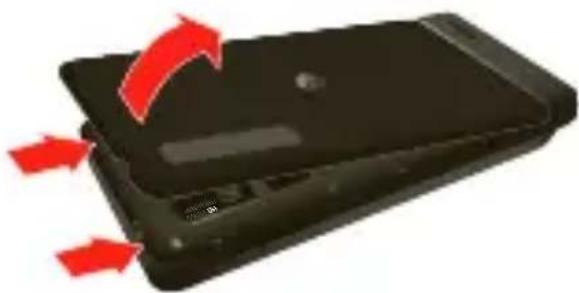
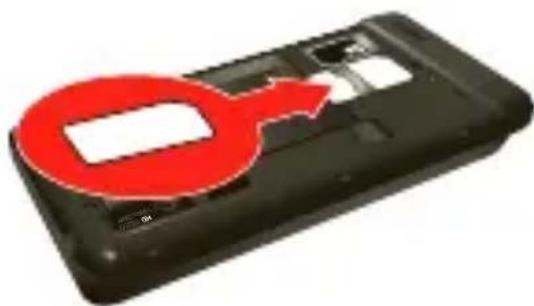
INSTALL & CHARGE BATTERY
1 Cover off
natural_image
Black smartphone with red arrows indicating a fold change or motion, no text or symbols present3 SIM in (already in)
natural_image
Black plastic device with a red gender symbol overlay, no text or symbols present5 Cover on
2 microSD in (may be sold separately)

4 Battery in

natural_image
3D illustration of a black electronic device with red arrows indicating internal components (no text or symbols)6 Charge up

natural_image
Black smartphone with a red curved arrow on the side panel, no visible text or symbols
natural_image
Close-up of a black handheld device with a red LED and connected plug, accompanied by a speedometer showing 3H (no text or symbols on device)SET UP & GO
1 Press and hold Power/Lock on top of your phone.
2 Select a language.
3 Follow the setup wizard to create or log in to your Google™ account.
Record your Google account information for future reference.
Username: ____@gmail.com
Password:
Note: If you have an existing Google account, your contacts from that account are synced to your phone. Whenever you choose to select all contacts for the one you want, your phone shows every contact, in every groups.
Note: Data service is required for this phone.
Note: GSM and UMTS-based global services work only with a SIM card supplied by Verizon Wireless®. When you set your phone to use a GSM 900/1800 or UMTS 2100 network, you may be prompted to enter a subsidy code. To get this code, contact Verizon Wireless.

natural_image
Close-up of a black hard drive with a red arrow pointing to an icon (no text or symbols)ADD ACCOUNTS
After setup, you can add email and other accounts.
1 From the home screen, touch to see your applications.
2 Touch My accounts > Add account, and select the account you want to set up. Then follow the prompts to set up the account.
BACKUP ASSISTANT ^SM
Backup Assistant is a free service from Verizon Wireless that saves your phone's address book to a secure server. If your phone is lost or damaged, or if you upgrade to a new phone, Backup Assistant will restore your contacts.
Touch Menu Settings > Backup Assistant, and then enter your password.
Note: Subject to specific terms of use. Results may vary based on backup schedule and other factors. See verizonwireless.com/backupassistant for more details.
TOUCH TIPS
It's all in the touch:
■ Touch: Choose an icon or option.
■ Touch & Hold: Open options.
■ Drag: Scroll or move slowly.
■ Flick: Scroll or move quickly.
■ Pinch-to-zoom: Get a closer look at Google Maps™, web pages, and photos.

To zoom in or out, slide two fingers apart or together.
KEY TIPS
MENU, HOME, BACK, & SEARCH

Touch Home to close any menu or app and return to the home screen. In the home screen, Touch and hold Home to show the last eight apps you used, then touch an app to open it.
Touch Search for text search, or touch and hold for voice search.
Touch Menu to open menu options, or touch Back to go back.
PHONE OPTIONS
Press and hold Power/Lock to turn off your smartphone (Power off) or to select a phone option:

natural_image
Close-up of a black hard drive with a red arrow and circular icon (no text or symbols)■ Airplane mode: Turn all
your wireless connections off—useful when flying.
■ Silent mode : Turn all phone sounds on or off.
■ Sleep mode: To save your battery, prevent accidental touches, or when you want to wipe smudges off your touchscreen, put the touchscreen to sleep by pressing Power/Lock. 📄 to wake up the touchscreen, just press Power/Lock 📍 again or touch Home.
To change how long your smartphone waits before the screen goes to sleep automatically, touch Menu 📋 Settings> Display > Screen timeout.
HOME SCREEN
Use the home screen to see what's most important to you—you'll see it when you turn on your phone or touch Home from another screen.

Status Indicators
Notifications
Flick this bar down for details.
Flick left/right to see more panels.
Shortcuts
Touch to open.
Open the app menu.
Customize Your Home Screen
You can add widgets, apps, wallpapers, and more to your home screen.
Flick the home screen left or right to see other panels of shortcuts and widgets.
■ To open something, touch it. Touch Home to return to the home screen.
■ You can resize some widgets. Just touch and hold a corner until you feel a vibration, then drag.
■ To add something or change your wallpaper, touch and hold an empty spot until you see the Add to Home screen menu.
■ To move or delete something, touch and hold it until you feel a vibration, then drag it to another spot, another panel, or the trash at the top of the screen.

NOTIFICATIONS
At the top of the screen, icons on the left notify you about new messages or events. Icons on the right tell you about phone status. Drag the status bar down and touch the notification.

APP MENU
The app menu shows you all your applications. To open it from the home screen, touch


Choose the apps you want to see.
Touch to open. Touch & hold to drag a shortcut to the home screen.
Flick left/right to see more apps.
Flick left and right to see all of your apps. New apps that you download are added to the app menu.
To close the app menu, touch Home or Back.
CALLS
MAKING CALLS
To make a call, touch, enter a number, then touch.
Tip: If the screen is locked, drag to the right.
During a call:
■ To use a Bluetooth ^® device, touch Bluetooth.
■ To mute a call, touch Mute.
■ To use the speakerphone, touch Speaker.
Note: Using a mobile device or accessory while driving may cause distraction and may be illegal. Always obey the laws and drive safely.
You can touch Home or Back to leave the active call display. To reopen it, drag the notification bar down and touch Current call.
RECEIVING CALLS
WHEN THE DISPLAY IS ACTIVE
■ Answer—Touch Answer.
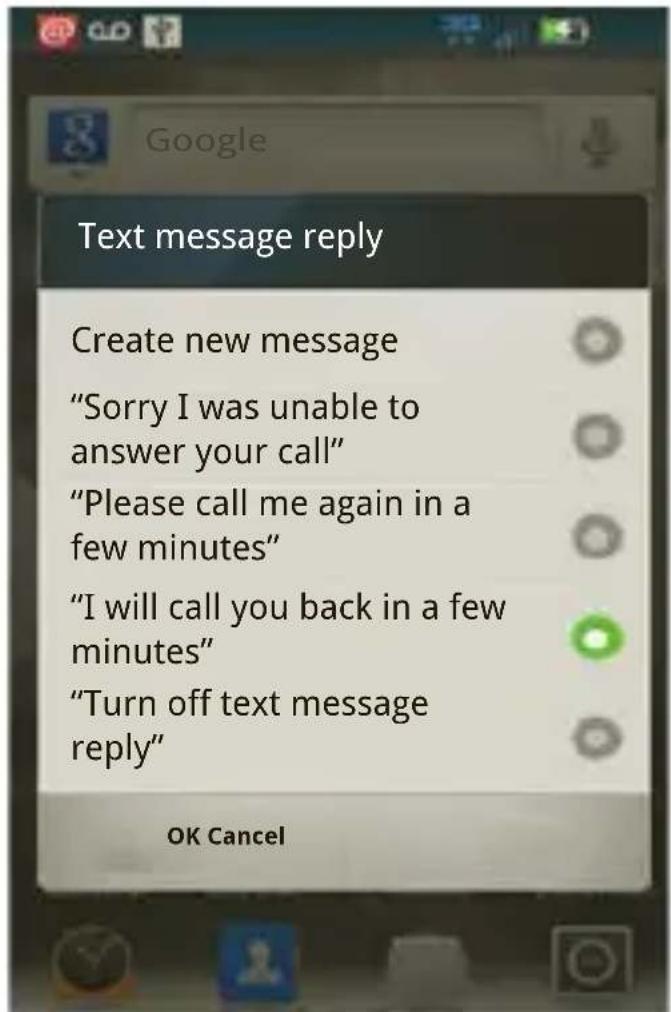
■ Ignore—Touch . Ignore can then send a text message response to the caller, or touch Cancel.
WHEN THE DISPLAY IS NOT ACTIVE
■ Answer—Drag to the right.
■ Ignore—Drag to the left.
ENDING CALLS
Touch. Encall
Note: Your phone includes a proximity sensor. When you hold the phone to your ear, the display goes dark to prevent accidental touches. When you move your phone away from your ear, the display lights up again.
INCLUDED CALLING FEATURES
With our calling plans, you get the value and convenience of these features at no extra monthly charge:
■ Basic voicemail
- Caller ID
- Caller ID blocking
■ 3-wall calling
- Caller forwarding
Note: Some of these features may incur usage charges and/or depend on digital service, so they may not be available in all areas. Go to verizonwireless.com/welcome for step-by-step instructions.
VOICEMAIL
SET UP VOICEMAIL
1 Dial *86 (*VM). If you hear a greeting, touch # to interrupt it.
2 Follow the tutorial to select a password and record a voice signature.
ACCESS VOICEMAIL FROM YOUR PHONE
1 Dial *86 (*VM). If you hear your greeting, touch # to interrupt it.
2 Follow the prompts to enter your password and retrieve your messages.
ACCESS VOICEMAIL FROM ANY PHONE
1 Dial your wireless number. When you hear your greeting, touch # to interrupt it.
2 Follow the prompts to enter your password and retrieve your messages.
To learn how to reset your password or discover other features, visit verizonwireless.com/myverizon.
Note: Voicemail may not be available in some areas. Voice mailboxes not set up within 45 days will be
cancelled. Your Verizon Wireless voice mailbox is not password protected until you create a password by following the setup tutorial. Airtime and other charges will be incurred when using voicemail from your wireless device. Mobile to Mobile minutes do not apply to voicemail retrievals; you will be charged to maintain your connection to voicemail. Verizon Wireless is not liable for missed messages or deletions of messages from your voice mailbox, even if you have saved them.
VISUAL VOICEMAIL
Visual Voice Mail displays a list of messages and allows you to choose which message to listen to or erase, without having to dial into your mailbox.
Setting up Visual Voice Mail:
1 If you are a new Verizon Wireless subscriber, first dial *86 to set up your voicemail service.
2 From the home screen, touch ➤ Voicemail and follow the prompts to set it up.
Note: It may take five minutes for Visual Voice Mail to set up, and you need to store your voicemail password.
Anyone who picks up your phone can access the voicemail, so you should, lock your phone when not using it. To cancel your Visual Voice Mail service, go to verizonwireless.com/myverizon or contact Customer Service. Visual Voice Mail is only available in the National Enhanced Services Coverage Area and only on select
devices. Specific terms, conditions and monthly charges apply. Basic voicemail and V CAST Coverage Area are required and V Block must be removed to use Visual Voice Mail. Unless you subscribe to V CAST VPak, V CAST Mobile TV Select Package or Nationwide Premium Plan, downloading the Visual Voice Mail application will require approximately 1 MB of data. Data sent or received will be aggregated each month, rounded up to the next megabyte. Megabyte charges will not be incurred for using the Visual Voice Mail application after download to the device.
CONTACTS
QUICK START
Contacts like you've never had before, downloaded from your accounts. View, search, and use them your way. Touch 📋 Contacts.

■ Scroll: Flick or drag the list. A scroll bar appears on the right. Drag the scroll bar to move the list faster.
■ Search: Touch and hold Menu to open a keypad, then type the contact name.
TRANSFER CONTACTS
Get all your contacts, all in one place. Here's a few helpful hints:
■ Use Gmail: All your Gmail contacts will automatically get synced to your phone. Various computer applications for mobile phones and email accounts allow you to export your contacts as a “.CSV” file. You can then use Gmail to import the file. For more details, go to www.motorola.com/transfercontacts or log in to your Gmail account on your computer and select “Help”.
■ Use a SIM: You can transfer contacts from your old phone to your new Motorola phone using your SIM card.
■ More: There are other methods and tools to help you at www.motorola.com/transfercontacts.
TRANSFER CONTACTS USING YOUR SIM
1 On your old phone, copy all the contacts you want to your SIM card.
Tip: For Motorola Android phones, touch > Manage SIM card > Export contacts to save your contacts to your SIM card.
2 Insert your SIM card in your new phone (see "INSTALL & CHARGE BATTERY" on page 6).
3 Import the contacts from your SIM card: touch □ >Contacts >Menu > Manage contacts >Import SIM card.
Link contacts
You might have two or more Contacts for the same person, maybe a Facebook™ friend who is also stored on your SIM card, or one friend with two email addresses. To combine these contacts, touch > Contacts.
Touch a contact to open it, then touch Menu Link contact and touch the second entry.
APPS & FEATURES
POWERFUL APPS & FEATURES
Make your phone do more with music, ringtones, wallpapers, apps, and games.
Check the latest scores. Keep up with Twitter and Facebook™. Even plan a vacation. We've got apps that help you do it all. Go to
verizonwireless.com.
ANDROID MARKET™
Android Market ^™ provides direct access to useful applications and fun games which you can download and install.
Note: You need to be signed in to your Google Account to use Android Market.
Touch > Market.
1 Scroll to and touch the app you want to install. Then, touch Install (if app is free) or Buy.
Note: If you need help or have questions about Android Market, touch Menu > Help.
CHOOSE CAREFULLY
Apps are great. There's something for everyone. Play, communicate, work, or just for fun. But remember, choose your apps carefully. Here's a few tips to help:
■ To help prevent spyware, phishing, or viruses affecting your phone or privacy, use apps from trusted sites, like Market.
In Market, check the apps' ratings and comments before installing. This will help you choose the best ones for you.
■ If you doubt the safety of an app, don't install it.
■ Like all apps, downloaded apps will use up memory, data, battery, and processing power—some more than others. After installing an app, if you're not happy with how much memory, data, battery, or processing power it's using, uninstall it. You can always install it again later.
- Just like web browsing, you may want to monitor childrens' access to apps to help prevent exposure to inappropriate content.
■ Certain apps may not provide completely accurate information. Take care, especially when it comes to personal health.
MESSAGING
To open messaging, touch


Messaging
Universal Inbox.
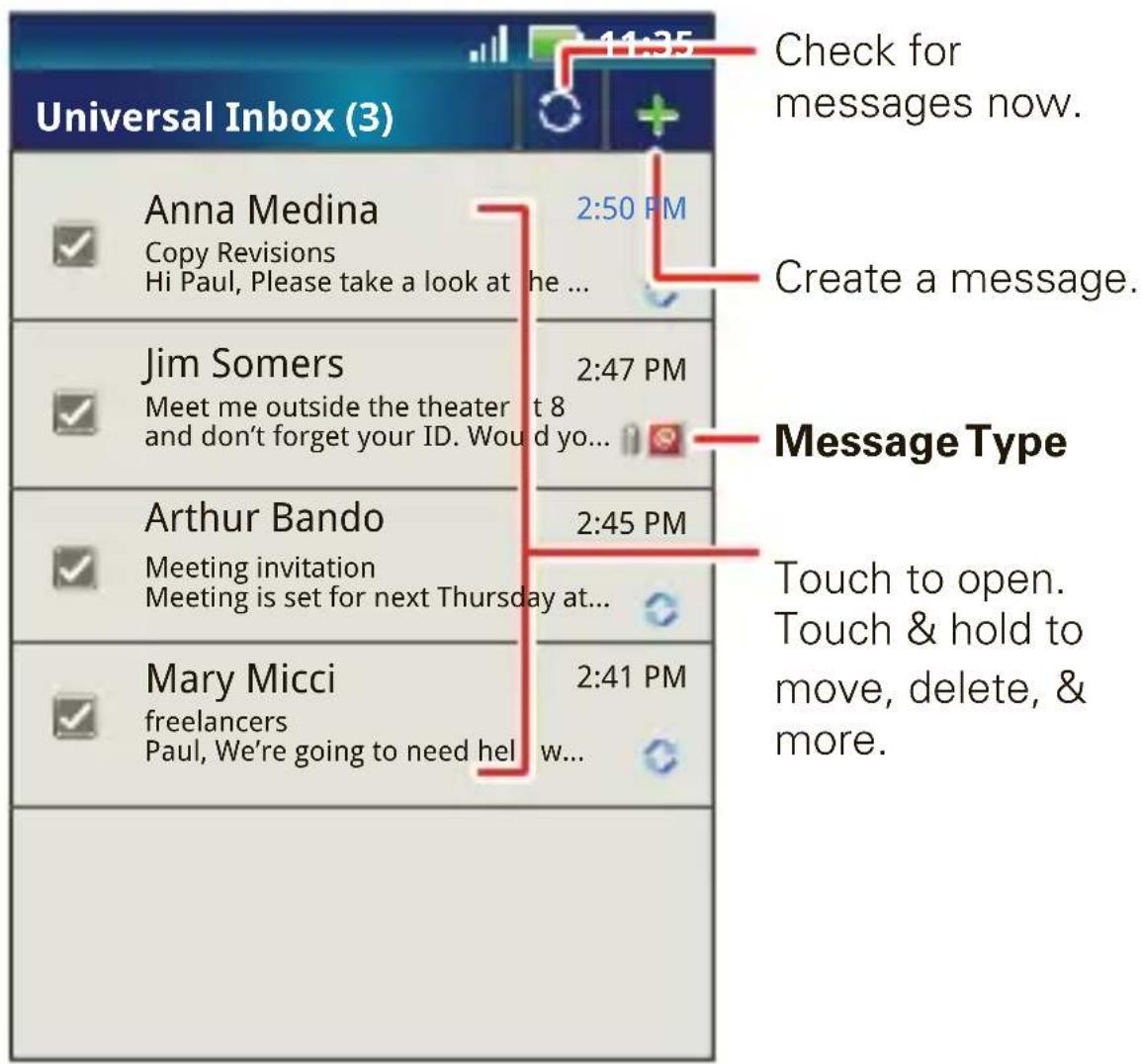
■ To open an email, a text message, or a social networking message and all of its replies, touch it.
■ To respond to a message, just open it and enter your response in the text box at the bottom.
■ To create a message, touch
MUSIC
Touch and play—instant music. Just open your music library, then select what you want to play.
Touch □ > ○ Music.
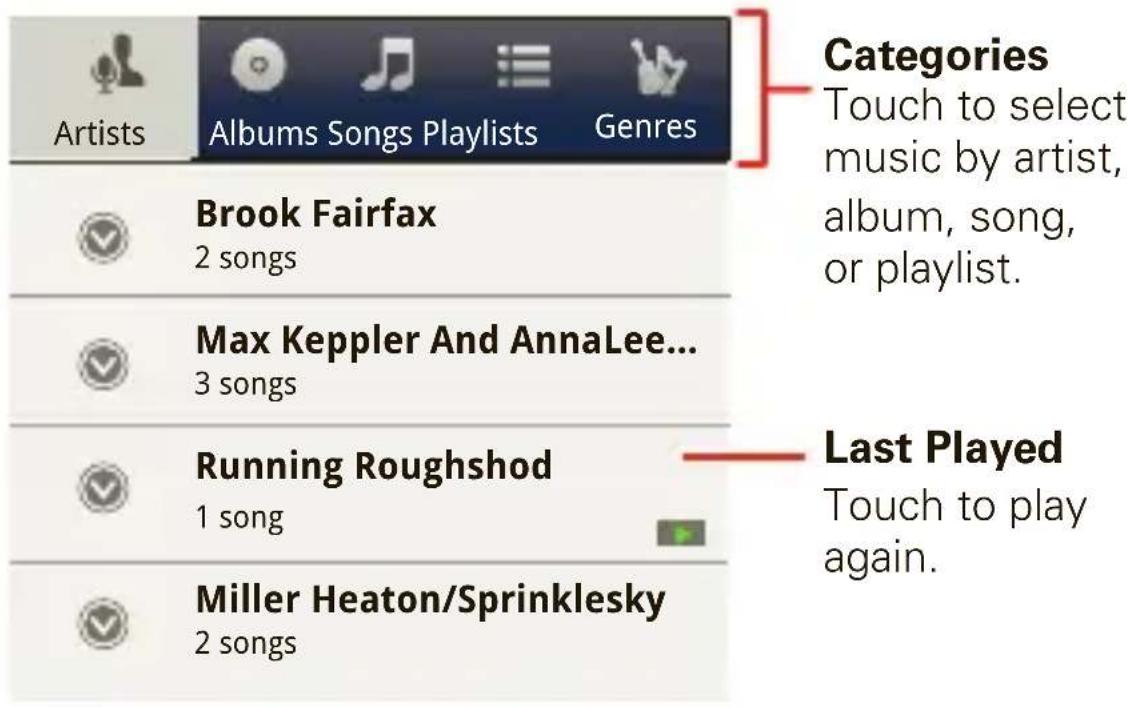
Tip: When a song is playing, you can add it to a playlist by touching Menu ➤ Add to playlist.
MOBILE WEB
Take the Internet with you wherever you go. You can read the latest news, get the weather and follow your stocks. From the home screen, touch ➤ Browser.
VIDEO
YouTube™ lets you share videos with YouTube users everywhere. You don't need a YouTube account to browse and view videos. Touch
YouTube.
HIGH DEFINITION VIEWING
Watch your photo slideshow or recorded HD videos on your HDTV. Just connect an HDMI cable from your TV or monitor. Everything you see on your tablet now appears on your TV or monitor.
GAMES
Your taste is your own. Unique. Hundreds of games, from classics to the hottest new releases. Get them on your phone. Browse, buy and download games on your phone via Android Market. See “ANDROID MARKET™” on page 20.
VERIZON SAFEGUARDS
Your family; your call. Verizon safeguards give you peace of mind with Family Locator, Content Filters, Spam Controls, Usage Controls and more. Go to verizonwireless.com/familylocator, verizonwireless.com/spamcontrols, or verizonwireless.com/usagecontrols.
VZ NAVIGATOR™
More than just directions, VZ Navigator gets you where you're going and keeps you informed once you get there. Receive traffic alerts, find gas prices and directions to the station, search local businesses, share your location with friends, or speed-dial roadside assistance. Go to verizonwireless.com/navigator.
Note: Download, subscription, and airtime required for use; only in National Enhanced Services Coverage Area; accuracy and completeness of information is not guaranteed; information about location of device will be used to deliver service. You must have VZ Navigator added to your account in order for GPS features to work. Download, subscription and airtime required for use; airtime and data usage for download only. Roaming rates may apply.
TOTAL EQUIPMENT COVERAGE
Sign up for Total Equipment Coverage and if your device breaks, gets lost or stolen, or malfunctions after the manufacturer's warranty expires, you're covered. Total Equipment Coverage combines Verizon Wireless Extended Warranty and Asurion's Wireless Phone Protection. For details, go to verizonwireless.com/equipmentprotection.
GO GLOBAL
Verizon Wireless keeps you connected around the corner and around the world. For up-to-date information on destinations and rates, go to verizonwireless.com/global.
INTERNATIONAL LONG DISTANCE
You can call over 190 destinations from the U.S. with your Verizon phone. Simply add I-DIAL to your account and for reduced rates, select our International Long Distance Value Plan or for occasional international calls, use our Per-Minute Rates.
INTERNATIONAL TEXT MESSAGING
You can send text messages to customers on participating carriers in over 150 countries around the world. Visit verizonwireless.com/internationalmessagingfor more details.
INTERNATIONAL ROAMING
Traveling outside of the U.S.? With any Verizon phone you can stay connected in over 40 destinations including Canada, Mexico, China, Israel, Brazil and Jamaica. Dial *611 from your phone or call 1-800-922-0204 and speak with a Verizon Wireless representative to enable International Roaming. A full list of destinations and rates can be found at verizonwireless.com/internationalroam
CONNECTIONS
BLUETOOTH®
TURN ON BLUETOOTH
Touch Menu Settings > Wireless & networks > Bluetooth.
PAIR A BLUETOOTH HEADSET WITH YOUR PHONE
To connect with a new device, you need to pair with it. You only need to do this once for each device—to connect again, just turn on the device.
1 Make sure the device you are pairing with is in discoverable mode.
Note: Refer to the guide that came with the device for details.
2 Touch Menu Settings > Wireless & networks > Bluetooth settings.
3 Touch Bluetooth to turn on and scan. If Bluetooth power is already on, touch Scan for devices.
4 Touch a device to connect.
5 If necessary, touch OK, or enter the device passkey (like 0000) to connect to the device. When the device is connected, the Bluetooth indicator appears in the status bar.
Note: Using a mobile device or accessory while driving may cause distraction and may be illegal. Always obey the laws and drive safely.
Wi-Fi
TURN ON Wi-Fi
Touch Menu Settings > Wireless & networks > Wi-Fi.
Note: Your device's Wi-Fi features and power levels are not allowed for outdoor operation in France. To avoid unlawful interference with radio signals, do not use the Wi-Fi features in France unless you are indoors.
WI-FI SEARCH & CONNECT
To find networks in your range:
1 Touch Menu Settings > Wireless & networks > Wi-Fi settings.
2 Touch Wi-Fi to turn on and scan. If Wi-Fi is already on, touch Menu 📄 Scan. Your phone lists the networks it finds within range.
Tip: To see your phone's MAC address or other Wi-Fi details, touch Menu Advanced.
3 Touch a network to connect.
4 If necessary, enter Network SSID, Security, and Wireless password and touch Connect. When your phone is connected to the network, the wireless indicator appears in the status bar.
Tip: When you are in range and Wi-Fi is on, you will automatically reconnect to available networks you've connected to before.
SERVICE & REPAIRS
SERVICE & REPAIRS
If you have questions or need assistance, we're here to help.
Go to www.motorola.com/repair(United States) or www.motorola.com/support(Canada), where you can select from a number of customer care options. You can also contact the Motorola Customer Support Center at: 1-800-734-5870 (United States), 1-888-390-6456 (TTY/TDD United States for hearing impaired), or 1-800-461-4575 (Canada).
Copyright & Trademarks
Motorola Mobility, Inc.
Consumer Advocacy Office
600 N US Hwy 45
Libertyville, IL 60048
www.motorola.com
Note: Do not ship your product to the above address. If you need to return your product for repairs, replacement, or warranty service, please contact the Motorola Customer Support Center at:
1-800-734-5870 (United States)
1-888-390-6456 (TTY/TDD United States for hearing impaired)
1-800-461-4575 (Canada)
Certain features, services and applications are network dependent and may not be available in all areas; additional terms, conditions and/or charges may apply. Contact your service provider for details.
All features, functionality, and other product specifications, as well as the information contained in this guide, are based upon the latest available information and believed to be accurate at the time of printing. Motorola reserves the right to change or modify any information or specifications without notice or obligation.
Note: The images in this guide are examples only.
MOTOROLA and the Stylized M Logo are trademarks or registered trademarks of Motorola Trademark Holdings, LLC. Google, the Google logo, Google Maps, Google Talk, Google Latitude, Gmail, YouTube, Android and Android Market are trademarks of Google, Inc. DROID is a trademark of Lucasfilm Ltd. and its related companies. Used under license. All other product or service names are the property of their respective owners.
© 2011 Motorola Mobility, Inc. All rights reserved.
Caution: Motorola does not take responsibility for changes/modifications to the transceiver.
Product ID: DROID3 (XT862)
Manual Number: 68014832001-A
DOMINA TU APARATO
DFOID3
CONTENIDO
MI VERIZON.... 2
FUNCIONES.... 6
LO BÁSICO.... 7
CONCEPTOS BÁSICOS 10
LLAMADAS.... 17
CONTACTOS.... 23
APLICACIONES Y FUNCIONES.... 26
CONEXIONES.... 36
SERVICIO Y REPARACIONES.... 39
GRACIAS POR ELEGIR VERIZON WIRELESS
natural_image
Black foldable device with red arrows indicating rotation or movement, no visible text or symbolsnatural_image
Black plastic device with a red gender symbol overlay, no text or symbols presentnatural_image
Black smartphone case with red arrow indicating a component or process, no visible text or symbolsnatural_image
Black smartphone with a red curved arrow pointing to its side panel (no visible text or symbols)6 Cargue

natural_image
Close-up of a black electronic device with a USB cable inserted, showing a 3H battery icon and a time dial (no text or symbols on the device itself)natural_image
Close-up of a black electronic device with a red arrow pointing to an icon (no text or symbols visible)AGREGAR CUENTAS
natural_image
Close-up of a black smartphone with a red arrow pointing to an icon (no text or symbols on the device itself)verizonwireless.com/internationalmessaging
ROAMING INTERNACIONAL
BUSCAR Y CONECTAR A WI-FI
Motorola Mobility, Inc.
Consumer Advocacy Office
600 N US Hwy 45
Libertyville, IL 60048
www.motorola.com
- THANK YOU FOR CHOOSING VERIZON WIRELESS
- IMPORTANT CUSTOMER INFORMATION
- FEATURES
- FIRST STEPS
- INSTALL & CHARGE BATTERY
- SET UP & GO
- ADD ACCOUNTS
- BACKUP ASSISTANT SM
- TOUCH TIPS
- KEY TIPS
- MENU, HOME, BACK, & SEARCH
- PHONE OPTIONS
- HOME SCREEN
- Status Indicators
- Notifications
- Shortcuts
- Customize Your Home Screen
- APP MENU
- CALLS
- MAKING CALLS
- RECEIVING CALLS
- WHEN THE DISPLAY IS ACTIVE
- WHEN THE DISPLAY IS NOT ACTIVE
- ENDING CALLS
- Touch. Encall
- INCLUDED CALLING FEATURES
- VOICEMAIL
- SET UP VOICEMAIL
- ACCESS VOICEMAIL FROM YOUR PHONE
- ACCESS VOICEMAIL FROM ANY PHONE
- VISUAL VOICEMAIL
- CONTACTS
- QUICK START
- A B C D E F G H I J K L M N O
- TRANSFER CONTACTS
- TRANSFER CONTACTS USING YOUR SIM
- Link contacts
- APPS & FEATURES
- POWERFUL APPS & FEATURES
- ANDROID MARKET™
- CHOOSE CAREFULLY
- MESSAGING
- MUSIC
- MOBILE WEB
- VIDEO
- HIGH DEFINITION VIEWING
- GAMES
- VERIZON SAFEGUARDS
- VZ NAVIGATOR™
- TOTAL EQUIPMENT COVERAGE
- GO GLOBAL
- INTERNATIONAL LONG DISTANCE
- INTERNATIONAL TEXT MESSAGING
- INTERNATIONAL ROAMING
- CONNECTIONS
- BLUETOOTH®
- TURN ON BLUETOOTH
- PAIR A BLUETOOTH HEADSET WITH YOUR PHONE
- TURN ON Wi-Fi
- WI-FI SEARCH & CONNECT
- SERVICE & REPAIRS
- Copyright & Trademarks
- DOMINA TU APARATO
- DFOID3
- CONTENIDO
- GRACIAS POR ELEGIR VERIZON WIRELESS
- AGREGAR CUENTAS
- ROAMING INTERNACIONAL
- BUSCAR Y CONECTAR A WI-FI
Brand : MOTOROLA
Model : Droid 3 Global
Category : Smartphone