
NMP-320 - Mp3 player NIKKEI - Free user manual and instructions
Find the device manual for free NMP-320 NIKKEI in PDF.


| Product Type | MP3 Player |
| Brand | NIKKEI |
| Model | NMP-320 |
| Dimensions | Approx. 4.0 x 2.0 x 0.5 inches (102 x 51 x 13 mm) |
| Weight | Approx. 30 g (1.1 oz) |
| Power Source | Rechargeable lithium-ion battery (3.7V, 200mAh) |
| Battery Life | Up to 10 hours of music playback |
| Storage Capacity | 8 GB internal flash memory, expandable via microSD slot |
| Supported Formats | MP3, WMA, WAV, FLAC (up to 24bit/48kHz) |
| Display | 1.8-inch TFT color screen (128x160 pixels) |
| Audio Output | 3.5mm headphone jack, built-in speaker |
| FM Radio | Yes, with presets and recording |
| Voice Recording | Built-in microphone, WAV format |
| Connectivity | USB 2.0 for data transfer and charging |
| Equalizer | Preset EQ modes (Rock, Pop, Jazz, Classical, Normal) |
| Care Instructions | Wipe with dry cloth; avoid moisture and extreme temperatures |
| Safety Precautions | Do not disassemble; use only approved charger; keep away from children |
| Spare Parts / Repairability | Battery and screen replaceable by qualified technician; contact support |
| General Information | Supports multiple languages; firmware upgradeable via USB |
Frequently Asked Questions - NMP-320 NIKKEI
User questions about NMP-320 NIKKEI
0 question about this device. Answer the ones you know or ask your own.
Ask a new question about this device
Download the instructions for your Mp3 player in PDF format for free! Find your manual NMP-320 - NIKKEI and take your electronic device back in hand. On this page are published all the documents necessary for the use of your device. NMP-320 by NIKKEI.
USER MANUAL NMP-320 NIKKEI
Please read this Operation Manual Before you use the production.
Read this manual carefully before operating the unit. We do not assume any liability arising out of improper operation or incidental damages. Be noted to operate this unit with care and back up any files when necessary.
NIKKEI
LOCKS GOOD, SOUNDS EVEN BETTER..
MADE IN CHINA
FEATURES AND FUNCTIONS
- MP3/ WMA player
• No driver necessary under Windowa 2000/ XP/ ME
- Capable of being connected with the computer for files transferring
- Software upgradeable
- Flash Memory: 64 / 128M
• Digital voice recording: 4hrs(64M) / 8hrs(128M)
• Equalizer: 5 Modes
- Buttons lock
- Delete MP3 or recording files in the unit
- Low power consumption.
• Fashion blue EL backlight
INTRODUCTION TO COVER
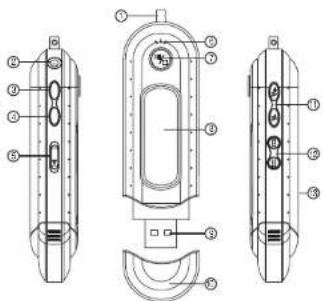
-
Hole for necklace
-
Earphone
-
REC/REP
-
MODE/DE
-
Button lock
-
Built-in microphone
- PLAY/RAUSE/STOR
OFF/ON ▶ II ■
-
LCD display
-
USB connector
-
USB cover
-
Volume +/ Volume -
-
REW/FF
-
Battery cover

INTRODUCTION TO DISPLAY
-
MP3 mode display
-
WMA mode display
-
Voice mode display
-
Playback/ Pause display
-
Stop mode display
-
REW/FF
-
Free space
-
Volume display
-
Remaining battery capacity display
-
Dynamic display
-
Recording mode display
-
Equalizer
-
Track number/ Capacity
-
Time display
-
Button lock display
-
Repeat mode display
-
Recycled play mode display
-
Delete
BASIC OPERATION
1. Battery loading
Note: This MP3 player is powered by alkaline battery only. Please replace the battery when remaining battery capacity displays □.
2. Digital player on/off
Press ▶ II/ ▶ shortly to turn on the player, and LCD displays the model number of the player itself. Then the unit enters MUSIC mode at stop status, indicating the current mode (MUSIC), the first track, recycling indicator, volume stop indicator, equalizer, dynamic display and remaining battery capacity as well. Press ▶ II/ ▶ continuously (about 2 sec.) till it displays OFF to turn off the player.
II. MP3 / WMA MODE
Note: This unit can supports playback of MP3 (layer 3 of MPEG1, layer 3 of MPEG2 and layer 3 of MPEG2.5) and WMA files.
1. Playback
Under stop or pause mode of MP3, press ▶ II/ ■ to start playing the current track. LCD shows playback indicator, repeat indicator, volume, the track name, time stamp, remaining battery capacity indicator, equalizer and dynamic display.
2. Pause/ Stop/ Power off
Shortly press ▶ II / ■ under playback status to pause playback. At this time, LCD displays pause indicator. Press ▶ II / ■ shortly again to resume playback.
Under playback or pause status, continuously press ▶ II ■ until playback indicator disappear from LCD, then release the button, and the unit stops playback.
Under playback or pause or stop status, continuously press ▶ II / ■ (about 2 sec.) till LCD shows "OFF", release the button, and the unit will be turned off.
Note: The player will be automatically off with no button pressing within 60 sec. under pause or stop status. Time length for button pressing: power off>stop>pause
3. Move to the previous / next track, REW/FF
3
IV. VOICE MODE
Note: This unit supports WAV files of IMA ADPCM format only. For details please refer to Trouble Shooting.
1. Play
Under VOICE stop mode or pause mode, press ▶ II/ ■ to begin playing the current recorded file. LCD shows play indicator, recycled indicator, volume, time stamp, as well as remaining battery capacity indicator.
2. Pause/ Stop/ Power off
Shortly press ▶ II / ▶ under playback status to pause playback. At this time, LCD displays pause indicator. Press ▶ II / ▶ shortly again to resume playback. Under playback or pause status, continuously press ▶ II ▶ til playback indicator disappear from LCD, then release the button, and the unit stops playback.
Under playback or pause or stop status, continuously press ▶ I / ■ (about 2 sec.) till LCD shows "OFF", release the button, and the unit will be turned off.
Note: The player will be automatically off with no button pressing within 60 sec. under pause or stop status. Time length for button pressing: power off> stop> pause
3. Previous recorded file/ next recorded file/ fast forward/ fast backward
Press ◀◀ shortly to the previous recorded file and press ▶▶hortly to the next recorded file. Press cb◆◆nuously is fast backward, and LCD displays ◀◀Press ▶◆last forward, and LCD displays . ▶▶
4. Equalizer
Under PLAY mode, press MODE key to enter equalizer mode (NORMAL, DBB, JAZZ, DISC, POP, CLASSIC). At this time, EQ indicator twinkles. Then press V- or V+ to choose your desired equalizer, it will quit EQ mode if there is no operation within 5 seconds.
Note: When switching the equalizer, no rush presses! Please do it one by one.
5. Adjust volume
Under playback mode, press V+ to increase volume and press V- to decrease it. Volume indicator on LCD will change accordingly.
6. Repeat mode option
Under playback mode, shortly press REC/REP to choose different recycling modes. They are respectively non-recycle.
5
Under PLAY mode, press MODE key to enter equalizer mode (NORMAL, DBB, JAZZ, DISC, POP, CLASSIC). At this time, EQ indicator twinkles. Then press V- or V+ to choose your desired equalizer. It will quit EQ mode if there is no operation within 5 seconds.
Note: When switching the equalizer, no rush presses! Please do it one by one.
5. Adjust volume
Under playback mode, press VOL+ to increase volume and press VOL- to decrease it. Volume indicator on LCD will change accordingly.
6. Repeat mode option
Under playback mode, shortly press REC:REP to choose different recycling modes. They are respectively non-recycle, single track recycle and recycle all. When choosing nonrecycle, no recycled indicator (C1) will be displayed; (C2) are for single track recycle and recycle all respectively. The three modes switch in a recycled way.
7. Delete track
A. DELETE SINGLE TRACK
Under stop mode, continuously press MODE until LCD blinks with "ONE" for your confirmation, then press ▶ II/ ■ to delete the current track. Press any button other than ▶ I and MODE or no operation within 5 seconds, the player itself will give up deletion for the current track and return to the stop mode.
B. DELETE ALL
Under stop mode, continuously press MODE until LCD blinks with "ONE", then press MODE again to confirm deletion, finally press ▶ II: ▶ to delete all tracks. Press any button other than ▶ IIa□□ MODE or no operation within 5 seconds, the player itself will give up deletion for all tracks and return to the stop mode.
III. MP3 AND VOICE SWITCHING
Under stop mode, shortly press MODE to realize the transmission from MUSIC mode to VOICE mode, or vice versa. Contents on LCD display accordingly.
4
single track recycle and recycle all. When choosing non-recycle, no recycled indicator will be displayed; are for single
C1(4)
track recycle and recycle all respectively. The three modes switch in a recycled way.
7. Delete recorded file
A. Delete single recorded file
Under stop mode, continuously press MODE to enter delete mode. Then LCD blinks with *ONE* for your confirmation, then press ▶ II/ ▶ to delete the current recorded file. Press any button other than ▶ II a ■d MODE or no operation within 5 seconds, the player itself will give up deletion for the current recorded file and return to the stop mode.
B. Delete all
Under stop mode, continuously press MODE to enter delete mode. Then LCD blinks with "ONE", then press MODE shortly again to confirm deletion, LCD blinks with "ALL", finally press ▶ II ▶ no delete all recorded files. Press any button other than ▶ II ▶ and MODE or no operation within 5 seconds, the player itself will abandon deletion for all recorded files and return to the stop mode.
Note: under delete mode, press MODE can switch delete single recorded file to delete all recorded file.
V. RECORD
Under any mode or status other than power off mode, press REC/REP continuously till LCD displays ✗. Release REC/REP, ✗blinks, and the player starts recording. No any other keys are valid except REC/REP to stop recording. Press ▶ II ■ start playing the recorded file.
VI. A-B SECTION REPEAT
Setting: under play mode, press MODE twice shortly and set A point, then LCD displays
A. Press MODE shortly again and set B point, then LCD displays AB. Cancel: A. Press MODE, and cancel AB repeat. Then it plays from the cancel point.
B. Press ◀ to cancel AB repeat and return to the previous song and start playing at the same time. C. Press ▶ II ■ continuously to stop playing and cancel AB repeat.
VII. BUTTON LOCK
Under any mode, slide button HOLD as per the direction of arrow, LCD displays o++, and no other keys are valid then. Slide HOLD in the opposite direction of arrow to release the button lock.
6
Note: When HOLD is on, in order to save power, press▶ If ■the player will be powered off after it displays the model number and ○—
VIII. CONNECTING TO A COMPUTER
- Installation of driving program
Note:
A. Windows 98 base needs installation of driving program, while Windows 2000/XP/ME do not.
B. Disconnect the MP3 player to the computer before installation is completed.
C. Windows 2000 Service Pack 3.0 (in the installation CD) must be installed under Windows 2000.
a. Load the provided installation CD in to the driver compartment.
b. Double clicks on SETUP.EXE, pictures will be shown as follows:
Then clicks to Next->Yes->Next->Next->Finish according to the reminder.


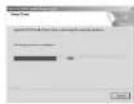
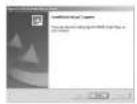
Installation is finished.
了
b.Click Stop on the pop-up window. Refer to the following picture on the left. c.Click OK on the pop-up window. Refer to the following picture on the right.


d.Click OK on the pop-up window. See the following window. You may then unplug the MP3 player from USB port after the above steps.
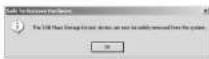
4. Upgrade/ Renew Software
Better not upgrade the software unless the player works abnormally, i.e. not able to be powered on.
A. Connect MP3 with computer.
B.Press ▶ II/ ■ or MP3 has already been in ON status, then a mobile disk icon will appear in "My Computer", see picture a:
C. Steps: Start>Program>SigmaTelMSCN Audio Player>SigmaTel MSCN Firemware Download. see the following picture b.
9
2. Connecting to a computer
Connect your MP3 player to PC via USB cable, One click on ▶ II? ▶ or under condition that MP3 player has been on status, the window will appear indicating that new hardware has been found, then the system will automatically install the drive program. After it, a mobile disk icon (see following) will be found in "My computer" with "PC..." on LCD display.
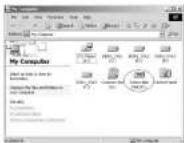

3. Upload/Download files
So long as the driving program has been properly installed, the MP3 player itself is a mobile disk after being connected to a computer. Therefore the file transfer is operated in the same way as the ordinary disk.
Note: a. Don't unplug the MP3 player during the process of uploading or downloading files; otherwise, it may cause dysfunction of the unit due to the damage to the software. For details, please see Trouble shooting.
b.When you want to unplug the MP3 player from the USB port of the computer, be noted to "PC-- --" on LCD. If LCD is blinking with "USb-SA" or "Usb-rd", it indicates that data is being transferred. Unplug the MP3 player when it displays "PC-- --".
Special notice: Normal uninstallation for USB device is required under Windows 2000 or Windows XP; otherwise it may cause damage or data loss to the player.
Operating steps are as follow:
a. Double clicks on icon of "Unplug or Eject Hardware" on bottom right corner of the computer (note: under XP, it is "delete hardware safely") as following:

B


Then a window will pop out as picture c:
After the above windows close automatically, the window of upgrading software will pop out as picture d:


Note: if you want to farmat data area of the flash while upgrading, you need to choose Format Data Area.
10
System will pop out a window as the following picture. If you want to format Data Area, click Yes.
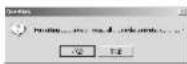
D. Click "Start" button and start upgrading software, see as follows: E. After upgrading,


please click "Close" button.
- Format the MP3 Player
a. Press ▶ III/ ■ after connecting the player to the computer.
b. Click "mobile disk" with right button of the mouse and choose format from the menu. See the following picture A:
c. Then format window will pop out, see the picture B.
d. Click on "START" to start formatting. Then click "OK" button in the pop-out window and start formatting MP3 flash.(picture C)
e. Click on "OK" to exit the program when it is finished.(picture D)
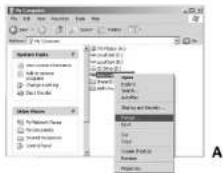

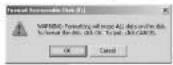

- Uninstall the driving program
a.Disconnect the player to the computer.
b. According to the following picture, click Start >Program >SigmaTelMSCN Audio Player >uninstall, or Control Panel >Explorer
11 12
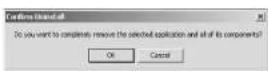
Immediately the following window will pop-up.

Click "Cancel" if you want to cancel the operation, otherwise the following conversation window will appear.
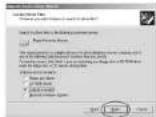
Click == to start uninstall the driving program, with the following conversation window appear then.


Click Finish when uninstallation completes.
Steps for downloading driving program manually:
a. Under WINDOWS 2000/WINDOWS XP, connect MP3 with computer, click "My computer > Properties > Hardware > Drvice Manager" with the right button on the mouse. See above picture on the left.
Double clicks Player Recovery Device Class>Player Recovery Device, see as follows:


Click Driver>Update Driver the following windows will pop-up.


Click NEXT on each continuously appearing window.



b. After connecting the player to the computer, click "My computer>Properties>Device Manager" by right button on mouse under Windows 98, to check whether there is "Player Recovery Device" in device manager, see following picture.
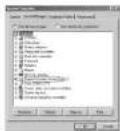
Double click Player Recovery Device Class>Player Recovery Device, see as follows: Click Driving Program as follows:


15 16
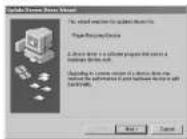
Click Driver>Update Driver...
1
2

3

4
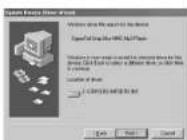
Installation is finished
TROUBLE SHOOTING
- Why can't some MP3 be played?
Standard MP3 only includes: the songs in layer 3 of MPEG 1, layer 3 of MPEG 2 and layer 3 of MPEG 2.5. Otherwise, it won't be played in the player except transformed by the corresponding software.
- Why doesn't the memory size displayed under the operational system match the figure on the tab?
The software in the MP3 player takes up a small portion of the memory, which coincides with the corresponding standards.
3. About WAV format?
This solution supports WAV files of IMA ADPCM format only. If you want to store WAV files of other format in this player, please set up a new folder and store the WAV files in it. Don't put the WAV files of other format into the root directory of the mobile disk and the folder of VOICE, otherwise, the player may shut down when play such WAV files.
- What causes the MP3 player running slowly?
Using or deleting files frequently in a long time will generate fragments in the flash memory, like fragment in the hard disk, which will cause the player running slowly.
- What if the driving program of the MP3 player be damaged?
This is caused by improper operation. For details, please refer to the Upgrade/Renew Software part.
- What if the MP3 play works abnormally, i.e., shutting down?
When abnormal causes occur due to improper operation, take out the battery and reload it.
Specification
Flash memory : 32MB/64MB/128MB (refer to the indicator on the packing)
Weight : About 23 g (without battery)
: About 34 g (with battery)
Power : One DC 1.5V AAA battery
Memory medium : built-in flash memory
Microphone : built-in capacitor mic
Input : built-in mic
Output: double-channel earphone, above 8 ohm.
Condition to use : 0-40
Basic Accessory : User's manual, USB cable, Earphone, Necklace, Strap, Installation CD, Earphone adaptor, Battery.
17 18

- NIKKEI
- FEATURES AND FUNCTIONS
- INTRODUCTION TO COVER
- INTRODUCTION TO DISPLAY
- BASIC OPERATION
- Battery loading
- Digital player on/off
- MP3 / WMA MODE
- Playback
- Pause/ Stop/ Power off
- Move to the previous / next track, REW/FF
- VOICE MODE
- Play
- Previous recorded file/ next recorded file/ fast forward/ fast backward
- Equalizer
- Adjust volume
- Repeat mode option
- Delete track
- DELETE SINGLE TRACK
- DELETE ALL
- MP3 AND VOICE SWITCHING
- Delete recorded file
- Delete single recorded file
- RECORD
- A-B SECTION REPEAT
- BUTTON LOCK
- CONNECTING TO A COMPUTER
- Upgrade/ Renew Software
- Connecting to a computer
- Upload/Download files
- TROUBLE SHOOTING
- About WAV format?
- Specification
Brand : NIKKEI
Model : NMP-320
Category : Mp3 player