
Basic D250 8GB - USB Drive Ironkey - Free user manual and instructions
Find the device manual for free Basic D250 8GB Ironkey in PDF.


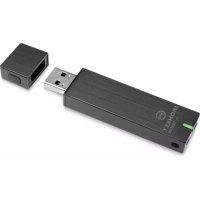
| Product Type | USB Flash Drive |
| Brand | Ironkey |
| Model | Basic D250 8GB |
| Storage Capacity | 8 GB |
| Interface | USB 2.0 |
| Read Speed | Up to 25 MB/s |
| Write Speed | Up to 10 MB/s |
| Dimensions (L x W x H) | 67.7 x 20.0 x 9.8 mm |
| Weight | 11 g |
| Power Supply | USB bus-powered |
| Operating Temperature | 0°C to 60°C |
| Storage Temperature | -20°C to 85°C |
| Encryption | 256-bit AES hardware encryption |
| Password Protection | Yes, via pre-installed software |
| System Compatibility | Windows, macOS, Linux |
| Water Resistance | Not specified (assume no) |
| Shock Resistance | Not specified (assume no) |
| Maintenance | Keep dry, avoid strong magnets, clean with soft cloth |
| Safety | No hazardous materials, RoHS compliant |
| Spare Parts | Not applicable (no user-replaceable parts) |
| Warranty | 2 years |
Frequently Asked Questions - Basic D250 8GB Ironkey
User questions about Basic D250 8GB Ironkey
0 question about this device. Answer the ones you know or ask your own.
Ask a new question about this device
Download the instructions for your USB Drive in PDF format for free! Find your manual Basic D250 8GB - Ironkey and take your electronic device back in hand. On this page are published all the documents necessary for the use of your device. Basic D250 8GB by Ironkey.
USER MANUAL Basic D250 8GB Ironkey
natural_image
Technical line drawing of a USB device with internal components and mounting holes (no text or symbols)Thank you for your interest in IronKey.
IronKey is committed to creating and developing the best security technologies and making them simple-to-use, affordable, and available to everyone. Years of research and millions of dollars of development have gone into bringing this technology to you in the IronKey.
For a quick product overview, you can also view our online demos at https://www.ironkey.com/demo.
We are very open to user feedback and would greatly appreciate hearing about your comments, suggestions, and experiences with the IronKey.
Standard Feedback: feedback@ironkey.com
Anonymous Feedback: https://www.ironkey.com/feedback
User Forum: https://forum.ironkey.com
CONTENTS
What is it? 3
Meet the IronKey 3
Core Features 3
Device Diagrams 5
Technical and Security Notes 6
IronKey Device Security 6
IronKey Services Security 7
How does it work? 9
Product Walkthrough 9
Initializing and Activating Your IronKey on Windows 9
Using the IronKey Unlocker on Windows ....I
Initializing and Activating Your IronKey on a Mac 12
Using the IronKey Unlocker on a Mac 13
Initializing Your IronKey on Linux 14
Using the IronKey Unlocker on Linux 14
Using the IronKey Control Panel (Windows and Mac) 16
Using the IronKey Virtual Keyboard (Windows Only) 19
Using the IronKey Identity Manager (Windows Only). 21
Using the Secure Backup Software (Windows Only) 23
Importing a Digital Certificate into the IronKey (Windows Only) 2 4
Using my.ironkey.com (Windows and Mac) 26
Using Your IronKey in Read-Only Mode (Windows, Mac, Linux) 28
Product Specifications....29
What's next? 30
Where can I go for more info?....30
Who is the IronKey Team? 30
Contact Information 31

natural_image
Pure architectural floor plan lines without any text, numbers, or symbolsWhat is it?
Meet the IronKey
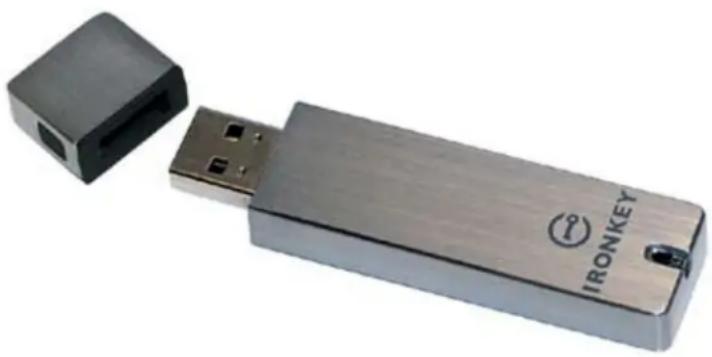
The IronKey Personal Secure Flash Drive, designed to be the world's most secure USB flash drive, protects your data, passwords, and Internet privacy with some of today's most advanced security technologies. Even if your IronKey is lost or stolen, your data remains protected and can even be restored to a new IronKey from an encrypted backup. While the underlying security technologies are complex, the IronKey is simple to use and you only need to remember a password to unlock it.
natural_image
Two electronic devices: a black USB device labeled 'IRONKEY' and a smaller black device with a port, shown against a white background (no text or symbols on the devices themselves).Core Features
Hardware-Encrypted Flash Drive
Your IronKey can safely store 1, 2, 4, 8, or 16 gigabytes of documents, applications, files and other data. The IronKey Cryptochip inside the IronKey protects your data to the same level as highly classified government information, and it cannot be disabled or accidentally turned off.
Self-Destruct Sequence
If the IronKey Cryptochip detects any physical tampering by a thief or a hacker, it will self-destruct. Similarly, after 10 consecutive incorrect password attempts your IronKey will self-destruct using flash-trash technology.
Anti-Malware Autorun Protection
Your IronKey helps protect you from many of the latest malware threats targeting USB flash drives. It will detect and prevent autorun execution of unapproved programs, and it can be unlocked in a Read-Only Mode.
Portable Cross-Platform Data Access
The IronKey Unlocker allows you to access your encrypted files on Windows 2000, XP, Vista, Mac OS X and numerous distributions of Linux.
Simple Device Management
Your IronKey includes the IronKey Control Panel, a central launchpad for launching your applications, editing your preferences, and safely locking your IronKey.
Secure Data Recovery
Securely back up the data on your IronKey using IronKey's Secure Backup software. It allows you to recover your data to a new IronKey in case your IronKey is ever lost, and even synchronize data between IronKeys.
Stealth Browsing Technology
Surf the Web safely and privately through almost any network, even across unsecured wireless hotspots, with IronKey's Secure Sessions Service. It can be easily toggled through the onboard Mozilla Firefox web browser.
Self-Learning Password Management
Securely store and back up all your online passwords as you go with the IronKey Identity Manager. It allows you to automatically log into your online accounts to avoid keylogging spyware and phishing attacks.
Online my.ironkey.com Account
You can manage all of your IronKeys online at https://my.ironkey.com, a secure website that requires two-factor authentication to access it. Here you can recover forgotten passwords, disable device services, and more.
Online Security Vault
If your IronKey is ever lost or stolen, you can easily restore your online passwords from an encrypted online backup.
Waterproof and Tamper-Resistant
The IronKey was designed to survive the extremes. The IronKey's rugged casing is injected with an epoxy compound that makes it not only tamper-resistant, but waterproof to military specifications (MIL-STD-810F).
Section 508 compliance
The IronKey Control Panel is Section 508 compliant. Users with disabilities have keyboard navigation and screen reader support.

Device Diagrams
The IronKey has been designed from the ground up with security in mind. A combination of advanced security technologies are used to ensure maximum protection of your data. Additionally, the IronKey has been designed to be physically secure, to prevent hardware-level attacks and tampering, as well as to make the device rugged and long-lasting. You can rest assured that your data is secured when you carry an IronKey.
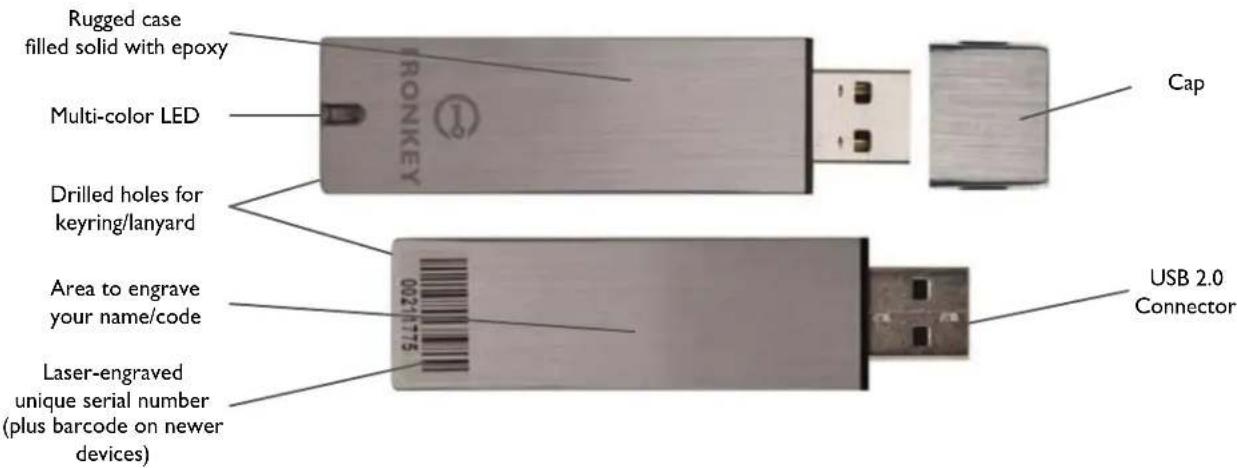
This IronKey Cryptochip is hardened against physical attacks such as power attacks and bus sniffing. It is physically impossible to tamper with its protected data or reset the password counter. If the Cryptochip detects a physical attack from a hacker, it will destroy the encryption keys, making the stored encrypted files inaccessible.

The World's Most Secure Flash Drive
FAST
Dual-channel technology makes it faster than ordinary flash drives
SAFE
Ironkey Cryptochip with military-grade cryptography
RUGGED
Waterproof & tamper-proof metal casing

natural_image
3D diagram of a USB flash drive showing internal components and ports (no text or symbols)RELIABLE
Advanced wear-leveling algorithms for data integrity & longer lifespan
SMART
"Flash-Trash" technology for complete data erasure
INCLUDES
Road-Only Mode & self-defending anti-worm malware protection
Technical and Security Notes
We are endeavoring to be very open about the security architecture and technology that we use in designing and building the IronKey devices and online services. There is no hocus-pocus or handwaving here. We use established cryptographic algorithms, we develop threat models, and we perform security analyses (internal and third party) of our systems all the way through design, development and deployment.
IRONKEY DEVICE SECURITY
Data Encryption Keys
» AES keys generated by onboard Random Number Generator
» AES keys generated by user at initialization time and encrypted
» AES keys never leave the hardware and are not stored in NAND flash
Self-Destruct Data Protection
» Secure volume does not mount until password is verified in hardware
» Password try-counter implemented in tamper-resistant hardware
» Once password try-count is exceeded, all data is erased by hardware
Additional Security Features
» USB command channel encryption to protect device communications
» Firmware and software securely updateable over the Internet
» Updates verified by digital signatures in hardware
Physically Secure
» Solid, rugged case
» Encryption keys stored in the tamper-resistant IronKey Cryptochip
» All chips are protected by epoxy-based potting compound
Exceeds military waterproof standards (MIL-STD-810F)
Device Password Protection
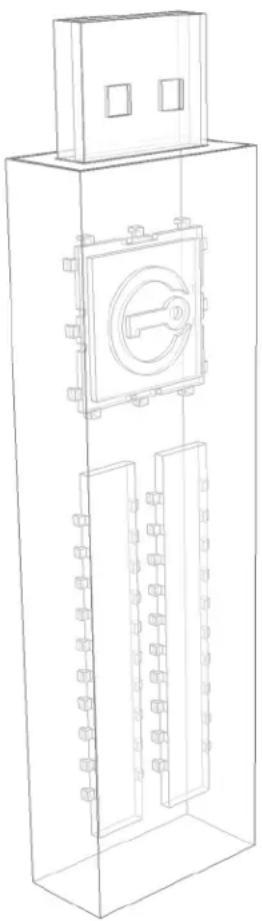
The device password is hashed using salted SHA-256 before being transmitted to the IronKey Secure Flash Drive over a secure and unique USB channel. It is stored in an extremely inaccessible location in the protected hardware. The hashed password is validated in hardware (there is no “getPassword” function that can retrieve the hashed password), and only after the password is validated is the AES encryption key unlocked. The password try-counter is also implemented in hardware to prevent memory rewind attacks. Typing your password incorrectly too many times initiates a patent-pending “flash-trash” self-destruct sequence, which is run in hardware rather than using software, ensuring the ultimate protection for your data.
natural_image
Technical line drawing of a USB device with internal components and mounting holes (no text or symbols)Identity Manager Protection
The IronKey Identity Manager and my.ironkey.com work together, giving you the ability to back up your online passwords to your Online Security Vault at my.ironkey.com. First, you must unlock your IronKey device, which requires two-factor authentication. Your passwords are securely stored in a hidden hardware-encrypted area inside the device (not in the file system), being first locally encrypted with 256-bit AES, using randomly generated keys encrypted with a SHA-256 hash of your device password. All of this data is then doubly encrypted with 128-bit or 256-bit AES hardware encryption. This is the strongest password protection we have ever seen in the industry.
When you back up your passwords online, IronKey performs a complicated public key cryptography handshake with IronKey's services using RSA 2048-bit keys. After successful authentication, your encrypted block of password data is securely transmitted over SSL to your encrypted Online Security Vault within one of our highly-secure data facilities.
IRONKEY SERVICES SECURITY
Secure Facilities
IronKey hosts its online services at state-of-the-art third-party data center facilities. Physical access to the IronKey systems requires multiple levels of authentication, including but not limited to hand geometry biometric readers, “man trap” entry, government-issued photo ID verifications and individual access credentials. Each data center facility is equipped with numerous surveillance cameras, motion detectors, and a sophisticated alarm system. The IronKey infrastructure resides in a secured cage. The entire facility is monitored by dedicated on-site security personnel on a 24x7 basis.
Secure Environments and Policies
Logical access to the IronKey environments is controlled by multiple layers of network technologies such as firewalls, routers, intrusion prevention systems and application security appliances. For additional protection, IronKey partitions its online services and backend applications into different network segments with independent security rules and policies.
Secure Communications and Data at Rest
When users access IronKey web sites and services, all information is exchanged over an encrypted channel. This is accomplished through Secure Socket Layer (SSL) and by utilizing VeriSign Secure Site and VeriSign Secure Site Pro certificates. To ensure additional security for its services, IronKey qualified for and is using Extended Validation SSL. The IronKey applications encrypt all sensitive data prior to transmitting it within the IronKey network and storing in databases.
Secure Sessions: Making Tor Faster and More Secure
IronKey maintains a secure, private Tor network with its own, high-performance servers (separate from the public Tor network). This improves the overall security in at least two ways:
Since IronKey controls the “exit-node” in your encrypted Tor circuit, we can ensure that no one is injecting unwanted or malicious content into your online communications, such as advertisements or spyware. You are not assured this level of security with other publicly-run exit-nodes.
IronKey can also make sure that no exit-node is redirecting your web traffic by providing addition DNS protections. This anti-pharming measure can also help mitigate phishing attacks and other online threats.
Find lots more technical information at https://learn.ironkey.com.

How does it work?
Product Walkthrough
Your IronKey Personal Secure Flash Drive consists of the following components:
» IronKey Unlocker (Windows, Mac and Linux)
» IronKey Control Panel (Windows and Mac)
» IronKey Virtual Keyboard (Windows only)
» Mozilla Firefox and IronKey's Secure Sessions Service (Windows only)
» IronKey Identity Manager (Windows only)
» IronKey Secure Backup (Windows only)
my.ironkey.com (Windows and Mac)
Standard Usage Requires:
» Windows 2000 (SP4), XP (SP2+), Vista, Mac OS X (10.4+) or Linux (2.6+) computer
» A USB 2.0 port for high-speed data transfer
» An email address and Internet connection for the online services
INITIALIZING AND ACTIVATING YOUR IRONKEY ON WINDOWS
When you open the package, you will find one IronKey Secure Flash Drive, one lanyard, and a Quick Start Guide. Below is a brief description of the standard way of setting up an IronKey:
| Step Description | |
| 1 Plug the IronKey into your Windows computer’s USB port. | Your IronKey can be initialized on a Windows 2000, XP, or Vista computer. It can also be set up on Mac or Linux.To use the full speed of the IronKey, plug it into a USB 2.0 port. |
| 2 The “Initialize Your IronKey” screen appears. | The IronKey autoruns as a virtual CD-ROM.This screen might not appear if your computer does not allow devices to autorun. You can start it manually by double-clicking the IronKey Unlocker drive in “My Computer” and double-clicking the “IronKey.exe” file. |
3 Create a device password and a nickname for your IronKey.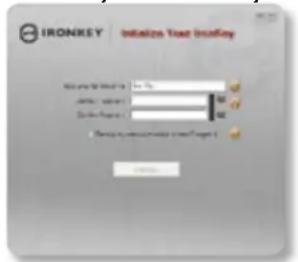 | Because you can have multiple IronKeys associated with one IronKey account, the nickname helps you distinguish between different IronKey devices.Your password is case-sensitive and must be at least 4 characters in length. The threat of brute-force password attacks is removed by the IronKey's self-destruct feature. |
4 Back up your password to your online IronKey account | You have the option to back up your password online to your my.ironkey.com account. That way, if you ever forget your password, you can safely log into https://my.ironkey.com and recover it. |
5 Agree to the License Agreement The  | IronKey's End-User License Agreement appear.s This can also be found online at:https://www.ironkey.com/terms |
| 6 The IronKey initializes. During this process, it generates the AES encryption keys, creates the file system for the secure volume, and copies secure applications and files to the secure volume. | |
| 7 Activate your my.ironkey.com account. | my.ironkey.com is a secure site where you can manage your IronKey account and devices. Accessing my.ironkey.com requires two-factor authentication (your IronKey and your password). |
| 8 Follow the onscreen directions to setup your my.ironkey.com account. | You will create a unique username and password, confirm your email address for out-of-band authentication, and answer Secret Questions for supplemental authentication.You will also select a Secret Image that you will see whenever you log in, as well as a Secret Phrase that is used as an anti-phishing measure when communicating with you via email. |
| 9 Respond to the confirmation email by entering in the activation code on the website. | IronKey must verify your email address because it uses it to help you reset your account password, unlock your my.ironkey.com account, and to notify you about account security alerts. |
At this point, your IronKey is ready to protect your data, identity, and online privacy.
USING THE IRONKEY UNLOCKER ON WINDOWS
The IronKey Unlocker allows you to securely access your files on multiple operating systems. It prompts you for your password, securely validates it, and then mounts your secure volume where all of your files are stored on the IronKey.
Here is how to unlock your IronKey on Windows 2000 (SP4), XP (SP2+), and Vista:
Step Description
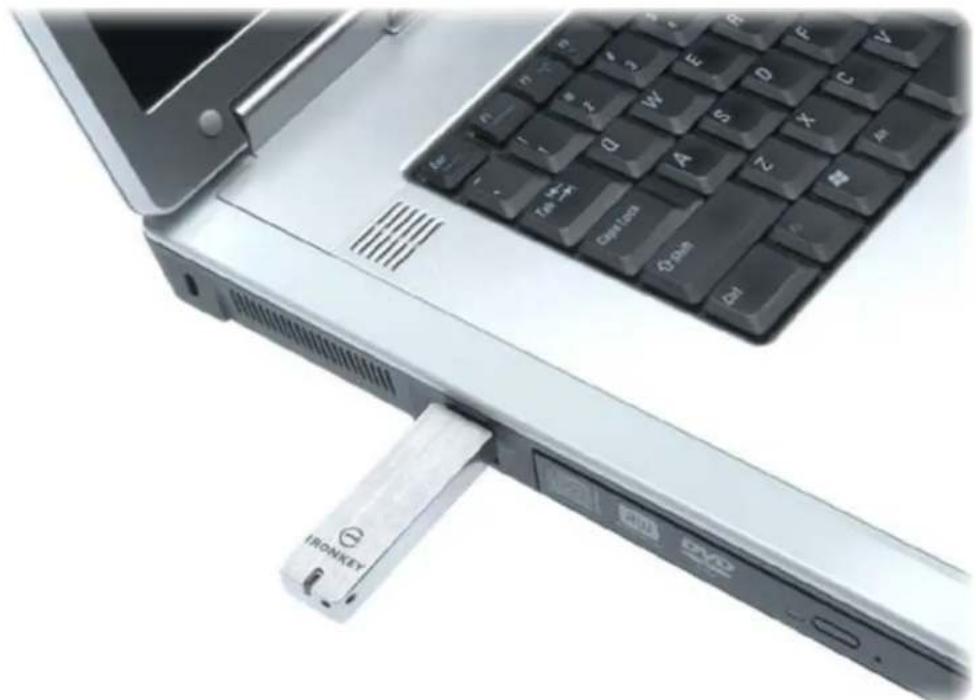
I Plug in your IronKey and unlock it with your password.

When you plug your IronKey in, the "Unlock Your IronKey" window appears.
If this screen does not appear, you can start it • manually by double-clicking the IronKey Unlocker drive in "My Computer" and double-clicking the "IronKey.exe" file.
Entering your password correctly (which is verified in hardware) will mount your secure volume with all your secure applications and files.
Entering the wrong password 10 consecutive times will permanently erase all of your data. After every three attempts, you must unplug and reinsert the IronKey.
2 Choose which action to take when you unlock it.
By selecting the corresponding checkboxes before unlocking your IronKey, you can view your secure files, launch the IronKey Control Panel, unlock the IronKey in Read-Only Mode where files cannot be edited, and securely log into your my.ironkey.com account.
natural_image
Close-up of a laptop keyboard and USB drive with a metallic connector (no visible text or symbols)INITIALIZING AND ACTIVATING YOUR IRONKEY ON A MAC
If you prefer to use a Mac, you can choose to initialize your IronKey on a Mac OS X computer:
| Step Description | |
| 1 Plug the IronKey into your computer's USB port. | Your IronKey will run on Mac OS X (10.4+, Intel) computers. It can also be set up and used on Windows and Linux.To use the full speed of the IronKey, plug it into a USB 2.0 port. |
2 Double-click the IronKey drive on your desktop, and double-click the “IronKey” file. The “Initialize Your IronKey” screen appears.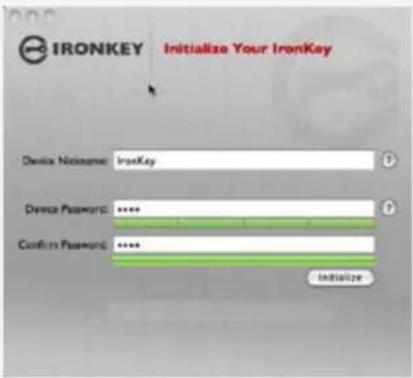 | The IronKey autoruns as a virtual CD-ROM.NOTE: You can install the IronKey Auto-Launch Assistant, which automatically opens the IronKey Unlocker when you plug in an IronKey. See “Preferences” in IronKey Control Panel Settings. (Mac only) |
| 3 Create a device password and a nickname for your IronKey. | Your password is case-sensitive and must be 4 or more characters long. The threat of brute-force password attacks is removed by IronKey’s self-destruct feature. |
4 Agree to the License Agreement. The IronKey’s End-User License Agreement appears. | This can also be found online at:https://www.ironkey.com/terms |
5 The IronKey initializes. During this process, it generates the AES encryption key and creates the file system for the secure volume.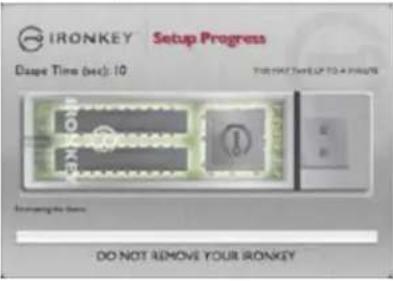 | This process might take a minute. |
| 6 Activate your my.ironkey.com account. | my.ironkey.com is a secure site where you can manage your IronKey account and devices. Accessing my.ironkey.com requires two-factor authentication (your IronKey and your password). |
| 7 Follow the onscreen directions to setup your my.ironkey.com account. | You will create a unique username and password, confirm your email address for out-of-band authentication, and answer Secret Questions for supplemental authentication.You will also select a Secret Image that you will see whenever you log in, as well as a Secret Phrase that is used as an anti-phishing measure when communicating with you via email. |
| 9 Respond to the confirmation email by entering in the activation code on the website. | IronKey must verify your email address because it uses it to help you reset your account password, unlock your my.ironkey.com account, and to notify you about account security alerts. |
At this point, your IronKey is ready to protect your data, identity, and online privacy.
USING THE IRONKEY UNLOCKER ON A MAC
The IronKey Unlocker for Mac will allow you to access your files and change your device password on a Mac. You can use additional IronKey applications and services on Windows.
| Step Description | |
| 1 Plug the IronKey into your computer's USB port. | |
| 2 Double-click the IronKey drive on your desktop, and double-click the “IronKey” file. The “Unlock Your IronKey” screen appears. | NOTE: You can install the IronKey Auto-Launch Assistant, which automatically opens the IronKey Unlocker when you plug in an IronKey. See “Preferences” in IronKey Control Panel Settings. (Mac only) |
3 Unlock it with your password. | Entering your password correctly (which is verified in hardware) will mount your secure volume with all your secure files.Entering the wrong password too many times will permanently erase all of your data. After every three attempts, you must unplug and reinsert the IronKey. |
| 4 Choose which action to take when you unlock it. | By selecting the corresponding checkboxes before unlocking your IronKey, you can view your secure files, launch the IronKey Control Panel, unlock the IronKey in Read-Only Mode where files cannot be edited, and securely log into your my.ironkey.com account. |
INITIALIZING YOUR IRONKEY ON LINUX
If you prefer to use a Linux computer, you can choose to initialize your IronKey on Linux:
| Step Description | |
| 1 Plug it into your computer's USB port. | Your IronKey can be initialized on Linux 2.6+ (x86 systems only). It can also be setup and used on Windows and a Mac.To use the full speed of the IronKey, plug it into a USB 2.0 port. |
| 2 Run the ironkey program from the IronKey's linux folder. | The IronKey has a virtual CD-ROM.You must start the IronKey Unlocker manually by going to the linux folder and running ironkey. |
| 3 Agree to the license agreement. The | IronKey's End-User License Agreement appears.Scroll to the end of the agreement, and press Q to exit viewing the agreement. Press Y (Yes) to agree to its terms. (It's also online at: https://www.ironkey.com/terms) |
| 4 Create a device password and a nickname for your IronKey. | Because you can have multiple IronKeys, the nickname helps you distinguish between different IronKey devices.Your password is case-sensitive and must be at least 4 characters long. The threat of brute-force password attacks is removed by the IronKey's self-destruct feature. |
| 5 The IronKey initializes. During this process, it generates the AES encryption key, and creates the file system for the secure volume.This process might take a minute. | |
Your IronKey is now ready for use.
USING THE IRONKEY UNLOCKER ON LINUX
The IronKey Unlocker for Linux will allow you to access your files and change your device password on Linux, allowing you to securely transfer files from and between Windows, Mac, and Linux computers. You can use the other IronKey applications and services on a Windows computer.
Depending on your Linux distribution, you might need root privileges to use the program "ironkey" found in the Linux folder of the mounted virtual CD-ROM. If you have only one IronKey attached to the system, simply run the program from a command shell with no arguments (e.g. ironkey). If you have multiple IronKeys, you will have to specify the device name of the one you want to unlock.
NOTE: ironkey only unlocks the secure volume; it must then be mounted. Many modern Linux distributions will do this automatically; if not, run the mount program from the command line, using the device name printed by ironkey.
To change the password of the IronKey named "devicename," enter:
ironkey --changepwd [devicename]
To lock the IronKey named "devicename," enter:
ironkey --lock [devicename]
To unlock the IronKey in Read-Only Mode, enter:
ironkey --read-only
To unlock the IronKey with the password "devicepassword," enter:
ironkey --password [devicepassword]
Simply unmounting the device does not automatically lock the secure volume. To lock the device, you must either unmount and physically remove (unplug) it, or else run:
ironkey --lock
Please note the following important details for using your IronKey on Linux:
I. Kernel Version must be 2.6 or higher
If you compile your own kernel, you must include the following in it:
» DeviceDrivers->SCSIDeviceSupport-><*>SCSICDROMSupport
» DeviceDrivers-><*> Support for Host-side USB
» DeviceDrivers-><*> USB device filesystem
» DeviceDrivers-><*> EHCI HCD (USB 2.0) support
» DeviceDrivers-><*> UHCI HCD (most Intel and VIA) support
» DeviceDrivers-><*> USB Mass Storage Support
The kernels that are included by default in most major distributions already have these features, so if you are using the default kernel that comes with a supported distribution you do not need to take any other action.
Also, on 64-bit linux systems the 32-bit libraries will have to be installed in order to run the ironkey program.
2. Mounting problems
Make sure you have permissions to mount external SCSI and USB devices
» Some distributions do not mount automatically and require the following command to be run:
mount /dev/<name of the device> /media/<name of the mounted device>
» The name of the mounted device varies depending on the distribution. The names of the IronKey devices can be discovered by running:
ironkey --show
3. Permissions
You must have permissions to mount external/usb/flash devices
» You must have permissions to run executables off the IronKey CD-ROM in order to launch the IronKey Unlocker
» You might need root user permissions
4. Supported distributions
Not all distributions of Linux are supported. Please visit https://support.ironkey.com/linux for the latest list of supported distributions.
5. The IronKey Unlocker for Linux only supports x86 systems at this time.
See https://support.ironkey.com/linux for more information.
USING THE IRONKEY CONTROL PANEL (WINDOWS AND MAC)
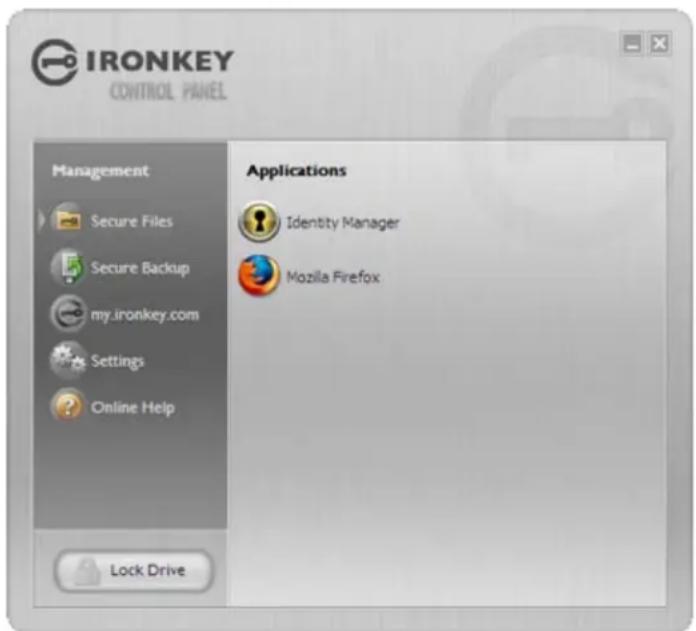
The IronKey Control Panel is a central location for:
» Launching secure applications
» Securely logging into my.ironkey.com
Configuring your IronKey settings
» Updating your device
» Changing your IronKey password
» Safely locking your device
» Getting online help
Most of the Control Panel's options are located in the "Settings" menu.
NOTE: The Windows version of the IronKey Control Panel is shown.
Step Description
I Creating, editing, deleting secure files

When you click "Secure Files" in the IronKey Control Panel, the default browser on your computer opens directly to your secure volume.
All files on your IronKey are strongly encrypted with military-grade AES encryption. Encrypting files is as simple as moving them into the secure volume. Dragging files onto your desktop decrypts them on-the-fly in hardware. The IronKey gives you the convenience of working as you normally would with a regular flash drive, while providing strong and “always-on” security.
| 2 | Updating device firmware/software | The IronKey can securely update its software and firmware through signed updates that are verified in hardware. This allows users to keep their devices up-to-date and protect themselves from future malware and online threats.To check for available updates, click the “Check for Updates” button (Windows) or “Check Now” button (Mac).Windows: If an update is available, you can • download and install it by clicking the “Download Update” button.Mac: You can check for and download policy • updates. However, you must download software updates on a Windows computer. |
| 3 | Configuring your preferences Click “Settings” to configure your preferences. | |
 | » You can enable the Identity Manager.» You can enable Secure Sessions.» Select the default web browser for your IronKey.» You can set a device time-out to automatically lock your IronKey after a specified period of inactivity.» You can install the IronKey Auto-Launch Assistant, which automatically opens the IronKey Unlocker when you plug in an IronKey. (Mac only)Important drive maintenance features:» You can reformat your secure volume.» You can restore your IronKey applications if they are ever erased or corrupted (Windows only). | |
 | ||
| 4 | Configure your IronKey’s network and proxy settings | Click “Network Settings” (Windows) or “Network” (Mac) to configure how your IronKey connects to the Internet:» Direct Connection: Does not use a proxy.» Use System Settings (default): Uses the proxy settings of your computer from the following locations.Windows: Control Panel > Internet Options• Mac: System Preferences > Network > Proxy•IMPORTANT: Firefox proxy settings must be the same as System Preferences and IronKey Control Panel. Firefox does not use System Preference data.»Configuration Script: Enter the URL or path to where your Web Proxy Auto-Detect file is located.»Manual Proxy: Enter the URL and port number for your proxy server.If proxy authentication is required, you can enter your username and password in the appropriate fields. |
| 5 Creating a Lost and Found Message This feature allows you to create a message that will appear on the IronKey Unlocker window. In the event that you lose your IronKey, someone can return it to you if you provide your contact information. | |
6 Changing your device password You can change your device password and optionally back it up online to your Online Security Vault at my.ironkey.com. Changing your password on a regular basis is a good security practice. However, be especially careful to remember your IronKey password. Changing your password on a regular basis is a good security practice. However, be especially careful to remember your IronKey password. | |
| 7 Viewing device details You can view details about your device, including model number, serial number, software and firmware version, secure files drive, and OS. You can also click the copy button (CTRL+C) to copy device details to the clipboard for your forum posting or support request; visit the website (CTRL+W); or view legal notices (CTRL+N) and certifications (CTRL+?). | |
8 Adding, renaming, and removing applications to the Applications List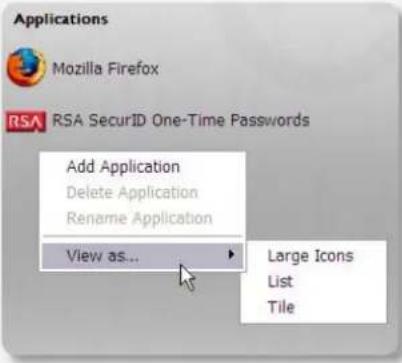 | To manage the items in the Applications List of the IronKey Control Panel, simply right-click anywhere in Applications List and click to add, rename, delete applications in the list. You can also change between icon and list view.NOTE:» Mac: Applications installed on the secure volume are automatically added to the list (default: empty).» Items in the list are shortcuts to actual files. Managing the items in the list will not alter the actual file.» Items are automatically sorted alphabetically.» Any file can be added to the list, including documents, images, and batch files.» For items that are not applications, Windows will open the item with the default program associated with that filetype. |
| 9 Locking and unplugging the IronKey Clicking “Lock Drive” (Windows, CTRL+L) or “Lock & Quit” (Mac) exits open IronKey applications and locks the device. It is then safe to unplug it from your computer. Ensure that you close all open applications and files before locking your IronKey to prevent data corruption. | |
If you are using your IronKey on an unfamiliar computer and are concerned about keylogging and screenlogging spyware, use the IronKey Virtual Keyboard, which helps protects your passwords by letting you click out letters and numbers. The underlying techniques in the IronKey Virtual Keyboard will bypass many trojans, keyloggers, and screenloggers.
The IronKey Virtual Keyboard can be launched in a couple of ways:
» In places where you enter a password into the IronKey (e.g. the IronKey Unlocker, changing your device password, initializing your device), click the Virtual Keyboard icon
» Use the keyboard shortcut CTRL+ALT+ V
The IronKey Virtual Keyboard can be used in a number of other applications when you need extra security typing out information (e.g. email, documents).
Step Description
I Click the IronKey Virtual Keyboard icon.

The IronKey Virtual Keyboard appears. Alternatively, you can press CTRL+ALT+V.

2 Click the keys to type your password. Click "Enter" when you are finished.
You can use the IronKey Virtual Keyboard in conjunction with the actual keyboard, so that you type some characters and click some characters.
3 You can optionally click the "Randomize" button to randomize where the keys are. This helps protect against screenloggers.
When you click a key in the Virtual Keyboard, all of the keys go blank. This feature prevents screenloggers from capturing what you clicked.

If you do not want to use this feature, you can disable it in the options menu next to the close button.
In the options menu, you can also configure the Virtual Keyboard to automatically launch when it encounters password fields.
USING THE ONBOARD FIREFOX AND SECURE SESSIONS SERVICE (WINDOWS)
Since your IronKey comes with a Firefox web browser already onboard, none of your cookies, history files, bookmarks, add-ons or online passwords are stored on the local computer. Now you can carry your personalized web experience with you to other computers without worry.
Step Description
I Launch the onboard Firefox web browser for portable surfing

2 Toggle Secure Sessions for secure and private surfing

Clicking on the Mozilla Firefox icon in the Applications list of the IronKey Control Panel will launch the onboard Firefox. You cannot have a local version of Firefox running at the same time; if you do, you will be prompted to close it.
Clicking the IronKey button on the bottom right of the onboard Firefox will silently turn IronKey's Secure Sessions Service on/off. This will create an encrypted tunnel directly from your IronKey, out to a secured IronKey web server, where it is then decrypted and sent out to the destination site.
This security gives you anti-phishing and anti-pharming protection (for example, we do our own DNS checking), as well as enhanced privacy protection (for example your IP address will not be available to other websites and ISPs). You can check this out by going to a site such as whatismyip.com or ipchicken.com.
3 Using the Secure Sessions Tools: Network Map, Bandwidth Meter, and Changing Identities

At any point while using Secure Sessions, you can launch additional tools form the IronKey System Tray Menu that show you more information regarding your web traffic and current session.
The Network Map shows all of your available "circuits" and where in the world your traffic is coming from.
The Bandwidth Meter shows your current bandwidth metrics.
You can easily change your apparent online “identity”, which creates a new random circuit and changes the path of your encrypted web traffic. As you will be coming from a different IP address, it will likely appear to websites that you are a different person.
USING THE IRONKEY IDENTITY MANAGER (WINDOWS ONLY)
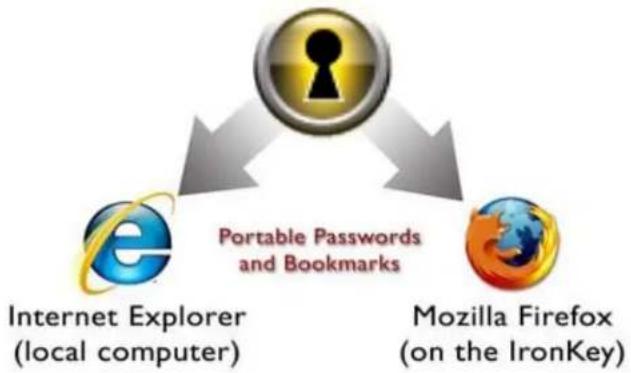
The IronKey Identity Manager securely stores and uses many of your most important identity credentials, including login information and one-time passwords to applications and online accounts. With a click of a button, it automatically launches a specified application, fills in your username and password, and then logs you in. It can even generate strong passwords for you, so that you can really lock down your important accounts.
flowchart
graph TD
    A["Internet Explorer (local computer)"] --> B["Portable Passwords and Bookmarks"]
    C["Mozilla Firefox (on the IronKey)"] --> B
    B --> D["Keyhole Icon"]
The IronKey Identity Manager also allows you to back up your encrypted Identity Manager data to your Online Security Vault, to synchronize password data between IronKeys, and to securely restore all your passwords to a new IronKey if your IronKey is ever lost or stolen. Only you can access and decrypt your passwords.
The IronKey Identity Manager does not store your passwords in a file on the file system of the flash drive, so malware cannot simply copy your password database. Also, not typing your passwords provides added protection from keyloggers and other crimeware.

VeriSign Identity Protection
The Identity Manager works with VeriSign's VIP service to lock down many important online accounts, including eBay, PayPal, AOL, and Geico accounts. This new technology generates a one-time password for each login, locking down your online account so that it can only be used from your IronKey.
See the Help file for detailed information about the benefits of using Identity Manager. To view it, click the Help icon in the top right of the main Identity Manager window.
Step Description
| I Adding accounts and passwords You can add accounts to Identity Manager in several ways:Restore them from your Online Security Vault.•Import them from Firefox, KeePass, RoboForms or•Internet Explorer.Add them manually using the “Add” button in the •main Identity Manager window.When on a particular website, select “Add •Account” from the Titlebar Menu.Use the Identity Manager’s built-in self-learning •approach to capture your logins by simply logginginto a site as usual. The Identity Manager promptsyou to store this password securely on yourIronKey. |
| 2 | Automatically logging into an account | The next time you return to a website or application for which you have stored a password, your login automatically fills in for you. If you have the auto-login option enabled for that account, the Identity Manager also submits the login.You can also automatically log in by:Using the IronKey Launcher (Ctrl + Alt + R).• Using the Titlebar Menu in the top right of the • application window.Using the IronKey System Tray Menu.• Clicking the “AUTO” button in the main Identity • Manager window. |
| 3 | Editing/deleting logins and accounts | You can manage your IronKey Identity Manager accounts from within the main Identity Manager window. Double-click the account, or select it and click the “Edit” button.Your data is automatically saved when you are finished making your edits. |
| 4 | Backing Up and Restoring Identity Manager Data | You can securely back up your encrypted Identity Manager data to your Online Security Vault. Simply click the “Backup” button from within the IronKey Identity Manager to back up all of your Identity Manager data.Synchronizing IronKeys (or setting up Master-Slave relationships) is easy since you can restore backups to your other IronKeys. |
| 5 | Locking down accounts with VeriSign’s VIP Service | You can lock down some important online accounts with VeriSign’s VIP service so that they can only be accessed by using your IronKey. Log into eBay or PayPal, and the Identity Manager guides you through the rest.You can also manually use the VeriSign VIP service for an account by editing the account and selecting VeriSign VIP from the “Additional Authentication” list. |
| 6 | Generating strong and random passwords | You can create long random passwords with the Identity Manager when setting up or editing an account. Then, you can have the IronKey Identity Manager remember them for you. |
USING THE SECURE BACKUP SOFTWARE (WINDOWS ONLY)

If your IronKey is lost or stolen, you have peace of mind knowing that your confidential information cannot be seen by anyone but you. And getting your data back is simple with IronKey's Secure Backup software, which, if enabled, securely restores your data to a new IronKey.
Back up your data on a regular basis.
Step Description
I Backing up your IronKey You can create an encrypted backup of a

single file or your entire IronKey to your local computer. Click the "Secure Backup" button in the IronKey Control Panel, select a destination folder, and select which files to back up. It's that simple.
2 Restoring encrypted backups If you ever lose your IronKey, you can restore
your data from an encrypted backup. Open the Secure Backup client, select the location on your local computer where the backup is located, and select which files/folders to restore. If the data is coming from a different IronKey, you will have to supply the device password for that IronKey.

IMPORTING A DIGITAL CERTIFICATE INTO THE IRONKEY (WINDOWS ONLY)
The IronKey Cryptochip includes a limited amount of extremely secure hardware storage space, which can be used for storing the private key associated with a digital certificate. This provides you with additional strong authentication capabilities. For example, you could store a self-signed certificate used for internal systems that will allow you to automatically log in when using the IronKey's onboard Firefox web browser.
The import process uses IronKey's PKCS#11 interface and requires Mozilla Firefox. Note that there is only space for one additional private key in the IronKey Cryptochip, though that key will receive the security benefits of the Cryptochip's tamperproof hardware and self-destruct mechanisms.
| Step Description | |
| 1 Open the onboard Firefox. Click | the icon in the IronKey Control Panel's application list on your user's device. |
| 2 Open Firefox's Options menu to the Encryption tab. | 1. Click “Tools” in the menu bar.2. Click “Options.”3. Click the “Advanced” icon.4. Click the “Encryption” tab. |
| 3 Click the “View Certificates” button.This will open the Firefox Certificate Manager. | |
| 4 Note that IronKey's certificate is available here. Now you can add your own.Click the “Import” button. |  |
| 5 Browse to the PKCS#12-format certificate file and open it. | You will be prompted for the location of the PKCS#12-format certificate file (file extension will be .p12 in UNIX/Linux, .pfx in Windows). |
| 6 A window will appear asking you to confirm where to store the certificate.Choose “IronKey PKCS#11” | 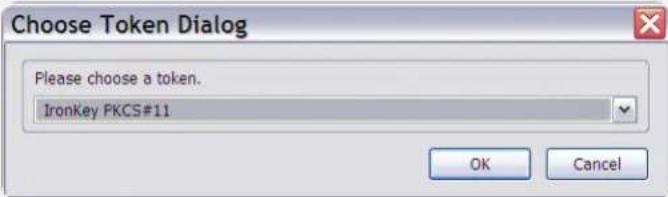 |
| 7 Enter the password that was used to protect the certificate.If no password was used, simply leave the text field blank. |  |
| 8 Your certificate is now stored securely in the IronKey Cryptochip and is available for use in the onboard Mozilla Firefox. |  |
USING MY.IRONKEY.COM (WINDOWS AND MAC)
Your IronKey supports advanced cryptographic authentication using strong PKI key pairs generated in the IronKey Cryptochip. When you log into my.ironkey.com from your device, it uses these unique keys as your digital identity credentials. This locks down your account so that you must have both your IronKey and your password in order to gain access. In other words, only you can access your online IronKey account, even if someone stole your IronKey or your password.

In the event that you ever lose your IronKey, you can still access the site in Safe Mode: a restricted mode with limited functionality. This is useful for marking your IronKey as lost, or recovering a forgotten password.
Step Description
I Securely logging into your account

You can securely log into your my.ironkey.com by clicking the “my.ironkey.com” button in the IronKey Control Panel. This will initiate a complex PKI handshake, thus logging you in with strong, multi-factor authentication.
If you ever lose your IronKey, you can log into Safe Mode by going to https://my.ironkey.com, logging in the account credentials you created when you activated your account. This will allow you to mark an IronKey as lost or recover a forgotten device password.
2 Marking IronKeys as lost If you ever lose

your IronKey, you can rest assured that no one will ever get your data. As an additional precaution, you can mark an IronKey as lost from within my.ironkey.com, which will prevent that device from ever accessing your account. If you find your IronKey later, you can also mark it as found again.
3 Recovering device passwords People som

etimes forget passwords. IronKey gives you the option to back up your device password to your Online Security Vault at my.ironkey.com. That way, you can log into Safe Mode or with another IronKey and recover the password.
4 Monitoring account activities The Account  | Dashboard shows you the recent activities on your account, such as logins, failed password attempts, and when your device password has been recovered. |
5 Enabling Account Alerts for real-time account monitoring  | You can enable a number of Account Alerts for additional insight into what activities are occurring on your my.ironkey.com account. An email will be sent to you with details on the security event, such as the time and IP address of the event.All emails regarding your account will have part of your Secret Phrase in the subject line for additional anti-phishing protection. |
6 Changing account credentials You can change your password, Secret Questions,  | Secret Image and Phrase, as well as your email addresses from within my.ironkey.com as often as you want to ensure that no one else can access your account. You can also specify time zone and select time and date formats to configure time zone settings.Creating a secondary email address gives you a fail-safe in case your primary email address is no longer available. |
In the event that you ever lose your IronKey or forget your IronKey device password, you can still access the site in Safe Mode: a restricted mode with limited functionality. This is useful for marking your IronKey as lost, or recovering a forgotten password.
| Step Description | ||
| 1 | Go to https://my.ironkey.com | Here you can log into Safe Mode without your IronKey. |
| 2 | Enter your email address (or username) and your online account password. Click “Submit”. | Your Secret Image appears so that you know you are at the correct site.Do not enter your device password in this screen. If you have forgotten your online account password, click the “Reset Password” link. |
| 3 | An email will be sent to you with a Login Code. | Copy and paste that login code into the page that asks for it.Depending on the configuration of your account, you might need to answer your Secret Questions. |
| 4 | You are now logged into Safe Mode. If you | had forgotten your device password and have backed it up to your Online Security Vault, you can recover it now. |
USING YOUR IRONKEY IN READ-ONLY MODE (WINDOWS, MAC, LINUX)
You can unlock your IronKey in a read-only state such that files on your IronKey cannot be edited. An example of when this is useful is when you want to access a file on your IronKey while using an untrusted or unknown computer. If you unlock your IronKey in Read-Only Mode, you need not fear that malware on that machine will infect your IronKey or modify your files.
When you unlock your IronKey in Read-Only Mode, you will remain in Read-Only Mode until you lock your IronKey.
Note that some features are not available in Read-Only Mode because they require modifying files on your IronKey. Examples of unavailable features include the onboard Firefox, reformatting, updating and restoring applications and files to your IronKey, and using the Applications List.
On Windows and Mac OS X Computers:
Step Description
When unlocking your IronKey, select the "Unlock IronKey in Read-Only Mode" checkbox

2 You will see a message in the IronKey Control Panel that confirms you are in Read-Only Mode.

On Linux Computers:
Step Description
I To unlock your IronKey in Read-Only Mode on Linux, use:
ironkey --read-only
2 To return to a normal state where you can edit files again, lock your IronKey
ironkey --lock
Product Specifications
For details about your device, see “About IronKey” in IronKey Control Panel Settings.
CAPACITY\*
Up to 32GB, depending on the model
DIMENSIONS
75mm × 19mm × 9mm
WEIGHT
0.8 oz
WATERPROOF
MIL-STD-810F
Hashing: 256-bit SHA
PKI: 2048-bit RSA
FIPS CERTIFICATIONS
See www.ironkey.com for details.
HARDWARE
USB 2.0 (High-Speed) port recommended, USB 1.1
OS COMPATIBILITY
Windows 2000 (SP4), XP (SP2+), Vista IronKey Unlocker for Linux (2.6+, x86) IronKey Unlocker for Mac (10.4+, Intel)
Designed and Assembled in the U.S.A.
IronKey devices do not require any software or drivers to be installed.

*Advertised capacity is approximate and not all of it will be available for storage. Some space is required for onboard software.
What's next?
natural_image
Diagram of a USB device showing an integrated circuit chip with two pins and a key symbol (no text or labels)In many ways, that's up to you. We are focused on building not only the world's most secure flash drive, but also enabling technologies that are simple and enjoyable to use. Your feedback really matters to us, and we carefully review all feature requests and customer feedback for prioritization of our next great features and products.
Have a cool idea or suggestion? Please let us know. You can open a thread on the IronKey Forum (forum.ironkey.com) or submit feedback to feedback@ironkey.com. Let us know if you would like to be a beta tester of new functionality.
Where can I go for more info?
We are endeavoring to be very open about the security architecture and technology that we use in designing and building the IronKey devices and online services. A great deal of information can be found online on our websites:
forum.ironkey.com User forum with thousands of "IronKeyologists"
www.ironkey.com General information
learn.ironkey.com Technical information, whitepapers, and FAQs
support.ironkey.com Customer support information and video tutorials
Who is the IronKey Team?
The IronKey Team consists of security, fraud, and industry experts with many years of background at companies such as Visa, RSA Security, PayPal, Authenex, Nokia, Cisco, Lexar, Netscape, Tumbleweed, Valicert, Apple, and the Department of Homeland Security. IronKey CEO Dave Jevans is also the chairman of the Anti-Phishing Working Group (www.antiphishing.org).

natural_image
3D wireframe diagram of a mechanical assembly inside a transparent enclosure (no text or symbols)We have spent years and millions of dollars of research and development to create the IronKey. Simple, accessible, and of great value, now you can carry the world's most secure flash drive to protect your digital life online and on-the-go.
Contact Information
Product Feedback
feedback@ironkey.com
Feature Requests
featurerequest@ironkey.com
IronKey Online
https://my.ironkey.com
https://learn.ironkey.com
https://support.ironkey.com
https://forum.ironkey.com
https://store.ironkey.com
IronKey Support
https://support.ironkey.com
support@ironkey.com
5150 El Camino Real, Suite C31
Los Altos, CA 94022 USA
Monday - Friday, 6am - 5pm PST

natural_image
Close-up of a hand holding a metallic USB flash drive (no visible text or symbols on the device body)Note: IronKey is not liable for technical or editorial errors and/or omissions contained herein; nor for incidental or consequential damages resulting from the furnishing or use of this material. The information provided herein is subject to change without notice.
The information contained in this document represents the current view of IronKey on the issue discussed as of the date of publication. IronKey cannot guarantee the accuracy of any information presented after the date of publication. This document is for information purposes only. IronKey makes no warranties, expressed or implied, in this document. IronKey and the IronKey logo are trademarks of IronKey, Inc. in the United States and other countries. All other trademarks are the properties of their respective owners. © 2009 IronKey, Inc. All rights reserved. IK0010694



- CONTENTS
- What is it? 3
- How does it work? 9
- What's next? 30
- What is it?
- Meet the IronKey
- Core Features
- Hardware-Encrypted Flash Drive
- Self-Destruct Sequence
- Anti-Malware Autorun Protection
- Portable Cross-Platform Data Access
- Simple Device Management
- Secure Data Recovery
- Stealth Browsing Technology
- Self-Learning Password Management
- Online my.ironkey.com Account
- Online Security Vault
- Waterproof and Tamper-Resistant
- Section 508 compliance
- Device Diagrams
- The World's Most Secure Flash Drive
- FAST
- SAFE
- RUGGED
- RELIABLE
- SMART
- INCLUDES
- Technical and Security Notes
- IRONKEY DEVICE SECURITY
- Data Encryption Keys
- Self-Destruct Data Protection
- Additional Security Features
- Physically Secure
- Device Password Protection
- Identity Manager Protection
- IRONKEY SERVICES SECURITY
- Secure Facilities
- Secure Environments and Policies
- Secure Communications and Data at Rest
- Secure Sessions: Making Tor Faster and More Secure
- How does it work?
- Product Walkthrough
- Standard Usage Requires:
- INITIALIZING AND ACTIVATING YOUR IRONKEY ON WINDOWS
- USING THE IRONKEY UNLOCKER ON WINDOWS
- Step Description
- INITIALIZING AND ACTIVATING YOUR IRONKEY ON A MAC
- USING THE IRONKEY UNLOCKER ON A MAC
- INITIALIZING YOUR IRONKEY ON LINUX
- USING THE IRONKEY UNLOCKER ON LINUX
- Please note the following important details for using your IronKey on Linux:
- Kernel Version must be 2.6 or higher
- Mounting problems
- Permissions
- Supported distributions
- The IronKey Unlocker for Linux only supports x86 systems at this time.
- USING THE IRONKEY CONTROL PANEL (WINDOWS AND MAC)
- USING THE ONBOARD FIREFOX AND SECURE SESSIONS SERVICE (WINDOWS)
- USING THE IRONKEY IDENTITY MANAGER (WINDOWS ONLY)
- VeriSign Identity Protection
- USING THE SECURE BACKUP SOFTWARE (WINDOWS ONLY)
- IMPORTING A DIGITAL CERTIFICATE INTO THE IRONKEY (WINDOWS ONLY)
- USING MY.IRONKEY.COM (WINDOWS AND MAC)
- USING YOUR IRONKEY IN READ-ONLY MODE (WINDOWS, MAC, LINUX)
- On Windows and Mac OS X Computers:
- On Linux Computers:
- Product Specifications
- CAPACITY\*
- DIMENSIONS
- WEIGHT
- WATERPROOF
- FIPS CERTIFICATIONS
- HARDWARE
- OS COMPATIBILITY
- What's next?
- Where can I go for more info?
- Who is the IronKey Team?
- Contact Information
- IronKey Online
- IronKey Support
Brand : Ironkey
Model : Basic D250 8GB
Category : USB Drive