
TAB1081 - Tablet Sunstech - Free user manual and instructions
Find the device manual for free TAB1081 Sunstech in PDF.


| Product Type | Tablet |
| Brand | Sunstech |
| Model | TAB1081 |
| Operating System | Android (Google LLC trademark) |
| Display | Touchscreen |
| Storage Expansion | microSD card slot |
| SIM Card | Dual SIM support |
| Connectivity | Wi-Fi WLAN, Bluetooth |
| USB Port | microUSB for charging and data |
| Audio Jack | 3.5mm headphone jack |
| Buttons | Menu, Home, Back, Power, Volume |
| Battery | Rechargeable lithium-ion, microUSB charging |
| Battery Charging Temperature | Do not exceed 40°C (104°F) |
| Operating Temperature | 20°C to 60°C (68°F to 140°F) internal |
| Wi-Fi Usage | Permitted indoors without restrictions |
| Memory Card Format | microSD |
| Package Contents | Tablet, USB cable, charger, user manual |
| Safety | Battery overcharge protection, avoid liquids |
Frequently Asked Questions - TAB1081 Sunstech
User questions about TAB1081 Sunstech
0 question about this device. Answer the ones you know or ask your own.
Ask a new question about this device
Download the instructions for your Tablet in PDF format for free! Find your manual TAB1081 - Sunstech and take your electronic device back in hand. On this page are published all the documents necessary for the use of your device. TAB1081 by Sunstech.
USER MANUAL TAB1081 Sunstech
natural_image
Abstract illustration of a white sphere resting on a gray book with a small circle and crescent moon, against a dark background (no text or symbols)TAB1081
TABLET
USER GUIDE
ENGLISH
User guide
TAB1081
CONTENT
SAFETY....1
User manual....3
Important information....3
Notes: 3
MEMORY CARD INSTALLATION 4
CHARGING THE BATTERY 4
BUTTONS....5
Sms – Messages ....11
SETTINGS 12
ADD ANOTHER EMAIL ACCOUNT....13
CONNECTED DEVICES 14
APPS & NOTIFICATIONS....14
BATTERY 15
DISPLAY....15
SOUND....15
SOUND....16
STORAGE....16
SECURITY & LOCATION 17
USERS & ACCOUNTS....17
ACCESSIBILITY....18
GOOGLE....19
SYSTEM....19
LANGUAGES & IMPUT....19
GESTURES 20
DATE & TIME....20
BACKUP 21
RESET OPTIONS....22
ABOUT TABELT 22
ENGLISH
User guide
TAB1081
SAFE USE OF THE BATTERY 23
MAINTENANCE OF THE DEVICE....23
Surroundings security 24
Use of the manual 24
WARNINGS....25
ENGLISH
User guide
TAB1081
SAFETY
Read these guidelines carefully. Not following them may be dangerous or illegal.
DO NOT RISK
All wireless devices may cause interferences, which could affect the performance of other devices. Do not switch on the device when the use of mobile phones is prohibited or if it might cause interference or danger.
RESTRICTED AREAS
Switch OFF the device in an airplane since it may disturb the operation of other equipment located therein. The device may interfere with operation of the medical equipment in hospitals and health protection entities. Abide by any kinds of prohibitions, regulations and warnings conveyed by the medical staff.
PETROL STATIONS
Always turn off the device while refuelling your car on petrol station. Do not use your device close to chemicals.
WI-FI (WLAN)
WLAN network may be used indoors without any restrictions.
ROAD SAFETY
Do not use this device while driving any kind of vehicle.
QUALIFIED SERVICE
Only qualified personnel or an authorized service center may install or repair this product. Repairing by an unauthorized or unqualified service may cause device damage and warranty loss.
CHILDREN AND PHYSICALLY OR MENTALLY DISABLED PEOPLE
This device should not be operated by people (including children) with limited physical or mental abilities, as well as by people with no earlier experience in operation of electronic equipment. They may use the device only under supervision of people responsible for their safety. This device is not a toy.
ENGLISH
User guide
TAB1081
Memory card and SIM card are small enough to be swallowed by a child and cause choking. Keep the device and its accessories out of reach for children.
WATER AND OTHER LIQUIDS
Protect the device from water and other liquids. It can influence work and the life span of electronic components. Avoid using the device in environments with high humidity like kitchens, bathrooms or during rainy weather. Particles of water can cause the liquefaction of moisture in the device, and this may have a negative impact on the work of electronic components.
BATTERY AND ACCESSORIES
Avoid exposing the battery to very high/low temperatures (below 0°C/32°F and over 40°C/104°F). Extreme temperatures may influence capacity and battery life. Avoid contact with liquids and metal objects as it may cause partial or complete battery damage. The battery should be used according to its purpose. Do not destroy, impair or throw the battery into flames - it might be dangerous and may cause fire. Worn-out or impaired battery should be placed in a dedicated container. Excessive charging the battery can cause damage. Therefore a single battery charge should not last longer than 3 days. Installing an incorrect battery type can cause an explosion. Never open the battery. Please dispose of battery according to the instructions. Disconnect an unused charger from power grid. In case of the charger wire damage, it should not be repaired but replaced with a new one. Use the original manufacturer's accessories only.

HEARING
To avoid hearing damage, do not use the device at high volume levels for a long period of time, do not put operating device directly to the ear.

EYESIGHT
To avoid eyesight damage do not look closely onto the flash light during its work. A strong bean of light may cause permanent eye damage!
ENGLISH
User guide
TAB1081
User manual.
The device and screen shots contained in this manual may differ from the actual product. Accessories attached to the set may differ from the illustrations included in manual. Options described in the manual are found in Android ^™ system. Those descriptions may differ, depending on the version of the operating system and applications installed on the device.
Important information
The majority of applications which can be installed on the device are mobile apps. Modus operandi of such applications may be different from their counterparts installed on a personal computer. Apps installed on the device may vary depending on country, region, and hardware specifications. The manufacturer is not liable for problems caused by third party software. The manufacturer is not responsible for anomalies that may occur when editing the registry settings and modifying the operating system software. Attempts to modify the operating system can cause malfunctions and problems with applications. It may cause a loss of warranty.
Notes:

Android System
Android™ operating system - incredible opportunities are within your hand - all applications are available at any time; the latest Gmail™ email client or browser, it is only the beginning of what you can find in this device - the rest you will find in the online Google Play™. Android is a trademark of Google LLC.

Google Play
Manufacturer's tablets can use the applications purchased in Google Play. To do this you should register a individual Google™ account providing e-mail and password. After registration and acceptance of the rules you can use paid and free applications listed in the Google Play. Google and Android are trademarks of Google LLC
ENGLISH
User guide
TAB1081

If any of the above items is missing or damaged, please contact us.

We advise to keep the container in case of any complaints. Keep the trainer out of reach of children.

Dispose of container in accordance with local regulations when it is no er needed.
MEMORY CARD INSTALLATION
To insert the memory card correctly, turn off the device, pry the cover with your fingernail and remove it gently, insert the microSD card into the slot as shown in the illustrations next to the slot. Then carefully insert and close the cover.

Use only memory cards recommended by the manufacturer.
Pay attention to the selection of the proper format-the microSD card, capacity and type / class. Incompatible memory cards may damage the device and cause the stored data to be destroyed as well. Incompatibility of memory card can be caused, among others, by an incorrect card format (required format microSD) or an unsupported card capacity - above the value recommended by the manufacturer.
CHARGING THE BATTERY
Charge the battery before the first use. The battery should be charged by the attached charger or another charger, intended for this type of equipment. If in doubt contact the seller or manufacturer service. Use only chargers and wires recommended by the manufacturer. Using incompatible chargers or cables can cause explosion of the battery or damage to your device. When the battery is near a complete discharge, the notification is displayed on a low battery charge. To continue uses of the device charge the battery.
If the battery is completely discharged the device can not be switched on even when the loading process is ongoing. Before the device can be turned on again, the battery has to be charged for at least a few minutes. In case of any problems with the battery or if in need of a replacement, the device should be delivered to the manufacturer's service center. To charge the battery, connect the microUSB plug to the socket in the device and the USB plug to the charger.
ENGLISH
User guide
TAB1081

Incorrect charger connection (USB cable) can cause damage to the AC adapter or the device. The damages resulting from improper handling are not covered by the warranty.
Plug the charger into the wall socket. Once you start charging, an icon of the battery situated in the upper right corner will change to an animated symbol of lightning. If the device is turned off an animation depicting the level of battery charge should appear.

The device can heat up during charging. It is a regular occurrence and should not affect the stability or performance of the device.
When the charge reaches 100% it means that the battery is fully charged, finish the charging. Unplug the charger from the from the wall socket and from the device.

If the device does not charge properly deliver it with the charger to a service center of the manufacturer.
BUTTONS
Menu
Pressing it will cause the list of open apps to appear, where you can switch in-between or turn them off.
Double quick press switches on the previously used application.
Home
One quick press takes you to device desktop.
Longer press and release will turn on the Google search engine and access Google Now™ function.
Back
Pressing
ENGLISH
User guide
TAB1081
Blockade on/off button
One quick press locks/unlocks the screen.
Pressing the button for about 2 sec. will cause:
O If the device is off - the device will switch on,
If the device is on - displaying menu allowing you to shutdown, reboot, enable
/ disable airplane mode, enable lock, displaying system settings.
You can also cause a hard reset by pressing and holding the button until the device resets.
Volume increase and decrease buttons
Pressing during a voice call will cause an increase or decrease of the audio connection volume.
Pressing the button while an incoming call mutes the ringtone.
Pressing the button when no calls are active will decrease or increase the volume of the ringtone, change sound profile on "vibration only" or "alarms only".
Pressing the button while camera app is open might start the shutter and take a picture. (Works only if the software provides the function).
Pressing the button in any other app will control volume level of music, spoken instructions, or other sounds.
ENGLISH
User guide
TAB1081
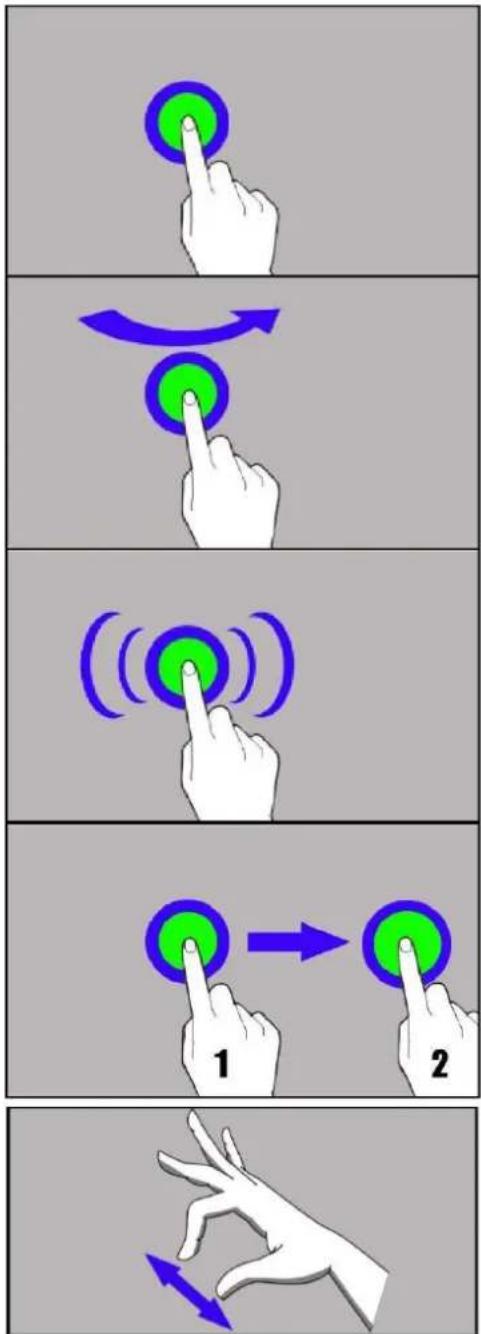
The device lets you easily select items or perform operations. The touchscreen can be controlled by the following actions:
Touch
Touch one to start options, app, and menu, etc.
Swipe
Quickly swipe up, down, to the left or to the right, to scroll the list or the screen.
Triple click
Quickly tap the screen three times to start zooming - if this option is enabled in your device settings.
Hold and swipe
Touch an element (an icon perhaps) and hold it for about 1 second. Then you can delete/uninstall that element.
Slide in and out
Touch the screen with two fingers anslide them together or apart to zoom in or out a photo or a map.
flowchart
graph TD
    A["Hand Click"] --> B["Green Circle with Arrow"]
    B --> C["Arrow to Green Circle"]
    C --> D["Hand Click"]
    D --> E["Green Circle with Arrow"]
    E --> F["Arrow to Green Circle"]
    F --> G["Hand Click"]
    G --> H["Green Circle with Arrow"]
    H --> I["Hand Click"]
    I --> J["Green Circle with Arrow"]

The touch screen will be turned off after some time of inactivity. To turn off the screen press the blockade button.

In most tablets, you can set how long your device waits before turning off the screen. Most often it suffices to select from the app list: [Settings] > [Display] > [Sleep].
ENGLISH
User guide
TAB1081
COMPUTER CONNECTION
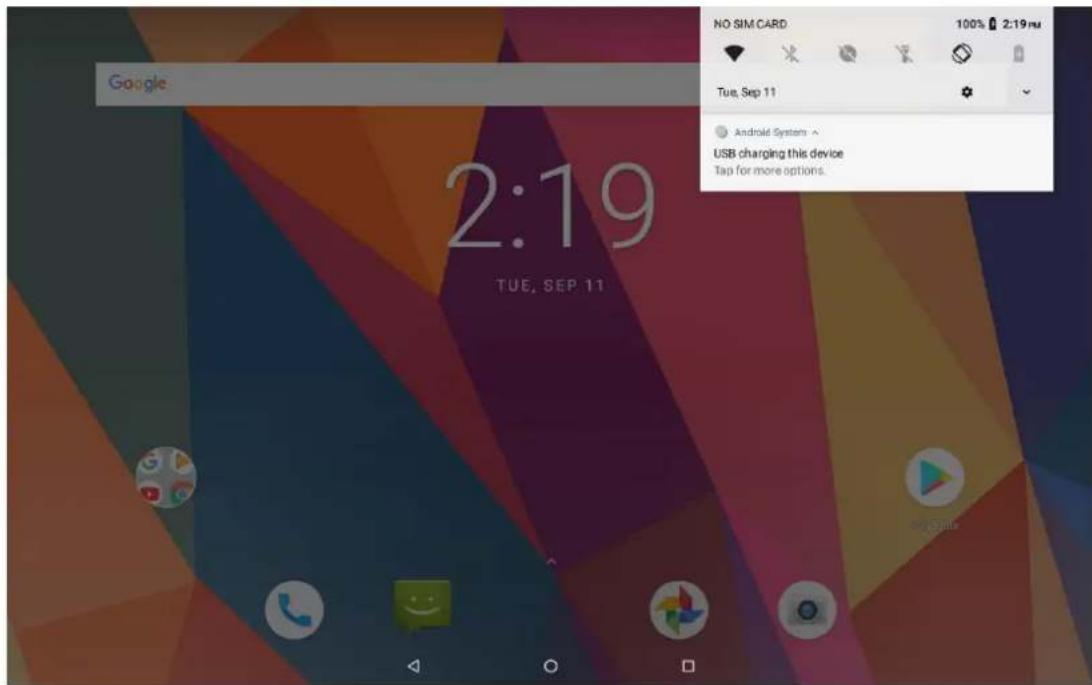
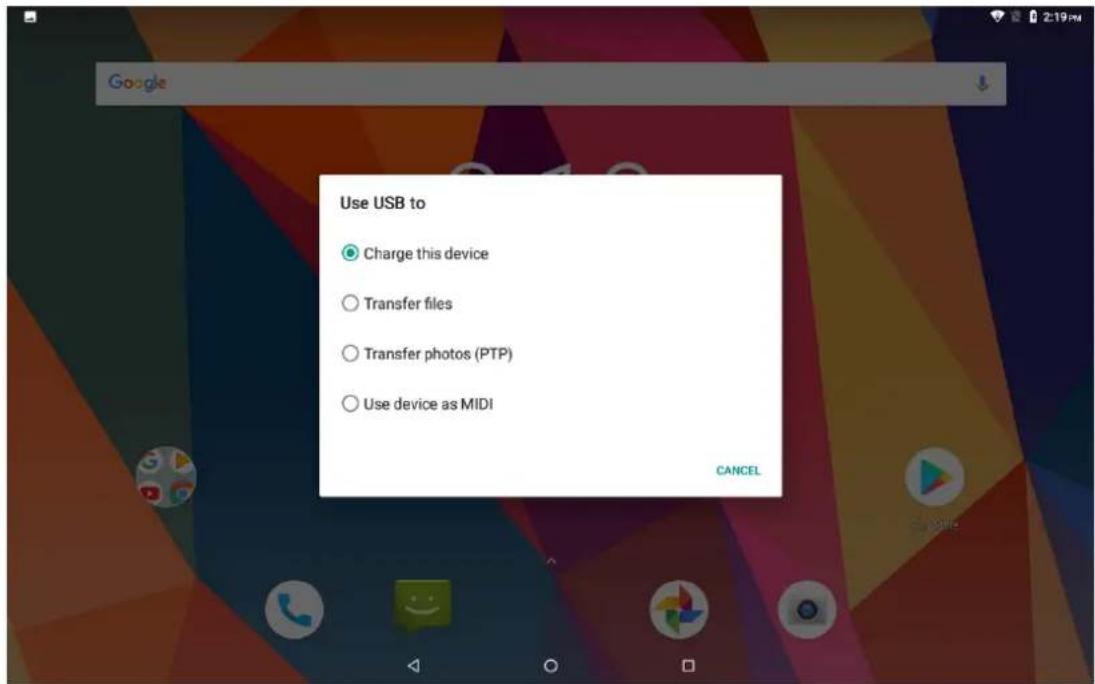
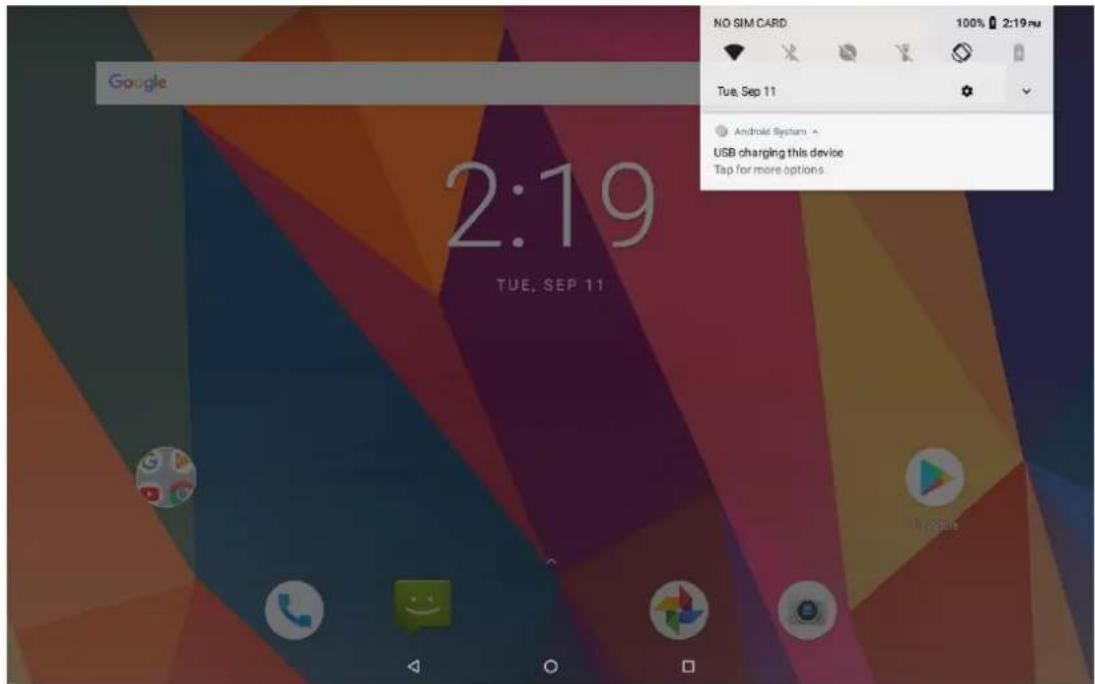
To connect to PC computer with Microsoft Windows XP/Vista/7/8/10 using USB you should plug the included USB cable to a multifunctional USB socket in the device. Plug the other end of the cable into the socket in your computer. When the device is plugged in, a screen will appear on your computer with the name of the device and operations possible to perform. If that does not happen swipe from the top edge of the bottom of the device and click "charging this device". Select "Transfer files" from the window displayed on your computer screen, then select "Open device to view files". Now you can exchange files between your device and the computer.

If the OS does not see device memory check if the installed the driver operating the device is correct. Search the driver list manually and choose "Transfer files"
ENGLISH
User guide
TAB1081
APPLICATIONS
When running applications, you can make the most of the device. On screen desktop tap the icon [Application menu] to gain access to installed applications. To add a shortcut to an application on the desktop screen, press the application icon in the application menu and hold it, then when you change the view to the desktop view, select the place where you wish to create a shortcut and "drop" it in there.

ENGLISH
User guide
TAB1081

ADDING CONTACTS
One way is entering [Phone] application and typing the number you wish to add. Then press "Create a new contact". A menu will appear containing, among others: Name and surname, Phone number, Second phone number, E-mail. Fill-in fields you wish and press SAVE to save changes.
COMMUNICATION
Making Calls
To make a call touch "Phone" icon placed on the main screen or in Android Applications menu and choose the keyboard icon. Insert the phone number you wish to call. Press "handset" placed at the bottom of the screen and chooses which SIM card you wish to use.
ENGLISH
User guide
TAB1081
Sms - Messages

application in the
You can manage messages using the [Messaging]

home screen or device menu. Run an application and touch icon , insert phone number and name. When you have chosen the contact a screen will appear where you type the message itself. Type the message body. To send a message press icon with the SIM card designation 1 (for SIM 1) or
2 (for SIM 2). Before you send a text message you can transform it into a
multimedia message by pressing symbol + situated in the left side of the screen and adding a file (picture, video, music etc.).
ENGLISH
User guide
TAB1081
SETTINGS

ENGLISH
User guide
TAB1081
ADD ANOTHER EMAIL ACCOUNT
You can add below email account for this device, as Google, Outlook, Hotmail, or Yahoo ect

NETWORK & INTERNET
You can set WIFI connection, Mobile network, Data usage, Hotspot & set Tethering, SIM cards, VPN and Airplane mode

ENGLISH
User guide
TAB1081
CONNECTED DEVICES
You can connect Bluetooth, Cast, Print service and connect the Tablet to Computer by USB cable.

APPS & NOTIFICATIONS
You can check All APP information and setting Notifications, also APP permissions and Advanced for Default and some special app access.

ENGLISH
User guide
TAB1081
BATTERY
You can check all battery information as Volume, Last full charge time, Power Management ects as below.

DISPLAY
You can Set Brightness level, Adaptive brightness, Wall paper, Sleep and font size ect. as in below picture

ENGLISH
User guide
TAB1081
SOUND
You can set Sound Volume, Not disturb preference, Default notification sound, Alarm and other Sounds and Vibrations.

STORAGE
You can check all storage details as below.

ENGLISH
User guide
TAB1081
SECURITY & LOCATION
You can set Security of Device and Privacy as below.

USERS & ACCOUNTS
You can add account as below.

ENGLISH
User guide
TAB1081
ACCESSIBILITY
You can set Below Options.


ENGLISH
User guide
TAB1081
You can set Android Auto app, Cast Media controls, Location Nearby, Restore contacts, Security, Set up nearby device, Set up work profile under this settings.

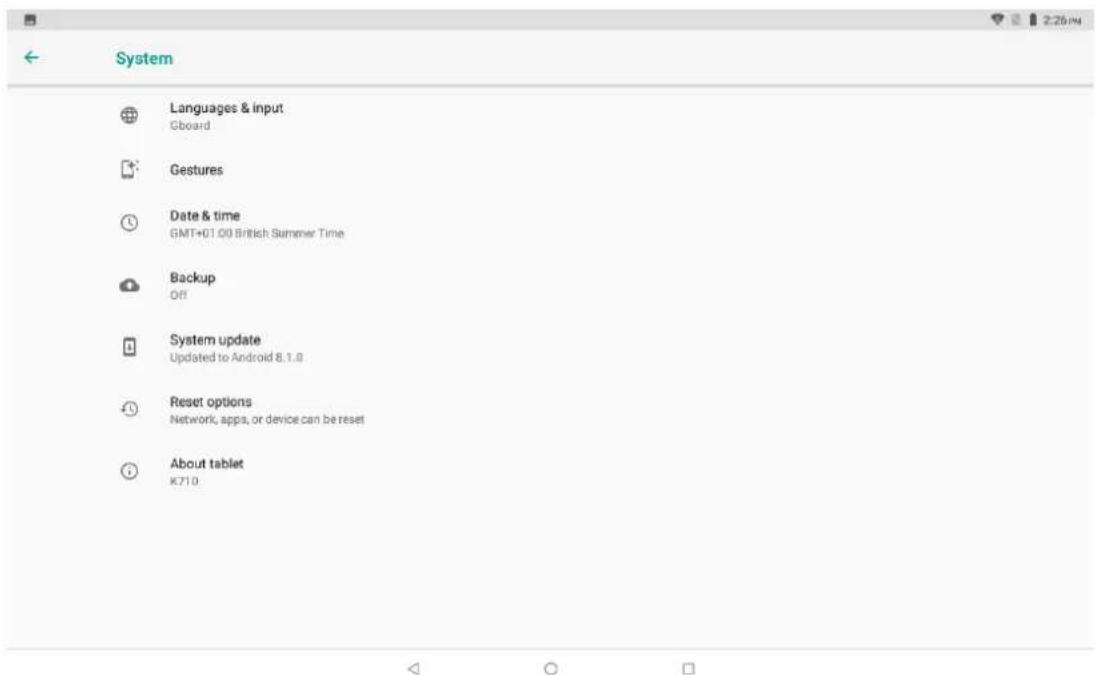
SYSTEM
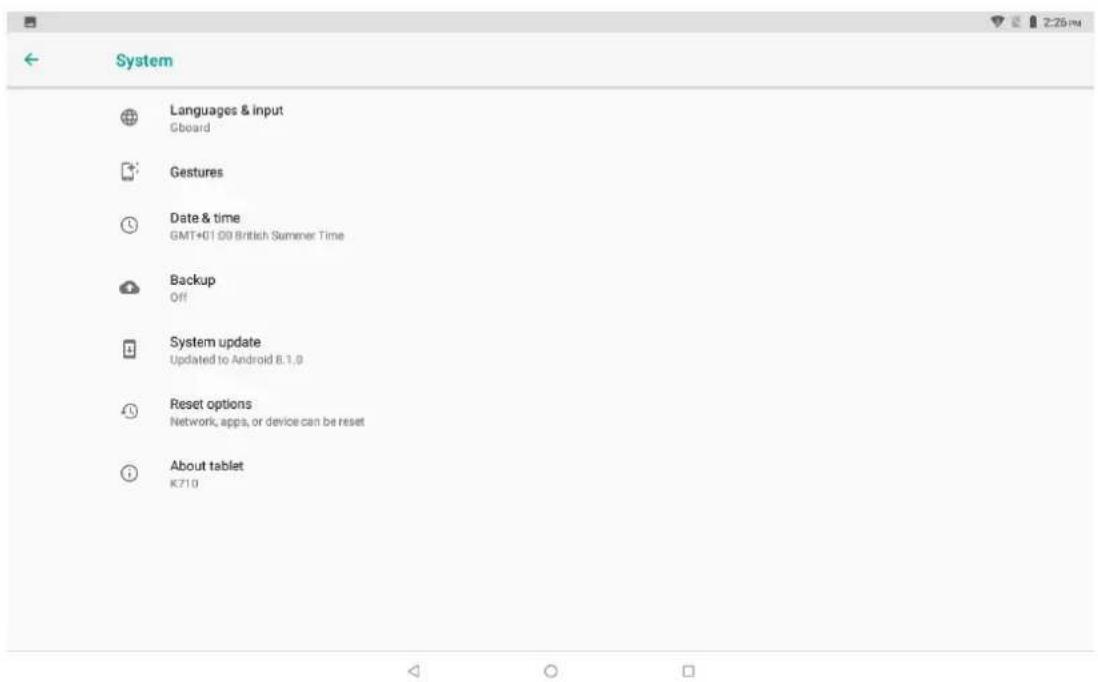
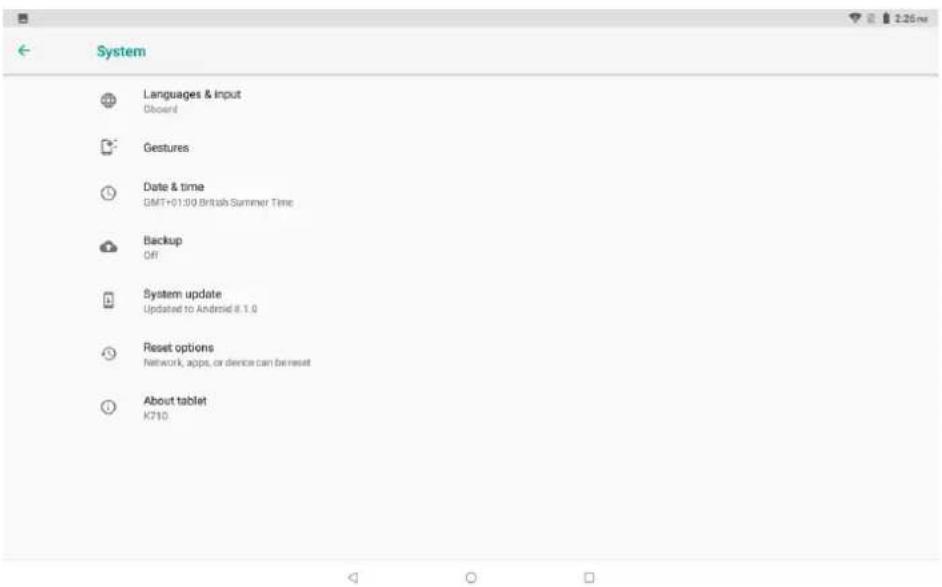
LANGUAGES & IMPUT
ENGLISH
User guide
TAB1081
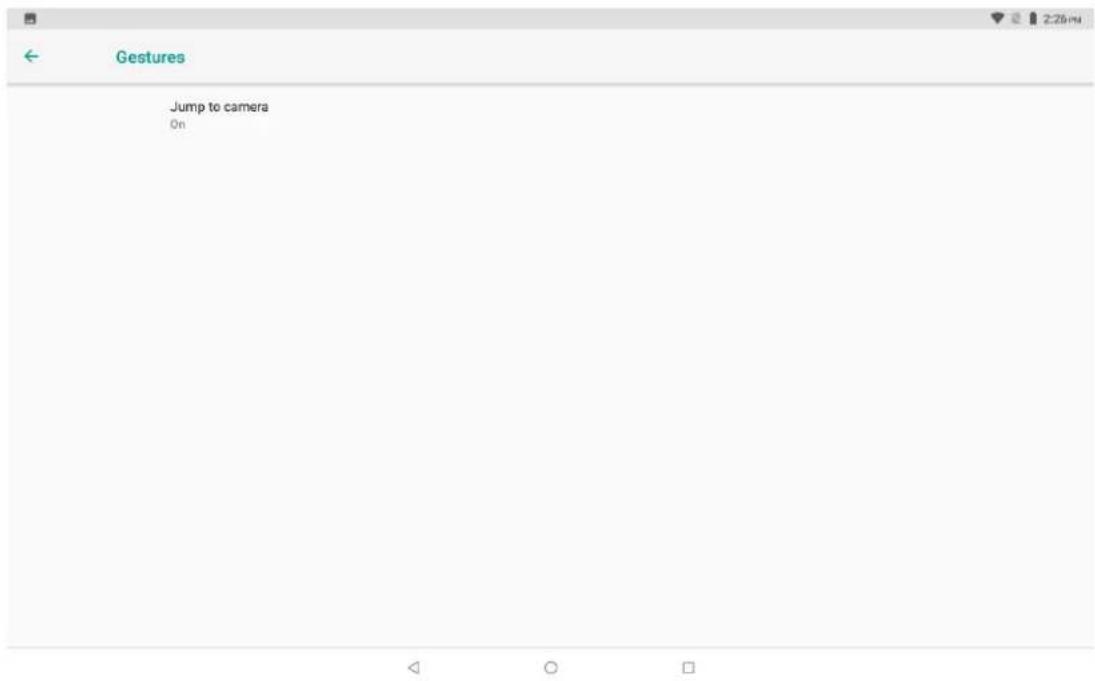
GESTURES
You can set Gestures to Jump to Camera
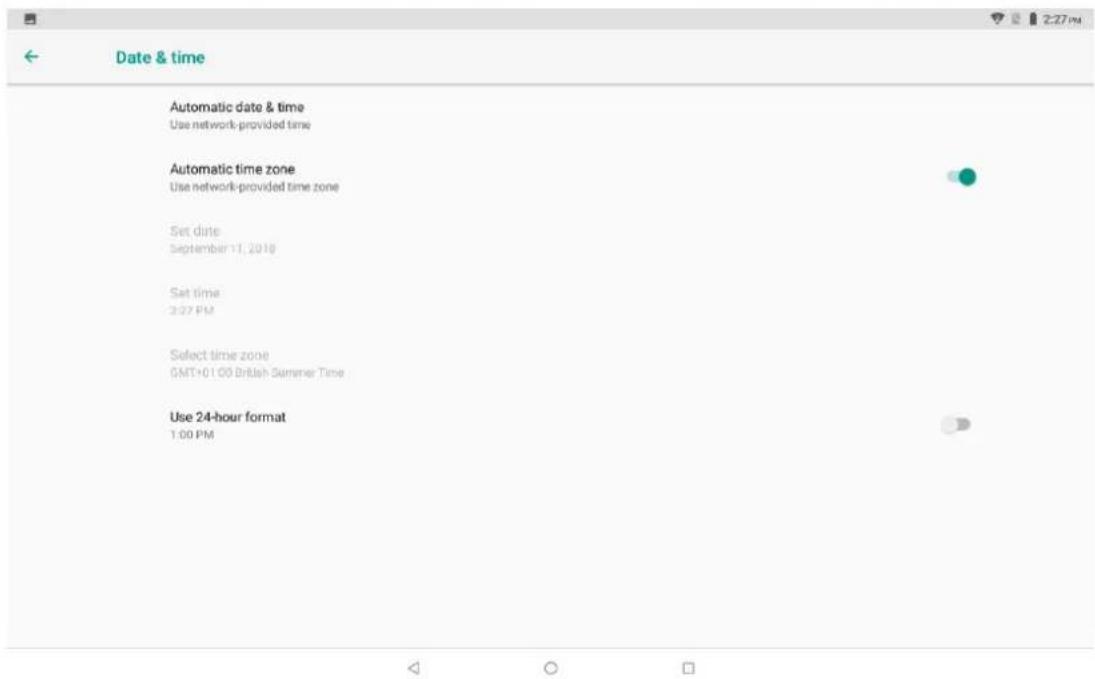
DATE & TIME
You can set Date and Time, Select time zone, and set hour format as below.
ENGLISH
User guide
TAB1081
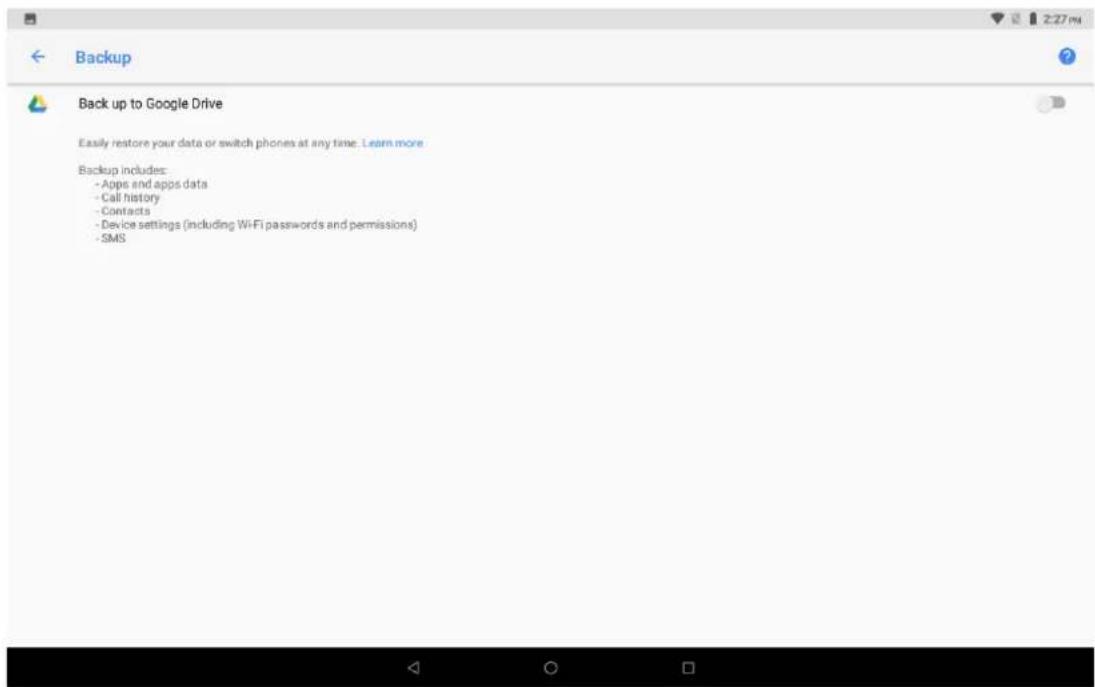
BACKUP

SYSTEM UPDATE
You can check the system version and date as below.

ENGLISH
User guide
TAB1081
RESET OPITIONS
You can set DRM reset, reset Wi-Fi mobile & Bluetooth, reset app references and Erase all data (factory reset) as below.

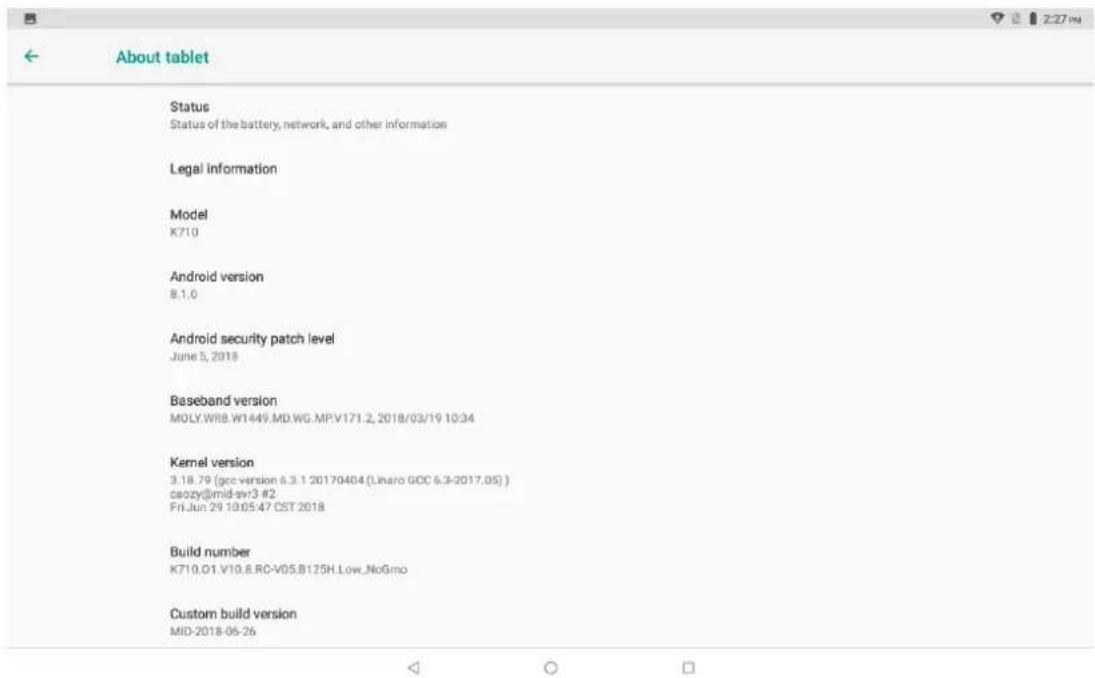
ABOUT TABELT
You can check Status and Legal Information, Android version ect informations as below.
ENGLISH
User guide
TAB1081
SAFE USE OF THE BATTERY
The battery may be charged with USB port in the computer or laptop. Nevertheless, it is not a recommended form of charging an operating device due to the low charging current offered by the USB - even though the device is connected to a power source battery can still get discharged. If you wish to charge your device this way turns off the device. If the battery level is low, recharge it to continue the use of the device. If you wish to prolong the battery life span, discharge the battery beneath 20% of the battery capacity and charge it back to 100%. If not used, unplug the charger from the device. Excessive charging might cause shortened battery life. The temperature of the battery has an impact on its charging cycle. Prior to the charging process, cool the battery or raise its temperature so that it is similar to the room temperature. If the battery temperature exceeds 40°C the battery must not be charged! Do not use a damaged battery! The battery life span can be shortened, if it has been exposed to very low or very high temperatures - this causes interference to the device, even when the battery has been properly charged.
MAINTENANCE OF THE DEVICE
To prolong the life span of the device act according to these instructions.
- Keep the device and its accessories out of reach of children.
- Avoid contact with liquids; it can cause damage to electronic components of the device.
- Avoid very high temperatures for it can shorten the life of device electronic components, melt the plastic parts and destroy the battery.
- Do not try to disassemble the device. Tampering with the device in an unprofessional manner may cause serious damage to the device or destroy it completely.
- For cleaning use only a dry cloth. Never use any agent with a high concentration of acids or alkalis.
- Use the original accessories only. Violation of this rule may result in an invalidation of the warranty.
ENGLISH
User guide
TAB1081
The packaging of the device can be recycled in accordance with local regulations.

Surroundings security
Turn off the device in areas where its use is forbidden or when it may cause interference or danger. The use of any devices that radio waves causes interference with medical devices (i.e. cardiac pacemaker), if they are not properly secured (if in doubt, consult your doctor or medical device manufacturer). If in doubt consult a doctor or a medical equipment manufacturer.
| Attention | Statement |
| The manufacturer is not responsible for any consequences caused by improper usage of the | The software version can be upgraded without earlier |
Use of the manual
Consents
Without prior written consent of the manufacturer, no part of this manual may be photocopied, reproduced, translated or transmitted in any form or by any means, electronic or mechanical, including photocopying, recording or storing in any systems of storing and sharing information.
Appearance
The device and screen shots contained in this manual may differ from the actual product. Accessories attached to the set may differ from the illustrations included in manual.
ENGLISH
User guide
TAB1081
Trademarks
- Google, Android, Google Play, Google Play logos and other brands are Google LLC trademarks.
- Oracle and Java are registered trademarks of Oracle and / or its affiliates.
- Wi-Fi® Wi-Fi logo are a registered trademarks Wi-Fi Alliance association.
• All other trademarks and copyrights belong to their respective owners.
The Android robot has been reconstructed or modified on the basis of a project created and made available by Google. Its use is subject to the terms and conditions described in the Creative Commons 3.0
Authorization
WARNINGS
 | Correct disposal of this Product(Waste Electrical & Electronic Equipment)(WEEE)Your product is designed and manufactured with high quality materials and components which can be recycled and reused.This symbol means that electrical and electronic equipment, at their end of-life should be disposed of separately from your household waste.Please dispose of this equipment at your local community waste collection/recycling centre.In the European Union there are separate collection systems for used electrical and electronic products. Please help us to conserve the environment we live in! |
 | DO NOT place objects on top of the device, as objects may scratch the device. |
 | DO NOT expose the device to dirty or dusty environments. |
ENGLISH
User guide
TAB1081
 | DO NOT place the device on an uneven or unstable surface. |
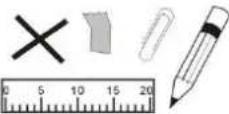 | DO NOT insert any foreign objects into the device. |
 | DO NOT expose the device to strong magnetic or electrical field. |
 | DO NOT expose the device to direct sunlight as it can damage the device. Keep it away from heat sources. |
 | DO NOT store your device in temperatures higher than 40°C(104°F). The internal operating temperature for this device is from 20°C(68°F) to 60°C(140°F). |
 | DO NOT use the device in the rain. |
 | Please check with your Local Authority or retailer for proper disposal of electronic products. |
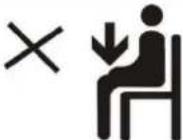 | The device and adaptor may product some heat during normal operation of charging. To prevent discomfort or injury from heat exposure, DO NOT leave the device on your lap. |
 | POWER INPUT RATING: Refer to the rating label on the device and be sure that the power adaptor complies with the rating. Only use accessories specified by the manufacturer. |
 | Clean the device with a soft cloth. If needed, dampen the cloth slightly before cleaning. Never use abrasives or cleaning solutions. |
 | Always power off the device to install or remove external devices that do not support hot-plug. |
ENGLISH
User guide
TAB1081
 | Disconnect the device from an electrical outlet and power off before cleaning the device. |
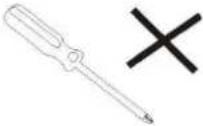 | DO NOT disassemble the device. Only a certified service technician should perform repair. |
 | The device has apertures to disperse heat. DO NOT block the device ventilation, the device may become hot and malfunction as a result. |
 | Risk of explosion if battery replaced by an incorrect type. Dispose of used batteries according to the instruction. |
 | PLUGGABLE EQUIPMENT: the socket-outlet shall be installed near the equipment and shall be easily accessible. |
 | European Union: Disposal Information.This symbol means that according to local laws and regulations your product and/or its battery shall be disposed of separately from household waste. When this product reaches its end of life, take it to a collection point designated by local authorities. The separate collection and recycling of your product and/or its battery at the time of disposal will help conserve natural resources and ensure that it is recycled in a manner that protects human health and the environment. |
| MADE IN CHINA | |

natural_image
Abstract illustration of a white sphere resting on a gray book with a white circle and a small sun in the background (no text or symbols)TAB1081
TABLETA
GUÍA DE USUARIO
Guía del usuario
TAB1081
CONTENIDO
SEGURIDAD....1
flowchart
graph TD
    A["Hand Click"] --> B["Green Circle with Arrow"]
    B --> C["Hand Click"]
    C --> D["Green Circle with Arrow"]
    D --> E["Hand Click"]
    E --> F["Green Circle with Arrow"]
    F --> G["Hand Click"]
    G --> H["Green Circle with Arrow"]
    H --> I["Hand Click"]
    I --> J["Green Circle with Arrow"]
ESPAÑOL
Guía del usuario
TAB1081

ESPAÑOL
Guía del usuario
TAB1081
APLICACIONES
ESPAÑOL
Guía del usuario
TAB1081
RED MÓVIL E INTERNET
ESPAÑOL
Guía del usuario
TAB1081
ESPAÑOL
Guía del usuario
TAB1081
BATERÍA
VISOR
ESPAÑOL
Guía del usuario
TAB1081
SONIDO
ALMACENAMIENTO
ESPAÑOL
Guía del usuario
TAB1081
ACCESIBILIDAD

SISTEMA
IDIOMA Y ENTRADA
ESPAÑOL
Guía del usuario
TAB1081
GESTOS
FECHA Y HORA
ESPAÑOL
Guía del usuario
TAB1081
COPIA DE SEGURIDAD

ESPAÑOL
Guía del usuario
TAB1081
SOBRE LA TABLETA
ESPAÑOL
Guía del usuario
TAB1081
USO SEGURO DE LA BATERÍA
natural_image
Abstract illustration of a stylized human figure reading a book with a large circle and a small sun, set against a dark background (no text or symbols)TAB1081
TABLETTE
GUIDE DE L'UTILISATEUR
CONTENU
SÉCURITÉ....1
FRANÇAIS
natural_image
Illustration of a hand gesture with two blue arrows indicating movement or direction (no text or symbols)

APPLICATIONS
FRANÇAIS
RÉSEAU ET INTERNET
FRANÇAIS
APPLICATIONS ET NOTIFICATIONS
BATTERIE
AFFICHAGE
AUDIO
FRANÇAIS
ci-dessous.
FRANÇAIS

ACCESSIBILITÉ

FRANÇAIS
FRANÇAIS
MOUVEMENTS
DATE ET HEURE
SAUVEGARDE
MISE À JOUR SYSTÈME
OPTIONS DE RÉINITIALISATION
UTILISATION SURE DE LA BATTERIE
natural_image
Abstract illustration of a white sphere resting on a gray book with a small circle and crescent moon, against a dark background (no text or symbols)TAB1081
TABLET
GUIA DO UTILIZADOR
PORTUGUÊS
Guia do utilizador
TAB1081
CONTEÚDO
SEGURANÇA....1
Manual do utilizador....3
APLICAÇÕES E NOTIFICAÇÕES......14
BATERIA....14
VISOR 15
SOM....15
SOM....15
ARMAZENAMENTO....16
SEGURANÇA E LOCALIZAÇÃO....16
UTILIZADORES E CONTAS....17
ACESSIBILIDADE....17
GOOGLE....18
SISTEMA....19
IDIOMAS E ENTRADA....19
GESTOS....19
DATA E HORA 20
CÓPIA DE SEGURANÇA....21
OPÇÕES DE RESTABELECER....22
SOBRE O TABLET 22
PORTUGUÊS
Guia do utilizador
TAB1081
USO SEGURO DA BATERIA....23
natural_image
Hand cursor clicking a green circular button with blue border, pointing at the button (no text or symbols)PORTUGUÊS
Guia do utilizador
TAB1081
natural_image
Illustration of a hand making an 'OK' gesture with a blue directional arrow (no text or symbols)
PORTUGUÊS
Guia do utilizador
TAB1081

APLICAÇÕES
PORTUGUÊS
Guia do utilizador
TAB1081
ADICIONAR OUTRA CONTA DE EMAIL
REDE & INTERNET
BATERIA
VISOR
ARMAZENAMENTO
ACESSIBILIDADE
PORTUGUÊS
Guia do utilizador
TAB1081

SISTEMA
IDIOMAS E ENTRADA
GESTOS
DATA E HORA
PORTUGUÊS
Guia do utilizador
TAB1081
CÓPIA DE SEGURANÇA

PORTUGUÊS
Guia do utilizador
TAB1081
PORTUGUÊS
Guia do utilizador
TAB1081
For you. For everyone.


- TAB1081
- TABLET
- USER GUIDE
- ENGLISH
- CONTENT
- SAFETY
- DO NOT RISK
- RESTRICTED AREAS
- PETROL STATIONS
- WI-FI (WLAN)
- ROAD SAFETY
- QUALIFIED SERVICE
- CHILDREN AND PHYSICALLY OR MENTALLY DISABLED PEOPLE
- WATER AND OTHER LIQUIDS
- BATTERY AND ACCESSORIES
- HEARING
- EYESIGHT
- User manual.
- Important information
- Notes:
- Android System
- Google Play
- MEMORY CARD INSTALLATION
- CHARGING THE BATTERY
- BUTTONS
- Menu
- Home
- Back
- Blockade on/off button
- Volume increase and decrease buttons
- Touch
- Swipe
- Triple click
- Hold and swipe
- Slide in and out
- COMPUTER CONNECTION
- APPLICATIONS
- ADDING CONTACTS
- COMMUNICATION
- Making Calls
- Sms - Messages
- ADD ANOTHER EMAIL ACCOUNT
- NETWORK & INTERNET
- CONNECTED DEVICES
- APPS & NOTIFICATIONS
- BATTERY
- DISPLAY
- SOUND
- STORAGE
- SECURITY & LOCATION
- USERS & ACCOUNTS
- ACCESSIBILITY
- SYSTEM
- LANGUAGES & IMPUT
- GESTURES
- DATE & TIME
- BACKUP
- SYSTEM UPDATE
- RESET OPITIONS
- ABOUT TABELT
- SAFE USE OF THE BATTERY
- MAINTENANCE OF THE DEVICE
- Surroundings security
- Use of the manual
- Consents
- Appearance
- Trademarks
- TABLETA
- Guía del usuario
- CONTENIDO
- ESPAÑOL
- APLICACIONES
- RED MÓVIL E INTERNET
- BATERÍA
- VISOR
- SONIDO
- ALMACENAMIENTO
- ACCESIBILIDAD
- SISTEMA
- IDIOMA Y ENTRADA
- GESTOS
- FECHA Y HORA
- SOBRE LA TABLETA
- USO SEGURO DE LA BATERÍA
- TABLETTE
- CONTENU
- FRANÇAIS
- RÉSEAU ET INTERNET
- APPLICATIONS ET NOTIFICATIONS
- BATTERIE
- AFFICHAGE
- AUDIO
- ACCESSIBILITÉ
- MOUVEMENTS
- DATE ET HEURE
- SAUVEGARDE
- MISE À JOUR SYSTÈME
- OPTIONS DE RÉINITIALISATION
- UTILISATION SURE DE LA BATTERIE
- PORTUGUÊS
- Guia do utilizador
- CONTEÚDO
- APLICAÇÕES
- ADICIONAR OUTRA CONTA DE EMAIL
- REDE & INTERNET
- BATERIA
- ARMAZENAMENTO
- IDIOMAS E ENTRADA
- DATA E HORA
- CÓPIA DE SEGURANÇA
Brand : Sunstech
Model : TAB1081
Category : Tablet